
JVC KD-DV7402: Disc operations
Disc operations: JVC KD-DV7402
Disc operations
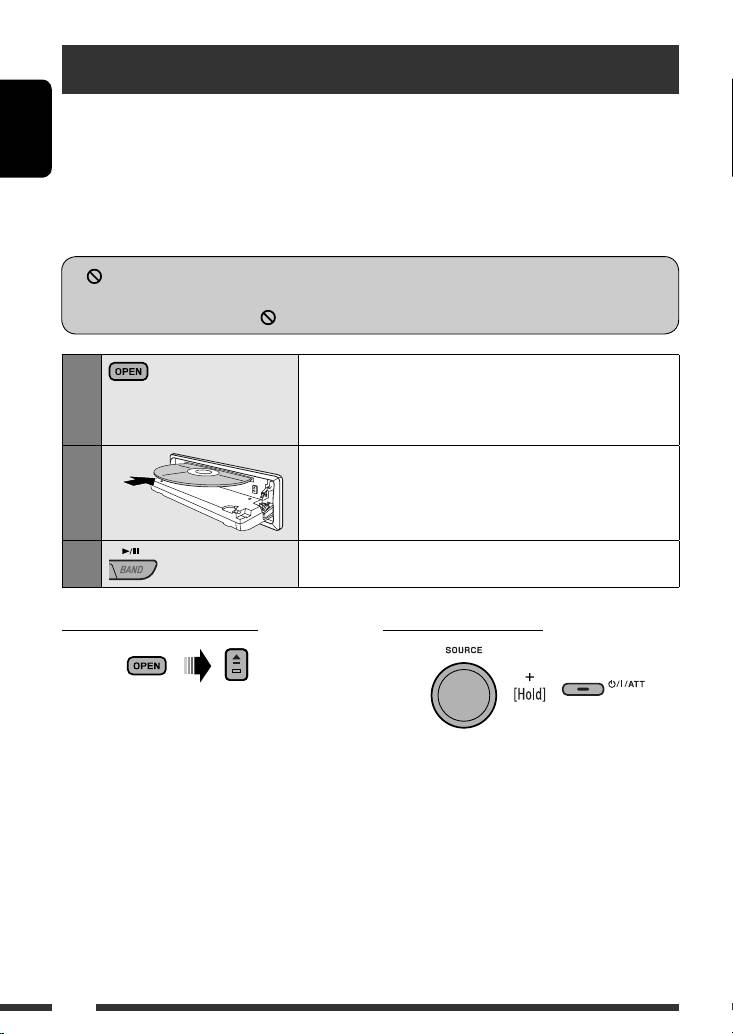
Before performing any operations...
Turn on the monitor to watch the playback picture. If you turn on the monitor, you can also control playback of other
discs by referring to the monitor screen. (See pages 22 – 25.)
ENGLISH
The disc type is automatically detected, and playback starts automatically (for DVD: automatic start depends on its
internal program).
If the current disc does not have any disc menu, all tracks will be played repeatedly until you change the source or
eject the disc.
If “
” appears on the monitor when pressing a button, the unit cannot accept the operation you have tried to
do.
• In some cases, without showing “ ,” operations will not be accepted.
Open the control panel.
1
Make sure to detach the USB device before opening the control
panel, as it might block the opening mechanism.
• To detach the USB device, see page 26.
Insert the disc.
2
Playback starts automatically.
Start playback if necessary.
3
To stop play and eject the disc
Prohibiting disc ejection
• Press SOURCE to listen to another playback source.
To cancel the prohibition, repeat the same
procedure.
16
EN10-19_KD-DV7402_003A_5.indd 16EN10-19_KD-DV7402_003A_5.indd 16 1/22/08 11:13:21 AM1/22/08 11:13:21 AM
Operations using the control panel
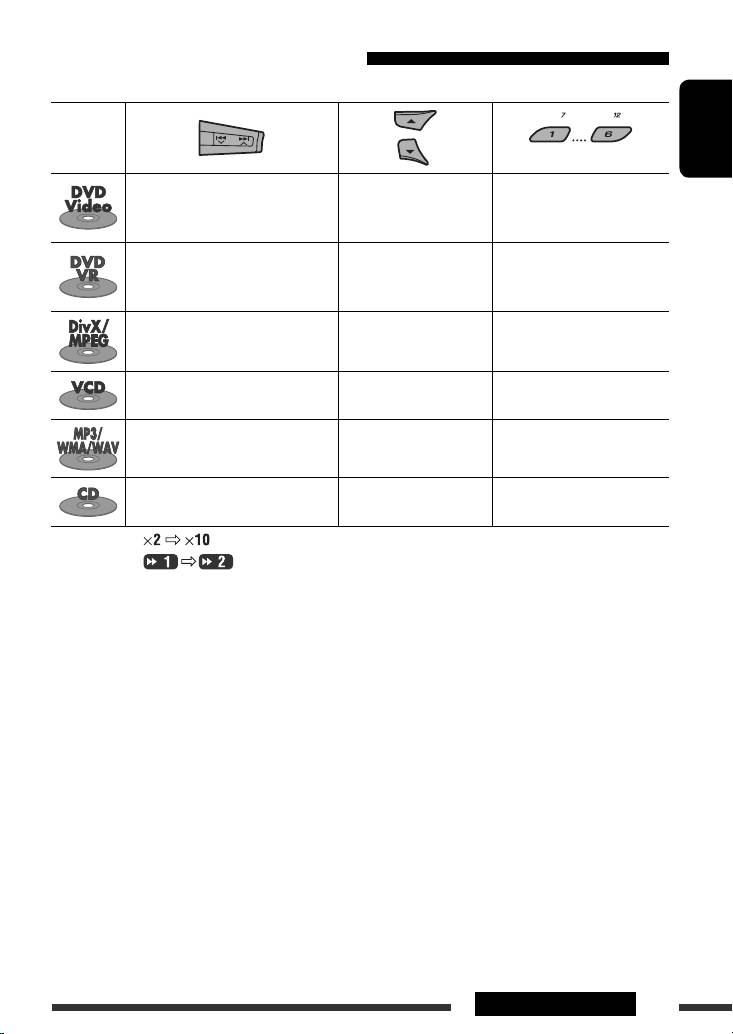
Pressing (or holding) the following buttons allows you to...
Disc type
3
(Number buttons) *
ENGLISH
[Press] Select chapter
Select title During stop: Locate title
[Hold] Reverse/fast-forward
During play/pause: Locate
1
chapter *
chapter
[Press] Select chapter
Select program number/
During stop: Locate program
[Hold] Reverse/fast-forward
playlist number
During play/pause: Locate
1
chapter *
chapter
[Press] Select track
Select folder Locate particular folder directly
2
[Hold] Reverse/fast-forward track *
[Press] Select track
Locate particular track directly
—
1
[Hold] Reverse/fast-forward track *
(PBC not in use)
[Press] Select track
Select folder Locate particular folder directly
1
[Hold] Reverse/fast-forward track *
[Press] Select track
Locate particular track directly
—
1
[Hold] Reverse/fast-forward track *
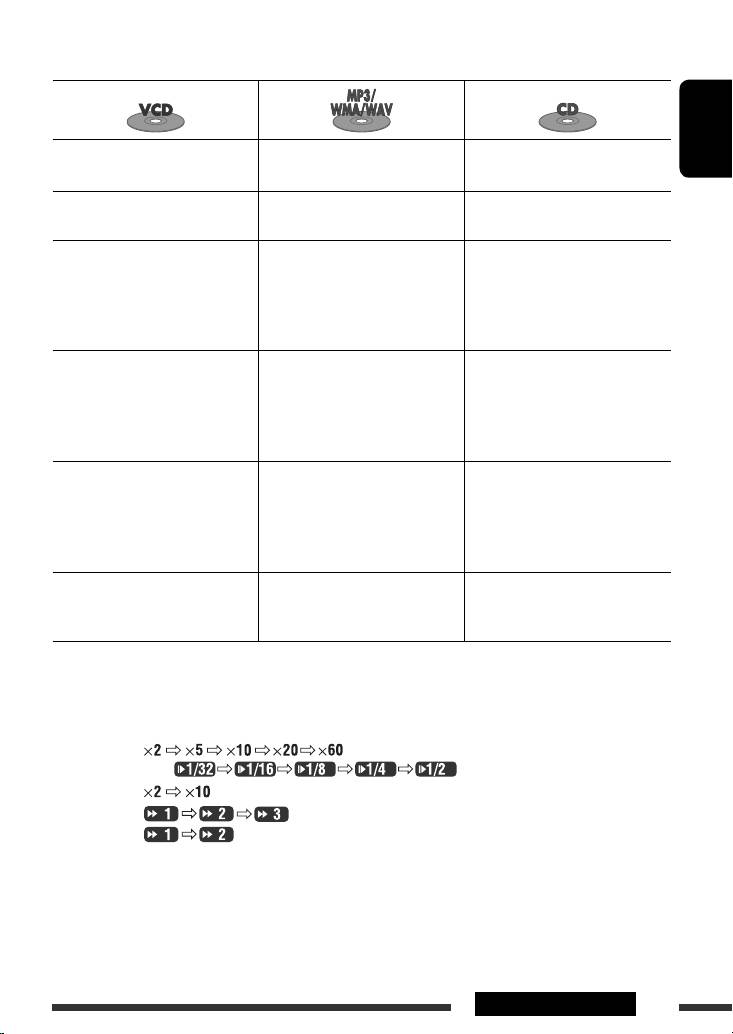
1
*
Search speed:
2
*
Search speed:
3
*
Press to select number 1 to 6; hold to select number 7 to 12.
Continued on the next page
17OPERATIONS
EN10-19_KD-DV7402_003A_5.indd 17EN10-19_KD-DV7402_003A_5.indd 17 1/22/08 11:13:22 AM1/22/08 11:13:22 AM
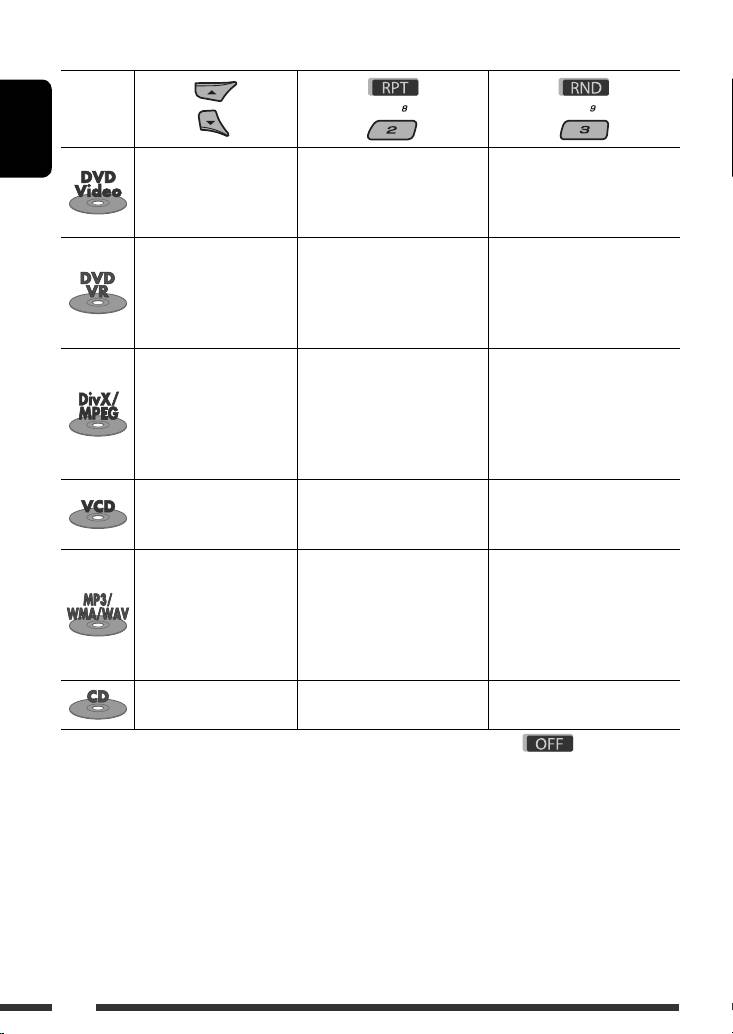
After pressing M MODE, press the following buttons to...
Disc type
ENGLISH
Skip 10 chapters (during
Repeat Chapter:
play or pause)
Repeat current chapter
—
Repeat Title:
Repeat current title
Skip 10 chapters (during
Repeat Chapter:
play or pause)
Repeat current chapter
Repeat Program:
—
Repeat current program (not
available for Playlist Playback)
Skip 10 tracks (within the
Repeat Track:
Random Folder:
same folder)
Repeat current track
Randomly play all tracks of
Repeat Folder:
current folder, then tracks of
Repeat current folder
next folders
Random All:
Randomly play all tracks
Skip 10 tracks (PBC not in
Repeat Track:
Random All:
use)
Repeat current track (PBC not in
Randomly play all tracks (PBC
use)
not in use)
Skip 10 tracks (within the
Repeat Track:
Random Folder:
same folder)
Repeat current track
Randomly play all tracks of
Repeat Folder:
current folder, then tracks of
Repeat current folder
next folders
Random All:
Randomly play all tracks
Skip 10 tracks Repeat Track:
Random All:
Repeat current track
Randomly play all tracks
• You can also cancel the playback mode by selecting “Off” or press number button 4 (
).
18
EN10-19_KD-DV7402_003A_5.indd 18EN10-19_KD-DV7402_003A_5.indd 18 1/22/08 11:13:23 AM1/22/08 11:13:23 AM

Selecting a folder/track on the list
5 Change to the selected item.
A If File List is selected
(only for MP3/WMA/WAV file)
The list disappears and playback
• When is shown on the display, you can
starts.
move back to the previous screen by pressing number
button 3.
ENGLISH
1
B If Folder List is selected
2
Select “LIST.”
• If the current folder is selected, File List
appears, then repeat steps 4 and 5 A to
start playback.
3 Select the list type.
• If another folder is selected, playback starts
from the 1st file of the selected folder.
4 Select an item.
Ex.: When “File” is selected in step 3
• You can move to the other lists by pressing
number button 5 ( ) or 6 ( )
repeatedly.
19OPERATIONS
EN10-19_KD-DV7402_003A_5.indd 19EN10-19_KD-DV7402_003A_5.indd 19 1/22/08 11:13:24 AM1/22/08 11:13:24 AM
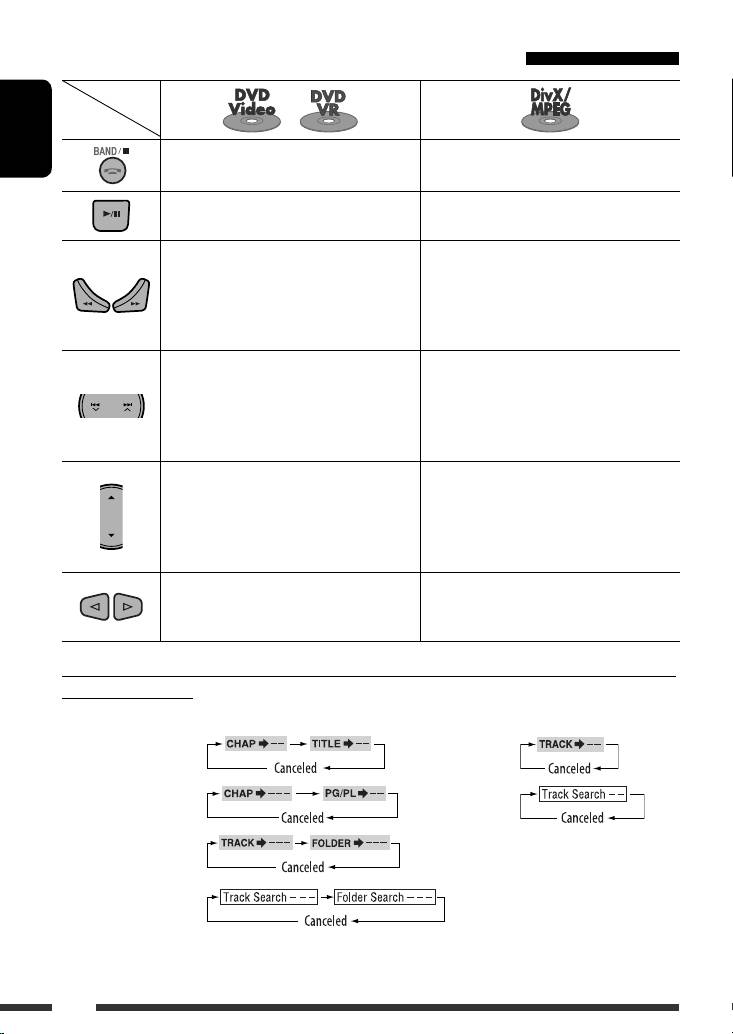
Operations using the remote controller (RM-RK252)
Disc
/
Button
Stop play Stop play
ENGLISH
Start play/Pause (if pressed during play) Start play/Pause (if pressed during play)
1
4
• Reverse/forward chapter search *
(No
Reverse/forward track search *
(No sound can
sound can be heard.)
be heard.)
2
• Slow motion *
during pause (No sound can
be heard.)
* DVD-VR: Reverse slow motion does not work.
[Press] Select chapter (during play or pause)
[Press] Select track (during play or pause)
3
5
[Hold] Reverse/fast-forward chapter search *
[Hold] Reverse/fast-forward track search *
(No sound can be heard.)
• DVD-Video: Select title (during play or
Select folder
pause)
• DVD-VR: Select playlist/program (during
play or pause)
• Skip back or forward the scenes by about
—
five minutes
• Select chapter
To search for chapter/title/program/playlist/folder/track directly (DVD/DivX/MPEG Video/VCD/
MP3/WMA/WAV/CD)
1 While holding SHIFT, press DIRECT repeatedly to select the desired search mode.
DVD-Video :
VCD :
DVD-VR : CD :
DivX/MPEG Video :
MP3/WMA/WAV :
2 While holding SHIFT, press the number buttons (0 – 9) to enter the desired number.
3 Press ENT (enter) to confirm.
20
EN20-27_KD-DV7402_003A_5.indd 20EN20-27_KD-DV7402_003A_5.indd 20 1/22/08 11:15:15 AM1/22/08 11:15:15 AM
Stop play Stop play Stop play
ENGLISH
Start play/Pause (if pressed during
Start play/Pause (if pressed during
Start play/Pause (if pressed during
play)
play)
play)
1
1
1
Reverse/forward track search *
Reverse/forward track search *
Reverse/forward track search *
2
• Forward slow motion *
during
pause. (No sound can be heard.)
* Reverse slow motion does not work.
[Press] Select track (during play or
[Press] Select track (during play or
[Press] Select track (during play or
pause)
pause)
pause)
[Hold] Reverse/fast-forward track
[Hold] Reverse/fast-forward track
[Hold] Reverse/fast-forward track
3
3
3
search *
(No sound can be
search *
search *
heard.)
Select folder
—
—
———
• For DivX/MPEG Video/MP3/WMA/WAV, track is searched within the same folder.
• To erase a misentry, press CLR (clear) while holding SHIFT.
• To return to the previous screen, press RETURN.
1
*
Search speed:
2
*
Slow motion speed:
3
*
Search speed:
4
*
Search speed:
5
*
Search speed:
Continued on the next page
21OPERATIONS
EN20-27_KD-DV7402_003A_5.indd 21EN20-27_KD-DV7402_003A_5.indd 21 1/22/08 11:15:20 AM1/22/08 11:15:20 AM

Using menu driven features... (DVD-Video/
Operations using the
DVD-VR)
on-screen bar
1 Press TOP M/MENU to enter the menu screen.
(DVD/DVD-VR/DivX/MPEG Video/VCD)
2 Press % / fi / @ * / # * to select an item you want
These operations are possible on the monitor using the
to start play.
remote controller.
ENGLISH
3 Press ENT (enter) to confirm.
* Not applicable for DVD-VR.
1 Show the on-screen bar (see page 23).
(twice)
Canceling the PBC playback... (VCD)
1 During stop, press DIRECT while holding SHIFT.
2 Select an item.
2 Hold SHIFT, then press the number buttons (0 – 9)
to enter the desired number.
3 Press ENT (enter) to confirm.
3 Make a selection.
• To resume PBC, press TOP M/MENU.
If pop-up menu appears...
• To cancel pop-up menu, press RETURN.
• For entering time/numbers, see the following.
Entering time/numbers
Press % / fi to change the number, then press @ / # to
move to the next entry.
• Each time you press % / fi, the number increases/
decreases by one value.
• After entering the numbers, press ENT (enter).
• It is not required to enter the zero and tailing zeros
(the last two digits in the example below).
Ex.: Time search
DVD: _:_ _:_ _ (Ex.: 1:02:00)
Press % once, then # twice to go to the third entry, %
twice, then press ENT (enter).
To remove the on-screen bar
22
EN20-27_KD-DV7402_003A_5.indd 22EN20-27_KD-DV7402_003A_5.indd 22 1/22/08 11:15:21 AM1/22/08 11:15:21 AM

On-screen bar
Ex.: DVD-Video
Information
ENGLISH
Operation
1 Disc type
6 Playback status
2 • DVD-Video/DTS-CD: Audio signal format type
Play
and channel
Forward/reverse search
• VCD: PBC
Forward/reverse slow-motion
1
3 Playback mode *
Pause
DVD-Video: T. RPT: Title repeat
Stop
C. RPT: Chapter repeat
7 Operation icons
DVD-VR: C. RPT: Chapter repeat
Change time indication (see 5)
PG. RPT: Program repeat
Time Search (Enter the elapsed playing
DivX/MPEG Video: T. RPT: Track repeat
time of the current title/program/
F. RPT: Folder repeat
playlist or of the disc.)
F. RND: Folder random
Title Search (by its number)
A. RND: All random
Chapter Search (by its number)
2
VCD *
: T. RPT: Track repeat
Track Search (by its number)
A. RND: All random
Change the audio language or audio
4 Playback information
channel
Current title/chapter
Change or turn off the subtitle
Current program/chapter
language
Change the view angle
Current playlist/chapter
1
Repeat play *
1
Current track
Random play *
Current folder/track
1
5 Time indication
*
For repeat play/random play, see also page 18.
2
Elapsed playing time of the disc
*
While PBC is not in use.
3
(For DVD-Video, elapsed playing
*
Not applicable for DVD-VR.
time of the current title/program/
playlist.)
DVD-Video/DVD-VR: Remaining
title/program/playlist time
VCD: Remaining disc time
Elapsed playing time of the current
3
chapter/track *
Remaining time of the current
3
chapter/track *
23OPERATIONS
EN20-27_KD-DV7402_003A_5.indd 23EN20-27_KD-DV7402_003A_5.indd 23 1/22/08 11:15:22 AM1/22/08 11:15:22 AM

7 Track information
Operations using the control
8 Track list with the current track selected
screen
(DivX/MPEG Video/MP3/WMA/WAV/CD)
To select a playback mode
These operations are possible on the monitor using the
1 While control screen is displayed...
remote controller.
ENGLISH
1 Show the control screen.
DivX/MPEG Video: Press
7 during play.
MP3/WMA/WAV/CD: Automatically appear during
Playback mode selection screen appears on the
play.
folder list section of the control screen.
2 Select a playback mode.
2 Select “Folder” column or “Track” column
(except for CD).
3 Select an item.
REPEAT:
3 Select a folder or track.
RANDOM:
4 Start playback.
Mode Playback functions
DivX/MPEG Video: Press ENT (enter) or 3/8.
F. RPT
Repeat current folder
MP3/WMA/WAV/CD: Playback starts automatically.
(folder repeat):
Control screen
T. RPT
Repeat current track
(track repeat):
A. RND
Randomly play all tracks
(all random):
F. RND
Randomly play all tracks of
(folder random):
current folder, then tracks of
next folders
4 Confirm the selection.
Ex.: MP3/WMA/WAV disc
* Not selectable for CD.
1 Current folder number/total folder number
2 Folder list with the current folder selected
3 Selected playback mode
4 Elapsed playing time of the current track
5 Operation mode icon ( 3, 7, 8, ¡, 1 )
6 Current track number/total number of tracks in the
current folder (total number of tracks on the disc)
24
EN20-27_KD-DV7402_003A_5.indd 24EN20-27_KD-DV7402_003A_5.indd 24 1/22/08 11:15:24 AM1/22/08 11:15:24 AM

3 Current page/total number of the pages included
Operations using the list
in the list
screen
4 Current folder/track (highlighted bar)
(DVD-VR/DivX/MPEG Video/MP3/WMA/WAV)
These operations are possible on the monitor using the
List screen (DVD-VR)
remote controller.
You can use ORIGINAL PROGRAM or PLAY LIST screen
ENGLISH
anytime while playing DVD-VR with its data recorded.
List screen (DivX/MPEG Video/MP3/WMA/
1 Select a list screen.
WAV)
Before playing, you can display the folder list/track list
to confirm the contents and start playing a track.
1 Display the folder list while stop.
2 Select an item from the folder list.
• Track list of the selected folder appears.
• To go back to the folder list, press RETURN.
3 Select a track to start playing.
or
1 Program/playlist number
2 Recording date
• MP3/WMA/WAV: Control screen appears (see
3 Recording source (TV station, the input
page 24).
terminal of the recording equipment, etc.)
4 Start time of recording
5 Title of the program/playlist *
6 Current selection (highlighted bar)
7 Creating date of playlist
8 Number of chapters
9 Playback time
* The title of the original program or playlist may
not be displayed depending on the recording
equipment.
Ex.: Folder list
2 Select an item from the list.
1 Current folder number/total folder number
2 Current track number/total number of tracks in the
current folder
25OPERATIONS
EN20-27_KD-DV7402_003A_5.indd 25EN20-27_KD-DV7402_003A_5.indd 25 1/22/08 11:53:02 AM1/22/08 11:53:02 AM
Оглавление
- Playable disc type
- Preparation
- Basic operations
- Listening to the radio
- Disc operations
- Listening to the USB device
- Dual Zone operations
- Listening to the Bluetooth ® devices
- Listening to the CD changer
- Listening to the DAB tuner
- Listening to the iPod
- Listening to the other external components
- Selecting a preset sound mode
- General settings — PSM
- Disc setup menu
- Bluetooth settings
- Maintenance
- More about this unit
- Troubleshooting
- Specifications
- Type de disque compatible
- Préparation
- Opérations de base
- Écoute de la radio
- Opérations des disques
- Écoute du périphérique USB
- Fonctionnement sur Deux Zones
- Écoute d’un périphérique Bluetooth ®
- Écoute du changeur de CD
- Écoute du tuner DAB
- Écoute de iPod
- Écoute d’un autre appareil extérieur
- Sélection d’un mode sonore préréglé
- Réglages généraux—PSM
- Menu de réglage du disque
- Réglages Bluetooth
- Entretien
- Pour en savoir plus à propos de cet autoradio
- Guide de dépannage
- Spécifications
- Тип воспроизводимых дисков
- Подготовка
- Основные операции
- Прослушивание радио
- Операции с дисками
- Прослушивание устройства USB
- Операции в режиме “Dual Zone”
- Прослушивание устройств Bluetooth®
- Прослушивание с устройства автоматической смены компакт-дисков
- Прослушивание тюнера DAB
- Прослушивание проигрывателя iPod
- Прослушивание с других внешних устройств
- Выбор запрограммированного режима звучания
- Общие настройки—PSM
- Меню настройки диска
- Настройки Bluetooth
- Обслуживание
- Дополнительная информация о приемнике
- Устранение проблем
- Технические характеристики
