
Pioneer DDJ-ERGO-V: Launching VIRTUAL DJ LE Launching VIRTUAL DJ LE (Windows) Launching VIRTUAL DJ LE (Mac OS X)
Launching VIRTUAL DJ LE Launching VIRTUAL DJ LE (Windows) Launching VIRTUAL DJ LE (Mac OS X): Pioneer DDJ-ERGO-V
Table of contents
- Before start About trademarks and registered Installing the VIRTUAL DJ LE software trademarks About the installation procedure (Windows) What’s in the box Installing the software About the VIRTUAL DJ LE software
- About the installation procedure (Mac OS X) Checking the latest information on the VIRTUAL DJ LE software
- About the driver software (Windows) Connections Installing the driver software Starting the system Starting this unit
- Launching VIRTUAL DJ LE Launching VIRTUAL DJ LE (Windows) Launching VIRTUAL DJ LE (Mac OS X)
- Operation Loading tracks and playing them Outputting sound Quitting the system
- Additional information Specifications
a different USB port on the computer. Wait a while until the message
English
[Your devices are ready for use] appears.
4 Turn on the connected microphone and external
equipment.
Launching VIRTUAL DJ LE
When this unit has just started, wait for the illumination to stop before
launching VIRTUAL DJ LE.
Launching VIRTUAL DJ LE (Windows)
1 From the Windows [Start] menu, click the [All
Programs] > [VIRTUAL DJ LE] > [VirtualDJ LE (DDJ-ERGO)]
icon.
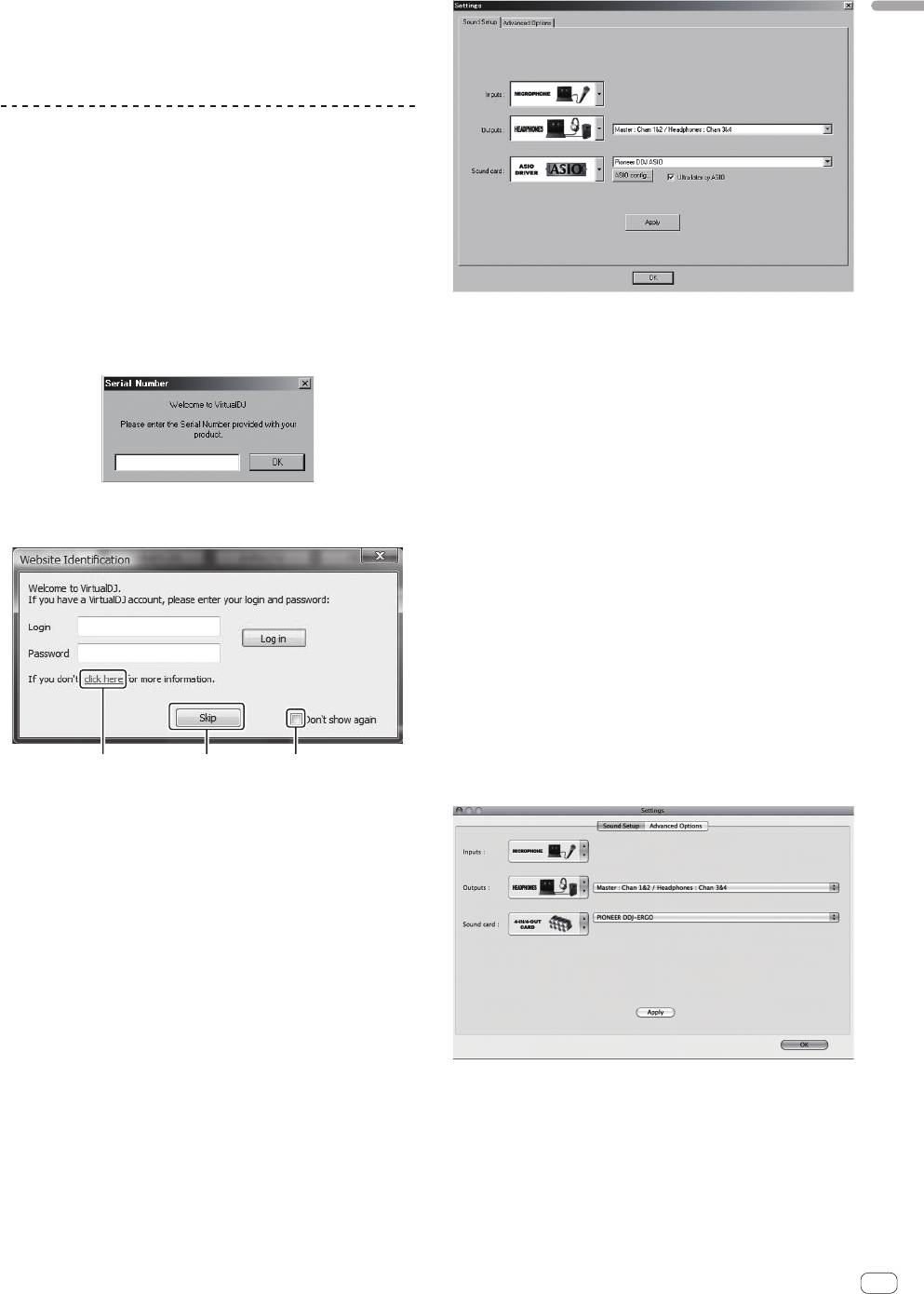
When VIRTUAL DJ LE is launched the first time, a screen for inputting
the serial number appears.
4 Click [Apply], then click [OK].
Input the serial number attached to the VIRTUAL DJ LE software
CD-ROM’s package, then click [OK].
Launching VIRTUAL DJ LE (Mac OS X)
1 In Finder, open the [Application] folder, then double-
click the [VIRTUAL DJ LE] icon.
When VIRTUAL DJ LE is launched the first time, a screen for inputting
the serial number appears.
Input the serial number attached to the VIRTUAL DJ LE software
CD-ROM’s package, then click [OK].
2 If the [Website Identification] screen appears, select
2 If the [Website Identification] screen appears, select
an icon and click.
an icon and click.
! For [VirtualDJ account], click [click here] to see the details.
! To skip the [Website Identification] screen, click [Skip].
! If you do not want the [Website Identification] screen to appear
when VirtualDJ is launched, check [Don’t show again].
VIRTUAL DJ LE is launched.
3 Click [CONFIG] in the top left of the computer’s
screen.
The [Settings] screen appears.
Set the various items on the [Sound Setup] tab in the following order:
1 [Inputs]: Select [MICROPHONE].
2 [Sound card]: Select [4-IN/4-OUT CARD] and
1 23
[PIONEER DDJ-ERGO].
3 [Outputs]: Select
1 For [VirtualDJ account], click [click here] to see the details.
[Master : Chan 1&2/Headphones: Chan 3&4].
2 To skip the [Website Identification] screen, click [Skip].
3 If you do not want the [Website Identification] screen to appear
when VirtualDJ is launched, check [Don’t show again].
VIRTUAL DJ LE is launched.
3 Click [CONFIG] in the top right of the computer’s
screen.
The [Settings] screen appears.
Set the various items on the [Sound Setup] tab in the following order:
1 [Inputs]: Select [MICROPHONE].
2 [Sound card]: Select [Pioneer DDJ ASIO].
3 [Outputs]: Select
[Master : Chan 1&2/Headphones: Chan 3&4].
4 Click [Apply], then click [OK].
En
5


