
Pioneer DDJ-ERGO-V: About the driver software (Windows) Connections Installing the driver software Starting the system Starting this unit
About the driver software (Windows) Connections Installing the driver software Starting the system Starting this unit: Pioneer DDJ-ERGO-V
Table of contents
- Before start About trademarks and registered Installing the VIRTUAL DJ LE software trademarks About the installation procedure (Windows) What’s in the box Installing the software About the VIRTUAL DJ LE software
- About the installation procedure (Mac OS X) Checking the latest information on the VIRTUAL DJ LE software
- About the driver software (Windows) Connections Installing the driver software Starting the system Starting this unit
- Launching VIRTUAL DJ LE Launching VIRTUAL DJ LE (Windows) Launching VIRTUAL DJ LE (Mac OS X)
- Operation Loading tracks and playing them Outputting sound Quitting the system
- Additional information Specifications
About the driver software (Windows)
Connections
This driver software is an exclusive ASIO driver for outputting audio
signals from the computer.
Installing the driver software
! There is no need to install the driver software when using Mac OS X.
To audio input
terminals
Operating environment
Supported operating systems
®
Windows
7 Home Premium/Professional/
32-bit version
1
To audio output
Ultimate
1
64-bit version
1
terminals
L
R
L
R
®
Windows Vista
Home Basic/
32-bit version
1
Home Premium/Business/Ultimate
1
FX1
BROWSE VIEW
PUSH
FX2
64-bit version
1
F1
CONTROL1
23
TREE FLD OPEN
CA
DECK
LOAD
LOAD
BD
DECK
CONTROL1
23
MASTER VOL
FILTER FILTER
®
F2 F3
GAIN
GAIN
Windows
XP Home Edition/Professional
ON
123
ON
123
AUX / MIC VOL
FUNCTION
32-bit version
1
SAMPLER
FX
1
2
HI
REC
HI
FX
SAMPLER
(SP2 or later)
12
AUTO LOOP
HOT CUE /
DELETE
SAMPLE VOL
MIX
AUTO LOOP
HOT CUE /
DELETE
SAMPLE VOL
1234
MID
MID
1234
MOVE GRID
CUEMASTER
MOVE GRID
1 When using a 64-bit version of Windows, the driver software can only be used for
IN OUT
VOL
S
E
VINYLKEYLOCK
IN
OUT
VINYL KEYLOCK
A
R
C
S
H
LOW
LOW
E
A
R
PULSE
TEMPO
C
H
PULSE
TEMPO
32-bit applications.
MODE
PANGE
CUE
MODE
PANGE
TEMPO
TEMPO
SHIFT
SHIFT
Before installing the driver software
CUE
CUE
! Turn off this unit’s power switch, then disconnect the USB cable
connecting this unit and the computer.
SYNC
DJ CONTROLLER
SYNC
MASTER
MASTER
! If any other programs are running on the computer, quit them.
1 Turn on the computer’s power.
2 Insert the included driver software CD-ROM into the
computer’s CD drive.
3 Once the CD-ROM’s menu is displayed, double-click
[Pioneer_DDJ_Driver_XXXXX.exe].
4 Proceed with installation according to the instructions
on the screen.
If [Windows Security] appears on the screen while the installation is
in progress, click [Install this driver software anyway] and continue
with the installation.
! When installing on Windows XP
If [Hardware Installation] appears on the screen while the installa-
tion is in progress, click [Continue Anyway] and continue with the
installation.
! When the installation program is completed, a completion message
appears.
4
En
Portable
audio device
Microphone
Component, amplifier,
powered speaker, etc.
Computer
To microphone
Microphone
cable
To headphones
Headphones
Headphones cord
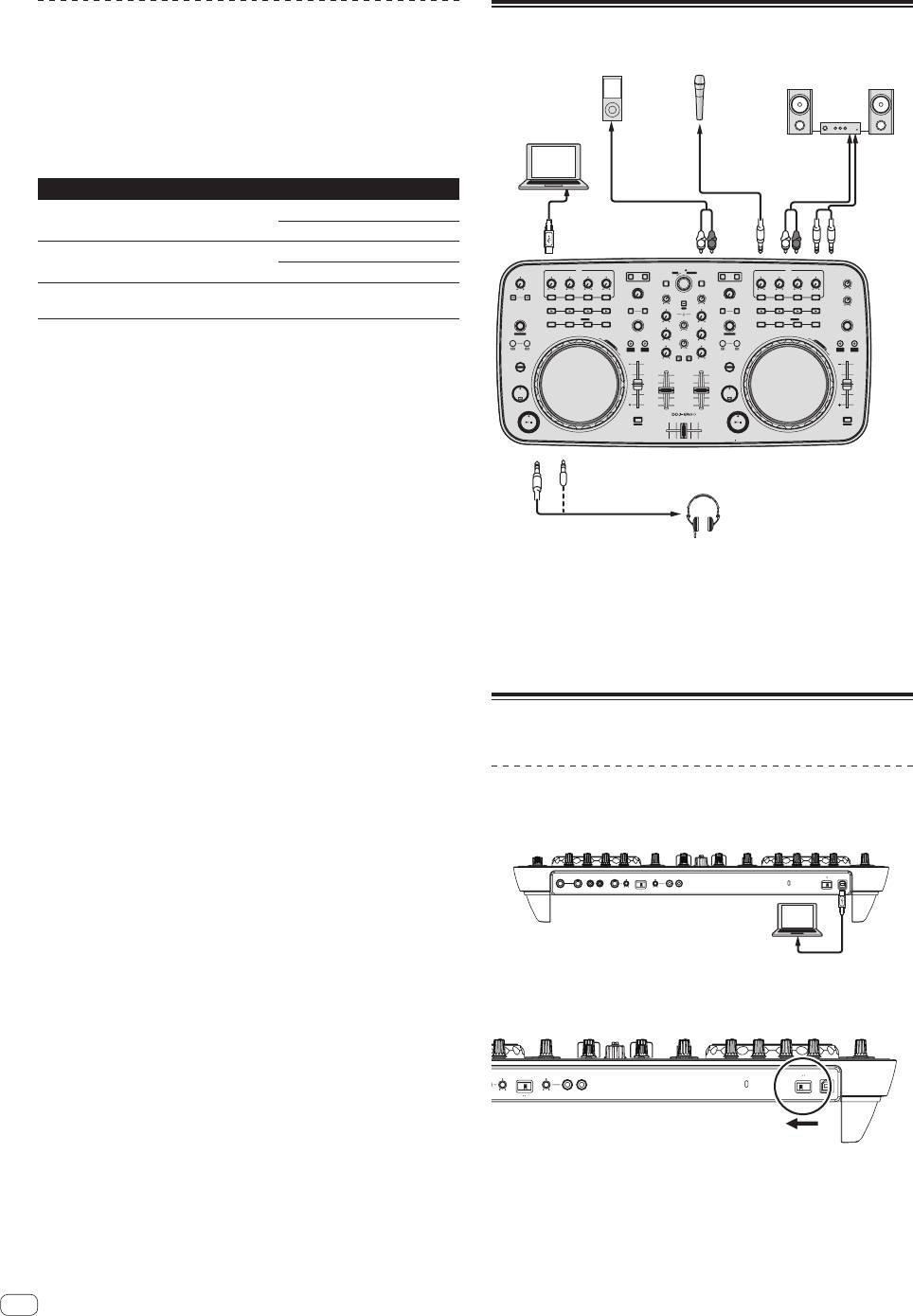
With this unit, the power is supplied by USB bus power. The unit can be
used simply by connecting it to a computer using the USB cable.
! Connect this unit and the computer directly using the included USB
cable.
! Connect the computer to which this unit is to be connected to an AC
power supply.
! A USB hub cannot be used.
Starting the system
Starting this unit
1 Connect this unit to your computer via a USB cable.
MASTER OUT1 (TRS)
MASTER OUT1 (TRS)
MASTER OUT2
MASTER OUT2
VOL
AUX INMICVOL INPUT SELECTVOL
AUX INMICVOL INPUT SELECT
ON
OFFUSB
RLRL
RLRL
MIC
AUX
RL
RL
2 Boot up the connected computer.
3 Slide this unit’s [ON/OFF] switch to the [ON] position.
VOL
AUX INVOLINPUT SELECT
AUX INVOLINPUT SELECTVOL
ON OFFUSB
MIC
AUX
RL
RL
Turn on the power of this unit.
! The message [Installing device driver software] may appear when
this unit is first connected to the computer or when it is connected to


