
Asus CM6340: Chapter 4
Chapter 4: Asus CM6340
ENGLISH
Chapter 4
Using your computer
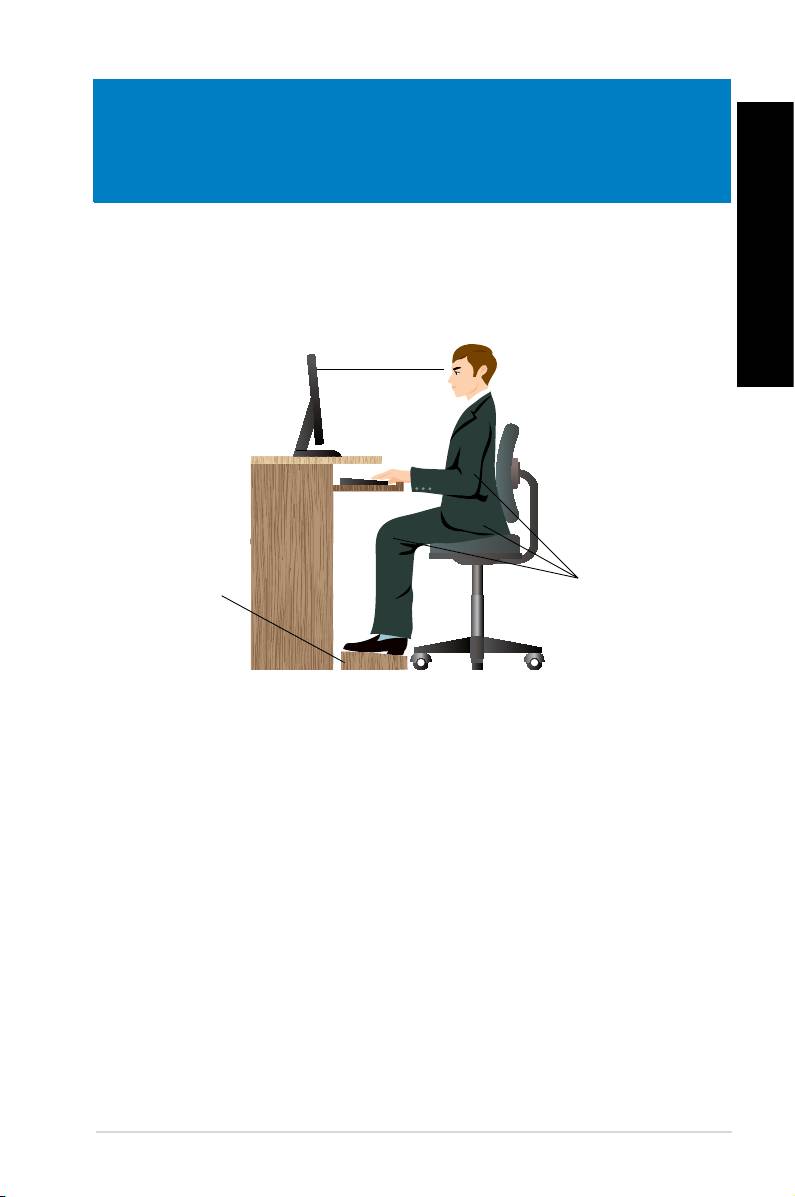
Proper posture when using your Desktop PC
ENGLISH
When using your Desktop PC, maintaining the proper posture is necessary to prevent strain to
your wrists, hands, and other joints or muscles. This section provides you with tips on avoiding
physical discomfort and possible injury while using and fully enjoying your Desktop PC.
ASUS CM6340 37
Eye level to the top of
the monitor screen
Foot rest 90˚ angles
To maintain the proper posture:
• Position your computer chair to make sure that your elbows are at or slightly above the
keyboard to get a comfortable typing position.
• Adjust the height of your chair to make sure that your knees are slightly higher than
your hips to relax the backs of your thighs. If necessary, use a footrest to raise the level
of your knees.
• Adjust the back of your chair so that the base of your spine is rmly supported and
angled slightly backward.
• Sit upright with your knees, elbows and hips at an approximately 90º angle when you
are at the PC.
• Place the monitor directly in front of you, and turn the top of the monitor screen even
with your eye level so that your eyes look slightly downward.
• Keep the mouse close to the keyboard, and if necessary, use a wrist rest for support to
reduce the pressure on your wrists while typing.
• Use your Desktop PC in a comfortably-lit area, and keep it away from sources of glare
such as windows and straight sunlight.
• Take regular mini-breaks from using your Desktop PC.
ENGLISH
ENGLISH
38 Chapter 4: Using your computer
ENGLISH
ENGLISH
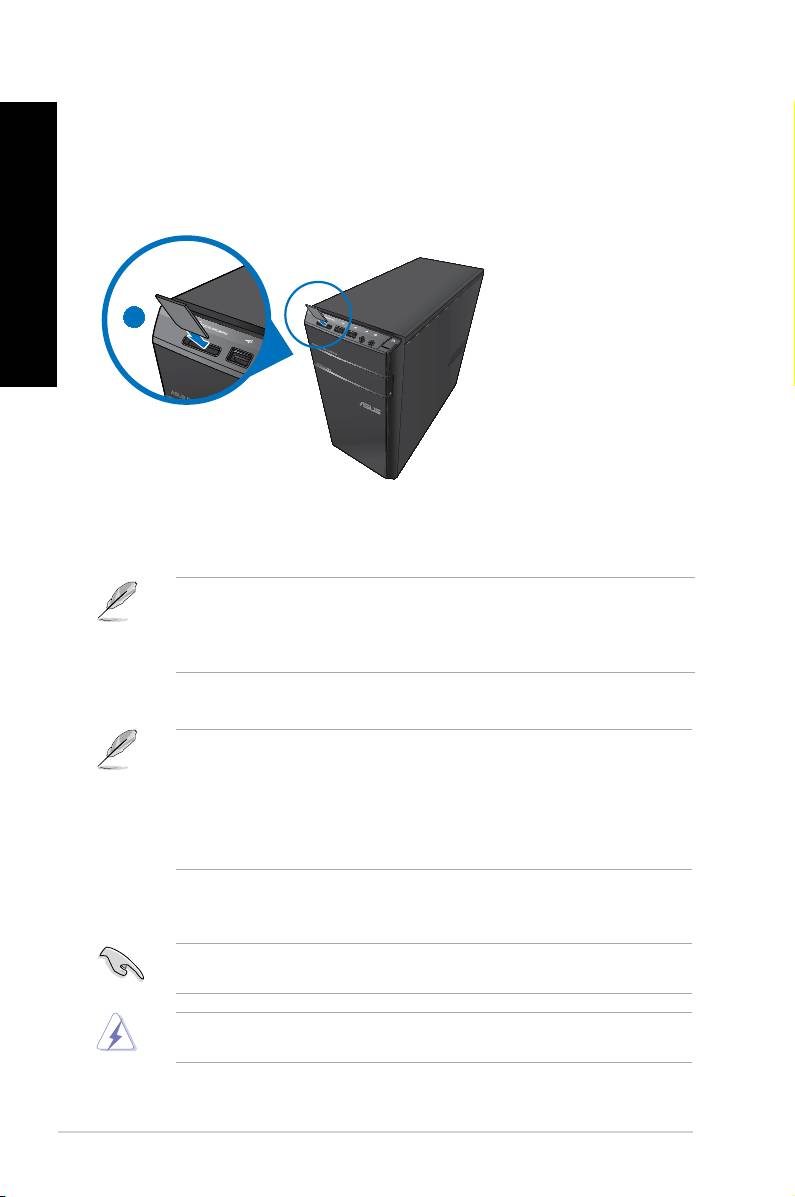
Using the memory card reader
Digital cameras and other digital imaging devices use memory cards to store digital picture or
media les. The built-in memory card reader on the front panel of your system allows you to
read from and write to different memory card drives.
1
To use the memory card:
1. Insert the memory card into the card slot.
• A memory card is keyed so that it ts in only one direction. DO NOT force a card into a
slot to avoid damaging the card.
• You can place media in one or more of the card slots and use each media independently.
Place only one memory card in a slot at one time.
2. Select a program from the AutoPlay window to access your les.
®
• If AutoPlay is NOT enabled in your computer, click Windows
7 Start button on the
taskbar, click Computer, and then double-click the memory card icon to access the data
on it.
• Each card slot has its own drive icon which is displayed on the
Computer screen.
• The memory card reader LED lights up and blinks when data is being read from or
written to the memory card.
3. When nished, right-click the memory card drive icon on the Computer screen, click
Eject, and then remove the card.
Never remove cards while or immediately after reading, copying, formatting, or deleting
data on the card or else data loss may occur.
To prevent data loss, use “Safely Remove Hardware and Eject Media” in the Windows
notication area before removing the memory card.
ENGLISH
ENGLISH
Using the optical drive
ENGLISH
1
2
ENGLISH
3
Inserting an optical disc
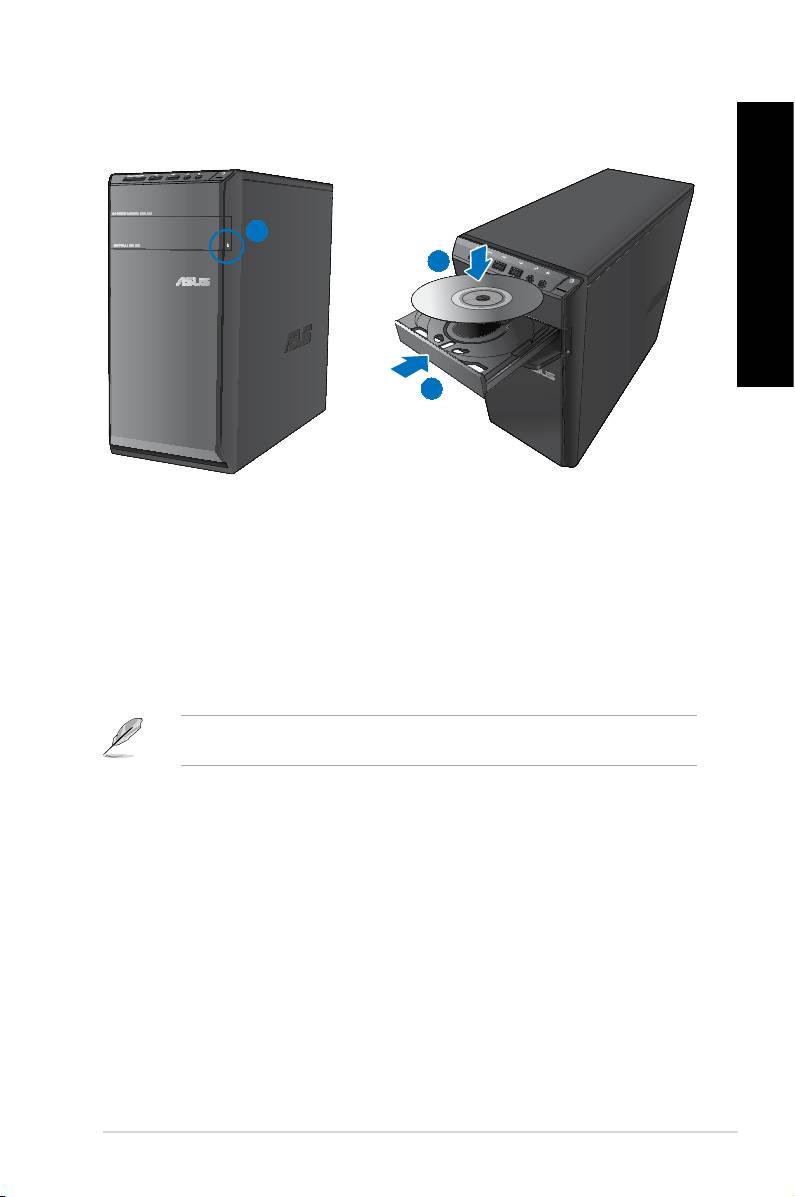
To insert an optical disc:
1. While your system is on, press the eject button below the drive bay cover to open the
tray.
2. Place the disc to the optical drive with the label side facing up.
3. Push the tray to close it.
4. Select a program from the AutoPlay window to access your les.
®
If AutoPlay is NOT enabled in your computer, click Windows
7 Start button on the taskbar,
click Computer, and then double-click the CD/DVD drive icon to access the data on it.
Removing an optical disc
To remove an optical disc:
1. While the system is on, do either of the following to eject the tray:
• Press the eject button below the drive bay cover.
• Right-click the CD/DVD drive icon on the
Computer screen, and then click Eject.
2. Remove the disc from the disc tray.
ASUS CM6340 39
ENGLISH
ENGLISH
40 Chapter 4: Using your computer
ENGLISH
ENGLISH
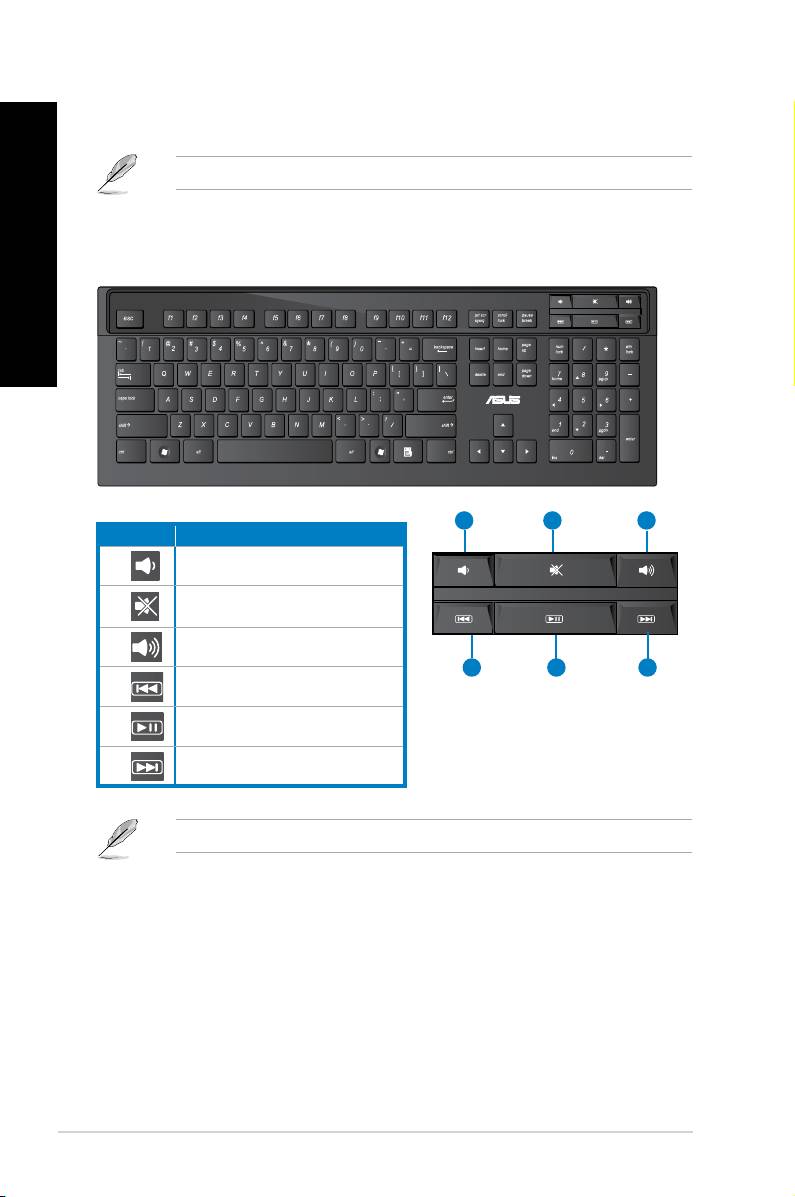
Using the multimedia keyboard
(on selected models only)
The keyboard varies with models. The illustrations on this section are for reference only.
ASUS PRIMAX/KB2621 keyboard
2
31
3
Keys Description
Decreases the system volume.
1.
Turns the volume’s mute mode on/off.
2.
Increases the system volume.
3.
4
5
6
Goes to the previous track in a media
4.
player.
Plays or pauses playback in a media
5.
player.
Goes to the next track in a media
6.
player.
®
®
The special function keys only work on Windows
Vista / Windows
7 operating systems.
ENGLISH
ENGLISH
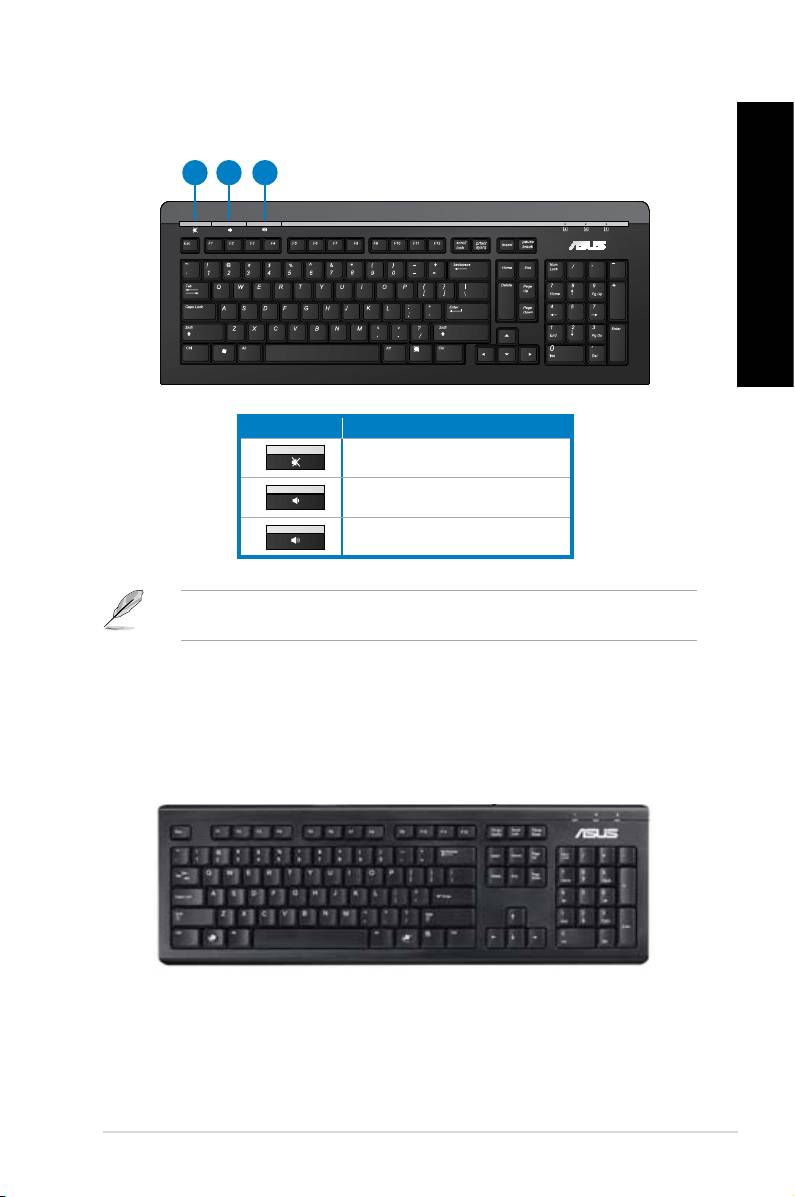
ASUS KB34211 modern wired keyboard
ENGLISH
1 2 3
ENGLISH
Hot keys Description
Turns the volume’s mute mode on/off.
1.
Decreases the system volume.
2.
Increases the system volume.
3.
®
®
The special function keys only work on Windows
Vista / Windows
7 / XP operating
systems.
ASUS PK1100 wired keyboard
ASUS CM6340 41

ENGLISH
ENGLISH
42 Chapter 4: Using your computer
