Asus WL-130: инструкция
Раздел: Бытовая, кухонная техника, электроника и оборудование
Тип: Беспроводная гарнитура и прочие аксессуары
Инструкция к Беспроводной гарнитуре и прочей аксессуарам Asus WL-130

®
English
Wireless Local Area Network Card
WL-130b
(For 802.11b Wireless Networks)
Quick Start Guide

Quick Start Guide
System Requirements
English
To begin using the ASUS WLAN Card, you must have the following
minimum requirements:
• Windows XP/2000/ME/98SE
• Standard 32-bit PCI Slot
• 32MB system memory or larger
• 300MHz processor or higher
• CD-ROM Drive
The Product Package
When you receive the ASUS WLAN Card package, it should contain the
following items:
• ASUS WLAN PCI Card
• ASUS WLAN Card Quick Start Guide
• ASUS WLAN Card User’s Manual
• CD-ROM Disc (Drivers, Utilities, Documentation)
If any of the above items are not included or damaged, contact your
local dealer for instructions.
2 ASUS WLAN Card
Quick Start Guide
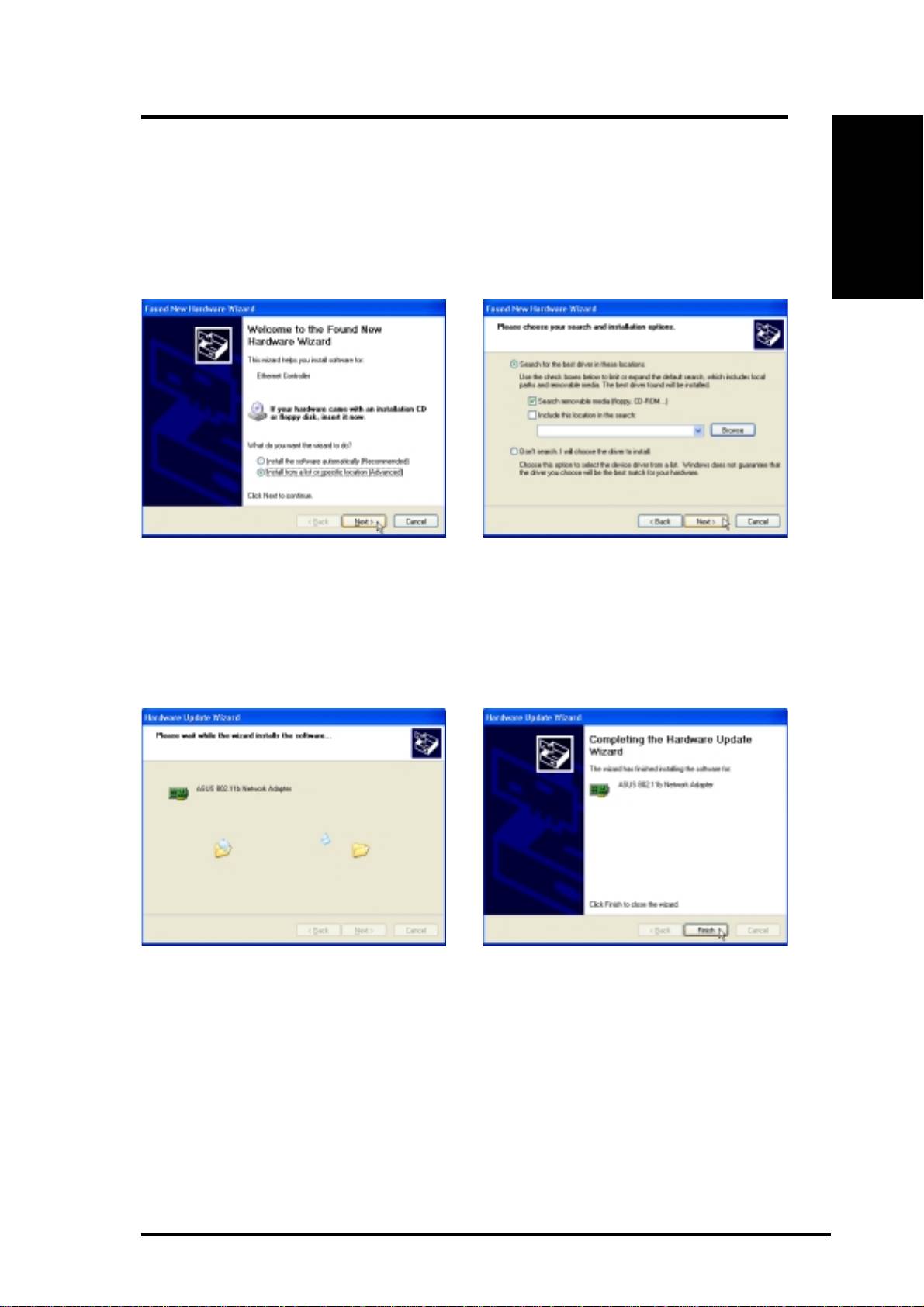
Installing the ASUS WLAN Card Driver
1. Have an experienced person install the ASUS WLAN Card into a free PCI slot. Replace your
chassis door, panels, screws, and cables when completed.
English
2. Turn ON your computer and enter Windows.
3. Windows will automatically detect the ASUS
4. Insert the support CD that came with your
WLAN Card once it is inserted into the PCI
ASUS WLAN Card.
slot, then the “Add New Hardware Wizard”
5. Select “Search for the best driver in”... and
dialog will appear. Click Next.
“Search removable media...”, then click
Next.
6. Wait while Windows XP creates a restore
7. Click Finish when installation has
point for you system files in case you
complete. Restart your computer if
need to restore your current system.
prompted.
ASUS WLAN Card 3
Quick Start Guide
Verifying Drivers
English
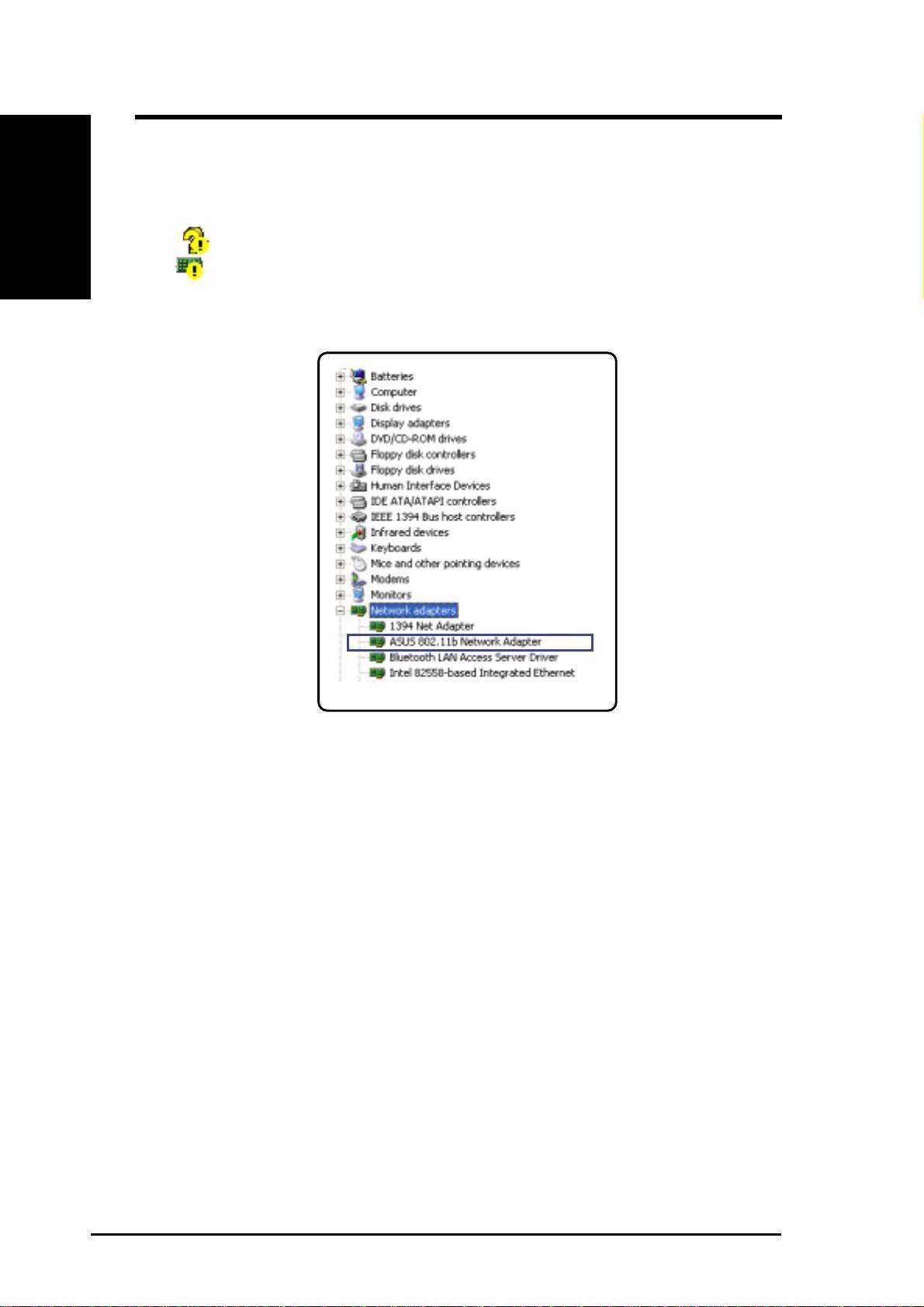
You can verify the ASUS WLAN Card driver in Device Manager. (Access
Device Manager from Start | Control Panel | System | Hardware). A question
mark means that no driver has been installed. An exclamation mark over a
card means that the driver is incorrect. Verify that you are using the correct
product and driver CD. Try repeating the installation and contact customer
support if necessary.
4 ASUS WLAN Card
Quick Start Guide
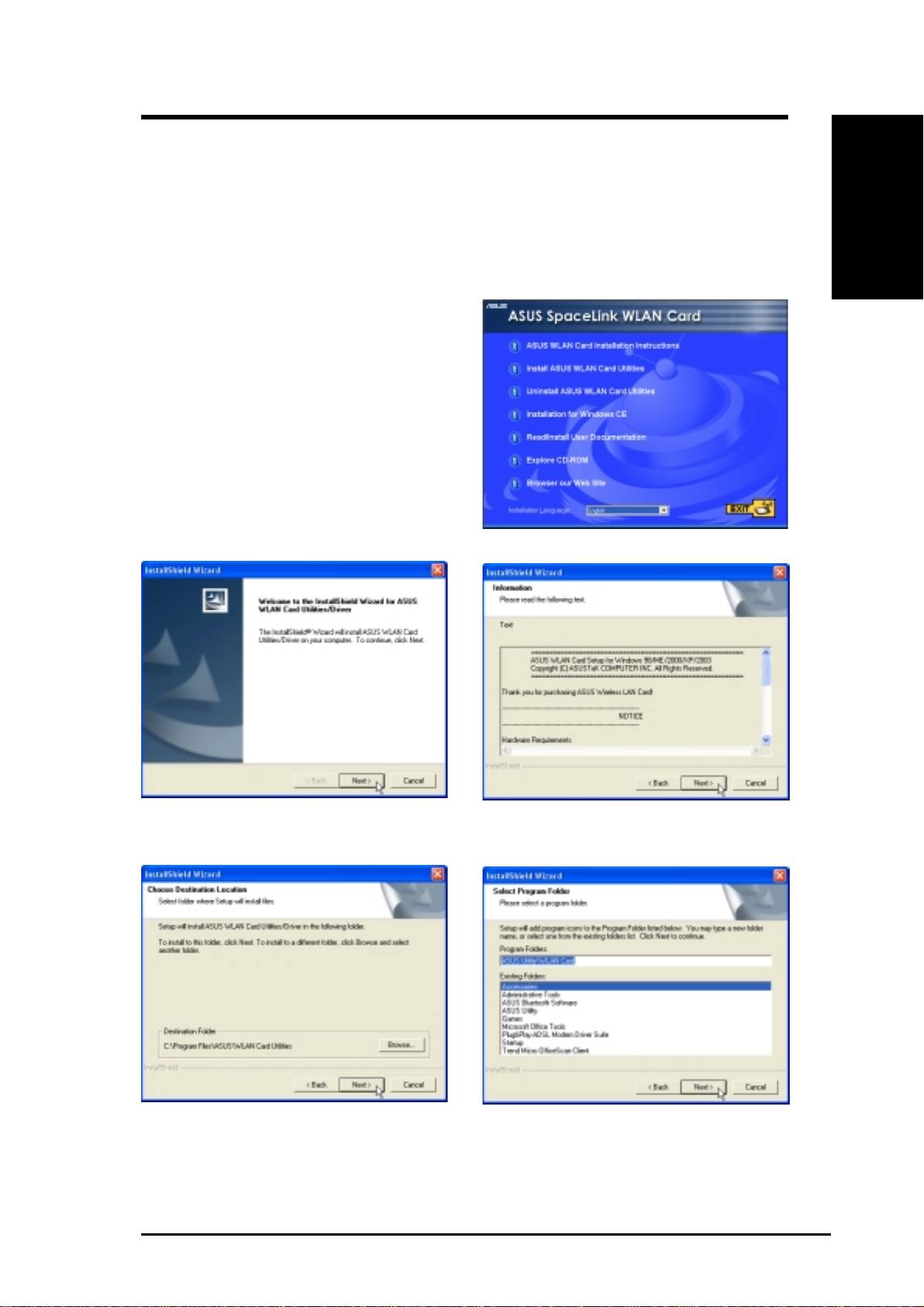
Installing the ASUS WLAN Card Utilities
After you have installed the ASUS WLAN Card driver, you can install the
WLAN Adapter utilities as shown below.
English
1. Insert the ASUS WLAN Card support CD
and an autorun menu will appear. If your
autorun is disabled, double click
SETUP.EXE in the root directory of the
support CD.
2. From the autorun menu, select your
language and click Install ASUS WLAN
Card Utilities.
3. Click Next on the Welcome screen.
4. Click Next after reading the Information.
5. Click Next to use the default Destination
6. Click Next to place icons in the default
Folder or click Browse to select another
program folder or type another folder
folder.
name.
ASUS WLAN Card 5
Quick Start Guide
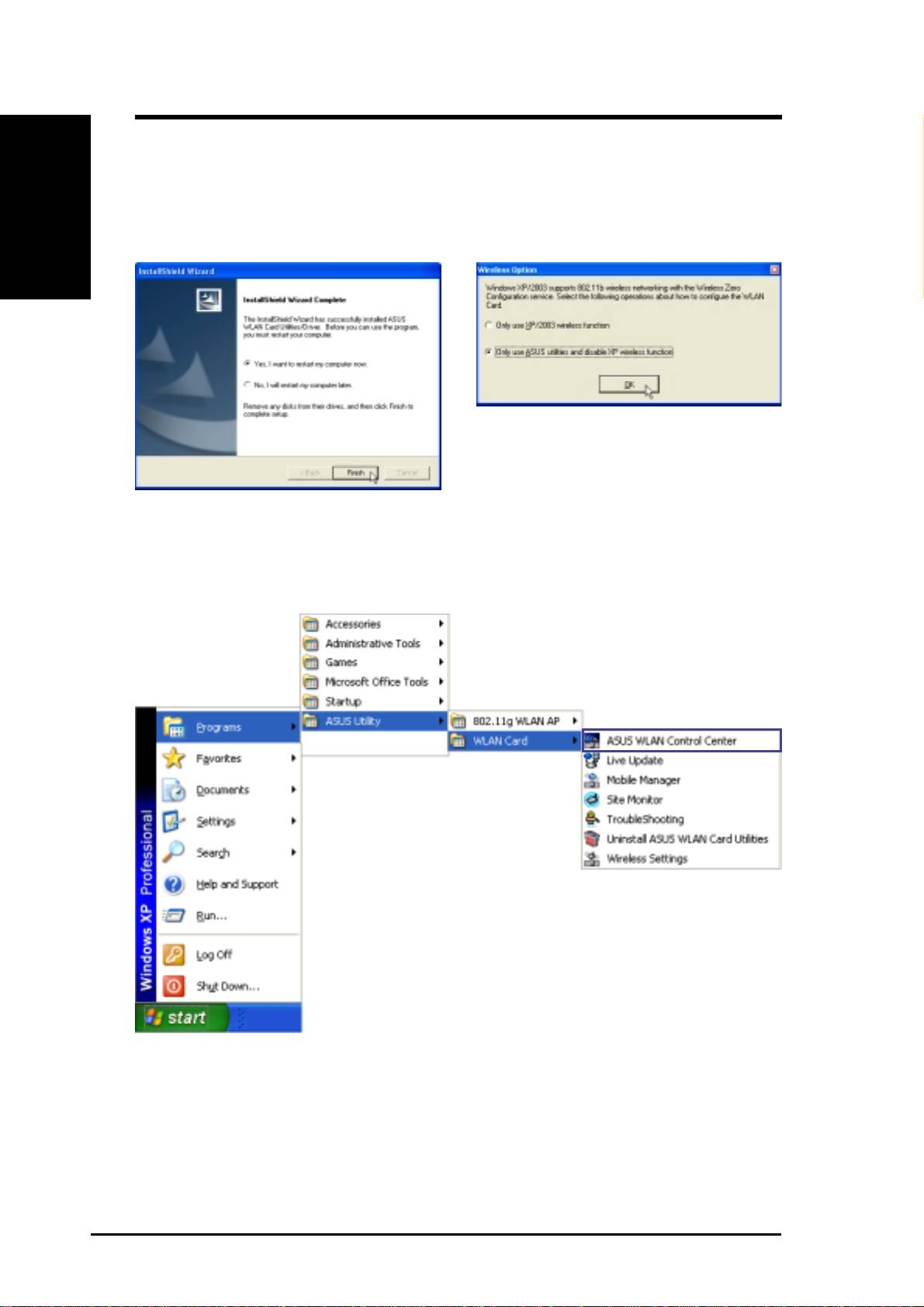
Installing the ASUS WLAN Card Utilities (Cont.)
English
7. When Setup is complete, click Finish to exit
8. When the program is launched for the first
the installation wizard.
time, you will be asked which function to
use. Select to use ASUS utilities for more
functions.
By default, the “ASUS WLAN Control
Center” is set to launch with Windows.
If necessary, you can launch it manu-
ally from the Windows Start Menu.
Several shortcuts will be created
which can be accessed through Start.
(“Classic Start menu” is shown here.)
6 ASUS WLAN Card
Quick Start Guide
ASUS WLAN Utility Quick Start
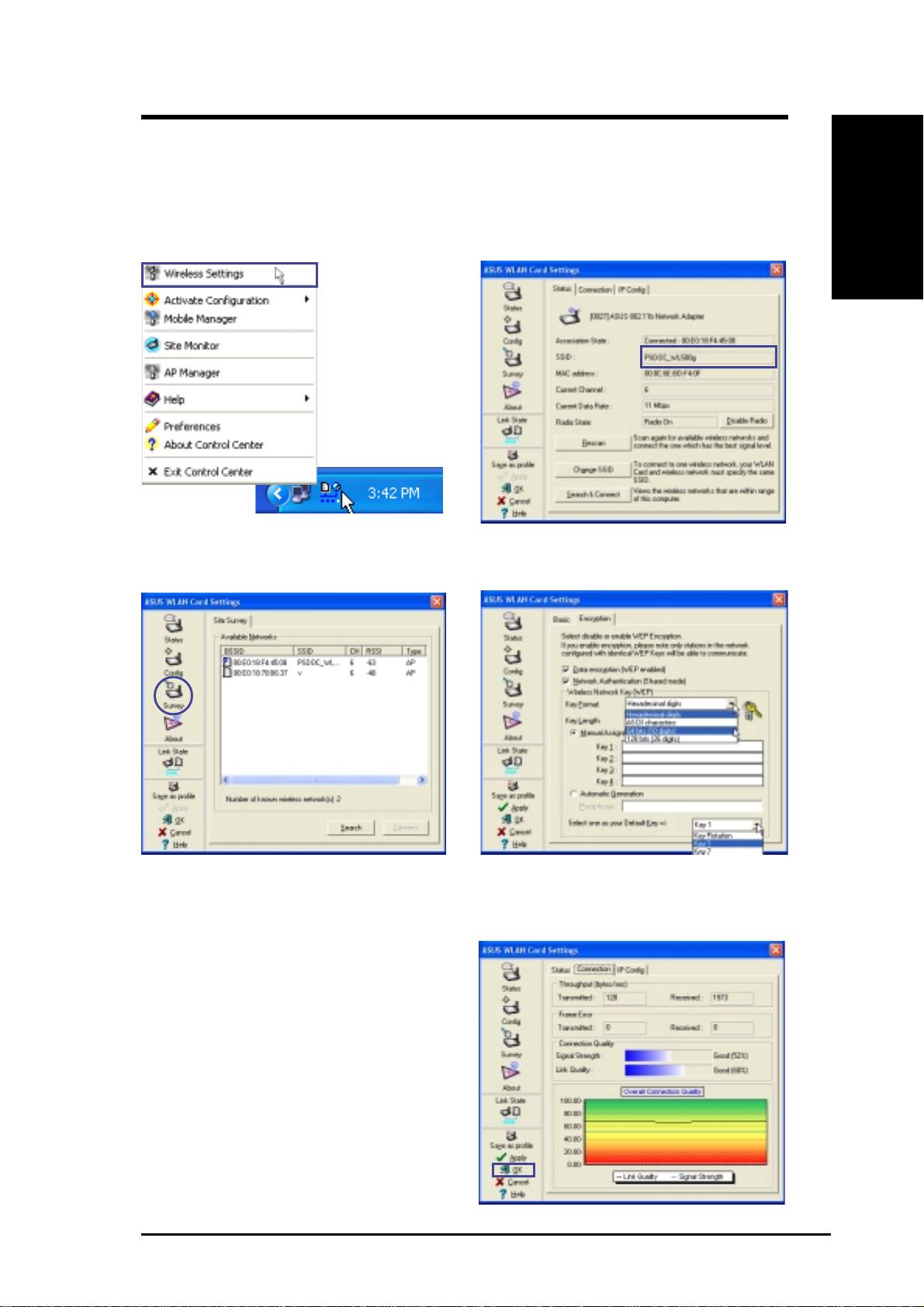
After installing the ASUS WLAN driver and utility, you may need to make
some settings before being able to use your wireless connection.
English
1. Right-click the ASUS WLAN icon and se-
2. Set the Network Name (SSID) to the same
lect “Wireless Settings”
name as the SSID set in your access point.
3. Use “Site Survey” if you don’t know the
4. Encryption settings must also match those
name of your access point(s).
set in the access point. Talk with your net-
work administrator if necessary.
5. You can also see the connection quality on
the “Connection” page. Click OK to exit the
utility.
6. Click Apply to save your settings and check
the “Status” page to see the “Association
State”. It should show “Connected -
xx:xx:xx:xx:xx:xx”.
ASUS WLAN Card 7

Quick Start Guide
Reading the ASUS WLAN Status Indicators
English
The ASUS WLAN card consists of one LED that indicates the status of the
ASUS WLAN Card.
OFF: No wireless activity.
Blinking: Transmitting or receiving wireless data.
Orientating the Antenna
The ASUS WLAN Card has one external antenna. It is recommended that you
adjust the external antenna straight up for maximum range and higher link
quality.
8 ASUS WLAN Card

®
Carte Wireless LAN
WL-130b
(Pour Réseau Sans Fil 802.11b)
Français
Guide d’installation rapide

Guide d’installation rapide
Configuration requise
Pour commencer à utiliser la carte ASUS WLAN, vous devez avoir au
minimum la configuration suivante:
• Windows XP/2000/ME/98SE
• Slot PCI 32-bit Standard
• 32Mo de mémoire système ou plus
Français
• Processeur de 300MHz ou plus
• Lecteur de CD-ROM
Contenu de la boîte
La boîte de la carte ASUS WLAN doit contenir les éléments suivants:
• Carte PCI WLAN ASUS
• Guide de démarrage rapide de la carte ASUS WLAN
• Manuel de l’utilisateur de la carte ASUS WLAN
• CD-ROM (Pilotes, Utilitaires, Documentation)
S’il manquait n’importe lequel de ces éléments ou si l’un d’eux était
endommagé, veuillez contacter votre revendeur local.
2 Carte ASUS WLAN
Оглавление
- Configuration requise
- Installer le pilote de la carte ASUS WLAN
- Installer les utilitaires de la carte ASUS WLAN
- Démarrage rapide des utilitaires ASUS WLAN
- Systemvoraussetzungen
- ASUS WLAN Kartentreiber installieren
- ASUS WLAN Karte Hilfsprogramm installieren
- ASUS WLAN Hilfsprogramm Kurzanleitung
- Requisiti di Sistema
- Installazione del driver per la scheda ASUS WLAN
- Installazione delle utility per la scheda ASUS WLAN
- Esecuzione veloce delle utility ASUS WLAN
- Requisitos del sistema
- Instalación del controlador de la tarjeta ASUS WLAN
- Comprobación de controladores
- Instalación de las utilidades de la tarjeta ASUS WLAN
- Inicio rápido de la utilidad ASUS WLAN
- ребования к системе
- Установка драйвера для сетевой платы беспроводного доступа ASUS
- роверка наличия драйверов
- Установка вспомогательных приложений
- Установка вспомогательных приложений (родолжение)
- ачало работы с приложениями ASUS
- ндикаторы состояния