
Pioneer X-CM31-T: Information provided by RDS Notes for RDS operation Using the Auto Station program Memory (ASPM)
Information provided by RDS Notes for RDS operation Using the Auto Station program Memory (ASPM): Pioneer X-CM31-T
Table of contents
- IMPORTANT VENTILATION CAUTION Operating Environment
- Information for users on collection and disposal of old equipment and used batteries
- Contents
- Chapter 1: Before you start What’s in the box Loading the batteries in the remote control
- Chapter 2: Part names and functions Remote control
- Part names and functions 02 Speaker system
- Front panel
- Top panel
- Chapter 3: Connections Connecting a TV Speaker connection
- Connecting antennas Plugging in
- Chapter 4: Getting started General control Setting the clock
- Sound controls Setting the wake-up timer
- Using Headphones Using the sleep timer
- Chapter 5: iPod/iPhone/iPad playback Confirming what iPod/iPhone/iPad models are supported Connecting your iPod/iPhone/iPad
- Connecting iPod/iPhone to the top panel
- Watching iPod/iPhone videos on your Playing iPad Playing iPod/iPhone
- Chapter 6: Disc playback Playing discs or files
- Advanced CD or MP3/WMA disc playback
- Programmed play (CD or MP3/WMA) About downloading MP3/WMA About folder playback order
- Specify the folder to play Switch the display contents
- Chapter 7: USB playback Playing USB storage devices
- Playing in the desired order (Programmed Play)
- Chapter 8: Using the tuner Listening to the radio broadcasts
- Using the Radio Data System (RDS) Searching for RDS programs An introduction to RDS
- Information provided by RDS Notes for RDS operation Using the Auto Station program Memory (ASPM)
- Chapter 9: Other connections Connecting auxiliary components
- Chapter 10: Additional information Troubleshooting General problem Problem Check Remedy
- When a USB storage device is connected Problem Check Remedy When an iPod/iPhone/iPad is connected Problem Remedy
- Playable discs and formats Cautions on use
- Handling discs
- About iPod/iPhone/iPad
- Specifications
Using the tuner08
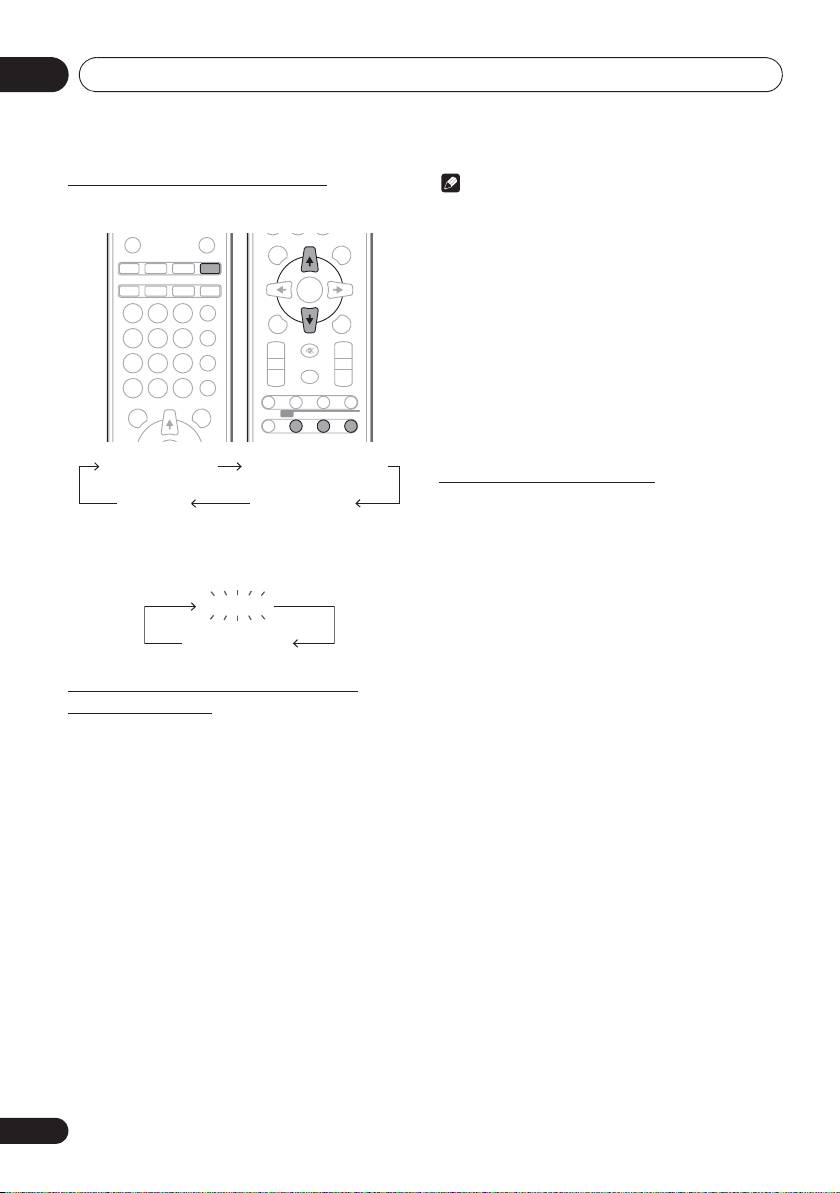
Information provided by RDS
Note
Each time the
RDS
DISPLAY is pressed, the display will switch
• If the same station is broadcasting on different
as follows:
frequencies, the strongest frequency will be stored in
memory.
• Any station which has the same frequency as the one
stored in memory will not be stored.
• If 30 stations have already been stored in memory, the
scan will be aborted. If you want to redo the ASPM
operation, erase the preset memory.
• If no station have been stored in memory, “END” will
appear for about 4 seconds.
• If the RDS signals are very weak, station names may not
be stored in memory.
• The same station name can be stored in different
channels.
• In a certain area or during certain time periods, the
station names may temporarily be different.
Notes for RDS operation
If any of the following events occur, it does
not mean that the unit is faulty:
When tuning in to a station other than an RDS station or to an
• “PS”, “No PS” and a station name appear alternately,
RDS station which sends weak signal, the display will change
and properly.
in the following order:
• If a particular station is not broadcasting properly or a
station is conducting tests, the RDS reception function
may not work properly.
• When you receive an RDS station whose signal is too
weak, information like the station name may not be
displayed.
• “No PS”, “No PYT” or “No RT” will flash for about 5
seconds, and then the frequency will be displayed.
Using the Auto Station program
Notes for radio text:
Memory (ASPM)
• The first 8 characters of the radio text will appear and
Whilst in the ASPM operation mode, the tuner will
then they will scroll across the display.
automatically search for new RDS stations. Up to 30 stations
• If you tune in to an RDS station which is not
can be stored.
broadcasting any radio text, “No RT” will be displayed
If you have already stored some stations in memory, the
when you switch to the radio text position.
number of new stations you can store will be less.
• Whilst radio text data is received or when the text
contents change, “RT” will be displayed.
1 Press
TUNER
on the remote control.
2 Press and hold down RDS ASPM on the
remote control.
After “ASPM” has flashed for about 4 seconds, scanning will
start (87.5 - 108 MHz).
After scanning, the number of stations stored in memory will
be displayed for 4 seconds, and then “END” will appear for 4
seconds.
To stop the ASPM operation before it is
complete:
Press # whilst it is scanning for stations. The stations which
are already stored in memory will be kept there.
26
En
STANDBY/ON
OPEN/CLOSE
DISPLAY FOLDER
TUNE+
iPod CD USB TUNER
AUDIO IN/LINE
TV OUT
CLOCK/TIMER
SLEEP
ENTER
EQUALIZER
MEMORY
MENU
/PROGRAM
123
P.BASS
4 5 6
PRESET VOLUME
TUNE–
BASS/TREBLE
+
+
7 89
MUTE
CLEAR REPEAT
RANDOM
–
–
0
DIMMER
DISPLAY FOLDER
TUNE+
ST/MONO ASPM PTY DISPLAY
RDS
Station name (PS) Programme type (PTY)
Frequency Radio text (RT)
No RDS
FM 98.80 MHz
;&0B6<;(B(QERRN࣮࣌ࢪ㸰㸮㸯㸱ᖺ㸲᭶㸶᪥ࠉ᭶᭙᪥ࠉ༗๓㸯㸯㸲㸷ศ
