
Pioneer X-CM31-T: Chapter 4: Getting started General control Setting the clock
Chapter 4: Getting started General control Setting the clock: Pioneer X-CM31-T
Table of contents
- IMPORTANT VENTILATION CAUTION Operating Environment
- Information for users on collection and disposal of old equipment and used batteries
- Contents
- Chapter 1: Before you start What’s in the box Loading the batteries in the remote control
- Chapter 2: Part names and functions Remote control
- Part names and functions 02 Speaker system
- Front panel
- Top panel
- Chapter 3: Connections Connecting a TV Speaker connection
- Connecting antennas Plugging in
- Chapter 4: Getting started General control Setting the clock
- Sound controls Setting the wake-up timer
- Using Headphones Using the sleep timer
- Chapter 5: iPod/iPhone/iPad playback Confirming what iPod/iPhone/iPad models are supported Connecting your iPod/iPhone/iPad
- Connecting iPod/iPhone to the top panel
- Watching iPod/iPhone videos on your Playing iPad Playing iPod/iPhone
- Chapter 6: Disc playback Playing discs or files
- Advanced CD or MP3/WMA disc playback
- Programmed play (CD or MP3/WMA) About downloading MP3/WMA About folder playback order
- Specify the folder to play Switch the display contents
- Chapter 7: USB playback Playing USB storage devices
- Playing in the desired order (Programmed Play)
- Chapter 8: Using the tuner Listening to the radio broadcasts
- Using the Radio Data System (RDS) Searching for RDS programs An introduction to RDS
- Information provided by RDS Notes for RDS operation Using the Auto Station program Memory (ASPM)
- Chapter 9: Other connections Connecting auxiliary components
- Chapter 10: Additional information Troubleshooting General problem Problem Check Remedy
- When a USB storage device is connected Problem Check Remedy When an iPod/iPhone/iPad is connected Problem Remedy
- Playable discs and formats Cautions on use
- Handling discs
- About iPod/iPhone/iPad
- Specifications
Getting started04
Chapter 4:
Getting started
To turn the power on
General control
Press the 1 STANDBY/ON to turn the power on.
After use:
Input function
Press the 1 STANDBY/ON to enter the power stand-by mode.
When the INPUT on main unit is pressed, the current function
will change to different mode. Press the INPUT repeatedly to
Note
select desired function.
• In standby mode, if iPod/iPhone/iPad is connected, the
unit turns charge mode.
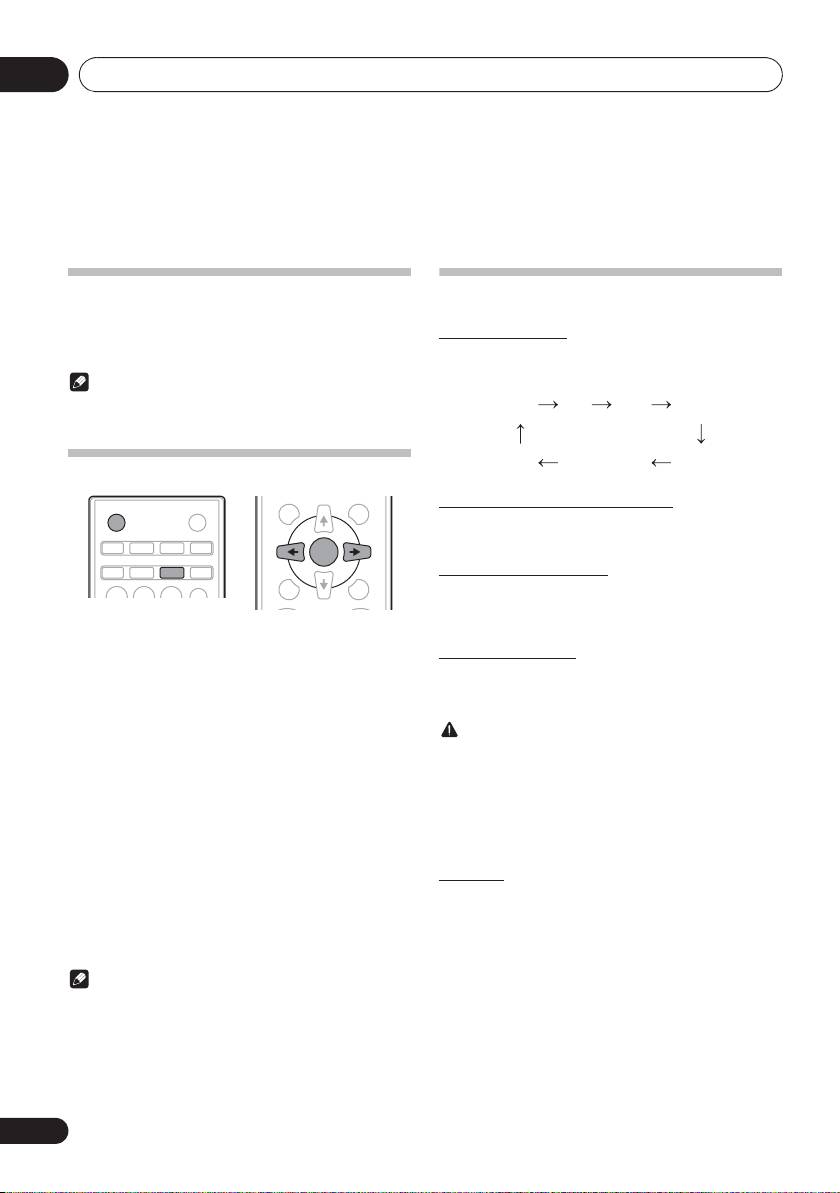
Setting the clock
Display brightness control
Press DIMMER to dims the display brightness. The
brightness can be controlled in four steps.
Volume auto set-in
If you turn off and on the main unit with the volume set to 17
or higher, the volume starts at 16 and sets in to the last set
level.
1 Press
1 STANDBY/ON
to turn the power on.
Volume control
2 Press
CLOCK/TIMER
on the remote control.
Turn the volume knob towards VOLUME (on main unit) or
“CLOCK” is shown on the main display.
press VOLUME +/- (on remote control) to increase or
decrease the volume.
3 Press
ENTER
.
CAUTION
4 Press
HI
to set the day, then press ENTER.
• The sound level at a given volume setting depends on
5 Press
HI
to set the hour, then press
speaker efficiency, location, and various other factors. It
ENTER.
is advisable to avoid exposure to high volume levels. Do
not turn the volume on to full at switch on. Listen to
6 Press
HI
to set the minute, then press
music at moderate levels. Excessive sound pressure
ENTER to confirm.
from earphones and headphones can cause hearing
loss.
7 Press
ENTER
.
To confirm the time display:
Muting
Press the CLOCK/TIMER. The time display will appear for
The volume is muted temporarily when pressing the MUTE on
about 10 seconds.
the remote control. Press again to restore the volume.
To readjust the clock:
Perform “Setting the clock” from step 1.
Note
• When power supply is restored after unit is plugged in
again or after a power failure, reset the clock.
12
En
STANDBY/ON
OPEN/CLOSE
iPod CD USB TUNER
AUDIO IN/LINE
TV OUT
CLOCK/TIMER
SLEEP
EQUALIZER
123
DISPLAY FOLDER
TUNE+
ENTER
MEMORY
MENU
/PROGRAM
PRESET VOLUME
TUNE–
CD AM
FM
USB/IPOD
LINE
AUDIO IN
IPOD
;&0B6<;(B(QERRN࣮࣌ࢪ㸰㸮㸯㸱ᖺ㸲᭶㸶᪥ࠉ᭶᭙᪥ࠉ༗๓㸯㸯㸲㸷ศ
