
Pioneer X-CM31-R: When a USB storage device is connected Problem Check Remedy When an iPod/iPhone/iPad is connected Problem Remedy
When a USB storage device is connected Problem Check Remedy When an iPod/iPhone/iPad is connected Problem Remedy: Pioneer X-CM31-R
Table of contents
- IMPORTANT VENTILATION CAUTION Operating Environment
- Information for users on collection and disposal of old equipment and used batteries POWER-CORD CAUTION
- Contents
- Chapter 1: Before you start What’s in the box Loading the batteries in the remote control
- Chapter 2: Part names and functions Remote control
- Part names and functions 02 Speaker system
- Front panel
- Top panel
- Chapter 3: Connections Connecting a TV Speaker connection
- Connecting antennas Plugging in
- Chapter 4: Getting started To turn the power on General control Setting the clock
- Sound controls Setting the wake-up timer
- Using Headphones
- Chapter 5: iPod/iPhone/iPad playback Confirming what iPod/iPhone/iPad models are supported Connecting your iPod/iPhone/iPad
- Connecting iPod/iPhone to the top panel Connecting iPod/iPhone/iPad using supplied stand
- Watching iPod/iPhone videos on your Playing iPad Playing iPod/iPhone
- Chapter 6: Disc playback Playing discs or files
- Advanced CD or MP3/WMA disc playback
- Programmed play (CD or MP3/WMA) About downloading MP3/WMA
- Specify the folder to play Switch the display contents
- Chapter 7: USB playback Playing USB storage devices
- Specify the folder to play Playing in the desired order (Programmed Play)
- Chapter 8: Using the tuner Listening to the radio broadcasts Saving station presets Tuning
- To recall a memorised station Using the Radio Data System (RDS) Searching for RDS programs An introduction to RDS
- Information provided by RDS Notes for RDS operation Using the Auto Station program Memory (ASPM)
- Chapter 9: Other connections Connecting auxiliary components
- Chapter 10: Additional information Troubleshooting General problem Problem Check Remedy
- When a USB storage device is connected Problem Check Remedy When an iPod/iPhone/iPad is connected Problem Remedy
- Playable discs and formats Cautions on use
- Handling discs
- About iPod/iPhone/iPad
- Specifications
Additional information 10
29
En
English Français Español
;&0B6<;(B(QERRN࣮࣌ࢪ㸰㸮㸯㸱ᖺ㸲᭶㸶᪥ࠉ᭶᭙᪥ࠉ༗๓㸯㸯㸲㸷ศ
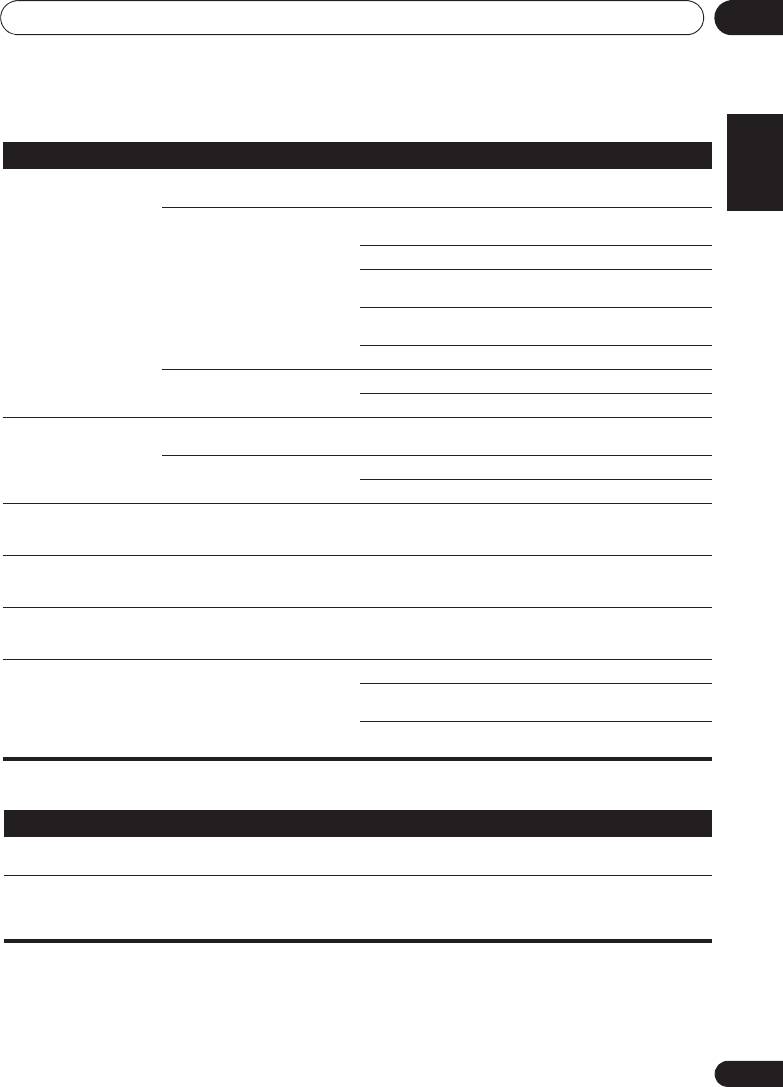
When a USB storage device is connected
Problem Check Remedy
USB storage device is not
Is the USB storage device properly
Connect the device securely (all the way in).
recognized.
connected?
Is the USB storage device connected
This unit does not support USB hubs. Connect the USB storage
via a USB hub?
device directly.
This unit only supports USB mass storage class devices.
This unit supports portable flash memory and digital audio
playback devices.
Only the FAT16 and FAT32 file systems are supported. Other file
systems (exFAT, NTFS, HFS etc.) are not supported.
This device does not support the use of external hard disc drives.
This is not a problem with this unit. Turn the power off then back on.
Some USB storage devices may not be recognized properly.
File cannot be played. Is the file copyright-protected (by
Copyright-protected files cannot be played.
DRM)?
This is not a problem with this unit. Files stored on a computer cannot be played.
It may not be possible to play some files.
Folder or file names are not
Do the folder of file names contain
The maximum number of characters displayable for the folder and
displayed or are not properly
more than 30 characters?
file names is 30.
displayed.
Folder or file names are not
This is not a problem with this unit. The order of the folder and file names displayed depends on the
displayed in alphabetical
order in which the folders or files were recorded on the USB
order.
storage device.
Much time is required to
What is the USB storage devices
Some time may be required to load the data when large capacity
recognize the USB storage
capacity?
USB storage devices are connected (this could take several
device.
minutes).
Power is not supplied to the
Is
AUTH ERR
displayed on the front
Turn the power off then back on.
USB storage device.
panel display? No power is supplied if
Turn the power off, then disconnect and reconnect the USB storage
the power consumption is too high.
device.
Press
INPUT
to switch to the other mode, then switch again to the
USB mode.
When an iPod/iPhone/iPad is connected
Problem Remedy
Can’t operate the iPod/iPhone/iPad by the remote control. Make sure the iPod/iPhone/iPad is connected correctly (refer to
Connecting your iPod/iPhone/iPad
on page 15).
Can’t operate the iPod/iPhone/iPad. Make sure the iPod/iPhone/iPad is connected correctly (refer to
Connecting your iPod/iPhone/iPad
on page 15).
If the iPod/iPhone/iPad is experiencing a hangup, try resetting the
iPod/iPhone/iPad, and reconnect it to the unit.
