
Pioneer SC-LX88-S: Playing an iPod Listening to Internet radio stations
Playing an iPod Listening to Internet radio stations: Pioneer SC-LX88-S
Table of contents
- Quick Start Guide
- English Connection and initial setup
- Using Built-in AVNavigator Connecting to the network through Connecting to a wireless LAN LAN interface Turning the power on Plugging in the receiver
- Launching the built-in AVNavigator Using iPad/iPhone/iPod touch Operating environment Using Mac Using Windows PC
- About using Wiring Navi Using Android device
- Connecting up Connecting the speakers
- Connecting a TV and playback components Connecting antennas Plugging in the receiver
- Initial Setup Before you start Automatically setting up for surround sound (MCACC)
- Basic playback Multichannel playback Listening to the radio Saving station presets Listening to station presets
- Playing an iPod Listening to Internet radio stations
Basic playback (continued)
Playing an iPod
Listening to Internet radio stations
To enjoy the many functions of the
• About one minute is required between turning the power
• About one minute is required between turning the power
unit to the fullest extent
on and completion of startup.
on and completion of startup.
1
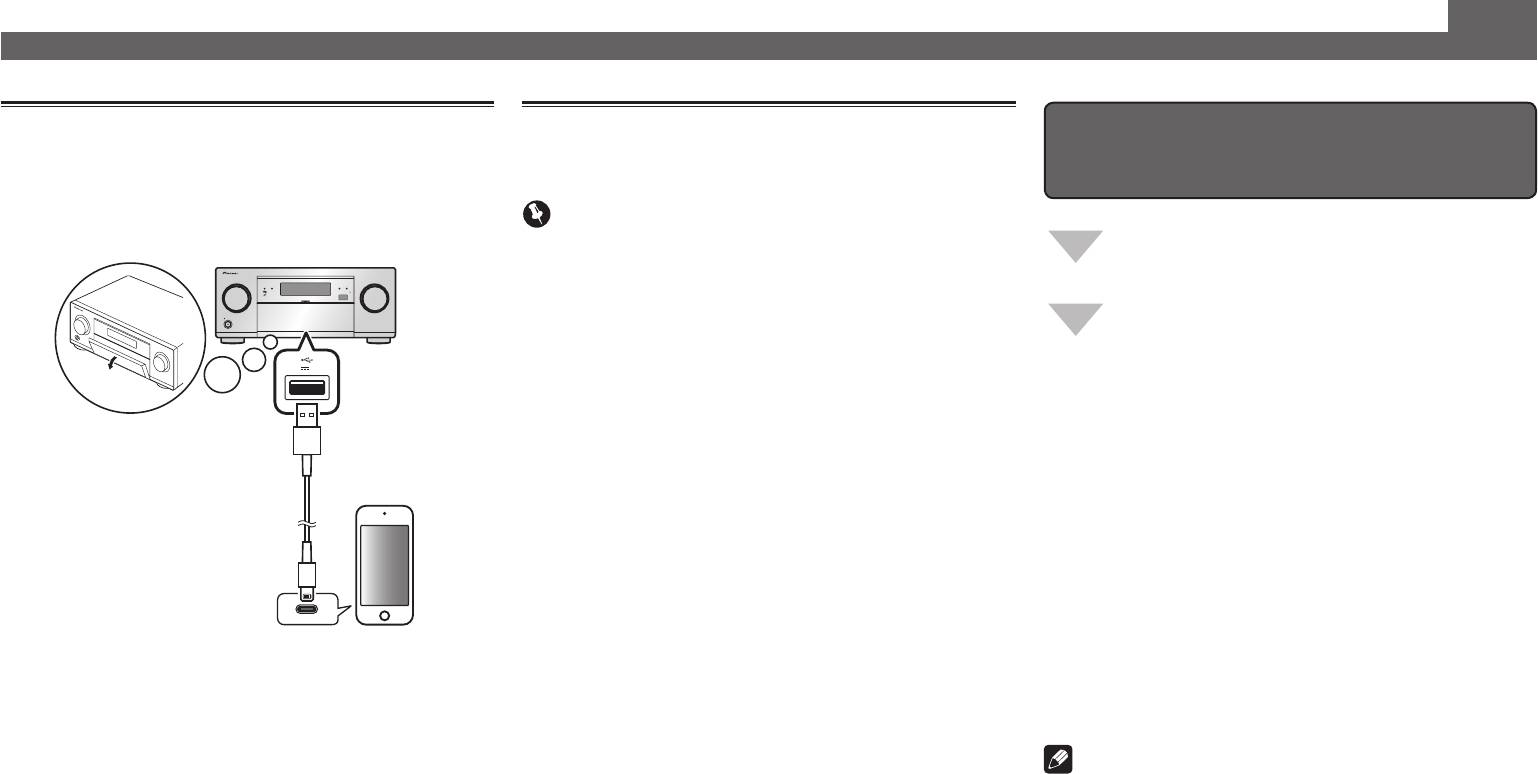
Connect your iPod.
Important
An iPod/iPhone can be connected to the receiver.
Launch AVNavigator, and use the “Interactive
• When using a broadband Internet connection, a contract
Operation Guide”.
MCACC PRO
FL OFF
iPod iPhoneHDMI
with an Internet service provider is required. For more
details, contact your nearest Internet service provider.
SELECTOR
INPUT
MASTER
STANDBY/ON
VOLUME
Load the CD-ROM into your computer and
• To listen to Internet radio stations, you must have high-
download the “Operating Instructions” (PDF)
speed broadband Internet access. With a 56 K or ISDN
from the menu screen to read.
5V 1
A
modem, you may not enjoy the full benefits of Internet
radio.
• Access to content provided by third parties requires a
high speed internet connection and may also require
Functions
account registration and a paid subscription. Third
#
Playing a USB device
party content services may be changed, suspended,
#
Music playback using Bluetooth wireless technology
USB cable
iPod/iPhone
included with the iPod
interrupted, or discontinued at any time without notice,
#
Playback with NETWORK feature
and Pioneer disclaims any liability in connection with such
#
Setting the Audio options
occurrences. Pioneer does not represent or warrant that
content services will continue to be provided or available
#
Setting the Video options
for a particular period of time, and any such warranty,
#
Using the MULTI-ZONE controls
express or implied, is disclaimed.
FAQ
1
Press NET repeatedly to select the INTERNET
2
Press iPod USB to select the iPod/USB input.
RADIO input.
Glossary
When the display shows the names of folders and files,
It may take several seconds for this receiver to access the
Features index
you’re ready to play music from the iPod.
network.
3
Use
/
to select a category, then press
2
Use
/
to select the Internet radio station to
Note
ENTER to browse that category.
play back, and then press ENTER.
• To return to the previous level any time, press
RETURN
.
• This unit supports AirPlay. For details, see “Using AirPlay
on iPod touch, iPhone, iPad, and iTunes” of the operating
4
Use
/
to browse the selected category (e.g.,
instructions and the Apple website (http://www.apple.
albums).
com).
• Use
/
to move to previous/next levels.
• This unit’s software can be updated (“Software Update”
of the operating instructions). With Mac OS, it can be
5
Continue browsing until you arrive at what
updated using Safari (“Using Safari to update the firmware”
you want to play, then press
to start
of the operating instructions).
playback.
© 2014 PIONEER HOME ELECTRONICS CORPORATION.
All rights reserved.
10
