
Pioneer SC-LX88-S: Launching the built-in AVNavigator Using iPad/iPhone/iPod touch Operating environment Using Mac Using Windows PC
Launching the built-in AVNavigator Using iPad/iPhone/iPod touch Operating environment Using Mac Using Windows PC: Pioneer SC-LX88-S
Table of contents
- Quick Start Guide
- English Connection and initial setup
- Using Built-in AVNavigator Connecting to the network through Connecting to a wireless LAN LAN interface Turning the power on Plugging in the receiver
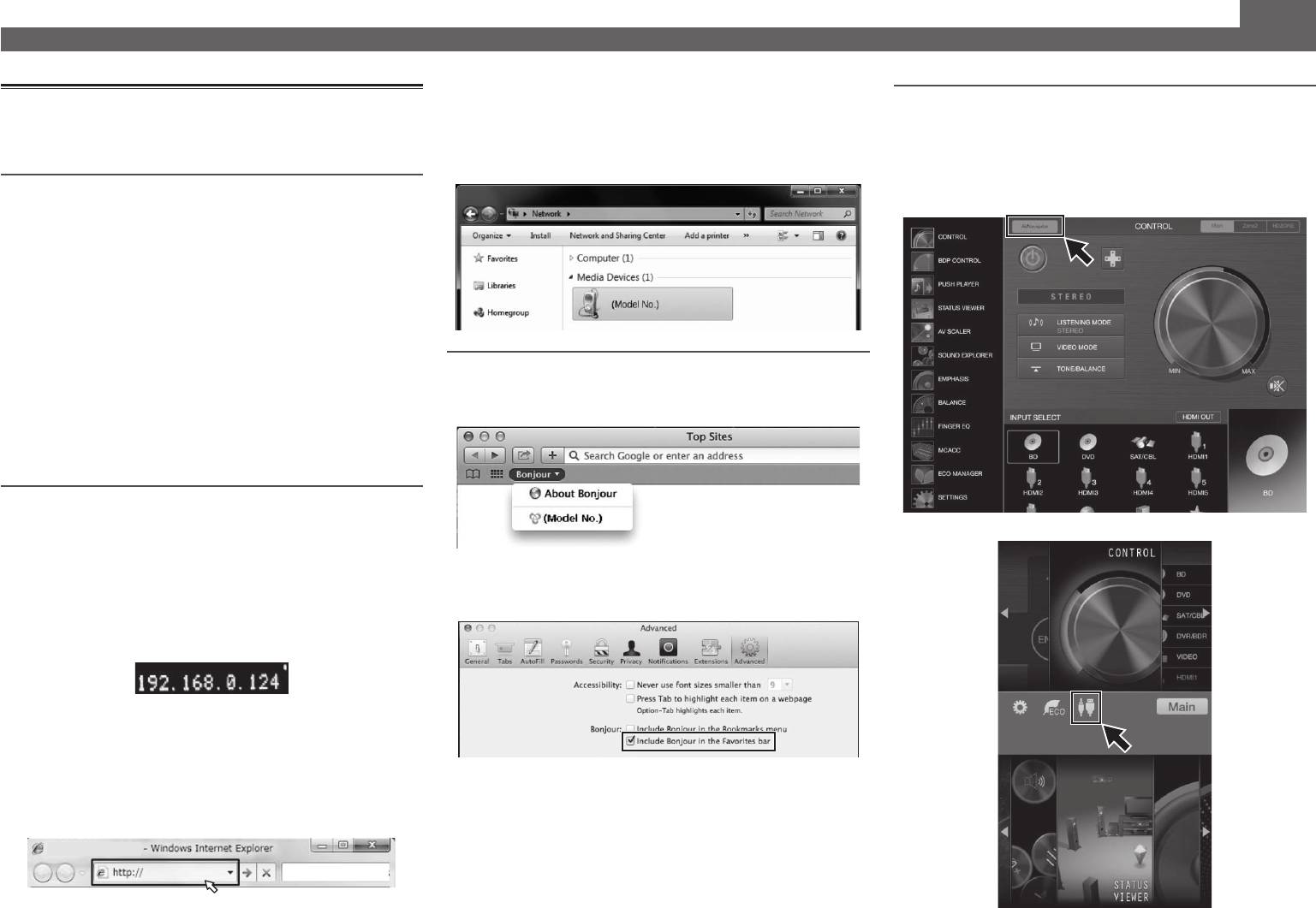
- Launching the built-in AVNavigator Using iPad/iPhone/iPod touch Operating environment Using Mac Using Windows PC
- About using Wiring Navi Using Android device
- Connecting up Connecting the speakers
- Connecting a TV and playback components Connecting antennas Plugging in the receiver
- Initial Setup Before you start Automatically setting up for surround sound (MCACC)
- Basic playback Multichannel playback Listening to the radio Saving station presets Listening to station presets
- Playing an iPod Listening to Internet radio stations
Using Built-in AVNavigator (continued)
• With a Windows PC other than Windows XP, you can use
Launching the built-in AVNavigator
Using iPad/iPhone/iPod touch
the following method to launch AVNavigator.
Operate AVNavigator by following the screen prompts of your
Launch Explorer and then right-click <SC-LX88> or <SC-
Download a free application, iControlAV5, from the App Store.
computer, etc.
LX78> displayed in the ‘
Network
’ folder, then click ‘
View
After launching iControlAV5, follow the instructions on the
device webpage
’.
screen. After that, on the Home screen, press ‘
AVNavigator
’
or the icon.
Operating environment
iPad
• AVNavigator can be used in the following environments.
®
®
®
–Windows PC: Microsoft
Windows
XP/Windows Vista
/
®
®
®
Windows
7/Windows
8/Windows
8.1
–Mac: Mac OSX (10.7, 10.8 or 10.9)
–iPad/iPhone/iPod touch: iOS 7
–Android device: Android 4.0.4, 4.1.1, 4.1.2, 4.2, 4.2.2, 4.4.2
• AVNavigator uses an Internet browser. The following
browsers are supported:
®
Using Mac
–Windows PC: Internet Explorer
8, 9, 10, 11
On a Mac, launch Safari and click <SC-LX88> or <SC-LX78>
–Mac/iPad/iPhone/iPod touch: Safari 6.0
displayed in ‘
Bonjour
’ on the Bookmarks bar.
–Android device: Android browser
• Depending on the computer network setting or security
setting, AVNavigator may not operate.
Using Windows PC
1
Start up Internet Explorer on your PC (open
iPhone/iPod touch
any random Internet page).
• If ‘
Bonjour
’ is not displayed, tick the ‘
Include Bonjour in
2
Press STATUS on the remote control and check
the Favorites bar
’ check box on the ‘
Advanced
’ tab in
the front panel display on the receiver (the IP
the Safari ‘
Preferences...
’ menu.
address of the receiver will appear).
(Example Text Display)
If 0.0.0.0 or 169.254.112.202 appears in the address, it indicates
that the receiver is not connected to the network. Check to
make sure that the receiver and router are properly connected.
3
Enter number in 2 above in the field in
Internet Explorer shown below and then press
the ENTER key.
(Example Input Format) 192.168.0.124
4
