
Dell Precision T5400 – страница 2
Инструкция к Компьютеру Dell Precision T5400
Оглавление
- Примечания, замечания и предупреждения
- Содержание
- 206 Содержание
- Источники информации Что требуется найти? Информация находится здесь
- Что требуется найти? Информация находится здесь
- Что требуется найти? Информация находится здесь
- Что требуется найти? Информация находится здесь
- Что требуется найти? Информация находится здесь
- Что требуется найти? Информация находится здесь
- Что требуется найти? Информация находится здесь
- Что требуется найти? Информация находится здесь Настройка компьютера Изменение положения корпуса компьютера
- Изменение вертикального положения корпуса на горизонтальное Изменение горизонтального положения корпуса на вертикальное
- Установка компьютера в ограниченное пространство
- Если в ограниченном пространстве имеются дверки, убедитесь, что они обеспечивают прохождение не менее 30 % потока воздуха через данное ограниченное пространство (спереди и сзади).
- Перенос информации на новый компьютер Microsoft Windows XP
- ОДГОТОВЬТЕ НОВЫЙ КОМПЬЮТЕР К ПЕРЕНОСУ ФАЙЛОВ СКОПИРУЙТЕ ДАННЫЕ С ИСХОДНОГО КОМПЬЮТЕР А
- ПЕР ЕНЕСИТЕ ДАННЫЕ НА НОВЫЙ КОМПЬЮТЕР переноса файлов и параметров
- СОЗДАЙТЕ ДИСК МАСТЕРА ПЕР ЕНОСА СКОПИРУЙТЕ ДАННЫЕ С ИСХОДНОГО КОМПЬЮТЕР А ПЕР ЕНЕСИТЕ ДАННЫЕ НА НОВЫЙ КОМПЬЮТЕР
- Microsoft Windows Vista Устройства защиты питания Фильтры бросков напряжения
- Стабилизаторы напряжения Источники бесперебойного питания
- Сведения о компьютере Вид спереди (вертикальное положение корпуса)
- 8 кнопка питания индикатор питания
- 12 диагностические индикаторы (4)
- Вид сзади (вертикальное положение корпуса)
- Разъемы на задней панели
- 8 разъемы последователь ного порта (2)
- 10 разъемы USB 2.0 (5)
- Вид спереди (горизонтальное положение корпуса)
- 10 разъем для микрофона
- 12 диагностические индикаторы (4) Вид сзади (горизонтальное положение корпуса)
- Уход за компьютером Компьютер, клавиатура и монитор Мышь (неоптическая)
- Дисковод гибких дисков Компакт-диски и диски DVD
- Средства поиска и устранения неисправностей Индикаторы питания
- Диагностические индикаторы
- Коды диагностических индикаторов во время самотестирования при включении питания Сочетание индикаторов
- Сочетание индикаторов
- Сочетание индикаторов
- Сочетание индикаторов
- Сочетание индикаторов
- Сочетание индикаторов
- Сочетание индикаторов
- Кодовые сигналы Код Причина
- Код
- Код
- Системные сообщения
- NO BOOT DEVICE AVAILABLE (НЕТ ЗАГРУЗОЧНЫХ УСТРОЙСТВ)— NO TIMER TICK INTERRUPT (ОТСУТСТВУЕТ ПРЕРЫВАНИЕ ОТ ТАЙМЕРА)— ON-SYSTEM DISK OR DISK ERROR (НЕСИСТЕМНЫЙ ДИСК ИЛИ OT A BOOT DISKETTE (ОТСУТСТВУЕТ ЗАГРУЗОЧНАЯ ДИСКЕТА)—
- Средство устранения неполадок оборудования Dell Diagnostics
- Запуск программы Dell Diagnostics с жесткого диска
- Запуск программы Dell Diagnostics с диска Drivers and Utilities
- Главное меню программы Dell Diagnostics Пункт меню Функция Вкладка Функция
- Вкладка Функция Поиск и устранение неисправностей
- Неполадки батарейки Неполадки дисководов
- Неполадки оптического дисковода Неполадки записи на оптический дисковод
- Неполадки жесткого диска Неполадки электронной почты, модема и подключения к Интернету
- ЗАПУСТИТЕ СРЕДСТВО ДИАГНОСТИКИ МОДЕМА —
- УБЕДИТЕСЬ, ЧТО ВЫ ПОДКЛЮЧЕНЫ К ИНТЕРНЕТУ — Убедитесь, что вы Сообщения об ошибках
- Неполадки устройства IEEE 1394
- Неполадки клавиатуры Зависания и неполадки программного обеспечения Компьютер не запускается
- Компьютер не реагирует на действия пользователя Программа не реагирует на действия пользователя Неоднократное аварийное завершение программы Программа разработана для более ранней версии операционной системы Windows
- Появляется сплошной синий экран Другие неполадки программного обеспечения
- Неполадки памяти
- Неполадки мыши
- Неполадки сети Неполадки питания
- Неполадки принтера
- Неполадки сканера
- Неполадки, связанные со звуком и динамиками Не слышен звук из динамиков
- Не слышен звук из наушников Неполадки видеоадаптера и монитора
- На экране нет изображения Текст на экране трудночитаем
- ПРОВЕРЬТЕ ИНДИКАТОР ПИТАНИЯ МОНИТОРА —
- Плохое качество трехмерного изображения Информация нормально читается только на части экрана
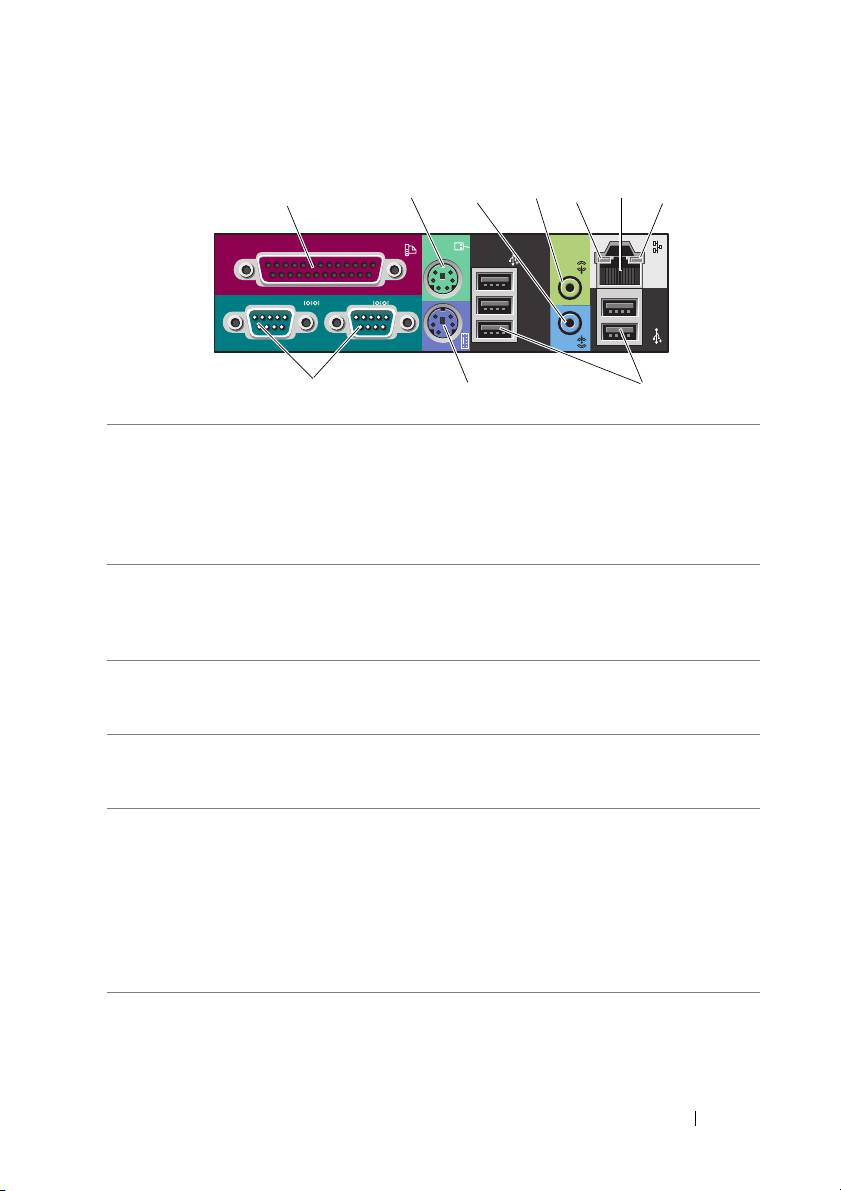
Back Panel Connectors (Tower Orientation)
12357
46
8
9
10
1 parallel connector Connect a parallel device, such as a printer, to the parallel
connector. If you have a USB printer, plug it into a USB connector.
The integrated parallel connector is automatically disabled if
the computer detects an installed card containing a parallel
connector configured to the same address. For more
information, see "System Setup Options" in your User’s Guide.
2PS/2 mouse
Plug a standard PS/2 mouse into the green mouse connector.
connector
Turn off the computer and any attached devices before you
connect a mouse to the computer. If you have a USB mouse,
plug it into a USB connector.
3 line-in connector Use the blue line-in connector to attach a playback device
such as an MP3 player, CD player, or VCR.
On computers with a sound card, use the connector on the card.
4 line-out connector Use the green line-out connector to attach most speakers with
integrated amplifiers.
On computers with a sound card, use the connector on the card.
5 link integrity light Green — A good connection exists between a 10-Mbps
network and the computer.
Orange — A good connection exists between a 100-Mbps
network and the computer.
Yellow — A good connection exists between a 1000-Mbps
(or 1-Gbps) network and the computer.
Off — The computer is not detecting a physical connection
to the network.
Quick Reference Guide 21

6 network adapter
To attach your computer to a network or broadband device,
connector
connect one end of a network cable to either a network jack or
your network or broadband device. Connect the other end of
the network cable to the network adapter connector on your
computer. A click indicates that the network cable has been
securely attached.
Do not plug a telephone cable into the network connector.
On computers with an additional network connector card, use
the connectors on the card and on the back of the computer
when setting up multiple network connections (such as
a separate intra- and extranet).
Dell recommends that you use Category 5 wiring and connectors
for your network. If you must use Category 3 wiring, force the
network speed to 10 Mbps to ensure reliable operation.
7network
Flashes a yellow light when the computer is transmitting or
activity light
receiving network data. A high volume of network traffic may
make this light appear to be in a steady "on" state.
8 serial
Connect a serial device, such as a handheld device, to the
connectors (2)
serial port. If necessary, the address for this port can be
modified through "System Setup" in your User’s Guide.
9 PS/2 keyboard
If you have a standard PS/2 keyboard, plug it into the purple
connector
keyboard connector. If you have a USB keyboard, plug it into
a USB connector.
10 USB 2.0
Dell recommends that you use the front USB connectors for
connectors (5)
devices that you connect occasionally, such as flash memory
keys or cameras, or for bootable USB devices.
Use the back USB connectors for devices that typically remain
connected, such as printers and keyboards.
22 Quick Reference Guide
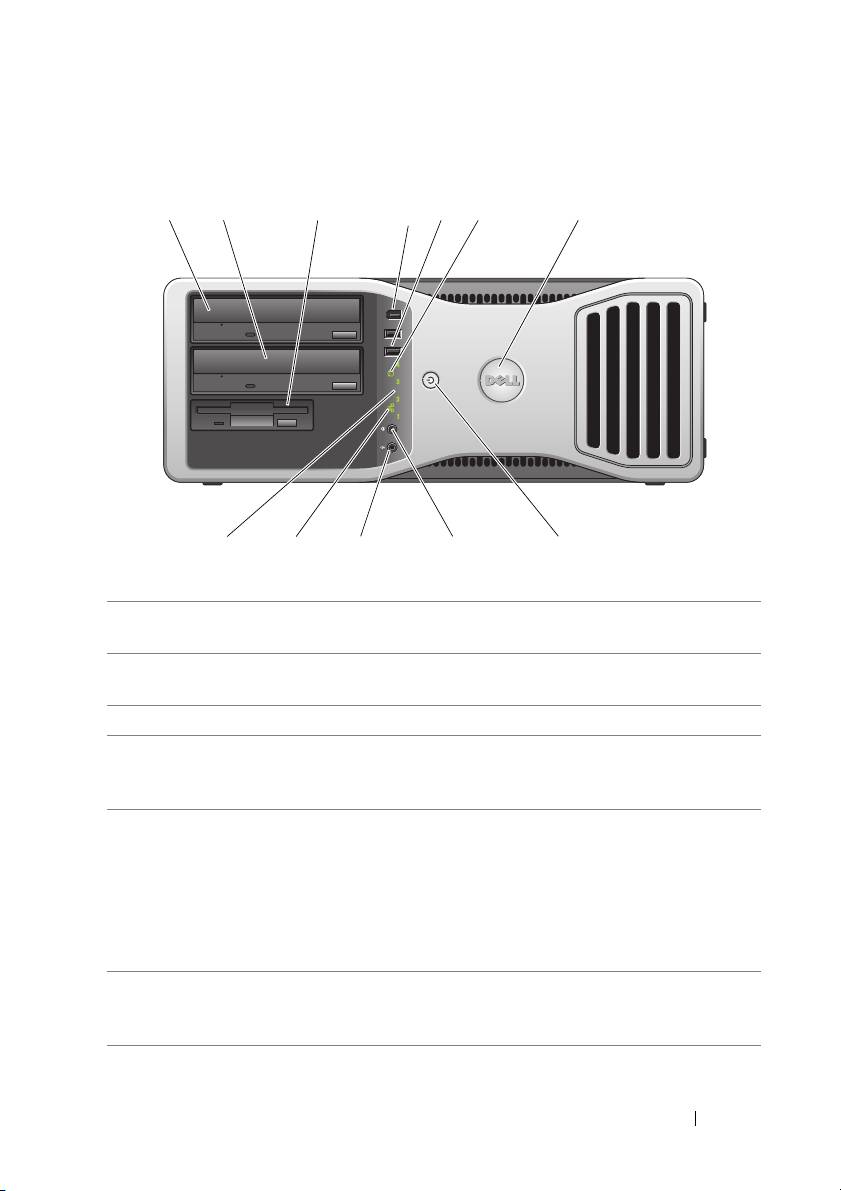
Front View (Desktop Orientation)
1 23
4
5
67
9101112
8
1 upper 5.25-inch
Holds an Optical Drive.
drive bay
2 lower 5.25-inch
You can use the bay for an optional Optical Drive or a SATA
drive bay
hard drive.
3 FlexBay You can use the bay for a floppy drive or a Media Card Reader.
4 IEEE 1394
Use the optional IEEE 1394 connector for high-speed data devices
connector
such as digital video cameras and external storage devices.
(optional)
5 USB 2.0
Use the front USB connectors for devices that you connect
connectors (2)
occasionally, such as flash memory keys or cameras, or for
bootable USB devices. (For more information on booting to
a USB device, see "System Setup" in your User’s Guide.)
Dell recommends that you use the back USB connectors for
devices that typically remain connected, such as printers and
keyboards.
6 hard-drive
The hard drive light is on when the computer reads data from or
activity light
writes data to the hard drive. The light might also be on when
a device such as your CD player is operating.
Quick Reference Guide 23

7 Dell rotatable
To rotate the Dell badge for tower-to-desktop conversion:
badge
remove the
front panel (see
"Removing the Front Panel" in your
User’s Guide
)
, turn it over, and rotate the plastic handle behind
the badge.
8 power button,
Press the power button to turn on the computer. The light in the
power light
center of this button indicates power state. For more information,
see "Power Lights" on page 27.
NOTICE: To avoid losing data, do not use the power
button to turn off the computer. Instead, perform an
operating system shutdown.
9 headphone
Use the headphone connector to attach headphones.
connector
10 microphone
Use the microphone connector to attach a personal computer
connector
microphone for voice or musical input into a sound or
telephony program.
11 network link light The network link light is on when a good connection exists
between a 10-Mbps, 100-Mbps, or 1000-Mbps (or 1-Gbps)
network and the computer.
12 diagnostic
Use these lights to help you troubleshoot a computer problem
lights (4)
based on the diagnostic code. For more information, see "Power
Lights" on page 27.
24 Quick Reference Guide
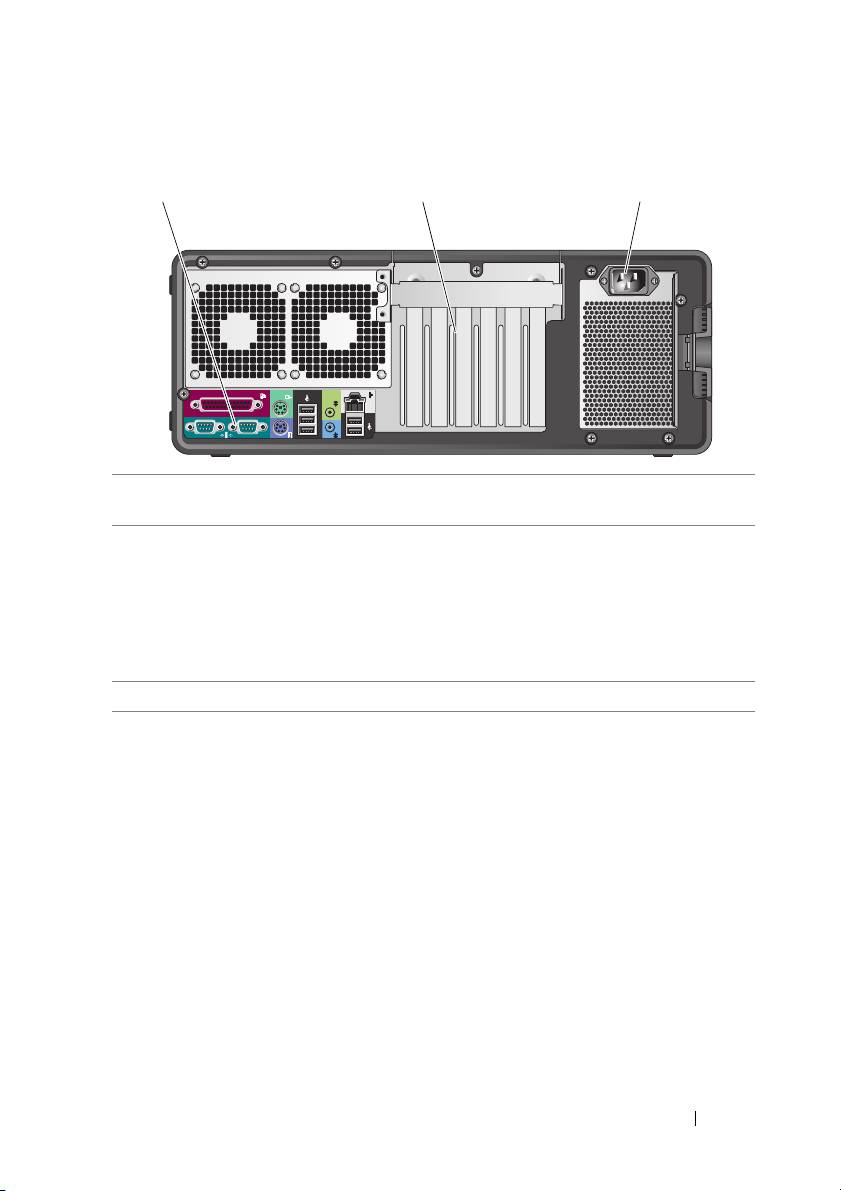
Back View (Desktop Orientation)
1 back panel
Plug serial, USB, and other devices into the
connectors
appropriate connector
.
2 card slots Access connectors for any installed PCI and PCI Express cards.
Slots 2-4 support full-length cards:
- two PCI Express x16 slots
- one PCI slot.
Slots 1, 5, and 6 support half-length cards:
- two PCI-X slots
- one PCI Express x8 slot.
3 power connector Insert the power cable.
Quick Reference Guide 25
1 2 3

Cleaning Your Computer
CAUTION: Before you begin any of the procedures in this section, follow the
safety instructions in the
Product Information Guide
.
Computer, Keyboard, and Monitor
CAUTION: Before you clean your computer, disconnect the computer from the
electrical outlet. Clean your computer with a soft cloth dampened with water.
Do not use liquid or aerosol cleaners, which may contain flammable substances.
• Use a vacuum cleaner with a brush attachment to gently remove dust from
the slots and holes on your computer and from between the keys on the
keyboard.
NOTICE: Do not wipe the display screen with a soap or alcohol solution. Doing so
may damage the antiglare coating.
• To clean your monitor screen, lightly dampen a soft, clean cloth with water.
If possible, use a special screen-cleaning tissue or solution suitable for the
monitor’s antistatic coating.
• Wipe the keyboard, computer, and plastic part of the monitor with a soft
cleaning cloth moistened with water.
Do not soak the cloth or let water drip inside your computer or keyboard.
Mouse (Non-Optical)
1
Turn the retainer ring on the underside of your mouse counterclockwise,
and then remove the ball.
2
Wipe the ball with a clean, lint-free cloth.
3
Blow carefully into the ball cage to dislodge dust and lint.
4
Clean the rollers inside the ball cage with a cotton swab moistened lightly
with isopropyl alcohol.
5
Recenter the rollers in their channels, as needed. Ensure that fluff from
the swab is not left on the rollers.
6
Replace the ball and retainer ring, and then turn the retainer ring clockwise
until it clicks into place.
26 Quick Reference Guide

Floppy Drive
NOTICE: Do not attempt to clean drive heads with a swab. The heads may become
misaligned and prevent the drive from operating.
Clean your floppy drive using a commercially available cleaning kit. These
kits contain pretreated floppy disks to remove contaminants that accumulate
during normal operation.
CDs and DVDs
NOTICE: Always use compressed air to clean the lens in the CD/DVD drive, and
follow the instructions that come with the compressed air. Never touch the lens in
the drive.
1
Hold the disc by its outer edge. You can also touch the inside edge of the
center hole.
NOTICE: To prevent damaging the surface, do not wipe in a circular motion around
the disc.
2
With a soft, lint-free cloth, gently wipe the bottom of the disc (the unlabeled
side) in a straight line from the center to the outer edge of the disc.
For stubborn dirt, try using water or a diluted solution of water and mild
soap. You can also purchase commercial products that clean discs and
provide some protection from dust, fingerprints, and scratches. Cleaning
products for CDs are safe to use on DVDs.
Troubleshooting Tools
Power Lights
CAUTION: Before you begin any of the procedures in this section, follow the
safety instructions in the
Product Information Guide
.
The power button light located on the front of the computer illuminates and
blinks or remains solid to indicate different states:
• If the power light is green and the computer is not responding, "Diagnostic
Lights" on page 29.
• If the power light is blinking green, the computer is in standby mode.
Press a key on the keyboard, move the mouse, or press the power button
to resume normal operation.
Quick Reference Guide 27

• If the power light is off, the computer is either turned off or is not
receiving power.
– Reseat the power cable into both the power connector on the back of
the computer and the electrical outlet.
– If the computer is plugged into a power strip, ensure that the power
strip is plugged into an electrical outlet and that the power strip is
turned on.
– Bypass power protection devices, power strips, and power extension
cables to verify that the computer turns on properly.
– Ensure that the electrical outlet is working by testing it with another
device, such as a lamp.
– Ensure that the main power cable and front panel cable are securely
connected to the system board (see "System Board Components" in
your
User’s Guide
).
• If the power light is blinking amber, the computer is receiving electrical
power, but an internal power problem might exist.
– Ensure that the voltage selection switch is set to match the AC power
at your location, if applicable.
– Ensure that the processor power cable is securely connected to the
system board (see "System Board Components" in your
User’s Guide
).
• If the power light is steady amber, a device may be malfunctioning or
incorrectly installed.
– Remove and then reinstall the memory modules (see "Removing the
Front Panel" in your
User’s Guide
).
– Remove and then reinstall any cards (see "Cards" in your
User’s Guide
).
• Eliminate interference. Some possible causes of interference are:
– Power, keyboard, and mouse extension cables
– Too many devices on a power strip
– Multiple power strips connected to the same electrical outlet
28 Quick Reference Guide
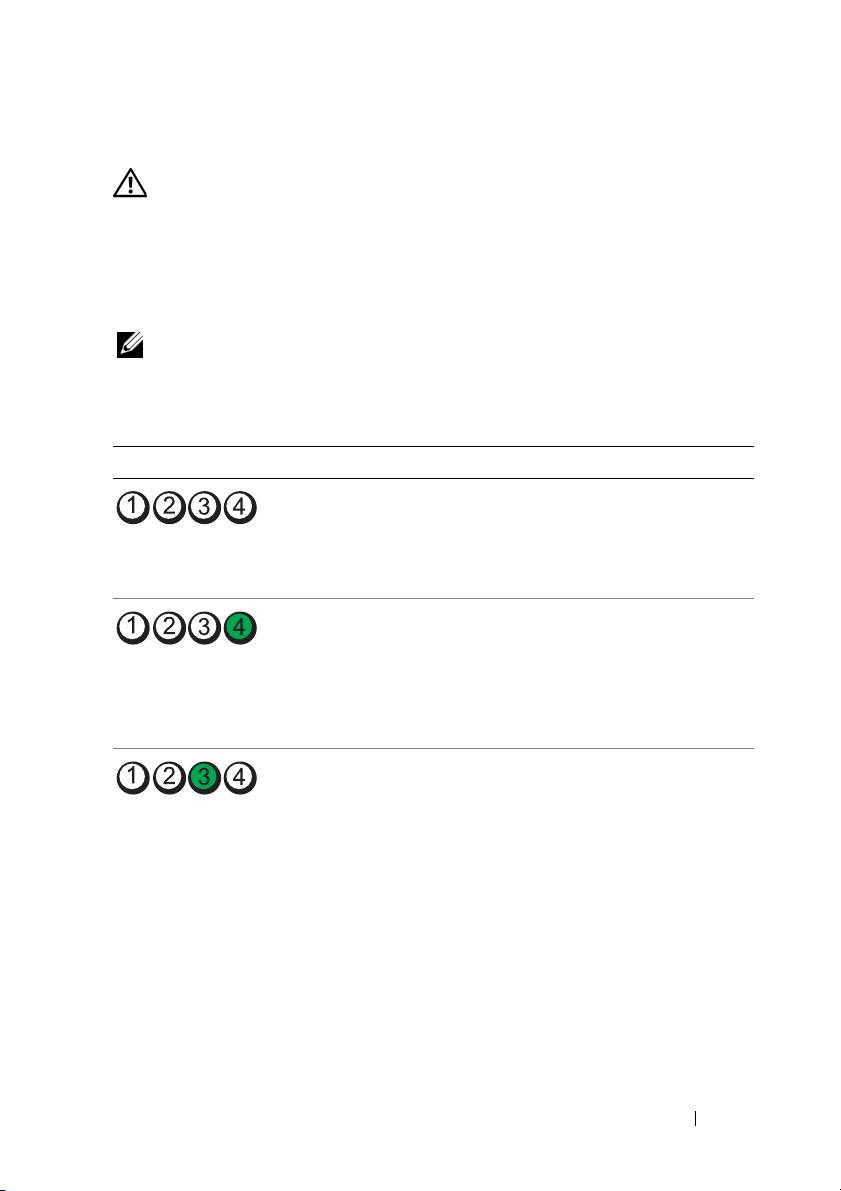
Diagnostic Lights
CAUTION: Before you begin any of the procedures in this section, follow the
safety instructions in the
Product Information Guide
.
To help troubleshoot a problem, your computer has four lights labeled 1, 2, 3, and
4 on the front panel (see "Front View (Tower Orientation)" on page 18). When
the computer starts normally, the lights flash, and then turn off. If the computer
malfunctions, use the sequence of the lights to help identify the problem.
NOTE: After the computer completes POST, all four lights turn off before booting to
the operating system.
Diagnostic Light Codes During POST
Light Pattern Problem Description Suggested Resolution
The computer is in
Plug the computer into a working electrical
a normal off
outlet and press the power button.
condition or
a possible pre-BIOS
failure has occurred.
A possible BIOS
• Run the BIOS Recovery utility, wait
failure has occurred;
for recovery completion, and then
the computer is in the
restart the computer.
recovery mode.
• If the problem persists, contact Dell
(see
"Contacting Dell" in your
User’s Guide
).
A possible processor
• Reseat the processor (see "Processor"
failure has occurred.
in your User’s Guide
).
• If the problem persists, contact Dell
(see
"Contacting Dell" in your
User’s Guide
).
Quick Reference Guide 29
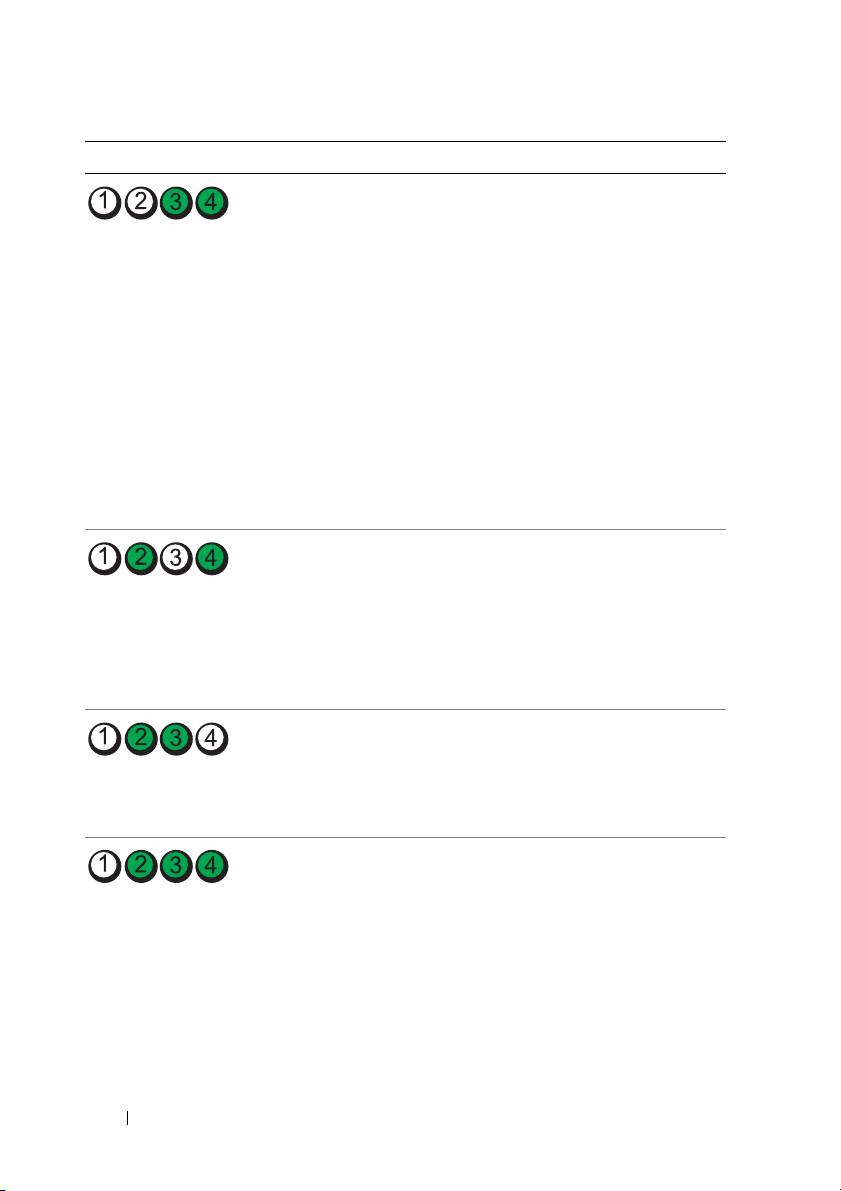
Light Pattern Problem Description Suggested Resolution
Memory modules
• If two or more memory modules are
are detected, but
installed, remove the modules
amemory failure
(see "Memory"
in your User’s Guide
),
has occurred.
reinstall one module, and then restart
the computer. If the computer starts
normally, continue to install additional
memory modules (one at a time) until
you have identified a faulty module or
reinstalled all modules without error.
• If available, install working memory of
the same type into your computer
(see "Memory"
in your User’s Guide
).
• If the problem persists, contact Dell
(see
"Contacting Dell" in your User’s
Guide
).
A possible graphics
• Reseat any installed graphics cards
card failure has
(see "Cards"
in your User’s Guide
).
occurred.
• If available, install a working graphics
card into your computer.
• If the problem persists, contact Dell
(see
"Contacting Dell" in your User’s
Guide
).
A possible floppy or
• Reseat all power and data cables and
hard drive failure
restart the computer.
has occurred.
• If the problem persists, contact Dell
(see
"Contacting Dell" in your User’s
Guide
).
A possible USB
• Reinstall all USB devices, check cable
failure has occurred.
connections, and then restart the
computer.
• If the problem persists, contact Dell
(see
"Contacting Dell" in your User’s
Guide
).
30 Quick Reference Guide
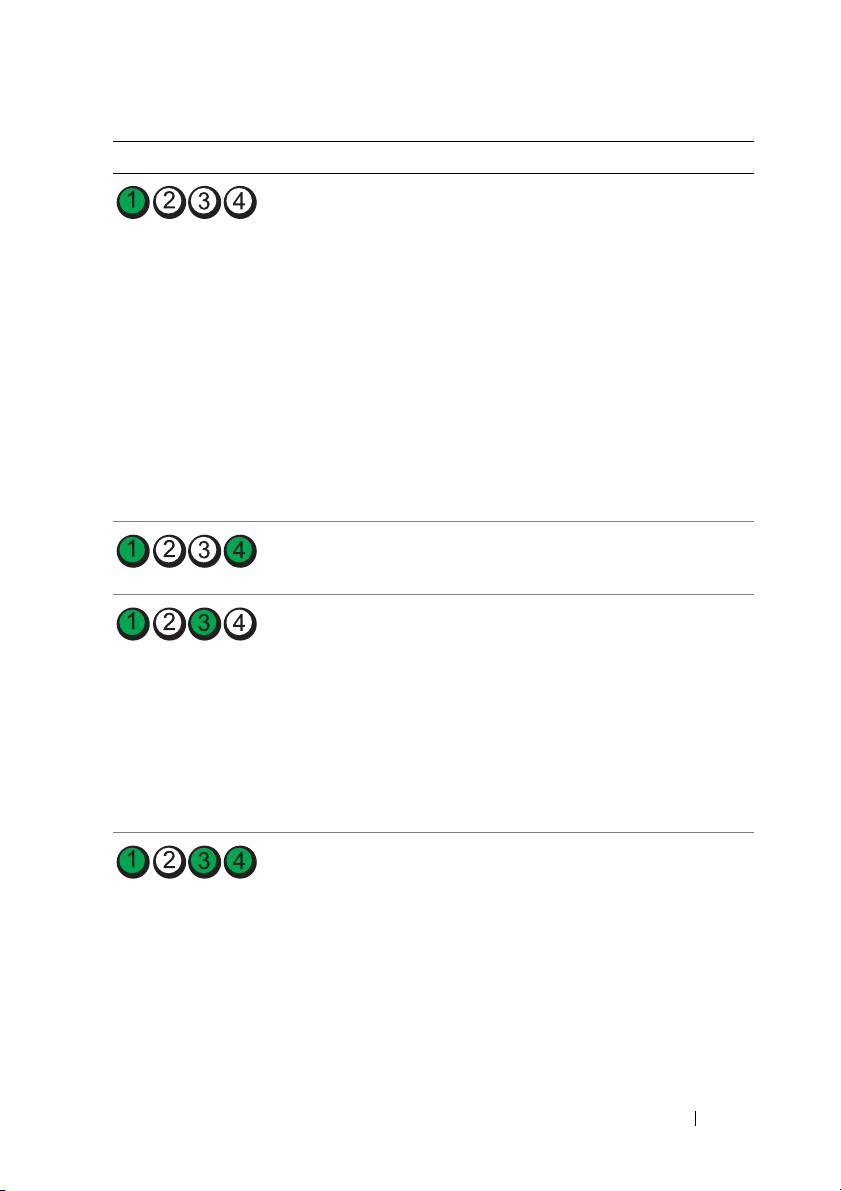
Light Pattern Problem Description Suggested Resolution
No memory
• If two or more memory modules are
modules are detected.
installed, remove the modules
(see "Memory"
in your User’s Guide
),
reinstall one module, and then restart
the computer. If the computer starts
normally, continue to install additional
memory modules (one at a time) until
you have identified a faulty module or
reinstalled all modules without error.
• If available, install working memory of
the same type into your computer
(see "Memory"
in your User’s Guide
).
• If the problem persists, contact Dell
(see
"Contacting Dell" in your User’s
Guide
).
System board failure
Contact Dell (see "Contacting Dell" in
has occurred.
your User’s Guide).
Memory modules
• Ensure that no special requirements
are detected, but
for memory module/connector
amemory
placement exist (see "Memory"
in
configuration or
your User’s Guide
).
compatibility
• Ensure that the memory you are using
error exists.
is supported by your computer
(see "Memory"
in your User’s Guide
).
• If the problem persists, contact Dell
(see
"Contacting Dell" in your User’s
Guide).
A possible system
• Perform the procedures in "Restoring
board resource and/or
Your Operating System"
in your User’s
hardware failure
Guide
.
has occurred.
• If the problem persists, contact Dell
(see "Contacting Dell"
in your User’s
Guide
).
Quick Reference Guide 31
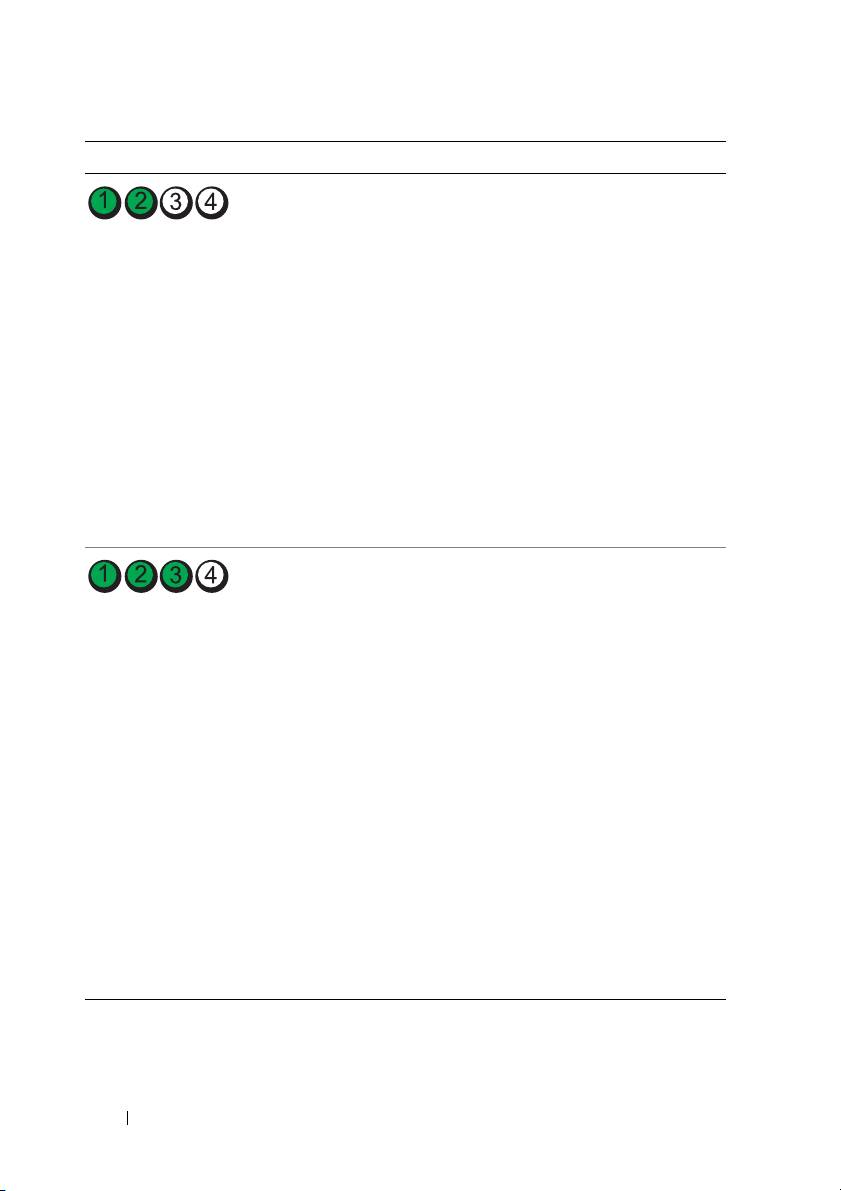
Light Pattern Problem Description Suggested Resolution
A possible expansion
1
Determine if a conflict exists by removing
card failure has
an expansion card (not a graphics card)
occurred.
and restarting the computer (see "Cards"
in your User’s Guide
).
2
If the problem persists, reinstall the card
you removed, and then remove
a different card and restart the computer.
3
Repeat this process for each expansion
card installed. If the computer starts
normally, troubleshoot the last card
removed from the computer for resource
conflicts (see "Restoring Your Operating
System"
in your User’s Guide
).
4
If the problem persists, contact Dell
(see
"Contacting Dell" in your User’s
Guide
).
Another failure
• Ensure that all hard drive and CD/DVD
has occurred.
drive cables are properly connected to
the system board (see "System Board
Components"
in your User’s Guide
).
• If there is an error message on the
screen identifying a problem with
a device (such as the floppy drive or
hard drive), check the device to make
sure it is functioning properly.
• If the operating system is attempting to
boot from a device (such as the floppy
drive or CD/DVD drive), check the
system setup program (see "System
Setup"
in your User’s Guide
) to ensure
the boot sequence is correct for the
devices installed on your computer.
• If the problem persists, contact Dell
(see
"Contacting Dell" in your User’s
Guide
).
32 Quick Reference Guide

Beep Codes
Your computer may emit a series of beeps during start up. The series of beeps
is called a beep code and can be used to help identify a problem with your
computer.
If your computer emits a series of beeps during start-up:
1
Write down the beep code.
2
Run the Dell Diagnostics to identify the cause (see "Dell Diagnostics" on
page 36).
Code Cause
2 short, 1 long BIOS checksum error
1 long, 3 short, 2 short Memory error
1 short F12 key pressed
Code
Description Suggested Remedy
(repetitive
short beeps)
1BIOS checksum
Contact Dell (see "Contacting Dell" in
failure. Possible
your User’s Guide).
motherboard failure.
2 No memory modules
• If two or more memory modules are
are detected.
installed, remove the modules
(see "Memory"
in your User’s Guide
),
reinstall one module, and then restart
the computer. If the computer starts
normally, continue to install additional
memory modules (one at a time) until
you have identified a faulty module or
reinstalled all modules without error.
• If available, install working memory of
the same type into your computer
(see "Memory"
in your User’s Guide
).
• If the problem persists, contact Dell (see
"Contacting Dell" in your User’s Guide
).
3 Possible motherboard
Contact Dell (see "Contacting Dell" in
failure.
your User’s Guide).
Quick Reference Guide 33
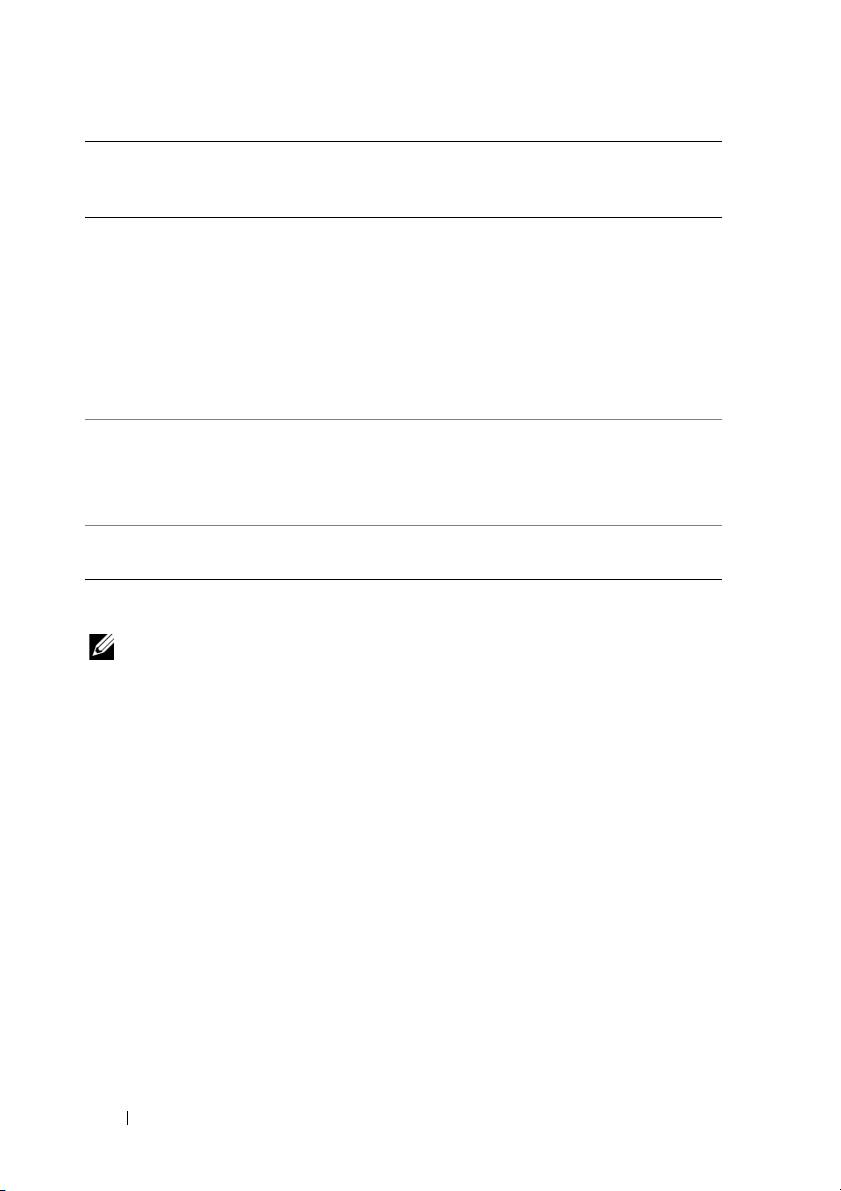
Code
Description Suggested Remedy
(repetitive
short beeps)
4 RAM Read/Write
• Ensure that no special requirements for
failure.
memory module/connector placement
exist (see "Memory"
in your User’s Guide
).
• Ensure that the memory you are using is
supported by your computer (see "Memory"
in your User’s Guide
).
• If the problem persists, contact Dell (see
"Contacting Dell" in your User’s Guide).
5 Real time clock failure.
• Replace the battery (see "Replacing the
Possible battery failure
Battery"
in your User’s Guide
).
or motherboard failure.
• If the problem persists, contact Dell (see
"Contacting Dell" in your User’s Guide).
6Video BIOS Test
Dell (see "Contacting Dell" in your User’s
Failure.
Guide).
System Messages
NOTE: If the message you received is not listed in the following table, see the
documentation for either the operating system or the program that was running
when the message appeared.
A
LERT! PREVIOUS ATTEMPTS AT BOOTING THIS SYSTEM HAVE FAILED AT CHECKPOINT
[
NNNN]. FOR HELP IN RESOLVING THIS PROBLEM, PLEASE NOTE THIS CHECKPOINT
AND CONTACT DELL TECHNICAL SUPPORT — The computer failed to complete the
boot routine three consecutive times for the same error (see "Contacting Dell" in your
User’s Guide for assistance).
CMOS
CHECKSUM ERROR — Possible motherboard failure or the real-time clock
battery charge is low. Replace the battery (see "Replacing the Battery" or "Contacting
Dell" in your User’s Guide for assistance).
CPU
FAN FAILURE — CPU fan failure. Replace the CPU fan (see "Removing the
Processor" in your User’s Guide).
F
LOPPY DISKETTE SEEK FAILURE — A cable may be loose, or the computer
configuration information may not match the hardware configuration. Check cable
connections (see "Contacting Dell" in your User’s Guide for assistance).
D
ISKETTE READ FAILURE — The floppy disk may be defective or a cable may be loose.
Replace the floppy disk and/or check for a loose cable connection.
34 Quick Reference Guide

HARD-DISK READ FAILURE — Possible hard drive failure during hard-drive boot test
(see "Contacting Dell" in your User’s Guide for assistance).
K
EYBOARD FAILURE — Keyboard failure or the keyboard cable is loose (see "Keyboard
Problems" in your User’s Guide).
N
O BOOT DEVICE AVAILABLE — The system cannot detect a bootable device or partition.
• If the floppy drive is your boot device, ensure that the cables are connected and that
a bootable floppy disk is in the drive.
• If the hard drive is your boot device, ensure that the cables are connected and that
the drive is installed properly and partitioned as a boot device.
• Enter the system setup program and ensure that the boot sequence information is
correct (see "Entering System Setup"
in your User’s Guide
).
NO TIMER TICK INTERRUPT — System board failure or a chip on the system board
might be malfunctioning (see "Contacting Dell" in your User’s Guide for assistance).
N
ON-SYSTEM DISK OR DISK ERROR — Replace the floppy disk with one that has
a bootable operating system or remove the floppy disk from drive A and restart
the computer.
N
OT A BOOT DISKETTE — Insert a bootable floppy disk and restart your computer.
NOTICE - H
ARD DRIVE SELF MONITORING SYSTEM HAS REPORTED THAT
A PARAMETER HAS EXCEEDED ITS NORMAL OPERATING RANGE. DELL RECOMMENDS
THAT YOU BACK UP YOUR DATA REGULARLY. A PARAMETER OUT OF RANGE MAY OR
MAY NOT INDICATE A POTENTIAL HARD DRIVE PROBLEM — S.M.A.R.T error, possible
HDD failure. This feature can be enabled or disabled in BIOS setup.
Hardware Troubleshooter
If a device is either not detected during the operating system setup or is detected,
but incorrectly configured, you can use the Hardware Troubleshooter to resolve
the incompatibility.
Windows XP:
1
Click
Start
→
Help and Support
.
2
Ty p e
hardware troubleshooter
in the search field and press
<Enter> to start the search.
3
In the
Fix a Problem
section, click
Hardware Troubleshooter
.
4
In the
Hardware Troubleshooter
list, select the option that best describes
the problem and click
Next
to follow the remaining troubleshooting steps.
Quick Reference Guide 35
Windows Vista:
1
Click the Windows Vista start button , and click
Help and Support
.
2
Ty p e
hardware troubleshooter
in the search field and press
<Enter> to start the search.
3
In the search results, select the option that best describes the problem and
follow the remaining troubleshooting steps.
Dell Diagnostics
CAUTION: Before you begin any of the procedures in this section, follow the
safety instructions in the
Product Information Guide
.
If you experience a problem with your computer, perform the checks in
"Lockups and Software Problems" on page 45 and run the Dell Diagnostics
before you contact Dell for technical assistance.
Dell recommends that you print these procedures before you begin.
NOTICE: The Dell Diagnostics works only on Dell™ computers.
NOTE: The Drivers and Utilities disc is optional and may not ship with your computer.
Enter system setup (see "System Setup" in your User’s Guide), review your
computer’s configuration information, and ensure that the device you want
to test displays in system setup and is active.
Start the Dell Diagnostics from either your hard drive or from the Drivers and
Utilities disc.
Starting the Dell Diagnostics From Your Hard Drive
1
Turn on (or restart) your computer.
2
When the DELL™ logo appears, press <F12> immediately.
NOTE: If you see a message stating that no diagnostics utility partition has been
found, run the Dell Diagnostics from your Drivers and Utilities disc. See "Starting the
Dell Diagnostics From the Drivers and Utilities Disc" on page 37.
If you wait too long and the operating system logo appears, continue to
®
®
wait until you see the Microsoft
Windows
desktop. Then shut down
your computer (see "Turning Off Your Computer" in your
User’s Guide
),
and try again.
36 Quick Reference Guide

3
When the boot device list appears, highlight
Boot to Utility Partition
and
press <Enter>.
4
When the Dell Diagnostics
Main Menu
appears (see "Dell Diagnostics
Main Menu" on page 37), select the test that you want to run.
Starting the Dell Diagnostics From the Drivers and Utilities Disc
1
Insert the
Drivers and Utilities
disc.
2
Shut down and restart the computer.
When the DELL logo appears, press <F12> immediately.
If you wait too long and the Windows logo appears, continue to wait until
you see the Windows desktop. Then shut down your computer and try again.
NOTE: The next steps change the boot sequence for one time only. On the
next start-up, the computer boots according to the devices specified in the
system setup program.
3
When the boot device list appears, highlight
Onboard or USB CD-ROM
Drive
and press <Enter>.
4
Select the
Boot from CD-ROM
option from the menu that appears and
press <Enter>.
5
Ty p e
1
to start the menu and press <Enter> to proceed.
6
Select
Run the 32 Bit Dell Diagnostics
from the numbered list. If multiple
versions are listed, select the version appropriate for your computer.
7
When the Dell Diagnostics
Main Menu
appears, select the test you want
to run.
Dell Diagnostics Main Menu
1
After the Dell Diagnostics loads and the
Main
Menu
screen appears, click
the button for the option you want.
Option Function
Express Test Performs a quick test of devices. This test typically takes 10 to 20
minutes and requires no interaction on your part. Run Express
Test first to increase the possibility of tracing the problem quickly.
Extended Test Performs a thorough check of devices. This test typically takes
1 hour or more and requires you to answer questions periodically.
Quick Reference Guide 37
Option Function
Custom Test Tests a specific device. You can customize the tests you want
to run.
Symptom Tree Lists the most common symptoms encountered and allows you
to select a test based on the symptom of the problem you
are having.
2
If a problem is encountered during a test, a message appears with an error
code and a description of the problem. Write down the error code and
problem description and follow the instructions on the screen.
If you cannot resolve the error condition, contact Dell (see "Contacting
Dell" in your
User’s Guide
).
NOTE: The Service Tag for your computer is located at the top of each test
screen. If you contact Dell, technical support will ask for your Service Tag.
3
If you run a test from the
Custom Test
or
Symptom Tree
option, click the
applicable tab described in the following table for more information.
Tab Function
Results Displays the results of the test and any error conditions
encountered.
Errors Displays error conditions encountered, error codes, and
the problem description.
Help Describes the test and may indicate requirements for
running the test.
Configuration Displays your hardware configuration for the selected
device.
The Dell Diagnostics obtains configuration information
for all devices from system setup, memory, and various
internal tests, and it displays the information in the device
list in the left pane of the screen. The device list may not
display the names of all the components installed on your
computer or all devices attached to your computer.
Parameters Allows you to customize the test by changing the
test settings.
38 Quick Reference Guide
4
When the tests are completed, if you are running the Dell Diagnostics
from the
Drivers and Utilities
disc
,
remove the disc.
5
Close the test screen to return to the
Main
Menu
screen. To exit the Dell
Diagnostics and restart the computer, close the
Main
Menu
screen.
Troubleshooting
Follow these tips when you troubleshoot your computer:
• If you added or removed a part before the problem started, review the
installation procedures and ensure that the part is correctly installed.
• If a peripheral device does not work, ensure that the device is properly
connected.
• If an error message appears on the screen, write down the exact message.
This message may help support personnel diagnose and fix the problem(s).
• If an error message occurs in a program, see the program’s documentation.
NOTE: The procedures in this document were written for the Windows default view,
so they may not apply if you set your Dell computer to the Windows Classic view.
Battery Problems
CAUTION: There is a danger of a new battery exploding if it is incorrectly installed.
Replace the battery only with the same or equivalent type recommended by the
manufacturer. Discard used batteries according to the manufacturer's instructions.
CAUTION: Before you begin any of the procedures in this section, follow the
safety instructions in the
Product Information Guide
.
R
EPLACE THE BATTERY — If you have to repeatedly reset time and date information
after turning on the computer, or if an incorrect time or date displays during start-up,
replace the battery (see "Replacing the Battery" in your User’s Guide). If the battery
still does not work properly, contact Dell (see "Contacting Dell" in your User’s Guide).
Drive Problems
CAUTION: Before you begin any of the procedures in this section, follow the
safety instructions in the
Product Information Guide
.
E
NSURE THAT MICROSOFT WINDOWS RECOGNIZES THE DRIVE —
Windows XP:
•Click
Start
and click
My Computer
.
Quick Reference Guide 39
Windows Vista:
• Click the Windows Vista Start button and click
Computer
.
If the drive is not listed, perform a full scan with your antivirus software to check for and
remove viruses. Viruses can sometimes prevent Windows from recognizing the drive.
T
EST THE DRIVE —
• Insert another disc to eliminate the possibility that the original drive is defective.
• Insert a bootable floppy disk and restart the computer.
CLEAN THE DRIVE OR DISK — See
"Back View (Desktop Orientation)" on page 25
.
C
HECK THE CABLE CONNECTIONS
RUN THE HARDWARE TROUBLESHOOTER — See "Restoring Your Operating System"
in your User’s Guide.
R
UN THE DELL DIAGNOSTICS — See "Dell Diagnostics" on page 36.
Optical Drive Problems
NOTE: High-speed optical drive vibration is normal and may cause noise, which
does not indicate a defect in the drive or the media.
NOTE: Because of different regions worldwide and different disc formats, not all
DVD titles work in all DVD drives.
A
DJUST THE WINDOWS VOLUME CONTROL —
• Click the speaker icon in the lower-right corner of your screen.
• Ensure that the volume is turned up by clicking the slidebar and dragging it up.
• Ensure that the sound is not muted by clicking any boxes that are checked.
CHECK THE SPEAKERS AND SUBWOOFER — See "Sound and Speaker Problems" on
page 51.
Problems Writing to an Optical Drive
CLOSE OTHER PROGRAMS — The optical drive must receive a steady stream of data
during the writing process. If the stream is interrupted, an error occurs. Try closing all
programs before you write to the optical.
T
URN OFF STANDBY MODE IN WINDOWS BEFORE WRITING TO A DISC — Search for
the keyword standby in Windows Help and Support for information on power
management modes.
40 Quick Reference Guide
