
Dell PowerEdge VRTX: Notes, Cautions, and Warnings
Notes, Cautions, and Warnings: Dell PowerEdge VRTX
Оглавление
- Notes, Cautions, and Warnings

Notes, Cautions, and Warnings
NOTE: A NOTE indicates important information that helps you make better use of your computer.
CAUTION: A CAUTION indicates either potential damage to hardware or loss of data and tells you how to avoid the
problem.
WARNING: A WARNING indicates a potential for property damage, personal injury, or death.
© 2013 Dell Inc.
Trademarks used in this text:
Dell
™
, the Dell logo,
Dell Boomi
™
,
Dell Precision
™
,
OptiPlex
™
,
Latitude
™
,
PowerEdge
™
,
PowerVault
™
,
PowerConnect
™
,
OpenManage
™
,
EqualLogic
™
,
Compellent
™
,
KACE
™
,
FlexAddress
™
,
Force10
™
and
Vostro
™
are trademarks of Dell
Inc.
Intel
®
,
Pentium
®
,
Xeon
®
,
Core
®
and
Celeron
®
are registered trademarks of Intel Corporation in the U.S. and other countries.
AMD
®
is a registered trademark and
AMD Opteron
™
,
AMD Phenom
™
and
AMD Sempron
™
are trademarks of Advanced Micro Devices, Inc.
Microsoft
®
,
Windows
®
,
Windows Server
®
,
Internet Explorer
®
,
MS-DOS
®
,
Windows Vista
®
and
Active Directory
®
are either trademarks
or registered trademarks of Microsoft Corporation in the United States and/or other countries.
Red Hat
®
and
Red Hat
®
Enterprise Linux
®
are registered trademarks of Red Hat, Inc. in the United States and/or other countries.
Novell
®
and
SUSE
®
are
registered trademarks of Novell Inc. in the United States and other countries.
Oracle
®
is a registered trademark of Oracle Corporation
and/or its affiliates.
Citrix
®
,
Xen
®
,
XenServer
®
and
XenMotion
®
are either registered trademarks or trademarks of Citrix Systems, Inc. in
the United States and/or other countries.
VMware
®
,
vMotion
®
,
vCenter
®
,
vCenter SRM
™
and
vSphere
®
are registered trademarks or
trademarks of VMware, Inc. in the United States or other countries.
IBM
®
is a registered trademark of International Business Machines
Corporation.
2013–05
Rev. A00
Contents
1 About Your System......................................................................................................................7
Introduction.............................................................................................................................................................. 7
Front-Panel Features And Indicators....................................................................................................................... 8
Using USB Diskette Or USB DVD/CD Drives.............................................................................................................8
Hard-Drive Features................................................................................................................................................. 8
Other Information You May Need.............................................................................................................................9
2 Using The System Setup And Boot Manager.......................................................................11
Choosing The System Boot Mode.......................................................................................................................... 11
Entering System Setup............................................................................................................................................12
Responding To Error Messages.......................................................................................................................12
Using The System Setup Navigation Keys....................................................................................................... 12
System Setup Options.............................................................................................................................................12
System Setup Main Screen..............................................................................................................................13
System BIOS Screen........................................................................................................................................13
System Information Screen..............................................................................................................................13
Memory Settings Screen................................................................................................................................. 14
Processor Settings Screen.............................................................................................................................. 14
SATA Settings Screen......................................................................................................................................15
Boot Settings Screen....................................................................................................................................... 16
Integrated Devices Screen.............................................................................................................................. 16
Serial Communications Screen........................................................................................................................17
System Profile Settings Screen........................................................................................................................18
System Security Screen...................................................................................................................................19
Miscellaneous Settings....................................................................................................................................19
System And Setup Password Features.................................................................................................................. 20
Assigning A System And/Or Setup Password..................................................................................................20
Using Your System Password To Secure Your System....................................................................................21
Deleting Or Changing An Existing System And/Or Setup Password................................................................21
Operating With A Setup Password Enabled.................................................................................................... 22
Entering The UEFI Boot Manager........................................................................................................................... 22
Using The Boot Manager Navigation Keys......................................................................................................22
Boot Manager Screen......................................................................................................................................23
UEFI Boot Menu............................................................................................................................................... 23
Embedded System Management............................................................................................................................23
iDRAC Settings Utility..............................................................................................................................................24
Entering The iDRAC Settings Utility..................................................................................................................24
3 Installing Server Module Components.................................................................................. 25
Recommended Tools.............................................................................................................................................. 25
Installing And Removing A Server Module.............................................................................................................25
Removing A Server Module............................................................................................................................. 25
Installing A Server Module...............................................................................................................................27
Opening And Closing The Server Module...............................................................................................................27
Opening The Server Module............................................................................................................................ 27
Closing The Server Module..............................................................................................................................28
Inside The Server Module...................................................................................................................................... 29
Cooling Shroud....................................................................................................................................................... 29
Removing The Cooling Shroud......................................................................................................................... 29
Installing The Cooling Shroud.......................................................................................................................... 30
System Memory......................................................................................................................................................30
General Memory Module Installation Guidelines............................................................................................ 32
Mode-Specific Guidelines................................................................................................................................33
Sample Memory Configurations.......................................................................................................................34
Removing Memory Modules............................................................................................................................ 37
Installing Memory Modules............................................................................................................................. 38
PCIe Mezzanine Cards............................................................................................................................................39
Removing A PCIe Mezzanine Card...................................................................................................................39
Installing A PCIe Mezzanine Card....................................................................................................................40
Management Riser Card.........................................................................................................................................41
Replacing The SD Card.................................................................................................................................... 41
Internal USB Key.............................................................................................................................................. 42
SD vFlash Card........................................................................................................................................................43
Replacing The SD vFlash Card......................................................................................................................... 43
Network Daughter Card/LOM Riser Card............................................................................................................... 43
Removing The Network Daughter Card/LOM Riser Card.................................................................................43
Installing The Network Daughter Card/LOM Riser Card..................................................................................44
Processors..............................................................................................................................................................45
Removing A Processor.....................................................................................................................................45
Installing A Processor......................................................................................................................................49
Hard Drives............................................................................................................................................................. 50
Hard Drive/SSD Installation Guidelines........................................................................................................... 50
Removing A Hard Drive/SSD............................................................................................................................ 50
Installing A Hard Drive/SSD............................................................................................................................. 51
Shutdown Procedure For Servicing a Hard Drive............................................................................................51
Configuring The Boot Drive.............................................................................................................................. 52
Removing A Hard Drive/SSD From A Hard-Drive/SSD Carrier.........................................................................52
Installing A Hard Drive/SSD In A Hard-Drive/SSD Carrier...............................................................................52
Hard-Drive/SSD Backplane.................................................................................................................................... 53
Removing The Hard-Drive/SSD Backplane......................................................................................................53
Installing The Hard-Drive/SSD Backplane.......................................................................................................54
System Board..........................................................................................................................................................54
Removing The System Board........................................................................................................................... 54
Installing The System Board............................................................................................................................ 55
NVRAM Backup Battery......................................................................................................................................... 56
Replacing The NVRAM Backup Battery.......................................................................................................... 56
Storage Controller Card..........................................................................................................................................57
Removing The Storage Controller Card............................................................................................................57
Installing The Storage Controller Card.............................................................................................................58
4 Troubleshooting Your System................................................................................................. 59
Safety First—For You and Your System..................................................................................................................59
Troubleshooting System Memory...........................................................................................................................59
Troubleshooting Hard Drives..................................................................................................................................60
Troubleshooting USB Devices................................................................................................................................60
Troubleshooting An Internal SD Card.....................................................................................................................61
Troubleshooting Processors...................................................................................................................................61
Troubleshooting The Server Module System Board.............................................................................................. 61
Troubleshooting The NVRAM Backup Battery.......................................................................................................62
5 Using System Diagnostics....................................................................................................... 63
Dell Online Diagnostics...........................................................................................................................................63
Dell Embedded System Diagnostics....................................................................................................................... 63
When To Use The Embedded System Diagnostics.......................................................................................... 63
Running The Embedded System Diagnostics...................................................................................................64
Running Embedded System Diagnostics From An External Media..................................................................64
System Diagnostic Controls............................................................................................................................. 64
6 Jumpers And Connectors........................................................................................................ 65
System Board Jumper Settings.............................................................................................................................. 65
System Board Connectors......................................................................................................................................66
Disabling A Forgotten Password............................................................................................................................ 67
7 Technical Specifications......................................................................................................... 69
8 System Messages.....................................................................................................................73
LCD Status Messages.............................................................................................................................................73
Viewing LCD Messages................................................................................................................................... 73
Removing LCD Messages.................................................................................................................................73
System Error Messages..........................................................................................................................................73
Warning Messages...............................................................................................................................................142
Diagnostic Messages........................................................................................................................................... 142
Alert Messages.....................................................................................................................................................142
9 Getting Help..............................................................................................................................143
Contacting Dell..................................................................................................................................................... 143
1
About Your System
Introduction
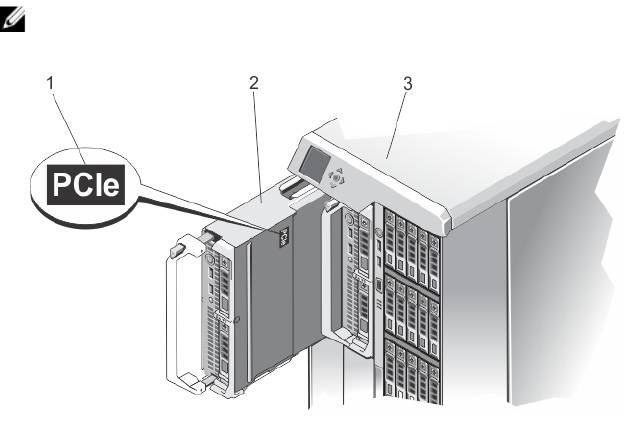
This document provides information on the Dell PowerEdge M620 server module that is specifically configured for the
PowerEdge VRTX enclosure, and can be identified by a label marked PCIe on the server module.
NOTE: This server module is not supported on the Dell PowerEdge M1000e enclosure with the PowerEdge VRTX
mezzanine card.
Figure 1. Identifying Server Module Configured for the VRTX Enclosure
1. PCIe label on the server module
2. server module
7
Front-Panel Features And Indicators
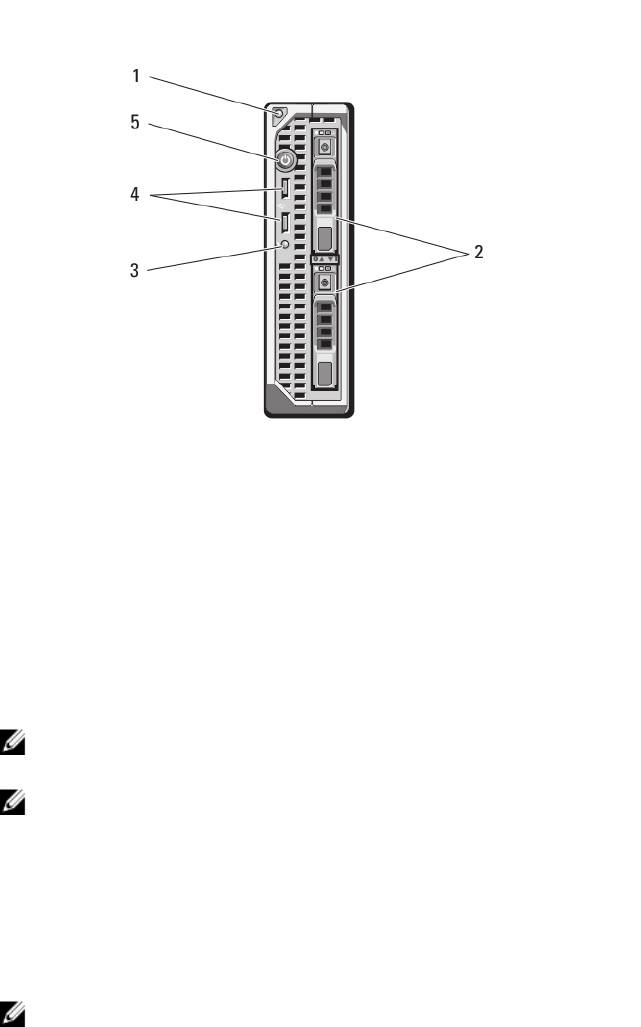
Figure 2. Front-Panel Features and Indicators
1. Server module handle release button
4. USB connectors (2)
2. Hard drives/SSDs (2)
5. Server module power button
3. Status/identification indicator
Using USB Diskette Or USB DVD/CD Drives
The server module has USB ports on the front which allow you to connect a USB diskette drive, USB flash drive, USB
DVD/CD drive, keyboard, or mouse. The USB drives can be used to configure the server module.
NOTE: Your server module supports only Dell-branded USB 2.0 drives. Use the optional external drive storage tray
to support the drive while in use.
NOTE: If the drive must be designated as the boot drive, connect the USB drive, restart the system, then enter the
System Setup and set the drive as first in the boot sequence. The USB device is displayed in the boot order setup
screen only if it is attached to the system before you run the System Setup. You can also select the boot device by
pressing <F11> during system start-up and selecting a boot device for the current boot sequence.
Hard-Drive Features
Your system supports two 2.5 inch SSD, SAS or SATA hard drives.
NOTE: SSD/SAS/SATA hard drives cannot be mixed within a server module.
The hard-disk drives plug into the hard-drive backplane inside the server module. On server modules with a diskless
configuration, all hard drive slots must be filled with hard-drive blanks, and the hard-drive backplane must still be
installed to maintain proper airflow.
The hard-drive indicators display different patterns as drive events occur in the system.
8

NOTE: The server module must have a hard drive or a hard-drive blank installed in each hard-drive bay.
Figure 3. Hard-Drive Indicators
1. hard-drive activity indicator (green)
2. hard-drive status indicator (green and amber)
NOTE: If the hard drive is in Advanced Host Controller Interface (AHCI) mode, the status LED (on the right
side) does not function and remains off.
Drive-Status
Condition
Indicator Pattern
Blinks green two
Identifying drive or preparing for removal
times per second
Off Drive ready for insertion or removal
NOTE: The drive status indicator remains off until all hard drives are initialized after system
power is applied. Drives are not ready for insertion or removal during this time.
Blinks green, amber,
Drive predicted failure
and off
Blinks amber four
Drive failed
times per second
Blinks green slowly Drive rebuilding
Steady green Drive online
Blinks green three
Rebuild aborted
seconds, amber three
seconds, and off six
seconds
Other Information You May Need
WARNING: See the safety and regulatory information that shipped with your system. Warranty information may be
included within this document or as a separate document.
9

• The Getting Started Guide for the VRTX enclosure provides an overview of the VRTX enclosure and the server
modules, setting up your system, and technical specifications.
• The
Dell PowerEdge VRTX Enclosure Owner’s Manual
provides information about the VRTX enclosure features
and describes how to troubleshoot the enclosure and install or replace the enclosure's components. This
document is available online at dell.com/poweredgemanuals.
• The
Dell Chassis Management Controller for Dell PowerEdge VRTX User’s Guide
provides information on
installing, configuring and using the Chassis Management Controller (CMC) for the VRTX enclosure. This
document is available online at dell.com/esmmanuals.
• Dell systems management application documentation provides information about installing and using the
systems management software.
• Any media that ships with your system that provides documentation and tools for configuring and managing your
system, including those pertaining to the operating system, system management software, system updates, and
system components that you purchased with your system.
NOTE: Always check for updates on dell.com/support/manuals and read the updates first because they often
supersede information in other documents.
10

2
Using The System Setup And Boot Manager
System Setup enables you to manage your system hardware and specify BIOS-level options.
NOTE: You can access System Setup by mapping the server module to the KVM on the VRTX enclosure. To map the
server to the KVM using LCD — From the Main Menu screen on the LCD, go to KVM Mapping and select the
server, and then press OK. You can also access the System Setup through iDRAC remote console.
You can also map a server module to the KVM using the CMC web interface. For more information, see the
Dell
Chassis Management Controller for Dell PowerEdge VRTX User’s Guide
at dell.com/esmmanuals.
The following keystrokes provide access to system features during startup:
Keystroke Description
<F2> Enters the System Setup.
<F10> Enters System Services, which opens the Dell Lifecycle Controller 2 (LC2). The Dell LC2 allows
you to access utilities such as embedded system diagnostics. For more information, see the
Dell LC2 documentation.
<F11> Enters the BIOS Boot Manager or the Unified Extensible Firmware Interface (UEFI) Boot
Manager, depending on the system's boot configuration.
<F12> Starts Preboot eXecution Environment (PXE) boot.
From the System Setup, you can:
• Change the NVRAM settings after you add or remove hardware
• View the system hardware configuration
• Enable or disable integrated devices
• Set performance and power management thresholds
• Manage system security
You can access the System Setup using the:
• Standard graphical browser, which is enabled by default
• Text browser, which is enabled using Console Redirection
To enable Console Redirection, in System Setup, select System BIOS → Serial Communication screen → Serial
Communication, select On with Console Redirection.
NOTE: By default, help text for the selected field is displayed in the graphical browser. To view the help text in the
text browser, you must press <F1>.
Choosing The System Boot Mode
System Setup enables you to specify the boot mode for installing your operating system:
• BIOS boot mode (the default) is the standard BIOS-level boot interface.
11
• UEFI boot mode is an enhanced 64-bit boot interface based on Unified Extensible Firmware Interface (UEFI)
specifications that overlays the system BIOS.
You must select the boot mode in the Boot Mode field of the Boot Settings Screen of System Setup. Once you specify the
boot mode, the system boots in the specified boot mode and you proceed then to install your operating system from that
mode. Thereafter, you must boot the system in the same boot mode (BIOS or UEFI) to access the installed operating
system. Trying to boot the operating system from the other boot mode will cause the system to halt at startup.
NOTE: Operating systems must be UEFI-compatible to be installed from the UEFI boot mode. DOS and 32-bit
operating systems do not support UEFI and can only be installed from the BIOS boot mode.
NOTE: For the latest information on supported operating systems, see dell.com/support.
Entering System Setup
1. Turn on or restart your system.
2. Press <F2> immediately after you see the following message:
<F2> = System Setup
If your operating system begins to load before you press <F2>, allow the system to finish booting, and then restart
your system and try again.
Responding To Error Messages
If an error message is displayed while the system is booting, make a note of the message. See System Error Messages
section of this manual for an explanation of the message and suggestions for correcting errors.
NOTE: After installing a memory upgrade, it is normal for your system to display a message the first time you start
your system.
Using The System Setup Navigation Keys
Keys Action
Up arrow Moves to the previous field.
Down arrow Moves to the next field.
<Enter> Allows you to type in a value in the selected field (if applicable) or follow the link in the field.
Spacebar Expands or collapses a drop-down list, if applicable.
<Esc> Moves to the previous page until you view the main screen. Pressing <Esc> in the main screen
exits System Setup. A message prompts you to save any unsaved changes.
<F1> Displays the System Setup help file.
NOTE
: For most of the options, any changes that you make are recorded but do not take effect until you restart the
system.
System Setup Options
12

System Setup Main Screen
NOTE: Press <Alt><F> to reset the BIOS or UEFI settings to their default settings.
Menu Item Description
System BIOS This option is used to view and configure BIOS settings.
iDRAC Settings This option is used to view and configure iDRAC settings.
Device Settings This option is used to view and configure device settings.
System BIOS Screen
NOTE: The options for System Setup change based on the system configuration.
NOTE: System Setup defaults are listed under their respective options in the following sections, where applicable.
Menu Item Description
System Information Displays information about the system such as the system model name, BIOS version, Service
Tag, and so on.
Memory Settings Displays information and options related to installed memory.
Processor Settings Displays information and options related to the processor such as speed, cache size, and so
on.
SATA Settings Displays options to enable or disable the integrated SATA controller and ports.
Boot Settings Displays options to specify the boot mode (BIOS or UEFI). Enables you to modify UEFI and BIOS
boot settings.
Integrated Devices Displays options to enable or disable integrated device controllers and ports, and to specify
related features and options.
Serial Communication Displays options to enable or disable the serial ports and specify related features and options.
System Profile
Displays options to change the processor power management settings, memory frequency,
Settings
and so on.
System Security Displays options to configure the system security settings like, system password, setup
password, TPM security, and so on. It also enables or disables support for local BIOS update
and the power button on the system.
Miscellaneous
Displays options to change the system date, time, and so on.
Settings
System Information Screen
Menu Item
Description
System Model Name Displays the system model name.
System BIOS Version Displays the BIOS version installed on the system.
13

Menu Item Description
System Service Tag Displays the system Service Tag.
System Manufacturer Displays the name of system manufacturer.
System Manufacturer
Displays the contact information of the system manufacturer.
Contact Information
Memory Settings Screen
Menu Item Description
System Memory Size Displays the amount of memory installed in the system.
System Memory Type Displays the type of memory installed in the system.
System Memory
Displays the system memory speed.
Speed
System Memory
Displays the system memory voltage.
Voltage
Video Memory Displays the amount of video memory.
System Memory
Specifies whether system memory tests are run during system boot. Options are Enabled and
Testing
Disabled. By default, the System Memory Testing option is set to Disabled.
Memory Operating
Specifies the memory operating mode. The options available depending on the memory
Mode
configuration of your system are Optimizer Mode, Advanced ECC Mode, Mirror Mode, Spare
Mode, and Spare with Advanced ECC Mode. By default, the Memory Operating Mode option is
set to Optimizer Mode.
Node Interleaving If this field is Enabled, memory interleaving is supported if a symmetric memory configuration is
installed. If Disabled, the system supports Non-Uniform Memory architecture (NUMA)
(asymmetric) memory configurations. By default, Node Interleaving option is set to Disabled.
Processor Settings Screen
Menu Item Description
Logical Processor Allows you to enable or disable logical processors and display the number of logical
processors. If the Logical Processor option is set to Enabled, the BIOS displays all the logical
processors. If this option is set to Disabled, the BIOS only displays one logical processor per
core. By default, the Logical Processor option is set to Enabled.
QPI Speed Allows you to set the QuickPath Interconnect data rate settings. By default, the QPI Speed
option is set to Maximum data rate.
NOTE: The QPI Speed option is displayed only when both the processors are installed.
Alternate RTID
Allows you to allocate more RTIDs to the remote socket increasing cache performance
(Requestor
between the sockets or work in normal mode for NUMA. By default, the Alternate RTID
Transaction ID)
(Requestor Transaction ID) Setting is set to Disabled.
Setting
14

Menu Item Description
Virtualization
Allows you enable or disable the additional hardware capabilities provided for virtualization. By
Technology
default, the Virtualization Technology option is set to Enabled.
Adjacent Cache Line
Allows you to optimize the system for applications that require high utilization of sequential
Prefetch
memory access. By default, the Adjacent Cache Line Prefetch option is set to Enabled. You can
disable this option for applications that require high utilization of random memory access.
Hardware Prefetcher Allows you to enable or disable hardware prefetcher. By default, the Hardware Prefetcher
option is set to Enabled.
DCU Streamer
Allows you to enable or disable DCU streamer prefetcher. By default, the DCU Streamer
Prefetcher
Prefetcher option is set to Enabled.
DCU IP Prefetcher Allows you to enable or disable DCU IP prefetcher. By default, the DCU IP Prefetcher option is
set to Enabled.
Execute Disable Allows you enable or disable execute disable memory protection technology. By default, the
Execute Disable option is set to Enabled.
Number of Cores per
Allows you to control the number of enabled cores in each processor. By default, the Number
Processor
of Cores per Processor option is set to All.
Processor 64-bit
Specifies if the processor(s) support 64-bit extensions.
Support
Processor Core
Displays the maximum core frequency of the processor.
Speed
Processor Bus Speed Displays the bus speed of the processors.
NOTE: The processor bus speed option is displayed only when both the processors are
installed.
Processor
X
Family-
Displays the family and model number of each processor. A submenu displays the core speed,
Model-Stepping
the amount of cache memory, and the number of cores of the processor(s).
SATA Settings Screen
Menu Item Description
Embedded SATA Allows the embedded SATA to be set to Off, ATA, AHCI, or RAID modes. By default, Embedded
SATA is set to AHCI.
Port A Auto enables BIOS support for the device attached to SATA port A. Off disables BIOS support
for the device. By default, Port A is set to Auto.
Port B Auto enables BIOS support for the device attached to SATA port B. Off disables BIOS support
for the device. By default, Port B is set to Auto.
15

Boot Settings Screen
Menu Item Description
Boot Mode Allows you to set the boot mode of the system.
CAUTION: Switching the boot mode may prevent the system from booting if the operating
system is not installed in the same boot mode.
If the operating system supports UEFI, you can set this option to UEFI. Setting this field to BIOS
allows compatibility with non-UEFI operating systems. By default, the Boot Mode option is set
to BIOS.
NOTE: Setting this field to UEFI disables BIOS Boot Settings menu. Setting this field to
BIOS disables the UEFI Boot Settings menu.
Boot Sequence Retry Allows you to enable or disable the boot sequence retry feature. If this field is enabled and the
system fails to boot, the system reattempts the boot sequence after 30 seconds. By default, the
Boot Sequence Retry option is set to Disabled.
BIOS Boot Settings Allows you to enable or disable BIOS Boot options.
NOTE: This option is enabled only if the boot mode is BIOS.
UEFI Boot Settings Allows you to enable or disable UEFI Boot options.
NOTE: This option is enabled only if the boot mode is UEFI.
One-Time Boot Allows you to enable or disable a one-time boot from a selected device.
Integrated Devices Screen
Menu Item Description
Integrated RAID
Allows you to enable or disable the integrated RAID controller. By default, the Integrated RAID
Controller
Controller option is set to Enabled.
User Accessible USB
Allows you enable or disable the user accessible USB ports. Selecting Only Back Ports On
Ports
disables the front USB ports and selecting All Ports Off disables both front and back USB ports.
By default, the User Accessible USB Ports option is set to All Ports On.
Internal USB Port Allows you to enable or disable the internal USB port. By default, the Internal USB Port option
is set to On.
Internal SD Card Port Enables or disables the system’s internal SD card port. By default, Internal SD Card Port option
is set to On.
NOTE: This option is displayed only if IDSDM is installed on the system board.
Internal SD Card
If set to Mirror mode, data is written on both SD cards. If any one of the SD card fails, data is
Redundancy
written to the active SD card. Data from this card is copied to the replacement SD card at the
next boot. By default, Internal SD Card Redundancy option is set to Mirror.
16

Menu Item Description
NOTE: This option is displayed only if IDSDM is installed on the system board.
Integrated Network
Allows you to enable or disable the integrated network card 1. By default, the Integrated
Card 1
Network Card 1 option is set to Enabled.
OS Watchdog Timer Allows you to enable or disable the OS watchdog timer. When this field is enabled, the
operating system initializes the timer and the OS watchdog timer helps in recovering the
operating system. By default, the OS Watchdog Timer option is set to Disabled.
Embedded Video
Allows you to enable or disable the Embedded Video Controller. By default, the embedded
Controller
video controller is Enabled.
SR-IOV Global Enable Allows you to enable or disable the BIOS configuration of Single Root I/O Virtualization (SR-
IOV) devices. By default, the SR-IOV Global Enable option is set to Disabled.
Mezzanine Slot
Allows you to enable or disable available PCIe mezzanine card slots on your system. The Slot
Disablement
Disablement feature controls the configuration of PCIe mezzanine cards installed in the
specified slot.
CAUTION: Slot disablement must be used only when the installed peripheral card is
preventing booting into the Operating System or causing delays in system startup. If the
slot is disabled, both the Option ROM and UEFI driver are disabled.
NOTE: Use this option only for troubleshooting purposes. If one or more of the PCIe
mezzanine card slots are disabled, an error message is displayed during system startup.
For proper operation, make sure that the server module has two Dell PCIe mezzanine
cards installed and both cards are set to Enabled.
NOTE: The Boot Driver Disabled option does not apply to the M620 when operating in the
PowerEdge VRTX chassis. Selecting this option will have the same result as selecting
Enabled.
Serial Communications Screen
Menu Item Description
Serial Communication Allows you to enable the COM port or Console Redirection options.
Serial Port Address Allows you to set the port address for serial devices. By default, the Serial Port Address option
is set to COM1.
NOTE: Only Serial Device 2 can be used for Serial Over LAN (SOL). To use console
redirection by SOL, configure the same port address for console redirection and the serial
device.
Failsafe Baud Rate Displays the failsafe baud rate for console redirection. The BIOS attempts to determine the
baud rate automatically. This failsafe baud rate is used only if the attempt fails and the value
must not be changed. By default, the Failsafe Baud Rate option is set to 11520.
Remote Terminal
Allows you to set the remote console terminal type. By default, the Remote Terminal Type
Type
option is set to VT 100/VT220.
17

Menu Item Description
Redirection After
Allows you to enable or disable to the BIOS console redirection when the operating system is
Boot
loaded. By default, the Redirection After Boot option is set to Enabled.
System Profile Settings Screen
Menu Item Description
System Profile Allows you to set the system profile. If you set the System Profile option to a mode other than
Custom, the BIOS automatically sets the rest of the options. You can only change the rest of the
options if the mode is set to Custom. By default, the System Profile option is set to Performance
Per Watt Optimized (DAPC). DAPC is Dell Active Power Controller.
NOTE: The following parameters are available only when the System Profile is set to
Custom.
CPU Power
Allows you to set the CPU power management. By default, the CPU Power Management option
Management
is set to System DBPM (DAPC). DBPM is Demand-Based Power Management.
Memory Frequency Allows you to set the memory frequency. By default, the Memory Frequency option is set to
Maximum Performance.
Turbo Boost Allows you to enable or disable the processor to operate in turbo boost mode. By default, the
Turbo Boost option is set to Enabled.
C1E Allows you to enable or disable the processor to switch to a minimum performance state when
it is idle. By default, the C1E option is set to Enabled.
C States Allows you to enable or disable the processor to operate in all available power states. By
default, the C States option is set to Enabled.
Monitor/Mwait Allows you to enable Monitor/Mwait instructions in the processor. By default, the Monitor/
Mwait option is set to Enabled for all system profiles, except Custom.
NOTE: This option can be disabled only if the C States option in Custom mode is disabled.
NOTE: When C States is enabled in Custom mode, changing the Monitor/Mwait setting
does not impact system power/performance.
Memory Patrol Scrub Allows you to set the memory patrol scrub frequency. By default, the Memory Patrol Scrub
option is set to Standard.
Memory Refresh Rate Allows you to set the memory refresh rate. By default, the Memory Refresh Rate option is set to
1x.
Memory Operating
Allows you to set the DIMM voltage selection. When set to Auto, the system automatically sets
Voltage
the system voltage to the optimal setting based on the DIMM capacity and the numbers of
DIMMs installed. By default, the Memory Operating Voltage option is set to Auto.
Collaborative CPU
When set to enabled, the CPU power management is controlled by the OS DBPM and the
Performance Control
System DBPM (DAPC). By default, the option is set to Disabled
18

System Security Screen
Menu Item Description
Intel AES-NI The Intel AES-In option improves the speed of applications by performing encryption and
decryption using the Advanced Encryption Standard set and is set to Enabled by default.
System Password Allows you to set the system password. This option is read-only if the password jumper is not
installed in the system.
Setup Password Allows you to set the setup password. This option is read-only if the password jumper is not
installed in the system.
Password Status Allows you to lock the system password. By default, the Password Status option is set to
Unlocked.
TPM Security Allows you to control the reporting mode of the Trusted Platform Module (TPM). By default, the
TPM Security option is set to Off. You can only modify the TPM Status, TPM Activation , and
Intel TXT fields if the TPM Status field is set to either On with Pre-boot Measurements or On
without Pre-boot Measurements.
TPM Activation Allows you to change the operational state of the TPM. By default, the TPM Activation option is
set to No Change.
TPM Status Displays the TPM status.
TPM Clear
CAUTION: Clearing the TPM results in loss of all keys in the TPM. The loss of TPM keys
may affect booting to the operating system.
Allows you to clear all the contents of the TPM. By default, the TPM Clear option is set to No.
Intel TXT Allows you enable or disable Intel Trusted Execution Technology. To enable Intel TXT,
Virtualization Technology must be enabled and TPM Security must be enabled with Pre-boot
measurements. By default, the Intel TXT option is set to Off.
BIOS Update Control Allows you to update the BIOS using either DOS or UEFI shell-based flash utilities. For
environments that do not require local BIOS updates, it is recommended to set this field to
Limited. By default, the Local BIOS Update Support option is set to Unlocked.
NOTE: BIOS updates using Dell Update Package is not affected by this option.
Power Button Allows you to enable or disable the power button on the front of the system. By default, the
Power Button option is set to Enabled.
AC Power Recovery Allows you to set how the system reacts after AC power is restored to the system. By default,
the AC Power Recovery option is set to Last.
Miscellaneous Settings
Menu Item
Description
System Time Allows you to set the time on the system.
System Date Allows you to set the date on the system.
19
Menu Item Description
Asset Tag Displays the asset tag and allows you to modify it for security and tracking purposes.
Keyboard NumLock Allows you to set whether the system boots with the NumLock enabled or disabled. By default
the Keyboard NumLock is set to On.
NOTE: This field does not apply to 84-key keyboards.
Report Keyboard
Allows you to set whether keyboard-related error messages are reported during system boot.
Errors
By default, the Report Keyboard Errors field is set to Report.
F1/F2 Prompt on Error Allows you to enable or disable the F1/F2 prompt on error. By default, F1/F2 Prompt on Error is
set to Enabled.
In-System
This field enables or disables In-System Characterization. By default, In-System
Characterization
Characterization is set to Enabled.
System And Setup Password Features
You can create a system password and a setup password to secure your system. To enable creation of the system and
setup password, the password jumper must be set to enabled. For more information on the password jumper settings,
see System Board Jumper Settings.
System password This is the password that you must enter to log on to your system.
Setup password This is the password that you must enter to access and make changes to the BIOS or UEFI
settings of your system.
CAUTION: The password features provide a basic level of security for the data on your system.
CAUTION: Anyone can access the data stored on your system if the system is running and unattended.
NOTE: Your system is shipped with the system and setup password feature disabled.
Assigning A System And/Or Setup Password
NOTE: The password jumper enables or disables the System Password and Setup Password features. For more
information on the password jumper settings, see System Board Jumper Settings.
You can assign a new System Password and/or Setup Password or change an existing System Password and/or Setup
Password only when the password jumper setting is enabled and Password Status is Unlocked. If the Password Status
is Locked, you cannot change the System Password and/or Setup Password.
If the password jumper setting is disabled, the existing System Password and Setup Password is deleted and you need
not provide the system password to log on to the system.
To assign a system and/or setup password:
1. To enter System Setup, press <F2> immediately after a power-on or reboot.
2. In the System Setup Main Menu, select System BIOS and press <Enter>.
The System BIOS screen is displayed.
3. In the System BIOS screen, select System Security and press <Enter>.
The System Security screen is displayed.
20

4. In the System Security screen, verify that Password Status is Unlocked.
5. Select System Password , enter your system password, and press <Enter> or <Tab>.
Use the following guidelines to assign the system password:
– A password can have up to 32 characters.
– The password can contain the numbers 0 through 9.
– Only lower case letters are valid, upper case letters are not allowed.
– The following special characters are allowed: space, (”), (+), (,), (-), (.), (/), (;), ([), (\), (]), (`).
A message prompts you to re-enter the system password.
6. Re-enter the system password that you entered earlier and click OK.
7. Select Setup Password, enter your system password and press <Enter> or <Tab>.
A message prompts you to re-enter the setup password.
8. Re-enter the setup password that you entered earlier and click OK.
9. Press <Esc> to save the changes.
NOTE: Password protection does not take effect until the system reboots.
Using Your System Password To Secure Your System
NOTE: If you have assigned a setup password, the system accepts your setup password as an alternate system
password.
1. Turn on or reboot your system.
2. Type your password and press <Enter>.
When Password Status is Locked, type the password and press <Enter> when prompted at reboot.
If an incorrect system password is entered, the system displays a message and prompts you to re-enter your password.
You have three attempts to enter the correct password. After the third unsuccessful attempt, the system displays an
error message that the system has halted and must be powered down.
Even after you shut down and restart the system, the error message is displayed until the correct password is entered.
NOTE: You can use the Password Status option in conjunction with the System Password and Setup Password
options to protect your system from unauthorized changes.
Deleting Or Changing An Existing System And/Or Setup Password
Ensure that the Password jumper is set to enabled and the Password Status is Unlocked before attempting to delete or
change the existing System and/or Setup password. You cannot delete or change an existing System or Setup password
if the Password Status is Locked.
To delete or change the existing System and/or Setup password:
1. To enter System Setup, press <F2> immediately after a power-on or reboot.
2. In the System Setup Main Menu, select System BIOS and press <Enter>.
The System BIOS screen is displayed.
3. In the System BIOS Screen, select System Security and press <Enter>.
The System Security screen is displayed.
4. In the System Security screen, verify that Password Status is Unlocked.
21
5. Select System Password, alter or delete the existing system password and press <Enter> or <Tab>.
6. Select Setup Password, alter or delete the existing setup password and press <Enter> or <Tab>.
NOTE: If you change the System and/or Setup password a message prompts you to re-enter the new
password. If you delete the System and/or Setup password, a message prompts you to confirm the deletion.
7. Press <Esc> to save the changes.
NOTE: You can disable password security while logging on to the system. To disable the password security, turn on
or reboot your system, type your password and press <Ctrl><Enter>.
Operating With A Setup Password Enabled
If Setup Password is Enabled, enter the correct setup password before modifying most of the System Setup options.
If you do not enter the correct password in three attempts, the system displays the message
Incorrect Password! Number of unsuccessful password attempts: <x> System
Halted! Must power down.
Even after you shut down and restart the system, the error message is displayed until the correct password is entered.
The following options are exceptions:
• If System Password is not Enabled and is not locked through the Password Status option, you can assign a
system password.
• You cannot disable or change an existing system password.
NOTE: You can use the Password Status option in conjunction with the Setup Password option to protect the
system password from unauthorized changes.
Entering The UEFI Boot Manager
NOTE: Operating systems must be 64-bit UEFI-compatible (for example, Microsoft Windows Server 2008 x64
version) to be installed from the UEFI boot mode. DOS and 32-bit operating systems can only be installed from the
BIOS boot mode.
The Boot Manager enables you to:
• Add, delete, and arrange boot options
• Access System Setup and BIOS-level boot options without rebooting
To enter the Boot Manager:
1. Turn on or restart your system.
2. Press <F11> after you see the following message:
<F11> = UEFI Boot Manager
If your operating system begins to load before you press <F11>, allow the system to finish booting, and then restart
your system and try again.
Using The Boot Manager Navigation Keys
Key
Description
Up arrow Moves to the previous field.
22

Key Description
Down arrow Moves to the next field.
<Enter> Allows you to type in a value in the selected field (if applicable) or follow the link in the field.
Spacebar Expands or collapses a drop-down list, if applicable.
<Esc> Moves to the previous page till you view the main screen. Pressing <Esc> in the main screen
exits System Setup. A message prompts you to save any unsaved changes.
<F1> Displays the System Setup help file.
NOTE: For most of the options, any changes that you make are recorded but do not take effect until you restart the
system.
Boot Manager Screen
Menu Item Description
Continue Normal
The system attempts to boot to devices starting with the first item in the boot order. If the boot
Boot
attempt fails, the system continues with the next item in the boot order until the boot is
successful or no more boot options are found.
BIOS Boot Menu Displays the list of available BIOS boot options (marked with asterisks). Select the boot option
you wish to use and press <Enter>.
UEFI Boot Menu Displays the list of available UEFI boot options (marked with asterisks). Select the boot option
you wish to use and press <Enter>. The UEFI Boot Menu enables you to Add Boot Option,
Delete Boot Option, or Boot From File.
Driver Health Menu Displays a list of the drivers installed on the system and their health status.
Launch System Setup Enables you to access the System Setup.
System Utilities Enables you to access the BIOS Update File Explorer, run the Dell Diagnostics program, and
reboot the system.
UEFI Boot Menu
Menu Item Description
Boot From File Sets a one-time boot option not included in the boot option list.
Select UEFI Boot
Displays the list of available UEFI boot options (marked with asterisks), select the boot option
Option
you wish to use and press <Enter>.
Add Boot Option Adds a new boot option.
Delete Boot Option Deletes an existing boot option.
Embedded System Management
The Dell Lifecycle Controller provides advanced embedded systems management throughout the server’s lifecycle. The
Lifecycle Controller can be started during the boot sequence and can function independently of the operating system.
23

NOTE: Certain platform configurations may not support the full set of features provided by the Lifecycle Controller.
For more information about setting up the Lifecycle Controller, configuring hardware and firmware, and deploying the
operating system, see the Lifecycle Controller documentation at dell.com/support/manuals.
iDRAC Settings Utility
The iDRAC Settings utility is an interface to setup and configure the iDRAC parameters using UEFI. You can enable or
disable various iDRAC parameters using the iDRAC7 Settings Utility, for example:
NOTE: Some of the features mentioned in the list may require the iDRAC7 Enterprise License upgrade.
• Configure, enable, or disable the iDRAC local area network through the dedicated iDRAC Enterprise card port or
the embedded NIC
• Enable or disable IPMI over LAN
• Enable a LAN Platform Event Trap (PET) destination
• Attach or detach the Virtual Media devices
For more information on using iDRAC7, see the iDRAC7 User's Guide, at dell.com/supoort/manuals.
Entering The iDRAC Settings Utility
1. Turn on or restart the managed system.
2. Press <F2> during Power-on Self-test (POST).
3. In the System Setup Main Menu page, click iDRAC Settings.
The iDRAC Settings page is displayed.
24

3
Installing Server Module Components
Recommended Tools
You may need the following items to perform the procedures in this section:
• #1 and #2 Phillips screwdrivers
• T8 and T10 Torx drivers
• Wrist grounding strap
Installing And Removing A Server Module
NOTE: Server modules that are specifically configured for the PowerEdge VRTX enclosure, can be identified by a
label marked PCIe on the server module.
NOTE: Ensure that you have downloaded the latest BIOS on the server module(s) from dell.com/support.
Removing A Server Module
1. Remove the front bezel.
2. Power down the server module using the operating system commands or the CMC, and ensure that the server
module's power is off.
When a server module is powered off, its front-panel power indicator is off.
3. Press the release button on the server module handle.
4. Pull out the server module handle to unlock the server module from the enclosure.
CAUTION: If you are permanently removing the server module, install a server module blank(s). Operating the
system for extended periods of time without a server module blank installed can cause the enclosure to
overheat.
5. Slide the server module out of the enclosure.
CAUTION: To protect the I/O connector pins, install the I/O connector covers any time a server module is
removed from the enclosure.
6. Install the I/O connector cover over the I/O connector.
25
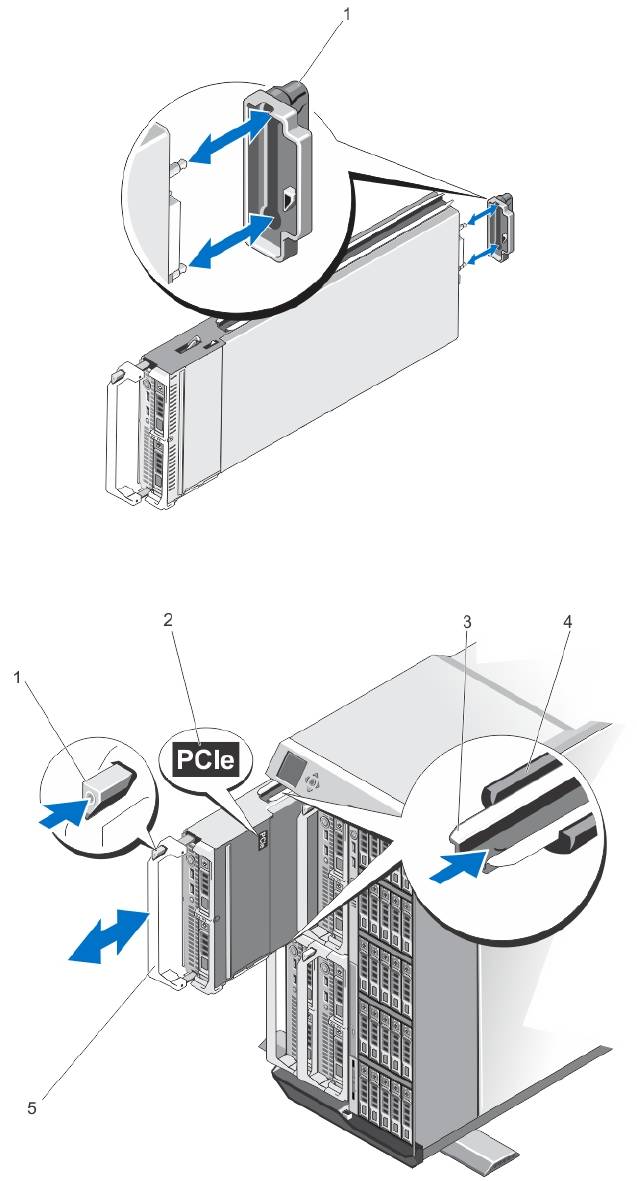
Figure 4. Removing and Installing the I/O Connector Cover
1. I/O connector cover
Figure 5. Removing and Installing a Server Module
26
1. release button
3. guide rail on server module (or server module
blank)
2. PCIe label on server module
4. guide rail on enclosure
NOTE: This label indicates that the
server module is configured specifically
5. server module handle
for the VRTX enclosure.
Installing A Server Module
1. If you are installing a new server module, remove the plastic cover from the I/O connector(s) and save for future
use.
2. Orient the server module so that the module handle is on the left side of the server module.
3. Slide the server module into the enclosure until the module release handle engages and locks the server module in
place.
4. Reinstall the front bezel.
Opening And Closing The Server Module
Opening The Server Module
CAUTION: Many repairs may only be done by a certified service technician. You should only perform
troubleshooting and simple repairs as authorized in your product documentation, or as directed by the online or
telephone service and support team. Damage due to servicing that is not authorized by Dell is not covered by your
warranty. Read and follow the safety instructions that came with the product.
NOTE: It is recommended that you always use a static mat and static strap while working on components in the
interior of the system.
1. Remove the server module from the enclosure.
2. Install the I/O connector cover.
3. Press the release button and slide the cover toward the back of the server module.
4. Carefully lift the cover away from the server module.
27
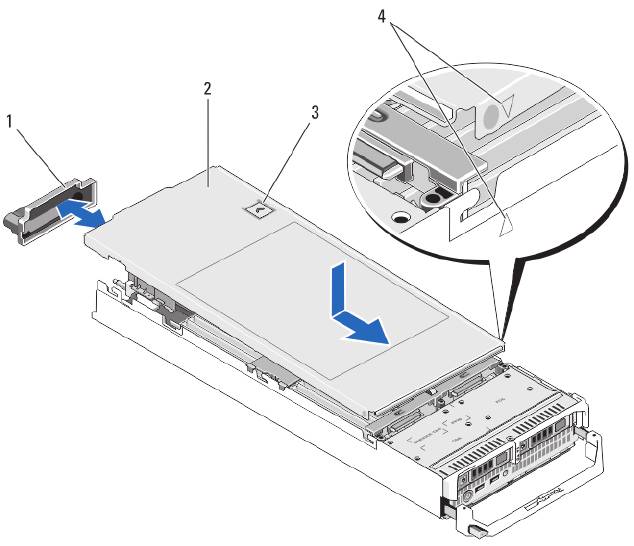
Figure 6. Opening and Closing the Server Module
1. I/O connector cover
2. server module cover
3. release button
4. cover alignment pins and notches
Closing The Server Module
1. Ensure that no tools or parts are left inside the server module.
2. Align the notches in the edges of the chassis with the cover alignment pins on the inner sides of the cover.
3. Lower the cover onto the chassis.
4. Slide the cover until it clicks into position.
A properly seated cover is flush with the surface of the chassis.
28
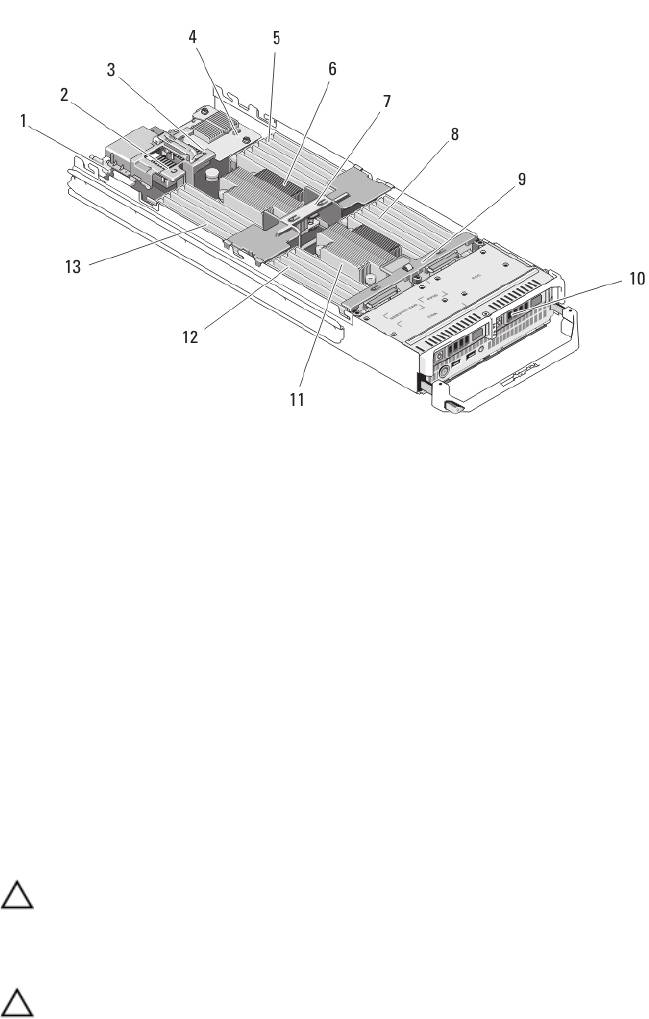
Inside The Server Module
Figure 7. Inside the Server Module
1. management riser card
8. memory modules (for processor 2)
2. mezzanine card 1/PCIe mezzanine card 1 - Fabric C
9. hard-drive/SSD backplane
3. mezzanine card 2/PCIe mezzanine card 2 - Fabric B
10. hard drives/SSDs (2)
4. network daughter card
11. processor 2 and heat sink
5. memory modules (for processor 1)
12. memory modules (for processor 2)
6. processor 1 and heat sink
13. memory modules (for processor 1)
7. cooling shroud
Cooling Shroud
The cooling shroud covers the memory modules and directs air flow in the system.
Removing The Cooling Shroud
CAUTION: Many repairs may only be done by a certified service technician. You should only perform
troubleshooting and simple repairs as authorized in your product documentation, or as directed by the online or
telephone service and support team. Damage due to servicing that is not authorized by Dell is not covered by your
warranty. Read and follow the safety instructions that came with the product.
CAUTION: Never operate your system with the cooling shroud removed. The system may get overheated quickly,
resulting in shutdown and loss of data.
1. Remove the server module from the enclosure.
2. Open the server module.
29
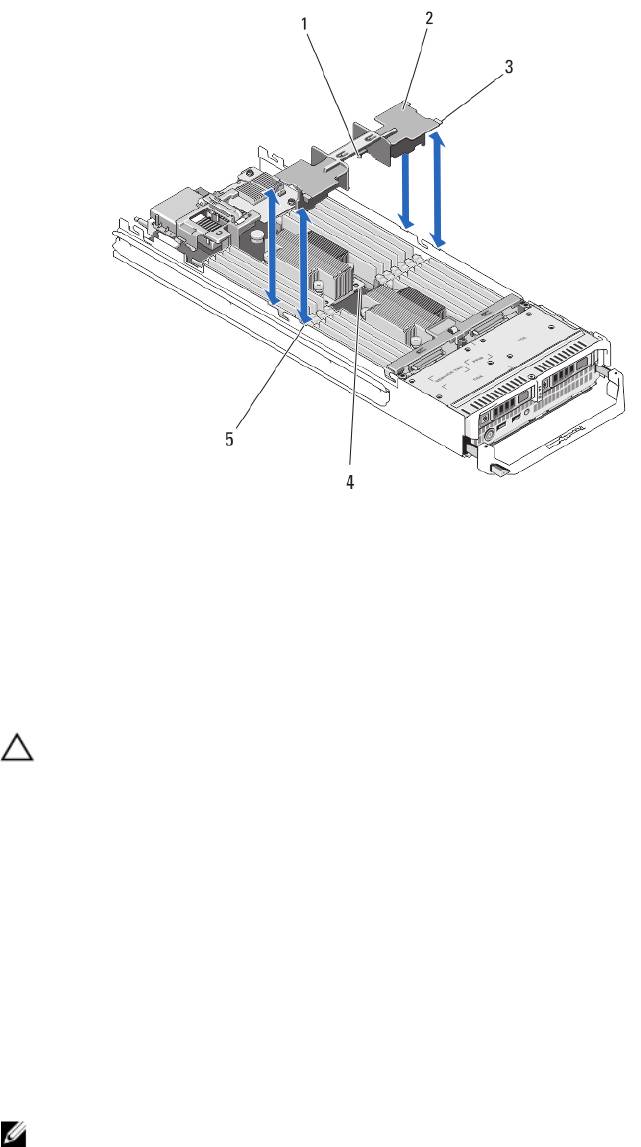
3. Hold the cooling shroud at both ends near the server module chassis and lift it up and away from the server
module.
Figure 8. Installing and Removing a Cooling Shroud
1. pins under the cooling shroud (2)
4. holes on the heat sink (2)
2. cooling shroud
5. slots on the chassis (4)
3. tabs (4)
Installing The Cooling Shroud
CAUTION: Many repairs may only be done by a certified service technician. You should only perform
troubleshooting and simple repairs as authorized in your product documentation, or as directed by the online or
telephone service and support team. Damage due to servicing that is not authorized by Dell is not covered by your
warranty. Read and follow the safety instructions that came with the product.
1. Position the tabs below the shroud to align with the holes on the heat sink installed on processor socket CPU1.
2. Lower the cooling shroud into the system until the tabs on the sides of the shroud engage with the slots on the
server module chassis and the pins under the shroud engage with the holes on the heat sink.
3. Close the server module.
4. Install the server module in the enclosure.
System Memory
Your system supports DDR3 unbuffered ECC DIMMs (UDIMM ECC) and registered DIMMs (RDIMMs). It supports DDR3
and DDR3L voltage specifications.
NOTE: MT/s indicates DIMM speed in MegaTransfers per second.
30
Memory bus operating frequency can be 1600 MT/s, 1333 MT/s, 1066 MT/s, or 800 MT/s depending on:
• DIMM type (UDIMM, RDIMM, or LRDIMM)
• DIMM configuration (number of ranks)
• maximum frequency of the DIMMs
• number of DIMMs populated per channel
• DIMM operating voltage
• system profile selected (for example, Performance Optimized, Custom, or Dense Configuration Optimized)
• maximum supported DIMM frequency of the processors
The system contains 24 memory sockets split into two sets of 12 sockets, one set per processor. Each 12-socket set is
organized into four channels. In each channel, the release levers of the first socket are marked white, the second socket
black, and the third socket green.
NOTE: DIMMs in sockets A1 to A12 are assigned to processor 1 and DIMMs in sockets B1 to B12 are assigned to
processor 2.
The following table shows the memory populations and operating frequencies for the supported configurations.
DIMM Type DIMMs Populated/
Operating Frequency (in MT/s) Maximum DIMM Rank/
Channel
Channel
1.5 V 1.35 V
UDIMM ECC 1 1333, 1066, and 800 1333, 1066, and 800 Dual rank
2 1333, 1066, and 800 1333, 1066, and 800 Dual rank
RDIMM 1
1600, 1333, 1066, and 800
1333, 1066, and 800
Dual rank
1333, 1066, and 800
1066 and 800
Quad rank
2
1600, 1333, 1066, and 800
1333, 1066, and 800
Dual rank
1066 and 800
1066 and 800
Quad rank
3 1333, 1066, and 800 1066 and 800 Dual rank
LRDIMM 1 1333 and 1066 1333 and 1066 Quad rank
2 1333 and 1066 1333 and 1066 Quad rank
3 1066 1066 Quad rank
31
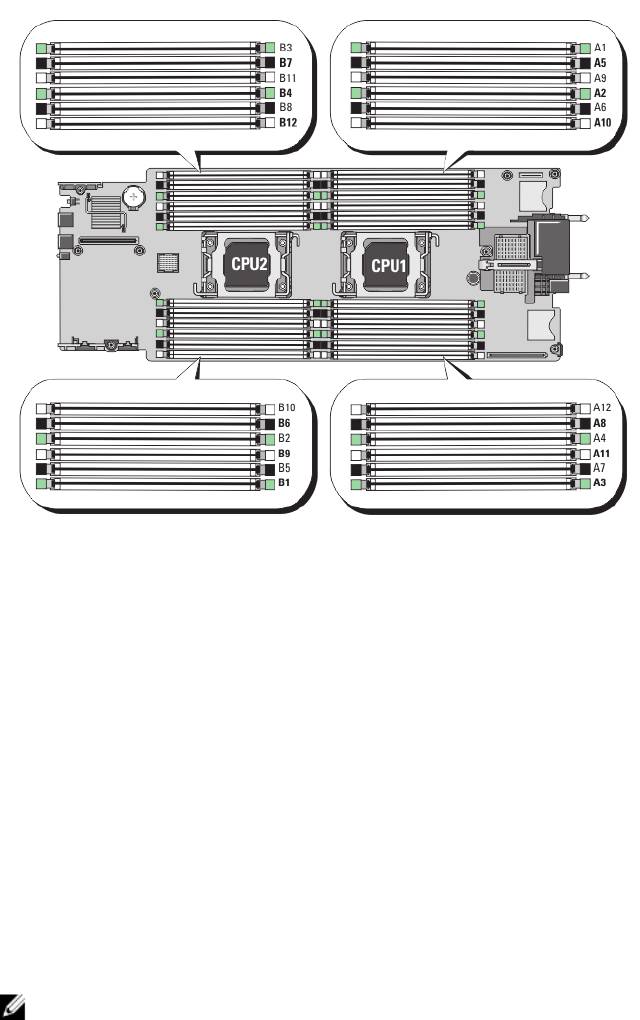
Figure 9. Memory Socket Locations
Memory channels are organized as follows:
Processor 1 channel 0: memory sockets A2, A6, and A10
channel 1: memory sockets A1, A5, and A9
channel 2: memory sockets A4, A8, and A12
channel 3: memory sockets A3, A7, and A11
Processor 2 channel 0: memory sockets B2, B6, and B10
channel 1: memory sockets B1, B5, and B9
channel 2: memory sockets B4, B8, and B12
channel 3: memory sockets B3, B7, and B11
General Memory Module Installation Guidelines
NOTE: Memory configurations that fail to observe these guidelines can prevent your system from starting and
producing any video output, hanging during memory configuration, or operating with reduced memory.
This system supports Flexible Memory Configuration, enabling the system to be configured and run in any valid chipset
architectural configuration. The following are the recommended guidelines for best performance:
• UDIMMs, RDIMMs, and LRDIMMs must not be mixed.
• x4 and x8 DRAM based DIMMs can be mixed. For more information, see Mode-Specific Guidelines.
• A maximum of two UDIMMs can be populated in a channel.
32
• Up to three LRDIMMs can be populated regardless of rank count.
• Up to two quad-rank RDIMMs and up to three dual- or single-rank RDIMMs can be populated per channel.
When a quad-rank RDIMM is populated in the first slot with white release levers, the third DIMM slot in the
channel with green release levers cannot be populated.
• Populate DIMM sockets only if a processor is installed. For single-processor systems, sockets A1 to A12 are
available. For dual-processor systems, sockets A1 to A12 and sockets B1 to B12 are available.
• Populate all sockets with white release tabs first, then black, and then green.
• Do not populate the third DIMM socket in a channel with green release tabs, if a quad-rank RDIMM is populated
in the first socket with white release tabs.
• Populate the sockets by highest rank count in the following order - first in sockets with white release levers,
then black, and then green. For example, if you want to mix quad-rank and dual-rank DIMMs, populate quad-
rank DIMMs in the sockets with white release tabs and dual-rank DIMMs in the sockets with black release tabs.
• In a dual-processor configuration, the memory configuration for each processor must be identical. For example,
if you populate socket A1 for processor 1, then populate socket B1 for processor 2, and so on.
• Memory modules of different sizes can be mixed provided that other memory population rules are followed (for
example, 2 GB and 4 GB memory modules can be mixed).
• Populate four DIMMs per processor (one DIMM per channel) at a time to maximize performance.
• If memory modules with different speeds are installed, they will operate at the speed of the slowest installed
memory module(s) or slower depending on system DIMM configuration.
• Populate DIMMs based on the following processor— heat sink configurations.
Table 1. Processor—Heat Sink Configuration
Processor
Processor
Heat Sink Number of DIMMs
Configuration
Type (in
Watts)
Maximum System Capacity Reliability, Availability, and
Serviceability (RAS) Features
Single processor up to 95 W 57 mm 12 12
Single processor 115 W or
77 mm 10 (Three DIMMs in
8 (Two DIMMs per channel)
130 W
channels 0 and 3 and two
DIMMs in channels 1 and 2)
Dual processor up to 95 W 57 mm 24 24
Dual processor 115 W or
77 mm 20 (Three DIMMs in
16 (Two DIMMs per channel)
130 W
channels 0 and 3 and two
DIMMs in channels 1 and 2)
NOTE: For optimal performance, your system may be configured with a larger heat sink than listed above.
Do not use any heat sink smaller than the configurations described above.
Mode-Specific Guidelines
Four memory channels are allocated to each processor. The allowable configurations depend on the memory mode
selected.
NOTE: x4 and x8 DRAM based DIMMs can be mixed providing support for RAS features. However, all guidelines for
specific RAS features must be followed. x4 DRAM based DIMMs retain Single Device Data Correction (SDDC) in
memory optimized (independent channel) mode. x8 DRAM based DIMMs require Advanced ECC mode to gain
SDDC.
The following sections provide additional slot population guidelines for each mode.
33

Advanced ECC (Lockstep)
Advanced ECC mode extends SDDC from x4 DRAM based DIMMs to both x4 and x8 DRAMs. This protects against single
DRAM chip failures during normal operation.
Memory installation guidelines:
• Memory modules must be identical in size, speed, and technology.
• DIMMs installed in memory sockets with white release tabs must be identical and similar rule applies for
sockets with black and green release tabs. This ensures that identical DIMMs are installed in matched pairs -
for example, A1 with A2, A3 with A4, A5 with A6, and so on.
NOTE: Advanced ECC with mirroring is not supported.
Memory Optimized (Independent Channel) Mode
This mode supports SDDC only for memory modules that use x4 device width and does not impose any specific slot
population requirements.
Memory Sparing
NOTE: To use memory sparing, this feature must be enabled in the System Setup.
In this mode, one rank per channel is reserved as a spare. If persistent correctable errors are detected on a rank, the
data from this rank is copied to the spare rank and the failed rank is disabled.
With memory sparing enabled, the system memory available to the operating system is reduced by one rank per
channel. For example, in a dual-processor configuration with sixteen 4 GB dual-rank DIMMs, the available system
memory is: 3/4 (ranks/channel) × 16 (DIMMs) × 4 GB = 48 GB, and not 16 (DIMMs) × 4 GB = 64 GB.
NOTE: Memory sparing does not offer protection against a multi-bit uncorrectable error.
NOTE: Both Advanced ECC/Lockstep and Optimizer modes support Memory Sparing.
Memory Mirroring
Memory Mirroring offers the strongest DIMM reliability mode compared to all other modes, providing improved
uncorrectable multi-bit failure protection. In a mirrored configuration, the total available system memory is one half of
the total installed physical memory. Half of the installed memory is used to mirror the active DIMMs. In the event of an
uncorrectable error, the system will switch over to the mirrored copy. This ensures SDDC and multi-bit protection.
Memory installation guidelines:
• Memory modules must be identical in size, speed, and technology.
• DIMMs installed in memory sockets with white release tabs must be identical and similar rule applies for
sockets with black and green release tabs. This ensures that identical DIMMs are installed in matched pairs -
for example, A1 with A2, A3 with A4, A5 with A6, and so on.
Sample Memory Configurations
The following tables show sample memory configurations that follow the appropriate memory guidelines stated in this
section.
NOTE: 16 GB quad-rank RDIMMs are not supported.
NOTE: 1R, 2R, and 4R in the following tables indicate single-, dual-, and quad-rank DIMMs respectively.
34
Table 2. Memory Configurations – Single Processor
System Capacity
DIMM Size (in
Number of
Organization and
DIMM Slot Population
(in GB)
GB)
DIMMs
Speed
2 2 1
1R x8, 1333 MT/s
A1
1R x8, 1600 MT/s
4 2 2
1R x8, 1333 MT/s
A1, A3
1R x8, 1600 MT/s
8 2 4
1R x8, 1333 MT/s
A1, A2, A3, A4
1R x8, 1600 MT/s
12 2 6
1R x8, 1333 MT/s
A1, A2, A3, A4, A5, A6
1R x8, 1600 MT/s
16 2 8 1R x8, 1333 MT/s A1, A2, A3, A4, A5, A6, A7, A8
16 4 4
2R x8, 1333 MT/s
A1, A2, A3, A4
2R x8, 1600 MT/s
24 2 12 1R x8, 1333 MT/s A1, A2, A3, A4, A5, A6, A7, A8, A9, A10,
A11, A12
24 4 6
2R x8, 1333 MT/s
A1, A2, A3, A4, A5, A6
2R x8, 1600 MT/s
48 4 12 2R x8, 1333 MT/s A1, A2, A3, A4, A5, A6, A7, A8, A9, A10,
A11, A12
48 8 6
2R x4, 1333 MT/s
A1, A2, A3, A4, A5, A6
2R x4, 1600 MT/s
96 8 12 2R x4, 1333 MT/s A1, A2, A3, A4, A5, A6, A7, A8, A9, A10,
A11, A12
96 16 6
2R x4, 1333 MT/s
A1, A2, A3, A4, A5, A6
2R x4, 1600 MT/s
128 16 8
2R x4, 1333 MT/s
A1, A2, A3, A4, A5, A6, A7, A8
2R x4, 1600 MT/s
144 16 and 8 10 2R x4, 1333 MT/s
A1, A2, A3, A4, A5, A6, A7, A8, A9, A11
NOTE: 16 GB DIMMs must be
installed in the slots numbered
A1, A2, A3, A4, A5, A6, A7, and A8
and 8 GB DIMMs must be
installed in slots A9 and A11.
256 32 8 4R x4, 1333 MT/s A1, A2, A3, A4, A5, A6, A7, A8
384 32 12 4R x4, 1333 MT/s
A1, A2, A3, A4, A5, A6, A7, A8, A9, A10,
(LRDIMMs only)
A11, A12
35
Table 3. Memory Configurations – Two Processors
System Capacity (in
DIMM Size (in
Number of
Organization and
DIMM Slot Population
GB)
GB)
DIMMs
Speed
16 2 8
1R x8, 1333 MT/s
A1, A2, A3, A4, B1, B2, B3, B4
1R x8, 1600 MT/s
32 2 16 1R x8, 1333 MT/s A1, A2, A3, A4, A5, A6, A7, A8,
B1, B2, B3, B4, B5, B6, B7, B8
32 4 8
2R x8, 1333 MT/s
A1, A2, A3, A4, B1, B2, B3, B4
2R x8, 1600 MT/s
64 4 16 2R x8, 1333 MT/s A1, A2, A3, A4, A5, A6, A7, A8,
B1, B2, B3, B4, B5, B6, B7, B8
64 8 8
2R x4, 1333 MT/s
A1, A2, A3, A4, B1, B2, B3, B4
2R x4, 1600 MT/s
96 4 24 2R x8, 1333 MT/s A1, A2, A3, A4, A5, A6, A7, A8,
A9, A10, A11, A12, B1, B2, B3,
B4, B5, B6, B7, B8, B9, B10,
B11, B12
96 8 12
2R x8, 1333 MT/s
A1, A2, A3, A4, A5, A6, B1, B2,
2R x8, 1600 MT/s
B3, B4, B5, B6
128 8 16 2R x4, 1333 MT/s A1, A2, A3, A4, A5, A6, A7, A8,
B1, B2, B3, B4, B5, B6, B7, B8
128 16 8
2R x4, 1333 MT/s
A1, A2, A3, A4, B1, B2, B3, B4
2R x4, 1600 MT/s
160 8 20 2R x4, 1333 MT/s A1, A2, A3, A4, A5, A6, A7, A8,
A9, A11, B1, B2, B3, B4, B5,
B6, B7, B8, B9, B11
160 16 and 8 12
2R x4, 1333 MT/s
A1, A2, A3, A4, A5, A6, B1, B2,
B3, B4, B5, B6
2R x4, 1600 MT/s
NOTE: 16 GB DIMMs
must be installed in the
slots numbered A1, A2,
A3, A4, B1, B2, B3, and B4
and 8 GB DIMMs must be
installed in slots A5, A6,
B5 and B6.
192 8 24 2R x4, 1333 MT/s A1, A2, A3, A4, A5, A6, A7, A8,
A9, A10, A11, A12, B1, B2, B3,
B4, B5, B6, B7, B8, B9, B10,
B11, B12
192 16 12
2R x4, 1333 MT/s
A1, A2, A3, A4, A5, A6, B1, B2,
2R x4, 1600 MT/s
B3, B4, B5, B6
256 16 16
2R x4, 1333 MT/s
A1, A2, A3, A4, A5, A6, A7, A8,
2R x4, 1600 MT/s
B1, B2, B3, B4, B5, B6, B7, B8
36
System Capacity (in
DIMM Size (in
Number of
Organization and
DIMM Slot Population
GB)
GB)
DIMMs
Speed
384 16 24 2R x4, 1333 MT/s A1, A2, A3, A4, A5, A6, A7, A8,
A9, A10, A11, A12, B1, B2, B3,
B4, B5, B6, B7, B8, B9, B10,
B11, B12
512 32 16 4R x4, 1333 MT/s A1, A2, A3, A4, A5, A6, A7, A8,
B1, B2, B3, B4, B5, B6, B7, B8
768 32 24 4R x4, 1333 MT/s
A1, A2, A3, A4, A5, A6, A7, A8,
(LRDIMMs only)
A9, A10, A11, A12, B1, B2, B3,
B4, B5, B6, B7, B8, B9, B10,
B11, B12
Removing Memory Modules
WARNING: The DIMMs are hot to touch for some time after the server module has been powered down. Allow
time for the DIMMs to cool before handling them. Handle the DIMMs by the card edges and avoid touching the
DIMM components.
CAUTION: Many repairs may only be done by a certified service technician. You should only perform
troubleshooting and simple repairs as authorized in your product documentation, or as directed by the online or
telephone service and support team. Damage due to servicing that is not authorized by Dell is not covered by your
warranty. Read and follow the safety instructions that came with the product.
CAUTION: To ensure proper system cooling, memory-module blanks must be installed in any memory socket that is
not occupied. Remove memory-module blanks only if you intend to install memory in those sockets.
CAUTION: If you are permanently removing a processor, you must install a socket protective cap and a processor/
DIMM blank in the vacant socket to ensure proper system cooling. The processor/DIMM blank covers the vacant
sockets for the DIMMs and the processor.
1. Remove the server module from the enclosure.
2. Open the server module.
3. Remove the cooling shroud.
4. Locate the memory module socket(s).
CAUTION: Handle each memory module only on either card edge, making sure not to touch the middle of the
memory module.
5. Press down and out on the ejectors on each end of the socket until the memory module pops out of the socket.
6. Install the cooling shroud.
7. Close the server module.
8. Install the server module in the enclosure.
37
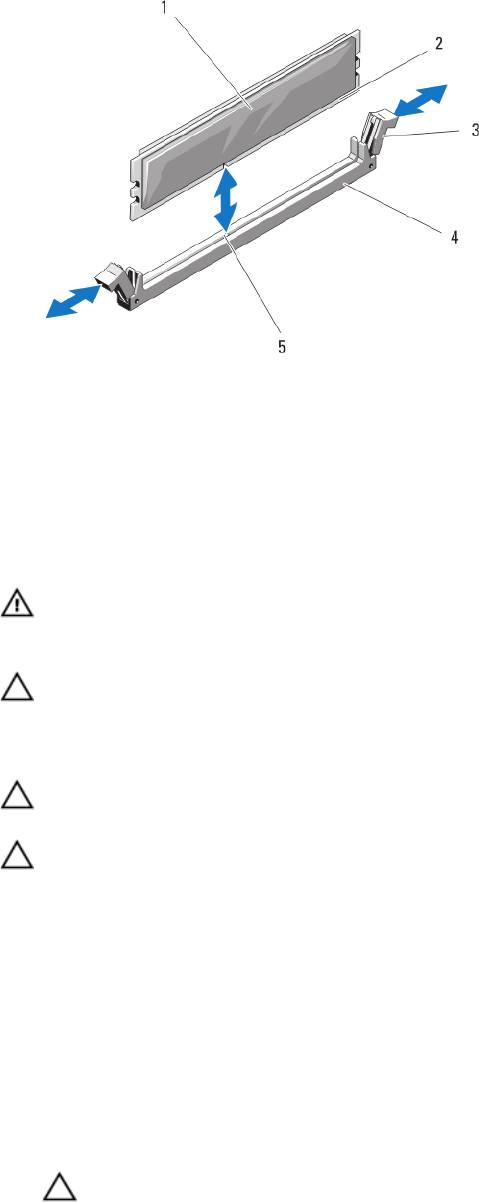
Figure 10. Installing and Removing a Memory Module or Memory Module Blank
1. memory module or memory blank
4. socket
2. edge connector
5. alignment key
3. ejectors (2)
Installing Memory Modules
WARNING: The memory modules are hot to the touch for some time after the system has been powered down.
Allow time for the memory modules to cool before handling them. Handle the memory modules by the card edges
and avoid touching the components on the memory module.
CAUTION: Many repairs may only be done by a certified service technician. You should only perform
troubleshooting and simple repairs as authorized in your product documentation, or as directed by the online or
telephone service and support team. Damage due to servicing that is not authorized by Dell is not covered by your
warranty. Read and follow the safety instructions that came with the product.
CAUTION: To ensure proper system cooling, memory-module blanks must be installed in any memory socket that is
not occupied. Remove memory-module blanks only if you intend to install memory in those sockets.
CAUTION: If you are permanently removing a processor, you must install a socket protective cap and a processor/
DIMM blank in the vacant socket to ensure proper system cooling. The processor/DIMM blank covers the vacant
sockets for the DIMMs and the processor.
1. Remove the server module from the enclosure.
2. Open the server module.
3. Remove the cooling shroud.
4. Locate the appropriate memory module socket(s).
5. Press the ejectors on the memory module socket down and out to allow the memory module to be inserted into the
socket.
If a memory module blank is installed in the socket, remove it. Retain removed memory-module blank(s) for future
use.
CAUTION: Handle each memory module only on either card edge, making sure not to touch the middle of the
memory module.
38

6. Align the memory module's edge connector with the alignment key on the memory module socket, and insert the
memory module in the socket.
NOTE: The memory module socket has an alignment key that allows you to install the memory module in the
socket in only one way.
7. Press down on the memory module with your thumbs to lock the memory module into the socket.
When the memory module is properly seated in the socket, the ejectors on the memory module socket align with
the ejectors on the other sockets that have memory modules installed.
8. Repeat step 5 through step 7 of this procedure to install the remaining memory modules.
9. Install the cooling shroud.
10. Close the server module.
11. Install the server module in the enclosure.
12. (Optional) Press <F2> to enter the System Setup, and check the System Memory setting.
The system should have already changed the value to reflect the newly installed memory.
13. If the value is incorrect, one or more of the memory modules may not be installed properly. Check to ensure that the
memory modules are firmly seated in their sockets.
14. Run the system memory test in the system diagnostics.
PCIe Mezzanine Cards
The server module supports Dell PCIe mezzanine cards. x8 PCIe Gen 2 cards are supported. No other mezzanine cards,
such as Ethernet, Fibre Channel, or InfiniBand are supported on server modules configured for the VRTX enclosure.
The PCIe mezzanine cards provide an interface between server modules and the PCIe switches in the enclosure.
NOTE: Single PCIe mezzanine card operation is not supported. Two PCIe mezzanine cards are required per server
module to support the PCIe expansion cards and PERC card-based shared storage on the enclosure.
NOTE: For proper operation, make sure that both PCIe mezzanine cards are set to Enabled in the system setup.
Removing A PCIe Mezzanine Card
CAUTION: Many repairs may only be done by a certified service technician. You should only perform
troubleshooting and simple repairs as authorized in your product documentation, or as directed by the online or
telephone service and support team. Damage due to servicing that is not authorized by Dell is not covered by your
warranty. Read and follow the safety instructions that came with the product.
1. Remove the server modulefrom the enclosure.
2. Open the server module.
3. Open the PCIe mezzanine card latch by pressing the ridged area on the latch with your thumb, and lifting the end of
the latch.
NOTE: Hold the PCIe mezzanine card by its edges only.
4. Lift the PCIe mezzanine card up and away from the system board.
5. Close the retention latch.
6. Close the server module.
7. Install the server modulein the enclosure.
39
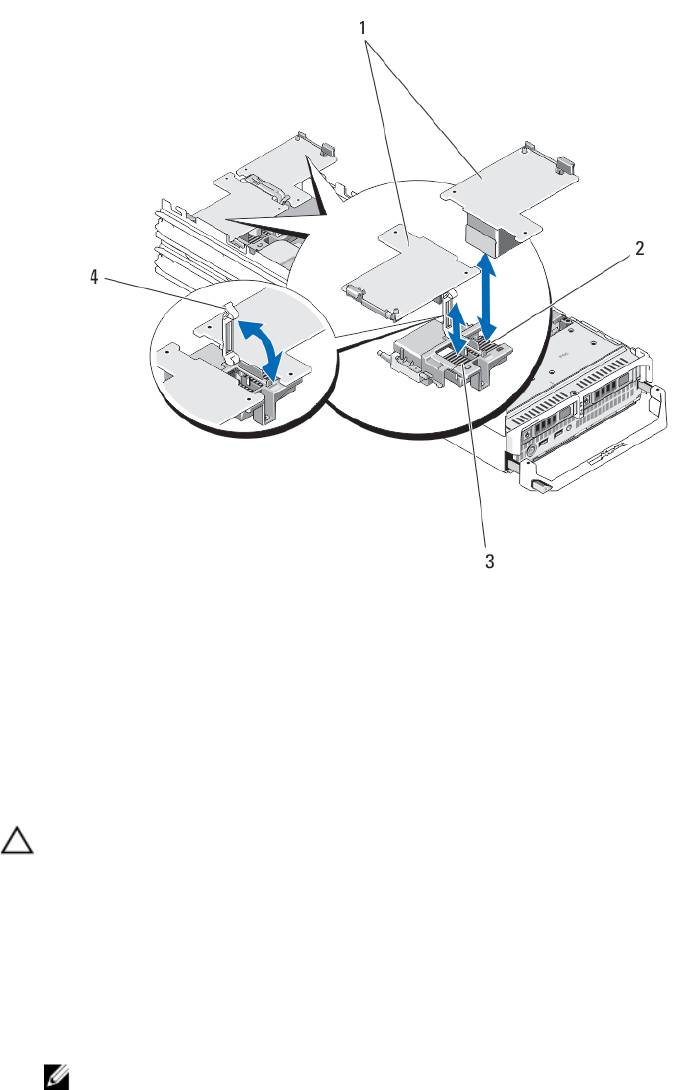
Figure 11. Removing and Installing a PCIe mezzanine Card
1. PCIe mezzanine cards (2)
2. Fabric B PCIe mezzanine card slot
3. Fabric C PCIe mezzanine card slot
4. retention latch
Installing A PCIe Mezzanine Card
CAUTION: Many repairs may only be done by a certified service technician. You should only perform
troubleshooting and simple repairs as authorized in your product documentation, or as directed by the online or
telephone service and support team. Damage due to servicing that is not authorized by Dell is not covered by your
warranty. Read and follow the safety instructions that came with the product.
1. Remove the server module from the enclosure.
2. Open the server module.
3. Open the retention latch by pressing the ridged area on the latch with your thumb and lifting the end of the latch.
4. If present, remove the connector cover from the PCIe Mezzanine card bay.
NOTE: Hold the PCIe Mezzanine card by its edges only.
5. PCIe Mezzanine cards are designed to fit in either card slot. Rotate the card to align the connector on the bottom of
the PCIe Mezzanine card with the corresponding socket on the system board.
6. Lower the card into place until it is fully seated and the plastic clip on the outer edge of the card fits over the side of
the server module chassis.
7. Close the retention latch to secure the PCIe Mezzanine card.
40
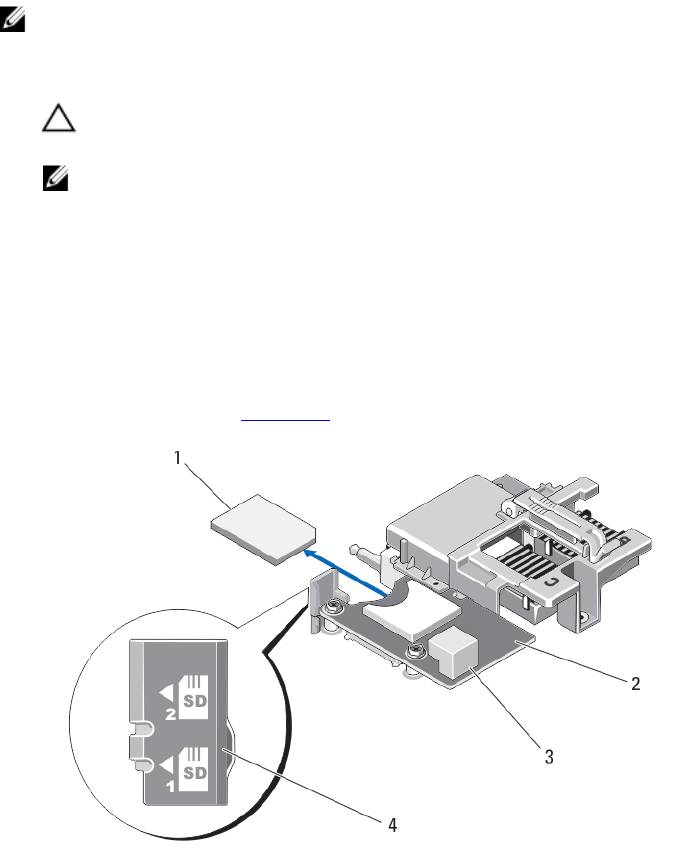
8. Close the server module.
9. Install the server module in the enclosure.
Management Riser Card
The management riser card provides two SD card slots and a USB interface dedicated for the embedded hypervisor.
This card offers the following features:
• Internal Dual SD interface — maintains a mirrored configuration using SD cards in both slots and provides
redundancy.
• Single card operation — single card operation is supported, but without redundancy.
Replacing The SD Card
NOTE: The SD card in the lower card slot is the primary card (SD1) and the SD card in the upper card slot is the
secondary card (SD2).
1. Enter the System Setup and ensure that the Internal SD Card Port is enabled.
CAUTION: If the Internal SD Card Redundancy option is set to Mirror Mode in the Integrated Devices screen
of the system setup, you must follow the instructions in step 4 through step 6 to avoid loss of data.
NOTE: When an SD card failure occurs, the Internal SD Card Redundancy option in the System Setup is set to
disabled and the internal dual SD module controller notifies the system. On the next reboot, the system
displays a message indicating the failure.
2. Remove the server module from the enclosure.
3. If the Internal SD Card Redundancy option is set to Disabled, replace the failed SD card with a new SD card.
4. Install the server module in the enclosure.
5. Enter the System Setup and ensure that the Internal SD Card Port and Internal SD Card Redundancy mode is
enabled.
6. Check if the new SD card is functioning properly.
If the problem persists, see Getting Help.
Figure 12. Replacing the SD Card
41
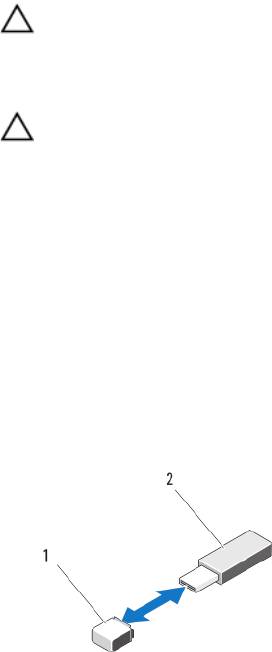
1. SD card
2. management riser card
3. USB connector
4. SD card slots
Internal USB Key
The server module provides an internal USB connector for a USB flash memory key. The USB memory key can be used
as a boot device, security key, or mass storage device. To use the internal USB connector, the Internal USB Port option
must be enabled in the Integrated Devices screen of the System Setup.
To boot from the USB memory key, you must configure the USB memory key with a boot image, and then specify the
USB memory key in the boot sequence in the System Setup. For information on creating a bootable file on the USB
memory key, see the user documentation that accompanied the USB memory key.
Replacing The Internal USB Key
CAUTION: Many repairs may only be done by a certified service technician. You should only perform
troubleshooting and simple repairs as authorized in your product documentation, or as directed by the online or
telephone service and support team. Damage due to servicing that is not authorized by Dell is not covered by your
warranty. Read and follow the safety instructions that came with the product.
CAUTION: To avoid interference with other components in the server module, the maximum allowable dimensions
of the USB key are 15.9 mm wide x 57.15 mm long x 7.9 mm high.
1. Remove the server module from the enclosure.
2. Open the server module.
3. Locate the USB connector / USB key.
4. If installed, remove the USB key.
5. Insert the new USB memory key into the USB connector.
6. Close the server module.
7. Install the server module in the enclosure.
8. Enter the System Setup and verify that the USB key is detected by the system.
Figure 13. Replacing the USB Memory Key
1. USB memory key connector
2. USB memory key
42
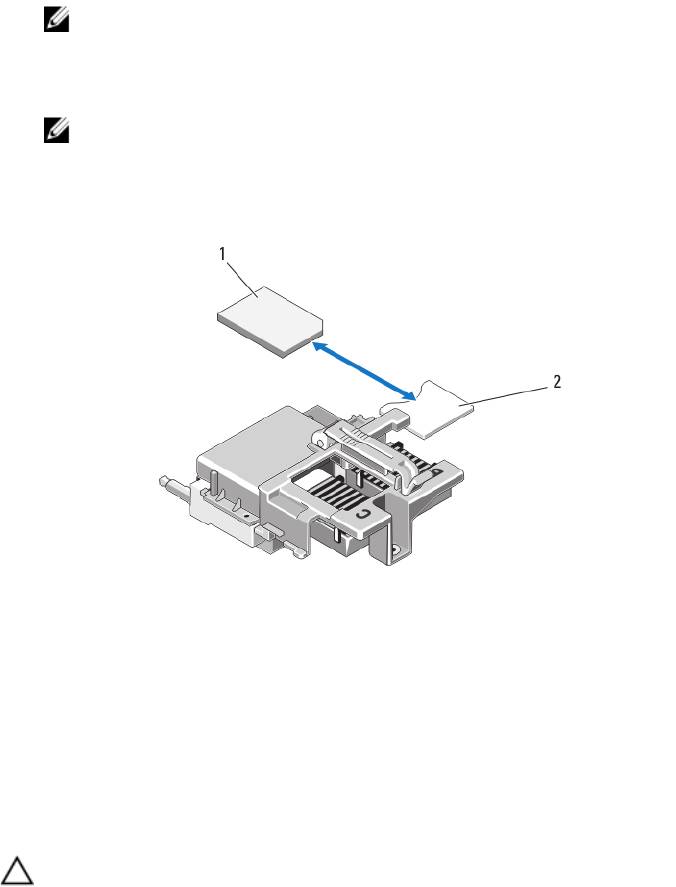
SD vFlash Card
Replacing The SD vFlash Card
1. Remove the server module from the enclosure.
2. If installed, remove the SD vFlash card from the card slot.
NOTE: The SD vFlash card slot is near the Fabric B PCIe mezzanine card slot at the back corner of the server
module.
3. To install the SD vFlash card, insert the contact-pin end of the SD card into the card slot on the VFlash media unit
with the card label side facing up.
NOTE: The slot is keyed to ensure correct insertion of the card.
4. Press inward on the card to lock it into the slot.
5. Install the server module in the enclosure.
Figure 14. Replacing the SD vFlash Card
1. SD vFlash card
2. SD vFlash card slot
Network Daughter Card/LOM Riser Card
Removing The Network Daughter Card/LOM Riser Card
CAUTION: Many repairs may only be done by a certified service technician. You should only perform
troubleshooting and simple repairs as authorized in your product documentation, or as directed by the online or
telephone service and support team. Damage due to servicing that is not authorized by Dell is not covered by your
warranty. Read and follow the safety instructions that came with the product.
1. Remove the server module from the enclosure.
2. Open the server module.
43
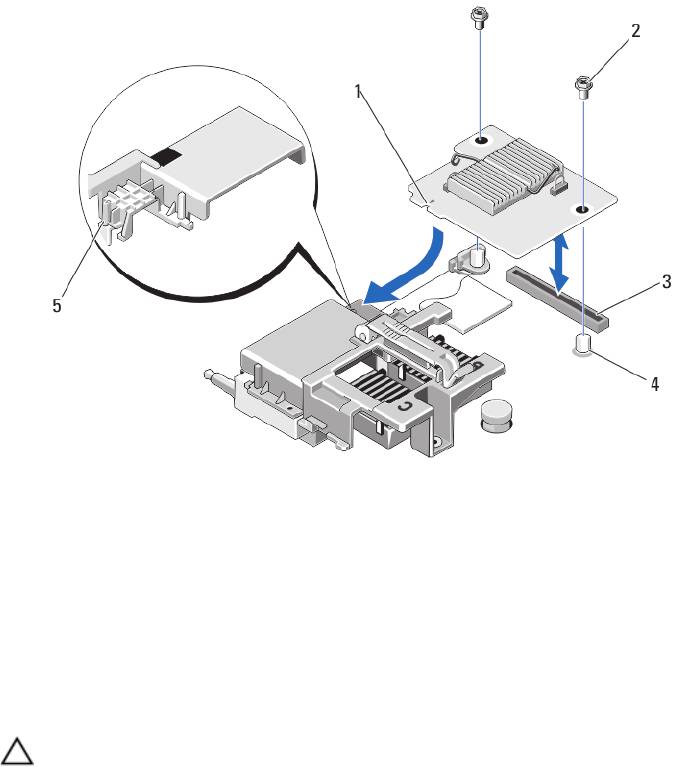
3. Remove the two screws that secure the Network Daughter Card/LOM riser card to the system board.
4. Lift the card from the system board.
5. Close the server module.
6. Install the server module in the enclosure.
Figure 15. Removing and Installing the Network Daughter Card/LOM Riser Card
1. LOM riser card
5. tab projections (on the plastic bracket
covering the PCIe mezzanine card
2. screws (2)
connectors)
3. LOM riser card connector
4. standoffs (2)
Installing The Network Daughter Card/LOM Riser Card
CAUTION: Many repairs may only be done by a certified service technician. You should only perform
troubleshooting and simple repairs as authorized in your product documentation, or as directed by the online or
telephone service and support team. Damage due to servicing that is not authorized by Dell is not covered by your
warranty. Read and follow the safety instructions that came with the product.
1. Remove the server module from the enclosure.
2. Open the server module.
3. Install the Network Daughter Card/LOM riser card:
a) Align the slots on the card edge with the projection tabs on the plastic bracket covering the PCIe mezzanine
card slots.
b) Lower the card into place until the card connector fits into the corresponding connector on the system board.
c) Secure the card with the two screws.
4. Close the server module.
5. Install the server module in the enclosure.
44
Processors
• Your system supports up to two Intel Xeon processor E5-2600 product family.
• Single-processor configuration is supported.
• Use 57 mm heat sinks for processors up to 95 W and 77 mm heat sinks with 115 W/130 W processors.
• Do not mix processors of different Wattages.
Use the following procedure when:
• Installing an additional processor
• Replacing a processor
Removing A Processor
CAUTION: Many repairs may only be done by a certified service technician. You should only perform
troubleshooting and simple repairs as authorized in your product documentation, or as directed by the online or
telephone service and support team. Damage due to servicing that is not authorized by Dell is not covered by your
warranty. Read and follow the safety instructions that came with the product.
1. Remove the server module from the enclosure.
2. Open the server module.
WARNING: The processor and heat sink can become extremely hot. Be sure the processor has had sufficient
time to cool before handling.
3. Remove the cooling shroud.
CAUTION: Never remove the heat sink from a processor unless you intend to remove the processor. The heat
sink is necessary to maintain proper thermal conditions.
4. Loosen the screws that secure the heat sink to the server module system board.
5. Remove the heat sink.
Set the heat sink upside down on the work surface to avoid contaminating the thermal grease.
45
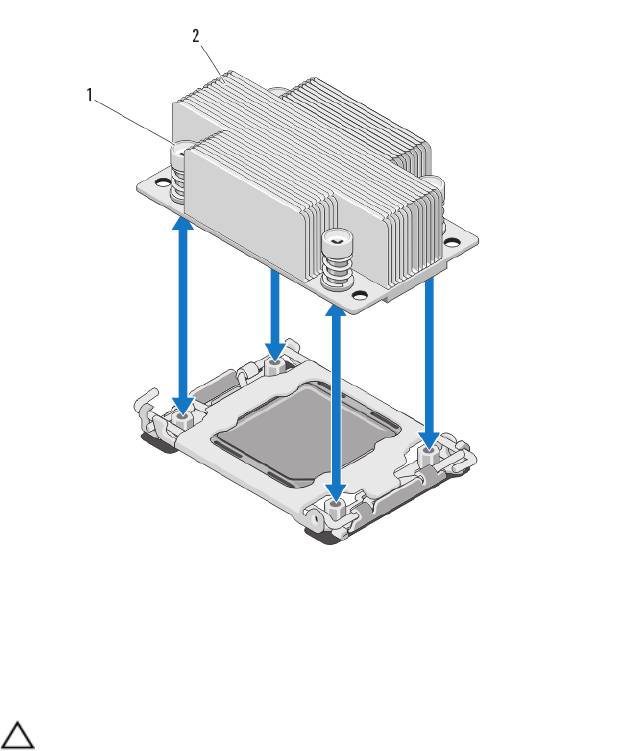
Figure 16. Installing and Removing a Heat Sink
1. screws (4)
2. heat sink
6. Use a clean, lint-free cloth to remove any thermal grease from the surface of the processor shield.
CAUTION: The processor is held in its socket under strong pressure. Be aware that the release lever can
spring up suddenly if not firmly grasped.
7. Position your thumb firmly over the socket-release lever near the label marked OPEN 1st and release the lever from
the locked position by pushing down and out from under the tab.
8. Similarly, release the socket-release lever near the label marked CLOSE 1st from the locked position. Rotate the
lever 90 degrees upward.
46
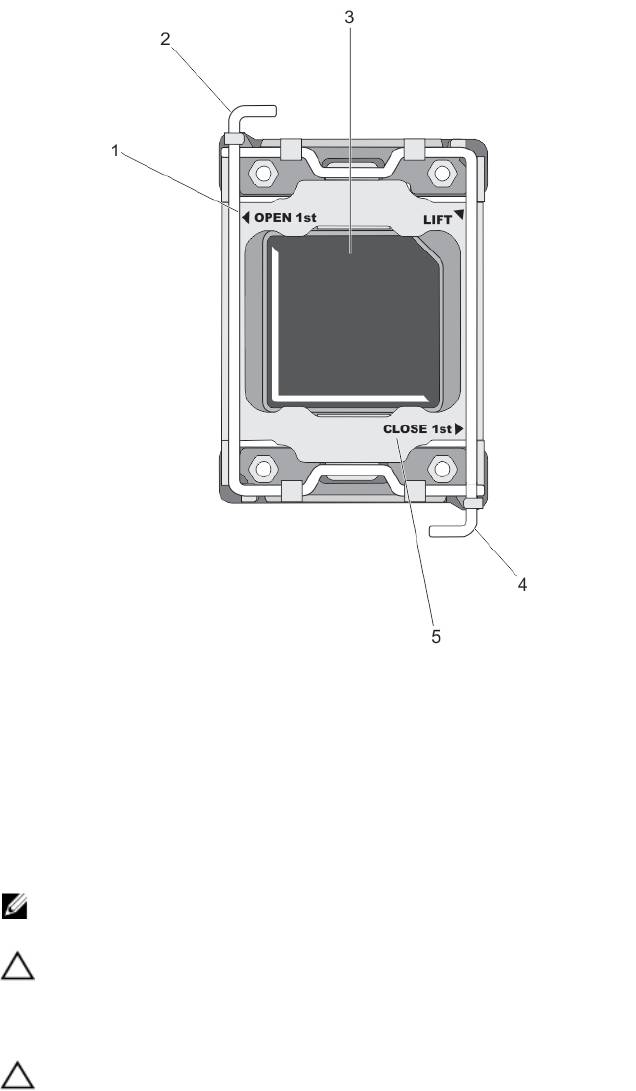
Figure 17. Processor Shield Opening and Closing Lever Sequence
1. OPEN 1st label
4. close first lever
2. open first lever
5. CLOSE 1st label
3. processor
9. Hold the tab on the processor shield and rotate it upward and out of the way.
10. If applicable, remove the socket protective cap from the processor shield. To remove the socket protective cap,
push the cap from the inside of the processor shield and move it away from the socket pins.
NOTE: It is recommended that you install/remove the socket protective cap from the processor shield with the
processor shield in the open position.
CAUTION: The socket pins are fragile and can be permanently damaged. Be careful not to bend the pins in the
socket when removing the processor out of the socket.
11. Lift the processor out of the socket and leave the release lever up so that the socket is ready for the new
processor.
CAUTION: If you are permanently removing a processor, you must install a socket protective cap and a
processor/DIMM blank in the vacant socket to ensure proper system cooling. The processor/DIMM blank
covers the vacant sockets for the DIMMs and the processor.
47
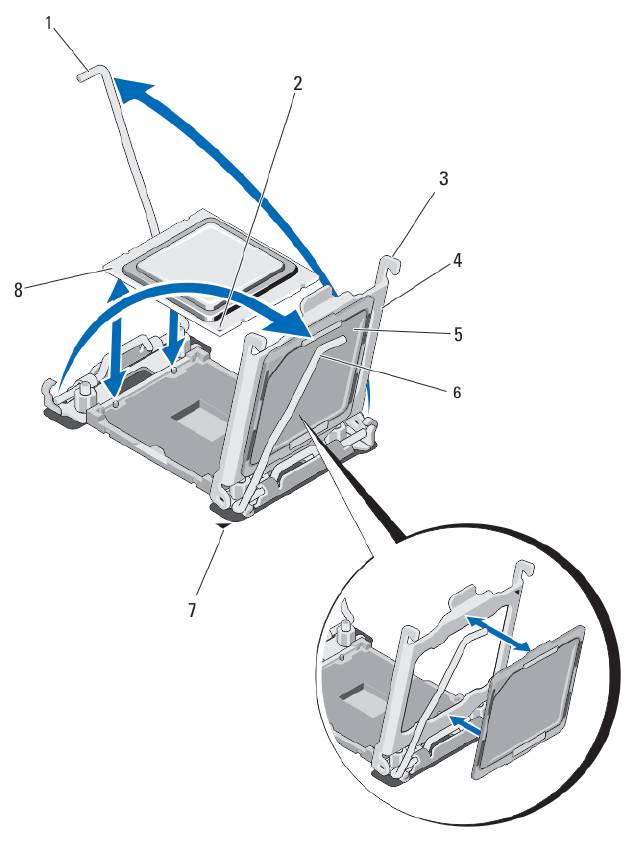
Figure 18. Installing and Removing a Processor
1. socket-release lever 2
6. socket-release lever 1
2. pin-1 corner of processor
7. pin-1 corner on system board
3. tabs (2)
8. processor
4. processor shield
5. socket protective cap
48

Installing A Processor
CAUTION: Many repairs may only be done by a certified service technician. You should only perform
troubleshooting and simple repairs as authorized in your product documentation, or as directed by the online or
telephone service and support team. Damage due to servicing that is not authorized by Dell is not covered by your
warranty. Read and follow the safety instructions that came with the product.
NOTE: If you are installing just one processor, it must be installed in socket CPU1.
1. If applicable, remove the heat-sink blank.
2. Unlatch and rotate the socket-release levers 90 degrees upward and ensure that the socket-release lever is fully
open.
3. Hold the tab near the label marked LIFT on the processor shield and rotate it upward and out of the way.
4. If applicable, remove the socket protective cap from the processor shield. To remove the socket protective cap,
push the cap from the inside of the processor shield and move it away from the socket pins.
NOTE: It is recommended that you install/remove the socket protective cap from the processor shield with the
processor shield in the open position.
CAUTION: Positioning the processor incorrectly can permanently damage the system board or the processor.
Be careful not to bend the pins in the socket.
CAUTION: Do not use force to seat the processor. When the processor is positioned correctly, it engages
easily into the socket.
5. Install the processor in the socket:
a) Identify the pin-1 corner of the processor by locating the tiny gold triangle on one corner of the processor.
Place this corner in the same corner of the ZIF socket identified by a corresponding triangle on the system
board.
b) Align the pin-1 corner of the processor with the pin-1 corner of the system board.
c) Set the processor lightly in the socket.
Because the system uses a ZIF processor socket, do not use force. When the processor is positioned correctly,
it drops down into the socket with minimal pressure.
d) Close the processor shield.
e) Rotate the socket-release lever near the label marked CLOSE 1st until it is locked in position.
f) Similarly, rotate the socket-release lever near the label marked OPEN 1st to the locked position.
CAUTION: Applying too much thermal grease can result in excess grease coming in contact with and
contaminating the processor socket.
6. Install the heat sink:
If you are:
Reinstalling a
Use a clean, lint-free cloth to remove the existing thermal grease from the heat sink.
heat sink
Upgrading a
If a new heat sink was supplied with the processor, install it.
processor
Reinstalling a
Clean any remnants of thermal grease from the processor.
processor
a) Open the grease applicator included with your processor kit and apply all of the thermal grease in the
applicator to the center of the topside of the new processor.
49

b) Place the heat sink onto the processor.
c) Tighten the four screws to secure the heat sink to the server module board.
NOTE: Do not over-tighten the heat sink retention screws when installing the heat sink. To prevent over-
tightening, tighten the retention screw until resistance is felt, and stop once the screw is seated. The
screw tension should be no more than 6 in-lb (6.9 kg-cm).
7. Install the cooling shroud.
8. Close the server module.
9. Install the server module in the enclosure.
As the system boots, it detects the presence of the new processor and automatically changes the system
configuration information in the System Setup.
10. Press <F2> to enter the System Setup and check that the processor information matches the new system
configuration.
11. Run the system diagnostics to verify that the new processor operates correctly.
12. Update the system BIOS.
Hard Drives
• The system supports up to two 2.5 inch SAS/SATA/PCIe SSDs or SAS/SATA hard drives.
• All drives connect to the server module system board through the hard-drive/SSD backplane board.
• Hard drives/SSDs are supplied in special hot-swappable drive carriers that fit in the drive bays.
• SAS/SATA/PCIe SSDs or SAS/SATA hard drives cannot be mixed within a server module.
Hard Drive/SSD Installation Guidelines
For a single-drive configuration, a hard-drive blank must be installed in the other drive bay to maintain proper cooling
airflow.
Removing A Hard Drive/SSD
NOTE: Not all operating systems support hot-swappable drive installation. See the documentation supplied with
your operating system.
1. Take the hard drive/SSD offline and wait until the hard-drive/SSD indicator codes on the drive carrier signal that
the drive may be removed safely.
When all indicators are off, the drive is ready for removal.
See your operating system documentation for more information on taking the drive offline.
2. Open the hard-drive/SSD carrier handle to release the drive.
3. Slide the hard drive/SSD out until it is free of the drive bay.
If you are permanently removing the hard drive/SSD, install a blank insert.
50
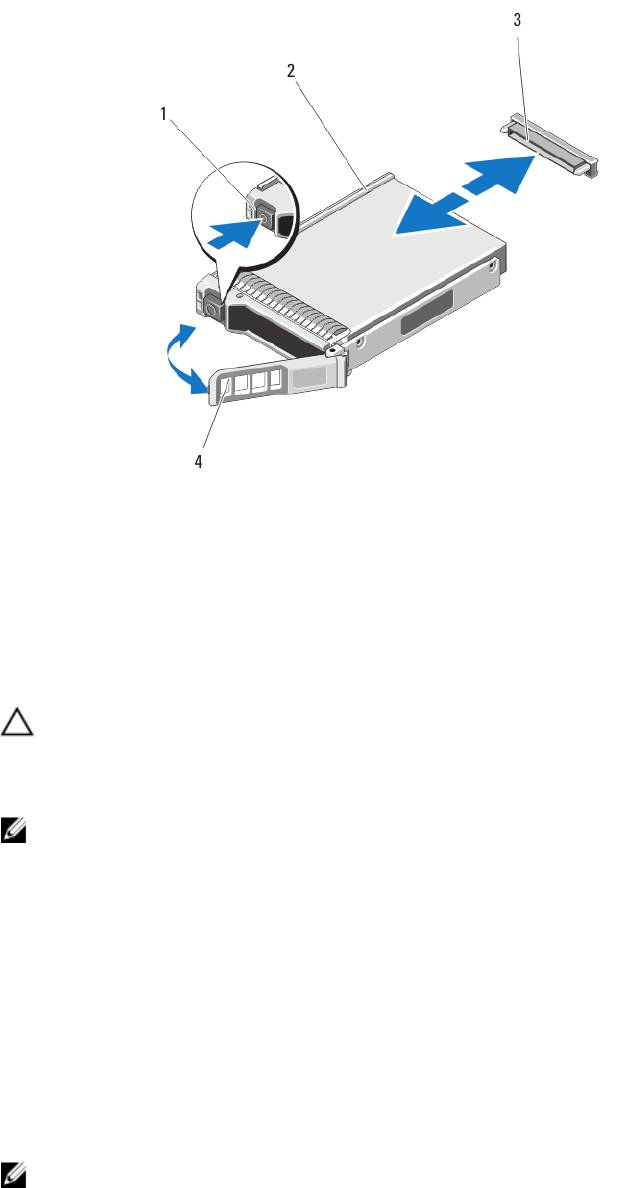
Figure 19. Removing and Installing a Hard Drive/SSD
1. release button
2. hard drive/SSD
3. hard-drive/SSD connector (on backplane)
4. hard-drive/SSD carrier handle
Installing A Hard Drive/SSD
CAUTION: When a replacement hot-swappable hard drive/SSD is installed and the server module is powered on,
the drive automatically begins to rebuild. Make absolutely sure that the replacement hard drive/SSD is blank or
contains data that you wish to have over-written. Any data on the replacement hard drive/SSD is immediately lost
after the drive is installed.
NOTE: Not all operating systems support hot-swappable drive installation. See the documentation supplied with
your operating system.
1. Open the hard-drive/SSD carrier handle.
2. Insert the hard-drive/SSD carrier into the drive bay. Carefully align the channel on the hard-drive/SSD carrier with
the appropriate drive slot on the server module.
3. Push the drive carrier into the slot until the handle makes contact with the server module.
4. Rotate the carrier handle to the closed position while pushing the carrier into the slot until it locks into place.
The status LED indicator displays a steady green light if the drive is installed correctly. The drive carrier LED green
indicator flashes as the drive rebuilds.
Shutdown Procedure For Servicing a Hard Drive
NOTE: This section applies only to situations where the server module must be powered down to service a hard
drive. In many situations, the hard drive can be serviced while the server module is powered on.
51
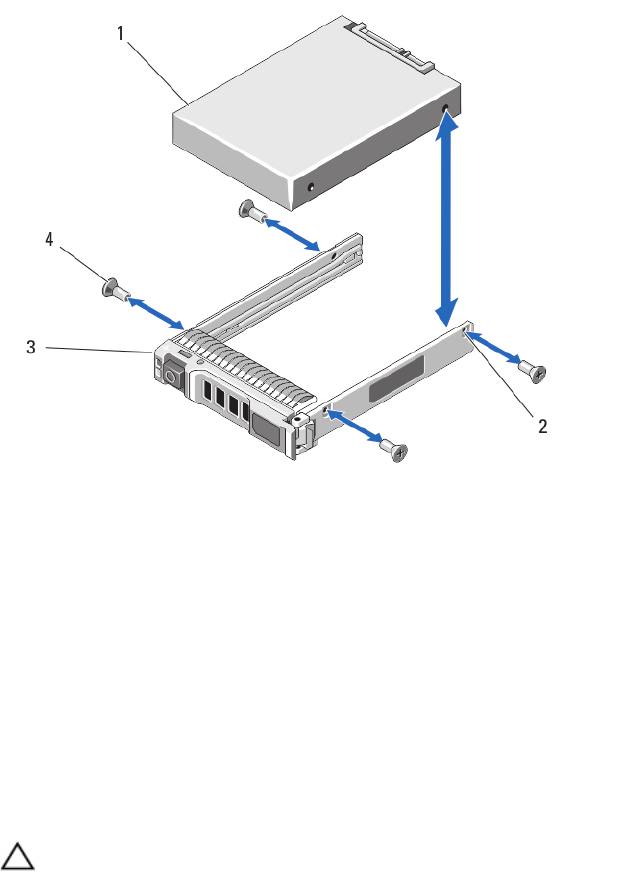
If you need to power off the server module to service a hard drive, wait 30 seconds after the server module’s power
indicator turns off before removing the hard drive. Otherwise, the hard drive may not be recognized after it is reinstalled
and the server module is powered on again.
Configuring The Boot Drive
The drive or device from which the system boots is determined by the boot order specified in the System Setup.
Removing A Hard Drive/SSD From A Hard-Drive/SSD Carrier
1. Remove the four screws from the slide rails on the hard-drive/SSD carrier.
2. Lift the hard drive/SSD out of the hard-drive/SSD carrier.
Figure 20. Removing and Installing a Hard Drive/SSD in a Hard-Drive/SSD Carrier
1. hard drive/SSD
2. screw holes (4)
3. hard-drive/SSD carrier
4. screws (4)
Installing A Hard Drive/SSD In A Hard-Drive/SSD Carrier
1. Insert the hard drive/SSD into the hard-drive/SSD carrier with the drive’s controller board’s connector end of the
drive at the back of the carrier.
2. From the back of the carrier, slide the drive into the carrier.
3. Align the screw holes on the hard drive/SSD with the holes on the hard-drive/SSD carrier.
CAUTION: To avoid damaging the drive or the carrier, do not overtighten the screws.
4. Attach the four screws to secure the hard drive/SSD to the hard-drive/SSD carrier.
52
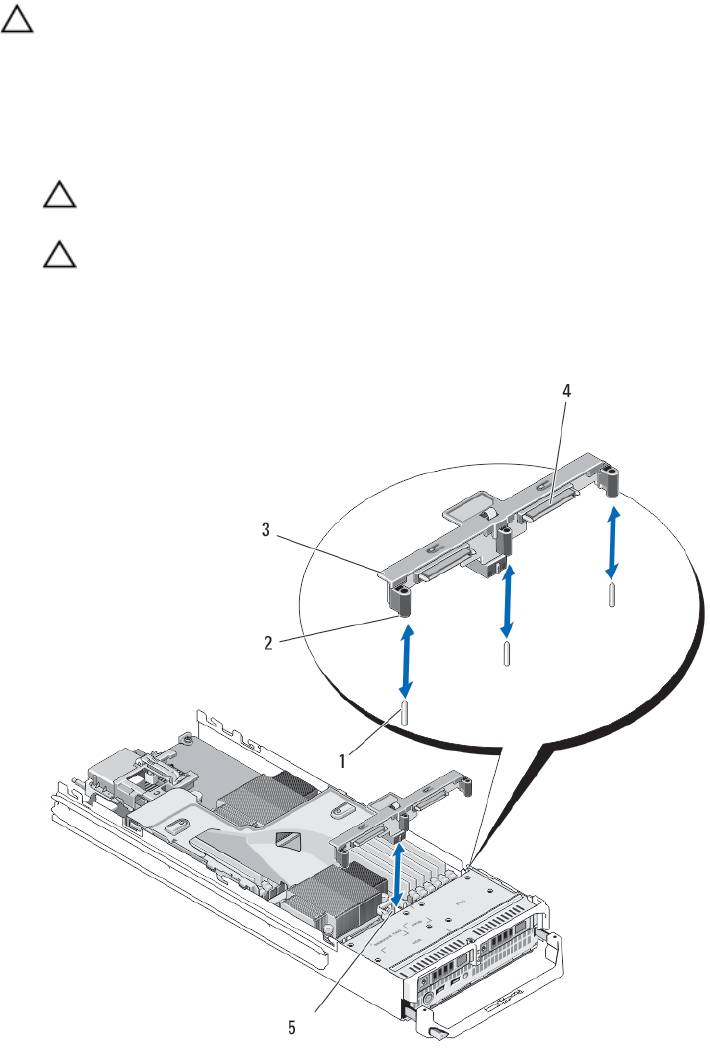
Hard-Drive/SSD Backplane
Removing The Hard-Drive/SSD Backplane
CAUTION: Many repairs may only be done by a certified service technician. You should only perform
troubleshooting and simple repairs as authorized in your product documentation, or as directed by the online or
telephone service and support team. Damage due to servicing that is not authorized by Dell is not covered by your
warranty. Read and follow the safety instructions that came with the product.
1. Remove the server module from the enclosure.
2. Open the server module.
CAUTION: You must note the number of each hard drive/SSD and temporarily label them before removal so
that you can replace them in the same locations.
CAUTION: To prevent damage to the hard drives/SSDs and the hard-drive/SSD backplane, you must remove
the hard drives/SSDs from the server module before removing the hard-drive/SSD backplane.
3. Remove the hard drive(s)/SSD(s).
4. Hold both edges of the hard-drive/SSD backplane near the server module chassis and lift the backplane away from
the server module.
Figure 21. Removing and Installing the Hard-Drive/SSD Backplane
53

1. guide pins (3)
4. hard-drive/SSD connectors (2)
2. guides (3)
5. hard-drive backplane/SSD connector
3. hard-drive/SSD backplane
Installing The Hard-Drive/SSD Backplane
1. Open the server module.
2. Align the guides on the hard-drive/SSD backplane with the guide pins on the system board.
3. Press down the backplane until the connectors on the backplane and the system board are fully engaged.
4. Install the hard drives/SSDs in their original locations.
5. Close the server module.
6. Install the server module in the enclosure.
System Board
Removing The System Board
CAUTION: Many repairs may only be done by a certified service technician. You should only perform
troubleshooting and simple repairs as authorized in your product documentation, or as directed by the online or
telephone service and support team. Damage due to servicing that is not authorized by Dell is not covered by your
warranty. Read and follow the safety instructions that came with the product.
1. Remove the server module from the enclosure.
2. Open the server module.
3. Install an I/O connector cover on the I/O connector(s) at the back of the board.
WARNING: The processor and heat sink can become extremely hot. Be sure the processor has had sufficient
time to cool before handling.
WARNING: The memory modules are hot to the touch for some time after the system has been powered
down. Allow time for the memory modules to cool before handling them. Handle the memory modules by the
card edges and avoid touching the components.
NOTE: If you are removing more than one hard drive/SSD, label them so you can replace them in their original
locations.
4. Remove the hard drives/SSDs.
5. Remove the hard-drive/SSD backplane.
6. Remove the cooling shroud.
7. Remove both PCIe mezzanine cards, if present.
CAUTION: Do not lift the system board assembly by grasping a memory module, processor, or other
components.
8. Hold the server module chassis with one hand, lift and pull the system board retention latch with the other hand,
and then slide the system board out of the open end of the chassis.
9. Ensure that the I/O connector cover is still in place on the I/O connector at the back of the board.
10. Remove the memory modules and memory module blanks.
11. Remove the processor(s).
12. Remove the storage controller card.
54
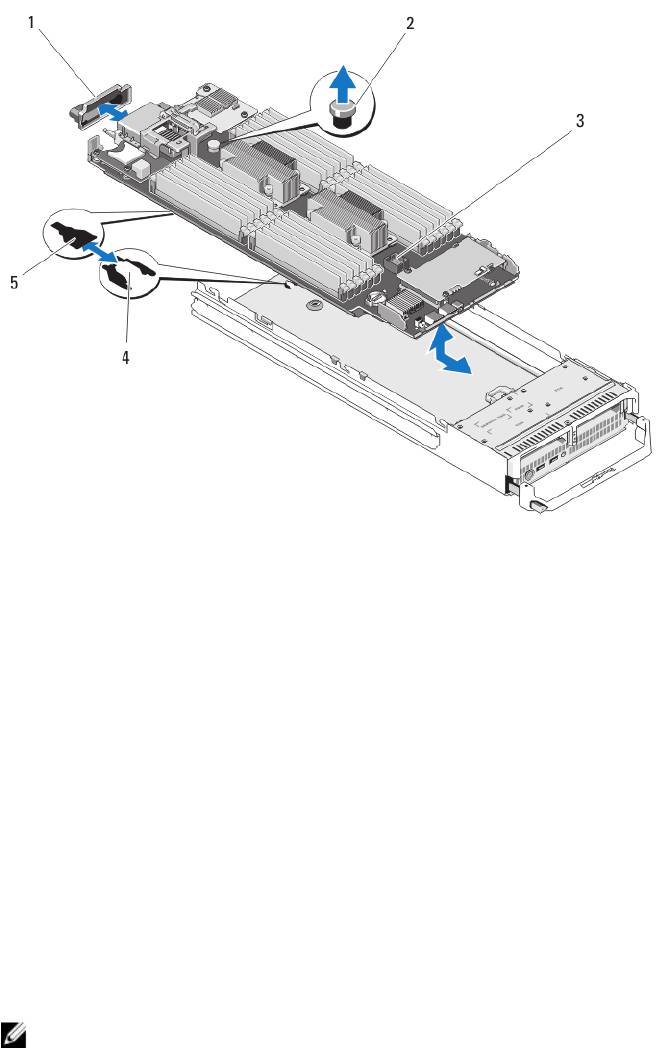
Figure 22. Removing and Installing the System Board
1. I/O connector cover
4. tabs on system chassis
2. retention latch
5. slots in system board tray
3. system board
Installing The System Board
1. Transfer the following components to the new system board:
– Internal USB key
– storage controller card/PCIe extender card
– SD vFlash card
– Memory modules and memory module blanks
– Processor(s) and heat sink(s), or processor filler blank
– network daughter card
2. Slide the new system board into the open end of the server module chassis until the retention latch or retention pin
engages.
NOTE: Ensure that the system board plate is parallel with the chassis.
When the board assembly is installed correctly, the tabs on the system board pan fit into the corresponding
openings in the floor of the server module chassis.
3. Replace the PCIe mezzanine card(s) in their original locations.
4. Reinstall the hard-drive/SSD backplane.
5. Replace the hard drive(s)/SSDs.
Ensure that you reinstall the hard drives/SSDs in their original locations.
55

6. Reinstall the cooling shroud.
7. Close the server module.
8. Remove the plastic I/O connector covers from the back of the server module.
9. Install the server module in the enclosure.
10. Import your new or existing iDRAC Enterprise license. For more information, see the
iDRAC7 User's Guide
at
dell.com/support/manuals.
NVRAM Backup Battery
Replacing The NVRAM Backup Battery
WARNING: There is a danger of a new battery exploding if it is incorrectly installed. Replace the battery only with
the same or equivalent type recommended by the manufacturer. Discard used batteries according to the
manufacturer's instructions. See the safety instructions that came with your system for additional information.
CAUTION: Many repairs may only be done by a certified service technician. You should only perform
troubleshooting and simple repairs as authorized in your product documentation, or as directed by the online or
telephone service and support team. Damage due to servicing that is not authorized by Dell is not covered by your
warranty. Read and follow the safety instructions that came with the product.
1. Remove the server module from the enclosure.
2. Open the server module.
3. Remove the system board to access the battery.
4. To remove the battery, press down firmly on the positive side of the connector and lift the battery out of the
securing tabs at the negative side of the connector.
5. To install a new system battery:
a) Support the battery connector by pressing down firmly on the positive side of the connector.
b) Hold the battery with the "+" facing up and slide it under the securing tabs at the positive side of the connector.
6. Press the battery straight down into the connector until it snaps into place.
7. Reinstall the system board.
8. Close the server module.
9. Install the server module in the enclosure.
10. Enter the System Setup to confirm that the battery is operating properly.
11. Enter the correct time and date in the System Setup's Time and Date fields.
12. Exit the System Setup.
13. To test the newly installed battery, remove the server module for at least an hour.
14. After an hour, reinstall the server module.
15. Enter the System Setup and if the time and date are still incorrect, see Getting Help.
56
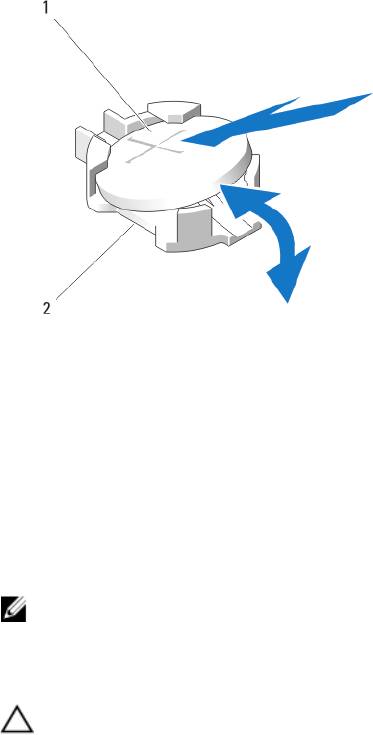
Figure 23. Replacing the NVRAM Backup Battery
1. positive side of battery
2. negative side of battery connector
Storage Controller Card
Your system includes a dedicated expansion-card slot on the server module system board for a storage controller card
that provides the integrated storage subsystem for your system’s hard drives. The storage controller card supports SAS
and SATA hard drives. The storage controller card supports PCIe SSDs.
NOTE: The storage controller card is located underneath the hard-drive bays.
Removing The Storage Controller Card
CAUTION: Many repairs may only be done by a certified service technician. You should only perform
troubleshooting and simple repairs as authorized in your product documentation, or as directed by the online or
telephone service and support team. Damage due to servicing that is not authorized by Dell is not covered by your
warranty. Read and follow the safety instructions that came with the product.
1. Remove the server module from the enclosure.
2. Open the server module.
3. Remove the system board and place it on the work surface.
4. Remove the two screws from the storage controller card.
5. Pull the storage controller card straight up and out of the connector.
57
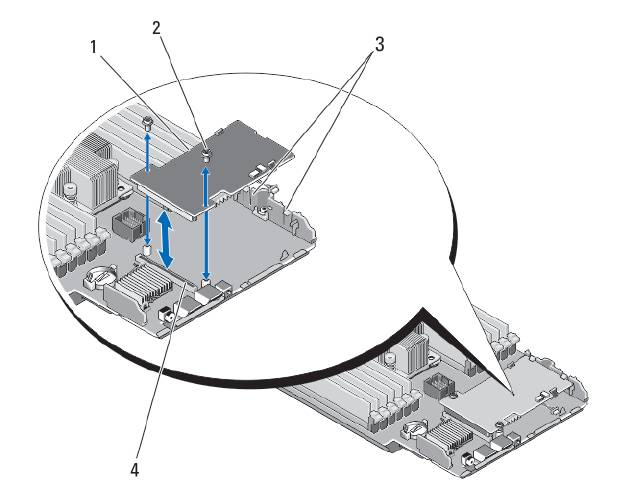
Figure 24. Removing and Installing the Storage Controller Card
1. storage controller card
2. screws (2)
3. tab
4. connector
Installing The Storage Controller Card
1. Holding by its edges, position the storage controller card so that the card-connector aligns with the system board
connector.
2. Adjust the other end of the card so that the card edge is secured under the two tabs on the plastic bracket.
3. Insert the controller card-connector firmly into the system board connector until the card is fully seated.
4. Install the two screws to secure the storage controller card to the server module system board.
5. Reinstall the system board.
6. Install the server module in the enclosure.
58
4
Troubleshooting Your System
Safety First—For You and Your System
CAUTION: Many repairs may only be done by a certified service technician. You should only perform
troubleshooting and simple repairs as authorized in your product documentation, or as directed by the online or
telephone service and support team. Damage due to servicing that is not authorized by Dell is not covered by your
warranty. Read and follow the safety instructions that came with the product.
NOTE: For troubleshooting information on the PowerEdge VRTX enclosure components, see “Troubleshooting The
Enclosure” in the
Dell PowerEdge VRTX Enclosure Owner's Manual
at dell.com/poweredgemanuals.
Troubleshooting System Memory
CAUTION: Many repairs may only be done by a certified service technician. You should only perform
troubleshooting and simple repairs as authorized in your product documentation, or as directed by the online or
telephone service and support team. Damage due to servicing that is not authorized by Dell is not covered by your
warranty. Read and follow the safety instructions that came with the product.
NOTE: Before performing the following procedure, ensure that you have installed the memory modules according
to the memory installation guidelines for the server module.
1. Restart the server module:
a) Press the power button once to turn off the server module
b) Press the power button again to apply power to the server module.
If no error messages appear, go to step 8.
2. Enter the System Setup and check the system memory setting.
If the amount of memory installed matches the system memory setting, go to step 8.
3. Remove the server module from the enclosure.
4. Open the server module.
CAUTION: The memory modules are hot to touch for some time after the server module has been powered
down. Allow time for the memory modules to cool before handling them. Handle the memory modules by the
card edges and avoid touching the components.
5. Reseat the memory modules in their sockets.
6. Close the server module.
7. Install the server module in the enclosure.
8. Run the appropriate diagnostic test. For more information, see Using System Diagnostics.
If the test fails, see Getting Help.
59
Troubleshooting Hard Drives
CAUTION: Many repairs may only be done by a certified service technician. You should only perform
troubleshooting and simple repairs as authorized in your product documentation, or as directed by the online or
telephone service and support team. Damage due to servicing that is not authorized by Dell is not covered by your
warranty. Read and follow the safety instructions that came with the product.
CAUTION: This troubleshooting procedure can destroy data stored on the hard drive. Before you proceed, back up
all the files on the hard drive, if possible.
1. Run the appropriate controllers test and the hard drive tests in system diagnostics.
If the tests fail, go to step 3.
2. Take the hard drive offline and wait until the hard-drive indicator codes on the drive carrier signal that the drive
may be removed safely, then remove and reseat the drive carrier in the server module.
3. Restart the server module, enter the System Setup and confirm that the drive controller is enabled.
4. Ensure that any required device drivers are installed and are configured correctly.
NOTE: Installing a hard drive into another bay may break the mirror if the mirror state is optimal.
5. Remove the hard drive and install it in the other drive bay.
6. If the problem is resolved, reinstall the hard drive in the original bay.
If the hard drive functions properly in the original bay, the drive carrier could have intermittent problems. Replace
the drive carrier.
7. If the hard drive is the boot drive, ensure that the drive is configured and connected properly.
8. Partition and logically format the hard drive.
9. If possible, restore the files to the drive.
If the problem persists, see Getting Help.
Troubleshooting USB Devices
CAUTION: Many repairs may only be done by a certified service technician. You should only perform
troubleshooting and simple repairs as authorized in your product documentation, or as directed by the online or
telephone service and support team. Damage due to servicing that is not authorized by Dell is not covered by your
warranty. Read and follow the safety instructions that came with the product.
1. Ensure that the server module is turned on.
2. Check the USB device connection to the server module.
3. Swap the USB device with a known-working USB device.
4. Connect the USB devices to the server module using a powered USB hub.
5. If another server module is installed, connect the USB device to that server module. If the USB device works with a
different server module, the first server module may be faulty. See
Getting Help.
60
Troubleshooting An Internal SD Card
CAUTION: Many repairs may only be done by a certified service technician. You should only perform
troubleshooting and simple repairs as authorized in your product documentation, or as directed by the online or
telephone service and support team. Damage due to servicing that is not authorized by Dell is not covered by your
warranty. Read and follow the safety instructions that came with the product.
1. Enter the System Setup and ensure that the Internal SD Card Port is enabled.
2. Note the Internal SD Card Redundancy option enabled in the Integrated Devices screen of the System Setup
(Mirror or Disabled).
3. Remove the server module from the enclosure.
4. If the Internal SD Card Redundancy option in the Integrated Devices screen of the System Setup is set to Mirror
mode and SD card 1 has failed:
a) Remove the SD card from SD card slot 1.
b) Remove the SD card present in SD card slot 2 and insert it into SD card slot 1.
c) Install a new SD card in slot 2.
5. If the Internal SD Card Redundancy option in the Integrated Devices screen of the System Setup is set to Mirror
mode and SD card 2 has failed, insert the new SD card into SD card slot 2.
6. If the Internal SD Card Redundancy option in Integrated Devices screen of the System Setup is set to Disabled,
replace the failed SD card with a new SD card.
7. Install the server module in the enclosure.
8. Enter the System Setup and ensure that the Internal SD Card Port option is enabled and Internal SD Card
Redundancy option is set to Mirror mode.
9. Check if the SD card is functioning properly.
If the problem persists, see Getting Help.
Troubleshooting Processors
1. Remove the server module from the enclosure.
2. Open the server module.
3. Ensure that the processor(s) and heat sink(s) are properly installed.
4. If your system only has one processor installed, ensure that it is installed in the primary processor socket (CPU1).
5. Close the server module.
6. Install the server module in the enclosure.
7. Run the appropriate diagnostic test. For more information, see Using System Diagnostics.
If the problem persists, see Getting Help.
Troubleshooting The Server Module System Board
CAUTION: Many repairs may only be done by a certified service technician. You should only perform
troubleshooting and simple repairs as authorized in your product documentation, or as directed by the online or
telephone service and support team. Damage due to servicing that is not authorized by Dell is not covered by your
warranty. Read and follow the safety instructions that came with the product.
1. Remove the server module from the enclosure.
2. Open the server module.
3. Clear the server module NVRAM.
61
4. If there is a still a problem with the server module, remove and reinstall the server module in the enclosure.
5. Turn on the server module.
6. Run the appropriate diagnostic test. For more information, see Using System Diagnostics.
If the tests fail, see Getting Help.
Troubleshooting The NVRAM Backup Battery
CAUTION: Many repairs may only be done by a certified service technician. You should only perform
troubleshooting and simple repairs as authorized in your product documentation, or as directed by the online or
telephone service and support team. Damage due to servicing that is not authorized by Dell is not covered by your
warranty. Read and follow the safety instructions that came with the product.
The battery maintains the server module configuration, date, and time information in the NVRAM when the server
module is turned off. You may need to replace the battery if an incorrect time or date is displayed during the boot
routine.
You can operate the server module without a battery; however, the server module configuration information maintained
by the battery in NVRAM is erased each time you remove power from the server module. Therefore, you must re-enter
the system configuration information and reset the options each time the server module boots until you replace the
battery.
1. Re-enter the time and date through the System Setup.
2. Remove the server module from the enclosure for at least one hour.
3. Install the server module in the enclosure.
4. Enter the System Setup.
If the date and time are not correct in the System Setup, replace the battery. If the problem is not resolved by
replacing the battery, see Getting Help.
NOTE: If the server module is turned off for long periods of time (for weeks or months), the NVRAM may lose
its system configuration information. This situation is caused by a defective battery.
NOTE: Some software may cause the server module’s time to speed up or slow down. If the server module
operates normally except for the time maintained by the System Setup, the problem may be caused by a
software rather than by a defective battery.
62

5
Using System Diagnostics
If you experience a problem with your system, run the system diagnostics before contacting Dell for technical
assistance. The purpose of running system diagnostics is to test your system hardware without requiring additional
equipment or risking data loss. If you are unable to fix the problem yourself, service and support personnel can use the
diagnostics results to help you solve the problem.
Dell Online Diagnostics
Dell Online Diagnostics, a stand-alone suite of diagnostic programs or test modules, allows you to run diagnostic tests
on the systems in a production environment, and helps you ensure maximum uptime of your systems. Online Diagnostics
allows you to run diagnostic tests on chassis and storage components such as hard drives, physical memory, and
network interface cards (NICs). You can use the graphical user interface (GUI) or the command line interface (CLI) to run
diagnostic tests on the hardware that Online Diagnostics discovers on your system. For information about using
diagnostics, see the
Dell Online PowerEdge Diagnostics User’s Guide
under Software → Serviceability Tools, at
dell.com/support/manuals.
Dell Embedded System Diagnostics
NOTE: Also known as Enhanced Pre-boot System Assessment (ePSA) diagnostics.
The embedded system diagnostics provides a set of options for particular device groups or devices allowing you to:
• Run tests automatically or in an interactive mode
• Repeat tests
• Display or save test results
• Run thorough tests to introduce additional test options to provide extra information about the failed device(s)
• View status messages that inform you if tests are completed successfully
• View error messages that inform you of problems encountered during testing
When To Use The Embedded System Diagnostics
If a major component or device in the system does not operate properly, running the embedded system diagnostics may
indicate component failure.
63

Running The Embedded System Diagnostics
The embedded system diagnostics program is run from the Dell Lifecycle Controller.
CAUTION: Use the embedded system diagnostics to test only your system. Using this program with other systems
may cause invalid results or error messages.
1. As the system boots, press <F11>.
2. Use the up and down arrow keys to select System Utilities → Launch Dell Diagnostics .
The ePSA Pre-boot System Assessment window is displayed, listing all devices detected in the system. The
diagnostics starts executing the tests on all the detected devices.
Running Embedded System Diagnostics From An External Media
1. Format the external resource media (USB flash drive or CDROM) to emulate a hard drive.
See the documentation that came with the resource media for instructions.
2. Configure the resource media to be a bootable device.
3. Create a directory for the system diagnostics on the resource media.
4. Copy the system diagnostics files into the directory.
To download the Dell diagnostics utility, go to dell.com/support.
5. Connect the resource media on your system.
6. As the system boots, press <F11>.
7. When prompted, select the media to perform a one-time boot.
If diagnostics does not start automatically after the diagnostic media is booted, enter psa at the command prompt.
System Diagnostic Controls
Menu Description
Configuration Displays the configuration and status information of all detected devices.
Results Displays the results of all tests that are executed.
System Health Provides the current overview of the system performance.
Event Log Displays a time-stamped log of the results of all tests run on the system. This is displayed if at
least one event description is recorded.
For information about embedded system diagnostics, see the
Dell Enhanced Pre-boot System Assessment User Guide
at
dell.com/support/manuals.
64
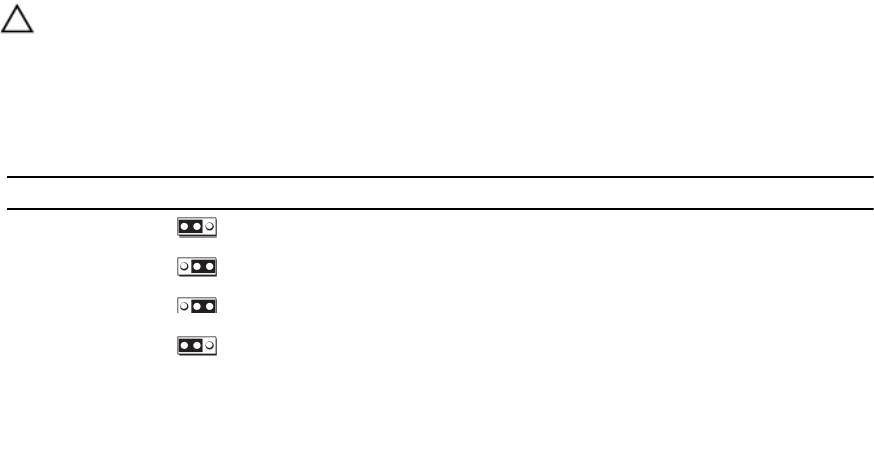
6
Jumpers And Connectors
System Board Jumper Settings
CAUTION: Many repairs may only be done by a certified service technician. You should only perform
troubleshooting and simple repairs as authorized in your product documentation, or as directed by the online or
telephone service and support team. Damage due to servicing that is not authorized by Dell is not covered by your
warranty. Read and follow the safety instructions that came with the product.
For information on resetting the password jumper to disable a password, see Disabling A Forgotten Password.
Table 4. System Board Jumper Settings
Jumper Setting Description
PWRD_EN
(default)
The password feature is enabled.
The password feature is disabled.
NVRAM_CLR
(default)
The configuration settings are retained at system boot.
The configuration settings are cleared at the next system boot.
(If the configuration settings become corrupted to the point
where the system does not boot, install the jumper and boot
the system. Remove the jumper before restoring the
configuration information.)
65
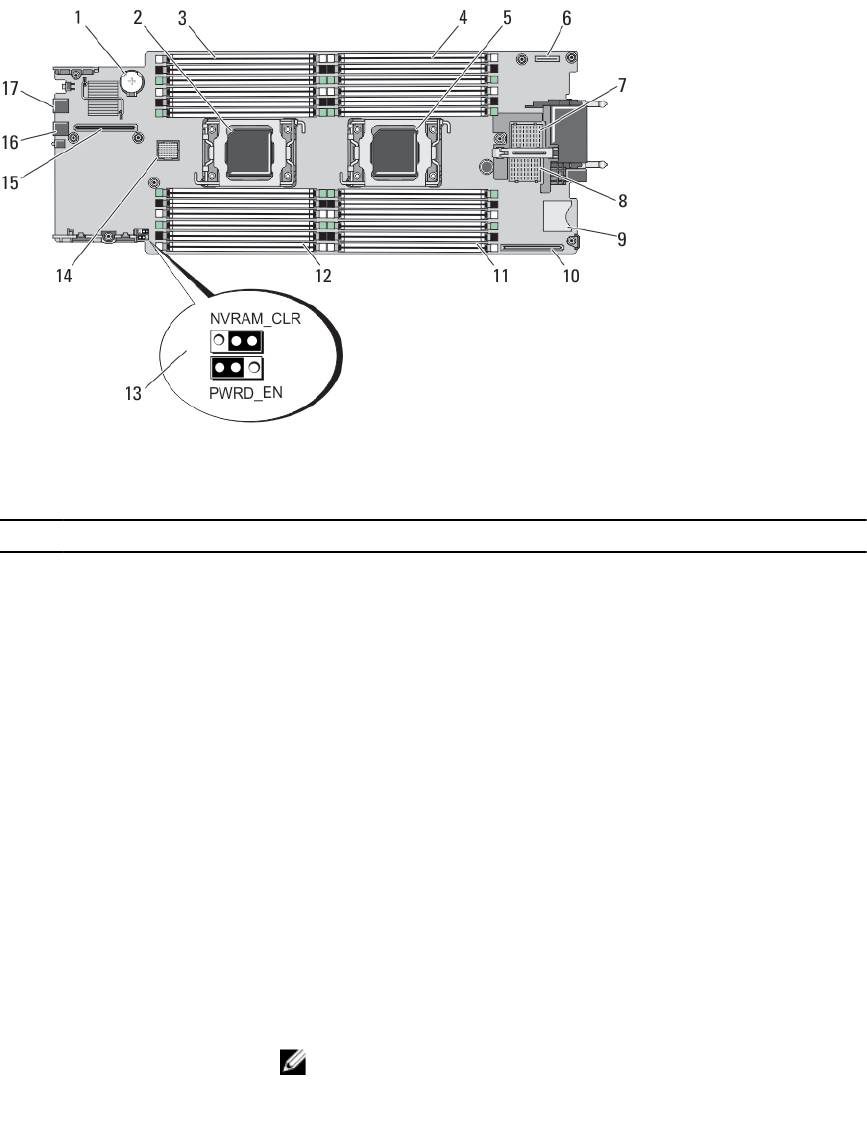
System Board Connectors
Figure 25. System Board Connectors
Table 5. System Board Connectors
Item Connector Description
1 BATTERY Connector for the 3.0 V coin cell battery
2 CPU2 Processor socket 2
3 B3, B7, B11, B4, B8, B12 Memory module sockets (for processor 2)
4 A1, A5, A9, A2, A6, A10 Memory module sockets (for processor 1)
5 CPU1 Processor socket 1
6 MANAGEMENT RISER Management riser card connector
7 MEZZ1_FAB_C PCIe Mezzanine card connector for Fabric C
8 MEZZ2_FAB_B PCIe Mezzanine card connector for Fabric B
9 vFLASH SD vFlash card connector
10 NETWORK DAUGHTER
Network daughter card connector
CARD
11 A3, A7, A11, A4, A8, A12 Memory module sockets (for processor 1)
12 B1, B5, B9, B2, B6, B10 Memory module sockets (for processor 2)
13 PWRD_EN, NVRAM_CLR
System configuration jumpers
NOTE: Access requires removal of system board.
14 HD_BP Hard-drive/SSD backplane connector
66
Item Connector Description
15 STORAGE PCIe extender card/storage controller card connector
16 USB2 USB connector
17 USB1 USB connector
Disabling A Forgotten Password
The server modules software security features include a system password and a setup password. The password jumper
enables these password features or disables them, and clears any password(s) currently in use.
CAUTION: Many repairs may only be done by a certified service technician. You should only perform
troubleshooting and simple repairs as authorized in your product documentation, or as directed by the online or
telephone service and support team. Damage due to servicing that is not authorized by Dell is not covered by your
warranty. Read and follow the safety instructions that came with the product.
1. Remove the server module from the enclosure.
2. Open the server module.
3. Remove the system board to gain access to the jumpers.
4. Relocate the jumper plug to disable the password feature.
5. Reinstall the system board.
6. Close the server module.
7. Install the server module in the enclosure.
When the server module is on, the power-on indicator is solid green. Allow the server module to finish booting.
The existing passwords are not disabled (erased) until the system boots with the password removed. However,
before you assign a new system and/or setup password, you must reinstall the password jumper.
NOTE: If you assign a new system and/or setup password with the jumper removed, the system disables the
new password(s) the next time it boots.
8. Remove the server module from the enclosure.
9. Open the server module.
10. Remove the system board to gain access to the jumpers.
11. Relocate the jumper plug to enable the password feature.
12. Reinstall the system board.
13. Close the server module.
14. Install the server module in the enclosure.
15. Assign a new system and/or setup password.
67
68
7
Technical Specifications
Processor
Processor type One or two Intel Xeon processor E5-2600 product family
Memory
Architecture 1600 MT/s, 1333 MT/s, 1066 MT/s, or 800 MT/s DDR3 and
LV-DDR3 DIMMs
Memory module sockets Twenty-four 240-pin
Memory module capacities
RDIMMs 2 GB (single-rank), 4 GB (single- and dual-rank), 8 GB
(dual-rank), 16 GB (dual-rank), and 32 GB (quad-rank)
UDIMMs 2 GB (single-rank) and 4 GB (dual-rank)
LRDIMMs 32 GB (quad-rank)
Minimum RAM 2 GB (single processor configuration)
Maximum RAM 768 GB (with 32 GB LRDIMMs)
Drives
Hard drives Up to two 2.5-inch, hot-swappable SAS/SATA hard drives
or two 2.5-inch, hot-swappable SAS/SATA/PCIe SSDs
Optical drive External optional USB DVD
NOTE: DVD devices are data only.
Flash drive
Internal optional USB
Internal optional SD card
Optional vFlash card (with integrated iDRAC7 Enterprise)
Connectors
Front
USB Two 4-pin, USB 2.0-compliant
Internal
SD
Two internal SD cards dedicated for the hypervisor
One dedicated for future vFlash support
69
PCIe mezzanine cards
PCIe Mezzanine card slots Two PCIe x8 Gen 2 slots supporting dual-port PCIe
mezzanine cards
Video
Video type Matrox G200 integrated with iDRAC
Video memory MB shared with iDRAC application memory
Battery
NVRAM backup battery CR 2032 3.0 V Lithium coin cell
Environmental
NOTE: For additional information about environmental measurements for specific system configurations, see
dell.com/environmental_datasheets.
Storage temperature –40 °C to 65 °C (–40 °F to 149 °F) with a maximum
temperature gradation of 20 °C per hour.
Standard operating temperature Continuous operation: 10 °C to 35 °C at 10% to 80%
relative humidity (RH), with 26 °C max dew point. De-rate
maximum allowable dry bulb temperature at 1 °C per 300
m above 900 m (1 °F per 550 ft).
Expanded operating temperature
NOTE: When operating in the expanded temperature
range, system performance may be impacted.
NOTE: When operating in the expanded temperature
range, ambient temperature warnings may be
reported on the LCD and in the System Event Log.
≤ 10% of annual operating hours 5 °C to 40 °C at 5% to 85% RH with 26 °C dew point.
NOTE: Outside the standard operating temperature
(10 °C to 35 °C), the system can operate down to 5 °C
or up to 40 °C for a maximum of 10% of its annual
operating hours.
For temperatures between 35 °C and 40 °C, de-rate
maximum allowable dry bulb temperature by 1 °C per 175
m above 950 m (1 °F per 319 ft).
≤ 1% of annual operating hours –5 °C to 45 °C at 5% to 90% RH with 26 °C dew point.
NOTE: Outside the standard operating temperature
(10 °C to 35 °C), the system can operate down to –5
°C or up to 45 °C for a maximum of 1% of its annual
operating hours.
70
Environmental
For temperatures between 40 °C and 45 °C, de-rate
maximum allowable dry bulb temperature by 1 °C per 125
m above 950 m (1 °F per 228 ft).
Expanded operating temperature restriction
• Do not perform a cold startup below 5 °C.
• Maximum 95 W processor is supported.
• The following do not support the expanded
operating temperature range:
– PCIe SSDs
– LRDIMMs
– Dell PowerEdge RAID Controller (PERC)
H710/H710P cards (in dual-processor
configurations)
• When populating the server module slots in the
PowerEdge VRTX enclosure with only
PowerEdge M620 server modules:
– Install only 97 mm wide heat sink(s).
– Dual-processor server modules with
PERC H310 cards cannot be mixed with
single-processor server modules.
– If you install a server module with two
processors and a PERC H310 card in the
PowerEdge VRTX enclosure, all server
module slots in the enclosure must have
PowerEdge M620 server modules with
the same configuration (PowerEdge
M620 server modules with two
processors and a PERC H310 card).
However, vacant server module slots in
the enclosure can be installed with
server module blanks.
71
72

8
System Messages
LCD Status Messages
The LCD messages consist of brief text messages that refer to events recorded in the System Event Log (SEL). For
information on the SEL and configuring system management settings, see the systems management software
documentation.
Viewing LCD Messages
If a system error occurs, the LCD screen will turn amber. Press the Select button to view the list of errors or status
messages. Use the left and right buttons to highlight an error number, and press Select to view the error.
Removing LCD Messages
For faults associated with sensors, such as temperature, voltage, fans, and so on, the LCD message is automatically
removed when that sensor returns to a normal state. For other faults, you must take action to remove the message from
the display:
• Clear the SEL — You can perform this task remotely, but you will lose the event history for the system.
• Power cycle — Turn off the system and disconnect it from the electrical outlet; wait approximately 10 seconds,
reconnect the power cable, and restart the system.
System Error Messages
System messages appear on the monitor to notify you of a possible problem with the system. These messages refer to
events recorded in the System Event Log (SEL). For information on the SEL and configuring system management settings,
see the systems management software documentation.
Some messages are also displayed in abbreviated form on the system's LCD, if the system includes that feature.
NOTE: The LCD error messages listed here are displayed in the simple format. See Setup Menu to select the format
in which the messages are displayed.
NOTE: If you receive a system message not listed here, check the documentation for the application that was
running when the message was displayed or the operating system's documentation for an explanation of the
message and recommended action.
NOTE: In some messages, a particular system component is identified by name (“<name>”), component number
(“<number>”), or location (“bay”).
Error Code
Message Information
AMP0300
Message The system board <
name
> current is less than the lower warning
threshold.
73

Error Code Message Information
Details System board <
name
> current is outside of the optimum range.
Action
1. Review system power policy.
2. Check system logs for power related failures.
3. Review system configuration changes.
4. If the issue persists, see Getting Help.
AMP0301
Message The system board <
name
> current is less than the lower warning
threshold.
LCD Message System board <
name
> current is outside of range.
Details System board <
name
> current is outside of the optimum range.
Action
1. Review system power policy.
2. Check system logs for power related failures.
3. Review system configuration changes.
4. If the issue persists, see Getting Help.
AMP0302
Message The system board <
name
> current is greater than the upper warning
threshold.
Details System board <
name
> current is outside of the optimum range.
Action
1. Review system power policy.
2. Check system logs for power related failures.
3. Review system configuration changes.
4. If the issue persists, see Getting Help.
AMP0303
Message The system board <
name
> current is greater than the upper critical
threshold.
LCD Message System board <
name
> current is outside of range.
Details System board <
name
> current is outside of the optimum range.
Action
1. Review system power policy.
2. Check system logs for power related failures.
3. Review system configuration changes.
4. If the issue persists, see Getting Help.
AMP0304
Message The system board <
name
> current is outside of range.
74

Error Code Message Information
LCD Message System board <
name
> current is outside of range.
Details System board <
name
> current is outside of the optimum range.
Action
1. Review system power policy.
2. Check system logs for power related failures.
3. Review system configuration changes.
4. If the issue persists, see Getting Help.
AMP0306
Message Disk drive bay <
name
> current is less than the lower warning
threshold.
Details Disk drive bay <
name
> current is outside of the optimum range.
Action
1. Review system power policy.
2. Check system logs for power related failures.
3. Review system configuration changes.
4. If the issue persists, see Getting Help.
AMP0307
Message Disk drive bay <
name
> current is less than the lower critical
threshold.
LCD Message Disk drive bay <
name
> current is outside of range.
Details Disk drive bay <
name
> current is outside of the optimum range.
Action
1. Review system power policy.
2. Check system logs for power related failures.
3. Review system configuration changes.
4. If the issue persists, see Getting Help.
AMP0308
Message Disk drive bay <
name
> current is greater than the upper warning
threshold.
Details Disk drive bay <
name
> current is outside of the optimum range.
Action
1. Review system power policy.
2. Check system logs for power related failures.
3. Review system configuration changes.
4. If the issue persists, see Getting Help.
75

Error Code Message Information
AMP0309
Message Disk drive bay <
name
> current is greater than the upper critical
threshold.
LCD Message Disk drive bay <
name
> current is outside of range.
Details Disk drive bay <
name
> current is outside of the optimum range.
Action
1. Review system power policy.
2. Check system logs for power related failures.
3. Review system configuration changes.
4. If the issue persists, see Getting Help.
AMP0310
Message Disk drive bay <
name
> current is outside of range.
LCD Message Disk drive bay <
name
> current is outside of range.
Details Disk drive bay <
name
> current is outside of the optimum range.
Action
1. Review system power policy.
2. Check system logs for power related failures.
3. Review system configuration changes.
4. If the issue persists, see Getting Help.
AMP0312
Message System level current is less than the lower warning threshold.
Details System level current is outside of the optimum range.
Action
1. Review system power policy.
2. Check system logs for power related failures.
3. Review system configuration changes.
4. If the issue persists, see Getting Help.
AMP0313
Message System level current is less than the lower warning threshold.
LCD Message System level current is outside of range.
Details System level current is outside of the optimum range.
Action
1. Review system power policy.
2. Check system logs for power related failures.
3. Review system configuration changes.
4. If the issue persists, see Getting Help.
76

Error Code Message Information
AMP0314
Message System level current is greater than the upper warning threshold.
Details System level current is outside of the optimum range.
Action
1. Review system power policy.
2. Check system logs for power related failures.
3. Review system configuration changes.
4. If the issue persists, see Getting Help.
AMP0315
Message System level current is greater than the upper critical threshold.
LCD Message System level current is outside of range.
Details System level current is outside of the optimum range.
Action
1. Review system power policy.
2. Check system logs for power related failures.
3. Review system configuration changes.
4. If the issue persists, see Getting Help.
AMP0316
Message System level current is outside of range.
LCD Message System level current is outside of range.
Details System level current is outside of the optimum range.
Action
1. Review system power policy.
2. Check system logs for power related failures.
3. Review system configuration changes.
4. If the issue persists, see Getting Help.
AMP0318
Message Chassis power level current is less than the lower warning threshold.
Details Chassis power level current is outside of the optimum range.
Action
1. Review system power policy.
2. Check system logs for power related failures.
3. Review system configuration changes.
4. If the issue persists, see Getting Help.
AMP0319
Message Chassis power level current is less than the lower critical threshold
Details Chassis power level current is outside of the optimum range.
77

Error Code Message Information
Action
1. Review system power policy.
2. Check system logs for power related failures.
3. Review system configuration changes.
4. If the issue persists, see Getting Help.
AMP0320
Message Chassis power level current is greater than the upper warning
threshold.
Details Chassis power level current is outside of the optimum range.
Action
1. Review system power policy.
2. Check system logs for power related failures.
3. Review system configuration changes.
4. If the issue persists, see Getting Help.
AMP0321
Message Chassis power level current is greater than the upper critical
threshold.
Details Chassis power level current is outside of the optimum range.
Action
1. Review system power policy.
2. Check system logs for power related failures.
3. Review system configuration changes.
4. If the issue persists, see Getting Help.
AMP0322
Message Chassis power level current is outside of range.
Details Chassis power level current is outside of the optimum range.
Action
1. Review system power policy.
2. Check system logs for power related failures.
3. Review system configuration changes.
4. If the issue persists, see Getting Help.
ASR0000
Message The watchdog timer expired.
Details The operating system or an application failed to communicate within
the time-out period.
Action Check the operating system, application, hardware, and system event
log for exception events.
78
Error Code Message Information
ASR0001
Message The watchdog timer reset the system.
Details The operating system or an application failed to communicate within
the time-out period. The system was reset.
Action Check the operating system, application, hardware, and system event
log for exception events.
ASR0002
Message The watchdog timer powered off the system.
Details The operating system or an application failed to communicate within
the time-out period. The system was shut down.
Action Check the operating system, application, hardware, and system event
log for exception events.
ASR0003
Message The watchdog timer power cycled the system.
Details The operating system or an application failed to communicate within
the time-out period. The system was power-cycled.
Action Check the operating system, application, hardware, and system event
log for exception events.
ASR0008
Message The watchdog timer interrupt was initiated.
Details The operating system or an application failed to communicate within
the time-out period. No action was taken.
Action Check the operating system, application, hardware, and system event
log for exception events.
ASR0100
Message The BIOS watchdog timer reset the system.
Details The operating system or an application failed to communicate within
the time-out period. The system was reset.
Action Check the operating system, application, hardware, and system event
log for exception events.
ASR0101
Message The OS watchdog timer reset the system.
Details The operating system or an application failed to communicate within
the time-out period. The system was reset.
Action Check the operating system, application, hardware, and system event
log for exception events.
ASR0102
Message The OS watchdog timer shutdown the system.
79
Error Code Message Information
Details The operating system or an application failed to communicate within
the time-out period. The system was shutdown.
Action Check the operating system, application, hardware, and system event
log for exception events.
ASR0103
Message The OS watchdog timer powered down the system.
Details The operating system or an application failed to communicate within
the time-out period. The system was powered down.
Action Check the operating system, application, hardware, and system event
log for exception events.
ASR0104
Message The OS watchdog timer power-cycled the system.
Details The operating system or an application failed to communicate within
the time-out period. The system was power-cycled.
Action Check the operating system, application, hardware, and system event
log for exception events.
ASR0105
Message The operating system watchdog timer powered off the system.
Details The operating system or an application failed to communicate within
the time-out period. The system was powered off.
Action Check the operating system, application, hardware, and system event
log for exception events.
ASR0106
Message The watchdog timer expired.
Details The operating system or an application failed to communicate within
the time-out period.
Action Check the operating system, application, hardware, and system event
log for exception events.
ASR0107
Message The watchdog timer pre-timeout interrupt was initiated.
Details The operating system or an application failed to communicate within
the time-out period.
Action Check the operating system, application, hardware, and system event
log for exception events.
BAT0000
Message The system board battery is low.
80

Error Code Message Information
Details The system board battery is either missing, bad, or unable to charge
due to thermal issues.
Action Check system fans. Replace the system board battery.
BAT0002
Message The system board battery has failed.
LCD Message The system board battery has failed. Check battery.
Details The system board battery is either missing or bad.
Action See Getting Help.
BAT0004
Message The system board battery is absent.
LCD Message The system board battery is absent. Check battery.
Action Reinstall the system board battery.
BAT0005
Message The storage battery is low.
Details System has to remain powered on to charge the battery.
Action Allow the battery to charge. If the issue persists, see Getting Help.
BAT0007
Message The storage battery has failed.
LCD Message The storage battery has failed. Check battery.
Details Verify the cable connection between the storage battery and the
controller.
Action Verify the storage battery installation.
BAT0010
Message The storage battery for disk drive bay <
bay
> is low.
Details System has to remain powered on to charge the storage battery.
Action Allow the storage battery to charge. If the issue persists, see Getting
Help.
BAT0012
Message The storage battery for disk drive bay <
bay
> has failed.
LCD Message Battery for disk drive bay <
bay
> has failed. Check battery.
Details Verify the cable connection between the storage battery and the
controller.
Action Verify the storage battery installation.
BAT0014
Message The storage battery for disk drive bay <
bay
> is absent.
81
Error Code Message Information
LCD Message Battery for disk drive bay <
bay
> is absent. Check battery.
Details Verify the cable connection between the storage battery and the
controller.
Action Verify the storage battery installation.
BAT0015
Message The <
name
> battery is low.
Details The low <
name
> battery may impact system performance negatively.
Action Recharge the <
name
> battery if possible. If the problem continues
replace the <
name
> battery.
BAT0017
Message The <
name
> battery has failed.
LCD Message The <
name
> battery has failed. Check battery.
Details The <
name
> battery is either missing, bad, or unable to charge due to
thermal issues.
Action Check system fans. Replace the <
name
> battery.
BAT0019
Message The <
name
> battery is absent.
LCD Message The <
name
> battery is absent. Check battery.
Details The failed or missing <
name
> battery may reduce system
performance.
Action Check system fans. Replace the <
name
> battery.
CBL0006
Message Multiple storage controllers are incorrectly connected to the same
backplane <
Bay ID
>.
Details Unsupported backplane configuration.
Action Check backplane configuration. Reconnect cable. If the issue
persists, see Getting Help.
CPU0000
Message CPU <
number
> has an internal error (IERR).
LCD Message CPU <
number
> has an internal error (IERR).
Details System event log and OS logs may indicate that the exception is
external to the processor.
Action Review System Event Log and Operating System Logs. If the issue
persists, see Getting Help.
CPU0001
Message CPU <
number
> has a thermal trip (over-temperature) event.
82

Error Code Message Information
LCD Message CPU <
number
> has a thermal trip. Check CPU heat sink.
Details The processor temperature increased beyond the operational range.
Action Review logs for fan failures, replace failed fans. If no fan failures are
detected, check inlet temperature (if available) and reinstall
processor heat-sink.
CPU0002
Message CPU <
number
> has failed the built-in self-test (BIST).
Action
1. Turn system off and remove input power for one minute.
Reapply input power and turn system on.
2. Make sure the processor is seated correctly.
3. If the issue persists, see Getting Help.
CPU0003
Message CPU <
number
> is stuck in POST.
Action
1. Turn system off and remove input power for one minute.
Reapply input power and turn system on.
2. Reduce system configuration to minimum memory and remove
all PCI devices. If system completes POST, update system BIOS.
reinstall memory and PCI one component at a time to meet the
original configuration.
3. If the issue persists, see Getting Help.
CPU0004
Message CPU <
number
> failed to initialize.
Action
1. Turn system off and remove input power for one minute.
Reapply input power and turn system on.
2. Make sure the processor is seated correctly.
3. If the issue persists, see Getting Help.
CPU0005
Message CPU <
number
> configuration is unsupported.
LCD Message CPU <
number
> configuration is unsupported. Check CPU or BIOS
revision.
Details System is unable to boot or may run in a degraded state.
Action Review the technical specifcations for supported processor types.
CPU0006
Message Unrecoverable CPU complex error detected on CPU <
number
>.
Details System is unable to boot or may run in a degraded state.
83

Error Code Message Information
Action
1. Turn system off and remove input power for one minute.
Reapply input power and turn system on.
2. Make sure the processor is seated correctly.
3. If the issue persists, see Getting Help.
CPU0008
Message CPU <
number
> is disabled.
Details System is unable to boot or may run in a degraded state.
Action If unexpected, check presence, and system setup (BIOS)
configuration.
CPU0010
Message CPU <
number
> is throttled.
Details The CPU is throttled due to thermal or power conditions.
Action Review system logs for power or thermal exceptions.
CPU0023
Message CPU <
number
> is absent.
LCD Message CPU <
number
> is absent. Check CPU.
Action Verify processor installation. If present, re-seat the processor.
CPU0100
Message CPU <
number
> temperature is less than the lower warning threshold.
Details System performance may be degraded.
Action Check system operating environment.
CPU0101
Message CPU <
number
> temperature is less than the lower critical threshold.
LCD Message CPU <
number
> temperature is outside of range.
Details System performance may be degraded.
Action Check system operating environment, fans, and heat-sinks.
CPU0102
Message CPU <
number
> temperature is greater than the upper warning
threshold.
Details System performance may be degraded.
Action Check system operating environment, fans, and heat-sinks.
CPU0103
Message CPU <
number
> temperature is greater than the upper critical
threshold.
84

Error Code Message Information
LCD Message CPU <
number
> temperature is outside of range. Check fans.
Details System performance may be degraded.
Action Check system operating environment, fans, and heat-sinks.
CPU0104
Message CPU <
number
> temperature is outside of range.
LCD Message CPU <
number
> temperature is outside of range. Check fans.
Details System performance may be degraded.
Action Check system operating environment, fans, and heat-sinks.
CPU0200
Message CPU <
number
> <
name
> voltage is less than the lower warning
threshold.
Details Low voltages may be the result of a problem with the voltage
regulator or a problem with the processor. The low voltage may
cause the processor to fail to operate.
Action
1. Turn system off and remove input power for one minute.
2. Reapply input power and turn system on.
3. Ensure the processor is seated correctly.
4. If the issue persists, see Getting Help.
CPU0201
Message CPU <
number
> <
name
> voltage is less than the lower critical
threshold.
LCD Message CPU <
number
> <
name
> voltage is outside of range. Re-seat CPU.
Details Low voltages may be the result of a problem with the voltage
regulator or a problem with the processor. When the critical
threshold is crossed, the processor will fail to operate. The system
may power down.
Action
1. Turn system off and remove input power for one minute.
2. Reapply input power and turn system on.
3. Ensure the processor is seated correctly.
4. If the issue persists, see Getting Help.
CPU0202
Message CPU <
number
> <
name
> voltage is greater than the upper warning
threshold.
Details High voltages may be the result of problem with the voltage regulator
or a problem with the processor. Elevated voltages may result in
85

Error Code Message Information
damage to the processor or other electronic components in side the
system.
Action
1. Turn system off and remove input power for one minute.
2. Reapply input power and turn system on.
3. Ensure the processor is seated correctly.
4. If the issue persists, see Getting Help.
CPU0203
Message CPU <
number
> <
name
> voltage is greater than the upper critical
threshold.
LCD Message CPU <
number
> <
name
> voltage is outside of range. Re-seat CPU.
Details High voltages may be the result of problem with the voltage regulator
or a problem with the processor. Elevated voltages may result in
damage to the processor or other system electrical components. The
system may power down.
Action
1. Turn system off and remove input power for one minute.
2. Reapply input power and turn system on.
3. Ensure the processor is seated correctly.
4. If the issue persists, see Getting Help.
CPU0204
Message CPU <
number
> <
name
> voltage is outside of range.
LCD Message CPU <
number
> <
name
> voltage is outside of range. Re-seat CPU.
Details Voltages outside the allowable range may damage electrical
components or may cause the system to shutdown.
Action
1. Turn system off and remove input power for one minute.
2. Ensure the processor is seated correctly.
3. Reapply input power and turn system on.
4. If the issue persists, see Getting Help.
CPU0700
Message CPU <
number
> initialization error detected.
LCD Message CPU <
number
> initialization error detected. Power cycle system.
Details System BIOS was unable to initialize the processor.
Action
1. Turn system off and remove input power for one minute.
2. Ensure the processor is seated correctly.
3. Reapply input power and turn system on.
86

Error Code Message Information
4. If the issue persists, see Getting Help.
CPU0701
Message CPU <
number
> protocol error detected.
LCD Message CPU <
number
> protocol error detected. Power cycle system.
Details System event log and operating system logs may indicate that the
exception is external to the processor.
Action
1. Check system and operating system logs for exceptions. If no
exceptions are found, continue.
2. Turn system off and remove input power for one minute.
3. Ensure the processor is seated correctly.
4. Reapply input power and turn system on.
5. If the issue persists, see Getting Help.
CPU0702
Message CPU bus parity error detected.
LCD Message CPU bus parity error detected. Power cycle system.
Details System event log and operating system logs may indicate that the
exception is external to the processor.
Action
1. Check system and operating system logs for exceptions. If no
exceptions are found, continue.
2. Turn system off and remove input power for one minute.
3. Ensure the processor is seated correctly.
4. Reapply input power and turn system on.
5. If the issue persists, see Getting Help.
CPU0703
Message CPU bus initialization error detected.
LCD Message CPU bus initialization error detected. Power cycle system.
Details System event log and operating system logs may indicate that the
exception is external to the processor.
Action
1. Check system and operating system logs for exceptions. If no
exceptions are found, continue.
2. Turn system off and remove input power for one minute.
3. Ensure the processor is seated correctly.
4. Reapply input power and turn system on.
5. If the issue persists, see Getting Help.
87

Error Code Message Information
CPU0704
Message CPU <
number
> machine check error detected.
LCD Message CPU <
number
> machine check error detected. Power cycle system.
Details System event log and operating system logs may indicate that the
exception is external to the processor.
Action
1. Check system and operating system logs for exceptions. If no
exceptions are found, continue.
2. Turn system off and remove input power for one minute.
3. Ensure the processor is seated correctly.
4. Reapply input power and turn system on.
5. If the issue persists, see Getting Help.
CPU0801
Message CPU <
number
> voltage regulator module failed.
LCD Message CPU <
number
> voltage regulator module failed. Re-seat module.
Details System performance may be degraded or the system may fail to
operate.
Action
1. Turn system off and remove input power for one minute.
2. Reapply input power and turn system on.
3. Ensure the processor is seated correctly.
4. If the issue persists, see Getting Help.
CPU0802
Message A predictive failure detected on CPU <
number
> voltage regulator
module.
Details System performance may be degraded or the system may fail to
operate.
Action
1. Turn system off and remove input power for one minute.
2. Reapply input power and turn system on.
3. Ensure the processor is seated correctly.
4. If the issue persists, see Getting Help.
CPU0803
Message The power input for CPU <
number
> voltage regulator module is lost.
LCD Message Lost power input for CPU <
number
>voltage regulator module. Re-seat
module.
Details System performance may be degraded or the system may fail to
operate.
88

Error Code Message Information
Action
1. Turn system off and remove input power for one minute.
2. Reapply input power and turn system on.
3. Ensure the processor is seated correctly.
4. If the issue persists, see Getting Help.
CPU0804
Message The power input for CPU <
number
> voltage regulator module is
outside of range.
LCD Message The power input for CPU <
number
> voltage regulator module is
outside of range. Re-seat module.
Details System performance may be degraded or the system may fail to
operate.
Action
1. Turn system off and remove input power for one minute.
2. Reapply input power and turn system on.
3. Ensure the processor is seated correctly.
4. If the issue persists, see Getting Help.
CPU0805
Message The power input for CPU <
number
> voltage regulator module is
outside of range, but it is attached to the system.
Details System performance may be degraded or the system may fail to
operate.
Action
1. Turn system off and remove input power for one minute.
2. Reapply input power and turn system on.
3. Ensure the processor is seated correctly.
4. If the issue persists, see Getting Help.
CPU0806
Message CPU <
number
> voltage regulator module is incorrectly configured.
LCD Message CPU <
number
> voltage regulator module incorrectly configured.
Check configuration.
Details System performance may be degraded or the system may fail to
operate.
Action Review this manual for proper configuration and installation
procedures.
CPU0816
Message CPU <
number
> voltage regulator module is absent.
LCD Message CPU <
number
> voltage regulator module absent. Check module.
89
Error Code Message Information
Details System performance may be degraded or the system may fail to
operate.
Action If removal was unintended, check presence and reinstall.
HWC1001
Message The <
name
> is absent.
LCD Message The <
name
> is absent. Check hardware.
Details The absent device may be necessary for proper operation. System
functionality may be degraded.
Action Reinstall or reconnect the hardware.
HWC1002
Message The <
name
> is disabled.
Action If device disabled unexpectedly, re-enable device.
HWC1005
Message The storage adapter is absent.
LCD Message The storage adapter is absent. Check hardware.
Details The storage adapter may be necessary for proper operation. System
functionality may be degraded.
Action Install storage adapter.
HWC1006
Message The storage adapter is disabled.
Action If adapter disabled unexpectedly, re-enable the storage adapter.
HWC1009
Message The backplane is absent.
LCD Message The backplane is absent. Check hardware.
Details The backplane may be necessary for proper operation. System
functionality may be degraded.
Action If removal was unintended, check presence, then reinstall or
reconnect.
HWC1010
Message The backplane is disabled.
Action If disabled unexpectedly, re-enable backplane.
HWC1015
Message The PCIe mezzanine card <
number
> is absent.
Details The PCIe mezzanine card may be necessary for proper operation.
System functionality may be degraded.
90
Error Code Message Information
Action If removal was unintended, check presence, then reinstall or
reconnect.
HWC2006
Message The <
name
> is not installed correctly.
LCD Message The <
name
> is not installed correctly. Check connection.
Details The device may be necessary for proper operation. System
functionality may be degraded.
Action Check presence, then re-install or reconnect.
HWC2008
Message A fabric mismatch detected between IOM and PCIe mezzanine card
<
number
>.
Details The fabric type for the IOM and PCIe mezzanine cards must match.
Action Check chassis fabric type in CMC GUI and compare to the type of
IOM or PCIe mezzanine card.
HWC2011
Message The riser board cable or interconnect is not connected, or is
improperly connected.
LCD Message Riser board cable or interconnect failure. Check connection.
Details The riser server module cable may be necessary for proper
operation. System functionality may be degraded.
Action Check the riser board or interconnect presence, then reinstall or
reconnect.
HWC3000
Message The <
name
> is removed.
Details The removed device may be necessary for proper operation. System
functionality may be degraded.
Action If removal was unintended, check presence of the removed device,
then reinstall or reconnect
HWC3002
Message Server <
number
> is removed.
Action If removal was unintended, check presence of the server, then
reinsert.
HWC3004
Message IO module <
number
> is removed.
Action If removal was unintended, check presence of the IO module, then
reinsert.
91

Error Code Message Information
HWC4000
Message A hardware incompatibility detected between BMC/iDRAC firmware
and CPU.
LCD Message Incompatibility between BMC/iDRAC firmware and CPU. Update
firmware.
Details A hardware incompatibility was detected between BMC/iDRAC
firmware and Processor(s). An iDRAC or BMC firmware update is
needed.
Action Update the BMC/iDRAC firmware. If the issue persists, see Getting
Help.
HWC4002
Message A hardware incompatibility detected between BMC/iDRAC firmware
and other hardware.
Details A hardware incompatibility was detected between BMC/iDRAC
firmware and other hardware. An iDRAC or BMC firmware update is
needed.
Action Update the BMC/iDRAC firmware. If the issue persists, see Getting
Help.
HWC4011
Message Hardware unsuccessfully updated for PCIe mezzanine card
<
number
>.
Action Check presence of the hardware, reinstall or reconnect, then
reattempt the update. If the issue persists, see Getting Help.
HWC4013
Message Hardware unsuccessfully updated for embedded NIC.
Action Check presence, reinstall or reconnect, then reattempt the update. If
the issue persists, see Getting Help.
HWC4015
Message Link Tuning error detected.
Details CMC has old firmware. After updating the firmware the CMC will
recognize the device.
Action Update the CMC firmware. If the issue persists, see Getting Help.
HWC5001
Message <
name
> is offline.
Action If unexpected, check presence, then reinstall or reconnect.
HWC5002
Message A fabric mismatch detected on <
name
>.
Details The fabric type for the IOM and PCIe mezzanine cards must match.
92

Error Code Message Information
Action Check chassis fabric type in CMC GUI and compare to the type of
IOM or PCIe mezzanine card.
HWC5004
Message A link tuning failure detected on <
name
>.
Details CMC has old firmware. After updating the firmware the CMC will
recognize the device.
Action Update the CMC firmware. If the issue persists, see Getting Help.
HWC5006
Message A failure is detected on <
name
>.
Action If the issue persists, see Getting Help.
HWC5008
Message Console is not available for the <
name
>.
Action If the issue persists, see Getting Help.
HWC5010
Message <
name
> cannot detect any hosts.
Action If the issue persists, see Getting Help.
HWC5014
Message <
name
> is not functional and is powered off.
Action If the issue persists, see Getting Help.
HWC5031
Message IO module <
number
> is offline.
Details The CMC has powered off the IOM.
Action If the issue persists, see Getting Help.
HWC5032
Message A fabric mismatch detected on IO module <
number
>.
Details The fabric type for IOM's on the same chassis fabric must match.
Action Check chassis fabric type in CMC GUI and compare to the type of
both IOM's.
HWC5034
Message A link tuning failure detected on IO module <
number
>.
Details Link tuning table not supported for this IO modular.
Action Update the CMC firmware. If the issue persists, see Getting Help.
HWC5036
Message A failure is detected on IO module <
number
>.
93

Error Code Message Information
Details The IOM module performance may be impacted.
Action If the issue persists, see Getting Help.
HWC6000
Message The <
name
> controller is offline.
Details Information and status from the controller is unavailable.
Action Remove and reapply input power. If the issue persists, see Getting
Help.
HWC6002
Message The <
name
> controller is stuck in boot mode.
Details Information and status from the controller is unavailable.
Action Remove and reapply input power. If the issue persists, see Getting
Help.
HWC6003
Message The <
name
> controller is booting.
HWC6004
Message Cannot communicate with <
name
> controller.
Details Information and status from the controller is unavailable.
Action Remove and reapply input power. If the issue persists, see Getting
Help.
HWC7002
Message Server <
number
> health changed to a warning state from a normal
state.
Details Server <
number
> health changed to a warning state from a normal
state.
Action Review System Log or front panel for additional information.
HWC7004
Message Server <
number
> health changed to a critical state from either a
normal or warning state.
Details Server <
number
> health changed to a warning state from a normal
state.
Action Review System Log or front panel for additional information.
HWC7006
Message Server <
number
> health changed to a nonrecoverable state from a
less severe state.
Details Server <
number
> health changed to a warning state from a normal
state.
94
Error Code Message Information
Action Review System Log or front panel for additional information.
HWC7008
Message Server <
number
> health changed to a warning state from more
severe state. Server <
number
> health changed to a critical state from
a non-recoverable state.
Details Server <
number
> health changed to a warning state from a normal
state.
Action Review System Log or front panel for additional information.
HWC7010
Message Server <
number
> health changed to a critical state from a
nonrecoverable state.
Details Server <
number
> health changed to a warning state from a normal
state.
Action Review System Log or front panel for additional information.
HWC7012
Message Server <
number
> health changed to a nonrecoverable state.
Details Server <
number
> health changed to a warning state from a normal
state.
Action Review System Log or front panel for additional information.
LNK2700
Message The <
name
> LAN heartbeat is lost.
Details CMC has lost network connection.
Action Check network cable and network connections.
MEM0000
Message Persistent correctable memory errors detected on a memory device
at location(s) <
location
>.
Details This is an early indicator of a possible future uncorrectable error.
Action Re-seat the memory modules. If the issue persists, see Getting Help .
MEM0001
Message Multi-bit memory errors detected on a memory device at location(s)
<
location
>.
LCD Message Multi-bit memory error on <
location
>. Re-seat memory.
Details The memory module has encountered a uncorrectable error. System
performance may be degraded. The operating system and/or
applications may fail as a result.
Action Re-seat the memory modules. If the issue persists, see Getting Help.
95

Error Code Message Information
MEM0002
Message Parity memory errors detected on a memory device at location
<
location
>.
Details The memory is operational. This an early indicator of a possible future
uncorrectable error.
Action Re-seat the memory modules. If the issue persists, see Getting Help.
MEM0003
Message Stuck bit memory error detected on a memory device at location
<
location
>.
Details This is an early indicator of a possible future uncorrectable error.
Action Re-seat the memory modules. If the issue persists, see Getting Help.
MEM0004
Message Memory device at location <
location
> is disabled.
Details The memory may not be seated correctly, misconfigured, or has
failed. Memory size is reduced.
Action Re-seat the memory modules. If the issue persists, see Getting Help.
MEM0005
Message Persistent correctable memory error limit reached for a memory
device at location(s) <
location
>.
LCD Message Persistent correctable memory error limit reached for <
location
>. Re-
seat memory.
Details The memory is operational. This an early indicator of a possible future
uncorrectable error.
Action Re-seat the memory modules. If the issue persists, see Getting Help.
MEM0007
Message Unsupported memory configuration; check memory device at location
<
location
>.
LCD Message Unsupported memory configuration. Check memory <
location
>.
Details The memory may not be seated correctly, misconfigured, or has
failed. Memory size is reduced.
Action Check the memory configuration. Re-seat the memory modules. If the
issue persists, see Getting Help.
MEM0009
Message Memory device at location <
location
> is throttled.
Details System performance is degraded.
Action If unexpected, review system logs for power or thermal exceptions.
96

Error Code Message Information
MEM0010
Message Memory device at location <
location
> is over heating.
LCD Message Memory device <
location
> is over heating. Check fans.
Details System performance is degraded.
Action If unexpected, review system logs for power or thermal exceptions.
MEM0022
Message Memory device at location <
location
> is absent.
Details The memory may not be seated correctly, misconfigured, or has
failed. Memory size is reduced.
Action Re-seat the memory modules. If the issue persists, see Getting Help.
MEM0701
Message Correctable memory error rate exceeded for <
location
>.
Details The memory may not be operational. This an early indicator of a
possible future uncorrectable error.
Action Re-seat the memory modules. If the issue persists, see Getting Help.
MEM0702
Message Correctable memory error rate exceeded for <
location
>.
LCD Message Correctable memory error rate exceeded for <
location
>. Re-seat
memory.
Details The memory may not be operational. This an early indicator of a
possible future uncorrectable error.
Action Re-seat the memory modules. If the issue persists, see Getting Help.
MEM1001
Message Memory device at location <
location
> failed to transition to a running
state.
LCD Message Memory device <
location
> failed to transition to a running state. Re-
seat memory
Details The memory may not be operational. This an early indicator of a
possible future uncorrectable error.
Action Re-seat the memory modules. If the issue persists, see Getting Help.
MEM1003
Message Memory device at location <
location
> failed to transition to in test.
Details The memory may not be operational. This an early indicator of a
possible future uncorrectable error.
Action Re-seat the memory modules. If the issue persists, see Getting Help.
97

Error Code Message Information
MEM1012
Message Memory device at location <
location
> is in a degraded state.
Details The memory may not be operational. This an early indicator of a
possible future uncorrectable error.
Action Re-seat the memory modules. If the issue persists, see Getting Help.
MEM1016
Message Memory device at location <
location
> is not installed correctly.
LCD Message Memory <
location
> is not installed correctly. Reinstall.
Details The memory may not be seated correctly, misconfigured, or has
failed. Memory size is reduced.
Action Check the memory configuration. Re-seat the memory modules. If the
issue persists, see Getting Help.
MEM1205
Message Memory mirror redundancy is lost. Check memory device at
location(s) <
location
>.
LCD Message Memory mirror lost on <
location
>. Power cycle system.
Details The memory may not be seated correctly, misconfigured, or has
failed.
Action Check the memory configuration. Re-seat the memory modules. If the
issue persists, see Getting Help.
MEM1206
Message Memory mirror redundancy is degraded. Check memory device at
location <
location
>.
Details The memory may not be seated correctly, misconfigured, or has
failed.
Action Check the memory configuration. Re-seat the memory modules. If the
issue persists, see Getting Help.
MEM1208
Message Memory spare redundancy is lost. Check memory device at location
<
location
>.
LCD Message Memory spare lost on <
location
>. Power cycle system.
Details Memory sparing is no longer available.
Action Re-seat the memory modules. If the issue persists, see Getting Help.
MEM1212
Message Memory redundancy is lost.
Details The memory may not be seated correctly, misconfigured, or has
failed.
98

Error Code Message Information
Action Review system logs for memory exceptions. reinstall memory at
location <
location
>
MEM1214
Message Memory redundancy is degraded.
Details The memory may not be seated correctly, misconfigured, or has
failed.
Action Check the memory configuration. Re-seat the memory modules. If the
issue persists, see Getting Help.
MEM7002
Message A hardware mismatch detected for memory riser.
LCD Message Memory riser mismatch detected. Check memory riser.
Details Memory riser is installed incorrectly, or failed.
Action Check that the memory riser is installed correctly. If the issue
persists, see Getting Help.
MEM8000
Message Correctable memory error logging disabled for a memory device at
location <
location
>.
LCD Message SBE log disabled on <
location
>. Re-seat memory.
Details Errors are being corrected but no longer logged.
Action Review system logs for memory exceptions. reinstall memory at
location <
location
>.
OSE0000
Message A critical stop occurred during OS load.
Details The system halted due to an exception during operating system load
or operating system initialization.
Action Review operating system logs and system video for additional
information.
OSE0001
Message A runtime critical stop occurred.
Details The system halted due to an exception while the operating system
was running. This is a kernel panic or bug check event.
Action Review operating system logs and system video for additional
information.
OSE0004
Message A soft shut-down initiated by platform event filter.
Details A separate exception or status condition shutdown the operating
system. (IPMI sensor type 20h - offset 04h).
99
Error Code Message Information
Action Review system event log for platform events capable of shutting the
system down.
OSE0005
Message Agent is not responding.
Details Graceful shutdown request to an agent via the BMC did not occur
due to a system hardware or software exception.
Action Review operating system logs and system video for additional
information.
OSE1001
Message Failed to boot from A.
Action Review system boot configuration and boot media. Verify the media in
a: is bootable. See system video for additional information.
OSE1003
Message Failed to boot from C.
Action Review system boot configuration and boot media. Verify the media in
C: is bootable. See system video for additional information.
OSE1005
Message PXE boot failed.
Action Review system boot configuration, local PXE configuration, and PXE
server configuration.
OSE1007
Message Diagnostic boot failed.
Action Review system boot configuration and boot media. See system video
for additional information.
OSE1009
Message Failed to boot from CD-ROM.
Action Review system boot configuration and boot media. Verify the media in
the CDROM is bootable. See system video for additional information.
OSE1011
Message Failed to boot from ROM.
Action Check system event logs for additional exception information. Power
down the system and attempt to boot again.
OSE1013
Message Failed to boot.
Action Review system boot configuration and boot media. See system video
for additional information.
100
Error Code Message Information
PCI1302
Message A bus time-out was detected on a component at bus
<
bus
>device<
device
>function <
func
>.
Details System performance may be degraded. The device has failed to
respond to a transaction.
Action Cycle input power, update component drivers, if device is removable,
reinstall the device.
PCI1304
Message An I/O channel check error was detected.
LCD Message I/O channel check error detected. Power cycle system.
Action Cycle input power, update component drivers, if device is removable,
reinstall the device.
PCI1306
Message A software error was detected on a component at bus
<
bus
>device<
device
>function <
func
>.
Action Reboot the system and update the component drivers.
PCI1308
Message A PCI parity error was detected on a component at bus
<
bus
>device<
device
>function <
func
>.
LCD Message PCI parity error on bus <
bus
> device <
device
> function <
func
>.
Power cycle system.
Details System performance may be degraded, PCI device may fail to
operate, or system may fail to operate.
Action Cycle input power, update component drivers, if device is removable,
reinstall the device.
PCI1310
Message A PCI system error was detected on a component at bus
<
bus
>device<
device
>function <
func
>.
LCD Message PCI system error on bus <
bus
> device <
device
> function <
func
>.
Power cycle system.
Details System performance may be degraded, or system may fail to operate.
Action Cycle input power, update component drivers, if device is removable,
reinstall the device.
PCI1314
Message A bus correctable error was detected on a component at bus
<
bus
>device<
device
>function <
func
>.
Details System performance may be degraded.
101
Error Code Message Information
Action Cycle input power, update component drivers, if device is removable
reinstall the device at the next scheduled service time.
PCI1316
Message A bus uncorrectable error was detected on a component at bus
<
bus
>device<
device
>function <
func
>.
Details System performance may be degraded, or system may fail to operate.
Action Cycle input power, update component drivers, if device is removable,
reinstall the device.
PCI1318
Message A fatal error was detected on a component at bus
<
bus
>device<
device
>function <
func
>.
LCD Message Fatal error on bus <
bus
> device <
device
> function <
func
>. Power
cycle system.
Details System performance may be degraded, or system may fail to operate.
Action Cycle input power, update component drivers, if device is removable,
reinstall the device.
PCI1320
Message A bus fatal error was detected on a component at bus
<
bus
>device<
device
>function <
func
>.
LCD Message Bus fatal error on bus <
bus
> device <
device
> function <
func
>. Power
cycle system.
Details System performance may be degraded, or system may fail to operate.
Action Cycle input power, update component drivers, if device is removable,
reinstall the device.
PCI1322
Message Bus performance degraded for a component at bus
<
bus
>device<
device
>function <
func
>.
Details System performance may be degraded. The bus is not operating at
maximum speed or width.
Action Cycle input power, update component drivers, if device is removable,
reinstall the device.
PCI1342
Message A bus time-out was detected on a component at slot <
number
>.
Details System performance may be degraded, or system may fail to operate.
Action Cycle input power, update component drivers, if device is removable,
reinstall the device.
102
Error Code Message Information
PCI1344
Message An I/O channel check error was detected.
LCD Message An I/O channel check error was detected. Power cycle system.
Action Cycle input power, update component drivers, if device is removable,
reinstall the device.
PCI1346
Message A software error was detected on a component at slot <
number
>.
Action Reboot the system and update the component drivers.
PCI1348
Message A PCI parity error was detected on a component at slot <
number
>.
LCD Message PCI parity error on slot <
number
>. Re-seat PCI card.
Details System performance may be degraded, or system may fail to operate.
Action Cycle input power, update component drivers, if device is removable,
reinstall the device.
PCI1350
Message A PCI system error was detected on a component at slot <
number
>.
LCD Message PCI parity error on slot <
number
>. Re-seat PCI card.
Details System performance may be degraded, or system may fail to operate.
Action Cycle input power, update component drivers, if device is removable,
reinstall the device.
PCI1354
Message A bus correctable error was detected on a component at slot
<
number
>.
Details System performance may be degraded.
Action Cycle input power, update component drivers, remove and reinstall
the device at the next scheduled service time.
PCI1356
Message A bus uncorrectable error was detected on a component at slot
<
number
>.
Details System performance may be degraded, or system may fail to operate.
Action Cycle input power, update component drivers, if device is removable,
reinstall the device.
PCI1358
Message A fatal error was detected on a component at slot <
number
>.
LCD Message Fatal error on slot <
number
>. Re-seat PCI card.
Details System performance may be degraded, or system may fail to operate.
103

Error Code Message Information
Action Cycle input power, update component drivers, if device is removable,
reinstall the device.
PCI1360
Message A bus fatal error was detected on a component at slot <
number
>.
LCD Message Bus fatal error on slot <
number
>. Re-seat PCI card.
Details System performance may be degraded, or system may fail to operate.
Action Cycle input power, update component drivers, if device is removable,
reinstall the device.
PCI1362
Message Bus performance degraded for a component at slot <
number
>.
Details System performance may be degraded. The bus is not operating at
maximum speed or width.
Action Cycle input power, update component drivers, remove and reinstall
the device at the next scheduled service time.
PCI2000
Message A fatal IO error detected on a component at bus
<
bus
>device<
device
>function <
func
>.
LCD Message Fatal IO error on bus <
bus
> device <
device
> function <
func
>.
Details System performance may be degraded, or system may fail to operate.
Action Cycle input power, update component drivers, remove and reinstall
the device.
PCI2002
Message A fatal IO error detected on a component at slot <
number
>.
LCD Message Fatal IO error on slot <
number
>.
Details System performance may be degraded, or system may fail to operate.
Action Cycle input power, update component drivers, remove and reinstall
the device.
PCI3000
Message Device option ROM on embedded NIC failed to support Link Tuning or
FlexAddress.
Details Either the BIOS, BMC/iDRAC, or LOM firmware is out of date and does
not support FlexAddress.
Action Update BIOS, BMC/iDRAC, and LOM firmware. If the issue persists,
see Getting Help.
PCI3002
Message Failed to program virtual MAC address on a component at bus
<
bus
>device<
device
>function <
func
>.
104

Error Code Message Information
Details Either the BIOS, BMC/iDRAC, LOM, or NIC firmware is out of date and
does not support FlexAddress.
Action Update BIOS, BMC/iDRAC, LOM, and PCIe mezzanine card firmware.
If the issue persists, see Getting Help.
PCI3004
Message Device option ROM on PCIe mezzanine card <
number
> failed to
support Link Tuning or FlexAddress.
Details Either the BIOS, BMC/iDRAC, or PCIe mezzanine card firmware is out
of date and does not support FlexAddress.
Action Update BIOS, BMC/iDRAC, and PCIe mezzanine card firmware. If the
issue persists, see Getting Help.
PCI3006
Message Failed to get Link Tuning or FlexAddress data from iDRAC.
Details Either the BIOS or BMC/iDRAC firmware is out of date and does not
support FlexAddress.
Action Update BIOS, and BMC/iDRAC firmware. If the issue persists, see
Getting Help.
PCI3008
Message A non-fatal PCIe error detected on a component at bus
<
bus
>device<
device
>function <
func
>.
Details System performance may be degraded.
Action Cycle input power, update component drivers, remove and reinstall
the device at the next service window.
PCI3010
Message A non-fatal IO error detected on a component at bus
<
bus
>device<
device
>function <
func
>.
Details System performance may be degraded.
Action Cycle input power, update component drivers, remove and reinstall
the device at the next service window.
PCI3012
Message The QuickPath Interconnect (QPI) width degraded.
Details System performance may be degraded. The bus is not operating at
maximum speed or width.
Action Reset the system, if the problem persists reinstall processors.
PCI3014
Message A non-fatal PCIe error detected on a component at slot <
number
>.
Details System performance may be degraded.
105

Error Code Message Information
Action Cycle input power, update component drivers, remove and reinstall
the device at the next scheduled service time.
PDR0001
Message Fault detected on drive <
number
>.
LCD Message Fault detected on drive <
number
>. Check drive.
Details The controller detected a failure on the disk and has taken the disk
offline.
Action Remove and re-seat the failed disk. If the issue persists, see Getting
Help.
PDR0002
Message A predictive failure detected on drive <
number
>.
Details The controller received a SMART error from the drive. The drive is
operational but needs replacement.
Action The drive will need replacement at the next service window.
PDR0016
Message Drive <
number
> is removed.
LCD Message Drive <
number
> is removed. Check drive.
Details The controller detected a drive removal.
Action If unintended, verify drive installation. Remove and re-seat the
indicated disk. If the issue persists, see Getting Help.
PDR1001
Message Fault detected on drive <
number
> in disk drive bay <
bay
>.
LCD Message Fault detected on drive <
number
> in disk drive bay <
bay
>. Check
drive.
Details The controller detected a failure on the disk and has taken the disk
offline.
Action Re-seat the failed drive. If the issue persists, see Getting Help.
PDR1002
Message A predictive failure detected on drive <
number
> in disk drive
bay<
bay
>.
Details The controller received a SMART error from the drive. The drive is
operational but needs replacement.
Action The drive will need replacement at the next service window.
PDR1016
Message Drive <
number
> is removed from disk drive bay <
bay
>.
LCD Message Drive <
number
> removed from disk drive bay <
bay
>. Check drive.
106

Error Code Message Information
Details The controller detected that the drive was removed.
Action Verify drive installation. Re-seat the failed drive. If the issue persists,
see Getting Help.
PDR1024
Message Drive mismatch detected for drive <
number
> in disk drive bay <
bay
>.
LCD Message Drive mismatch detected for drive <
number
> in bay <
bay
>. Install
correct drive type.
Details The installed disk does not meet the array requirements, for example
a SATA disk may not operate in an array containing SAS drives.
Action Verify that the disk meets the array requirements.
PST0128
Message No memory is detected.
LCD Message No memory is detected. Inspect memory devices.
Details System BIOS was unable to detect memory in the system .
Action Re-seat the memory modules. If the issue persists, see Getting Help.
PST0129
Message Memory is detected, but is not configurable.
LCD Message Memory is detected, but is not configurable. Check memory devices.
Details System BIOS detected memory, but was unable to configure the
memory for system operation.
Action Compare system memory installation to supported system memory
configurations.
PST0130
Message Memory is configured, but not usable.
LCD Message Memory is configured, but not usable. Check memory devices
Details The system BIOS encountered device failures or speed
configurations that resulted in unused memory.
Action Re-seat the memory modules. If the issue persists, see Getting Help.
PST0131
Message System BIOS shadow failed.
LCD Message System BIOS shadow failed. Check memory devices.
Details Memory errors occurred copying BIOS image into system memory.
Action Remove input power. Reduce system memory to minimum
configuration and apply input power.
107

Error Code Message Information
PST0132
Message CMOS failed.
LCD Message CMOS failed. Power cycle system.
Details System BIOS detected a failure with CMOS memory during system
POST.
Action Check system event log for CMOS battery exceptions. Remove and
reapply input power. If the issue persists, see Getting Help.
PST0133
Message DMA controller failed.
LCD Message DMA controller failed. Power cycle system.
Details System BIOS detected a failure with the DMA controller during
system POST.
Action Remove and reapply input power.
PST0134
Message Interrupt controller failed.
LCD Message Interrupt controller failed. Power cycle system.
Details System BIOS detected a failure with the interrupt controller during
system POST.
Action Remove and reapply input power. If the issue persists, see Getting
Help.
PST0135
Message Timer refresh failed.
LCD Message Timer refresh failed. Power cycle system..
Details System BIOS detected a timer refresh failure during system POST.
Action Remove and reapply input power. If the issue persists, see Getting
Help.
PST0136
Message Programmable interval timer error.
LCD Message Programmable interval timer error. Power cycle system.
Details System BIOS detected an failure with the programmable interval
timer during POST.
Action Remove and reapply input power. If the issue persists, see Getting
Help.
PST0137
Message Parity error.
LCD Message Parity error. Power cycle system.
108

Error Code Message Information
Details System BIOS detected a parity error during post.
Action Remove and reapply input power. If the issue persists, see Getting
Help.
PST0138
Message SuperIO failed.
LCD Message SuperIO failure. Power cycle system.
Details System BIOS detected a failure with the SIO.
Action Remove and reapply input power. If the issue persists, see Getting
Help.
PST0139
Message Keyboard controller failed.
LCD Message Keyboard controller failed. Power cycle system.
Details System BIOS detected a failure with the Keyboard Controller.
Action Remove and reapply input power. If the issue persists, see Getting
Help.
PST0140
Message System management interrupt initialization failed.
LCD Message SMI initialization failed. Power cycle system.
Details System BIOS failed to initialize the system management interrupt.
Action Remove and reapply input power. If the issue persists, see Getting
Help.
PST0141
Message QuickPath Interconnect (QPI) fatal error.
LCD Message QuickPath Interconnect (QPI) fatal error.
Details Quick Path Interconnect failed during system POST.
Action Reboot the system. If problem persists, remove input power and re-
seat processors.
PST0142
Message MRC fatal error.
LCD Message Memory initialization error.
Details BIOS Memory testing failed.
Action Compare system memory installation to supported system memory
configurations. Reduce system configuration to minimum memory
configuration.
109

Error Code Message Information
PST0143
Message Intel Trusted Execution Technology (TXT) fatal error.
LCD Message Intel Trusted Execution Technology (TXT) fatal error.
Details TXT boot failed. This could be related to memory errors or an error
with the system TXT configuration. A socketed TPM module may
have been removed.
Action Check TPM presence. Remove and reapply input power. If the issue
persists, see Getting Help.
PST0192
Message Shut-down test failed.
LCD Message Shut-down test failed. Power cycle system.
Details System BIOS shutdown test failed during POST.
Action Check system event log for CMOS battery exceptions. Remove and
reapply input power. If the issue persists, see Getting Help.
PST0193
Message BIOS POST memory test failed.
LCD Message BIOS POST memory test failed. Check memory devices.
Details System BIOS POST memory test failed.
Action Compare system memory installation to supported system memory
configurations. Reduce system configuration to minimum memory
configuration.
PST0194
Message Remote access controller configuration failed.
LCD Message Remote access controller configuration failed. Check screen
message.
Details System BIOS could not configure the Remote Access controller.
Action Cycle input power and power on the system. If the issue persists, see
Getting Help.
PST0195
Message CPU configuration failed.
LCD Message CPU configuration failed. Check screen message.
Details The current processor configuration is unsupported or encountered a
fatal exception during POST.
Action Review system processor configuration and reduce the system to the
minimum configuration.
PST0196
Message Incorrect memory configuration.
110

Error Code Message Information
LCD Message Incorrect memory configuration. Review User Guide.
Details System BIOS detected an invalid memory population.
Action Reinstall memory to match supported memory configuration.
PST0254
Message General failure after video.
LCD Message General failure after video. Check screen message.
Details System BIOS detected a functional or configuration issue during
system POST.
Action Check system video and review event log for additional information.
PST0256
Message POST fatal error detected.
LCD Message POST fatal error detected.
Details System BIOS detected a functional or configuration issue during
system POST.
Action Check system video and review event log for additional information.
PSU0001
Message Power supply <
number
> failed.
LCD Message PSU <
number
> failed. Check PSU.
Action Remove and reinstall the power supply. If the issue persists, see
Getting Help.
PSU0002
Message A predictive failure detected on power supply <
number
>.
LCD Message Predictive failure on PSU <
number
>. Check PSU.
Details System performance and power redundancy may be degraded or
lost.
Action Remove and reinstall the power supply at the next service window. If
the issue persists, see Getting Help.
PSU0003
Message The power input for power supply <
number
> is lost.
LCD Message Power input for PSU <
number
> is lost. Check PSU cables.
Details The power supply is installed correctly but an input source is not
connected or is not functional.
Action Verify the input source is attached to the power supply. Verify the
input power is within the operating requirements for the power
supply.
111

Error Code Message Information
PSU0004
Message The power input for power supply <
number
> is outside of the
allowable range.
LCD Message Power input for PSU <
number
> is outside of range. Check PSU
cables.
Details The operating requirements for the power supply may be found in this
manual or on the power supply itself.
Action Verify the input source is attached to the power supply. Verify the
input power is within the operating requirements for the power
supply.
PSU0005
Message The power input for power supply <
number
> is outside of the
allowable range, but it is attached to the system.
Details The operating requirements for the power supply may be found in this
manual or on the power supply itself.
Action Verify the input power is within the operating requirements for the
power supply.
PSU0006
Message Power supply <
number
> type mismatch.
LCD Message Power supply <
number
> is incorrectly configured. Check PSU.
Details Power supplies should be of the same input type and power rating.
Action Install matched power supplies and review proper configuration in
this manual.
PSU0007
Message Power supply <
number
> is operating at 110 volts, and could cause a
circuit breaker fault.
Details A power supply that is designed to operate at 220V, but is connected
to a 110V power source requires additional current for operation. The
additional current may trip circuit-breakers or cause other electrical
issues with the input source.
Action Check input power source and cabling. Use recommended input
power. Review this Manual. If the issue persists, see Getting Help.
PSU0008
Message Power supply <
number
> voltage rating does not match the system's
requirements.
Details The system does not support mixed voltage power supplies.
Action Install a power supply with the correct voltage rating.
PSU0016
Message Power supply <
number
> is absent.
112

Error Code Message Information
LCD Message PSU <
number
> is absent. Check PSU.
Details The supply has been removed or has failed.
Action
1. Remove and reinstall the power supply.
2. Check cables and subsystem components in the system for
damage.
3. If the issue persists, see Getting Help.
PSU0031
Message Cannot communicate with power supply <
number
>.
LCD Message Cannot communicate with PSU <
number
>. Re-seat PSU.
Details The power supply may operate, however power supply monitoring
will be degraded. System performance may be degraded.
Action Remove and reinstall the power supply. If the issue persists, see
Getting Help.
PSU1201
Message Power supply redundancy is lost.
Details The power supply will try to operate in a degraded state. System
Performance and power redundancy may be degraded or lost.
Action Check input power. Reinstall the power supply. If the issue persists,
see Getting Help.
PSU1202
Message Power supply redundancy is degraded.
Details The power supply will try to operate in a degraded state. System
Performance and power redundancy may be degraded or lost.
Action Remove input power and reinstall supply at the next service window.
PSU1203
Message The power supplies are not redundant.
LCD Message Lost PSU redundancy. Check PSU cables.
Details The current power operational mode is non-redundant because of a
power supply exception, a power supply inventory change, or a
system power inventory change.
Action Check the event log for power supply failures. Review system
configuration and power consumption.
PSU1204
Message The power supplies are not redundant. Insufficient resources to
maintain normal operations.
LCD Message PSU redundancy degraded. Check PSU cables.
113
Error Code Message Information
Details The current power operational mode is non-redundant because of a
power supply exception, a power supply inventory change, or a
system power inventory change.
Action Check the event log for power supply failures. Review system
configuration and power consumption.
PWR1001
Message The system performance was degraded.
LCD Message System performance degraded. Check PSUs and system
configuration.
Details To avoid shutdown, system performance has been degraded.
Action Review system configuration and system logs for thermal or
environmental failures and warnings.
PWR1002
Message The system performance degraded because of thermal protection.
Details To avoid shutdown, system performance has been degraded.
Action Review system configuration and system logs for thermal or
environmental failures and warnings.
PWR1003
Message The system performance degraded because cooling capacity has
changed.
Details The current power supply configuration does not meet the platform
requirements to enable redundancy. If a power supply fails the
system may shutdown.
Action If unintended, review system configuration and power consumption
and install power supplies accordingly. Check power supply status
for failures.
PWR1004
Message The system performance degraded because power capacity has
changed.
Details The system may power down or operate in a performance degraded
state.
Action Check the event log for power supply failures. Review system
configuration and power consumption and upgrade or install power
supplies accordingly.
PWR1005
Message The system performance degraded because the user-defined power
capacity has changed.
Details The user-defined power settings have affected system operation.
114
Error Code Message Information
Action If unintended, review system configuration changes and power
policy.
PWR1006
Message The system halted because system power exceeds capacity.
LCD Message System power demand exceeds capacity. System halted.
Details The system halted because system power exceeds capacity.
Action Review system configuration, upgrade power supplies or reduce
system power consumption.
PWR1007
Message The system performance degraded because power exceeds
capacity.
LCD Message System power exceeds capacity. Performance degraded. Check PSU
configuration.
Details The system is currently operating in a performance degraded state to
attempt protect from a power shutdown.
Action Review system configuration, upgrade power supplies or reduce
system power consumption.
PWR1008
Message The system performance degraded because power draw exceeds the
power threshold.
LCD Message System power exceeds threshold. Performance degraded. Check
PSU configuration.
Details The power threshold is configured by the user or automatically by
software based on system configuration.
Action Review system configuration, upgrade power supplies or reduce
system power consumption.
RFM1003
Message Removable Flash Media <
name
> is not IPMI-function ready.
Details The removable flash media is installed but improperly configured or
failed to initialize.
Action If unintended, reinstall the flash media and module.
RFM1005
Message Removable Flash Media <
name
> is not ready.
Details The media is being prepared or is under maintenance. If the problem
persists, reinstall the card.
Action Wait for the media to be ready.
115
Error Code Message Information
RFM1006
Message Removable Flash Media <
name
> is offline.
Details At boot, the Card Identification (CID) signature of the card is different
from the Non-volatile (NV) storage value or the card is the destination
of a copy operation that is in-progress.
Action If unintended, reinstall the flash media.
RFM1008
Message Failure detected on Removable Flash Media <
name
>.
LCD Message Removable Flash Media <
name
> failed. Check SD Card.
Details An error was reported during a SD card read or write.
Action Reseat the flash media, if the issue persists replace the media.
RFM1014
Message Removable Flash Media <
name
> is write protected.
LCD Message Removable Flash Media <
name
> is write protected. Check SD Card.
Details The card is write-protected by the physical latch on the SD card. A
write-protected card cannot be used.
Action If unintended, remove the media and disable write protection.
RFM1016
Message Media not present for Removable Flash Media <
name
>.
Details The SD card is not detected or not installed.
Action If unintended, reinstall the flash media.
RFM1021
Message Removable Flash Media is not IPMI-function ready.
Details The removable flash media is installed but improperly configured or
failed to initialize.
Action If unintended, reinstall the flash media.
RFM1022
Message Removable Flash Media is ready.
Action If unintended, reinstall the flash media.
RFM1023
Message Removable Flash Media is not ready.
Details The media is being prepared or is under maintenance. If the problem
persists, reinstall the card.
Action If unintended, reinstall the flash media.
116
Error Code Message Information
RFM1024
Message Removable Flash Media is offline.
Details At boot, the Card Identification (CID) signature of the card is different
from the Non-volatile (NV) storage value or the card is the destination
of a copy operation that is in-progress.
Action If unintended, reinstall the flash media.
RFM1026
Message Failure detected on Removable Flash Media.
Details An error is reported during a SD card read or write.
Action Reinstall the flash media, if the issue persists replace the media.
RFM1032
Message Removable Flash Media is write protected.
Details The card is write-protected by the physical latch on the SD card.
IDSDM cannot use a write-protected card.
Action If unintended, remove the media and disable write protection.
RFM1034
Message Media not present for Removable Flash Media.
Details The SD card is not detected or not installed.
Action If unintended, reinstall the flash media.
RFM1201
Message Internal Dual SD Module redundancy is lost.
LCD Message Internal Dual SD Module redundancy is lost. Check SD Card.
Details Either one of the SD card or both the SD cards are not functioning
properly.
Action Replace the failed SD card.
RFM1202
Message Internal Dual SD Module redundancy is degraded.
Details Either one of the SD card or both the SD cards are not functioning
properly.
Action Replace the failed SD card.
RFM1203
Message Internal Dual SD Module is not redundant.
Details Internal Dual SD Module is not redundant.
Action Install additional SD card and configure for redundancy if redundancy
is desired.
117
Error Code Message Information
RFM1205
Message Internal Dual SD Module is not redundant. Insufficient resources to
maintain normal operations.
LCD Message Internal Dual SD Module is not redundant. Insufficient resources.
Check SD Card.
Details The current operating configuration cannot maintain redundancy. The
unit may operate in a degraded state.
Action Review this manual and SD card configuration.
RFM2001
Message Internal Dual SD Module <
name
> is absent.
LCD Message Internal Dual SD Module <
name
> is absent. Check SD Card.
Details The SD card module is not detected or not installed.
Action If unintended, reinstall the SD module.
RFM2002
Message Internal Dual SD Module <
name
> is offline.
Details The SD card module is installed but may be improperly installed or
configured incorrectly.
Action Reinstall the SD module.
RFM2004
Message Failure detected on Internal Dual SD Module <
name
>.
LCD Message Internal Dual SD Module <
name
> failed. Check SD Card.
Details The SD card module is installed but improperly configured or failed to
initialize.
Action Reinstall the SD module and remove and reinstall SD cards.
RFM2006
Message Internal Dual SD Module <
name
> is write protected.
Details The module is write-protected. Changes may not be written to the
media.
Action If unintended, remove the media and disable write protection.
SEC0000
Message The chassis is open.
LCD Message Intrusion detected. Check chassis cover.
Details The chassis is open. System performance may be degraded, and
security may be compromised.
Action Close the chassis. Check system logs.
118
Error Code Message Information
SEC0001
Message The drive bay is open.
Details The drive bay is open. A drive may be added or removed. System
performance may be degraded.
Action Close the drive bay. Check system logs.
SEC0002
Message The I/O card area is open.
Details The I/O card area is open. I/O cards may be added or removed.
System performance may be degraded.
Action Close the I/O card area. Check system logs.
SEC0003
Message The processor area is open.
Details The processor area is open. A drive may be added or removed.
System performance may be degraded.
Action Close the processor area. Check system logs.
SEC0004
Message The LAN is disconnected.
Details The LAN is disconnected. Network performance may be degraded.
Action If unintentional, connect network cable.
SEC0005
Message Unauthorized docking is detected.
Details A removable component may have been tampered with, or installed
incorrectly, or does not meet system requirements.
Action Check removable hardware components for correct installation.
Review installation documentation.
SEC0006
Message The fan area is open.
Details The fan area is open. System performance may be degraded.
Action Close the fan area. Check system logs.
SEC0031
Message The chassis is open while the power is on.
LCD Message Intrusion detected. Check chassis cover.
Details The chassis is open. System performance may be degraded, and
security may be compromised.
Action Close the chassis. Check system logs.
119
Error Code Message Information
SEC0033
Message The chassis is open while the power is off.
LCD Message Intrusion detected. Check chassis cover.
Details The chassis was opened while the power was off. System security
may have been comprised.
Action Close the chassis and verify hardware inventory. Check system logs.
SEC0040
Message A critical stop occurred during OS load.
Details Operating system generated critical stop IPMI event. (Sensor type
code = 20H)
Action Check video and operating system logs for additional information
SEC0041
Message BIOS detected an error configuring the Intel Trusted Execution
Technology (TXT).
LCD Message BIOS detected an error configuring TXT. Check system configuration.
Details TXT initialization failure. System configuration may have changed.
Action Check system hardware inventory and software configuration.
SEC0042
Message Processor detected an error while performing an Intel Trusted
Execution Technology (TXT) operation.
LCD Message CPU detected an error while performing a TXT operation. Check
system configuration.
Details TXT CPU microcode boot failure. System configuration may have
changed.
Action Check system hardware inventory and software configuration.
SEC0043
Message BIOS Authenticated Code Module detected an Intel Trusted
Execution Technology (TXT) error during POST.
LCD Message BIOS detected a TXT error during POST. Check system configuration.
Details TXT Post failure. System configuration may have changed.
Action Check system hardware inventory and software configuration.
SEC0044
Message SINIT Authenticated Code Module detected an Intel Trusted
Execution Technology (TXT) error at boot.
LCD Message SINIT detected a TXT error at boot. Check system configuration.
Details TXT initialization failure. System configuration may have changed.
120
Error Code Message Information
Action Check system hardware inventory and software configuration.
SEC0600
Message A secure mode violation detected.
Details This may apply to a physical or remote access attempt.
Action Check system logs for intrusion attempts, and ensure strong
password policies.
SEC0602
Message User password violation detected.
Details This may apply to a physical or remote access attempt.
Action Check system logs for intrusion attempts, and ensure strong
password policies.
SEC0604
Message A setup password violation detected.
Details This may apply to a physical or remote access attempt.
Action Check system logs for intrusion attempts, and ensure strong
password policies.
SEC0606
Message The network boot password violation detected.
Details This may apply to a physical or remote access attempt.
Action Check system logs for intrusion attempts, and ensure strong
password policies.
SEC0608
Message A password violation detected.
Details This may apply to a physical or remote access attempt.
Action Check system logs for intrusion attempts, and ensure strong
password policies.
SEC0610
Message An Out-of-band password violation detected.
Details This may apply to a remote access attempt.
Action Check system logs for intrusion attempts, and ensure strong
password policies.
SEL0002
Message Logging is disabled.
Details This message is displayed when event logging of a specific type is
disabled by the user.
121
Error Code Message Information
Action If unintended, re-enable logging.
SEL0006
Message All event logging is disabled.
Details This message is displayed when all event logging has been disabled
by the user.
Action If unintended, re-enable logging.
SEL0008
Message Log is full.
Details When the event log is full, additional events are not written to the log.
Older events may be overwritten and lost. This message may also
appear if the user disabled event logging.
Action Backup and clear log.
SEL0010
Message Log is almost full.
Details When the event log is full, additional events are not written to the log.
Older events may be overwritten and lost.
Action Backup and clear log at the next maintained time.
SEL0012
Message Could not create or initialize the system event log.
Details If the system event log fails to initialize, platform status and failure
events are not captured. Some management software do not report
platform exceptions.
Action Reboot the management controller or iDRAC. Cycle system input
power. If problem persists call support.
SEL1204
Message An unknown system hardware failure detected.
LCD Message Unknown system hardware failure.
Details If the system event log failed to initialize platform status and failure
events are not captured. Some management software will not report
platform exceptions.
Action Re-configure system to minimum supported configuration. If issues
persists, contact support.
SEL1209
Message The platform event filter action failed.
Details System policies or permissions may prevent the action from
executing. If configured, the system does not execute the action on
122
Error Code Message Information
a platform event (such as power down, cycle, interrupt, and send
alert).
Action Review platform event configuration.
SEL1211
Message The time-stamp clock could not be synchronized.
Details The time stamp on system event log events may not correlate to the
system time.
Action Cycle system input power. If problem persists, contact support.
SEL1300
Message No bootable media found.
Details System setup displays the system boot order. The local video screen
may also show additional information. (IPMI sensor type code 1eh -
offset 00h).
Action Check system boot settings. Check if mass storage controller
configuration settings are applicable.
SEL1302
Message Non-bootable diskette detected.
Details The disk in the drive is not formatted correctly or does not contain the
necessary operating system files.
Action Replace diskette with a bootable disk.
SEL1304
Message The PXE server not found.
Details PXE is one way to boot a system from the network.
Action Check the network and PXE server configuration.
SEL1306
Message Invalid boot sector found.
Details The disk in the drive is not formatted correctly or does not contain the
necessary operating system files.
Action Replace diskette with a bootable disk.
SEL1308
Message A time-out occurred while waiting for user to select a boot source.
Details The system has failed to boot to an operating system and needs the
user to select a boot source.
Action Select boot source within the time allowed.
SEL1501
Message Chassis management controller (CMC) redundancy is lost.
123
Error Code Message Information
Details An action or failure has taken place that breaks CMC redundancy.
Action Check the CMC network cables and network connections. Check that
CMC firmware versions match.
SEL1502
Message Chassis management controller (CMC) redundancy is degraded.
Details An action or failure has taken place that breaks CMC redundancy.
Action Check the CMC network cables and network connections. Check that
CMC firmware versions match.
SEL1504
Message The chassis management controller (CMC) is not redundant.
Insufficient resources to maintain normal operations.
Details There is not enough available power for two CMC's to operate.
Action Check the overall power consumption and power status.
SEL1506
Message Lost communications with Chassis Group Member <
number
>.
Details The primary CMC has lost communication with the indicated member
CMC.
Action Check the network cable and network connections.
SEL1508
Message Member <
number
> could not join the Chassis Group.
Details The indicated member CMC is a leader of a different CMC stacking
group.
Action Check if member CMC is a leader of a different chassis group.
SEL1510
Message An authentication error detected for Chassis Group Member
<
number
>.
Details Group master CMC could not log into the group member CMC.
Action Check the login credentials of CMC.
SEL9900
Message An unsupported event occurred.
Details The current software version cannot decode this event. You may
need to review this event using a tool which displays raw data such
as Ipmitool with the -vvv option or Racadm with the -E option.
Action Upgrade the management software.
124
Error Code Message Information
SWC4004
Message A firmware or software incompatibility detected between iDRAC in
slot <
number
> and CMC.
Details FlexAddress is not implemented in one of the versions of firmware.
Action Check the firmware versions of iDRAC and CMC. Update with the
latest version.
SWC4006
Message A firmware or software incompatibility detected between system
BIOS in slot <
number
> and CMC.
Details FlexAddress is not implemented in one of the versions of firmware.
Action Check the firmware versions of BIOS and CMC. Update with the latest
version.
SWC4008
Message A firmware or software incompatibility detected between CMC 1 and
CMC 2.
Details FlexAddress is not implemented in one of the versions of firmware.
Please update the firmware.
Action Check firmware versions. Update CMC 1 and CMC 2 firmware to
match.
SWC5001
Message <
name
> upgrade failed.
Action Reboot the system and attempt the upgrade again.
TMP0100
Message The system board <
name
> temperature is less than the lower
warning threshold.
LCD Message System board <
name
> temperature is outside of range.
Details Ambient air temperature is too cool.
Action Check the system operating environment.
TMP0101
Message The system board <
name
> temperature is less than the lower critical
threshold.
LCD Message System board <
name
> temperature is outside of range.
Details Ambient air temperature is too cool.
Action Check the system operating environment.
TMP0102
Message The system board <
name
> temperature is greater than the upper
warning threshold
125
Error Code Message Information
LCD Message System board <
name
> temperature is outside of range.
Details Ambient air temperature is too warm or one or more fans may have
failed.
Action The system board <
name
> temperature is outside of the optimum
range. Check the fans.
TMP0103
Message The system board <
name
> temperature is greater than the upper
critical threshold.
LCD Message System board <
name
> temperature is outside of range.
Details Ambient air temperature is too warm or one or more fans may have
failed.
Action The system board <
name
> temperature is outside of the optimum
range. Check the fans.
TMP0104
Message The system board <
name
> temperature is outside of range.
LCD Message System board <
name
> temperature is outside of range.
Details Ambient air temperature is too warm or cool.
Action The system board <
name
> temperature is outside of the optimum
range. Check Fans.
TMP0106
Message The memory module <
number
> temperature is less than the lower
warning threshold.
LCD Message Memory module <
number
> temperature is outside of range.
Details Ambient air temperature is too cool.
Action Check the system operating environment.
TMP0107
Message The memory module <
number
> temperature is less than the lower
critical threshold.
LCD Message Memory module <
number
> temperature is outside of range.
Details Ambient air temperature is too cool.
Action Check the system operating environment.
TMP0108
Message The memory module <
number
> temperature is greater than the upper
warning threshold.
LCD Message Memory module <
number
> temperature is outside of range. Check
Fans.
126
Error Code Message Information
Details Ambient air temperature is too warm or one or more fans may have
failed.
Action The system board <
name
> temperature is outside of the optimum
range. Check Fans.
TMP0109
Message The memory module <
number
> temperature is greater than the upper
critical threshold.
LCD Message Memory module <
number
> temperature is outside of range. Check
Fans.
Details Ambient air temperature is too warm or one or more fans may have
failed.
Action The system board <
name
> temperature is outside of the optimum
range. Check Fans.
TMP0110
Message The memory module <
number
> temperature is outside of range.
LCD Message Memory module <
number
> temperature is outside of range. Check
Fans.
Details Ambient air temperature is too warm or cool.
Action Check the system operating environment.
TMP0112
Message The <
name
> temperature is less than the lower warning threshold.
LCD Message The <
name
> temperature is outside of range.
Details Ambient air temperature is too cool.
Action Check the system operating environment.
TMP0113
Message The <
name
> temperature is less than the lower critical threshold.
LCD Message The <
name
> temperature is outside of range.
Details Ambient air temperature is too cool.
Action Check the system operating environment.
TMP0114
Message The <
name
> temperature is greater than the upper warning
threshold.
LCD Message The <
name
> temperature is outside of range. Check Fans
Details Ambient air temperature is too warm or one or more fans may have
failed.
127
Error Code Message Information
Action Check the system operating environment and review event log for fan
failures.
TMP0115
Message The <
name
> temperature is greater than the upper critical threshold.
LCD Message The <
name
> temperature is outside of range. Check Fans
Details Ambient air temperature is too warm or one or more fans may have
failed.
Action Check the system operating environment and review event log for fan
failures.
TMP0116
Message The <
name
> temperature is outside of range.
LCD Message The <
name
> temperature is outside of range. Check Fans
Action Check the system operating environment and review event log for fan
failures.
TMP0118
Message The system inlet temperature is less than the lower warning
threshold.
LCD Message System inlet temperature is outside of range.
Details Ambient air temperature is too cool.
Action Check the system operating environment.
TMP0119
Message The system inlet temperature is less than the lower critical threshold.
LCD Message System inlet temperature is outside of range.
Details Ambient air temperature is too cool.
Action Check the system operating environment.
TMP0120
Message The system inlet temperature is greater than the upper warning
threshold.
LCD Message System inlet temperature is outside of range.
Details Ambient air temperature is too warm or one or more fans may have
failed.
Action Check the system operating environment and review event log for fan
failures.
TMP0121
Message The system inlet temperature is greater than the upper critical
threshold.
128
Error Code Message Information
LCD Message System inlet <
name
> temperature is outside of range. Check Fans.
Details Ambient air temperature is too warm or one or more fans may have
failed.
Action Check the system operating environment and review event log for fan
failures.
TMP0122
Message The system inlet temperature is outside of range.
LCD Message System inlet <
name
> temperature is outside of range. Check Fans.
Details Ambient air temperature is too warm or cool.
Action Check the system operating environment and review event log for fan
failures.
TMP0100
Message Disk drive bay temperature is less than the lower warning threshold.
Details Ambient air temperature is too cool.
Action Check the system operating environment.
TMP0104
Message Disk drive bay temperature is less than the lower critical threshold.
LCD Message Disk drive bay temperature is outside of range. Check Fans.
Details Ambient air temperature is too cool.
Action Check the system operating environment.
TMP0126
Message Disk drive bay temperature is greater than the upper warning
threshold.
LCD Message Disk drive bay temperature is outside of range. Check Fans.
Details Ambient air temperature is too warm or one or more fans may have
failed.
Action Check the system operating environment and review event log for fan
failures.
TMP0128
Message Disk drive bay temperature is outside of the allowable range.
LCD Message Disk drive bay temperature is outside of range. Check Fans.
Details Ambient air temperature is too warm or cool.
Action Check the system operating environment and review event log for fan
failures.
129

Error Code Message Information
TMP0130
Message The control panel temperature is less than the lower warning
threshold.
LCD Message Control panel temperature is outside of range.
Details Ambient air temperature is too cool.
Action Check the system operating environment.
TMP0132
Message The control panel temperature is greater than the upper warning
threshold.
LCD Message Control panel temperature is outside of range.
Details Ambient air temperature is too warm or one or more fans may have
failed.
Action Check the system operating environment and review event log for fan
failures.
TMP0134
Message The control panel temperature is outside of the allowable range.
LCD Message Control panel temperature is outside of range.
Details Ambient air temperature is too warm or cool.
Action Check the system operating environment and review event log for fan
failures.
VLT0100
Message Processor module <
name
> voltage is less than the lower warning
threshold.
LCD Message Processor module <
name
> voltage is outside of range.
Details System hardware detected an over voltage or under voltage
condition.
If multiple voltage exceptions occur consecutively the system may
power down in fail-safe mode.
Action
1. Review system logs for power supply exceptions.
2. Remove the processor module. Inspect processor socket for
bent pins.
3. If the issue persists, see Getting Help.
VLT0101
Message Processor module <
name
> voltage is less than the lower critical
threshold.
LCD Message Processor module <
name
> voltage is outside of range.
130

Error Code Message Information
Details System hardware detected an over voltage or under voltage
condition.
If multiple voltage exceptions occur consecutively the system may
power down in fail-safe mode.
Action
1. Review system logs for power supply exceptions.
2. Remove the processor module. Inspect processor socket for
bent pins.
3. If the issue persists, see Getting Help.
VLT0102
Message Processor module <
name
> voltage is greater than the upper warning
threshold.
LCD Message Processor module <
name
> voltage is outside of range.
Details System hardware detected an over voltage or under voltage
condition.
If multiple voltage exceptions occur consecutively the system may
power down in fail-safe mode.
Action
1. Review system logs for power supply exceptions.
2. Remove the processor module. Inspect processor socket for
bent pins.
3. If the issue persists, see Getting Help.
VLT0103
Message Processor module <
name
> voltage is greater than the upper critical
threshold.
LCD Message Processor module <
name
> voltage is outside of range.
Details System hardware detected an over voltage or under voltage
condition.
If multiple voltage exceptions occur consecutively the system may
power down in fail-safe mode.
Action
1. Review system logs for power supply exceptions.
2. Remove the processor module. Inspect processor socket for
bent pins.
3. If the issue persists, see Getting Help.
VLT0104
Message Processor module <
name
> voltage is outside of the allowable range.
LCD Message Processor module <
name
> voltage is outside of range.
131

Error Code Message Information
Details System hardware detected an over voltage or under voltage
condition.
If multiple voltage exceptions occur consecutively the system may
power down in fail-safe mode.
Action
1. Review system logs for power supply exceptions.
2. Remove the processor module. Inspect processor socket for
bent pins.
3. If the issue persists, see Getting Help.
VLT0200
Message The system board <
name
> voltage is less than the lower critical
threshold.
LCD Message System board voltage is outside of range.
Details System hardware detected an over voltage or under voltage
condition.
If multiple voltage exceptions occur consecutively the system may
power down in fail-safe mode.
Action
1. Review system logs for power supply exceptions.
2. Remove the processor module. Inspect processor socket for
bent pins.
3. If the issue persists, see Getting Help.
VLT0201
Message The system board <
name
> voltage is less than the lower warning
threshold.
LCD Message System board voltage is outside of range.
Details System hardware detected an over voltage or under voltage
condition.
If multiple voltage exceptions occur consecutively the system may
power down in fail-safe mode.
Action
1. Review system logs for power supply exceptions.
2. Re-configure the system to minimum configuration, inspect and
reinstall system cables.
3. If the issue persists, see Getting Help.
VLT0202
Message The system board <
name
> voltage is greater than the upper warning
threshold.
LCD Message System board voltage is outside of range.
132

Error Code Message Information
Details System hardware detected an over voltage or under voltage
condition.
If multiple voltage exceptions occur consecutively the system may
power down in fail-safe mode.
Action
1. Review system logs for power supply exceptions.
2. Re-configure the system to minimum configuration, inspect and
reinstall system cables.
3. If the issue persists, see Getting Help.
VLT0203
Message The system board <
name
> voltage is greater than the upper critical
threshold.
LCD Message System board voltage is outside of range.
Details System hardware detected an over voltage or under voltage
condition.
If multiple voltage exceptions occur consecutively the system may
power down in fail-safe mode.
Action
1. Review system logs for power supply exceptions.
2. Re-configure the system to minimum configuration, inspect and
reinstall system cables.
3. If the issue persists, see Getting Help.
VLT0204
Message The system board <
name
> voltage is outside of the allowable range.
LCD Message System board voltage is outside of range.
Details System hardware detected an over voltage or under voltage
condition.
If multiple voltage exceptions occur consecutively the system may
power down in fail-safe mode.
Action
1. Review system logs for power supply exceptions.
2. Re-configure the system to minimum configuration, inspect and
reinstall system cables.
3. If the issue persists, see Getting Help.
VLT0206
Message The memory module <
number
> <
name
> voltage is less than the lower
warning threshold.
LCD Message Memory module <
number
> <
name
> voltage is outside of range.
133

Error Code Message Information
Details System hardware detected an over voltage or under voltage
condition.
If multiple voltage exceptions occur consecutively the system may
power down in fail-safe mode.
Action
1. Review system logs for power supply exceptions.
2. Re-configure the system to minimum configuration, inspect and
reinstall system cables.
3. If the issue persists, see Getting Help.
VLT0207
Message The memory module <
number
> <
name
> voltage is less than the lower
critical threshold.
LCD Message Memory module <
number
> <
name
> voltage is outside of range.
Details System hardware detected an over voltage or under voltage
condition.
If multiple voltage exceptions occur consecutively the system may
power down in fail-safe mode.
Action
1. Review system logs for power supply exceptions.
2. Re-configure the system to minimum configuration, inspect and
reinstall system cables.
3. If the issue persists, see Getting Help.
VLT0208
Message The memory module <
number
> <
name
> voltage is greater than the
upper warning threshold.
LCD Message Memory module <
number
> <
name
> voltage is outside of range.
Details System hardware detected an over voltage or under voltage
condition.
If multiple voltage exceptions occur consecutively the system may
power down in fail-safe mode.
Action
1. Review system logs for power supply exceptions.
2. Re-configure the system to minimum configuration, inspect and
reinstall system cables.
3. If the issue persists, see Getting Help.
VLT0209
Message The memory module <
number
> <
name
> voltage is greater than the
upper critical threshold.
LCD Message Memory module <
number
> <
name
> voltage is outside of range.
134

Error Code Message Information
Details System hardware detected an over voltage or under voltage
condition.
If multiple voltage exceptions occur consecutively the system may
power down in fail-safe mode.
Action
1. Review system logs for power supply exceptions.
2. Re-configure the system to minimum configuration, inspect and
reinstall system cables.
3. If the issue persists, see Getting Help.
VLT0210
Message The memory module <
number
> <
name
> voltage is outside of range.
LCD Message Memory module <
number
> <
name
> voltage is outside of range.
Details System hardware detected an over voltage or under voltage
condition.
If multiple voltage exceptions occur consecutively the system may
power down in fail-safe mode.
Action
1. Review system logs for power supply exceptions.
2. Re-configure the system to minimum configuration, inspect and
reinstall system cables.
3. If the issue persists, see Getting Help.
VLT0212
Message The disk drive bay <
name
> voltage is less than the lower warning
threshold.
LCD Message The disk drive bay <
name
> voltage is outside of range.
Details System hardware detected an over voltage or under voltage
condition.
If multiple voltage exceptions occur consecutively the system may
power down in fail-safe mode.
Action
1. Review system logs for power supply exceptions.
2. Re-configure the system to minimum configuration, inspect and
reinstall system cables.
3. If the issue persists, see Getting Help.
VLT0213
Message The disk drive bay <
name
> voltage is less than the lower critical
threshold.
LCD Message The disk drive bay <
name
> voltage is outside of range.
135

Error Code Message Information
Details System hardware detected an over voltage or under voltage
condition.
If multiple voltage exceptions occur consecutively the system may
power down in fail-safe mode.
Action
1. Review system logs for power supply exceptions.
2. Re-configure the system to minimum configuration, inspect and
reinstall system cables.
3. If the issue persists, see Getting Help.
VLT0214
Message The disk drive bay <
name
> voltage is greater than the upper critical
threshold.
LCD Message The disk drive bay <
name
> voltage is outside of range.
Details System hardware detected an over voltage or under voltage
condition.
If multiple voltage exceptions occur consecutively the system may
power down in fail-safe mode.
Action
1. Review system logs for power supply exceptions.
2. Re-configure the system to minimum configuration, inspect and
reinstall system cables.
3. If the issue persists, see Getting Help.
VLT0215
Message The disk drive bay <
name
> voltage is greater than the upper critical
threshold.
LCD Message The disk drive bay <
name
> voltage is outside of range.
Details System hardware detected an over voltage or under voltage
condition.
If multiple voltage exceptions occur consecutively the system may
power down in fail-safe mode.
Action
1. Review system logs for power supply exceptions.
2. Re-configure the system to minimum configuration, inspect and
reinstall system cables.
3. If the issue persists, see Getting Help.
VLT0216
Message The <
name
> voltage is outside of range.
LCD Message The <
name
> voltage is outside of range.
136

Error Code Message Information
Details System hardware detected an over voltage or under voltage
condition.
If multiple voltage exceptions occur consecutively the system may
power down in fail-safe mode.
Action
1. Review system logs for power supply exceptions.
2. Re-configure the system to minimum configuration, inspect and
reinstall system cables.
3. If the issue persists, see Getting Help.
VLT0218
Message The <
name
> voltage is less than the lower warning threshold.
LCD Message The <
name
> voltage is outside of range.
Details System hardware detected an over voltage or under voltage
condition.
If multiple voltage exceptions occur consecutively the system may
power down in fail-safe mode.
Action
1. Review system logs for power supply exceptions.
2. Re-configure the system to minimum configuration, inspect and
reinstall system cables.
3. If the issue persists, see Getting Help.
VLT0219
Message The <
name
> voltage is less than the lower critical threshold.
LCD Message The <
name
> voltage is outside of range.
Details System hardware detected an over voltage or under voltage
condition.
If multiple voltage exceptions occur consecutively the system may
power down in fail-safe mode.
Action
1. Review system logs for power supply exceptions.
2. Re-configure the system to minimum configuration, inspect and
reinstall system cables.
3. If the issue persists, see Getting Help.
VLT0220
Message The <
name
> voltage is greater than the upper warning threshold.
LCD Message The <
name
> voltage is outside of range.
Details System hardware detected an over voltage or under voltage
condition.
137

Error Code Message Information
If multiple voltage exceptions occur consecutively the system may
power down in fail-safe mode.
Action
1. Review system logs for power supply exceptions.
2. Re-configure the system to minimum configuration, inspect and
reinstall system cables.
3. If the issue persists, see Getting Help.
VLT0221
Message The <
name
> voltage is greater than the upper critical threshold.
LCD Message The <
name
> voltage is outside of range.
Details System hardware detected an over voltage or under voltage
condition.
If multiple voltage exceptions occur consecutively the system may
power down in fail-safe mode.
Action
1. Review system logs for power supply exceptions.
2. Re-configure the system to minimum configuration, inspect and
reinstall system cables.
3. If the issue persists, see Getting Help.
VLT0222
Message The <
name
> voltage is outside of range.
LCD Message The <
name
> voltage is outside of range.
Details System hardware detected an over voltage or under voltage
condition.
If multiple voltage exceptions occur consecutively the system may
power down in fail-safe mode.
Action
1. Review system logs for power supply exceptions.
2. Re-configure the system to minimum configuration, inspect and
reinstall system cables.
3. If the issue persists, see Getting Help.
VLT0224
Message The memory module <
name
> voltage is less than the lower warning
threshold.
LCD Message Memory module <
number
> <
name
> voltage is outside of range.
Details System hardware detected an over voltage or under voltage
condition.
138

Error Code Message Information
If multiple voltage exceptions occur consecutively the system may
power down in fail-safe mode.
Action
1. Review system logs for power supply exceptions.
2. Re-configure the system to minimum configuration, inspect and
reinstall system cables.
3. If the issue persists, see Getting Help.
VLT0225
Message The memory module <
name
> voltage is less than the lower critical
threshold.
LCD Message Memory module <
number
> <
name
> voltage is outside of range.
Details System hardware detected an over voltage or under voltage
condition.
If multiple voltage exceptions occur consecutively the system may
power down in fail-safe mode.
Action
1. Review system logs for power supply exceptions.
2. Re-configure the system to minimum configuration, inspect and
reinstall system cables.
3. If the issue persists, see Getting Help.
VLT0226
Message The memory module <
name
> voltage is greater than the upper
warning threshold.
LCD Message Memory module <
number
> <
name
> voltage is outside of range.
Details System hardware detected an over voltage or under voltage
condition.
If multiple voltage exceptions occur consecutively the system may
power down in fail-safe mode.
Action
1. Review system logs for power supply exceptions.
2. Re-configure the system to minimum configuration, inspect and
reinstall system cables.
3. If the issue persists, see Getting Help.
VLT0227
Message The memory module <
name
> voltage is greater than the upper critical
threshold.
LCD Message Memory module <
number
> <
name
> voltage is outside of range.
Details System hardware detected an over voltage or under voltage
condition.
139

Error Code Message Information
If multiple voltage exceptions occur consecutively the system may
power down in fail-safe mode.
Action
1. Review system logs for power supply exceptions.
2. Re-configure the system to minimum configuration, inspect and
reinstall system cables.
3. If the issue persists, see Getting Help.
VLT0228
Message The memory module <
name
> voltage is outside of range.
LCD Message Memory module <
number
> <
name
> voltage is outside of range.
Details System hardware detected an over voltage or under voltage
condition.
If multiple voltage exceptions occur consecutively the system may
power down in fail-safe mode.
Action
1. Review system logs for power supply exceptions.
2. Re-configure the system to minimum configuration, inspect and
reinstall system cables.
3. If the issue persists, see Getting Help.
VLT0230
Message The PCIe mezzanine card <
number
> <
name
> voltage is less than the
lower warning threshold.
Details System hardware detected an over voltage or under voltage
condition.
If multiple voltage exceptions occur consecutively the system may
power down in fail-safe mode.
Action
1. Review system logs for power supply exceptions.
2. Re-seat the PCIe mezzanine card.
3. If the issue persists, see Getting Help.
VLT0231
Message The PCIe mezzanine card <
number
> <
name
> voltage is less than the
lower critical threshold.
Details System hardware detected an over voltage or under voltage
condition.
If multiple voltage exceptions occur consecutively the system may
power down in fail-safe mode.
Action
1. Review system logs for power supply exceptions.
140

Error Code Message Information
2. Re-seat the PCIe mezzanine card.
3. If the issue persists, see Getting Help.
VLT0232
Message The PCIe mezzanine card <
number
> <
name
> voltage is greater than
the upper warning threshold.
Details System hardware detected an over voltage or under voltage
condition.
If multiple voltage exceptions occur consecutively the system may
power down in fail-safe mode.
Action
1. Review system logs for power supply exceptions.
2. Re-seat the PCIe mezzanine card.
3. If the issue persists, see Getting Help.
VLT0233
Message The PCIe mezzanine card <
number
> <
name
> voltage is greater than
the upper critical threshold.
Details System hardware detected an over voltage or under voltage
condition.
If multiple voltage exceptions occur consecutively the system may
power down in fail-safe mode.
Action
1. Review system logs for power supply exceptions.
2. Re-seat the PCIe mezzanine card.
3. If the issue persists, see Getting Help.
VLT0234
Message The PCIe mezzanine card <
number
> <
name
> voltage is outside of
range.
Details System hardware detected an over voltage or under voltage
condition.
If multiple voltage exceptions occur consecutively the system may
power down in fail-safe mode.
Action
1. Review system logs for power supply exceptions.
2. Re-seat the PCIe mezzanine card.
3. If the issue persists, see Getting Help.
141
Warning Messages
A warning message alerts you to a possible problem and prompts you to respond before the system continues a task.
For example, before you format a hard drive, a message warns you that you may lose all data on the hard drive. Warning
messages usually interrupt the task and require you to respond by typing y (yes) or n (no).
NOTE: Warning messages are generated by either the application or the operating system. For more information,
see the documentation that accompanied the operating system or application.
Diagnostic Messages
The system diagnostic utilities may issue messages if you run diagnostic tests on your system. See Running The
Embedded System Diagnostics for more information about system diagnostics.
Alert Messages
Systems management software generates alert messages for your system. Alert messages include information, status,
warning, and failure messages for drive, temperature, fan, and power conditions. For more information, see the systems
management software documentation.
142

9
Getting Help
Contacting Dell
NOTE: If you do not have an active Internet connection, you can find contact information on your purchase invoice,
packing slip, bill, or Dell product catalog.
Dell provides several online and telephone-based support and service options. Availability varies by country and
product, and some services may not be available in your area. To contact Dell for sales, technical support, or customer
service issues:
1. Visit dell.com/support.
2. Select your support category.
3. Verify your country or region in the Choose a Country/Region drop-down menu at the top of page.
4. Select the appropriate service or support link based on your need.
143
