
Pioneer VSX-924-S: Launching the built-in AVNavigator
Launching the built-in AVNavigator: Pioneer VSX-924-S
Table of contents
- AV Receiver What’s in the box
- Connection and initial setup
- Using Built-in AVNavigator Connecting to the network through LAN interface Connecting to a wireless LAN Plugging in the receiver Turning the power on
- Launching the built-in AVNavigator
- About using Wiring Navi
- Connecting up Connecting the speakers
- Connecting a TV and playback Connecting antennas Plugging in the receiver
- Initial Setup Before you start Automatically setting up for surround sound (MCACC)
- Basic playback Multichannel playback Listening to the radio
- Playing an iPod Listening to Internet radio stations
4
Using Built-in AVNavigator (continued)
Launching the built-in AVNavigator
Operate AVNavigator by following the screen prompts of your
computer, etc.
Operating environment
• AVNavigator can be used in the following environments.
– Windows PC: Microsoft
®
Windows
®
XP/Windows Vista
®
/
Windows
®
7/Windows
®
8/Windows
®
8.1
– Mac OS: Mac OSX (10.7, 10.8 or 10.9)
– iPad/iPhone/iPod touch: iOS 7
– Android device: Android 4.0.4
• Some AVNavigator functions use an Internet browser. The
following browsers are supported:
– Windows PC: Internet Explorer
®
8, 9, 10, 11
– Mac OS/iPad/iPhone/iPod touch: Safari 6.0
– Android device: Android browser
• To use certain AVNavigator functions, you must install the
latest Adobe
®
Flash
®
Player. For details, visit the following
website.
http://www.adobe.com/downloads/
• Depending on the computer network setting or security
setting, AVNavigator may not operate.
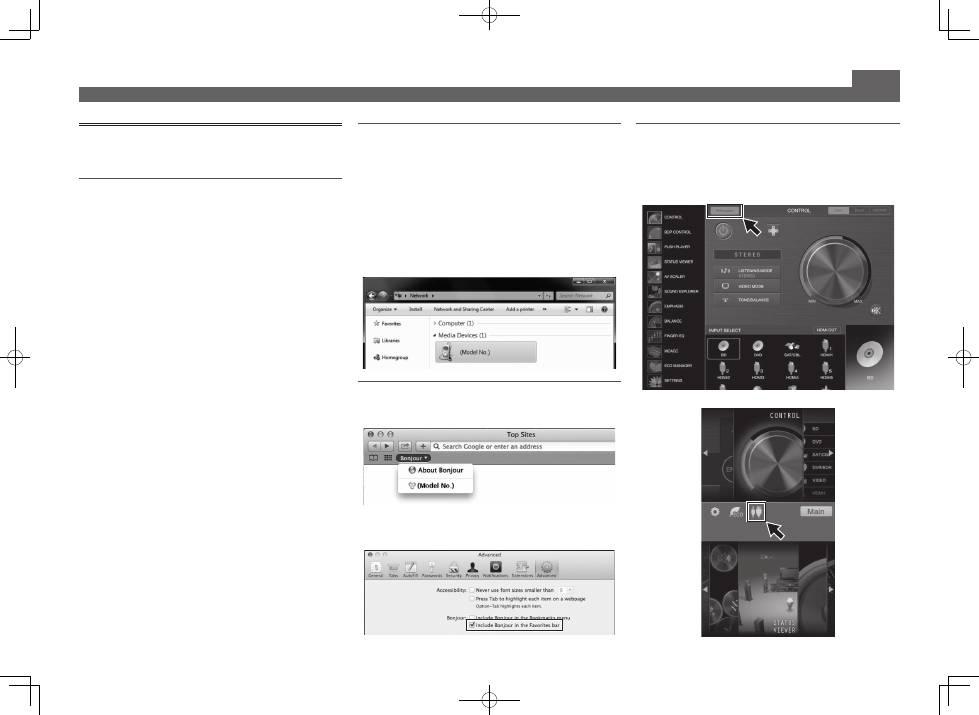
Using Windows PC
• Launch Internet Explorer and enter the IP address of this
unit in the address field of Internet Explorer. (Access the
IP address“http://(the receiver’s IP address)” from a web
browser.) You can display the IP address of the unit on the
unit’s front panel display by pressing the
STATUS
button
on the remote control.
• With a Windows PC other than Windows XP, you can use
the following method to launch AVNavigator.
Launch Explorer and then right-click <VSX-924>
displayed in the ‘
Network
’ folder, then click ‘
View device
webpage
’.
Using Mac
Launch Safari and click <VSX-924> displayed in ‘
Bonjour
’ on
the Bookmarks bar.
• If ‘
Bonjour
’ is not displayed, tick the ‘
Include Bonjour in
the Favorites bar
’ check box on the ‘
Advanced
’ tab in
the Safari ‘
Preferences...
’ menu.
Using iPad/iPhone/iPod touch
Download a free application, iControlAV5, from the App Store.
After launching iControlAV5, follow the instructions on the
screen. After that, on the Home screen, press ‘
AVNavigator
’or
the icon.
iPad
iPhone/iPod touch
