
Yamaha RX-797 – страница 2
Инструкция к Ресиверу/Усилителю Yamaha RX-797
Оглавление
- ПРЕДУПРЕЖДЕНИЕ: ВНИМАТЕЛЬНО ИЗУЧИТЕ ЭТО ПЕРЕД ИСПОЛЬЗОВАНИЕМ АППАРАТА.
- СОДЕРЖАНИЕ
- ОПИСАНИЕ ПОСТАВЛЯЕМЫЕ АКСЕССУАРЫ
- СИСТЕМЫ УПРАВЛЕНИЯ И ФУНКЦИИ Фронтальная панель
- СИСТЕМЫ УПРАВЛЕНИЯ И ФУНКЦИИ
- Дисплей фронтальной панели
- Задняя панель
- Пульт ДУ
- СИСТЕМЫ УПРАВЛЕНИЯ И ФУНКЦИИ
- Пульт ДУ для Zone 2
- Установка батареек в пульт ДУ Использование пультов ДУ
- СОЕДИНЕНИЯ Подключение колонок
- Подключение аудио и видеокомпонентов
- Подключение АМ- и ЧМ-антенн
- ■ Подключение рамочной АМ-антенны
- Подключение поставляемого силового кабеля питания
- Включение и отключение данного аппарата
- ВОСПРОИЗВЕДЕНИЕ И ЗАПИСЬ Воспроизведение источника
- ВОСПРОИЗВЕДЕНИЕ И ЗАПИСЬ
- Настойка тональности
- Запись источника
- Применение таймера сна
- Приглушение воспроизводимого звучания
- НАСТРОЙКА ДИАПАЗОНА ЧМ/AM Автоматическая настройка
- Ручная настройка
- Автоматическая предустановка
- НАСТРОЙКА ДИАПАЗОНА ЧМ/AM
- Ручная настройка и предустановка
- Выбор предустановленных радиостанций Замена предустановленных радиостанций
- RADIO DATA SYSTEM ( Прием радиостанций системы Radio Data System Переключение режима Radio Data System
- Функция PTY SEEK
- Функция EON
- ДОПОЛНИТЕЛЬНЫЕ НАСТРОЙКИ Изменение параметров меню ADVANCED SETUP
- Переключение идентификационного кода пульта ДУ
- ZONE 2 Подключение компонентов Zone 2
- Управление Zone 2
- ОПИСАНИЕ ПУЛЬТА ДИСТАНЦИОННОГО УПРАВЛЕНИЯ Зона управления
- Управление другими компонентами
- Установка кодов ДУ
- ВОЗМОЖНЫЕ НЕИСПРАВНОСТИ И СПОСОБЫ ИХ УСТРАНЕНИЯ ■ Общая часть
- ■ Тюнер
- ■ Пульт ДУ
- ТЕХНИЧЕСКИЕ ХАРАКТЕРИСТИКИ
- СПИСОК КОДОВ ДИСТАНЦИОННОГО УПРАВЛЕНИЯ
PLAYING AND RECORDING
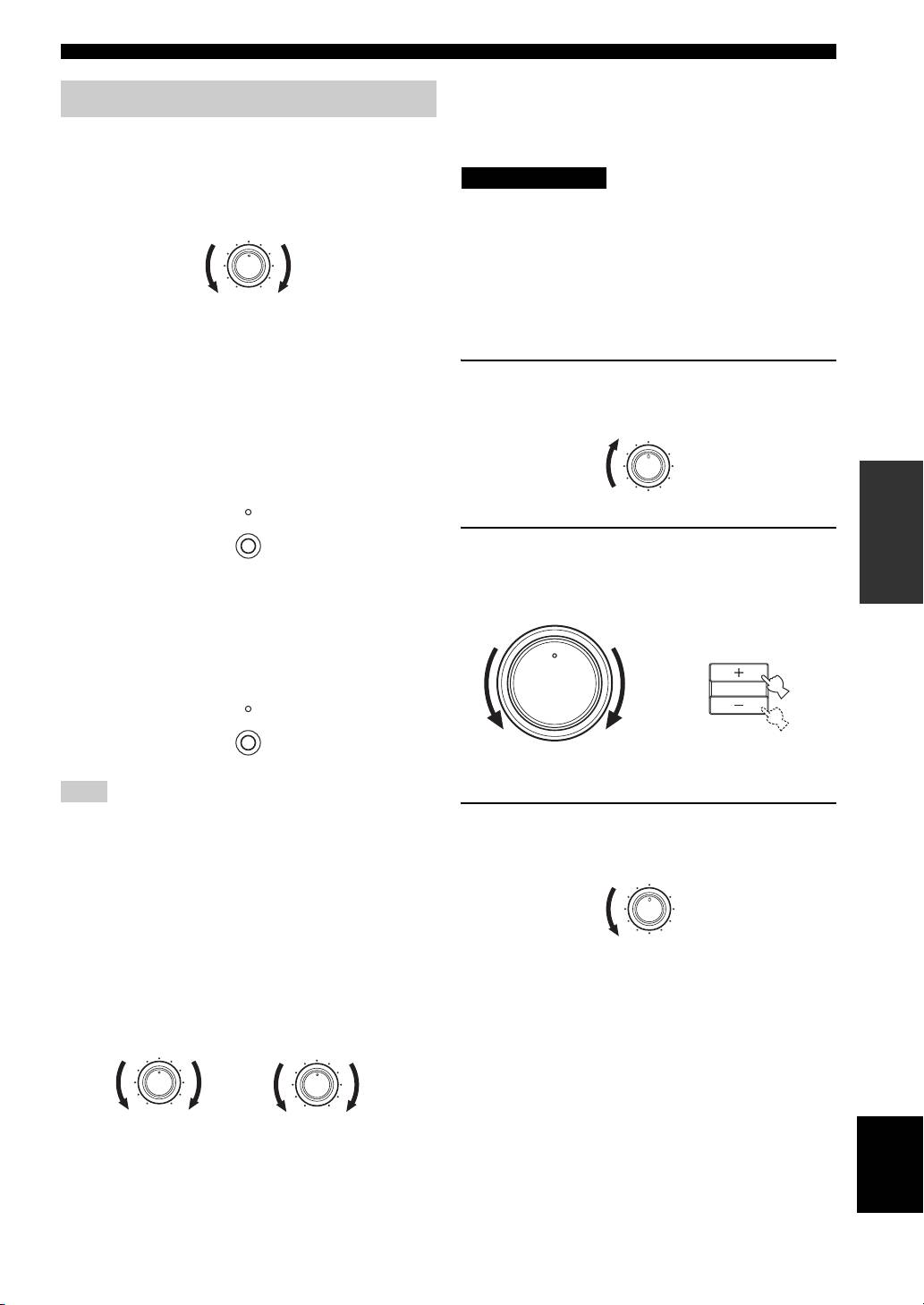
■ Adjusting the LOUDNESS control
Adjusting the tonal quality
Retains a full tonal range at any volume level, thus
compensating for the human ears’ loss of sensitivity to
■ Adjusting the BALANCE control
high and low-frequency ranges at a low volume level.
Adjusts the sound output balance of the left and right
speakers to compensate for sound imbalance caused by
CAUTION
speaker locations or listening room conditions.
If the CD DIRECT AMP or the PURE DIRECT button is turned
BALANCE
on with the LOUDNESS control set at a certain level, the input
1
0
1
signals bypass the LOUDNESS control, resulting in a sudden
22
3
3
increase in the sound output level. To prevent your ears or the
44
speakers from being undesirably damaged, be sure to press the
L
55
R
CD DIRECT AMP or the PURE DIRECT button after lowering
the sound output level or after checking that the LOUDNESS
■ Using the CD DIRECT AMP button
control is properly set.
Routes input signals from your CD player directly to the
specially built-in amplifier for the CD player. As a result,
1 Rotate the LOUDNESS control on the front
the input signals bypass the INPUT selector and the
panel to the FLAT position.
BASS, TREBLE, BALANCE and LOUDNESS controls
and then sent to the power amplifier, thus eliminating any
LOUDNESS
1
FLAT
alterations to the CD signals and creating the purest
–
30dB
210
possible sound. The CD DIRECT AMP indicator lights up
3
9
48
and the front panel display turns off after a few seconds.
OPERATION
57
6
BASIC
CD DIRECT AMP
2 Rotate VOLUME on the front panel (or press
VOLUME +/– on the remote control) to set the
sound output level to the loudest listening
■ Using the PURE DIRECT button
level that you would listen to.
Routes input signals from your audio sources so that the
input signals bypass the BASS, TREBLE, BALANCE and
12
LOUDNESS controls, thus eliminating any alterations to
the audio signals and creating the purest possible sound.
PURE DIRECT
0
Note
If both the CD DIRECT AMP and the PURE DIRECT buttons
3 Rotate the LOUDNESS control until the
are turned on, only the CD DIRECT AMP button will function.
desired volume is obtained.
■ Adjusting the BASS and TREBLE
controls
Adjust the high and low frequency response.
BASS
Increases or decreases the low frequency response.
TREBLE
Increases or decreases the high frequency response.
BASS
TREBLE
1
0
1
1
0
1
22
22
3
3
3
3
44
44
–
55
+
–
55
+
English
19
12
20
8
4
2
∞
20
60
60
26
26
40
40
16
16
-dB
-dB
VOLUME
or
VOLUME
Front panel
Remote control
LOUDNESS
1
FLAT
–
30dB
210
3
9
48
57
6
PLAYING AND RECORDING
Recording a source
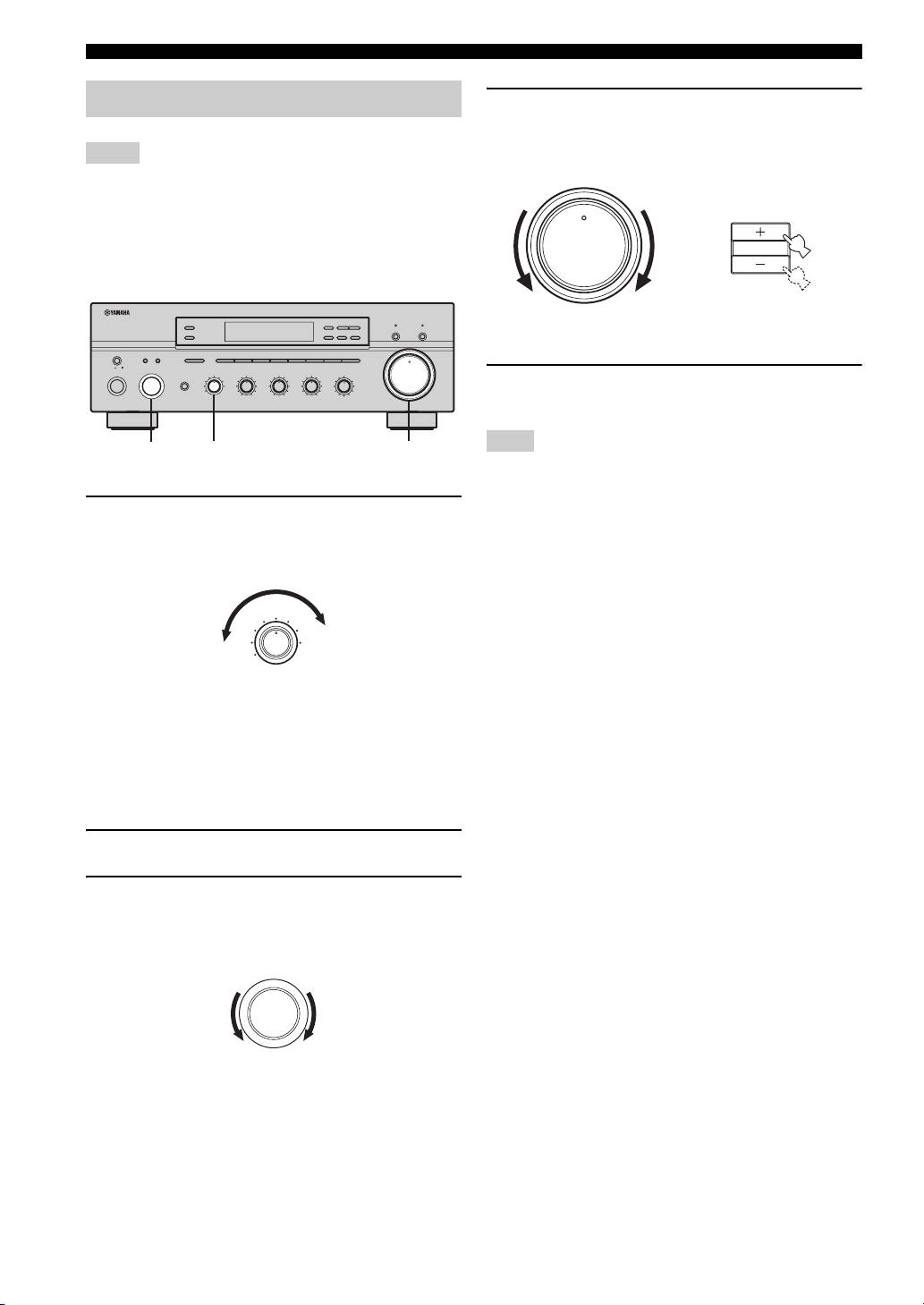
4 Rotate VOLUME on the front panel (or press
VOLUME +/– on the remote control) to adjust
the sound output level of the selected source
Notes
to record from.
• The VOLUME, BASS, TREBLE, BALANCE and
LOUDNESS controls and the CD DIRECT AMP and the PURE
DIRECT buttons have no effect on the source being recorded.
• Check the copyright laws in your country to record from
records, CDs, radio, etc. Recording copyright-protected
material may infringe on copyright laws.
ZONE 2 ON/OFF
FM/AM
l
TUNING
h
CD DIRECT AMPPURE DIRECT
ZONE CONTROL
EDIT
MEMORY
TUNING MODE
MAN'L/AUTO FM
AUTO/MAN'L
MASTER SPEAKERS
BA
A/B/C/D/E
12345678
VOLUME
12
ON OFF
MAIN ZONE
INPUT
REC OUT
SOURCE
BASS
TREBLE
BALANCE
LOUDNESS
PHONES
MD/TAPE
CD
1
0
1
1
0
1
1
0
1
1
FLAT
VCR TUNER
22
22
22
210
–
30dB
ON/OFF
DTV/CBL
PHONO
3
3
3
3
3
3
3
9
5 Begin recording on the MD recorder, the tape
DVD
44
–
55
+
44
–
55
+
44
L
55
R
48
57
6
0
deck or the VCR connected to this unit.
3
41
If you set the REC OUT selector to a source other than the one
that you are watching or listening to, selecting another source
with the INPUT selector on the front panel (or the corresponding
1 Rotate the REC OUT selector on the front
input selector button on the remote control) while recording is in
panel to select the source you want to record
progress will not affect the recording.
from.
y
You can monitor the sound and/or picture being recorded by
rotating the INPUT selector on the front panel (or pressing MD/
TAPE or VCR on the remote control) to select the MD recorder,
the tape deck or the VCR used for recording.
To record the current input source that you are
watching or listening to, set the REC OUT selector to
SOURCE.
To record a source other than the one that you are
watching or listening to, set the REC OUT selector to
the source you want to record.
2 Play the selected source to record from.
3 Rotate the INPUT selector on the front panel
to confirm the selected source to record
from.
20
12
20
8
4
2
∞
20
60
60
26
26
40
40
16
16
-dB
-dB
12
0
Note
REC OUT
SOURCE
MD/TAPE
CD
VCR TUNER
DTV/CBL
PHONO
DVD
INPUT
12
20
8
4
2
∞
20
60
60
26
26
40
40
16
16
-dB
-dB
VOLUME
or
VOLUME
Front panel
Remote control
PLAYING AND RECORDING
Using the sleep timer
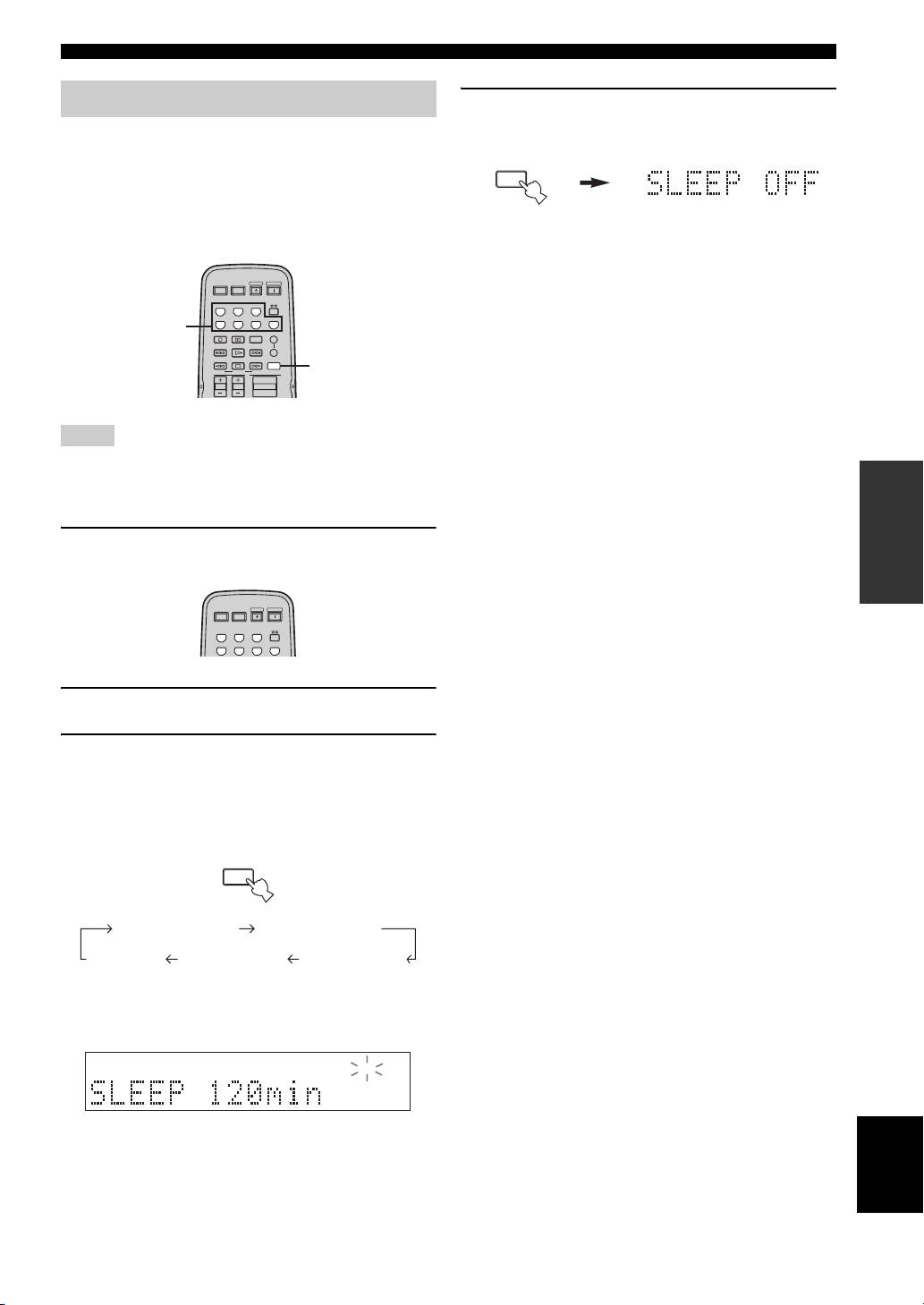
4 Press SLEEP repeatedly so that SLEEP OFF
appears in the front panel display.
Use this feature to automatically set this unit to the
standby mode after a certain amount of time. The sleep
SLEEP
timer is useful when you are going to sleep while this unit
is playing or recording a source. The sleep timer also
automatically turns off any external components
connected to the AC OUTLET(S).
After a few seconds, SLEEP OFF disappears from the
front panel display, and the SLEEP indicator turns
POWER POWER
STANDBY
POWER
off.
AVTV
CD
MD/TAPE
TUNER
y
DTV/CBL
VCR
PHONODVD
The sleep timer setting can also be canceled by pressing
1
REC
CODE SET
SPEAKERS
A
DISC SKIP
STANDBY on the remote control (or MAIN ZONE ON/OFF or
B
FREQ/TEXT
EON
SLEEP
MASTER ON/OFF on the front panel) to set this unit to the
MODE PTY SEEK
START
3
standby mode.
TV VOL
TV CH
VOLUME
Notes
• The sleep timer can only be set with the remote control.
• The sleep timer automatically turns off Zone 2. However, the
OPERATION
power of Zone 2 components are not turned off.
BASIC
1 Press one of the input selector buttons on
the remote control to select an input source.
POWER POWER
STANDBY
POWER
AVTV
CD
MD/TAPE
TUNER
DTV/CBL
VCR
PHONODVD
2 Start playback on the selected input source.
3 Press SLEEP repeatedly to set the amount of
time before this unit is set to the standby
mode.
Each time you press SLEEP, the front panel display
changes as shown below.
SLEEP
SLEEP 120 min SLEEP 90 min
SLEEP 60 minSLEEP 30 minSLEEP OFF
The SLEEP indicator flashes while switching the
amount of time for the sleep timer.
SLEEP
English
21
PLAYING AND RECORDING
Muting the sound output
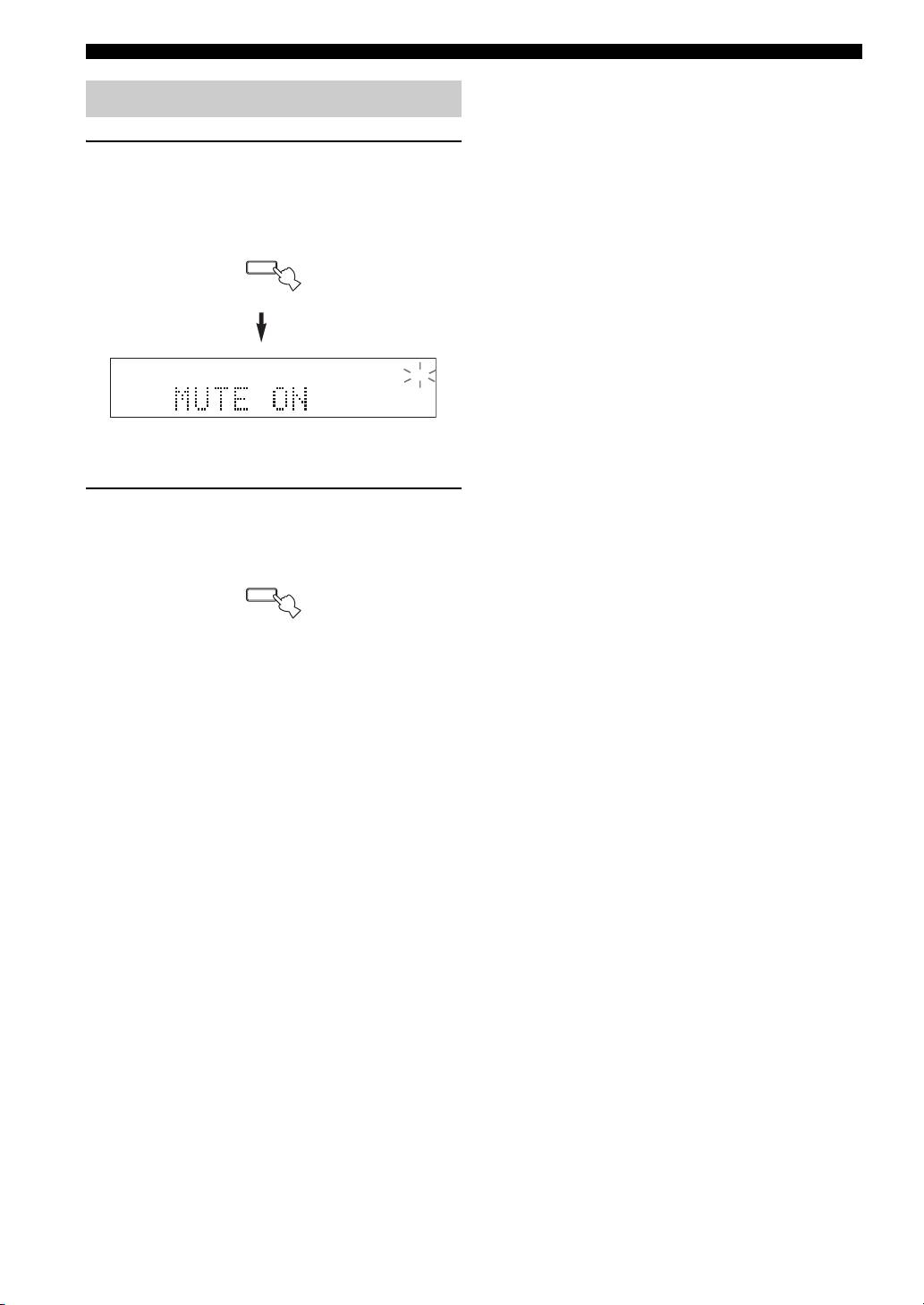
1 Press MUTE on the remote control to mute
the sound output.
The MUTE indicator flashes in the front panel
display and MUTE ON appears in the front panel
display.
MUTE
MUTE
After a few seconds, MUTE ON disappears from the
front panel display.
2 Press MUTE on the remote control again to
resume the sound output.
The MUTE indicator disappears from the front panel
display.
MUTE
22
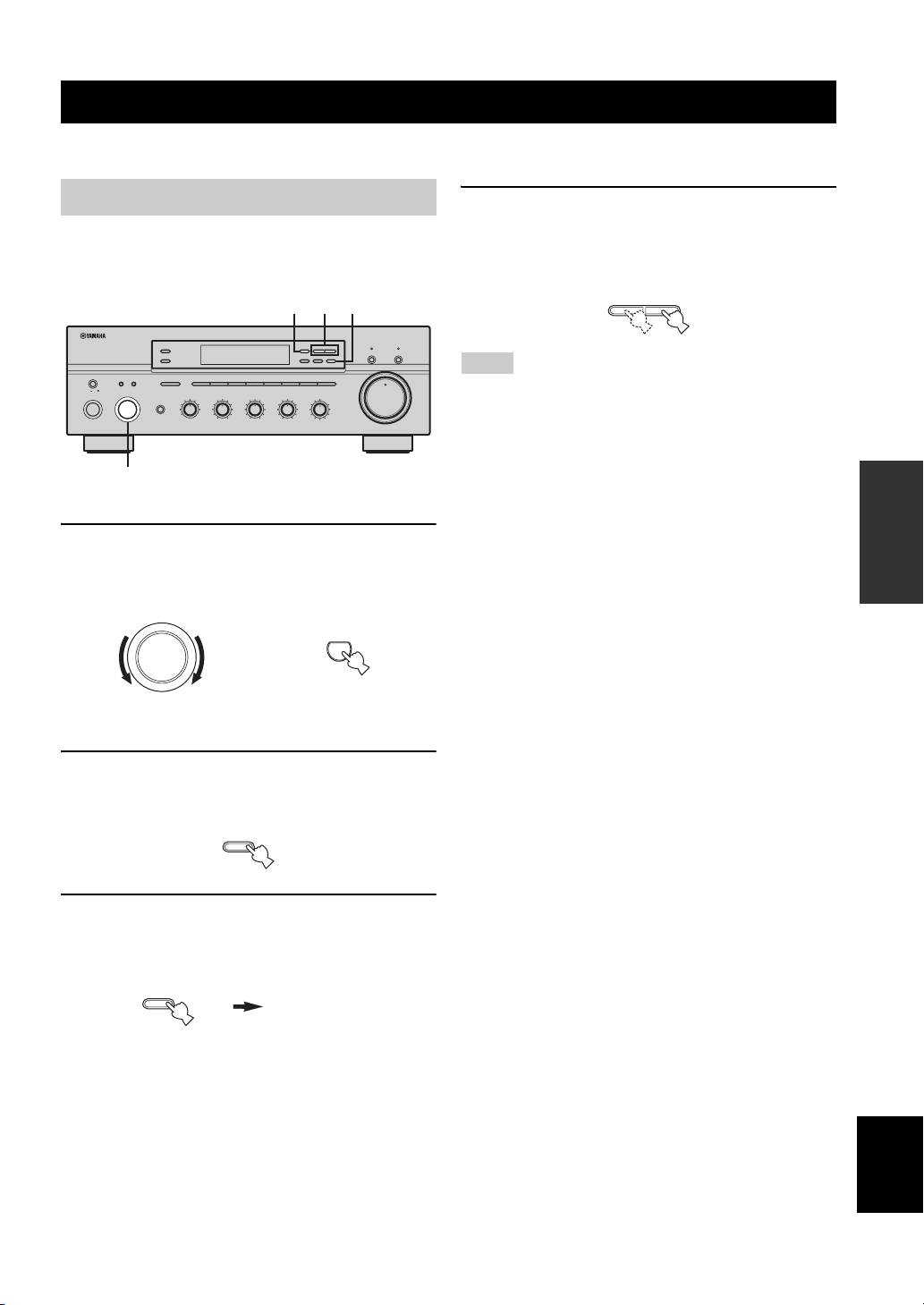
FM/AM TUNING
FM/AM TUNING
There are 2 tuning methods; automatic and manual. Select either method according to your preference and the strength of
station signals.
Automatic tuning
4 Press TUNING l / h once to begin
automatic tuning.
Automatic tuning is effective when station signals are
Press h to tune into a higher frequency.
strong and there is no interference.
Press l to tune into a lower frequency.
2 4 3
ZONE 2 ON/OFF
FM/AM
l
TUNING
h
CD DIRECT AMPPURE DIRECT
ZONE CONTROL
EDIT
MEMORY
TUNING MODE
MAN'L/AUTO FM
AUTO/MAN'L
MASTER SPEAKERS
BA
A/B/C/D/E
12345678
VOLUME
12
ON OFF
MAIN ZONE
INPUT
REC OUT
BASS
TREBLE
PHONES
SOURCE
BALANCE
LOUDNESS
MD/TAPE
CD
1
0
1
1
0
1
1
0
1
1
FLAT
• When you tune into a station, the frequency of the received
VCR TUNER
22
22
22
210
–
30dB
ON/OFF
DTV/CBL
PHONO
3
3
3
3
3
3
3
9
DVD
44
–
55
+
44
44
station is shown in the front panel display.
–
55
+
L
55
R
48
57
6
0
• To search for another station, press TUNING l / h once more.
• If the tuning search does not stop at the desired station because
the station signals are weak, try using the manual tuning
1
method.
OPERATION
BASIC
1 Rotate the INPUT selector (or press TUNER
on the remote control) to select TUNER as
the input source.
2 Press FM/AM on the front panel to select the
reception band (FM or AM).
FM or AM appears in the front panel display.
3 Press TUNING MODE on the front panel so
that the AUTO indicator lights up in the front
panel display.
English
23
12
20
8
4
2
∞
20
60
60
26
26
40
40
16
16
-dB
-dB
l
TUNING
h
Notes
INPUT
TUNER
or
Front panel Remote control
FM/AM
TUNING MODE
AUTO
AUTO/MAN'L
Lights up
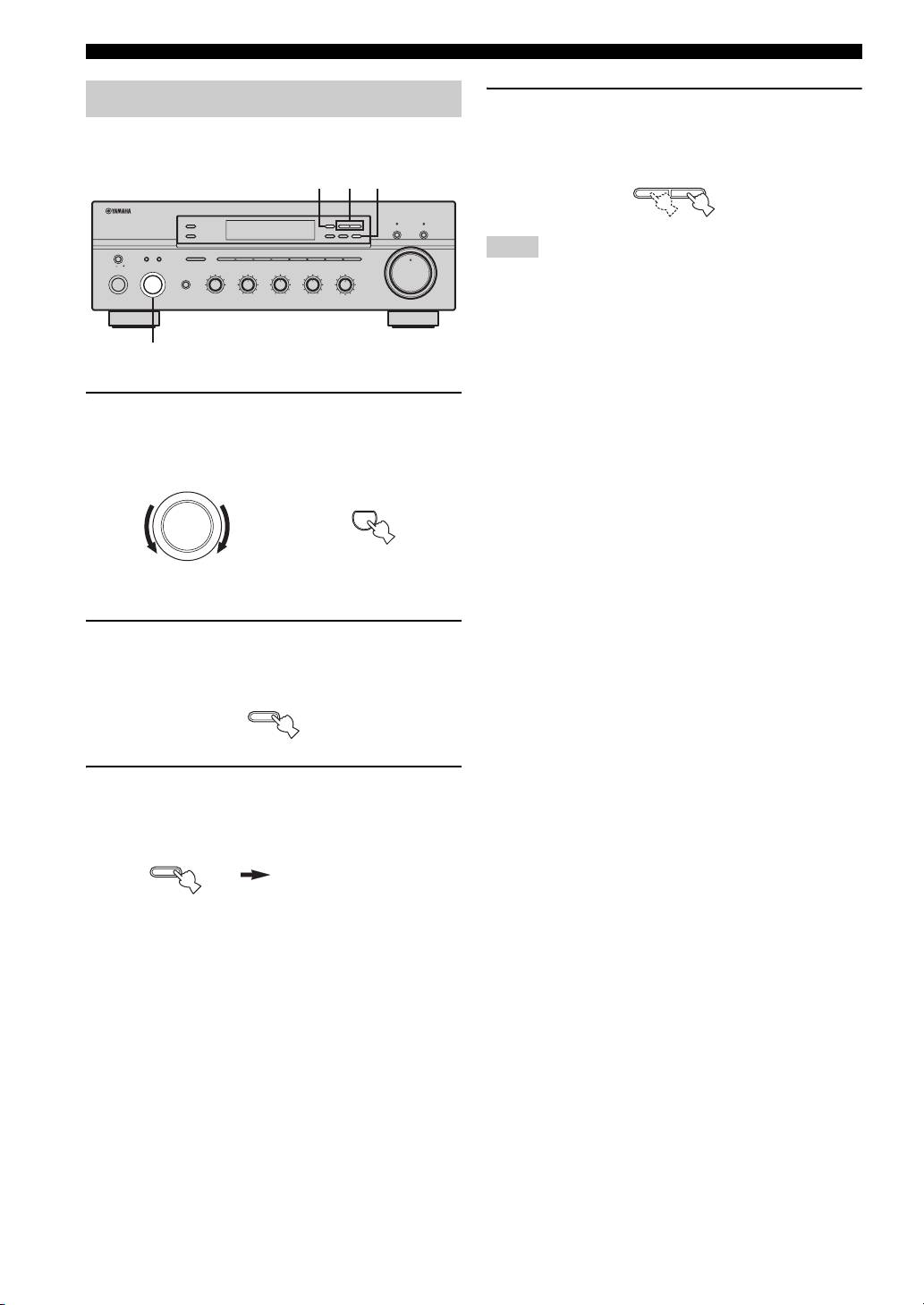
FM/AM TUNING
Manual tuning
4 Press TUNING l / h to manually tune into
the desired station.
Manual tuning is effective when station signals are weak.
Hold down the button to continue tuning search.
2 4 3
ZONE 2 ON/OFF
FM/AM
l
TUNING
h
CD DIRECT AMPPURE DIRECT
ZONE CONTROL
EDIT
MEMORY
TUNING MODE
MAN'L/AUTO FM
AUTO/MAN'L
MASTER SPEAKERS
BA
A/B/C/D/E
12345678
VOLUME
12
ON OFF
MAIN ZONE
INPUT
REC OUT
SOURCE
BASS
TREBLE
BALANCE
LOUDNESS
PHONES
MD/TAPE
CD
1
0
1
1
0
1
1
0
1
1
FLAT
VCR TUNER
22
22
22
210
–
30dB
• When you tune into a station, the frequency of the received
ON/OFF
DTV/CBL
PHONO
3
3
3
3
3
3
3
9
DVD
44
–
55
+
44
–
55
+
44
L
55
R
48
57
6
0
station is shown in the front panel display.
• If you tune into an FM station, it is automatically received in the
monaural mode to increase signal quality.
1
1 Rotate the INPUT selector (or press TUNER
on the remote control) to select TUNER as
the input source.
2 Press FM/AM on the front panel to select the
reception band (FM or AM).
FM or AM appears in the front panel display.
3 Press TUNING MODE on the front panel so
that the AUTO indicator disappears from the
front panel display.
24
12
20
8
4
2
∞
20
60
60
26
26
40
40
16
16
-dB
-dB
l
TUNING
h
Notes
INPUT
TUNER
or
Front panel
Remote control
FM/AM
TUNING MODE
AUTO
AUTO/MAN'L
Disappears
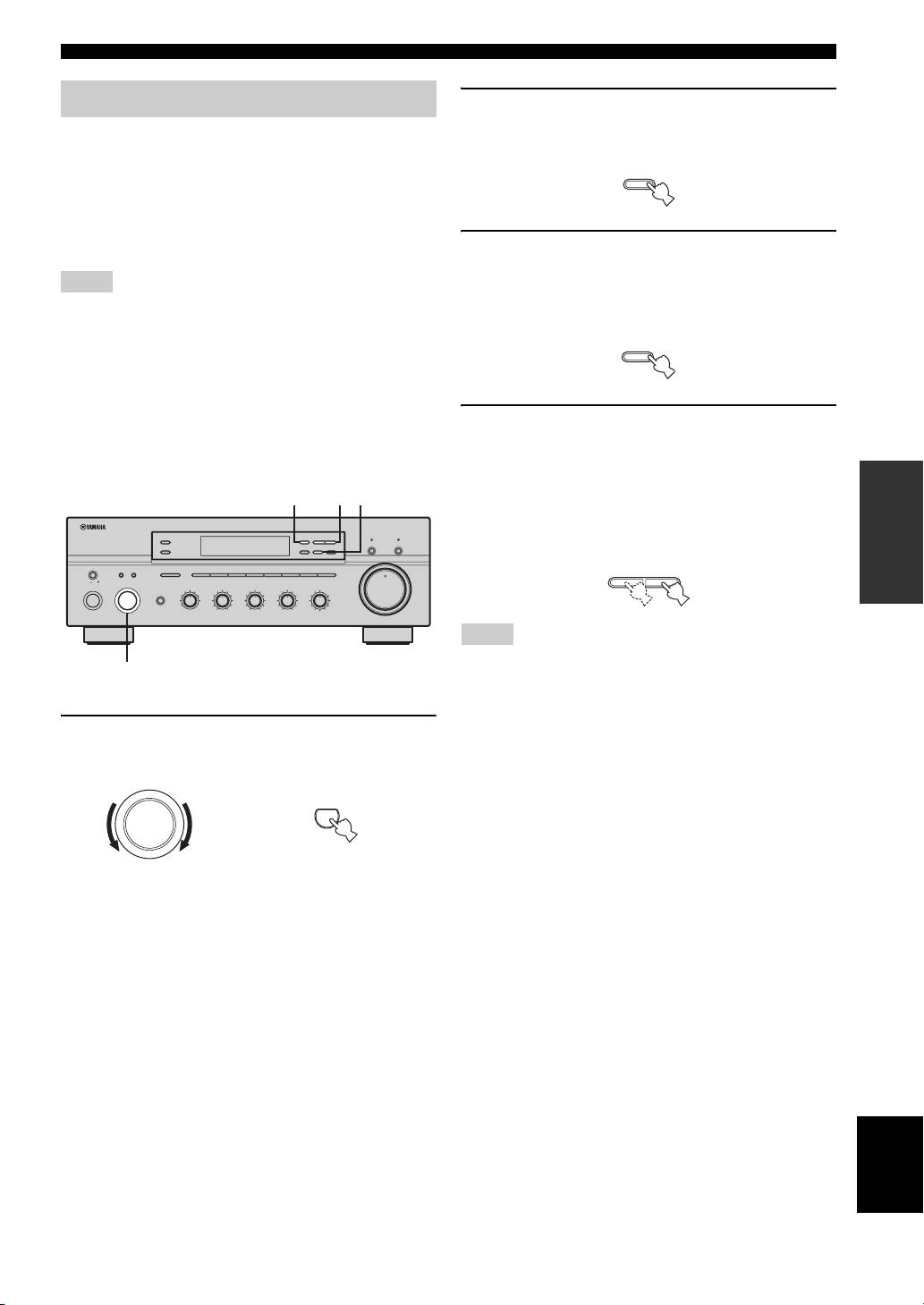
FM/AM TUNING
Automatic preset tuning
2 Press FM/AM on the front panel to select FM
as the reception band.
You can use the automatic preset tuning method to
FM appears in the front panel display.
automatically store FM stations. This function enables this
unit to automatically tune into FM stations with strong
signals and store up to 40 (8 stations in each of the 5
groups, A1 to E8) of those received stations in order. You
can then easily recall any preset stations by selecting the
3 Press and hold MEMORY on the front panel
preset station numbers where they are stored.
for more than 3 seconds.
Notes
The preset station group and the MEMORY and
• Any station data stored under a preset station number is cleared
AUTO indicators flash in the front panel display.
when you store a new station under that preset station number.
• If the number of received stations does not reach 40 (E8),
automatic preset tuning automatically stops once searching all
available stations are tuned into and stored.
• Only FM stations with sufficient signal strength are stored
automatically by automatic preset tuning. If the station you
4 Press TUNING l / h once to begin
want to store is weak in signal strength, try using the manual
automatic preset tuning.
preset tuning method.
Press h to tune into higher frequencies.
OPERATION
Press l to tune into lower frequencies.
2
3
4
When automatic preset tuning is complete, the
BASIC
frequency of the last preset station is shown in the
ZONE 2 ON/OFF
FM/AM
l
TUNING
h
CD DIRECT AMPPURE DIRECT
ZONE CONTROL
EDIT
MEMORY
TUNING MODE
front panel display.
MAN'L/AUTO FM
AUTO/MAN'L
MASTER SPEAKERS
BA
A/B/C/D/E
12345678
VOLUME
12
ON OFF
MAIN ZONE
INPUT
REC OUT
BASS
TREBLE
BALANCE
LOUDNESS
PHONES
MD/TAPE
SOURCE
CD
1
0
1
1
0
1
1
0
1
1
FLAT
VCR TUNER
22
22
22
210
–
30dB
ON/OFF
DTV/CBL
PHONO
3
3
3
3
3
3
3
9
DVD
44
–
55
+
44
–
55
+
44
L
55
R
48
57
6
0
• If TUNING l / h is not pressed within approximately 5
1
seconds while the MEMORY and AUTO indicators are
flashing, automatic preset tuning automatically begins from the
currently displayed frequency and proceeds toward higher
1 Rotate the INPUT selector (or press TUNER
frequencies.
on the remote control) to select TUNER.
• Received stations are sequentially programmed to 8 stations in
each preset station group. If 8 stations are all programmed in a
preset station group, another 8 stations are sequentially
programmed in the next preset station group.
English
25
12
20
8
4
2
∞
20
60
60
26
26
40
40
16
16
-dB
-dB
FM/AM
MEMORY
MAN'L/AUTO FM
l
TUNING
h
Notes
INPUT
TUNER
or
Front panel Remote control
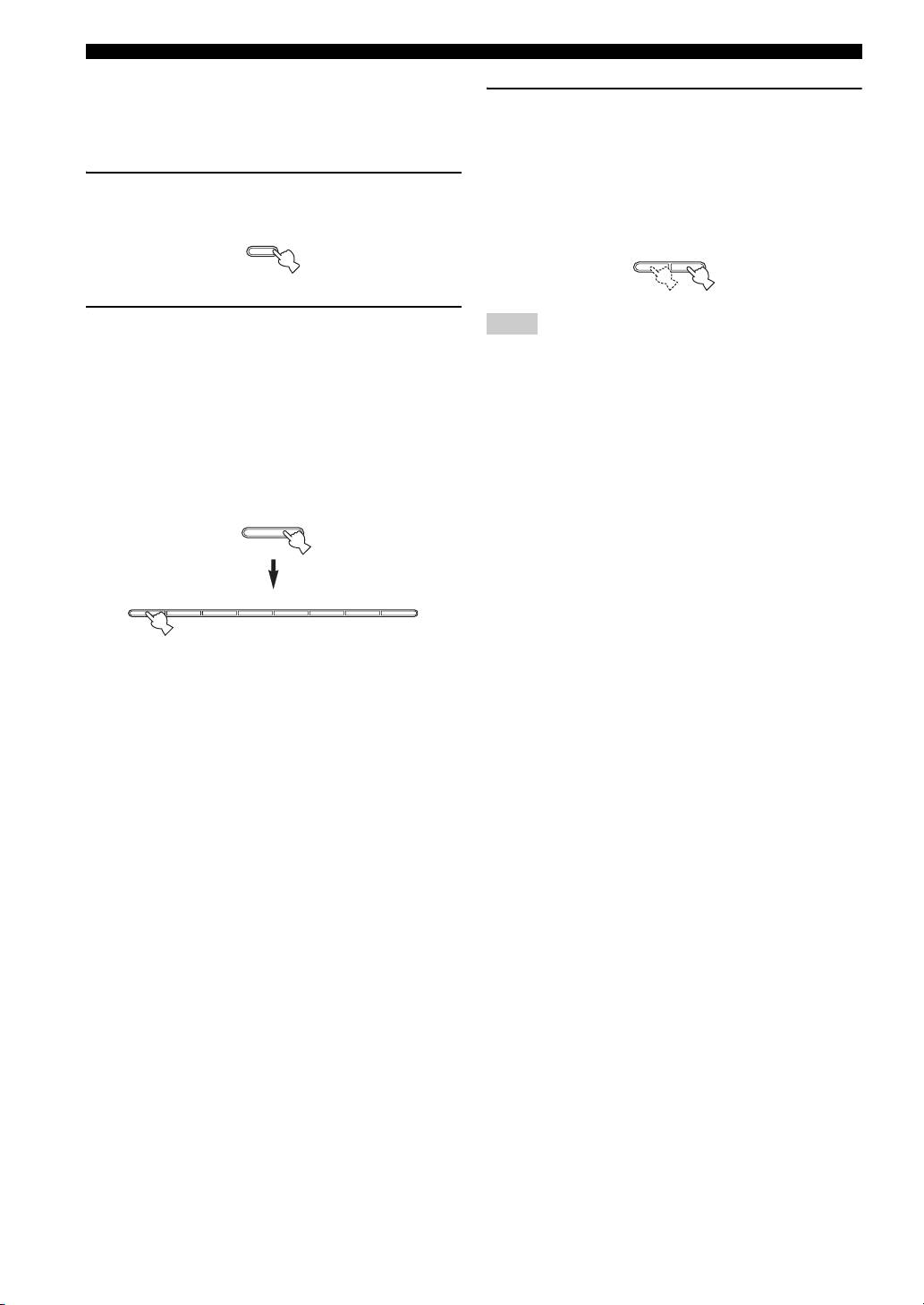
FM/AM TUNING
■ Customized automatic preset tuning
You can specify a preset station group and a preset station
3 Press TUNING l / h on the front panel to
number from which this unit stores the FM stations
begin automatic preset tuning.
received by automatic preset tuning.
Press h to tune into higher frequencies.
Press l to tune into lower frequencies.
1 Press and hold MEMORY on the front panel
When automatic preset tuning is complete, the
for more than 3 seconds.
frequency of the last preset station is shown in the
front panel display.
MEMORY
l
TUNING
h
MAN'L/AUTO FM
2 Press A/B/C/D/E and then press one of the
Note
preset station number buttons on the front
Automatic preset tuning stops when the received stations have all
panel to select the preset station group and
been stored up to E8.
the preset station number where the first
received station will be stored.
For example, if you select C5, the first received
station is automatically programmed to C5 and the
next received stations are sequentially programmed
to C6, C7, etc.
A/B/C/D/E
12345678
26
FM/AM TUNING
Manual preset tuning
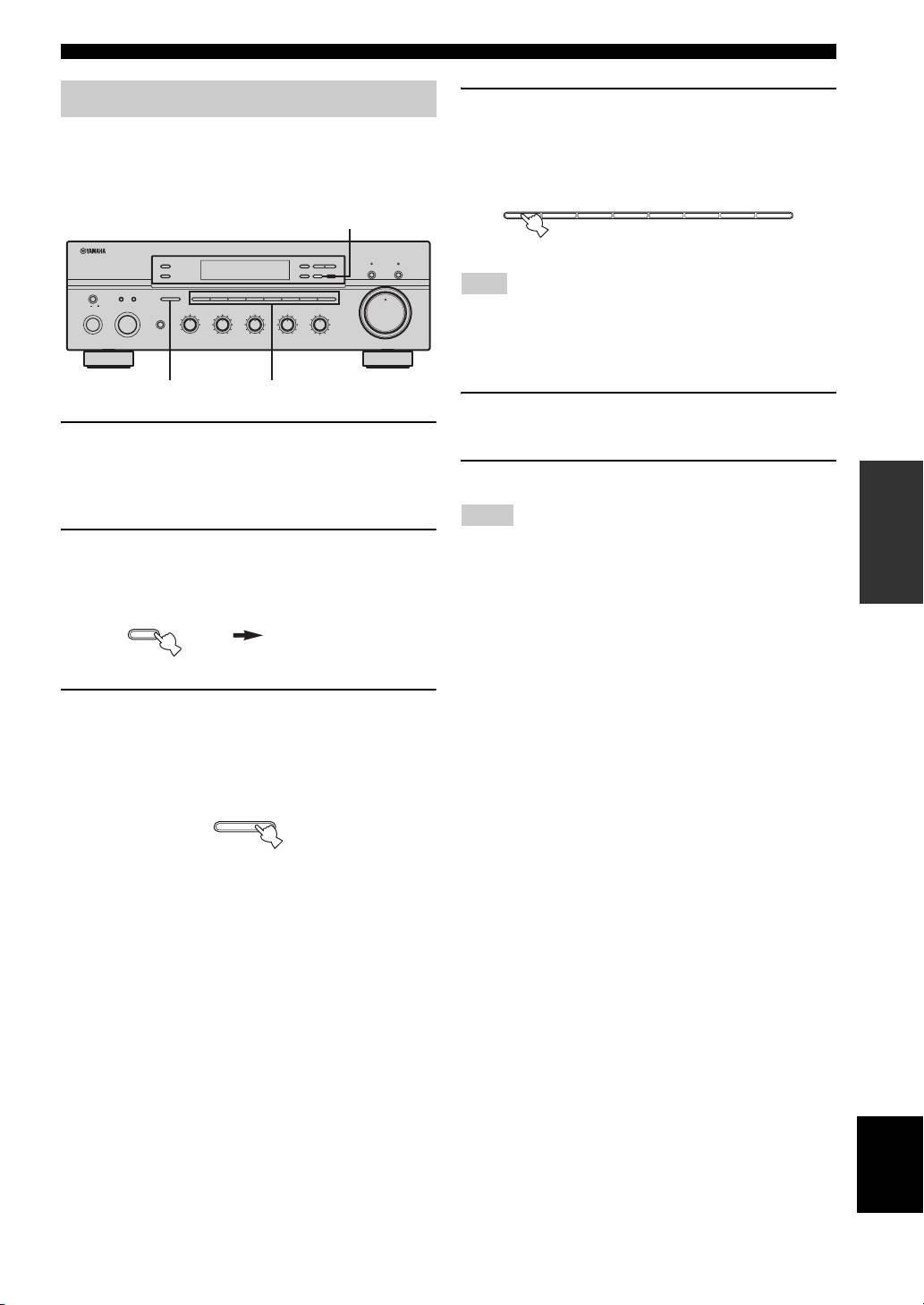
4 Press one of the preset station number
buttons on the front panel to select a preset
You can also manually store up to 40 stations (8 stations in
station number (1 to 8) where you want to
each of the 5 groups, A1 to E8). You can then easily recall
store the station.
any preset stations by selecting the preset station numbers
where they are stored.
2
ZONE 2 ON/OFF
FM/AM
l
TUNING
h
CD DIRECT AMPPURE DIRECT
ZONE CONTROL
EDIT
MEMORY
TUNING MODE
MAN'L/AUTO FM
AUTO/MAN'L
MASTER SPEAKERS
BA
A/B/C/D/E
12345678
VOLUME
12
ON OFF
MAIN ZONE
INPUT
REC OUT
SOURCE
BASS
0
TREBLE
0
BALANCE
0
LOUDNESS
PHONES
MD/TAPE
CD
1
1
1
1
1
1
1
FLAT
VCR TUNER
22
22
22
210
–
30dB
This operation must be done within 5 seconds while the
ON/OFF
DTV/CBL
PHONO
3
3
3
3
3
3
3
9
DVD
44
–
55
+
44
–
55
+
44
L
55
R
48
57
6
0
MEMORY indicator is flashing in the front panel display.
Otherwise, the manual preset tuning process is automatically
canceled.
3
4
5 Press MEMORY on the front panel to store
the station.
1 Repeat steps 1 to 4 in “Automatic tuning” or
in “Manual tuning” to tune into a station.
6 Repeat steps 1 to 5 to store other stations.
When you tune into a station, the frequency of the
OPERATION
received station is shown in the front panel display.
BASIC
2 Press MEMORY on the front panel.
• Any station data stored under a preset station number is cleared
when you store a new station under that preset station number.
The MEMORY indicator flashes in the front panel
• The reception mode (stereo or monaural) is stored along with
display for approximately 5 seconds.
the station frequency.
3 Press A/B/C/D/E on the front panel
repeatedly to select a preset station group (A
to E).
The selected preset station group is shown in the front
panel display.
English
27
12
20
8
4
2
∞
20
60
60
26
26
40
40
16
16
-dB
-dB
12345678
Note
Notes
MEMORY
MEMORY
MAN'L/AUTO FM
Flashes
A/B/C/D/E
FM/AM TUNING
Selecting preset stations
You can tune into the desired station simply by selecting
You can exchange the assignment of two preset stations
the preset station number where it is stored.
with each other. The following procedure describes an
example where a preset station E1 is exchanged with
another preset station A5.
ZONE 2 ON/OFF
FM/AM
l
TUNING
h
CD DIRECT AMPPURE DIRECT
ZONE CONTROL
EDIT
MEMORY
TUNING MODE
MAN'L/AUTO FM
AUTO/MAN'L
MASTER SPEAKERS
BA
A/B/C/D/E
12345678
VOLUME
12
ON OFF
MAIN ZONE
INPUT
REC OUT
BASS
TREBLE
BALANCE
MD/TAPE
SOURCE
LOUDNESS
PHONES
CD
1
0
1
1
0
1
1
0
1
1
FLAT
VCR TUNER
22
22
22
210
–
30dB
ON/OFF
DTV/CBL
PHONO
3
3
3
3
3
3
3
9
DVD
44
–
55
+
44
–
55
+
44
L
55
R
48
57
6
0
1
2
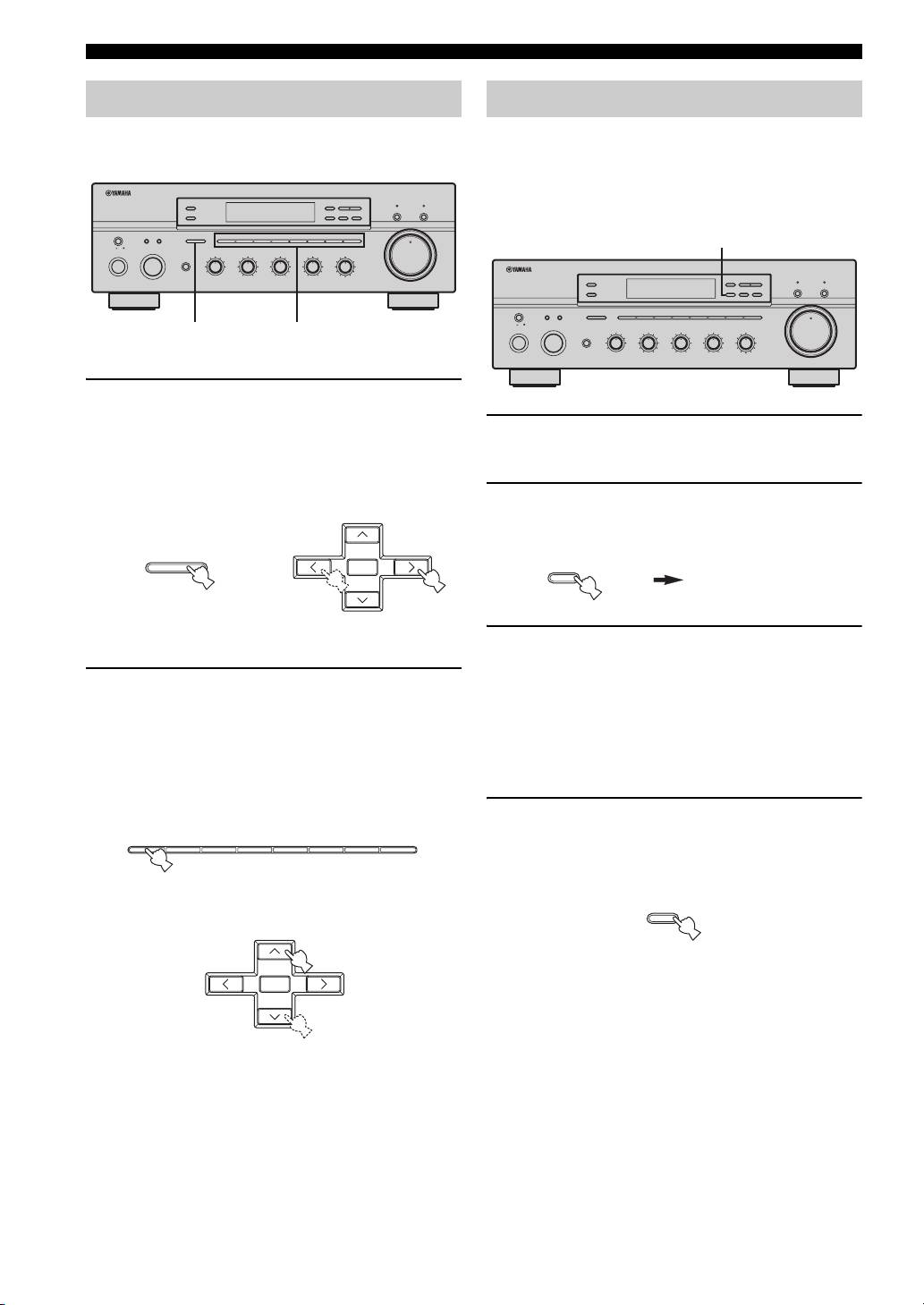
1 Press A/B/C/D/E on the front panel
repeatedly (or press A/B/C/D/E j / i on the
1 Repeat steps 1 and 2 in “Selecting preset
remote control) to select a preset station
stations” to select a preset station E1.
group (A to E).
The selected preset station group is shown in the front
panel display.
2 Press EDIT on the front panel.
E1 and the MEMORY indicator flash in the front
panel display.
3 Repeat steps 1 and 2 in “Selecting preset
stations” to select another preset station A5.
2 Press one of the preset station number
A5 and the MEMORY indicator flash in the front
buttons on the front panel (or
panel display.
PRESET/CH u / d on the remote control) to
select a preset station number (1 to 8).
The preset station number appears in the front panel
display along with the reception band and the
frequency.
4 Press EDIT on the front panel again.
E1-A5 appears in the front panel display, indicating
that the two preset station assignments have been
exchanged.
28
12
20
8
4
2
∞
20
60
60
26
26
40
40
16
16
-dB
-dB
Exchanging preset stations
2,4
ZONE 2 ON/OFF
FM/AM
l
TUNING
h
CD DIRECT AMPPURE DIRECT
ZONE CONTROL
EDIT
MEMORY
TUNING MODE
MAN'L/AUTO FM
AUTO/MAN'L
MASTER SPEAKERS
BA
A/B/C/D/E
12345678
VOLUME
12
ON OFF
MAIN ZONE
INPUT
REC OUT
BASS
TREBLE
BALANCE
LOUDNESS
PHONES
MD/TAPE
SOURCE
CD
1
0
1
1
0
1
1
0
1
1
FLAT
VCR TUNER
22
22
22
210
–
30dB
ON/OFF
DTV/CBL
PHONO
3
3
3
3
3
3
3
9
DVD
44
–
55
+
44
–
55
+
44
L
55
R
48
57
6
0
A/B/C/D/E
or
ENTER
A/B/C/D/E A/B/C/D/E
PRESET/CH
Front panel
Remote control
12345678
Front panel
or
ENTER
A/B/C/D/E A/B/C/D/E
PRESET/CH
Remote control
12
20
8
4
2
∞
20
60
60
26
26
40
40
16
16
-dB
-dB
EDIT
MEMORY
Flashes
MEMORY
Flashes
EDIT
RADIO DATA SYSTEM (EUROPE MODEL ONLY)
RADIO DATA SYSTEM (EUROPE MODEL ONLY)
Receiving Radio Data System
Changing the Radio Data System
stations
mode
Radio Data System is a data transmission system used by FM
Four modes are available for displaying Radio Data
stations in many countries. The Radio Data System function is
System data. The PS, PTY, RT and/or CT indicators that
carried out among the network stations.
correspond to the Radio Data System data services offered
This unit can receive various Radio Data System data such as PS
by the station light up in the front panel display.
(Program Service name), PTY (Program Type), RT (Radio Text),
CT (Clock Time), EON (Enhanced Other Networks) when
1 Press TUNER on the remote control to set
receiving Radio Data System broadcasting stations.
this unit to tuner mode.
■ PS (Program Service name) mode
TUNER
The name of the Radio Data System station being received
is displayed.
■ PTY (Program Type) mode
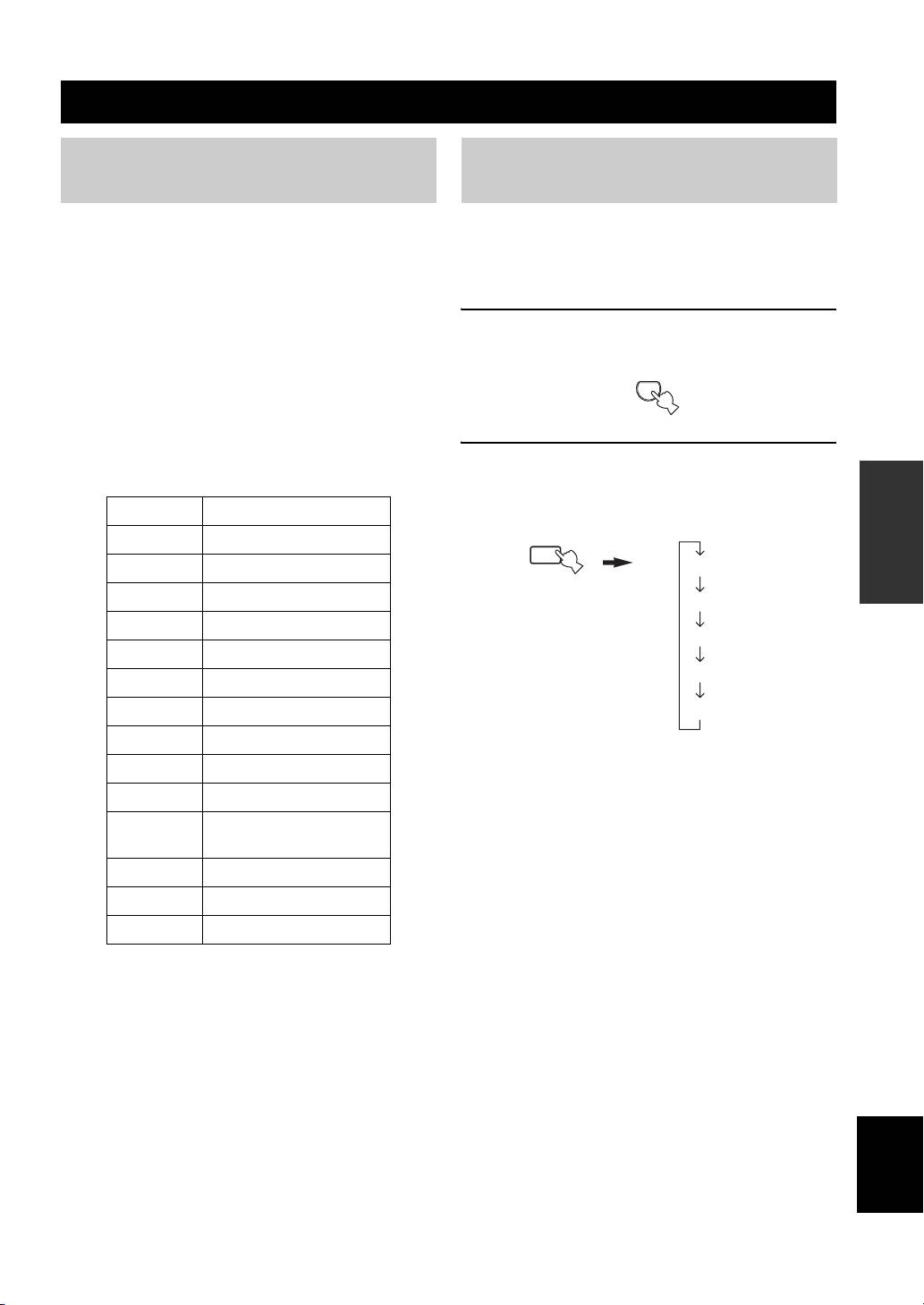
There are 15 program types to classify Radio Data System
2 Press FREQ/TEXT repeatedly on the remote
stations.
control to display the various Radio Data
OPERATION
System data offered by the transmitting
BASIC
NEWS News
station.
AFFAIRS Current affairs
b
INFO General information
FREQ/TEXT
PS
Remote control
SPORT Sports
PTY
EDUCATE Education
RT
DRAMA Drama
CT
CULTURE Culture
SCIENCE Science
Frequency display
VARIED Light entertainment
POP M Pops
ROCK M Rock
M.O.R. M Middle-of-the-road music
(easy-listening)
LIGHT M Light classics
CLASSICS Serious classics
OTHER M Other music
■ RT (Radio Text) mode
Information about the program (such as the title of the
song or name of the singer) on the Radio Data System
station being received is displayed using a maximum of 64
alphanumeric characters, including the umlaut symbol. If
other characters are used for RT data, they are displayed
with an underbar (_).
■ CT (Clock Time) mode
The current time is displayed and updated every minute.
English
If the data are accidentally cut off, “CT WAIT” may appear.
■ EON (Enhanced Other Networks)
See “EON function” on page 31.
29
RADIO DATA SYSTEM (EUROPE MODEL ONLY)
Notes
PTY SEEK function
• Do not press FREQ/TEXT until a Radio Data System indicator
If you select the desired program type, this unit
lights up in the front panel display. You cannot change the mode
automatically searches all preset Radio Data System
if you press the button prior to this. This is because this unit has
stations that are broadcasting a program of the required
not finished receiving all of the Radio Data System data from
type.
the station.
• Radio Data System data not offered by the station cannot be
selected.
POWER POWER
STANDBY
POWER
AVTV
• This unit cannot utilize the Radio Data System data source if
CD
MD/TAPE
TUNER
the signal received is not strong enough. In particular, the RT
DTV/CBL
VCR
PHONODVD
REC
CODE SET
SPEAKERS
mode requires a large amount of data, so it is possible that the
A
DISC SKIP
RT mode may not be displayed even if other Radio Data System
B
FREQ/TEXT
EON
SLEEP
modes (PS, PTY, etc.) are displayed.
1
MODE PTY SEEK
START
3
TV VOL
TV CH
VOLUME
• Radio Data System data may not be received under poor
TV MUTE TV INPUT
reception conditions. In such cases, press TUNING MODE
MUTE
4321
(AUTO/MAN’L MONO) so that the AUTO indicator
65
7
8
disappears from the front panel display. Although this will
09
10
ENT.
change the reception mode to manual, Radio Data System data
MENUTITLE
BAND
ENTER
2
may be displayed when you change the display to Radio Data
A/B/C/D/E A/B/C/D/E
DISPLAYRETURN
PRESET/CH
System mode.
• If the signal strength is weakened by external interference
during the reception of a Radio Data System station, the Radio
Data System data service may be cut off suddenly and
“...WAIT” will appear in the front panel display.
y
When performing this operation with the remote control, first
press TUNER to set the remote to tuner mode.
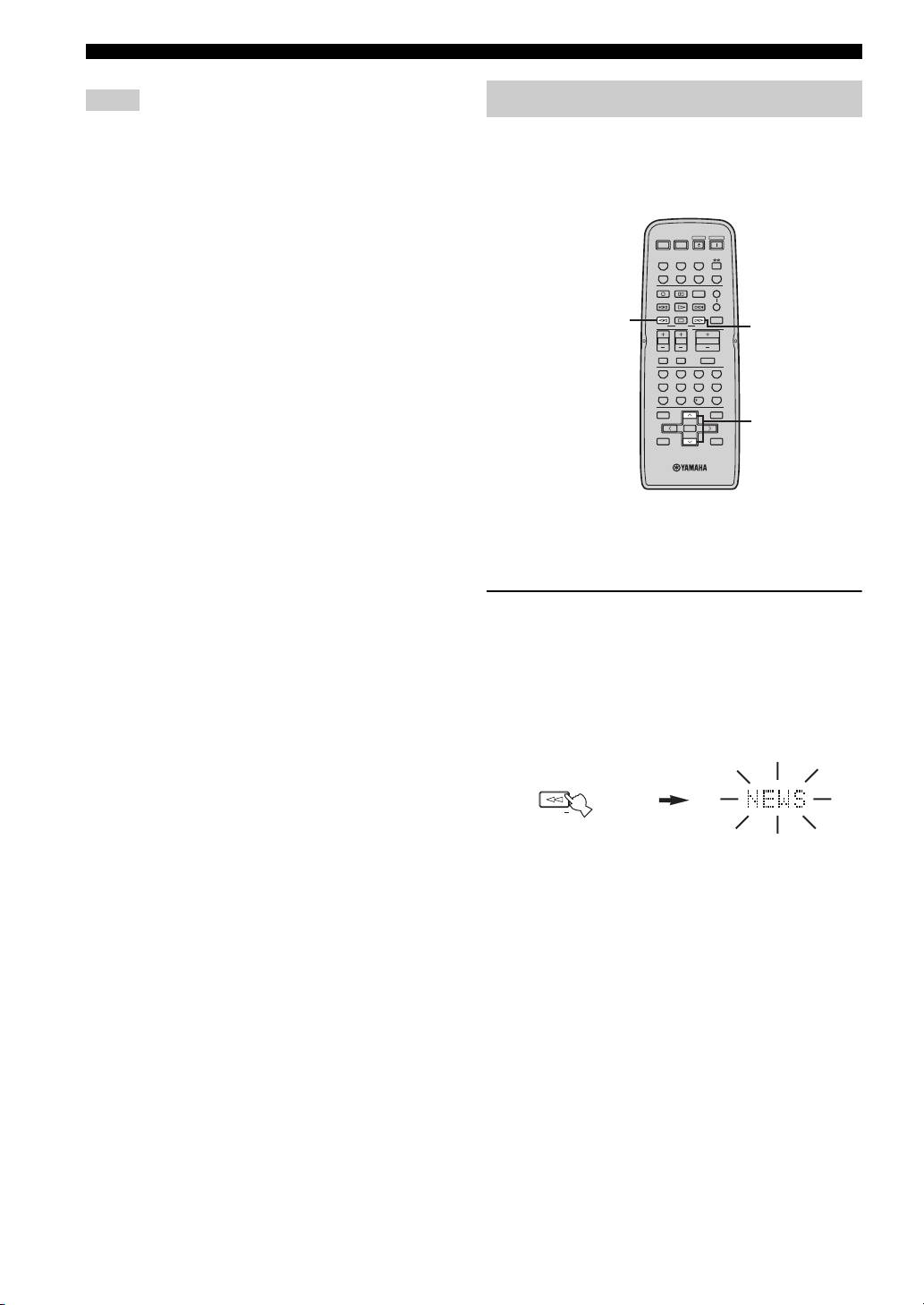
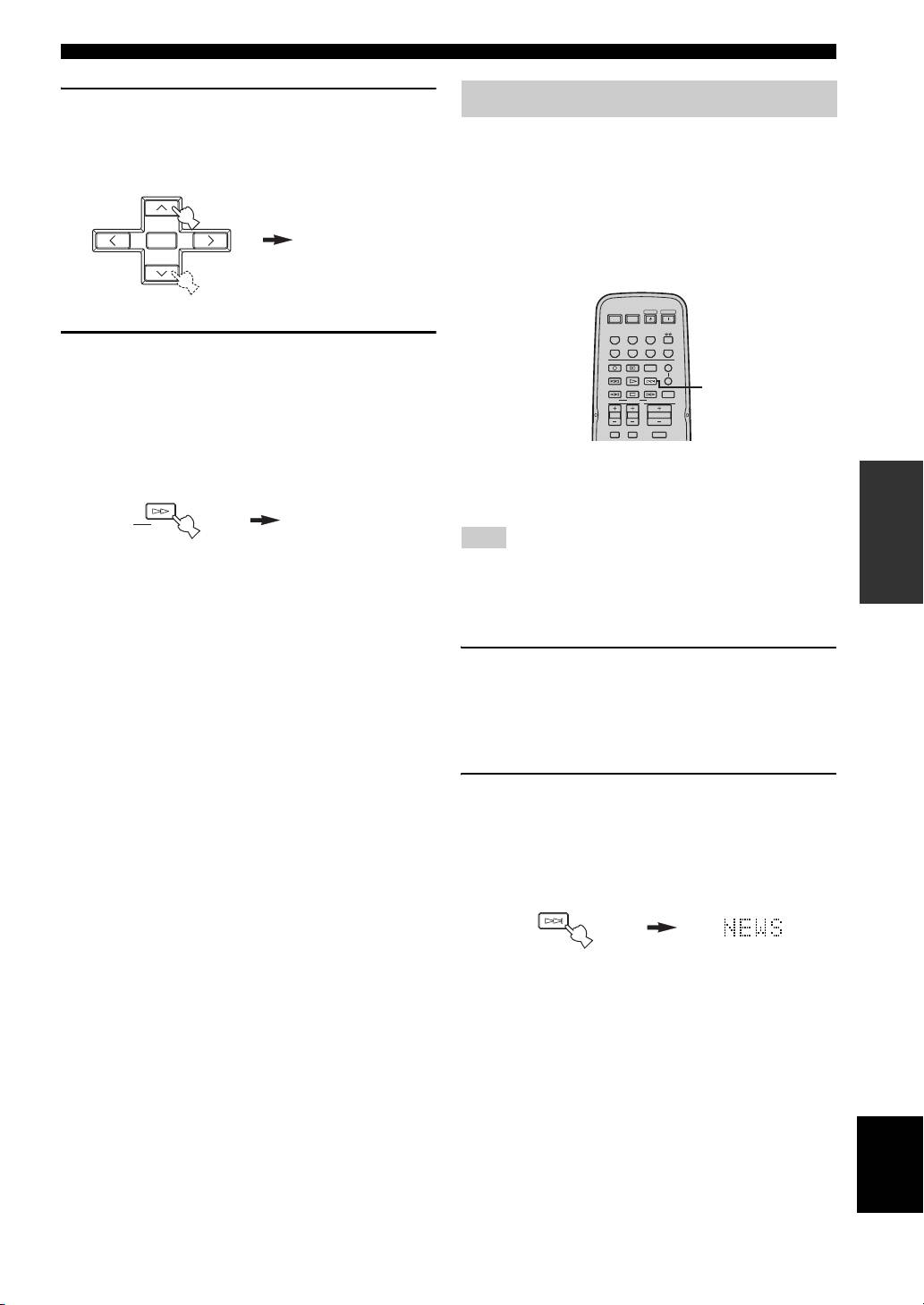
1 Press PTY SEEK MODE on the remote
control to set this unit in the PTY SEEK
mode.
The program type of the station being received or
“NEWS” flashes in the front panel display.
To exit from the PTY SEEK mode, press PTY SEEK
MODE again.
MODE PTY SEEK
Remote control
Flashes
30
RADIO DATA SYSTEM (EUROPE MODEL ONLY)
2 Press PRESET/CH u / d on the remote
EON function
control to select the desired program type.
This function uses the EON data service on the Radio
The selected program type appears in the front panel
Data System station network. If you select the desired
display.
program type (NEWS, INFO, AFFAIRS or SPORT), this
unit automatically searches for all preset Radio Data
System stations that are scheduled to broadcast the
selected type of program and switches from the station
ENTER
POP M
A/B/C/D/E A/B/C/D/E
currently being received to the new station when the
broadcast starts.
PRESET/CH
POWER POWER
STANDBY
POWER
AVTV
CD
MD/TAPE
TUNER
DTV/CBL
VCR
PHONODVD
3 Press PTY SEEK START on the remote
REC
CODE SET
SPEAKERS
A
control to begin searching all preset Radio
DISC SKIP
B
FREQ/TEXT
EON
SLEEP
Data System stations.
2
MODE PTY SEEK
START
The selected program type flashes and the PTY
TV VOL
TV CH
VOLUME
TV MUTE TV INPUT
HOLD indicator lights up in the front panel display
MUTE
while searching for stations.
y
To cancel searching, press PTY SEEK START again.
When performing this operation with the remote control, first
OPERATION
press TUNER to set the remote to tuner mode.
BASIC
PTY HOLD
STARTPTY SEEK
Lights up
Note
Remote control
This function can only be used when a Radio Data System station
that offers the EON data service is being received. When such a
• The unit stops searching when it finds a station
station is being received, the EON indicator lights up in the front
broadcasting the selected type of program.
panel display.
• If the found station is not the one you desire, press
PTY SEEK START again. This unit resumes
1 Check that the EON indicator is lit in the front
searching for another station broadcasting the same
panel display.
type of program.
If the EON indicator is not lit up, tune into another
Radio Data System station so that the EON indicator
lights up.
2 Press EON repeatedly on the remote control
to select the desired program type (NEWS,
INFO, AFFAIRS or SPORT).
The selected program type name appears in the front
panel display.
EON
Remote control
• If a preset Radio Data System station type starts
broadcasting the selected type of program, the unit
automatically switches from the program being
received to that program. (The EON indicator
flashes.)
• When broadcasting of the selected program ends,
the unit returns to the previous station (or another
program on the same station).
English
■ To cancel this function
Press EON repeatedly until no program type name is
shown in the front panel display.
31
ADVANCED SETUP
ADVANCED SETUP
■ ADVANCED SETUP menu parameters
Change the initial settings (indicated in bold under each
Changing the ADVANCED SETUP
parameter) to reflect the needs of your listening
menu parameters
environment.
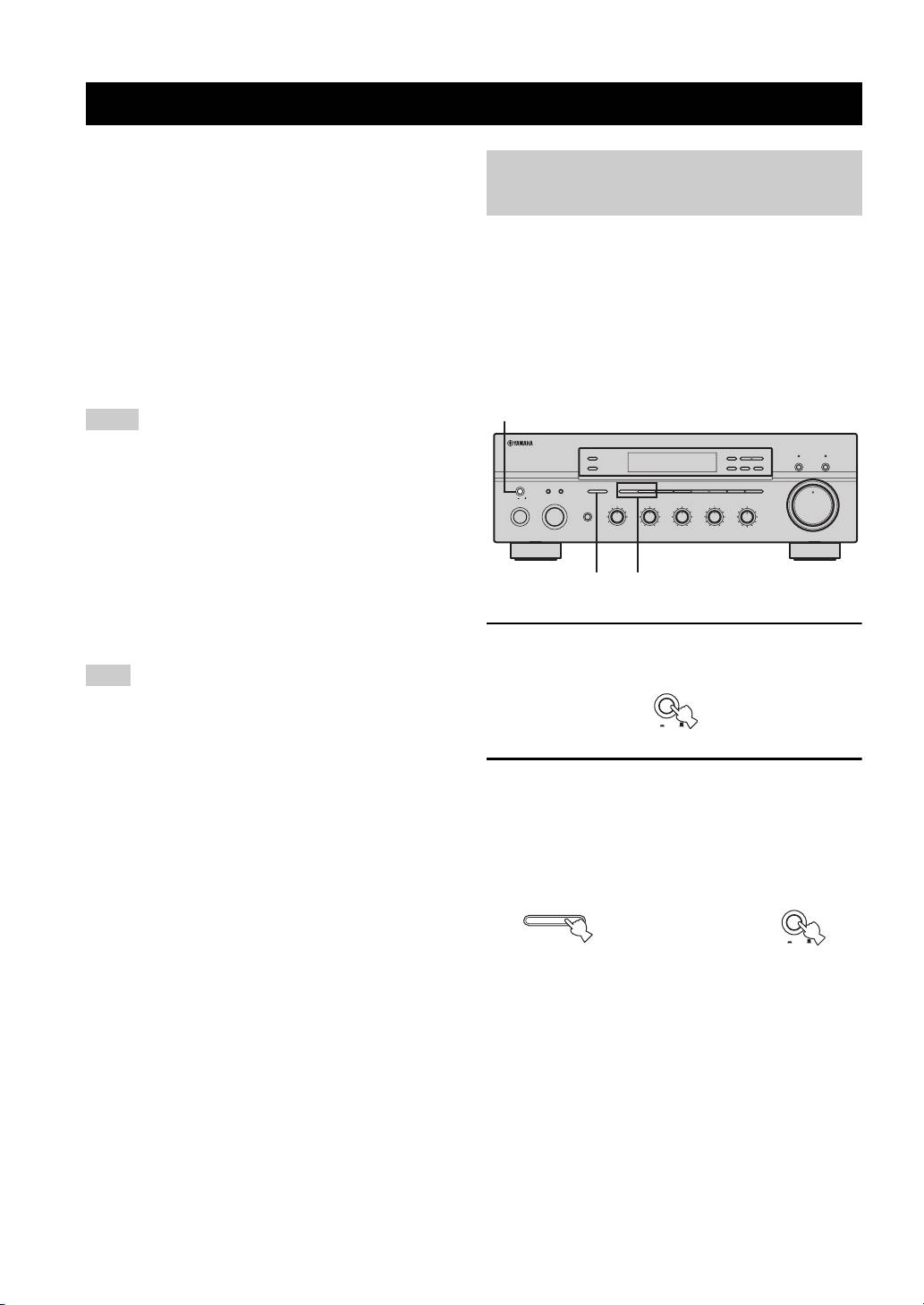
The ADVANCED SETUP menu is displayed in the front
Factory presets PRESET
panel display.
Use to reset all parameters to the factory presets.
Choices: CANCEL, RESET
y
• During the ADVANCED SETUP procedure, audio output is
• Select CANCEL if you do not want the parameters of
muted.
this unit to be initialized when you reset the factory
• During the ADVANCED SETUP procedure, only MASTER
presets.
ON/OFF, A/B/C/D/E and the preset station number buttons (1
• Select RESET if you want all of the parameters of this
and 2) on the front panel are operational.
unit to be initialized when you reset the factory presets.
.
1,2,5
Notes
• This setting does not affect the parameters in the ADVANCED
ZONE 2 ON/OFF
FM/AM
l
TUNING
h
CD DIRECT AMPPURE DIRECT
ZONE CONTROL
EDIT
MEMORY
TUNING MODE
SETUP menu.
MAN'L/AUTO FM
AUTO/MAN'L
• The resetting process starts next time you turn on the power of
MASTER SPEAKERS
BA
A/B/C/D/E
12345678
VOLUME
12
ON OFF
this unit.
MAIN ZONE
INPUT
REC OUT
BASS
TREBLE
BALANCE
LOUDNESS
PHONES
MD/TAPE
SOURCE
CD
1
0
1
1
0
1
1
0
1
1
FLAT
VCR TUNER
22
22
22
210
–
30dB
ON/OFF
DTV/CBL
PHONO
3
3
3
3
3
3
3
9
DVD
44
–
55
+
44
–
55
+
44
L
55
R
48
57
6
0
Remote REMOTE
Use to switch the remote control ID of this unit.
Choices: ID1, ID2
2,4 3
• Select ID1 to operate this unit using an alternative
code.
• Select ID2 to operate this unit using the default code.
1 Press MASTER ON/OFF on the front panel to
release it outward to the OFF position.
Note
You must also make settings for the remote control (see page 33)
and the Zone 2 remote control (see page 9).
Tuner TU
2 Press and hold A/B/C/D/E on the front panel
(Asia and General models only)
and then press MASTER ON/OFF inward to
Use to switch the frequency step selection according to the
frequency spacing in your area.
the ON position.
Choices: AM10/FM100, AM9/FM50
The power of this unit is turned on, and the
• North, Central and South America:
ADVANCED SETUP menu appears in the front
AM10/FM100 (kHz)
panel display.
• Other areas: AM9/FM50 (kHz)
32
12
20
8
4
2
∞
20
60
60
26
26
40
40
16
16
-dB
-dB
MASTER
ON OFF
MASTER
A/B/C/D/E
While holding down,
press
ON OFF
ADVANCED SETUP
3 Press the preset station number buttons (1
Switching the remote control ID
and 2) on the front panel repeatedly to move
You can select the unit you want to operate with the
through the menu and select the parameter
remote control by switching the remote control ID.
you want to adjust.
See page 32 for a complete list of available
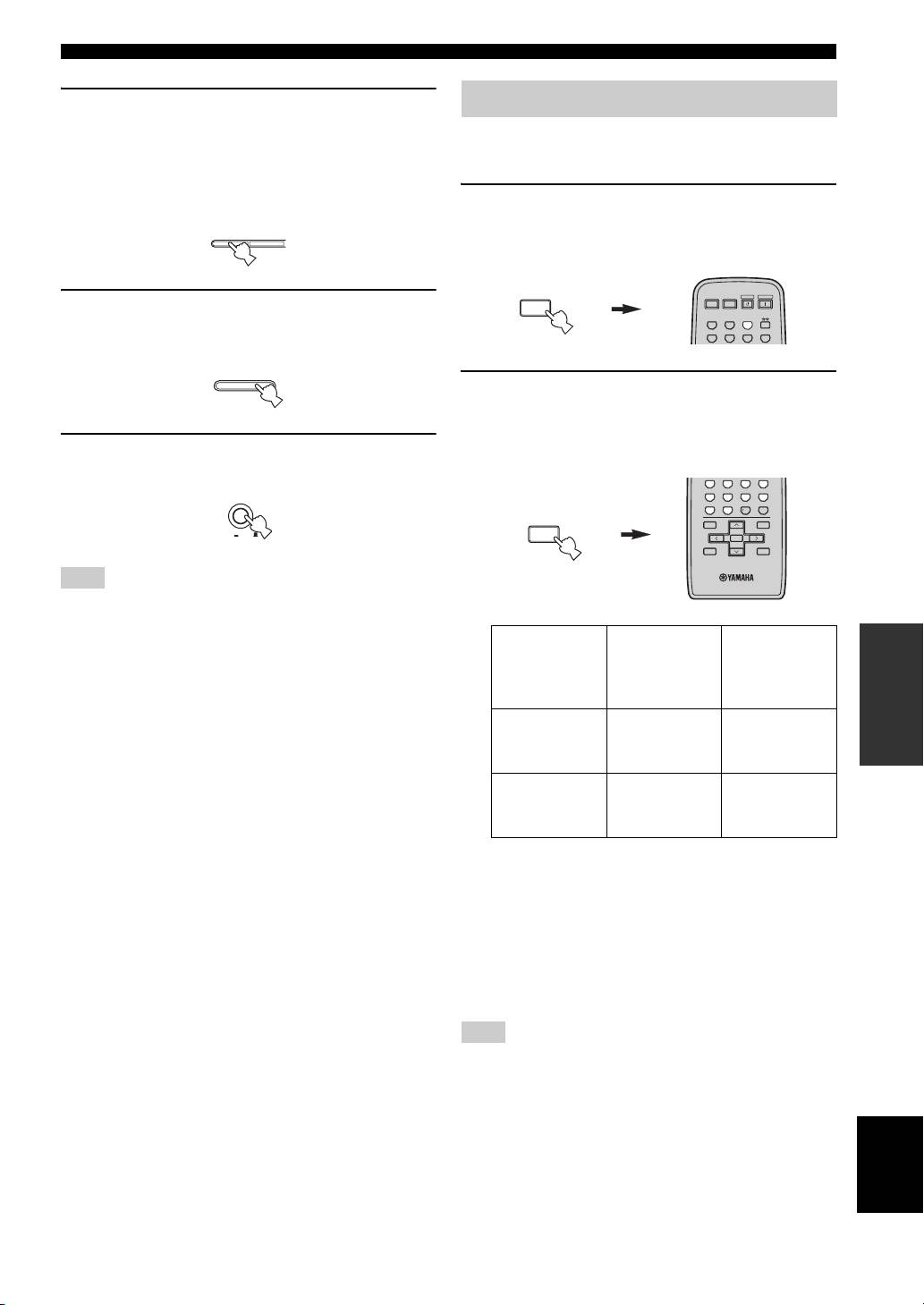
1 Press and hold CODE SET on the remote
parameters.
control and then press TUNER on the remote
1 2
control.
CODE SET
POWER POWER
STANDBY
POWER
AVTV
4 Press A/B/C/D/E on the front panel
MENU
CD
MD/TAPE
TUNER
repeatedly to toggle between the available
DTV/CBL
VCR
PHONODVD
parameters.
A/B/C/D/E
2 While holding down CODE SET on the
remote control, use the numeric buttons on
the remote control to enter the three-digit
5 Press MASTER ON/OFF to release it outward
code number listed in the table below.
to the OFF position to confirm your setting.
4321
MASTER
65
7
8
09
10
ENT.
CODE SET
MENUTITLE
BAND
ON OFF
MENU
ENTER
A/B/C/D/E A/B/C/D/E
DISPLAYRETURN
PRESET/CH
Note
The settings you made are reflected next time you turn on the
power of this unit.
Remote
OPERATION
ADVANCED
control ID*
Function Code number
(this unit’s
setting)
To operate this
ID1
unit using an
801
alternative code.
To operate this
ID2
unit using the
802
(default setting)
default code.
*
When you change the remote control ID, you must switch
the remote control ID of this unit (see page 32).
When using multiple YAMAHA receivers or
amplifiers with the same default code setting, you
may unwantedly operate those components
simultaneously. In this case, set one of the alternative
codes for this unit to operate this unit separately.
Note
Also change the remote control ID of the Zone 2 remote control
(see page 9).
English
33

ZONE 2
ZONE 2
Connecting the Zone 2 components
This unit allows you to configure a multi-room audio and video system. The Zone 2 feature enables you to set this unit to
reproduce separate input sources in the main room and in Zone 2 (the second room) simultaneously. You can also control
this unit from the second room using the supplied Zone 2 remote control.
You need the following additional equipment to use the multi-room system of this unit:
• An infrared signal receiver for the second room.
• An infrared emitter for the main room. This emitter transmits the infrared signals sent by the Zone 2 remote control in
Zone 2 to the components in the main room.
• An amplifier and speakers for the second room.
• A video monitor for the second room.
y
Some YAMAHA models are able to connect directly to the REMOTE OUT jack on the rear panel of this unit. If you own these
products, you may not need to use an infrared emitter. Up to six YAMAHA components can be connected as shown below.
REMOTE
REMOTE
REMOTE
REMOTE
IN
IN
OUT
IN
OUTOUT
Infrared signal
This unit
YAMAHA
YAMAHA
receiver
component
component
■ Multi-room configuration and connections
The following illustration shows an example of the multi-room system configuration and connections.
ZONE 2 VIDEO OUT
ZONE 2 AUDIO OUT
SPEAKERS
Amplifier
MONITOR OUT
DVD player
Video monitor
This unit
(or other components)
MAIN
AUDIO IN
ZONE 2
Zone 2
VIDEO IN
remote control
Infrared signal
receiver
Infrared emitter
Second room
Main room
(Zone 2)
(Main Zone)
REMOTE OUT
REMOTE IN
y
Since there are many possible ways to connect and use this unit in a multi-room configuration, we recommend that you consult with
your nearest authorized YAMAHA dealer or service center for the Zone 2 connections that best meet your requirements.
Note
If you want to adjust the Zone 2 volume level by using the amplifier in the second room, we recommend setting the
Zone 2 volume
level to or near
–16 dB.
34
ZONE 2
Controlling Zone 2
Use the supplied Zone 2 remote control to control the
input source or adjust the sound output level of Zone 2
independently of the listening conditions in the main
room.
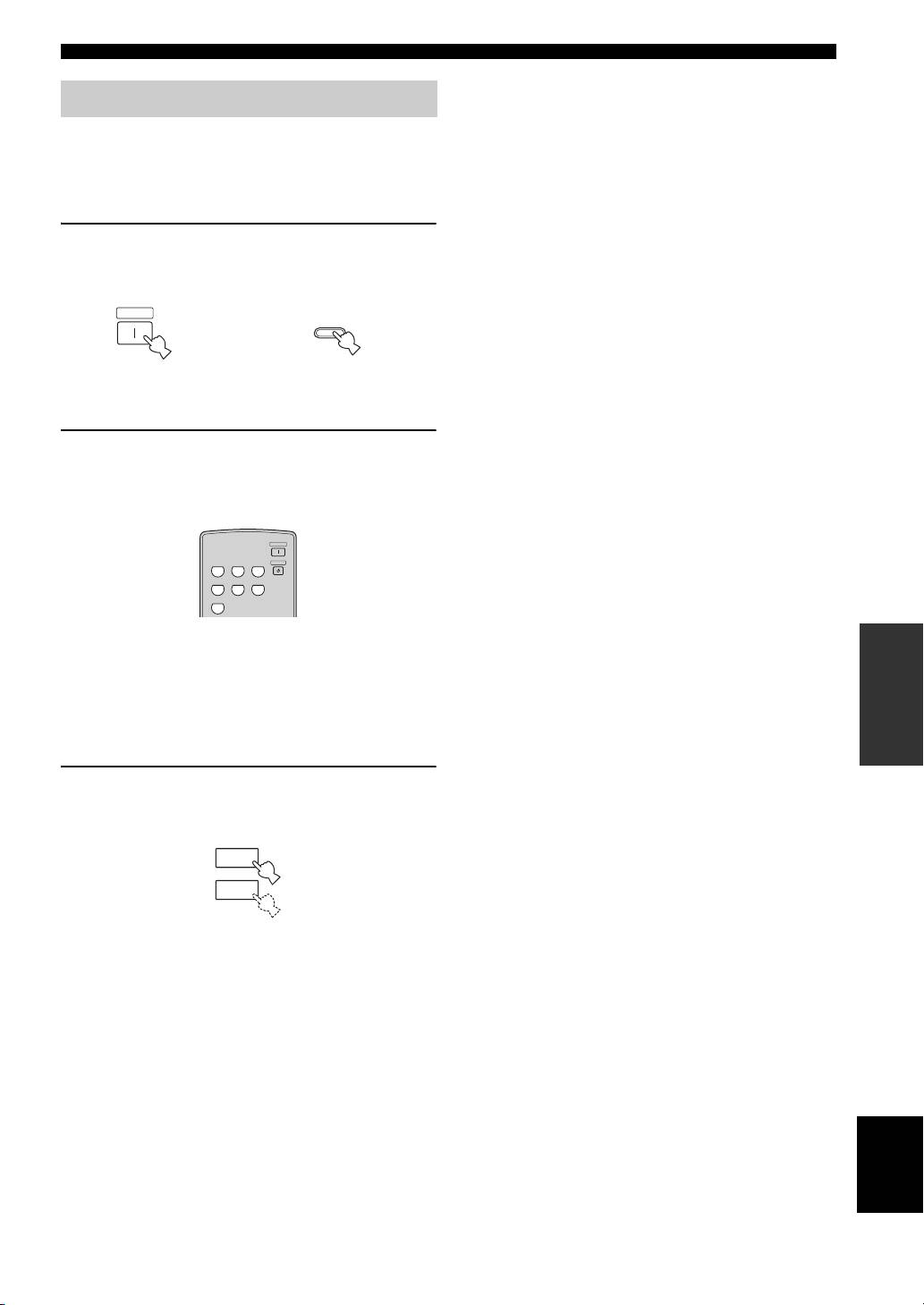
1 Press POWER on the Zone 2 remote control
(or ZONE 2 ON/OFF on the front panel) to
turn on Zone 2.
POWER
ZONE 2 ON/OFF
or
Zone 2 remote
Front panel
control
2 Press one of the input selector buttons on
the ZONE 2 remote control to select the input
source of Zone 2.
POWER
ZONE 2
CD PHONO
TUNER
STANDBY
MD/TAPE VCR DTV/CBL
DVD
OPERATION
ADVANCED
y
You can also control the input source by using the control buttons
on the front panel.
Press ZONE CONTROL on the front panel, and then rotate the
INPUT selector on the front panel to select the desired input
source of Zone 2.
3 Press VOLUME +/– on the Zone 2 remote
control to adjust the sound output level of
Zone 2.
+
VOLUME
–
y
You can mute the sound output to Zone 2 by pressing MUTE on
the ZONE 2 remote control. Press again to restore the sound
output to the previous volume level.
English
35
REMOTE CONTROL FEATURES
REMOTE CONTROL FEATURES
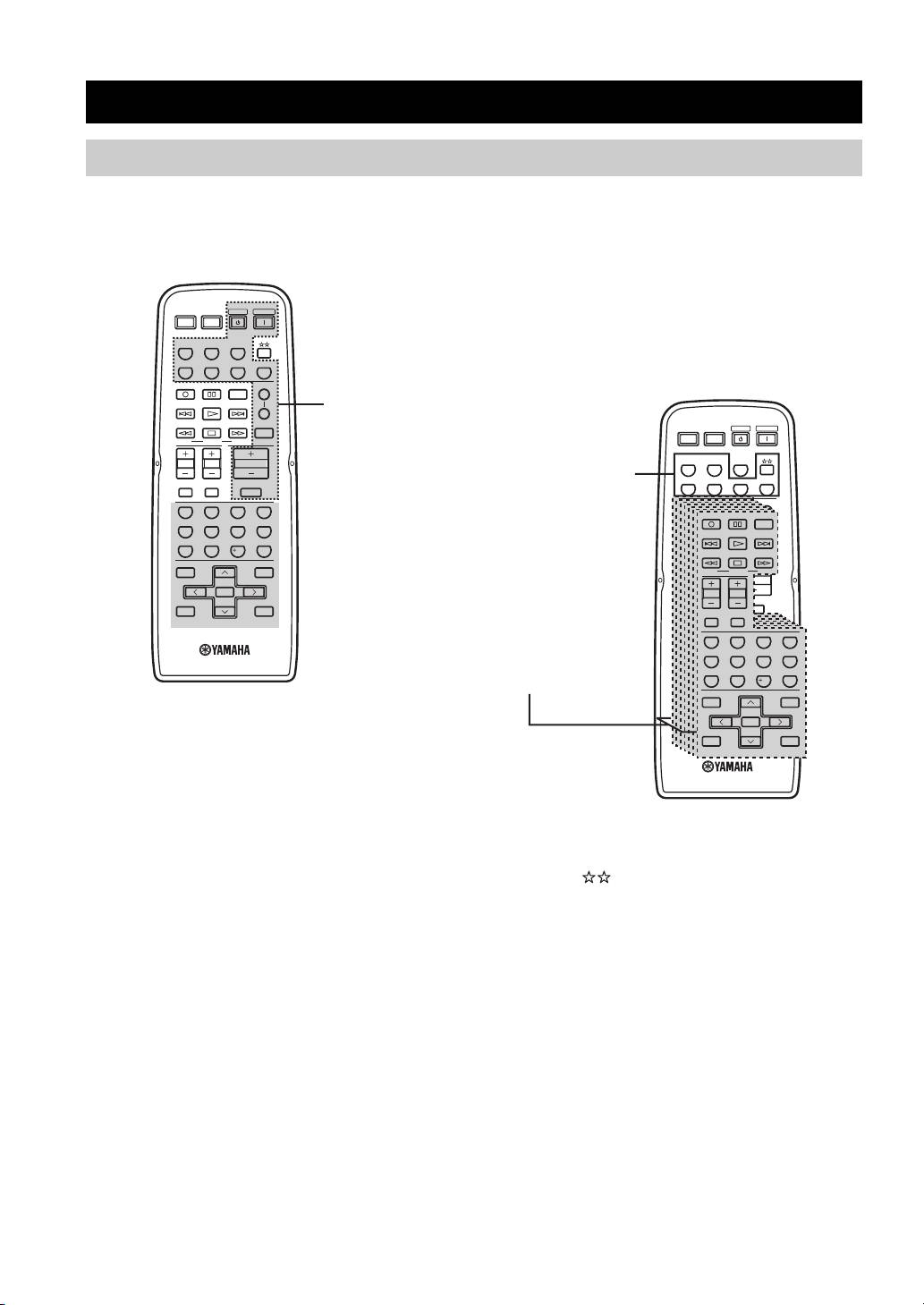
Control area
■ Controlling this unit
■ Controlling other components
The shaded areas below can be used to control this unit.
The shaded areas below can be used to control other
audio and video components made by YAMAHA and
other manufacturers. Each button has a different
function depending on the selected component. Select
the component you want to control by pressing one of
POWER POWER
STANDBY
POWER
AVTV
The buttons inside
the input selector buttons. The name of the selected
the dotted lines
CD
MD/TAPE
TUNER
component appears in the front panel display.
control this unit in
DTV/CBL
VCR
PHONODVD
any mode
REC
CODE SET
SPEAKERS
(POWER,
A
STANDBY,
DISC SKIP
B
SLEEP, the input
FREQ/TEXT
EON
SLEEP
selector buttons,
POWER POWER
STANDBY
POWER
MODE PTY SEEK
START
AVTV
VOLUME +/– and
The input selector
MUTE).
TV VOL
TV CH
VOLUME
buttons switch the
CD
MD/TAPE
TUNER
function of the
TV MUTE TV INPUT
DTV/CBL
VCR
PHONODVD
MUTE
component control
REC
CODE SET
SPEAKERS
4321
area below.
A
DISC SKIP
REC
CODE SET
65
7
8
DISC SKIP
B
FREQ/TEXT
EON
SLEEP
09
10
ENT.
FREQ/TEXT
EON
MODE PTY SEEK
START
Component
MENUTITLE
MODE PTY SEEK
START
BAND
control area
TV VOL
TV CH
VOLUME
ENTER
You can control up
TV VOL
TV CH
A/B/C/D/E A/B/C/D/E
TV MUTE TV INPUT
DISPLAYRETURN
to 7 different
MUTE
TV MUTE TV INPUT
PRESET/CH
components by
4321
setting the
4321
65
7
8
appropriate remote
65
7
8
09
10
ENT.
control codes (see
09
10
ENT.
page 38).
MENUTITLE
BAND
MENUTITLE
BAND
ENTER
A/B/C/D/E A/B/C/D/E
ENTER
A/B/C/D/E A/B/C/D/E
DISPLAYRETURN
PRESET/CH
DISPLAYRETURN
PRESET/CH
y
You can use the button to control other components
regardless of whether they are connected to this unit.
36
REMOTE CONTROL FEATURES
Controlling other components
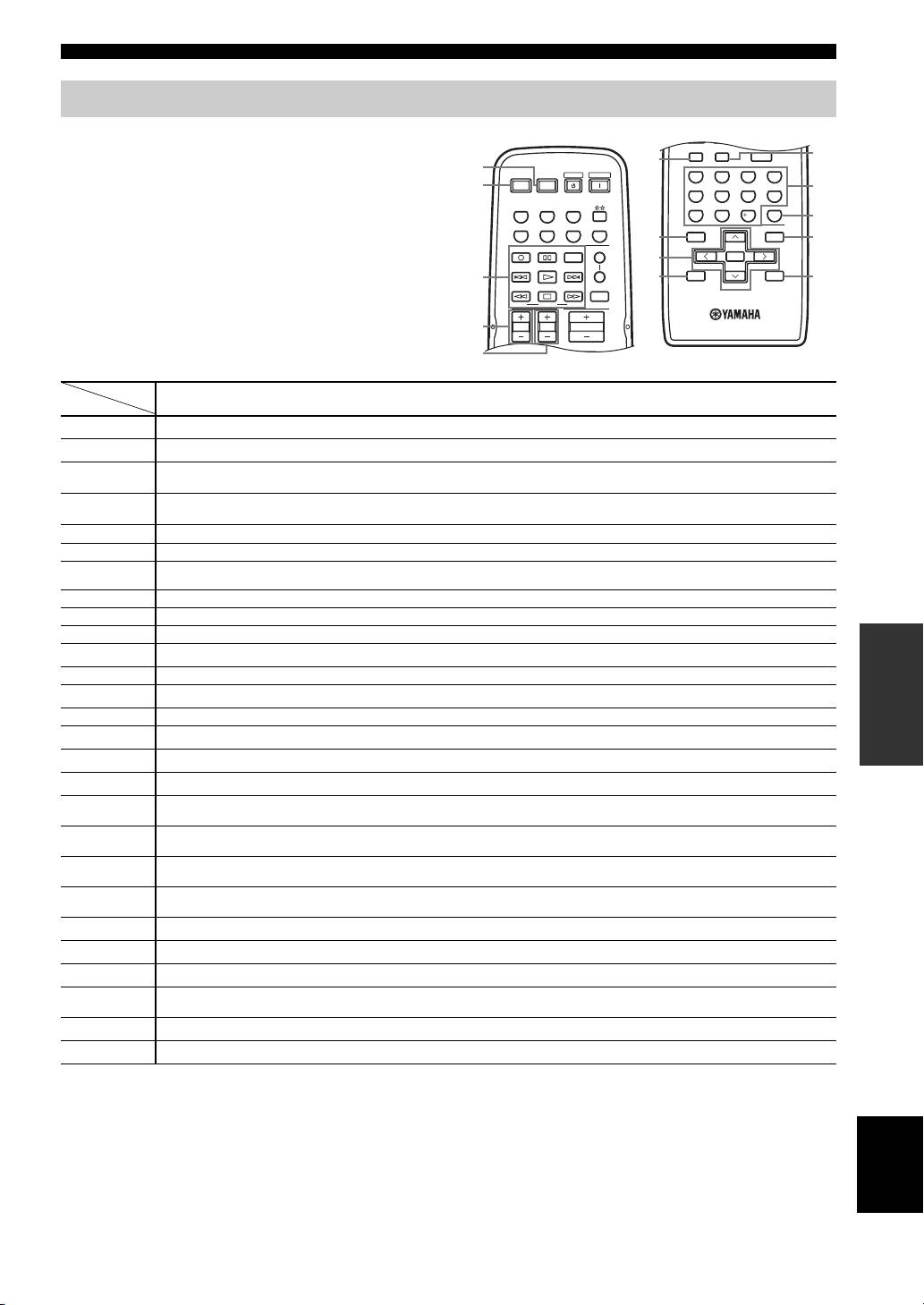
In addition to controlling this unit, you can also control
other audio and video components made by YAMAHA
and other manufacturers using the supplied remote
control. To control other components, you must set the
appropriate remote control codes.
OPERATION
ADVANCED
*1
This button functions only when the original remote control of the component has the POWER button.
*2
These buttons function for Europe model only.
English
37
POWER POWER
STANDBY
POWER
AVTV
CD
MD/TAPE
TUNER
DTV/CBL
VCR
PHONODVD
REC
CODE SET
SPEAKERS
A
DISC SKIP
B
FREQ/TEXT
EON
SLEEP
MODE PTY SEEK
START
TV VOL
TV CH
VOLUME
TV MUTE TV INPUT
MUTE
TV MUTE TV INPUT
MUTE
4321
65
7
8
09
10
ENT.
MENUTITLE
BAND
ENTER
A/B/C/D/E A/B/C/D/E
DISPLAYRETURN
PRESET/CH
0
6
1
2
A
B
7
C
8
3
9
D
4
5
Digital TV/
DVD player VCR
TV CD player Tape deck MD recorder Tuner
Cable TV
1 AV P OW ER
Power *
1
Power *
1
Power *
1
VCR power
Power *
1
Power *
1
Power *
1
Power *
1
2 TV POWER
TV power TV power TV power
Power *
1
TV power TV power TV power TV power
VCR search
VCR search
PTY SEEK
3 ll
Search backward Search backward
Search backward Search backward Search backward
backward
backward
MODE *
2
VCR search
VCR search
PTY SEEK
hh Search forward Search forward
Search forward Search forward Search forward
forward
forward
START *
2
b Skip backward Skip backward Direction A Skip backward
FREQ/TEXT *
2
a Skip forward Skip forward Direction B Skip forward
EON *
2
REC/
Disc skip Rec VCR rec VCR rec Disc skip Rec Rec
DISC SKIP
s Stop Stop VCR stop VCR stop Stop Stop Stop
e Pause Pause VCR pause VCR pause Pause Deck A/B Pause
h Play Play VCR play VCR play Play Play Play
4 TV VOL +
TV volume + TV volume + TV volume + Volume + TV volume + TV volume + TV volume + TV volume +
TV VOL – TV volume – TV volume – TV volume – Volume – TV volume – TV volume – TV volume – TV volume –
5 TV CH +
TV channel + Channel + Channel + Channel + TV channel + TV channel + TV channel + TV channel +
TV CH –
TV channel – Channel – Channel – Channel – TV channel – TV channel – TV channel – TV channel –
6 TV MUTE
TV mute TV mute TV mute Mute TV mute TV mute TV mute TV mute
7 TITLE
Title Title Title Title Band
8 ENTER
Menu enter Menu select Menu select
Preset up
PRESET/CH
u
Menu up Menu up Menu up
(1 to 8)
Preset down
PRESET/CH
d
Menu down Menu down Menu down
(1 to 8)
Preset down
A/B/C/D/E j Menu left Menu left Menu left
(A to E)
Preset up
A/B/C/D/E i Menu right Menu right Menu right
(A to E)
9 RETURN
Return Return Return Return
0 TV INPUT
TV input TV input TV input Input TV input TV input TV input TV input
A 1-9, 0, +10
Numeric buttons Numeric buttons Numeric buttons Numeric buttons Numeric buttons Numeric buttons
Preset stations (1-8)
Enter/
B ENT.
Enter Enter/recall
Index
numeric button
C MENU
Menu Menu Menu
D DISPLAY
Display Display Display Display Display
REMOTE CONTROL FEATURES
Setting remote control codes
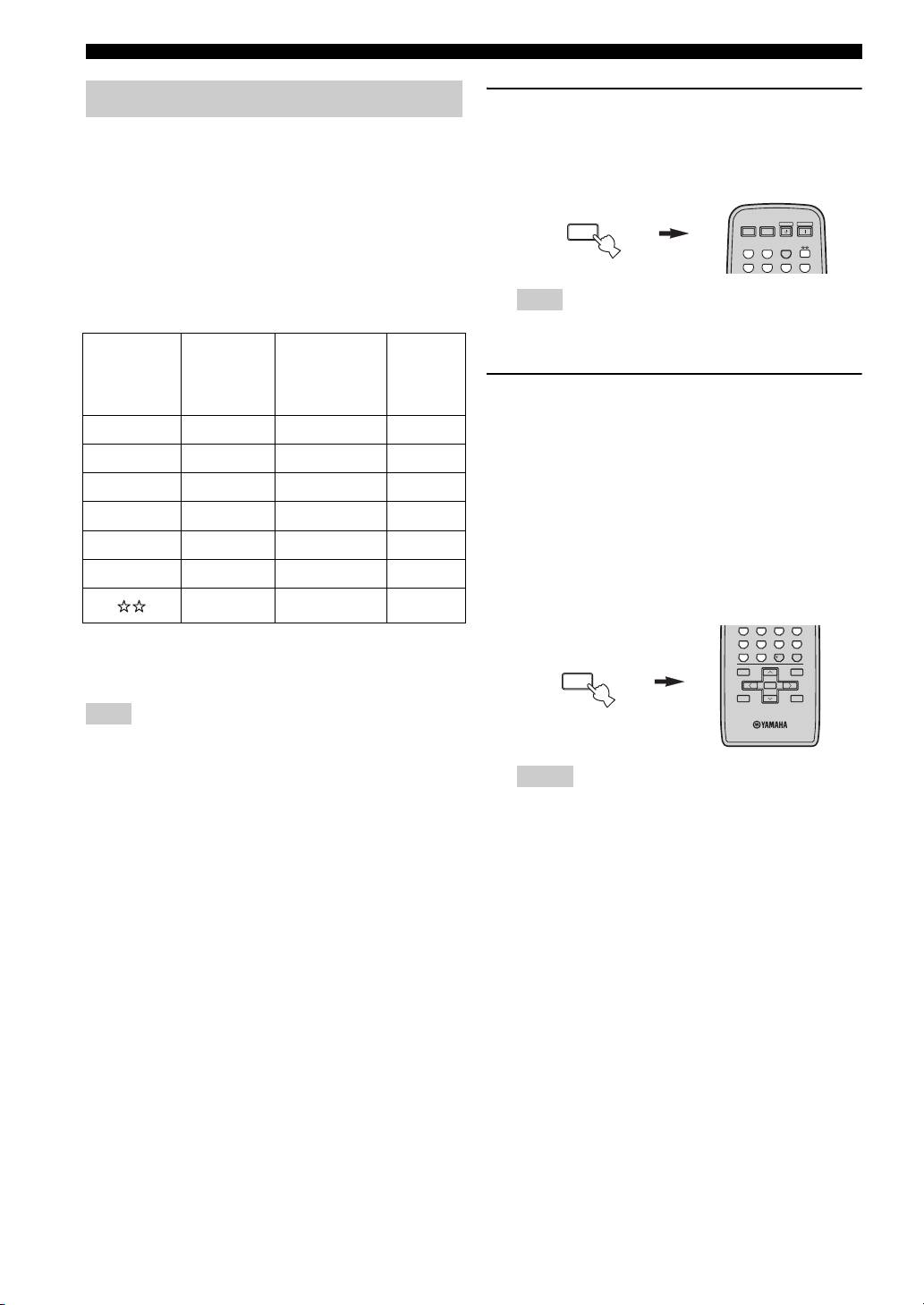
1 Press and hold CODE SET on the remote
control and then press one of the input
You can control other components by setting the
selector buttons on the remote control to
appropriate remote control codes. Codes can be set up for
select the input source you want to set up.
each input source. For a complete list of available remote
control codes, refer to “LIST OF REMOTE CONTROL
CODES” at the end of this manual.
CODE SET
POWER POWER
STANDBY
POWER
MENU
AVTV
The following table show the default component category
CD
MD/TAPE
TUNER
DTV/CBL
VCR
PHONODVD
(library) and the remote control code for each input
source.
Note
Remote control code default settings
You must press and hold CODE SET throughout this
Default
operation.
Default
Input
component
Manufacturer
YAMAHA
source
category
code
2 While holding down CODE SET on the
(library)
remote control, use the numeric buttons on
CD CD YAMAHA 199
the remote control to enter the three-digit
remote control code for the selected input
MD/TAPE TAPE YAMAHA 499
source.
DVD DVD YAMAHA 699
When the setting succeeds, “PRESET OK” appears;
DTV/CBL*
———
however, when it does not, “PRESET NG” appears in
the front panel display.
VCR ———
To reset the code, enter the default code for each
PHONO ———
input source listed in the remote control code default
settings table.
———
4321
*
65
7
8
You can only set the TV remote control codes for the DTV/
09
10
ENT.
CBL button. However, other remote control codes can be set
CODE SET
MENUTITLE
BAND
for any input selector buttons except DTV/CBL.
MENU
ENTER
A/B/C/D/E A/B/C/D/E
DISPLAYRETURN
PRESET/CH
Note
You may not be able to operate your other YAMAHA
components even if the YAMAHA remote control code is
initially set as listed above. In this case, try setting other
Notes
YAMAHA remote control codes.
• If the manufacturer of your component has more than one
code, try setting each of them until you find the correct
one.
• You can only assign one remote control code to each input
selector button.
38
