
Dell PowerEdge 1950 – страница 4
Инструкция к Компьютеру Dell PowerEdge 1950
Оглавление
Expansion Cards
The system is available with one of two optional PCI riser configurations.
PCIe Riser Board Expansion Slots
The PCIe riser configuration provides two PCI Express expansion slots with the following features:
• Two PCIe risers, installed in the left and center riser connectors.
• Two x8-lane PCIe expansion slots.
• Support for full height/half-length PCI cards in both slots.
PCI-X Riser Board Expansion Slots
The PCI-X riser configuration provides two PCI-X slots with the following features:
• Two PCI-X risers, installed in the left and center riser connectors.
• Two PCI-X 64-bit/133-MHz expansion slots (on separate buses).
• Support for full height/half-length PCI cards in both slots.
Expansion Card Installation Guidelines
NOTE: You cannot combine PCIe and PCI-X risers. Two risers must be installed or the system will not power up.
NOTE: The expansion-card slots are not hot-pluggable.
To identify expansion slots, see Figure 3-12. The two expansion card slots are on separate buses.
Installing an Expansion Card
CAUTION: Many repairs may only be done by a certified service technician. You should only perform
troubleshooting and simple repairs as authorized in your product documentation, or as directed by the online or
telephone service and support team. Damage due to servicing that is not authorized by Dell is not covered by your
warranty. Read and follow the safety instructions that came with the product.
1
Unpack the expansion card and prepare it for installation.
For instructions, see the documentation accompanying the card.
2
Turn off the system, including any attached peripherals, and disconnect the system from the electrical
outlet.
3
Open the system. See "Opening and Closing the System" on page 46.
4
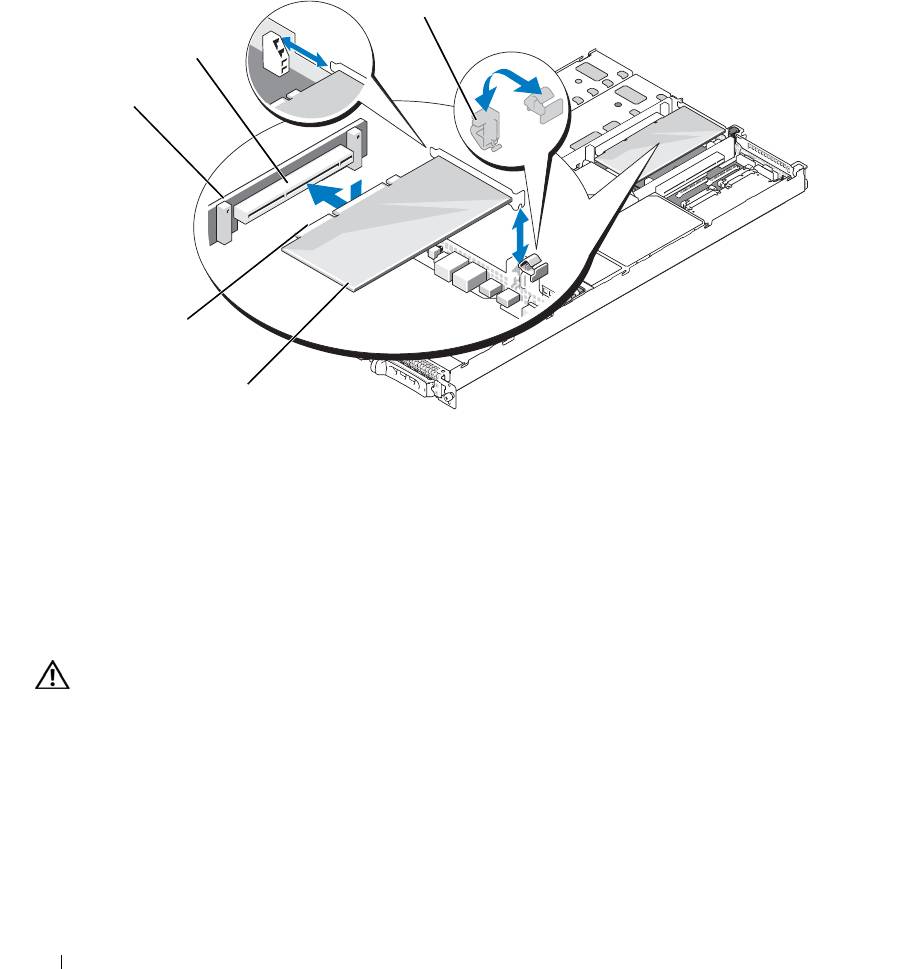
If you are adding a new card, open the expansion-card latch and remove the filler bracket. See
Figure 3-12.
5
Install the expansion card:
a
Position the expansion card so that the card-edge connector aligns with the expansion-card connector
on the PCI riser board.
Installing System Components 61
b
Insert the card-edge connector firmly into the expansion-card connector until the card is fully seated.
c
When the card is seated in the connector, close the expansion-card latch. See Figure 3-12.
Figure 3-12. Installing an Expansion Card
3
2
1
5
4
1 PCI riser 2 expansion-card connector 3 expansion-card latch
4 expansion card 5 card-edge connector
6
Connect any cables to the expansion card.
See the documentation that came with the card for information about its cable connections.
7
Close the system. See "Opening and Closing the System" on page 46.
Removing an Expansion Card
CAUTION: Many repairs may only be done by a certified service technician. You should only perform
troubleshooting and simple repairs as authorized in your product documentation, or as directed by the online or
telephone service and support team. Damage due to servicing that is not authorized by Dell is not covered by your
warranty. Read and follow the safety instructions that came with the product.
1
Turn off the system, including any attached peripherals, and disconnect the system from the electrical
outlet.
2
Open the system. See "Opening and Closing the System" on page 46.
3
Disconnect all cables from the card.
62 Installing System Components

4
Remove the expansion card:
a
Open the expansion-card latch. See Figure 3-12.
b
Grasp the expansion card by its edges, and carefully remove it from the expansion-card connector.
5
If you are removing the card permanently, install a metal filler bracket over the empty expansion slot
opening and close the expansion-card latch.
NOTE: You must install a filler bracket over an empty expansion slot to maintain Federal Communications
Commission (FCC) certification of the system. The brackets also keep dust and dirt out of the system and aid
in proper cooling and airflow inside the system.
6
Close the system. See "Opening and Closing the System" on page 46.
Configuring the Boot Device
If you plan to boot the system from a hard drive, the drive must be attached to the primary (or boot)
controller. The device that the system boots from is determined by the boot order specified in the System
Setup program.
The System Setup program provides options that the system uses to scan for installed boot devices. See
"Using the System Setup Program" on page 31 for information about the System Setup program.
Configuring the Boot Drive
The drive or device from which the system boots is determined by the boot order specified in the System Setup
program.
See "Using the System Setup Program" on page 31 for information about the System Setup
program
.
System Memory
You can upgrade your system memory to a maximum of 32 GB by installing 533-MHz or 667-MHz fully
buffered (FB) DDR II memory modules (DIMMs) in sets of 256-MB, 512-MB, 1-GB, 2-GB, or 4-GB modules.
The eight memory sockets are located on the system board under the memory cooling shroud.You can purchase
memory upgrade kits from Dell.
NOTICE: If you remove your original memory modules from the system during a memory upgrade, keep them
separate from any new memory modules that you may have, even if you purchased the new memory modules from
Dell. Use only 533-MHz or 667-MHz DDR II fully buffered DIMMS (FBDs).
The memory module sockets are divided into two equal branches (0 and 1). Each branch consists of two
channels:
• Channel 0 and channel 1 are in branch 0.
• Channel 2 and channel 3 are in branch 1.
Installing System Components 63

Each channel consists of two memory module sockets:
• Channel 0 contains DIMM_1, DIMM_5.
• Channel 1 contains DIMM _2, DIMM_6.
• Channel 2 contains DIMM_3, DIMM_7.
• Channel 3 contains DIMM _4, DIMM _8.
The first DIMM socket of each channel has white release tabs.
General Memory Module Installation Guidelines
To ensure optimal performance of your system, observe the following guidelines when configuring your
system memory.
• Use only qualified FBDs. FBDs can be either s
ingle-ranked
or d
ual-ranked
. FBDs m
arked with a 1R are
single
-r
anked and modules marked with a 2R are dual
-r
anked.
• A minimum of two identical FBDs must be installed.
• DIMM sockets must be populated by lowest number first.
• Memory modules m
ust be installed in pairs of matched memory size, speed, and technology
, and the
total number of memory modules in the configuration must total two, four, or eight. For best system
performance, all four, or eight memory modules should be identical in size, speed, and technology.
•Memory sp
aring and
memory m
irroring require
e
ight memory, and all memory modules must be of
identical memory size, speed, and technology.
• Memory sparing and memory mirroring cannot be implemented at the same time.
Non-Optimal Memory Configurations
System performance can be affected if your memory configuration does not conform to the preceding
installation guidelines. Your system may issue an error message during startup stating that your memory
configuration is non-optimal.
Memory Sparing Support
The system supports memory sparing if eight identical memory modules are installed in the system. The
memory sparing feature must be enabled in the System Setup program and can be used only if memory
mirroring is not enabled.(See "Using the System Setup Program" on page 31.)
Memory sparing allocates four ranks of DIMM memory to the spare bank. These four ranks consist of the
first rank of memory in DIMM sockets 1 through 4. For single-rank DIMMs, the entire capacity of the four
DIMMs is allocated to sparing whereas for dual-rank DIMMs, only half of the four-DIMM capacity is
allocated to sparing. Table 3-1 shows how memory sparing splits the available and spared memory in each
of the single- and dual-ranked memory module combinations.
64 Installing System Components
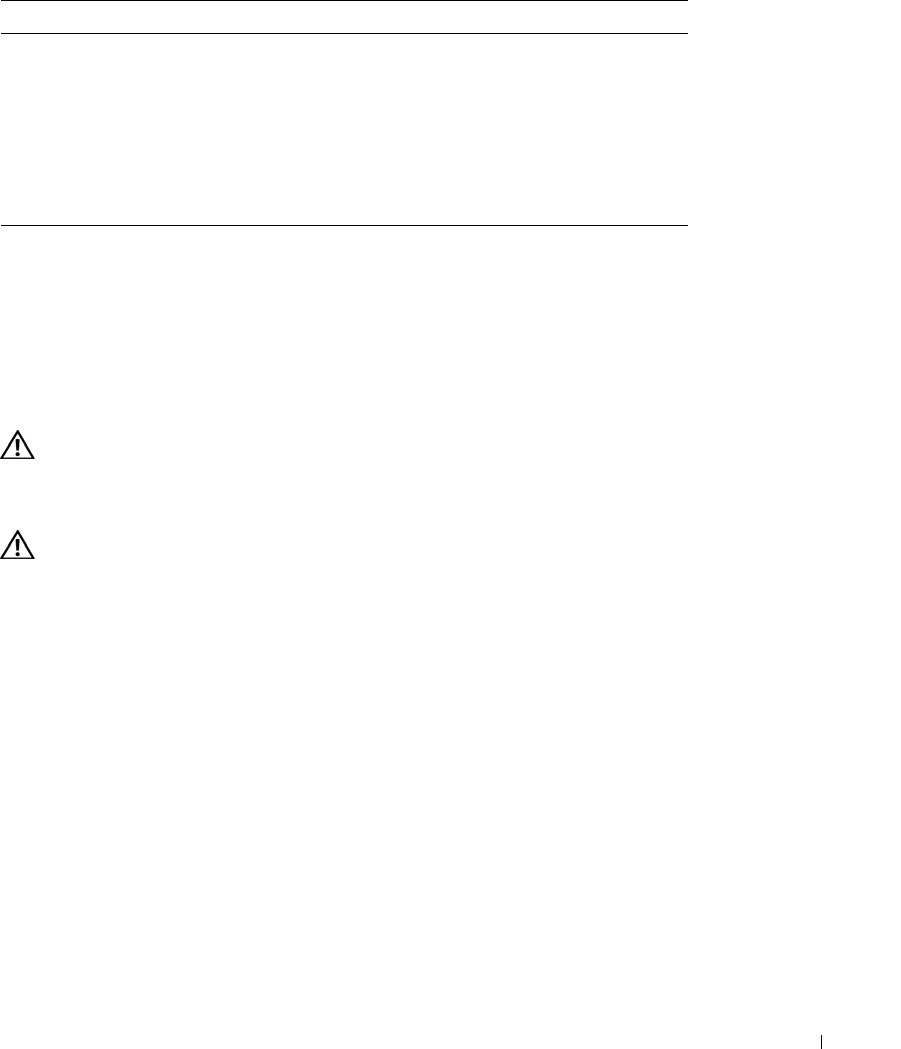
Table 3-1. Memory Sparing Configurations
DIMMs Size/Type Total Memory Available Spare
8 256-MB single-rank 2 GB 1 GB 1 GB
512-MB single-rank 4 GB 2 GB 2 GB
1-GB single-rank 8 GB 4 GB 4 GB
2-GB single-rank 16 GB 8 GB 8 GB
2-GB dual-rank 16 GB 12 GB 4 GB
4-GB dual-rank 32 GB 24 GB 8 GB
Memory Mirroring Support
The system supports memory mirroring if eight identical memory modules are installed in the system.
Mirroring must be enabled in the System Setup program and can be used only if memory sparing is not enabled.
(See "Using the System Setup Program" on page 31.) In a mirrored configuration, the total available system
memory is one-half of the total installed memory.
Installing Memory Modules
CAUTION: Many repairs may only be done by a certified service technician. You should only perform
troubleshooting and simple repairs as authorized in your product documentation, or as directed by the online or
telephone service and support team. Damage due to servicing that is not authorized by Dell is not covered by your
warranty. Read and follow the safety instructions that came with the product.
CAUTION: The memory modules are hot to the touch for some time after the system has been powered down.
Allow time for the memory modules to cool before handling them. Handle the memory modules by the card edges
and avoid touching the components on the memory module.
1
Open the system. See "Opening and Closing the System" on page 46.
2
Remove the memory cooling shroud. See "Removing the Memory Cooling Shroud" on page 52.
3
Locate the memory module sockets. See Figure 6-2.
4
Press the ejectors on the memory module socket down and out, as shown in Figure 3-13, to allow the
memory module to be inserted into the socket.
5
Handle each memory module only on either card edge, ensuring not to touch the middle of the memory
module.
Installing System Components 65
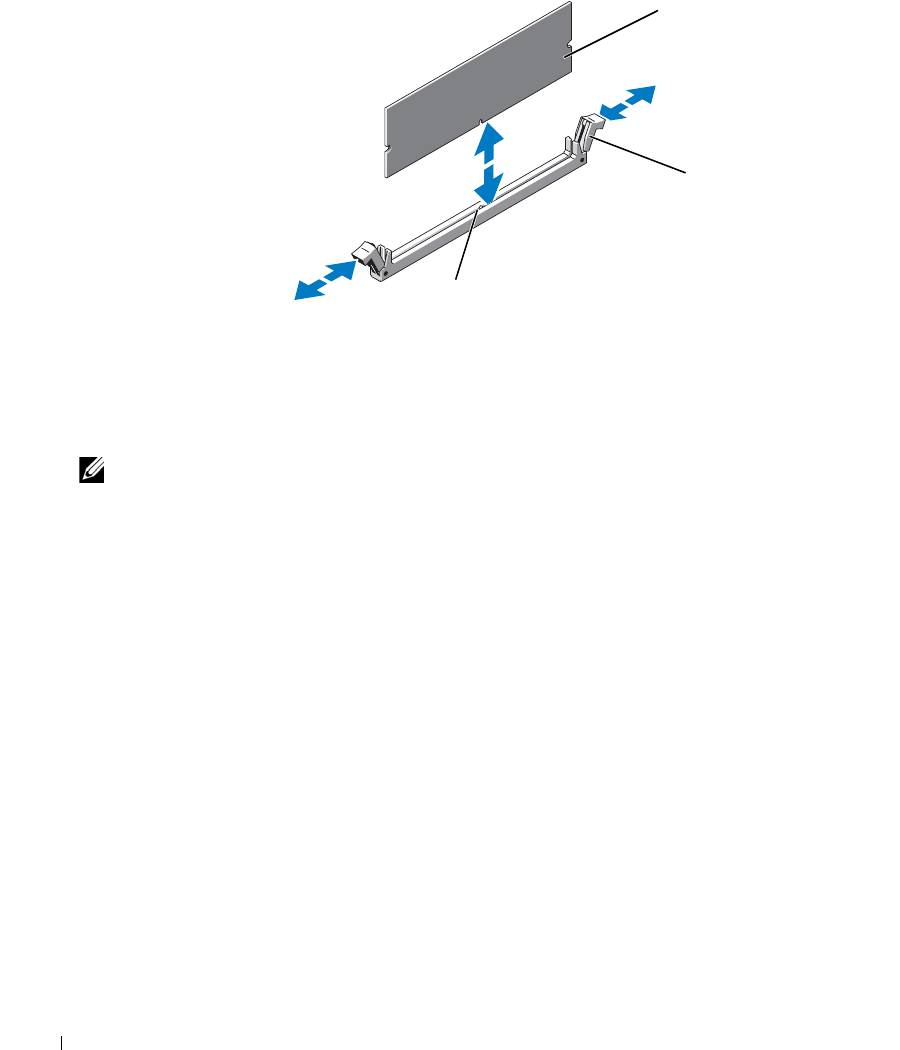
Figure 3-13. Installing and Removing a Memory Module
1
2
3
1 memory module 2 memory module socket
3 alignment key
ejectors (2)
6
Align the memory module's edge connector with the alignment key of the memory module socket, and
insert the memory module in the socket.
NOTE: The memory module socket has an alignment key that allows you to install the memory module in
the socket in only one way.
7
Press down on the memory module with your thumbs while pulling up on the ejectors with your index
fingers to lock the memory module into the socket.
When the memory module is properly seated in the socket, the ejectors on the memory module socket
align with the ejectors on the other sockets that have memory modules installed.
8
Repeat step 3 through step 7 of this procedure to install the remaining memory modules. See Table 3-1.
9
Replace the memory cooling shroud. See "Replacing the Memory Cooling Shroud" on page 53.
10
Close the system. See "Opening and Closing the System" on page 46.
11
Press <F2> to enter the System Setup program, and check the
System Memory
setting on the main
System Setup
screen.
The system should have already changed the value to reflect the newly installed memory.
12
If the value is incorrect, one or more of the memory modules may not be installed properly. Repeat step 1
through step 11 of this procedure, checking to ensure that the memory modules are firmly seated in their
sockets.
13
Run the system memory test in the system diagnostics. See "Running the System Diagnostics" on
page 111.
66 Installing System Components

Removing Memory Modules
CAUTION: Many repairs may only be done by a certified service technician. You should only perform
troubleshooting and simple repairs as authorized in your product documentation, or as directed by the online or
telephone service and support team. Damage due to servicing that is not authorized by Dell is not covered by your
warranty. Read and follow the safety instructions that came with the product.
CAUTION: The memory modules are hot to the touch for some time after the system has been powered down.
Allow time for the memory modules to cool before handling them. Handle the memory modules by the card edges
and avoid touching the components on the memory module.
1
Open the system. See "Opening and Closing the System" on page 46.
2
Remove the memory cooling shroud. See "Removing the Memory Cooling Shroud" on page 52.
3
Locate the memory module sockets. See Figure 6-2.
4
Press down and out on the ejectors on each end of the socket until the memory module pops out of the
socket. See Figure 3-13.
Handle each memory module only on either card edge, ensuring not to touch the middle of the memory
module.
5
Replace the memory cooling shroud. See "Replacing the Memory Cooling Shroud" on page 53.
6
Close the system. See "Opening and Closing the System" on page 46.
Activating the Integrated NIC TOE
To add TCP/IP Offload Engine (TOE) or iSCSI TOE functionality to the system's integrated NIC, install the
appropriate TOE or iSCSI TOE NIC hardware key in the TOE_KEY socket on the system board. S
ee
Figure 6-2.
Processors
You can upgrade your processor(s) to take advantage of future options in speed and functionality. Each
processor and its associated internal cache memory are contained in a land grid array (LGA) package that is
installed in a ZIF socket on the system board.
The following items are included in the processor upgrade kit:
• Processor
• Heat sink
Removing the Processor
CAUTION: Many repairs may only be done by a certified service technician. You should only perform
troubleshooting and simple repairs as authorized in your product documentation, or as directed by the online or
telephone service and support team. Damage due to servicing that is not authorized by Dell is not covered by your
warranty. Read and follow the safety instructions that came with the product.
1
Prior to upgrading your system, download the latest system BIOS version on
support.dell.com
.
Installing System Components 67
2
Turn off the system, including any attached peripherals, and disconnect the system from the electrical
outlet.
3
Open the system. See "Opening and Closing the System" on page 46.
4
Remove the memory cooling shroud. See "Removing the Memory Cooling Shroud" on page 52.
NOTICE: When you remove the heat sink, the possibility exists that the processor might adhere to the heat sink
and be removed from the socket. It is recommended that you remove the heat sink while the processor is warm.
NOTICE: Never remove the heat sink from a processor unless you intend to remove the processor. The heat sink
is necessary to maintain proper thermal conditions.
NOTICE: The processor and heat sink can become extremely hot. Be sure the processor has had sufficient time
to cool before handling.
5
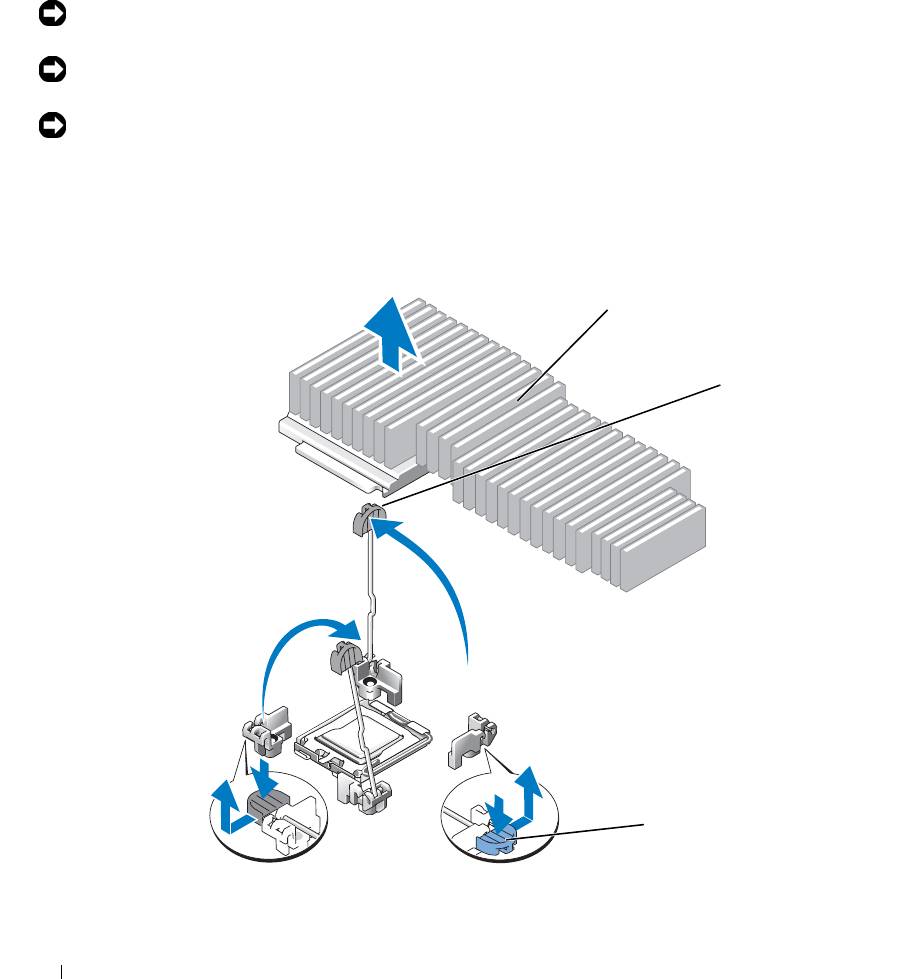
Press the blue tab on the end of one of the heat-sink retention levers to disengage the lever, then lift the
lever 90 degrees. See Figure 3-14.
Figure 3-14. Installing and Removing the Heat Sink
1
2
3
1 heat sink 2 heat-sink retention lever (2) 3 retention lever latch
68 Installing System Components
6
Wait 30 seconds for the heat sink to loosen from the processor.
7
Open the other heat sink retention lever.
8
If the heat sink has not separated from the processor, carefully rotate the heat sink in a clockwise, then
counterclockwise, direction until it releases from the processor. Do not pry the heat sink from the
processor.
9
Lift the heat sink off of the processor and set the heat sink upside down so as not to contaminate the
thermal grease.
10
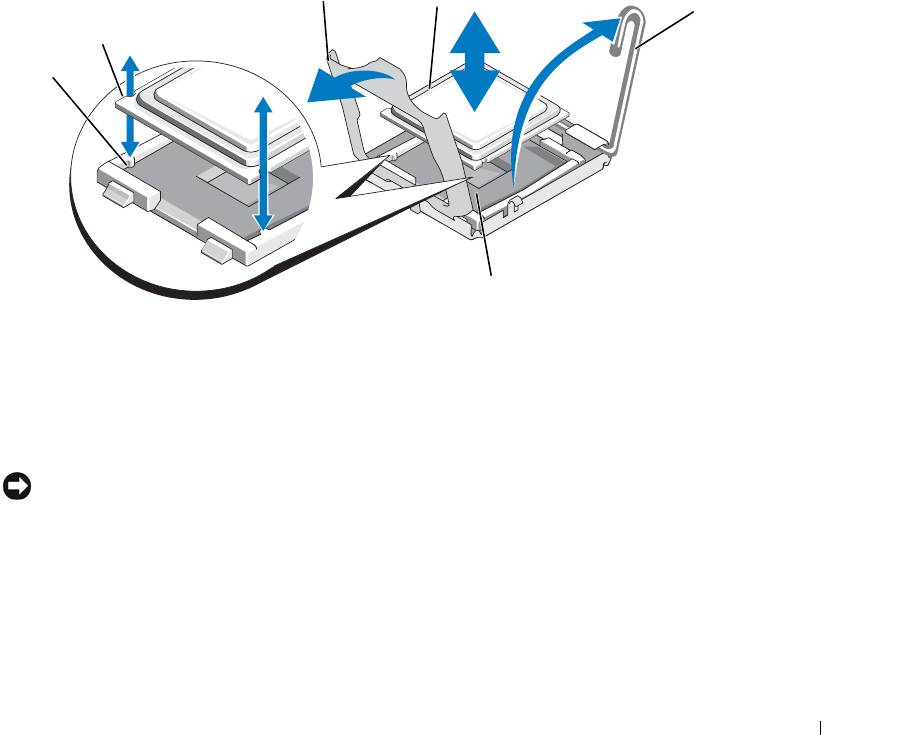
Pull the socket-release lever 90 degrees upward until the processor is released from the socket. See
Figure 3-15.
11
Rotate the processor shield upward and out of the way.
Figure 3-15. Installing and Removing the Processor
3
4
5
2
1
6
1 socket key (2) 2 notch in processor 3 processor shield
4 processor 5 socket-release lever 6 ZIF socket
12
Lift the processor shield to release the processor, and then lift the processor out of the socket. Leave the
release lever up so that the socket is ready for the new processor.
NOTICE: Be careful not to bend any of the pins on the LGA socket when removing the processor. Bending the
pins can permanently damage the socket and system board.
Installing System Components 69
Installing a Processor
1
Unpack the new processor.
2 Align the
p
rocessor with the
socket keys on t
he ZIF socket
. See Figure 3-15.
3
I
nstall the processor in the socket.
NOTICE: Positioning the processor incorrectly can permanently damage the system board or the processor when
you turn the system on.
a If the release lever on the processor socket is not positioned all the way up, move it to that position.
b With the
p
rocessor and
the
socket
keys
aligned, set the processor lightly in the socket.
NOTICE: Do not use force to seat the processor. When the processor is positioned correctly, it engages easily
into the socket.
c
W
hen the processor is fully seated in the socket, rotate the socket release lever back down until it
snaps into place, securing the processor.
See Figure 3-15.
d
Close the processor shield. See Figure 3-15.
4
Install the heat sink.
NOTE: If you did not receive a replacement heat sink, use the heat sink that you removed in step 9.
a
If you receive a heat sink and pre-applied thermal grease with your processor kit, remove the
protective sheet from the thermal grease layer on top of the heat sink.
If you did not receive a replacement heat sink with your processor kit, do the following:
• Using a clean lint-free cloth, remove the existing thermal grease from the heat sink you removed
in step 9.
• Open the grease packet included with your processor kit and apply thermal grease evenly to the
top of the processor.
b Place the heat sink onto the processor. See
Figure 3-14
.
c Close one of the two heat sink retention levers until it locks. See
Figure 3-14
.
d
Repeat for the other heat sink retention lever.
5
Close the system. See "Closing the System" on page 47.
As the system boots, it detects the presence of the new processor and automatically changes the system
configuration information in the System Setup program.
6
Press <F2> to enter the System Setup program, and check that the processor information
matches the new
system configuration.
See "Using the System Setup Program" on page 31 for instructions about using the System Setup program.
7
Run the system diagnostics to verify that the new processor operates correctly.
See "Running the System Diagnostics" on page 111 for information about running the diagnostics.
70 Installing System Components
RAC Card
CAUTION: Many repairs may only be done by a certified service technician. You should only perform
troubleshooting and simple repairs as authorized in your product documentation, or as directed by the online or
telephone service and support team. Damage due to servicing that is not authorized by Dell is not covered by your
warranty. Read and follow the safety instructions that came with the product.
The optional Remote Access Controller (RAC) provides a set of advanced features for managing the server
remotely. The following procedure describes the steps for installing or removing the optional RAC card.
Installing a RAC Card
1
Turn off the system, including any attached peripherals, and then disconnect the system from the electrical
outlet.
2
Open the system. See "Opening the System" on page 46
3
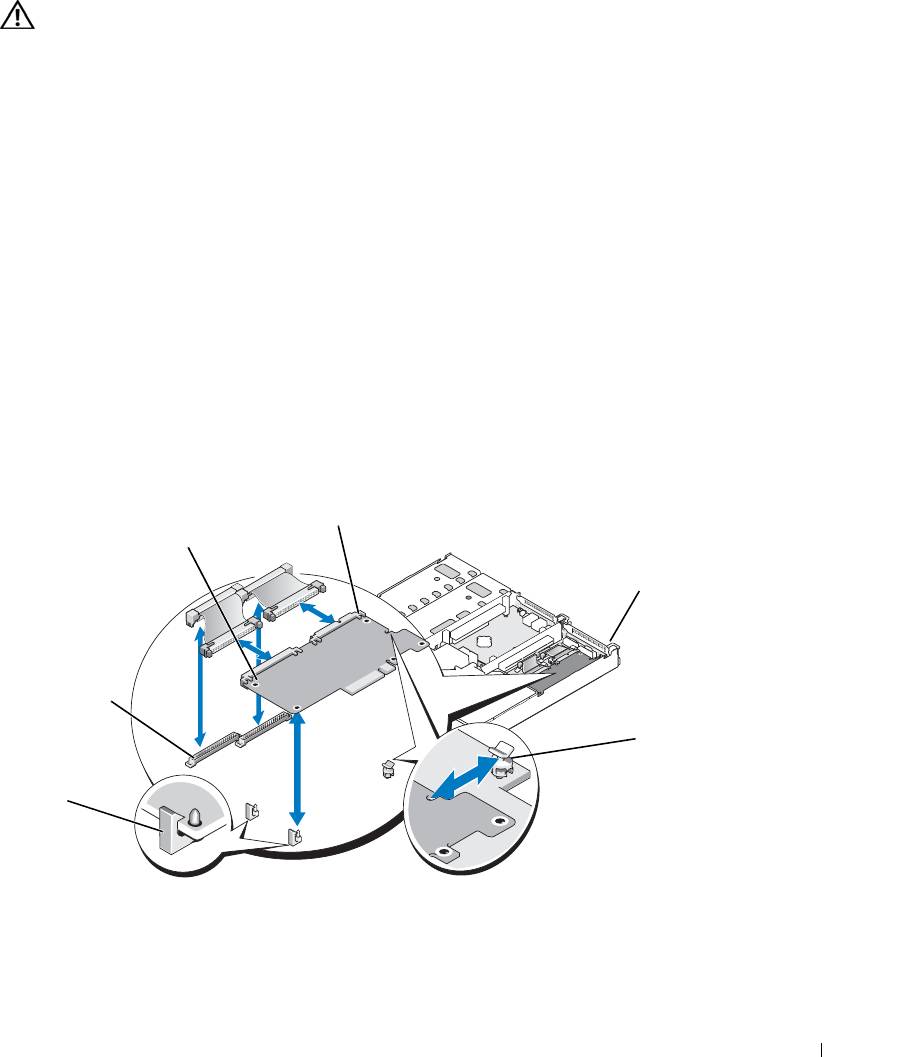
If applicable, remove the plastic filler plug from the system back panel. See Figure 3-16.
4
Remove any PCI cards attached to the center riser. See "Removing an Expansion Card" on page 62.
5
Remove the center riser card from the system board. See "Expansion-Card Riser" on page 82.
6
Angle the RAC card so that its NIC connector inserts through the back-panel RAC card opening, aligning
the card with the back standoff.
Figure 3-16. Installing and Removing a RAC Card
2
1
3
6
4
5
1 RAC card 2 RAC-card connectors (2) 3 filler plug location
4 back standoff 5 front standoffs (2) 6 RAC-card cable connectors
Installing System Components 71

7
Align the front edge of the RAC card with the front plastic retention standoffs, and then press down on the
front of the card until it is fully seated. See Figure 3-16.
When the front of the card is fully seated, the front plastic standoffs snap over the front edge of the card.
8
Connect the two small cables (44-pin cable and 50-pin cable), ensuring that connector labeled "Planar" is
attached to the appropriate system board connector and the connector labeled "DRAC" is attached to the
appropriate RAC card connector.
9
Replace the center riser card. See "Expansion-Card Riser" on page 82.
10
Replace any PCI cards that were removed from the center riser. See "Installing an Expansion Card" on
page 61.
11
Close the system. See "Closing the System" on page 47.
12
Reconnect the system and peripherals to their power sources, and then turn them on.
See the RAC card documentation for information on configuring and using the RAC card.
Removing the RAC Card and Cables
1
Turn off the system, including any attached peripherals, and then disconnect the system from the electrical
outlet.
2
Open the system. See "Opening the System" on page 46.
3
Remove any PCI cards attached to the center riser. See "Removing an Expansion Card" on page 62.
4
Remove the center riser card from the system board. See "Expansion-Card Riser" on page 82.
5
Remove the RAC card cables from the system board connectors by pressing the metal tabs inward and
then pulling up.
6
Remove the RAC card cables from the RAC connectors by pressing the metal tabs inward and then
pulling up.
7
Remove the RAC card by pressing outwardly on the front standoffs, and then lifting the RAC card up and
out of the system.
8
Replace the center riser card. See "Expansion-Card Riser" on page 82.
9
Replace any PCI cards that were removed from the center riser. See "Installing an Expansion Card" on
page 61.
10
Close the system. See "Closing the System" on page 47.
11
Reconnect the system and peripherals to their power sources, and then turn them on.
72 Installing System Components

Optical Drive
The optional slimline optical drive is mounted on a tray that slides into the front panel and connects to the
controllers on the system board through the sideplane board.
NOTE: DVD devices are data only.
Removing the Optical Drive Tray
CAUTION: Many repairs may only be done by a certified service technician. You should only perform
troubleshooting and simple repairs as authorized in your product documentation, or as directed by the online or
telephone service and support team. Damage due to servicing that is not authorized by Dell is not covered by your
warranty. Read and follow the safety instructions that came with the product.
1
Turn off the system, including any attached peripherals, and then disconnect the system from its electrical
outlet.
2
Remove the bezel. See "Removing and Replacing the Front Bezel" on page 45.
3
Open the system. See "Opening and Closing the System" on page 46.
4
Remove the SAS controller daughter card. See "Removing a SAS Controller Daughter Card" on page 56.
5
Disconnect the optical-drive cable from the back of the drive. See Figure 3-17.
6
To remove the optical drive, press forward on the blue tray release tab, and then slide the drive tray out of
the system. See Figure 3-17.
Installing System Components 73
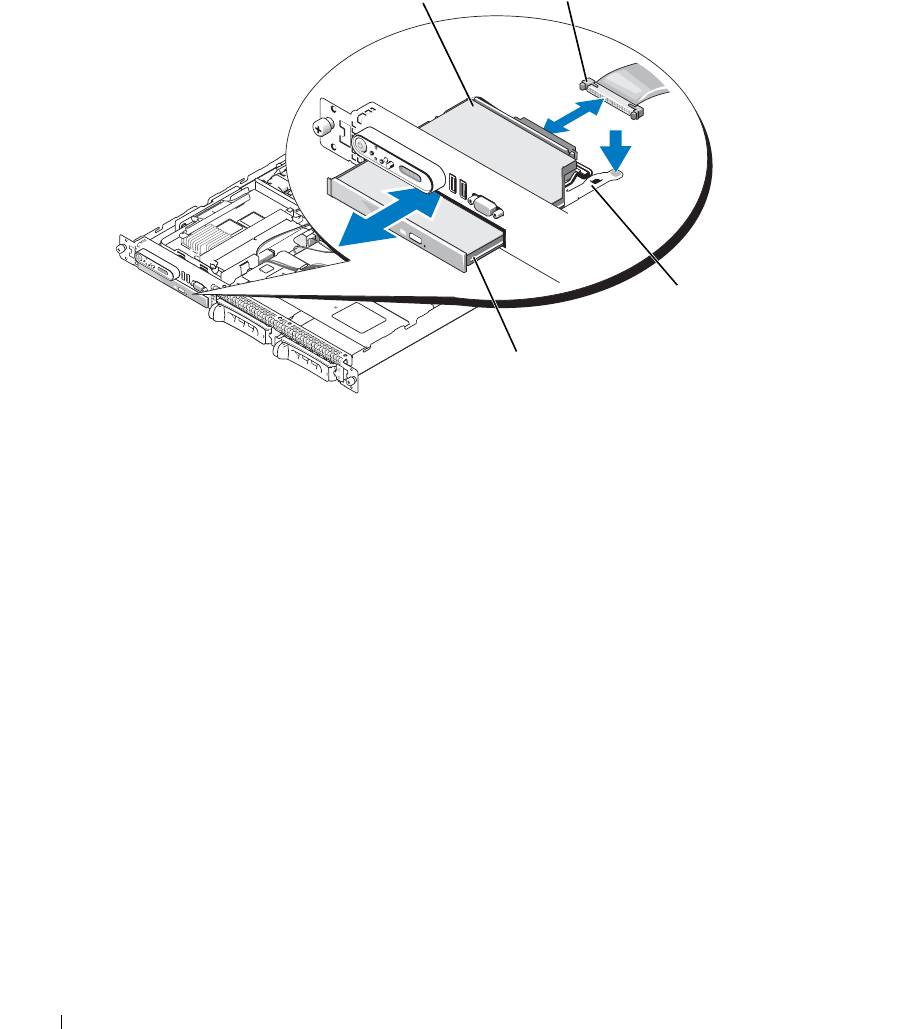
Figure 3-17. Removing and Installing the Optical Drive Tray
1
2
3
4
1 optical -drive tray 2 optical-drive cable 3 optical-drive release tab
4 optical drive
Installing the Optical Drive Tray
1
Align the optical drive tray with its opening in the front panel.
The optical drive opening is located directly below the SAS daughter card bay.
2
Slide in the drive tray until the tray snaps into place. See Figure 3-17.
3
Connect the optical-drive cable from the back of the drive. See Figure 3-17.
4
Replace the SAS controller daughter card.See "Installing a SAS Controller Daughter Card or SAS RAID
Controller Daughter Card" on page 56.
5
Close the system. See "Opening and Closing the System" on page 46.
6
Replace the bezel. See "Removing and Replacing the Front Bezel" on page 45.
7
Reconnect your system and peripherals to their electrical outlets, and turn on the system.
74 Installing System Components
Hard Drives
This subsection describes how to install and configure SAS or SATA hard drives in the system's internal
hard-drive bays.
Your system features the option of two 3.5-inch (SAS/SATA) internal hard-drive bays or four
2.5-inch (SAS only) internal hard-drive bays that accommodate up to either two or four hard drives. All drives
connect to the system board through one of two optional backplane boards.
NOTE: Depending on the hard drive configuration you ordered, your hard drive(s) may come with a drive
interposer that allows your SATA drive to attach to the SAS connector on the backplane.
Before You Begin
Hard drives are supplied in special hot-pluggable drive carriers that fit in the hard-drive bays. Depending on
your configuration, you received one of the following two drive carrier types:
• SATA drive carrier — Usable only with a SATA hard drive.
• SATAu drive carrier — Usable with either a SAS hard drive or a SATA hard drive with a universal
interposer card. The interposer card provides enhanced functionality that makes the SATA hard drive
usable in some storage systems.
NOTICE: Before you attempt to remove or install a drive while the system is running, see the documentation for
the optional SAS RAID daughter card to ensure that the host adapter is configured correctly to support hot-
pluggable drive removal and insertion.
NOTE: It is recommended that you use only drives that have been tested and approved for use with the SAS
backplane board.
You may need to use different programs than those provided with the operating system to partition and format
SAS or SATA hard drives.
NOTICE: Do not turn off or reboot your system while the drive is being formatted. Doing so can cause a drive
failure.
When you format a high-capacity hard drive, allow enough time for the formatting to be completed. Long
format times for these drives are normal. A 9-GB hard drive, for example, can take up to 2.5 hours to format.
Removing a Drive Blank
NOTICE: To maintain proper system cooling, all empty hard-drive bays must have drive blanks installed. If you
remove a hard-drive carrier from the system and do not reinstall it, you must replace the carrier with a drive blank.
The process for removing a drive blank depends on whether your system is configured with 3.5-inch or 2.5-
inch hard drives.
For 3.5-inch hard drive configurations:
1
Remove the front bezel, if attached. See "Removing and Replacing the Front Bezel" on page 45.
2
Insert your finger under the shrouded end of the blank and press in on the latch to eject the blank outward
from the bay.
3
Pry the ends of the blank outward until the blank is free.
Installing System Components 75

For 2.5-inch hard drive configurations, remove the blank as you would the 2.5-inch hard drive carrier:
1 Remove the front bezel, if attached. See
"Replacing the System Battery" on page 86
.
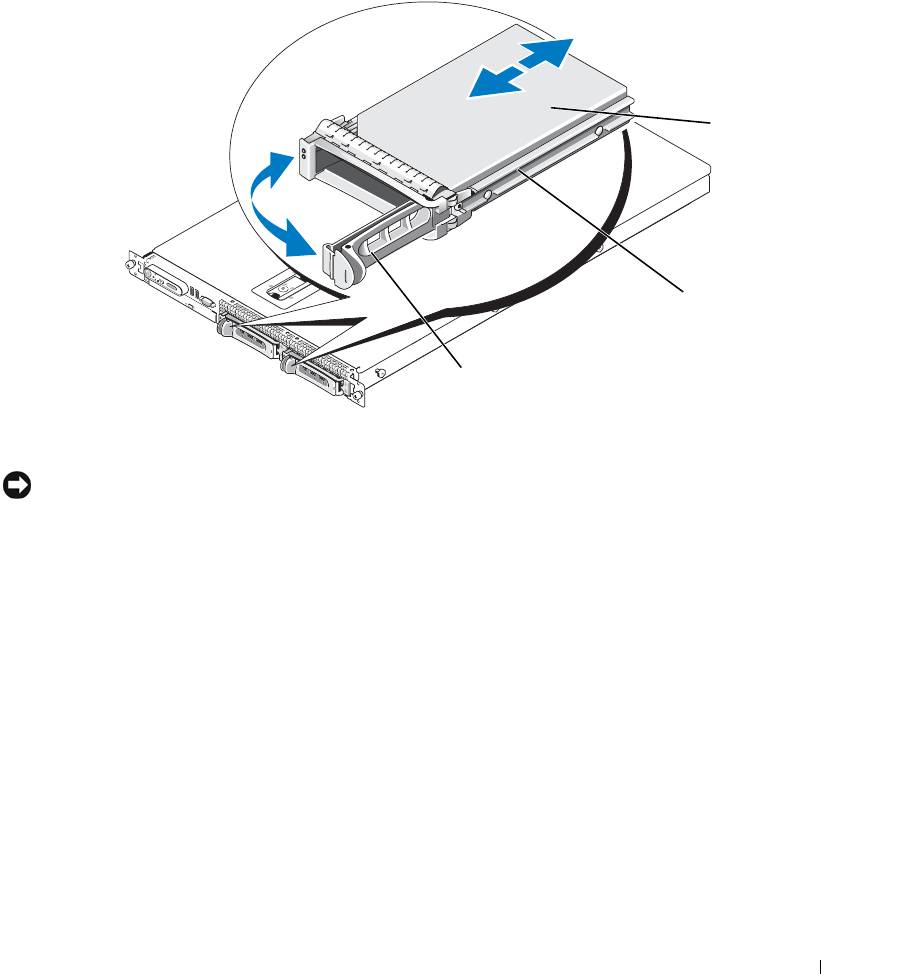
2 Open the drive blank release handle to release the blank. See
Figure 3-18
.
3
Slide the drive blank out until it is free of the drive bay.
Installing a Drive Blank
The process for installing a drive blank depends on whether your system is configured with 3.5-inch or 2.5-
inch hard drives.
For 3.5-inch hard drive configurations, the drive blank is keyed to ensure correct insertion into the drive bay.
To install a 3.5-inch drive blank, insert the blank into the drive bay rotating in with the key side first, and
press evenly on the ends of the blank until it is fully inserted and latched.
For 2.5-inch hard drive configurations, install the hard drive blank as a 2.5-inch hard drive carrier:
1 Remove the front bezel, if attached. See
"Removing and Replacing the Front Bezel" on page 45
.
2
Open the handle on the hard-drive blank.
3
Insert the hard-drive blank into the drive bay until it is fully seated.
4
Close the handle to lock the blank in place.
5 Replace the front bezel, if it was removed in
step 1.
Installing a Hot-Plug Hard Drive
NOTICE: When installing a hard drive, ensure that the adjacent drives are fully installed. Inserting a hard-drive
carrier and attempting to lock its handle next to a partially installed carrier can damage the partially installed
carrier's shield spring and make it unusable.
NOTICE: Not all operating systems support hot-plug drive installation. See the documentation supplied with
your operating system.
1
Remove the front bezel if attached. See "Removing and Replacing the Front Bezel" on page 45.
2
If a drive blank is present in the bay, remove it. See "Removing a Drive Blank" on page 75.
76 Installing System Components
3
Install the hot-plug hard drive.
a
Open the hard-drive carrier handle. See Figure 3-18.
Figure 3-18. Installing a Hot-Plug Hard-Drive
3
2
1
1 drive carrier release handle 2 drive carrier 3 hard drive
NOTICE: Do not insert a hard-drive carrier and attempt to lock its handle next to a partially installed carrier.
Doing so can damage the partially installed carrier's shield spring and make it unusable. Ensure that the adjacent
drive carrier is fully installed.
b
Insert the hard-drive carrier into the drive bay until the carrier contacts the backplane. See
Figure 3-18.
c
Close the hard-drive carrier handle to lock it in place.
4
Replace the front bezel if it was removed in step 1. See "Removing and Replacing the Front Bezel" on
page 45.
Installing System Components 77

Replacing a Hard-Drive Carrier
Removing a Hard Drive From a Hard-Drive Carrier
1
If you are removing a SATA hard drive from a SATAu drive carrier, remove the interposer card:
a
Viewing the hard drive carrier from the rear, locate the release lever on the left end of the interposer
card.
b
Push the lever away from the carrier rail to release the left end of the card.
c
Rotate the left end away from the hard drive to release the connector.
d
Pull the right end of the interposer card clear of the slots in the carrier rail.
2
Remove the four screws from the slide rails on the hard-drive carrier and separate the hard drive from the
carrier.
Installing a SAS Hard Drive Into a SATAu Drive Carrier
NOTE: SAS hard drives must be installed only in SATAu drive carriers. The SATAu drive carrier is labeled
"SATAu" and also has marks indicating the SAS and SATA mounting screws.
1 Insert the SAS hard drive into the hard-drive carrier with the connector end of the drive at the rear. See
Figure 3-19
.
2 Viewing the assembly as shown in
Figure 3-19, a
lign the bottom rear screw hole on the hard drive with
the hole labeled "SAS" on the hard drive carrier.
When aligned correctly, the rear of the hard drive will be flush with the rear of the hard-drive carrier.
3 Attach the four screws to secure the hard drive to the hard-drive carrier. See
Figure 3-19
.
78 Installing System Components
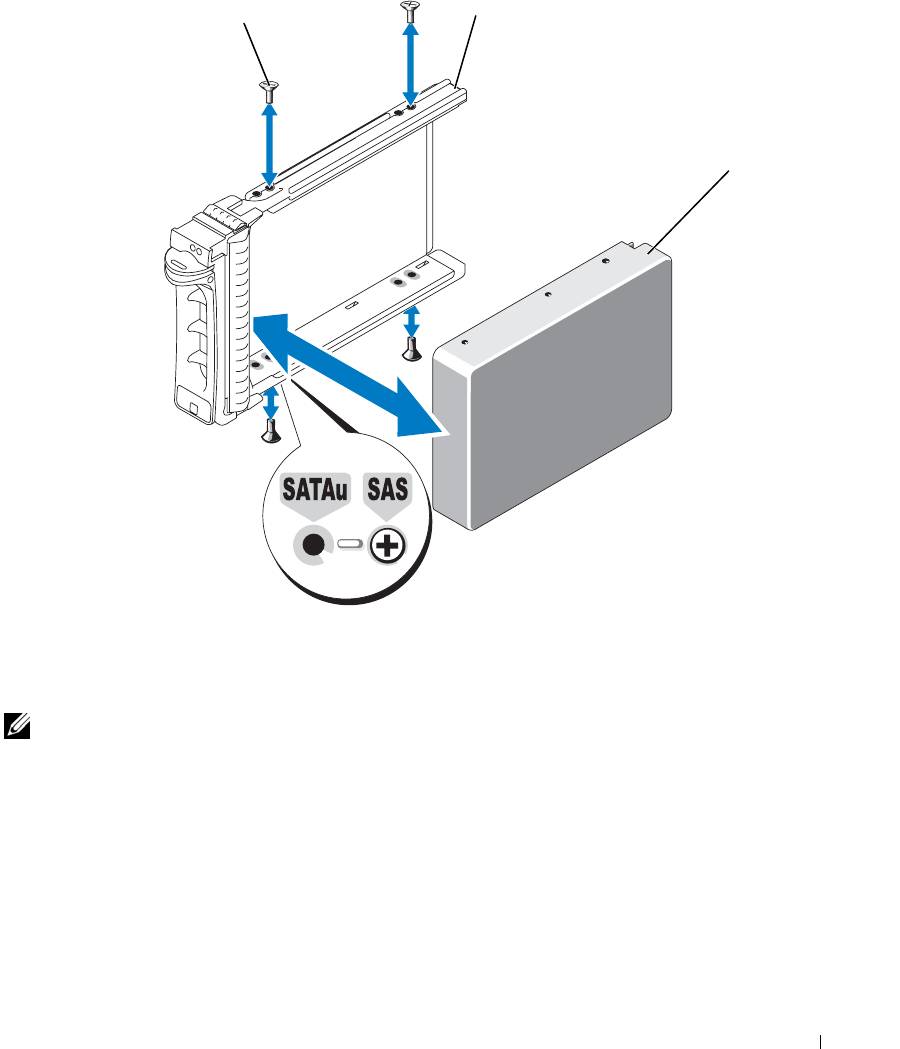
Figure 3-19. Installing a SAS Hard Drive Into a Drive Carrier
2
1
3
1 screws (4) 2 SATAu drive carrier 3 SAS hard drive
Installing a SATA Hard Drive Into a SATA Drive Carrier
NOTE: SATA hard drives that connect directly to the SAS backplane must be installed in SATA drive carriers
(labeled "SATA"). Only SATA hard drives with interposer cards can be installed in SATAu drive carriers.
1 Insert the SATA hard drive into the hard-drive carrier with the connector end of the drive at the rear.
See
Figure 3-20
.
2 Align the screw holes on the hard drive with the holes on the hard-drive carrier. See
Figure 3-20
.
3 Attach the four screws to secure the hard drive to the hard-drive carrier. See
Figure 3-20
.
Installing System Components 79
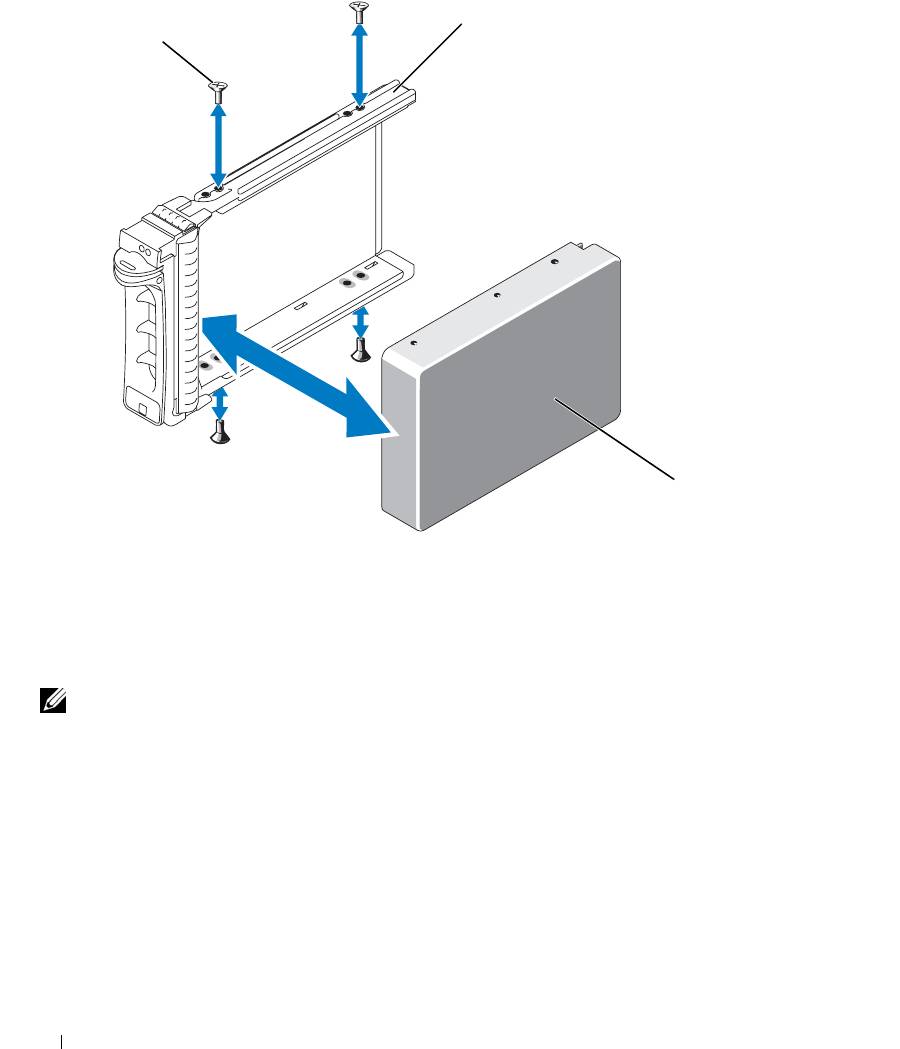
Figure 3-20. Installing a SATA Hard Drive Into a SATA Drive Carrier
2
1
3
1 screws (4) 2 SATA drive carrier 3 SATA hard drive
Installing a SATA Hard Drive and Interposer Card Into a SATAu Hard-Drive Carrier
NOTE: When you install a SATA hard drive into a SATAu drive carrier, you must install an interposer card onto
the back of the hard drive. The SATAu drive carrier is labeled "SATAu" and also has marks indicating the SAS and
SATA mounting screws.
1 Insert the SATA hard drive into the SATAu hard-drive carrier with the connector end of the drive at the
rear. See
Figure 3-21
.
2 Viewing the assembly as shown in
Figure 3-21, a
lign the bottom rear screw hole on the hard drive with
the hole labeled "SATAu" on the hard drive carrier.
When aligned correctly, the rear of the interposer will be flush with the rear of the hard-drive carrier.
3 Attach the four screws to secure the hard drive to the hard-drive carrier. See
Figure 3-21.
80 Installing System Components
