
Asus WL-500W: 3. Getting started
3. Getting started: Asus WL-500W
WL-500W Wireless Router Quick Start Guide
English
3. Getting started
The ASUS WL-500W Wireless Router can meet various working scenarios with proper
conguration. The default settings of the wireless router may change to meet your individual needs.
Thus, before using the wireless router, check the basic settings to make sure they all work in your
environment.
ASUS provides a utility named EZSetup for fast wireless conguration. If you would like to use
EZSetup for your router conguration, refer to chapter 6 of user manual in support CD.
Note:
Wired connection for initial conguration is recommended to avoid possible
setup problems due to wireless uncertainty.
1) Wired connection
The WL-500W Wireless Router is supplied with an Ethernet cable in the package. The wireless
router has an integrated auto-crossover function. Thus, you can either use a straight-through or
a crossover cable for wired connection. Plug one end of the cable to the LAN port on the rear
panel of the router and the other end to the Ethernet port on your PC.
2) Wireless Connection
For establishing wireless connection, you need an IEEE 802.11b/g compatible WLAN card.
Refer to your wireless adapter user manual for wireless connection procedures. By default,
the SSID of the wireless router is “default” (in lower case), encryption is disabled and open
system authentication is used.
3) Setting IP address for wired or wireless client
To access the WL-500W Wireless Router, you must have the correct TCP/IP settings on your
wired or wireless clients. Set the IP addresses of the clients within the same subnet of WL-500W.
Getting an IP address automatically
The WL-500W Wireless Router integrates DHCP server functions, thus, your PC gets an IP
address automatically.
Note:
Before rebooting your PC, switch ON the
wireless router and make sure the router is ready.
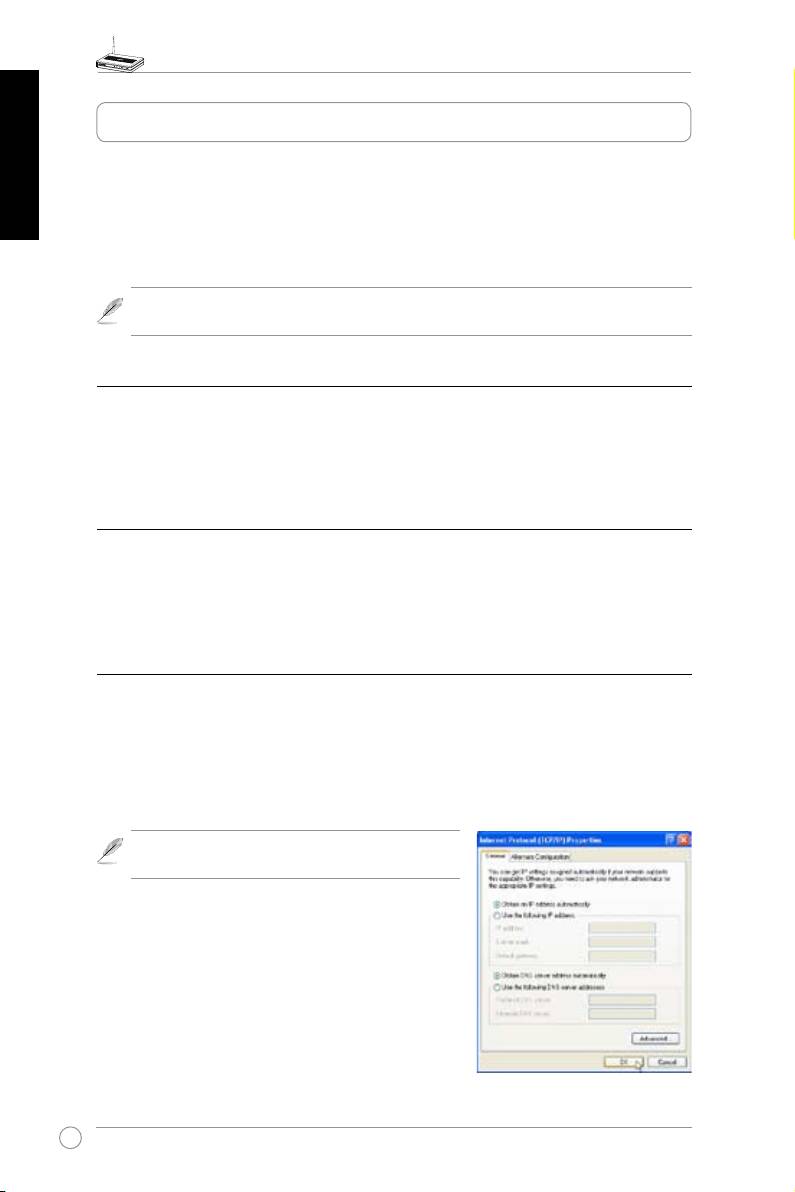
Setting up the IP address manually
To manually set the IP address, you need to know the
default settings of the wireless router:
• IP address 192.168.1.1
• Subnet Mask 255.255.255.0
6
WL-500W Wireless Router Quick Start Guide
To set up the connection with a manually assigned
IP address, the address of your PC and the wireless
router must be within the same subnet:
• IP address: 192.168.1.xxx (xxx can be any
number between 2 and 254. Make sure the IP
English
address is not used by other device)
• Subnet Mask: 255.255.255.0 (same as WL-
500W)
• Gateway: 192.168.1.1 (IP address of
WL-500W)
• DNS: 192.168.1.1 (
WL-500W), or assign a known
DNS server in your network.
4) Conguring the wireless router
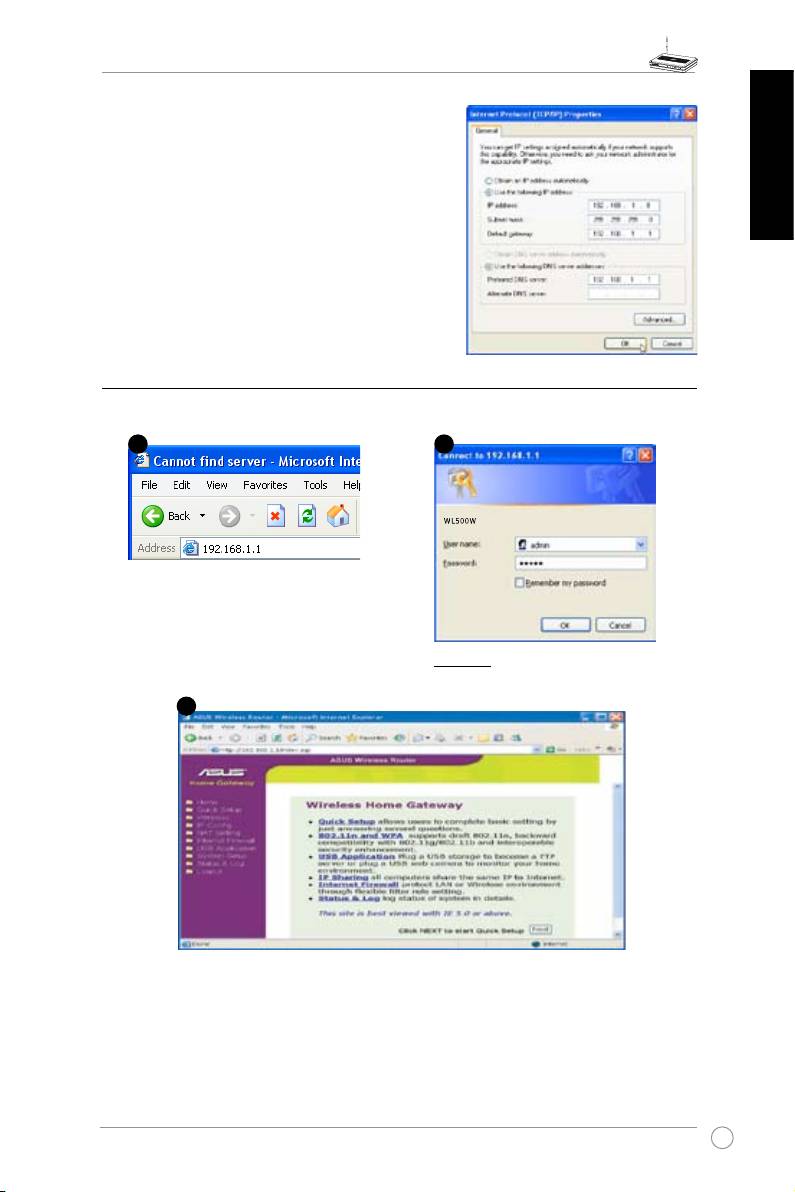
Follow the steps below to enter the Web conguration interface of WL-500W.
Enter the following address in your
web browser: http://192.168.1.1
Defaults
User name:
admin
Password:
admin
After logging in, you can see the ASUS Wireless Router home page.
The homepage displays quick links to congure the main features of the wireless
router.
7
2
1
3

WL-500W Wireless Router Quick Start Guide
English
5) Quick setup
To start quick setup, click
Next
to enter the “Quick Setup”
page. Follow the instructions to setup the ASUS Wireless
Router.
1. Select your time zone and click
Next
.
2. ASUS wireless router supports
five types of ISP services: cable,
PPPoE, PPTP, static WAN IP,
and Telstra BigPond. Select your
connection type and click
Next
to
continue.
Cable or dynamic IP user
If you are using services provided by
cable ISP, select
Cable Modem or other
connection that gets IP automatically
.
If your ISP provides you with the
hostname, the MAC address, and the
heartbeat server address, fill these
information into the boxes on the setting
page; if not, click
Next
to skip this step.
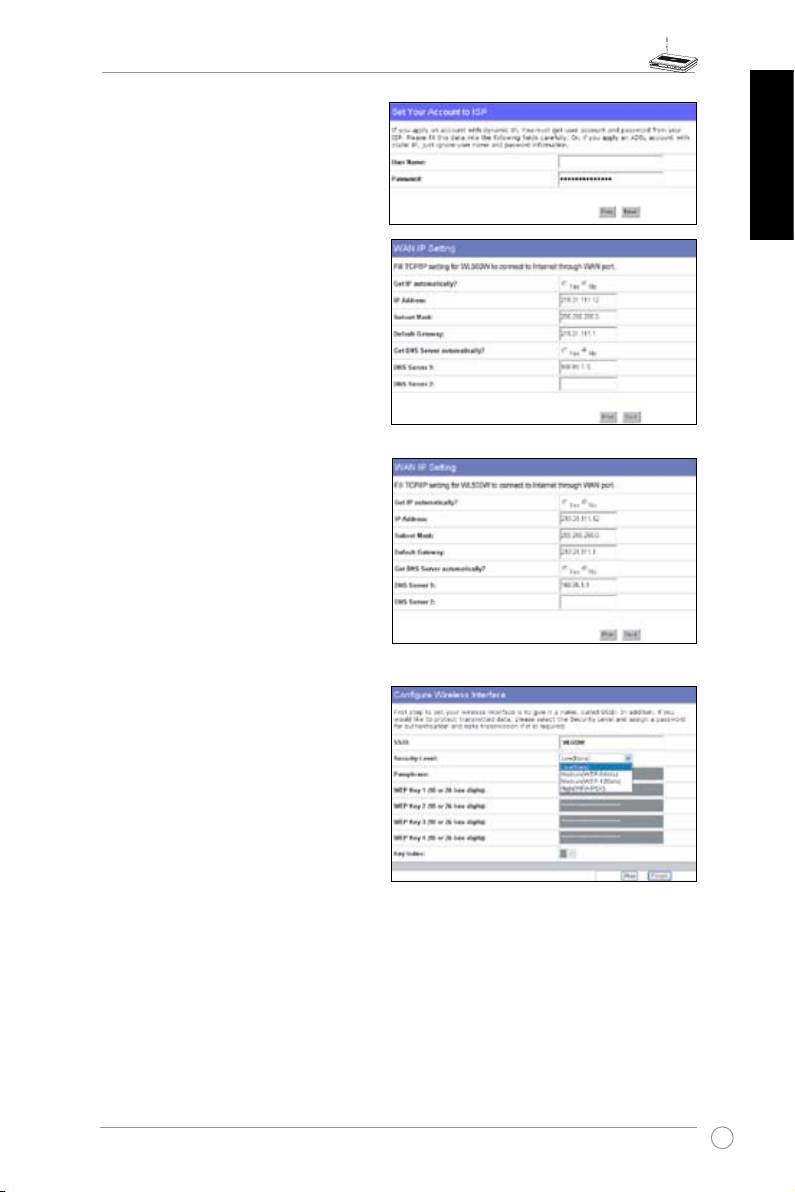
PPPoE user
If you use PPPoE service, select
ADSL
connection that requires username
and password.
It is known as PPPoE.
You need to input the username and
password provided by your ISP. Click
Next
to continue.
8
WL-500W Wireless Router Quick Start Guide
PPTP user
If you are using PPTP services, select
ADSL
connection that requires username,
herk036@adsl-comfort
password and IP address.
Fill in the
username, password and IP address
English
provided by your ISP into the fields. Click
Next
to continue.
Static IP user
If you are using ADSL or other connection
type that uses static IP address, select
ADSL
or other connection type that uses static
IP address
. Input the IP address, subnet
mask, and default gateway provided by your
ISP. You can specify DNS servers, or get
DNS information automatically.
3. To set up your wireless interface, specify
an SSID (Service Set Identifier), which
is a unique identier attached to packets
sent over WLAN. This identier emulates
a password when a device attempts to
communicate with your wireless router
via WLAN.
If you want to protect transmitted data, select a
Security Level
to enable encryption methods.
Medium:
Only users with the same WEP key settings can connect to your wireless router
and transmit data using 64bits or 128bits WEP key encryption.
High:
Only users with the same WPA pre-shared key settings can connect to your wireless
router and transmit data using TKIP encryption.
9
WL-500W Wireless Router Quick Start Guide
English
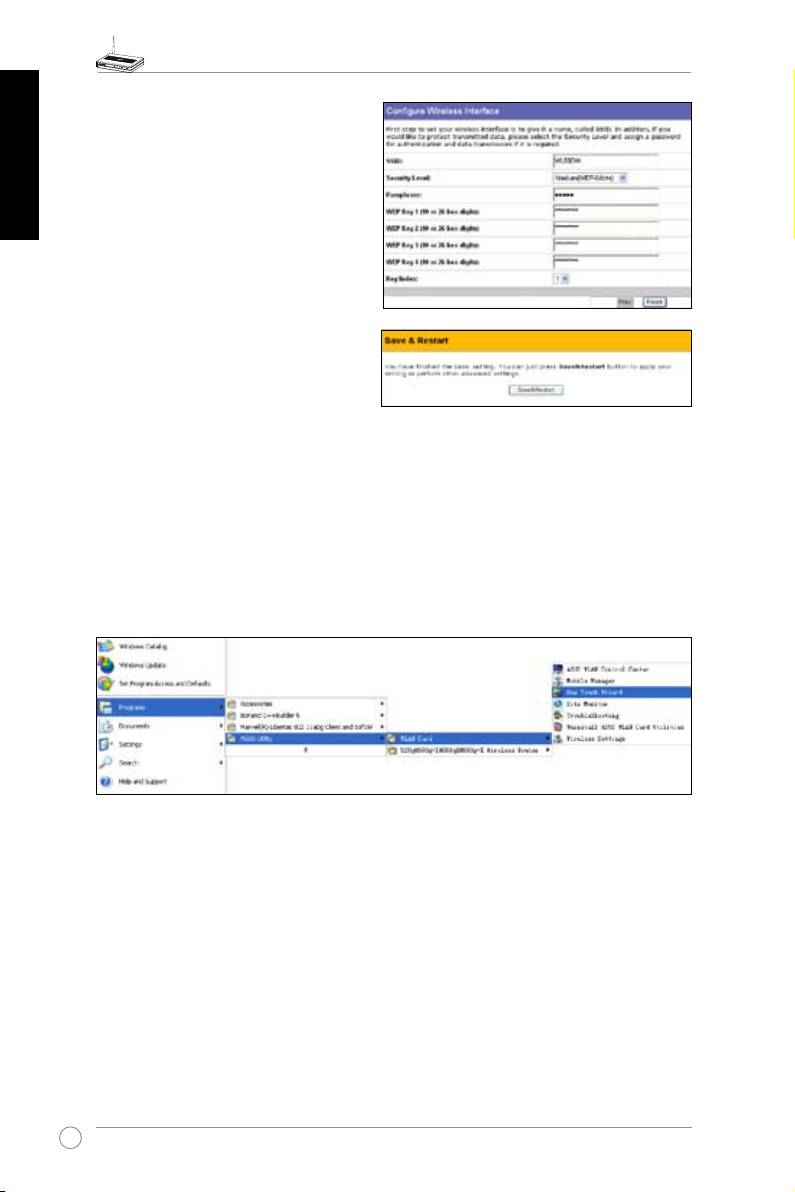
4. Input four sets of WEP keys in the WEP
Key fields (10 hexadecimal digits for
WEP 64bits, 26 hexadecimal digits
for WEP 128bits). You can also let the
system generate the keys by inputting
a Passphrase. Record the Passphrase
and the WEP keys in your notebook,
then click
Finish
.
For example, if we select WEP 64bits
encryption mode and input 11111 as
the Passphrase, the WEP Keys are
generated automatically.
5. Click
Save&Restart
to restart the
wireless router and activate the new
settings.
®
6. To connect the wireless router from a wireless client, you can use Windows
Wireless
Zero Conguration service to set up the connection. If you use ASUS Wireless Card on
your computer, you can use the One Touch Wizard utility supplied in WLAN Card support
CD for wireless connection.
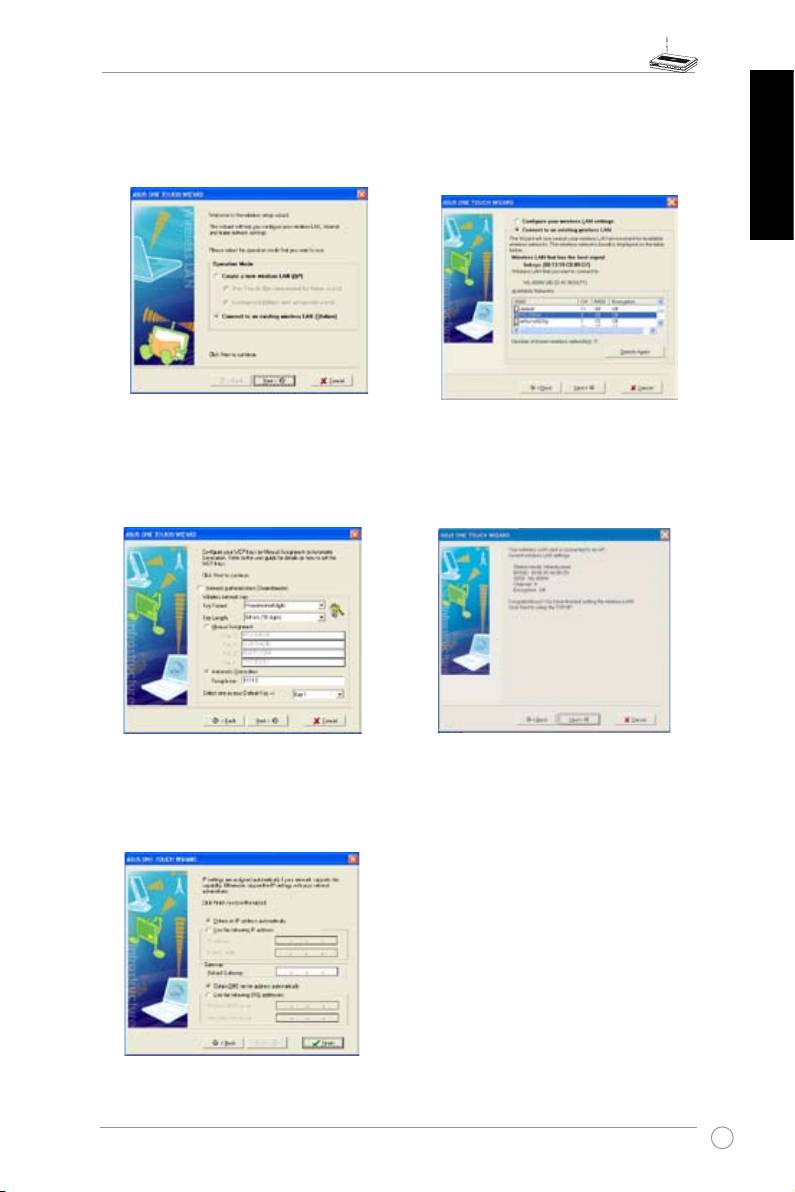
Conguring ASUS WLAN Card with One Touch Wizard
If you have installed ASUS wireless card together with its utilities and drives on your PC, click
Start
-> All Programs -> ASUS Utility-> WLAN Card -> One Touch Wizard
to launch the One Touch
Wizard utility.
10
WL-500W Wireless Router Quick Start Guide
1) Select
Connect to an existing wireless
2) One Touch Wizard searches and displays
LAN (Station)
radio button and click
the available APs in the
Available
Next
to continue.
Networks
list. Select WL-500W and
press
Next
to continue.
English
3) Set the authentication and encryption of
4) It takes several seconds for the wireless
your WLAN card the same with those at
card to associate with WL-500W. Press
WL-500W. In the previous steps the
Key
Next
to setup TCP/IP for your WLAN Card.
Length
is
64 bits
,
Passphrase
is 11111
Click
Next
to continue.
5) Setup the IP address of the WLAN Card
according to your network condition.
After the setup is complete, click
Finish
to exit the One Touch Wizard.
11
WL-500W Wireless Router Quick Start Guide
English
®
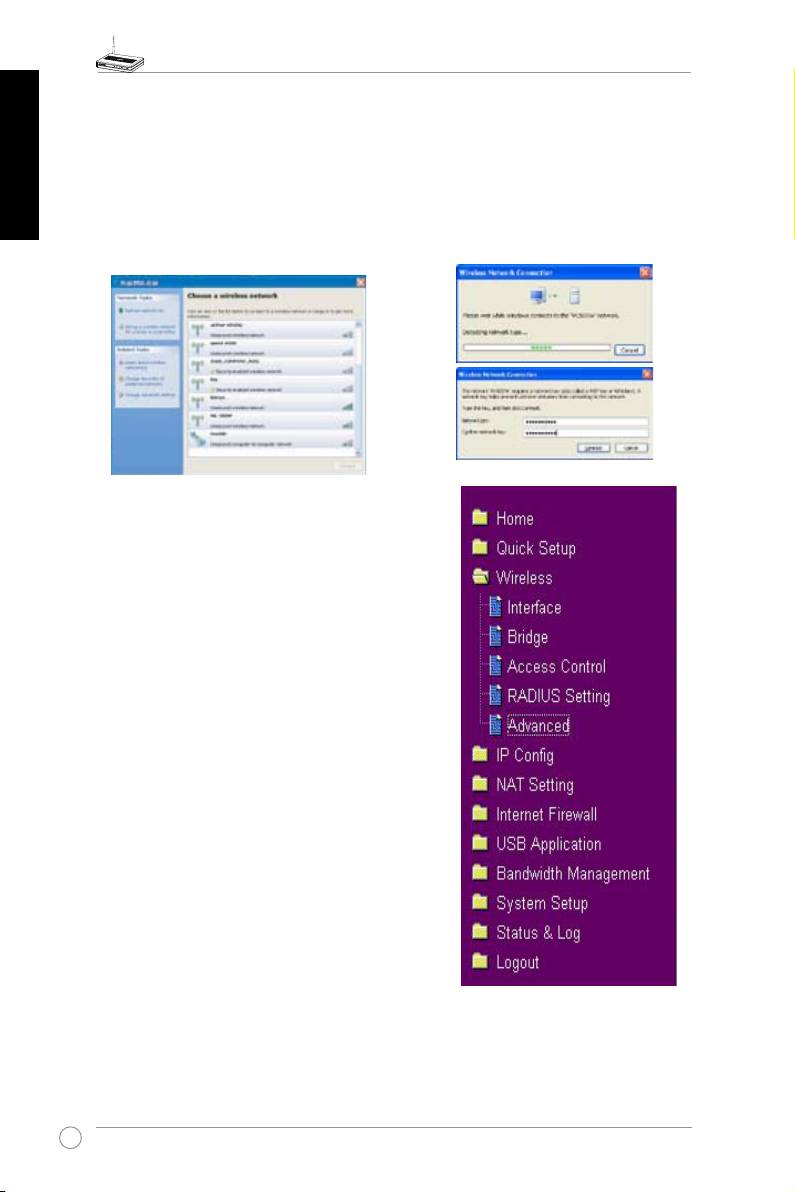
Conguring WLAN card with Windows
WZC service
®
If you use non-ASUS wireless card, you can set up the wireless connection with Windows
Wireless Zero Conguration (WZC) service.
1) Double-click the wireless network icon on
2) Input the 10-digit keys you have set on
the task bar to view available networks.
the wireless router and click
Connect
.
Select your wireless router and click
The connection is complete within
Connect
.
several seconds.
7. Conguring advanced features
To view and adjust other settings of the wireless router,
enter the Web conguration page of WL-500W. Click
on items on the menu to open a submenu and follow
the instructions to setup the router. Tips show up when
you move your cursor over each item. Refer to user
manual in support CD for detailed information.
12
Оглавление
- Index
- WL-500W SuperSpeed N Wireless Multi-Function Router Quick Start Guide
- Manufacturer Contact Information
- Table of contents
- 1. Package contents
- 3. Getting started
- 4. Application features
- WL-500W SuperSpeed N Wireless Multifunktions-Router
- Hersteller-Kontaktinformationen
- Inhaltsverzeichnis
- 1. Packungsinhalt
- 3. Erste Schritte
- 4. Anwendungsfunktionen
- Guide de démarrage rapide
- Contacts constructeur
- Table des matières
- 1. Contenu de la boîte
- 3. Pour démarrer
- 4. Applications
- WL-500W SuperSpeed N Router Wireless Multi-Funzionale
- Manufacturer Contact Information
- Indice
- 4. Caratteristiche dell’applicazione
- Enrutador Inalámbrico Multi-Función WL-500W SuperSpeed N Guía de Instalación Rápida
- Información de Contacto del Fabricante
- Tabla de Contenidos
- 1. Contenido del Paquete
- 3. Introducción
- 4. Aplicaciones
- WL-500W Суперcкоростной N Мультифункциональный беспроводный маршрутизатор Руководство по быстрой установке
- Контактная информация изготовителя
- 1. Комплект поставки
- 3. Настройка маршрутизатора
- 4. Прикладные возможности
