
Sony α6500 ILCE-6500: Notes on continuous movie recording
Notes on continuous movie recording: Sony α6500 ILCE-6500
Table of contents
- Check out the Help Guide!
- Owner’s Record Battery pack WARNING
- Notice Power Cord
- Notes on using your camera No compensation for damaged content or recording failure Screen language Notes on recording/playback Notes on the monitor, electronic viewfinder, lens, and image sensor Notes on handling the product
- Notes on using lenses and accessories Notes on the Multi Interface Shoe Notes on shooting with the viewfinder
- Notes on recording for long periods of time or recording 4K movies Notes on continuous shooting
- How to turn off wireless network functions (Wi-Fi, NFC and Bluetooth function, etc.) temporarily Notes on wireless LAN Notes on playing back movies on other devices Notes on security when using wireless LAN products Warning on copyright On the data specifications described in this manual
- Checking the camera and the supplied items
- Identifying parts When the lens is removed Multi Interface Shoe*
-
- Eye sensor Viewfinder Eyepiece cup Attaching/removing the eyepiece cup
- Monitor (For touch operation: Touch panel/Touch pad) (N mark)
- Battery/memory card cover Memory card slot Battery lock lever Battery insertion slot Connection plate cover Tripod socket hole Access lamp
- Basic operations Using the control wheel
- Using the Fn (Function) button To adjust settings from the dedicated setting screens
- Using the AF/MF/AEL switch lever
- Startup guide Step 1: Inserting the battery pack/memory card into the camera
- To remove the battery pack To remove the memory card
- Step 2: Charging the battery pack while it is inserted in the camera
- Step 3: Attaching a lens
- To remove the lens
- Step 4: Setting the language and the clock
- Step 5: Shooting images in auto mode
- To shoot movies To play back images To delete displayed image To shoot images in various shooting modes
- Using the Wi-Fi / One-touch (NFC) / Bluetooth functions PlayMemories Mobile Recording location information to captured images
- Introduction to computer software / PlayMemories Camera Apps PlayMemories Home
- Image Data Converter Remote Camera Control PlayMemories Camera Apps
- List of MENU items (Camera Settings1) Quality/Image Size Shoot Mode/Drive
- AF
- Exposure Flash Color/WB/Img. Processing White Balance Priority Set in AWB
- DRO/Auto HDR Creative Style Picture Effect Picture Profile Soft Skin Effect Focus Assist Face Detection/Shoot Assist
- Auto Obj. Framing (Camera Settings2) Movie
- Shutter/SteadyShot Zoom Display/Auto Review DISP Button FINDER/MONITOR Finder Frame Rate Zebra Grid Line Exposure Set. Guide
- Live View Display Auto Review Custom Operation (Wireless) Send to Smartphone Send to Computer View on TV
- One-touch(NFC) Airplane Mode Wi-Fi Settings Bluetooth Settings Loc. Info. Link Set. Edit Device Name Reset Network Set. (Application) (Playback) Delete View Mode Image Index Display Rotation Slide Show
- Rotate Enlarge Image Protect Specify Printing Photo Capture (Setup)
- NTSC/PAL Selector Cleaning Mode Touch Operation Touch Pad (vertical) Touch Pad Area Set. Demo Mode TC/UB Settings Remote Ctrl HDMI Settings 4K Output Sel. USB Connection USB LUN Setting USB Power Supply PC Remote Settings Language
- Date/Time Setup
- Specifications Battery life and number of recordable images
- Memory cards that can be used
- Number of recordable images
- The number of images that can be recorded on a memory card
- Recordable movie times File Format Record Setting 8 GB 16 GB 32 GB 64 GB
- File Format Record Setting 8 GB 16 GB 32 GB 64 GB
- Notes on continuous movie recording
- Specifications Camera
- Rechargeable battery pack NP-FW50
- On focal length Trademarks
- On GNU GPL/LGPL applied software
C:\4690670411ILCE6500CEC\01GB-ILCE6500CEC\120OTH.indd
2016/09/30 16:25
Notes on continuous movie recording
• It requires a lot of power to perform high quality movie recording
or continuous shooting. Therefore, if you continue to shoot, the
temperature inside the camera will rise, especially that of the image
sensor. In such cases, the camera will turn off automatically because
the surface of the camera is heated to a high temperature that can
affect the quality of the images or the internal mechanism of the
camera.
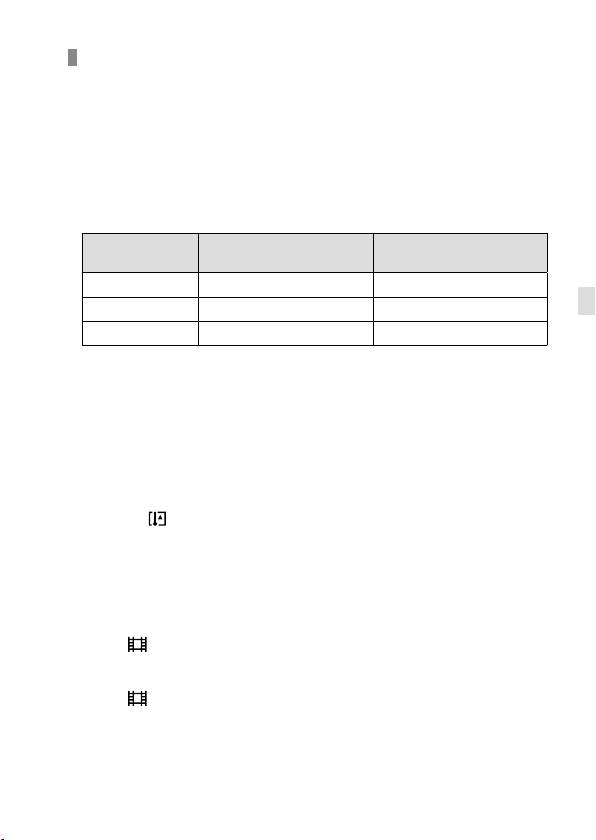
• The following values are the continuous times from when the camera
starts recording until the camera stops recording.
Ambient
Continuous recording time for
Continuous recording time for
temperature
movies (HD)
movies (4K)
20°C (68°F)
Approx. 29min. Approx. 20min.
GB
30°C (86°F)
Approx. 29min. Approx. 20min.
40°C (104°F)
Approx. 29min. Approx. 20min.
[Auto Pwr OFF Temp.]: [Standard]
HD: XAVC S HD (60p 50M/50p 50M, not connected via Wi-Fi)
4K: XAVC S 4K (24p 60M, not connected via Wi-Fi)
• The duration of time available for movie recording varies with the
temperature, file format/record setting for movies, Wi-Fi network
environment, or condition of the camera before you start recording. If
you frequently recompose or shoot images after the power is turned
on, the temperature inside the camera will rise and the recording time
available will be shorter.
• When the
icon appears, the temperature of the camera is too high.
• If the camera stops recording due to the temperature, leave it for some
time with the power turned off. Start recording after the temperature
inside the camera drops fully.
• If you observe the following points, the recording time will be longer.
– Keep the camera out of direct sunlight.
– Turn the camera off when it is not being used.
• When [
File Format] is set to [AVCHD], the file size of movies is
limited to approx. 2GB. If the movie file size reaches approx. 2GB
during recording, a new movie file will be created automatically.
• When [
File Format] is set to [MP4], the file size of movies is limited
to approx. 4GB. If the movie file size reaches approx. 4GB during
recording, recording will stop automatically.
GB
49
ILCE-6500
4-690-670-41(1)
