
Sony KP-41S5K: instruction
Class: Household, kitchen appliances, electronics and equipment
Type:
Manual for Sony KP-41S5K
Table of contents
3-862-113-43 (1)
R
Getting Started
GB
Operating Instructions
GB
Uvedení do provozu
CZ
Funkce
CZ
Przed rozpoczęciem
PL
KP-41S4K
Instrukcja obsługi
PL
KP-41S4R
KP-41S5K
A készülék
HU
üzembehelyezése
Használati Útmutató
HU
KP-41S5R
Начало
BG
Инструкции за
BG
експлоатация
Подготовка к
эксплуатации
RU
Инструкция по
RU
эксплуатации
Projection TV
© 1999 by Sony Corporation Printed in Spain
WARNING
Important Information
To prevent fire or shock hazard, do not expose the unit to
Please read the following information on using and
rain or moisture.
maintaining the TV, for optimum viewing quality.
Dangerously high voltages are present inside the set. Do
Picture Quality
not open the cabinet. Refer servicing to qualified
• Poor colour registration (the red, green and blue signals
personnel only.
do not overlap properly) may be caused by the influence
of the earth’s magnetism. Correct this with the
Safety Information
convergence adjustment.
• Avoid touching the screen, and take care not to scratch
All TVs operate on extremely high voltages. To prevent
the surface with hard objects.
fire or electric shock, please follow the safety procedures
• Displaying a still picture for long periods of time, for
below. For your protection, refer all servicing to qualified
instance, when operating a video game or personal
personnel only.
computer and viewing a programme in 16:9 mode, may
For general safety:
damage the picture tube. To avoid this, keep the picture
• Do not expose the TV to rain or moisture.
contrast level low.
• Do not open the rear cover.
Illumination
For safe operations:
To obtain a clear picture, do not expose the screen to
• Do not operate the TV on any other voltages, but 220–
direct illumination or direct sunlight. If possible, use spot
240 V AC.
lighting directed down from the ceiling.
• Do not operate the TV if any liquid or solid object falls in it
Installation
- have it checked immediately.
• To prevent over heating of the set, do not block the
• Do not keep the set plugged in if you are not going to use
ventilation openings.
it for several days.
• Do not install the TV in a hot or humid place, or in a place
• Do not pull on the power cord to disconnect the TV. Pull it
subject to direct sunlight, excessive dust or mechanical
out by the plug.
vibration.
• Do not place anything on the surface of the front panel
• After transporting the TV directly from a cold to a warm
cover when you open it.
location, or if the room temperature has changed
suddenly, pictures may be blurred or show poor colour
over portions of the picture. This is because moisture has
condensed on the mirrors or lenses inside the TV. Let the
moisture evaporate before using the TV.
Maintenance
• Save the original shipping carton and packing material to
use if you ever have to ship your TV. For maximum
protection, repack your TV as it was originally packed at
the factory.
• To keep the cabinet looking brand-new, periodically clean
it with a soft cloth. Stubborn stains may be removed with a
cloth slightly dampened with a mild detergent solution.
Never use strong solvents such as thinner or benzene, or
abrasive cleaners since these will damage the cabinet. As
a safety precaution, unplug the TV before cleaning it.
• If the picture turns dark after the TV has been in use for a
long period of time, it may be necessary to clean the
inside of the TV. Consult qualified service personnel for
this.
Cleaning the Screen
• To remove dust from the front of the screen, unplug the TV
and wipe gently with a soft cloth lightly dampened with
water or a mild detergent solution, using vertical strokes
only. Then wipe it with a dry, soft cloth. Never use solvents
or thinners for cleaning purposes.
• To clean the screen with a cloth, please use a soft cloth
lightly moistened with a mild detergent solution or water.
Do not use any type of abrasive pad, alkaline cleaner,
scouring powder or solvent, such as alcohol or benzine, or
antistatic spray.
As a safety precaution, unplug the TV before cleaning it.
• Do not rub, touch, or tap the surface of the screen with
sharp or abrasive items, like a ball point pen or a screw
driver. Otherwise, this type of contact may result in a
scratched screen.
2

Contents
Overview ................................................................................... 4
GB
Getting Started
Getting Started ...............................................................
6
Step 1 Preparation..................................................................... 6
GB
Operating Instructions
Check the Supplied Accessories ..................................... 6
Insert the Batteries into the Remote Commander............. 6
Connect the Aerial .......................................................... 6
Step 2 Tuning in to TV Stations .................................................. 7
Choose a Language ....................................................... 7
Preset Channels Automatically ....................................... 8
Step 3 Adjusting Colour Registration (CONVERGENCE) ........... 9
Converge the Red, Green, and Blue Lines....................... 9
Additional Presetting Functions ................................................ 10
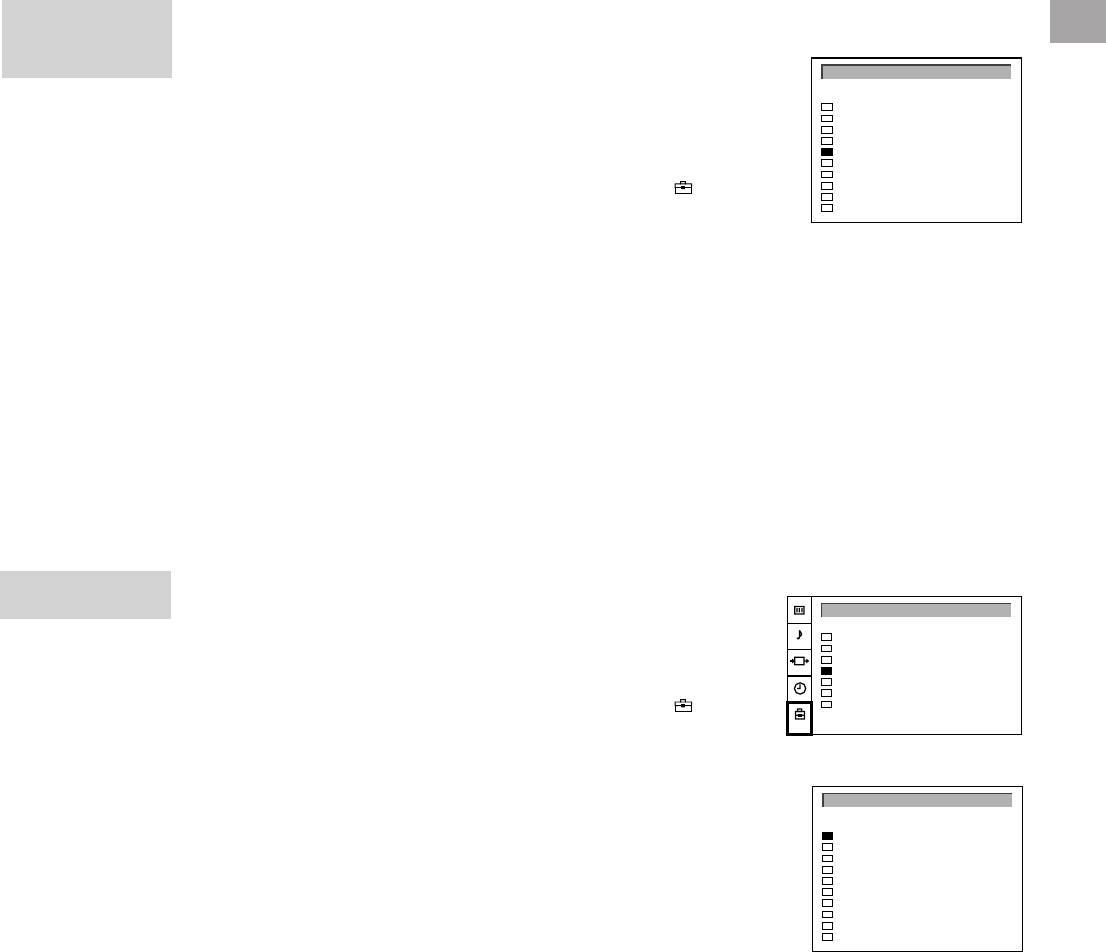
Presetting Channels Manually....................................... 10
Manual Fine-Tuning ...................................................... 11
Sorting Programme Positions........................................ 11
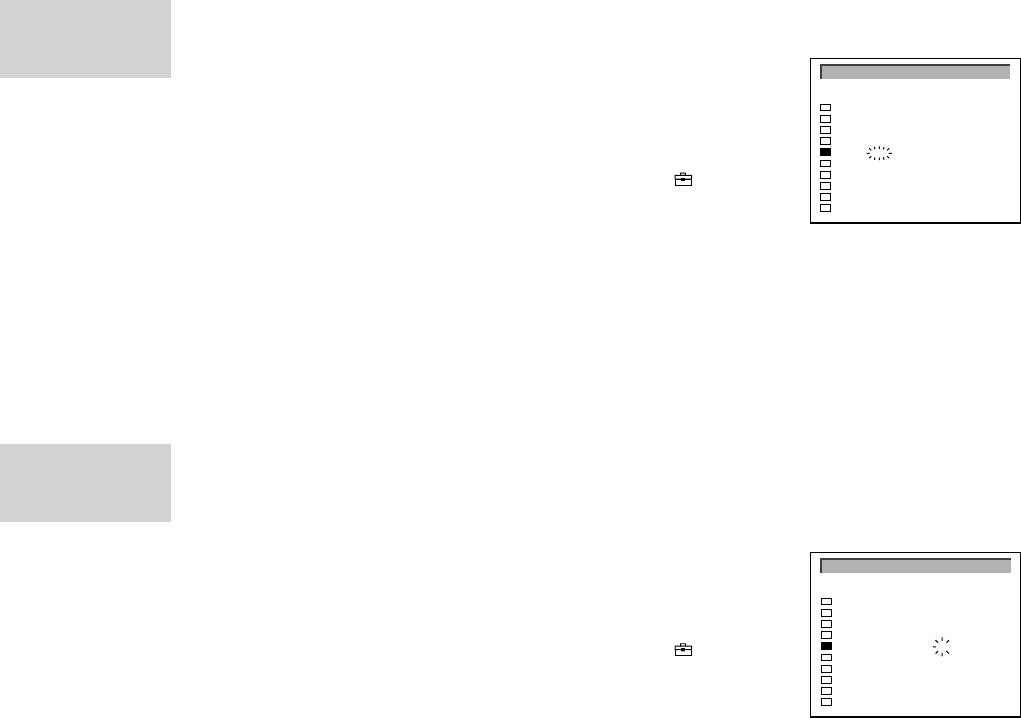
Skipping Programme Positions ..................................... 12
Captioning a Station Name ........................................... 12
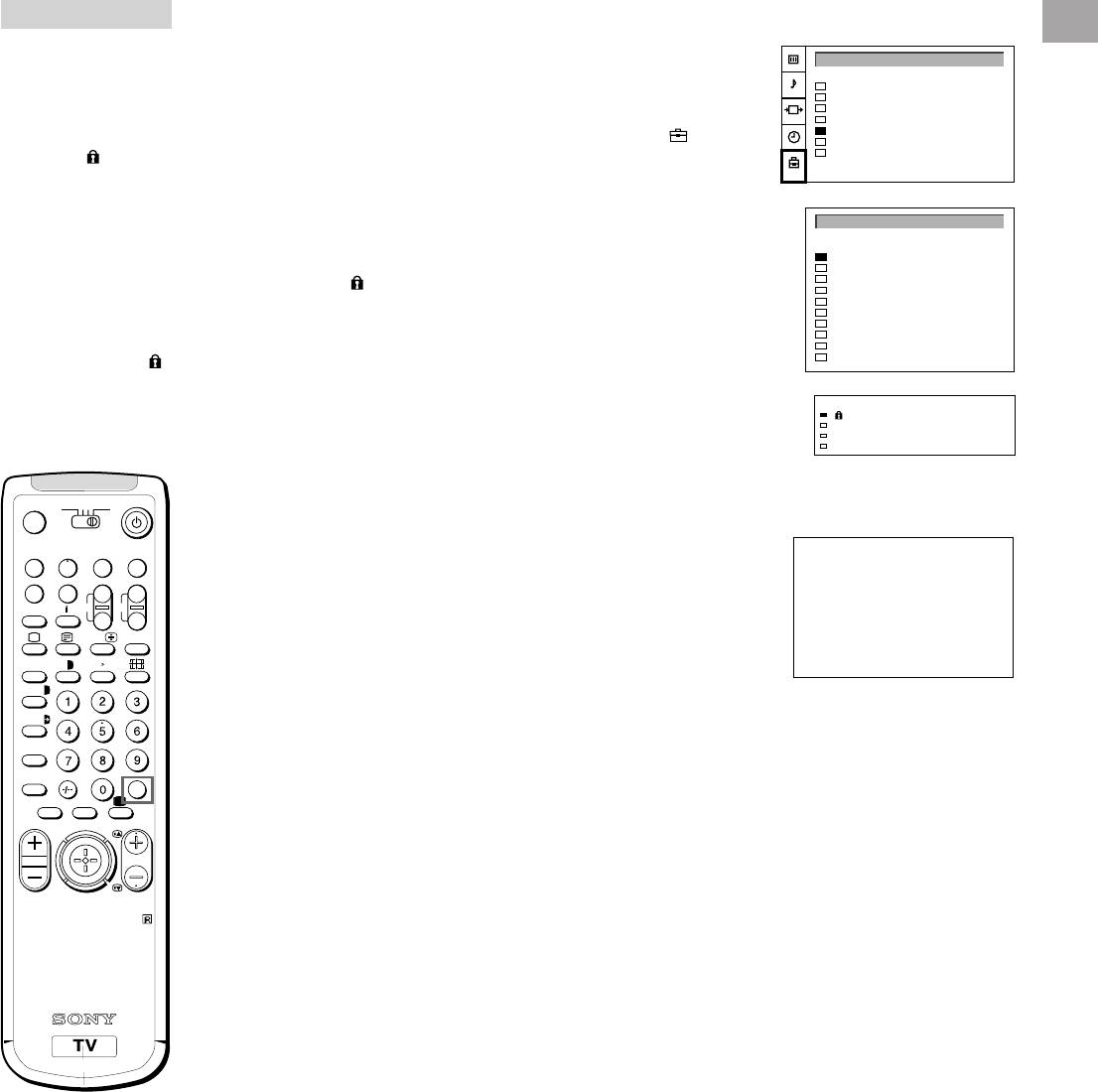
Using Parental Lock ...................................................... 13
Tuning in a Channel Temporarily................................... 13
Operating Instructions.................................................
14
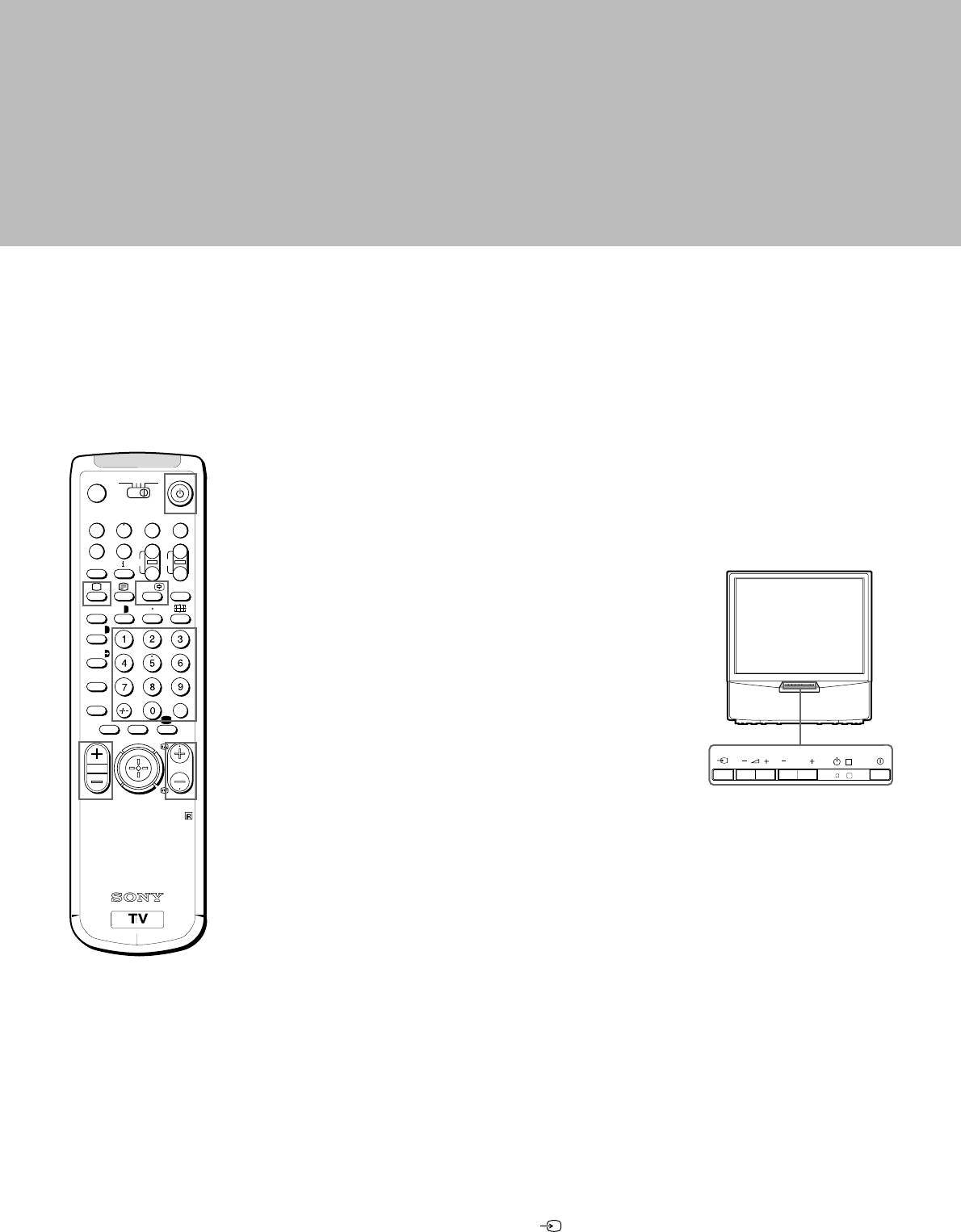
Watching the TV....................................................................... 14
Switching the TV on and off ........................................... 14
Selecting TV Programmes ............................................ 14
Adjusting the Volume .................................................... 14
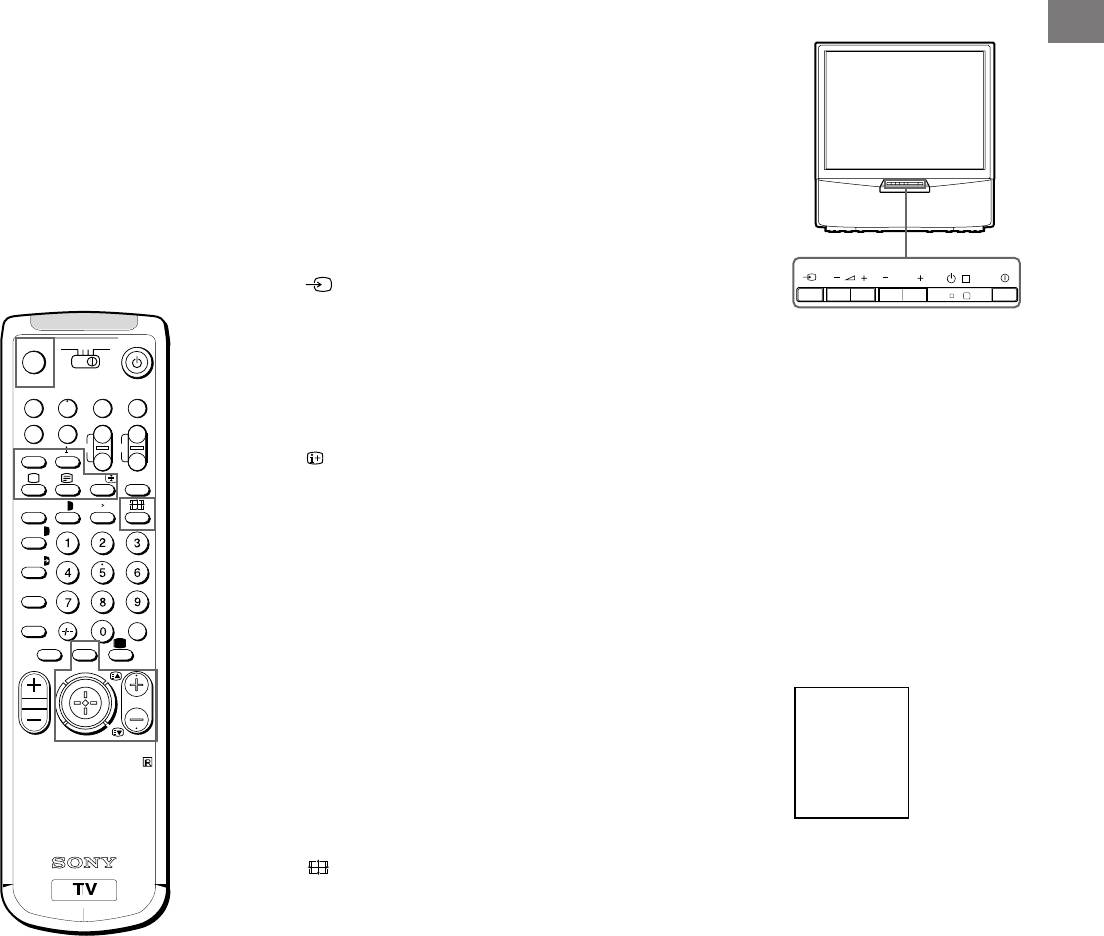
Operating the TV Using the Buttons on the TV............... 14
Watching Teletext or Video Input................................... 15
More Convenient Functions .......................................... 15
Adjusting and Setting the TV Using the Menu ........................... 16
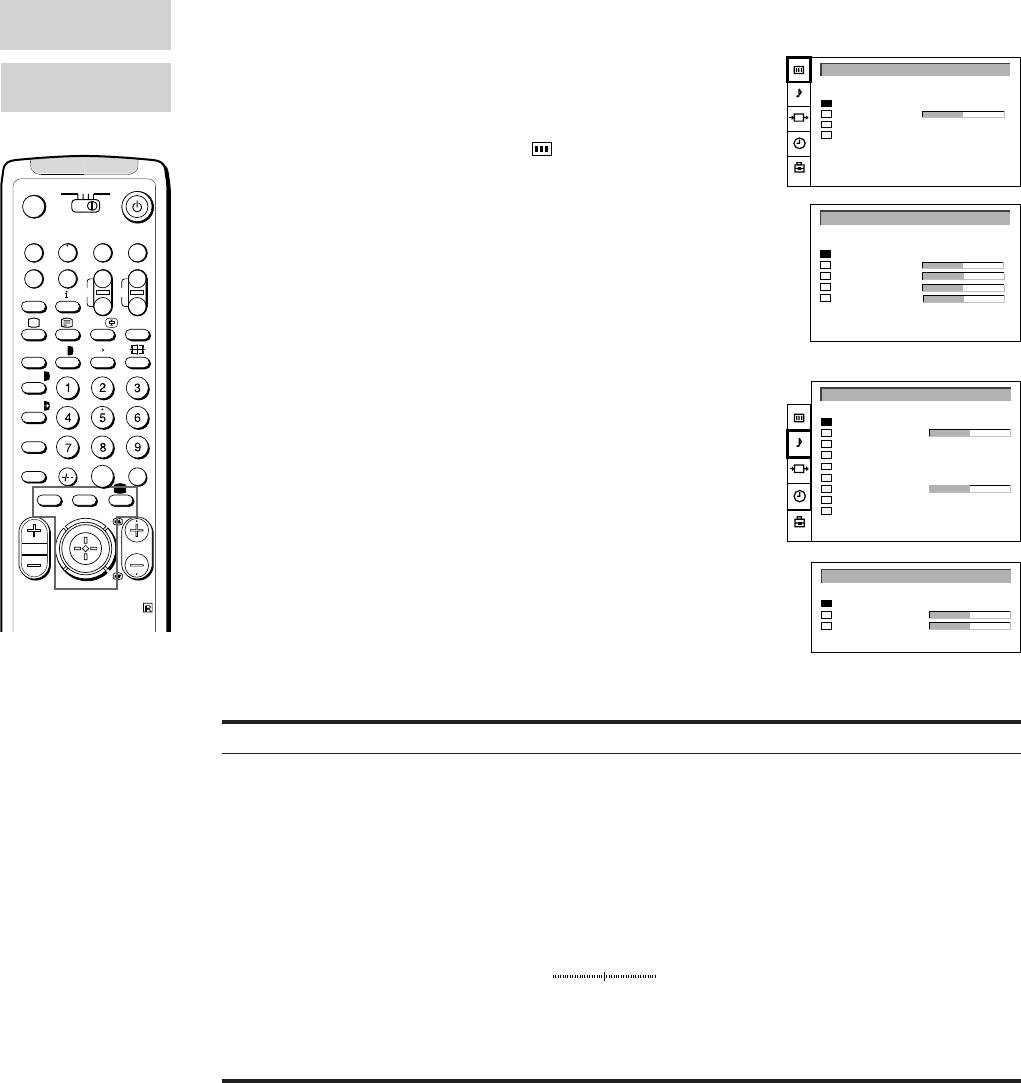
Adjusting the Picture and Sound ................................... 16
Using the Sleep Timer................................................... 17
Teletext.................................................................................... 18
Direct Access Functions................................................ 18
Connecting and Operating Optional Equipment ........................ 20
Connecting Optional Equipment.................................... 20
Selecting lnput Signal.................................................... 21
Using AV Label Preset .................................................. 22
Checking and Selecting the Input and
Output Sources Using the Menu ................................. 22
Remote Control of Other Sony Equipment ..................... 23
For Your Information ................................................................ 24
Optimum Viewing Area ................................................. 24
Troubleshooting............................................................ 25
Specifications ............................................................... 25
3
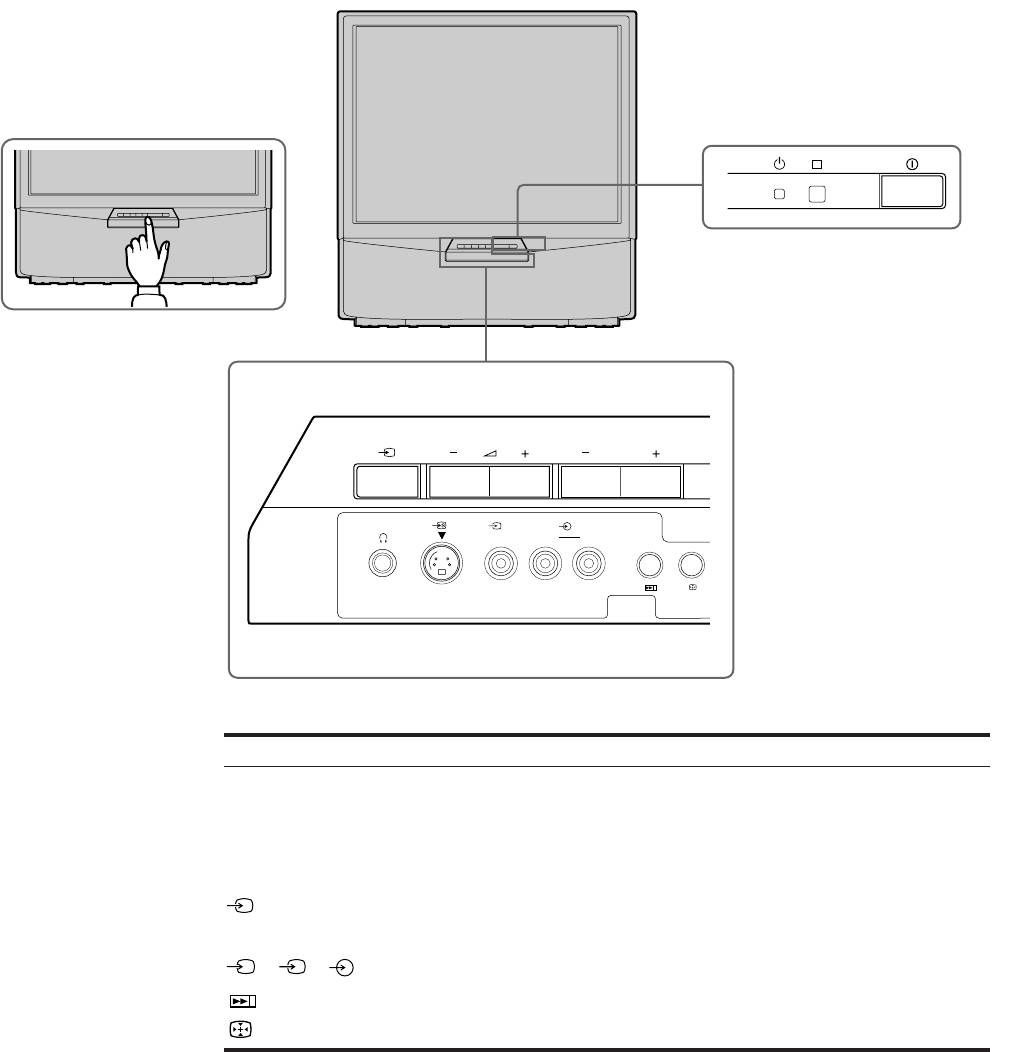
Overview
This section briefly describes the buttons and controls on the TV
set and on the Remote Commander. For more information, refer to
the pages given next to each description.
TV set-front
R
PROGR
R
3 3
MONO
3
L/G/S/I R/D/D/D
Symbol
Name
Refer to page
U
Main power switch
14
u
Standby indicator
14
PROGR+/–
Programme buttons
14
¸ +/–
Volume buttons
14
Input select buttons
15
l
Headphones jack
20
S
3, 3, 3
Input jacks (S video/video/audio)
21
Auto Preset button
8
Auto Convergence button
9
4
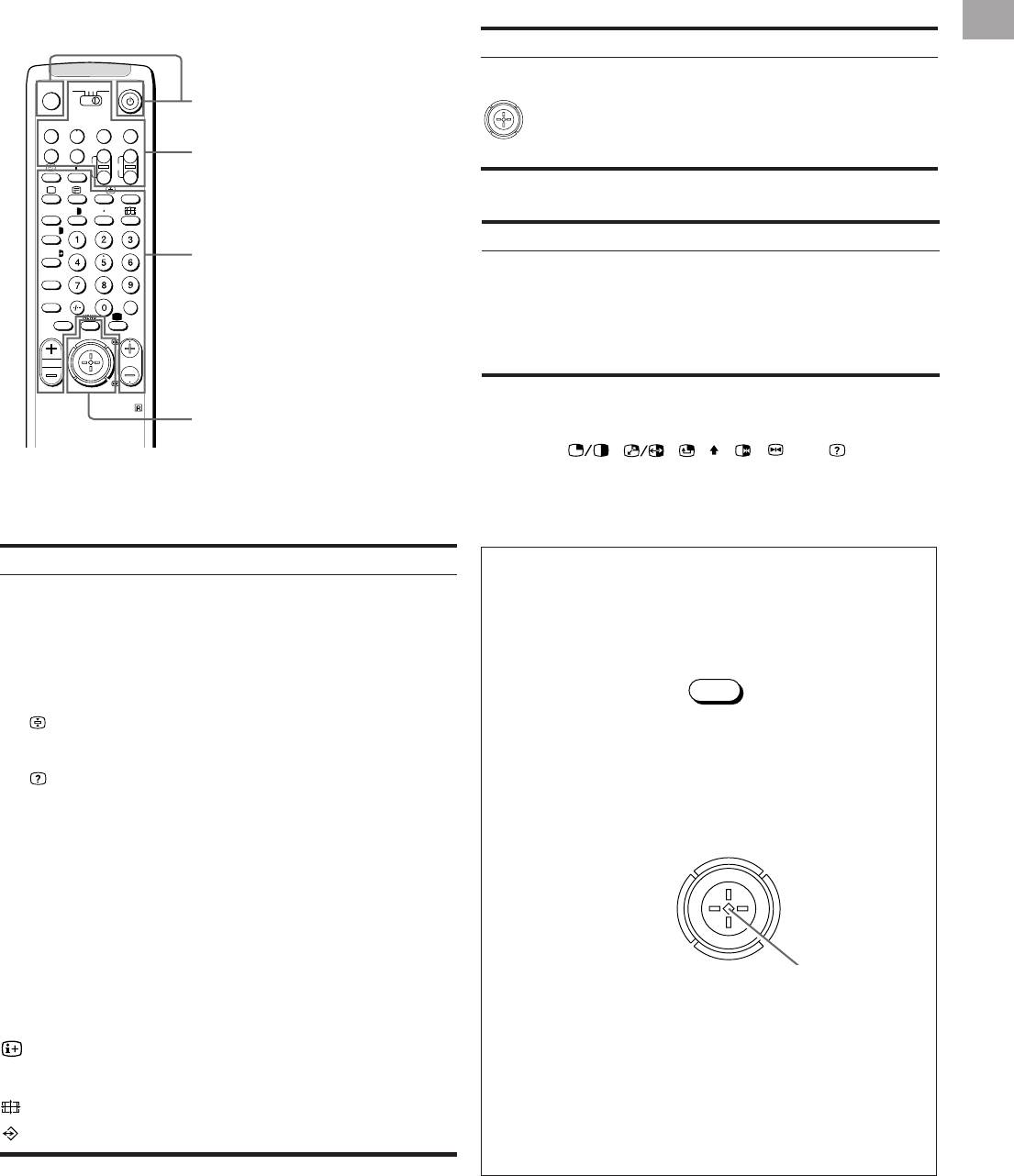
Remote commander
Menu operation
GB
Symbol
Name
Refer to page
MENU
Menu on/off button
See below.
3VTR 1
MDP2
TV
¤
TV/Teletext operation
Joystick for Menu selection
See below.
VIDEO
0
( u)
Press to confirm selection
p Pr
+
Video operation
(OK function)
+
REC
˚
;
CH
_
…/
Ú/;
?
Video operation
;
8
´
8
x
´/´
Symbol
Name
Refer to page
a/Å
TV/Teletext operation
VTR1/2/3,
Video equipment selector
23
A
MDP
b
c
≥
MENU
;; - :: L
Video equipment operation
23
¸
PROGR
J a VIDEO f
buttons
CH +/–
RM-862
Menu operation
No function on this set
Symbol : , , , , , , Ú/ (for TV
operation)
TV/Teletext operation
Symbol
Name
Refer to page
For the Menu System
o
Mute on/off button
15
Use the MENU button and the joystick as follows.
TV u
TV Standby button
14
1 Press MENU button to switch menu on or off.
;
TV power on/TV mode selector
14
button
MENU
f
Teletext button
15
…/
Input mode selector/
15
Teletext: Freezing the subpage
18
2 Use the joystick as follows:
Ú/
Teletext: Reveal button
18
1,2,3,4,5,6,
Number buttons
14
GREEN: scroll up
7,8,9 and 0
RED:
÷
Double-digit entering button
14
decrease/back to last item
YELLOW:
C
Direct channel entering button
13
or to last menu
increase/forward
When menu is not
Á+/–
Volume control button
14
to next item
displayed:
PROGR +/–
Programme selectors
14
Push to red to display the
R/S×
Teletext: Page up/page down buttons
18
last menu screen
Joystick: Press at
Í
Picture mode button
17
its neutral position
BLUE: scroll down
to confirm selection
≥
Sound mode button
17
or store
On-screen display button
15
#
Time display button
15
Button to change Screen Format
15
The operable functions of the joystick are displayed on the
Teletext: Favourite pages button
19
screen.
5
Getting Started
3
2
1
Step 1 Preparation
3
2
1
1 Check the Supplied Accessories
When you’ve taken everything
out of the carton, check that you
have these items:
• RM-862 Remote Commander
• Two IEC designation R6 batteries
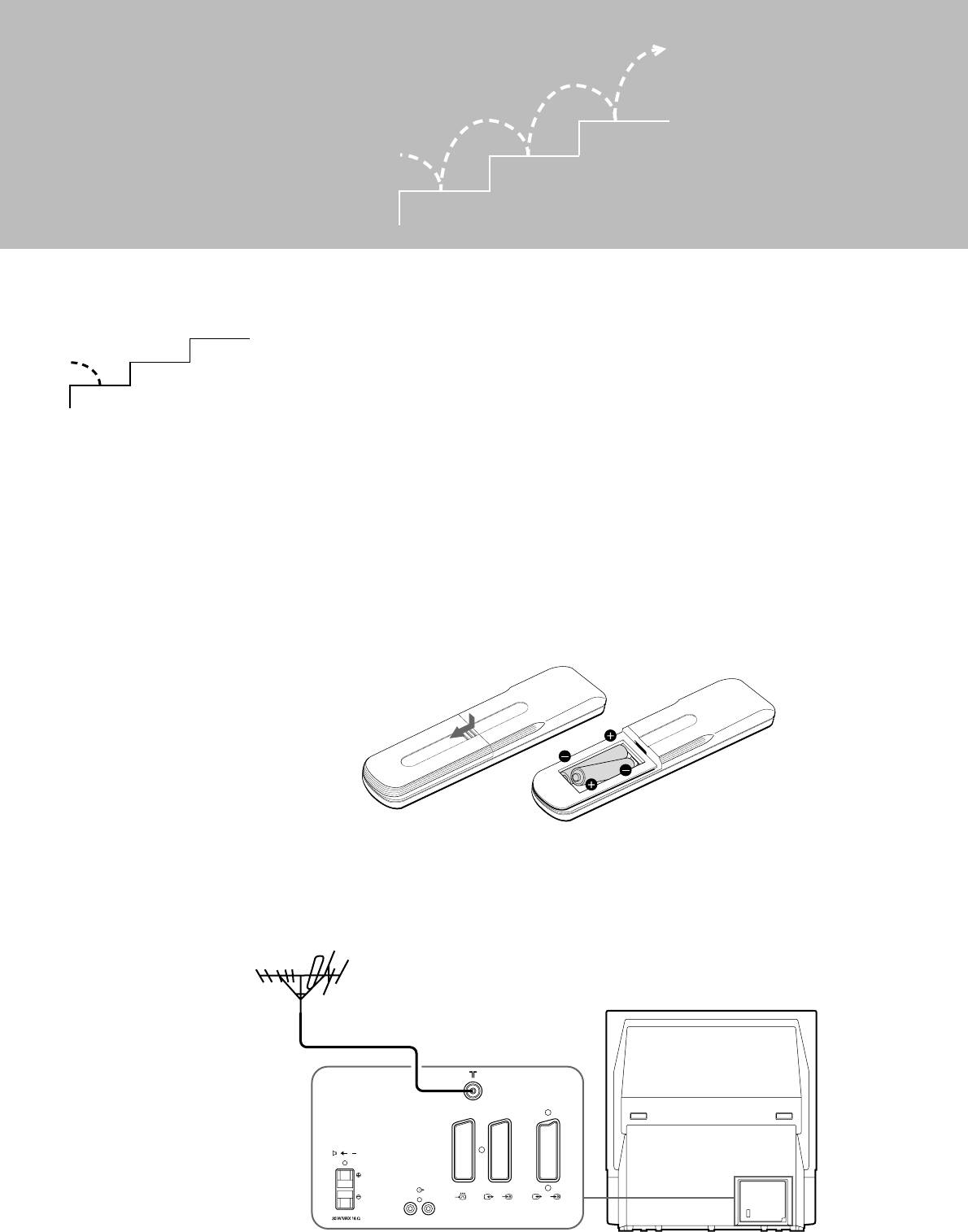
2 Insert the Batteries into the Remote Commander
Note: Always remember
to dispose of used
batteries in an
Remove the cover.
Check the correct
environmentally friendly
polarities.
way.
3 Connect the Aerial
C
1
2/
2
3/
3
R/D/D/D-L/G/S/I
Fit an IEC aerial connector attached to 75-ohm coaxial cable (not
supplied) to the ) socket at the rear of the TV.
6
Step 2 Tuning in to TV Stations
GB
3
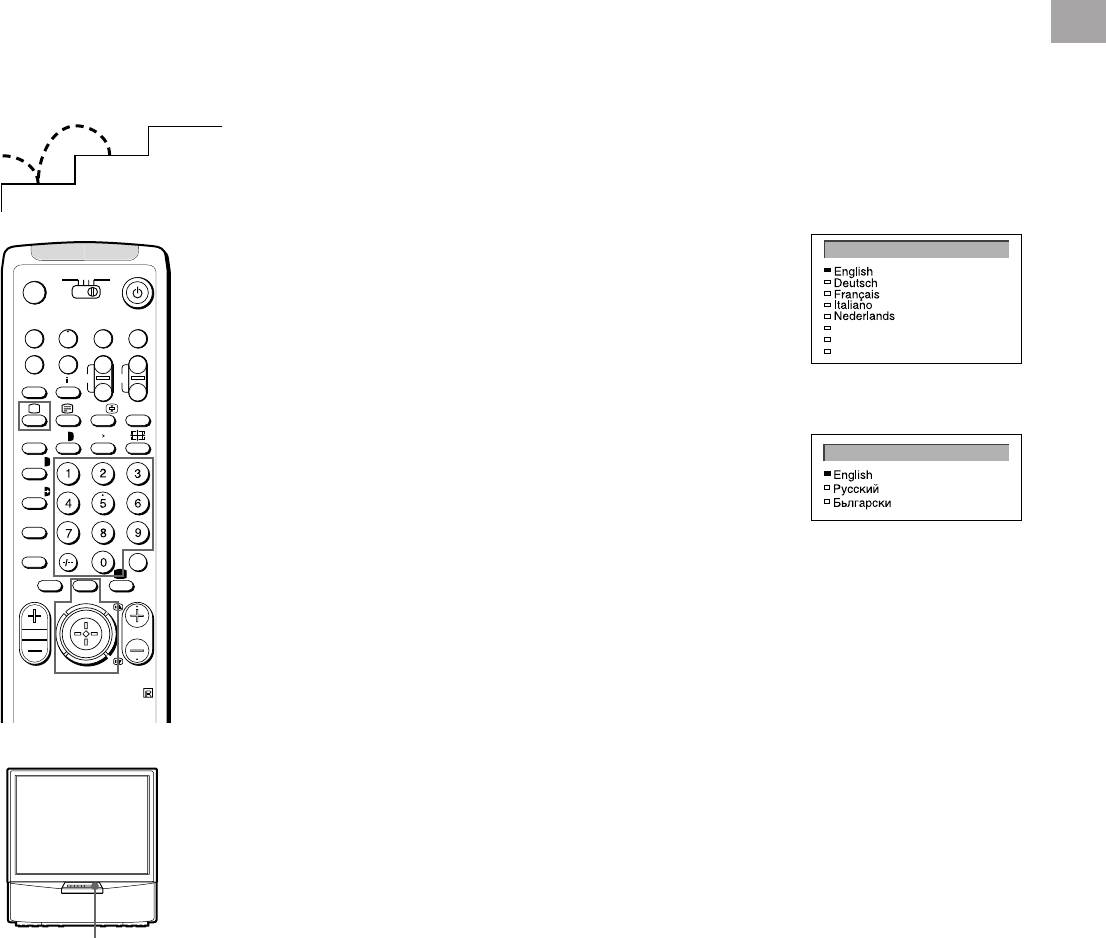
1 Choose a Language
2
This function enables you to select the language of the menu
1
screens.
1 Press U (main power switch) on the TV.
LANGUAGE
The TV will switch on. If the standby indicator on the TV is lit, press
3VTR 1
MDP2
TV
; or a number button on the Remote Commander.
¤
2 Press MENU on the remote commander.
VIDEO
Polski
0
( u)
The LANGUAGE menu appears
Česky
Magyar
p Pr
+
3 Push the joystick to blue or green to select the language you want.
REC
˚
;
+
CH
_
Press the joystick to confirm your selection.
(KP-41S4K, KP-41S5K)
…/
Ú/;
?
4 Press MENU to restore the normal TV picture.
;
8
´
8
x
LANGUAGE
´/´
a/Å
A
(KP-41S4R, KP-41S5R)
b
c
≥
MENU
¸
PROGR
RM-862
U
7
2 Preset Channels Automatically
3VTR 1
MDP2
TV
¤
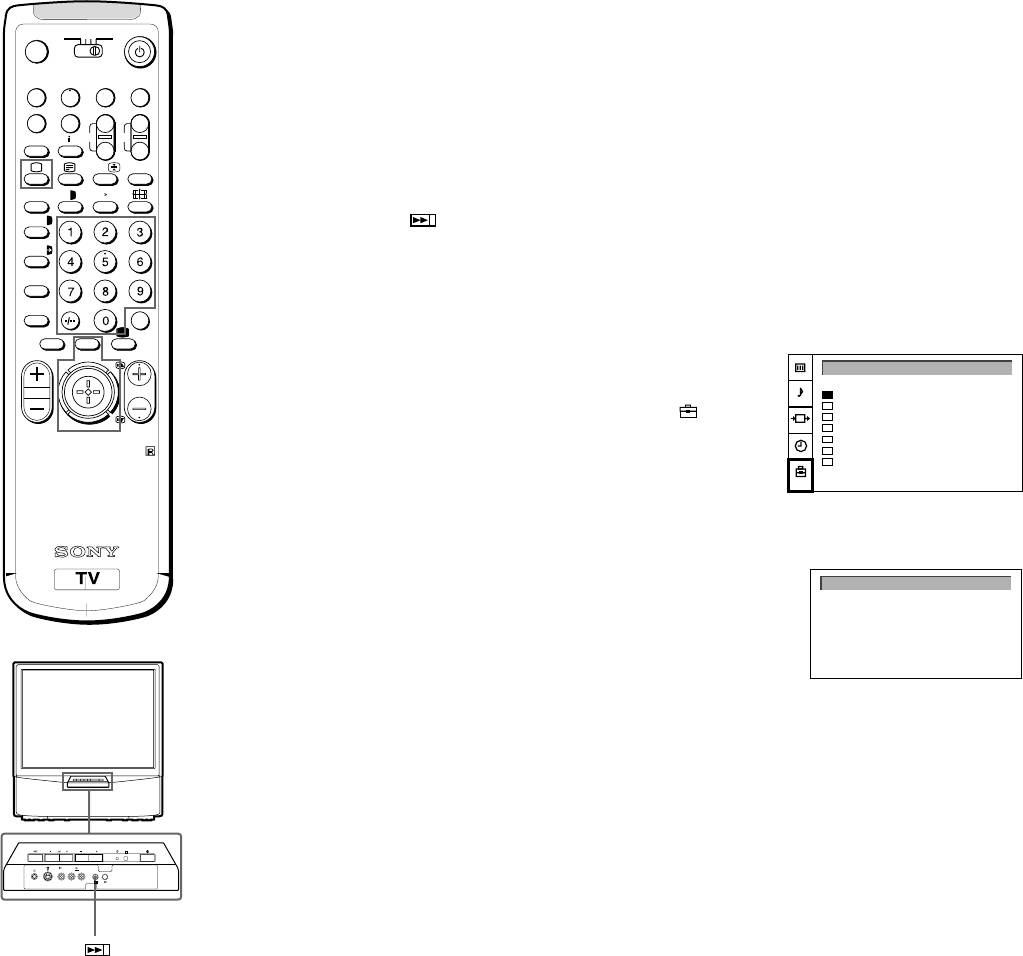
With this function, the TV automatically searches and stores up to
100 channels onto programme positions. If you prefer “Presetting
VIDEO
0
( u)
Channels Manually”, please refer to page 10 in Additional
Presetting Functions.
p Pr
+
˚
;
+
REC
CH
_
1 Press U (main power switch) on the TV.
…/
Ú/;
?
The TV will switch on. If the standby indicator on the TV is lit, press
;
8
´
8
x
; or a number button on the Remote Commander.
´/´
2 Press and hold the
on the TV until the automatic menu is
displayed and the search starts.
a/Å
After all available channels are stored, the normal TV picture is
A
shown.
b
c
≥
MENU
Presetting channels automatically by using the
¸
PROGR
Remote Commander
PRESET
1 Press MENU.
Auto Programme
Manual Programme
2 Push the joystick to blue or green to select the symbol
, then
AV Label Preset
Programme Sorting
push to yellow.
Parental Lock
RM-862
Language
The PRESET menu appears.
Convergence
3 Push the joystick to blue or green to select “Auto Programme”.
4 Push to yellow and hold until the AUTO PROGRAMME menu is
displayed and the search starts.
After all available channels have been preset, the normal TV
picture is shown.
AUTO PROGRAMME
SYSPROG
CHAN
LABEL
6 D/K
C26
- - - - -
PROGR
R
3 3
L/G/S/I R/D/D/D
MONO
3
Notes:
• You can sort the
programme positions
to have them appear
on screen in the order
you like. For details,
see “Sorting
Programme Positions”
on page 11.
• To stop automatic
channel presetting
Press Menu on the
Remote Commander.
8
Step 3 Adjusting Colour Registration
(CONVERGENCE)
3
2
1
Converge the Red, Green, and
GB
Blue Lines
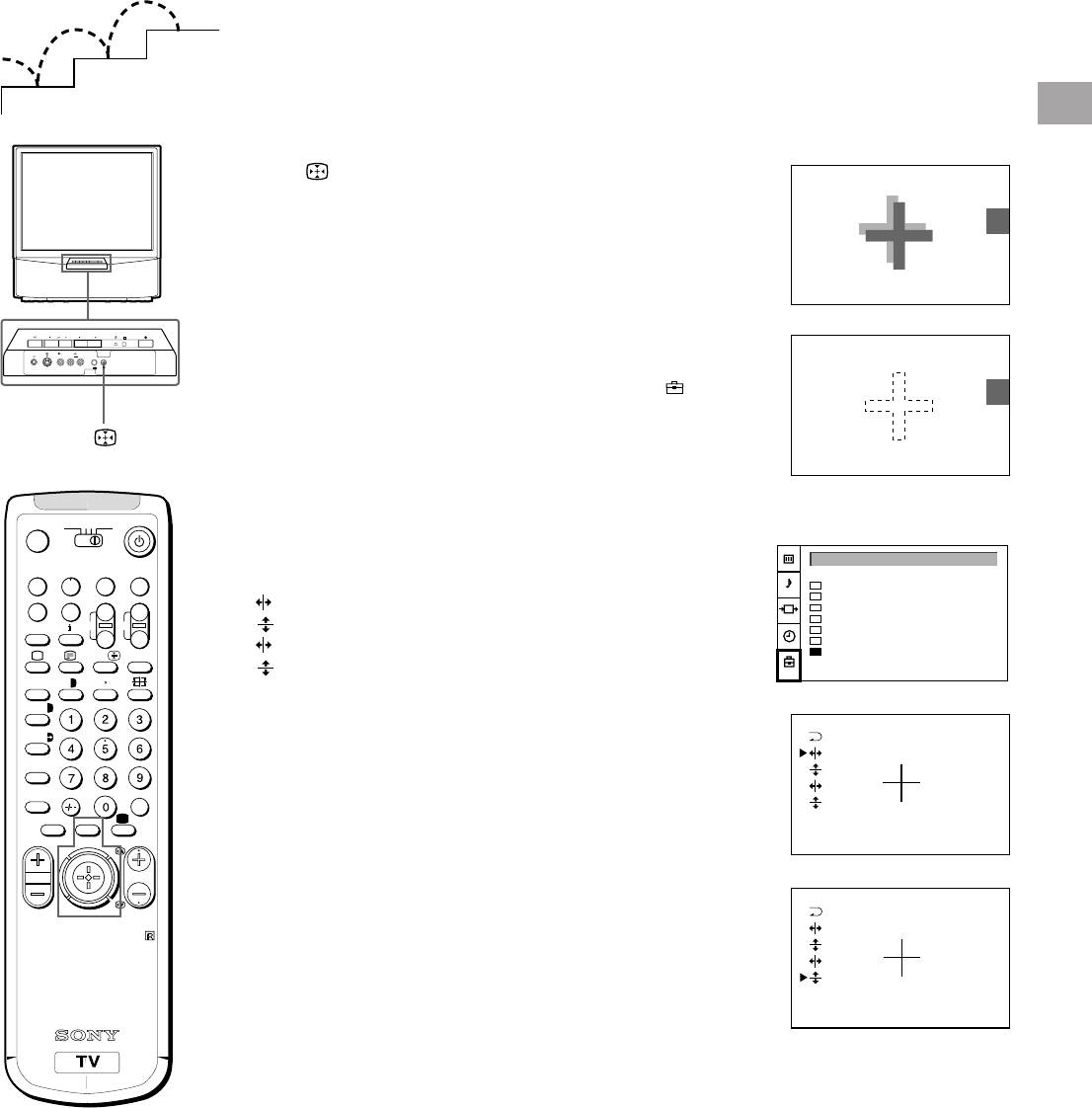
1 Press button on the TV.
2 The Auto Convergence function works for about 30 seconds.
When the auto convergence function does not
work correctly
Adjust the colour registration by selecting the “Convergence” of the
..
..
.
PROGR
R
PRESET menu.
3 3
L/G/S/I R/D/D/D
MONO
3
1 Press MENU.
2 Push the joystick to blue or green to select the symbol
, then
push to yellow.
The PRESET menu appears.
3 Push the joystick to blue or green to select “Convergence”, then
push to yellow.
The CONVERGENCE menu appears.
3VTR 1
MDP2
TV
¤
4 Push the joystick to blue or green to select “the line” (vertical and
horizontal lines in red and blue) you want to adjust.
PRESET
VIDEO
0
( u)
Press the joystick to confirm.
Auto Programme
Manual Programme
: red vertical line (left/right adjustment)
p Pr
+
AV Label Preset
Programme Sorting
˚
;
+
REC
CH
: red horizonta line (up/down adjustment)
_
Parental Lock
: blue vertical line (left/right adjustment)
Language
…/
Ú/;
?
Convergence
: blue horizontal line (up/down adjustment)
;
8
´
8
x
The line to adjust is selected.
´/´
5 Push the joystick to blue or green to converge the selected line
a/Å
with the green line in the centre.
A
Press the joystick to confirm.
b
6 Repeat steps 4 and 5 to adjust the other lines, until all the lines
c
≥
MENU
have overlapped to form a white cross.
¸
PROGR
7 Press MENU to restore the normal TV picture.
RM-862
Note
The Auto Convergence
function does not work:
• when no signal is input.
• when the input signal is
weak.
• when the screen is
exposed to spotlights
or direct sunlight.
• when you watch the
teletext broadcast.
• when you watch TV
programmes in 16:9
mode.
9
Additional Presetting Functions
3
2
1
Presetting Channels Manually
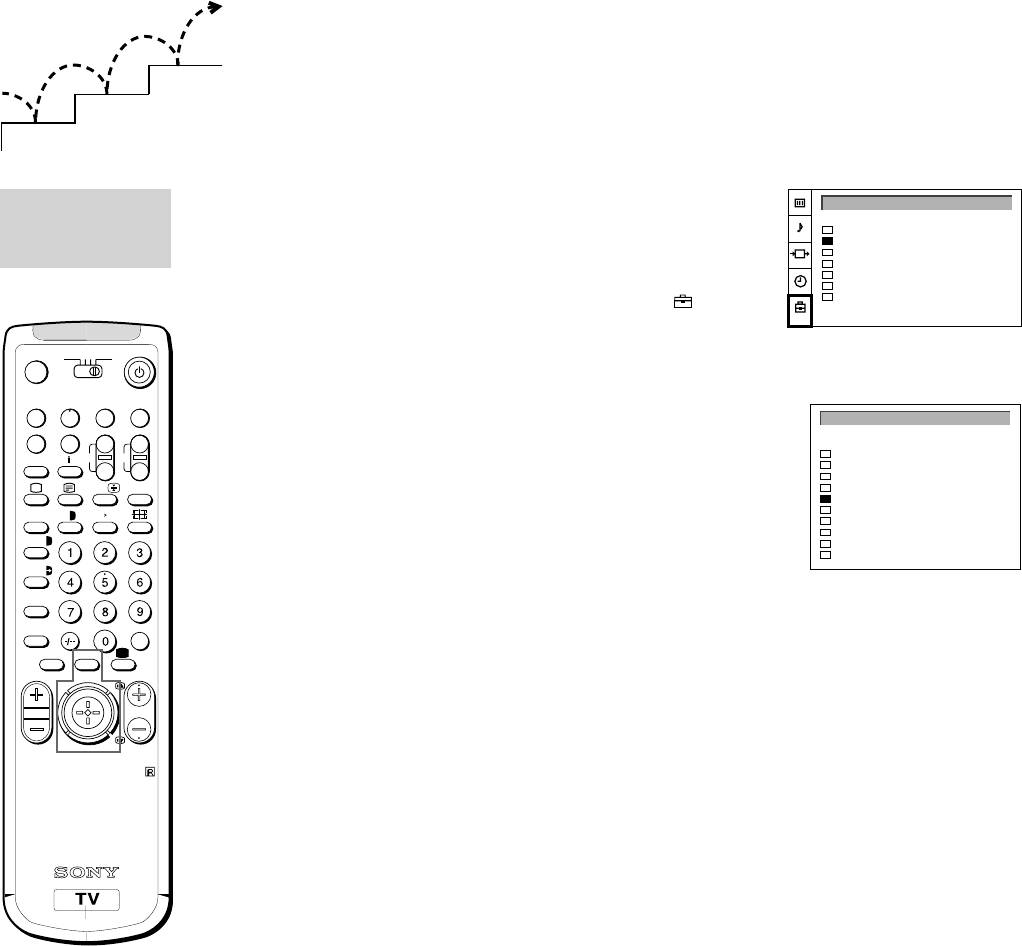
Using this function, you can preset channels one by one to
MANUAL
PRESET
different programme positions. This is also convenient to allocate
PROGRAMME
Auto Programme
programme numbers to video input sources.
Manual Programme
PRESET
AV Label Preset
Programme Sorting
1 Press MENU.
Parental Lock
Language
Convergence
2 Push the joystick to blue or green to select the symbol on the
menu screen. Push to yellow to confirm the selection.
3VTR 1
MDP2
TV
3 Push to blue or green to select “Manual Programme”. Push to
¤
yellow to confirm the selection.
VIDEO
4 Push to blue or green to select the programme position (PROG) to
0
( u)
MANUAL PROGRAMME PRESET
which you want to preset a channel. Push to yellow to confirm.
p Pr
+
SYSPROG
CHAN
LABEL
AFT
+
REC
CH
0
D/K
C29
- - - - -
ON
˚
;
5 Push to blue or green to select the TV broadcast system (SYS)
_
1
D/K
C31
- - - - -
ON
2
D/K
C32
- - - - -
ON
(B/G for western European countries, D/K for eastern European
…/
Ú/;
?
3
D/K
C36
- - - - -
ON
4
D/K
C37
- - - - -
ON
countries) or a video input source (AV1, AV2, AV3, YC2, YC3,
8
8
5
D/K
C40
- - - - -
ON
;
´
x
RGB). Push to yellow to confirm.
6
D/K
C41
- - - - -
ON
7
D/K
C44
- - - - -
ON
´/´
8
D/K
C49
- - - - -
ON
6 Push to blue or green to select “C” (for terrestrial channels) or “S”
9
D/K
C52
- - - - -
ON
a/Å
(for cable channels). Push to yellow to confirm.
A
There are two options to preset channels manually:
b
c
a) You know the channel number.
≥
MENU
Please use method “Direct Input”.
¸
PROGR
or
b) You don’t know the channel number.
Please use method “Search”.
7 a) Direct Input
RM-862
Select the first number digit of “CHAN” (channel), then the second
number digit of “CHAN” with the number buttons on the Remote
Commander (e.g. for channel 2, first press 0, then 2).
7 b) Search
Push the joystick to blue or green to search for the next available
channel.
8 If you want to store the channel, go to step 9. If not, select a new
channel using the number button on the Remote Commander or
push the joystick to blue or green to resume the search.
9 Press the joystick to confirm.
10 Repeat steps 4 to 9 to preset other channels.
11 Press MENU to restore the normal TV picture.
10
MANUAL
Manual Fine-Tuning
GB
PROGRAMME
Normally, the automatic fine-tuning (AFT) function is already
PRESET
operating.
MANUAL PROGRAMME PRESET
SYSPROG
CHAN
LABEL
AFT
If the picture is distorted, however, you can manually fine-tune the
0
D/K
C29
- - - - -
ON
1
D/K
C31
- - - - -
ON
TV to obtain a better picture reception.
2
D/K
C32
- - - - -
ON
3
D/K
C36
- - - - -
ON
4
D/K
C37
- - - - -
ON
1 Press MENU.
5
D/K
C40
- - - - -
ON
6
D/K
C41
- - - - -
ON
2 Push the joystick to blue or green to select the symbol
on the
7
D/K
C44
- - - - -
ON
8
D/K
C49
- - - - -
ON
menu screen. Push to yellow to confirm.
9
D/K
C52
- - - - -
ON
3 Push to blue or green to select “Manual Programme”. Push to
yellow to confirm.
4 Push to blue or green to select the programme number which
corresponds to the channel you want to manually fine-tune.
5 Push to yellow repeatedly until the AFT position changes colour.
6 Push to blue or green to fine-tune the channel frequency (–15 to
+15).
7 Press the joystick to confirm.
8 Repeat steps 4 to 7 to fine-tune other channels.
9 Press MENU to restore the normal TV picture.
PROGRAMME
Sorting Programme Positions
SORTING
PRESET
This function enables you to sort the programme positions to a
Auto Programme
preferable order.
Manual Programme
AV Label Preset
Programme Sorting
1 Press MENU.
Parental Lock
Language
2 Push the joystick to blue or green to select the symbol
on the
Convergence
menu screen. Push to yellow to confirm.
3 Push to blue or green to select “Programme Sorting”. Push to
yellow to confirm.
PROGRAMME SORTING
4 Push to blue or green to select the programme position of the
SYSPROG
CHAN
LABEL
channel you want to change. Press joystick to confirm.
0
D/K
C28
BBC-W
1
D/K
C29
VHS-2
2
D/K
C35
CNN- -
5 Push to blue or green to select the programme position of the
3
D/K
C38
- - - - -
4
D/K
C40
MV-CH
channel you want to exchange. Press joystick to confirm.
5
D/K
C42
VHS-1
6
D/K
C55
- - - - -
6 Repeat steps 4 and 5 to sort other programme positions.
7
D/K
C56
8MM
8
D/K
C57
- - - - -
9
D/K
C58
- - - - -
7 Press MENU to restore the normal TV picture.
11
MANUAL
Skipping Programme Positions
PROGRAMME
This function enables you to skip unused programme positions
PRESET
when selecting them with the PROGR +/– buttons. However, by
MANUAL PROGRAMME PRESET
using the number buttons you can still select the skipped
SYSPROG
CHAN LABEL
AFT
0
D/K
C29
- - - - -
ON
programme position.
1
D/K
C31
- - - - -
ON
2
D/K
C32
- - - - -
ON
3
D/K
C36
- - - - -
ON
1 Press MENU.
4
- - -
C37
- - - - -
ON
5
D/K
C40
- - - - -
ON
6
D/K
C41
- - - - -
ON
2 Push the joystick to blue or green to select the symbol
on the
7
D/K
C44
- - - - -
ON
8
D/K
C49
- - - - -
ON
menu screen. Push to yellow to confirm.
9
D/K
C52
- - - - -
ON
3 Push to blue or green to select “Manual Programme”. Push to
yellow to confirm.
4 Push to blue or green to select the programme position you want to
skip. Push to yellow to confirm.
5 Push to blue or green to select “- - -” in the position SYS (system).
Press the joystick to confirm.
6 Repeat steps 4 and 5 to skip other programme positions.
7 Press MENU to restore the normal TV picture.
MANUAL
PROGRAMME
PRESET
Captioning a Station Name
Channels are automatically labelled during presetting. You can,
however, individually name a channel or a video source using up
MANUAL PROGRAMME PRESET
to five characters.
SYSPROG
CHAN LABEL
AFT
0
D/K
C29
- - - - -
ON
1
D/K
C31
- - - - -
ON
1 Press MENU.
2
D/K
C32
- - - - -
ON
3
D/K
C36
- - - - -
ON
4
D/K
C37
A - - -
ON
2 Push the joystick to blue or green to select the symbol
on the
5
D/K
C40
- - - - -
ON
6
D/K
C41
- - - - -
ON
menu screen. Push to yellow to confirm.
7
D/K
C44
- - - - -
ON
8
D/K
C49
- - - - -
ON
3 Push to blue or green to select “Manual Programme”. Push to
9
D/K
C52
- - - - -
ON
yellow to confirm.
4 Push to blue or green to select the programme position with the
channel you want to label. Push to yellow repeatedly until the first
element of the position LABEL is highlighted.
5 Push to blue or green to select a letter or a number (select “-” for a
blank). Push to yellow to confirm. Select the other four characters
in the same way.
6 After selecting all characters, press the joystick to confirm.
7 Repeat steps 4 to 6 to label other channels or video sources.
8 Press MENU to restore the normal TV picture.
12
PARENTAL LOCK
Using Parental Lock
GB
This function enables you to prevent children from watching
PRESET
undesirable broadcasts.
Auto Programme
If you try to select a
Manual Programme
1 Press MENU.
AV Label Preset
programme that has
Programme Sorting
Parental Lock
been blocked
2 Push the joystick to blue or green to select the symbol
on the
Language
Convergence
The symbol appears
menu screen. Push to yellow to confirm.
on the blank TV screen.
3 Push to green or blue to select “Parental Lock”. Push to yellow to
confirm.
PARENTAL LOCK
4 Push to green or blue to select the channel you want to block.
SYSPROG
CHAN
LABEL
0
D/K
C28
BBC-W
To unblock
Press the joystick to confirm.
1
D/K
C29
VHS-2
2
D/K
C35
CNN- -
Select the channel to
The symbol appears before the programme position to indicate
3
D/K
C38
- - - - -
unblock in the
4
D/K
C40
MV-CH
that this channel is now blocked.
5
D/K
C42
VHS-1
“PARENTAL LOCK”
6
D/K
C55
- - - - -
5 Repeat step 4 to block other channels.
7
D/K
C56
8MM
menu. Press the
8
D/K
C57
- - - - -
9
D/K
C58
- - - - -
joystick. The symbol
6 Press MENU to restore the normal TV picture.
disappears.
PROG CHAN LABEL
SYS
0
D/K
C28 BBC-W
1
D/K
C29 VHS-2
2
D/K
C35 CNN
3
D/K
C38 - - - - -
Tuning in a Channel Temporarily
3VTR 1
MDP2
TV
¤
You can tune in to a channel temporarily, even though it has not
been preset.
VIDEO
0
( u)
1 Press C on the Remote Commander. For cable channels, press C
C - -
p Pr
+
twice.
˚
;
+
REC
CH
_
The indication “C” ( “S” for cable channels) appears on the screen.
…/
Ú/;
?
2 Enter the double-digit channel number using the number buttons
;
8
´
8
x
(e.g. for channel 4, first press 0, then 4).
´/´
The channel appears. Note that the channel will not be stored.
a/Å
A
b
c
≥
MENU
¸
PROGR
RM-862
Note
After you tune in a
channel temporarily, you
cannot enter the manual
preset mode.
To store the channel,
change to another
programme and refer to
the “Presetting Channels
Manually” on page 10.
13
Operating Instructions
Watching the TV
This section explains the basic functions you use while watching
3VTR 1
MDP2
TV
the TV. Most operations are done using the Remote Commander.
¤
VIDEO
0
( u)
Switching the TV on and off
p Pr
+
˚
;
+
REC
CH
_
Switching on
…/
Ú/;
?
Press U on the TV.
;
8
´
8
x
Switching off temporarily
´/´
Press u on the Remote Commander.
a/Å
The TV enters standby mode and the standby indicator on the front
A
of the TV lights up in red.
b
To switch on again
c
≥
MENU
Press O, PROGR +/–, or one of the number buttons on the
¸
PROGR
Remote Commander.
Switching off completely
Press U on the TV.
RM-862
To save energy, we recommend you switch off your TV completely
when the TV is not in use.
Selecting TV Programmes
Press PROGR +/– or press the number buttons.
To select a double-digit number
Press ÷, then the numbers.
For example, if you want to choose 23, press ÷, 2 and 3.
If no picture appears
when you press U on
the TV and if the
standby indicator on
Adjusting the Volume
the TV is lit, the TV is in
standby mode.
Press ¸ +/–.
Press O, PROGR+/– or
one of the number
buttons to switch it on.
Operating the TV Using the
Buttons on the TV
To select the programme number, press the PROGR +/– buttons.
To adjust the volume, press the ¸ +/– buttons.
To select the video input picture, press the button.
14
PROGR
R
Watching Teletext or Video Input
Watching teletext
GB
1 Press _ to view the teletext.
2 For teletext operation, enter a 3-digit page number with the number
buttons to select a page.
For fastext operation, push the joystick to the colour mark which
For details of the teletext
corresponds to the colour-coded menu.
operation, refer to
For both operations, press R (PAGE + ) for the next page or
page 18.
S (PAGE – ) for the preceding page.
For details of the video
3 To go back to the normal TV picture, press O .
input picture, refer to
page 21.
Watching a video input picture
1 Press repeatedly until the desired video input appears.
2 To go back to the normal TV picture, press O.
3VTR 1
MDP2
TV
¤
More Convenient Functions
VIDEO
0
( u)
p Pr
+
Displaying the on screen indications
REC
˚
;
+
CH
_
Press to display the indications.
…/
Ú/;
?
Press again to make the indications disappear.
;
8
´
8
x
Muting the sound
´/´
Press o.
a/Å
To resume normal sound, press o again.
A
b
Displaying the time
c
≥
MENU
Press #. This function is available only when teletext is broadcast.
¸
PROGR
To make the time display disappear, press # again.
Displaying the Programme Table
Press the joystick. Push the joystick to blue or green to select a
programme, then press the joystick to confirm. A Programme
RM-862
Table will be displayed on the left side of the TV screen.
To make the Programme Table disappear, press MENU.
Viewing the programmes in 16:9 mode
Press .
Press again to return to 4:3 mode.
15
PROGR
R
1
BBC
2
SAT
3
TV5
4
C02
5
C15
6
RTL
7
SKY
8
S34
9
AV1
10
MTV
Adjusting and Setting the TV Using
the Menu
PICTURE
Adjusting the Picture and Sound
CONTROL
Although the picture and sound are adjusted at the factory, you can
PICTURE CONTROL
SOUND
adjust them to suit your own taste. You can also select dual sound
CONTROL
(bilingual) programmes when available or adjust the sound for
Picture Mode
- - >
Contrast
listening with the headphones.
Reset
Format
4:3
1 Press MENU and select the symbol
for Picture Control or ≥ for
Sound Control. Push to yellow to confirm.
3VTR 1
MDP2
TV
The PICTURE CONTROL or SOUND CONTROL menu appears.
¤
PICTURE MODE
2 Push the joystick to blue or green to select the desired item. Push
VIDEO
0
( u)
to yellow to confirm.
Picture Mode
User
Brightness
The selected item changes its colour.
p Pr
+
Colour
˚
;
+
REC
CH
Sharpness
_
3 Push to red or yellow to adjust the selected item. Press the joystick
Hue
…/
Ú/;
?
to confirm.
For the effect of each control, see the table below.
;
8
´
8
x
´/´
4 Repeat steps 2 and 3 to adjust other items.
SOUND CONTROL
a/Å
5 Press MENU to restore the normal TV picture.
Sound Mode
- - > User
A
Balance
Reset
Spatial
Off
b
Dual Sound
Stereo
c
Volume Offset
0
≥
MENU
2 Volume
2 Dual Sound
Stereo
¸
PROGR
Speaker
Centre in
SOUND MODE
RM-862
Mode
User
Treble
Bass
Effect of each control
PICTURE CONTROL
Effect
Note
Picture Mode
User ˜ Game ˜ Movie ˜ Sports ˜ Live
HUE is available for
NTSC colour systems
When “User” is selected in “Picture Mode”
only.
You can preset Brightness, Colour, Sharpness and Hue (NTSC
Note on LINE OUT
signals only) as follows:
The dual sound mode
1 Push the joystick to blue or green to select the desired item. Push
output from the > jack
to yellow to confirm.
on the rear corresponds
2 Push to red or yellow to adjust. Press the joystick to confirm.
to the Headphones Dual
3 Push to red to return to the PICTURE CONTROL menu.
Sound settings.
Contrast
Less
More
When watching a video
Reset
Resets picture to the factory preset levels.
input source with
stereo sound
Format
4:3: normal
You can select Dual
16:9: wide screen effect
Sound to change the
sound.
16
SOUND CONTROL
Effect
Sound Mode
Choice between different sound effects
User ˜ Rock ˜ Jazz ˜ Pop
GB
↑
↑
When “User” is selected in “Sound Mode”
You can preset Treble and Bass as follows:
1 Push the joystick to blue or green to select the desired item. Push
to yellow to confirm.
2 Push to red or yellow to adjust. Press the joystick to confirm.
3 Push to red to return to the PICTURE CONTROL menu.
Balance
More left
More right
Reset
Resets sound to the factory preset levels.
Spatial
Off: normal
On: acoustic sound effect
Dual Sound
A: channel 1 B: channel 2 Stereo n Mono
Volume Offset
Presets the volume level for individual programmes.
–12
12
2 Volume
Less
More
2 Dual Sound
A: channel 1 n B: channel 2
Stereo n Mono
Speaker
Main: sound from TV set
Centre in: sound from external amplifier
Changing Modes Quickly
You can quickly change the Sound Mode or the Picture Mode
without entering the “SOUND CONTROL“ or the “PICTURE
CONTROL“ menu.
1 Press Í for the picture or ≥ for the sound.
2 Push joystick to blue or green to select the desired mode.
3 Press Í or ≥ again to restore the normal TV screen.
TIMER
Using the Sleep Timer
To switch off the timer
You can select a time period after which the TV automatically
Select “OFF” in step 3.
TIMER
switches into standby mode.
Sleep Timer OFF
To check the
1 Press MENU.
remaining time
2 Push the joystick to blue or green to select the symbol t on the
Press .
menu screen. Push to yellow to confirm.
To go back to the
3 Push to yellow. Push to red or yellow to set time delay.
normal TV picture
Press MENU.
OFF˜0:30˜1:00˜1:30..........3:30˜4:00
↑
↑
4 Press the joystick to confirm.
One minute before the TV switches into standby mode, a message
is displayed on the screen.
17
Teletext
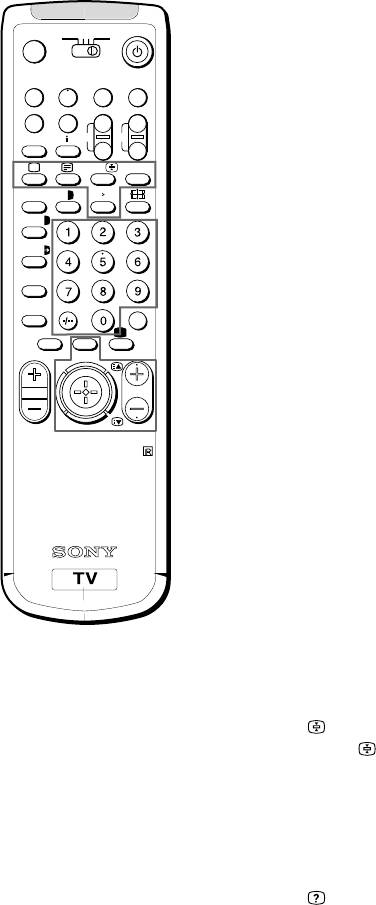
TV stations broadcast an information service called Teletext via
3VTR 1
MDP2
TV
the TV channels.Teletext service allows you to receive various
¤
information pages such as weather reports or news at any time
VIDEO
you want.
0
( u)
p Pr
+
˚
;
+
REC
CH
_
Direct Access Functions
…/
Ú/;
?
;
8
´
8
x
Switching Teletext on and off
´/´
1 Select the TV channel which carries the teletext broadcast you
want to watch.
a/Å
2 Press _ to switch on teletext.
A
A teletext page will be displayed (usually the index page).
b
c
If there is no teletext broadcast, the indication “No Text” is
≥
MENU
displayed on a black screen.
¸
PROGR
3 Input three digits for the page number using the number buttons.
If you have made a mistake, type in any three digits. Then re-enter
the correct page number.
4 Press ; to return to the normal TV picture.
RM-862
Accessing next or preceding page
Press R (PAGE+) or S (PAGE–).
The next or preceding page appears.
Superimposing the teletext display on the TV programme
• Press f once to get Teletext only.
• Press f twice for Mix mode.
The normal TV screen and the Teletext screen are overlapped.
• Press f again to resume normal teletext reception.
Note
Teletext errors may
Preventing a teletext page from being updated
occur if the broadcasting
• Press .
signals are weak.
The symbol “
” is displayed on the information line.
Press again to cancel.
Revealing hidden information (e.g. for a quiz)
Sometimes pages contain concealed information, such as
answers to a quiz. The reveal option lets you disclose the
information.
Press
. Press again to cancel.
18

Favourite page system
You can store up to four of your favourite teletext pages per
Teletext service. In this way you have quick access to the pages
GB
you frequently use.
Storing pages
1 Use the number buttons to select the page you would like to store.
2 Press
twice.
The colour prompts at the bottom of the screen flash.
3 Push the joystick to the desired colour to store the selected page.
The page is now stored on this colour.
Repeat steps 1 to 3 for the other 3 pages.
Displaying the favourite pages
1 Press
.
2 Push the joystick to the colour on which the desired page is stored.
Make sure you press
, otherwise the normal Fastext facility
operates.
Using Fastext
Note
With Fastext you can access pages with one key stroke.
Fastext operation is
When a Fastext page is broadcast, a colour-coded menu will
possible, only when the
appear at the bottom of the screen. The colours of this menu
TV station broadcasts
correspond to the red, green, yellow and blue positions on the
Fastext signals.
Remote Commander.
Push the joystick to the colour mark which corresponds to the
colour-coded menu. The page will be displayed after a few
seconds.
19
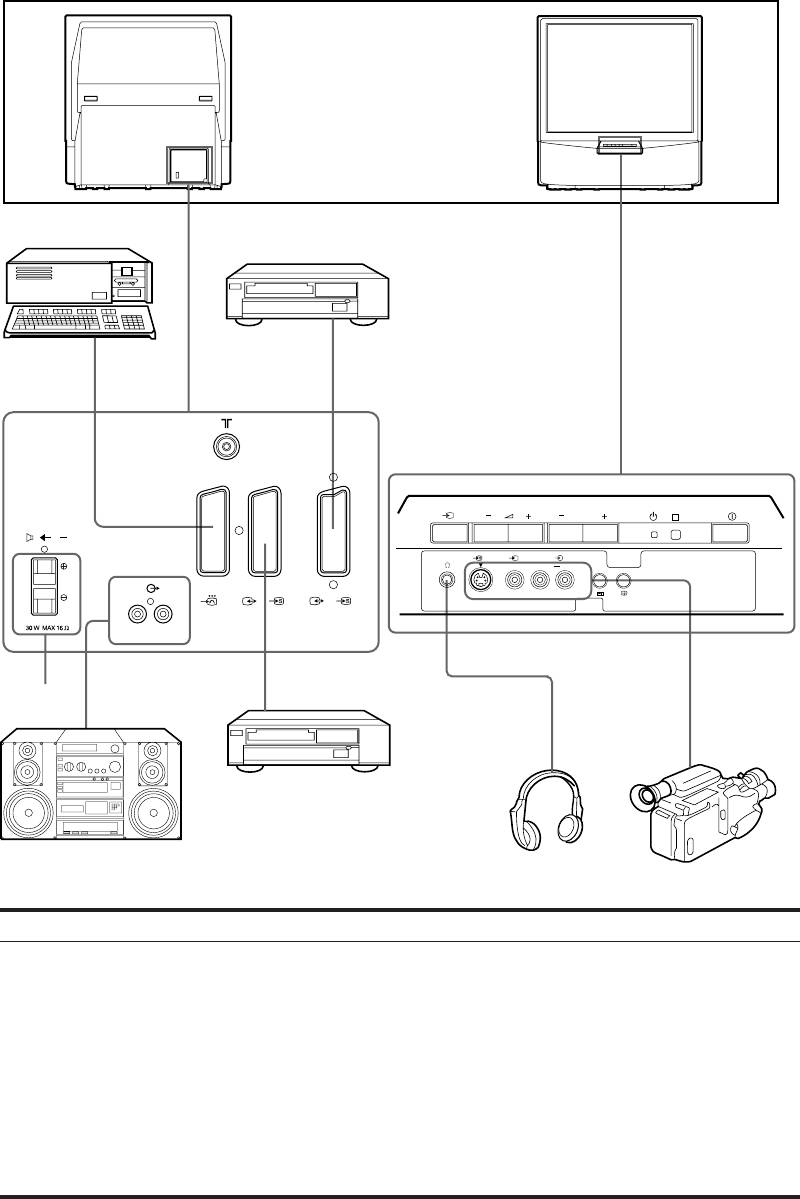
Connecting and Operating Optional
Equipment
Connecting Optional Equipment
You can connect optional audio-video equipment to this TV such as a
VCR, video disc player, and stereo system.
To connect a VCR
using the
) terminal
))
))
Connect the aerial output
of the VCR to the aerial
terminal ) of the TV.
We recommend that you
tune in the video signal to
programme number “0”.
3
For details, see
1
“Presetting Channels
Manually” on page 10.
If the picture or the
sound is distorted
Move the VCR away from
the TV.
PROGR
R
About S video Inputs
C
(Y/C input)
3 3
MONO
3
Video signals can be
L/G/S/I R/D/D/D
separated into Y
1
2/
2
3/
3
(luminance or brightness)
and C (chrominance)
R/D/D/D-L/G/S/I
signals.
3
Separating the Y and C
4
2
signals prevents them
5
from interfering with one
another, therefore it
improves picture quality
(especially luminance).
This TV is equipped with
3 S Video input jacks,
through which these
separated signals can be
input directly.
When connecting a
monaural VCR
Acceptable input signal
Available output signal
Connect only the white
1 Normal audio/video and RGB signal
Video/audio from TV tuner
≤ jack to both the TV
and VCR.
2 Normal audio/video and S video signal
Video/audio from selected source
3 Normal audio/video and S video signal
No outputs
Note
When you connect the
Normal audio/video and S video signal
Video/audio from selected source (the same output
equipment to the q3/
source as the :2/ q 2 connector)
…3/≤3 connectors on
4 No inputs
Audio signal
the front panel and :3/
q3 connector on the
5 Centre speaker input
No outputs
rear panel, turn off the
Set “Speaker” on the SOUND
power of the equipment
CONTROL menu to “Centre in”.
not in use.
20
