
Sony Bravia KDL-32D3010: instruction
Class: Televisions and Digital TV
Type:
Manual for Sony Bravia KDL-32D3010
Table of contents
- Introduction Notice for Digital TV function Disposal of the TV set
- Start-up Guide 1: Checking the 2: Connecting an aerial/ accessories cable/VCR
- 3: Preventing the TV 5: Performing the initial from toppling over setup 4: Bundling the cables Selecting the language and country/ region
- To tune the TV for digital cable connection Auto-tuning the TV Detaching the Table- Top Stand from the TV
- Safety information
- Prohibited Usage Precautions Broken pieces: When not in use For children If the following problems occur...
- Overview of the remote
- Overview of the TV buttons and indicators
- Watching TV Additional operations
- To change the screen format manually to suit the broadcast Using the Tools menu
- Checking the Digital Electronic Programme Guide (EPG) * To Do this
- To Do this
- Using the Digital Favourite list *
- Connecting optional equipment
- Sockets Input symbol on Description screen
- Viewing pictures from the connected equipment
- Using HDMI control
- Navigating through menus
- Picture menu
- Colour Temperature
- Sound menu
- Dual Sound
- Screen menu
- Set-up menu
- AV Set-up
- HDMI Set-up
- All Reset
- PC Settings menu
- Analogue Set-up menu
- Manual Programme Preset
- Skip
- Digital Set-up menu
- Digital Set-up
- Specifications
- PC Input Signal Reference Chart
- Troubleshooting
3-096-727-51(4)
K
LCD Digital Colour TV
Operatin
GB
RU
PL
© 2007 Sony Corporation
g
Instructions
Before operating the TV, please read the “Safety
information” section of this manual.
Retain this manual for future reference.
Инструкция по эксплуатации
Перед включением телевизора прочтите раздел “Сведения
по безопасности” этого руководства.
Сохраняйте данное руководство для справок в будущем.
Instrukcja obsługi
Przed rozpoczęciem eksploatacji telewizora należy
zapoznać się z treścią rozdziału „Informacje dotyczące
bezpieczeństwa” niniejszej instrukcji.
Zachować instrukcję do wykorzystania w przyszłości.
KDL-46D3000/46D3010
KDL-40D3000/40D3010
KDL-32D3000/32D3010
For useful information about Sony products
Для получения полезной информации о продукции Сони
Szczegółowe informacje o produktach Sony
Introduction
Notice for Digital TV function
Thank you for choosing this Sony product.
• Any functions related to Digital TV ( ) will only work
Before operating the TV, please read this manual
in countries or areas where DVB-T (MPEG2) digital
terrestrial signals are broadcast or where you have access
thoroughly and retain it for future reference.
to a compatible DVB-C (MPEG2) cable service. Please
confirm with your local dealer if you can receive a DVB-
T signal where you live or ask your cable provider if their
DVB-C cable service is suitable for integrated operation
with this TV.
Disposal of the TV set
• The cable provider may charge an additional fee for such
services and you may be required to agree to their terms
Disposal of Old Electrical &
and conditions of business.
Electronic Equipment
• Although this TV set follows DVB-T and DVB-C
specifications, compatibility with future DVB-T digital
(Applicable in the European
terrestrial and DVB-C digital cable broadcasts cannot be
Union and other European
guaranteed.
countries with separate
• Some Digital TV functions may not be available in some
collection systems)
countries/regions and DVB-C cable may not operate
This symbol on the product or on
correctly with some providers.
its packaging indicates that this
product shall not be treated as
For a list of compatible cable providers, refer to the support
household waste. Instead it shall
web site:
be handed over to the applicable
http://support.sony-europe.com/TV/DVBC
collection point for the recycling
of electrical and electronic
equipment. By ensuring this product is disposed of correctly,
you will help prevent potential negative consequences for the
environment and human health, which could otherwise be
caused by inappropriate waste handling of this product. The
Trademark information
recycling of materials will help to conserve natural
• is a registered trademark of the DVB Project
resources. For more detailed information about recycling of
• HDMI, the HDMI logo and High-Definition Multimedia
this product, please contact your local Civic Office, your
Interface are trademarks or registered trademarks of
household waste disposal service or the shop where you
HDMI Licensing LLC.
purchased the product.
The illustrations used in this manual are of the KDL-
40D3000 unless otherwise stated.
GB
2
Table of Contents
Start-up Guide 4
Safety information .....................................................................................................................7
Precautions ...............................................................................................................................8
Overview of the remote ..........................................................................................................9
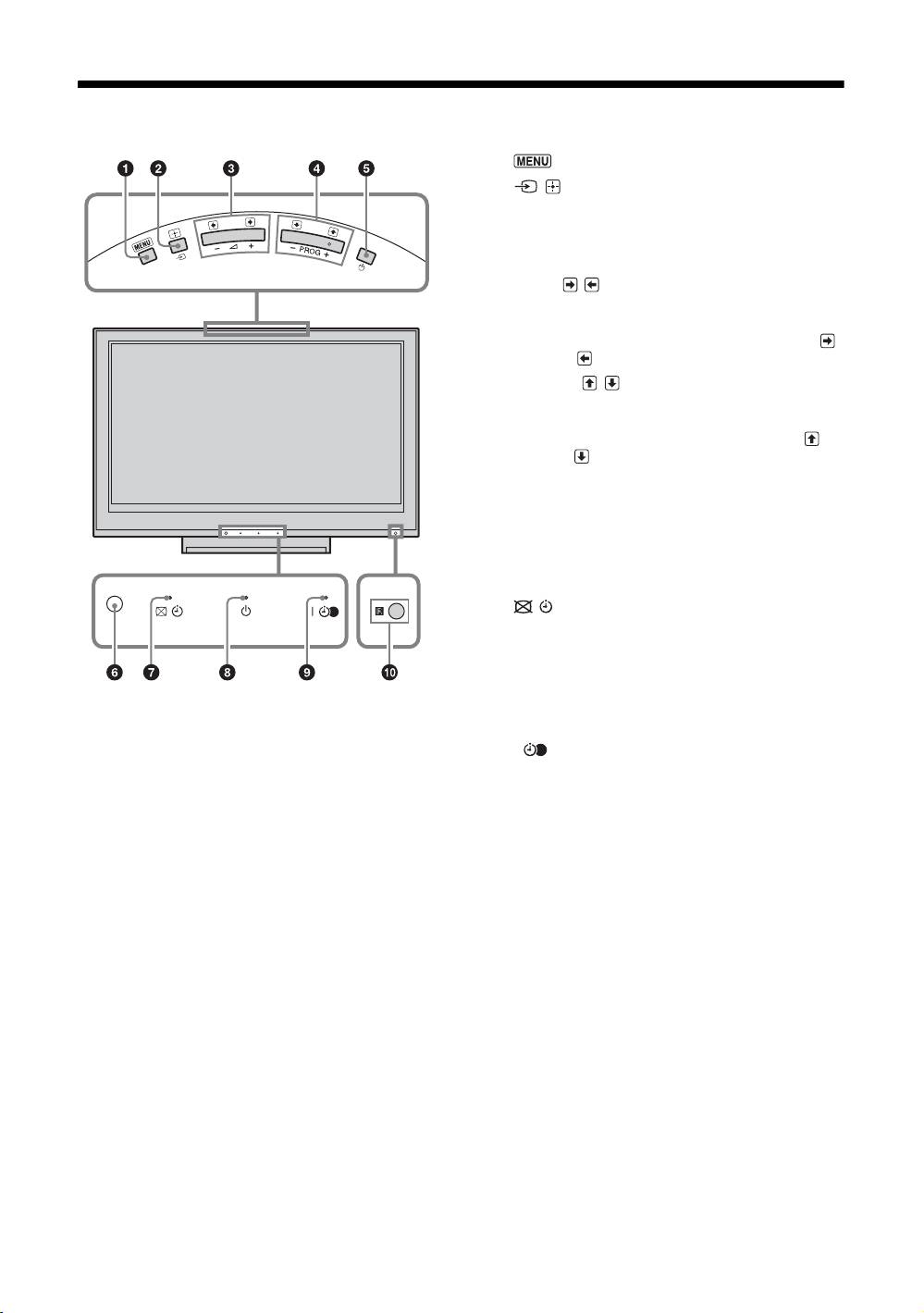
Overview of the TV buttons and indicators ........................................................................10
Watching TV
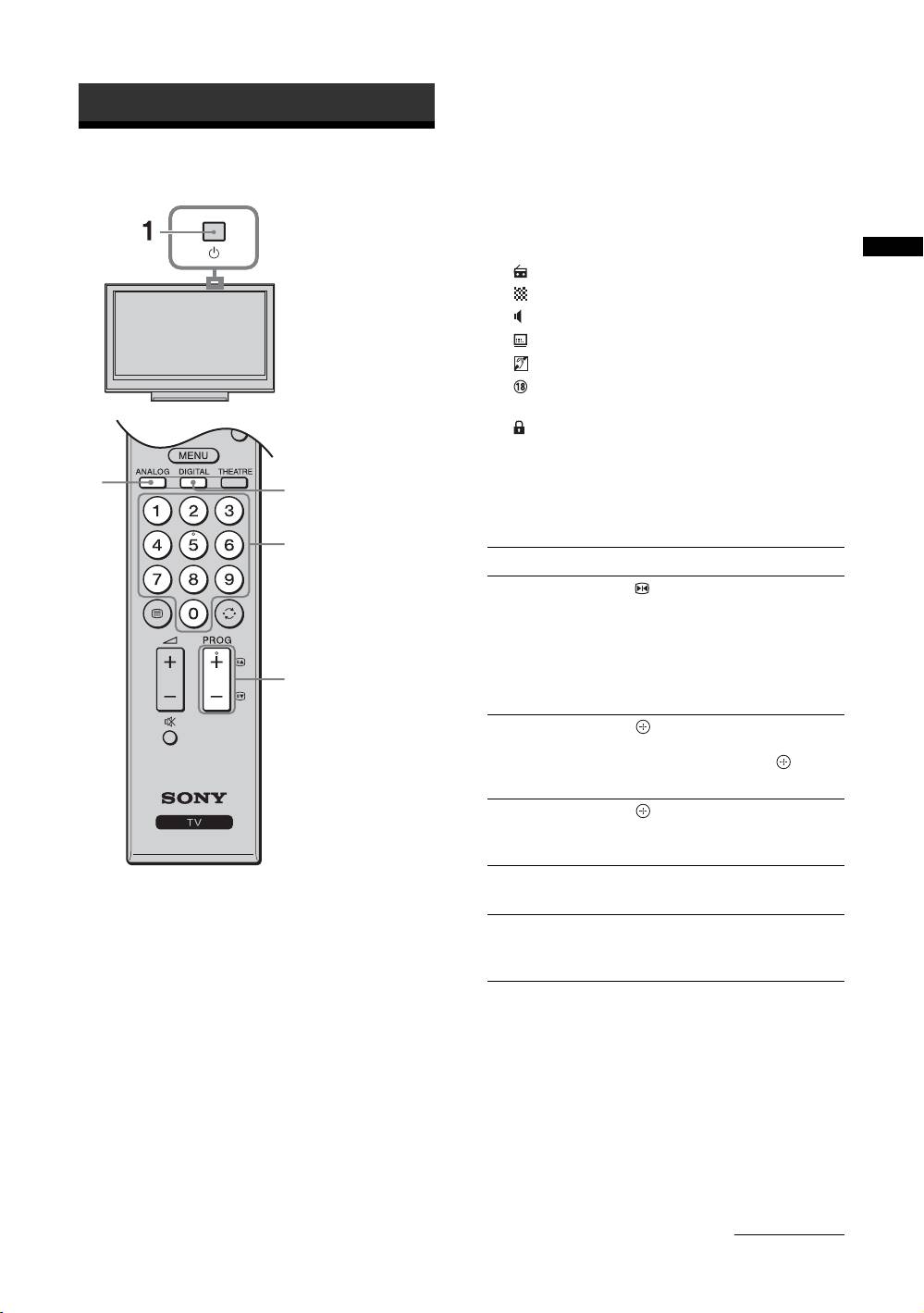
Watching TV............................................................................................................................11
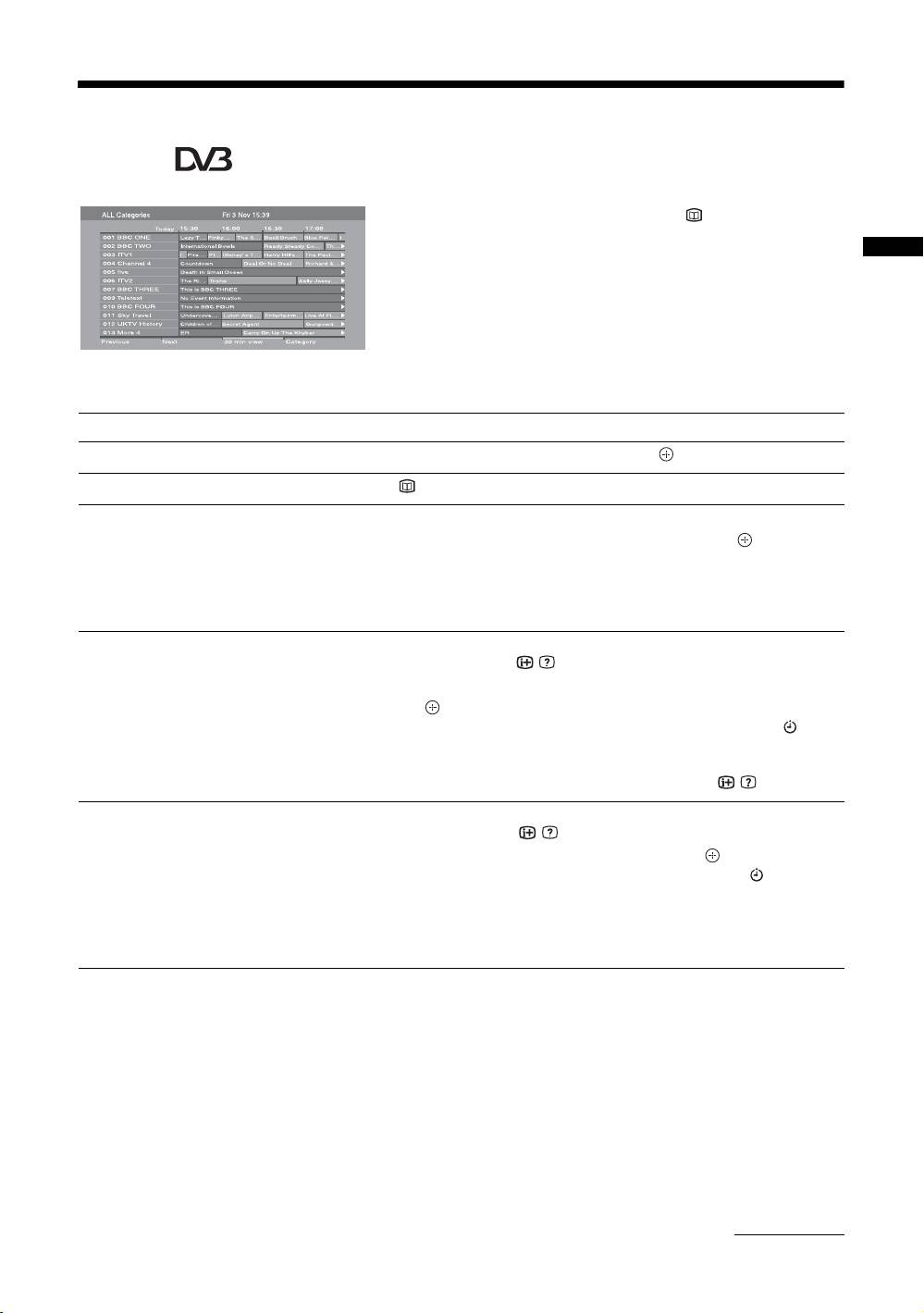
Checking the Digital Electronic Programme Guide (EPG) ..............................................13
Using the Digital Favourite list ........................................................................................15
Using Optional Equipment
Connecting optional equipment...............................................................................................16
Viewing pictures from the connected equipment ....................................................................18
Using HDMI control .................................................................................................................19
GB
Using MENU Functions
Navigating through menus ......................................................................................................20
Picture menu ...........................................................................................................................21
Sound menu............................................................................................................................23
Screen menu...........................................................................................................................25
Set-up menu............................................................................................................................26
PC Settings menu ...................................................................................................................30
Analogue Set-up menu ...........................................................................................................31
Digital Set-up menu ........................................................................................................34
Additional Information
Specifications ..........................................................................................................................37
Troubleshooting ......................................................................................................................39
: for digital channels only
GB
3
Start-up Guide
1: Checking the
2: Connecting an aerial/
accessories
cable/VCR
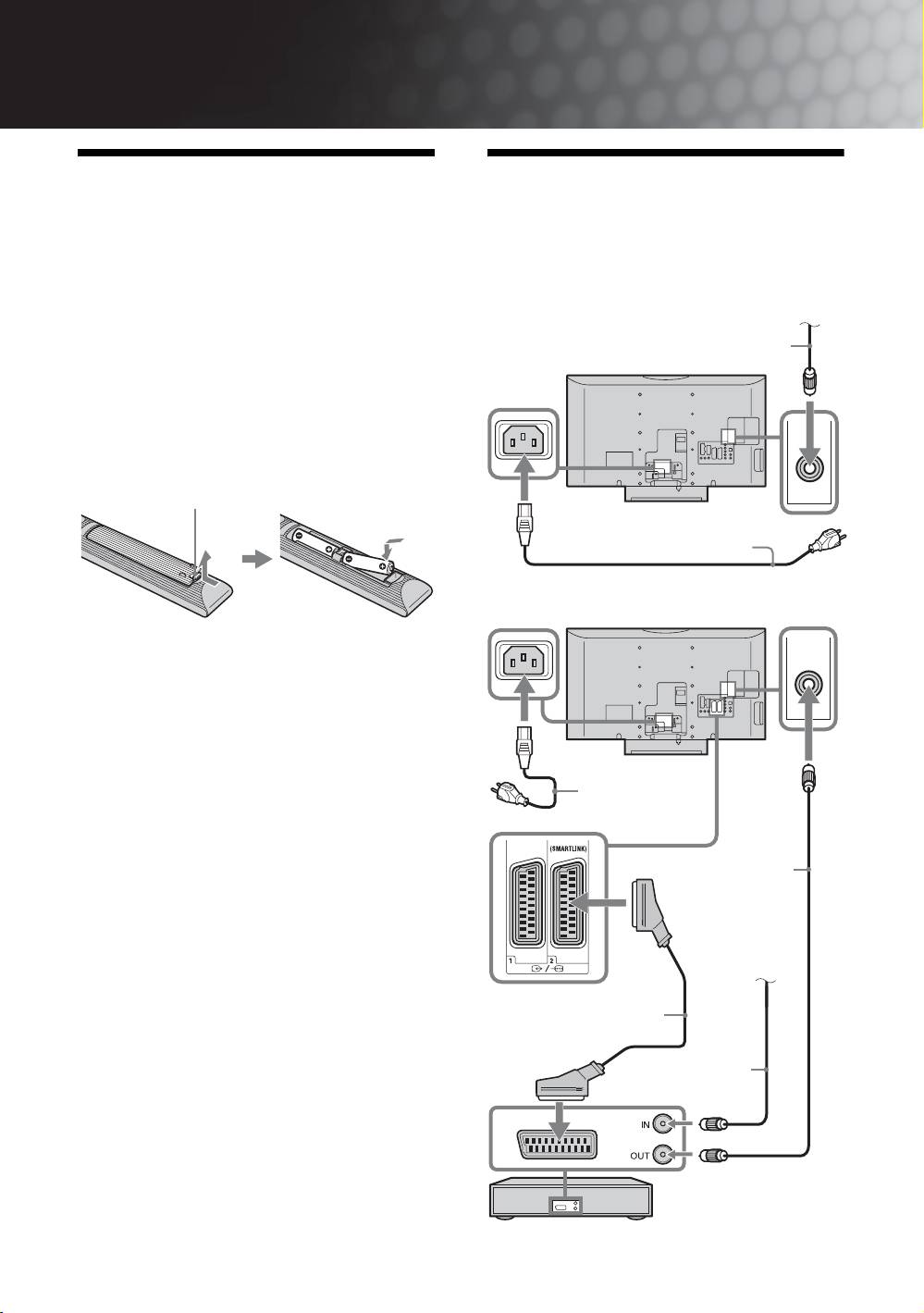
Mains lead (Type C-6)* (1)
Connecting an aerial/cable
Coaxial cable (1)
Terrestrial signal or cable
Support belt (1) and screws (2)
Coaxial cable (supplied)
Remote RM-ED009 (1)
Size AA batteries (R6 type) (2)
* For models with ferrite cores, do not remove these cores.
To insert batteries into the remote
Push and lift the cover to open.
Mains lead (supplied)
Connecting an aerial/cable and VCR
~
• Observe the correct polarity when inserting batteries.
• Do not use different types of batteries together or mix old
and new batteries.
• Dispose of batteries in an environmentally friendly way.
Certain regions may regulate the disposal of batteries.
Please consult your local authority.
• Handle the remote with care. Do not drop or step on it, or
spill liquid of any kind onto it.
Mains lead
• Do not place the remote in a location near a heat source, a
(supplied)
place subject to direct sunlight, or a damp room.
Coaxial cable
(supplied)
Terrestrial signal
or cable
Scart lead (not supplied)
Coaxial cable
(not supplied)
VCR
GB
4
Start-up Guide
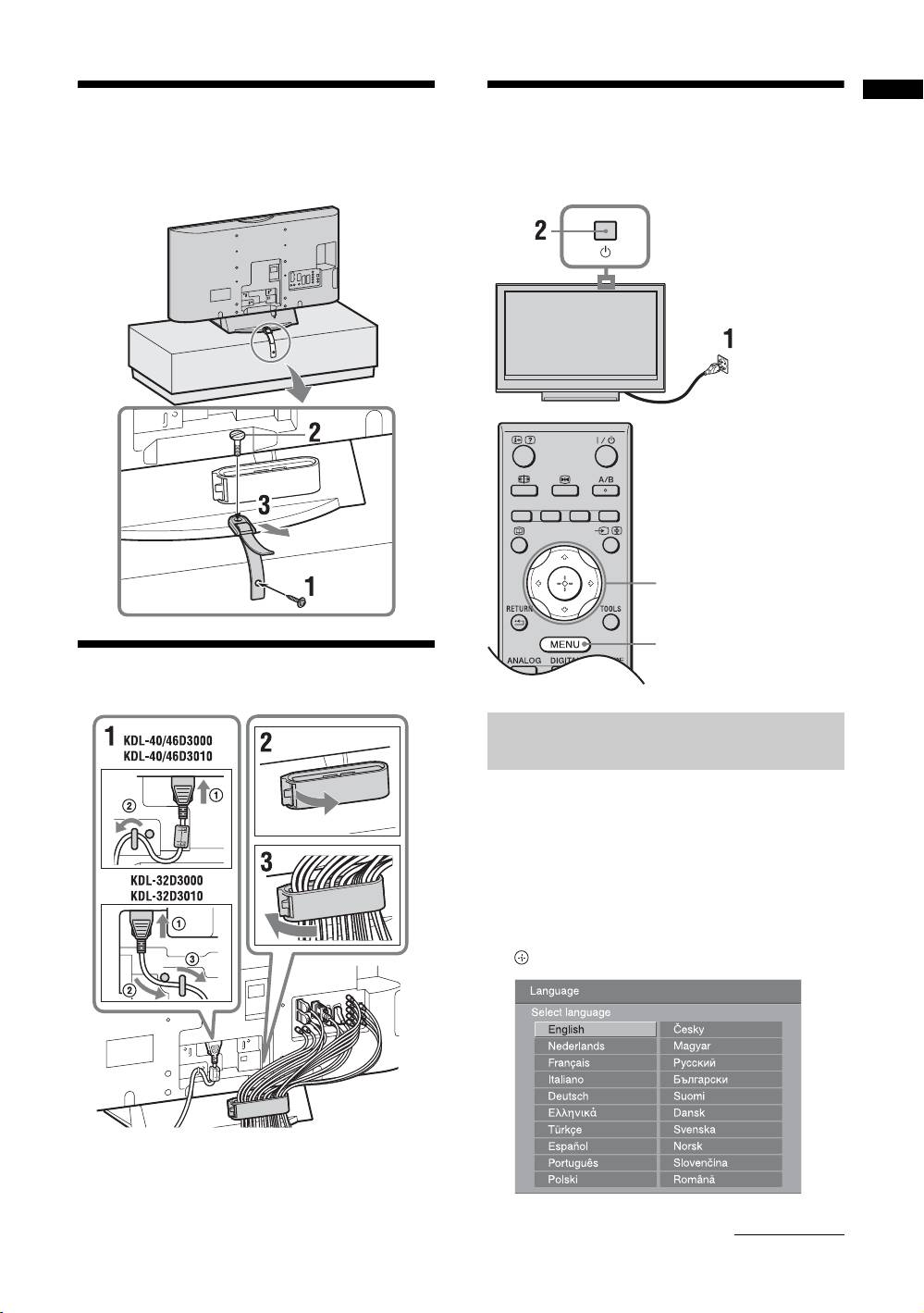
3: Preventing the TV
5: Performing the initial
from toppling over
setup
3,4,6,7
9
4: Bundling the cables
Selecting the language and country/
region
1 Connect the TV to your mains socket
(220-240 V AC, 50 Hz).
2 Press 1 on the top edge of the TV.
When you turn on the TV for the first time, the
Language menu appears on the screen.
3 Press F/f/G/g to select the language
displayed on the menu screens, then press
.
Continued
GB
5
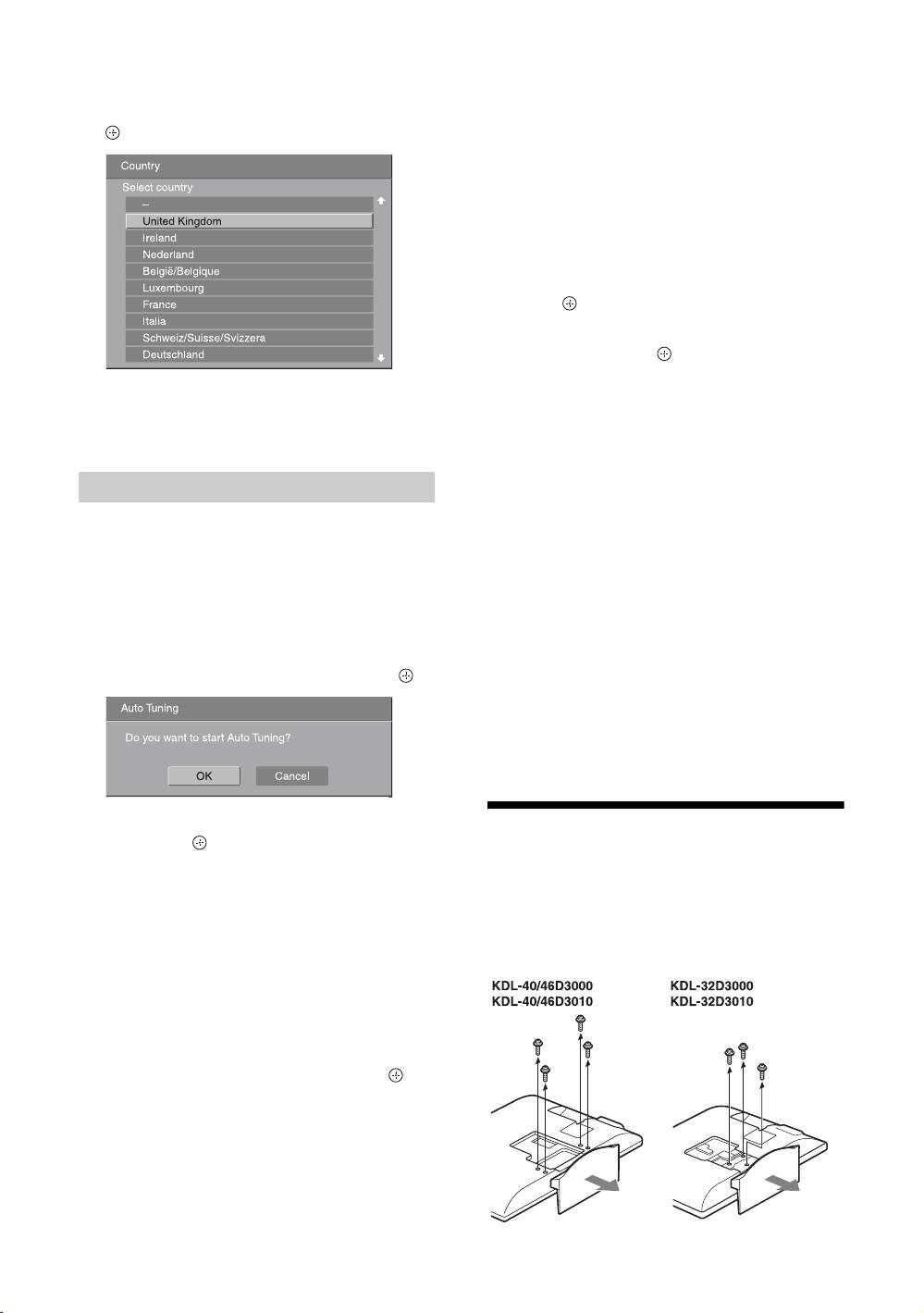
4 Press F/f to select the country/region in
9 Press MENU to exit.
which you will operate the TV, then press
The TV has now tuned in all the available channels.
.
~
When a digital broadcast channel cannot be received, or
when selecting a region in which there are no digital
broadcasts in step 4 (page 6), the time must be set after
performing step 9.
To tune the TV for digital cable connection
1 Press F/f to select “Scan Type”, then
press .
2 Press F/f to select “Quick Scan” or “Full
Scan”, then press .
If the country/region which you want to use on the
“Quick Scan”: Channels are tuned according to
TV does not appear in the list, select “-” instead of
the cable provider’s information within the
a country/region.
broadcast signal. The recommended setting for
“Frequency”, “Network ID” and “Symbol Rate” is
“Auto” unless your cable provider has supplied
actual values to use. “Quick Scan” is
Auto-tuning the TV
recommended for fast tuning when this is
supported by your cable provider.
“Full Scan”: All available channels are tuned and
5 Before you start auto-tuning the TV, insert
stored. This procedure may take some time. This
a pre-recorded tape into the VCR
option is recommended when “Quick Scan” is not
connected to the TV (page 4) and start play
supported by your cable provider.
back.
For further information about supported cable
The video channel will be located and stored on
providers, refer to the support web site:
the TV during auto-tuning.
http://support.sony-europe.com/TV/DVBC
If no VCR is connected to the TV, skip this step.
3 Press G/g/f to select “Start”.
6 Press G/g to select “OK”, then press .
The TV starts searching for channels. Do not press
any buttons on the TV or remote.
~
Some cable providers do not support “Quick Scan”. If no
channels are detected using “Quick Scan”, perform “Full
Scan”.
7 Press F/f to select “Antenna” or “Cable”,
then press .
Detaching the Table-
If you select “Cable”, the screen for selecting the
scan type appears. See “To tune the TV for digital
Top Stand from the TV
cable connection” on page 6.
The TV starts searching for all available digital
~
channels, followed by all available analogue
Do not remove the Table-Top Stand for any reason other than
channels. This may take some time, so do not
to wall-mount the TV.
press any buttons on the TV or remote while
proceeding.
If a message appears for you to confirm the aerial
connection
No digital or analogue channels were found.
Check all the aerial connections and press to
start auto-tuning again.
8 When the Programme Sorting menu
appears on the screen, follow the steps of
“Programme Sorting” on page 31.
If you do not wish to change the order in which the
analogue channels are stored on the TV, go to next
step.
GB
6
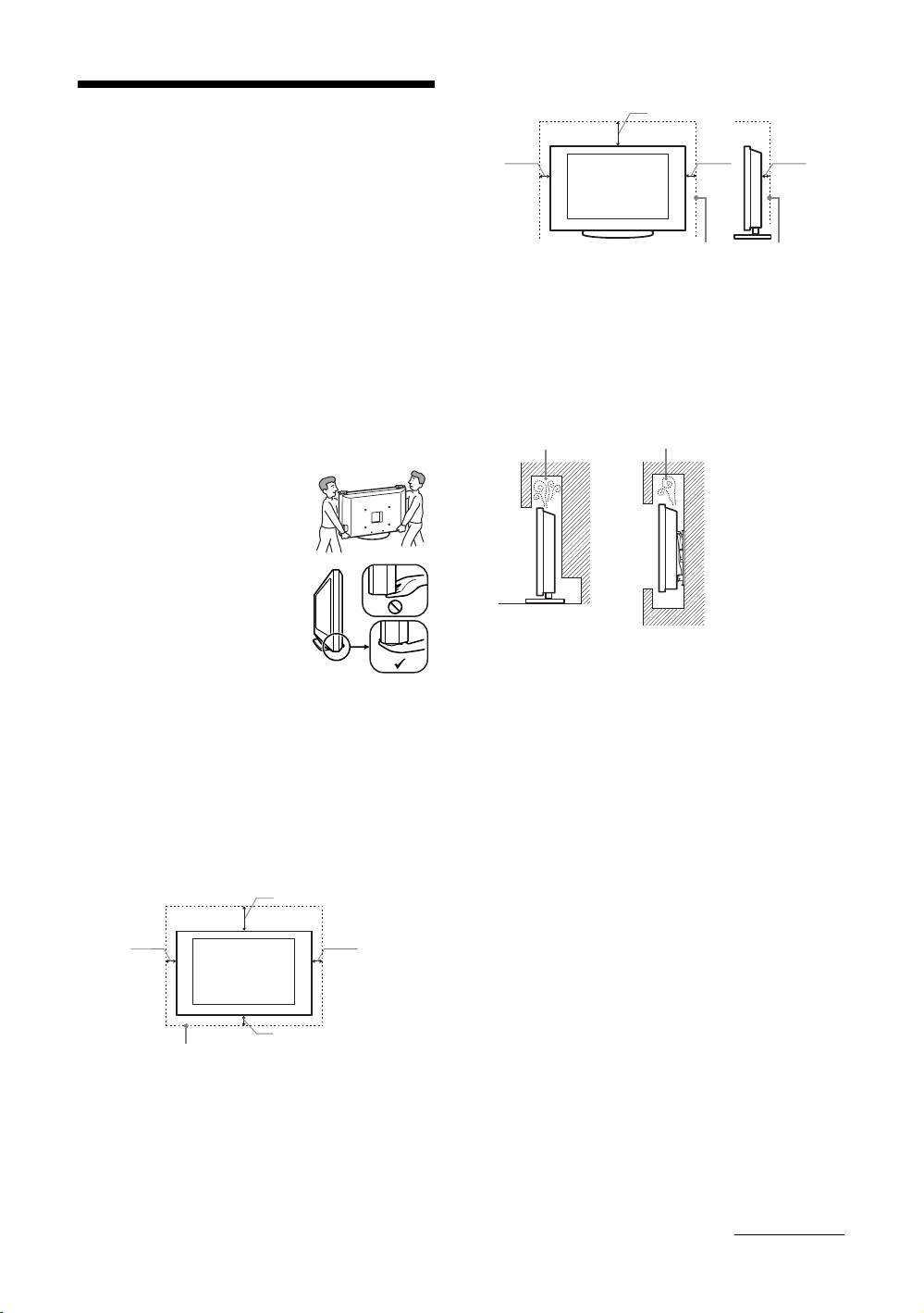
Installed with stand
30 cm
Safety information
10 cm 10 cm 6 cm
Installation/Set-up
Install and use the TV set in accordance with the
instructions below in order to avoid any risk of fire,
electrical shock or damage and/or injuries.
Leave at least this space around the set.
• To ensure proper ventilation and prevent the collection of
Installation
dirt or dust:
• The TV set should be installed near an easily accessible
– Do not lay the TV set flat, install upside down,
mains socket.
backwards, or sideways.
• Place the TV set on a stable, level surface.
– Do not place the TV set on a shelf, rug, bed or in a
• Only qualified service personnel should carry out wall
closet.
installations.
– Do not cover the TV set with a cloth, such as curtains,
• For safety reasons, it is strongly recommended that you
or items such as newspapers, etc.
use Sony accessories, including:
– Do not install the TV set as shown below.
– Wall-mount bracket SU-WL500
Air circulation is blocked.
Transporting
• Before transporting the TV set,
disconnect all cables.
• Two or three people are needed to
transport a large TV set.
• When transporting the TV set by
Wall Wall
hand, hold it as shown on the right.
• When lifting or moving the TV set,
hold it firmly from the bottom. Do
not put stress on the LCD panel.
• When transporting the TV set, do
not subject it to jolts or excessive
vibration.
• When transporting the TV set for
Mains lead
repairs or when moving, pack it using the original carton
Handle the mains lead and socket as follows in order
and packing material.
to avoid any risk of fire, electrical shock or damage
and/or injuries:
Ventilation
– Connect the TV set using a three-wire grounding type
• Never cover the ventilation holes or insert anything in the
mains plug to a mains socket with a protective earthing
cabinet.
connection.
• Leave space around the TV set as shown below.
– Use only Sony mains leads, not those of other brands.
• It is strongly recommended that you use a Sony wall-
– Insert the plug fully into the mains socket.
mount bracket in order to provide adequate air-circulation.
– Operate the TV set on a 220-240 V AC supply only.
– When wiring cables, be sure to unplug the mains lead
Installed on the wall
for your safety and care not to catch your feet on the
cables.
30 cm
– Disconnect the mains lead from the mains socket before
working on or moving the TV set.
10 cm 10 cm
– Keep the mains lead away from heat sources.
– Unplug the mains plug and clean it regularly. If the plug
is covered with dust and it picks up moisture, its
insulation may deteriorate, which could result in a fire.
Notes
10 cm
• Do not use the supplied mains lead on any other
Leave at least this space around the set.
equipment.
• Do not pinch, bend, or twist the mains lead excessively.
The core conductors may be exposed or broken.
• Do not modify the mains lead.
• Do not put anything heavy on the mains lead.
• Do not pull on the mains lead itself when disconnecting
the mains lead.
• Do not connect too many appliances to the same mains
socket.
• Do not use a poor fitting mains socket.
Continued
GB
7

Prohibited Usage
Do not install/use the TV set in locations,
Precautions
environments or situations such as those listed below,
or the TV set may malfunction and cause a fire,
electrical shock, damage and/or injuries.
Viewing the TV
• View the TV in moderate light, as viewing the TV in poor
Location:
light or during long period of time, strains your eyes.
Outdoors (in direct sunlight), at the seashore, on a ship or
• When using headphones, adjust the volume so as to avoid
other vessel, inside a vehicle, in medical institutions, near
excessive levels, as hearing damage may result.
flammable objects (candles, etc).
LCD Screen
Environment:
• Although the LCD screen is made with high-precision
Places that are hot, humid, or excessively dusty; where
technology and 99.99% or more of the pixels are effective,
insects may enter; where it might be exposed to mechanical
black dots may appear or bright points of light (red, blue,
vibration; unstable locations; near water, rain, moisture or
or green) may appear constantly on the LCD screen. This
smoke.
is a structural property of the LCD screen and is not a
malfunction.
Situation:
• Do not push or scratch the front filter, or place objects on
Do not use when your hands are wet, with the cabinet
top of this TV set. The image may be uneven or the LCD
removed, or with attachments not recommended by the
screen may be damaged.
manufacturer. Disconnect the TV set from mains socket and
• If this TV set is used in a cold place, a smear may occur in
aerial during lightning storms.
the picture or the picture may become dark. This does not
indicate a failure. These phenomena disappear as the
temperature rises.
• Ghosting may occur when still pictures are displayed
Broken pieces:
continuously. It may disappear after a few moments.
• Do not throw anything at the TV set. The screen glass may
• The screen and cabinet get warm when this TV set is in
break by the impact and cause serious injury.
use. This is not a malfunction.
• If the surface of the TV set cracks, do not touch it until you
• The LCD screen contains a small amount of liquid crystal
have unplugged the mains lead. Otherwise electric shock
and mercury. The fluorescent tubes used in this TV set
may result.
also contain mercury. Follow your local ordinances and
regulations for disposal.
When not in use
Handling and cleaning the screen surface/cabinet of
the TV set
• If you will not be using the TV set for several days, the TV
set should be disconnected from the mains for
Be sure to unplug the mains lead connected to the TV set
environmental and safety reasons.
from mains socket before cleaning.
• As the TV set is not disconnected from the mains when the
To avoid material degradation or screen coating degradation,
TV set is just turned off, pull the plug from the mains to
observe the following precautions.
disconnect the TV set completely.
• To remove dust from the screen surface/cabinet, wipe
• However, some TV sets may have features that require the
gently with a soft cloth. If dust is persistent, wipe with a
TV set to be left in standby to work correctly.
soft cloth slightly moistened with a diluted mild detergent
solution.
• Never use any type of abrasive pad, alkaline/acid cleaner,
scouring powder, or volatile solvent, such as alcohol,
For children
benzene, thinner or insecticide. Using such materials or
• Do not allow children to climb on the TV set.
maintaining prolonged contact with rubber or vinyl
• Keep small accessories out of the reach of children, so that
materials may result in damage to the screen surface and
they are not mistakenly swallowed.
cabinet material.
• When adjusting the angle of the TV set, move it slowly so
as to prevent the TV set from moving or slipping off from
If the following problems occur...
its table stand.
Turn off the TV set and unplug the mains lead
Optional Equipment
immediately if any of the following problems occur.
Keep optional components or any equipment emitting
Ask your dealer or Sony service centre to have it
electromagnetic radiation away from the TV set. Otherwise
checked by qualified service personnel.
picture distortion and/or noisy sound may occur.
When:
– Mains lead is damaged.
– Poor fitting of mains socket.
– TV set is damaged by being dropped, hit or having
something thrown at it.
– Any liquid or solid object falls through openings in the
cabinet.
GB
8
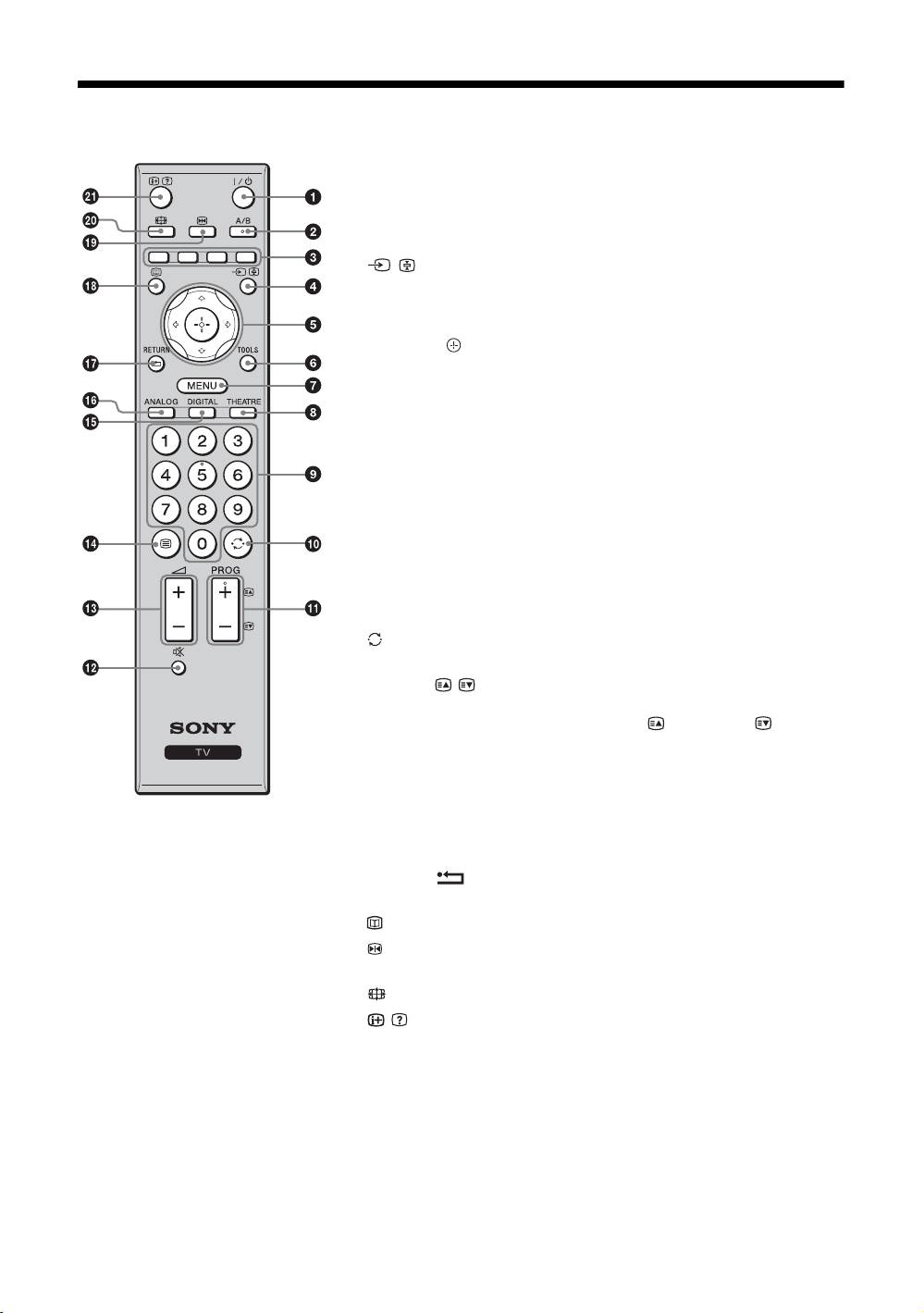
Overview of the remote
1 "/1 – TV standby
Turns the TV on and off from standby mode.
2 A/B – Dual Sound (page 24)
3 Coloured buttons (page 12, 13, 15)
4 / – Input select / Text hold
• In TV mode (page 18): Selects the input source from equipment connected
to the TV sockets.
• In Text mode (page 12): Holds the current page.
5 F/f/G/g/ (page 11, 20)
6 TOOLS (page 12, 18)
Enables you to access various viewing options and change/make adjustments
according to the source and screen format.
7 MENU (page 20)
8 THEATRE
You can set Theatre Mode on or off. When Theatre Mode is set to on, the
optimum audio output (if the TV is connected with an audio system using an
HDMI cable) and picture quality for film-based contents are automatically
set.
9 Number buttons
• In TV mode: Selects channels. For channel numbers 10 and above, enter
the second and third digit quickly.
• In Text mode: Enters the three digit page number to select the page.
0 – Previous channel
Returns to the previous channel watched (for more than five seconds).
qa PROG +/-/ /
• In TV mode (page 11): Selects the next (+) or previous (-) channel.
• In Text mode (page 12): Selects the next ( ) or previous ( ) page.
qs % – Mute (page 11, 18)
qd 2 +/- – Volume (page 18)
qf / – Text (page 12)
qg DIGITAL – Digital mode (page 11)
z
qh ANALOG – Analogue mode (page 11)
• The number 5, PROG + and A/B
qj RETURN /
buttons have tactile dots. Use the tactile
Returns to the previous screen of any displayed menu.
dots as references when operating the
TV.
qk – EPG (Digital Electronic Programme Guide) (page 13)
• If you turn the TV off, Theatre Mode is
ql – Picture freeze (page 11)
also turned off.
Freezes the TV picture.
w; – Screen mode (page 12)
wa / – Info / Text reveal
• In digital mode: Displays brief details of the programme currently being
watched.
• In analogue mode: Displays information such as current channel number
and screen format.
• In Text mode (page 12): Reveals hidden information (e.g. answers to a
quiz).
GB
9
Overview of the TV buttons and indicators
1 (page 20)
2 / – Input select / OK
• In TV mode (page 18): Selects the input source
from equipment connected to the TV sockets.
• In TV menu: Selects the menu or option, and
confirms the setting.
3 2 +/-/ /
• In TV mode: Increases (+) or decreases (-) the
volume.
• In TV menu: Moves through the options right ( )
or left ( ).
4 PROG +/-/ /
• In TV mode: Selects the next (+) or previous (-)
channel.
• In TV menu: Moves through the options up ( ) or
down ( ).
5 1 – Power
Turns the TV on or off.
~
To disconnect the TV completely, pull the plug from the
mains.
6 Light sensor (page 29)
7 – Picture Off / Timer indicator
• Lights up in green when the picture is switched off
(page 28).
• Lights up in orange when the timer is set
(page 28).
8 1 – Standby indicator
Lights up in red when the TV is in standby mode.
9 " – Power / Timer REC programme indicator
• Lights up in green when the TV is turned on.
• Lights up in orange when the timer recording is set
(page 13).
• Lights up in red during the timer recording.
0 Remote control sensor
• Receives IR signals from the remote.
• Do not put anything over the sensor, as its function
may be affected.
~
Make sure that the TV is completely turned off before
unplugging the mains lead. Unplugging the mains lead while
the TV is turned on may cause the indicator to remain lit or
may cause the TV to malfunction.
GB
10
Watching TV
To select a digital channel using the Digital
Watching TV
Electronic Programme Guide (EPG), see page 13.
In digital mode
An information banner appears briefly. The
following icons may be indicated on the banner.
: Radio service
Watching TV
: Scrambled/Subscription service
: Multiple audio languages available
: Subtitles available
: Subtitles available for the hearing impaired
: Recommended minimum age for current
programme (from 4 to 18 years)
: Parental Lock
c (in red):
Current programme is being recorded
2
2
Additional operations
3
To Press
Freeze the picture
.
(Picture freeze)
Press once to remove the small
screen, then press again to return
to normal TV mode.
~
This function is not available for a
3
PC input source.
Access the
.
Programme index
To select an analogue channel,
table (in analogue
press
F/f, then press .
mode only)
Access the Digital
.
Favourites (in digital
For details, see page 15.
mode only)
Mute the sound %.
1 Press 1 on the top edge of the TV to turn
Press again to restore.
on the TV.
Turn on the TV
%.
When the TV is in standby mode (the 1 (standby)
without sound from
indicator on the TV front panel is red), press "/1
standby mode
on the remote to turn on the TV.
2 Press DIGITAL to switch to digital mode, or
press ANALOG to switch to analogue
mode.
The channels available vary depending on the
mode.
3 Press the number buttons or PROG +/- to
select a TV channel.
To select channel numbers 10 and above using the
number buttons, enter the second and third digits
quickly.
Continued
GB
11
To access Text
~
• You cannot select “4:3” or “14:9” for HD signal source
Press /. Each time you press /, the display changes
pictures.
cyclically as follows:
• You cannot use this function while the digital banner is
Text t Text over the TV picture (mix mode) t No
displayed.
Text (exit the Text service)
• Some characters and/or letters at the top and the bottom of
To select a page, press the number buttons or / .
the picture may not be visible in “Smart”. In such a case,
To hold a page, press / .
you can select “Vertical Size” using the “Screen” menu
To reveal hidden information, press / .
and adjust vertical size to make it visible.
z
• When “Auto Format” is set to “On”, the TV will
z
automatically select the best mode to suit the broadcast
When four coloured items appear at the bottom of the Text
(page 25).
page, Fastext is available. Fastext allows you to access pages
• You can adjust the position of the picture when selecting
quickly and easily. Press the corresponding coloured button
“Smart” (50Hz), “Zoom” or “14:9”. Press
F/f to move
to access the page.
up or down (e.g. to read subtitles) (except 720p and
1080i).
• Select “Smart” or “Zoom” to adjust for 720p or 1080i
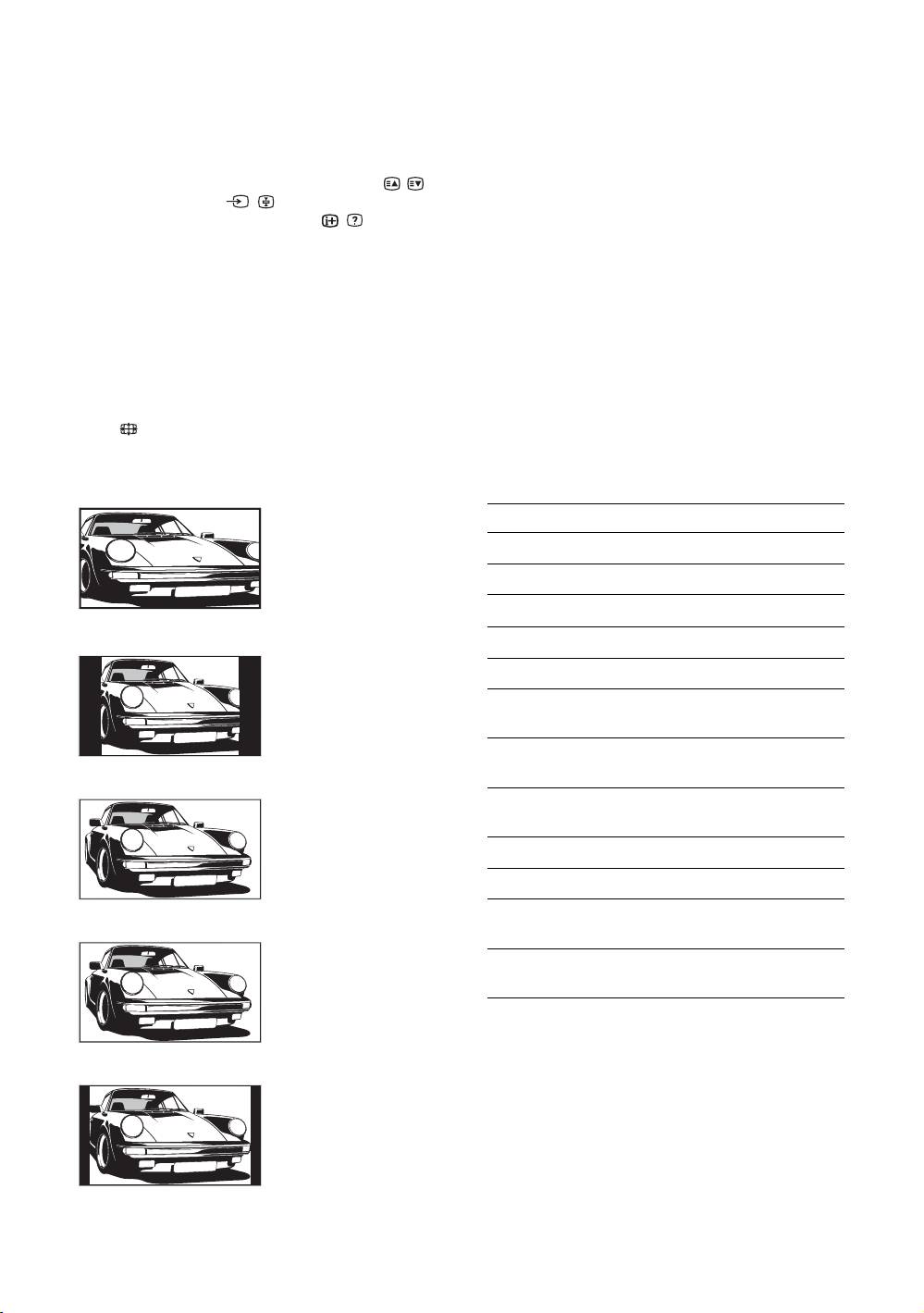
To change the screen format manually to
source pictures with edge portions cut off.
suit the broadcast
Press repeatedly to select the desired screen
format.
Using the Tools menu
Press TOOLS to display the following options when
viewing a TV programme.
Smart*
Displays conventional
Options Description
4:3 broadcasts with an
Close Closes the Tools menu.
imitation wide screen
effect. The 4:3 picture
Picture Mode See page 21.
is stretched to fill the
screen.
Sound Mode See page 23.
4:3
Motion Enhancer See page 26.
Displays conventional
Speaker See page 27.
4:3 broadcasts (e.g.
non-wide screen TV) in
Audio Language (in
See page 35.
the correct proportions.
digital mode only)
Subtitle Setting (in
See page 35.
digital mode only)
Wide
Displays wide screen
i Volume Adjusts the volume of the
headphones.
(16:9) broadcasts in the
correct proportions.
Sleep Timer See page 28.
Power Saving See page 28.
Auto Clock Set (in
Allows you to switch to digital
Zoom*
analogue mode only)
mode and obtain the time.
Displays cinemascopic
System Information (in
Displays the system
(letter box format)
digital mode only)
information screen.
broadcasts in the
correct proportions.
14:9*
Displays 14:9
broadcasts in the
correct proportions. As
a result, black border
areas are visible on the
screen.
* Parts of the top and bottom of the picture may be cut off.
GB
12
Checking the Digital Electronic Programme Guide
(EPG) *
1 In digital mode, press .
2 Perform the desired operation as shown in
the following table or displayed on the
Watching TV
screen.
Digital Electronic Programme Guide (EPG)
* This function may not be available in some countries/regions.
To Do this
Watch a programme Press F/f to select the programme, then press .
Turn off the EPG Press .
Sort the programme information by
1 Press the blue button.
category
2 Press
F/f/G/g to select a category, then press .
– Category list
The categories available include:
“All Categories”: Contains all available channels.
Category name (e.g. “News”): Contains all channels corresponding to the
selected category.
Set a programme to be recorded
1 Press F/f/G/g to select the future programme you want to
– Timer REC
record, then press
/ .
2 Press
F/f to select “Timer REC”.
3 Press to set the TV and your VCR timers.
A red c symbol appears by that programme’s information. The
indicator on the TV front panel lights up in orange.
z
To record the programme you are currently watching, press / .
Set a programme to be displayed
1 Press F/f/G/g to select the future programme you want to
automatically on the screen when it
display, then press / .
starts
2 Press
F/f to select “Reminder”, then press .
– Reminder
A c symbol appears by that programme’s information. The indicator on
the TV front panel lights up in orange.
~
If you switch the TV to standby mode, it will automatically turn itself on
when the programme is about to start.
Continued
GB
13
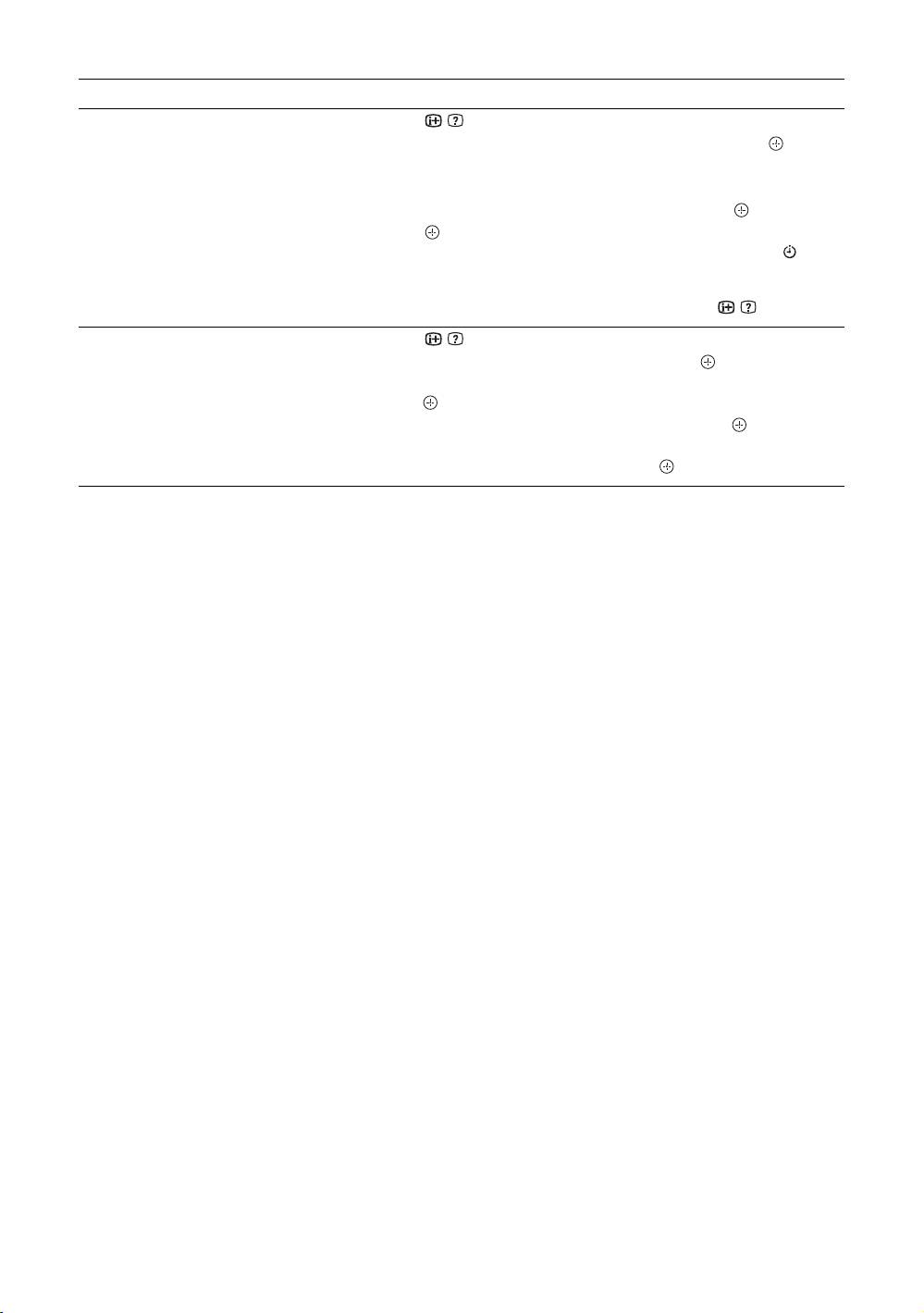
To Do this
Set the time and date of a programme
1 Press / .
you want to record
2 Press
F/f to select “Manual timer REC”, then press .
– Manual timer REC
3 Press
F/f to select the date, then press g.
4 Set the start and stop time in the same way as in step 3.
5 Press
F/f to select the programme, then press .
6 Press to set the TV and your VCR timers.
A red c symbol appears by that programme’s information. The
indicator on the TV front panel lights up in orange.
z
To record the programme you are currently watching, press / .
Cancel a recording/reminder
1 Press / .
– Timer list
2 Press
F/f to select “Timer list”, then press .
3 Press
F/f to select the programme you want to cancel, then
press .
4 Press
F/f to select “Cancel Timer”, then press .
A display appears to confirm that you want to cancel the programme.
5 Press G/g to select “Yes”, then press to confirm.
~
• You can set VCR timer recording on the TV only for SmartLink compatible VCRs. If your VCR is not SmartLink compatible,
a message will be displayed to remind you to set your VCR timer.
• Once a recording has begun, you can switch the TV to standby mode, but do not turn off the TV completely or the recording
may be cancelled.
• If an age restriction for programmes has been selected, a message asking for a PIN code will appear on the screen. For details,
see “Parental Lock” on page 35.
GB
14
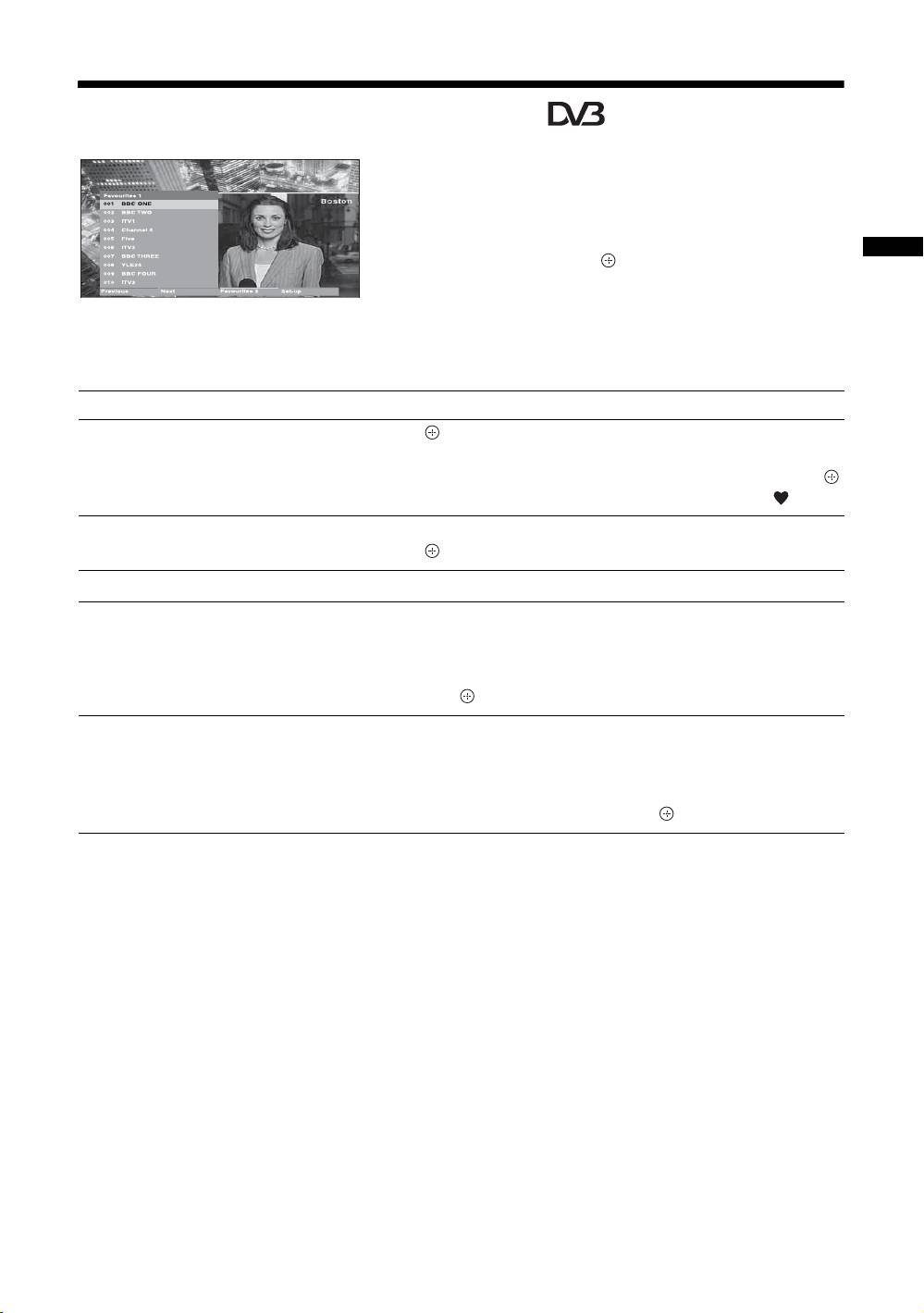
Using the Digital Favourite list *
The Favourite feature allows you to specify up to four
lists of your favourite programmes.
1 Press MENU.
2 Press F/f to select “Digital Favourites”,
then press .
Watching TV
3 Perform the desired operation as shown in
Digital Favourite list
the following table or displayed on the
* This function may not be available in some countries/
screen.
regions.
z
Up to 999 channels can be stored in the Favourite list.
To Do this
Create your Favourite list for the first
1 Press to select “Yes”.
time
2 Press the yellow button to select the Favourite list.
3 Press
F/f to select the channel you want to add, then press .
Channels that are stored in the Favourite list are indicated by a symbol.
Watch a channel
1 Press the yellow button to navigate through your Favourite lists.
2 Press while selecting a channel.
Turn off the Favourite list Press RETURN.
Add or remove channels in the currently
1 Press the blue button.
edited Favourite list
2 Press the yellow button to select the Favourite list you want to
edit.
3 Press
F/f to select the channel you want to add or remove,
then press .
Remove all channels from the current
1 Press the blue button.
Favourite list
2 Press the yellow button to select the Favourite list you want to
edit.
3 Press the blue button.
4 Press
G/g to select “Yes”, then press to confirm.
GB
15
Using Optional Equipment
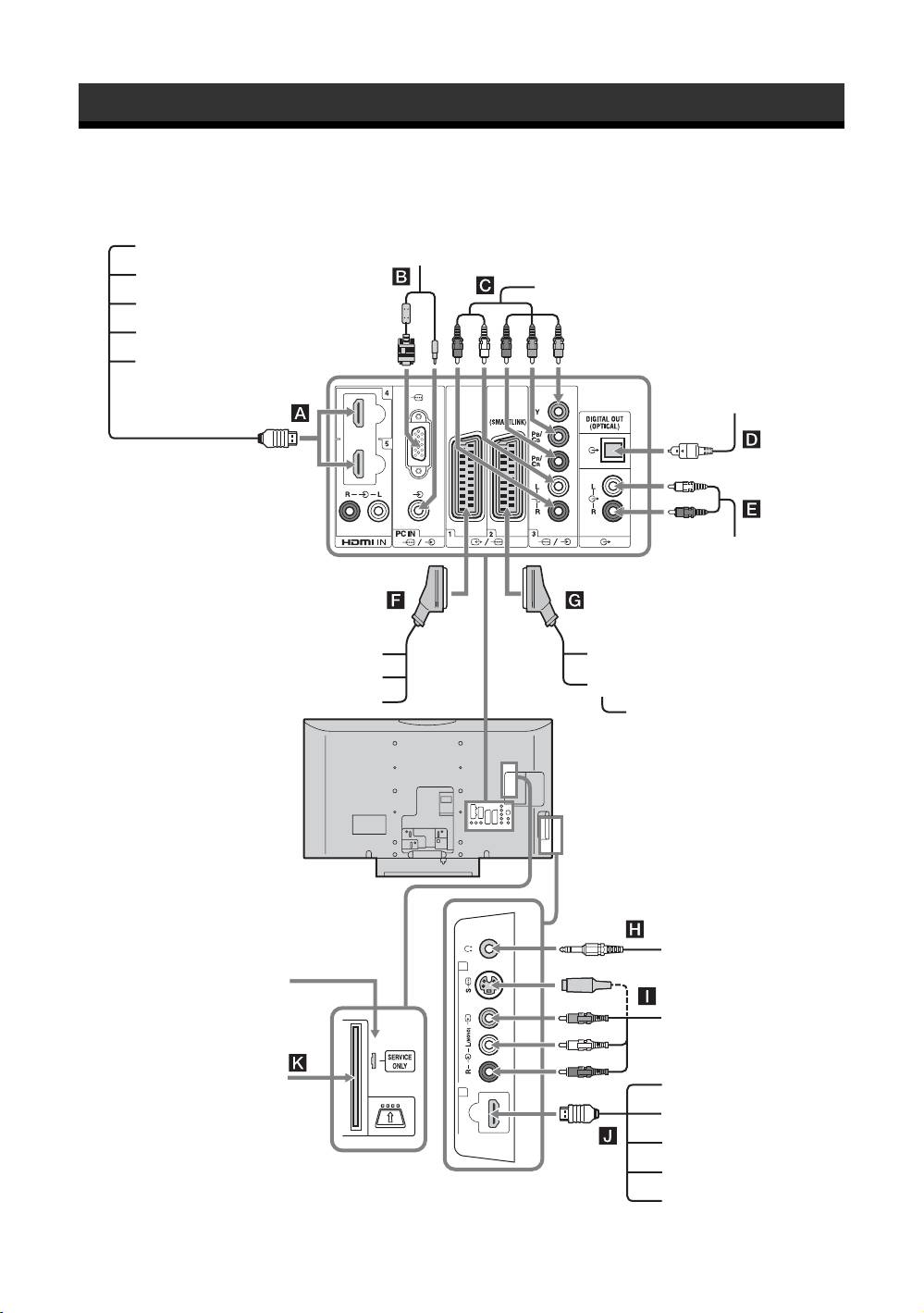
Connecting optional equipment
You can connect a wide range of optional equipment to your TV.
Audio system
PC
DVD player
DVD player with component output
PC (HDMI output)
Blu-ray disc player
Digital video camera
Digital audio (PCM)
component
Hi-Fi audio
equipment
Video game equipment
DVD recorder
DVD player
VCR
Decoder
Decoder
Headphones
For service use only
S VHS/Hi8/
DVC camcorder
CAM Card
PC (HDMI output)
7 6
Blu-ray disc player
HDMI IN
Digital video camera
Audio system
DVD player
GB
16
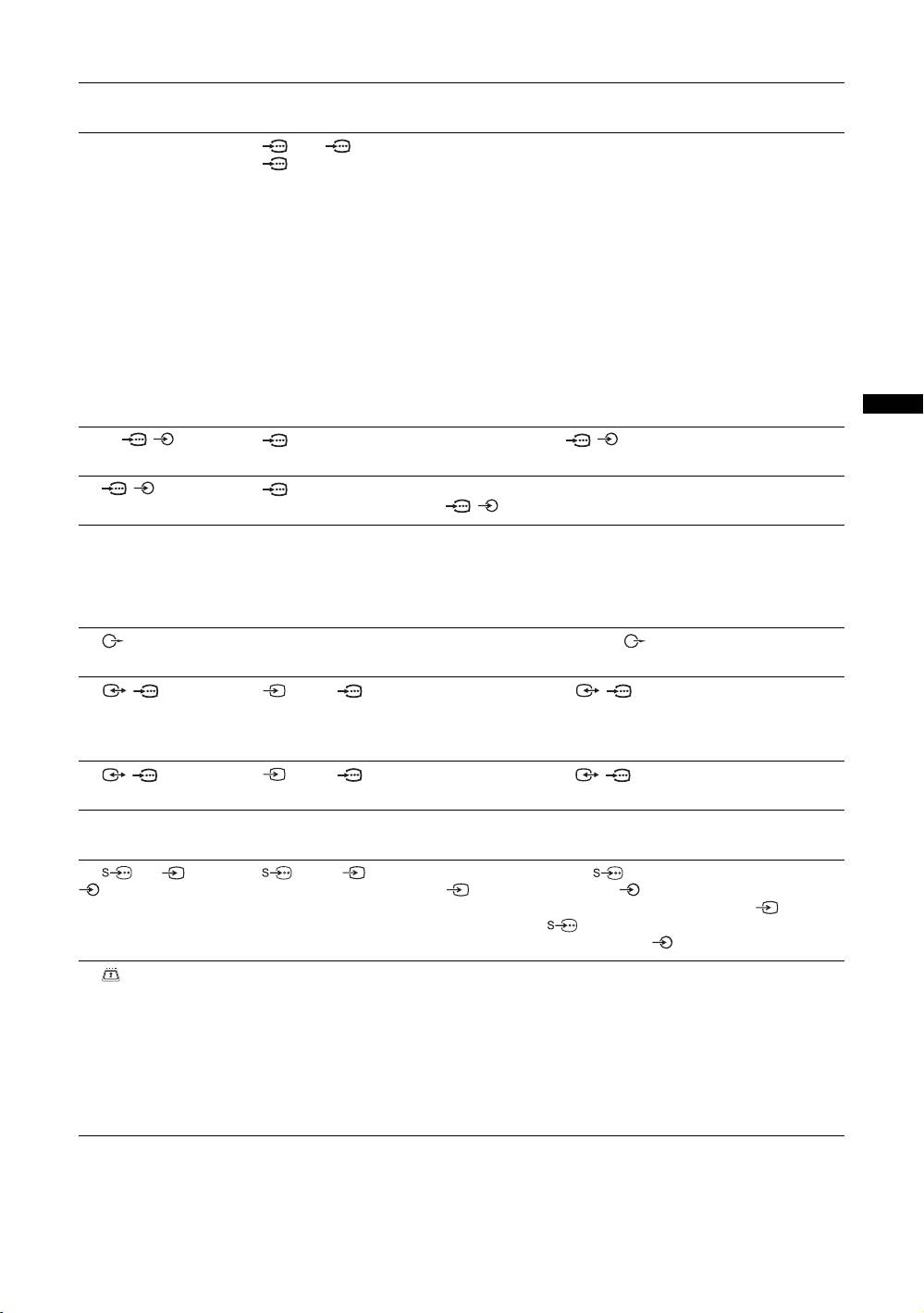
Sockets Input symbol on
Description
screen
A HDMI IN 4 or 5
AV4, AV5 or
Connect to the HDMI IN 4, 5 or 7 socket if the equipment has a
J HDMI IN 7
AV 7
HDMI socket. The digital video and audio signals are input
from the equipment. In addition, when HDMI control
compatible equipment is connected, communication with the
connected equipment is supported. Refer to page 28 to set up
this communication. If the equipment has a DVI socket,
connect the DVI socket to the HDMI IN 5 socket through a
DVI - HDMI adaptor interface (not supplied), and connect the
equipment’s audio out sockets to the audio in the HDMI IN 5
sockets.
~
• The HDMI sockets only support the following video inputs: 480i,
480p, 576i, 576p, 720p, 1080i, 1080p and 1080/24p.
• Be sure to use only an HDMI cable that bears the HDMI logo.
• When connecting an audio system with HDMI socket, be sure to
also connect to the DIGITAL OUT socket.
Using Optional Equipment
B PC / PC Connect to the PC / socket. It is recommended to use a
PC cable with ferrites.
C / 3 AV3 Connect to the component video sockets and the audio sockets
/3.
D DIGITAL OUT
Connect to the DIGITAL OUT socket using the Optical audio
(OPTICAL)
cable.
~
Super Audio CD and DVD Audio sound may not be output
depending on the model.
E Connect to the audio output sockets to listen to the sound
from the TV on Hi-Fi audio equipment.
F / 1 AV1 or AV1 Connect to the scart / 1 socket. When you connect the
decoder, the scrambled signal from the TV tuner is output to
the decoder, then the unscrambled signal is output from the
decoder.
G / 2 AV2 or AV2 Connect to the scart / 2 socket. SmartLink is a direct
link between the TV and a VCR/DVD recorder.
H Headphones Connect to the i socket to listen to sound from the TV on
headphones.
I 6 or 6, and
AV6 or AV6 Connect to the S video 6 socket or the composite video
6
6 socket, and the audio 6 sockets. To avoid picture
noise, do not connect the camcorder to the video 6 socket
and the S video 6 socket at the same time. If you connect
mono equipment, connect to the 6 L socket.
K CAM
To use pay TV services. For details, refer to the instruction
(Conditional Access
manual supplied with your CAM.
Module)
To use the CAM, remove the “dummy” card from the CAM
slot. Turn off the TV when inserting your CAM into the CAM
slot. When you do not use the CAM, we recommend that the
“dummy” card be inserted and kept in the CAM slot.
~
CAM is not supported in some countries/regions. Check with your
authorized dealer.
GB
17
Using the Tools menu
Press TOOLS to display the following options when
Viewing pictures from
viewing pictures from connected equipment.
the connected
Options Description
Close Closes the Tools menu.
equipment
Picture Mode (except
See page 21.
PC input mode)
Turn on the connected equipment, then
Display Mode (in PC
See page 21.
perform one of the following operation.
input mode only)
For equipment connected to the scart sockets using a
Sound Mode See page 23.
fully-wired 21-pin scart lead (page 16)
Motion Enhancer
See page 26.
Start playback on the connected equipment.
(except PC input
The picture from the connected equipment appears on
mode)
the screen.
Speaker See page 27.
For an auto-tuned VCR (page 6)
In analogue mode, press PROG +/-, or the number
PAP (except PC input
See page 18.
mode)
buttons, to select the video channel.
PIP (in PC input
See page 19.
For other connected equipment (page 16)
mode only)
Press / to display the connected equipment list.
Press
F/f to select the desired input source, then press
Auto Adjustment (in
See page 30.
. (The highlighted item is selected if 2 seconds pass
PC input mode only)
without any operation after pressing
F/f.)
Horizontal Shift (in
See page 30.
When the input source is set to “Skip” in the “AV
PC input mode only)
Preset” menu under the “AV Set-up” menu (page 27),
that input does not appear in the list.
Vertical Shift (in PC
See page 30.
input mode only)
Additional operations
i Volume Adjusts the volume of the
headphones.
To Do this
Sleep Timer (except
See page 28.
Return to normal TV
Press DIGITAL or ANALOG.
PC input mode)
mode
Power Saving See page 28.
Access the Input signal
Press to access the Input
index table (except TV
signal index table. To select an
Auto Clock Set Allows you to switch to digital
mode)
input source, press
F/f, then
mode and obtain the time.
press .
Change the volume of
Press
2 +/-.
To view two pictures simultaneously
the connected HDMI
control compatible
– PAP (Picture and Picture)
audio system
You can view two pictures (external input and TV
programme) on the screen simultaneously.
Mute the sound of the
Press
%.
Connect the optional equipment (page 16), and make
connected HDMI
Press again to restore.
sure that images from the equipment appear on the
control compatible
screen (page 18).
audio system
~
• This function is not available for a PC input source.
• You cannot change the size of the pictures.
• You cannot display analog TV video in the TV
programme picture while displaying AV1, AV2 or AV6
video in the external input picture.
1 Press TOOLS to display the Tools menu.
GB
18

2 Press F/f to select “PAP”, then press .
The picture from connected equipment is
Using HDMI control
displayed on the left and the TV programme is
displayed on the right.
The HDMI control function allows equipment to
3 Press number buttons or PROG +/- to
control each other using HDMI CEC (Consumer
Electronics Control) specified by HDMI.
select the TV channel.
You can perform interlocked control operations
To return to single picture mode
between Sony HDMI control compatible equipment
Press or RETURN.
such as a TV, DVD recorder with hard disk and audio
z
system by connecting the equipment with HDMI
The picture framed in green is audible. You can switch the
cables.
audible picture by pressing
G/g.
Be sure to correctly connect and set the compatible
equipment to use the HDMI control function.
To view two pictures simultaneously
– PIP (Picture in Picture)
To connect the HDMI control compatible
You can view two pictures (PC input and TV
equipment
programme) on the screen simultaneously.
Connect the compatible equipment and the TV with an
Using Optional Equipment
Connect a PC (page 16), and make sure that images
HDMI cable. When connecting an audio system, in
from a PC appear on the screen.
addition to the HDMI cable, be sure to also connect
~
the DIGITAL OUT (OPTICAL) socket of the TV and
• You cannot display resolutions higher than WXGA (1280
the audio system using an optical audio cable. For
× 768 pixels).
details, see page 16.
• “Power Management” is not available in PIP mode
(page 30).
1 Press TOOLS to display the Tools menu.
To make the HDMI control settings
HDMI control must be set on both the TV side and the
2 Press F/f to select “PIP”, then press .
connected equipment side. See “HDMI Set-up” on
The picture from the connected PC is displayed with
page 28 for the TV side settings. See the operating
full size and the TV programme is displayed on the
instructions of the connected equipment for setting
right corner.
details.
You can use
F/f/G/g to move the TV programme
screen position.
3 Press number buttons or PROG +/- to
HDMI control functions
select the TV channel.
• Turns the connected equipment off interlocked with
To return to single picture mode
the TV.
Press RETURN.
• Turns the TV on interlocked with the connected
z
equipment and automatically switches the input to
You can switch the audible picture by selecting “Audio
the equipment when the equipment starts to play.
Swap” from the Tools menu.
• If you turn on a connected audio system while the
TV is on, the input switches to the audio from the
audio system.
• Adjusts the volume and mutes the sound of a
connected audio system.
GB
19
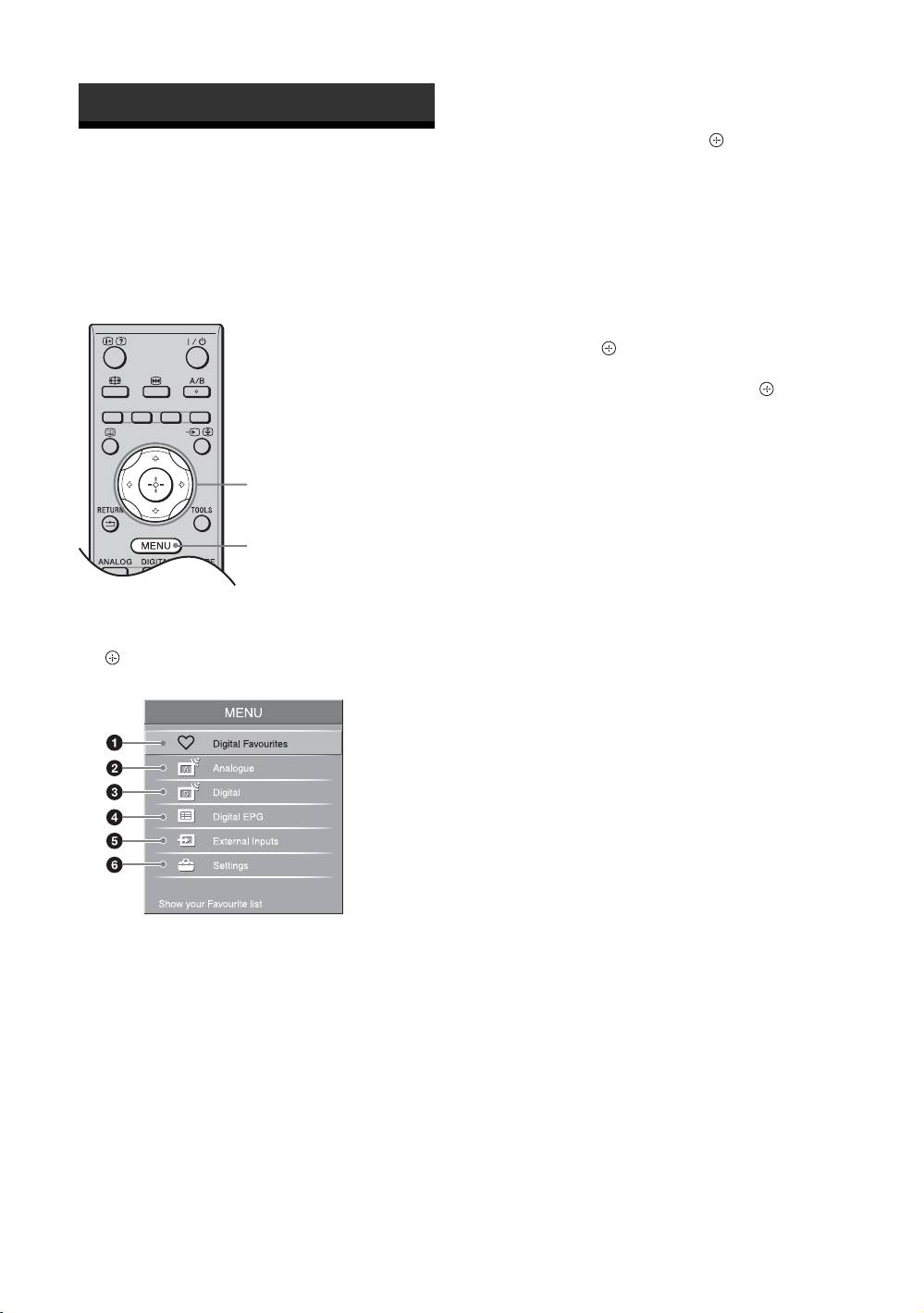
5 External Inputs
Using MENU Functions
Selects equipment connected to your TV.
• To watch the desired external input, select the
input source, then press .
• To assign a label to an external input, select
Navigating through
“Edit AV Labels”, then see page 27.
• To see a list of the connected HDMI control
menus
compatible equipment, select “HDMI Device
Selection”.
“MENU” allows you to enjoy various convenient
6 Settings
features of this TV. You can easily select channels or
Displays the “Settings” menu where most of the
inputs sources and change the settings for your TV.
advanced settings and adjustments are
performed.
1 Press F/f to select a menu icon, then
press .
2 Press F/f/G/g to select an option or
adjust a setting, then press .
For details about settings, see page 21 to 36.
~
The options you can adjust vary depending on the
situation. Unavailable options are greyed out or not
2
displayed.
* This function may not be available in some countries/
regions.
1
1 Press MENU.
2 Press F/f to select an option, then press
.
To exit the menu, press MENU.
1 Digital Favourites*
Displays the Favourite list (page 15).
2 Analogue
Returns to the last viewed analogue channel.
3 Digital*
Returns to the last viewed digital channel.
4 Digital EPG*
Displays the Digital Electronic Programme
Guide (EPG) (page 13).
GB
20
