
Sony WEGA KLV-30HR3: instruction
Class: Televisions and Digital TV
Type:
Manual for Sony WEGA KLV-30HR3
Table of contents
2-320-060-11 (1)
R
LCD Colour TV
GB
Operating Instructions
Before operating the TV, please read the “Safety Information”
section of this manual. Retain this manual for future reference.
RU
Инструкция по эксплуатации
Перед тем как включить телевизор, просим Вас ознакомиться
с разделом "Общие правила техники безопасности"
настоящей инструкции. Сохраняйте настоящую инструкцию
на будущее.
PL
Instrukcja obsługi
Przed przystąpieniem do eksploatacji telewizora należy
zapoznać się z rozdziałem "Informacje dotyczące
bezpieczeństwa" w niniejszej instrukcji. Prosimy o zachowanie
niniejszej instrukcji do wglądu w przyszłości.
PT
Manual de Instruções
Antes de utilizar o televisor, por favor leia a secção “Informação
sobre segurança” deste manual. Guarde este manual para
futuras consultas.
KLV-30HR3
©2004 by Sony Corporation

Introduction
• Thank you for choosing this Sony product.
• Before operating the TV, please read this manual thoroughly and retain it for future reference.
• Symbols used in the manual:
• Important information.
• Buttons shaded white on the remote control show you the
buttons you have to press to follow the sequence of the
• Information on a feature.
instructions.
• 1,2... Sequence of instructions.
• Informs you of the result of the instructions.
Table of Contents
Introduction .......................................................................................................................................................... 3
Safety Information................................................................................................................................................4
Precautions ...........................................................................................................................................................7
Overview & Installation
Checking the Accessories Supplied...................................................................................................................... 8
Overview of Remote Control Buttons.................................................................................................................. 9
GB
Overview of the TV Buttons and side Connectors.............................................................................................11
Overview of the TV Indicators...........................................................................................................................12
Inserting Batteries into the Remote Control.......................................................................................................12
Removing the Rear Cover ..................................................................................................................................13
Connecting the Aerial and VCR......................................................................................................................... 14
First Time Operation
Switching on the TV and Automatically Tuning ............................................................................................... 15
TV Functions
Introducing and Using the Menu System .......................................................................................................... 17
The Picture Adjustment menu ..................................................................................................................... 18
The Sound Adjustment menu.......................................................................................................................20
The Features menu........................................................................................................................................ 21
The Set Up menu.......................................................................................................................................... 23
The Manual Programme Preset menu.......................................................................................................... 25
Other Functions
Sleep Timer ........................................................................................................................................................27
Picture Freeze.....................................................................................................................................................27
Teletext..................................................................................................................................................................28
Additional Information
Connecting Equipment to the TV........................................................................................................................29
Viewing pictures from equipment connected to the TV......................................................................................31
Technical Specifications......................................................................................................................................32
Troubleshooting...................................................................................................................................................33
Table of Contents
3
Safety Information
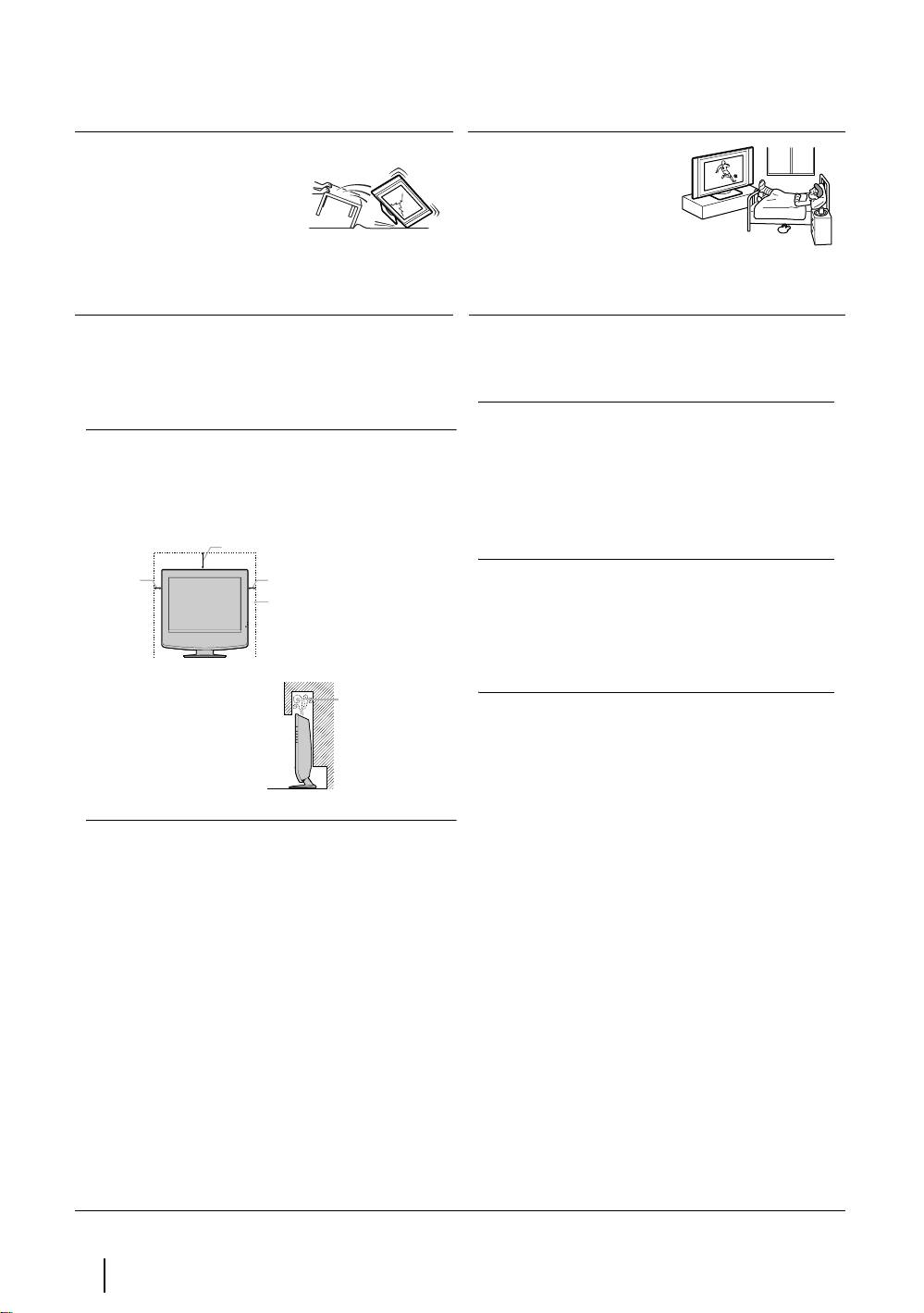
Mains lead
Medical institution
Unplug the mains lead when
Do not place this TV set in a
moving the TV. Do not move
place where medical
the set with the mains lead
equipment is in use. It may
plugged in. It may damage the
cause malfunction of medical
mains lead and result in fire or
instruments.
electric shock. If the set has been dropped or
damaged, have it checked immediately by qualified
service personal.
Damage requiring service
Carrying
If the surface of the display cracks, do not touch it until
Before carrying the TV set, disconnect all the cables
you have unplugged the mains lead. Otherwise electric
from the TV set.
shock may result.
Fluorescent lamp
This TV set uses a special fluorescent lamp as its
Ventilation
Leave space around the TV set. Otherwise, adequate air-
light source. If the screen image becomes dark,
circulation may be blocked causing overheating which
flickers or does not appear, the fluorescent lamp has
may cause fire or damage the TV set.
run down and should be replaced. For replacement,
consult qualified service personnel.
30 cm
10 cm
10 cm
Adjusting the viewing angle of the TV set
Leave at least this
When adjusting the angle, hold the stand with your
much space.
hand so that it does not come loose or fall off.
Be careful not to catch your fingers between the TV
set and the stand.
Air circulation
is blocked
Never install the unit as follows:
Wall
LCD screen
• Although the LCD screen is made with high-precision
technology and 99.99% or more of the pixels are
effective, black dots may appear or bright points of
light (red, blue or green) may appear constantly on the
LCD screen. This is a structural property of the LCD
panel and is not a malfunction.
• Do not expose the LCD screen surface to the sun.
Doing so may damage the screen surface.
• Do not push or scratch the front filter, or place objects
on top of the TV set .The image may be uneven or the
LCD panel may be damaged.
• If the TV set is used in a cold place, a smear may occur
in the picture or the picture may become dark. This
does not indicate a failure. These phenomena disappear
as the temperature rises.
• Ghosting may occur when still pictures are displayed
continuously. It may disappear after a few moments.
• The screen and cabinet get warm when the TV set is in
use. This is not a malfunction
4
Safety Information
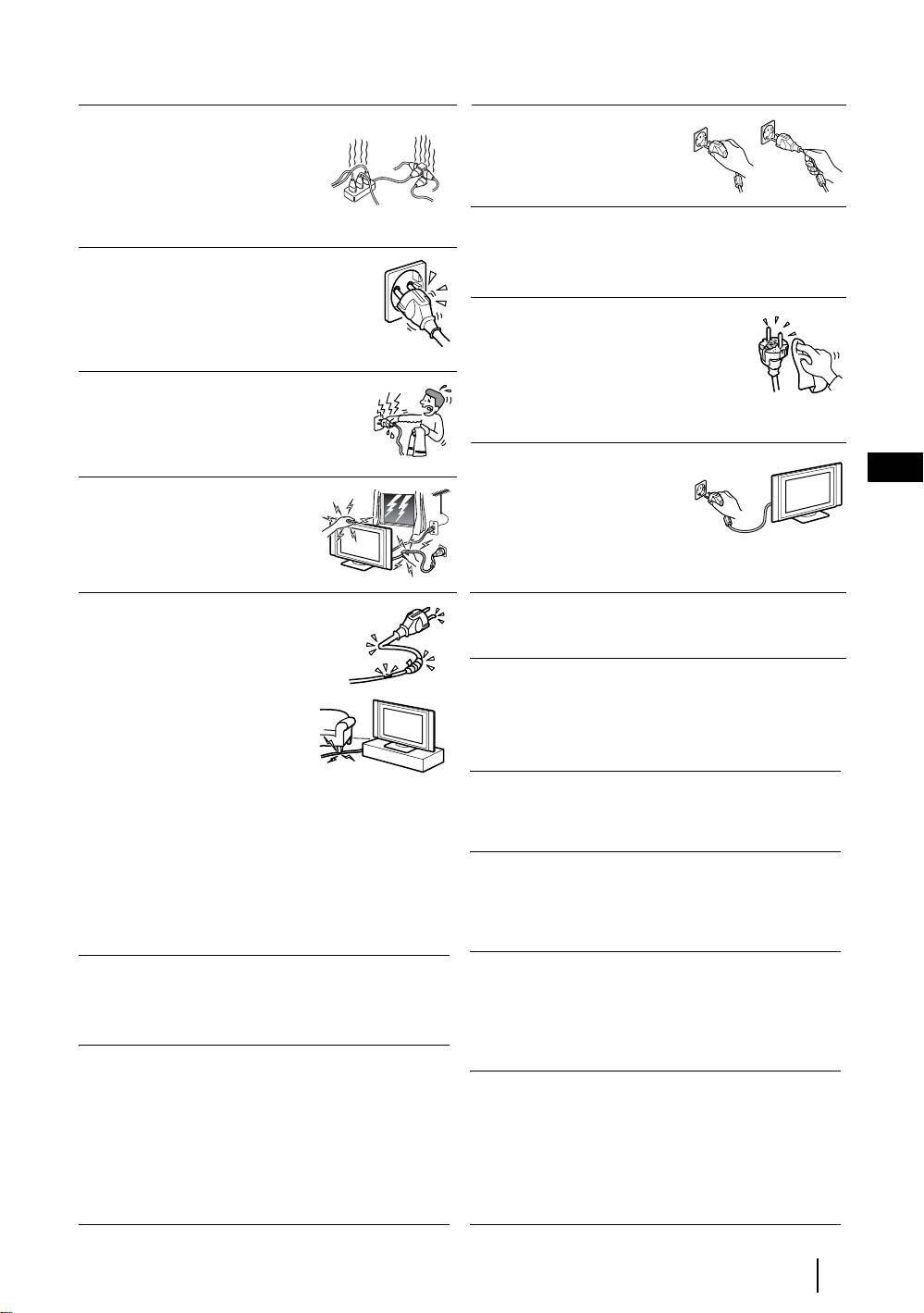
Power Sources
Overloading
Mains lead protection
This TV set is designed to operate
Pull out the mains lead by the
on a 220-240V AC supply only.
plug. Do not pull on the mains
Take care not to connect too
lead itself.
many appliances to the same
mains socket as this could result
in fire or electric shock.
Wiring
Unplug the mains lead when wiring cables. Be sure to
Mains
unplug the mains lead for your safety, when hooking up.
Do not use a poor fitting mains socket. Insert
the plug fully into the mains. If it is loose, it
may cause arcing and result in fire. Contact
Cleaning
your electrician to have the mains socket
Clean the mains plug regularly. If the
changed.
plug is covered with dust and it picks up
moisture, its insulation may deteriorate
Moisture
and result in fire. Unplug the mains plug
Do not touch the mains lead with a wet
and clean it regularly.
hand. If you plug/unplug the mains lead
with a wet hand, it may cause electric
shock.
When not in use
GB
For environmental and safety
Lightning storms
reasons, it is recommended that
For your own safety, do not touch
the TV set is switched off when
any part of the TV set, mains lead
not in use - not left in standby
or aerial lead during lightning
mode. Disconnect from the
storms.
mains.
Mains lead
Cable wiring
If you damage the mains lead, it
Take care not to catch your feet on the cables. It may
may result in fire or electric
damage the TV set.
shock.
Installation
• Do not pinch, bend, or twist the
Do not install optional components too close to the TV
cable excessively. The core
set. Keep optional components at least 30 cm away from
lines may be bared or cut,
the TV set. If a VCR is installed in front or at the right
causing a short - circuit which
side of the TV set, the picture may distort.
may in fire or electric shock.
• Do not convert or damage the
mains lead.
Heat
• Do not put anything heavy on the mains lead. Do not
Do not touch the surface of the TV. It remains hot, even
pull the mains lead.
after the TV has been turned off for some time.
• Keep the mains lead away from heat sources.
• Be sure to grasp the plug when disconnecting the
Oils
mains lead.
Do not install TV set in restaurants that use oil. Dust
• If the mains lead is damaged, stop using it and ask your
absorbing oil may enter into the TV set and damage TV
dealer or Sony service centre to exchange it.
set.
Electric shock
Water and moisture
Do not touch the TV set with wet hands. Doing so may
Do not use the TV set near water – for example, near a
cause electric shock or damage the TV set.
bathtub or shower room. Also, do not expose to rain,
moisture or smoke. This might result in fire or electric
shock. Do not use the TV set where insects may enter.
Corrosion
If you use this set near the seashore, salt may corrode
Disposal of the TV set
metal parts of the TV set and cause internal damage or
• Do not dispose of the TV set with general household
fire. It may also shorten the life of the TV set. Steps
waste.
should be taken to reduce the humidity and temperature
• The LCD contains a small amount of liquid crystal and
of the area where the set is located.
mercury. The fluorescent tube used in the TV set also
contains mercury. Follow your local ordinances and
regulations for disposal
continued...
Safety Information
5
Installation and moving
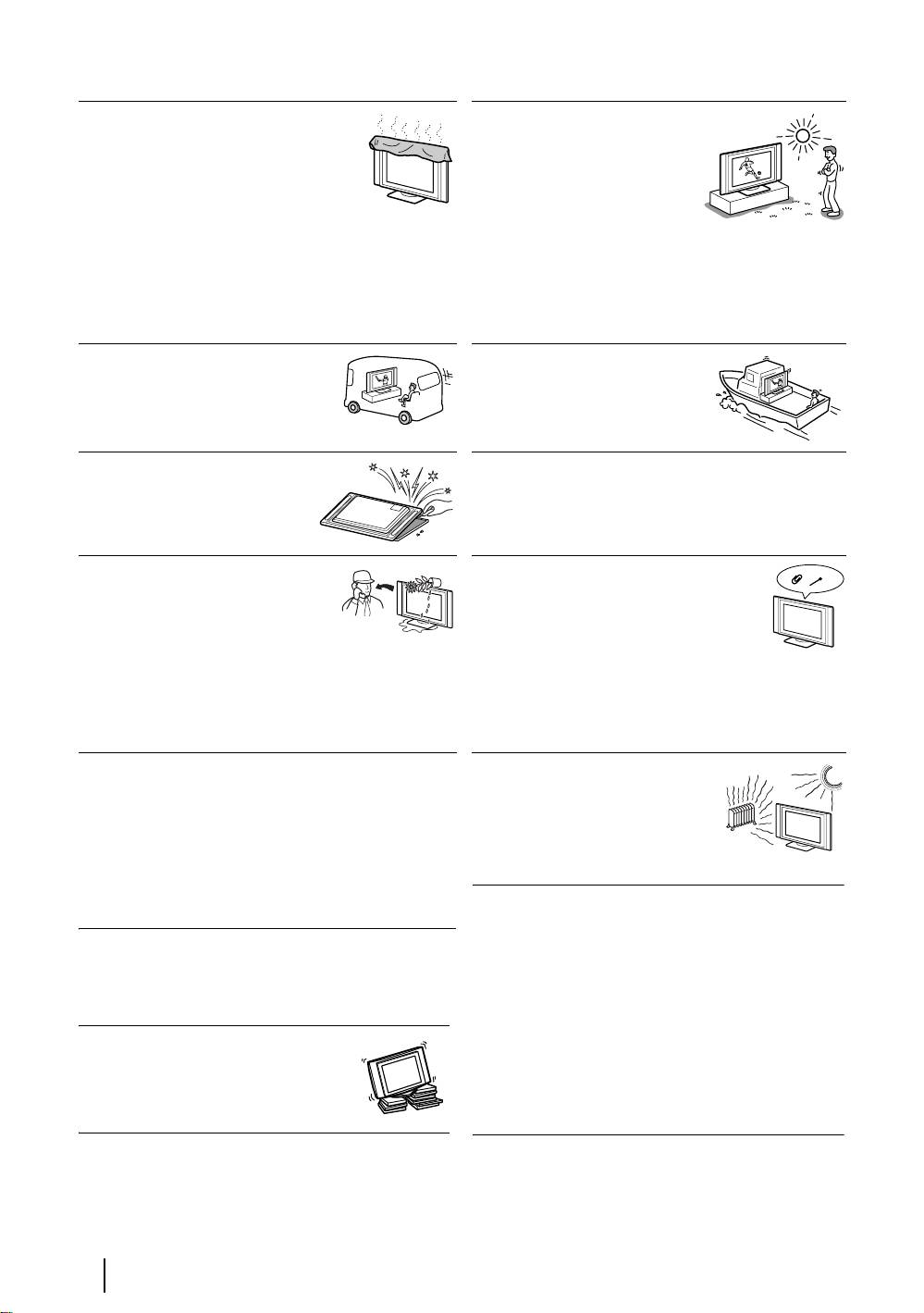
Ventilation
Outdoor use
Never cover the ventilation holes in the
Do not install this TV set
cabinet. It may cause overheating and
outdoors. If the TV set is exposed
result in fire. Unless proper ventilation is
to rain, it may result in fire or
provided, the TV set may gather dust and
electric shock. If the TV set is
get dirty. For proper ventilation, observe
exposed to direct sunlight, the TV
the following:
set may heat up and it may
• Do not install the TV set turned backward or sideways.
damage the TV set.
• Do not install the TV set turned over or upside down.
• Do not install the TV set on a shelf or in a closet.
• Do not place the TV set on a rug or bed.
• Do not cover the TV set with cloth, such as curtains, or
items such as news papers, etc.
Vehicle or ceiling
Ships and other vessels
Do not install this TV set in a vehicle.
Do not install this TV set in a ship
Bumping of the vehicle may cause the
or vessel. If the TV set is exposed
set to fall down and cause injury. Do
to seawater, it may cause fire or
not hang this TV set from the ceiling.
damage the TV set.
To prevent the TV set from falling
Servicing
Do not open the cabinet. Entrust
Place the TV set on a secure, stable stand. Do not hang
the TV set to qualified service
anything on the TV set.
personnel only.
Moisture and flammable objects
Ventilation holes
• Do not let this TV set get wet.
Do not insert anything in the ventilation
Never spill liquid of any kind on
holes. If metal or something flammable
the TV set. If any liquid or solid
enters, it may result in fire or electric shock.
object does fall through, do not
operate the TV set. It may result in electric shock or
damage to the TV set. Have it checked immediately by
qualified personnel.
• To prevent fire, keep flammable objects or naked
lights (e.g. candles) away from the TV set.
Protruding location
Placement
Do not install the TV set in protruding locations. If you
Never place the TV set in hot,
install the TV set in the following locations, it may result
humid or excessively dusty places.
in injury.
Do not install the TV set where it
• Do not install the TV set in a location where the TV set
may be exposed to mechanical
protrudes, such as on or behind pillar.
vibrations.
• Do not install the TV set in a location where you might
bump your head on it.
Cleaning the Screen Surface
The screen surface is finished with a special coating to
prevent strong light reflections. Be sure to observe the
Cleaning
following precautions to avoid the damaging the finish.
Unplug the mains lead when cleaning this TV set. If not,
it may result in electric shock.
• To remove dust from the screen surface, wipe gently with
a soft cloth. If dust is persistent, wipe with a soft cloth
slightly moistened with a diluted mild detergent
Recommended place for the TV set
solution. You can wash and repeatedly use the soft cloth.
Place the TV Set on a stable, level
• Never use any type of abrasive path, alkaline/acid
surface. Otherwise, the TV set may fall
cleaner, scouring powder, or strong solvent such as
and cause injury.
alcohol, benzine or thinner.
6
Safety Information

Precautions
On viewing the TV comfortably
• To view the TV comfortably, the recommended viewing position is from four to seven times of the screen’s
vertical length away from the TV set.
• View the TV in a moderate light room, as viewing the TV in poor light taxes your eyes. Watching the screen
continuously for long periods of time can also tax your eyes.
On installing the TV set
• Do not install the TV in places subject to extreme temperature, for example in direct sunlight, or near a radiator,
or heating vent. If the TV set is exposed to extreme temperature, the TV set may heat up and it may cause
deformations of the casing or cause the TV set to malfunction.
• To obtain a clear picture, do not expose the screen to direct illumination or direct sunlight. If possible, use spot
lighting directed down from the ceiling.
• The TV set is not disconnected from the mains when the switch is in Off position. To disconnect the set
completely, pull the plug from the mains.
On volume adjustment
• Adjust the volume so as not to trouble neighbours. Sound carries very easily at night time. Therefore, closing the
windows or using headphones is suggested.
GB
• When using headphones, adjust the volume so as to avoid excessive levels, as hearing damage may result.
On handling the remote control
• Handle the remote control with care. Do not drop or step on it, or spill liquid of any kind onto it.
• Do not place the remote control in a location near a heat source, or in a place subject to direct sunlight, or in a
damp room.
On cleaning the cabinet
• Be sure to unplug the mains lead before cleaning.
• Clean the cabinet with a soft cloth lightly dampened. Do not use any type of abrasive pad, alkaline cleaner,
scouring powder or solvent, such as alcohol or benzine, or antistatic spray.
• Note that material deterioration or screen coating degradation may occur if the TV is exposed to a volatile solvent,
such as alcohol, thinner, benzine or insecticide, or if prolonged contact is maintained with rubber or vinyl
materials.
• The ventilation holes can accumulate dust over a period of time and the accumulated dust may make the cooling
function less effective. To prevent this, we recommend removing the dust periodically (once a month) using a
vacuum cleaner.
On handling and cleaning the screen surface
To avoid screen degradation, follow the points mentioned below. Do not push on or scratch with hard objects, or
throw anything at the screen. The screen may be damaged.
• Be sure to unplug the mains lead before cleaning.
• Do not touch the TV after operating continuously for along period as the display panel becomes hot.
• We recommend that the screen surface is touched as little as possible.
• Clean the screen with a soft cloth lightly moistened. Cleaning with dirty cleaning cloth may result in damage to
the TV set. Never use any type of abrasive pad, scouring powder, or solvent, such as alcohol or benzine. This type
of contact may result in damage to the screen surface.
Safety Information
7
Overview & Installation
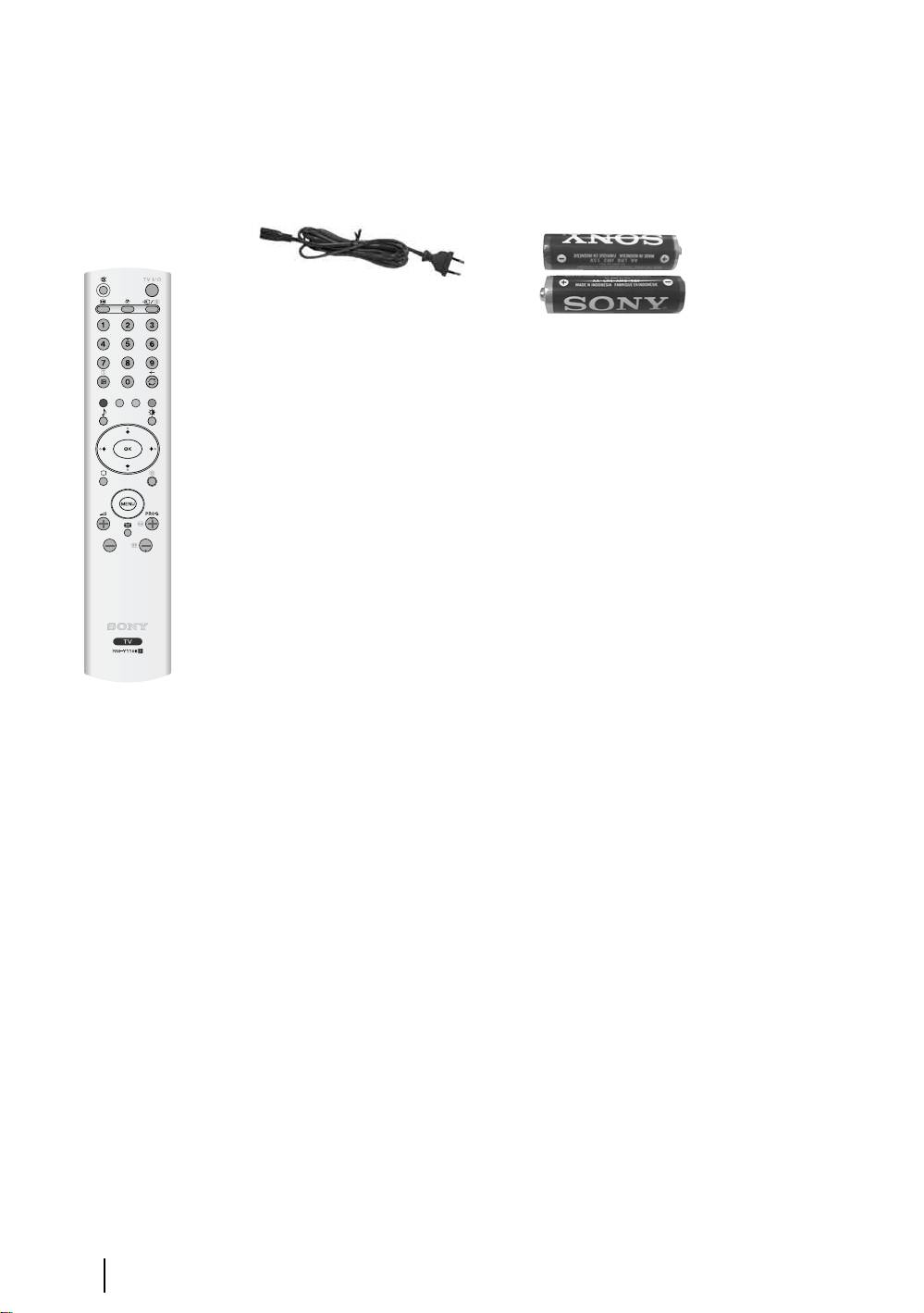
Checking the Accessories supplied
1 Remote
1 Mains Lead (Type C-6):
2 Batteries (AA size):
control
(RM-Y1108):
8
Overview & Installation
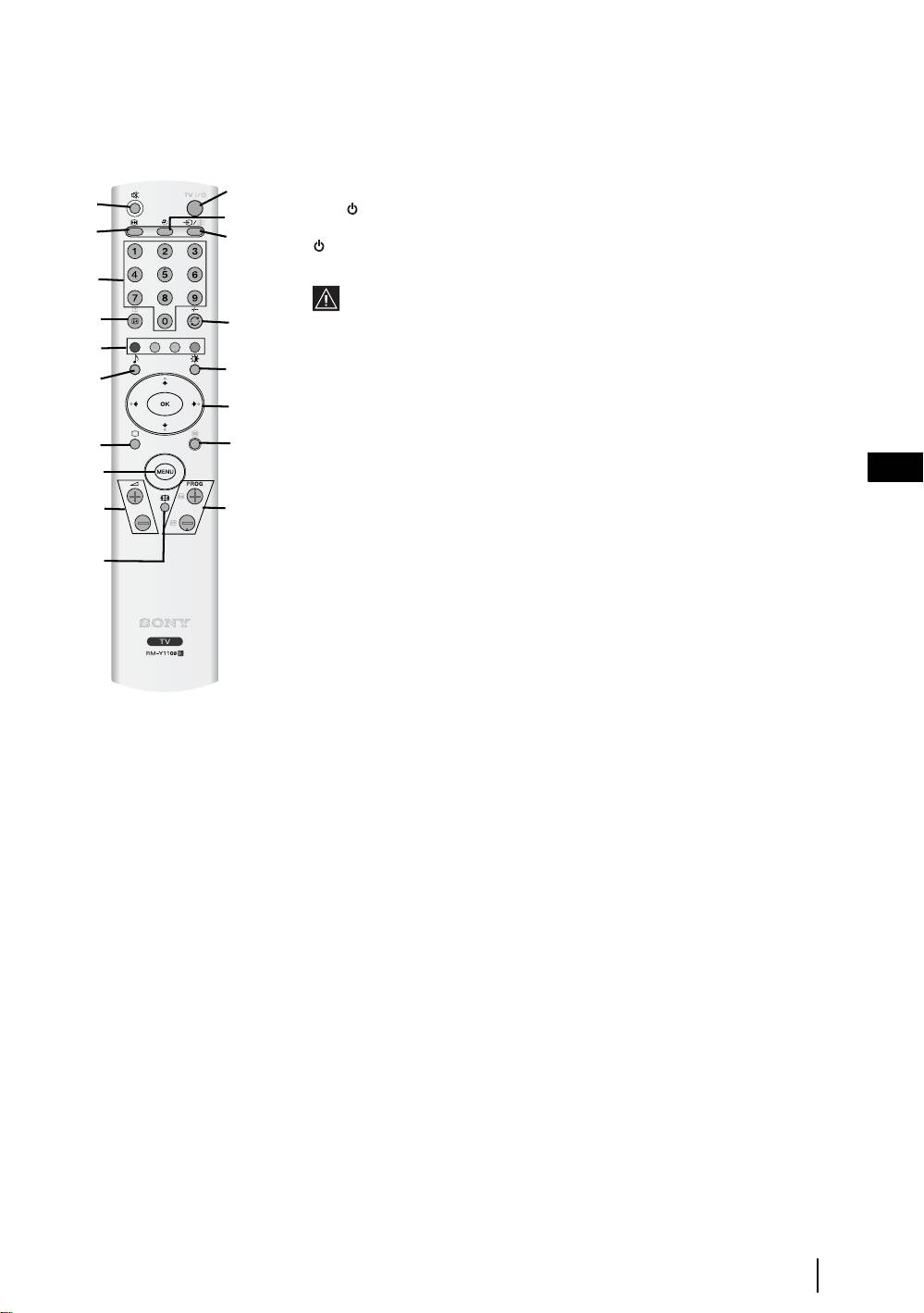
Overview of Remote Control Buttons
1 Muting the Sound: Press this button to mute the sound from the TV. Press it
again to cancel.
2
1
2 TV I/ -
Switching the TV to the standby mode:
4
3
Press this button to temporarily turn off the TV and switch it to standby mode (the
5
(Standby/Sleep) indicator on the TV lights up in red). Press again to switch on
the TV from standby mode.
6
• To save energy, we recommend switching the TV off completely when
the TV is not in use.
7
8
• If no signal is received or no operation is performed in the TV mode for
9
15 minutes, the TV automatically switches to standby mode.
qa
q;
3
Picture Freeze: Press this button to freeze the picture. For more details refer to
qs
"Picture Freeze" on page 27.
qd
qf
4
Turning on the Sleep Timer Function: Press this button to set the TV to
qg
automatically switch to standby mode after a specified time period. For more
GB
details, refer to "Sleep Timer Function" on page 27.
qh
qj
5
Selecting the input source: Press this buttons repeatedly until the input
symbol of the desired source appears on the screen.
qk
6 0 - 9
Selecting Channels: Press these buttons to select channels. For
double-digit channel numbers, enter the second digit within 2.5 seconds.
7
Displaying on-screen information: Press this button to display all on-screen
indicators. Press it again to cancel.
8
Watching Last Channel Selected: Press this button to watch the last channel
selected (the last channel watched for at least five seconds).
9
Fastext: In Teletext mode, these buttons can be used as Fastext buttons. For
more details see page 28.
q; Selecting a sound effect: Press this button repeatedly to change the sound
effect. For details on different sound effects refer to page 20.
qa Selecting the Picture Mode / Adjusting the Brightness Of Teletext
Pages.
a)
In normal TV mode: Press this button repeatedly to change the picture
mode. For more details, refer to "Picture Adjustment" on page 18.
b) In Teletext mode: Press this button repeatedly to change the brightness of
Teletext pages.
continued...
Overview & Installation
9
2
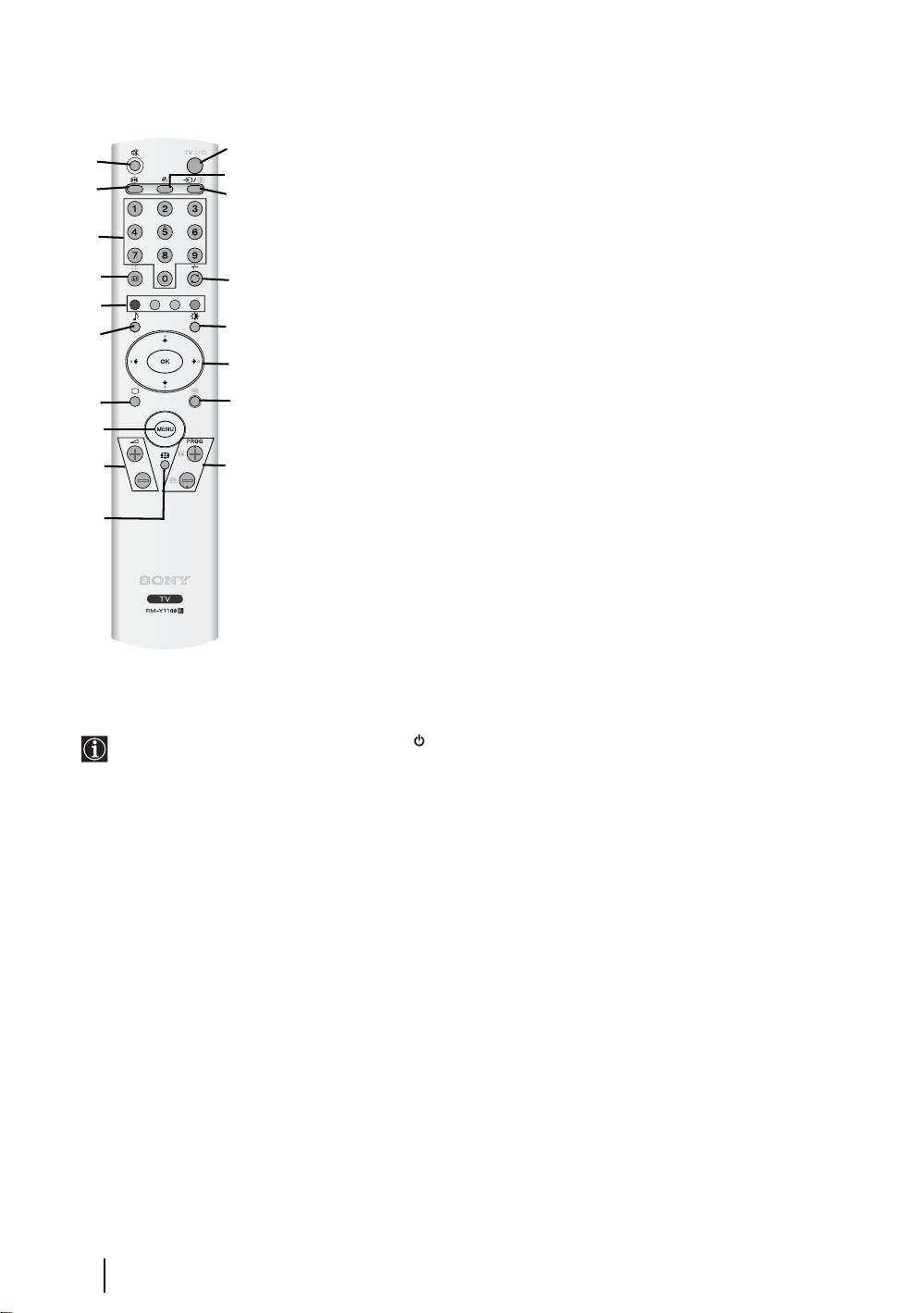
qs V / v / B / b / OK Buttons:
1
a)
When the menu is displayed: use these buttons to operate the menu
4
3
system. For more details, refer to "Introducing and Using the Menu
5
System" on page 17.
b) When the menu is turned off: press OK to show an overview of all TV
6
Channels. Then press
V or v to select the channel and press OK to watch
the selected channel.
7
8
qd Selecting the TV mode: Press this button to switch off Teletext or video
9
input.
qa
q;
qf Selecting Teletext: Press this button to switch on Teletext. For more
qs
details, refer to "Teletext" on page 28.
qd
qf
qg MENU - Displaying the menu system: Press this button to display the
menu on the screen. Press it again to remove the menu from the screen.
qg
qh 2
+/- Adjusting the TV volume: Press these buttons to adjust the
qh
qj
volume of the TV.
qj
PROG +/- Selecting Channels: Press these buttons to select the next or
qk
previous channel.
qk
Selecting screen format: Press this button repeatedly to change the
format of the screen. Refer to page 21.
The buttons with green symbols (except for (Power/Standby)) are also used for Teletext operations. For
more details refer to "Teletext" on page 28.
10
Overview & Installation
Overview of the TV Buttons and side Connectors
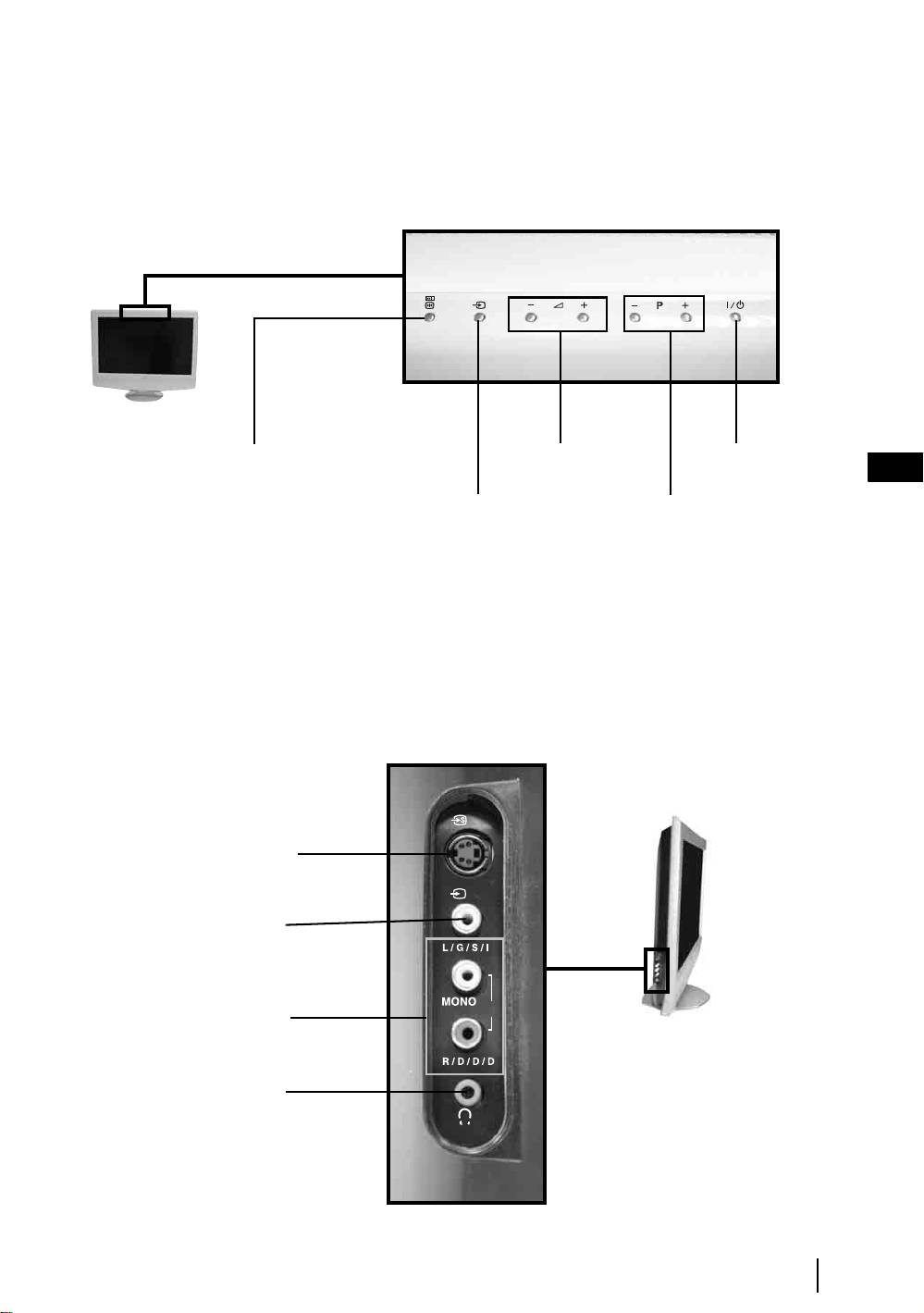
Overview of the TV Buttons
Picture Freeze press this button to
Power On / OffVolume control
freeze the picture. For more details
(+/-)
GB
refer to “Picture Freeze” on page 27.
Auto Start Up press and hold this
Selecting Input Source
Programme Up or
button for three seconds to start the
for more details refer to
Down (selects TV
Auto Start Up sequence. For more
“Viewing pictures from
channels)
details refer to “Switching On the
equipment connected to
the TV” on page 31.
TV and Automatically Tuning” on
page 15.
Overview of the side Connectors
4
S Video Input
jack
4
Video Input
jack
Audio Input
o4
jacks
Headphones
jack
Overview & Installation
11
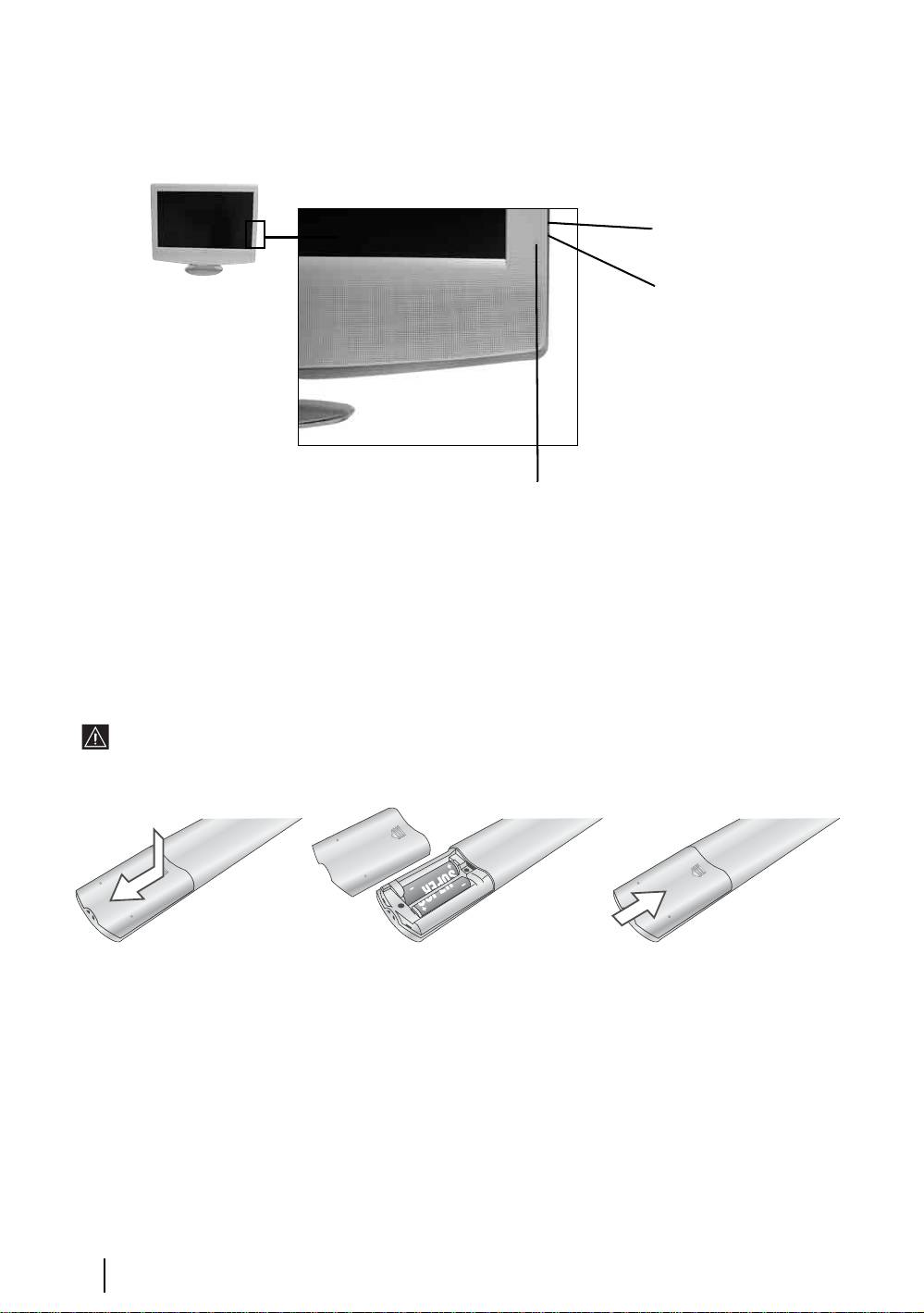
Overview of the TV indicators
Lights up in green when the
TV is switched on.
• Lights up in red when
the TV is in standby
mode.
• Flashes red when a
button is pressed on the
remote control.
• Lights up in red when
the sleep timer is set.
For more details, refer
to “Sleep Timer” on
To operate the remote
page 27.
control, point it towards
this receiver.
Inserting Batteries into the Remote Control
Make sure you insert the supplied batteries using the correct polarities.
Always remember to dispose of used batteries in an environmental friendly way.
N
O
S
PO
R
O
C
Y
JA
N
TIO
R
A
/4
AN
P
SONY CORPORATION JAPAN/4
12
Overview & Installation
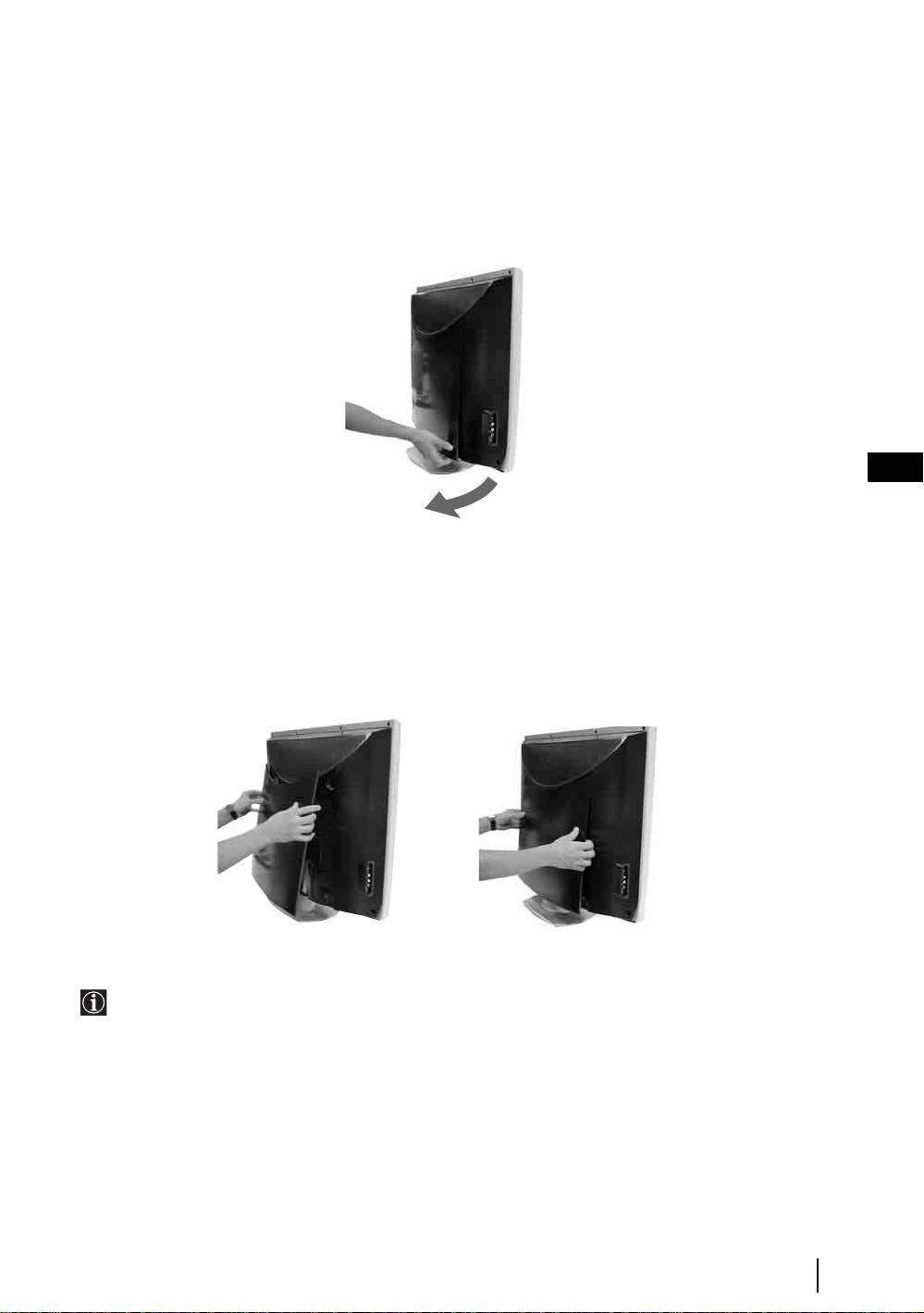
Removing the Rear Cover
When you connect the cables, remove the rear cover of the TV set. Be sure to attach the rear cover back on the TV
set after you finish connecting the cables.
Removing the rear cover
Hold the rear cover as illustrated below and pull off one side of the lower part of the cover towards you first. Then,
detach the upper part of the cover from the TV set.
GB
Attaching the rear cover
Hold the rear cover as illustrated below, fitting the four detents on the rear cover into the corresponding holes on the
TV set, then push the rear cover back on to the TV set.
It is not necessary to attach the rear cover if you install a wall-mount bracket SU-LW1 (optional
accessory).
Overview & Installation
13
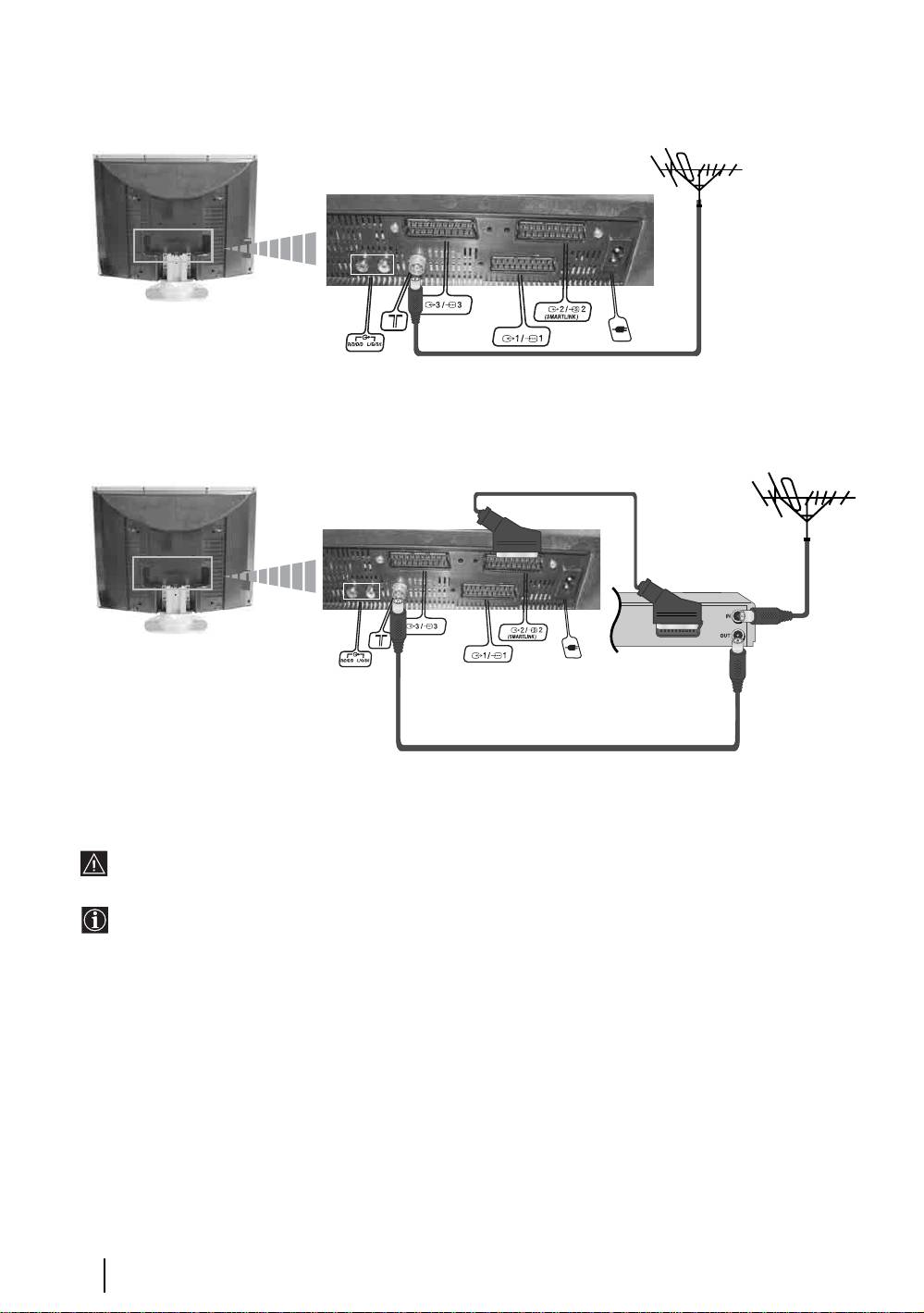
Connecting the Aerial and VCR
or
VCR
Make sure to connect the aerial before the Scart.
For more details regarding VCR connection, refer to “Connecting Equipment to the TV” on page 29.
14
Overview & Installation
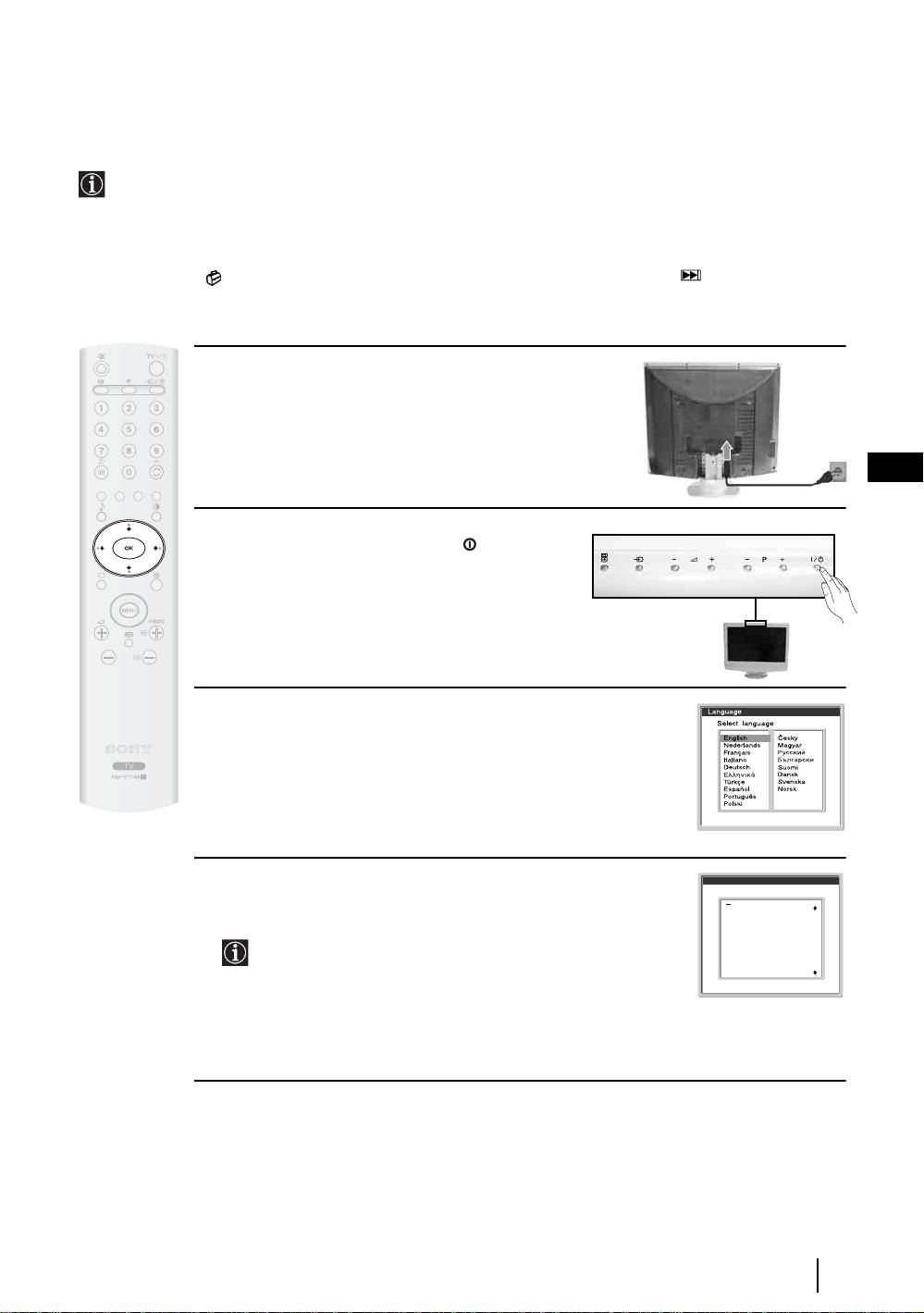
First Time Operation
Switching On the TV and Automatically Tuning
The first time you switch on your TV, a sequence of menu screens appear on the TV enabling you to: 1) choose
the language of the menu screen 2) choose the country in which you are going to operate the TV, 3) search and
store all available channels (TV Broadcast) and 4) change the order in which the channels (TV Broadcast)
appear on the screen.
However, if you need to change any of these settings at a later date, you can do that by selecting the appropriate
option in the (Set Up menu) or by pressing and holding the Auto Start Up button on the top of TV set
for more than three seconds, see page 11.
1 Connect the TV plug to the mains socket (220-240V
AC, 50Hz).
GB
2 The first time that the TV set is connected, it is usually
turned on. If the TV is off, press the on/off button to
turn on the TV.
The first time you switch on the TV, a Language menu
appears automatically on the TV screen.
3 Press the V, v, B or b buttons on the remote control to select your
language, then press the
OK button to confirm your selection. From
now on all the menus will appear in your chosen language.
4 The Country menu appears automatically. Press the v or V button
Country
Select country
to select the country in which you are using the TV. Press the
OK
United Kingdom
button to confirm your selection.
Ireland
Nederland
België/Belgique
Luxembourg
France
• If the country in which you want to use the TV set does not
Italia
Schweiz/Suisse/Svizzera
Deutschland
appear in the list, select “-” instead of a country.
Österreich
• To avoid wrong teletext characters for cyrillic languages we
recommend selecting Russia if your own country does not
appear in the list.
continued...
First Time Operation
15
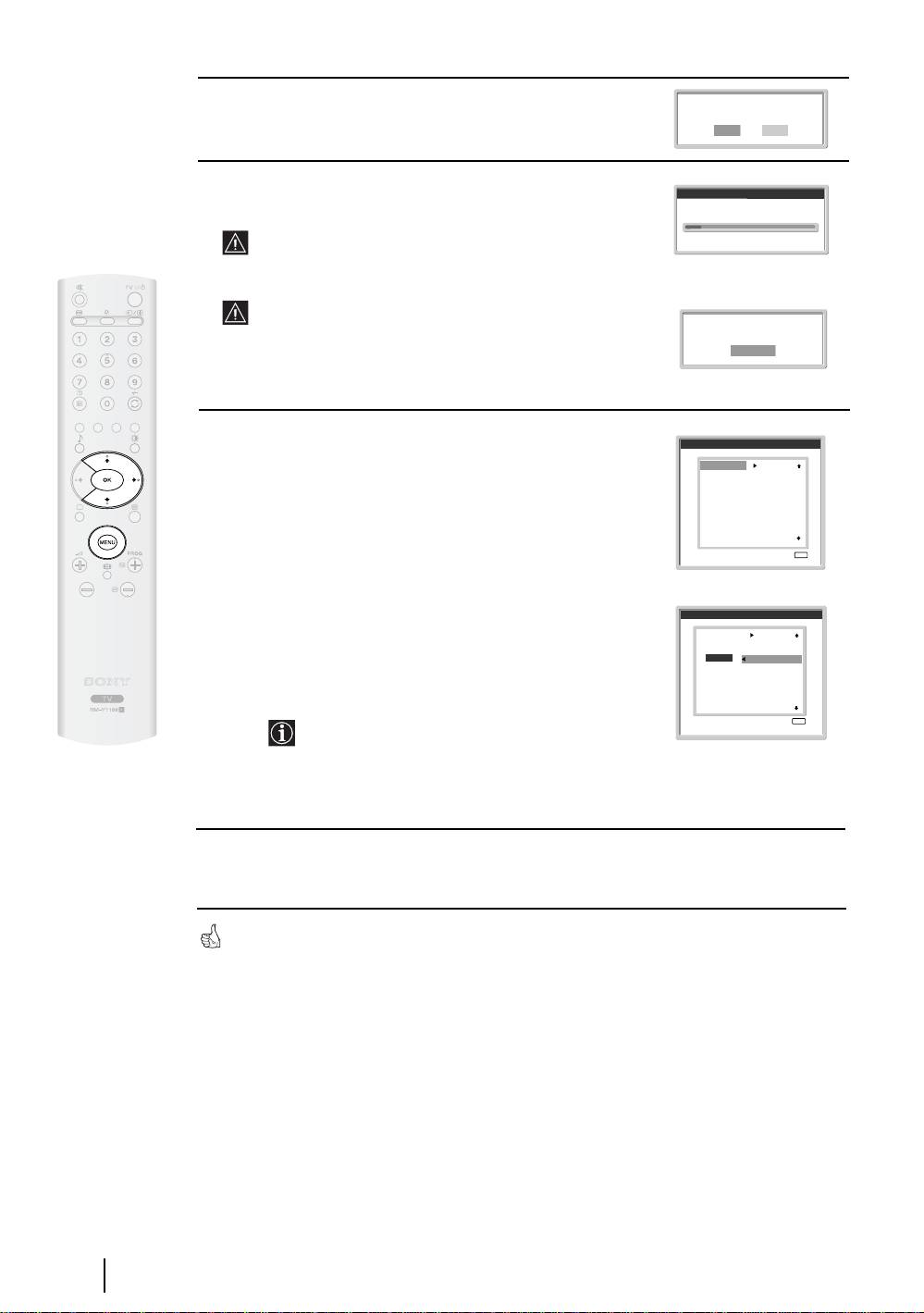
5 The Auto Tuning menu appears on the screen. Press the OK
Do you want to start
automatic tuning?
button to select Yes.
Ye s No
6 The TV starts to automatically search and store all
Auto tuning
available broadcast channels for you.
Programmes found:
This procedure could take some minutes. Please be patient
and do not press any buttons, otherwise automatic tuning
will not be completed.
If no channels were found during the auto tune process, a
message appears automatically on the screen asking you to
No channel found.
Please connect aerial
connect the aerial. Check the aerial connection (refer to
Confirm
page 14). Press the
OK button to restart the auto tuning
process.
7 After all available channels are captured and stored,
Programme Sorting
the Programme Sorting menu automatically appears
01
TVE
on the screen enabling you to change the order in
02
TVE2
03
TV3
which the channels are stored.
04
C33
05
C27
06
C58
07
S02
a) If you wish to keep the broadcast channels in the tuned order,
08
S06
09
C44
go to step 8.
10
C47
11
C48
Exit:
MENU
b) If you wish to store the channels in a different order:
1 Press the v or V button to select the programme
number with the channel (TV Broadcast) you wish
Programme Sorting
to move. Press the
b button.
01
TVE
02
TVE2
03
TV3
04
C33
2 Press the v or V button to select the new
01 TVE
05
C27
06
C58
programme number position for your selected channel
07
S02
08
S06
09
C44
(TV Broadcast). Press the
OK button to store
10
C47
11
C48
Exit:
MENU
The selected channel now moves to its new
programme position.
3 Repeat steps b)1 and b)2 if you wish to change
the order of the other channels.
8 Press the MENU button to remove the menu from the screen
Your TV set is now ready for use
16
First Time Operation
TV Functions
Introducing and Using the Menu System
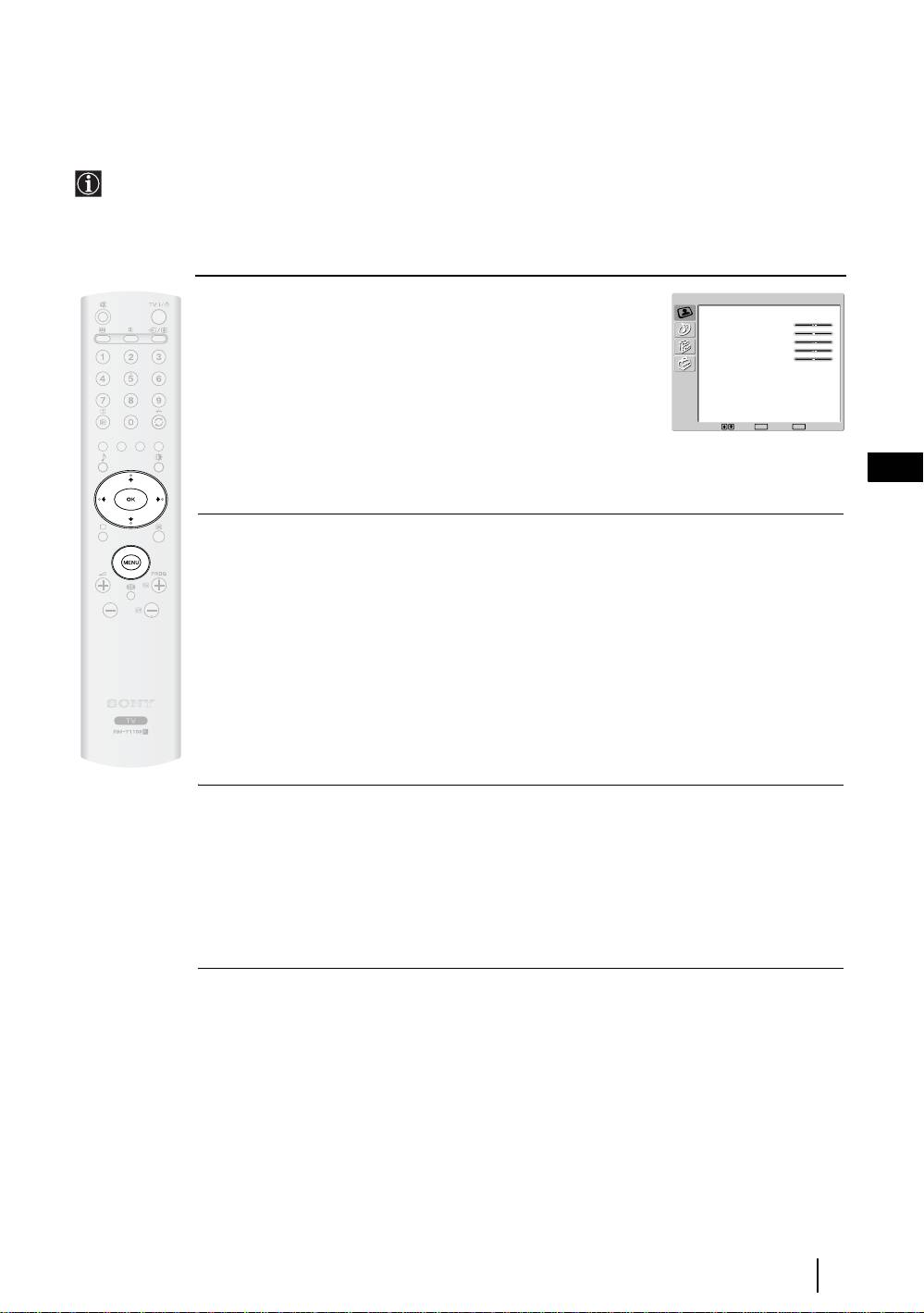
Your TV set uses an On-Screen menu system to guide you through the operations. Use the following buttons
on the Remote Control to operate the menu system:
1 To switch on the menu screens:
Picture Adjustment
Picture Mode
Personal
Contrast
80
Press the
MENU button to switch the first level menu on.
Brightness
50
Colour
50
Sharpness
50
Backlight
70
Reset
Noise Reduction
Auto
Colour Tone
Normal
Select: Set:
OK
End:
MENU
GB
2 To navigate through the menus:
• To highlight and select the desired menu or option, press
v or V.
• To enter the selected menu or option, press
b.
• To return to the last menu or option, press
B.
• To alter the settings of your selected option, press
v/V/B or b.
• To confirm and store your selection, press
OK.
3 To switch off the menu screens:
Press the
MENU button to remove the menu from the screen.
TV Functions
17
The Picture Adjustment Menu
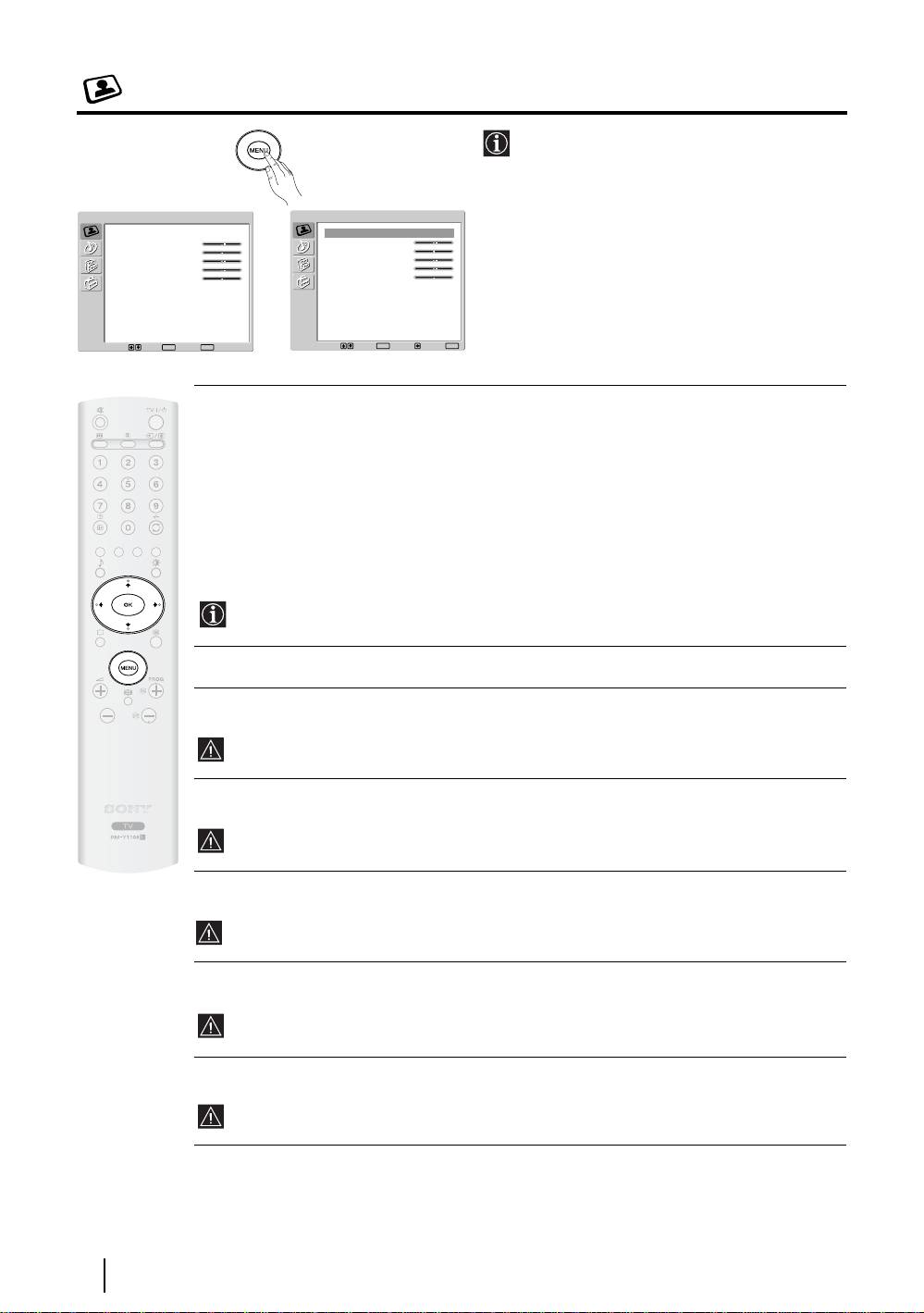
The “Picture Adjustment” menu allows you to
alter the picture settings.
To do this:
Picture Adjustment
Picture Adjustment
Press the
MENU button and then press OK to
Picture Mode
Personal
Picture Mode
Personal
Contrast
80
Contrast
80
enter this menu. Next, press
v or V to select the
Brightness
50
Brightness
50
Colour
50
Colour
50
desired option and press OK. Finally, read below
Sharpness
50
Sharpness
50
Backlight
70
,
Backlight
70
how to operate into each option.
Reset
Reset
Noise Reduction
Auto
Noise Reduction
Auto
Colour Tone
Normal
Colour Tone
Normal
Select: Set:
OK
End:
MENU
Select: Set:
OK
Back:
End:
MENU
Picture Mode This option allows you to customise the picture mode based on the programme
you are watching. After selecting this option press
OK. Next, press repeatedly v
or
V to select:
Live (for live broadcast programmes, DVD and Digital Set Top Box
receivers).
Personal (for individual settings).
Movie (for films).
Once you have selected your desired option, press OK to store.
"Brightness", "Colour", "Sharpness" and "Backlight" level of "Live" and "Movie" mode are
fixed on the factory to get the best picture quality.
Contrast Press B or b to reduce or enhance picture contrast. Next, press OK to store.
Brightness Press B or b to darken or brighten the picture. Next, press OK to store.
This option only appears and can only be adjusted if “Picture Mode” is set to “Personal”.
Colour Press B or b to decrease or to increase color intensity. Next press OK to store.
This option only appears and can only be adjusted if “Picture Mode” is set to “Personal”.
Hue Press B or b to decrease or to increase the green tones. Next press OK to store.
This option only appears for NTSC signal (e.g. USA video tapes).
Sharpness Press B or b to soften or to sharpen the picture. Next press OK to store.
This option only appears and can only be adjusted if “Picture Mode” is set to “Personal”.
Backlight Press B or b to darken or brighten the backlight.
This option only appears and can only be adjusted if “Picture Mode” is set to “Personal”.
18
TV Functions

Reset Press OK to reset the picture to the factory preset levels.
Noise This option is set to Auto to automatically reduce the snowy picture visible in the weak broadcast
Reduction signal. However, it can be modified. After selecting this option press
b. Next, press v or V to
select Off. Finally, press
OK to store.
Colour Tone This option allows you to alter the tint of the picture. After selecting this option press b. Next, press
repeatedly
v or V to select: Warm (gives the white colours a red tint), Normal (gives the white
colours a neutral tint), Cool (gives the white colours a blue tint). Finally press
OK to store.
GB
TV Functions
19
The Sound Adjustment Menu
Picture Adjustment
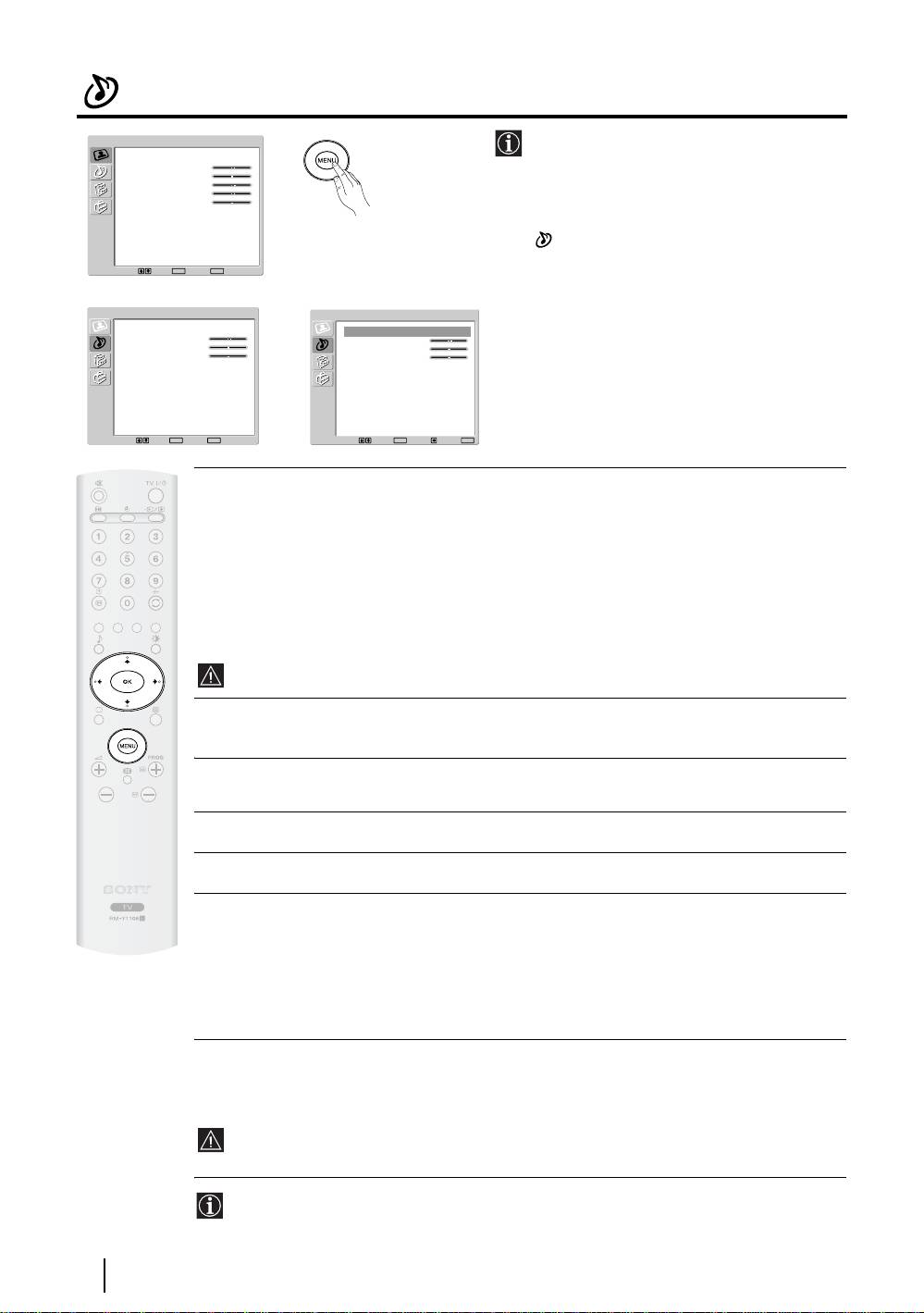
The “Sound Adjustment” menu allows you to
Picture Mode
Personal
alter the sound settings.
Contrast
80
Brightness
50
Colour
50
Sharpness
50
Backlight
70
To do this:
Reset
Noise Reduction
Auto
Press the
MENU button and press v to select
Colour Tone
Normal
, then press
OK to enter this menu. Next,
press v or V to select the desired option and
Select: Set:
OK
End:
MENU
press
OK. Finally, read below how to operate
m
into each option.
Sound Adjustment
Sound Adjustment
Sound Effect
Natural
Sound Effect
Natural
Treble
0
Treble
0
Bass
0
Bass
0
Balance
0
Balance
0
Reset
Reset
Dual Sound
Stereo
,
Dual Sound
Stereo
Auto Volume
Off
Auto Volume
Off
Select: Set:
OK
End:
MENU
Select: Set:
OK
Back:
End:
MENU
Sound This option allows you to customise the sound effect. After selecting this
Effect option press
OK. Next, press repeatedly v or V to select:
Natural Enhances clarity, detail and presence of sound by using “BBE High
Definition Sound system”*.
Dynamic “BBE High Definition Sound system”* intensifies clarity and presence of
sound for better intelligibility and musical realism.
Off Flat response.
Once you have selected your desired option, press
OK to store.
This function has no effect on headphones sound.
Treble Press B or b to decrease or to increase higher-frequency sounds. Next, press OK to
store.
Bass Press B or b to decrease or to increase the lower-frequency sounds. Next, press OK
to store.
Balance Press B or b to emphasise the left or the right speaker. Next, press OK to store.
Reset Press OK to reset the sound to the factory preset levels.
Dual Press b. Next:
Sound • For a Stereo broadcast:
Press
v or V to select Stereo or Mono. Next press OK to store.
• For a bilingual broadcast:
Press
v or V to select Mono (for mono channel if available), A (for channel 1) or B
(for channel 2). Next press
OK to store.
Auto Press b. Next press v or V to select On (the volume level of the channels will
Volume stay the same, independent of the broadcast signal, e.g. in the case of advertisements)
or Off (the volume level changes according to the broadcast signal). Next press
OK to
store.
This function has no effect on headphones sound.
* The “BBE High Definition Sound system” is manufactured by Sony Corporation under license
from BBE Sound, Inc. It is covered by U.S. Patent No. 4,638,258 and No. 4,482,866. The word
“BBE” and BBE Symbol are trademarks of BBE Sound, Inc.
20
TV Functions
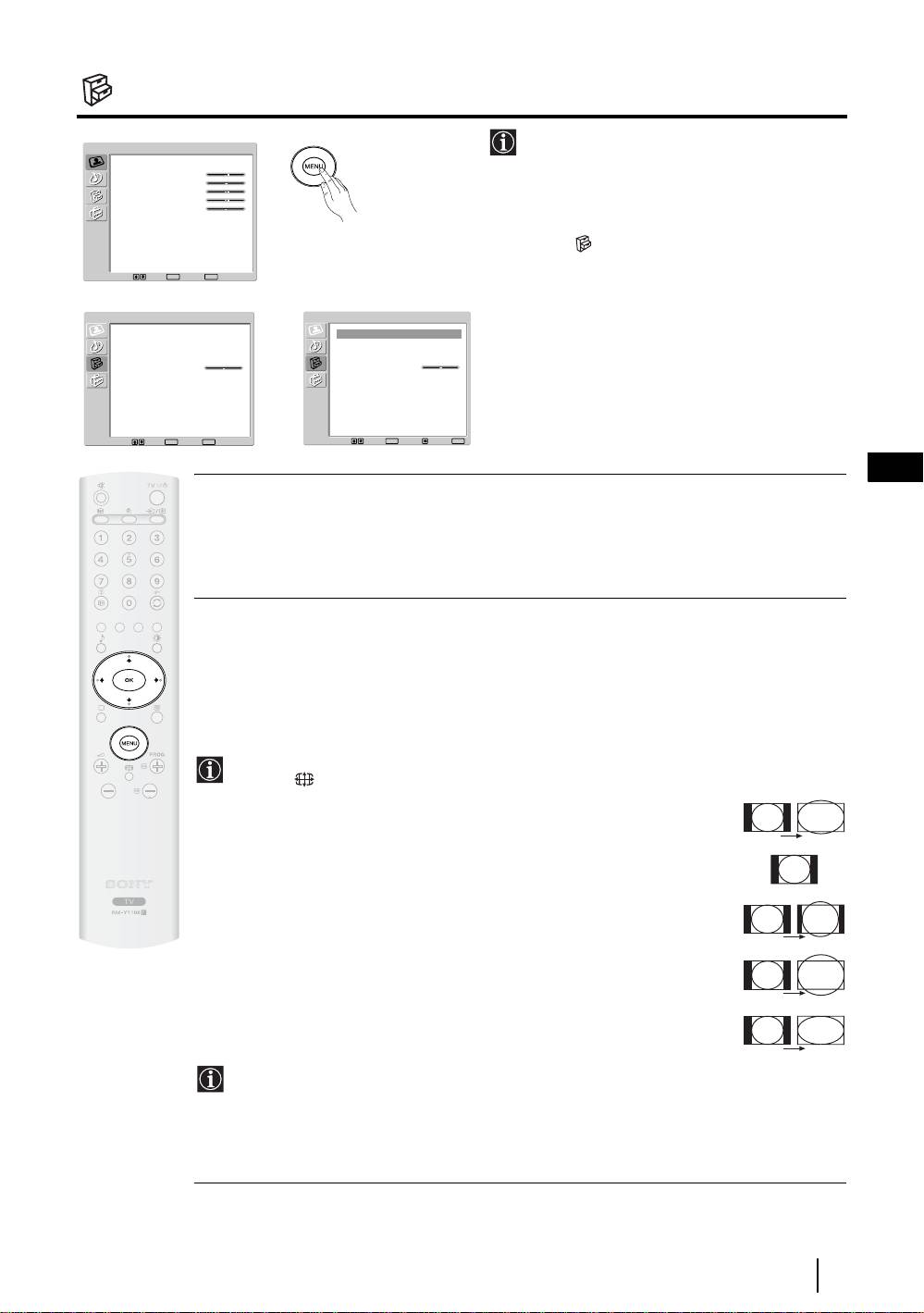
The Features Menu
The “Features” menu allows you to alter
Picture Adjustment
various settings of the TV.
Picture Mode
Personal
Contrast
80
Brightness
50
Colour
50
Sharpness
50
To do this:
Backlight
70
Reset
Noise Reduction
Auto
Press the
MENU button and press v twice to
Colour Tone
Normal
select , then press
OK to enter this menu.
Next, press v or V to select the desired option
Select: Set:
OK
End:
MENU
and press
OK. Finally, read below how to
m
operate into each option.
Features
Features
Power Saving
Standard
Power Saving
Standard
Auto Format
Off
Auto Format
Off
AV2 Output
Auto
AV2 Output
Auto
TV Speakers
On
TV Speakers
On
RGB Center
0
RGB Center
0
,
Select: Set:
OK
End:
MENU
Select: Set:
OK
Back:
End:
MENU
GB
POWER SAVING
This option allows you to reduce the power consumption of this TV.
To d o t hi s:
After selecting the option, press
OK. Then, press v or V to select Reduce. Next, press OK to store.
AUTO FORMAT
This option allows you to automatically change the aspect ratio of the screen.
To do this:
After selecting the option, press OK. Then, press
v or V to select On (if you wish the TV set to
automatically switch the screen format according to the broadcast signal) or Off (if you wish to
keep your preference). Finally, press OK to store.
Even if you have selected “On” or “Off”, you can always modify the format of the screen by
pressing repeatedly on the remote control to select one of the following formats:
SMART: Imitation of wide screen effect for 4:3 broadcast.
SMART
4:3: Conventional 4:3 picture size, full picture
information.
4:3
14:9: Compromise between 4:3 and 16:9 picture size.
14:9
ZOOM: Widescreen format for letterbox movies.
ZOOM
WIDE: For 16:9 broadcast. Full picture information.
WIDE
• In “SMART”, “ZOOM” and “14/9” modes, parts of the top and bottom of the screen are
cut off. Press
v or V to adjust the position of the image on the screen (e.g. to read
subtitles).
• According to the format of diffussion, black bands can always appear whatever the
selected mode.
continued...
TV Functions
21
