
Sony FD Trinitron KV-29XL71K: instruction
Class: Televisions and Digital TV
Type:
Manual for Sony FD Trinitron KV-29XL71K
Table of contents
29XL71cover(K).fm Page 1 Thursday, June 17, 2004 11:26 AM
2-024-605-41(3)
R
202460541
Trinitron Colour
Television
GB
Operating Instructions
Before operating the TV, please read the “Safety Information”
section of this manual. Retain this manual for future reference.
BG
Инструкции за използване
Преди да използвате телевизора, прочетете раздела
"Информация за безопасността" на това ръководство.
Запазете това ръководство за бъдещи справки.
CZ
Návod k použití
Před zapnutím televizoru si prosím pozorně přečtěte část
"Bezpečnostní upozornění" v tomto návodu. Návod si uschovejte
i pro budoucí potřebu.
HU
Kezelési utasítás
Mielőtt elkezdené használni a televíziót, kérjük, olvassa el a jelen
kézikönyv Biztonsági tudnivalók c. szakaszát. Őrizze meg a
kézikönyvet későbbi használatra.
PL
Instrukcja obsługi
Przed przystąpieniem do eksploatacji telewizora należy zapoznać się z
rozdziałem "Informacje dotyczące bezpieczeństwa" w niniejszej instrukcji.
Prosimy o zachowanie niniejszej instrukcji do wglądu w przyszłości.
RU
Инструкция по эксплуатации
Перед тем как включить телевизор, просим Вас ознакомиться с
разделом "Общие правила техники безопасности" настоящей
инструкции. Сохраняйте настоящую инструкцию на будущее.
KV-29XL71K
©2004 by Sony Corporation

cover(K).fm Page 2 Friday, March 5, 2004 3:14 PM

01gb29xl.fm Page 3 Tuesday, March 30, 2004 11:48 AM
Introduction
Thank you for choosing this Sony FD Trinitron Colour Television.
Before operating the TV, please read this manual thoroughly and retain it for future reference.
Table of Contents
Safety Information
Safety Information..................................................................................................................................... 4
Overview
Overview of the remote control buttons .................................................................................................... 5
Overview of the TV buttons ...................................................................................................................... 6
Installation
Inserting batteries into the remote control................................................................................................. 6
GB
Connecting the aerial and VCR................................................................................................................. 6
First Time Operation
Switching on the TV and automatically tuning in channels ....................................................................... 7
Menu system
Introducing and Using the Menu System .................................................................................................. 9
Menu Guide:
Picture Adjustment......................................................................................................................... 9
Sound Adjustment ......................................................................................................................... 10
Sleep Timer ................................................................................................................................... 11
Language/Country ......................................................................................................................... 11
Auto Tuning ................................................................................................................................... 11
Programme Sorting........................................................................................................................ 12
Programme Labels ........................................................................................................................ 12
AV Preset....................................................................................................................................... 12
Noise Reduction ............................................................................................................................ 12
Manual Programme Preset............................................................................................................ 13
AV3 Output.................................................................................................................................... 14
TV Speakers.................................................................................................................................. 14
RGB Centring ................................................................................................................................ 14
Picture Rotation ............................................................................................................................. 15
PIP Input........................................................................................................................................ 15
PIP Position ................................................................................................................................... 15
Teletext..................................................................................................................................................... 16
Additional Information
Connecting Optional Equipment ............................................................................................................... 17
Using Optional Equipment ........................................................................................................................18
Remote Control Configuration for VCR/DVD ............................................................................................ 19
Specifications............................................................................................................................................ 20
Troubleshooting ........................................................................................................................................ 21
Table of Contents 3
01gb29xl.fm Page 4 Tuesday, March 30, 2004 11:48 AM
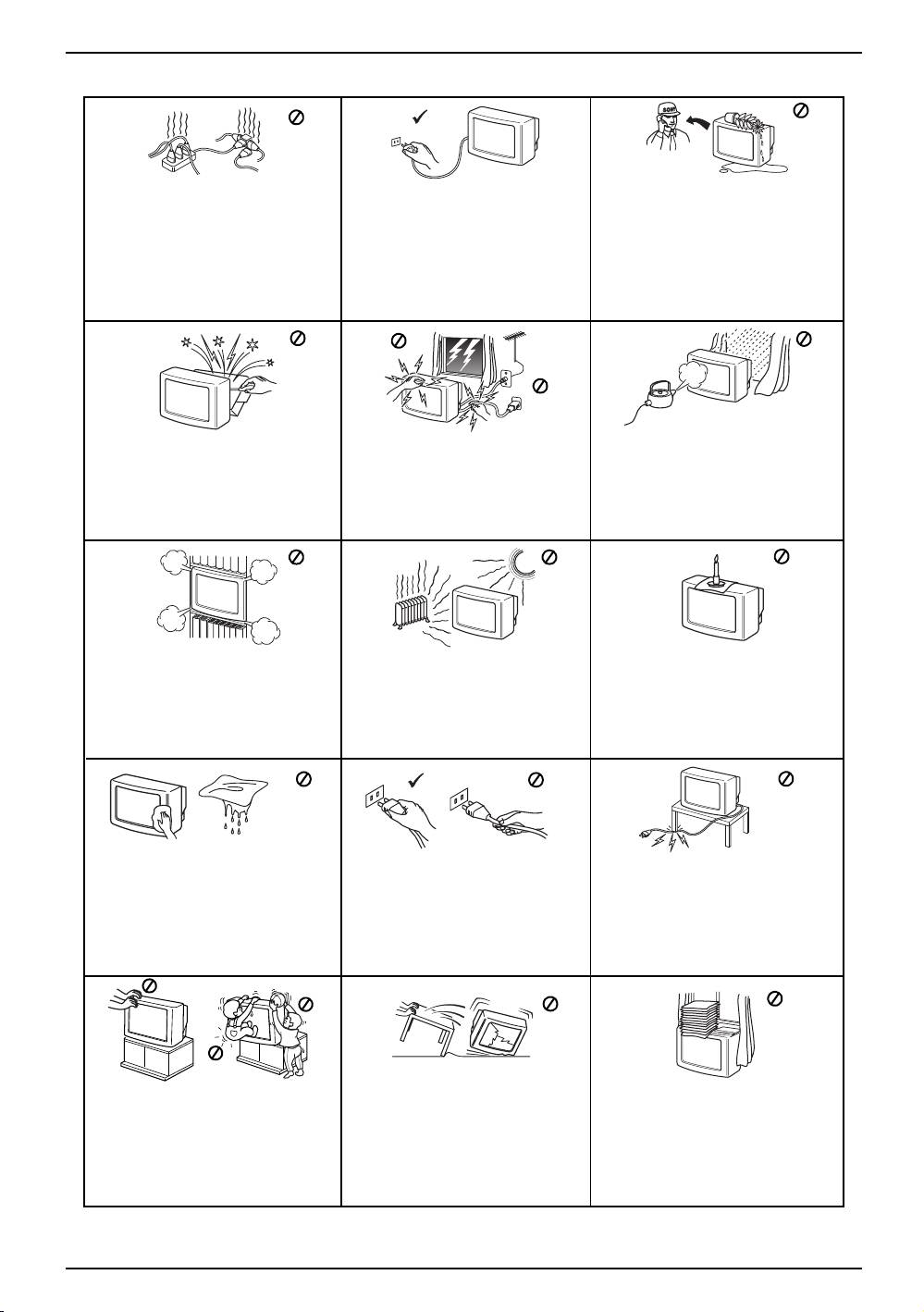
Safety Information
This set is to operate on a 220-240V
For environmental and safety reasons,
Never push objects of any kind into the
AC supply only. Take care not to
it is recommended that the TV set is not
set as this could result in a fire or
connect too many appliances to the
left in standby mode when not in use.
electric shock. Never spill liquid of any
same power socket as this could result
Disconnect from the mains. However,
kind on the set. If any liquid or solid
in fire or electric shock.
some TVs may have features which
object does fall into the cabinet, do not
require they are left in standby. The
operate the TV. Have it checked
instructions in this manual will inform
immediately by qualified personnel.
you if this applies.
Do not open the cabinet and the rear
For your own safety, do not touch any
To prevent fire or shock hazard, do
cover of the TV. Refer to qualified
part of the TV, power lead or aerial
not expose the TV to rain or moisture.
service personnel only.
lead during lightning storms.
Do not cover the ventilation openings
Never place the TV in hot, humid or
To prevent fire, keep inflammable
of the TV For ventilation, leave a space
excessively dusty places. Do not
objects or naked lights (eg candles)
of at least 10cm all around the set.
install the TV where it may be
away from the TV.
exposed to mechanical vibrations.
Clean the screen and cabinet with a
Pull out the power lead by the plug.
Take care not to place heavy objects
soft, lightly dampened cloth. Do not use
Do not pull on the power lead itself.
on the power lead as this could result
any type of abrasive pad, alkaline
in damage.
cleaner, scouring powder or solvent,
such as alcohol or benzine, or antistatic
We recommend you wind any excess
spray. As a safety precaution, unplug
lead around the holders provided on
the TV before cleaning it.
the rear of the TV.
Place the TV on a secure stable stand.
Unplug the power lead before moving
Do not cover the ventilation
Never attempt to move the TV and
the TV. Avoid uneven surfaces, quick
openings of the TV with items such
stand together -always move the TV
steps or excessive force. If the set has
as curtains or newspapers etc.
and stand separately. Do not place the
been dropped or damaged, have it
TV on its side or face up. Do not allow
checked immediately by qualified
children to climb on to it.
service personnel.
4 Safety Information
01gb29xl.fm Page 5 Tuesday, March 30, 2004 11:48 AM
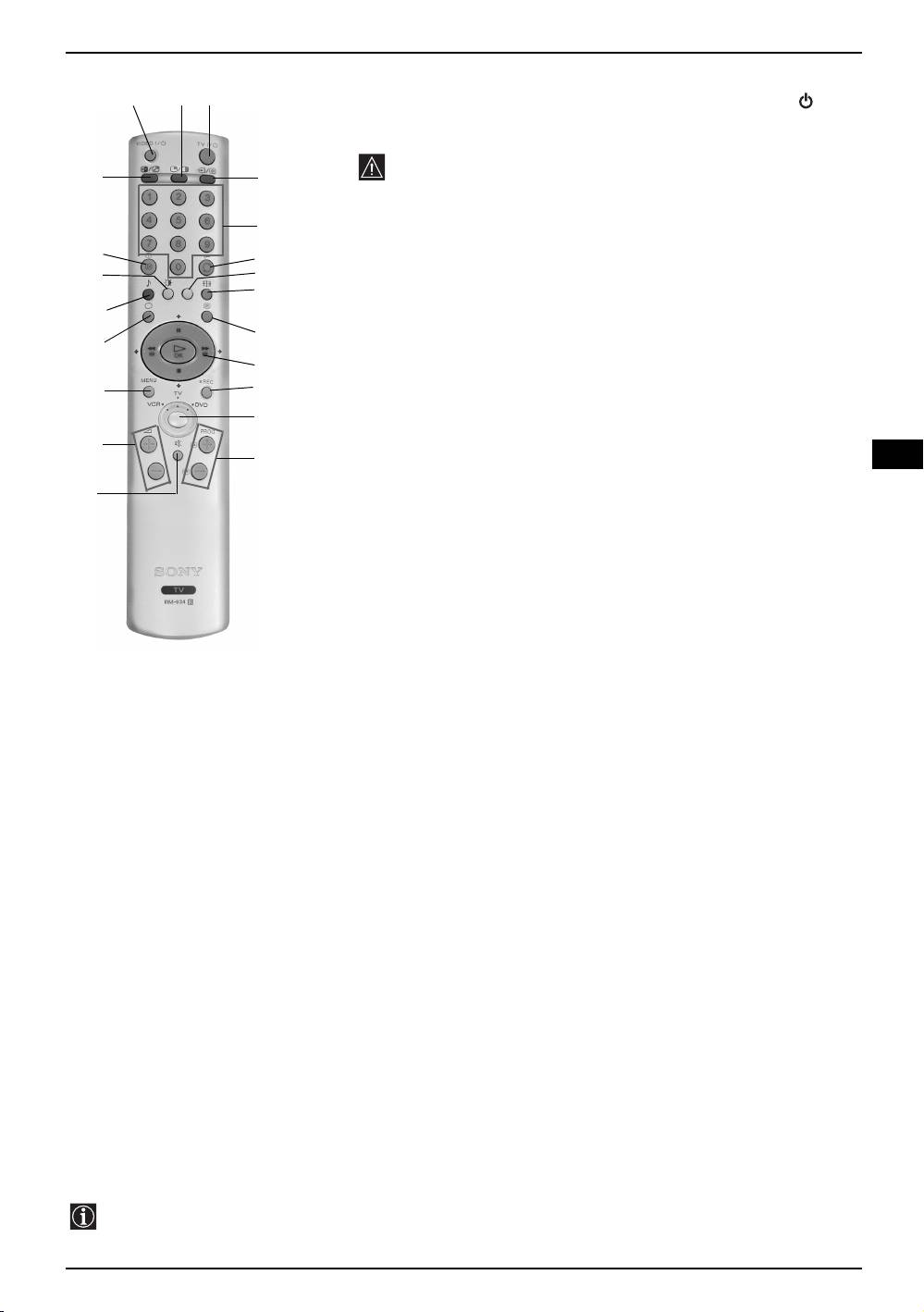
Overview of the remote control buttons
1 To temporarily switch off the TV:
w;
wa
1
Press this button to temporarily switch off TV (the standby indicator on TV
lights up). Press again to switch on TV from standby mode.
To save energy we recommend switching off completely when TV is not in use.
After 15 minutes without a signal and without any button being pressed,
ql
2
the TV switches automatically into standby mode.
2 Selecting the input source:
Press this button repeatedly until the desired input symbol of the source
3
appears on the TV screen.
qk
4
3 Selecting channels:
qj
5
Press these buttons to select channels.
6
For double-digit programme numbers, enter the second digit within 2.5
qh
seconds.
7
4 a) If Media Selector button is switched toTV:
qg
Press this button to watch the last channel selected (provided you watched it
8
for at least 5 seconds).
b) If Media Selector button is switched to VCR:
9
qf
For Sony VCR double-digit programme numbers, eg 23, press -/-- first, then
0
the buttons 2 and 3.
5 This button only works in Teletext mode.
qd
qa
GB
6 Selecting screen format:
Press this button to view programmes in 16:9 mode. Press again to return to
qs
4:3 mode.
7 Selecting Teletext:
Press this button to switch on teletext.
8 a) If Media Selector is switched to TV:
• When MENU is switched on, use these buttons to operate the menu
system. For details refer to “Introducing and using the Menu System” .
• When MENU is switched off, press OK to show a channel overview. Then
press v or V to select the channel and then press the OK button again to
watch the selected channel.
b) If Media Selector is switched to VCR or DVD:
Using these buttons you can control the main functions of your VCR or DVD.
9 Recording button:
Press again to remove the menu display from the TV
If the Media Selector button is switched to VCR, press
screen.
this button to record programmes.
qg Selecting TV mode:
q; Media Selector:
Press this button to switch off “PIP”, teletext or video
With this remote control you can operate not only this TV
input.
but also the main functions of your VCR or DVD. Switch
qh Selecting Sound effect:
on the device you want to operate and next press this
Press this button repeatedly to change the sound effect.
button repeatedly to select the VCR, TV or DVD. A green
light illuminates momentarily.
qj Selecting Picture mode:
Press this button repeatedly to change the picture mode.
Before you can control a DVD or VCR using this remote
control, you need to set up the control. For more details,
qk Displaying on Screen information:
refer to chapter ‘Remote Control Configuration for VCR
Press this button to display all on-screen indications.
or DVD’.
Press again to cancel.
qa Selecting channels:
ql Swapping screens:
Press this button to select the next or previous broadcast
Whilst you are in “PIP” mode, press this button to swap
channel.
the two screens.
qs Muting the Sound:
w; VCR or DVD on/off:
Press this button to mute TV sound. Press again to
Press this button to switch on or off your VCR/DVD.
restore the sound.
wa PIP (Picture in Picture):
qd Adjusting the TV volume:
Press this button to watch another source in a small
Press this button to adjust the volume of the TV.
picture (PIP) within the main TV picture. Press again to
cancel. To select the source you want to watch, refer to
qf Displaying the menu system:
the chapter PIP Input’.
Press this button to display the menu on the TV screen.
Besides the TV functions, all coloured and green symbol buttons are also used for Teletext operation. For more details,
please refer to “Teletext” section of this instruction manual.
Overview 5
01gb29xl.fm Page 6 Tuesday, March 30, 2004 11:48 AM
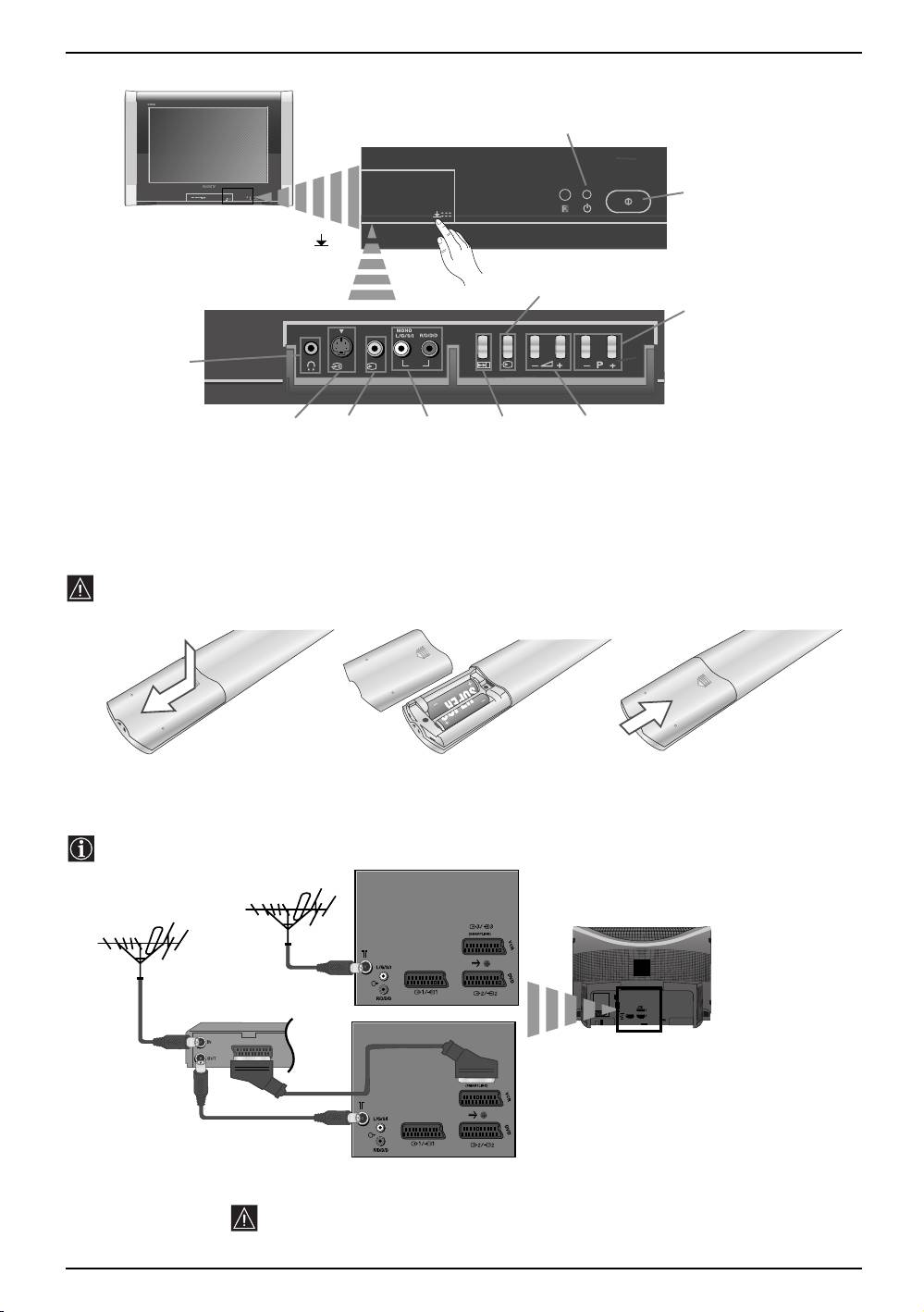
Overview of TV Buttons
Standby
indicator
On/Off
switch
Press on the
mark on the door
flap to reveal the
Selecting
control panel.
Input source
Programme Up or Down
Buttons (Selects TV
channels)
Headphones
4 4
o4
jack
S video Input
Video Input
Audio
Auto Start Up
Volume control
jack
jack
Input jacks
Button
buttons
Inserting batteries into the remote control
Make sure you insert the supplied batteries observing the correct polarities.
Always remember to dispose of used batteries in an environmental friendly way.
C
Y
N
O
S
J
N
IO
T
R
A
O
P
R
O
/4
N
P
A
A
JAPAN/4
SONY CORPORATION
Connecting the Aerial and VCR
Connecting cables are not supplied.
VCR
or
Scart lead is optional
For more details of VCR connection, please refer to the section “Connecting Optional
Equipment” of this instruction manual.
6 Overview-Installation

01gb29xl.fm Page 7 Tuesday, March 30, 2004 11:48 AM
Switching on the TV and Automatically Tuning
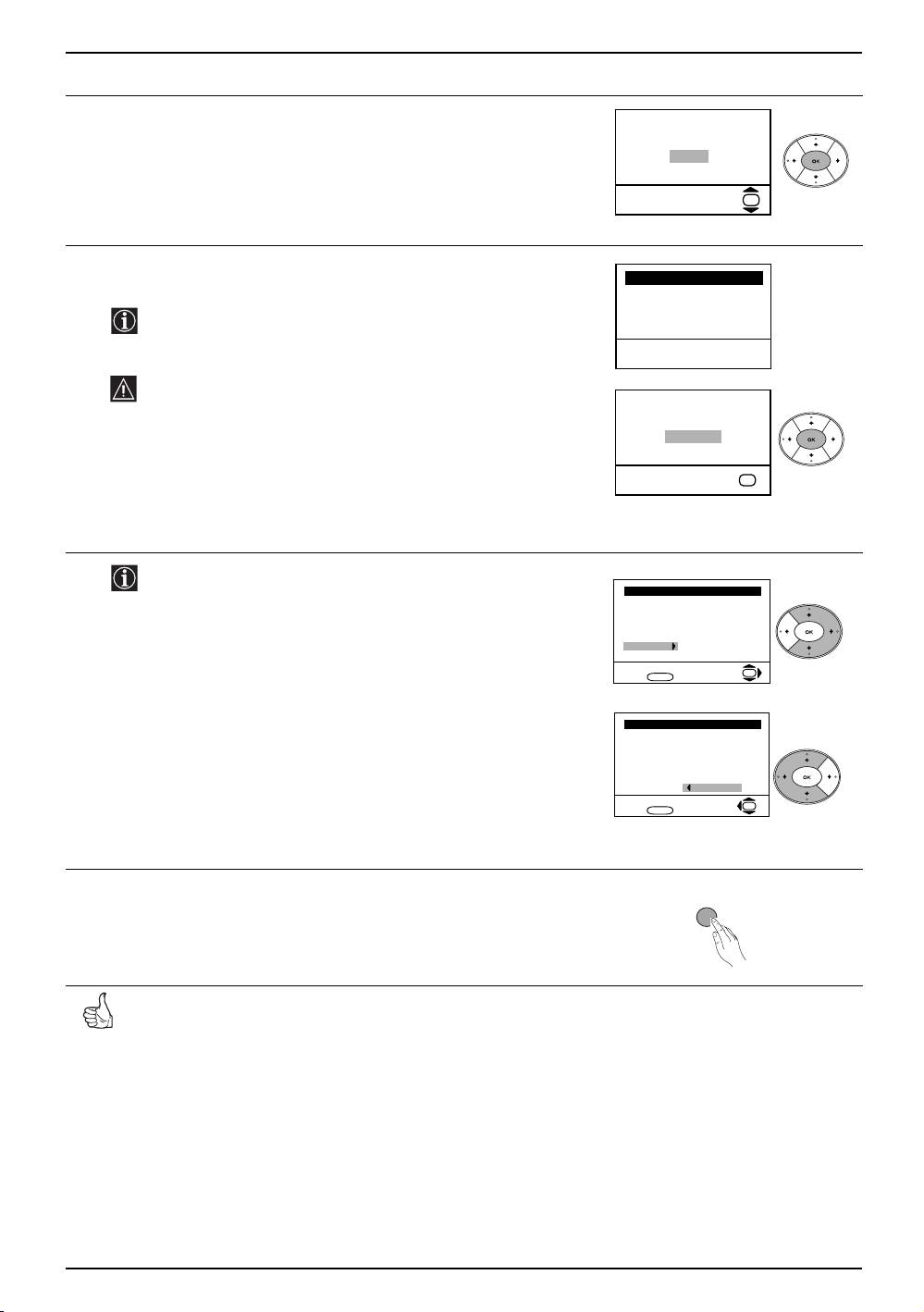
The first time you switch on your TV, a sequence of menu screens appear on the TV enabling you to: 1) choose the
language of the menu screen, 2) choose the country in which you wish to operate the TV, 3) adjust the picture slant
4) search for and store all available channels (TV Broadcasts) and 5) change the order in which the channels (TV
broadcasts) appear on the screen. However, if you need to change any of these settings at a later date, you can do
that by selecting the appropriate option in the (Set Up menu) or by pressing the Auto Start Up Button on
the TV set.
Connect the TV plug to the mains socket (220-240V AC, 50Hz). The first
1
time that the TV set is connected, it is usually turned on. If the TV is off,
press the on/off button on the TV set to turn on the TV. The first time
you switch on the TV, a Language menu appears automatically on the TV
screen.
GB
Press the v or V button on the remote control to select the language, then
2
Language
press the OK button to confirm your selection. From now on all the menus
i
v
Svenska
will appear in the selected language.
Norsk
English
Nederlands
Français
Italiano
i
V
Select Language:
OK
The Country menu appears automatically on the TV screen. Press the v
3
Country
or V
button to select the country in which you will operate the TV set, then
i
v
Sverige
press the OK button to confirm your selection.
Norge
-
Italia
Deutschland
• If the country in which you want to use the TV set does not appear
Österreich
i
V
in the list, select “-” instead of a country.
Select country:
OK
• In order to avoid wrong teletext characters for Cyrillic languages we
recommend you select Russia as the country if your own country
does not appear in the list.
Because of the earth’s magnetism, the picture might slant. The Picture
4
Rotation menu allows you to correct the picture slant if it is necessary.
If picture slants, please
adjust picture rotation
a) If it is not necessary, press the v or V button to select Not necessary
Not necessary
Adjust now
and press OK.
b) If it is necessary, press the v or V button to select Adjust now, then
OK
press OK and correct any slant of the picture between –5 and +5 by
pressing the v or V button. Finally press OK to store.
continued...
First Time Operation 7
01gb29xl.fm Page 8 Tuesday, March 30, 2004 11:48 AM
Switching on the TV and Automatically Tuning
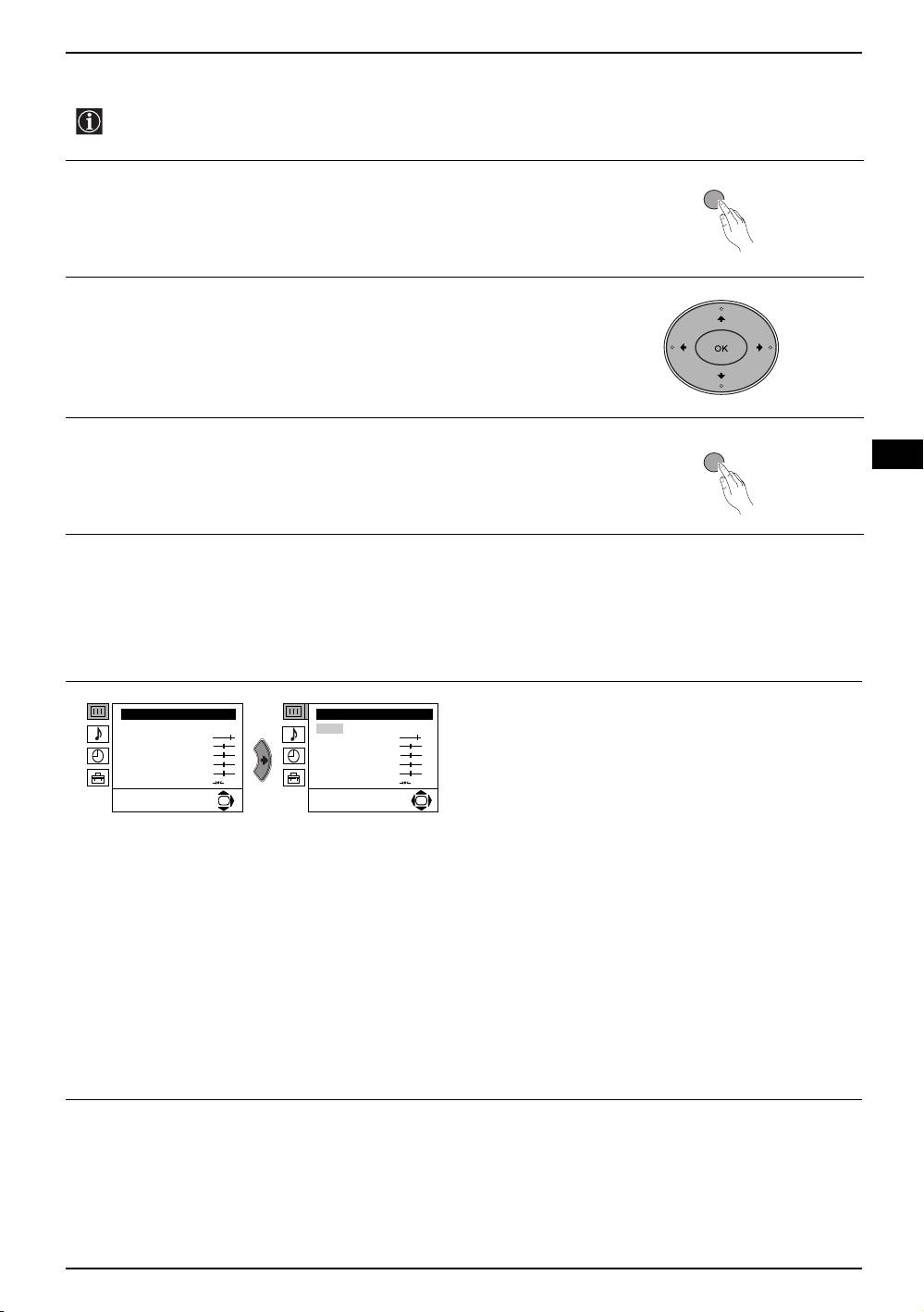
The Auto Tuning menu appears on the screen. Press the OK button to
5
select Yes.
Do you want to start
automatic tuning?
Ye s
No
OK
The TV starts to automatically search and store all available broadcast
6
channels for you.
Auto Tuning
Programme: 01
System: B/G
This procedure could take some minutes. Please be patient and do
Channel: C21
not press any buttons, otherwise the automatic tuning will not be
completed.
Searching...
If no channels were found during the auto tuning process then a new
menu appears automatically on the screen asking you to connect the
No channel found
aerial. Please connect the aerial (see page 6) and press OK. The
Please connect aerial
auto tuning process starts again.
Confirm
OK
After all available channels are captured and stored, the Programme
7
Sorting menu appears automatically on the screen enabling you to
Programme Sorting
change the order in which the channels appear on the screen.
Programme:
01 TVE
02 TVE2
03 TV3
a) If you wish to keep the broadcast channels in their tuned order, go to
04 C33
05 C27
step 8.
06 C58
Select channel:
OK
Exit:
MENU
b) If you wish to store the channels in a different order:
1 Press the v or V button to select the programme number that has
the channel (TV Broadcast) you wish to rearrange, then press the b
Programme Sorting
button.
Programme:
01 TVE
2 Press the v or V button to to select the new programme number
02 TVE2
03 TV3
position for your selected channel (TV Broadcast), then press B.
04 C33
05 C27
3 Repeat steps b)1 and b)2 if you wish to change the order of the other
06 C58 05 C27
channels.
Select new position:
OK
Exit:
MENU
Press the MENU button to remove the menu from the screen.
8
MENU
Your TV is now ready for use.
8 First Time Operation
01gb29xl.fm Page 9 Tuesday, March 30, 2004 11:48 AM
Introducing and Using the Menu System
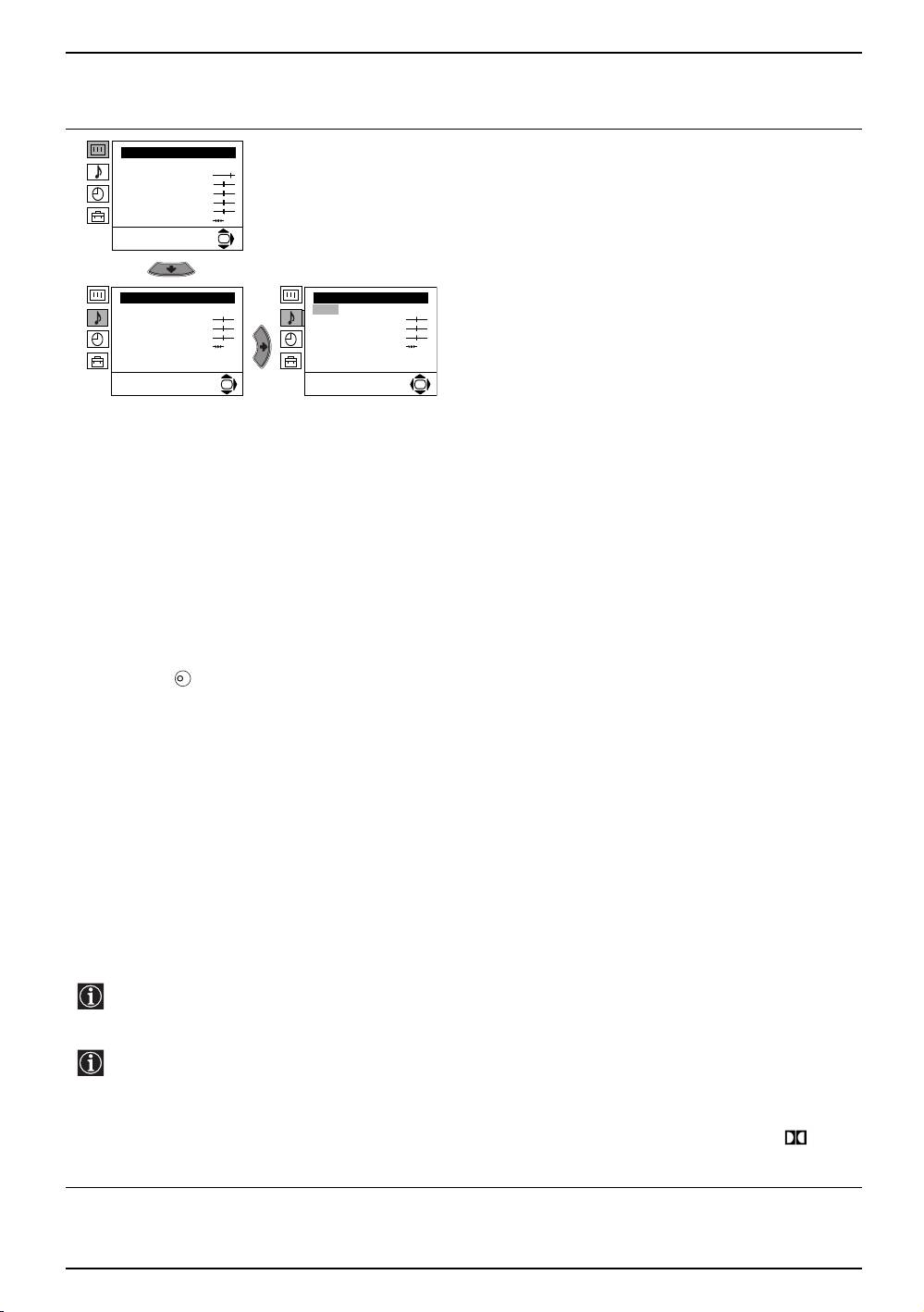
Your TV uses an on-screen menu system to guide you through the operations. Use the following buttons on the
Remote Control to operate the menu system:
Press the MENU button to switch the first level menu on.
1
MENU
• To highlight the desired menu or option, press v or V button.
2
• To enter to the selected menu or option, press b.
• To return to the last menu or option, press B
.
• To alter the settings of your selected option, press v/V/B or b.
• To confirm and store your selection, press the OK button.
Press the MENU button to remove the menu from the screen.
3
MENU
GB
Menu Guide
Level 1 Level 2 Level 3 / Function
PICTURE ADJUSTMENT
Picture Adjustment
Picture Adjustment
The “Picture Adjustment” menu allows you to alter the
Mode: Personal
Mode: Personal
Contrast
Contrast
picture adjustments.
Brightness
Brightness
Colour
Colour
Sharpness
Sharpness
To do this:
Hue
Hue
Reset
Reset
After selecting the item you want to alter press the b button,
OK
OK
then repeatedly press the v/V/B or b buttons to make any
adjustments and finally press the OK button to store.
This menu also allows you to customise the picture mode
based on the programme you are watching:
v Personal (for individual settings).
v Live (for live broadcast programmes, DVD and Digital
Set Top Box receivers).
v Movie (for films).
• Brightness, Colour and Sharpness can only be altered
if “Personal” mode is selected.
• Hue is only available for NTSC colour signal (e.g: USA
video tapes).
• Select Reset and press the OK button to return the
picture settings to their factory preset levels.
Menu System 9
01gb29xl.fm Page 10 Tuesday, March 30, 2004 11:48 AM
Introducing and Using the Menu System
Level 1 Level 2 Level 3 / Function
SOUND ADJUSTMENT
Picture Adjustment
Mode: Personal
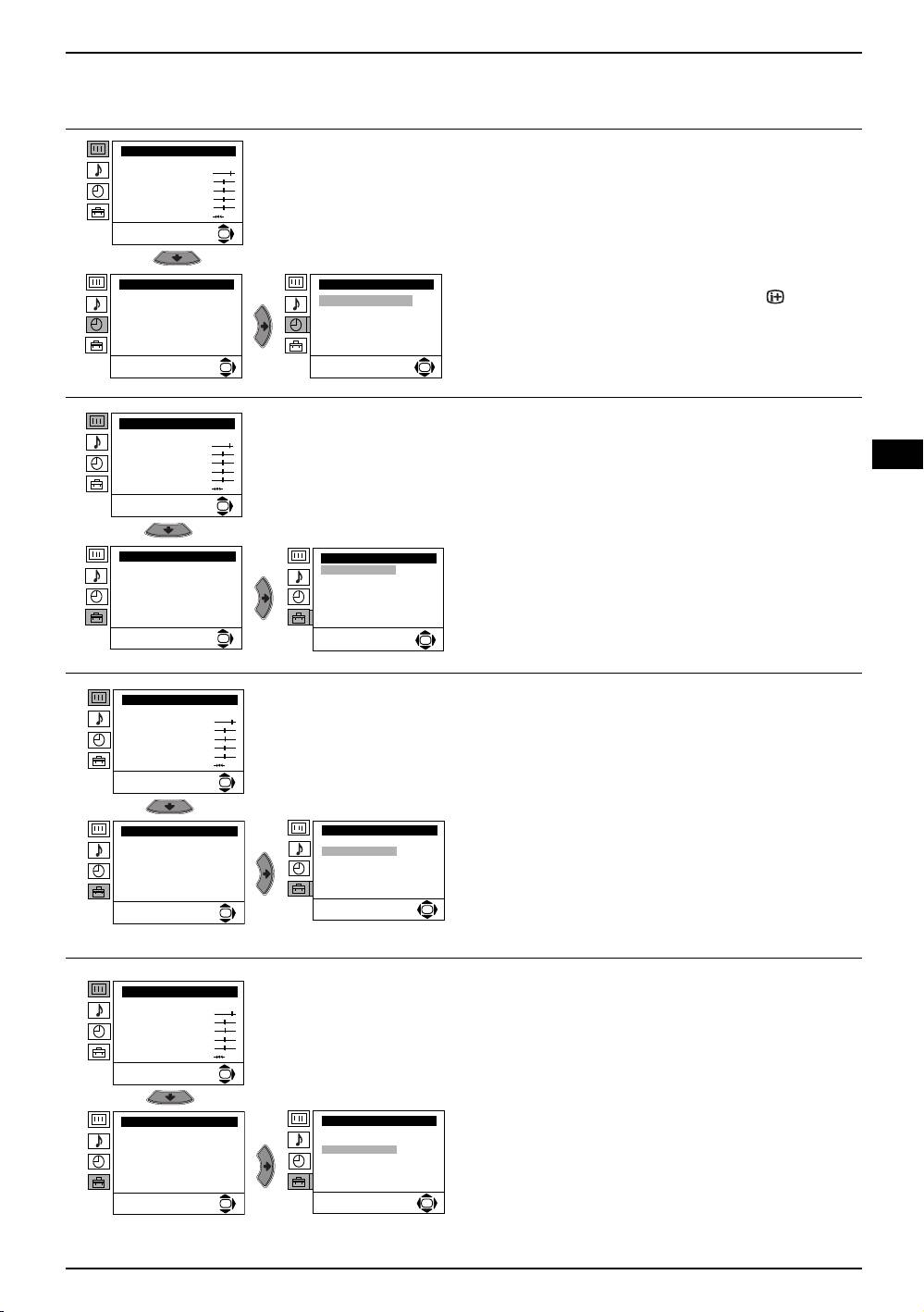
The “Sound Adjustment” menu allows you to alter the sound
Contrast
settings.
Brightness
Colour
Sharpness
Hue
To do this:
Reset
After selecting the item you want to alter press the b button,
OK
then repeatedly press the v/V/B or b buttons to make any
adjustments and finally press the OK button to store.
Sound Adjustment
Sound Adjustment
Effect: Natural
Effect: Natural
Treble
Treble
Bass
Bass
Balance
Balance
Reset
Reset
Dual Sound: Mono
Dual Sound: Mono
Auto volume: On
Auto volume: On
OK
OK
Effect bvNatural: Enhances clarity, detail and presence of sound by using the “BBE High
Definition Sound system”*.
v Dynamic: “BBE High Definition Sound system”* intensifies clarity and presence of sound
for better intelligibility and musical realism.
v Dolby**Virtual: Simulates the sound effect of “Dolby Surround Pro Logic”.
v Off: Flat response.
Treble bBLess b More
Bass bBLess b More
Balance bBLeft b Right
Reset Resets the sound to the factory preset levels.
K
Dual Sound b • For a stereo broadcast:
v Mono.
v Stereo.
• For a bilingual broadcast:
v Mono (for mono channel if available).
v A (for channel 1).
v B (for channel 2).
Auto Volume bvOff: volume level changes according to the broadcast signal.
v On: volume level of the channels will stay the same, independent of the broadcast signal (e.g. in
the case of advertisements).
• If you are listening to the TV through headphones, the “Effect” option is automatically switched to “Off”.
• If you select “Dolby Virtual” in the “Effect” option, the “Auto Volume” option is automatically switched to “Off” and vice
versa.
*The “BBE High Definition Sound system” is manufactured by Sony Corporation under license from BBE Sound,
Inc. It is covered by U.S. Patent No. 4,638,258 and No. 4,482,866. The word “BBE” and BBE Symbol are
trademarks of BBE Sound, Inc.
** This TV has been designed to create the “Dolby Surround” sound effect by simulating the sound of four speakers
with only two speakers, when the broadcast audio signal is Dolby Surround encoded. The sound effect can also
be improved by connecting a suitable external amplifier (for details refer to “Connecting to external audio
Equipment” on page 19).
** Manufactured under license from Dolby Laboratories. “Dolby”, “Pro Logic” and the double-D symbol are
trademarks of Dolby Laboratories.
10 Menu System
01gb29xl.fm Page 11 Tuesday, March 30, 2004 11:48 AM
Introducing and Using the Menu System
Level 1 Level 2 Level 3 / Function
SLEEP TIMER
Picture Adjustment
Mode: Personal
The “Sleep Timer” option in the “Timer” menu allows you to
Contrast
Brightness
select a time period for the TV to automatically switch itself
Colour
Sharpness
into the standby mode.
Hue
Reset
OK
To do this: After selecting the option, press the b button
then press the v or V button to set the time period delay
(max. of 4 hours) and finally press the OK button to store.
Timer
Timer
Sleep Timer: Off
Sleep Timer: Off
• While watching the TV, you can press the button on
the remote control to display the time remaining.
• One minute before the TV switches itself into standby
mode, the time remaining is displayed on the TV screen
OK
OK
automatically.
LANGUAGE / COUNTRY
Picture Adjustment
Mode: Personal
The “Language/Country” option in the “Set Up” menu allows
Contrast
Brightness
you to select the language that the menus are displayed in.
GB
Colour
It also allows you to select the country in which you wish to
Sharpness
Hue
operate the TV set.
Reset
OK
To do this: After selecting the option, press the b button
then proceed in the same way as in the steps 2 and 3 of the
section “Switching On the TV and Automatically Tuning” on
Set Up
Set Up
Language/Country
Language/Country
page 7.
Auto Tuning
Auto Tuning
Programme Sorting
Programme Sorting
Progamme Labels
Progamme Labels
AV Preset
AV Preset
Manual Programme Preset
Manual Programme Preset
Detail Set Up
Detail Set Up
OK
OK
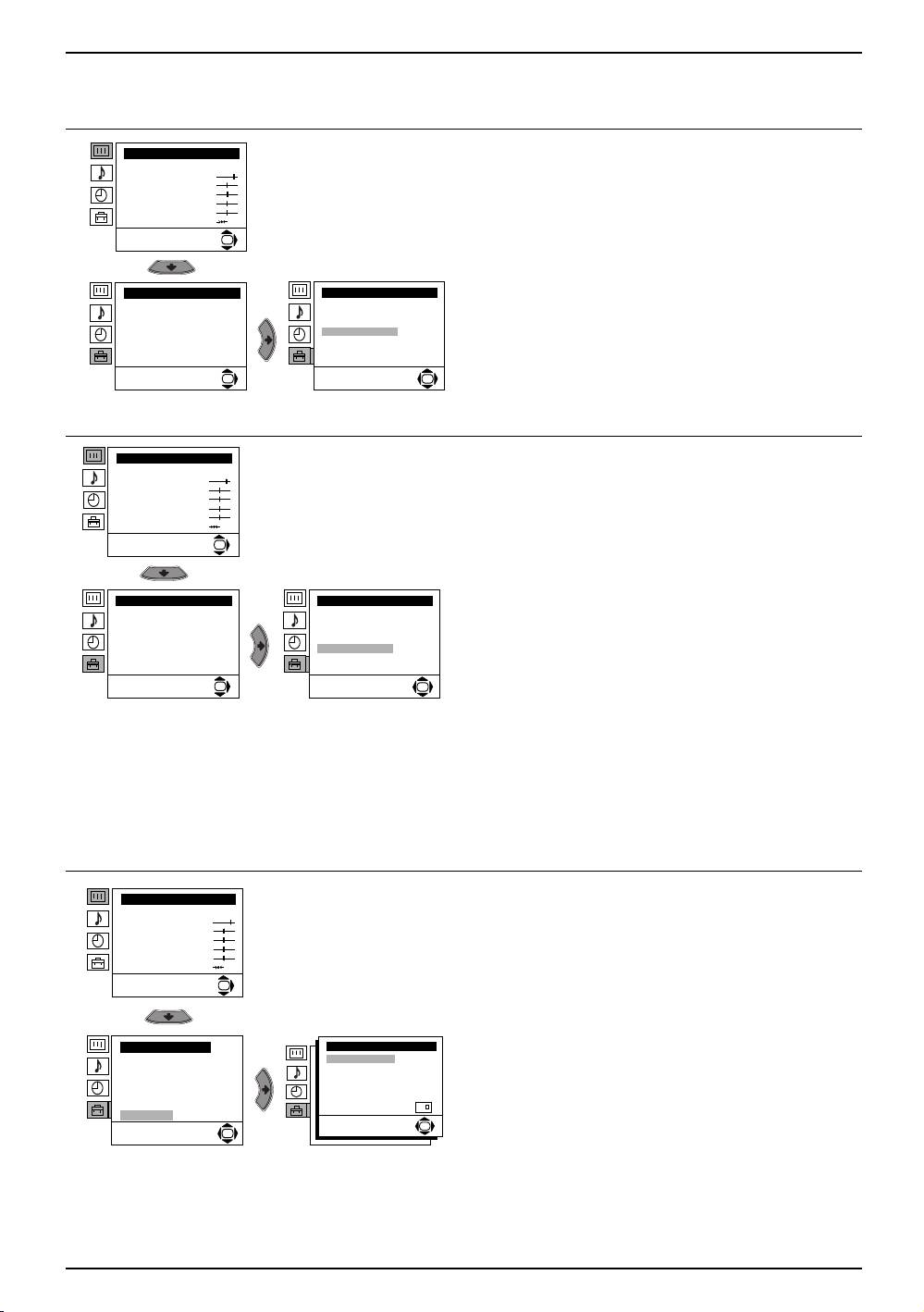
AUTO TUNING
Picture Adjustment
The “Auto Tuning” option in the “Set Up” menu allows you
Mode: Personal
Contrast
to automatically search for and store all available TV
Brightness
Colour
channels.
Sharpness
Hue
Reset
To do this: After selecting the option, press the
b button
OK
then proceed in the same way as in TV steps 5 and 6 of the
section “Switching On the TV and Automatically Tuning” on
page 8.
Set Up
Set Up
Language/Country
Language/Country
Auto Tuning
Auto Tuning
Programme Sorting
Programme Sorting
Progamme Labels
Progamme Labels
AV Preset
AV Preset
Manual Programme Preset
Manual Programme Preset
Detail Set Up
Detail Set Up
OK
OK
PROGRAMME SORTING
Picture Adjustment
The “Programme Sorting” option in the “Set Up” menu
Mode: Personal
Contrast
allows you to change the order in which the channels (TV
Brightness
Colour
Broadcasts) appear on the screen.
Sharpness
Hue
Reset
To do this:
OK
After selecting the option, press the
b button then proceed
in the same way as in step 7 b) of the section “Switching On
the TV and Automatically Tuning” on page 8.
Set Up
Set Up
Language/Country
Language/Country
Auto Tuning
Auto Tuning
Programme Sorting
Programme Sorting
Progamme Labels
Progamme Labels
AV Preset
AV Preset
Manual Programme Preset
Manual Programme Preset
Detail Set Up
Detail Set Up
OK
OK
Menu System 11
01gb29xl.fm Page 12 Tuesday, March 30, 2004 11:48 AM
Introducing and Using the Menu System
Level 1 Level 2 Level 3 / Function
Picture Adjustment
PROGRAMME LABELS
Mode: Personal
The “Programme Labels” option in the “Set Up” menu
Contrast
Brightness
allows you to name a channel using up to five characters
Colour
Sharpness
(letters or numbers).
Hue
Reset
OK
To do this:
1 After selecting the option, press the b button, then press
the v or V buttons to select the programme number of
the channel you wish to name.
Set Up
Set Up
Language/Country
Language/Country
2 Press b button. With the first element of the Label
Auto Tuning
Auto Tuning
Programme Sorting
column highlighted, press v or V buttons to select a
Programme Sorting
Progamme Labels
Progamme Labels
AV Preset
AV Preset
letter or number (select “-“ for a blank), then press the b
Manual Programme Preset
Manual Programme Preset
button to confirm the character. Select the other four
Detail Set Up
Detail Set Up
characters in the same way. Finally press the OK to
OK
OK
store.
AV PRESET
Picture Adjustment
Mode: Personal
The “AV Preset” option in the “Set Up” menu allows you to
Contrast
Brightness
designate a name to the external equipment you have
Colour
Sharpness
connected to the sockets of this TV.
Hue
Reset
To do this:
OK
1 After selecting the option, press the b button, then press
the v or V buttons to select the input source you wish to
name (AV1, AV2 and AV3 represent the rear Scart
Set Up
Set Up
sockets and AV4 is for the front connectors). Then
Language/Country
Language/Country
Auto Tuning
Auto Tuning
press the b button to confirm.
Programme Sorting
Programme Sorting
Progamme Labels
Progamme Labels
AV Preset
AV Preset
2 A predefined label automatically appears in the label
Manual Programme Preset
Manual Programme Preset
Detail Set Up
Detail Set Up
column:
OK
OK
a) If you want to use one of the 6 predefined labels
(CABLE, GAME, CAM, DVD, VIDEO or SAT), press
the v or V buttons to select the desired label, then
press OK button to store.
b) If you want to set a different label, select Edit and
press b button. Then with the first element
highlighted, press the v or V buttons to select a
letter, number or “-“ for a blank, then press b button
to confirm the character. Select the other four
characters in the same way. Finally press the OK
button to store.
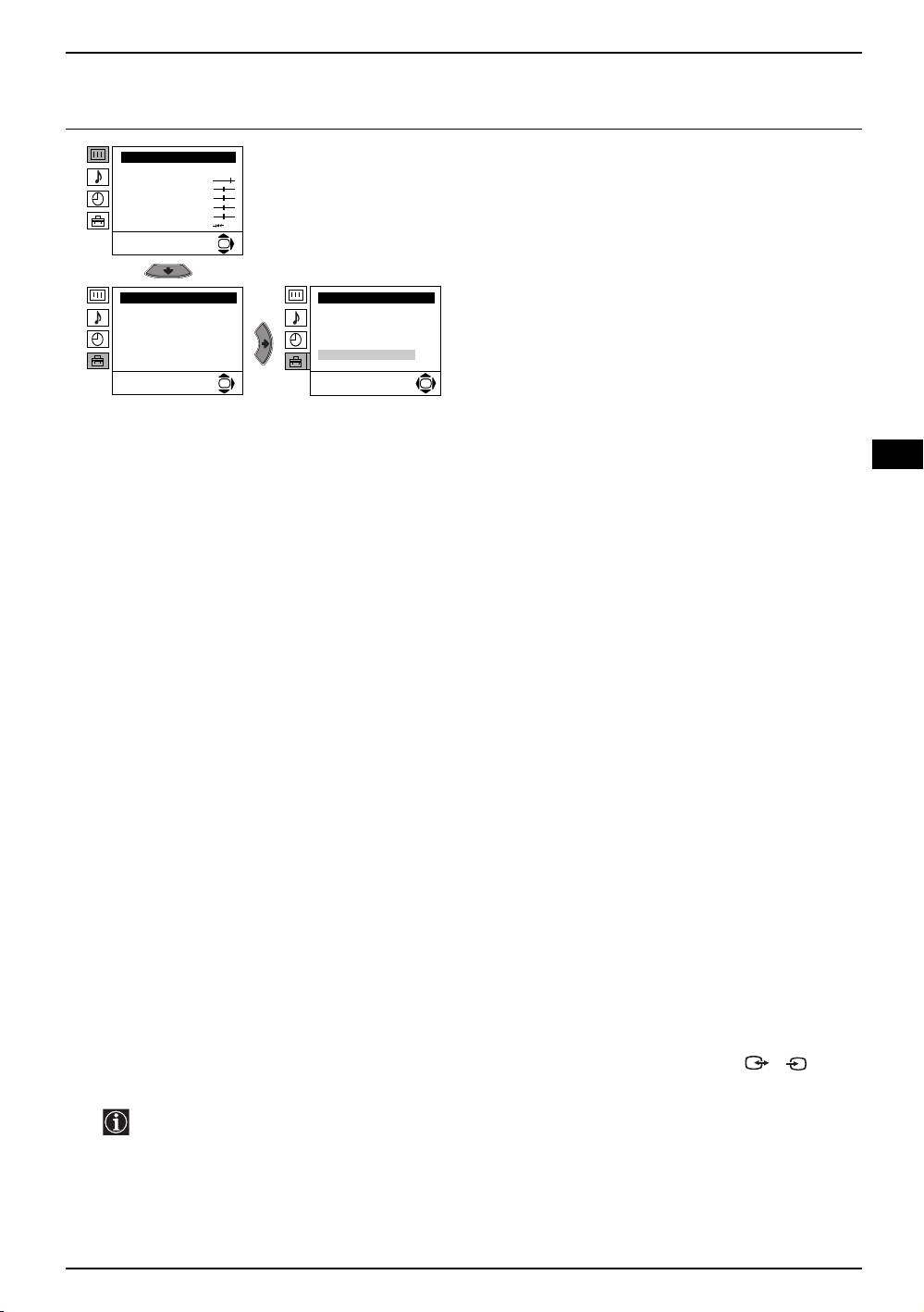
NOISE REDUCTION
Picture Adjustment
The “Noise Reduction” option in the “Detail Set Up” menu
Mode: Personal
Contrast
allows you to automatically reduce any picture noise visible
Brightness
Colour
in the broadcast signal.
Sharpness
Hue
Reset
To do this:
OK
After selecting the option, press the b button. Then press
the v or
V buttons to select Auto. Finally press the OK
button to confirm and store.
Set Up
Detail Set Up
Language/Country
Noise Reduction:
Auto
To cancel this function later on, select “Off” instead of “Auto”
Auto Tuning
AV3 Output:
TV
TV Speakers:
On
Programme Sorting
in the step above.
RGB Centring:
0
Progamme Labels
Picture Rotation:
0
AV Preset
PIP Input: AV1
Manual Programme Preset
PIP Position:
Detail Set Up
OK
OK
12 Menu System
01gb29xl.fm Page 13 Tuesday, March 30, 2004 11:48 AM
Introducing and Using the Menu System
Level 1 Level 2 Level 3 / Function
MANUAL PROGRAMME PRESET
Picture Adjustment
The “Manual Programme Preset” option in the “Set Up”
Mode: Personal
Contrast
menu allows you to:
Brightness
Colour
Sharpness
Hue
a) Preset channels or the VCR channel one by one to the
Reset
programme order of your choice.
OK
To do this:
1 After selecting the ”Manual Programme Preset” option,
Set Up
Set Up
press the b button then with Programme option
Language/Country
Language/Country
Auto Tuning
Auto Tuning
highlighted press the b button.
Programme Sorting
Programme Sorting
Press the v or V buttons to select which programme
Progamme Labels
Progamme Labels
AV Preset
AV Preset
number you want to preset the channel to (for VCR,
Manual Programme Preset
Manual Programme Preset
Detail Set Up
Detail Set Up
select programme number “0”). Then press the B
OK
OK
button.
GB
2 The availability of this option depends on the country you have selected in the “Language/Country” menu.
After selecting the System option, press the
b button. Then press the v or V buttons to select the TV Broadcast
system (B/G for western European countries or D/K for eastern European countries). Press the B button.
3 After selecting the Channel option, press the
b button. Then press the v or V buttons to select the channel tuning
(“C” for terrestrial channels or “S” for cable channels). Next press
b button. After that, press the numbered buttons to
directly enter the channel number of the TV Broadcast or the VCR channel. If you do not know the channel number,
press the v or
V buttons to search for it. When you have tuned to the desired channel, press the OK button twice to
store.
Repeat all the above steps to tune and store more channels.
b) Label a channel using up to five characters.
To do this: After highlighting the Programme option, press the PROG +/- button to select the programme number of
the channel you wish to name. When the programme you want to name appears on the screen, select the Label option
and press
b button. Next press the v or V buttons to select a letter, number or “-“ for a blank. Press the b button to
confirm thecharacter. Select the other four characters in the same way. After selecting all the characters, press the
OK button twice to store.
c) Manually fine tune the TV to obtain a better picture reception if the picture is distorted.
Normally the automatic fine tuning (AFT) is in operation, but you can alter it manually.
To do this: Whilst watching the channel (TV Broadcast) you wish to fine tune, select the AFT option and press
b
button. Next press the v or
V buttons to adjust the fine tuning between -15 and +15. Finally press the OK button twice
to store.
d) Skip any unwanted programme numbers when they are selected with the PROG +/- buttons.
To do this: After highlighting the Programme option, press the PROG +/- button to select the programme number
you want to skip. When the programme you want to skip appears on the screen, select the Skip option and press the
b button. Next press the v or
V buttons to select Yes. Finally press the OK button twice to confirm and store.
To cancel this function afterwards, select “No” instead of “Yes” in the step above.
e) View and record scrambled channels when using a decoder connected directly to the Scart socket 3/ 3 or
S
through a VCR.
The availability of this option depends on the country you have selected in the “Language/Country” menu.
To do this: Select the Decoder option and press the b button. Next press the v or
V buttons to select On. Finally
press the OK button twice to confirm and store.
To cancel this function afterwards, select “Off” instead of “On” in the step above.
Menu System 13
01gb29xl.fm Page 14 Tuesday, March 30, 2004 11:48 AM
Introducing and Using the Menu System
Level 1 Level 2 Level 3 / Function
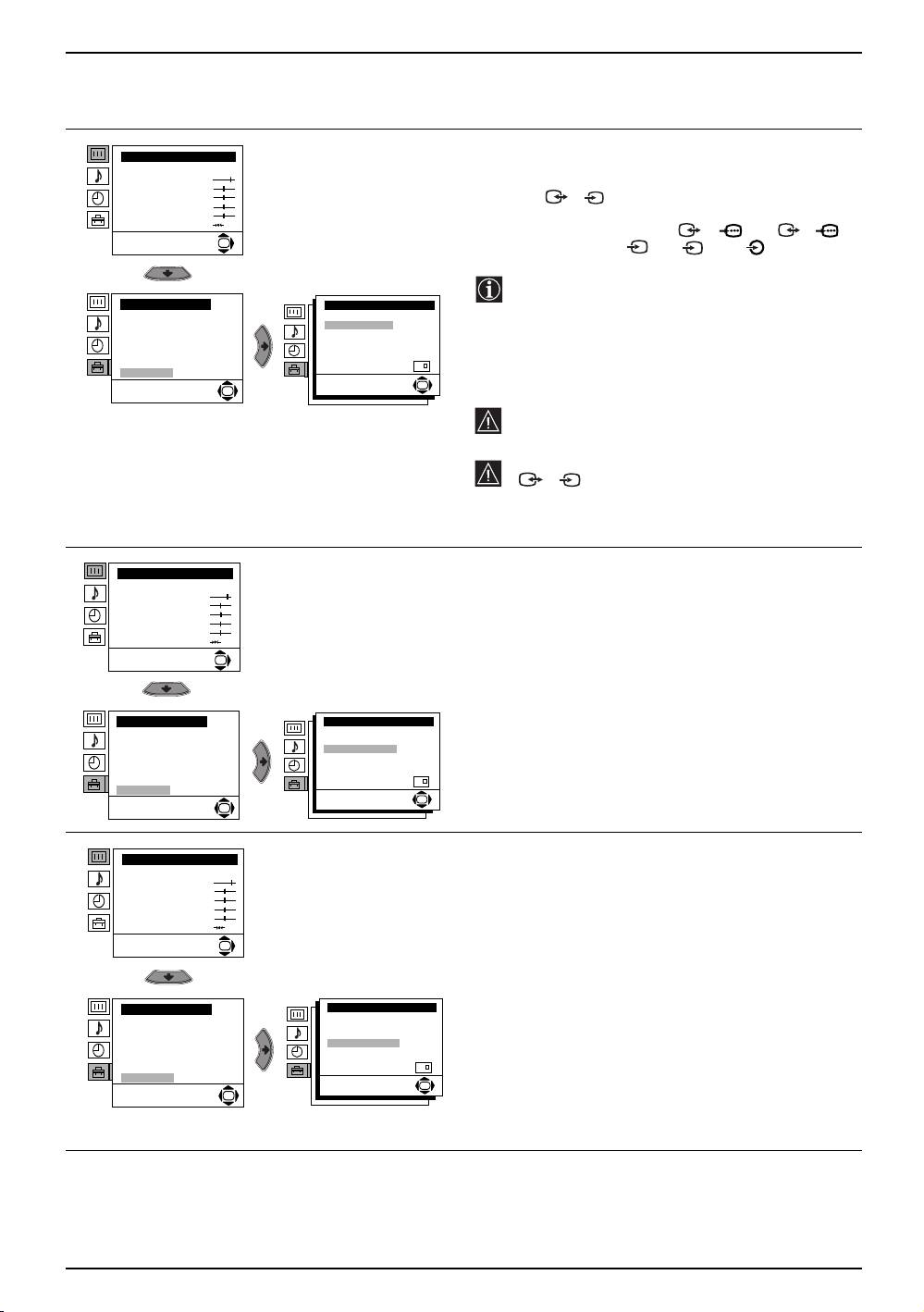
AV3 OUTPUT
Picture Adjustment
The “AV3 Output” option in the “Detail Set Up” menu allows
Mode: Personal
Contrast
you to select the source to be output from the Scart
Brightness
Colour
connector 3/ 3 so you can record from this Scart
S
Sharpness
Hue
any signal coming from the TV or from external equipment
Reset
connected to Scart connectors 1/ 1 or 2/ 2
OK
or the front connectors 4 or 4 and 4.
S
If your VCR supports Smartlink, this procedure is not
necessary.
Set Up
Detail Set Up
Language/Country
Noise Reduction:
Auto
Auto Tuning
AV3 Output:
TV
Programme Sorting
TV Speakers:
On
To do this:
Progamme Labels
RGB Centring:
0
Picture Rotation:
0
After selecting the option, press the b button. Then press
AV Preset
PIP Input: AV1
Manual Programme Preset
PIP Position:
the v or
V buttons to select the desired output signal: TV,
Detail Set Up
OK
AV1, AV2, AV4, YC4 or AUTO.
OK
If you select “AUTO”, the output signal will always be
the same one that is displayed on the screen.
If you have connected a decoder to the Scart socket
3/ 3 or to a VCR connected to that Scart
S
socket, please remember to set the “AV3 Output” to
“AUTO” or “TV” for correct unscrambling.
TV SPEAKERS
Picture Adjustment
The “TV Speakers” option in the “Detail Set Up” menu
Mode: Personal
Contrast
allows you to mute the TV speakers in order to listen to the
Brightness
Colour
TV from an external amplifier connected to the audio
Sharpness
Hue
outputs on the rear of the TV set.
Reset
OK
To do this: After selecting the option, press the b button.
Then press the v or
V buttons to select Off. Finally press
the OK button to confirm and store.
Set Up
Detail Set Up
Language/Country
Noise Reduction:
Auto
To cancel this function later on, select “On” instead of “Off”
Auto Tuning
AV3 Output:
TV
TV Speakers:
On
Programme Sorting
in the step above.
RGB Centring:
0
Progamme Labels
Picture Rotation:
0
AV Preset
PIP Input: AV1
Manual Programme Preset
PIP Position:
Detail Set Up
OK
OK
RGB CENTRING
Picture Adjustment
When connecting an RGB source, such as a “PlayStation”,
Mode: Personal
Contrast
you may need to readjust the horizontal position of the
Brightness
Colour
picture. In that case, you can readjust it using the “RGB
Sharpness
Hue
Centring” option in the “Detail Set Up”.
Reset
OK
To do this: While watching an RGB source select the “RGB
Centring” option and press the b button. Then press the v
or
V buttons to adjust the centre of the picture between –10
and +10. Finally press the OK button to confirm and store.
Set Up
Detail Set Up
Language/Country
Noise Reduction:
Auto
AV3 Output:
TV
Auto Tuning
TV Speakers:
On
Programme Sorting
RGB Centring:
0
Progamme Labels
Picture Rotation:
0
AV Preset
PIP Input: AV1
Manual Programme Preset
PIP Position:
Detail Set Up
OK
OK
14 Menu System
01gb29xl.fm Page 15 Tuesday, March 30, 2004 11:48 AM
Introducing and Using the Menu System
Level 1 Level 2 Level 3 / Function
PICTURE ROTATION
Picture Adjustment
Mode: Personal
Because of the earth’s magnetism, the picture might slant.
Contrast
If this is the case, you can correct the pictures slant by using
Brightness
Colour
the option “Picture Rotation” in the “Detail Set Up” menu.
Sharpness
Hue
Reset
To do this: After selecting the option, press the b button.
OK
Then press the v or
V buttons to correct any slant of the
picture between -5 and +5 and finally press the OK button
to store.
Set Up
Detail Set Up
Language/Country
Noise Reduction:
Auto
AV3 Output:
TV
Auto Tuning
TV Speakers:
On
Programme Sorting
RGB Centring:
0
Progamme Labels
Picture Rotation:
0
AV Preset
PIP Input: AV1
Manual Programme Preset
PIP Position:
Detail Set Up
OK
OK
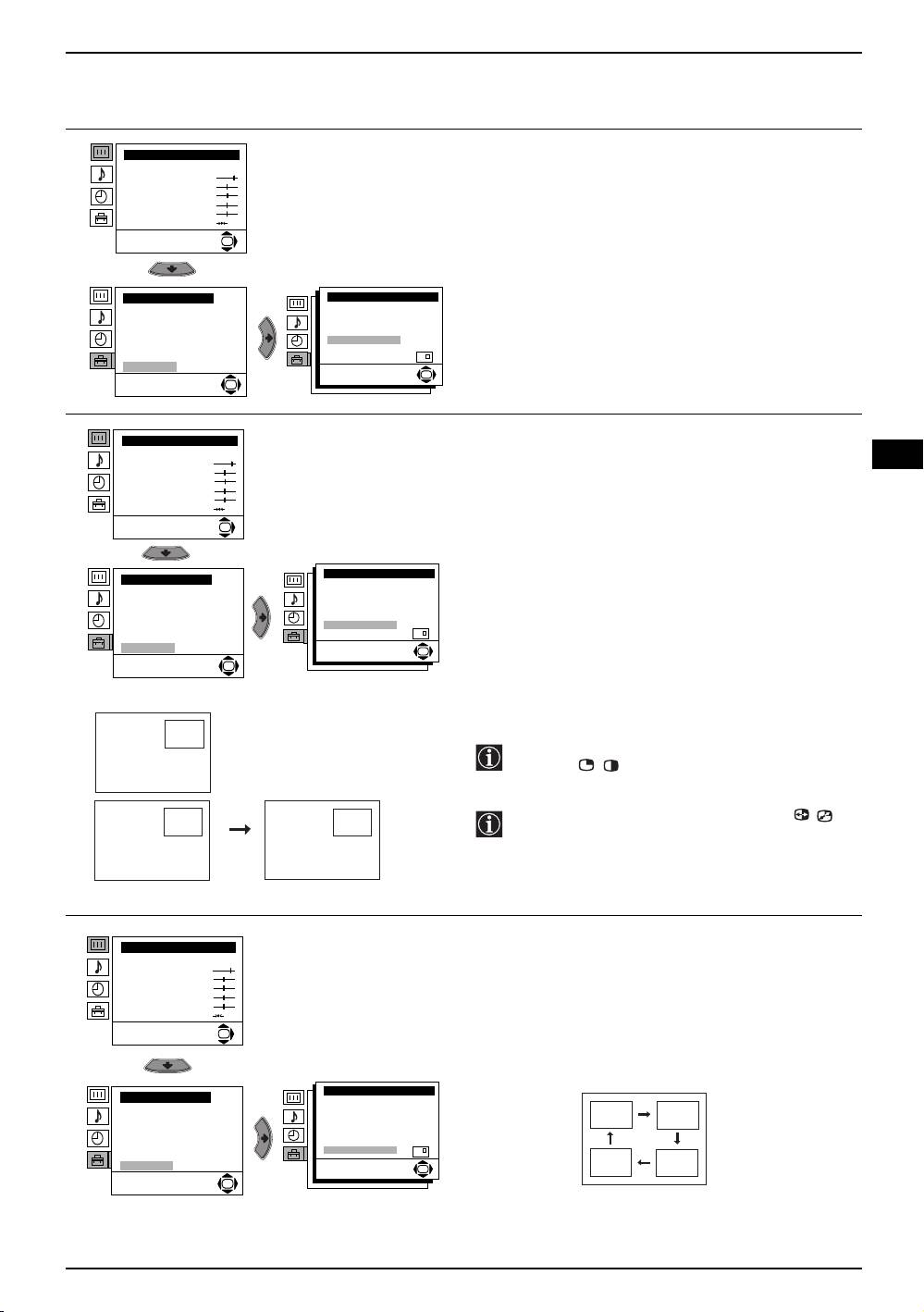
PIP INPUT
Picture Adjustment
The “PIP Input” option in the “Detail Set Up” menu allows
Mode: Personal
GB
Contrast
you to select which picture source you want to watch in the
Brightness
Colour
“PIP” screen.
Sharpness
Hue
Reset
To do this: After selecting the option, press the b button.
OK
Then repeatedly press the v or
V buttons to select the
desired source (AV1, AV2, AV3, AV4 or TV). Finally press
the OK button to store.
Detail Set Up
Set Up
Noise Reduction:
Auto
Language/Country
AV3 Output:
TV
Auto Tuning
TV Speakers:
On
Programme Sorting
RGB Centring:
0
Progamme Labels
Picture Rotation:
0
PIP Input: AV1
AV Preset
PIP Position:
Manual Programme Preset
Detail Set Up
OK
OK
B
To watch the selected source of the “PIP” screen,
A
press the / button on the remote control.
You can swap the screens by pressing the /
B
A
button on the remote control.
A
BB
PIP POSITION
Picture Adjustment
The “PIP Position” option in the “Detail Set Up” menu allows
Mode: Personal
Contrast
you to change the position of the “PIP” screen within the
Brightness
Colour
main screen.
Sharpness
Hue
Reset
To do this: After selecting the option the v, B, V or b button
OK
to select the desired position. Finally press the OK button to
store.
Detail Set Up
Set Up
Noise Reduction:
Auto
Language/Country
AV3 Output:
TV
Auto Tuning
TV Speakers:
On
Programme Sorting
RGB Centring:
0
Progamme Labels
Picture Rotation:
0
PIP Input: AV1
AV Preset
PIP Position:
Manual Programme Preset
Detail Set Up
OK
OK
Menu System 15

01gb29xl.fm Page 16 Tuesday, March 30, 2004 11:48 AM
Teletext
Teletext is an information service transmitted by most TV stations. The index page
of the teletext service (usually page 100) gives you information on how to use the
service. To operate teletext, use the remote control buttons as indicated below.
Teletext errors may occur if you use a channel (TV Broadcast) with a weak signal.
To Switch on Teletext:
TELETEXT
TELETEXT
TELETEXT
TELETEXT
TELETEXT
TELETEXT
TELETEXT
TELETEXT
After selecting the TV channel which carries the teletext service you wish
to view, press the button.
Index
Index
Index
Index
Index
Index
Index
Index
Programme
Programme
Programme
Programme
Programme
Programme
Programme
Programme
25
25
25
25
25
25
25
25
News
News
News
News
News
News
News
News
153
153
153
153
153
153
153
153
Sport
Sport
Sport
Sport
Sport
Sport
Sport
Sport
101
101
101
101
101
101
101
101
To Select a Teletext page:
Weather
Weather
Weather
Weather
Weather
Weather
Weather
Weather
98
98
98
98
98
98
98
98
Input the 3 digits of the page number, using the numbered buttons.
• If you have made a mistake, retype the correct page number.
• If the counter on the screen continues searching, it is because the page is not
available.
In that case, input another page number.
To access the next or preceding page:
GB
Press PROG + () or PROG - ( ) buttons.
To superimpose teletext onto the TV:
Whilst you are viewing teletext, press the button. Press again to cancel teletext
mode.
To freeze a teletext page:
Press the /
button. Press again to cancel freeze.
To reveal concealed information (e.g: answer to a quiz):
Press the /
button. Press again to conceal the information.
To select a sub page:
A teletext page may consist of several sub pages. In this case the page number that
appears on the upper left corner changes colour from yellow to green, and one or more
arrows will appear next to the page number. Repeatedly press the B or b buttons on
the remote control to watch the desired sub page.
To Switch Off Teletext:
Press button.
Fastext
The Fastext service lets you access pages with one button push.
While you are in Teletext mode and providing Fastext is broadcast, a colour coded menu
appears at the bottom of the teletext page. Press one of the coloured buttons (red,
green, yellow or blue) to access the corresponding page.
16 Teletext

01gb29xl.fm Page 17 Tuesday, March 30, 2004 11:48 AM
Connecting Additional Equipment
Using the following instructions you can connect a wide range of optional equipment to your TV set. (Connecting
cables are not supplied).
S VHS/Hi8/
4 4
o4
DVC
camcorder
G
BCA
8mm/Hi8/
DVC
4 4
o4
camcorder
VCR
D
E
F
GB
When you connect the headphones,
Decoder
Hi-Fi
the TV speakers will automatically be
DVD
muted.
“PlayStation”*
Decoder
* “PlayStation” is a product of Sony
Computer Entertainment, Inc.
* “PlayStation” is a trademark of Sony
Computer Entertainment, Inc.
• To avoid picture distortion, do not connect external equipment to Scart connectors A and B at the same time.
• Do not connect a Decoder to the Scart connector F.
Connecting a VCR:
To connect a VCR, please refer to the section “Connecting the aerial and VCR” of this instruction manual. We recommend
you connect your VCR using a Scart lead. If you do not have a Scart lead, tune in the VCR test signal to the TV programme
number “0” by using the “Manual Programme Preset” option. (for details of how to manually programme these presets, see
page 13, step a). Refer to your VCR instruction manual to find the output channel on your VCR.
Connecting a VCR that supports Smartlink:
Smartlink is a direct link between the TV set and the VCR. For more information on Smartlink, please refer to the instruction
manual of your VCR.
If you use a VCR that supports Smartlink, please connect the VCR by using a Scart lead to the Scart socket 3/ 3 G.
S
If you have connected a decoder to the Scart 3/ 3 G or through a VCR connected to this Scart:
S
Select the “Manual Programme Preset” option in the “Set Up” menu and after selecting the “Decoder
**” option, select “On”
(by using
the v or V button). Repeat this procedure for each scrambled signal.
** The availability of this option depends on the country you have selected in the “Language/Country” menu.
continued...
Connecting additional equipment 17

01gb29xl.fm Page 18 Tuesday, March 30, 2004 11:48 AM
Connecting Additional Equipment
Connecting to external Audio Equipment:
Plug in your Hi-Fi equipment to the audio output sockets D if you wish to
Left Hi-Fi
Right Hi-Fi
amplify the audio output from your TV. Next, using the menu system,
speaker
speaker
select the “Set Up” menu. Enter the “Detail Set Up” menu and set “TV
Speakers” to “Off”.
The audio level of the external speakers can be modified by
pressing the volume buttons on the remote control. Also, treble and
bass settings can be modified through the “Sound Adjustment”
menu.
~50°
To enjoy “Dolby Virtual” sound effect through your Hi-Fi equipment:
Place the speakers of your equipment in front of your sitting position
and besides the TV set, but keeping a distance of 50 cm from each
Your sitting position
speaker to the TV set.
Then, using the menu system, select the menu “Sound Adjustment”,
and select “Dolby Virtual” on the “Effect” option.
Using optional Equipment
Connect your equipment to the designated TV socket, as indicated in the previous page.
1
Switch on the connected equipment.
2
To watch the picture from the connected equipment, press the button repeatedly until the correct input symbol
3
appears on the screen.
Symbol
Input Signals
1
• Audio / video input signal through the Scart connector E.
1
• RGB input signal through the Scart connector E. This symbol appears only if a RGB source has
been connected.
2
• Audio / video input signal through the Scart connector F.
2
• RGB input signal through the Scart connector F. This symbol appears only if a RGB source has
been connected.
3
• Audio/video input signal through the Scart connector G.
S
3
• S Video Input signal through the Scart connector G. This symbol appears only if a S Video source
has been connected.
4
• Video input signal through the phono socket B and Audio input signal through C.
S
4
• S Video Input signal through the front S Video input jack A and Audio signal through C. This symbol
appears only if a S Video source has been connected.
Press button on the remote control to return to the normal TV picture.
4
For Mono Equipment
Connect the phono plug to the L/G/S/I socket on the front of the TV and select 4 or 4 input signal using the
S
instructions above. Finally, refer to the “Sound Adjustment” section of this manual and select “Dual Sound” “A” on the
sound menu screen.
18 Connecting additional equipment
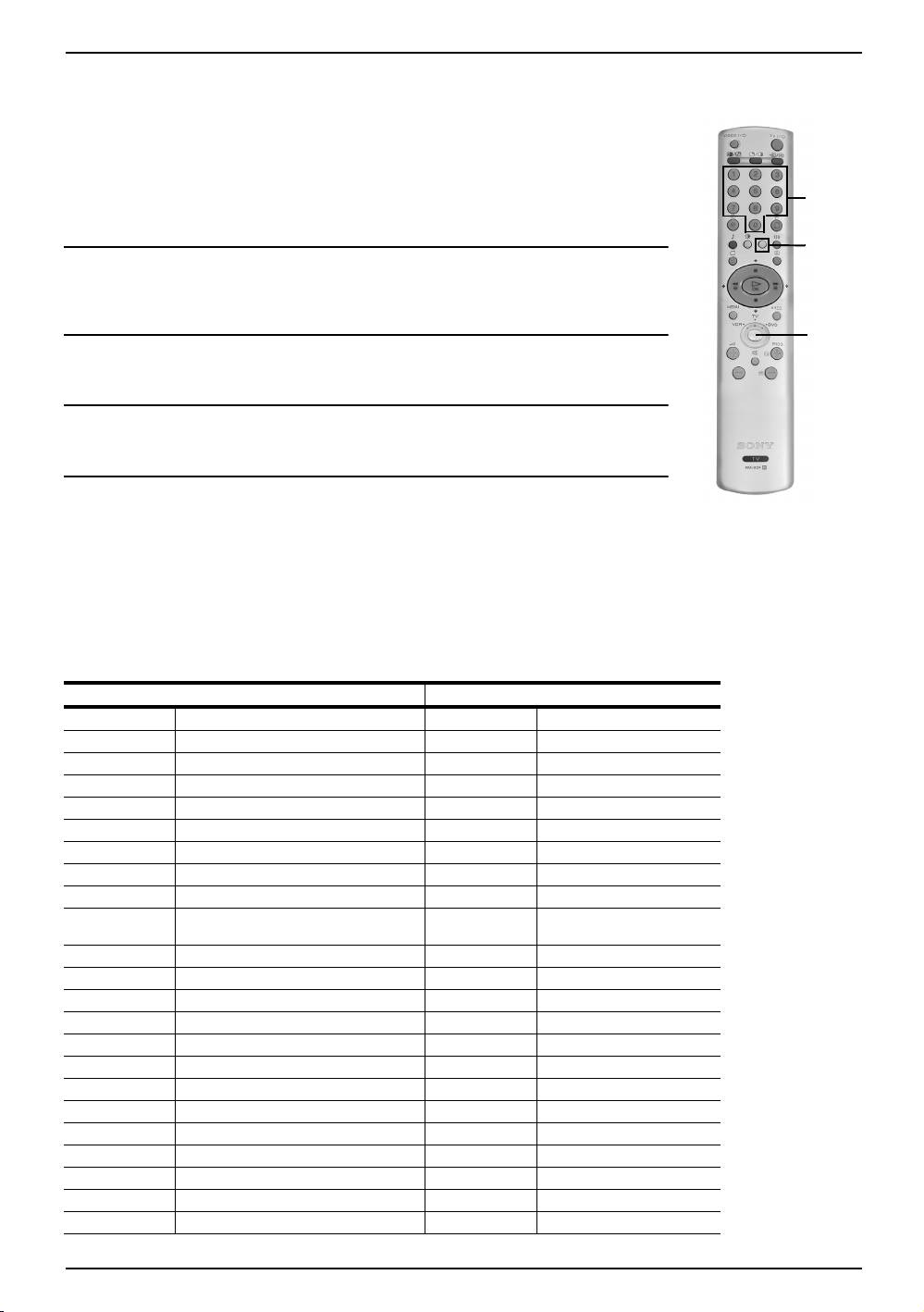
01gb29xl.fm Page 19 Tuesday, March 30, 2004 11:48 AM
Remote Control Configuration for VCR/DVD
The remote control supplied with your TV automatically operates the basic functions of Sony
DVD players and most Sony VCRs. The remote control can also operate DVD players and
VCRs made by other manufacturers, provided that it is first programmed to match the
particular brand of your VCR or DVD player.
• Before you start, look up the 3 digit code for your brand of DVD or VCR from the list below.
On those brands that have more than one code, enter the first code number.
• Sony will endeavour to update the software according tomarket changes. Therefore,
3
please refer to code table included with the remote control for the latest code set.
2
1 Press the Media Selector button repeatedly on the remote control until the required VCR
or DVD green light is lit.
Note: If the Media Selector button is switched to TV, the code numbers will not be stored.
1
2 With the green light illuminated, press and hold down the YELLOW button for
approximately 6 seconds until the green light starts to flash.
3 Use the numbered buttons to enter the three digit code for your brand. Once a correct code
has been entered, the green VCR, TV and DVD lights illuminate together momentarily.
4 Turn on your VCR or DVD player and check that the remote control operates the basic
functions. If not, repeat the above steps and enter the next three digit number for your
brand.
• Your brand codes may be lost if weak batteries are not replaced within a few minutes. To
reset your brand DVD or VCR please repeat the above steps. A small label is added
insidethe battery door to allow youto record your brand codes.
• Not all brands are covered and not all models of every brand may be covered.
VCR Brand List DVD Brand List
Brand Code Brand Code
SONY (VHS) 301, 302, 303, 308, 309 SONY 001
SONY (BETA) 303, 307, 310 AIWA 021
SONY (DV) 304, 305, 306 DENON 018, 027, 020, 002
AIWA 325, 331, 351 GRUNDIG 009, 028, 023, 024, 016, 003
AKAI 326, 329, 330 HITACHI 025, 026, 015, 004
DAEWOO 342, 343 JVC 006, 017
GRUNDIG 358, 355, 360, 361, 320, 351 KENWOOD 008
HITACHI 327, 333, 334 LG 015, 014
JVC 314, 315, 322, 344, 352, 353, 354, 348,
LOEWE 009, 028, 023, 024, 016, 003
349
MATSUI 013, 016
LG 332, 338 ONKYO 022
LOEWE 358, 355, 360, 361, 320, 351 PANASONIC 018, 027, 020, 002
MATSUI 356, 357 PHILIPS 009, 028, 023, 024, 016, 003
ORION 328 PIONEER 004
PANASONIC 321, 323 SAMSUNG 011, 014
PHILIPS 311, 312, 313, 316, 317, 318,358,359 SANYO 007
SHARP 019, 027
SAMSUNG 339, 340, 341, 345 THOMSON 012
SANYO 335, 336 TOSHIBA 003
SHARP 324 YAMAHA 018, 027, 020, 002
THOMSON 319, 350
TOSHIBA 337
Connecting additional equipment 19
01gb29xl.fm Page 20 Tuesday, March 30, 2004 11:48 AM
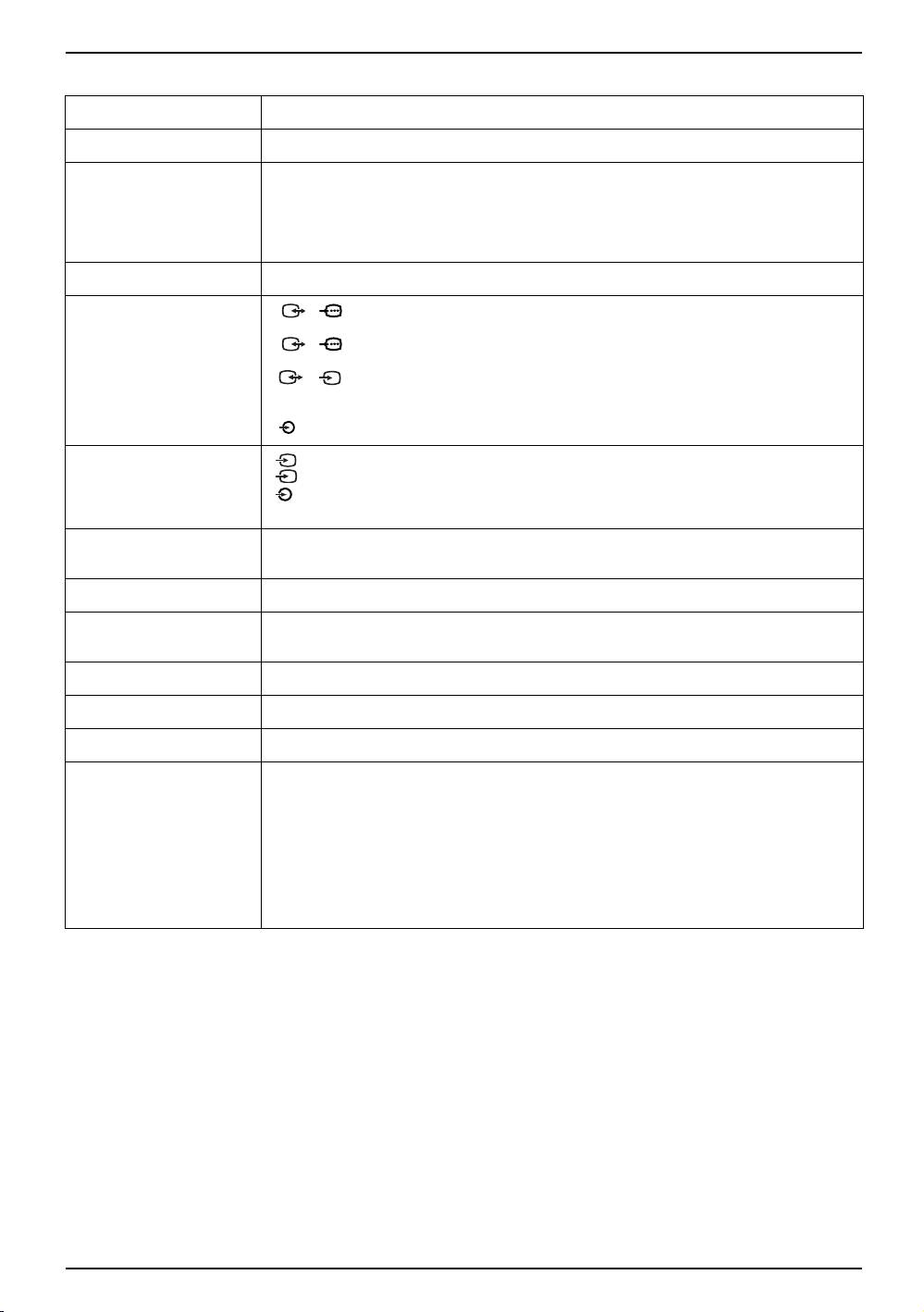
Specifications
TV system Depending on your country selection B/G/H, D/K
Colour System PAL, SECAM, NTSC 3.58, 4.43 (Video In only)
Channel Coverage VHF: E2-E12
UHF: E21-E69
CATV: S1-S20
HYPER: S21-S41
D/K: R1-R12, R21-R69
Picture Tube Flat display FD Trinitron 29” (approx. 73cm measured diagonally)
Rear Terminals 1/ 1 21-pin Scart connector (CENELEC standard) including audio/video
input, RGB input, TV audio/video output
2/ 2 21-pin Scart connector (CENELEC standard) including audio/video
input, RGB input, monitor audio/video output
3/ 3 21-pin Scart connector (CENELEC standard) including audio/
S
(SMARTLINK) video input, S-video input, selectable audio/video output and Smartlink
interface
Audio outputs (Left/Right) - phono jacks
GB
Front terminals 4 S Video input - 4 pin DIN
S
4 Video input - phono jack
4 Audio input - phono jacks
i Headphones jack
Sound Output 2 x 20W (Music Power), 2 x 10W (RMS)
Woofer: 30W (Music Power), 15W (RMS)
Power Consumption 130W
Standby Power
0.3W
Consumption
Dimensions (WxHxD) Approx. 771mm x 585mm x 506mm
Weight Approx. 48.5kg
Accessories Supplied 1 Remote Control (RM-934), 2 batteries (IEC designated)
Other Features • 100Hz picture
• Teletext, Fastext, TOPtext (250 page TEXT memory)
• Sleep Timer
• Smartlink (direct link between your TV set and a compatible VCR. For moreinformation
on Smartlink, please refer to the Instruction Manual of your VCR)
• TV system Autodetection
• Dolby Virtual
• BBE
• PIP
Design and specifications are subject to change without notice.
20 Additional Information
