
Sony KV-21CE10K: instruction
Class: Household, kitchen appliances, electronics and equipment
Type:
Manual for Sony KV-21CE10K
Table of contents
KV-21CE10K Cover.fm Page 1 Monday, March 21, 2005 10:27 AM
2-633-067-11
R
FD Trinitron
Colour Television
GB
GB
Operating Instructions
Before operating the TV, please read the “Safety Information”
section of this manual. Retain this manual for future reference.
BG
Инструкции за използване
Преди да използвате телевизора, прочетете раздела
"Информация за безопасността" на това ръководство.
Запазете това ръководство за бъдещи справки.
CZ
Návod k použití
Před zapnutím televizoru si prosím pozorně přečtěte část
"Bezpečnostní upozornění" v tomto návodu. Návod si uschovejte
i pro budoucí potřebu.
HU
Kezelési utasítás
Mielőtt elkezdené használni a televíziót, kérjük, olvassa el a jelen
kézikönyv Biztonsági tudnivalók c. szakaszát. Őrizze meg a
kézikönyvet későbbi használatra.
PL
Instrukcja obsługi
Przed przystąpieniem do eksploatacji telewizora należy zapoznać się z
rozdziałem "Informacje dotyczące bezpieczeństwa" w niniejszej instrukcji.
Prosimy o zachowanie niniejszej instrukcji do wglądu w przyszłości.
RU
Инструкция по эксплуатации
Перед тем как включить телевизор, просим Вас ознакомиться с
разделом "Общие правила техники безопасности" настоящей
инструкции. Сохраняйте настоящую инструкцию на будущее.
SK
Návod na obsluhu
Pred zapnutím TV prijímača si prosím pozorne prečítajte čas
„Informácie o bezpečnosti“. Návod si uchovajte pre ašie použitie.
KV-21CE10K
©2005 Sony Corporation
KV-21CE10K Cover.fm Page 2 Wednesday, March 16, 2005 2:23 PM
KV-21CE10K GB Text.fm Page 3 Wednesday, March 16, 2005 2:28 PM
Introduction
Thank you for choosing this Sony FD Trinitron Colour Television.
Before operating the TV, please read this manual thoroughly and retain it for future reference.
• Symbols used in the manual:
• Important information.
• Shaded buttons on the remote control show
• Information on a feature.
you the buttons you have to press to follow
• 1,2... Sequence of instructions.
the sequence of the instructions.
• Informs you of the result of instructions.
Table of Contents
Introduction .............................................................................................................................................. 3
Safety Information.................................................................................................................................... 4
Overview
Overview of Remote Control Buttons....................................................................................................... 5
Overview of TV Buttons .......................................................................................................................... 6
GB
Installation
Inserting Batteries into the Remote Control............................................................................................. 6
Connecting the Aerial and VCR .............................................................................................................. 6
First Time Operation
Switching On the TV and Automatically Tuning ...................................................................................... 7
Menu system
Introducing and Using the Menu System................................................................................................. 9
Picture ................................................................................................................................................ 9
Sound................................................................................................................................................. 10
Timer .................................................................................................................................................. 11
Channel Set Up.................................................................................................................................. 12
Set Up ................................................................................................................................................ 13
Teletext.................................................................................................................................................. 14
Additional Information
Connecting Optional Equipment .............................................................................................................. 15
Using Optional Equipment ....................................................................................................................... 15
Specifications........................................................................................................................................... 16
Disposal of Old Electrical & Electronic Equipment................................................................................... 16
Troubleshooting ....................................................................................................................................... 17
Table of Contents 3
KV-21CE10K GB Text.fm Page 4 Wednesday, March 16, 2005 2:28 PM
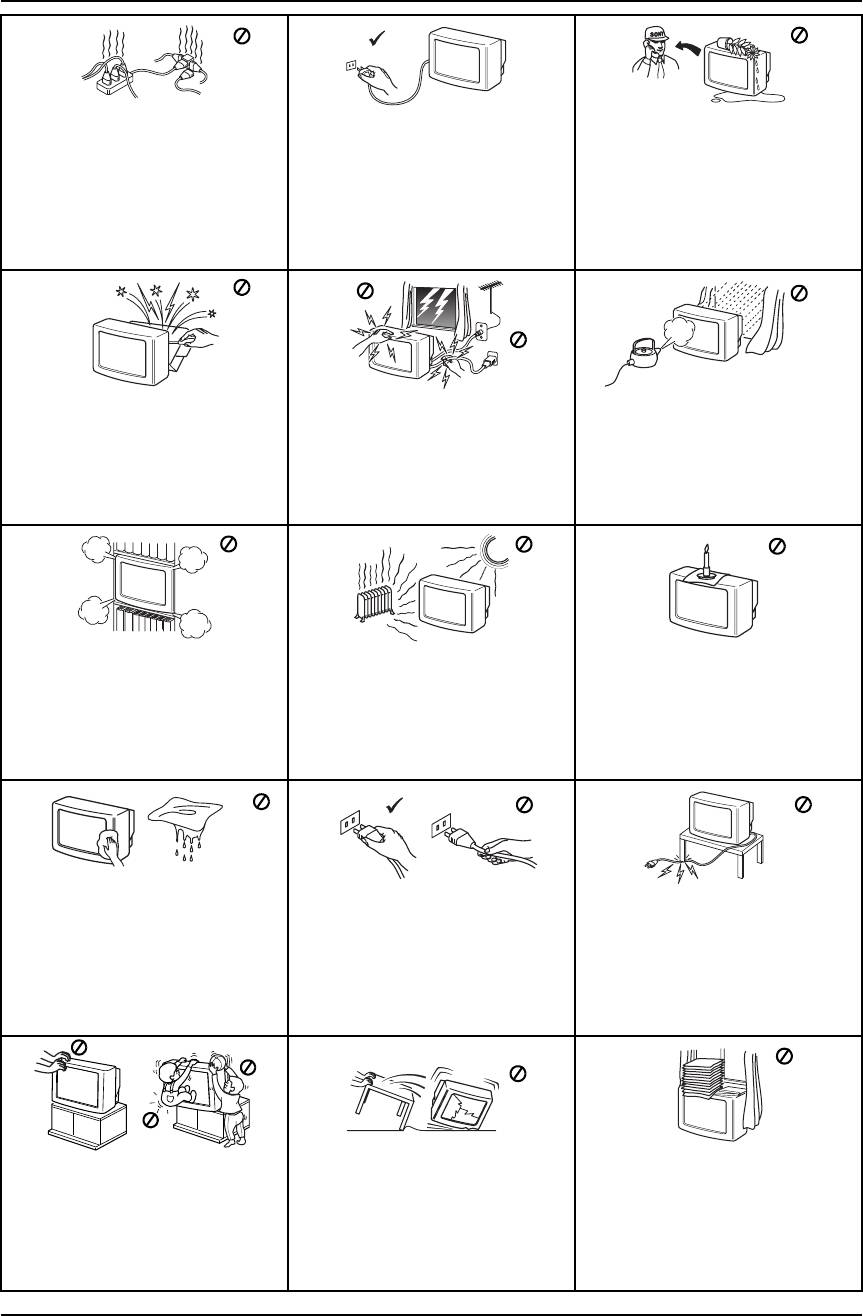
Safety Information
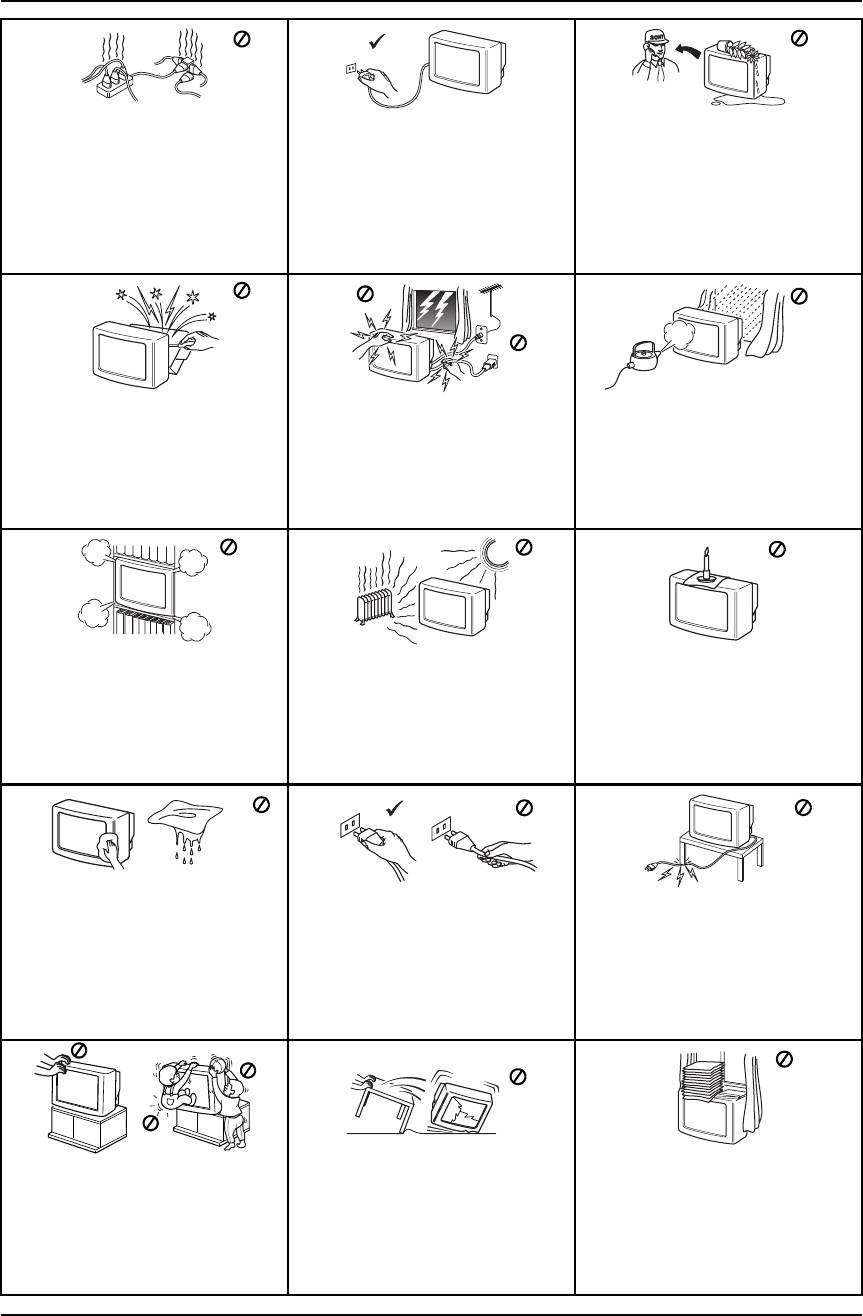
This set is to operate on a 220-240V
For environmental and safety reasons,
Never push objects of any kind into the
AC supply only. Take care not to
it is recommended that the TV set is
set as this could result in a fire or
connect too many appliances to the
not left in standby mode when not in
electric shock. Never spill liquid of any
same power socket as this could result
use. Disconnect from the mains.
kind on the set. If any liquid or solid
in fire or electric shock.
However, some TVs may have features
object does fall into the cabinet, do not
which require they are left in standby.
operate the TV. Have it checked
The instructions in this manual will
immediately by qualified personnel.
inform you if this applies.
Do not open the cabinet and the rear
For your own safety, do not touch any
To prevent fire or shock hazard, do not
cover of the TV. Refer to qualified
part of the TV, power lead or aerial lead
expose the TV to rain or moisture.
service personnel only.
during lightning storms.
Do not cover the ventilation openings
Never place the TV in hot, humid or
To prevent fire, keep inflammable
of the TV For ventilation, leave a space
excessively dusty places. Do not install
objects or naked lights (e.g. candles)
of at least 10cm all around the set.
the TV where it may be exposed to
away from the TV.
mechanical vibrations.
Clean the screen and cabinet with a soft,
Pull out the power lead by the plug. Do
Take care not to place heavy objects
lightly dampened cloth. Do not use any
not pull on the power lead itself.
on the power lead as this could result in
type of abrasive pad, alkaline cleaner,
damage.
scouring powder or solvent, such as
We recommend you wind any excess
alcohol or benzine, or antistatic spray. As
lead around the holders provided on
a safety precaution, unplug the TV before
the rear of the TV.
cleaning it.
Place the TV on a secure stable stand.
Unplug the power lead before moving
Do not cover the ventilation openings
Never attempt to move the TV and
the TV. Avoid uneven surfaces, quick
of the TV with items such as curtains or
stand together - always move the TV
steps or excessive force. If the set has
newspapers etc.
and stand separately. Do not place the
been dropped or damaged, have it
TV on its side or face up. Do not allow
checked immediately by qualified
children to climb on to it.
service personnel.
4 Safety Information
KV-21CE10K GB Text.fm Page 5 Wednesday, March 16, 2005 2:28 PM
Overview of Remote Control Buttons
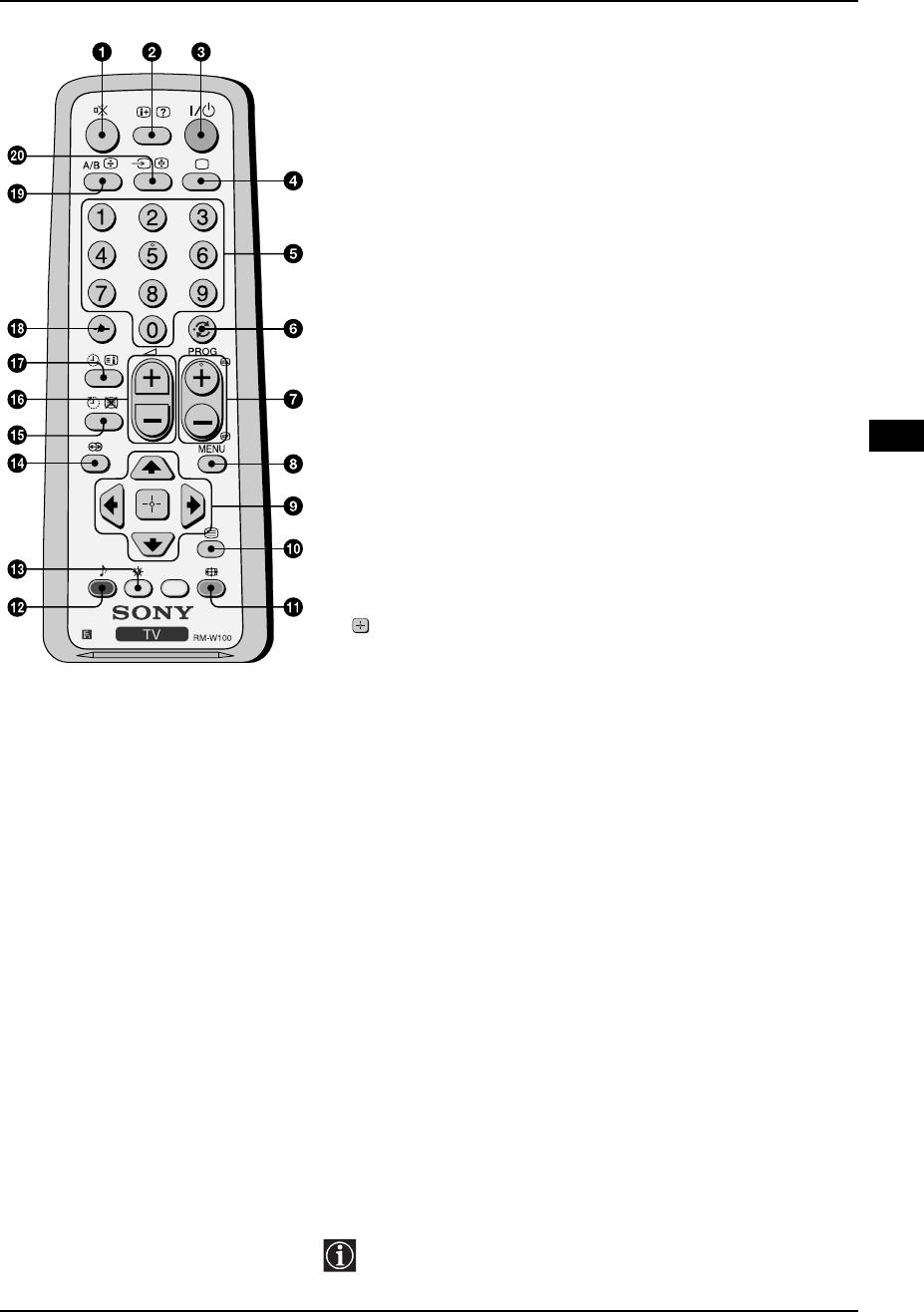
1 Muting the sound: Press to mute the TV sound. Press again to
restore the sound.
2 Displaying on screen information: Press to display all on-screen
indications. Press again to cancel.
3 To temporarily switch off TV: Press to temporarily switch off the TV
(the standby indicator 1 on TV lights up). Press again to switch on
the TV from standby mode.
To save energy we recommend switching off completely when the
TV is not in use.
After 15 minutes without a signal and without any button being
pressed, the TV switches automatically into standby mode.
4 Selecting TV mode: Press to switch off teletext or video input.
5 Selecting channels: Press to select channels. for double-digit
programme numbers, enter the second digit within 3 seconds.
6 Back to the channel last watched: Press to watch the last channel
selected (watched for at least 5 seconds).
GB
7 Selecting channels: Press to select the next or previous channel.
8 Displaying the menu system: Press to display the menu on the TV
screen. Press again to remove the menu display from the TV screen.
9 Menu selection:
V Scroll Up
v Scroll Down
B Previous menu or selection
b Next menu or selection
Confirm your selection
q; Selecting Teletext: Press to switch on teletext.
qa Selecting screen format: Press to view programmes in 16:9 mode.
Press again to return to 4:3 mode.
qs Selecting sound mode: Press repeatedly to change the sound
mode.
qd Selecting picture mode: Press repeatedly to change the picture
mode.
qf This button does not work on this set.
qg Sleep Timer: Set TV to switch off automatically.
qh Adjusting TV volume: Press to adjust the volume of the TV.
qj On Timer: Set TV to switch on automatically.
qk For double digit programme numbers, press -/-- and then the first and
second digit. If you enter an incorrect first digit, this should be
corrected by entering another digit (0-9) and then selecting -/-- button
again to enter the programme number of your choice.
ql Selecting stereo broadcast or sound channel: In case of a
bilingual broadcast, press this button repeatedly to select sound
channel 1 or sound channel 2.
w; Selecting input source: Press repeatedly until the desired input
symbol of the source appears on the TV screen.
Besides TV functions, all coloured buttons as well as green
symbols are also used for Teletext operation. For more details,
please refer to “Teletext” section of this instruction manual (see
page 14).
Overview 5
KV-21CE10K GB Text.fm Page 6 Wednesday, March 16, 2005 2:28 PM
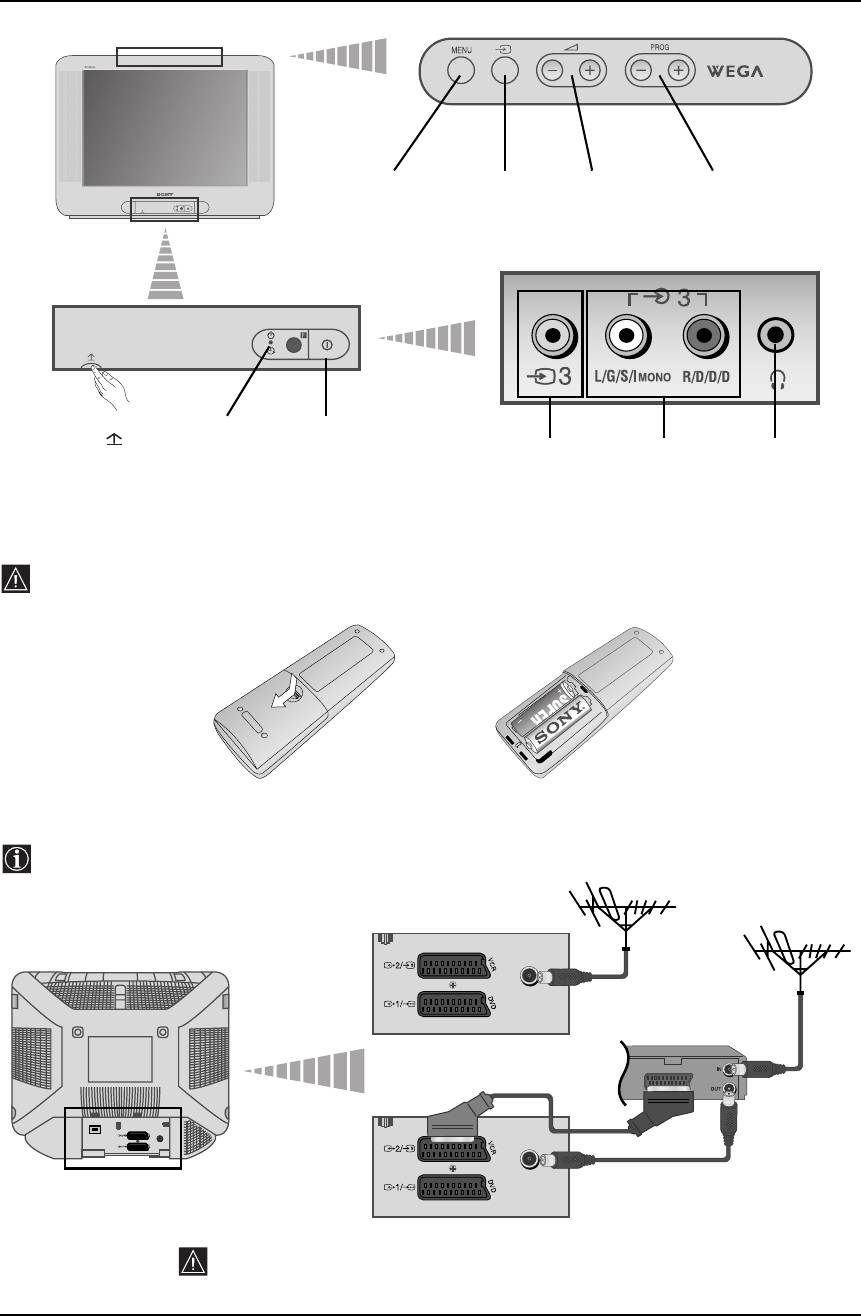
Overview of TV Buttons
Displaying
Selecting
Volume
Programme Up or
the menu
Input
control
Down Buttons
system
source
buttons
(Selects TV
channels)
Lift up the door
Standby/On
On/Off
flap with
Timer indicator
switch
Video Input
Audio Input
Headphone
mark to reveal
Normal-Green
jack
jacks
jack
the control
Standby-Red
panel.
Timer-Amber
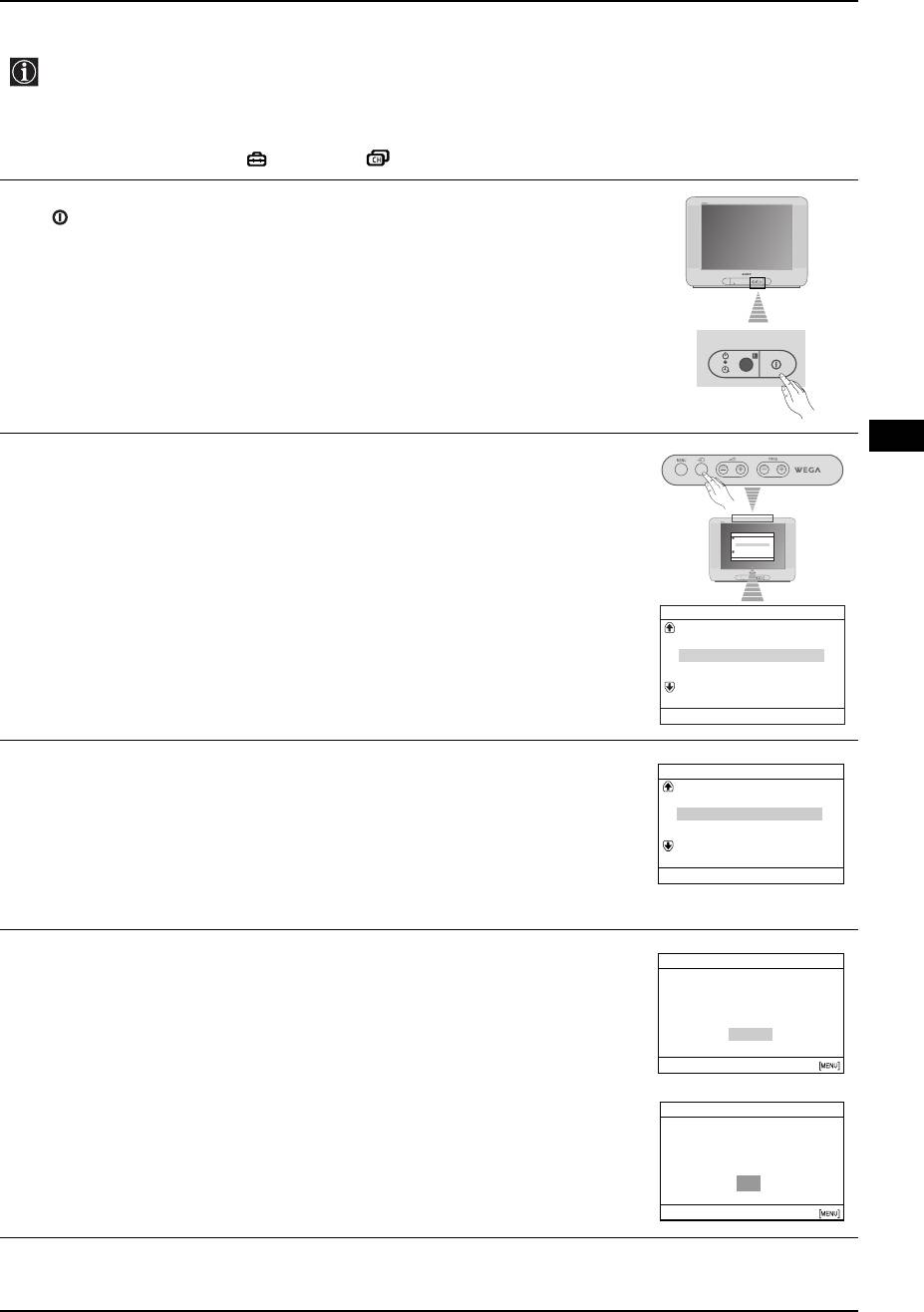
Inserting Batteries into the Remote Control
Make sure you insert the supplied batteries observing the correct polarities.
Always remember to dispose of used batteries in an environmental friendly way.
SONY CORPORATION
JAPAN/4
A
1
"
.5
v
A
"
/3
(N
S
) S
IZ
E
T
R
Y
R
6
E
D
R
Y
B
A
T
Connecting the Aerial and VCR
Connecting cables are not supplied.
VCR
or
Scart lead is optional
For more details of VCR connection, please refer to the section “Connecting
Optional Equipment” of this instruction manual (see page 15).
6 Overview-Installation
KV-21CE10K GB Text.fm Page 7 Wednesday, March 16, 2005 2:28 PM
Switching on the TV and Automatically Tuning
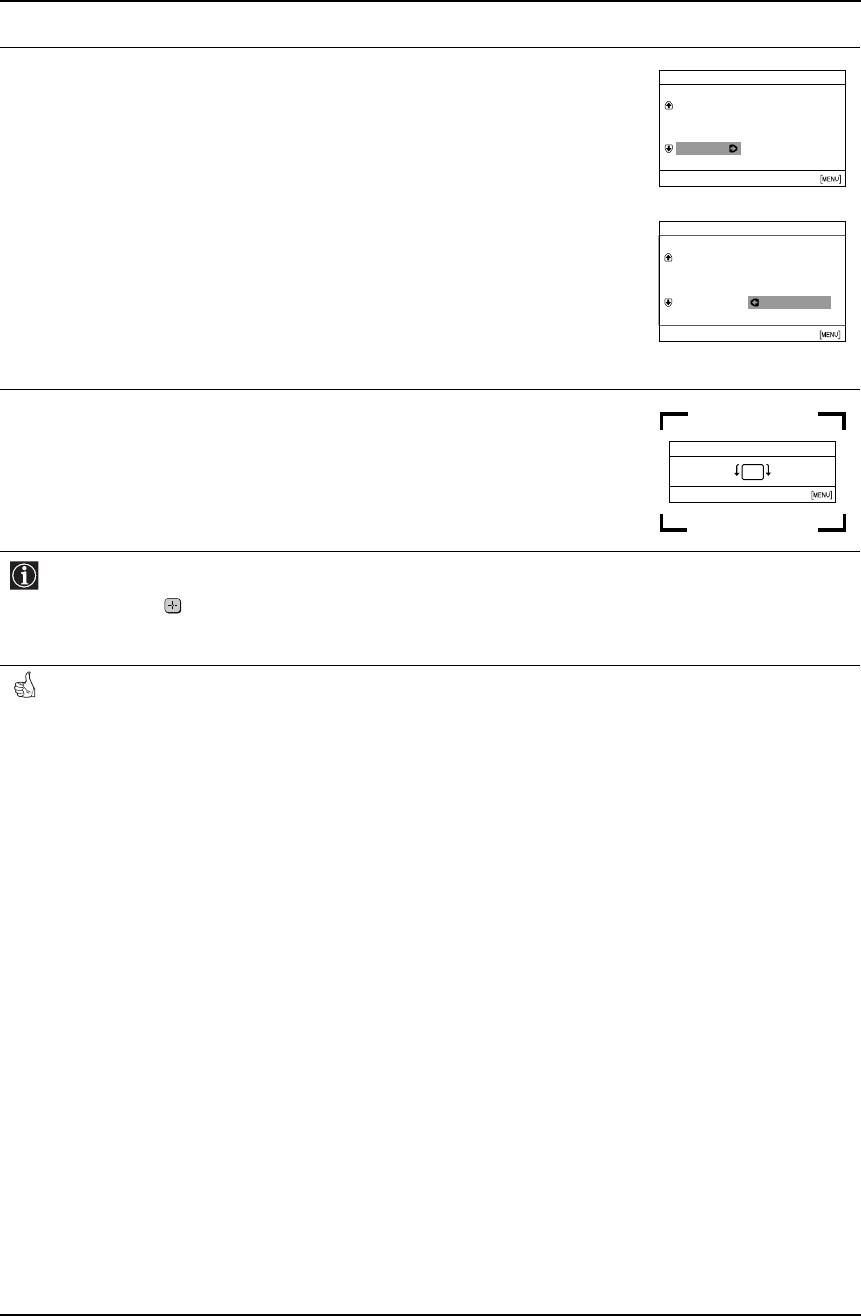
The first time you switch on your TV, a sequence of menu screens appear on the TV enabling you to:
1) choose the language of the menu screen, 2) choose the country in which you wish to operate the
TV, 3) search for and store all available channels (TV Broadcasts), 4) change the order in which the
channels (TV Broadcasts) appear on the screen and 5) adjust the picture slant.
However, if you need to change any of these settings at a later date, you can do that by selecting the
appropriate option in the (Set Up) or (Channel Set Up) menu.
Connect the TV plug to the mains socket (220-240V AC, 50Hz). Press the
1
on/off button on the TV set to turn on the TV.
The first time you switch on the TV, a Language menu appears
automatically on the TV screen.
GB
Press 2+/- button on the top control panel to select the language, then
2
press t to confirm your selection. From now on all the menus will appear
in the selected language.
Language
Norsk
Svenska
English
Select language
Français
Nederlands
Select [
2+]
–
Confirm [t]
End
MENU
[
]
Language
Svenska
Norsk
English
Nederlands
Français
Select language
Select [
–
2+]
Confirm [t]
End
[
MENU
]
The Country menu appears automatically on the TV screen. Press 2+/-
3
Country
button to select the country in which you will operate the TV set, then press
Sverige
t to confirm your selection.
Norge
–
Italia
• If the country in which you want to use the TV set does not appear in
Schweiz/Suisse/Svizzera
the list, select “-” instead of a country.
Select Country
• In order to avoid wrong teletext characters for Cyrillic languages we
Select
[
–
2+
]
Confirm
[
t
]
recommend you select Russia as the country if your own country
does not appear in the list.
Ensure the aerial is connected as instructed (see page 6), then press t to
4
Initial Set Up
confirm. The TV automatically starts searching and storing all available
First please connect aerial
broadcast channels for you.
Do you want to start automatic
tuning?
• This procedure could take some minutes. Please be patient and do
Yes
not press any buttons, otherwise automatic tuning will not be
No
completed.
Select
[
–
2+
]
Confirm
[
t
]
End
• If no channels were found during the auto tuning process, a new
menu appears automatically on the screen asking you connect the
Auto Tuning
aerial. Please connect the aerial (see page 6) and press t. The auto
No channel found
tuning process will start again.
Please connect aerial
OK
Confirm
[
t
]
End
continued...
First Time Operation 7
KV-21CE10K GB Text.fm Page 8 Wednesday, March 16, 2005 2:28 PM
Switching on the TV and Automatically Tuning
After all available channels are captured and stored, the Programme
5
Programme Sorting
Sorting menu appears automatically on the screen enabling you to change
Programme:
the order in which the channels appear on the screen.
01
TVE
02
TVE2
03
TV3
a) If you wish to keep the broadcast channels in their tuned order, press
04 C33
MENU.
Select channel
Select
[
–
2+
]
Confirm
[
t
]
Exit
b) If you wish to store the channels in a different order:
Programme Sorting
1 Press 2+/- to select the programme number with the channel (TV
Programme:
Broadcast) you wish to rearrange, then press t.
01 TVE
02 TVE2
03 TV3
2 Press 2+/- to select the new programme number position for your
04 C33 03 TV3
selected channel (TV Broadcast), then press t.
Select new position
Select
[
–
2+
]
Confirm
[
t
]
Exit
3 Repeat steps b)1 and b)2 if you wish to change the order of the other
channels.
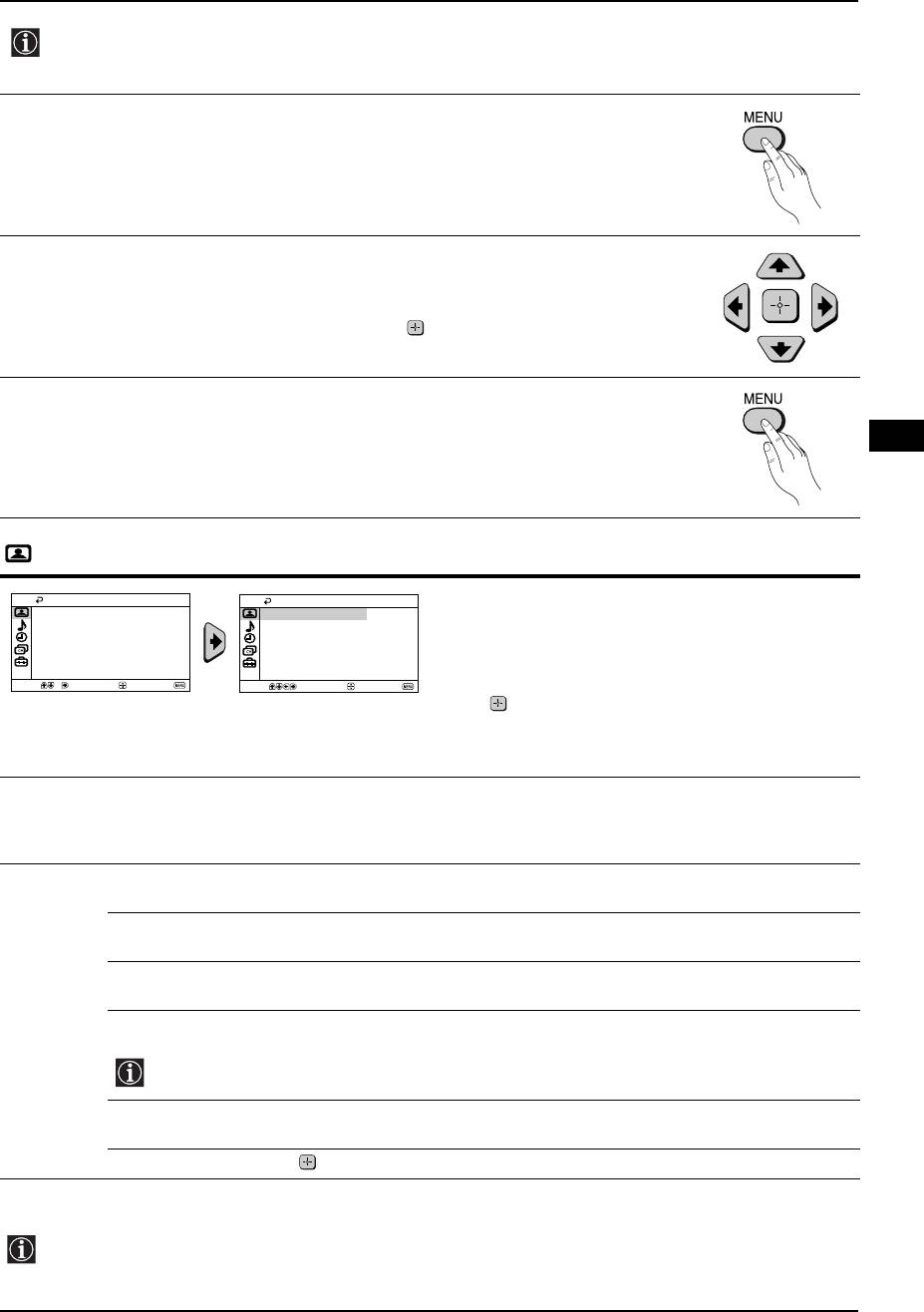
Because of the earth’s magnetism, the picture might slant. The Picture
6
Rotation menu allows you to correct the picture slant if it is necessary.
Picture Rotation
a) If it is not necessary, press t.
[
–
2
]
[
2+
]
Select
[
–
2+
]
Confirm
[
t
]
End
b) If it is necessary, press 2+/- button to correct any slant of the picture.
Finally press t to store.
• To allow this menu to appear again, press and hold MENU button at top control panel for about 5
seconds.
• The MENU, and
V, b, v, B buttons on the remote control can also be used for the operations
above.
Your TV is now ready for use.
8 First Time Operation
KV-21CE10K GB Text.fm Page 9 Wednesday, March 16, 2005 2:28 PM
Introducing and Using the Menu System
Your TV uses an on-screen menu system to guide you through the operations. Use the following
buttons on the Remote Control to operate the menu system:
Press MENU to switch the menu on.
1
• To highlight the desired menu or option, press v or V button.
2
• To enter to the selected menu or option, press b.
• To return to the last menu or option, press B.
• To alter the settings of your selected option, press v/V/B or b.
• To confirm and store your selection, press .
Press MENU to remove the menu from the screen.
3
GB
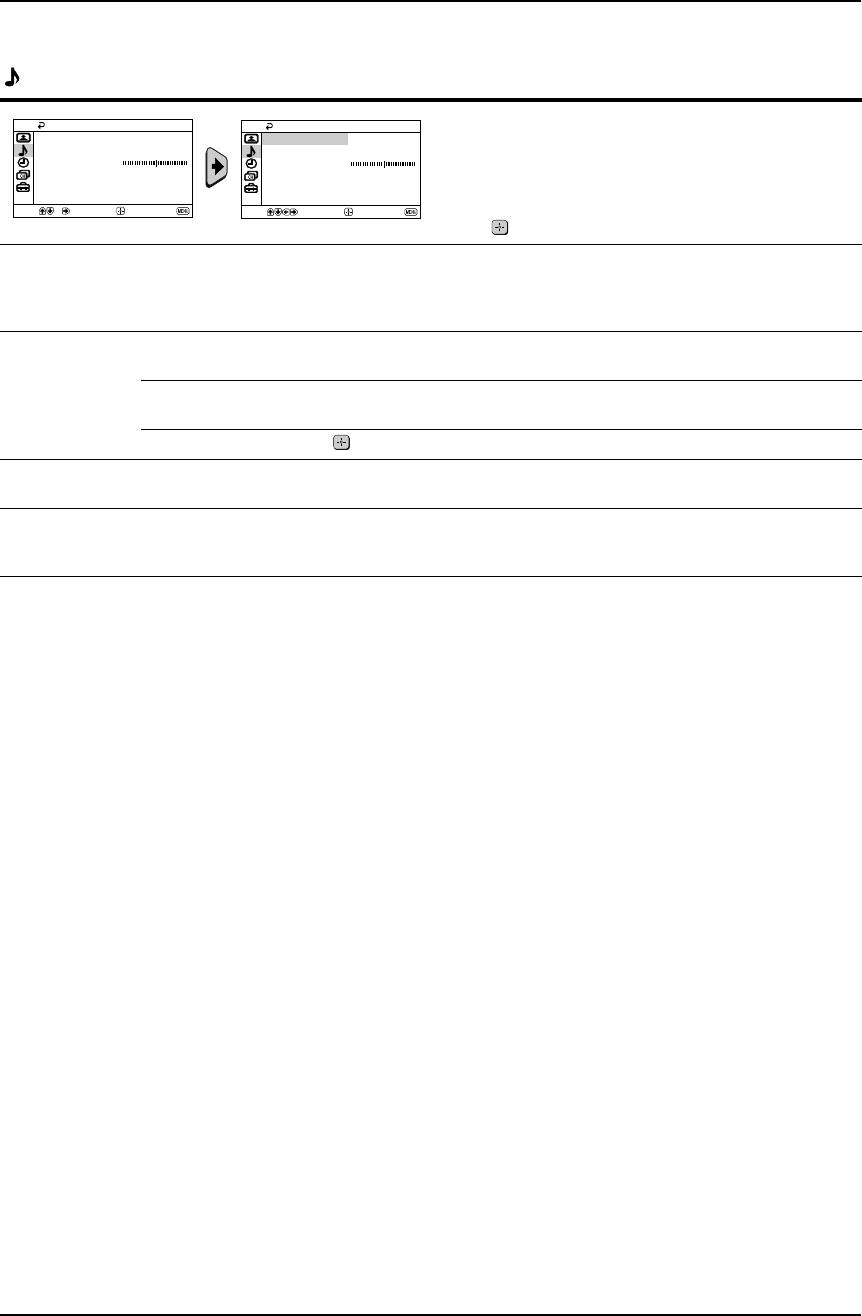
Picture
The “Picture” menu allows you to alter the picture
Picture
Picture
Mode: Live
Mode: Live
adjustments.
Picture Adjustment
Picture Adjustment
Intelligent Picture:
On
Intelligent Picture:
On
To do this:
After selecting the item you want to alter, press b,
Select
Confirm
End
Select
Confirm
End
then press v/V/B or b repeatedly to adjust and finally
press to store the new adjustments.
This menu also allows you to customise the picture
mode based on the programme you are watching:
Mode Live (for enhanced picture contrast and sharpness).
Movie (for a finely detailed picture).
Game (for a picture from a game).
Personal (for your own custom settings).
Picture
Contrast Press v or B to reduce picture contrast.
Adjustment
Press V or b to enhance picture contrast.
Brightness Press v or B to darken the picture.
Press V or b to brighten the picture.
Colour Press v or B to decrease colour intensity.
Press V or b to increase colour intensity.
Hue Press v or B to decrease the green tones.
Press V or b to increase the green tones.
Hue can only be adjusted for NTSC colour signal (e.g. USA video tapes).
Sharpness Press v or B to soften the picture.
Press V or b to sharpen the picture.
Reset Select to reset the picture to the factory preset levels.
Intelligent
On/Off Select to optimize the picture quality.
Picture
E.g. reduce noise level when signal is weak.
If any changes are made to “Picture Adjustment”, “Mode” will switch automatically to “Personal” and the
new settings will be stored as “Personal”.
Menu System 9
KV-21CE10K GB Text.fm Page 10 Wednesday, March 16, 2005 2:28 PM
Introducing and Using the Menu System
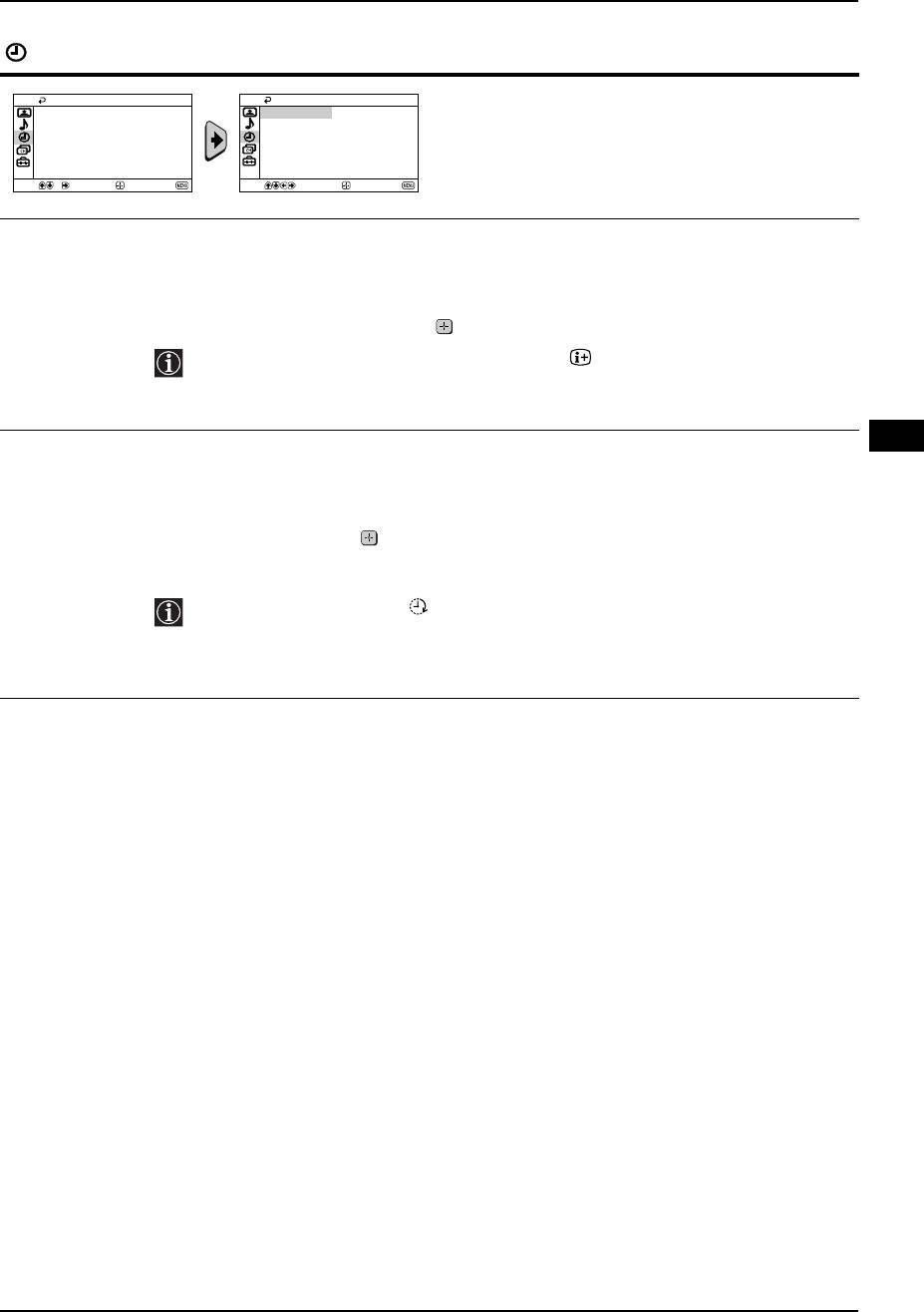
Sound
The “Sound” menu allows you to alter the sound
Sound
Sound
Mode:
Dynamic
Mode:
Dynamic
adjustments.
Sound Adjustment
Sound Adjustment
Balance
Balance
Auto Volume: Off
Auto Volume: Off
To do this:
After selecting the item you want to alter, press b,
Select
Confirm
End
Select
Confirm
End
then press v/V/B or b repeatedly to adjust and finally
press to store it.
Mode Dynamic (dynamic and clear sound that emphasizes both the low and high tones).
Drama (sound that emphasizes voice and high tones).
Soft (soft, natural and relaxing sound).
Personal (flat and smooth sound that can be customized by users).
Sound
Treble Press v or B to decrease higher-frequency sounds.
Adjustment
Press V or b to increase higher-frequency sounds.
Bass Press v or B to decrease lower-frequency sounds.
Press V or b to increase lower-frequency sounds.
Reset Select to reset the sound to the factory preset.
Balance Press v or B to emphasize the left speaker.
Press V or b to emphasize the right speaker.
Auto Volume On/Off
Volume level of the channels will stay the same, independent of the broadcast signal (e.g.
in the case of advertisements).
10 Menu System
KV-21CE10K GB Text.fm Page 11 Wednesday, March 16, 2005 2:28 PM
Introducing and Using the Menu System
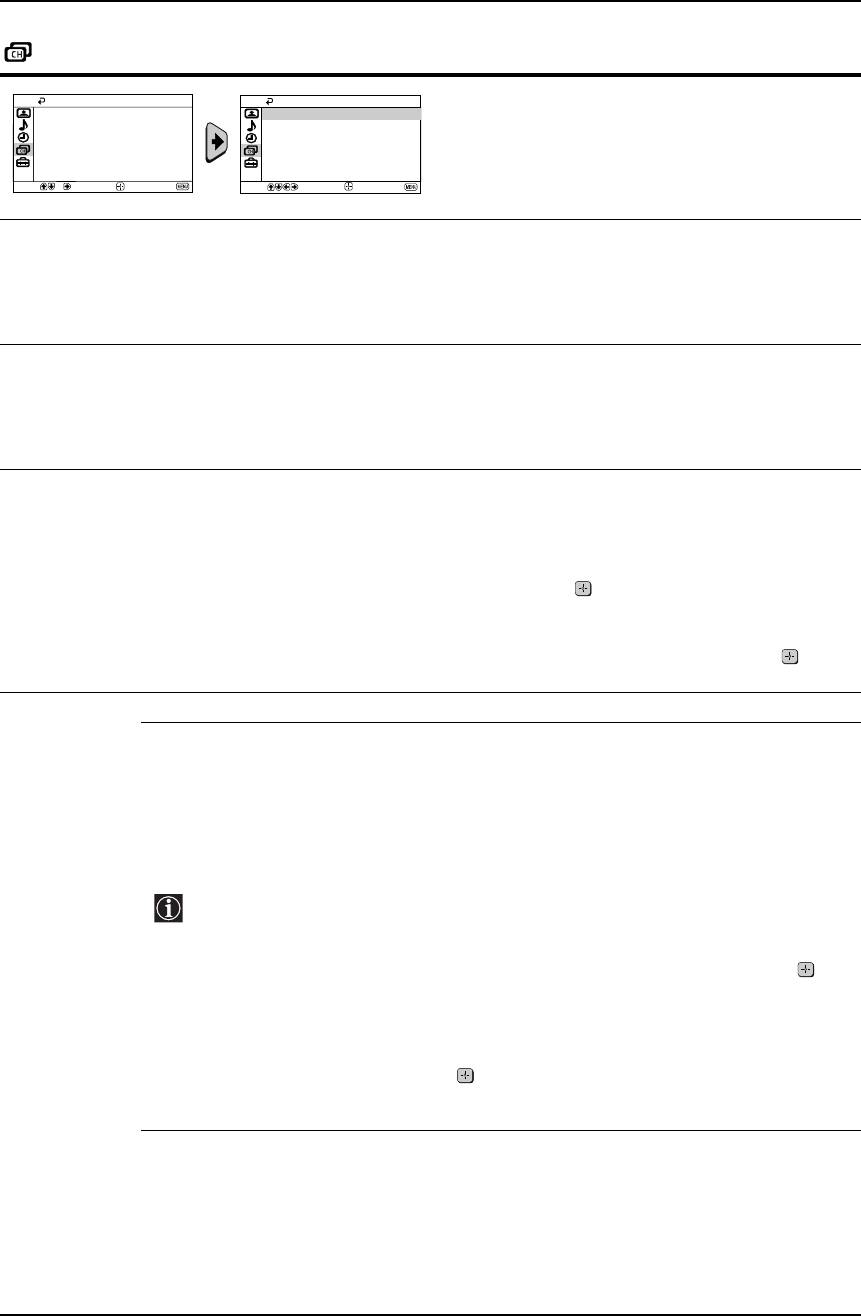
Timer
The “Timer” menu allows you to alter the timer
Timer
Timer
Sleep Timer: Off
Sleep Timer: Off
adjustments.
On Timer:
Off
On Timer:
Off
Select
Confirm
End
Select
Confirm
End
Sleep Timer The “Sleep Timer” option in the “Timer” menu allows you to select a time period for the TV
to switch itself automatically into the standby mode.
To do this:
After selecting the option, press b, then press V or v to set the time period delay (max. of
1 hour 30 minutes) and finally press to store.
• While watching the TV, you can press the button on the remote control to
display the time remaining.
• One minute before the TV switches itself into standby mode “TV will turn off soon”
is displayed on the TV screen automatically.
GB
On Timer The “On Timer” option in the “Timer” menu allows you to select a time period for the TV to
switch itself automatically on from standby mode.
To do this:
After selecting the option, press b, then press V or v to set the time period delay (max. of
12 hours) and finally press to store. Finally press the standby button I/1 on the remote
control. After the selected length of time, the TV switches on automatically and “On Timer”
will appear on the screen.
• The On Timer indicator on the TV set lights up in amber to indicate that “On
Timer” is active.
• Any loss of power will cause these settings to be cleared.
• If no buttons are pressed for more than one hour after the TV is turned using the
“On Timer”, the TV automatically goes into standby mode.
Menu System 11
KV-21CE10K GB Text.fm Page 12 Wednesday, March 16, 2005 2:28 PM
Introducing and Using the Menu System
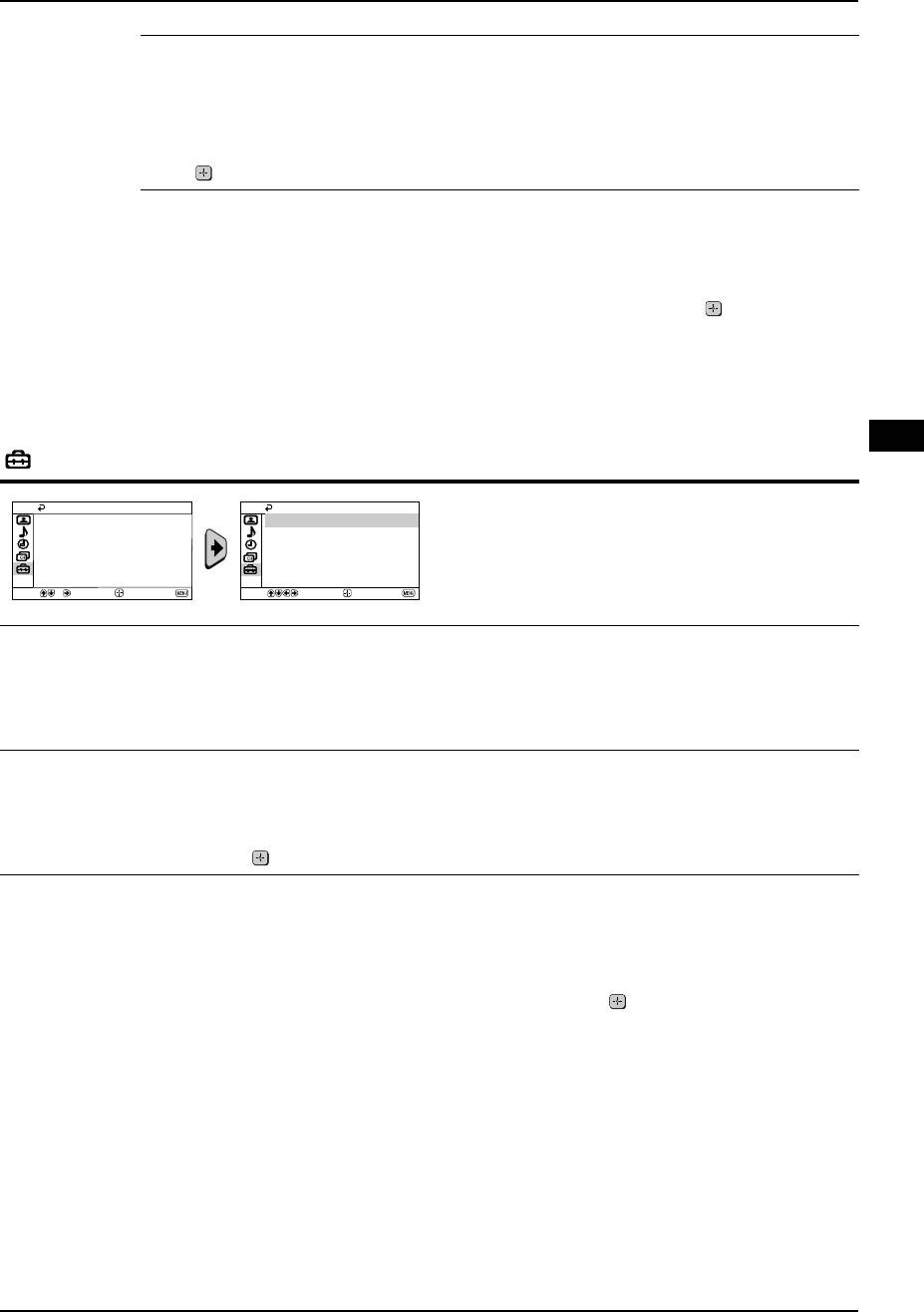
Channel Set Up
The “Channel Set Up” menu allows you to preset
Channel Set Up
Channel Set Up
Auto Tuning
Auto Tuning
channels on this TV.
Programme Sorting
Programme Sorting
Programme Labels
Programme Labels
Manual Programme Preset
Manual Programme Preset
Select
Confirm
End
Select
Confirm
End
Auto Tuning The “Auto Tuning” option in the “Channel Set Up” menu allows you to automatically
search and store all available TV channels.
To do this:
After selecting the option, press b, and then proceed in the same way as in step 4 of the
section “Switching On the TV and Automatically Tuning” (see page 7).
Programme
The “Programme Sorting” option in the “Channel Set Up” menu allows you to change the
Sorting
order in which the channels (TV broadcast) appear on the screen.
To do this:
After selecting the option, press b, and then proceed in the same way as in step 5b) of the
section “Switching On the TV and Automatically Tuning” (see page 8).
Programme
The “Programme Labels” option in the “Channel Set Up” menu allows you to name a
Labels
channel using up to five characters (letters or numbers).
To do this:
1 After selecting the option, press b. Press V or v to select the programme number
with the channel you wish to name, then press .
2 Press b. With the first element of the label column highlighted, press V or v to
select a letter or number (select “-” for a blank), then press b to confirm this
character. Select the other four characters in the same way. finally press to
store.
Manual
The “Manual Programme Preset” option in the “Channel Set Up” menu allows you to:
Programme
a) Preset channels or a video input source one by one to the programme of your
Preset
choice.
To do this:
1 After selecting the “Manual Programme Preset” option, press b. Press V or v to
select the Programme option and press b. Press V or v to select a programme
number on which you want to preset the channel (for VCR, select programme
number “0”), then press B.
The following option is only available depending on the country you have selected
in the “Language/Country” menu.
2 After selecting the System option, press b. Press V or v to select the appropriate
broadcast system (B/G or D/K) until the correct sound is heard, then press .
3
After selecting the Channel option, press b. Press V or v to select the channel
tuning (C for terrestrial channels or S for cable channels). Next press b. After that,
press the number buttons to directly enter the channel number of the TV Broadcast.
If you do not know the channel number, press V or v to search for it. When you
tune the desired channel, press twice to store.
Repeat all the above steps to tune and store more channels.
continued...
12 Menu System
KV-21CE10K GB Text.fm Page 13 Wednesday, March 16, 2005 2:28 PM
Introducing and Using the Menu System
b) Normally the automatic fine tuning (AFT) will give the best possible picture,
however you can manually fine tune the TV to obtain a better picture if the picture is
distorted.
To do this:
While watching the channel (TV Broadcast) you wish to fine tune, select the AFT option
and press b. Next press V or v to adjust the fine tuning between -15 and +15. Finally
press twice to store.
c) Skip any unwanted programme numbers when they are selected with the
PROG +/- button.
To do this:
Highlighting the Programme option, press PROG +/- to select the programme number
you want to skip. When the programme you want to skip appears on the screen, select the
Skip option and press b. Next press V or v to select Yes. Finally press twice to confirm
and store.
To cancel this function afterwards, select No instead of Yes in the step above.
GB
Set Up
The “Set Up” menu allows you to alter various options
Set Up
Set Up
Language/Country
Language/Country
on this TV.
Picture Rotation
Picture Rotation
RGB Centring: 0
RGB Centring: 0
Select
Confirm
End
Select
Confirm
End
Language/
The “Language/Country” option in the “Set Up” menu allows you to select the language
Country
that the menus are displayed in.
To do this:
After selecting the option, press b, and then proceed in the same way as in steps 2 and 3
of the section “Switching On the TV and Automatically Tuning” (see page 7).
Picture
Because of the earth’s magnetism, the picture might slant. In this case, you can correct
Rotation
the picture slant by using the option “Picture Rotation” in the “Set Up” menu.
To do this:
After selecting the option, press b. Press B or b (V or v) to correct any slant of the picture.
Finally press to store.
RGB Centring When connecting an RGB source, such as a “PlayStation 2”, you may need to readjust the
horizontal position of the picture. In that case, you can readjust it through the “RGB
Centring” option in the “Set Up” menu.
To do this:
While watching an RGB source, select the “RGB Centring” option and press b. Press V or
v to adjust the picture between -10 and +10. Finally press to confirm and store.
Menu System 13
KV-21CE10K GB Text.fm Page 14 Wednesday, March 16, 2005 2:28 PM
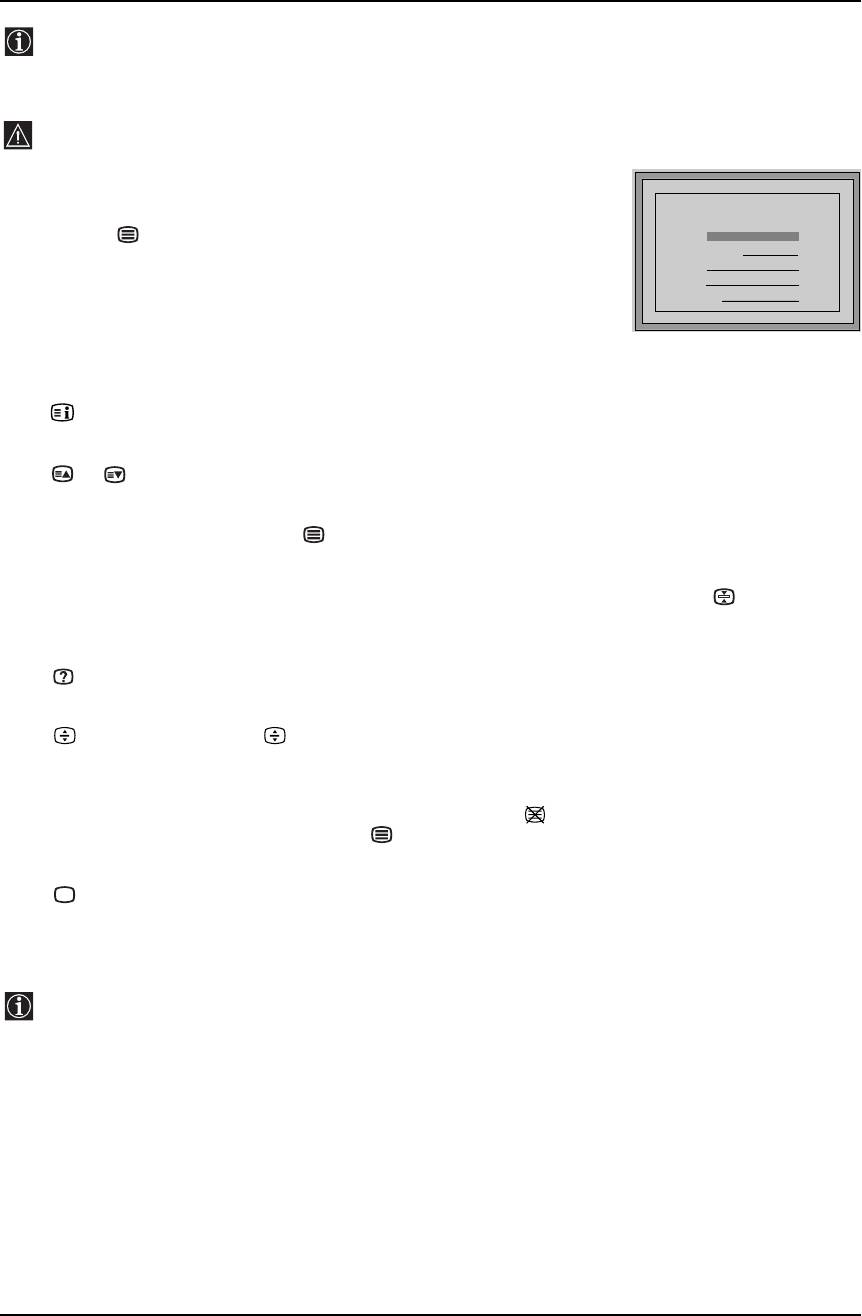
Teletext
Teletext is an information service transmitted by most TV stations. The index page of the teletext service
(usually page 100) gives you information on how to use the service. To operate teletext, use the remote
control buttons as indicated below.
Be sure to use a channel (TV Broadcast) with a strong signal, otherwise Teletext errors may occur.
To switch on Teletext:
After selecting the TV channel which carries the teletext service you wish
TELETEXT
TELETEXT
TELETEXT
TELETEXT
TELETEXT
TELETEXT
TELETEXT
TELETEXT
to view, press .
Index
Index
Index
Index
Index
Index
Index
Index
Programme
Programme
Programme
Programme
Programme
Programme
Programme
Programme
25
25
25
25
25
25
25
25
News
News
News
News
News
News
News
News
153
153
153
153
153
153
153
153
To select a Teletext page:
Sport
Sport
Sport
Sport
Sport
Sport
Sport
Sport
101
101
101
101
101
101
101
101
Input the 3 digits of the page number, using the numbered buttons.
Weather
Weather
Weather
Weather
Weather
Weather
Weather
Weather
98
98
98
98
98
98
98
98
• If you have made a mistake, retype the correct page number.
• If the counter on the screen continues searching, it is because the page is not
available. In that case, input another page number.
To check the contents of a Teletext service:
Press .
To access the next or preceding page:
Press or .
To superimpose teletext onto the TV:
Whilst you are viewing teletext, press . Press again to cancel Teletext mode.
To freeze a teletext page:
Some Teletext pages have sub-pages which follow on automatically. To stop them, press . Press again to
cancel the freeze.
To reveal concealed information (e.g., answer to a quiz):
Press . Press again to conceal the information.
To enlarge the Teletext display:
Press . Each time you press , the Teletext display changes as follows: Enlarge upper halftEnlarge
lower halftNormal size.
To stand by for a Teletext page while watching a TV program:
1 Enter the Teletext number that you want to refer to, then press .
2 When the page number is displayed, press to show the Text.
To Switch Off Teletext:
Press .
Fastext
The Fastext service lets you access pages with one push of a button.
While you are in Teletext mode and Fastext is broadcast, a colour coded menu appears at the bottom of
the teletext page. Press the coloured buttons (red, green, yellow or blue) to access the corresponding
page.
14 Teletext
KV-21CE10K GB Text.fm Page 15 Wednesday, March 16, 2005 2:28 PM
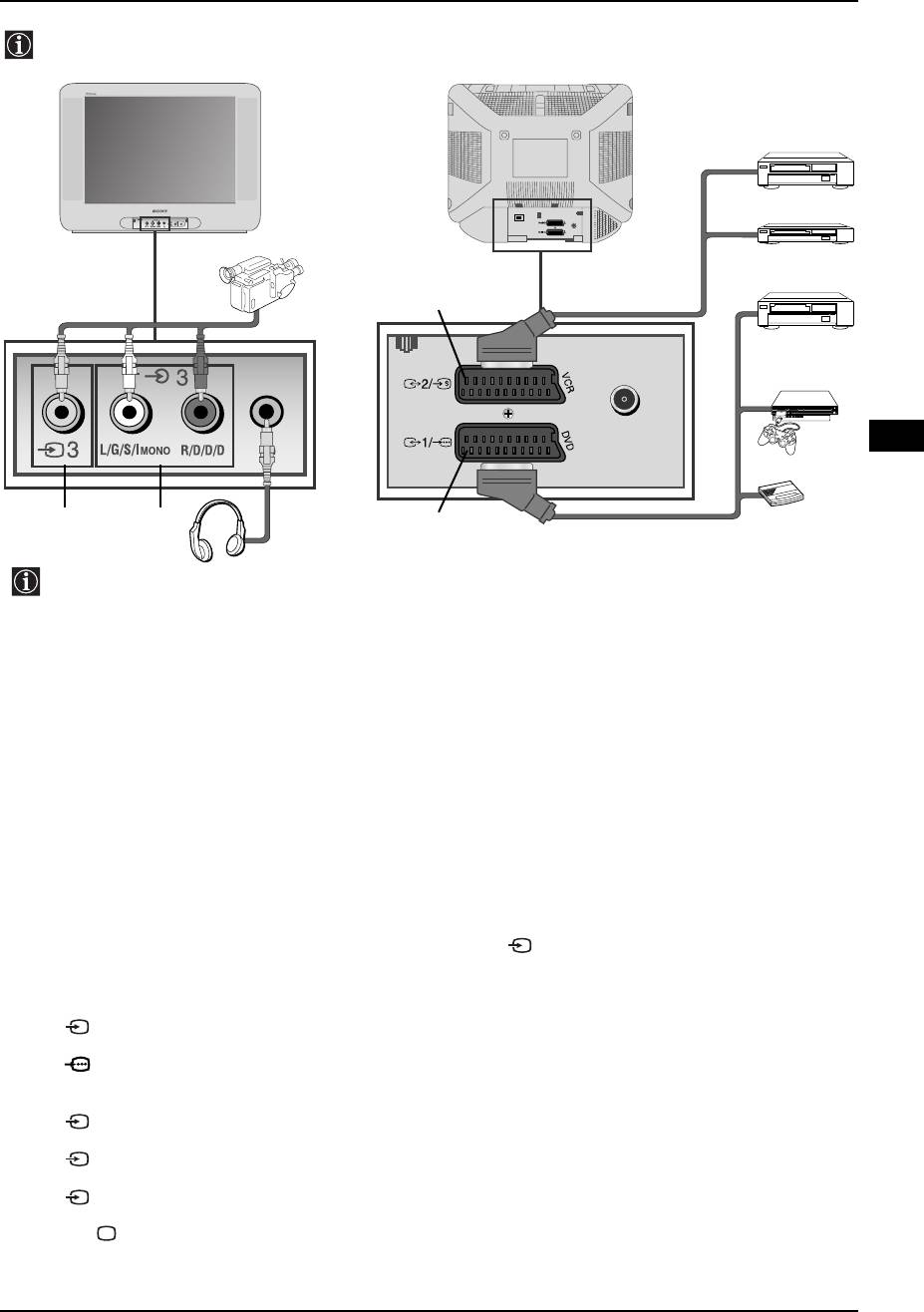
Connecting Additional Equipment
Using the following instructions you can connect a wide range of optional equipment to your TV set
(connecting cables are not supplied).
VCR
DVD
8mm/Hi8/
DVC
camcorder
D
DVD/VCR
GB
“PlayStation 2”
*
A
B
Decoder
C
*
“PlayStation 2” is a product of Sony
When you connect the headphones,
Computer Entertainment, Inc.
the TV speakers will automatically be
* “PlayStation 2” is a trademark of Sony
muted.
Computer Entertainment, Inc.
Connecting a VCR:
To connect a VCR, please refer to the section “Connecting an aerial and VCR” of this instruction manual. We
recommend you connect your VCR using a Scart lead. If you do not have a Scart lead, tune in the VCR test
signal to the TV programme number “0” by using the “Manual Programme Preset” option. (for details of how
to manually programme these presets, see page 13, step a).
Refer to your VCR instruction manual to find out the output channel of your VCR.
To connect a “PlayStation 2”, please refer to the instruction manual of “PlayStation 2”.
Using optional Equipment
Connect your equipment to the designated TV socket, as indicated in the previous page.
1
Switch on the connected equipment.
2
To watch the picture from the connected equipment, press repeatedly until the correct input symbol
3
appears on the screen.
Symbol
Input Signals
1
• Audio/video input signal through the Scart connector C.
1
• RGB input signal through the Scart connector C. This symbol appears only if a RGB
source has been connected.
2
• Audio/video input signal through the Scart connector D.
S
2
• S Video Input signal through the Scart connector D.
3
• Video input signal through the phono socket A and Audio input signal through B.
Press button on the remote control to return to the normal TV picture.
4
Additional Information 15
KV-21CE10K GB Text.fm Page 16 Wednesday, March 16, 2005 2:28 PM
Specifications
TV system:
Sound Output:
Depending on your country selection:
2 x 10 W (music power)
B/G/H, D/K
2 x 5 W (RMS)
Colour system:
Power Consumption:
PAL, SECAM
66 W
NTSC 3.58, 4.43 (only Video In)
Standby Power Consumption:
Channel Coverage:
< 1 W
VHF: E2-E12
UHF: E21-E69
Dimensions (w x h x d):
CATV: S1-S20
Approx. 590 x 461 x 490 mm.
HYPER: S21-S41
D/K R1-R12, R21-R69
Weight:
Approx. 24 Kg.
Picture Tube:
Flat Display FD Trinitron
Accessories supplied:
1 Remote Control (RM-W100)
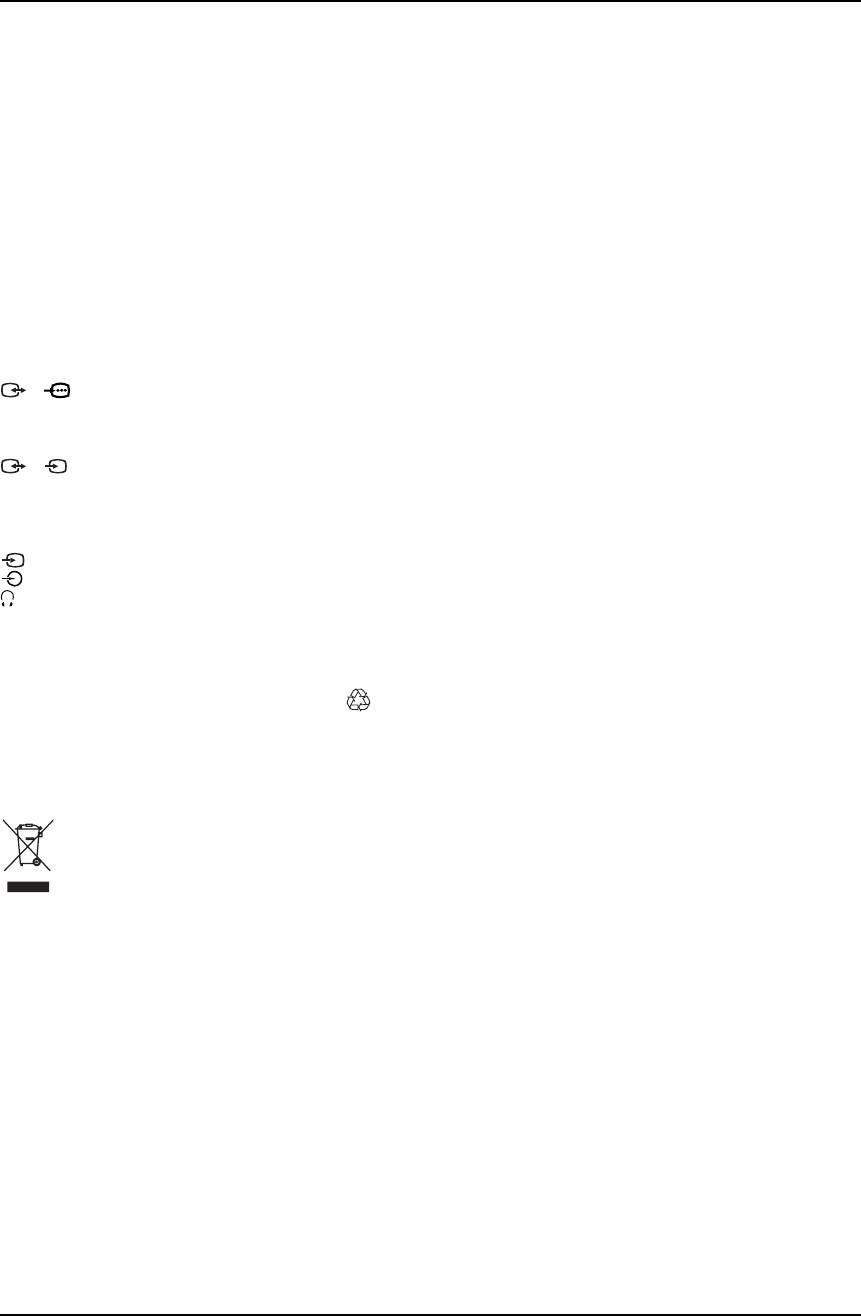
Rear Terminals:
2 Batteries (IEC designated, AA/R6 size)
1/ 21-pin scart connector (CENELEC
standard) including audio/video input,
Other features:
RGB input, TV audio/video output.
• Teletext, Fastext, TOPtext
• Sleep Timer
2/ 21-pin Scart connector (CENELEC
S
•On Timer
standard) including audio / video input, S
• TV system Autodetection
video input, monitor audio / video output.
Front Terminals:
3 video input – phono jack
3 audio input – phono jacks
headphones jack
Design and specifications are subject to change without notice
Ecological Paper - Totally Chlorine Free
Disposal of Old Electrical & Electronic Equipment (Applicable in the European Union and other
European countries with separate collection systems)
This symbol on the product or on its packaging indicates that this product shall not be treated as
household waste. Instead it shall be handed over to the applicable collection point for the recycling of
electrical and electronic equipment. By ensuring this product is disposed of correctly, you will help
prevent potential negative consequences for the environment and human health, which could
otherwise be caused by inappropriate waste handling of this product. The recycling of materials will
help to conserve natural resources. For more detailed information about recycling of this product,
please contact your local city office, your household waste disposal service or the shop where you
purchased the product.
16 Additional Information
KV-21CE10K GB Text.fm Page 17 Wednesday, March 16, 2005 2:28 PM
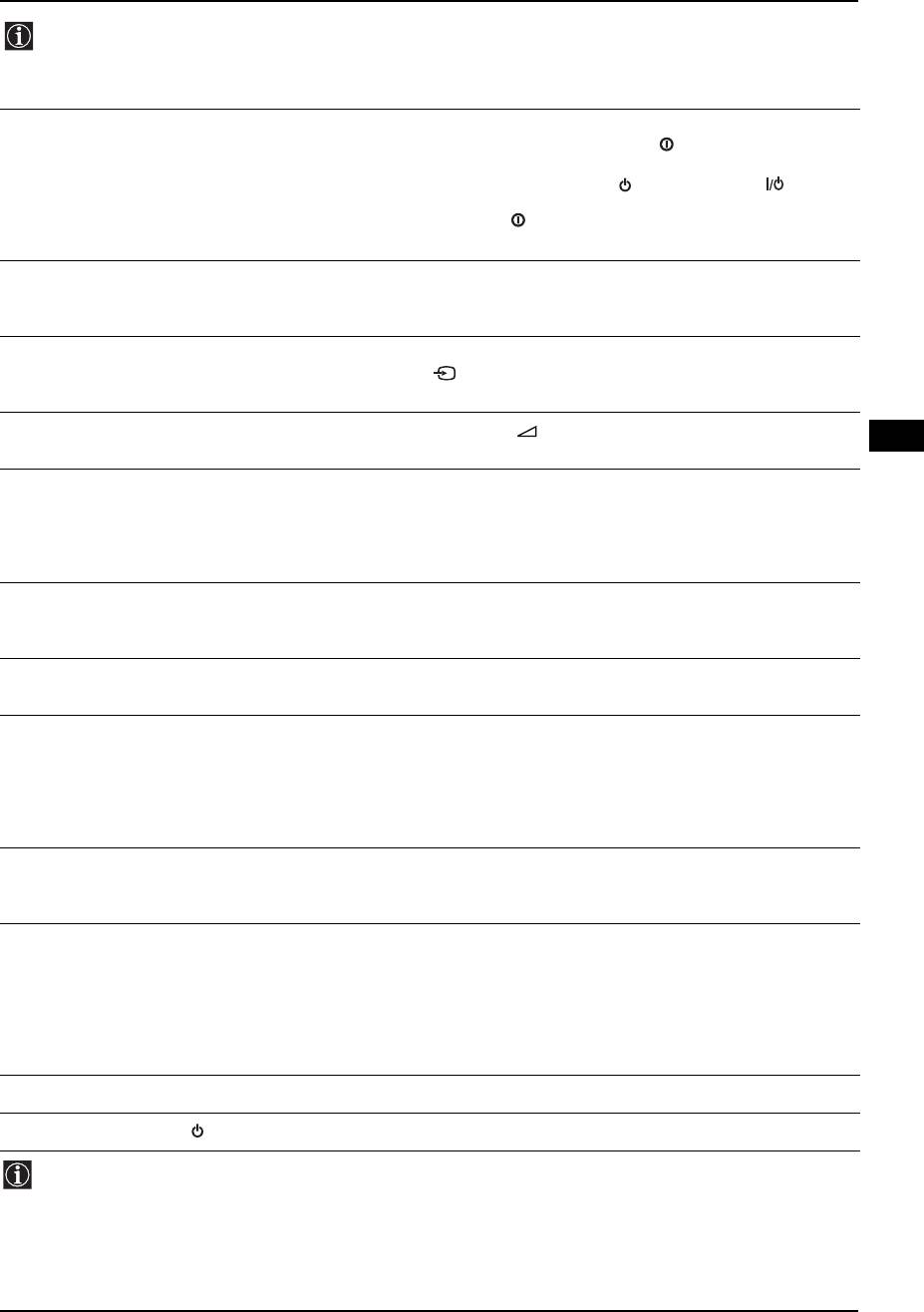
Troubleshooting
Here are some simple solutions to problems which may affect the picture and sound.
Problem Solution
No picture (screen is dark), and no sound. • Check the aerial connection.
• Plug the TV in and press the button on the front of
the TV.
• If the standby indicator is on press the button
on the remote control.
• Press the button on the front of the TV to switch off
the TV for about 5 seconds, then switch it on again.
Poor or no picture (screen is dark), but good
• Using the menu system, select the “Picture
sound.
Adjustment” menu and select “Reset” to return to the
factory settings (see page 9).
No picture or menu information from equipment
• Check that the optional equipment is on, and press
connected to the Scart socket.
repeatedly on the remote control until the correct
input symbol is displayed on screen (see page 15).
Good picture, no sound. • Press the + button on the remote control.
GB
• Check the Headphones are not connected.
Good picture, distorted sound. • Using the menu system, enter the “Manual
Programme Preset” option in the “Channel Set Up”
menu and select the appropriate TV system in the
“System” menu until the correct sound is heard (see
page 12).
No colour on colour programmes. • Using the menu system, select the “Picture
Adjustment” menu and select “Reset” to return to the
factory settings (see page 9).
Distorted picture when changing programmes or
• Turn off any equipment connected to the Scart
selecting Teletext.
connectors on the rear of the TV.
Wrong characters appear when viewing teletext. • Using the menu system, enter the “Language/
Country” option in the “Set Up” menu and select the
country in which you are operating the TV set. For
Cyrillic languages, we recommend to select Russia in
the case that your own country does not appear in the
list (see page 13).
Picture slanted. • Using the menu system, select the “Picture Rotation”
option in the “Set Up” menu to correct the picture slant
(see page 13).
Noisy picture when viewing a TV channel. • Using the menu system, select the “Manual
Programme Preset” menu and adjust Fine Tuning
(AFT) to obtain better picture reception (see page
13).
• Using the menu system, select the “Intelligent
Picture” option in the “Picture” menu and select “On”
to reduce the noise in the picture (see page 9).
Remote control does not function. • Replace the batteries.
The standby indicator on the TV flashes red. • Contact your nearest Sony service centre.
In case of problems, have your TV serviced by qualified personnel. Never open the casing yourself.
Additional Information 17

KV-21CE10K GB Text.fm Page 18 Wednesday, March 16, 2005 2:28 PM
18
KV-21CE10K BG Text.fm Page 3 Wednesday, March 16, 2005 2:32 PM
Увод
Благодарим ви за избора на този цветен телевизор Sony с плосък
екран FD Trinitron.
Преди използване на телевизора прочетете внимателно това ръководство за експлоатация и
го запазете за бъдещи изяснения.
• Символи използвани в това ръководство:
• Важна информация.
• Потъмнените бутони на дистанционното
• Информация за функцията.
управление показват кои бутони трябва
• 1,2... Последователност за следване на
да се натискат за изпълнението на
инструкциите.
различните операции.
• Информация за резултата от
инструкциите.
Съдържание
Увод ........................................................................................................................................................ 3
Мерки за безопасност........................................................................................................................... 4
Основно описание
Основно описание на бутоните на дистанционното управление...................................................... 5
Основно описание на бутоните на телевизора .................................................................................. 6
Инсталиране
Инсталиране на батериите в устройството за дистанционно управление...................................... 6
BG
Свързване на антена и видео .............................................................................................................. 6
Първоначално включване
Включване и автоматично настройване на телевизора.................................................................... 7
Ситема от менюта на екрана
Увод и боравене със системата от менюта ........................................................................................ 9
Kартина ............................................................................................................................................. 9
Звук ................................................................................................................................................... 10
Часовник ........................................................................................................................................... 11
Настр. на каналите .......................................................................................................................... 12
Инсталиране ..................................................................................................................................... 13
Телетекст ............................................................................................................................................ 14
Допълнителна информация
Свързване на допълнителни апарати ................................................................................................. 15
Боравене с допълнителни апарати...................................................................................................... 15
Характеристики ..................................................................................................................................... 16
Третиране на страи електрически и електронни съоръжения ......................................................... 16
Отстраняване на неизправности ......................................................................................................... 17
Съдържание 3
KV-21CE10K BG Text.fm Page 4 Wednesday, March 16, 2005 2:32 PM
Мерки за безопасност
Този телевизор може да работи
По причини за безопасност и предпазване
Никога не пъхайте каквито и да било
само на захранващо напрежение
от въздействие от природни явления е
предмети в телевизора, тъй като
препоръчително да не оставяте
220-240V. Внимавайте да не
това може да причини пожар или
телевизора в режим “stand by” когато не се
включвате твърде много уреди в
токов удар. Никога не разливайте
използва. Изключвайте от електрическата
един контакт, тъй като това може да
мрежа. Някои телевизори имат функции,
течности по телевизора. В случай, че
причини токов удар.
които за да бъдат използвани, изискват
течност или твърд предмет попаднат
уреда да бъде оставен в режим “stand by”.
в телевизора го изключете.
Инструкциите в това ръководство ще Ви
Свържете се незабавно с
информират дали това е необходимо.
квалифицирани
Не отваряйте кутията и задния
За Ваша собствена безопасност не
За да предотвратите риска от токов
капак на телевизора. Обръщайте се
пипайте телевизора, кабела или
удар, не излагайте телевизора на
само към квалифициран сервизен
антената му по време на
дъжд или влага.
персонал.
гръмотевични бури.
Не покривайте вентилационните
Никога не поставяйте телевизора
За да избегнете пожар, дръжте
отвори на телевизора. Оставете
на горещи, влажни или
настрана от телевизора
най-малко 10 см. разтояние около
изключително прашни места. Не
възпламеними предмети и открити
телевизора за вентилация.
инсталирайте телевизора на места
източници на светлина /например
където може да бъде изложен на
свещи/.
механични вибрации.
Почиствайте екрана и кутията с
Когато изключвате телевизора,
Не поставяйте тежки предмети
мека, влажна кърпа. Не
дърпайте щепсела, а не кабелa.
върху кабела, тъй като това може
използвайте абразивни кърпи,
да го повреди.
алкални почистващи средства,
Препоръчваме ви да навиете
изстъргващи препарати или
излишния захранващ кабел около
разтворители като спирт или
предназначените за целта
бензин, както и антистатичен
приспособления на задната страна
спрей.
на телевизора.
Поставяйте телевизора на сигурна,
Изключвайте кабела на телевизора
Не покривайте вентилационните
стабилна поставка. Никога не се
преди да го местите. При
отвори на телевизора с предмети
опитвайте да премествате телевизора и
преместването избягвайте неравни
като пердета, вестници и др.
поставката едновременно – винаги
повърхности и не правете бързи
премествайте телевизора и поставката
крачки. Ако изпуснете или нараните
отделно. Не обръщайте телевизора
телевизора, незабавно се
настрани или по “гръб”. Не позволявайте
консултирайте с квалифицирани
на деца да се катерят по него.
сервизни служители на Сони.
4 Мерки за безопасност
