
Sony CPD-E220E: instruction
Class: Computer equipment, hardware, accessories
Type: Monitor
Manual for Sony CPD-E220E
Table of contents
4-079-242-14 (1)
â
Trinitron Color
Computer Display
GB
Operating Instructions
FR
Mode d’emploi
DE
Bedienungsanleitung
ES
Manual de instrucciones
IT
Istruzioni per l’uso
RU
Инструкция по эксплуатации
SESE
Bruksanvisning
NL
Gebruiksaanwijzing
CPD-E220E
© 2000 Sony Corporation
Owner’s Record
NOTICE
This notice is applicable for USA/Canada only.
The model and serial numbers are located at the rear of the unit.
If shipped to USA/Canada, install only a UL LISTED/CSA
Record these numbers in the spaces provided below. Refer to them
LABELLED power supply cord meeting the following
whenever you call upon your dealer regarding this product.
specifications:
Model No.
Serial No.
SPECIFICATIONS
Plug Type Nema-Plug 5-15p
Cord Type SVT or SJT, minimum 3
× 18 AWG
WARNING
Length Maximum 15 feet
Rating Minimum 7 A, 125 V
To prevent fire or shock hazard, do not expose the
unit to rain or moisture.
NOTICE
Cette notice s’applique aux Etats-Unis et au Canada
Dangerously high voltages are present inside the
uniquement.
unit. Do not open the cabinet. Refer servicing to
Si cet appareil est export* aux Etats-Unis ou au Canada, utiliser
le cordon d’alimentation portant la mention UL LISTED/CSA
qualified personnel only.
LABELLED et remplissant les conditions suivantes:
FCC Notice
SPECIFICATIONS
This equipment has been tested and found to comply with the limits
Type de fiche Fiche Nema 5-15 broches
for a Class B digital device, pursuant to Part 15 of the FCC Rules.
Cordon Type SVT ou SJT, minimum 3
× 18 AWG
These limits are designed to provide reasonable protection against
Longueur Maximum 15 pieds
harmful interference in a residential installation. This equipment
Tension Minimum 7 A, 125 V
generates, uses, and can radiate radio frequency energy and, if not
installed and used in accordance with the instructions, may cause
harmful interference to radio communications. However, there is no
guarantee that interference will not occur in a particular installation.
If this equipment does cause harmful interference to radio or
television reception, which can be determined by turning the
equipment off and on, the user is encouraged to try to correct the
interference by one or more of the following measures:
As an
ENERGY STAR Partner, Sony
– Reorient or relocate the receiving antenna.
Corporation has determined that this
– Increase the separation between the equipment and receiver.
product meets the
ENERGY STAR
– Connect the equipment into an outlet on a circuit different from
guidelines for energy efficiency.
that to which the receiver is connected.
– Consult the dealer or an experienced radio/TV technician for help.
You are cautioned that any changes or modifications not expressly
approved in this manual could void your authority to operate this
equipment.
EN 55022 Compliance (Czech Republic Only)
This monitor complies with the
This device belongs to category B devices as described in EN
TCO’99 guidelines.
55022, unless it is specifically stated that it is a category A
device on the specification label. The following applies to
devices in category A of EN 55022 (radius of protection up to
30 meters). The user of the device is obliged to take all steps
necessary to remove sources of interference to
telecommunication or other devices.
If you have any questions about this product, you may call:
Sony Customer Information Center
1-800-222-SONY (7669)
or write to:
Sony Customer Information Center
1 Sony Drive, Mail Drop #T1-11, Park Ridge, NJ 07656
Declaration of Conformity
INFORMATION
This product complies with Swedish National Council for Metrology
Trade Name: SONY
(MPR) standards issued in December 1990 (MPR II) for very low
Model No.: CPD-E220E
frequency (VLF) and extremely low frequency (ELF).
Responsible Party: Sony Electronics Inc.
INFORMATION
Address: 1 Sony Drive, Park Ridge, NJ 07656 USA
Ce produit est conforme aux normes du Swedish National Council
Telephone No.: 201-930-6972
for Metrology de décembre 1990 (MPR II) en ce qui concerne les
fréquences très basses (VLF) et extrêmement basses (ELF).
This device complies with Part 15 of the FCC Rules. Operation is
subject to the following two conditions: (1) This device may not
INFORMACIÓN
cause harmful interference, and (2) this device must accept any
Este producto cumple las normas del Consejo Nacional Sueco para
interference received, including interference that may cause
Metrología (MPR) emitidas en diciembre de 1990 (MPR II) para
undesired operation.
frecuencias muy bajas (VLF) y frecuencias extremadamente bajas (ELF).
2
Table of Contents
Precautions. . . . . . . . . . . . . . . . . . . . . . . . . . . . . . . . . . . . . . . . . . . . 4
Identifying parts and controls . . . . . . . . . . . . . . . . . . . . . . . . . . . . . . 5
Setup. . . . . . . . . . . . . . . . . . . . . . . . . . . . . . . . . . . . . . . . . .6
Step 1:
Connect your monitor to your computer . . . . . . . . . . . . . . . 6
Step 2:
Connect the power cord. . . . . . . . . . . . . . . . . . . . . . . . . . . . 6
Step 3:
Turn on the monitor and computer . . . . . . . . . . . . . . . . . . . 7
Selecting the on-screen menu language (LANGUAGE/
INFORMATION) . . . . . . . . . . . . . . . . . . . . . . . . . . . . . . . . . . . . . . . . 7
Customizing Your Monitor . . . . . . . . . . . . . . . . . . . . . . . .8
Navigating the menu. . . . . . . . . . . . . . . . . . . . . . . . . . . . . . . . . . . . . 8
Adjusting the brightness and contrast. . . . . . . . . . . . . . . . . . . . . . . . 9
Adjusting the centering of the picture (CENTER). . . . . . . . . . . . . . . 9
Adjusting the size of the picture (SIZE) . . . . . . . . . . . . . . . . . . . . . . 9
Enlarging or reducing the picture (ZOOM) . . . . . . . . . . . . . . . . . . . 10
Adjusting the shape of the picture (GEOMETRY) . . . . . . . . . . . . . 10
GB
Adjusting the color of the picture (COLOR) . . . . . . . . . . . . . . . . . . 10
Additional settings (SCREEN) . . . . . . . . . . . . . . . . . . . . . . . . . . . . 11
Resetting the adjustments . . . . . . . . . . . . . . . . . . . . . . . . . . . . . . . 11
Technical Features . . . . . . . . . . . . . . . . . . . . . . . . . . . . .12
Preset and user modes. . . . . . . . . . . . . . . . . . . . . . . . . . . . . . . . . . 12
Power saving function. . . . . . . . . . . . . . . . . . . . . . . . . . . . . . . . . . . 12
Troubleshooting. . . . . . . . . . . . . . . . . . . . . . . . . . . . . . . .12
If thin lines appear on your screen (damper wires). . . . . . . . . . . . . 12
On-screen messages . . . . . . . . . . . . . . . . . . . . . . . . . . . . . . . . . . . 12
• Trinitron
is a registered trademark of
Trouble symptoms and remedies . . . . . . . . . . . . . . . . . . . . . . . . . . 13
Sony Corporation.
Self-diagnosis function . . . . . . . . . . . . . . . . . . . . . . . . . . . . . . . . . . 15
• Macintosh is a trademark licensed to
Apple Computer, Inc., registered in the
U.S.A. and other countries.
• Windows
and MS-DOS are registered
Specifications. . . . . . . . . . . . . . . . . . . . . . . . . . . . . . . . . .15
trademarks of Microsoft Corporation in
the United States and other countries.
• IBM PC/AT and VGA are registered
Appendix. . . . . . . . . . . . . . . . . . . . . . . . . . . . . . . . . . . . . . . i
trademarks of IBM Corporation of the
U.S.A.
Preset mode timing table . . . . . . . . . . . . . . . . . . . . . . . . . . . . . . . . . .i
• VESA and DDC
are trademarks of the
TCO’99 Eco-document . . . . . . . . . . . . . . . . . . . . . . . . . . . . . . . . . . . .i
Video Electronics Standard
Association.
•
E
NERGY
S
TAR is a U.S. registered
mark.
• All other product names mentioned
herein may be the trademarks or
registered trademarks of their respective
companies.
• Furthermore, “
” and “
” are not
mentioned in each case in this manual.
3
01GB01COV AEP.book
Page
3
Friday,
August
18,
2000
3:01
PM
Use of the tilt-swivel
Precautions
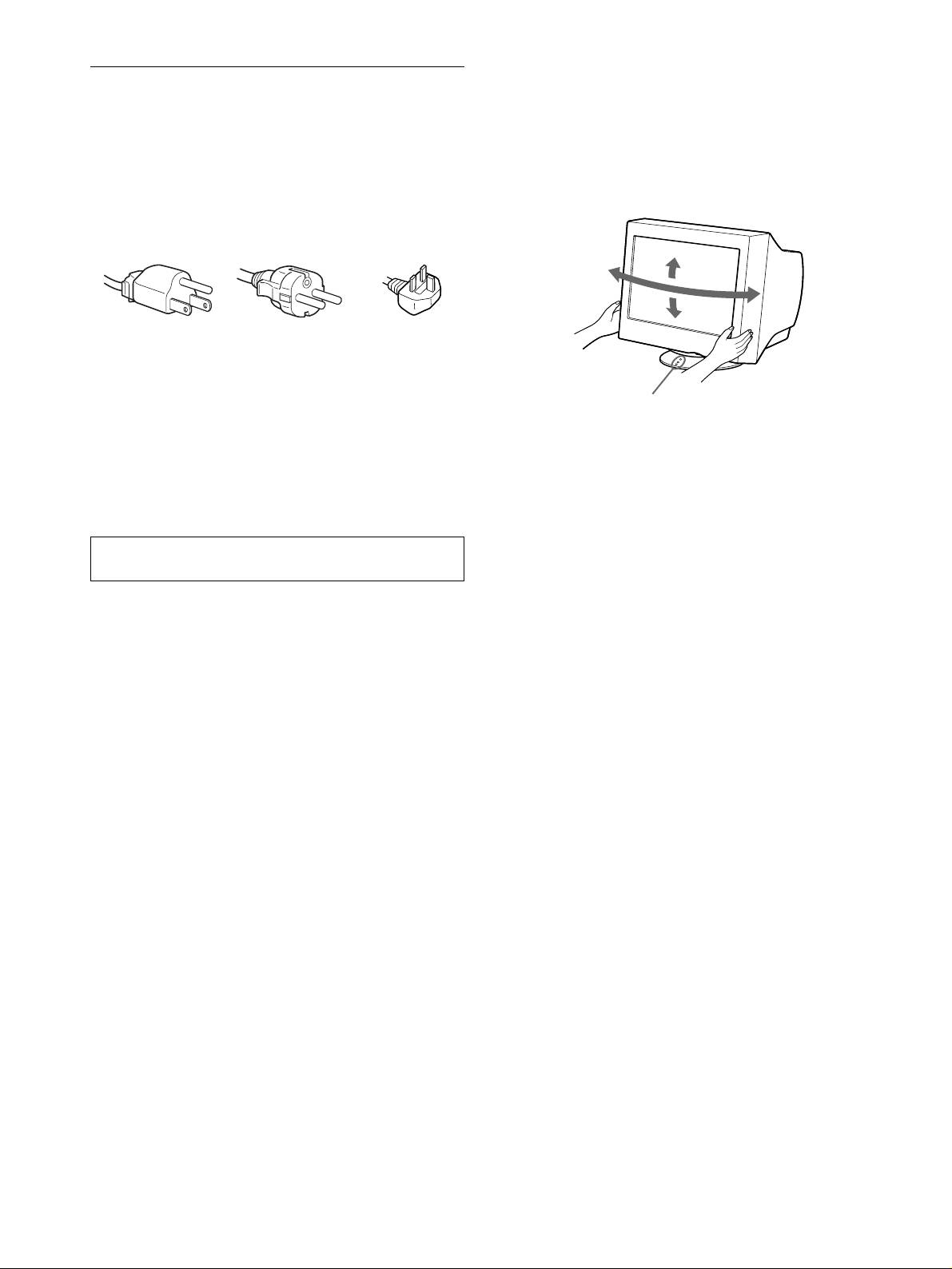
This monitor can be adjusted within the angles shown below. To
find the center of the monitor’s turning radius, align the center of
Warning on power connections
the monitor’s screen with the centering dots on the stand.
• Use the supplied power cord. If you use a different power cord,
Hold the monitor at the bottom with both hands when you turn it
be sure that it is compatible with your local power supply.
horizontally or vertically. Be careful not to pinch your fingers at
For the customers in the UK
the back of the monitor when you tilt the monitor up vertically.
If you use the monitor in the UK, be sure to use the supplied UK
power cable.
Example of plug types
for 100 to 120 V AC for 200 to 240 V AC for 240 V AC only
• Before disconnecting the power cord, wait at least 30 seconds
after turning off the power to allow the static electricity on the
screen’s surface to discharge.
• After the power is turned on, the screen is demagnetized
(degaussed) for about 5 seconds. This generates a strong
magnetic field around the screen which may affect data stored
on magnetic tapes and disks placed near the monitor. Be sure to
keep magnetic recording equipment, tapes, and disks away
from the monitor.
The equipment should be installed near an easily accessible
outlet.
Installation
Do not install the monitor in the following places:
• on surfaces (rugs, blankets, etc.) or near materials (curtains,
draperies, etc.) that may block the ventilation holes
• near heat sources such as radiators or air ducts, or in a place
subject to direct sunlight
• in a place subject to severe temperature changes
• in a place subject to mechanical vibration or shock
• on an unstable surface
• near equipment which generates magnetism, such as a
transformer or high voltage power lines
• near or on an electrically charged metal surface
Maintenance
• Clean the screen with a soft cloth. If you use a glass cleaning
liquid, do not use any type of cleaner containing an anti-static
solution or similar additive as this may scratch the screen’s
coating.
• Do not rub, touch, or tap the surface of the screen with sharp or
abrasive items such as a ballpoint pen or screwdriver. This type
of contact may result in a scratched picture tube.
• Clean the cabinet, panel and controls with a soft cloth lightly
moistened with a mild detergent solution. Do not use any type
of abrasive pad, scouring powder or solvent, such as alcohol or
benzene.
Transportation
When you transport this monitor for repair or shipment, use the
original carton and packing materials.
4
90°
15°
90°
5°
Centering dots
01GB01COV AEP.book
Page
4
Friday,
August
18,
2000
3:01
PM
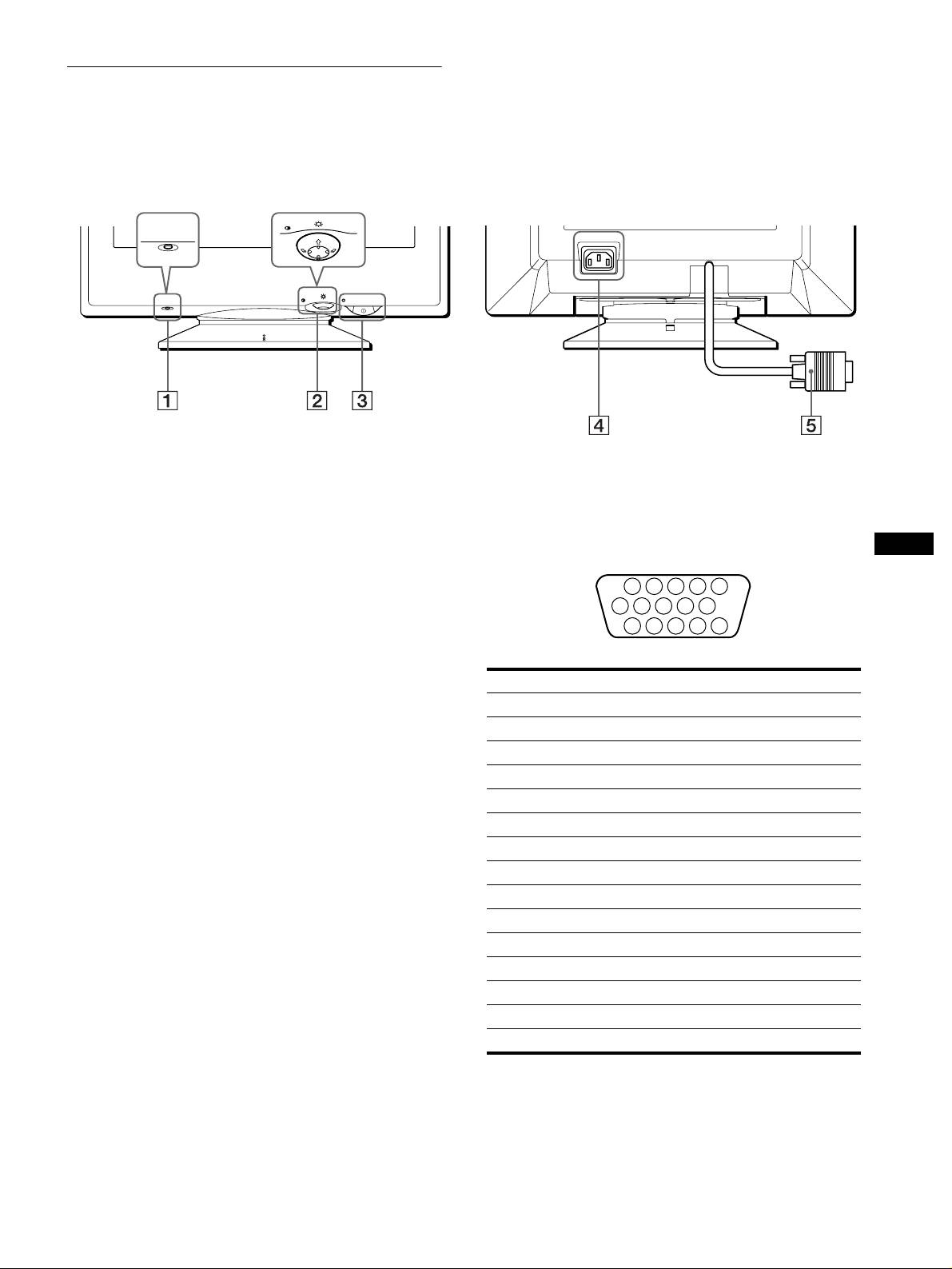
Identifying parts and controls
See the pages in parentheses for further details.
RearFront
MENU
RESET
AC IN
MENU
RESET
1
RESET button (page 11)
4
AC IN connector (page 6)
This button resets the adjustments to the factory settings.
This connector provides AC power to the monitor.
2
Control button (page 9)
5
Video input connector (HD15) (page 6)
The control button is used to display the menu and make
This connector inputs RGB video signals (0.700 Vp-p,
GB
adjustments to the monitor, including brightness and contrast
positive) and sync signals.
adjustments.
3 !
(power) switch and indicator (pages 7, 12, 15)
This button turns the monitor on and off. The power indicator
lights up in green when the monitor is turned on, and either
flashes in green and orange, or lights up in orange when the
monitor is in power saving mode.
Pin No. Signal
1Red
2 Green
3Blue
4 ID (Ground)
5 DDC Ground*
6 Red Ground
7 Green Ground
8 Blue Ground
9 DDC + 5V*
10 Ground
11 ID (Ground)
12 Bi-Directional Data (SDA)*
13 H. Sync
14 V. Sync
15 Data Clock (SCL)*
* DDC (Display Data Channel) is a standard of VESA.
5
1 2 3 4
5
876
9
10
11 12 13 14 15
01GB01COV AEP.book
Page
5
Friday,
August
18,
2000
3:01
PM
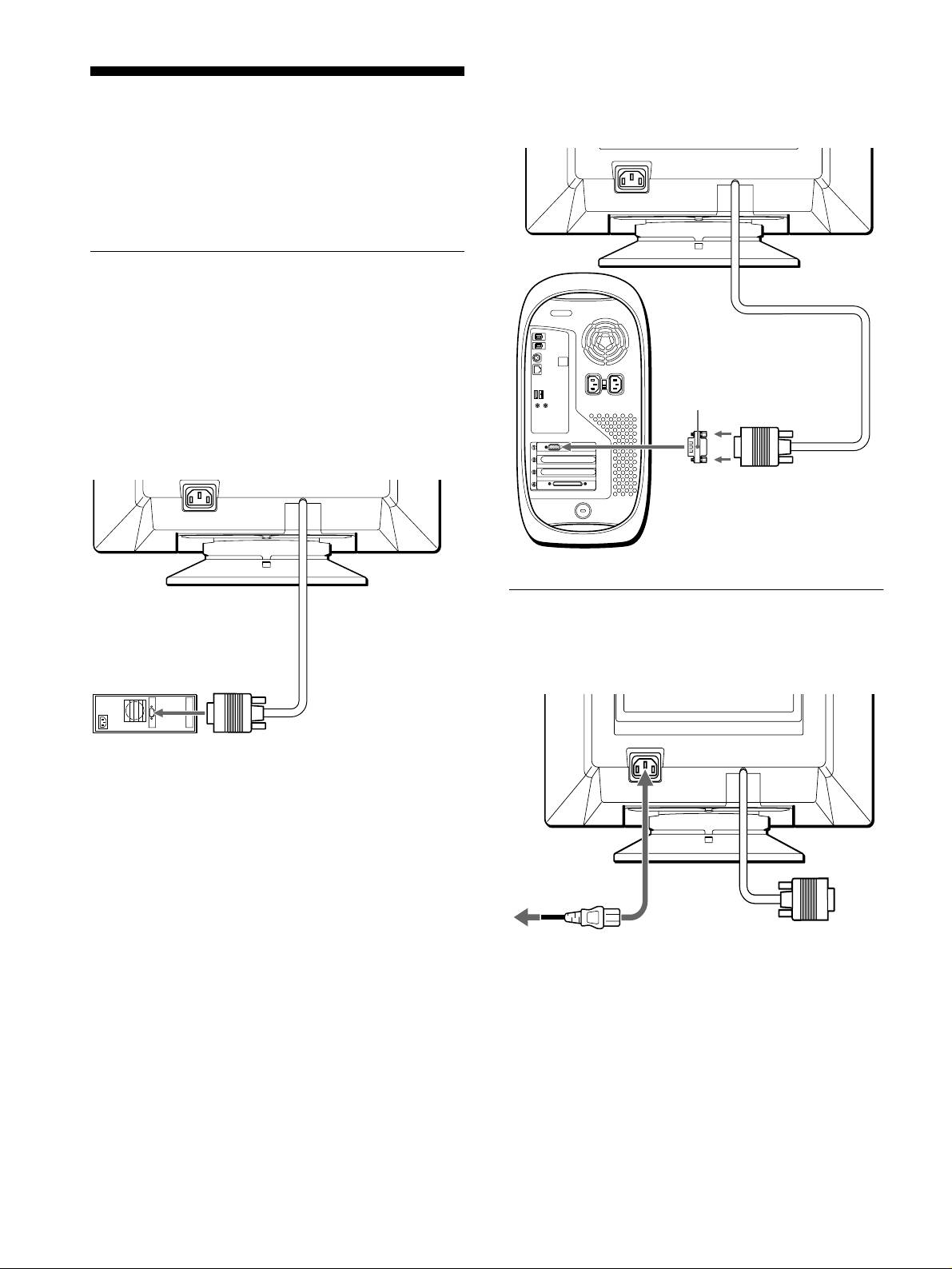
x
Connecting to a Macintosh or compatible
computer
Setup
Before using your monitor, check that the following accessories
are included in your carton:
• Power cord (1)
• Warranty card (1)
• Notes on cleaning the screen’s surface (1)
• This instruction manual (1)
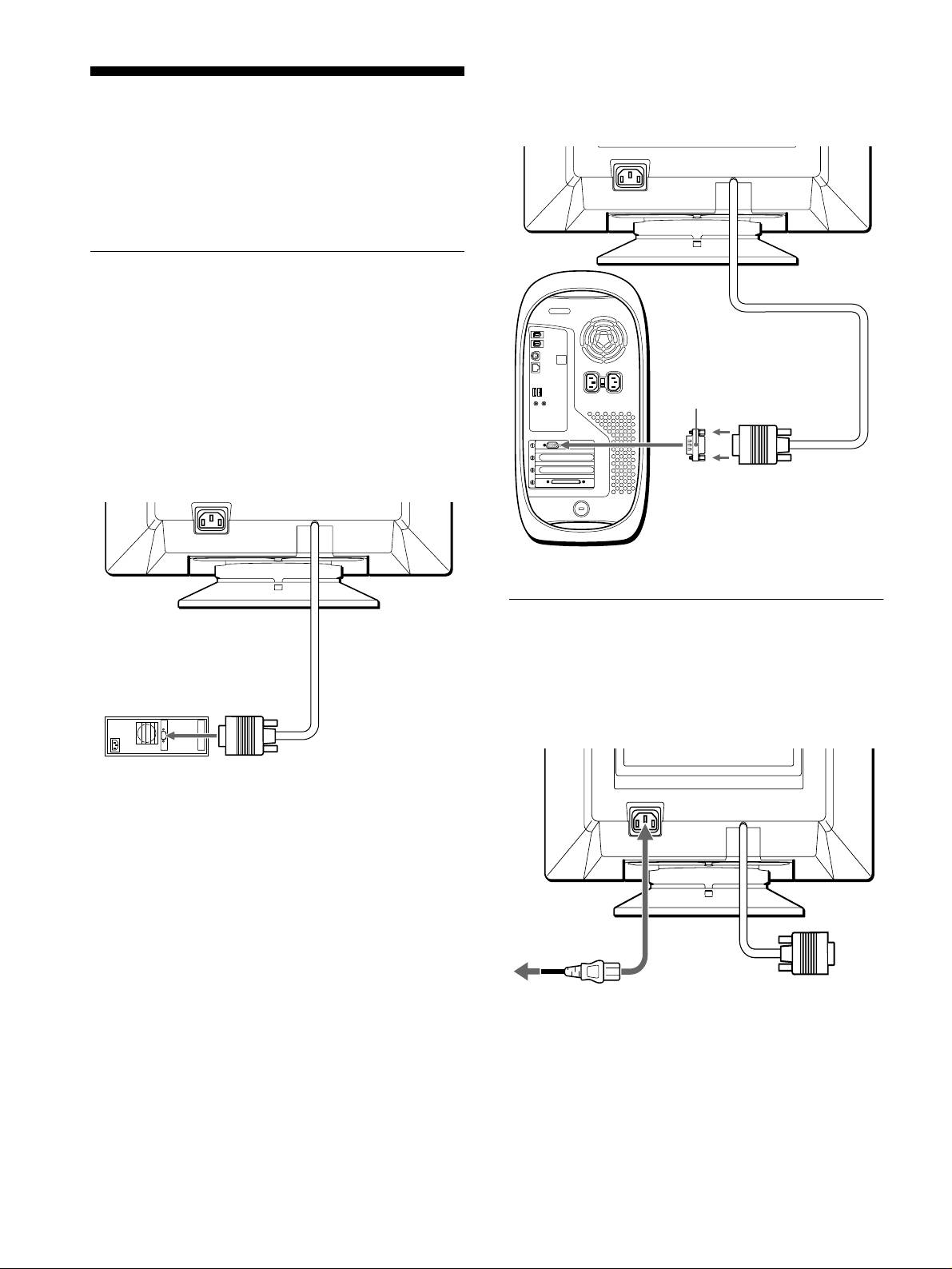
Step 1:Connect your monitor to
your computer
Turn off the monitor and computer before connecting.
Note
Do not touch the pins of the video cable connector as this might bend the
pins.
x
Connecting to an IBM PC/AT or compatible
computer
AC IN
Step 2:Connect the power cord
With the monitor and computer switched off, first connect the
power cord to the monitor, then connect it to a power outlet.
to video output
IBM PC/AT or
compatible computer
6
AC IN
You will need a Macintosh adapter (not supplied).
Macintosh adapter (not supplied)
to video output
Macintosh or compatible computer
AC IN
to AC IN
to a power outlet
power cord (supplied)
01GB01COV AEP.book
Page
6
Friday,
August
18,
2000
3:01
PM
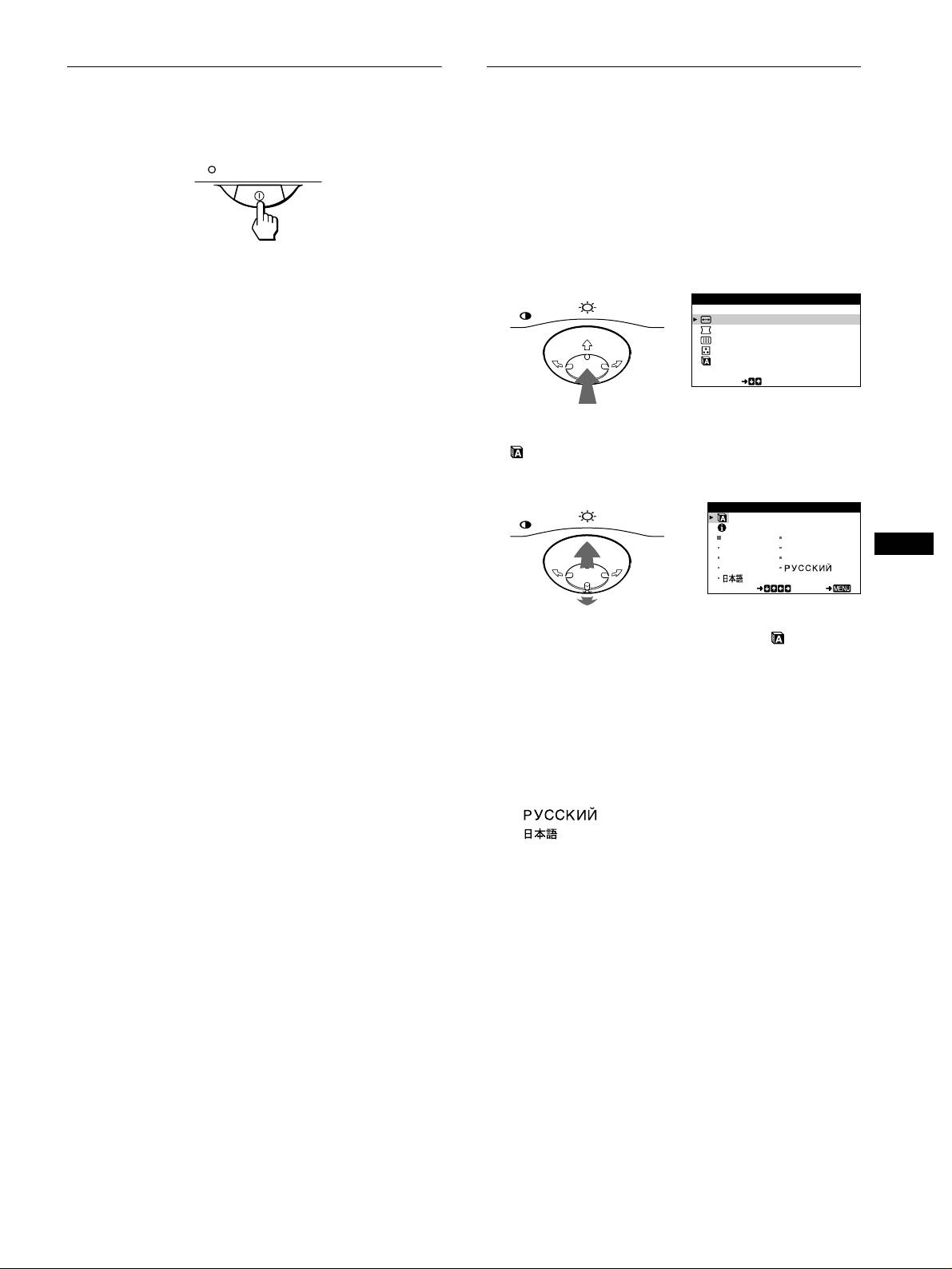
Step 3:Turn on the monitor and
Selecting the on-screen menu
computer
language (LANGUAGE/
INFORMATION)
First turn on the monitor, then turn on the computer.
English, French, German, Italian, Spanish, Dutch, Swedish,
Russian and Japanese versions of the on-screen menus are
available. The default setting is English.
1
Press the center of the control button.
The installation of your monitor is complete.
See page 9 for more information on using the control button.
If necessary, use the monitor’s controls to adjust the picture.
MENU
MENU
If no picture appears on your screen
EXI T
SIZE/CENTER
• Check that the monitor is correctly connected to the computer.
GEOMETRY
SCREEN
• If NO INPUT SIGNAL appears on the screen, confirm that
COLOR
your computer’s graphic board is completely seated in the
LANGUAGE / INFORMAT NOI
correct bus slot.
SELECT
• If you are replacing an old monitor with this model and OUT
OF SCAN RANGE appears on the screen, reconnect the old
monitor. Then adjust the computer’s graphic board so that the
2
Move the control button
m
/
M
to highlight
horizontal frequency is between 30 – 85 kHz, and the vertical
LANGUAGE/INFORMATION and press the center
frequency is between 48 – 120 Hz.
of the control button again.
For more information about the on-screen messages, see “Trouble
MENU
LANGUAGE / I NFOR
M
A
T
I
O
N
symptoms and remedies” on page 13.
ENGL ISH FRANÇAI S
DEUTSCH I TAL I ANO
GB
ESPAÑOL NEDERLAN SD
Setup on various OS (Operating System)
SVENSKA
This monitor complies with the “DDC” Plug & Play standard and
SELECT EXI T
automatically detects all the monitor’s information. No specific driver
needs to be installed to the computer.
If you connect the monitor to your PC, and then boot your PC for the first
3
Move the control button
m
/
M
to select .
time, the setup Wizard may be displayed on the screen. Click on “Next”
Then move the control button
<
/
,
to select a
several times according to the instructions from the Wizard until the Plug
language.
& Play Monitor is automatically selected so that you can use this monitor.
• ENGLISH
• FRANÇAIS: French
For customers using Windows NT4.0
• DEUTSCH: German
Monitor setup in Windows NT4.0 does not use the display driver. Refer
• ITALIANO: Italian
to the Windows NT4.0 instruction manual for further details on adjusting
• ESPAÑOL: Spanish
the resolution, refresh rate, and number of colors.
• NEDERLANDS: Dutch
• SVENSKA: Swedish
• : Russian
• : Japanese
To close the menu
Press the center of the control button once to return to the main MENU,
and twice to return to normal viewing. If no buttons are pressed, the menu
closes automatically after about 30 seconds.
To reset to English
Press the RESET button while the LANGUAGE/INFORMATION menu
is displayed on the screen.
7
01GB01COV AEP.book
Page
7
Friday,
August
18,
2000
3:01
PM

6
LANGUAGE/
LANGUAGE / I NFOR
M
A
T
I
O
N
Customizing Your Monitor
INFORMATION
ENGL ISH FRANÇAI S
(page 7, 14)
DEUTSCH I TAL I ANO
You can make numerous adjustments to your monitor using the
Select the LANGUAGE/
ESPAÑOL NEDERLAN SD
SVENSKA
on-screen menu.
INFORMATION menu to
SELECT EXI T
choose the on-screen menu’s
language and display this
Navigating the menu
monitor’s information box.
Press the center of the control button to display the main MENU
on your screen. See page 9 for more information on using the
x
Displaying the current input signal
control button.
The horizontal and vertical frequencies of the current input signal
are displayed under the BRIGHTNESS/CONTRAST menu. If the
MENU
signal matches one of this monitor’s factory preset modes, the
resolution is also displayed.
BRIGHTNESS/CONTRAST
26 26
H
:
6
8
.7kHz V
:
85Hz
MENU
1024X768
EXI T
SIZE/CENTER
GEOMETRY
SCREEN
COLOR
LANGUAGE / I NFORMAT NOI
SELECT
Use the control button to select one of the following menus.
1
EXIT
Select EXIT to close the menu.
2
SIZE/CENTER (page 9)
SIZE/CENTER
Select the SIZE/CENTER
menu to adjust the picture’s
H-CENTER
centering, size or zoom.
26
SELECT EXI T
3
GEOMETRY (page 10)
GE
OM
ET
R
Y
Select the GEOMETRY
menu to adjust the picture’s
ROTATION
rotation and shape.
26
SELECT EXI T
4
SCREEN (page 11)
SCREEN
Select the SCREEN menu to
degauss the screen and adjust
DEGAUSS
the moire cancellation level.
ON
SELECT EXI T
5
COLOR (page 10)
COLOR
Select the COLOR menu to
USER
5000 6500 9300
KKK
adjust the picture’s color
R50
G50
temperature. You can use this
B50
to match the monitor’s colors
SELECT EXI T
to a printed picture’s colors.
8
the horizontal
the reso
lution
and vertical
of the current
frequencies of
in
put signal
the current
input signal
01GB01COV AEP.book
Page
8
Friday,
August
18,
2000
3:01
PM
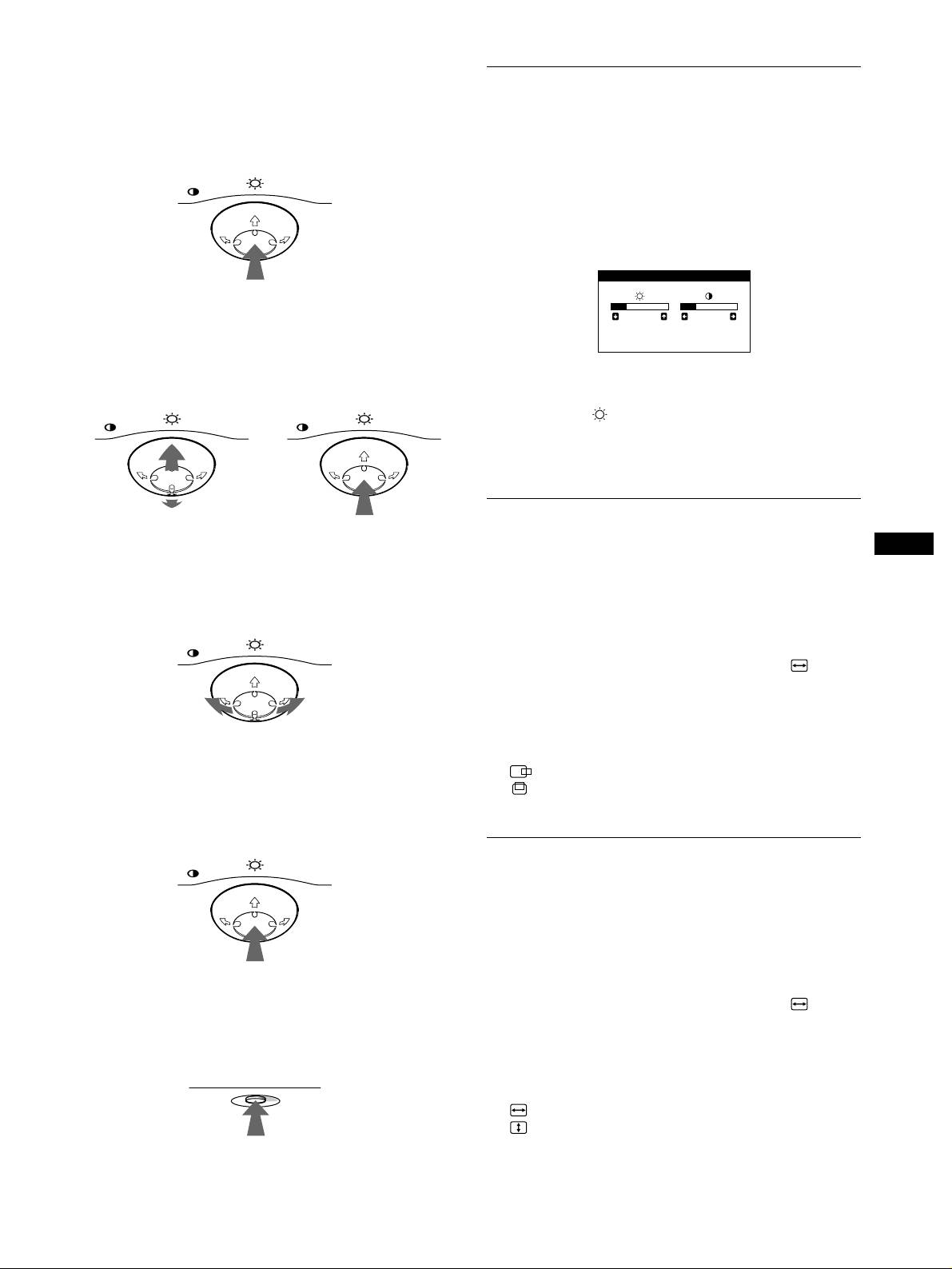
x
Using the control button
Adjusting the brightness and
1
Display the main MENU.
contrast
Press the center of the control button to display the main
MENU on your screen.
Brightness and contrast adjustments are made using a separate
BRIGHTNESS/CONTRAST menu.
MENU
These settings are stored in memory for all input signals.
1
Move the control button in any direction.
The BRIGHTNESS/CONTRAST menu appears on the
screen.
2
Select the menu you want to adjust.
Highlight the desired menu by moving the control button
towards the rear to go up (
M
), towards the front to go down
(
m
), and left (
<
) or right (
,
) to move sideways.
FRONT
2
Move the control button
m
/
M
to adjust the
MENU MENU
brightness ( ), and
<
/
,
to adjust the contrast
(
6
).
The menu automatically disappears after about 3 seconds.
Adjusting the centering of the
REAR
picture (CENTER)
GB
3
Adjust the menu.
This setting is stored in memory for the current input signal.
Move the control button left (
<
) or right (
,
) to make the
adjustment.
1
Press the center of the control button.
MENU
The main MENU appears on the screen.
2
Move the control button
m
/
M
to highlight SIZE/
CENTER and press the center of the control button
again.
The SIZE/CENTER menu appears on the screen.
4
Close the menu.
3
First move the control button
m
/
M
to select
Press the center of the control button once to return to the
(H-CENTER) for horizontal adjustment, or
main MENU, and twice to return to normal viewing. If no
(V-CENTER) for vertical adjustment. Then move
buttons are pressed, the menu closes automatically after about
the control button
<
/
,
to adjust the centering.
30 seconds.
MENU
Adjusting the size of the picture
(SIZE)
This setting is stored in memory for the current input signal.
1
Press the center of the control button.
The main MENU appears on the screen.
x
Resetting the adjustments
2
Move the control button
m
/
M
to highlight SIZE/
Press the RESET button. See page 11 for more information on
CENTER and press the center of the control button
resetting the adjustments.
again.
The SIZE/CENTER menu appears on the screen.
RESET
3
First move the control button
m
/
M
to select
(H-SIZE) for horizontal adjustment, or
(V-SIZE) for vertical adjustment. Then move the
control button
<
/
,
to adjust the size.
9
BRIGHTNESS/CONTRAST
26 26
H
:
68.7kHz V
:
85Hz
1024X768
01GB01COV AEP.book
Page
9
Friday,
August
18,
2000
3:01
PM
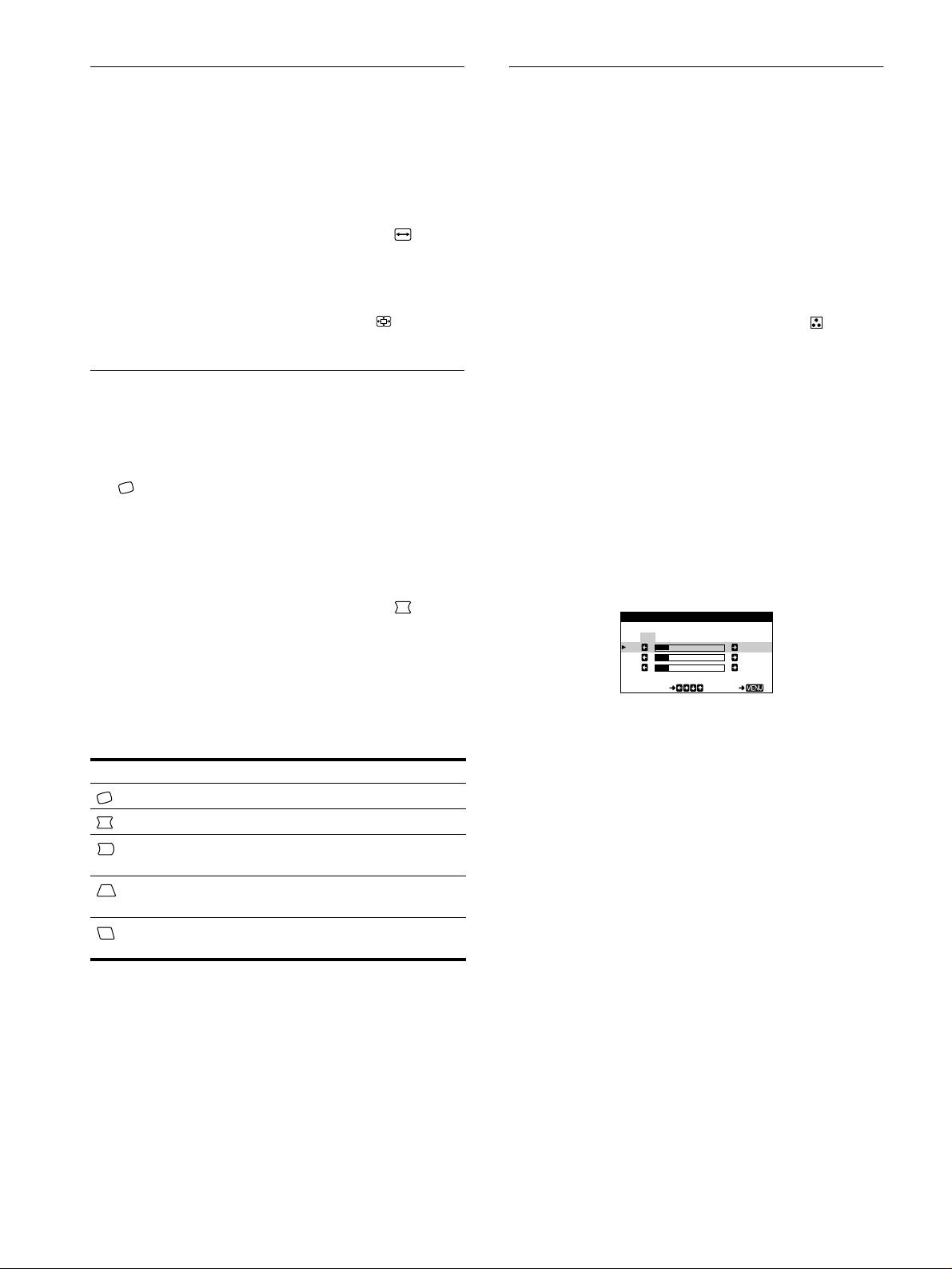
Enlarging or reducing the picture
Adjusting the color of the picture
(ZOOM)
(COLOR)
This setting is stored in memory for the current input signal.
The COLOR settings allow you to adjust the picture’s color
temperature by changing the color level of the white color field.
1
Press the center of the control button.
Colors appear reddish if the temperature is low, and bluish if the
The main MENU appears on the screen.
temperature is high. This adjustment is useful for matching the
monitor’s colors to a printed picture’s colors.
2
Move the control button
m
/
M
to highlight SIZE/
This setting is stored in memory for all input signals.
CENTER and press the center of the control button
again.
1
Press the center of the control button.
The SIZE/CENTER menu appears on the screen.
The main MENU appears on the screen.
3
Move the control button
m
/
M
to select (ZOOM),
2
Move the control button
m
/
M
to highlight COLOR
and move
<
/
,
to enlarge or reduce the picture.
and press the center of the control button again.
The COLOR menu appears on the screen.
Adjusting the shape of the picture
3
Move the control button
<
/
,
to select a color
temperature.
(GEOMETRY)
The preset color temperatures are 5000K, 6500K, and 9300K.
Since the default setting is 9300K, the whites will change
The GEOMETRY settings allow you to adjust the rotation and
from a bluish hue to a reddish hue as the temperature is
shape of the picture.
lowered to 6500K and 5000K.
The (ROTATION) setting is stored in memory for all input
signals. All other settings are stored in memory for the current
4
If necessary, fine tune the color temperature.
input signal.
First move the control button
<
/
,
to select USER. Then
move the control button
m
/
M
to select R (red), G (green), or
1
Press the center of the control button.
B (blue) and move the control button
<
/
,
to make the
The main MENU appears on the screen.
adjustment.
2
Move the control button
m
/
M
to highlight
GEOMETRY and press the center of the control
button again.
The GEOMETRY menu appears on the screen.
3
First move the control button
m
/
M
to select the
desired adjustment item. Then move the control
If you fine tune the color temperature, the new color settings
button
<
/
,
to make the adjustment.
are stored in memory and recalled whenever you select
USER.
Select To
(ROTATION)
rotate the picture
(PIN)
expand or contract the picture sides
(PIN BALANCE)
shift the picture sides to the left or
right
(KEY)
adjust the picture width at the top of
the screen
(KEY BALANCE)
shift the picture to the left or right at
the top of the screen
10
COLOR
USER
5000 6500 9300
KKK
R50
G50
B50
SELECT EXI T
01GB01COV AEP.book
Page
10
Friday,
August
18,
2000
3:01
PM
Additional settings (SCREEN)
Resetting the adjustments
You can manually degauss (demagnetize) the screen, and adjust
This monitor has the following three reset methods. Use the
the moire cancellation level.
RESET button to reset the adjustments.
1
Press the center of the control button.
The main MENU appears on the screen.
2
Move the control button
m
/
M
to highlight
SCREEN and press the center of the control button
again.
x
Resetting a single adjustment item
The SCREEN menu appears on the screen.
Use the control button to select the adjustment item you want to
3
Move the control button
m
/
M
to select the desired
reset, and press the RESET button.
adjustment item.
Adjust the selected item according to the following
x
Resetting all of the adjustment data for the
instructions.
current input signal
Press the RESET button when no menu is displayed on the screen.
x
Degaussing the screen
Note that the following items are not reset by this method:
The monitor is automatically demagnetized when the power is
• on-screen menu language (page 7)
turned on.
• picture’s rotation (page 10)
To manually degauss the monitor, first move the
control button
m
/
M
to select (DEGAUSS). Then move
x
Resetting all of the adjustment data for all
the control button
,
.
input signals
The screen is degaussed for about 5 seconds. If a second degauss
Press and hold the RESET button for more than two seconds. All
cycle is needed, allow a minimum interval of 20 minutes for the
of the adjustment data (except for the USER settings in the
best result.
GB
COLOR menu) is reset to the factory preset levels.
x
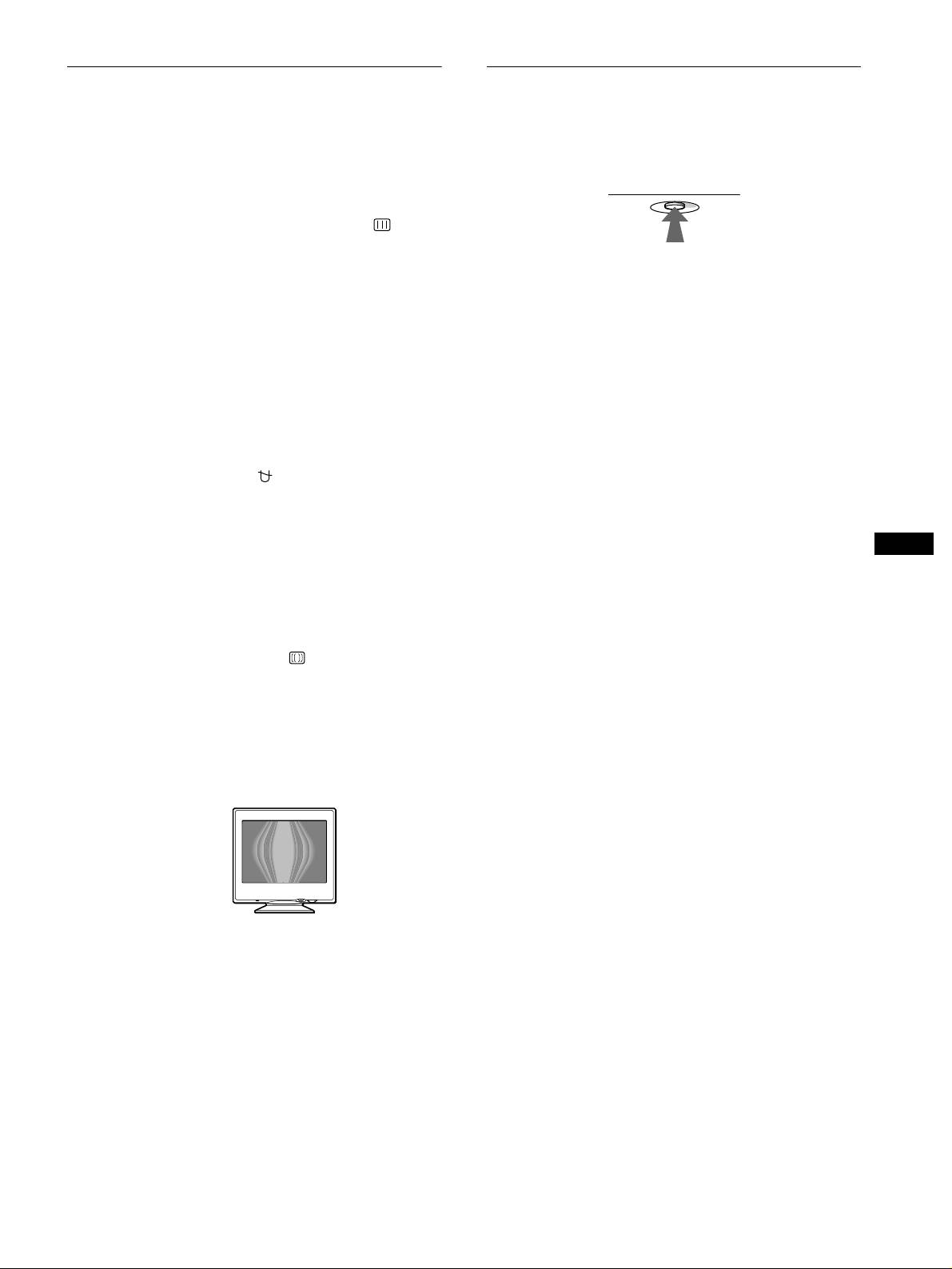
Adjusting the moire
*
If elliptical or wavy patterns appear on the screen, adjust the
moire cancellation level.
To adjust the amount of moire cancellation, first move
the control button
m
/
M
to select (CANCEL MOIRE).
Then move the control button
<
/
,
until the moire
effect is at a minimum.
* Moire is a type of natural interference which produces soft, wavy lines
on your screen. It may appear due to interference between the pattern
of the picture on the screen and the phosphor pitch pattern of the
monitor.
Example of moire
11
RESET
01GB01COV AEP.book
Page
11
Friday,
August
18,
2000
3:01
PM
Technical Features
Troubleshooting
Before contacting technical support, refer to this section.
Preset and user modes
If thin lines appear on your screen
When the monitor receives an input signal, it automatically
matches the signal to one of the factory preset modes stored in the
(damper wires)
monitor’s memory to provide a high quality picture at the center of
the screen.
(See Appendix for a list of the factory preset modes.)
The visible lines on your screen especially when the background
For input signals that do not match one of the factory preset modes,
screen color is light (usually white), are normal for the Trinitron
the digital Multiscan technology of this monitor ensures that a
monitor. This is not a malfunction. These are shadows from the
clear picture appears on the screen for any timing in the monitor’s
damper wires used to stabilize the aperture grille. The aperture
frequency range (horizontal: 30 – 85 kHz, vertical: 48 – 120 Hz).
grille is the essential element that makes a Trinitron picture tube
If the picture is adjusted, the adjustment data is stored as a user
unique by allowing more light to reach the screen, resulting in a
mode and automatically recalled whenever the same input signal
brighter, more detailed picture.
is received.
Note for Windows users
For Windows users, check your video board manual or the utility
program which comes with your graphic board and select the
highest available refresh rate to maximize monitor performance.
Power saving function
On-screen messages
This monitor meets the power-saving guidelines set by VESA,
If there is something wrong with the input signal, one of the
E
NERGY
S
TAR, and NUTEK. If no signal is received by the
following messages appears on the screen. To solve the problem,
monitor from the connected computer, the monitor will
see “Trouble symptoms and remedies” on page 13.
automatically reduce power consumption as shown below.
Power mode Power
!
(power) indicator
consumption
normal
≤
115 W green
operation
active off*
≤
3 W orange
power off 0 W off
The input signal condition
OUT OF SCAN RANGE
* When your computer enters the “active off” mode, the input signal is
indicates that the input signal is not supported by the
cut and NO INPUT SIGNAL appears on the screen. After 20 seconds,
monitor’s specifications.
the monitor enters the power saving mode.
NO INPUT SIGNAL
indicates that no signal is being input to the monitor.
12
Damper wires
INFORMATION
OUT OF SCAN RANGE
Input signal condition
01GB01COV AEP.book
Page
12
Friday,
August
18,
2000
3:01
PM

Trouble symptoms and remedies
If the problem is caused by the connected computer or other equipment, please refer to the connected equipment’s instruction manual.
Use the self-diagnosis function (page 15) if the following recommendations do not resolve the problem.
Symptom Check these items
No picture
If the
!
(power) indicator is not lit • Check that the power cord is properly connected.
• Check that the
!
(power) switch is in the “on” position.
If the NO INPUT SIGNAL message
• Check that the video signal cable is properly connected and all plugs are firmly seated in
appears on the screen, or if the
!
their sockets (page 6).
(power) indicator is orange
• Check that the HD15 video input connector’s pins are not bent or pushed in.
x
Problems caused by the connected computer or other equipment
• The computer is in power saving mode. Try pressing any key on the computer keyboard or
moving the mouse.
• Check that the computer’s power is “on.”
• Check that the graphic board is completely seated in the proper bus slot.
If the OUT OF SCAN RANGE
x
Problems caused by the connected computer or other equipment
message appears on the screen
• Check that the video frequency range is within that specified for the monitor. If you
replaced an old monitor with this monitor, reconnect the old monitor and adjust the
frequency range to the following.
Horizontal: 30 – 85 kHz
Vertical: 48 – 120 Hz
If no message is displayed and the
!
• Use the Self-diagnosis function (page 15).
(power) indicator is green or flashing
GB
orange
If using a Macintosh system • Check that the Macintosh adapter (not supplied) and the video signal cable are properly
connected (page 6).
Picture flickers, bounces,
• Isolate and eliminate any potential sources of electric or magnetic fields such as other
oscillates, or is scrambled
monitors, laser printers, electric fans, fluorescent lighting, or televisions.
• Move the monitor away from power lines or place a magnetic shield near the monitor.
• Try plugging the monitor into a different AC outlet, preferably on a different circuit.
• Try turning the monitor 90
°
to the left or right.
x
Problems caused by the connected computer or other equipment
• Check your graphics board manual for the proper monitor setting.
• Confirm that the graphics mode (VESA, Macintosh 16" Color, etc.) and the frequency of
the input signal are supported by this monitor (Appendix). Even if the frequency is within
the proper range, some video boards may have a sync pulse that is too narrow for the
monitor to sync correctly.
• Adjust the computer’s refresh rate (vertical frequency) to obtain the best possible picture.
Picture is fuzzy
• Adjust the brightness and contrast (page 9).
• Degauss the monitor* (page 11).
• Select CANCEL MOIRE and adjust the moire cancellation effect (page 11).
(continued)
13
01GB01COV AEP.book
Page
13
Friday,
August
18,
2000
3:01
PM
Symptom Check these items
Picture is ghosting
• Eliminate the use of video cable extensions and/or video switch boxes.
• Check that all plugs are firmly seated in their sockets.
Picture is not centered or sized
• Adjust the size (page 9) or centering (page 9). Note that some video modes do not fill the
properly
screen to the edges.
Edges of the image are curved
• Adjust the geometry (page 10).
Wavy or elliptical pattern (moire)
• Select CANCEL MOIRE and adjust the moire cancellation effect (page 11).
is visible
x
Problems caused by the connected computer or other equipment
• Change your desktop pattern.
Color is not uniform
• Degauss the monitor* (page 11). If you place equipment that generates a magnetic field,
such as a speaker, near the monitor, or if you change the direction the monitor faces, color
may lose uniformity.
White does not look white
• Adjust the color temperature (page 10).
A hum is heard right after the
• This is the sound of the auto-degauss cycle. When the power is turned on, the monitor is
power is turned on
automatically degaussed for five seconds.
* If a second degauss cycle is needed, allow a minimum interval of 20 minutes for the best result. A humming noise may be heard, but this is not a
malfunction.
Displaying this monitor’s name, serial number,
If the problem persists, call your authorized Sony dealer and give
and date of manufacture
the following information.
• Model name: CPD-E220E
1
Press the center of the control button.
• Serial number
The main MENU appears on the screen.
• Name and specifications of your computer and graphics board.
2
Move the control button
m
/
M
to highlight
LANGUAGE/INFORMATION and press the center
of the control button.
The LANGUAGE/INFORMATION menu appears on the
screen.
3
Move the control button
m
/
M
to select .
This monitor’s information menu appears on the screen.
Example
LANGUAGE / I NFOR
M
A
T
I
O
N
MODEL :CPD-E220E
SERIAL:12345678
MANUFACTURED:2000.52
SELECT EXI T
14
01GB01COV AEP.book
Page
14
Friday,
August
18,
2000
3:01
PM
Self-diagnosis function
Specifications
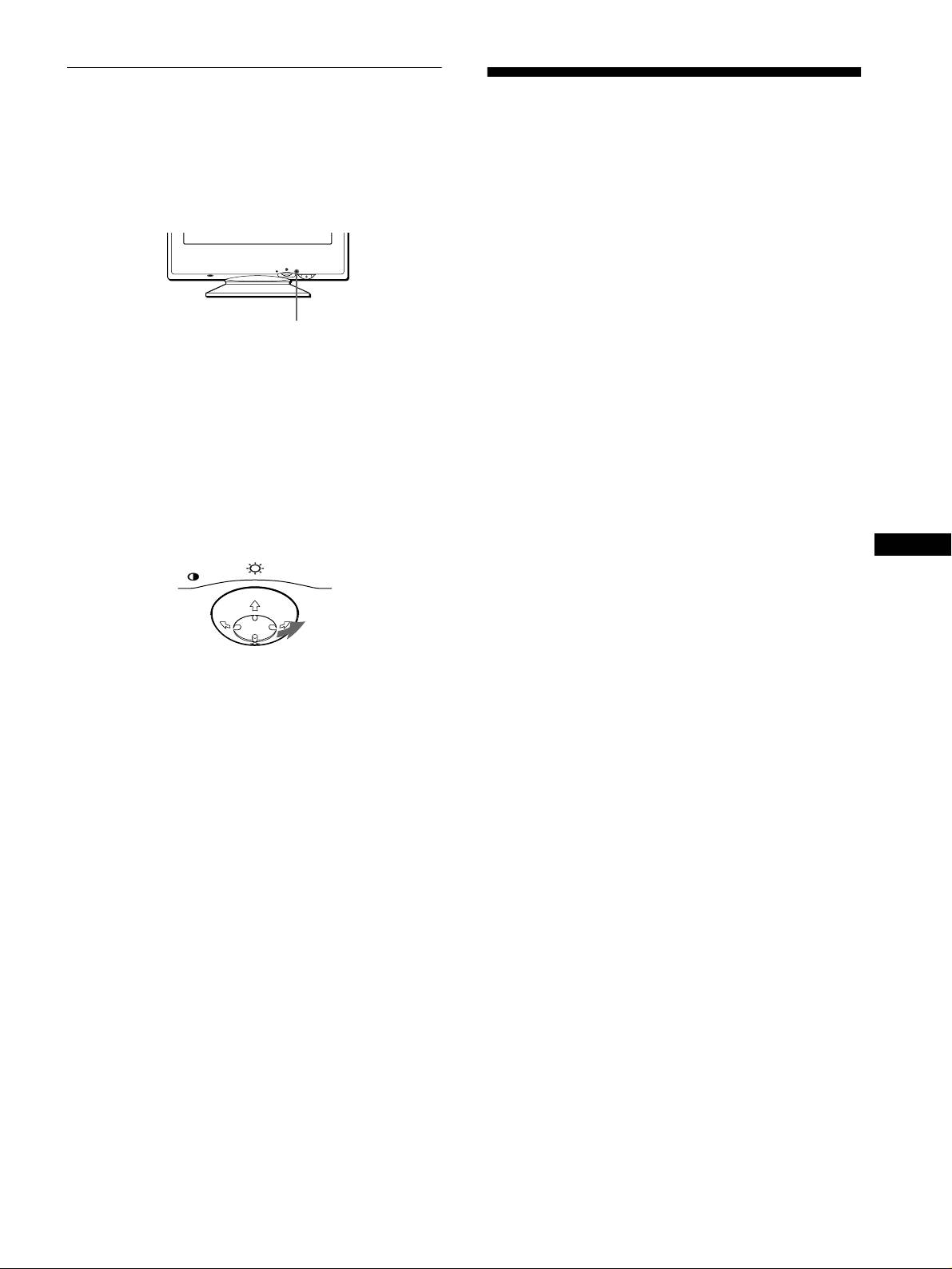
This monitor is equipped with a self-diagnosis function. If there is
a problem with your monitor or computer, the screen will go
CRT 0.24 mm aperture grille pitch (center)
blank and the ! (power) indicator will either light up green or
17 inches measured diagonally
flash orange. If the ! (power) indicator is lit in orange, the
90-degree deflection
computer is in power saving mode. Try pressing any key on the
FD Trinitron
keyboard.
Viewable image size Approx. 327 × 243 mm (w/h)
7
5
(12
/8 × 9
/8 inches)
16.0" viewing image
Resolution
MENU
RESET
Maximum Horizontal: 1600 dots
Vertical: 1200 lines
Recommended Horizontal: 1024 dots
! (power) indicator
Vertical: 768 lines
Standard image area Approx. 312 × 234 mm (w/h)
3
1
(12
/8 × 9
/4 inches)
If the ! (power) indicator is green
Deflection frequency* Horizontal: 30 to 85 kHz
Vertical: 48 to 120 Hz
1
Disconnect the video input cable or turn off the
AC input voltage/current 100 to 240 V, 50 – 60 Hz,
connected computer.
1.6 – 0.7 A (Max. 1.6 A)
Power consumption 115 W
2 Press the ! (power) button twice to turn the monitor
Dimensions
Approx. 404
×
413.5
×
419.5 mm
off and then on.
3
5
(w/h/d)
(16 × 16
/8 × 16
/8 inches)
Mass Approx. 19 kg (41 lb 14 oz)
3 Move the control button , for 2 seconds before the
Plug and Play DDC2B/DDC2Bi
monitor enters power saving mode.
Supplied accessories See page 6
GB
MENU
* Recommended horizontal and vertical timing condition
• Horizontal sync width should be more than 1.0 µsec.
• Horizontal blanking width should be more than 3.0 µsec.
• Vertical blanking width should be more than 500 µsec.
Design and specifications are subject to change without notice.
If all four color bars appear (white, red, green, blue), the monitor
is working properly. Reconnect the video input cable and check
the condition of your computer.
If the color bars do not appear, there is a potential monitor failure.
Inform your authorized Sony dealer of the monitor’s condition.
If the ! (power) indicator is flashing orange
Press the ! (power) button twice to turn the monitor off
and then on.
If the ! (power) indicator lights up green, the monitor is working
properly.
If the ! (power) indicator is still flashing, there is a potential
monitor failure. Count the number of seconds between orange
flashes of the ! (power) indicator and inform your authorized
Sony dealer of the monitor’s condition. Be sure to note the model
name and serial number of your monitor. Also note the make and
model of your computer and video board.
15

01GB01COV AEP.book
Page
16
Friday,
August
18,
2000
3:01
PM
Table des Matières
Précautions. . . . . . . . . . . . . . . . . . . . . . . . . . . . . . . . . . . . . . . . . . . . 4
Identification des composants et des commandes. . . . . . . . . . . . . . 5
Installation . . . . . . . . . . . . . . . . . . . . . . . . . . . . . . . . . . . . .6
1ére étape:
Raccordez le moniteur à votre ordinateur. . . . . . . . . . . 6
2éme étape:
Raccordez le cordon d’alimentation . . . . . . . . . . . . . . 6
3éme étape:
Mettez le moniteur et l’ordinateur sous tension . . . . . 7
Sélection de la langue d’affichage des menus
(LANGUAGE/INFORMATIONS). . . . . . . . . . . . . . . . . . . . . . . . . . . . 7
Personnalisation de votre moniteur. . . . . . . . . . . . . . . . .8
Pilotage par menus. . . . . . . . . . . . . . . . . . . . . . . . . . . . . . . . . . . . . . 8
Réglage de la luminosité et du contraste . . . . . . . . . . . . . . . . . . . . . 9
Réglage du centrage de l’image (CENTRAGE) . . . . . . . . . . . . . . . . 9
Réglage de la taille de l’image (TAILLE) . . . . . . . . . . . . . . . . . . . . . 9
Agrandir ou réduire l’image (ZOOM) . . . . . . . . . . . . . . . . . . . . . . . 10
Réglage de la forme de l’image (GEOMETRIE). . . . . . . . . . . . . . . 10
Réglage des couleurs de l’image (COULEUR). . . . . . . . . . . . . . . . 10
Réglages supplémentaires (ECRAN) . . . . . . . . . . . . . . . . . . . . . . . 11
FR
Réinitialisation des réglages. . . . . . . . . . . . . . . . . . . . . . . . . . . . . . 11
Caractéristiques techniques. . . . . . . . . . . . . . . . . . . . . .12
Modes présélectionné et utilisateur . . . . . . . . . . . . . . . . . . . . . . . . 12
Fonction d’économie d’énergie. . . . . . . . . . . . . . . . . . . . . . . . . . . . 12
• Trinitron
est une marque commerciale
déposée de Sony Corporation.
Dépannage . . . . . . . . . . . . . . . . . . . . . . . . . . . . . . . . . . . .12
• Macintosh est une marque commerciale
sous licence d’Apple Computer, Inc.,
déposée aux Etats-Unis et dans d’autres
Si de fines lignes apparaissent à l’écran (fils d’amortissement). . . 12
pays.
Messages affichés à l’écran . . . . . . . . . . . . . . . . . . . . . . . . . . . . . . 12
• Windows
et MS-DOS sont des
Symptômes et remèdes . . . . . . . . . . . . . . . . . . . . . . . . . . . . . . . . . 13
marques déposées de Microsoft
Corporation aux Etats-Unis et dans
Fonction d’autodiagnostic. . . . . . . . . . . . . . . . . . . . . . . . . . . . . . . . 15
d’autres pays.
• IBM PC/AT et VGA sont des marques
commerciales déposées d’IBM
Spécifications. . . . . . . . . . . . . . . . . . . . . . . . . . . . . . . . . .15
Corporation aux Etats-Unis.
• VESA et DDC
sont des marques
commerciales de Video Electronics
Appendix. . . . . . . . . . . . . . . . . . . . . . . . . . . . . . . . . . . . . . . i
Standard Association.
•
E
NERGY
S
TAR est une marque
Preset mode timing table . . . . . . . . . . . . . . . . . . . . . . . . . . . . . . . . . .i
déposée aux Etats-Unis.
TCO’99 Eco-document . . . . . . . . . . . . . . . . . . . . . . . . . . . . . . . . . . . .i
• Tous les autres noms de produits
mentionnés dans le présent mode
d’emploi peuvent être des marques
commerciales ou des marques
commerciales déposées de leurs
sociétés respectives.
• Les symboles “
” et “
” ne sont pas
mentionnés systématiquement dans le
présent mode d’emploi.
3
01GB01COV AEP.book
Page
3
Friday,
August
18,
2000
3:01
PM
Entretien
Précautions
• Nettoyez l’écran à l’aide d’un chiffon doux. Si vous utilisez un
produit nettoyant pour vitres, n’utilisez aucun type de produit
Avertissement sur le raccordement à la source
contenant une solution antistatique ou des additifs similaires
d’alimentation
parce que vous risquez de rayer le revêtement de l’écran.
• Utilisez le cordon d’alimentation fourni. Si vous utilisez un
• Ne frottez pas, ne touchez pas et ne tapotez pas la surface de
cordon d’alimentation différent, assurez-vous qu’il est
l’écran avec des objets abrasifs ou aux arêtes vives comme un
compatible avec votre tension d’alimentation secteur locale.
stylo à bille ou un tournevis. Ce type de contact risque en effet
Pour les clients au Royaume-Uni
de rayer le tube image.
Si vous utilisez ce moniteur au Royaume-Uni, utilisez le cordon
• Nettoyez le châssis, le panneau et les commandes à l’aide d’un
d’alimentation fourni au Royaume-Uni.
chiffon doux légèrement imprégné d’une solution détergente
neutre. N’utilisez jamais de tampons abrasifs, de poudre à
Exemple de types de fiches
récurer ou de solvants tels que de l’alcool ou du benzène.
Transport
Pour transporter ce moniteur en vue de réparations ou de son
expédition, utilisez le carton d’emballage et les matériaux de
de 100 à 120 V CA de 200 à 240 V CA pour 240 V CA
uniquement
conditionnement d’origine.
• Avant de débrancher le cordon d’alimentation, attendez au
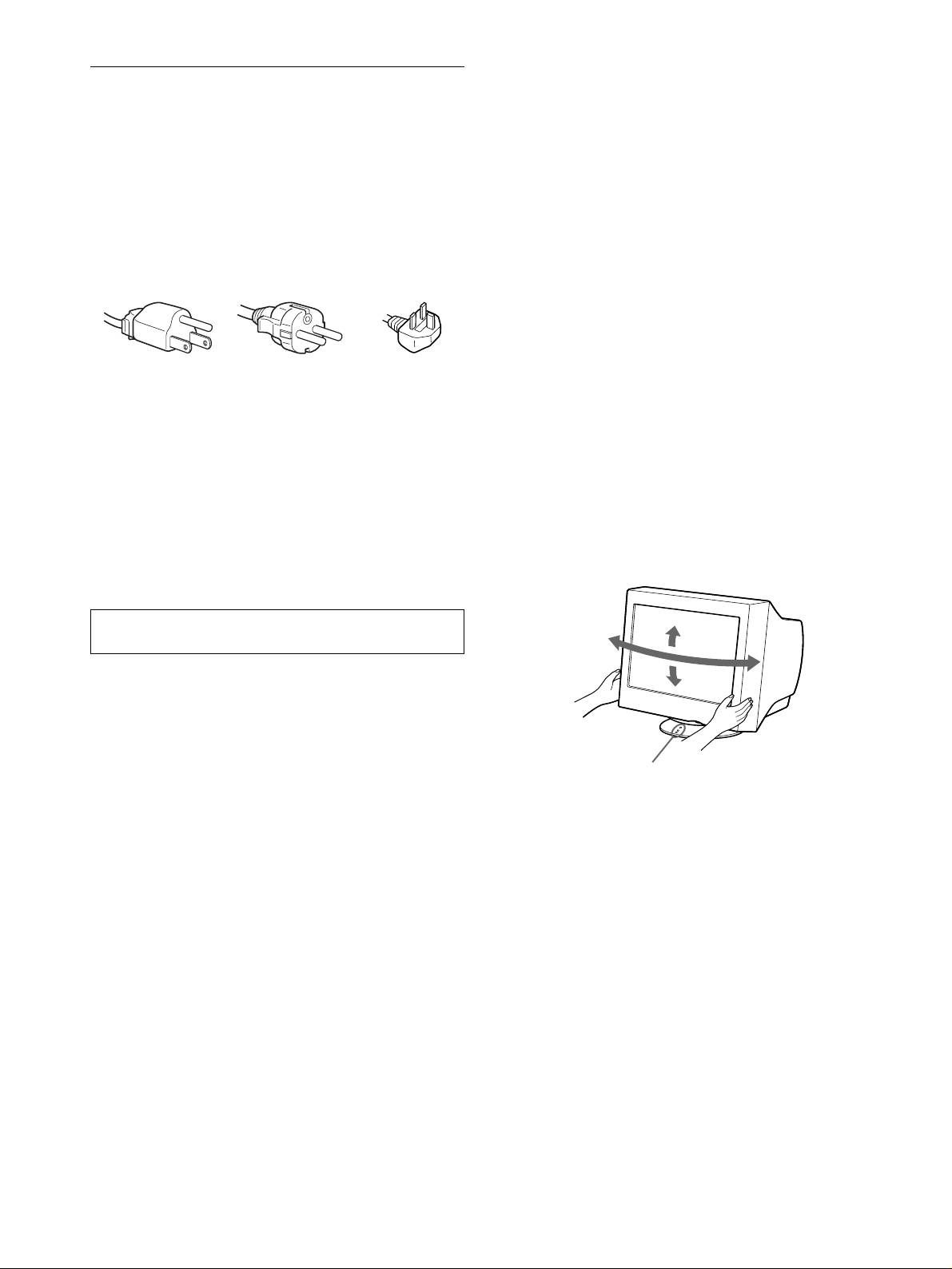
Utilisation du support pivotant
moins 30 secondes après avoir actionné le commutateur
Ce moniteur peut être réglé suivant les angles précisés ci-dessous.
d’alimentation de manière à permettre la décharge de
Pour localiser le centre du rayon de pivotement du moniteur,
l’électricité statique à la surface de l’écran.
alignez le centre de l’écran du moniteur sur les points de centrage
• Après que le courant a été branché, l’écran est démagnétisé
du support.
pendant environ 5 secondes. Cela génère un puissant champ
Pour faire pivoter le moniteur horizontalement ou verticalement,
magnétique autour de l’encadrement métallique qui peut
saisissez-le des deux mains par la base. Veillez à ne pas vous
affecter les données mémorisées sur une bande magnétique ou
coincer les doigts à l’arrière du moniteur lorsque vous le faites
des disquettes situées à proximité. Placez ces systèmes
pivoter verticalement.
d’enregistrement magnétique, bandes et disquettes à l’écart du
moniteur.
L’appareil doit être installé à proximité d’une prise murale
aisément accessible.
Installation
N’installez pas le moniteur dans les endroits suivants:
• sur des surfaces molles (moquette, nappe, etc.) ou à proximité
de tissus (rideaux, tentures, etc.) qui risquent d’obstruer les
orifices de ventilation
• à proximité de sources de chaleur comme des radiateurs ou des
conduits d’air, ni dans un endroit directement exposé au
rayonnement solaire
• dans un endroit à de fortes variations de température
• dans un endroit à des vibrations ou à des chocs mécaniques
• sur une surface instable
• à proximité d’appareils générant un champ magnétique comme
un transformateur ou des lignes à haute tension
• à proximité de ou sur une surface métallique chargée
électriquement
4
90°
15°
90°
5°
Points de centrage
01GB01COV AEP.book
Page
4
Friday,
August
18,
2000
3:01
PM
Identification des composants et
des commandes
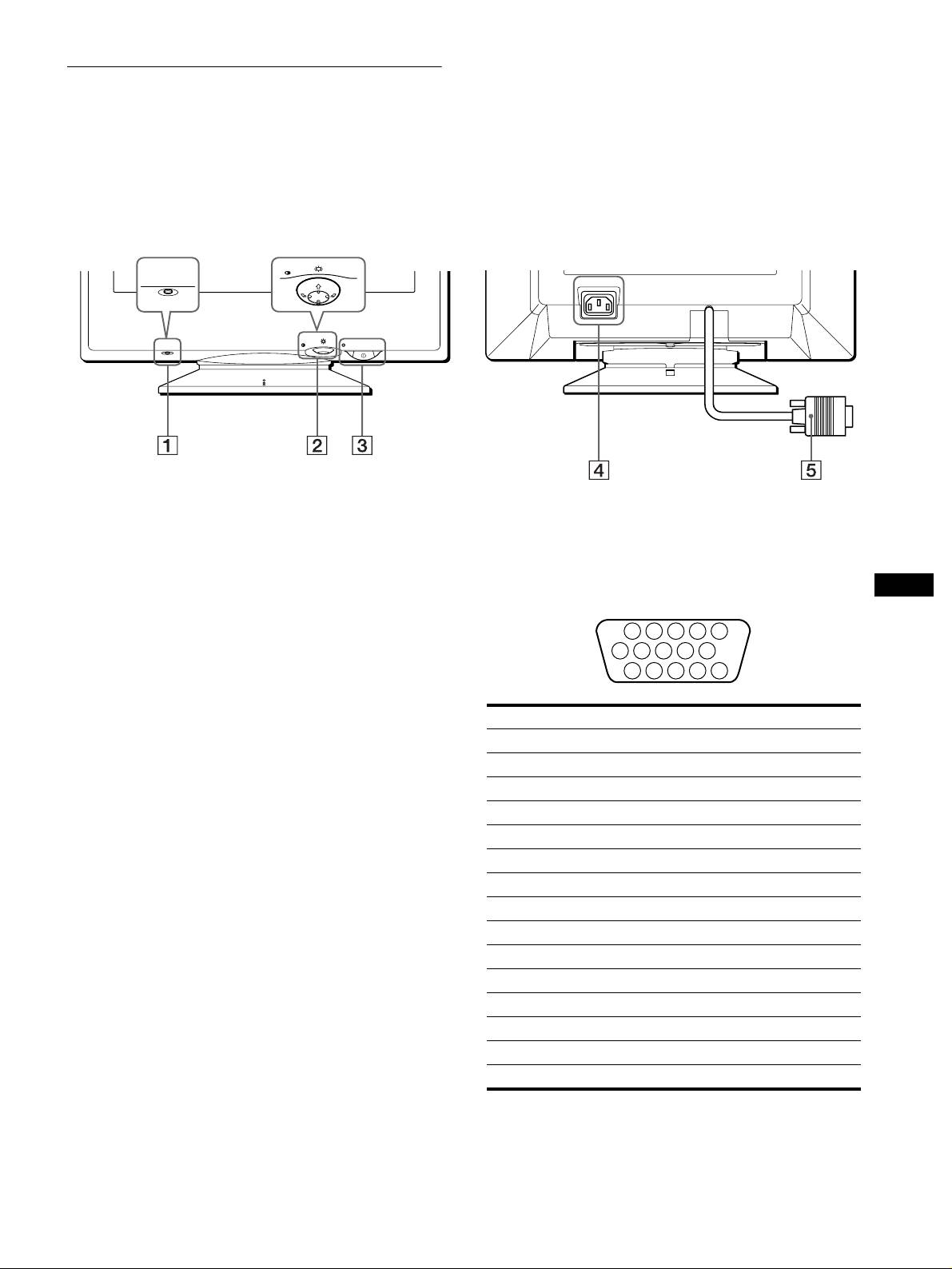
Pour plus de détails, reportez-vous au pages indiquées entre
parenthèses.
ArrièreAvant
MENU
RESET
AC IN
MENU
RESET
1
Touche RESET (réinitialisation) (page 11)
4
Connecteur AC IN (page 6)
Cette touche réinitialise les réglages sur les valeurs par défaut.
Ce connecteur assure l’alimentation du moniteur.
2
Manette de commande (page 9)
5
Connecteur d’entrée vidéo (HD15) (page 6)
La manette de commande sert à afficher le menu et à ajuster
Ce connecteur assure l’entrée des signaux vidéo RVB
FR
les paramètres de réglage du moniteur, y compris la
(0,700 Vp-p, positifs) et des signaux de synchronisation.
luminosité et le contraste.
3
Commutateur et indicateur
!
(alimentation)
(pages 7, 12, 15)
Cette touche met le moniteur sous et hors tension.
L’indicateur d’alimentation s’allume en vert lorsque le
moniteur est sous tension et clignote en vert et en orange ou
Broche n° Signal
s’allume en orange lorsque le moniteur se trouve en mode
1 Rouge
d’économie d’énergie.
2Vert
3Bleu
4 ID (masse)
5 Masse DDC*
6 Masse rouge
7 Masse vert
8 Masse bleu
9 DDC + 5V*
10 Masse
11 ID (masse)
12 Données bidirectionnelles (SDA)*
13 Synchro H
14 Synchro V
15 Données d’horloge (SCL)*
* DDC (Display Data Channel) est une norme de VESA.
5
1 2 3 4
5
876
9
10
11 12 13 14 15
01GB01COV AEP.book
Page
5
Friday,
August
18,
2000
3:01
PM
x
Raccordement à un ordinateur Macintosh
ou compatible
Installation
Avant de mettre ce moniteur en service, vérifiez si tous les
accessoires suivants se trouvent bien dans le carton:
• Cordon d’alimentation (1)
• Carte de garantie (1)
• Remarques sur l’entretien de la surface de l’écran (1)
• Ce mode d’emploi (1)
1ére étape:Raccordez le moniteur
à votre ordinateur
Mettez le moniteur et l’ordinateur hors tension avant de procéder
au raccordement.
Remarque
Ne touchez pas les broches du connecteur de câble vidéo, car vous
risqueriez de les plier.
x
Raccordement à un PC/AT IBM ou à un
ordinateur compatible
AC IN
2éme étape:Raccordez le cordon
d’alimentation
Le moniteur et l’ordinateur étant hors tension, raccordez d’abord
vers la
le cordon d’alimentation sur le moniteur et ensuite sur une prise
sortie vidéo
murale.
PC/AT IBM ou
ordinateur compatible
6
AC IN
Vous avez besoin d’un adaptateur Macintosh (non fourni).
Adaptateur Macintosh (non fourni)
vers la sortie vidéo
Macintosh ou ordinateur
compatible
AC IN
vers AC IN
vers une prise murale
cordon d’alimentation (fourni)
01GB01COV AEP.book
Page
6
Friday,
August
18,
2000
3:01
PM
