
Sony STR-SE501: instruction
Class: Video Audio Photo Equipment
Type:
Manual for Sony STR-SE501
Table of contents
- WARNING Precautions
- About This Manual T ABLE OF CONTENTS Additional Information
- Hooking Up the Components Unpacking
- Antenna Hookups
- Audio Component Hookups
- Video Component Hookups
- Digital Component Hookups
- 5.1CH Input Hookups
- Other Hookups
- CONTROL A1 hookup (STR-DE545 and STR-SE501 only) AUX AUDIO IN hookup Connecting the AC power cord
- Hooking Up and Setting Up the Speaker System
- Speaker System Hookup
- Speaker System Hookup
- Performing Initial Setup Operations
- Multi Channel Surround Setup
- Center speaker size ( Rear speaker size (
- Multi Channel Surround Setup
- Adjusting the speaker volume
- Before turning on the receiver Checking the connections Before You Use Your Receiver Multi Channel Surround Setup
- There is no sound no matter which component is selected. No sound is heard from one of the front speakers.
- Front Panel Parts Descriptions Location of Parts and Basic Operations ? 1 switch Function buttons
- INPUT MODE button
- Front Panel Parts Description
- 25
- Front Panel Parts Description
- Enjoying Surround Sound
- Selecting a Sound Field
- Sound field information
- Use the buttons on the front panel to operate the following modes Selecting a Sound Field
- Understanding the Multi-Channel Surround Displays
- Understanding the Multi-Channel Surround Displays
- Customizing Sound Fields
- Adjusting the level parameters Customizing Sound Fields
- Adjusting the bass/treble Resetting customized sound fields to the factory settings
- Customizing Sound Fields Adjustable parameters for each sound field
- Receiving Broadcasts
- Brief descriptions of buttons used to receive broadcasts
- Storing FM Stations Automatically Direct Tuning
- Preset Tuning Presetting radio stations Automatic Tuning
- Tuning to preset stations Receiving RDS broadcasts Displaying the RDS Information Using the Radio Data System (RDS)
- Using the Radio Data System (RDS) Monitoring traffic, news, or information programmes (EON) Locating a station by programme type
- Description of program types
- Other Operations
- Recording Naming Preset Stations and Program Sources
- Recording on a video tape Using the Sleep Timer Recording
- Adjustment Using the SET UP Button
- Troubleshooting Additional Information
- Reference sections for clearing the receiver’s memory
- Specifications Amplifier section
- FM tuner section AM tuner section Video section General
- Glossary
- Settings Using SUR, LEVEL, BASS/TREBLE, and SET UP buttons
- Remote Button Description (STR-DE445 only)
- Changing the factory setting of a function button
- Remote Button Description (STR-DE445 only)
- Index
STR-DE545
STR-DE445
STR-SE501
GB
RU
PL
4-227-987-74(1)
FM Stereo
FM-AM Receiver
2000 Sony Corporation
Operating Instructions
Инструкция по эксплуатации
Instrukcja obsługi

2
GB
WARNING
To prevent fire or shock
hazard, do not expose the
unit to rain or moisture.
To avoid electrical shock,
do not open the cabinet.
Refer servicing to qualified
personnel only.
Do not install the
appliance in a confined
space, such as a bookcase
or built-in cabinet.
Precautions
On safety
Should any solid object or liquid fall into
the cabinet, unplug the receiver and have it
checked by qualified personnel before
operating it any further.
On power sources
• Before operating the receiver, check that
the operating voltage is identical with
your local power supply. The operating
voltage is indicated on the nameplate at
the rear of the receiver.
• The unit is not disconnected from the AC
power source (mains) as long as it is
connected to the wall outlet, even if the
unit itself has been turned off.
• If you are not going to use the receiver
for a long time, be sure to disconnect the
receiver from the wall outlet. To
disconnect the AC power cord, grasp the
plug itself; never pull the cord.
• AC power cord must be changed only at
the qualified service shop.
On placement
• Place the receiver in a location with
adequate ventilation to prevent heat
buildup and prolong the life of the
receiver.
• Do not place the receiver near heat
sources, or in a place subject to direct
sunlight, excessive dust or mechanical
shock.
• Do not place anything on top of the
cabinet that might block the ventilation
holes and cause malfunctions.
On operation
Before connecting other components, be
sure to turn off and unplug the receiver.
On cleaning
Clean the cabinet, panel and controls with
a soft cloth slightly moistened with a mild
detergent solution. Do not use any type of
abrasive pad, scouring powder or solvent
such as alcohol or benzine.
If you have any question or problem
concerning your receiver, please
consult your nearest Sony dealer.
3
GB
About This Manual
The instructions in this manual are for the STR-DE545,
STR-DE445 and STR-SE501. Check your model number by
looking at the upper right corner of the front panel or
lower right corner of the remote. In this manual, the STR-
DE545 and the remote commander RM-U304 are used for
illustration purposes unless stated otherwise. Any
difference in operation is clearly indicated in the text, for
example, “STR-DE545 only”.
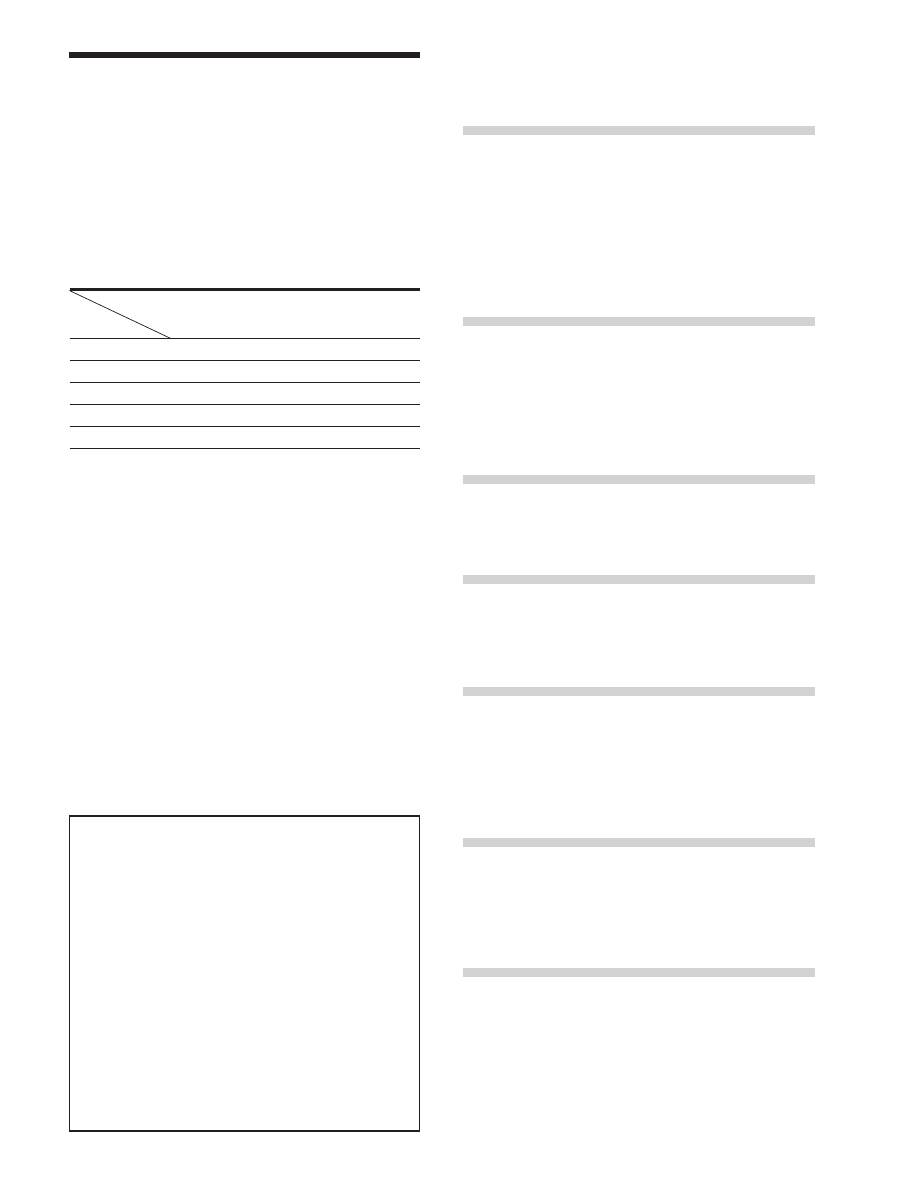
Type of differences
Conventions
• The instructions in this manual describe the controls on
the receiver. You can also use the controls on the
supplied remote if they have the same or similar names
as those on the receiver. For details on the use of the
remote RM-PP404 (STR-DE545 and STR-SE501 only),
refer to the separate operating instructions supplied
with the remote.
• The following icon is used in this manual:
z
Indicates hints and tips for making the task easier.
This receiver incorporates Dolby* Digital and Pro Logic
Surround and the DTS** Digital Surround System.
*
Manufactured under license from Dolby Laboratories.
“Dolby”, “AC-3”, “Pro Logic” and the double-D symbol
a
are
trademarks of Dolby Laboratories.
**
Manufactured under license from Digital Theater Systems, Inc. US
Pat. No. 5,451,942 and other worldwide patents issued and pending.
“DTS” and “DTS Digital Surround” are trademarks of Digital
Theater Systems, Inc. © 1996 Digital Theater Systems, Inc. All
rights reserved.
T
ABLE OF CONTENTS
Hooking Up the Components
4
Unpacking 4
Antenna Hookups 5
Audio Component Hookups 6
Video Component Hookups 7
Digital Component Hookups 8
5.1CH Input Hookups 9
Other Hookups 10
Hooking Up and Setting Up the
Speaker System
12
Speaker System Hookup 13
Performing Initial Setup Operations 15
Multi Channel Surround Setup 16
Before You Use Your Receiver 20
Location of Parts and Basic
Operations
22
Front Panel Parts Descriptions 22
Enjoying Surround Sound
27
Selecting a Sound Field 28
Understanding the Multi-Channel Surround Displays 31
Customizing Sound Fields 33
Receiving Broadcasts
37
Storing FM Stations Automatically 39
Direct Tuning 39
Automatic Tuning 40
Preset Tuning 40
Using the Radio Data System (RDS) 41
Other Operations
44
Naming Preset Stations and Program Sources 45
Recording 45
Using the Sleep Timer 46
Adjustment Using the SET UP Button 47
Additional Information
48
Troubleshooting 48
Specifications 50
Glossary 52
Settings Using SUR, LEVEL, BASS/TREBLE, and
SET UP buttons 53
Remote Button Descriptions (STR-DE445 only) 54
Index 57
Demonstration Mode
The demonstration will activate the first time you turn on the
power. When the demonstration starts, the following message
appears in the display :
“NOW DEMONSTRATION MODE IF YOU FINISH
DEMONSTRATION PLEASE PRESS POWER KEY
WHILE THIS MESSAGE APPEARS IN THE DISPLAY
THANK YOU”
To cancel the demonstration
Press
1/u
to turn the receiver off while the above message is
being displayed. The next time you turn the receiver on, the
demonstration will not appear.
To view the demonstration
Hold down SET UP and press
1/u
to turn on the power.
Notes
• Running the demonstration will clear the receiver’s
memory. For details on what will be cleared, see “Clearing
the receiver's memory” on page 15.
• There will be no sound when the demonstration mode is
activated.
Feature
Model
CONTROL A1-II
SPEAKERS FRONT B
S-Video
TV/SAT OPTICAL IN
AC OUTLET
DE545
•
•
•
•
•
DE445
SE501
•
•
•
•
•
4
GB
Hooking Up the Components
This chapter describes how to connect
various audio and video components
to the receiver. Be sure to read the
sections for the components you have
before you actually connect them to
the receiver.
Unpacking
Check that you received the following items with the
receiver:
• FM wire antenna (1)
• AM loop antenna (1)
• R6 (size-AA) batteries (2)
• STR-DE545 and STR-SE501 only
• Remote Commander RM-PP404 (remote) (1)
• Operating instructions of the remote (1)
• Operating instructions of CONTROL A1 II (1)
• STR-DE445 only
• Remote Commander RM-U304 (remote) (1)
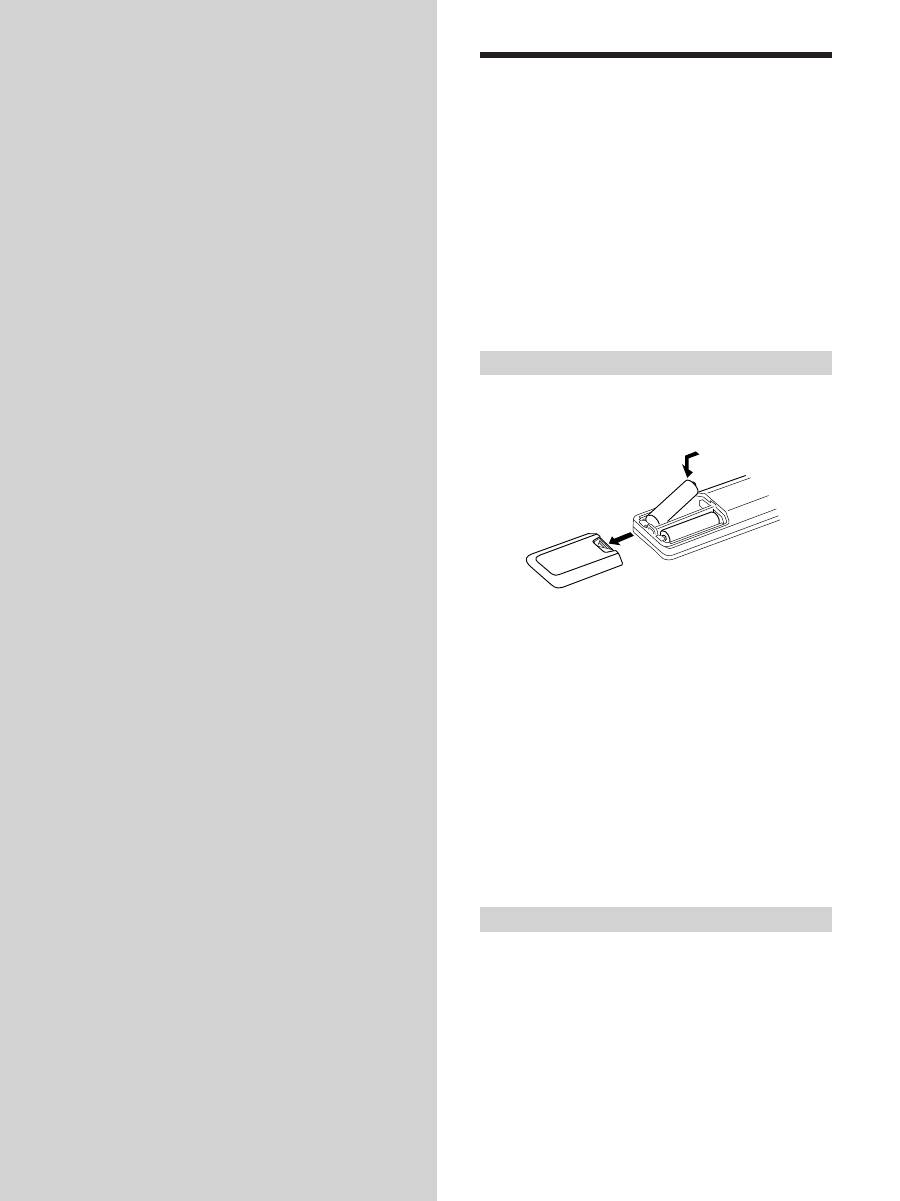
Inserting batteries into the remote
Insert R6 (size-AA) batteries with the + and – properly
oriented in the battery compartment. When using the
remote, point it at the remote sensor
g
on the receiver.
For details, refer to the operating instructions supplied
with your remote (STR-DE545 and STR-SE501 only).
z
When to replace batteries
Under normal conditions, the batteries should last for about 6
months. When the remote no longer operates the receiver, replace
all batteries with new ones.
Notes
• Do not leave the remote in an extremely hot or humid place.
• Do not use a new battery with an old one.
• Do not expose the remote sensor to direct sunlight or lighting
apparatuses. Doing so may cause a malfunction.
• If you don’t use the remote for an extended period of time,
remove the batteries to avoid possible damage from battery
leakage and corrosion.
Before you get started
• Turn off the power to all components before making
any connections.
• Do not connect the AC power cords until all of the
connections are completed.
• Be sure to make connections firmly to avoid hum and
noise.
• When connecting an audio/video cord, be sure to
match the color-coded pins to the appropriate jacks on
the components: yellow (video) to yellow; white (left,
audio) to white; and red (right, audio) to red.
]
]
}
}
5
GB
Hooking Up the Components
FM wire antenna
(supplied)
AM loop antenna
(supplied)
Important
If you connect the receiver to an outdoor antenna, ground
it against lightning. To prevent a gas explosion, do not
connect the ground wire to a gas pipe.
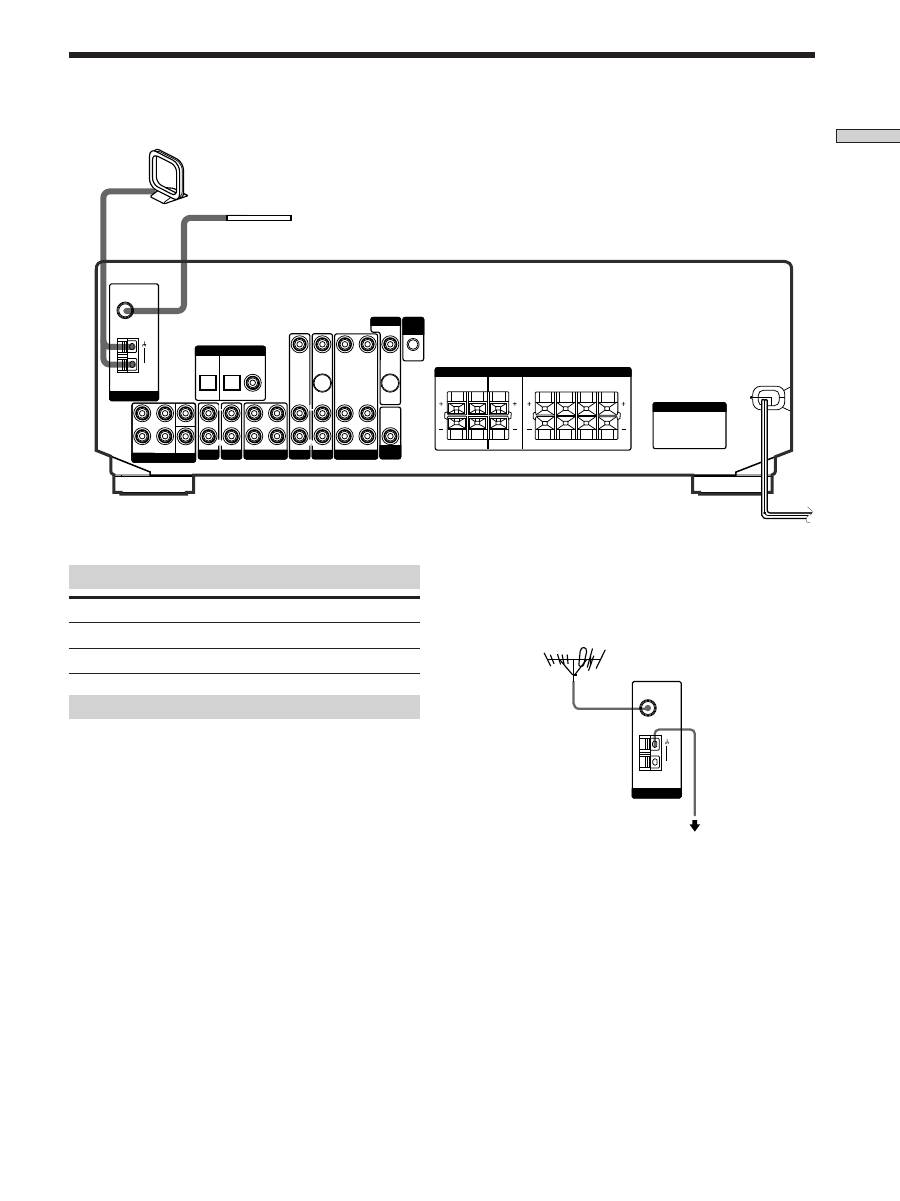
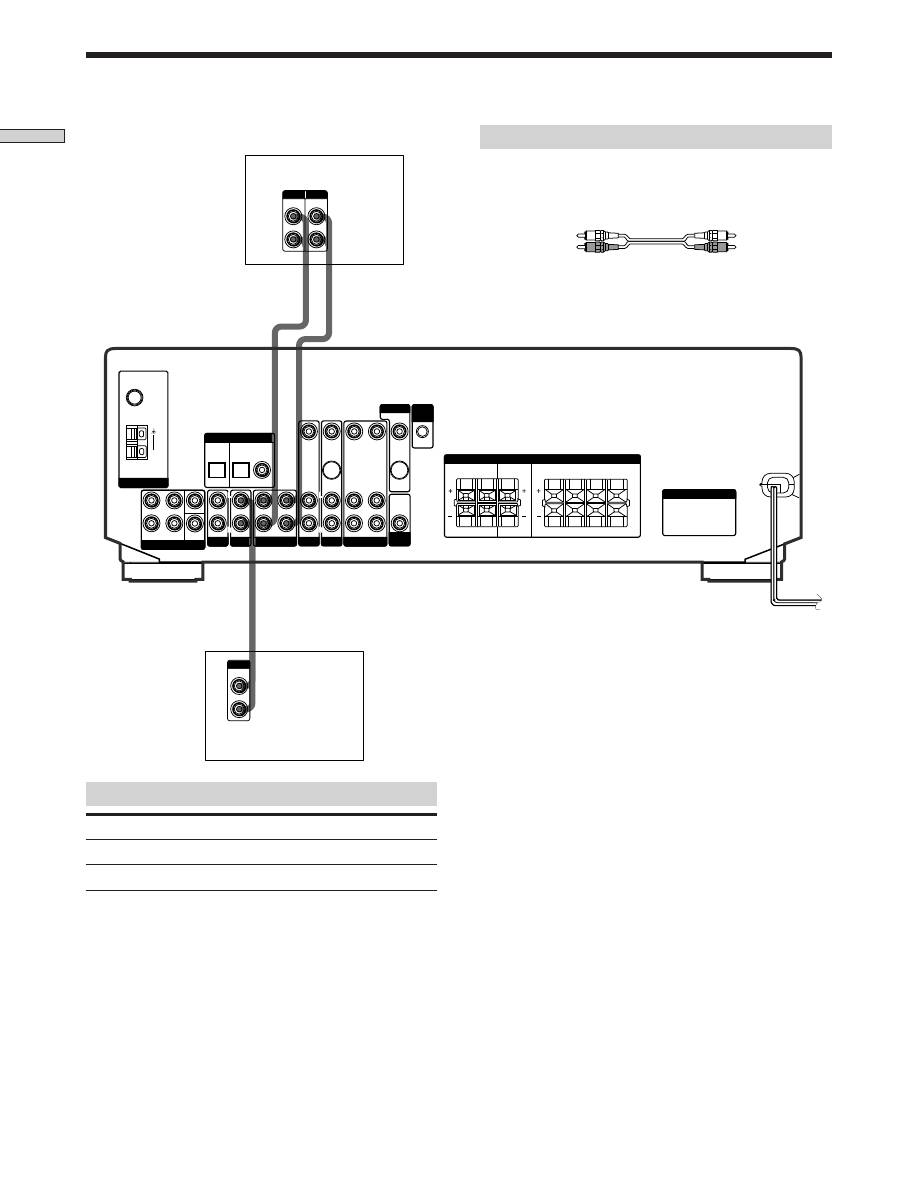
Terminals for connecting the antennas
Connect the
To the
AM loop antenna
AM terminals
FM wire antenna
FM 75
Ω
COAXIAL terminal
Antenna Hookups
Notes on antenna hookups
• To prevent noise pickup, keep the AM loop antenna
away from the receiver and other components.
• Be sure to fully extend the FM wire antenna.
• After connecting the FM wire antenna, keep it as
horizontal as possible.
Ground wire
(not supplied)
To ground
z
If you have poor FM reception
Use a 75-ohm coaxial cable (not supplied) to connect the receiver
to an outdoor FM antenna as shown below.
Outdoor FM antenna
SWITCHED 120W/1A MAX
AC 120V 60Hz
FRONT
REAR
SUB
WOOFER
AUDIO IN
AUDIO IN
TV/SAT
OPTICAL
OPTICAL
COAXIAL
DVD/LD
REC OUT
IN
AUDIO IN
VIDEO IN
AUDIO IN
VIDEO IN
AUDIO OUT
AUDIO IN
VIDEO OUT
VIDEO IN
VIDEO OUT
S-VIDEO
OUT
S-VIDEO
IN
AUDIO
OUT
4
Ω
8
Ω
CENTER
L
R
L
R
L
R
L
R
L
R
FRONT
REAR
R
L
R
L
R
L
R
L
R
L
R
L
CENTER
B FRONT A
MD/TAPE
ANTENNA
DIGITAL IN
TV/SAT
5.1 CH INPUT
AUX
CD
DVD/LD
VIDEO
SUB
WOOFER
IMPEDANCE
SELECTOR
SPEAKERS
CTRL
A1
I I
MONITOR
AC OUTLET
FM
75
Ω
COAXIAL
AM
ANTENNA
FM
75
Ω
COAXIAL
AM
Receiver
6
GB
Hooking Up the Components
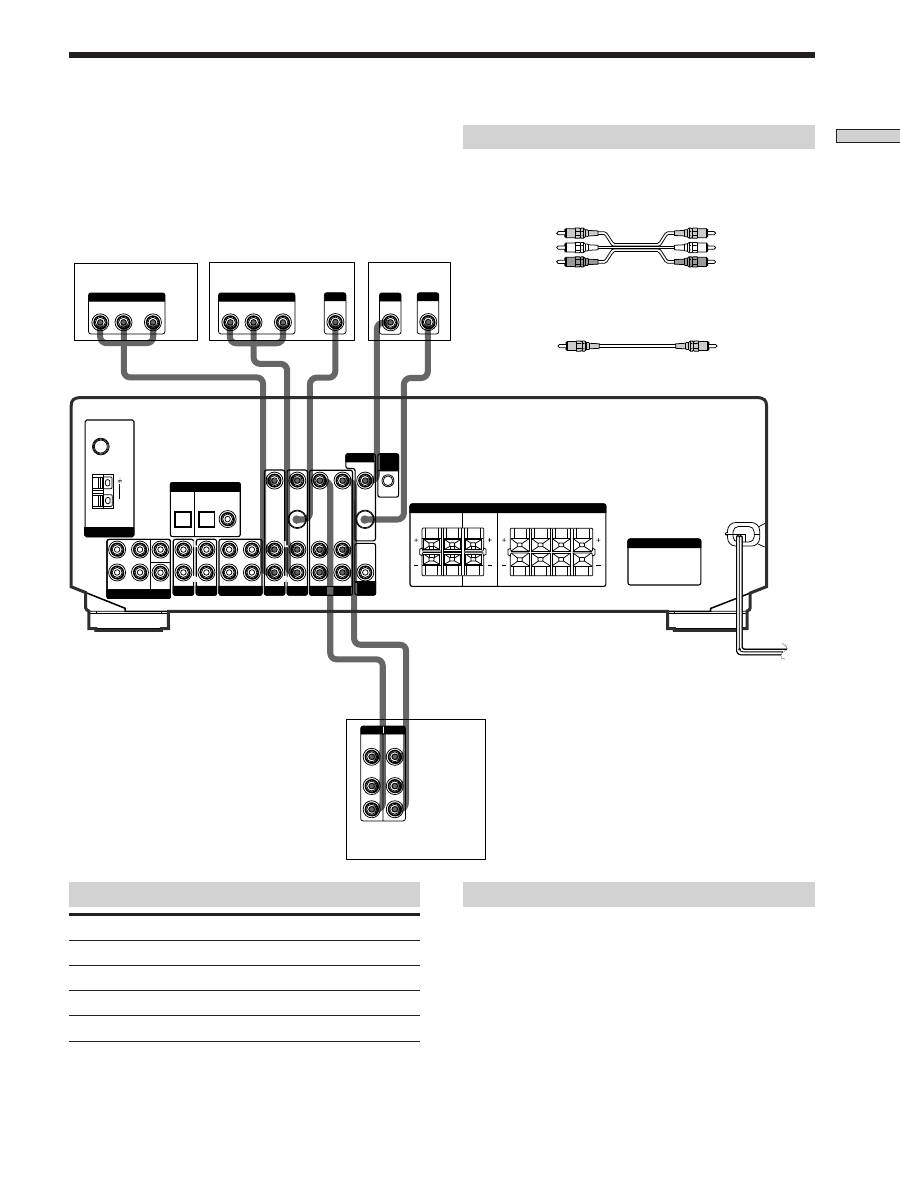
Jacks for connecting audio components
Connect a
To the
CD player
CD jacks
MD deck or Tape deck
MD/TAPE jacks
Required cords
Audio cords (not supplied)
When connecting a cord, be sure to match the color-coded pins to
the appropriate jacks on the components.
MD/TAPE deck
CD player
Audio Component Hookups
White (L)
White (L)
Red (R)
Red (R)
IN
OUT
L
R
ç
ç
LINE
L
R
OUTPUT
LINE
LINE
INPUT OUTPUT
MD/TAPE
ANTENNA
DIGITAL IN
TV/SAT
5.1 CH INPUT
AUX
CD
DVD/LD
VIDEO
SUB
WOOFER
IMPEDANCE
SELECTOR
SPEAKERS
CTRL
A1
I I
MONITOR
AC OUTLET
FRONT
REAR
SUB
WOOFER
AUDIO IN
AUDIO IN
TV/SAT
OPTICAL
OPTICAL
COAXIAL
DVD/LD
REC OUT
IN
AUDIO IN
VIDEO IN
AUDIO IN
VIDEO IN
AUDIO OUT
AUDIO IN
VIDEO OUT
VIDEO IN
VIDEO OUT
S-VIDEO
OUT
S-VIDEO
IN
AUDIO
OUT
4
Ω
8
Ω
CENTER
L
R
L
R
L
R
L
R
L
R
FRONT
REAR
R
L
R
L
R
L
R
L
R
L
R
L
CENTER
B FRONT A
FM
75
Ω
COAXIAL
AM
7
GB
Hooking Up the Components
Note on video component hookups
You can connect your TV’s audio output jacks to the TV/
SAT AUDIO IN jacks on the receiver and apply sound
effects to the audio from the TV. In this case, do not
connect the TV’s video output jack to the TV/SAT VIDEO
IN jack on the receiver. If you are connecting a separate
TV tuner (or satellite tuner), connect both the audio and
video output jacks to the receiver as shown above.
z
When using the S-video jacks instead of the video jacks
(STR-DE545 and STR-SE501 only)
Your monitor must also be connected via an S-video jack. S-video
signals are on a separate bus from the video signals and will not
be output through the video jacks.
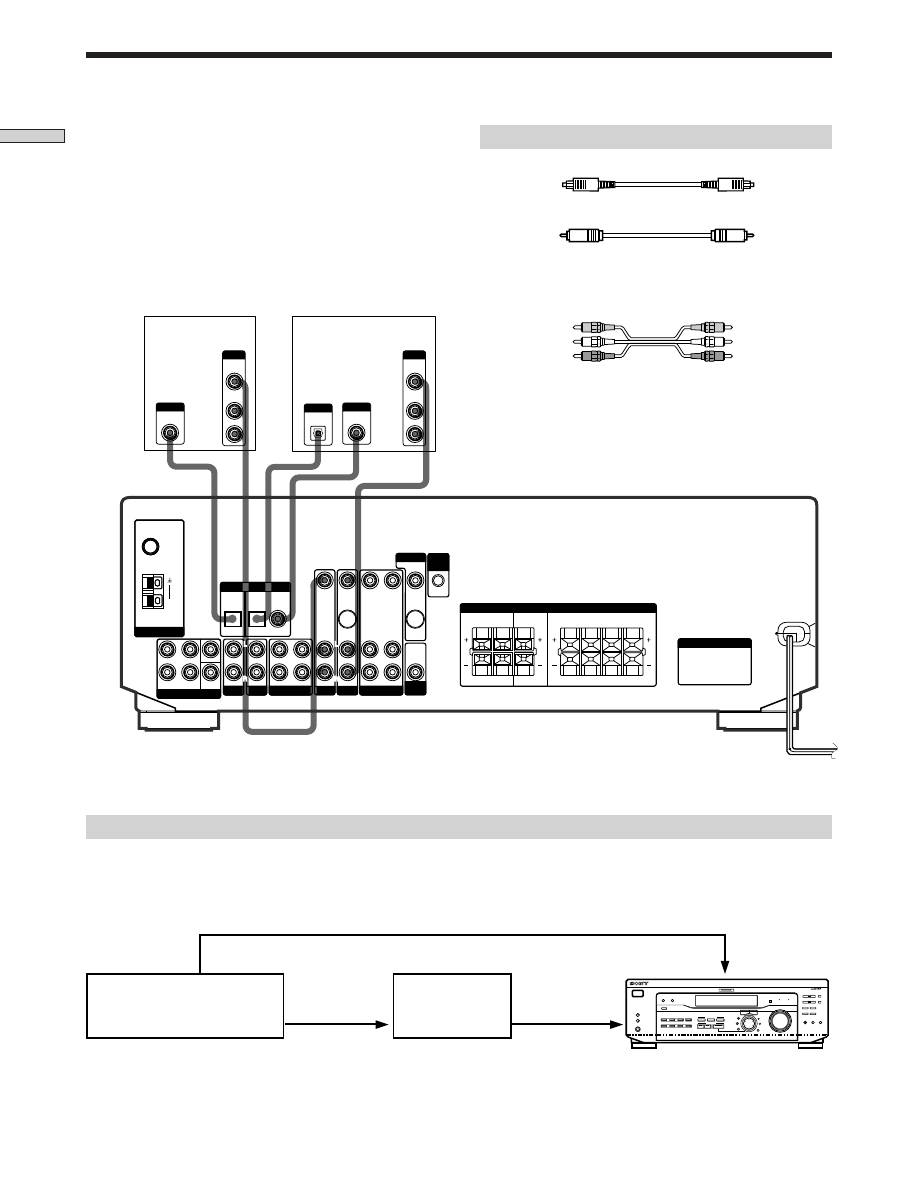
Jacks for connecting video components
Connect a
To the
TV or Satellite tuner
TV/SAT jacks
VCR
VIDEO jacks
DVD or LD player
DVD/LD jacks
TV monitor
MONITOR VIDEO OUT jack
Required cords
Audio/video cords (not supplied)
When connecting a cord, be sure to match the color-coded pins to
the appropriate jacks on the components.
Video cord for connecting a TV monitor (not supplied)
Video Component Hookups
TV or Satellite tuner
DVD or LD player
Yellow
Yellow
Yellow (video)
Yellow (video)
White (L/audio)
White (L/audio)
Red (R/audio)
Red (R/audio)
VCR
IN
OUT
VIDEO
OUT
R
VIDEO
IN
AUDIO
OUT
AUDIO
IN
INPUT OUTPUT
L
VIDEO
IN
INPUT
OUT
S-VIDEO
IN
S-VIDEO
R
L
AUDIO OUT
VIDEO
OUT
OUTPUT
R
L
AUDIO OUT
VIDEO
OUT
OUTPUT
ç
ç
MD/TAPE
ANTENNA
DIGITAL IN
TV/SAT
5.1 CH INPUT
AUX
CD
DVD/LD
VIDEO
SUB
WOOFER
IMPEDANCE
SELECTOR
SPEAKERS
CTRL
A1
I I
MONITOR
AC OUTLET
FRONT
REAR
SUB
WOOFER
AUDIO IN
AUDIO IN
TV/SAT
OPTICAL
OPTICAL
COAXIAL
DVD/LD
REC OUT
IN
AUDIO IN
VIDEO IN
AUDIO IN
VIDEO IN
AUDIO OUT
AUDIO IN
VIDEO OUT
VIDEO IN
VIDEO OUT
S-VIDEO
OUT
S-VIDEO
IN
AUDIO
OUT
4
Ω
8
Ω
CENTER
L
R
L
R
L
R
L
R
L
R
FRONT
REAR
R
L
R
L
R
L
R
L
R
L
R
L
CENTER
B FRONT A
FM
75
Ω
COAXIAL
AM
TV monitor
8
GB
Hooking Up the Components
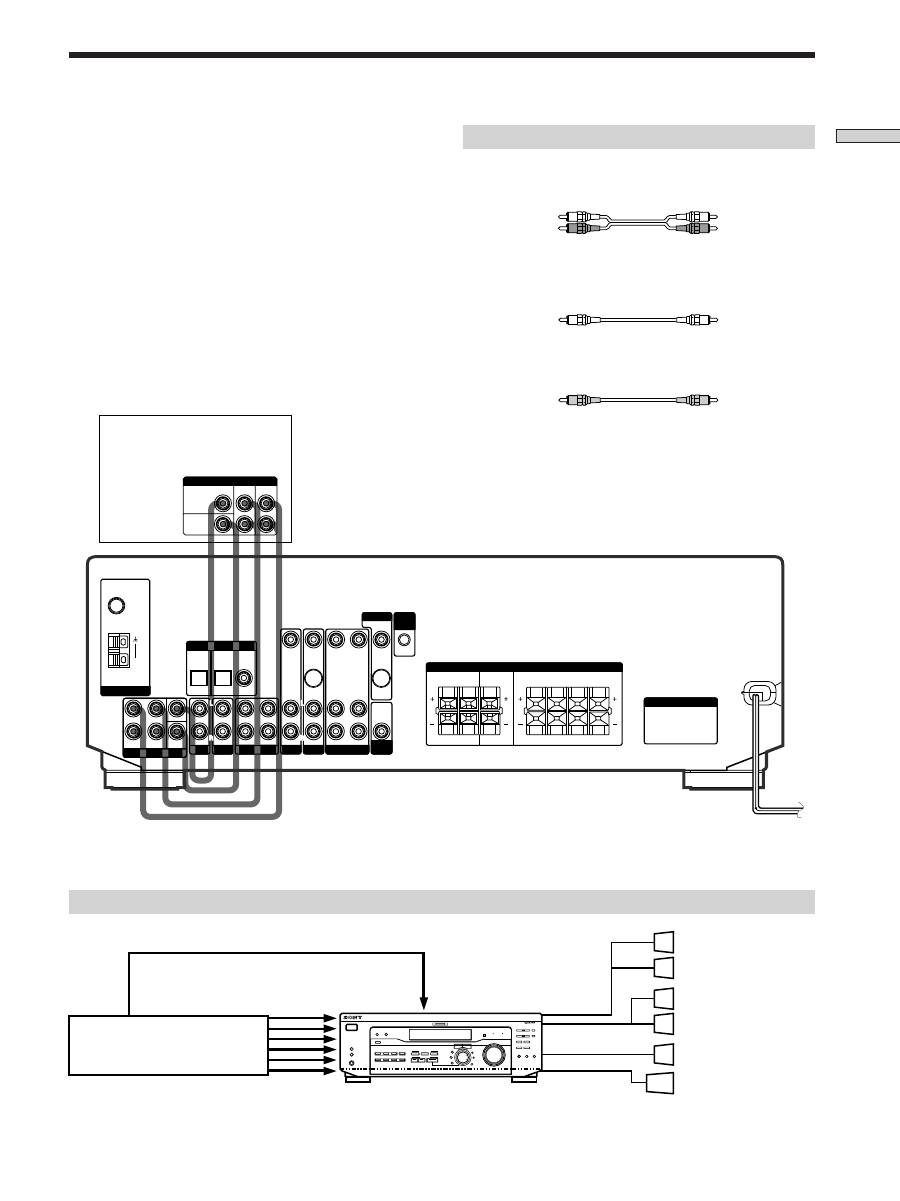
DVD player (etc.)*
Required cords
Optical digital cords (not supplied)
Coaxial digital cord (not supplied)
Audio/video cords (not supplied)
When connecting a cord, be sure to match the color-coded pins to
the appropriate jacks on the components.
Connect the digital output jacks of your DVD player and
satellite tuner (etc.) to the receiver’s digital input jacks to
bring the multi channel surround sound of a movie
theater into your home. To enjoy full effect of multi
channel surround sound, five speakers (two front
speakers, two rear speakers, and a center speaker) and a
sub woofer are required. You can also connect an LD
player with an RF OUT jack via an RF demodulator, such
as the Sony MOD-RF1 (not supplied).
Digital Component Hookups
Please note that you cannot connect an LD player’s AC-3 RF OUT jack directly to the receiver’s digital input jacks. You
must first convert the RF signal to either an optical or coaxial digital signal. Connect the LD player to the RF demodulator,
then connect the RF demodulator’s optical or coaxial digital output to the receiver’s OPTICAL or COAXIAL DVD/LD IN
jack. Refer to the instruction manual supplied with your RF Demodulator for details on AC-3 RF hookups.
Example of LD player connected via an RF demodulator
RF demodulator
LD player
Black
Black
Yellow
Yellow
Yellow (video)
Yellow (video)
White (L/audio)
White (L/audio)
Red (R/audio)
Red (R/audio)
Note
When making connections as shown above, be sure to set INPUT MODE (
3
on page 23) manually. The receiver may not operate correctly
if INPUT MODE is set to “AUTO.”
* When making digital audio connections to a DVD player, connect to either the coaxial OR optical digital jacks, and not
both. It is recommended to make digital audio connections to the coaxial jack.
** STR-DE545 and STR-SE501 only.
Note
The optical and coaxial digital input jacks on the receiver are
compatible with sampling frequencies of 32 kHz, 44.1 kHz, and
48 kHz.
DIGITAL
COAXIAL
OUTPUT
VIDEO
OUT
R
AUDIO
OUT
OUTPUT
L
DIGITAL
OPTICAL
OUTPUT
VIDEO
OUT
AUDIO
OUT
OUTPUT
DIGITAL
OPTICAL
OUTPUT
FRONT
REAR
SUB
WOOFER
AUDIO IN
AUDIO IN
TV/SAT
**
**
OPTICAL
OPTICAL
COAXIAL
DVD/LD
REC OUT
IN
AUDIO IN
VIDEO IN
AUDIO IN
VIDEO IN
AUDIO OUT
AUDIO IN
VIDEO OUT
VIDEO IN
VIDEO OUT
S-VIDEO
OUT
S-VIDEO
IN
AUDIO
OUT
4
Ω
8
Ω
CENTER
L
R
L
R
L
R
L
R
L
R
FRONT
REAR
R
L
R
L
R
L
R
SWITCHED 120W/1A MAX
SWITCHED 120W/1A MAX
AC 120V 60Hz
AC 120V 60Hz
L
R
L
R
L
CENTER
B FRONT A
FM
75
Ω
COAXIAL
AM
MD/TAPE
ANTENNA
DIGITAL IN
TV/SAT
5.1 CH INPUT
AUX
CD
DVD/LD
VIDEO
SUB
WOOFER
IMPEDANCE
SELECTOR
SPEAKERS
CTRL
A1
I I
MONITOR
AC OUTLET
TV or Satellite
tuner
DVD/LD
VIDEO IN
DIGITAL
DVD/LD IN
(COAXIAL)
(OPTICAL)
AC-3 RF
OUT
VIDEO OUT
MULTI CHANNEL DECODING
MASTER VOLUME
DISPLAY
INPUT MODE
VIDEO
MD/TAPE
CD
TUNER
AUX
DVD/LD
TV/SAT 5.1CH INPUT
CINEMA STUDIO
LEVEL
I
–
i
+
SET UP
BASS BOOST
TONE
FM/AM
MUTING
TONE
BASS
BOOST
MEMORY
FM MODE
RDS EON RDS PTY
PRESET/
– PTY SELECT +
– TUNING +
NAME
ENTER
SUR
BASS/
TREBLE
SOUND FIELD
A. F. D.
A
B
C
2CH
MODE
DIMMER
SPEAKERS
R
ON
r
OFF
A
PHONES
B
?
/
1
SHIFT
DIGITAL
DVD/LD IN
(COAXIAL)
or (OPTICAL)
9
GB
Hooking Up the Components
5.1CH Input Hookups
Required cords
Audio cords (not supplied)
Two for the 5.1CH INPUT FRONT and REAR jacks
Monaural audio cords (not supplied)
Two for the 5.1CH INPUT CENTER and SUB WOOFER jacks
Black
Black
Video cord (not supplied)
One for the DVD/LD VIDEO IN jacks (etc.)
Yellow
Yellow
Note
When using the connections described below, adjust the level of
your surround speakers and subwoofer from the DVD player or
multichannel decoder.
Although this receiver incorporates a multi channel
decoder, it is also equipped with 5.1CH INPUT jacks.
These connections allow you to enjoy multichannel
software encoded in formats other than Dolby Digital
(AC-3) and DTS. If your DVD player is equipped with
5.1CH OUTPUT jacks, you can connect them directly to
the receiver to enjoy the sound of the DVD player’s multi
channel decoder. Alternatively, the 5.1CH INPUT jacks
can be used to connect an external multi channel decoder.
To fully enjoy multi channel surround sound, you will
need five speakers (two front speakers, two rear speakers,
and a center speaker) and a subwoofer. Refer to the
instruction manual supplied with your DVD player, multi
channel decoder, etc., for details on the 5.1 channel input
hookups.
Example of a DVD player hookup using the 5.1CH INPUT jacks
Note
See page 13 for details on speaker system hookup.
DVD player
Front Speaker (L)
Front Speaker (R)
Rear Speaker (L)
Rear Speaker (R)
Center Speaker
Active Woofer
DVD player,
Multichannel decoder, etc.
DVD/LD
VIDEO IN etc.
REAR
CENTER
WOOFER
5.1 CH OUTPUT
FRONT
MD/TAPE
ANTENNA
DIGITAL IN
TV/SAT
5.1 CH INPUT
AUX
CD
DVD/LD
VIDEO
SUB
WOOFER
IMPEDANCE
SELECTOR
SPEAKERS
CTRL
A1
I I
MONITOR
AC OUTLET
FRONT
REAR
SUB
WOOFER
AUDIO IN
AUDIO IN
TV/SAT
OPTICAL
OPTICAL
COAXIAL
DVD/LD
REC OUT
IN
AUDIO IN
VIDEO IN
AUDIO IN
VIDEO IN
AUDIO OUT
AUDIO IN
VIDEO OUT
VIDEO IN
VIDEO OUT
S-VIDEO
OUT
S-VIDEO
IN
AUDIO
OUT
4
Ω
8
Ω
CENTER
L
R
L
R
L
R
L
R
L
R
FRONT
REAR
R
L
R
L
R
L
R
L
R
L
R
L
CENTER
B FRONT A
FM
75
Ω
COAXIAL
AM
5.1 CH INPUT
VIDEO OUT
SUB WOOFER
SPEAKERS
REAR/CENTER
SPEAKERS
FRONT
MULTI CHANNEL DECODING
MASTER VOLUME
DISPLAY
INPUT MODE
VIDEO
MD/TAPE
CD
TUNER
AUX
DVD/LD
TV/SAT 5.1CH INPUT
CINEMA STUDIO
LEVEL
I
–
i
+
SET UP
BASS BOOST
TONE
FM/AM
MUTING
TONE
BASS
BOOST
MEMORY
FM MODE
RDS EON RDS PTY
PRESET/
– PTY SELECT +
– TUNING +
NAME
ENTER
SUR
BASS/
TREBLE
SOUND FIELD
A. F. D.
A
B
C
2CH
MODE
DIMMER
SPEAKERS
R
ON
r
OFF
A
PHONES
B
?
/
1
SHIFT
White (L)
White (L)
Red (R)
Red (R)
10
GB
Hooking Up the Components
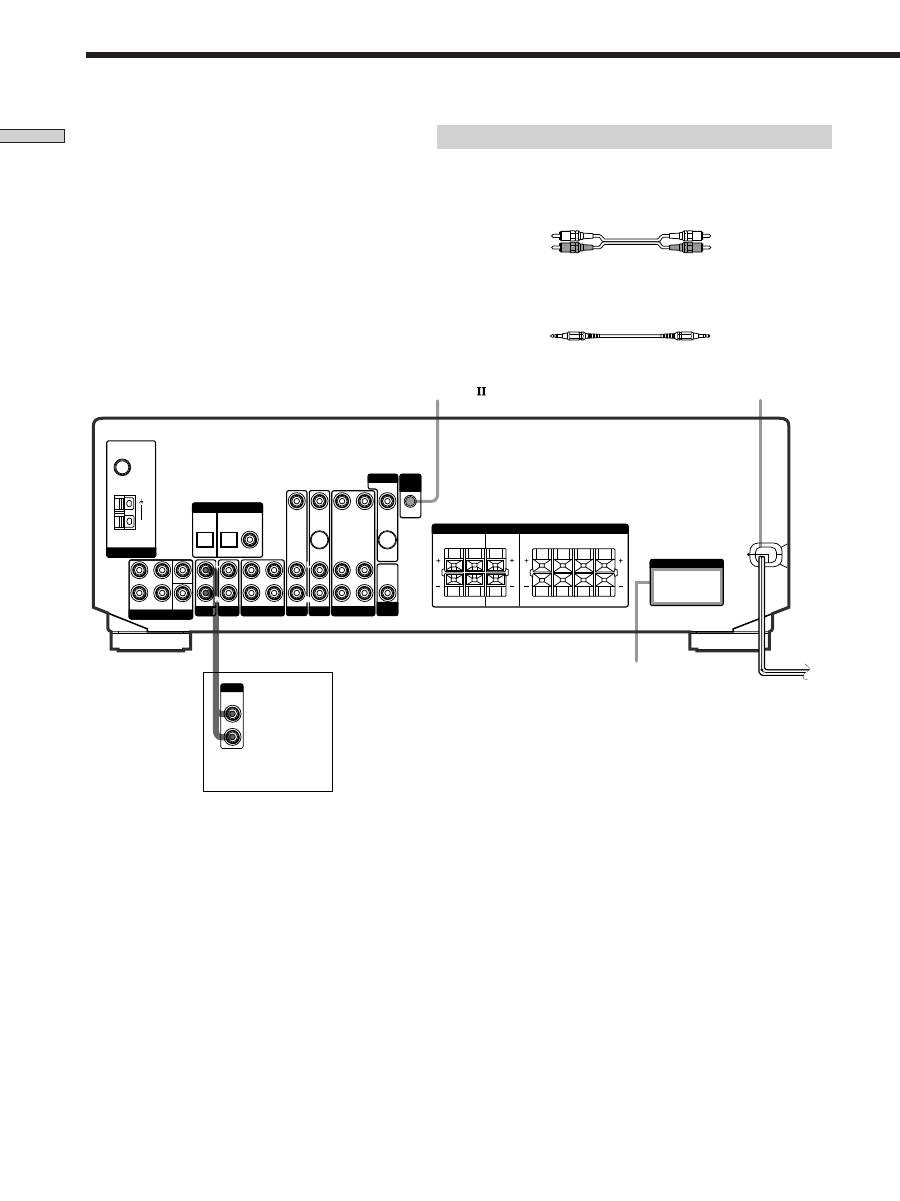
AC power cord
Required cords
Audio cords (not supplied)
When connecting a cord, be sure to match the color-coded pins to the
appropriate jacks on the components.
CONTROL A1 connecting cord (not supplied) (STR-DE545 and STR-SE501
only)
Black
Black
To a wall outlet
Other Hookups
b
LINE
OUTPUT
CONTROL A1
AC OUTLET
FRONT
REAR
SUB
WOOFER
AUDIO IN
AUDIO IN
TV/SAT
OPTICAL
OPTICAL
COAXIAL
DVD/LD
REC OUT
IN
AUDIO IN
VIDEO IN
AUDIO IN
VIDEO IN
AUDIO OUT
AUDIO IN
VIDEO OUT
VIDEO IN
VIDEO OUT
S-VIDEO
OUT
S-VIDEO
IN
AUDIO
OUT
4
Ω
8
Ω
CENTER
L
R
L
R
L
R
L
R
L
R
FRONT
REAR
R
L
R
L
R
L
R
L
R
L
R
L
CENTER
B FRONT A
FM
75
Ω
COAXIAL
AM
MD/TAPE
ANTENNA
DIGITAL IN
TV/SAT
5.1 CH INPUT
AUX
CD
DVD/LD
VIDEO
SUB
WOOFER
IMPEDANCE
SELECTOR
SPEAKERS
CTRL
A1
I I
MONITOR
AC OUTLET
(STR- DE545 and
STR-SE501 only)
White (L)
White (L)
Red (R)
Red (R)
CD player, tape deck,
MD deck, etc.

11
GB
Hooking Up the Components
CONTROL A1 hookup (STR-DE545 and
STR-SE501 only)
• If you have a CONTROL A1 compatible Sony
CD player, tape deck, or MD deck
Use a CONTROL A1 cord (not supplied) to connect the
CONTROL A1 jack on the CD player, tape deck, or
MD deck to the CONTROL A1 jack on the receiver.
Refer to the separate manual “CONTROL-A1 Control
System” and the operating instructions supplied with
your CD player, tape deck, or MD deck for details.
Note
If you make CONTROL A1 connections from the receiver to
an MD deck that is also connected to a computer, do not
operate the receiver while using the “Sony MD Editor”
software. This may cause a malfunction.
• If you have a Sony CD changer with a
COMMAND MODE selector
If your CD changer’s COMMAND MODE selector can
be set to CD 1, CD 2, or CD 3, be sure to set the
command mode to “CD 1” and connect the changer to
the CD jacks on the receiver.
If, however, you have a Sony CD changer with VIDEO
OUT jacks, set the command mode to “CD 2” and
connect the changer to the VIDEO IN jacks on the
receiver.
AUX AUDIO IN hookup
• If you have an individual audio component
(except PHONO)
Use the audio cords to connect the LINE OUT jacks on
the CD player, tape deck, or MD deck to the AUX
AUDIO IN jack on the receiver so that you can listen to
stereo sources in surround sound.
Connecting the AC power cord
Before connecting the AC power cord of this receiver to a
wall outlet:
• Connect the speaker system to the receiver (see page
13).
Connect the AC power cord(s) of your audio/video
components to a wall outlet.
STR-DE545 and STR-SE501 only
If you connect other audio/video components to the AC
OUTLET(s) on the receiver, the receiver will supply power
to the connected component(s), allowing you to turn the
whole system on or off when you turn the receiver on or
off.
Caution
Make sure that the total power consumption of the component(s)
connected to the receiver’s AC OUTLET(s) does not exceed the
wattage stated on the rear panel. Do not connect high-wattage
electrical home appliances such as electric irons, fans, or TVs to
this outlet. (STR-DE545 and STR-SE501 only)
Note
If the AC power cord is disconnected for about two weeks, the
receiver’s entire memory will be cleared and the demonstration
will start.
12
GB
MULTI CHANNEL DECODING
MASTER VOLUME
DISPLAY
INPUT MODE
VIDEO
MD/TAPE
CD
TUNER
AUX
DVD/LD
TV/SAT 5.1CH INPUT
CINEMA STUDIO
LEVEL
I
–
i
+
SET UP
BASS BOOST
TONE
FM/AM
MUTING
TONE
BASS
BOOST
MEMORY
FM MODE
RDS EON RDS PTY
PRESET/
– PTY SELECT +
– TUNING +
NAME
ENTER
SUR
BASS/
TREBLE
SOUND FIELD
A. F. D.
A
B
C
2CH
MODE
DIMMER
SPEAKERS
R
ON
r
OFF
A
PHONES
B
?
/
1
SHIFT
SET UP
Hooking Up and Setting Up the Speaker System
This chapter describes how to hook
up your speaker system to the
receiver, how to position each speaker,
and how to set up your speakers to
enjoy multi channel surround sound.
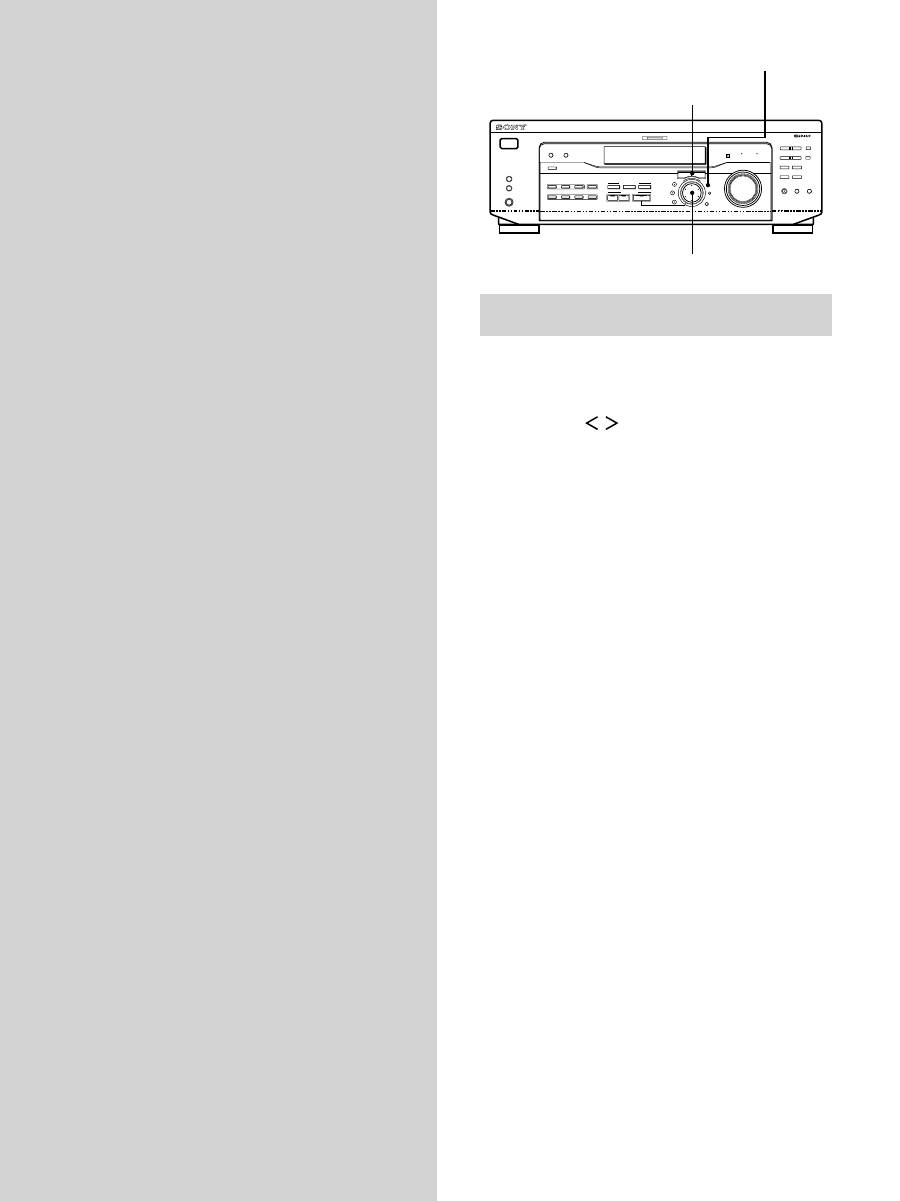
Brief descriptions of buttons and control
used to set up the speaker system
SET UP button:
Press to enter the setup mode when
specifying speaker types and distances.
Cursor buttons (
/
):
Use to select parameters after
pressing the SET UP button.
Jog dial:
Use to adjust the setting of each parameter.
Cursor buttons
Jog dial
13
GB
Hooking Up and Setting Up the Speaker System
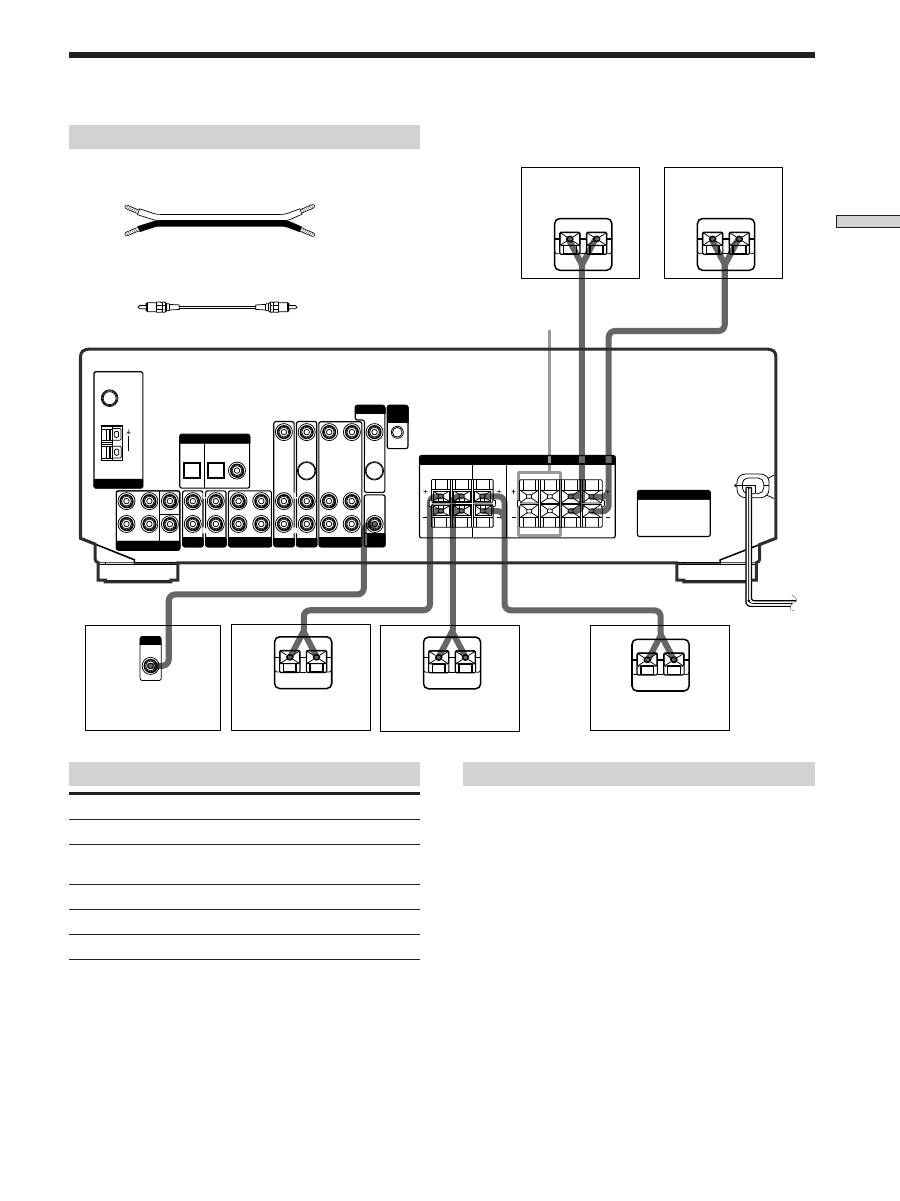
Required cords
Speaker cords (not supplied)
One for each front, rear, and center speaker
Monaural audio cord (not supplied)
One for an active sub woofer
Black
Black
}
]
}
]
}
]
}
]
}
]
INPUT
AUDIO
IN
*FRONT
SPEAKERS B
FRONT
REAR
SUB
WOOFER
AUDIO IN
AUDIO IN
TV/SAT
OPTICAL
OPTICAL
COAXIAL
DVD/LD
REC OUT
IN
AUDIO IN
VIDEO IN
AUDIO IN
VIDEO IN
AUDIO OUT
AUDIO IN
VIDEO OUT
VIDEO IN
VIDEO OUT
S-VIDEO
OUT
S-VIDEO
IN
AUDIO
OUT
4
Ω
8
Ω
CENTER
L
R
L
R
L
R
L
R
L
R
FRONT
REAR
R
L
R
L
R
L
R
L
R
L
R
L
CENTER
B FRONT A
FM
75
Ω
COAXIAL
AM
ANTENNA
5.1 CH INPUT
AUX
CD
DIGITAL IN
MD/TAPE
VIDEO
SUB
WOOFER
IMPEDANCE
SELECTOR
MONITOR CTRL
A1
I I
AC OUTLET
SPEAKERS
DVD/LD
TV/SAT
Front speaker (R)
Front speaker (L)
Center speaker
Active sub woofer
Rear speaker (R)
Rear speaker (L)
Notes on speaker system hookup
• Twist the stripped ends of the speaker cords about 10
mm (2/3 inch). Be sure to match the speaker cord to the
appropriate terminal on the components: + to + and – to
–. If the cords are reversed, the sound will be distorted
and will lack bass.
• If you use front speakers with low maximum input
rating, adjust the volume carefully to avoid excessive
output on the speakers.
• You can also connect Micro Satellite Speaker (e.g.
SA-VE230) to the receiver. Micro Satellite Speaker is a
5.1 Channel speaker system consisting of two front
speakers, two rear speakers, one center speaker and one
subwoofer.
* STR-DE545 and STR-SE501 only.
Terminals for connecting the speakers
Connect the
To the
Front speakers (8 ohm)
SPEAKERS FRONT A terminals
*Additional pair of front
SPEAKERS FRONT B terminals
speakers (8 ohm)
Rear speakers (8 ohm)
SPEAKERS REAR terminals
Center speaker (8 ohm)
SPEAKERS CENTER terminals
Active sub woofer
SUB WOOFER AUDIO OUT jack
Speaker System Hookup
(+)
(–)
(+)
(–)

14
GB
Hooking Up and Setting Up the Speaker System
Speaker System Hookup
To avoid short-circuiting the speakers
Short-circuiting of the speakers may damage the receiver.
To prevent this, make sure to take the following
precautions when connecting the speakers.
Make sure the stripped ends of each speaker cord
does not touch another speaker terminal or the
stripped end of another speaker cord.
Examples of poor conditions of the speaker cord
Stripped speaker cord is touching another speaker terminal.
Stripped cords are touching each other due to excessive
removal of insulation.
After connecting all the components, speakers,
and AC power cord, output a test tone to check
that all the speakers are connected correctly. For
details on outputting a test tone, see page 19.
If no sound is heard from a speaker while outputting a
test tone or a test tone is output from a speaker other than
the one whose name is currently displayed on the
receiver, the speaker may be short-circuited. If this
happens, check the speaker connection again.
To avoid damaging your speakers
Make sure that you turn down the volume before you
turn off the receiver. When you turn on the receiver, the
volume remains at the level you turn off the receiver.
15
GB
Hooking Up and Setting Up the Speaker System
Once you have made speaker connections and have
turned on the power for the first time, clear the receiver’s
memory. After you have done this, set the speaker sizes,
speaker locations and other initial system settings that are
necessary.
Before turning on the receiver
Make sure that you have:
• Selected the appropriate front speakers (see “
7
SPEAKERS selector” on page 23). (STR-DE545 and
STR-SE501 only)
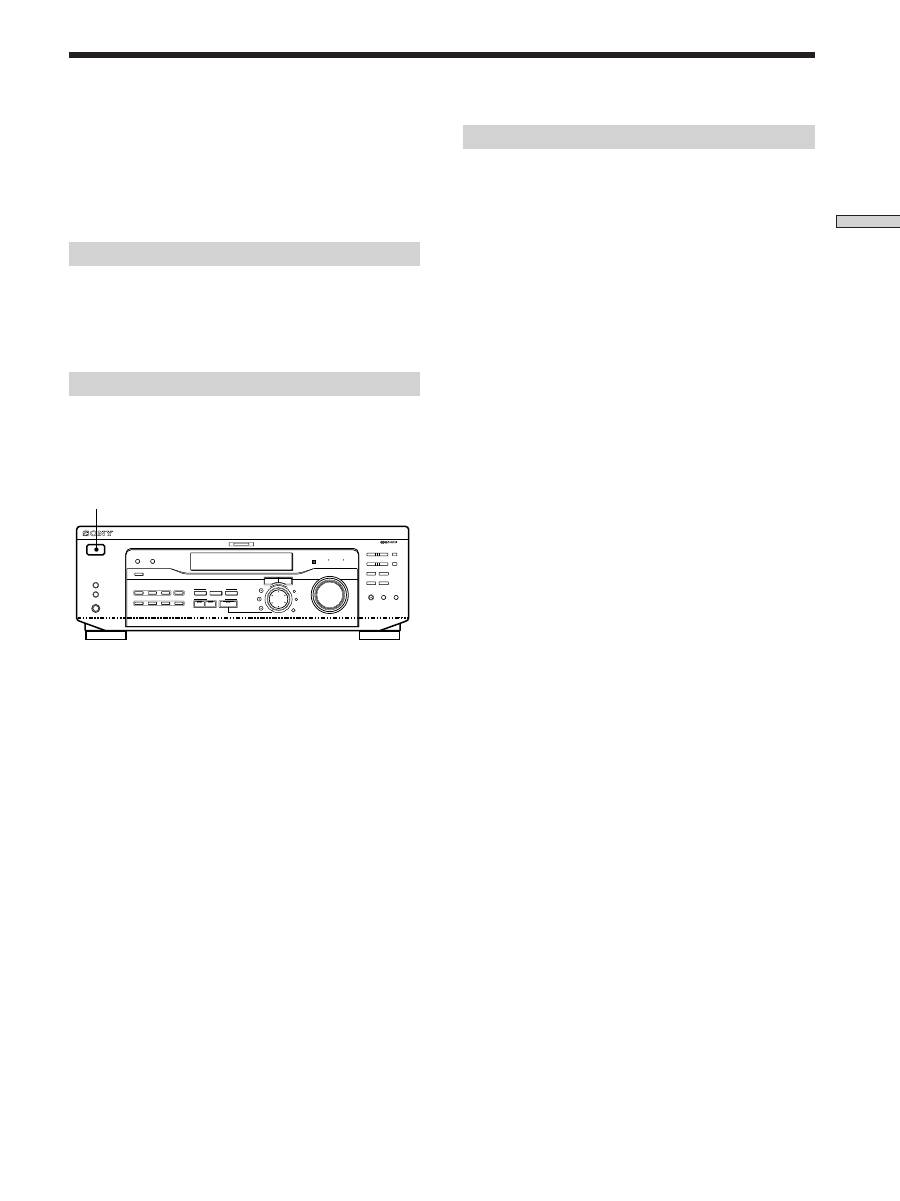
Clearing the receiver’s memory
Before you use your receiver for the first time or when
you want to clear the receiver’s memory, do the following.
If the Demonstration appears when the power is turned
on, this procedure is not necessary.
1
Turn off the receiver.
2
Hold down
?
/
1
for four seconds.
The currently selected function, then the
demonstration message appears in the display and the
items including the following are reset or cleared:
• All preset stations are reset or cleared.
• All sound field parameters are reset to their factory
settings.
• All index names (of preset stations and program
sources) are cleared.
• All adjustments made with the SET UP button are
reset to their factory settings.
• The sound field memorized for each program source
and preset stations are cleared.
Performing Initial Setup Operations
Setting up the receiver
Before you use your receiver for the first time, use the SET
UP button to adjust settings to correspond to your system.
You can set the following items. For details on how to
adjust each setting, see the page in parentheses.
• Set the speaker size (page 16).
• Set the speaker distance (page 18).
• Select the 5.1CH INPUT video signal (page 47).
1/u
MULTI CHANNEL DECODING
MASTER VOLUME
DISPLAY
INPUT MODE
VIDEO
MD/TAPE
CD
TUNER
AUX
DVD/LD
TV/SAT 5.1CH INPUT
CINEMA STUDIO
LEVEL
I
–
i
+
SET UP
BASS BOOST
TONE
FM/AM
MUTING
TONE
BASS
BOOST
SHIFT
MEMORY
FM MODE
RDS EON RDS PTY
PRESET/
– PTY SELECT +
– TUNING +
NAME
ENTER
SUR
BASS/
TREBLE
SOUND FIELD
A. F. D.
A
B
C
2CH
MODE
DIMMER
SPEAKERS
R
ON
r
OFF
A
PHONES
B
?
/
1

16
GB
Hooking Up and Setting Up the Speaker System
Multi Channel Surround Setup
Specifying the speaker parameters
1
Press
?
/
1
to turn on the receiver.
2
Press SET UP.
3
Press the cursor buttons (
or
) to select the
parameter you want to adjust.
4
Turn the jog dial to select the setting you want.
The setting is stored automatically.
5
Repeat steps 3 and 4 until you have set all of the
parameters that follow.
z
Normal speaker and Micro Satellite speaker
Choose NORM. SP if you’re using normal speakers and MICRO
SP if you’re using Micro Satellite speakers. If you choose NORM.
SP, you can adjust the speaker size and the sub woofer selection
as mentioned below. However, if you choose MICRO SP, the
speaker size and the sub woofer selection has been configurated
as follows:
Speakers
Front
Center
Rear
Woofer
You cannot change the configuration if you choose MICRO SP.
For STR-SE501, the speaker size and sub woofer selection has
been preset to MICRO SP according to the supplied speaker
system. If you change the speaker system, choose NORM. SP to
adjust the speaker size and sub woofer selection.
p
Front speaker size (
L
R
)
Initial setting : LARGE (STR-DE545/DE445)
SMALL (STR-SE501)
• If you connect large speakers that will effectively
reproduce bass frequencies, select “LARGE”. Normally,
select “LARGE”.
• If the sound is distorted, or you feel a lack of surround
effects when using multi channel surround sound,
select “SMALL” to activate the bass redirection circuitry
and output the front channel bass frequencies from the
sub woofer.
• When the front speaker is set to “SMALL”, the center
and rear speakers are also automatically set to
“SMALL” (unless previously set to “NO”).
For the best possible surround sound all speakers should
be the same distance from the listening position (
A
).
(However, this unit lets you to place the center speaker up
to 1.5 meters (5 feet) closer (
B
) and the rear speakers up
to 4.5 meters (15 feet) closer (
C
) to the listening position.
The front speakers can be placed from 1.0 to 12.0 meters (3
to 40 feet) from the listening position (
A
).)
You can place the rear speakers either behind you or to
the side, depending on the shape of your room (etc.).
Note
Do not place the center speaker farther away from the listening
position than the front speakers.
When the rear speakers are placed to the side
When the rear speakers are placed behind you
45
°
90
°
20
°
A
A
B
C
C
45
°
90
°
20
°
A
A
B
C
C
Settings
SMALL
SMALL
SMALL
YES

17
GB
Hooking Up and Setting Up the Speaker System
z
About speaker sizes (LARGE and SMALL)
Internally, the LARGE and SMALL settings for each speaker
determine whether or not the internal sound processor will cut
the bass signal from that channel. When the bass is cut from a
channel the bass redirection circuitry sends the corresponding
bass frequencies to the sub woofer or other “LARGE” speaker.
However, since bass sounds have a certain amount of
directionality it best not to cut them, if possible. Therefore, even
when using small speakers, you can set them to “LARGE” if you
want to output the bass frequencies from that speaker. On the
other hand, if you are using a large speaker, but prefer not to
have bass frequencies output from that speaker, set it to
“SMALL”.
If the overall sound level is lower than you prefer, set all speakers
to “LARGE”. If there is not enough bass, you can use the bass/
treble to boost the bass levels. To adjust the bass/treble, see page
35.
p
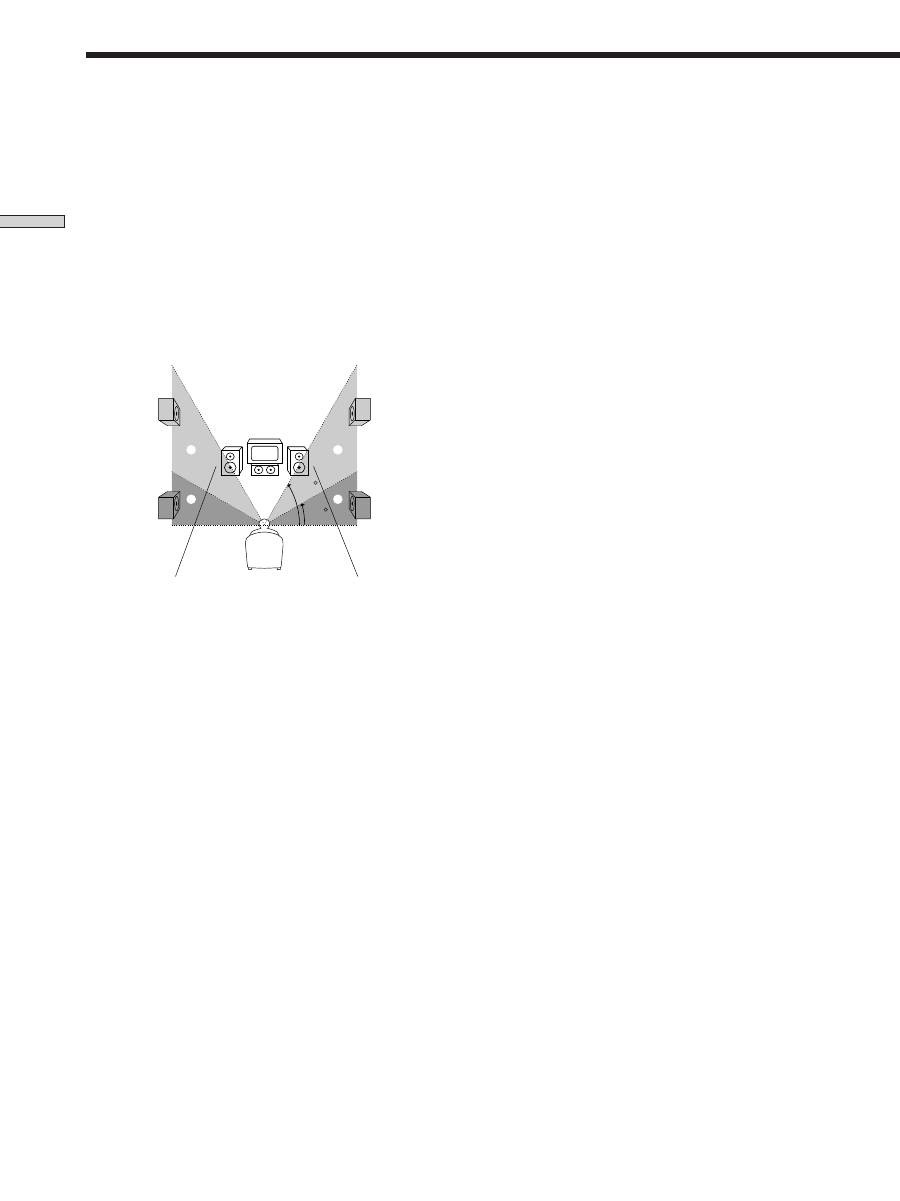
Rear speaker position (REAR PL.)*
Initial setting : BEHIND
This parameter lets you specify the location of your rear
speakers for proper implementation of the Digital Cinema
Sound surround modes in the “VIRTUAL” sound fields.
Refer to the illustration below.
• Select “SIDE” if the location of your rear speakers
corresponds to section
A
.
• Select “BEHIND” if the location of your rear speakers
corresponds to section
B
.
This setting only effects the surround modes in the
“VIRTUAL” sound fields.
* These parameters are not available when “Rear speaker
size (REAR)” is set to “NO”.
p
Center speaker size (
C
)
Initial setting : LARGE (STR-DE545/DE445)
SMALL (STR-SE501)
• If you connect a large speaker that will effectively
reproduce bass frequencies, select “LARGE”. Normally,
select “LARGE”. However, if the front speakers are set
to “SMALL”, you cannot set the center speaker to
“LARGE”.
• If the sound is distorted, or you feel a lack of surround
effects when using multi channel surround sound,
select “SMALL” to activate the bass redirection circuitry
and output the center channel bass frequencies from the
front speakers (if set to “LARGE”) or sub woofer. *
1
• If you do not connect the center speaker, select “NO”.
The sound of the center channel will be output from the
front speakers.*
2
p
Rear speaker size (
LS
RS
)
Initial setting : LARGE (STR-DE545/DE445)
SMALL (STR-SE501)
• If you connect large speakers that will effectively
reproduce bass frequencies, select “LARGE”. Normally,
select “LARGE”. However, if the front speakers are set
to “SMALL”, you cannot set the rear speakers to
“LARGE”.
• If the sound is distorted, or you feel a lack of surround
effects when using multi channel surround sound,
select “SMALL” to activate the bass redirection circuitry
and output the rear channel bass frequencies from the
sub woofer or other “LARGE” speakers.
• If you do not connect rear speakers, select “NO”.*
3
z
*1~*3 correspond to the following Dolby Pro Logic modes
*
1
NORMAL
*
2
PHANTOM
*
3
3 STEREO
45
°
90
°
20
°
B
B
A
A
18
GB
Hooking Up and Setting Up the Speaker System
Multi Channel Surround Setup
p
Sub woofer selection (SUB WOOFER)
Initial setting : YES
• If you connect a sub woofer, select “YES”.
• If you do not connect a sub woofer, select “NO”. This
activates the bass redirection circuitry and outputs the
LFE signals from other speakers.
• In order to take full advantage of the Dolby Digital
(AC-3) bass redirection circuitry, we recommend that
you set your sub woofer’s cut off frequency as high as
possible.
p
Front speaker distance (FRONT)
Initial setting : 5.0 meter
Set the distance from your listening position to the front
(left or right) speaker (
A
on page 16).
• Front speaker distance can be set in 0.1 meter (1 foot)
steps from 1.0 to 12.0 meters (3 to 40 feet).
• If both speakers are not placed an equal distance from
your listening position, set the distance to the closest
speaker.
p
Center speaker distance (CENTER)
Initial setting : 5.0 meter
Set the distance from your listening position to the center
speaker.
• Center speaker distance can be set in 0.1 meter (1 foot)
steps from a distance equal to the front speaker distance
(
A
on page 16) to a distance 1.5 meters (5 feet) closer to
your listening position (
B
on page 16).
• Do not place the center speaker farther away from your
listening position than the front speakers.
p
Rear speaker distance (REAR)
Initial setting : 3.5 meter
Set the distance from your listening position to the rear
(left or right) speaker.
• Rear speaker distance can be set in 0.1 meter (1 foot)
steps from a distance equal to the front speaker distance
(
A
on page 16) to a distance 4.5 meters (15 feet) closer
to your listening position (
C
on page 16).
• Do not place the rear speakers farther away from your
listening position than the front speakers.
• If both speakers are not placed an equal distance from
your listening position, set the distance to the closest
speaker.
p
Rear speaker height (REAR HGT.)*
Initial setting : LOW
This parameter lets you specify the height of your rear
speakers for proper implementation of the Digital Cinema
Sound surround modes in the “VIRTUAL” sound fields.
Refer to the illustration below.
• Select “LOW” if the location of your rear speakers
corresponds to section
A
.
• Select “HIGH” if the location of your rear speakers
corresponds to section
B
.
This setting only affects the surround modes in the
“VIRTUAL” sound fields.
* These parameters are not available when “Rear speaker
size (REAR)“ is set to “NO”.
z
About the rear speaker position (SIDE, and BEHIND)
This setting is designed specifically for implementation of the
Digital Cinema Sound modes in the “VIRTUAL” sound fields.
With the Digital Cinema Sound modes, speaker position is not as
critical as other modes. All of the modes in the “VIRTUAL”
sound fields were designed under the premise that the rear
speaker would be located behind the listening position, but
presentation remains fairly consistent even with the rear speakers
positioned at a rather wide angle. However, if the speakers are
pointing toward the listener from the immediate left and right of
the listening position, the “VIRTUAL” sound fields will not be
effective unless the rear speaker position parameter is set to
“SIDE”.
Nevertheless, each listening environment has many variables,
such as wall reflections, and you may obtain better results using
“BEHIND” if your speakers are located high above the listening
position, even if they are to the immediate left and right.
Therefore, although it may result in a setting contrary to the
“Rear speaker position” explanation, we recommend that you
play back multi channel surround encoded software and listen to
the effect each setting has on your listening environment. Choose
the setting that provides a good sense of spaciousness and that
best succeeds in forming a cohesive space between the surround
sound from the rear speakers and the sound from the front
speakers. If you are not sure which sounds best, select
“BEHIND” and then use the speaker distance parameter and
speaker level adjustments to obtain proper balance.
60
30
A
B
A
B

19
GB
Hooking Up and Setting Up the Speaker System
Adjusting the speaker volume
Use the remote while seated in your listening position to
adjust the volume of each speaker.
Note
This receiver incorporates a new test tone with a frequency
centered at 800 Hz for easier speaker volume adjustment.
1
Press
?
/
1
to turn on the receiver.
2
Press TEST TONE on the supplied remote.
You will hear the test tone from each speaker in
sequence.
3
Adjust the volume level so that the volume of the
test tone from each speaker sounds the same
when you are in your main listening position.
• To adjust the balance of the front right and front left
speakers, use the front balance parameter in the
LEVEL menu (see page 34).
• To adjust the balance of the rear right and rear left
speakers, use the rear balance parameter in the
LEVEL menu (see page 34).
• To adjust the volume level of the center speaker,
press MENU </> to select the center parameter.
Use +/– on the remote to adjust the level.
• To adjust the volume level of the rear speaker, press
MENU </> to select the rear parameter.
Use +/– on the remote to adjust the level.
4
Press TEST TONE on the remote again to turn off
the test tone.
Note
The test tone cannot be output when the receiver is set to 5.1CH
INPUT.
z
You can adjust the volume level of all speakers at the same
time
Rotate MASTER VOLUME on the receiver or press MASTER
VOL +/– on the remote.
z
About speaker distances
This receiver allows you to input the speaker position in terms of
distance. However, it is not possible to set the center speaker
farther away than the front speakers. Also, the center speaker can
not be set more that 1.5 meters (5 feet) closer than the front
speakers.
Likewise, the rear speakers cannot be set farther away from the
listening position than the front speakers. And they can be no
more than 4.5 meters (15 feet) closer.
This is because incorrect speaker placement is not conducive to
enjoy the surround sound.
Please note that, setting the speaker distance closer than the
actual location of the speakers will cause a delay in the output of
the sound from that speaker. In other words, the speaker will
sound like it is farther away.
For example, setting the center speaker distance 1~2 m (3~6 feet)
closer than the actual speaker position will create a fairly realistic
sensation of being “inside” the screen. If you cannot obtain a
satisfactory surround effect because the rear speakers are too
close, setting the rear speaker distance closer (shorter) than the
actual distance will create a larger soundstage. (1 foot
corresponds to a 1 ms difference.)
Adjusting these parameters while listening to the sound often
results in much better surround sound. Give it a try!

20
GB
Hooking Up and Setting Up the Speaker System
Function buttons
Before turning on the receiver
Make sure that you have:
• Selected the appropriate front speakers (see “
7
SPEAKERS selector” on page 23). (STR-DE545 and
STR-SE501 only)
Checking the connections
After connecting all of your components to the receiver,
do the following to verify that the connections were made
correctly.
1
Press
?
/
1
to turn on the receiver.
2
Press a function button to select a component
(program source) that you connected (e.g., CD
player or tape deck).
3
Turn on the component and start playing it.
4
Rotate MASTER VOLUME to turn up the volume.
If you do not obtain normal sound output after
performing this procedure, look for the reason in the
checklist on the following page and take the appropriate
measures to correct the problem.
Before You Use Your
Receiver
Notes
• The front balance, rear balance, center level, and rear level are
shown in the display during adjustment.
• Although these adjustments can also be made via the front
panel using the LEVEL menu (when the test tone is output, the
receiver switches to the LEVEL menu automatically), we
recommend you follow the procedure described above and
adjust the speaker levels from your listening position using the
remote control.
z
When setting the volume levels for each speaker
Let’s assume that you have matched the sound levels of all the
speakers using the test tone. Although this lays the foundation
for high quality surround sound, it may be necessary to make
further adjustments while listening to playback of actual
software. This is because most software contains center and rear
channels recorded at slightly lower levels than the two front
channels.
When you actually play back software recorded in multi channel
surround, you will notice that increasing the center and rear
speaker levels produces a better blend between the front and
center speakers and greater cohesion between the front and rear
speakers. Increasing the level of the center speaker about 1 dB,
and the rear speakers about 1~2 dB is likely to produce better
results.
In other words, in order to create a more cohesive soundstage
with balanced dialog, we recommend that you make some
adjustments while playing your software. Changes of only 1 dB
can make a huge difference in the character of the soundstage.
Multi Channel Surround Setup
MULTI CHANNEL DECODING
MASTER VOLUME
DISPLAY
INPUT MODE
VIDEO
MD/TAPE
CD
TUNER
AUX
DVD/LD
TV/SAT 5.1CH INPUT
CINEMA STUDIO
LEVEL
I
–
i
+
SET UP
BASS BOOST
TONE
FM/AM
MUTING
TONE
BASS
BOOST
SHIFT
MEMORY
FM MODE
RDS EON RDS PTY
PRESET/
– PTY SELECT +
– TUNING +
NAME
ENTER
SUR
BASS/
TREBLE
SOUND FIELD
A. F. D.
A
B
C
2CH
MODE
DIMMER
SPEAKERS
R
ON
r
OFF
A
PHONES
B
?
/
1
MASTER VOLUME
1/u


