
Sony KV-34FQ75K: instruction
Class: Household, kitchen appliances, electronics and equipment
Type:
Manual for Sony KV-34FQ75K
Table of contents

Instruction Manual
KV-34FQ75 K
4-205-685-93
R
Trinitron Colour
Television
© 2000 by Sony Corporation Printed in U.K.
Instrukcja obsługi
Návod k obsluze
Kezelési útmutató
Инструкции за употреба
Инструкция по зксплуатации
GB
PL
CZ
HU
BG
RU
420568593

Sony Manufacturing Company UK
Pencoed Technology Park
Pencoed
Mid Glamorgan
UK CF35 5HZ
Printed in UK
Сони Мзнъюфзкчоринг Компани ЮК
Технологический Парк Пенкоед,
Пенкоед,
Мид Глзморган,
СФ35 5Х3, ВеликоБритания
Отпечатано в ВеликоБритании

GB
Safety Information
For your safety
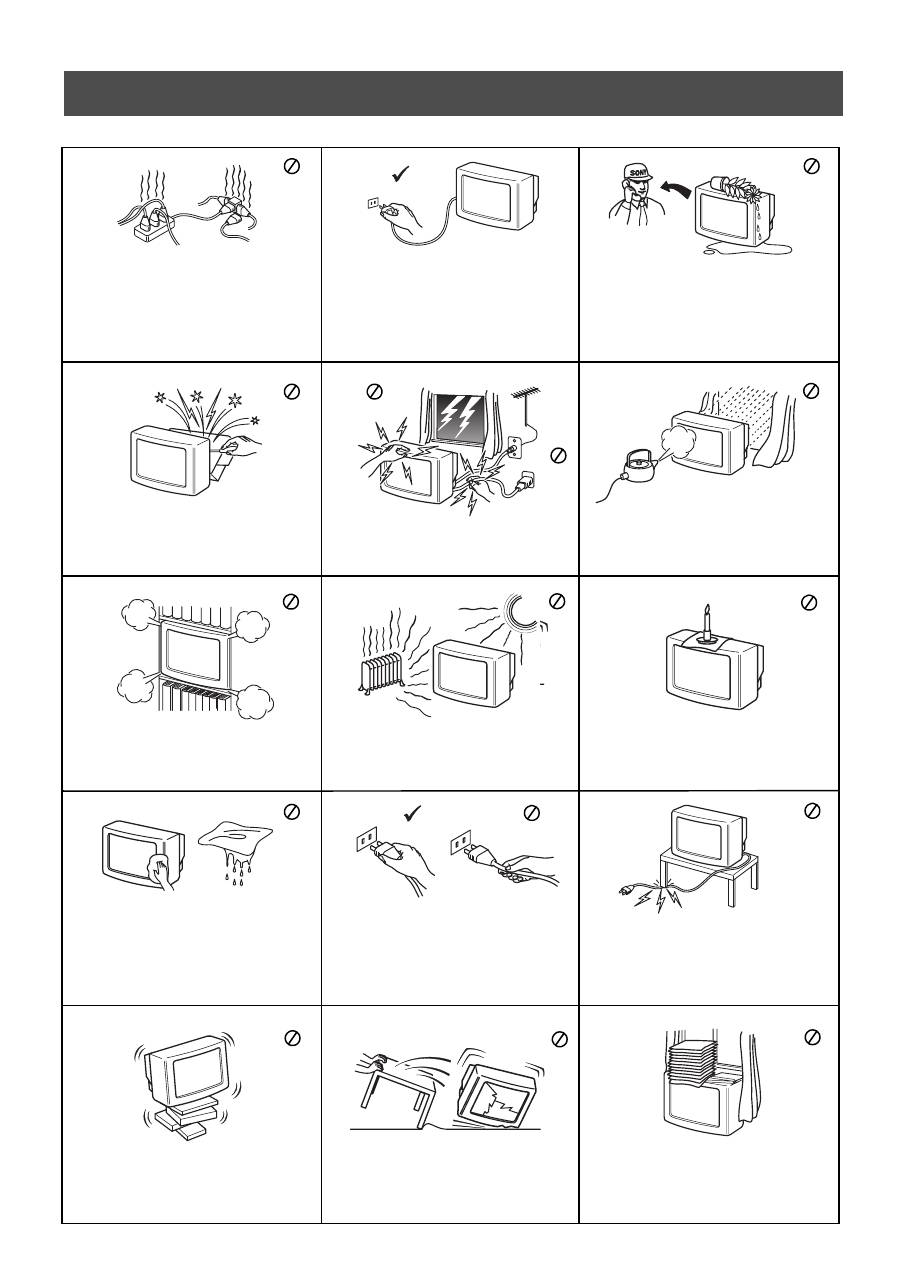
This set is to operate on a 220-240V AC supply
only. Take care not to connect too many
appliances to the same power socket as this could
result in fire or electric shock.
For environmental and safety reasons, it is
recommended that the TV set is not left in
standby mode when not in use. Disconnect
from the mains.
Never push objects of any kind into the set as
this could result in a fire or electric shock. Never
spill liquid of any kind on the set. If any liquid or
solid object does fall through, do not operate the
TV. Have it checked immediately by qualified
personnel.
Do not open the cabinet and the rear cover of the
TV. Refer to qualified service personnel only.
To prevent fire or shock hazard, do not expose
the TV to rain or moisture.
For your own safety, do not touch any part of the
TV, power lead or aerial lead during lightning
storms.
Do not cover the ventilation openings of the TV
For ventilation, leave a space of at least 10cm all
around the set.
Never place the TV in hot, humid or excessively
dusty places. Do not install the TV where it may
be exposed to mechanical vibrations.
To prevent fire, keep inflammable objects or
naked lights (eg candles) away from the TV.
Clean the TV with a soft, lightly dampened cloth.
Do not use benzine, thinner or any other
chemicals to clean the TV. Do not scratch the TV
screen. As a safety precaution, unplug the TV
before cleaning it.
Pull out the power lead by the plug. Do not pull
on the power lead itself.
Take care not to place heavy objects on the power
lead as this could result in damage.
We recommend you wind any excess lead around
the holders provided on the rear of the TV.
Place the TV on a secure stable stand. Do not
allow children to climb on to it. Do not place the
TV on its side or face up.
Unplug the power lead before moving the TV.
Avoid uneven surfaces, quick steps or excessive
force. If the set has been dropped or damaged,
have it checked immediately by qualified
service personnel.
Do not cover the ventilation openings of the TV
with items such as curtains or newspapers etc.
1
Safety Information
Always use TV stands that are strong and stable enough to support the weight and size of this TV. Due to the unique floating
design of this TV, Sony highly recommend you use their designated stand, SU-34FQ1. If this recommended option is not taken,
it is vitally important to ensure that any cabinet or table has a large enough surface area to accommodate all three legs of the TV
without any overlap.
Safety Information
Table of Contents
Table of Contents
Installation
1. Checking the accessories supplied
2. Inserting batteries into the remote control
3. Connecting the TV
4. Switching on the TV
5. Using the joystick
6. Tuning your TV
7. Finding your video channel
2
2
3
4
4
5
5
Operation
Overview of the TV set buttons
Overview of the remote control buttons
NexTView
Teletext
Using Multi PIP
Operating PAP (Picture and Picture)
Using the TV menu system
Adjusting the picture and sound
Using the Features menu
Changing the screen size
Re-arranging the TV channels
Manually tuning the TV
Naming a channel
Skipping programme positions
Using the ‘Further Programme Preset’ feature
Selecting the ‘Demo’ feature
Adjusting the picture rotation
Adjusting the picture geometry for an RGB source
Inputting your personal ID
Presetting and naming input signals
6
7
8
10
12
12
13
13
15
15
16
16
17
17
18
18
19
19
20
20
Additional Equipment
Connecting additional equipment to the TV
Additional information when connecting equipment
Smartlink
Remote control of other Sony equipment
21
22
22
22
Additional Information
Specifications
Channel Display Table
Troubleshooting
23
23
24
2
Follow steps 1-7 to install the TV and view TV programmes. Installation
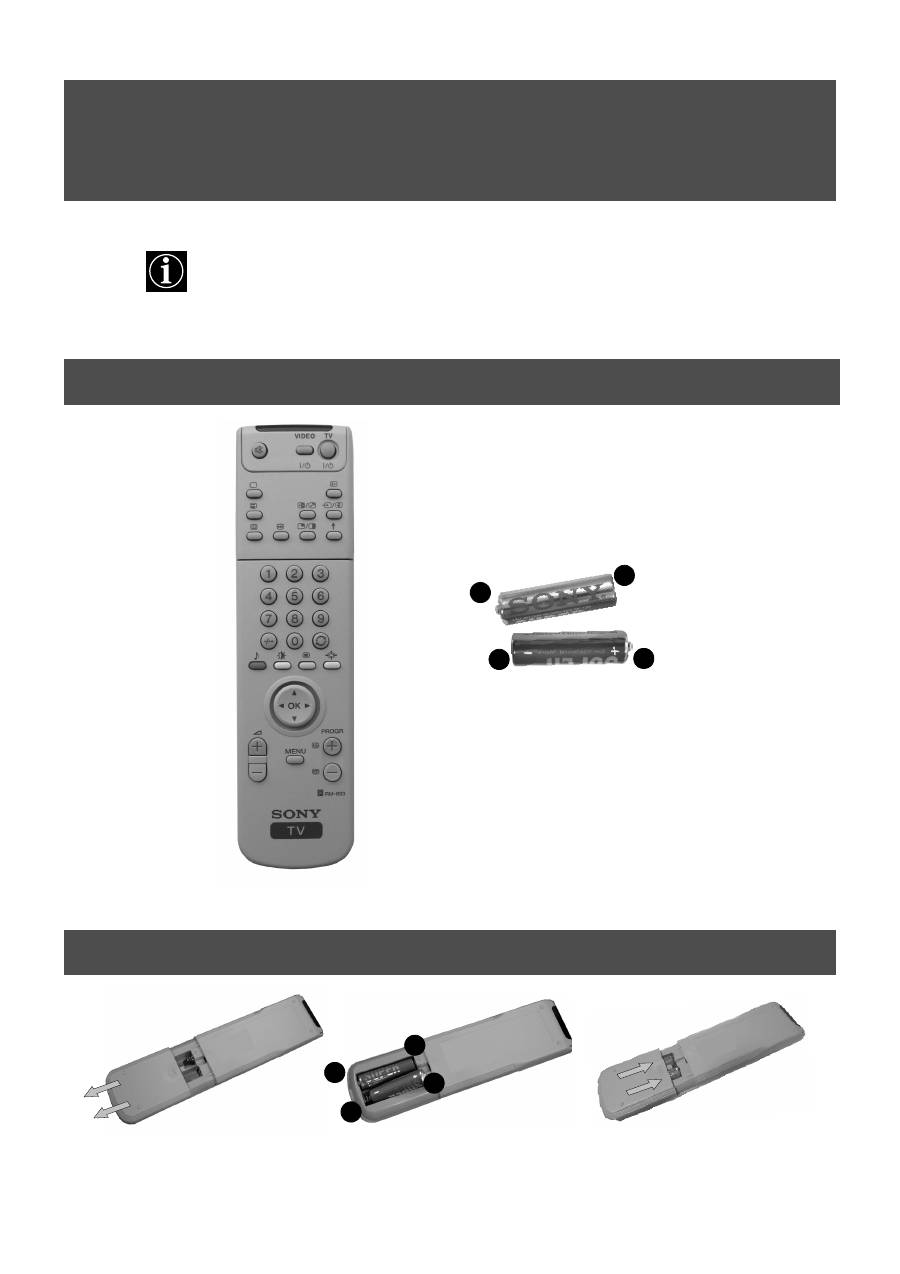
1. Checking the accessories supplied
2. Inserting batteries into the remote control
Batteries
Always observe the correct polarity when inserting batteries.
Always remember to dispose of used batteries in an environmentally friendly way.
-
+
+
-
Remote control
+
- -
+
3
Installation
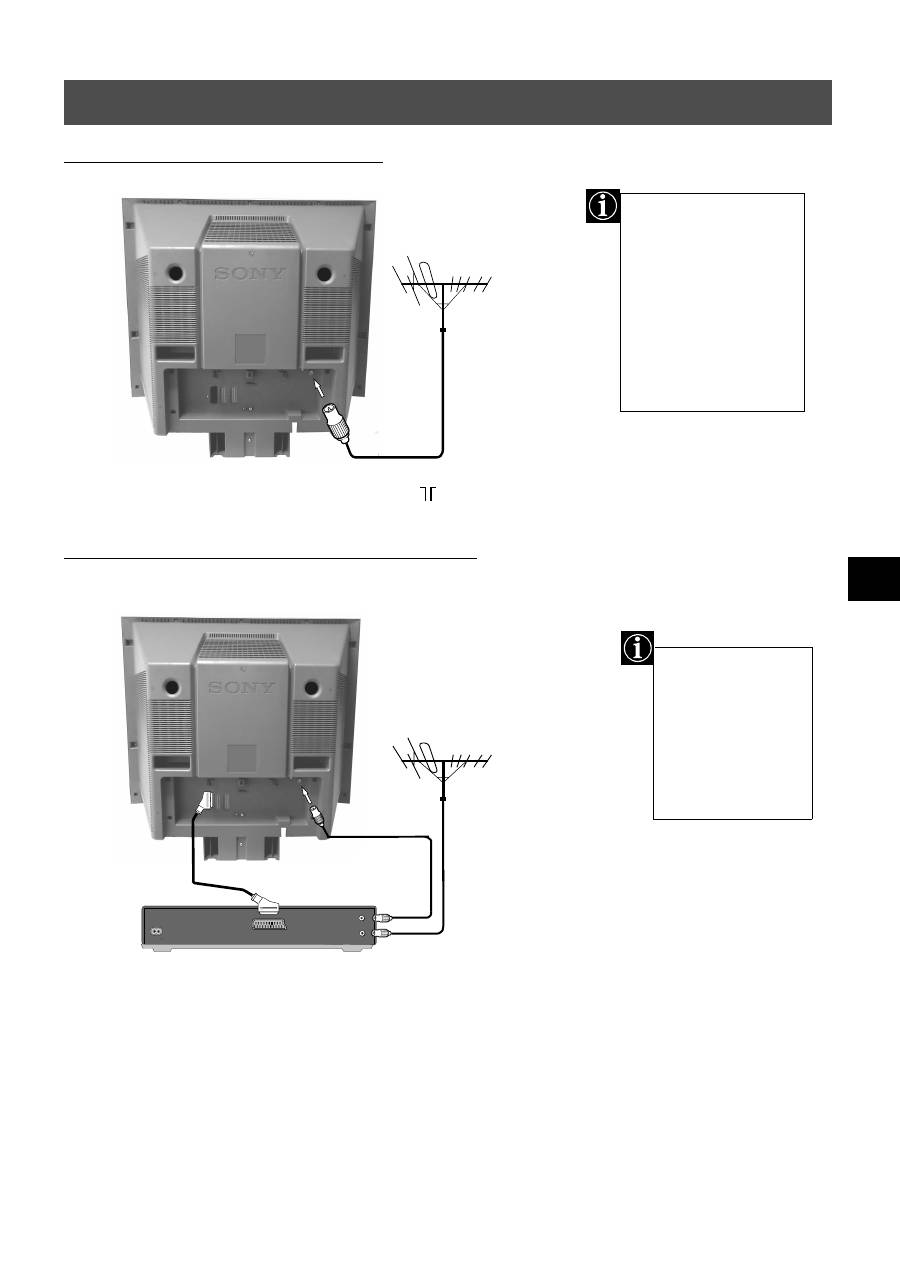
3. Connecting the TV
OUT
IN
AERIAL
ANTENNA
AC IN
The scart lead is
optional. If it can be
used however, this
additional
connection can
improve picture and
sound quality when
in play mode.
1. Connect your existing aerial lead to the socket marked
on the rear of the TV set.
Connecting an aerial to your TV
Connecting an aerial and VCR to your TV
1. Connect your existing aerial lead to the RF IN socket on your VCR as shown.
2. Connect the VCR aerial lead from the RF OUT socket on the back of the VCR to the aerial
socket on the back of the TV as shown.
3. Connect the scart lead (if used) to the AV2 socket on the rear of the TV set.
4. Connect the VCR set to the mains and switch on.
5. Insert a pre-recorded tape into the VCR and press the ‘PLAY’ button. This enables the TV
set to locate and store the video channel during the ‘Tuning your TV’ procedure on page 5.
If you are not connecting
your TV to a VCR,
please connect the aerial
lead (as shown left) and
proceed to section
‘4.Switching on the TV’.
If you are connecting
your TV to a VCR please
refer to the section
below.
existing aerial lead
scart lead
(not supplied)
4
Installation
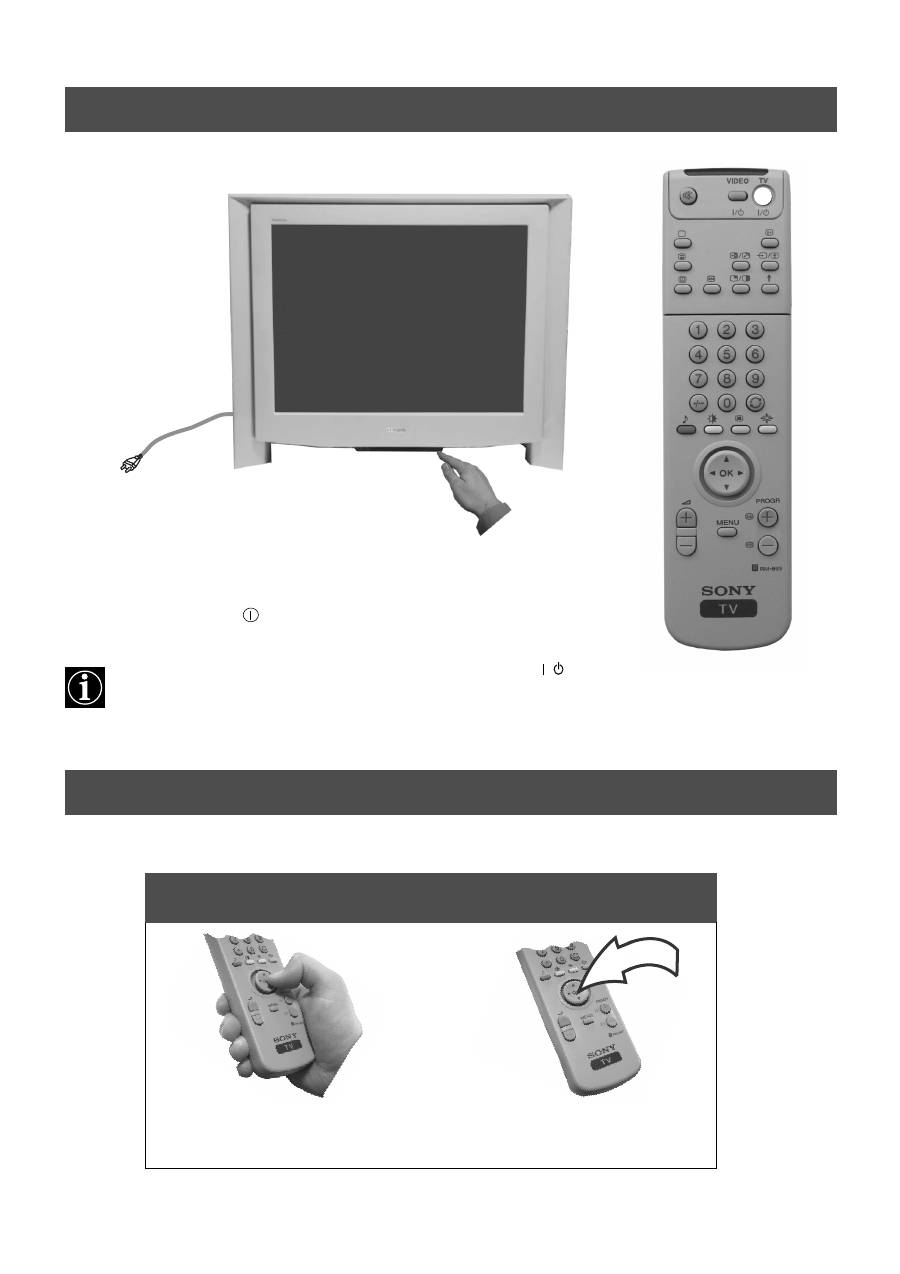
1. Connect the TV plug to the mains socket (220-240V AC, 50Hz).
2. Push in the on/off button
on the front of the TV.
If the standby mode indicator on the front of the TV is lit, press the TV
button on
the remote control to switch on the TV set. Please be patient as the picture may take a
few moments to appear on the TV screen.
4. Switching on the TV
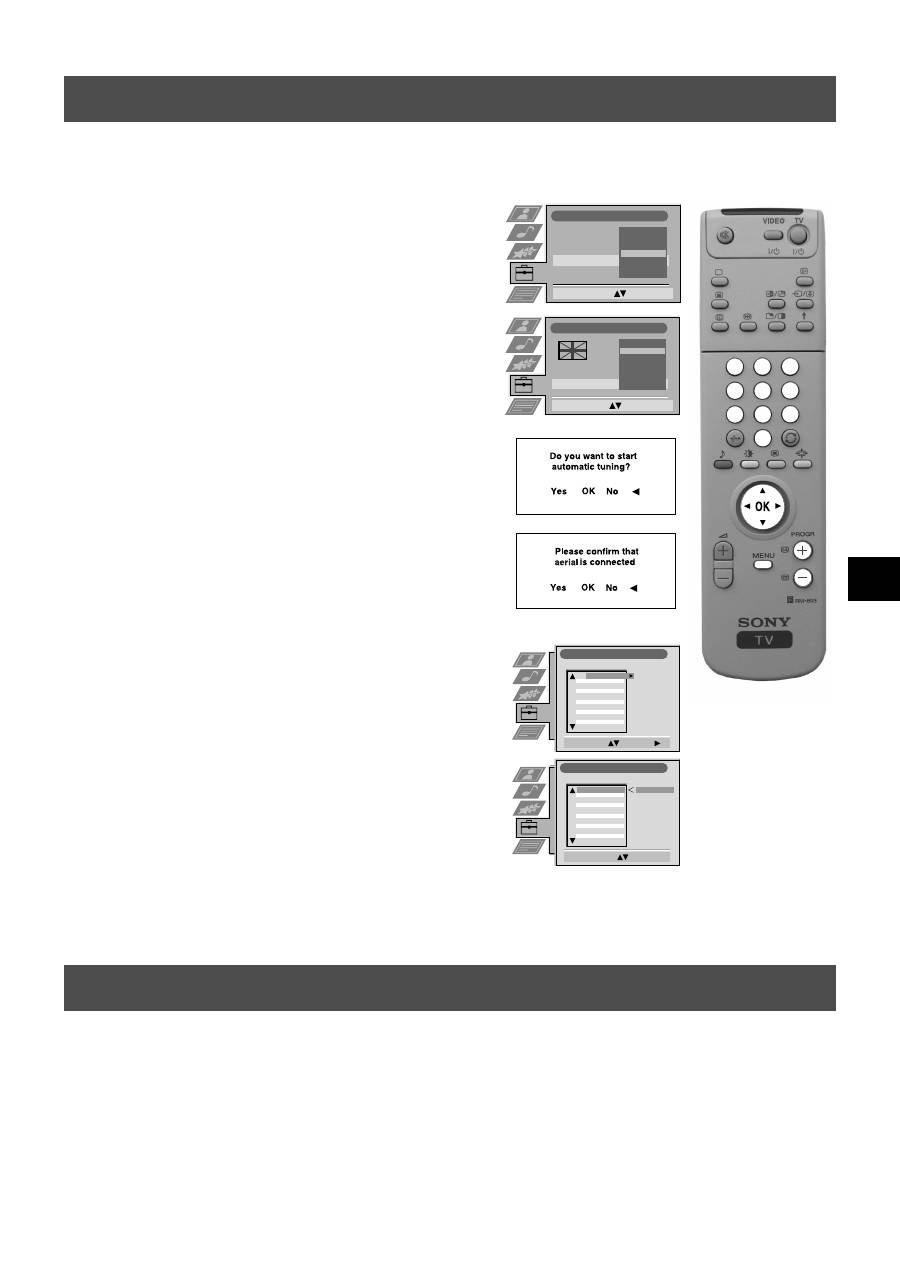
5. Using the joystick
/
To select an item in a menu press
the OK button down in the middle.
To move around the menus press
the relevant arrow button.
Moving the joystick
Pressing the joystick
5
Installation
Before you tune your TV, you will be asked to set your language and country.
6. Tuning your TV
:
:
:
:
Language/Country
Language
Country
Select Country:
Confirm: OK
Greece
Great Britain
Germany
France
Finland
Denmark
Czech Rep.
Language/Country
Language
Country
Select Language:
Confirm: OK
Italiano
Français
Español
English
Deutsch
Dansk
Čeština
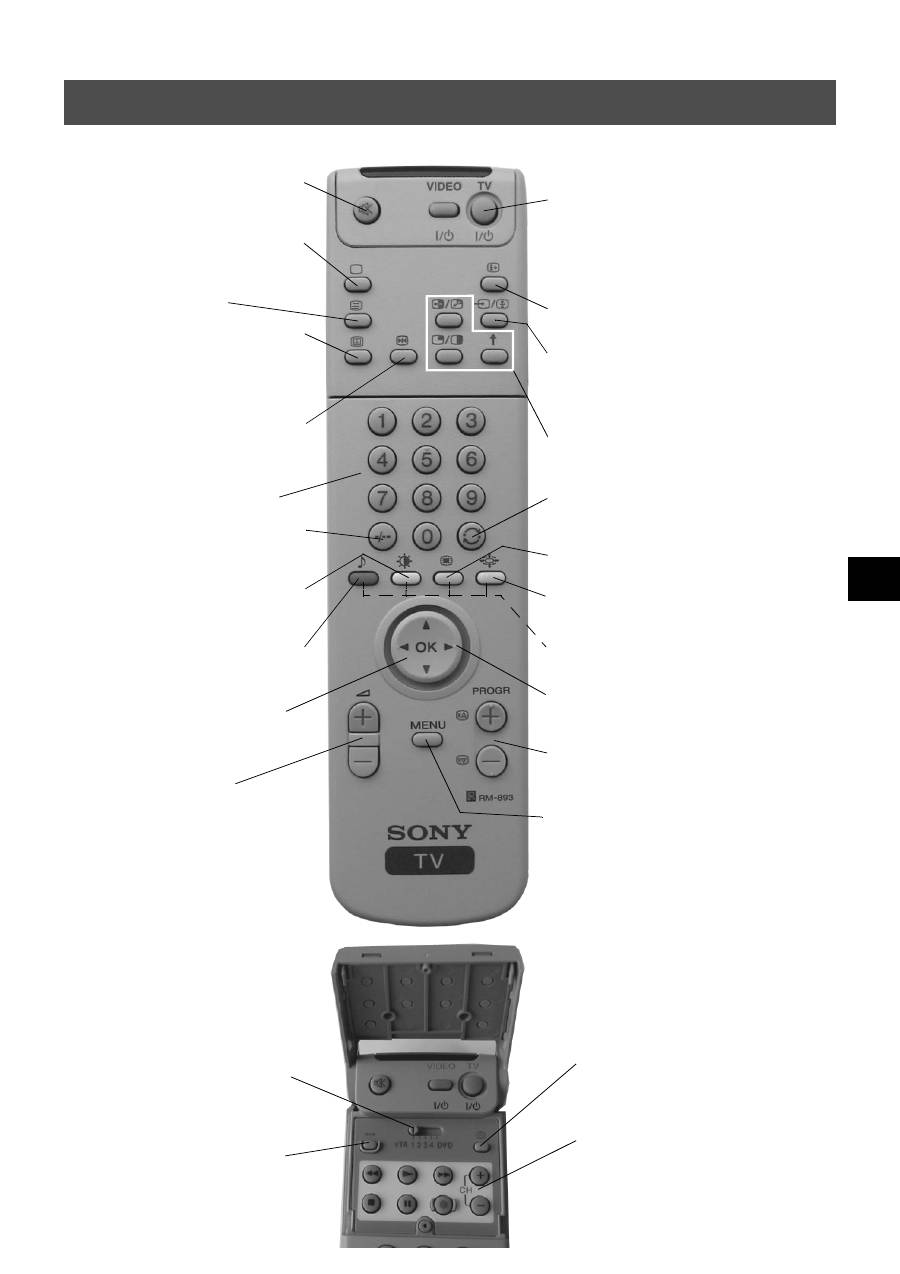
1. The Language/Country menu appears on the TV screen with the
word ‘English’ highlighted.
2. Press the
v
or
V
buttons on the remote control to select your
chosen language then press the OK button to confirm.
3. Press
v
or
V
to select the country in which you wish to operate
the TV then press the OK button to confirm your choice. Select
‘OFF’ if you do not want your channels stored in a given channel
sequence starting from programme position 1.
4. The ‘autotune’ menu appears on the TV screen in your selected
language. Press the OK button to confirm.
5. Ensure the aerial is connected as instructed, then press the OK
button to confirm. The TV starts to automatically search and store
all available channels for you. This may take a few minutes -
please be patient and do not press any buttons.
6. Once the TV has tuned all available channels the ‘Programme
Sorting’ menu appears on the TV screen enabling you to change
the order of the channels on your TV. If you wish to change the
channel order, press the
v
or
V
buttons to select the channel you
want to move, then press
B
. Press the
v
or
V
buttons to select the
new programme number position for your selected channel then
press the OK button to confirm. The selected channel now moves
to its new programme position and the other channels move
accordingly. Repeat this procedure if you wish to sort the order of
other channels on your TV.
7. Press the MENU button to remove the menu from the TV screen.
8. Press the PROGR+/- or the numbered buttons to view the TV
channels.
Note: If you would like to stop the autotune process at any stage,
press the OK button.
If you have connected a VCR to your TV, you now need to find your video channel.
1. Press the PROGR+/- buttons on the TV remote control until your video picture appears on the TV screen.
Note: If you wish to move your video channel to a different programme position, refer to the ‘Re-arranging the TV channels’
section of this instruction manual.
7. Finding your video channel
Programme Sorting
Select Prog:
Confirm:
PROG CH
LABEL
Programme Sorting
Select Position:
Move: OK
C03
TV 5
PROG CH
LABEL
1
2
3
4
5
6
7
8
9
10
11
C03
C05
C07
C08
C09
C11
C12
C13
C14
C15
C16
TV 5
PRO 7
EU-SP
SWF
RTL
SAT
MDR
DDI
DSF
RTL 2
KAB 1
C03
C05
C07
C08
C09
C11
C12
C13
C14
C15
C16
TV 5
PRO 7
EU-SP
SWF
RTL
SAT
MDR
DDI
DSF
RTL 2
KAB 1
1
2
3
4
5
6
7
8
9
10
11
1
2
3
6
5
4
7
8
9
0

6
Operation
Overview of the TV set buttons
Volume control buttons.
Press to increase (+) /decrease
(-) volume.
Video input button.
Press to select
the input
signals from VCR etc.
Programme Up (+) or
Down (-) buttons.
Press to select TV
channels.
Master Reset button.
Press to return the picture and sound
levels to factory settings. The Sony logo
will appear on the screen followed by the
‘Autotune’ screen. If you do not wish to
retune your TV, press the
b
button on
your remote control.
Push up on the control panel (as shown)
to access the front input sockets and TV
buttons.
The control panel drops down.
7
Operation
Overview of the remote control buttons
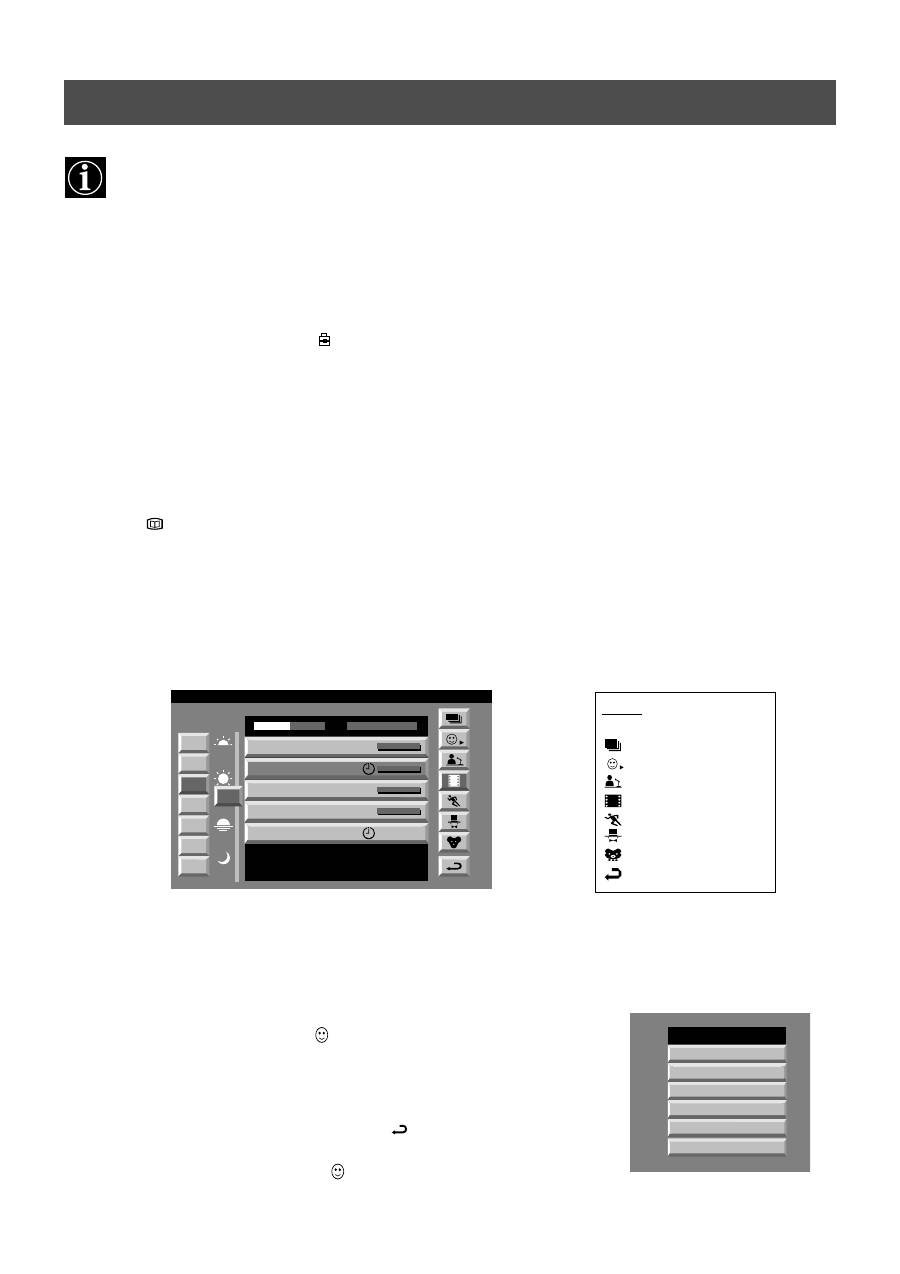
To temporarily switch off TV
Press to temporarily switch off TV. Press again to switch on
from standby mode. To save energy, we recommend
switching off completely when TV is not in use.
NOTE: After 15-30 minutes without a TV signal and without
any button being pressed, the TV switches automatically into
standby mode.
To reveal on screen information
Press to reveal all on-screen indications. Press again to
cancel. In Teletext mode, press to reveal the index page
(normally page 100).
To select input signal or freeze teletext
Press to select inputs from the TV sockets (see Using
Optional Equipment section). In Teletext mode, press to
freeze the displayed page. Press once again to cancel.
Please refer to the ‘Operating PAP’ section of this
instruction manual for details.
To return to previous channel
Press to return to the previous channel you were watching.
Note: This can be done only after watching the present
channel for 5 seconds.
Press to switch Multi PIP mode on and off
.
To change screen format
Press repeatedly to select 4:3 mode or 16:9 mode (imitation
of wide screen format).
Fastext keys
See Teletext section of manual for details.
To select menu items
Use the OK button and arrow keys to select the options
available in the menu system of this TV.
To select channels
Press to select channels.
To display the menu
Press if you wish to use the TV menu system. Press again to
remove the menu from the TV screen.
To mute sound
Press to mute TV sound. Press again to restore the
sound.
To return to TV mode
Press to return to the normal operation from teletext
mode or standby mode.
To select Teletext
Press to switch Teletext on and off.
To select Electronic Programme Guide
(EPG)
Press to switch EPG on and off.
To freeze the picture
Press if you wish to make a note of some
information on the TV screen eg a telephone
number. Press again to return to normal TV mode.
To select channels
Press the numbered buttons to select channels.
For double digit programme numbers, e.g.23, press
-/-- first, then the buttons 2 and 3.
To display picture menu
Press to change the picture settings. Press the OK
button to remove the display.
To display sound menu
Press to change the sound settings. Press the OK
button to remove the display.
To display the Channel Table
Press the OK button. Press
v
or
V
to select the
desired channel then press
B
to confirm.
To adjust TV volume
Press to adjust the volume of the TV.
To reset to factory set levels.
Open the remote control lid and press to return
picture and sound settings to factory-set levels.
After the ‘Installation’ menu has appeared on
the TV screen, refer to the ‘Selecting Language
and Country’ section of the instruction manual
to change your choice of language and country
if desired.
To display the time.
Open the remote control lid and press to display the
time on screen. Press again to cancel.
To operate video equipment
Open the remote control lid and press these buttons to
operate your video equipment (please refer to your
VCR manual).
To operate other Sony equipment.
Open the remote control lid and set the selector VTR 1234
DVD according to the equipment you want to control:
VTR 1: Beta VCR
VTR 2: 8mm VCR
VTR 3: VHS VCR
VTR 4: Digital Video (e.g.DCR-VX 1000/9000E, VHR-1000)
DVD: Digital Video Disk player
Use the buttons on the remote control to operate the
equipment.
8
Operation
NexTView is an on-screen electronic programme guide, providing you with programme information for different
broadcasters.
NexTView*
Selecting your NexTView provider
Your TV set automatically selects the best NexTView provider for you. This provider is available about 30 minutes after the
channel tuning. You can however change this selection of provider if you wish.
1. Press the MENU button on the remote control to display the menu on the TV screen.
2. Press the
v
or
V
buttons to select the
symbol on the menu screen then press
B
to enter the ‘Set Up’ menu.
3. Press
v
or
V
to highlight ‘Select NexTView’ then press
B
to confirm. A list is displayed containing all available
NexTView providers.
4. Press
v
or
V
to select the desired NexTView provider then press the OK button to store.
5. Press the MENU button to remove the menu from the TV screen.
7
Tue
07 Tue
12:38
8
Wed
10
Fri
11
Sat
12
Sun
13
Mon
9
Thu
12
SWISS
Star Wars
Super RTL
Fantasy film, USA, 1996
Werner - Beinhart
Pro 7
Flui grüsst den Rest der Welt
Kabel 1
Once upon a time in the West
Euronews
International News
RTL Plus
10:35 - 12:45
10:20 - 12:00
10:45 - 10:50
11:00 - 11:20
11:45 - 12:50
TXT
TPS / RINGIER
Tue 07. 04 .98
Displaying NexTView
1. Press the
button repeatedly on the remote control to switch NexTView on and off.
* In some cases, you may also need to press the
b
button to display the Sony electronic programme guide.
2. Press the
v
,
V
,
b
or
B
buttons to move the cursor around the screen.
3. Press the OK button to confirm a selection.
a. If you press the OK button in the date, time or icon (themes) columns, you change the programme list according to the
selection.
b. If you press the OK button in the programme list, you directly display the channel if the broadcast is currently running,
or, you display the ‘Long Info’ menu if the broadcast is running at some future time.
Index
full selection list
personal selection
news broadcasts
movies
sports
entertainment
children
return to last menu
Using the ‘Individual Setting’ menu
You can make a personal list of the types of programmes you wish to view on the
programme guide.
1. Press the
v
or
V
buttons to select the
icon then press
B
to display the ‘Individual
Setting’ menu.
2. Press
v
or
V
to select your chosen item on the screen then press the OK button to
confirm your choice.
3. Repeat step 2 for all the items you wish to have in your list.
4. When you have finished the list, press
B
to select
on the menu screen.
5. Press the OK button to return to the previous menu.
6. Press the
v
or
V
buttons to select the
icon then press the OK button again to
activate your ‘Individual Setting’ filter.
Movie
Individual Setting
Comedy
Adult
News
Interview
Entertainment
* depending on availability of service

9
Using the ‘Long Info’ menu
With this ‘Long Info’ menu screen, you can set timers or record selected programmes.
1. Press
v
or
V
to select a future programme in the programme list column.
2. Press the OK button to display the ‘Long Info’ menu on the TV screen.
To set the timer
Press the
b
or
B
buttons to highlight the
icon then press the OK button repeatedly to ‘set the timer’ or ‘cancel the timer’. If
you choose to set the timer, the programme is marked with a clock symbol and a message appears on the screen shortly before
the programme is due to start asking whether you wish to still view this programme.
To view the timer table
Press the
b
or
B
buttons to highlight the
icon then press the OK button repeatedly to switch on/off the timer table. This table
shows the programmes on which you have already set a timer. (You can set a timer on up to 5 programmes).
Operation
NexTView
07 Tue
12:38
Address Mapping
The position of the addresses in the
OSDA is shown in the following diagram.
The position values of the DPW are set
to '0'.
If other values are set, the complete
combination will be scrolled.
Example:
if the DPWC is set to '63', the char-
Speed
Timer Prog
VPS/PDC
SP
VCR1
On
This channel has been set for a timer
First nextTView/EPG-Providers in Europe
SWISS
TXT
TPS / RINGIER
nexTView
Tue 07. 04 .98
To record programmes*
* (only with Smartlink VCRs)
1. Connect your Smartlink VCR to the AV2 socket on your TV.
2. Press
b
or
B
to select
then press the OK button to download the information to your VCR.
3. To set up the VCR:
VPS/PDC
Press
b
to select VPS/PDC then press the OK button repeatedly to select ‘On’ or ‘Off’. With this setting on you have the
guaranteed recording of the whole broadcast should there be a change in the TV programme. This only works if the selected
channel broadcasts a VPS/PDC signal.
Speed
Press
V
to select ‘Speed’ then press the OK button repeatedly to select between ‘SP’ for standard play or ‘LP’ for longplay.
With longplay you can record twice as much on a videotape. The picture quality however may suffer.
VCR Setup
Press
V
to select ‘VCR Setup’ then press the OK button repeatedly to select which VCR you wish to programme, namely
‘VCR1’ or ‘VCR2’.
4. Finally, press
B
to select the
icon then press the OK button to remove the menu from the TV screen.
10
Operation
Most TV channels broadcast information via Teletext. The index page of the teletext service (usually page 100) gives
you information on how to use the service. Please use a TV channel with a strong signal, otherwise there may be Teletext
errors.
Teletext
Switching Teletext on and off
1. Select the TV channel which carries the teletext service you want to view.
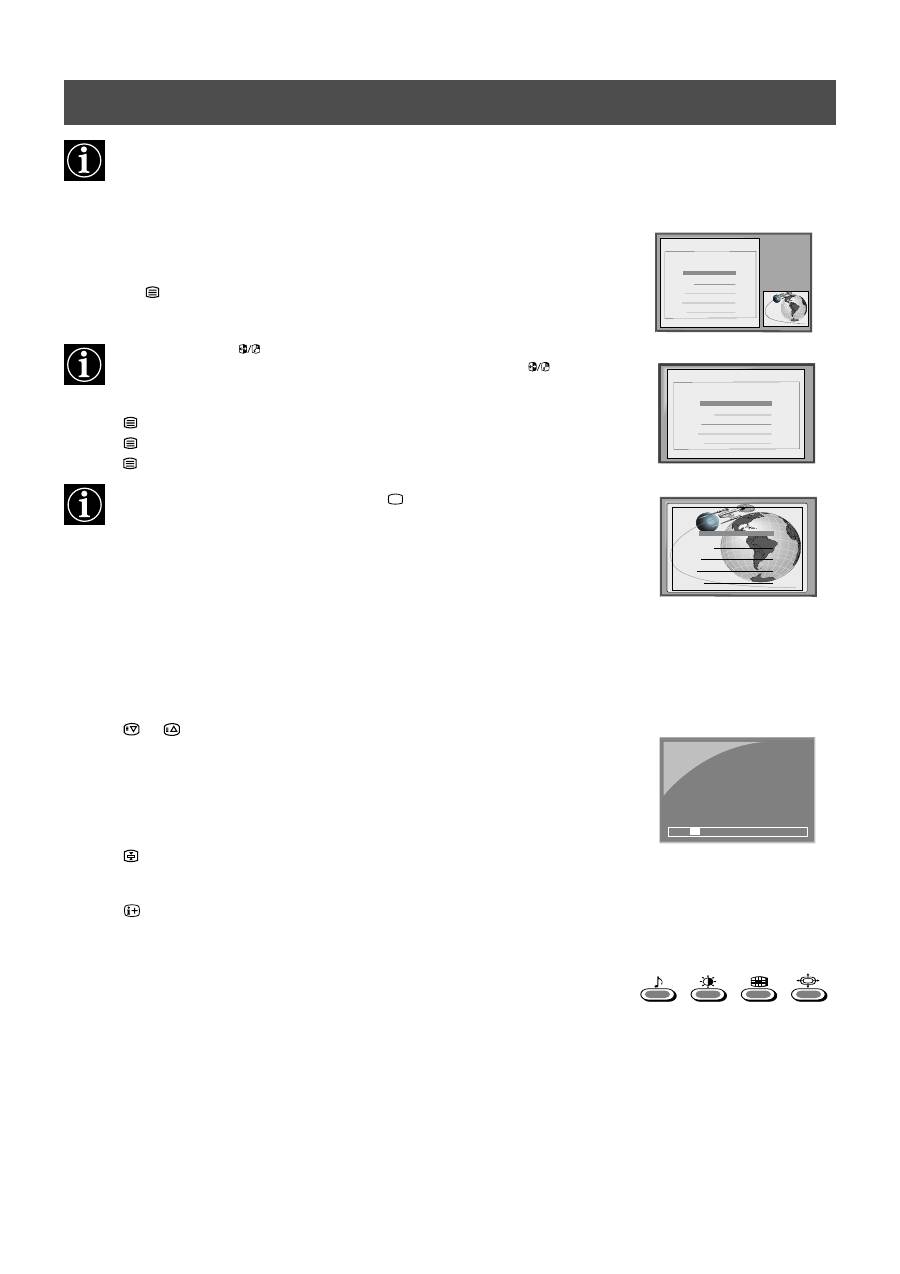
2. Press the
button once for Picture and Teletext (P&T). The screen is divided in two,
with the TV channel in the right corner and the Teletext display on the left.
In P&T mode press
then press PROGR+/- to change the channel of the TV
screen. Press
b
or
B
to change the size of the TV screen then press
again
to resume normal teletext reception.
3. Press
twice to get Teletext only.
4. Press
three times for Mix mode.
5. Press
a fourth time to switch off Teletext.
To exit Teletext mode at any time, press the
button on the remote control.
Selecting a Teletext page
Input three digits for the page number using the numbered buttons on the remote control. If
you make a mistake, type in any three digits then re-enter the correct page number.
Using Other Teletext Functions
Selecting the next or preceding page
Press the
or
buttons on the remote control to select the previous or next page.
Selecting a sub page
A teletext page may consist of several sub pages. In this case an information line is displayed,
showing the number of subpages. Select the sub page by pressing
v
or
V
.
To freeze a Teletext page
Press the
button to freeze the page. Press again to cancel the freeze.
Revealing the index page
Press the
button to reveal the index page (normally page 100).
Using colour buttons to access pages (Fastext)
(only available if the TV station broadcasts Fastext signals)
When the colour coded menu appears at the bottom of a page, press a coloured button on the
remote control (green, red, yellow or blue) to access the corresponding page.
Using the feature ‘Page Catching’
1. Press the numbered buttons on the remote control to select a teletext page which has
several page numbers on it (eg the index page).
2. Press the OK button.
3. Press
v
or
V
to select the desired page number then press the OK button. The requested
page is displayed after some seconds.
Index
TELETEXT
TELETEXT
Programme
News
Sport
Weather
25
153
101
98
Index
TELETEXT
Programme
News
Sport
Weather
25
153
101
98
Index
TELETEXT
Programme
News
Sport
Weather
25
153
101
98
m
m
216-02
01
03
04
05
06
07
08
02

11
Operation
Teletext
Using the Teletext menu
1. With Teletext switched on, press the MENU button on the remote control to display the menu
on the TV screen.
2. Press
v
or
V
to select your chosen item on the screen then press
B
to display the relevant sub
menu.
3. To remove the Teletext menu from the screen, press the MENU button.
Top/Bottom/Full
The Top/Bottom/Full sub menu allows you to enlarge different sections of the Teletext page.
Press
v
to enlarge the upper half of the screen, Press
V
to enlarge the lower half. Press the OK
button to restore the page to normal size. Press
b
to return to the Teletext menu screen.
Text Clear*
*available on Teletext Only and Mix modes (Refer to ‘Switching Teletext on and off’)
Text Clear is a function that displays a TV channel while a Teletext page is being searched for.
Reveal
Some Teletext pages contain hidden information (eg for a quiz), which can be revealed.
Time Page*
*depending on availability of service,Time Page is available on Teletext Only and Mix modes.
Time Page allows a time-coded Teletext page (such as an alarm page), to be displayed at a set
time.
Top:
Bottom:
Full: OK
Teletext
Top / Bottom / Full
Text Clear
Reveal
Time Page
Page Overview
Select:
Enter Menu:
1. Press the
button on the remote control twice to select full screen text.
2. Press the MENU button to display the ‘Teletext’ menu.
3. Press
v
or
V
to highlight ‘Text Clear’ and press
B
to select.
4. The current TV channel is displayed. Once the text page has been found a blue
symbol
will appear in the top left hand corner of the screen.
5. Press the
button on the remote control to view the page.
1. In text mode press the MENU button on the remote control to access the ‘Teletext’ menu.
2. Press
v
or
V
to highlight ‘Reveal’ and press
B
to select. The hidden information is displayed
on the screen.
1. In Text mode press the MENU button on the remote control to access the ‘Teletext’ menu.
2. Press
v
or
V
to highlight ‘Time Page’ and press
B
to select. The ‘Time Page’ sub menu is
displayed.
3. Enter the desired page number using the numbered buttons on the remote control.
4. Enter the desired time using the remote control.
5. Press OK to confirm the settings. The TV will exit Teletext mode and the time will be
displayed in the top left hand corner of the screen. At the requested time the desired page is
displayed.
Time Page
PAGE
TIME
Select Page: 0-9
Next:
- - : - -
– – –
Page Overview*
*only available if TOP-Text is transmitted by the TV station.
In this menu the TOP-Text pages are divided into two columns, the first column showing ‘blocks’
of pages and the second showing ‘groups’ of pages.
1. Press
b
or
B
to select the first or second column.
2. Press
v
or
V
to select the relevant ‘group’ or ‘block’ of pages.
3. Press the OK button to display the chosen pages.
12
Operation
Using Multi PIP
Multi PIP (picture in picture) mode displays a succession of 12 still pictures and a 13th that is live. You can manually
select which channel you wish to watch, either full-screen or in the PIP mode.
Operating PAP (Picture and Picture)
This PAP feature divides the screen into two for watching two channels simultaneously (with a video source on one if
you want). The sound of the left screen comes through the TV loudspeakers, the sound of the right screen is selectable
via headphones.
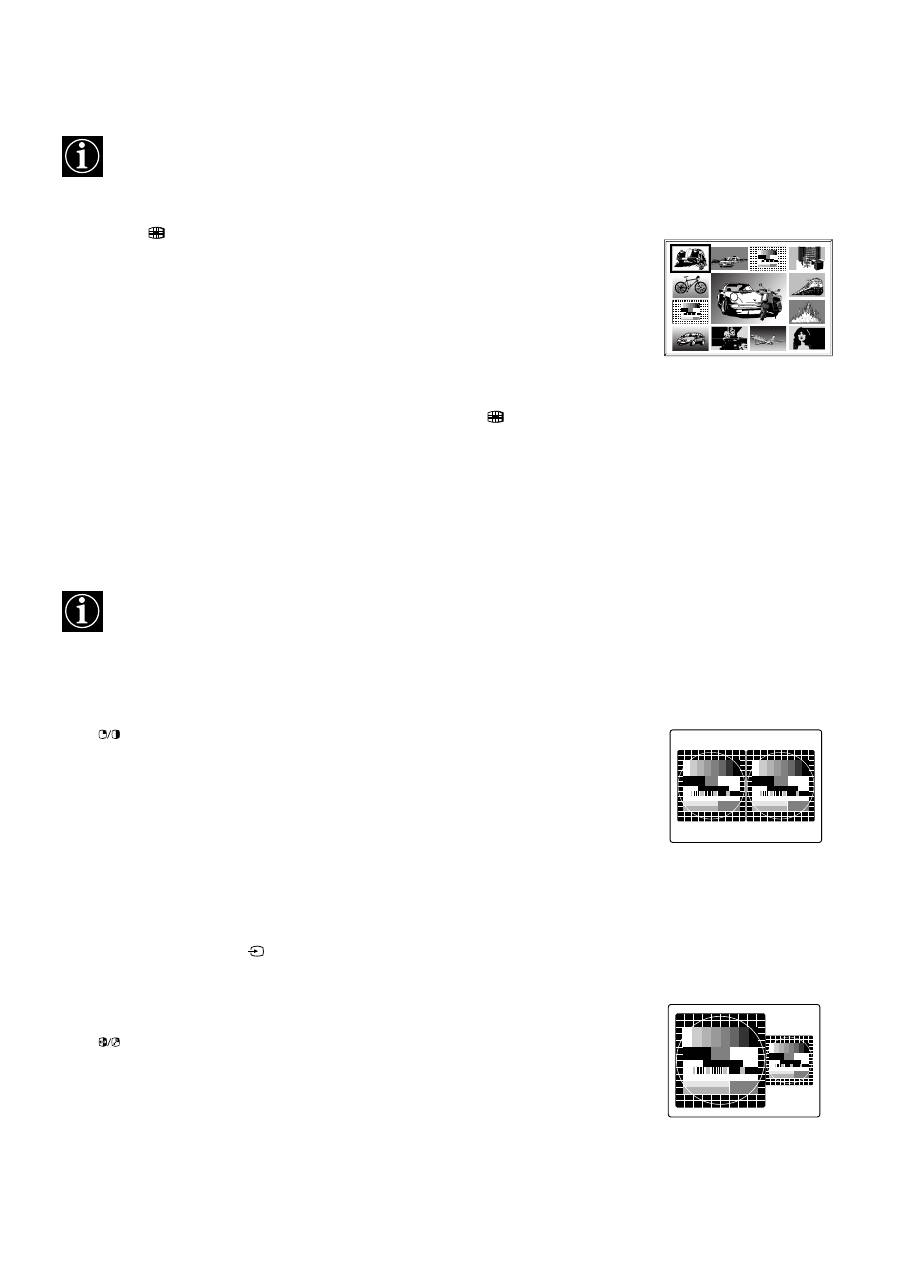
1. Press the
button on the remote control to select Multi PIP mode. 13 programme
positions appear on the screen with the current channel in the centre.
2. Press the PROGR+/- buttons repeatedly to select the next or preceding 12 programme
positions.
3. Press the
v
,
V
,
b
or
B
buttons to move within the 13 displayed channels.
4. Press the OK button to select the framed channel. This channel now moves to the centre.
5. Press the OK button again to display the selected channel or press
to remove Multi PIP
mode from the TV screen.
Switching PAP on and off
Press
once to display the screens and twice to switch PAP off.
Selecting sound for the headphones
With PAP switched on, refer to the ‘Adjusting the picture and sound’ section of this manual and
set ‘
i
Dual Sound’ to ‘PAP’.
Selecting a PAP source
Press
M
. The symbol
M
appears in the right screen. Select the desired source using the numbered
buttons (for a TV channel) or
(for a video source).
Swapping screens
Press
to swap the two screens.
Zooming the screens
Press the
b
or
B
buttons to change the size of the two screens.
03
05
01
06
11
09
08
02
10
07
13
12
04
13
Operation
The TV consists of a menu system which is based on a series of user friendly on-screen displays and menus. These displays will
help you get the most from your TV, helping you to change picture and sound settings, to alter the size of the TV picture and to
rearrange the TV channels etc.
Adjusting the picture and sound
The picture and sound are preset at the factory. You can however adjust them to suit your own taste.
Using the TV menu system
AI
On
Off
Picture Mode
Live
Personal
Movie
Game
Digital Mode
Normal
DRC 50
DRC 100
Contrast
Picture Adjustment
Select:
Enter:
Picture Mode
Contrast
Brightness
Colour
Sharpness
Reset
AI
Noise Reduction
Digital Mode
Colour Tone
Personal
On
On
DRC 100
Normal
Noise Reduction
High
Mid
Low
Auto
Off
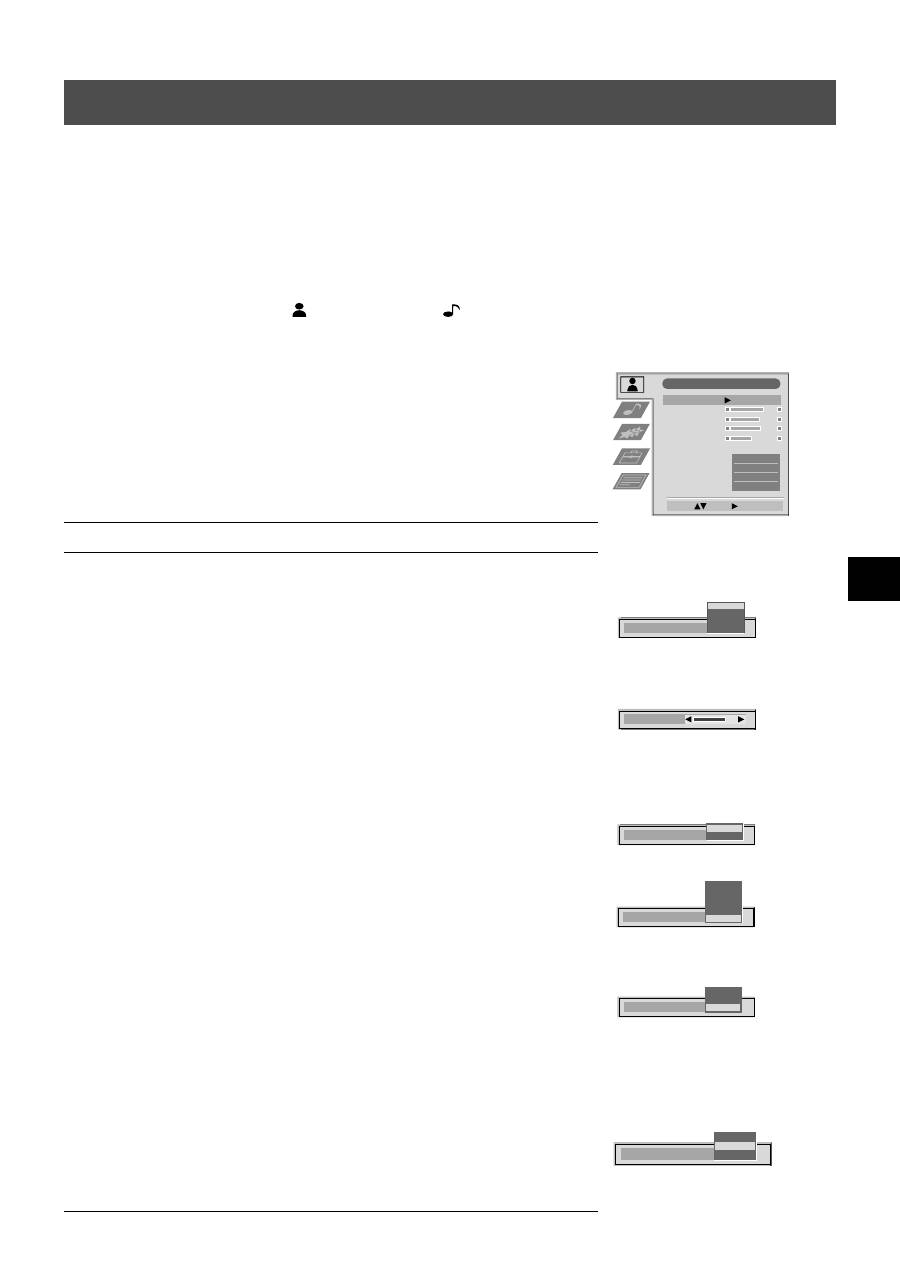
1. Press the MENU button on the remote control to display the menu on the TV screen.
2. Press the
v
or
V
buttons to select
for picture settings or
for sound settings then press
B
to enter either the ‘Picture Adjustment’ menu or the ‘Audio Adjustment’ menu.
3. Press the
v
or
V
buttons to select the item on the screen you wish to adjust then press
B
to
confirm. For a description of the menu items and their effects, see the table below.
4. Press the
v
,
V
,
B
or
b
buttons to adjust your selected item.
5. As soon as you have adjusted the item, press the OK button to store the new setting.
6. Repeat steps 3-5 if you wish to adjust any of the other items.
7. Press the MENU button to remove the menu from the TV screen.
Picture Control
Item
Effect/Operation
Picture Mode
V
Live (for live broadcasts)
Personal (for individual settings)
Movie (for movie broadcasts)
v
Game (for computer games)
Contrast
Less
b B
More
Brightness*
Darker
b B
Brighter
Colour*
Less
b B
More
Hue**
Reddish
b B
Greenish
Sharpness*
Softer
b B
Sharper
*Only available if ’Personal’ is selected in ‘Picture Mode’
**Only available for NTSC colour signal (eg. US video tapes)
Reset
Resets picture to the factory preset levels
AI
V
Off: Normal.
(Artificial Intelligence)
v
On:
Automatic optimization of contrast level
according to the TV signal.
Noise Reduction
V
High: High noise reduction.
Mid:
Medium noise reduction.
Low: Low noise reduction.
Auto: Optimum noise reduction automatically selected.
v
Off:
No noise reduction.
Digital Mode
V
Normal:
Basic 100Hz picture quality.
DRC 50: Improved picture resolution for viewing
scrolling characters.
v
DRC 100: Optimum picture resolution creating
flicker-free pictures.
Colour Tone
V
Warm:
Gives a warm tint to the picture.
Normal:
Normal.
v
Cool:
Gives a cool tint to the picture.
Colour Tone
Normal
Cool
Warm
14
Using the TV menu system:
Equaliser Adjustment
Sel:
Adjust:
Confirm:OK
(Personal)
+
0
–
120
500
1,5K
5 K
10 K
Auto Vol. Control
Off
On
Dual Sound
Mono
Stereo
NICAM
Volume
Dual Sound
PAP
Stereo
NICAM
Audio Adjustment
Equaliser Mode
Equaliser
Adjustment
Balance
Loudness
Space
Auto Vol. Control
Dual Sound
Volume
Dual Sound
Stereo
Off
Off
Stereo
Select Mode :
Off
Confirm: OK
Personal
Vocal
Jazz
Rock
0
NICAM
NICAM
Balance
0
Loudness
Off
On
Space
Off
On
Sound Control
Item
Effect/Operation
Equaliser Mode
V
Personal
Vocal
Jazz
Rock
Pop
v
Flat (fixed setting, cannot be adjusted)
Equaliser adjustment
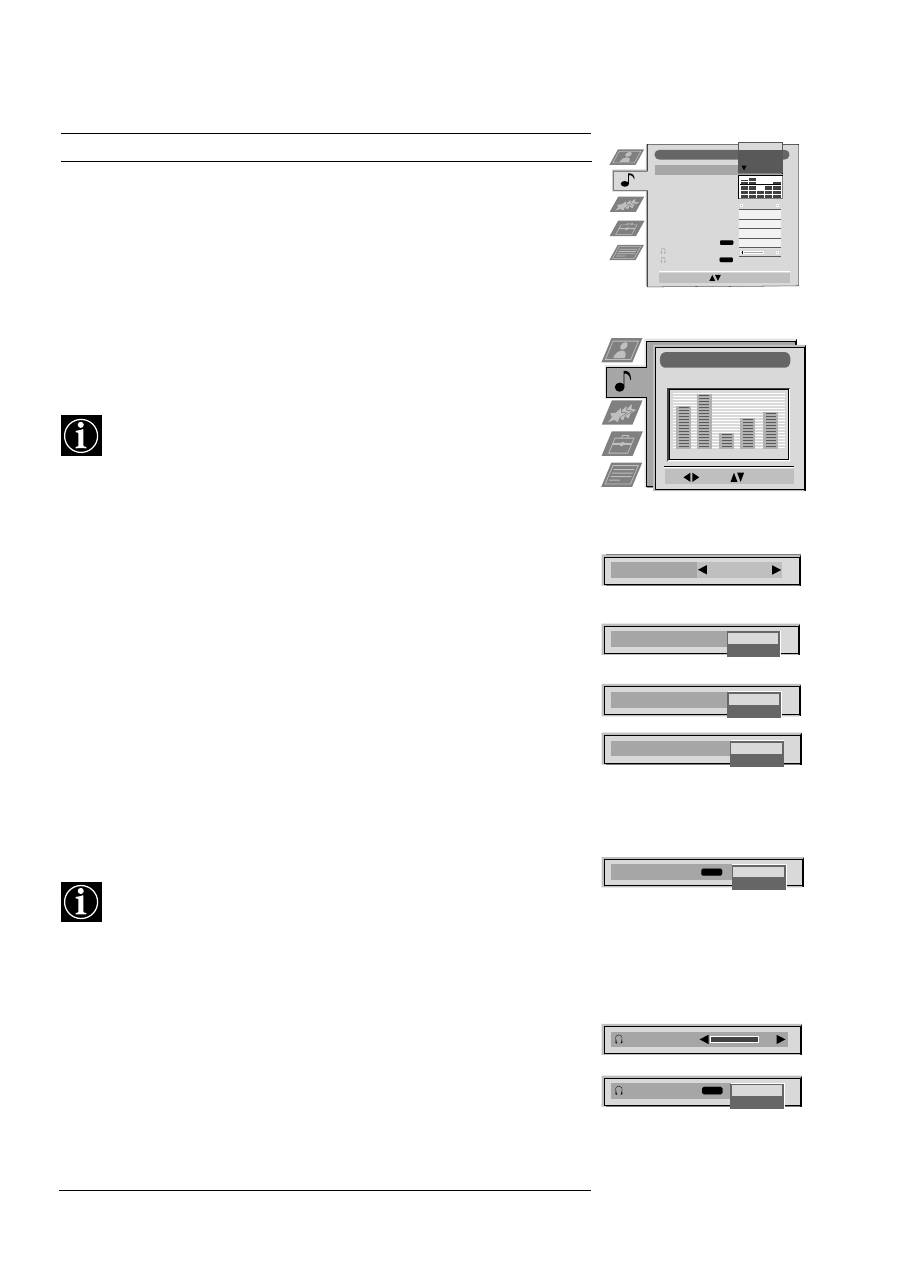
You can adjust the mode selected in Equaliser mode by
cutting and boosting the 5 selected frequency bands.
Press
b
or
B
to select the frequency band then
V
or
v
to
adjust the frequency. Finally, press the OK button to store
the new adjustment.
If you want to store the new setting, you need to set the Equaliser mode to
‘Personal’. Personal mode permanently stores the setting, all other modes
(Vocal, Jazz, Rock, Pop) store only until the next mode change.
Balance
b
More
left
B
More right
Loudness
V
Off:
Normal
v
On:
For music broadcasts
Space
V
Off:
Normal
v
On:
Spatial acoustic effect
Auto Vol. Control
V
Off: Volume level changes according to the broadcast
signal.
v
On: Volume level of the channels will stay the same
independent of the broadcast signal (eg in the case of
advertisements).
Dual Sound
For a bilingual broadcast:
V
A for channel 1
v
B for channel 2
For a stereo broadcast:
V
Mono
v
Stereo
When NICAM stereo is being broadcast, the indication NICAM appears briefly
on the screen.
Headphones
i
Volume
Adjusts headphone volume.
Can also adjust the volume level of additional equipment
connected to the RCA sockets on the rear of the TV.
i
Dual Sound
Only available when PAP feature is selected:
V
Stereo: The sound of one screen comes through both
the TV loudspeakers and the headphones.
v
PAP:
The sound of the left screen comes through
the TV loudspeakers, the sound of the right
screen is selectable via headphones.
For more detail on PAP, refer to the ‘Operating PAP’ section of this manual.
15
Using the TV menu system:
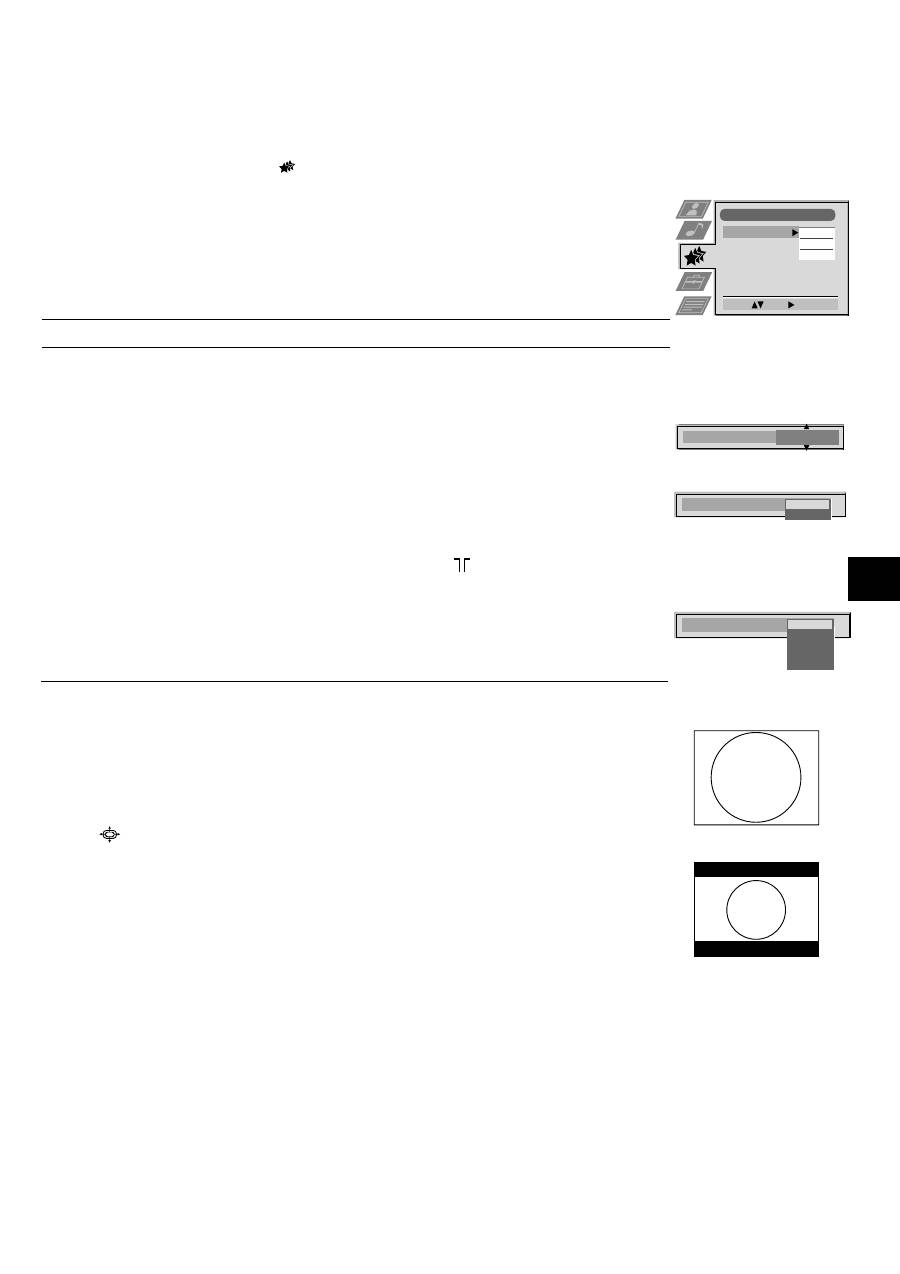
Using the Features menu
1. Press the MENU button on the remote control to display the menu on the TV screen.
2. Press the
v
or
V
buttons to select
for the ‘Features’ menu then press
B
to enter the ‘Features’
menu.
3. Press the
v
or
V
buttons to select the desired menu item then press
B
to confirm. For a description
of the menu items and their effects, see the table below.
4. Press the
v
,
V
,
B
or
b
buttons to select the desired setting.
5. Press the OK button to confirm your choice of setting.
6. Repeat steps 3-5 if you wish to select any of the other items.
7. Press the MENU button to remove the menu from the TV screen.
Item
Effect/Operation
Sleep Timer
You can select a time after which the TV switches itself into
standby mode.
V
Off
v
90 min
Parental Lock
V
Off: No parental lock.
v
On:
This feature disables the TV buttons when the set is in standby mode.
It is only possible to switch the set back on by pressing a button on
the remote control.
AV2 Output
V
TV audio/video signal from the aerial
AV1 audio/video signal from scart 1
AV2 audio/video signal from scart 2
AV3 audio/video signal from scart 3
v
AV4 audio/video signal from connectors on front of the TV
Features
Select:
Enter:
Sleep Timer
Parental Lock
AV 2 Output
Off
Off
TV
10 min
Sleep Timer
Changing the screen size
This feature allows you to change the size of the TV picture.
Press the
button on the remote control repeatedly or use the
v
or
V
buttons to select one of the
following formats then press the OK button to confirm your selection:
4:3
conventional 4:3 picture size, full picture information.
16:9
for 16:9 broadcasts.
4:3
16:9
Parental Look
Off
On
AV 2 Output
TV
AV 1
AV 2
AV 3
AV 4
16
Using the TV menu system:
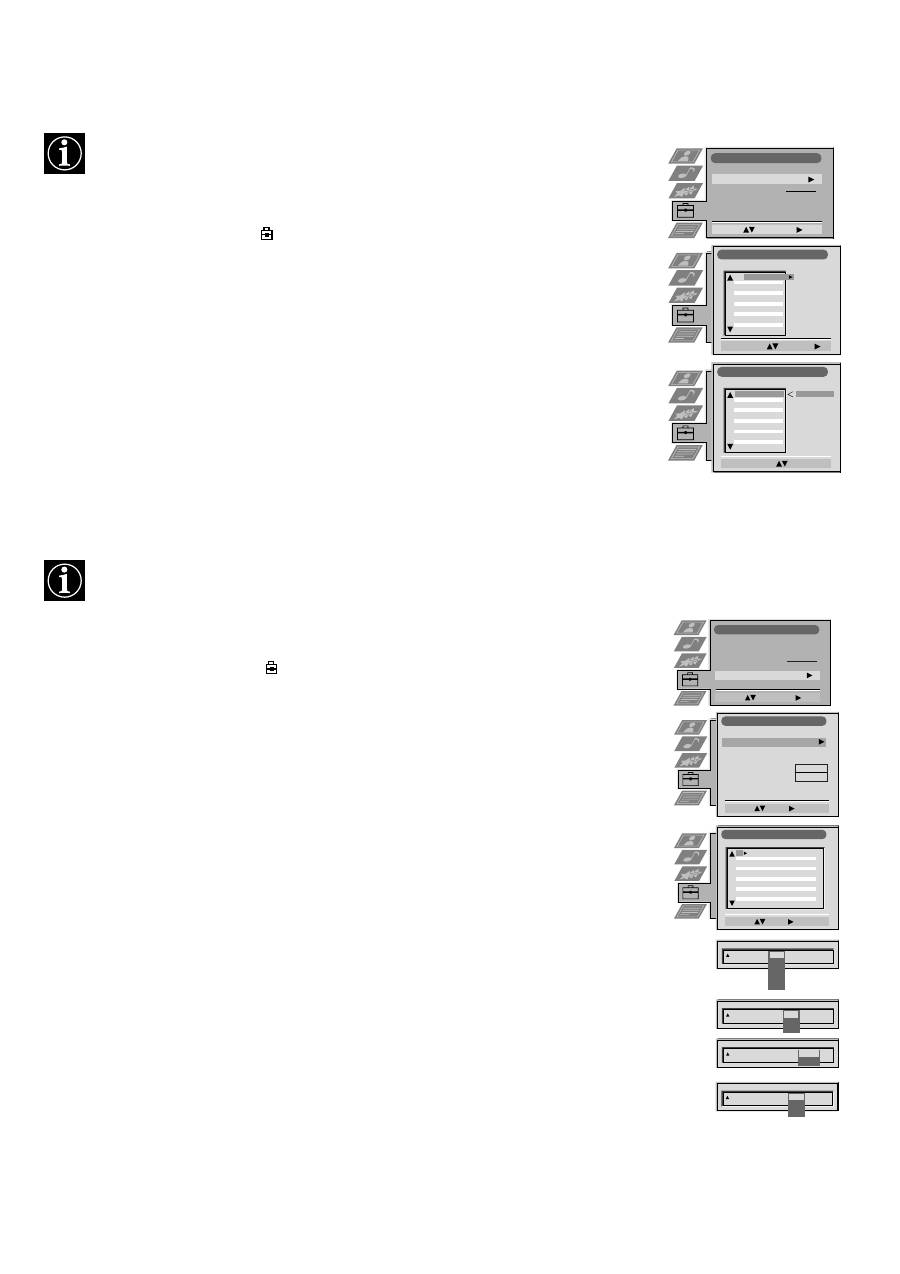
Re-arranging the TV channels
After tuning the TV, you can use this feature to change the order of the channels on the TV.
1. Press the MENU button on the remote control to display the menu on the TV screen.
2. Press the
V
button to select the
symbol on the menu screen then press
B
to enter the ‘Set Up’
menu.
3. Press the
V
button to select ‘Programme Sorting’ then press
B
to enter the ‘Programme Sorting’
menu.
4. Press the
v
or
V
buttons to select the channel you want to move then press
B
to confirm.
5. Press the
v
or
V
buttons to select the new programme position (eg PROG 4) for your selected
channel then press the OK button to confirm. The selected channel now moves to its new
programme position and the other channels move accordingly.
6. Repeat steps 4 and 5 if you wish to sort the other channels.
7. Press the MENU button to remove the menu from the TV screen.
Programme Sorting
Select Prog:
Confirm:
Set Up
Auto Tuning
Programme Sorting
Select NexTView
AV Preset
Manual Set Up
Select:
Enter :
PROG CH
LABEL
Programme Sorting
Select Position:
Move: OK
C03
TV 5
PROG CH
LABEL
1
2
3
4
5
6
7
8
9
10
11
C03
C05
C07
C08
C09
C11
C12
C13
C14
C15
C16
TV 5
PRO 7
EU-SP
SWF
RTL
SAT
MDR
DDI
DSF
RTL 2
KAB 1
C03
C05
C07
C08
C09
C11
C12
C13
C14
C15
C16
TV 5
PRO 7
EU-SP
SWF
RTL
SAT
MDR
DDI
DSF
RTL 2
KAB 1
1
2
3
4
5
6
7
8
9
10
11
- - - - -
Manually tuning the TV
You have already tuned the TV automatically using the instructions at the start of this manual. You can however carry
out this operation manually, adding channels to the TV, one at a time.
1. Press the MENU button on the remote control to display the menu on the TV screen.
2. Press the
V
button to select the
symbol on the menu screen then press
B
to enter the ‘Set Up’
menu.
3. Press the
V
button to select ‘Manual Set Up’ on the menu screen then press
B
to enter the ‘Manual
Set Up’ menu.
4. Press the
V
button to select ‘Manual Programme Preset’ on the menu screen then press
B
to enter
the ‘Manual Programme Preset’ menu.
5. Press the
v
or
V
buttons to select a programme number for your channel (eg PROGR 1 for BBC1)
then press
B
to highlight the ‘SKIP’ column.
6. Press
v
to select ‘OFF’ then press
B
to highlight the ‘SYS’ column.
7. Press the
v
or
V
buttons to select the TV broadcast system or ‘EXT’ for a video input source
(AV1, AV2, ...) then press
B
to confirm.
8. Press the
v
or
V
buttons to select ‘C’ for terrestrial channels, ‘S’ for cable channels, or ‘F’ for
direct frequency inputs then press
B
to confirm.
9. Select the first number digit of ‘CH’ (channel) then the second number digit of ‘CH’ with the
number buttons on the remote control or Press the
V
button to search for the next available
channel.
10. If you do not wish to store this channel on the programme number you selected, press the
v
or
V
buttons to continue searching for the desired channel.
11. If this is the channel you wish to store, press the OK button.
12. Repeat steps 5-11 if you wish to store more channels then press the MENU button to remove the
menu from the TV screen.
PROG
SYS
Off
SKIP
LABEL
1
I
Manual Set Up
Select:
Enter:
Language/Country
Manual Programme Preset
Further Programme Preset
RGB Set Up
Picture Rotation
Personal ID
Demo
O
- - - - - - -
Set Up
Auto Tuning
Programme Sorting
Select Next View
AV Preset
Manual Set Up
Select:
Enter:
Manual Programme Preset
Select:
Enter:
PROG
CH
SYS
SKIP
LABEL
Off
Off
Off
Off
Off
Off
Off
Off
Off
Off
Off
1
2
3
4
5
6
7
8
9
10
11
PROG
CH
SYS
Off
SKIP
LABEL
1
B/G
L
I
D/K
EXT
CH
C
S
F
PROG
SYS
Off
SKIP
LABEL
1
I
CH
03
SEARCH
PROG
CH
SYS
Off
SKIP
LABEL
0
EXT
AV1
AV2
AV3
AV1
ARD
BBC
C03
C05
C07
C08
C09
C11
C12
C13
C14
B/G
B/G
C09
C10
B/G
B/G
TV 5
PRO 7
EU-SP
SWF
RTL
SAT
MDR
DDI
DSF
B/G
B/G
B/G
B/G
B/G
B/G
B/G
- - - - -
