
Sony MZ-B100: instruction
Class: Household, kitchen appliances, electronics and equipment
Type:
Manual for Sony MZ-B100
Table of contents
3-235-455-11(1)
Portable
MiniDisc Recorder
Operating Instructions _______________________
_
Manual de instrucciones _____________________
_
_
______________
_
Portable MiniDisc Recorder MZ-B100
GB
ES
RU
MZ-B100
©2001 Sony Corporation

Owner’s Record
This device complies with Part 15 of the
FCC Rules. Operation is subject to the
The serial number is located at the rear of
following two conditions: (1) This device
the disc compartment lid and the model
may not cause harmful interference, and
number is located at the top and bottom.
(2) this device must accept any
Record the serial number in the space
interference received, including
provided below. Refer to them whenever
interference that may cause undesired
you call upon your Sony dealer regarding
operation.
this product.
Model No. MZ-B100
You are cautioned that any changes or
Serial No.
modifications not expressly approved in
this manual could void your authority to
This equipment has been tested and found
operate this equipment.
to comply with the limits for a Class B
digital device, pursuant to Part 15 of the
FCC Rules. These limits are designed to
Caution
provide reasonable protection against
The use of optical instruments with this
harmful interference in a residential
product will increase eye hazard.
installation. This equipment generates,
uses, and can radiate radio frequency
CAUTION — INVISIBLE LASER
energy and, if not installed and used in
RADIATION WHEN OPEN
accordance with the instructions, may
AVOID EXPOSURE TO BEAM
cause harmful interference to radio
communications. However, there is no
Information
guarantee that interference will not occur
in a particular installation. If this
IN NO EVENT SHALL SELLER BE
equipment does cause harmful
LIABLE FOR ANY DIRECT,
interference to radio or television
INCIDENTAL OR
reception, which can be determined by
CONSEQUENTIAL DAMAGES OF
turning the equipment off and on, the user
ANY NATURE, OR LOSSES OR
is encouraged to try to correct the
EXPENSES RESULTING FROM
interference by one or more of the
ANY DEFECTIVE PRODUCT OR
following measures:
THE USE OF ANY PRODUCT.
— Reorient or relocate the receiving
antenna.
Certain countries may regulate disposal of
— Increase the separation between the
the battery used to power this product.
equipment and receiver.
Please consult with your local authority.
— Connect the equipment into an outlet
on a circuit different from that to
which the receiver is connected.
— Consult the dealer or an experienced
radio/TV technician for help.
2-GB

GB
3-GB

Table of contents
Looking at the controls ....................................6
Preparing a power source ................................9
Recording an MD right away! ......................... 11
Playing an MD right away! ..............................14
Various ways of recording .............................. 16
Recording for long times ......................................................................16
VOR (Voice Operated Recording) .......................................................17
Recording from a microphone ..............................................................18
Recording from externally connected equipment .................................19
Recording with digital (optical) input (optical cable required) ......20
Recording with analog (line) input (line cable required) ...............21
Recording tracks using the Group Function (Group mode recording) .22
To activate the group mode (Group mode recording) ....................23
Recording a track into a new group ................................................23
Recording a track into an existing group ........................................23
To start/stop recording in sync with the source player
(Synchro-recording) ........................................................................24
Setting the clock to stamp the recorded time ........................................25
Checking the remaining time or the recording position .......................26
Various ways of playback .............................. 27
Changing the sound setting ...................................................................27
Finding a point quickly (Easy Search) ..................................................28
Changing the playback speed (Speed Control) .....................................28
Playing tracks repeatedly ......................................................................29
Checking the remaining time or the playing position ...........................29
Using the Group Function (Group mode) .............................................30
Listening to tracks using the group mode (group mode playback) 30
Selecting and playing groups (Group skip mode) ..........................31
4-GB

Editing recorded tracks .................................. 32
Adding a track mark ............................................................................. 32
Track marking to divide a recording .............................................. 32
Track marking important points .................................................... 32
Erasing a track mark ............................................................................ 33
Labeling recordings .............................................................................. 34
Registering tracks or groups as a new group (Group setting) .............. 36
To release a group setting .................................................................... 37
Moving recorded tracks ....................................................................... 38
Moving a track to a different group ..................................................... 38
Changing the order of a group on a disc (Group move) ...................... 39
Erasing tracks ....................................................................................... 39
To erase a track .............................................................................. 39
To erase the whole disc .................................................................. 40
To erase a group ............................................................................. 40
Other operations ............................................. 41
Adjusting the contrast of the display window (Contrast adjustment) .. 41
Locking the controls (HOLD) .............................................................. 41
Power sources ................................................ 42
When to replace the batteries ............................................................... 42
Battery life ..................................................................................... 42
Using house current ............................................................................. 43
Additional information .................................... 44
Precautions ........................................................................................... 44
Troubleshooting ................................................................................... 46
System limitations ................................................................................ 49
Messages .............................................................................................. 50
Specifications ....................................................................................... 52
Explanations ......................................................................................... 53
5-GB
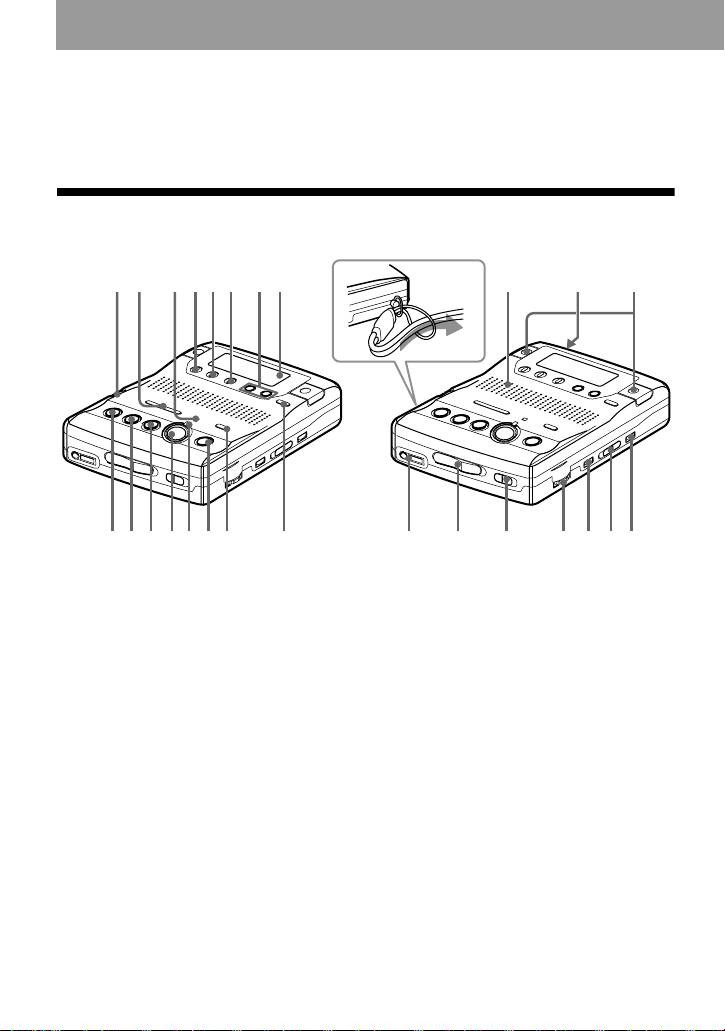
Looking at the controls
See pages in ( ) for more details.
Front of the recorder
How to attach the hand strap.
1
2
3456 78 qj qk ql
9q;qaqsqdqfqg qh w; wa ws wd wf wgwh
A SPEED CONTROL dial (28)
N TRACK MARK button (32) (33)
B .REVIEW/AMS/> CUE/AMS
O REC MODE switch (12) (16)
(search /AMS) buttons (12) (15) (23)
P GROUP button (23) (30) (37)
(25) (31) (33) (34) (41)
Q Speaker (14)
C VOR indicator (17)
R DC IN 3V jack (43)
D DISPLAY button (26) (29) (35)
S Microphones (12) (17)
E PLAY MODE button (29) (35)
T i (headphones) jack (12) (14)
F EDIT/ENTER button (31) (34) (41)
U OPEN switch (11) (14)
G EASY SEARCH +/– buttons (28)
V HOLD switch (9) (41)
(35)
W VOL control (14)
H Display window (24) (27) (33)
The VOL control has a tactile dot.
I xSTOP button (12) (14) (25) (35)
X VOR button (17)
J NPLAY (play) button (12) (14) (25)
Y SYNCHRO REC ON/OFF switch
(34)
(24)
The NPLAY button has a tactile dot.
Z ERASE button (39)
K XPAUSE button (13) (15) (33) (34)
L zREC button (12) (16)
M REC indicator (12) (26)
6-GB
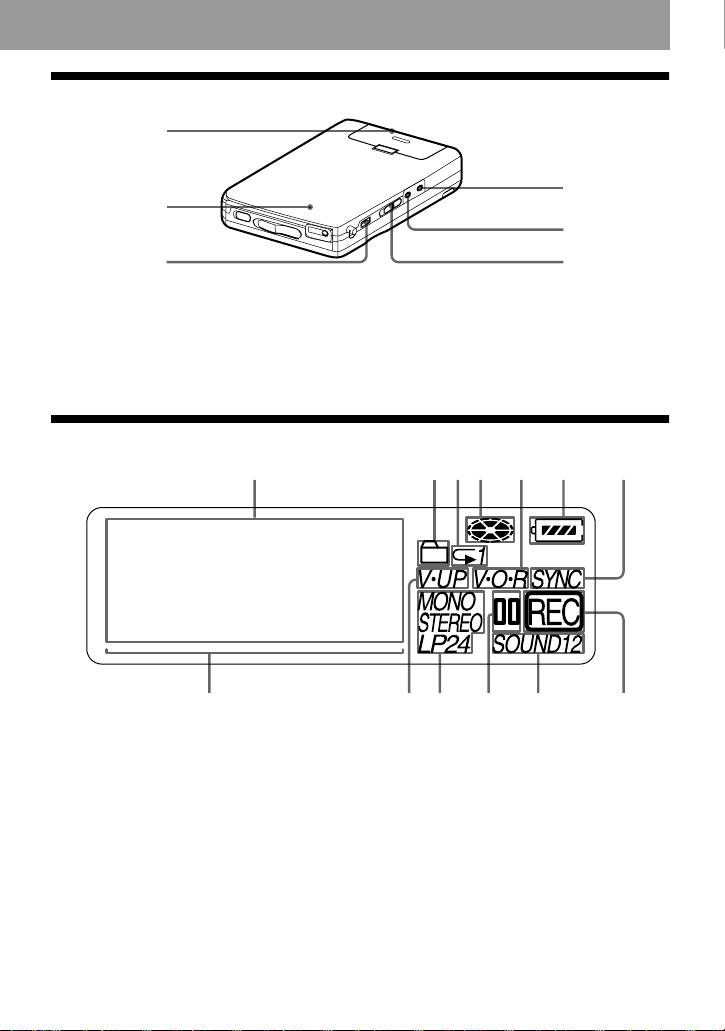
Back of the recorder
1
4
2
5
36
A Battery compartment (9)
E MIC (PLUG IN POWER) jack (18)
The MIC (PLUG IN POWER) jack
B CLOCK SET button (25)
has a tactile dot.
C SOUND button (27)
F MIC SENS (H/L) switch (11) (17)
D LINE IN (OPTICAL) jack (20) (21)
The display window
124567
3
qdqsqaq;98
A Character information display (16)
G SYNC (synchro-recording) indication
(27) (33)
(24)
Displays the disc and track names,
H Playback level meter (30) (33)
date, error messages, track numbers,
I V-UP indication (27)
recording level, etc.
J STEREO (stereo), LP2 (LP2 stereo),
B Group indication (23) (30) (35)
LP4 (LP4 stereo), MONO (monaural)
C Play mode indication (29)
indication (12) (16)
D Disc indication (16) (27) (33)
K Pause indication
Shows that the disc is rotating for
L SOUND indication (27)
recording, playing or editing an MD.
M REC indication (12)
E VOR indication (17)
F Battery level indication (42)
7-GB
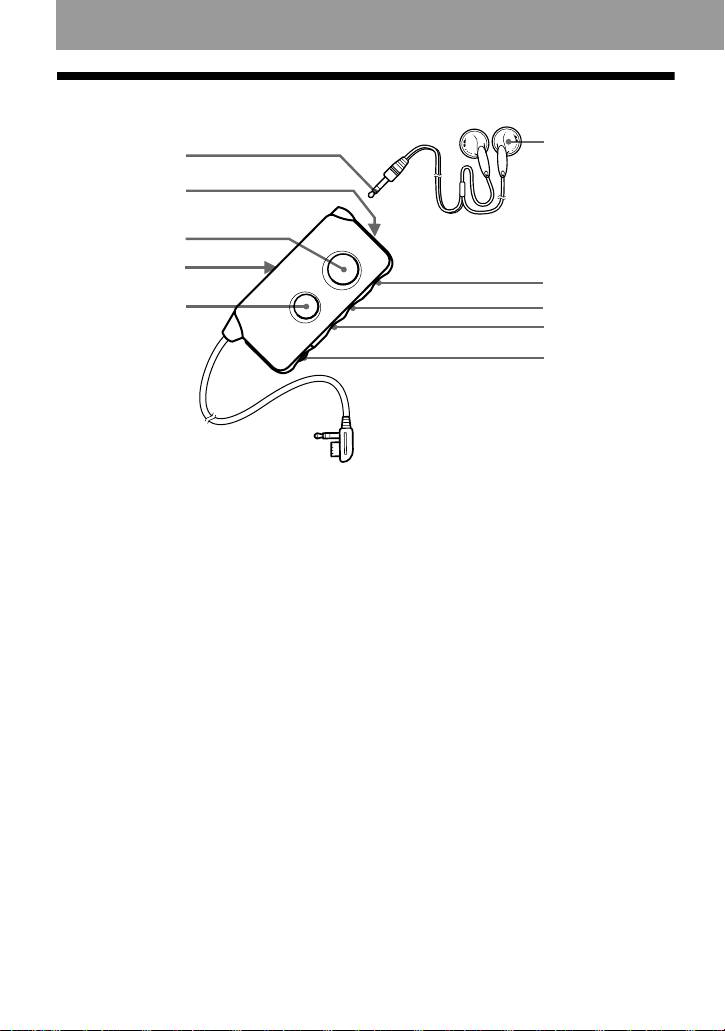
The remote control
F
A
B
C
D
G
E
H
I
J
A Stereo mini plug
B SOUND button (27)
C TRACK MARK button (32) (33)
D HOLD switch (9) (41)
Slide to lock the controls of the
remote control.
E X (pause) button (15)
F Headphones
G x (stop) button (14)
H >N buttons (15)
The >N button has a tactile dot.
I .REVIEW/AMS (15)
J VOL control (14)
The VOL control has a tactile dot.
8-GB
Preparing a power source
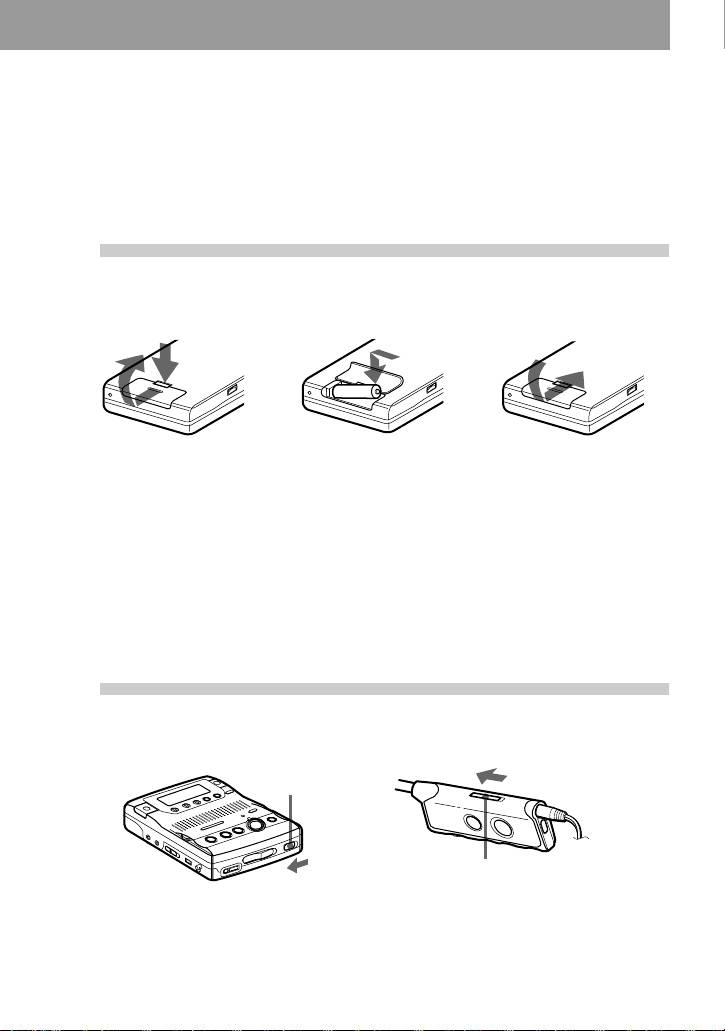
This section explains how to prepare the recorder for battery-powered
operation. For information on connecting the recorder to an AC power
outlet, see page 43.
1
Insert dry batteries.
2
Unlock the control.
9-GB
E
e
Back of the recorder
Press and slide the battery
Insert one LR6 (size AA)
Close the lid.
compartment lid as shown in
alkaline dry battery
the illustration.
(supplied with the world
model only).
Notes
• Do not use manganese dry battery. If you do, recording may not be possible.
• Insert the e and E poles of the battery correctly as shown on the recorder.
HOLD
HOLD
Slide HOLD to the direction of the arrow in the illustration.

Charging the built-in battery for the clock
When you use the recorder for the first time or after a long period of disuse, charge the
built-in battery for the clock. After setting the clock, leave the dry batteries installed for
about more than two hours so that the built-in battery is automatically charged. You can use
the recorder while charging. When the built-in battery is charged, the settings, such as
clock, will remain for about one month after dry batteries are taken out. For details on
setting a clock, see page 25.
10-GB
Recording an MD right away!
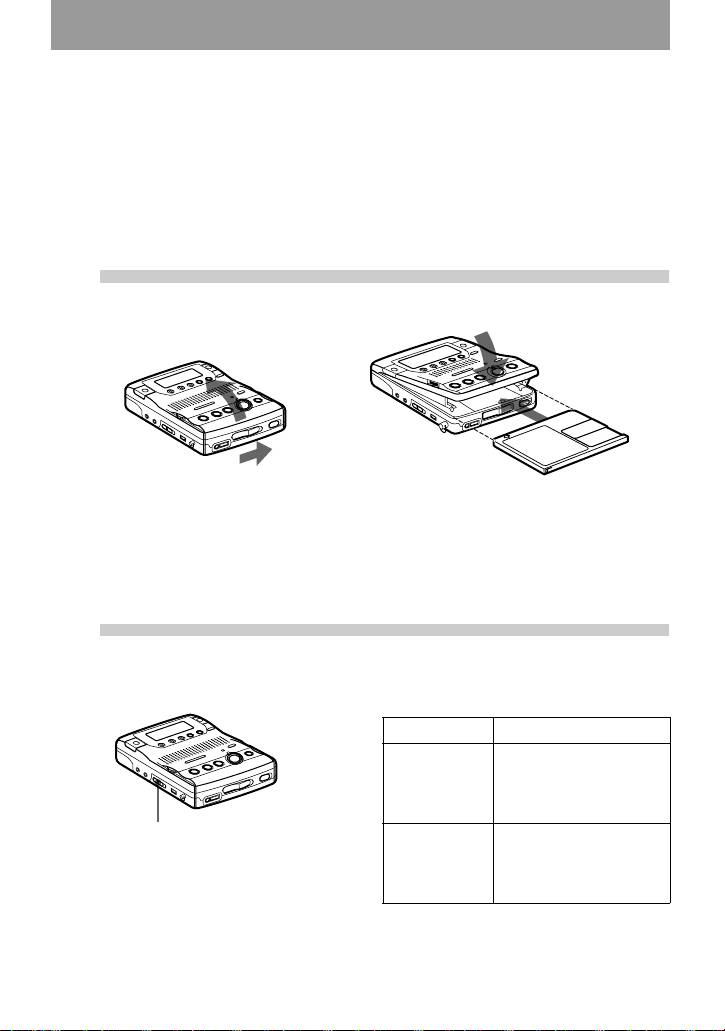
Use the built-in microphones to record in stereo. Make sure the
record-protect tab on the disc is closed (page 54). The use of new
alkaline dry battery is recommended. The recording may not be
possible if you use manganese dry battery.
1
Insert a recordable MD.
1 Slide OPEN to open the lid. 2 Insert a recordable MD with the label
side facing up, and press down on the
lid (at the center of the front edge as
shown above) to close it firmly.
2
Select the microphone sensitivity.
1 Slide MIC SENS to H or L.
MIC SENS When
H (high) recording a soft or a
sound in the distance
(e.g. to record a
meeting).
MIC SENS
L (low) recording a laud or a
sound at close range
(e.g. to record a speech
through a microphone).
11-GB
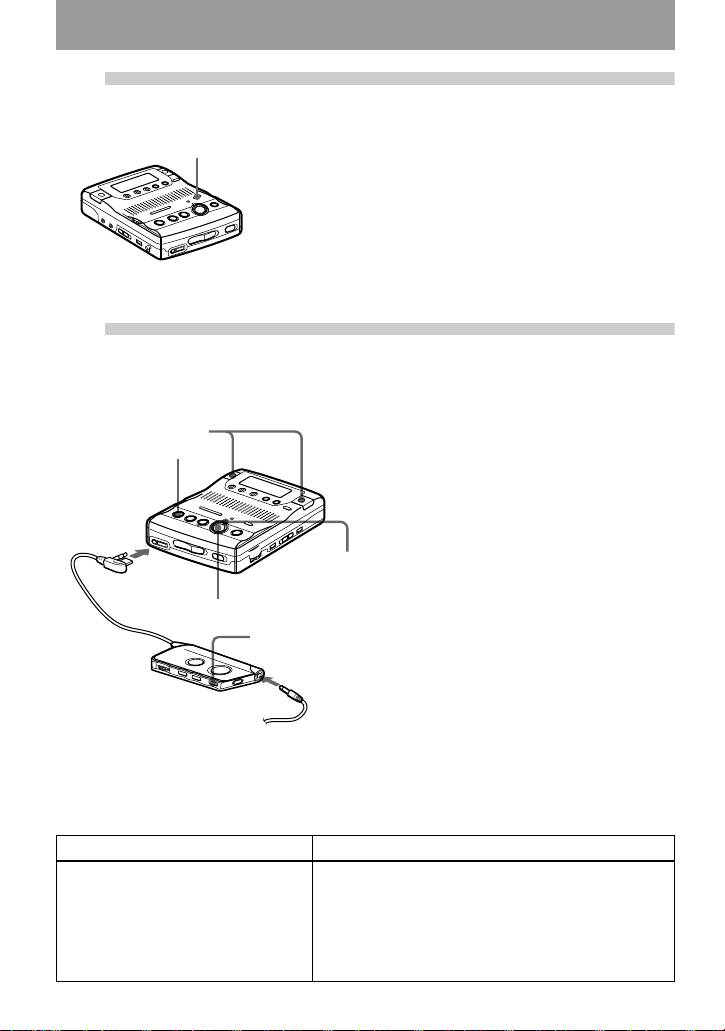
3
Select the recording mode.
1 Press REC MODE repeatedly until “STEREO” lights
REC MODE
up in the display.
You can select normal stereo, LP2 stereo, LP4 stereo,
or monaural as the recording mode. For details, see
“Recording for long times” (page 16). The factory
setting is normal stereo.
The recording mode cannot be changed when
recording is in progress.
4
Record an MD.
1 Press zREC.
built-in
“REC” appears, REC indicator lights
microphones
up, and then recording starts.
xSTOP
You can monitor the recording
conditions, such as the recording
position, through the display or the REC
indicator (page 26).
Connect
If the disc is blank, the recording
firmly to i.
starts from the beginning. If the
disc is partially recorded, the
REC
recording automatically starts
indicator
from the end of the existing
material.
zREC
To stop recording, press xSTOP.
x
After you press the xSTOP button to stop the
recorder, the recorder will automatically turn
off after about 10 seconds (when using an
alkaline dry battery) or 5 minutes (when using
Connect firmly to i
the AC power adaptor).
To monitor the sound during recording.
Connect the supplied headphones with remote control to the i jack. You can adjust the volume by
turning the VOL control. This adjustment does not affect the recording level since the level is adjusted
automatically.
To Operation
Record partway through the
Press NPLAY, >CUE/AMS or .REVIEW/
previous recording
AMS to find the beginning of the material to be
recorded, and then press XPAUSE.
Press zREC so that the recorder changes to
recording pause.
Press XPAUSE again to start recording.
12-GB

To Operation
1)
Pause
Press XPAUSE while recording.
Press XPAUSE again to resume recording.
Remove the MD xSTOP to stop recording and open the lid. (Be sure
that “TOC Edit” has disappeared from the display
before opening the lid.)
1)
The REC indicator flashes during recording pause. Track marks are not added while recording with
microphones, even when the recorder is paused.
If the recording does not start
• The built-in microphones do not operate
• Make sure the recorder is not locked (pages 9
whenever an optical cable or a line cable is
and 41).
connected into the LINE IN (OPTICAL) jack
• Make sure the MD is not record-protected
on the recorder.
(page 54).
• Premastered MDs cannot be recorded over.
Notes
• For long recordings, it is recommended that
you power the recorder from a house current
using an optional AC power adaptor AC-
E30HG (page 43).
• Do not connect an optional AC power adaptor
during a recording operation if you are
operating the recorder on battery power. If you
do, the material recorded up to that point will
not be saved to the disc
• The lid will not open during recording or until
“TOC Edit” disappears from the display after
the recording has completed.
• If the power supply is disrupted (i.e. the
batteries are removed or becomes exhausted
or the optional AC power adaptor is
disconnected) during a recording operation, or
while “TOC Edit” appears in the display, then
it will not be possible to open the lid until
power is restored.
• “Data Save” or “TOC Edit” flashes while data
of the recording (the track’s start and end
points, etc.) is being recorded. Do not move or
jog the recorder or disconnect the power
source while the indication is flashing in the
display. If you do, the material recorded up to
that point will not be saved to the disc.
• When you record through the microphones,
the various sounds made by the recorder may
also be recorded.
• The built-in microphones do not operate
whenever an optional microphone is
connected into the MIC (PLUG IN POWER)
jack on the recorder.
13-GB
Playing an MD right away!
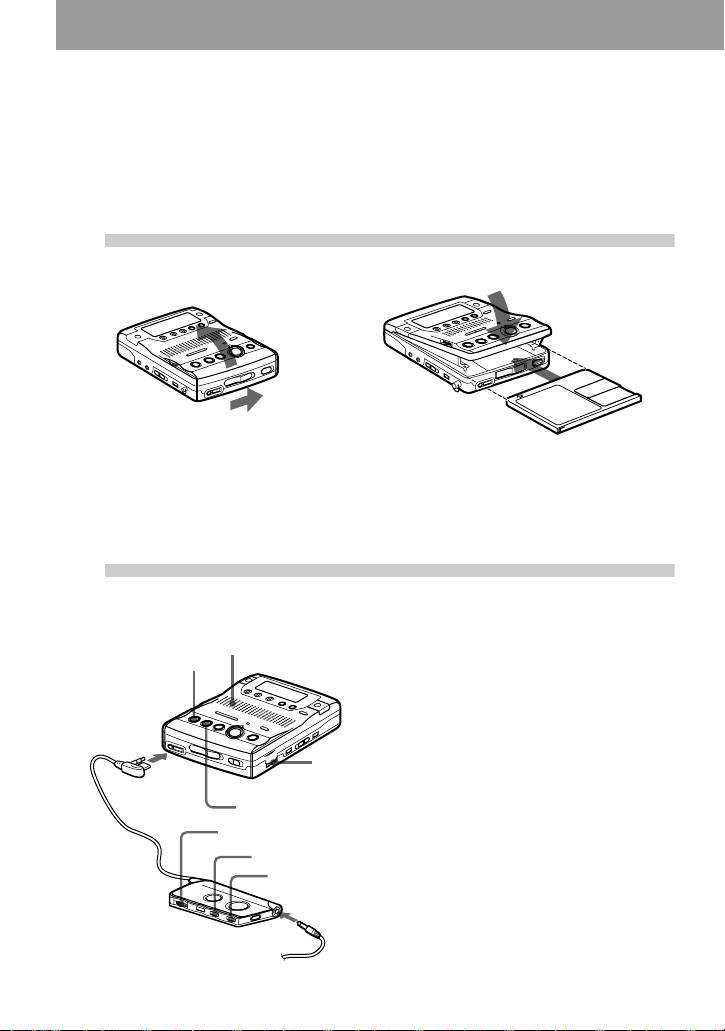
You can play recordable MDs or premastered MDs. Sound output
from the built-in speaker is monaural, but stereo listening is possible
through the supplied headphones with a remote control.
1
Insert an MD.
1 Slide OPEN to open the lid. 2 Insert an MD with the label side facing
up, and press down on the lid (at the
center of the front edge as shown
above) to close it firmly.
2
Play an MD.
spea
1 Press NPLAY.
xSTOP
2 Turn VOL to adjust the volume.
The volume will be shown in the
display.
To stop play, press xSTOP.
VOL
Playback starts from the point you last stopped
playing.
After you press the
xSTOP button to stop the
recorder, the recorder will automatically turn
off after about 10 seconds (when using an
VOL
alkaline dry battery), or 5 minutes (when using
>N
the AC power adaptor).
On the remote control, use the >N button
to start playback, the xSTOP button to stop the
recorder, and the VOL control to adjust the
volume. If you are using the remote control,
you will hear short beeps whenever you press
the >N button, and a long beep whenever
you press the xSTOP button.
14-GB
k
er
Connect
firmly to i
NPLAY
x
Connect firmly to i

To listen in stereo
Connect the supplied headphones with a remote control to the i jack on the recorder.
To Operation on the recorder Operation on the remote
control (Beeps in the
headphones)
Find the beginning of
Press .REVIEW/AMS.
Press .. (Three short beeps)
the current track or a
Press .REVIEW/AMS
Press . repeatedly until you
1)
previous track
repeatedly until you reach the
reach the beginning of the
beginning of the desired track.
desired track.
Find the beginning of
Press >CUE/AMS. Press >N. (Two short
2)
the next track
beeps)
Pause Press XPAUSE. Press
Press X on the remote control.
XPAUSE again to resume
(Continuous short beeps) Press
play.
X again to resume play.
Go backwards while
Press and hold .REVIEW/
Press and hold ..
playing
AMS.
Go forward while
Press and hold >CUE/
Press and hold >N .
playing
AMS.
Remove the MD Press xSTOP and open the
Press x. (One short beep)
3)
lid.
1)
If you press .REVIEW/AMS during the first track of the disc, the recorder goes to the beginning
of the last track on the disc.
2)
If you press >CUE/AMS during the last track of the disc, the recorder goes to the beginning of the
first track on the disc.
3)
Once you open the lid, the point to start play will change to the beginning of the first track.
If the play does not start
Make sure the recorder is not locked (pages 9
and 41).
To locate a point quickly
Use the EASY SEARCH +/– buttons (page 28).
z
Playback will switch automatically between
stereo and monaural according to the sound
source.
Notes
• The sound may skip during playback when the
recorder is exposed to continuous vibration,
such as while jogging.
• If the power supply is disrupted (i.e. the
batteries are removed or become exhausted or
the optional AC power adaptor is
disconnected) when the recorder is operating,
the lid may not open until the power is
restored.
15-GB
Various ways of recording
Recording
A Recording
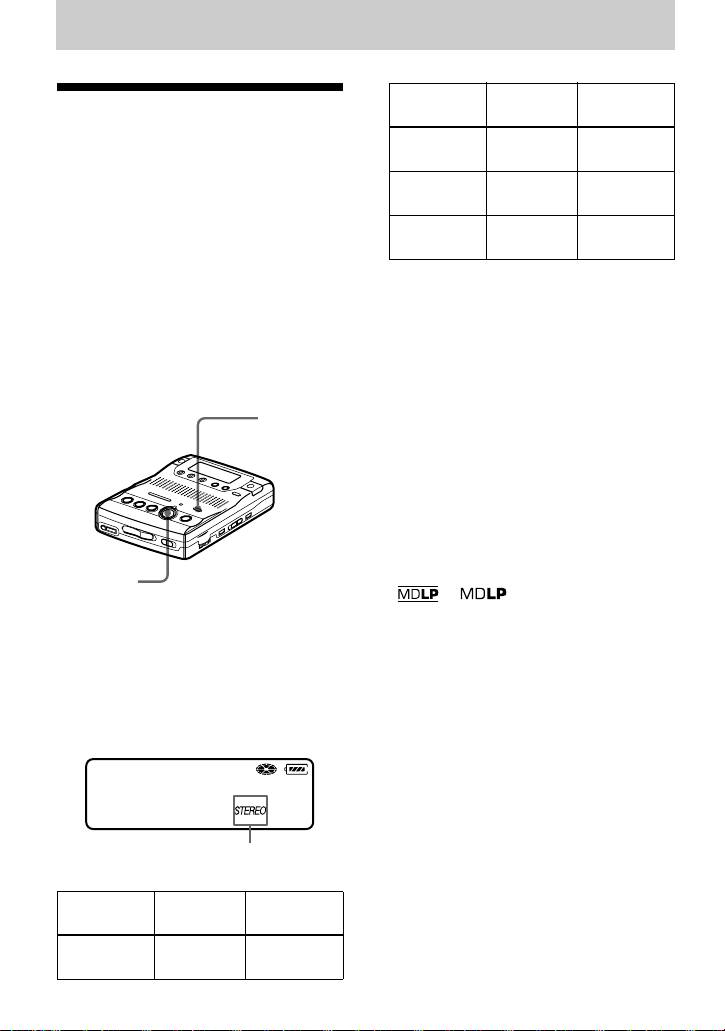
Recording for long
1)
3)
mode
time
times
LP2 stereo LP2 approx. 160
min.
Select each recording mode according to
the recording time that you want.
LP4 stereo LP4 approx. 320
Stereo recording is possible at 2 times
min.
(LP2) or 4 times (LP4) the normal
2)
Monaural
MONO approx. 160
(stereo) recording time. Monaural
min.
recording at 2 times normal recording
1)
speed is also possible.
For better sound quality, record in normal
stereo or LP2 stereo mode.
MDs recorded in monaural, LP2
2)
If you record a stereo source in monaural, the
stereo, or LP4 stereo mode can be
sounds from left and right will be mixed.
played back only on MD players or
3)
When using an 80-minute recordable MD
recorders with monaural, LP2
stereo, or LP4 stereo playback
3 Press zREC.
mode.
For other operations on recording, see
“Recording an MD right away!”
REC MODE
(page 11).
To stop recording, press x.
The recorder switches back to stereo
recording when you record the next time.
z
• Audio components that support the LP2 stereo
or LP4 stereo modes are indicated by the
zREC
or logo marks.
• The recording mode can be changed during
1 Insert a recordable disc.
recording pause. When you change the
recording mode, a track mark is automatically
2 Press REC MODE repeatedly until
added at that point.
desired recording mode lights up in
the display.
Each time you press the button, A
changes as follows.
007
30:03
A
Recording
A Recording
1)
3)
mode
time
Stereo STEREO approx. 80
min.
16-GB
Notes
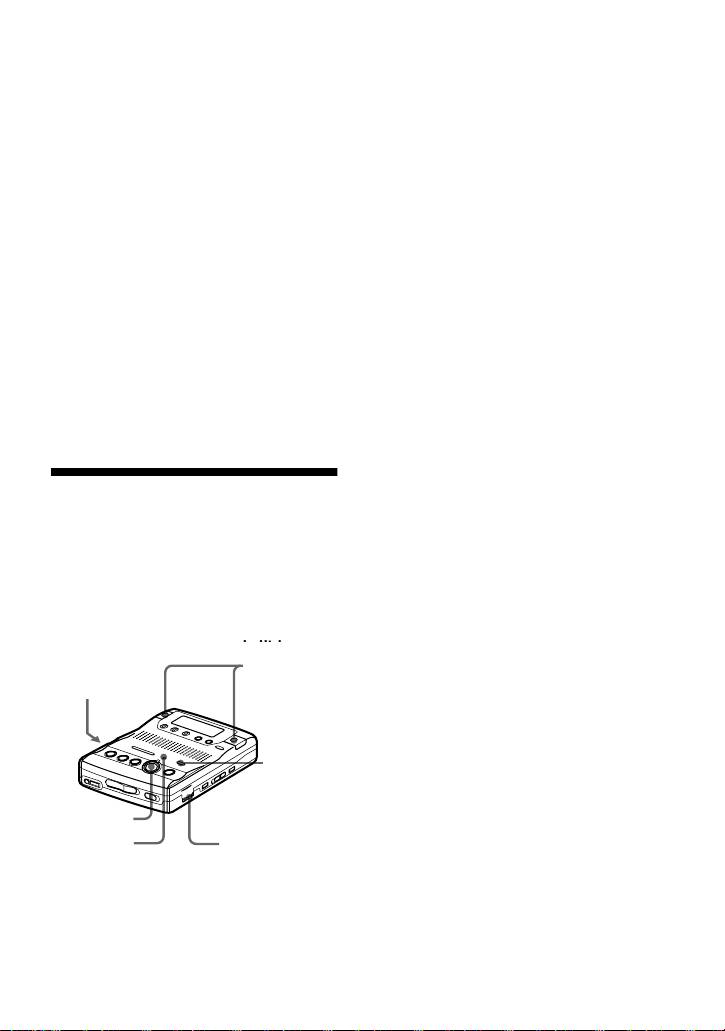
2 Press REC MODE repeatedly until
• “LP:” will be added at the beginning of the
“STEREO”, “LP2”, “LP4”, or
track name of a track recorded in MDLP
“MONO” lights up in the display.
mode.
For details on the recording mode, see
• It is recommended that you use the supplied
“Recording for long times” (page 16).
AC power adaptor for long recordings.
• During monaural recording of a stereo sound
3 Press zREC.
source connected through the digital (optical)
input jack, you can still monitor the recorded
4 Press VOR.
sound in stereo by using headphones or
VOR turns on.
earphones connected to the i/LINE OUT
“VOR” appears in the display and the
jack.
• When you record in LP4 mode, momentary
VOR indicator lights up when the
noise may be produced on very rare occasions
recorder is recording. Both “VOR”
with certain sound sources. This is because of
and the VOR indicator flash when the
the special digital audio compression
recorder is not recording.
technology that enables a recording time 4
times longer than normal. If noise is produced,
To cancel VOR while recording
it is recommended that you record in normal
stereo or LP2 mode to obtain better sound
Press VOR again.
quality.
“VOR” and the VOR indicator goes off
and the recorder changes to normal
recording mode.
z
VOR (Voice Operated
• VOR automatically turns off when you press
Recording)
the xSTOP button to stop recording.
• You can change the recording mode when
VOR causes the recorder to automatically
VOR is on and the recorder is not recording
record when there is sound, and to pause
(while “VOR” and VOR indicator flash). A
when there is no sound. This allows you
track mark is added each time you press the
to record without troublesome button
REC MODE button.
operations.
Notes
built-in
built-in
• You cannot record with the built-in
microphones
microphones
microphones while an optional microphone is
MIC SENS
connected to the MIC (PLUG IN POWER)
jack or an optical cable (not supplied) is
connected to the LINE IN (OPTICAL) jack.
• VOR is sensitive to the surrounding sound
conditions. Set the MIC SENS switch to H or
REC
L to suit the conditions. If you cannot get the
MODE
desired recording results, cancel VOR and
record in manual mode.
zREC
• Power from the batteries is consumed as long
VOR
VOR
as VOR is on, even when recording is not
indicator
taking place (i.e., when “VOR” and the VOR
indicator flash.)
1 Insert a recordable disc and slide MIC
SENS to H (high) or L (low).
17-GB

z
Recording from a
When using a plug-in-power microphone, no
battery is needed for the microphone since
microphone
power is supplied by the recorder.
If you are using the optional stereo microphone
Connect a stereo microphone (ECM-717,
ECM-717, set the switch on the microphone to
etc.; not supplied) to the MIC (PLUG IN
OFF to allow the recorder to provide power to
POWER) jack. The recorder input
the microphone. It is recommended that you set
automatically switches to the externally
the switch on the microphone to OFF during
connected microphone input.
use.
Stereo
Notes
microphone
• You cannot record through the externally
(not supplied)
connected microphone while an optical cable
is connected to the LINE IN (OPTICAL) jack.
The recorder automatically selects the
recorder input in the following order of
priority; optical input, externally connected
microphone input, analog (line) input, and
REC MODE
built-in microphones input.
• The microphone may pick up the operating
sound of the recorder itself (such as the sound
of the motor). Use the microphone away from
the recorder in such cases. Do not use a
microphone with a short connector, as this
may cause the operating sound of the recorder
to MIC (PLUG IN
to be picked up.
zREC
POWER)
MIC SENS
1 Insert a recordable disc and slide MIC
SENS to H (high) or L (low).
2 Press REC MODE repeatedly until
“STEREO”, “LP2”, “LP4”, or
“MONO” lights up in the display.
For details on the recording mode, see
“Recording for long times” (page 16).
3 Press zREC.
For other operations on recording, see
“Recording an MD right away!”
(page 11).
18-GB

Recording from externally connected equipment
The input jack of this recorder works as both digital and analog input jacks. Connect the
recorder to a CD player or a cassette recorder using either digital (optical) input or analog
(line) input. To record, see “Recording with digital (optical) input (optical cable required)”
(page 20) to record using digital (optical) input and “Recording with analog (line) input
(line cable required)” (page 21) to record using analog (line) input.
LINE IN (OPTICAL) jack is for both digital and analog input.
The recorder automatically recognizes the type of line cable and switches to digital or analog input.
Difference between digital (optical) and analog (line) inputs
Difference Digital (optical) input Analog (line) input
Connectable
Equipment with an digital (optical)
Equipment with an analog
source
output jack
(line) output jack
Usable cord Optical cable (with an optical or an
Line cable (with 2 phono plugs
optical-mini plug)(page 20)
or a stereo-mini plug)(page 21)
Signal from the
Digital Analog
source
Even when a digital source
(such as a CD) is connected, the
signal sent to the recorder is
analog.
Recorded track
Marked (copied) automatically
Marked automatically
numbers
• at the same positions as the source
• after more than 2 seconds of
(when the sound source is a CD or
blank or low-level segment.
an MD).
• when the recorder is paused
• after more than 2 seconds of blank
while recording.
or low-level segment (with a sound
You can erase unnecessary
source other than a CD or an MD)
marks after recording (“Erasing
(page 53).
a track mark”, page 33).
• when the recorder is paused while
recording (the recorder pauses
automatically when it encounters a
section with no audio signal for 3
seconds or more) (page 53).
You can erase unnecessary marks
after recording. (“Erasing a track
mark”, page 33).
Recorded
Same as the source. Adjusted automatically.
sound level
Note
Track marks may be copied incorrectly:
• when you record from some CD players or multi disc players using digital (optical) input.
• when the source is in shuffle or program play mode while recording using digital (optical) input. In
this case, play the source in normal play mode.
• when recording BS or CS programs through digital (optical) input.
19-GB
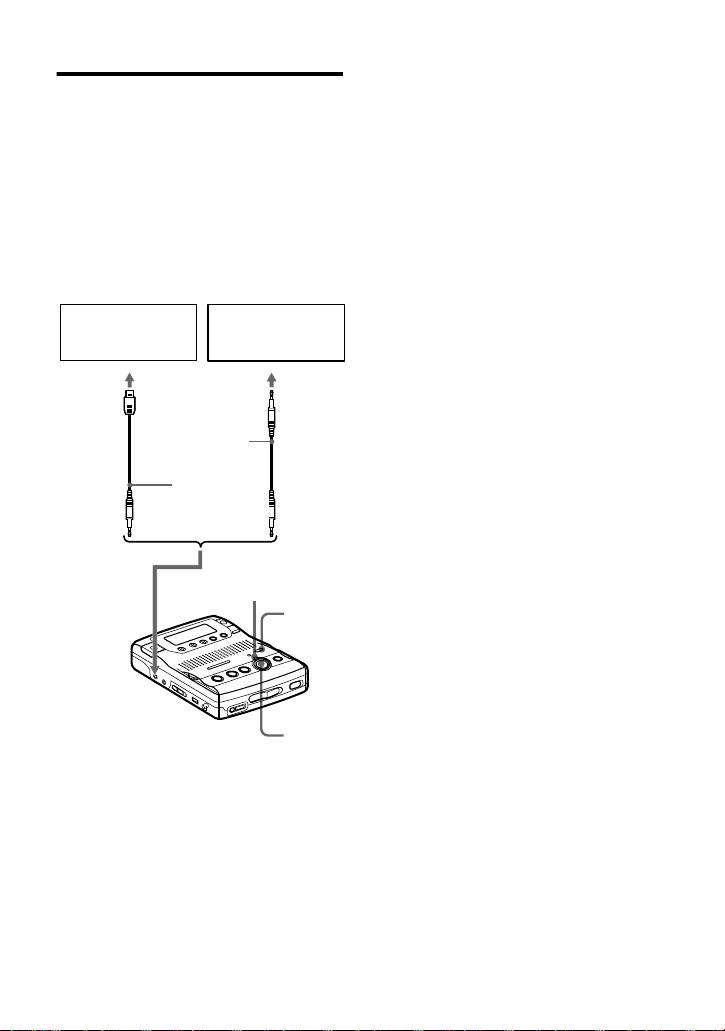
3 Press zREC.
Recording with digital
“REC” appears in the display, the
(optical) input (optical cable
REC indicator lights up, and the
required)
recording starts.
Connect to a digital source using an
4 Play the source sound.
optical cable (not supplied) to make
For other operations on recording, see
digital recordings. Digital recording is
“Recording an MD right away!”
possible even from digital equipment with
(page 11).
different sampling rates, such as a DAT
deck or a BS tuner, using the built-in
z
sampling rate converter.
When recording from digital media, track
marks in the original are copied automatically
CD player, MD
to the MD.
Portable CD
player, digital
player, etc.
Notes
amplifier, etc.
• You can make a digital recording with an
optical cable only from an optical type output.
Optical
Optical
• When recording from a portable CD player,
plug
mini-
play it on AC power and disable the anti-skip
POC-15B etc.
plug
function (such as ESP*).
(not supplied)
• When recording from a portable CD player,
pause the CD player before doing the
POC-15AB etc.
recording procedure.
(not supplied)
• Digital output may be disabled on some
portable CD players when the AC power
adaptor is not connected to the player.
• A track mark is added at the point where you
REC
press the XPAUSE button again to resume
recording while pausing recording; thus the
indicator
remainder of the track will be counted as a
REC
new track.
MODE
∗ Electronic Shock Protection
to LINE IN
(OPTICAL)
zREC
1 Insert a recordable disc.
2 Press REC MODE repeatedly until
“STEREO”, “LP2”, “LP4”, or
“MONO” lights up in the display.
For details on the recording mode, see
“Recording for long times” (page 16).
20-GB
