
Sony GDM-F520: instruction
Class: Computer equipment, hardware, accessories
Type: Monitor
Manual for Sony GDM-F520
Table of contents
4-080-794-11 (1)
â
Trinitron Color
Graphic Display
GB
Operating Instructions
FR
Mode d’emploi
DE
Bedienungsanleitung
ES
Manual de instrucciones
IT
Istruzioni per l’uso
RU
Инструкция по эксплуатации
SE
Bruksanvisning
NL
Gebruiksaanwijzing
GDM-F520
GDM-F420
© 2000 Sony Corporation
Owner’s Record
NOTICE
The model and serial numbers are located at the rear of the unit.
This notice is applicable for USA/Canada only.
Record these numbers in the spaces provided below. Refer to them
If shipped to USA/Canada, install only a UL LISTED/CSA
whenever you call upon your dealer regarding this product.
LABELLED power supply cord meeting the following
Model No.
Serial No.
specifications:
SPECIFICATIONS
Plug Type Nema-Plug 5-15p
WARNING
Cord Type SVT or SJT, minimum 3
× 18 AWG
Length Maximum 15 feet
To prevent fire or shock hazard, do not expose the
Rating Minimum 7 A, 125 V
unit to rain or moisture.
NOTICE
Dangerously high voltages are present inside the
Cette notice s’applique aux Etats-Unis et au Canada
unit. Do not open the cabinet. Refer servicing to
uniquement.
qualified personnel only.
Si cet appareil est export* aux Etats-Unis ou au Canada,
utiliser le cordon d’alimentation portant la mention UL LISTED/
FCC Notice
CSA LABELLED et remplissant les conditions suivantes:
This equipment has been tested and found to comply with the limits
SPECIFICATIONS
for a Class B digital device, pursuant to Part 15 of the FCC Rules.
Type de fiche Fiche Nema 5-15 broches
These limits are designed to provide reasonable protection against
Cordon Type SVT ou SJT, minimum 3
× 18 AWG
harmful interference in a residential installation. This equipment
Longueur Maximum 15 pieds
generates, uses, and can radiate radio frequency energy and, if not
Tension Minimum 7 A, 125 V
installed and used in accordance with the instructions, may cause
harmful interference to radio communications. However, there is no
guarantee that interference will not occur in a particular installation.
If this equipment does cause harmful interference to radio or
television reception, which can be determined by turning the
equipment off and on, the user is encouraged to try to correct the
interference by one or more of the following measures:
– Reorient or relocate the receiving antenna.
– Increase the separation between the equipment and receiver.
As an
ENERGY STAR Partner, Sony
– Connect the equipment into an outlet on a circuit different from
Corporataion has determined that this
that to which the receiver is connected.
product meets the
ENERGY STAR
– Consult the dealer or an experienced radio/TV technician for
guidelines for energy efficiency.
help.
You are cautioned that any changes or modifications not expressly
approved in this manual could void your authority to operate this
equipment.
EN 55022 Compliance (Czech Republic Only)
This device belongs to category B devices as described in EN
This monitor complies with the TCO’99
55022, unless it is specifically stated that it is a category A
guidelines.
device on the specification label. The following applies to
devices in category A of EN 55022 (radius of protection up to
30 meters). The user of the device is obliged to take all steps
necessary to remove sources of interference to
telecommunication or other devices.
If you have any questions about this product, you may call:
Sony Customer Information Center
1-800-222-SONY (7669)
or write to:
Sony Customer Information Center
1 Sony Drive, Mail Drop #T1-11, Park Ridge, NJ 07656
INFORMATION
Declaration of Conformity
This product complies with Swedish National Council for Metrology
(MPR) standards issued in December 1990 (MPR II) for very low
Trade Name: SONY
frequency (VLF) and extremely low frequency (ELF).
Model No.: GDM-F520/F420
INFORMATION
Responsible Party: Sony Electronics Inc.
Ce produit est conforme aux normes du Swedish National Council
Address: 1 Sony Drive, Park Ridge, NJ 07656 USA
for Metrology de décembre 1990 (MPR II) en ce qui concerne les
Telephone No.: 201-930-6972
fréquences très basses (VLF) et extremement basses (ELF).
INFORMACIÓN
This device complies with Part 15 of the FCC Rules. Operation
Este producto cumple las normas del Consejo Nacional Sueco
is subject to the following two conditions: (1) This device may
para Metrología (MPR) emitidas en diciembre de 1990 (MPR II)
not cause harmful interference, and (2) this device must accept
para frecuencias muy bajas (VLF) y frecuencias extremadamente
any interference received, including interference that may
bajas (ELF).
cause undesired operation.
2
â
•Trinitron
is a registered trademark of Sony Corporation.
Table of Contents
• Macintosh is a trademark licensed to Apple Computer, Inc., registered in
Setup . . . . . . . . . . . . . . . . . . . . . . . . . . . . . . . . . . . 3
the U.S.A. and other countries.
â
• Windows
and MS-DOS are registered trademarks of Microsoft
Adjustments . . . . . . . . . . . . . . . . . . . . . . . . . . . . . 4
Corporation in the United States and other countries.
Troubleshooting . . . . . . . . . . . . . . . . . . . . . . . . . . 6
• IBM PC/AT and VGA are registered trademarks of IBM Corporation of
the U.S.A.
Specifications . . . . . . . . . . . . . . . . . . . . . . . . . . . . 7
ä
• VESA and DDC
are trademarks of the Video Electronics Standard
Precautions . . . . . . . . . . . . . . . . . . . . . . . . . . . . . . 8
Association.
•
ENERGY STAR is a U.S. registered mark.
Appendix . . . . . . . . . . . . . . . . . . . . . . . . . . . . . . . . . i
• All other product names mentioned herein may be the trademarks or
Preset mode timing table . . . . . . . . . . . . . . . . . . . . . i
registered trademarks of their respective companies.
• Furthermore, “
ä” and “â” are not mentioned in each case in this manual.
TCO’99 Eco-document . . . . . . . . . . . . . Back Cover
Setup
To select the input signal
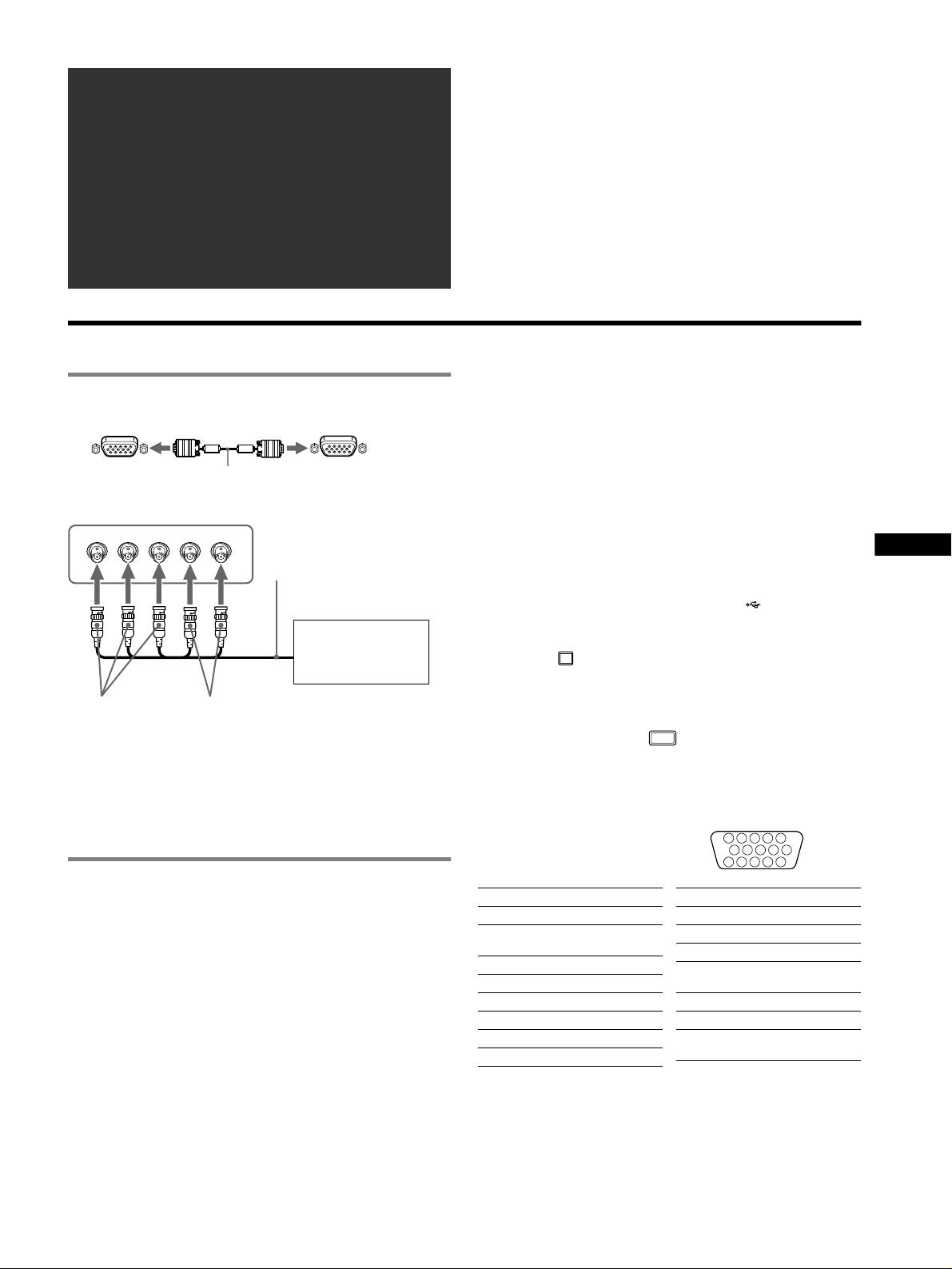
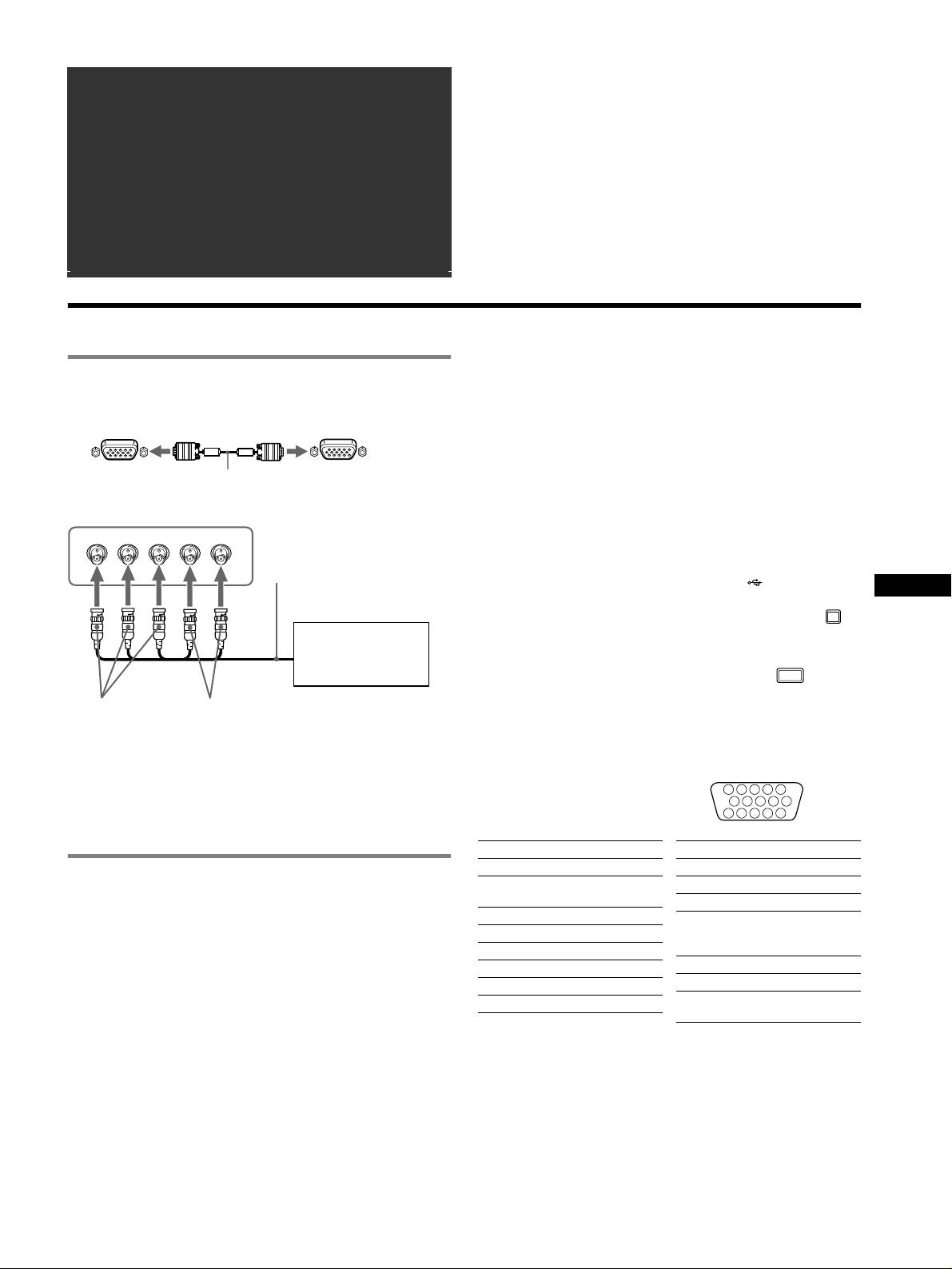
1 Connecting your monitor to your computer
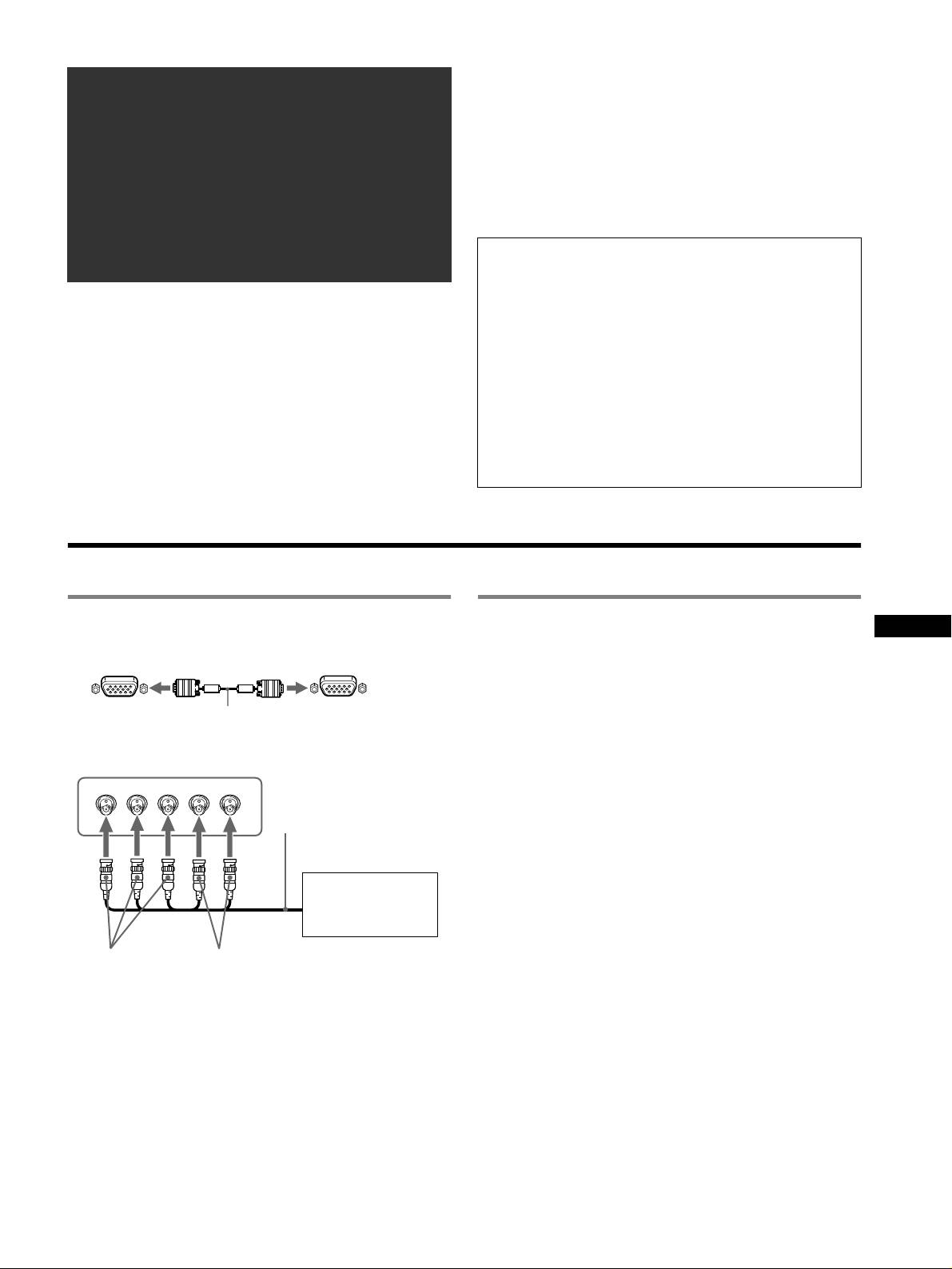
You can connect two computers to this monitor using the HD15 and
BNC connectors. To select one of the two computers, use the
x To connect to the HD15 input connector
INPUT switch. The selected connector appears on the screen for 3
seconds.
Note
to HD15
video signal cable
to HD15 of the
(supplied)
connecting computer
If no signal is input to the selected connector, NO SIGNAL appears on the
screen. After a few seconds, the monitor enters the power saving mode. If
x To connect to the 5 BNC connectors
this happens, switch to the other connector.
RGBHDVD
GB
video signal cable
To connect Universal Serial Bus (USB) compliant
(not supplied)
peripherals
Confirm that the monitor and computer are turned on, then
connect your computer to the USB connectors ( ) on the right side
of the monitor.
Refer to the preceding
Connect your computer to the square upstream
examples to connect to
connector
() using the supplied USB cable.
your computer.
If a Windows message appears, follow the on-screen instructions
and select “Generic USB Hub”.
to VIDEO IN R/G/B
to SYNC IN HD/VD
When connecting your USB compliant peripheral devices (e.g.,
printer, keyboard, mouse, scanner, etc.) connect the rectangular
Connecting to a Macintosh or compatible
downstream USB connector
().
computer
Note
When connecting this monitor to a Power Mac G3/G4 computer,
The monitor functions as a USB hub as long as the monitor is either “on” or
use the supplied adapter if necessary. Connect the supplied adapter
in power saving mode.
to the computer before connecting the cable. If you connect to
another version of Macintosh series computer, having 2 rows of
HD15 input connectors
pins, you will need a different adapter (not supplied).
5 4 3 2
1
678910
1112131415
2 Turning on the monitor and computer
Pin No. Signal
Pin No. Signal
1 Connect the power cord to the monitor and press the
1Red
9 DDC + 5V*
! (power) switch to turn on the monitor.
2 Green (Sync on
10 Ground
2 Turn on the computer.
Green)
11 ID (Ground)
No need for specific drivers
3Blue
12 Bi-Directional
This monitor complies with the “DDC” Plug & Play standard and
4 ID (Ground)
Data (SDA)*
automatically detects all the monitor’s information. No specific driver
5 DDC Ground*
13 H. Sync
needs to be installed to the computer.
6 Red Ground
14 V. Sync
The first time you turn on your PC after connecting the monitor, the setup
Wizard may appear on the screen. In this case, follow the on-screen
7 Green Ground
15 Data Clock
instructions. The Plug & Play monitor is automatically selected so that you
(SCL)*
8 Blue Ground
can use this monitor.
* DDC (Display Data Channel) is a standard of VESA.
Notes
• Plug and Play is compatible with the HD15 connector only, and not
compatible with the 5 BNC connectors.
• Do not touch the pins of the video signal cable connector.
• Check the alignment of the HD15 connector to prevent bending the pins
of the video signal cable connector.
3
Adjustments
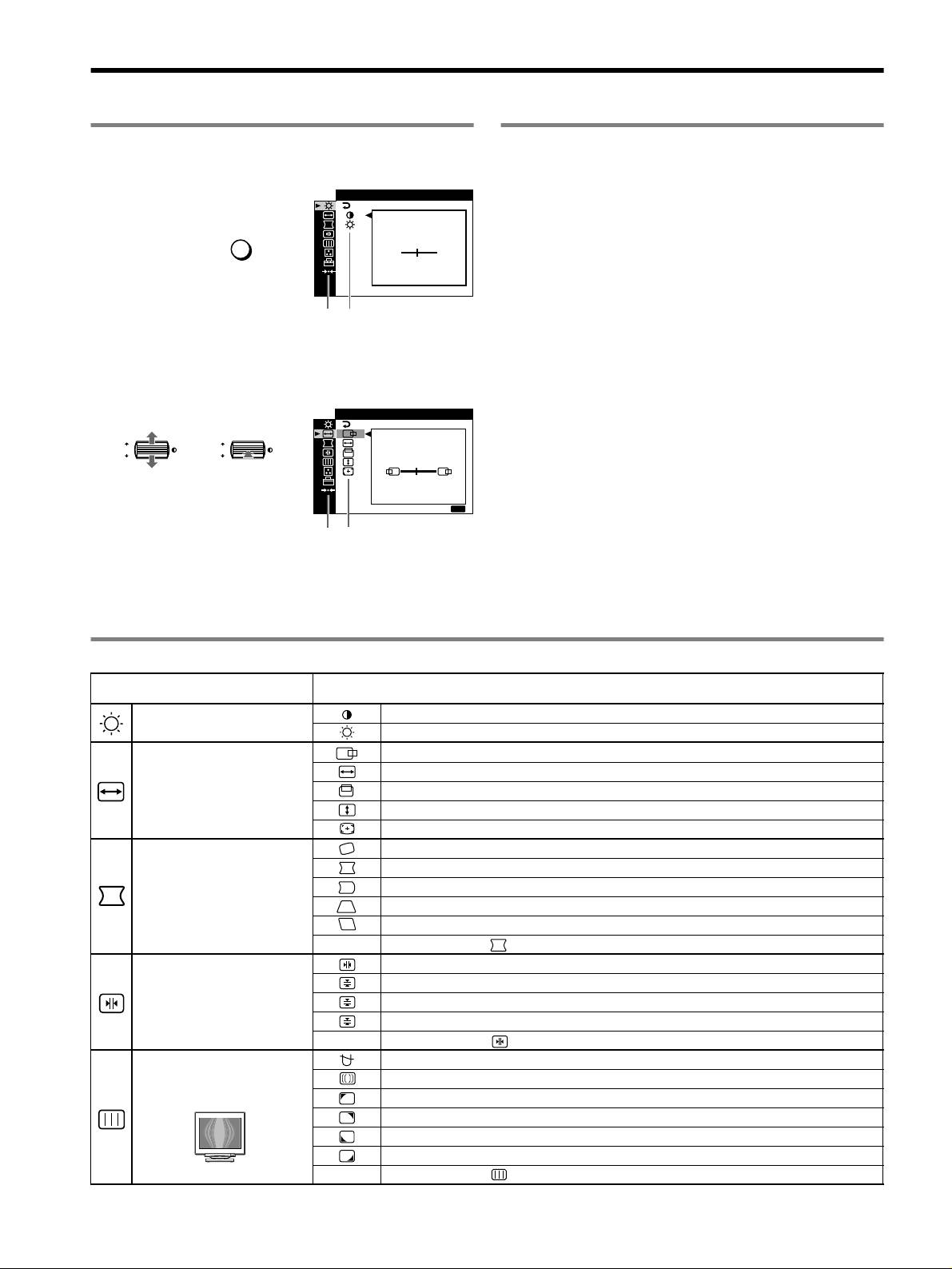
Navigating the menu
Adjusting the picture quality
(PICTURE EFFECT)
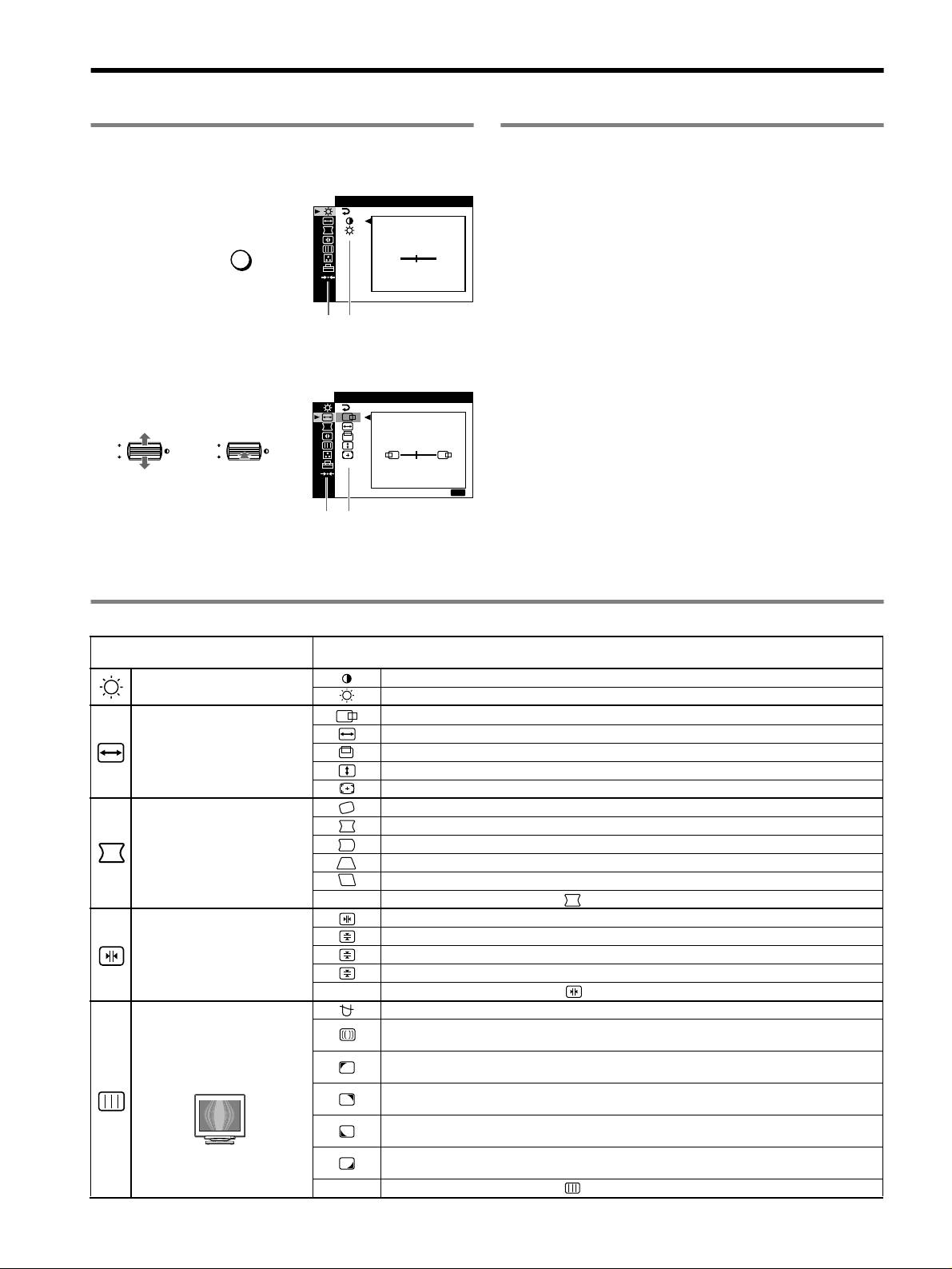
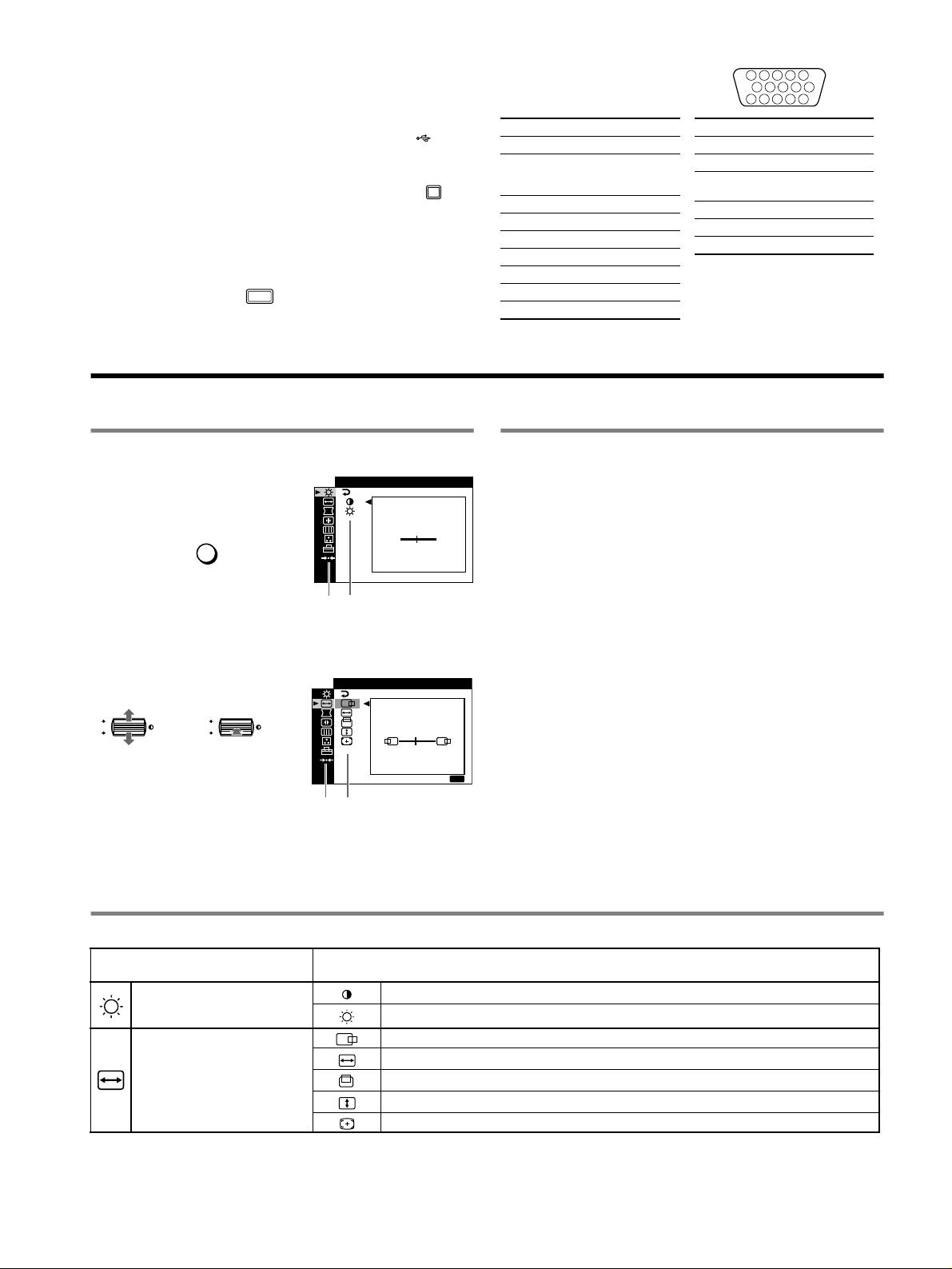
1 Press the MENU button to display the main menu.
You can select the most appropriate picture mode from among 3
CONTRAST
/IBR GHT
preset modes by pressing the PICTURE EFFECT button
repeatedly.
CONTRAST
MENU
,
x PROFESSIONAL
50
For accurate and consistent display color. Choose this for
professional desktop publishing and graphic applications.
1024x768 / 85Hz
Main
Sub
x STANDARD
menu
menu
For images with high contrast and brightness. Choose this mode for
commonly used applications, such as spreadsheets, word
2 Move the control button m/M to highlight the main
processing, E-mail, or WEB surfing.
menu you want to adjust and press the control button.
x DYNAMIC
SZE
/I CENTER
For extremely vivid and photo-realistic images. Bright than
“STANDARD” mode, choose this for intense entertainment
OK
,,
OK
software such as games, or DVD playback.
45
E
XIT
:
MENU
Main
Sub
menu
menu
3 Select the sub menu you want to adjust and press the
control button.
4 Adjust with the control button.
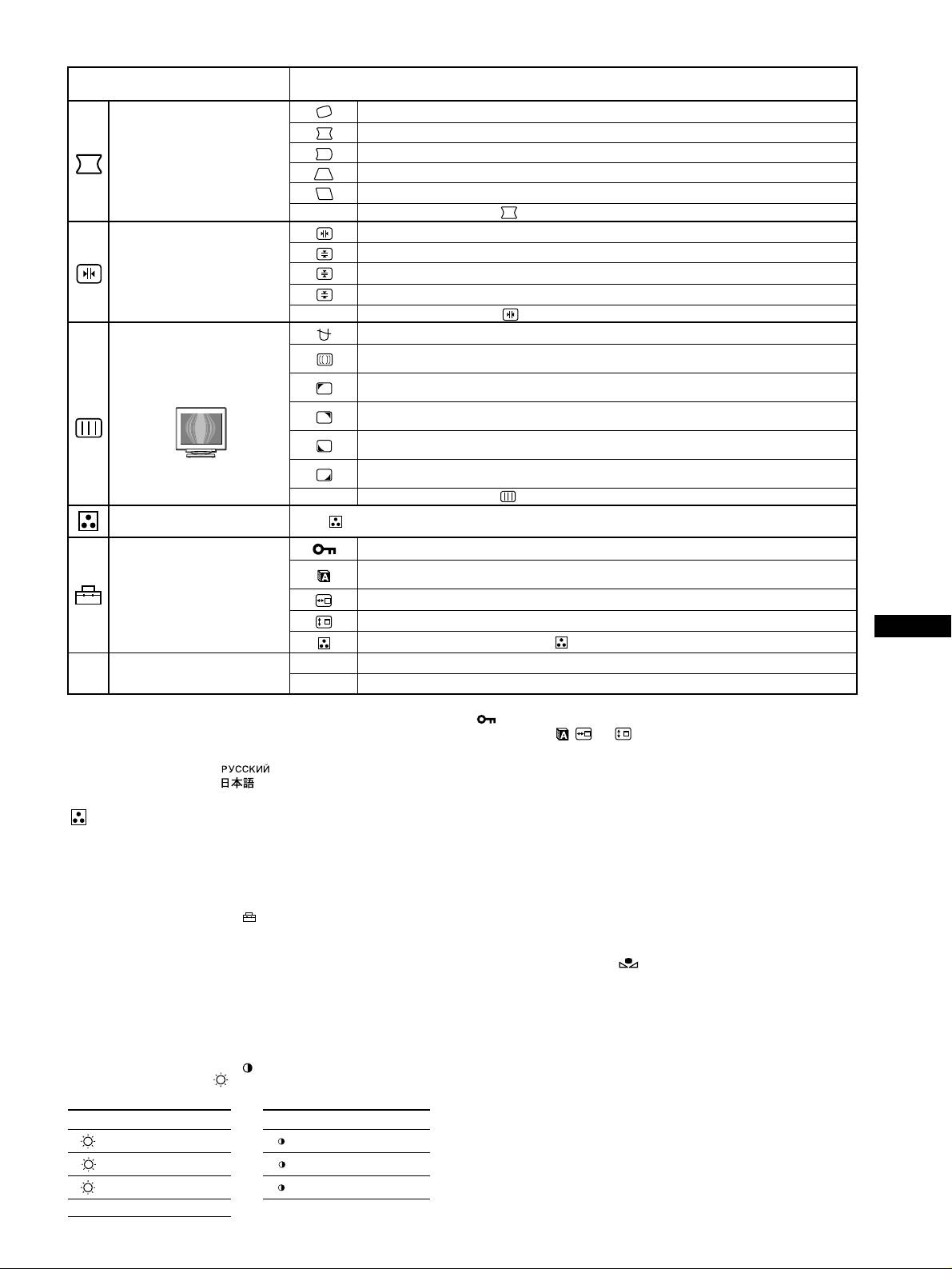
On-Screen menu adjustments
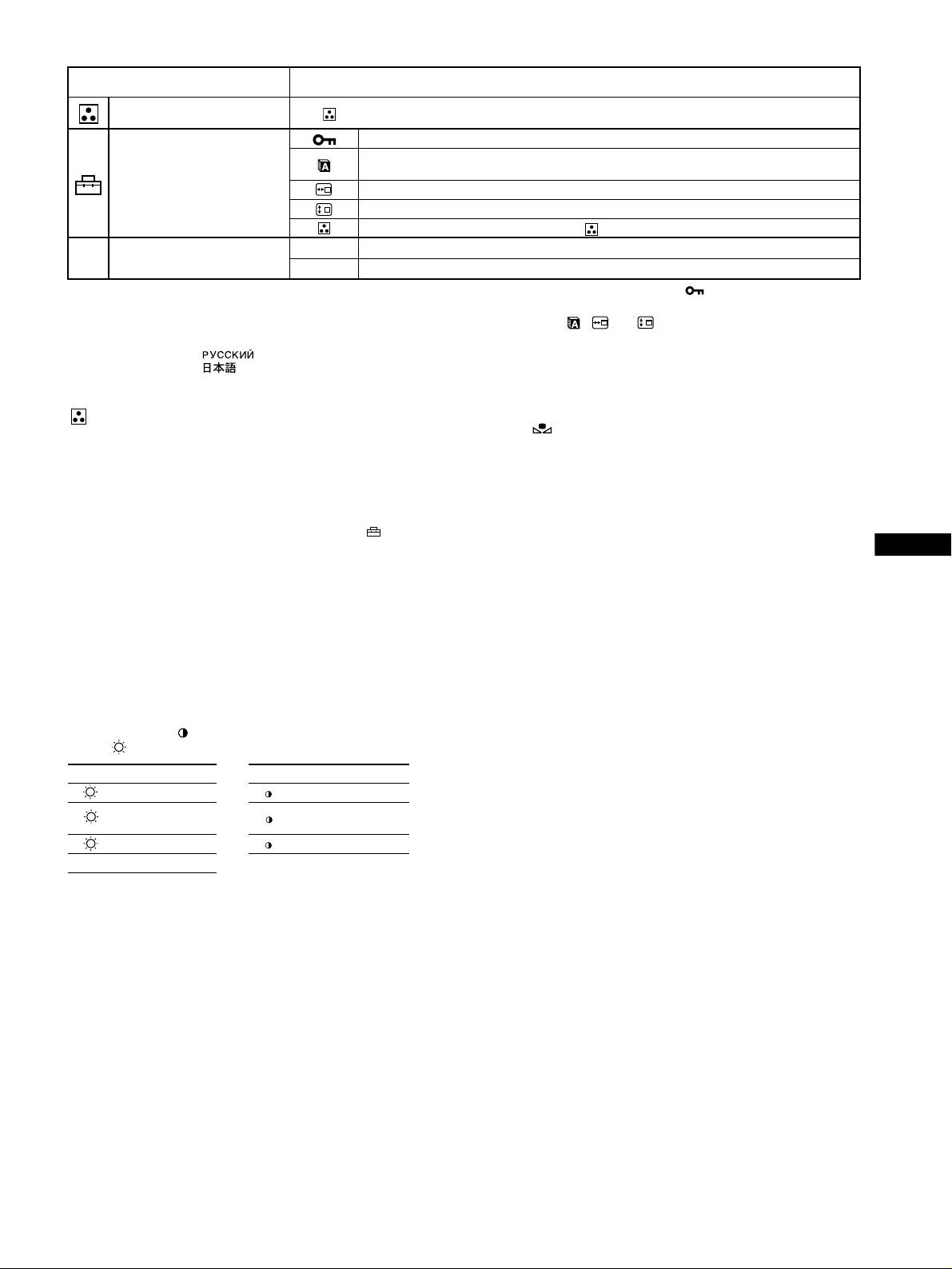
Main menu icons and adjustment
Sub menu icons and adjustment items
items
Adjusting the contrast and
Contrast
brightness
*
1
Brightness
Horizontal position
Horizontal size
Adjusting the size or centering of
the picture
*
1
Vertical position
Vert ical size
Auto Size Center
Rotating the picture
Expanding or contracting the picture sides
*
1
Shifting the picture sides to the left or right*
1
Adjusting the shape of the picture
Adjusting the picture width at the top of the screen*
1
Shifting the picture to the left or right at the top of the screen*
1
0 RESET: Returns all settings to their factory default settings.
Horizontally shifts red or blue shadows
Vertically shifts red or blue shadows
Adjusting the convergence
*
2
T
Vertically shifts red or blue shadows at the top of the screen
B
Vertically shifts red or blue shadows at the bottom of the screen
0 RESET: Returns all settings to their factory default settings.
DEGAUSS: demagnetizes the monitor.
Adjusting the picture quality
CANCEL MOIRE: adjusts the degree of moire cancellation until the moire is at a minimum.
*
1
LANDING: reduces any color irregularities in the screen’s top left corner to a minimum.*
2
Example of Moire
LANDING: reduces any color irregularities in the screen’s top right corner to a minimum.*
2
LANDING: reduces any color irregularities in the screen’s bottom left corner to a minimum.*
2
LANDING: reduces any color irregularities in the screen’s bottom right corner to a minimum.*
2
0 RESET: Returns all settings to their factory default settings.
4
Main menu icons and adjustment
Sub menu icons and adjustment items
items
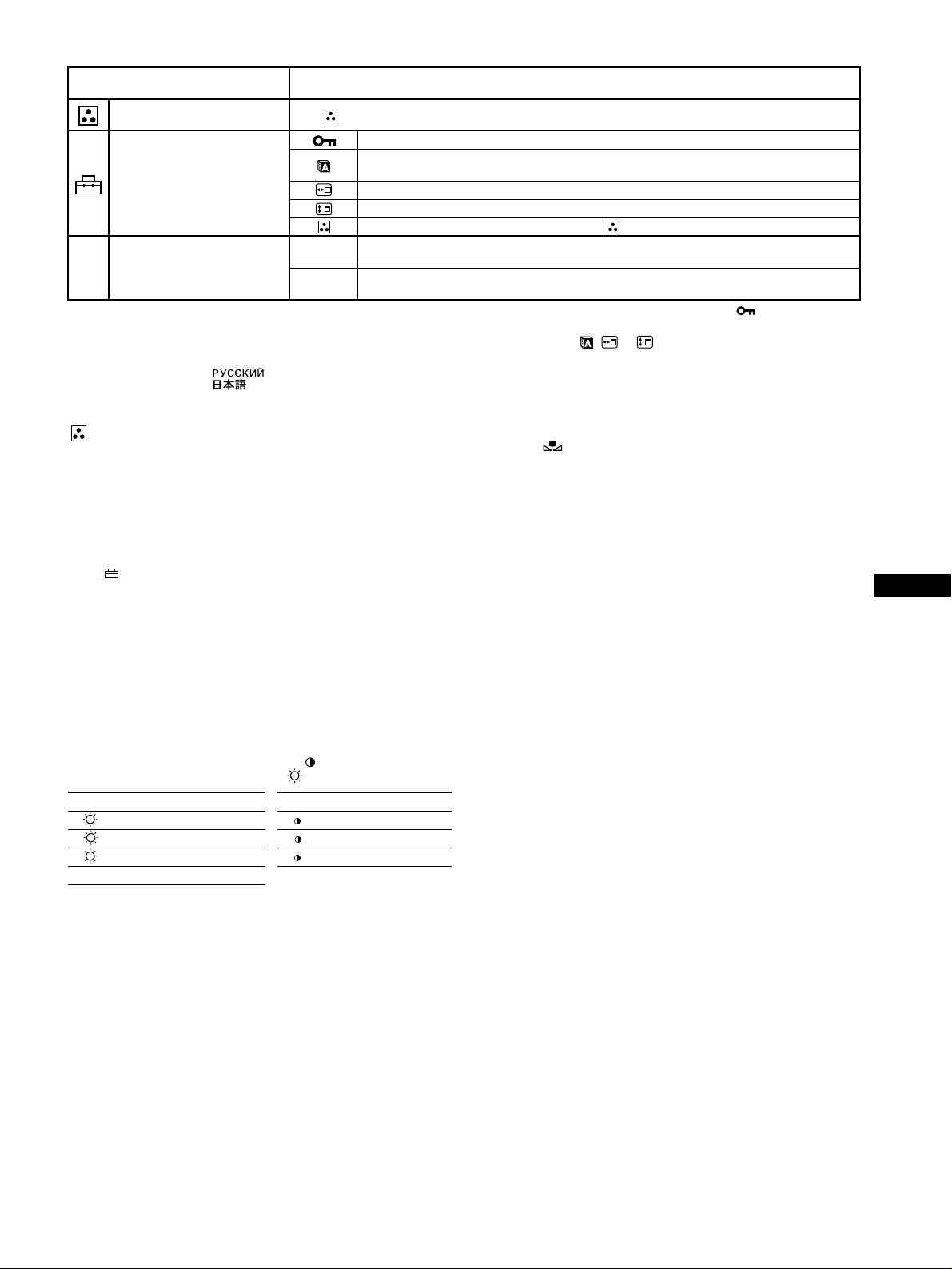
Adjusting the color of the picture See “ : To adjust the color of the picture”.
Protecting adjustment data (CONTROL LOCK)
*
4
Selecting the on-screen menu language/Confirming the monitor’s information LANGUAGE/
INFORMATION
*
3
Additional settings
Changing the menu’s position for horizontal adjustment
Changing the menu’s position for vertical adjustment
Selecting the color adjustment mode (See “ : To adjust the color of the picture.”)
01
*
1
Resetting all the adjustment data for the current input signal.*
5
Select “OK”.
0 Resetting the adjustments
02
*
2
Resetting all of the adjustment data for all input signals. Select “OK”.
1
4
*
This adjustment is effective for the current input signal.
*
Only the ! (power) switch, EXIT, and (CONTROL LOCK) menu
2
*
This adjustment is effective for all input signals.
will operate.
3
*
Language Menu
5
*
The menu items , and are not reset by this method.
• ENGLISH • NEDERLANDS: Dutch
• FRANÇAIS: French • SVENSKA: Swedish
• DEUTSCH: German • : Russian
• ESPAÑOL: Spanish • : Japanese
• ITALIANO: Italian
: To adjust the color of the picture
To restore the color from the EASY, PRESET, or sRGB
modes ( IMAGE RESTORATION)
The COLOR settings allow you to adjust the picture’s color
You can restore the color to the original factory quality levels. Before using
temperature by changing the color level of the white color field.
this feature, the monitor must have been in normal operation mode (green
Colors appear reddish if the temperature is low, and bluish if the
power indicator on) for at least 30 minutes. You may need to adjust your
temperature is high. This adjustment is useful for matching the
computer’s power saving settings. If the monitor has not been on for at least
monitor’s color to a printed picture’s colors.
30 minutes, the “AVAILABLE AFTER WARM UP” message will appear.
Select one of the color temperature setting modes from among
Also, this function may gradually lose its effectiveness due to the natural
4 modes; EASY, PRESET, EXPERT, and sRGB on (OPTION)
aging of the Trinitron picture tube.
menu.
GB
x EASY (Default setting)
You can adjust the color temperature from 5000K to 11000K.
x PRESET
You can select the preset color temperature from 5000K, 6500K, or
9300K. The default setting is 9300K.
x EXPERT
You can make additional fine adjustments to the color by selecting
this mode. GAIN ( ) adjusts the bright areas of the screen, while
BIAS ( ) adjusts the dark areas of the screen.
Select for Select for
R R (Red) BIAS R R (Red) GAIN
G (Green)
G
G G (Green) GAIN
BIAS
B B (Blue) BIAS B B (Blue) GAIN
0 RESET
x sRGB
The sRGB color setting is an industry standard color space protocol
designed to correlate the colors displayed on the monitor and those
printed. In order to display the sRGB colors correctly (γ = 2.2,
6500K), select the sRGB mode and set the PROFESSIONAL mode
of PICTURE EFFECT (page 4) and your connected computer to the
sRGB profile. If you select sRGB, you cannot operate the
CONTRAST/BRIGHT menu adjustments.
5
x Letters and lines show red or blue shadows at the
edges
Troubleshooting
• Adjust the convergence.
x No picture
x USB peripherals do not function
If the ! (power) indicator is not lit
• Check that the appropriate USB connectors are securely connected.
• Check that the power cord is properly connected.
• Turn the monitor OFF and then ON again, then reconnect USB cable.
• Check that the ! (power) switch is in the “on” position.
• If you connect a keyboard or mouse to the USB connectors and then
boot your computer for the first time, the peripheral devices may not
The ! (power) indicator is orange
function. First connect the keyboard and mouse directly to the
• Check that the video signal cable is properly connected and all plugs
computer and set up the USB compliant devices. Then connect them
are firmly seated in their sockets.
to this monitor.
• Check that the INPUT switch setting is correct.
• Install the latest version of the device driver on your computer.
• Check that the HD15 video input connector’s pins are not bent or
Contact your device’s manufacturer for information about the
pushed in.
appropriate device driver.
• Check that the computer’s power is “on”.
• The computer is in power saving mode. Try pressing any key on the
x A hum is heard right after the power is turned on
computer keyboard or moving the mouse.
• This is the sound of the auto-degauss cycle. When the power is
• Check that the graphic board is completely seated in the proper bus
turned on, the monitor is automatically degaussed for a few seconds.
slot.
* If a second degauss cycle is needed, allow a minimum interval of
If the ! (power) indicator is green or flashing orange
20 minutes for the best result. A humming noise may be heard, but this is
not a malfunction.
• Use the Self-diagnosis function.
x Picture flickers, bounces, oscillates, or is scrambled
• Isolate and eliminate any potential sources of electric or magnetic
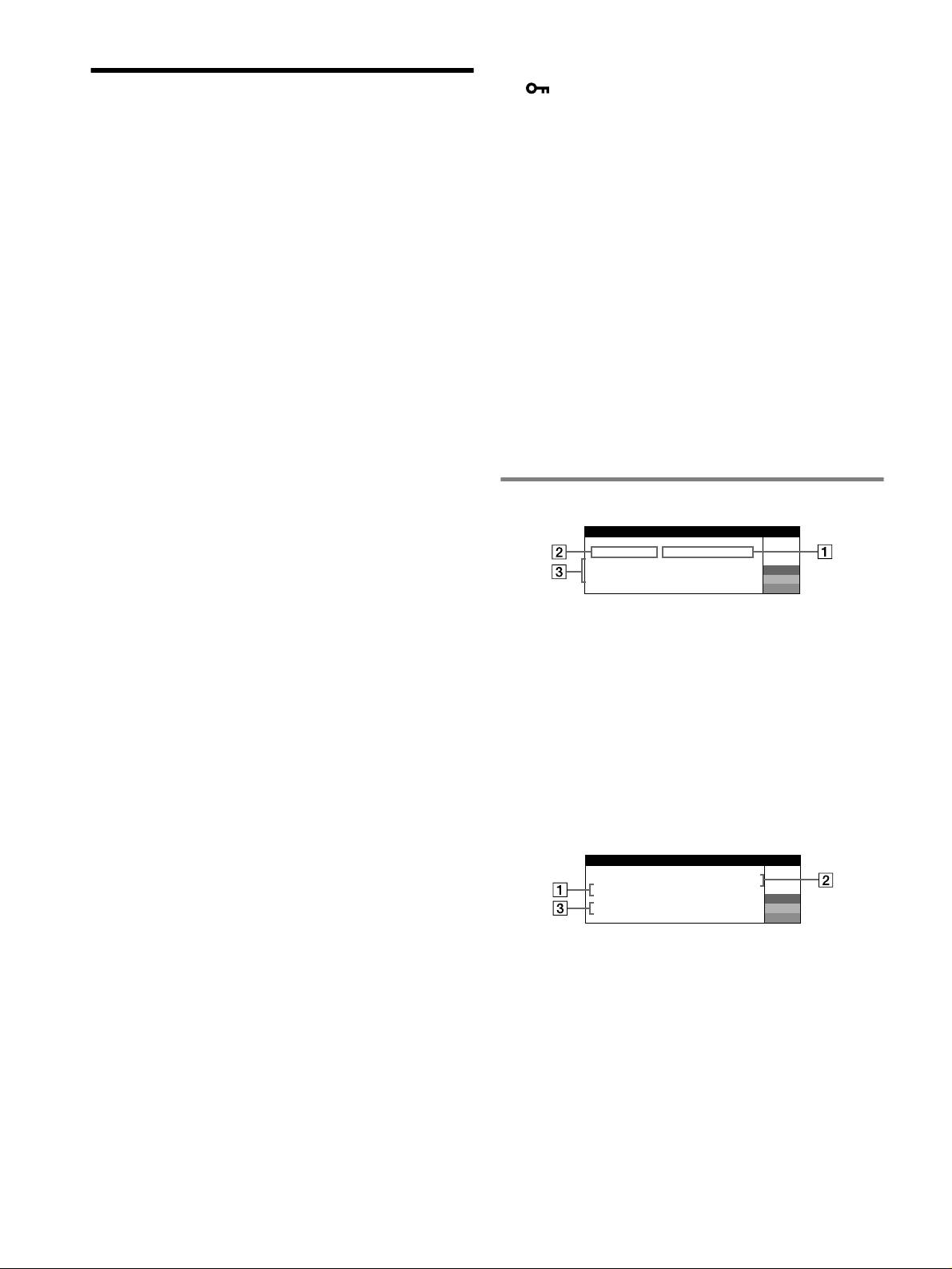
On-screen messages
fields such as other monitors, laser printers, electric fans, fluorescent
lighting, or televisions.
IIONNFORMAT
• Move the monitor away from power lines or place a magnetic shield
MON I I I NGS WORKTOR
near the monitor.
I
NPUT
2:NO
S
GNALI
ACT
IVATE
BY
COMPUTER
W
• Try plugging the monitor into a different AC outlet, preferably on a
CHECK
S GNAL CABLEI
R
CHECK
I NPUT SELECTOR
G
different circuit.
B
• Try turning the monitor 90° to the left or right.
• Check your graphics board manual for the proper monitor setting.
• Confirm that the graphics mode and the frequency of the input signal
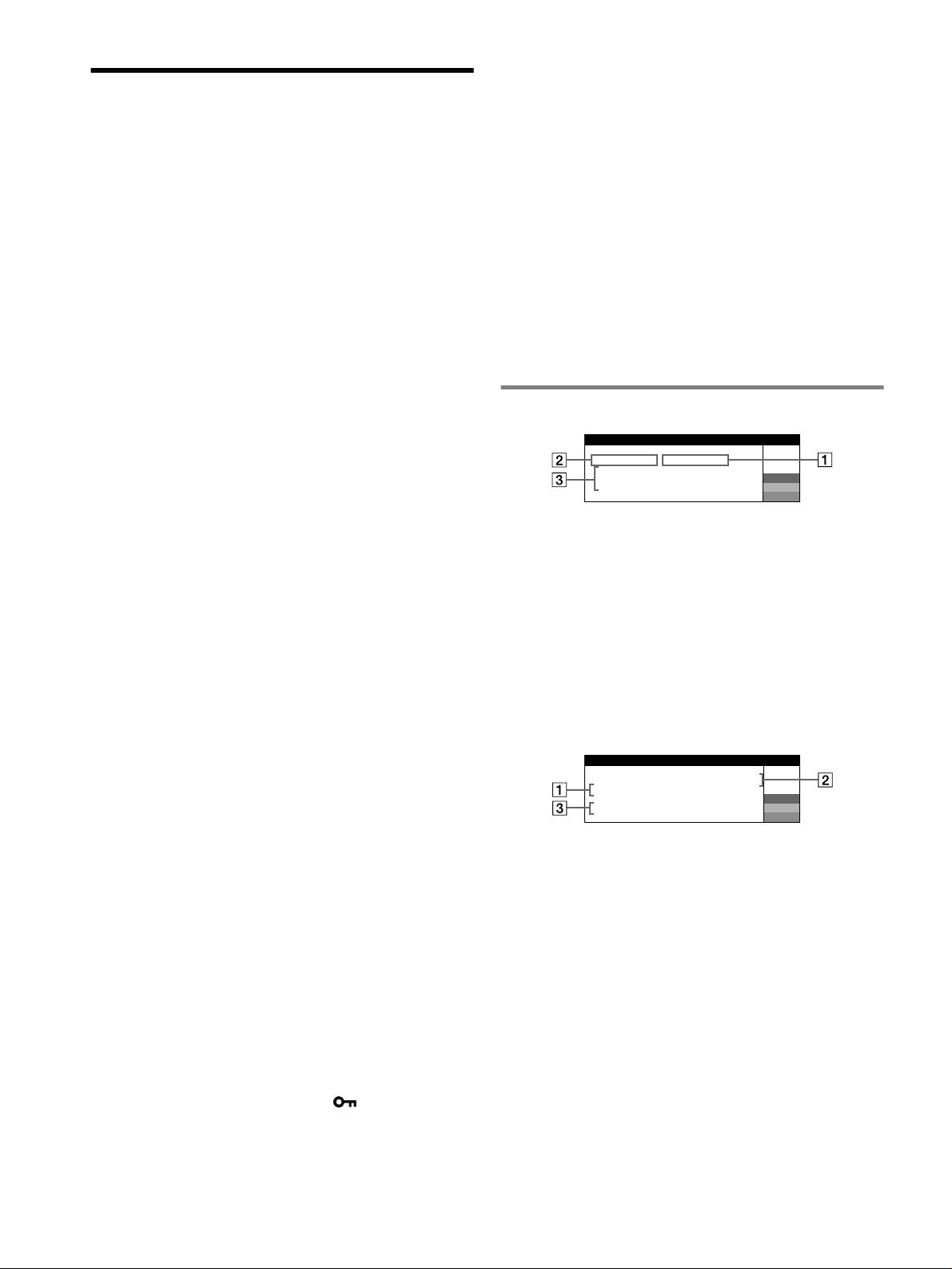
1 If “NO SIGNAL” appears:
are supported by this monitor (see “Preset mode timing table” on
This indicates that no signal is input from the selected connector.
page i). Even if the frequency is within the proper range, some
graphics board may have a sync pulse that is too narrow for the
2 Shows the currently selected connector.
monitor to sync correctly.
3 Shows the remedies.
• Adjust the computer’s refresh rate (vertical frequency) to obtain the
• If ACTIVATE BY COMPUTER appears on the screen, try
best possible picture.
pressing any key on the computer or moving the mouse, and
x Picture is fuzzy
confirm that your computer’s graphic board is completely seated
• Adjust the contrast, brightness, and PICTURE EFFECT.
in the correct bus slot.
• Degauss the monitor.*
• If CHECK SIGNAL CABLE appears on the screen, check that
• Adjust the degree of moire cancellation until the moire is minimal,
the monitor is correctly connected to the computer.
or set CANCEL MOIRE to OFF.
• If CHECK INPUT SELECTOR appears on the screen, try
x Picture is ghosting
changing the input signal.
• Eliminate the use of video cable extensions and/or video switch
boxes.
IIONNFORMAT
• Check that all plugs are firmly seated in their sockets.
MON I I I NGS WORKTOR
I1:.200 0 /kHz 85Hz
NPUT
x Picture is not centered or sized properly
OUT OF SCAN
RANGE
W
R
• Perform the Auto Size Center function.
CHANGE
S GNAL TIIINGM
G
• Adjust the size or centering. Note that with some input signals and/
B
or graphics board the periphery of the screen is not fully utilized.
• Just after turning on the power switch, the size/center may take a
1 If “OUT OF SCAN RANGE” appears:
while to adjust properly.
This indicates that the input signal is not supported by the monitor’s
x Edges of the image are curved
specifications.
• Adjust the geometry.
2 Shows the input signal frequency.
x Wavy or elliptical pattern (moire) is visible
3 Shows the remedies.
• Adjust the degree of moire cancellation until the moire is minimal.
• Change your desktop pattern.
CHANGE SIGNAL TIMING appears on the screen. If you are
replacing an old monitor with this monitor, reconnect the old
x Color is not uniform
monitor. Then adjust the computer’s graphic board so that the
• Degauss the monitor.* If you place equipment that generates a
magnetic field, such as a speaker, near the monitor, or if you change
horizontal frequency is between 30 – 137 kHz (GDM-F520),
the direction the monitor faces, color may lose uniformity.
30 – 115 kHz (GDM-F420), and the vertical frequency is between
• Adjust the landing.
48 – 170 Hz.
x White does not look white
• Adjust the color temperature.
• Check that the 5 BNC connectors are connected in the correct order.
x Monitor buttons do not operate ( appears on the
screen)
• If the control lock is set to ON, set it to OFF.
6
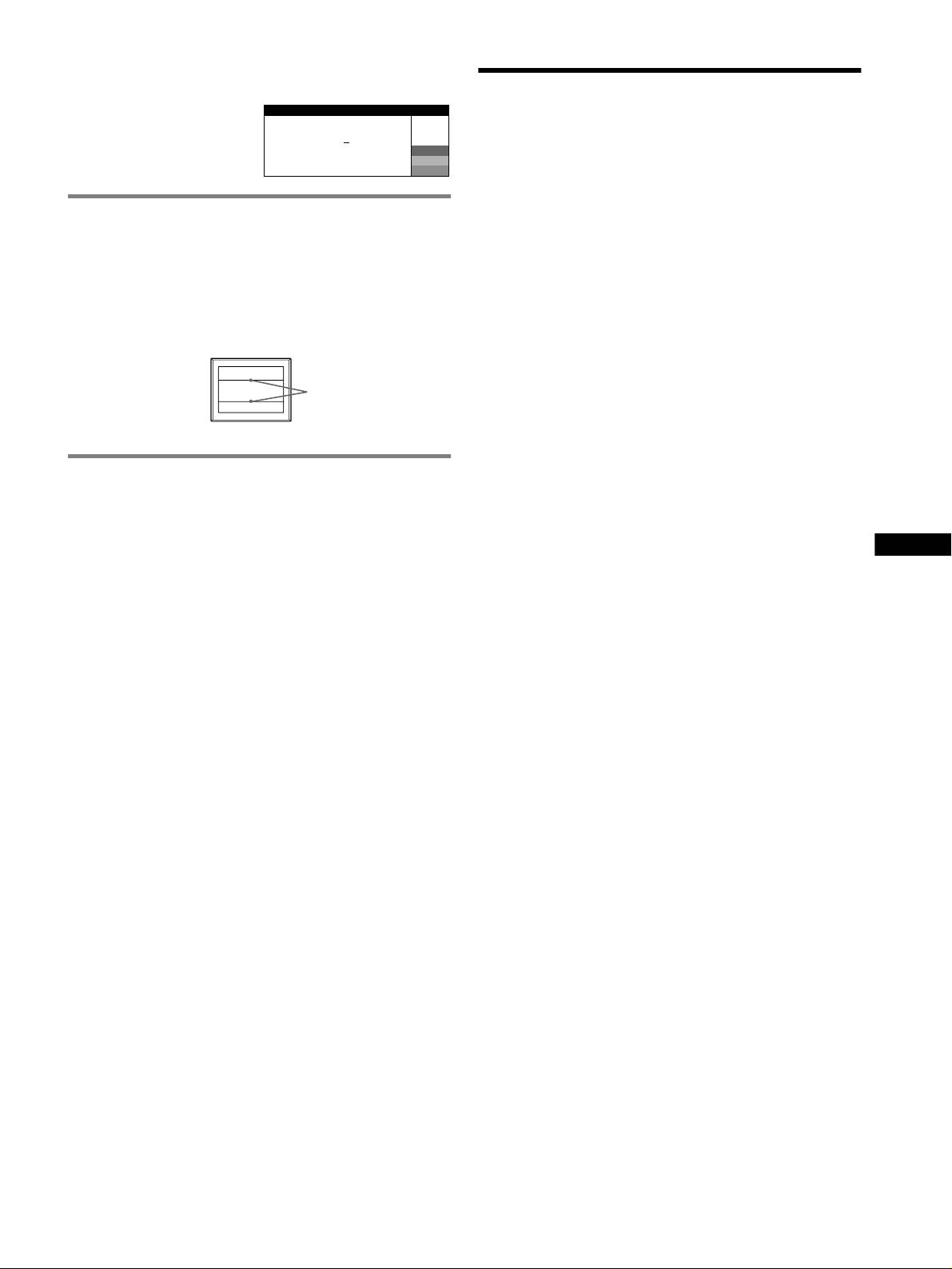
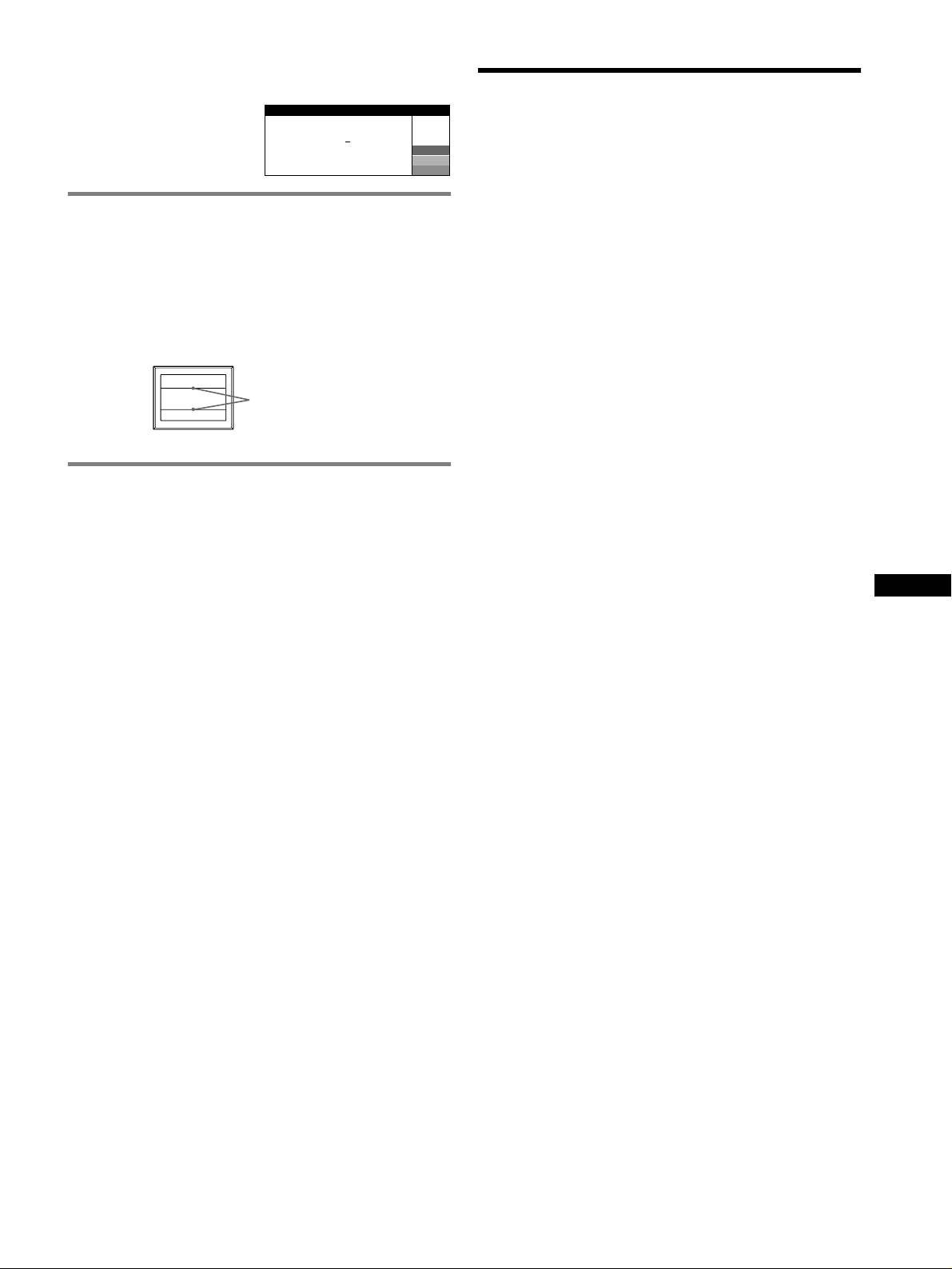
To display this monitor’s name, serial number, and
date of manufacture.
Specifications
While the monitor is receiving a
INFORMATION
video signal, press and hold the
CRT
MENU button for more than
MODEL
:
GDM F520
W
0.22 mm aperture grille pitch, 90-degree deflection, FD Trinitron
SER NO
:
1234567
R
5 seconds to display this
MANUFACTURED
: 2000-52
G
GDM-F520 21 inches measured diagonally
monitor’s information box.
B
GDM-F420 19 inches measured diagonally
Viewable image size
GDM-F520 Approx. 403.8
× 302.2 mm (w/h) (16 × 12 inches)
If thin lines appear on the screen
19.8" viewing image
3
7
(damper wires)
GDM-F420 Approx. 365
× 274 mm (w/h) (14
/8 × 10
/8 inches)
18.0" viewing image
These lines do not indicate a malfunction; they are a normal
Resolution (H:Horizontal, V:Vertical)
effect of the Trinitron picture tube with this monitor. These are
GDM-F520 Maximum: H: 2048 dots, V: 1536 lines
shadows from the damper wires used to stabilize the aperture grille.
Recommended: H: 1600 dots, V: 1200 lines
The aperture grille is the essential element that makes a Trinitron
GDM-F420 Maximum: H: 1920 dots, V: 1440 lines
picture tube unique by allowing more light to reach the screen,
Recommended: H: 1280 dots, V: 1024 lines
resulting in a brighter, more detailed picture.
Input signal levels
Video signal: Analog RGB: 0.700 Vp-p (positive), 75
Ω
SYNC signal: H/V separate or composite sync:
TTL 2 k
Ω, Polarity free
Damper
Sync on Green: 0.3 Vp-p (negative)
wires
Standard image area
GDM-F520 Approx. 388
× 291 mm (4:3)
3
1
(15
/8 × 11
/2 inches) or
Approx. 364
× 291 mm (5:4)
3
1
(14
/8 × 11
/2 inches)
Self-diagnosis function
GDM-F420 Approx. 352
× 264 mm (4:3)
7
1
(13
/8 × 10
/2 inches) or
This monitor is equipped with a self-diagnosis function. If there is
Approx. 330
× 264 mm (5:4)
1
a problem with your monitor or computer(s), the screen will go
(13
× 10
/2 inches)
Deflection frequency (H:Horizontal, V:Vertical)
blank and the ! (power) indicator will either light up green or flash
GDM-F520 H: 30 to 137 kHz, V: 48 to 170 Hz
orange. If the ! (power) indicator is lit in orange, the computer is
GB
GDM-F420 H: 30 to 115 kHz, V: 48 to 170 Hz
in power saving mode. Try pressing any key on the keyboard or
AC input voltage/current
moving the mouse.
100 to 240 V, 50 – 60 Hz, 2.0 – 1.0 A
Power Consumption (with no USB devices connected)
x If the ! (power) indicator is green
GDM-F520 Approx. 145 W
GDM-F420 Approx. 135 W
1 Disconnect any plugs from the video input 1 and 2
Operating temperature
connectors, or turn off the connected computer(s).
10 ºC to 40 ºC
Dimensions
2 Turn the monitor OFF and then ON.
GDM-F520 Approx. 497
× 499 × 487 mm (w/h/d)
5
3
1
(19
/8 × 19
/4 × 19
/4 inches)
3 Hold the control button upward for a few seconds
GDM-F420 Approx. 446
× 472 × 463 mm (w/h/d)
before the monitor enters power saving mode.
5
5
1
(17
/8 × 18
/8 × 18
/4 inches)
Mass
If all 4 color bars appear (white, red, green, blue), the monitor is
GDM-F520 Approx. 30 kg (66 lb 2 oz)
working properly. Reconnect the video input cables and check the
GDM-F420 Approx. 26 kg (57 lb 5 oz)
Plug and Play DDC2B/DDC2Bi
condition of your computer(s).
Supplied accessories
If the color bars do not appear, there is a potential monitor failure.
Power cord
Inform your authorized Sony dealer of the monitor’s condition.
HD15 video signal cable
USB cable
x If the ! (power) indicator is flashing orange
Exclusive Power Mac G3/G4 adapter
This instruction manual
Turn the monitor OFF and then ON.
If the ! (power) indicator lights up green, the monitor is working
properly.
If the ! (power) indicator is still flashing, there is a potential
monitor failure. Count the number of seconds between orange
flashes of the ! (power) indicator and inform your authorized Sony
dealer of the monitor’s condition. Be sure to note the model name
and serial number of your monitor. Also note the make and model
of your computer and graphics board.
(continued)
7
Preset and user modes
When the monitor receives an input signal, it automatically matches the
Precautions
signal to one of the factory preset modes stored in the monitor’s memory
to provide a high quality picture
(see “Preset mode timing table” on
page i)
. If the input signals does not match one of the factory preset
Warning on power connections
modes, the monitor automatically provides the most appropriate picture
• Use the supplied power cord. If you use a different power cord,
for the input signal that is within the range of the vertical or horizontal
be sure that it is compatible with your local power supply.
frequencies (page 7) corresponding to the Generalized Timing Formula.
When the picture is adjusted, the adjustment data is stored as a user mode
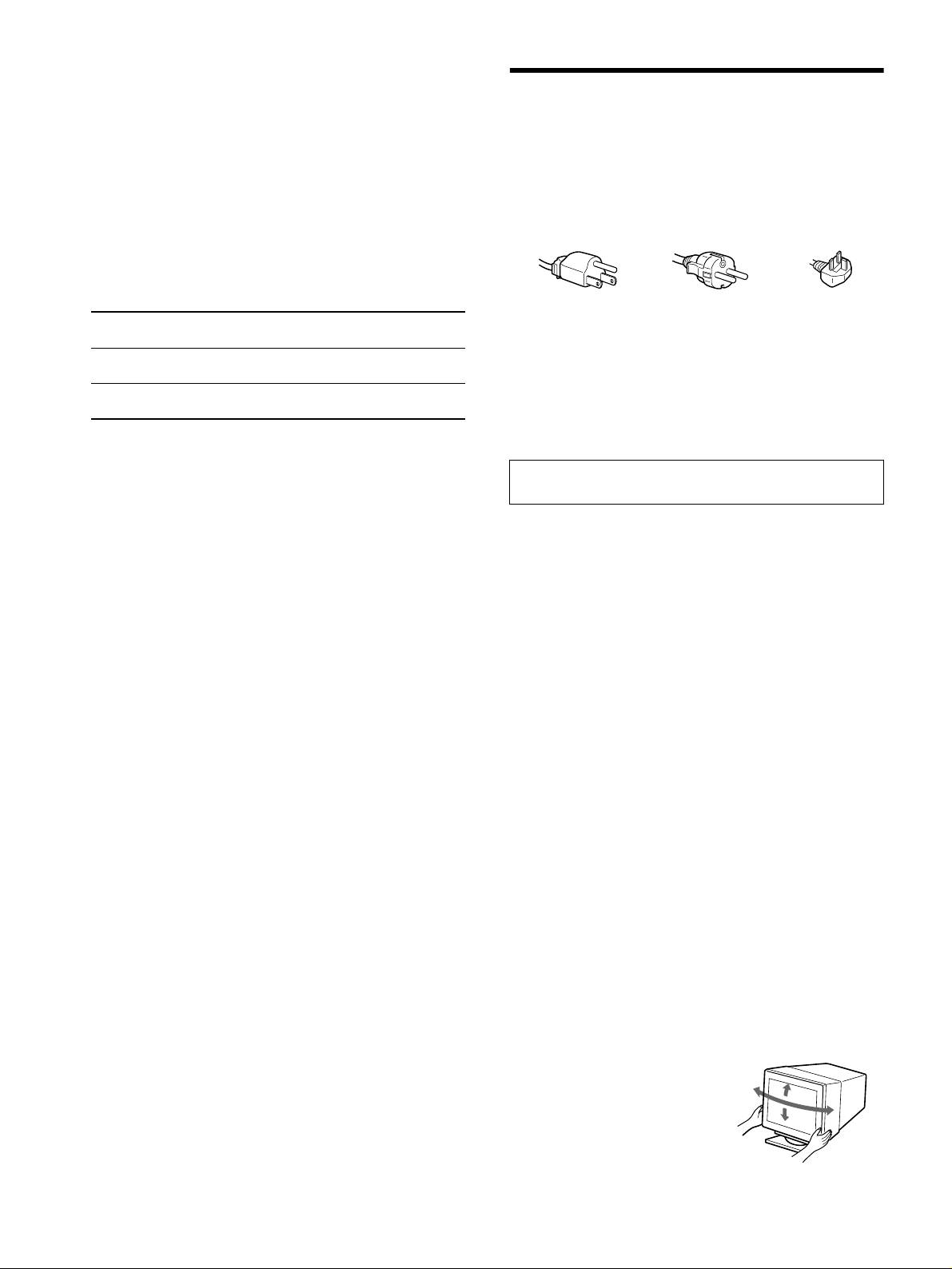
For the customers in the UK
and automatically recalled whenever the same input signal is received.
If you use the monitor in the UK, be sure to use the supplied UK
power cable.
Power saving function
This monitor meets the power-saving guidelines set by VESA, TCO’99,
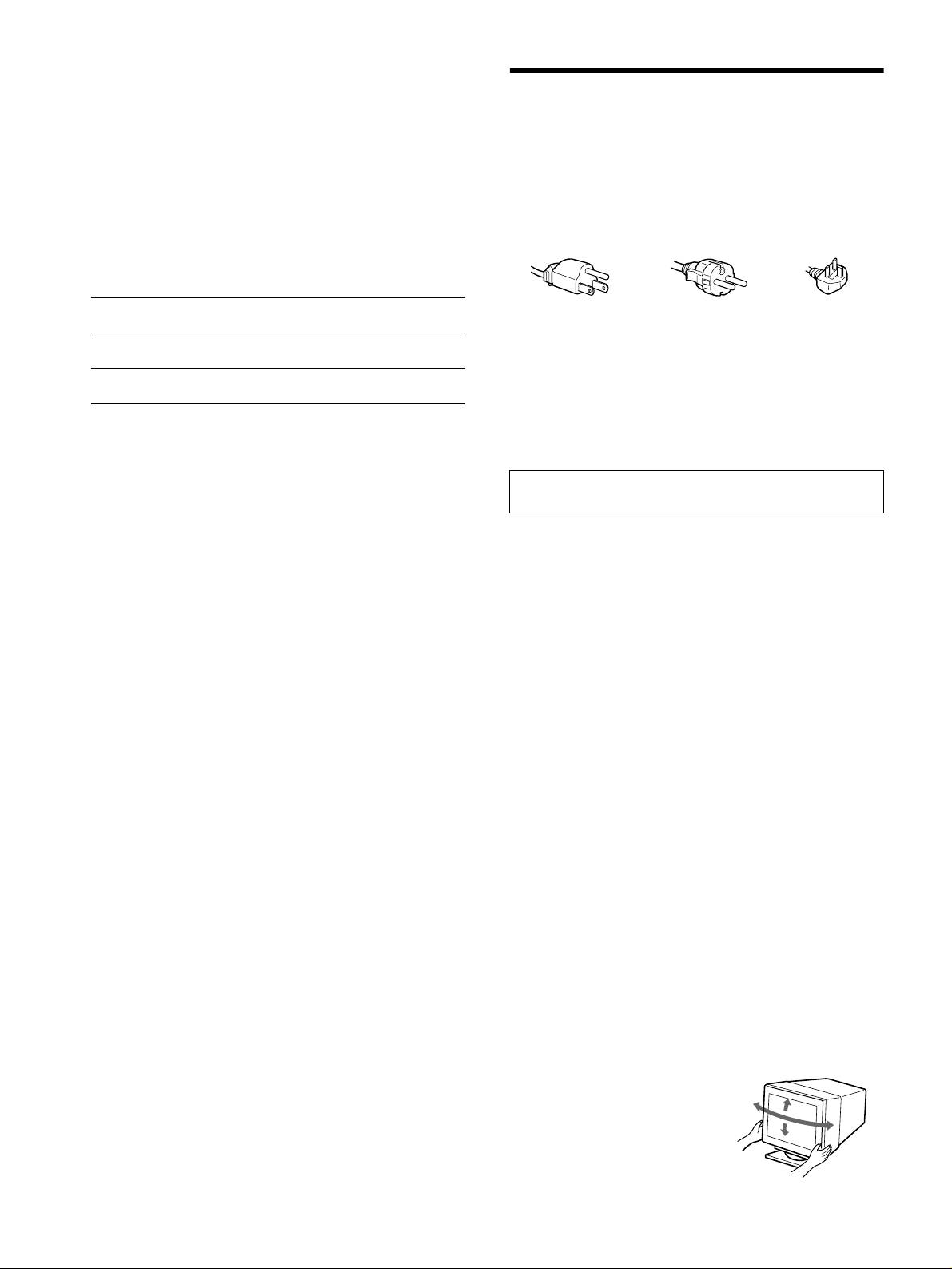
Example of plug types
and
ENERGY STAR. If no signal is input to the monitor from your
computer, the monitor will automatically reduce power consumption as
shown below.
for 100 to 120 V AC for 200 to 240 V AC for 240 V AC only
1
Power mode Power consumption*
! (power)
• Before disconnecting the power cord, wait at least 30 seconds
indicator
after turning off the power to allow the static electricity on the
screen’s surface to discharge.
normal operation
≤ 145 W (GDM-F520)
green
• After the power is turned on, the screen is demagnetized
≤ 135 W (GDM-F420)
(degaussed) for about a few seconds. This generates a strong
2
active off*
≤ 3 W orange
magnetic field around the screen which may affect data stored
3
(deep sleep)*
on magnetic tapes and disks placed near the monitor. Be sure to
keep magnetic recording equipment, tapes, and disks away
1
*
Figures reflect power consumption when no USB compatible
from the monitor.
peripherals are connected to the monitor.
2
*
When your computer enters power saving mode, NO SIGNAL appears
The equipment should be installed near an easily accessible
on the screen. After a few seconds, the monitor enters power saving
outlet.
mode.
3
*
“Deep sleep” is power saving mode defined by the Environmental
Installation
Protection Agency.
Do not install the monitor in the following places:
Design and specifications are subject to change without notice.
• on surfaces (rugs, blankets, etc.) or near materials (curtains,
draperies, etc.) that may block the ventilation holes
• near heat sources such as radiators or air ducts, or in a place
subject to direct sunlight
• in a place subject to severe temperature changes
• in a place subject to mechanical vibration or shock
• on an unstable surface
• near equipment which generates magnetism, such as a
transformer or high voltage power lines
• near or on an electrically charged metal surface
• inside an enclosed rack
Maintenance
• Clean the screen with a soft cloth. If you use a glass cleaning
liquid, do not use any type of cleaner containing an anti-static
solution or similar additive as this may scratch the screen’s
coating.
• Do not rub, touch, or tap the surface of the screen with sharp or
abrasive items such as a ballpoint pen or screwdriver. This type
of contact may result in a scratched picture tube.
• Clean the cabinet, panel and controls with a soft cloth lightly
moistened with a mild detergent solution. Do not use any type
of abrasive pad, scouring powder or solvent, such as alcohol or
benzine.
Transportation
When you transport this monitor for repair or shipment, use the
original carton and packing materials.
Display Stand
Do not remove this monitor’s stand.
Use of the tilt-swivel
This monitor can be adjusted
within the angles shown right. To
90°
15°
turn the monitor vertically or
90°
horizontally, hold it at the bottom
5°
with both hands.
8
â
• Trinitron
est une marque commerciale déposée de Sony Corporation.
Table des Matières
• Macintosh est une marque commerciale sous licence d’Apple Computer, Inc.,
Configuration. . . . . . . . . . . . . . . . . . . . . . . . . . . . . . . 3
déposée aux Etats-Unis et dans d’autres pays.
â
•Windows
et MS-DOS sont des marques déposées de Microsoft Corporation
Réglages. . . . . . . . . . . . . . . . . . . . . . . . . . . . . . . . . . . 4
aux Etats-Unis et dans d’autres pays.
Dépannage . . . . . . . . . . . . . . . . . . . . . . . . . . . . . . . . . 6
• IBM PC/AT et VGA sont des marques commerciales déposées d’IBM
Corporation aux Etats-Unis.
Spécifications . . . . . . . . . . . . . . . . . . . . . . . . . . . . . . 7
ä
• VESA et DDC
sont des marques commerciales de Video Electronics
Précautions . . . . . . . . . . . . . . . . . . . . . . . . . . . . . . . . 8
Standard Association.
•
ENERGY STAR est une marque déposée aux Etats-Unis.
Appendix . . . . . . . . . . . . . . . . . . . . . . . . . . . . . . . . . . . i
• Tous les autres noms de produits mentionnés dans le présent mode d’emploi
Preset mode timing table . . . . . . . . . . . . . . . . . . . . . . . i
peuvent être des marques commerciales ou des marques commerciales
déposées de leurs sociétés respectives.
TCO’99 Eco-document. . . . . . . . . . . . . .Couverture dos
• Les symboles “
ä” et “â” ne sont pas mentionnés systématiquement dans le
présent mode d’emploi.
Configuration
Sélection du signal d’entrée
1 Raccordez votre moniteur à votre
Vous pouvez raccorder deux ordinateurs à ce moniteur à l’aide des
ordinateur
connecteurs HD15 et BNC. Pour basculer d’un ordinateur à l’autre,
utilisez le commutateur INPUT. Le connecteur sélectionné apparaît à
x Raccordement au connecteur d’entrée HD15
l’écran pendant 3 secondes.
Remarque
Si aucun signal n’est entré par le connecteur sélectionné, le message PAS DE
vers le HD15
câble de signal
vers le HD15 de
VIDEO apparaît à l’écran. Après quelques secondes, le moniteur passe en mode
vidéo (fourni)
l’ordinateur raccordé
d’économie d’énergie. Si tel est le cas, basculez sur l’autre connecteur.
x Raccordement aux 5 connecteurs BNC
Raccordement de périphériques compatibles USB
RGBHDVD
(bus série universel)
câble de signal vidéo
Assurez-vous que le moniteur et l’ordinateur sont sous tension puis
(non fourni)
raccordez votre ordinateur aux connecteurs USB ( ) situés sur le côté
FR
droit du moniteur.
Raccordez votre ordinateur au connecteur d’envoi carré ( ) à
Reportez-vous aux
l’aide du câble USB fourni.
exemples précédents
Si un message Windows s’affiche, suivez les instructions à l’écran et
pour raccorder
sélectionnez “Concentrateur USB générique”.
l’ordinateur.
Raccordez le connecteur USB rectangulaire de réception ( ) lorsque
vous raccordez vos périphériques compatibles USB (par exemple, une
vers VIDEO IN R/G/B
vers SYNC IN HD/VD
imprimante, le clavier, la souris, un scanner, etc.).
Remarque
Raccordement à un Macintosh ou un ordinateur
Le moniteur fonctionne comme un concentrateur USB tant qu’il est allumé ou en
compatible
mode d’économie d’énergie.
Lorsque vous connectez ce moniteur à un Power Mac G3/G4, utilisez
Connecteurs d’entrée HD15
l’adaptateur fourni, le cas échéant. Raccordez l’adaptateur fourni à
5 4 3 2
1
l’ordinateur avant de raccorder le câble. Si vous possédez un autre type
678910
d’ordinateur Macintosh, doté de 2 rangées de broches, vous devrez
1112131415
utiliser un adaptateur différent (non fourni).
N° de broche Signal
N° de broche Signal
1 Rouge
9 DDC + 5V*
2 Mettez le moniteur et l’ordinateur sous
2Vert
10 Masse
tension
(Sync sur Vert)
11 ID (Masse)
3Bleu
12 Données
1 Raccordez le cordon d’alimentation au moniteur puis
4 ID (Masse)
bi-directionnelles
appuyez sur l’interrupteur ! (alimentation) afin de mettre
le moniteur sous tension.
5 DDC (Masse)*
(SDA)*
6 Masse Rouge
13 Sync H
2 Mettez l’ordinateur sous tension.
7Masse Vert
14 Sync V
Vous n’avez pas besoin de pilotes spécifiques
8Masse Bleu
15 Horloge de
Ce moniteur est conforme à la norme Plug & Play “DDC” et détecte
données (SCL)*
automatiquement l’ensemble des informations relatives au moniteur. Il n’est pas
nécessaire d’installer un pilote ou un gestionnaire supplémentaire sur
* DDC (Display Data Channel) est une norme de VESA.
l’ordinateur.
Lorsque vous mettez votre ordinateur sous tension pour la première fois, après
l’avoir raccordé au moniteur, il est possible que l’Assistant d’ajout de nouveau
matériel apparaisse à l’écran. Dans ce cas, suivez les instructions affichées. Le
moniteur Plug & Play approprié est sélectionné automatiquement, vous
permettant ainsi de l’utiliser.
Remarques
• Plug and Play ne s’applique qu’au connecteur HD15 et non aux 5 connecteurs
BNC.
• Ne touchez pas les broches du connecteur du câble de signal vidéo.
• Vérifiez l’alignement du connecteur HD15 pour ne pas tordre les broches du
connecteur du câble de signal vidéo.
3
Réglages
Navigation dans le menu
Réglage de la qualité de l’image
(PICTURE EFFECT)
1 Appuyez sur la touche MENU pour afficher le menu
principal.
Vous pouvez sélectionner le mode d’image le plus approprié parmi 3
CONTR
/ LUM I N
modes prédéfinis, en appuyant sur la touche PICTURE EFFECT de
façon répétée.
CONTRASTE
x PROFESSIONNEL
MENU
,
Pour un affichage et des couleurs précises et homogènes. Choisissez
50
cette option si vous utilisez des applications graphiques et de retouche
d’images.
1024x768 / 85Hz
Menu principal
Sous-menu
x STANDARD
Pour des images avec un haut niveau de contraste et de luminosité.
2 Déplacez la touche de commande m/M pour mettre en
Choisissez ce mode pour la plupart des applications courantes, comme
surbrillance le menu principal que vous souhaitez régler
les traitements de texte, les tableurs, la messagerie électronique ou la
et appuyez sur la touche de commande.
navigation sur le Web.
TI
LL
/A CENTRAGE
x DYNAMIQUE
Pour des images éclatantes de réalisme. Utilisez ce mode, offrant une
OK
,,
OK
meilleure restitution que le mode “STANDARD”, pour des utilisations
45
graphiques poussées telles que des jeux ou une lecture DVD.
SORT
IR
:
MENU
Menu principal
Sous-menu
3 Sélectionnez le sous-menu que vous souhaitez régler
puis appuyez sur la touche de commande.
4 Effectuez le réglage à l’aide de la touche de commande.
Réglages du menu d’écran
Icônes du menu principal et éléments
Icônes du sous-menu et éléments de réglage
de réglage
Réglage du contraste et de la
Contraste
luminosité
*
1
Luminosité
Position horizontale
Taille horizontale
Réglage de la taille ou du centrage
de l’image
*
1
Position verticale
Taille verticale
Centrage de taille automatique
Rotation de l’image
Étirement ou contraction des côtés de l’image
*
1
Déplacement des bords de l’image vers la droite ou la gauche*
1
Réglage de la forme de l’image
Réglage de la largeur de l’image en haut de l’écran*
1
Déplacement de l’image vers la droite ou la gauche en haut de l’écran*
1
0 REINITIALISATION : Les réglages sont tous réinitialisés sur les valeurs par défaut.
Décalage horizontal des ombres rouges ou bleues
Décalage vertical des ombres rouges ou bleues
Réglage de la convergence
*
2
T
Décalage vertical des ombres rouges ou bleues en haut de l’écran
B
Décalage horizontal des ombres rouges ou bleues en bas de l’écran
0 REINITIALISATION : Les réglages sont tous réinitialisés sur les valeurs par défaut.
DEMAGNET : démagnétise le moniteur.
SUPPRESSION MOIRAGE : règle le degré de suppression du moiré afin de réduire le moiré au
minimum.
*
1
Réglage de la qualité de l’image
PURETE COULEUR : réduit au minimum les irrégularités des couleurs dans l’angle supérieur gauche
de l’écran.
*
2
Exemple de moiré
PURETE COULEUR : réduit au minimum les irrégularités des couleurs dans l’angle supérieur droit de
l’écran.
*
2
PURETE COULEUR : réduit au minimum les irrégularités des couleurs dans l’angle inférieur gauche
de l’écran.
*
2
PURETE COULEUR : réduit au minimum les irrégularités des couleurs dans l’angle inférieur droit de
l’écran.
*
2
0 REINITIALISATION : Les réglages sont tous réinitialisés sur les valeurs par défaut.
4
Icônes du menu principal et éléments
Icônes du sous-menu et éléments de réglage
de réglage
Réglage de la couleur de l’image Voir “ : pour régler la couleur de l’image”.
Protection des données de réglage (VERROU MENU)
*
4
Sélection de la langue d’affichage à l’écran/Confirmation des informations relatives au moniteur
LANGUAGE/INFORMATIONS
*
3
Réglages supplémentaires
Modification de la position du menu pour le réglage horizontal
Modification de la position du menu pour le réglage vertical
Sélection du mode de réglage des couleurs. (Voir “ : Pour régler la couleur de l’image”.)
Réinitialisation de l’ensemble des données de réglage pour le signal d’entrée actuel.*
5
Appuyez sur
01
*
1
“OK”.
0 Réinitialisation des réglages
Réinitialisation de l’ensemble des données de réglage pour tous les signaux d’entrée. Appuyez sur
02
*
2
“OK”.
1
4
*
Ce réglage est effectif pour le signal d’entrée courant.
*
Seul le commutateur (d’alimentation) !, SORTIR et (VERROU MENU)
2
*
Ce réglage est effectif pour tous les autres signaux d’entrée.
fonctionnent.
3
*
Menu de langues
5
*
Les options de menu , et ne sont pas réinitialisées par cette
• ENGLISH : Anglais • NEDERLANDS : Néerlandais
méthode.
• FRANÇAIS • SVENSKA : Suédois
• DEUTSCH : Allemand • : Russe
• ESPAÑOL : Espagnol • : Japonais
• ITALIANO : Italien
: pour régler la couleur de l’image
Restauration des couleurs via les modes SIMPLE, PRESELECT
ou sRGB ( RESTAURER COULEUR)
Les paramètres COULEUR permettent de régler la température des
Vous pouvez restaurer les couleurs par défaut, afin de retrouver les niveaux de
couleurs de l’image en changeant le niveau de couleur des champs de
qualité initiaux. Le moniteur doit avoir fonctionné normalement (indicateur
couleur blanche. Les couleurs apparaissent rougeâtres lorsque la
d’alimentation vert allumé) pendant au moins 30 minutes avant d’utiliser cette
température est basse et bleuâtres lorsqu’elle est élevée. Ce réglage
fonction. Vous devrez peut-être régler les paramètres du mode d’économie
s’avère pratique pour faire correspondre les couleurs du moniteur aux
d’énergie de votre ordinateur. Si le moniteur n’a pas fonctionné depuis au moins
couleurs d’une image imprimée.
30 minutes, le message “UTILISABLE APRES CHAUFFAGE” s’affiche. De
Sélectionnez l’un des modes de réglage de température des couleurs
même, il se peut que cette fonction perde de son efficacité en raison du
parmi les 4 modes; SIMPLE, PRESELECT, EXPERT et sRGB dans le
vieillissement naturel du tube à image Trinitron.
menu (OPTION).
FR
x SIMPLE (Réglage par défaut)
Vous pouvez régler la température des couleurs sur une plage comprise
entre 5000K et 11000K.
x PRESELECT
Vous pouvez sélectionner une température des couleurs prédéfinie, à
savoir 5000K, 6500K, ou 9300K. Le réglage par défaut est 9300K.
x EXPERT
Vous pouvez effectuer des réglages affinés supplémentaires des
couleurs en sélectionnant ce mode. GAIN ( ) règle les zones
lumineuses de l’écran, alors que BIAS ( ) règle les zones sombres.
Sélectionnez
pour
Sélectionnez
pour
R R (Rouge) BIAS R R (Rouge) GAIN
GG (Vert) BIASGG (Vert) GAIN
B B (Bleu) BIAS B B (Bleu) GAIN
0 REINITIALISATION
x sRGB
Le réglage de couleur sRGB est un protocole industriel standard pour
les espaces colorimétriques. Il est conçu pour harmoniser les couleurs
affichées sur le moniteur et les couleurs imprimées. Pour afficher les
couleurs sRGB correctement (γ = 2,2, 6500K), sélectionnez le mode
sRGB, réglez le mode PICTURE EFFECT sur PROFESSIONNEL
(page 4) puis réglez l’ordinateur raccordé sur le profil sRGB. Il est
impossible d’utiliser les réglages du menu CONTR/LUMIN. lorsque
vous sélectionnez le mode sRGB.
5
x Les touches du moniteur ne fonctionnent pas
( apparaît à l’écran)
Dépannage
• Si la fonction de verrouillage des commandes est réglée sur ACTIF,
x Aucune image
réglez-la sur INACTIF.
Si l’indicateur ! (alimentation) est éteint
x Les bords des lettres et des lignes sont soulignés d’une
• Assurez-vous que le cordon d’alimentation est raccordé correctement.
ombre rouge ou bleue
• Vérifiez que l’interrupteur ! (alimentation) est en position activée (on).
• Réglez la convergence.
L’indicateur ! (alimentation) est allumé en orange
x Les périphériques USB ne fonctionnent pas
• Vérifiez que le câble de signal vidéo est correctement raccordé et que
• Vérifiez que les connecteurs USB sont correctement branchés.
toutes les prises sont complètement enfichées.
• Eteignez puis rallumez le moniteur et reconnectez le câble USB.
• Vérifiez que le réglage du commutateur INPUT est correct.
• Si vous raccordez un clavier ou une souris aux connecteurs USB, et que
• Vérifiez que les broches du connecteur d’entrée vidéo HD15 ne sont pas
vous démarrez ensuite l’ordinateur pour la première fois, il est possible
pliées ni enfoncées.
que les périphériques ne fonctionnent pas. Raccordez dans un premier
• Assurez-vous que l’ordinateur est sous tension.
temps le clavier et la souris directement à l’ordinateur, puis configurez
• L’ordinateur est en mode d’économie d’énergie. Essayez d’appuyer sur
les périphériques conformes USB. Raccordez-les ensuite au moniteur.
une touche ou de déplacer la souris.
• Installez la dernière version du gestionnaire de périphérique sur
• Vérifiez que la carte graphique est bien insérée dans le connecteur de bus
l’ordinateur. Contactez le fabricant du périphérique pour déterminer le
approprié.
gestionnaire approprié.
Si l’indicateur ! (alimentation) est vert ou orange clignotant
x Un bourdonnement est audible juste après la mise sous
• Utilisez la fonction d’auto-diagnostic.
tension
x L’image scintille, sautille, oscille ou est brouillée
• Il s’agit du son provoqué par le cycle de démagnétisation automatique.
• Isolez et supprimez les sources potentielles de champs électriques ou
Lorsque le moniteur est mis sous tension, il est automatiquement
magnétiques tels que d’autres moniteurs, des imprimantes laser, des
démagnétisé pendant quelques secondes.
éclairages fluorescents ou des téléviseurs.
* Si un deuxième cycle de démagnétisation est nécessaire, attendez au
•Éloignez le moniteur des lignes à haute tension ou placez un blindage
minimum 20 minutes pour un résultat optimal. Un bourdonnement peut être
magnétique à proximité du moniteur.
audible, ceci est normal.
• Banchez le moniteur sur une autre prise secteur, de préférence raccordée
à un autre circuit.
• Faites pivoter le moniteur de 90° vers la gauche ou la droite.
Messages à l’écran
• Vérifiez le réglage adéquat pour le moniteur dans le mode d’emploi de
votre carte graphique.
IIONSNFORMAT
• Assurez-vous que le mode graphique et la fréquence du signal d’entrée
L ' ECRAN FONCT I ONNE
sont pris en charge par ce moniteur (voir le tableau de modes prédéfinis
ENTREE
2 : PAS DE V I DEO
ACT I VER PAR L ' ORD I NATEUR
W
(Preset mode timing table) page i). Même si la fréquence est comprise
VER I F I ER CABLE V I DEO
R
dans la plage appropriée, il est possible que certaines cartes graphiques
VER I F I ER ENTREE SELECT
G
B
aient une impulsion de synchronisation trop étroite pour que le moniteur
puisse se synchroniser correctement.
• Ajustez le taux de régénération de l’ordinateur (fréquence verticale) de
1 Si “PAS DE VIDEO” s’affiche:
façon à obtenir la meilleure image possible.
Ceci indique qu’aucun signal n’est entré à partir du connecteur
sélectionné.
x L’image est floue
2 Indique le connecteur actuellement sélectionné.
• Réglez le contraste, la luminosité et PICTURE EFFECT.
• Démagnétisez le moniteur.*
3 Indique les remèdes.
• Réglez le degré de suppression du moiré afin de réduire le moiré au
• Si le message ACTIVER PAR L’ORDINATEUR apparaît à l’écran,
minimum ou réglez SUPPRESSION MOIRAGE sur INACTIF.
essayez d’appuyer sur une touche quelconque du clavier ou de
x Des images fantômes apparaissent
déplacer la souris et assurez-vous que la carte graphique est
correctement et totalement insérée dans le connecteur de bus
• N’utilisez pas de prolongateurs de câble vidéo et/ou de boîtiers de
commutation vidéo.
adéquat.
• Vérifiez que toutes les fiches sont bien connectées dans leurs prises
• Si le message VERIFIER CABLE VIDEO apparaît à l’écran,
respectives.
vérifiez que le moniteur est connecté correctement à l’ordinateur.
• Si le message VERIFIER ENTREE SELECT apparaît à l’écran,
x L’image n’est pas centrée ou est de taille incorrecte
essayez de changer le signal d’entrée.
• Exécutez le Centrage de taille automatique.
• Ajustez la taille ou le centrage. Veuillez noter que pour certains signaux
I I ONSNFORMAT
d’entrée et/ou cartes graphiques, il est possible que l’image ne remplisse
L ' ECRAN FONCT I ONNE
pas totalement la surface de l’écran.
ENTREE
1: .200 0 /kHz 85Hz
• Juste après la commutation de l’interrupteur d’alimentation, le réglage
HORS PLAGE DE BALAYAGE
W
R
correct de la taille et du centrage peut prendre un certain temps.
CHANGE S I GNAL PARAMETRE
G
B
x Les bords de l’image sont incurvés
• Réglez la géométrie.
1 Si “HORS PLAGE DE BALAYAGE” s’affiche:
x Un motif ondulatoire ou elliptique (moiré) est visible
Ceci indique que le signal d’entrée n’est pas pris en charge par les
• Réglez le degré de suppression du moiré afin de réduire le moiré au
spécifications du moniteur.
minimum.
2 Affiche la fréquence du signal d’entrée.
• Changez le motif de votre bureau.
3 Indique les remèdes.
x Les couleurs ne sont pas uniformes
Le message CHANGE SIGNAL PARAMETRE apparaît à l’écran. Si
• Démagnétisez le moniteur.* Si vous placez à côté du moniteur un
vous remplacez votre ancien moniteur par ce moniteur, rebranchez
appareil qui génère un champ magnétique, comme un haut-parleur, ou si
l’ancien moniteur. Ajustez ensuite la carte graphique de l’ordinateur de
vous changez l’orientation du moniteur, il est possible que les couleurs
sorte que la fréquence horizontale soit comprise entre 30 et 137 kHz
perdent leur uniformité.
(GDM-F520), 30 et 115 kHz (GDM-F420), et que la fréquence
• Réglez l’alignement.
verticale soit comprise entre 48 et 170 Hz.
x Le blanc n’est pas blanc
• Réglez la température des couleurs.
• Vérifiez que les 5 connecteurs BNC sont raccordés dans l’ordre correct.
6
Affichage de l’identification du moniteur, du
numéro de série et de la date de fabrication.
Spécifications
Alors que l’écran reçoit un signal
I NFORMAT I ONS
vidéo, maintenez la touche
CRT
MENU enfoncé pendant plus de
MODEL
:
GDM F520
W
Pas d’ouverture de grille de 0,22 mm, Déflexion de 90 degrés, FD
5 secondes pour afficher les
SER NO
:
1234567
R
MANUFACTURED
: 2000-52
G
Trinitron
informations sur ce moniteur.
B
GDM-F520 21 pouces en diagonale
GDM-F420 19 pouces en diagonale
Taille de l’image affichée
Si des lignes fines apparaissent à
GDM-F520 Environ 403,8
× 302,2 mm (l/h) (16 × 12 pouces)
l’écran
(fils d’amortissement)
Zone de visualisation de 19,8"
3
7
GDM-F420 Environ 365
× 274 mm (l/h) (14
/8 × 10
/8 pouces)
Ces lingnes ne constituent aucunement un dysfonctionnement;
Zone de visualisation de 18,0"
elles résultent de l’utilisation du tube image Trinitron sur ce moniteur.
Résolution (H:Horizontal, V:Vertical)
Ces lignes sont en fait l’ombre des fils d’amortissement employés pour
GDM-F520 Maximum H: 2048 points, V: 1536 lignes
stabiliser la grille d’ouverture. Cette grille est un composant essentiel
Recommandé H: 1600 points, V: 1200 lignes
qui rend le tube d’image Trinitron unique en laissant passer une plus
GDM-F420 Maximum H: 1920 points, V: 1440 lignes
grande quantité de lumière vers l’écran, permettant ainsi d’obtenir une
Recommandé H: 1280 points, V: 1024 lignes
image plus lumineuse et plus détaillée.
Niveaux des signaux d’entrée
Signal vidéo: RVB analogique : 0,700 Vcc (positif), 75
Ω
Signal SYNC: H/V séparé ou sync composite:
TTL 2 k
Ω, sans polarité
Fils d’amortissement
Sync sur Vert : 0,3 Vcc (négatif)
Zone d’image standard
GDM-F520 Environ 388
× 291 mm (4:3)
3
1
(15
/8 × 11
/2 pouces) ou
Environ 364
× 291 mm (5:4)
3
1
(14
/8 × 11
/2 pouces)
Fonction d’auto-diagnostic
GDM-F420 Environ 352
× 264 mm (4:3)
7
1
(13
/8 × 10
/2 pouces) ou
Ce moniteur est équipé d’une fonction d’auto-diagnostic. En cas de
Environ 330
× 264 mm (5:4)
problème avec le moniteur ou les ordinateurs, rien n’est affiché à
1
(13
× 10
/2 pouces)
l’écran et 1’indicateur ! (alimentation) s’allume en vert ou clignote en
Fréquence de déflexion (H:Horizontal, V:Vertical)
orange. Si l’indicateur ! (alimentation) est allumé en orange,
GDM-F520 H: 30 à 137 kHz, V: 48 à 170 Hz
l’ordinateur est en mode d’économie d’énergie. Essayez d’appuyer sur
GDM-F420 H: 30 à 115 kHz, V: 48 à 170 Hz
une touche ou de déplacer la souris.
Voltage d’entrée secteur
FR
100 à 240 V, 50 – 60 Hz, 2,0 – 1,0 A
Consommation électrique (sans périphérique USB connecté)
x Si l’indicateur ! (alimentation) s’allume en vert
GDM-F520 Environ 145 W
1 Débranchez toutes les prises des connecteurs d’entrée
GDM-F420 Environ 135 W
vidéo 1 et 2, ou mettez les ordinateurs connectés hors
Température d’utilisation
tension.
10°C à 40°C
Dimensions
2 Eteignez puis rallumez le moniteur.
GDM-F520 Environ 497
× 499 × 487 mm (l/h/p)
5
3
1
(19
/8 × 19
/4 × 19
/4 pouces)
3 Maintenez le bouton de commande vers le haut pendant
GDM-F420 Environ 446
× 472 × 463 mm (l/h/p)
quelques secondes avant que le moniteur n’entre en
5
5
1
(17
/8 × 18
/8 × 18
/4 pouces)
mode d’économie d’énergie.
Poids
GDM-F520 Environ 30 kg (66 lb 2 oz)
Si les quatre barres de couleurs apparaissent (blanc, rouge, vert et bleu),
GDM-F420 Environ 26 kg (57 lb 5 oz)
le moniteur fonctionne correctement. Reconnectez les câbles d’entrée
Plug and Play DDC2B/DDC2Bi
vidéo et vérifiez l’état des ordinateurs.
Accessoires fournis Cordon d’alimentation
Si les barres de couleur n’apparaissent pas, il est possible que le
Câble de signal vidéo HD15
moniteur ne fonctionne pas normalement. Informez votre revendeur
Câble USB
Sony agréé de l’état du moniteur.
Adaptateur Power Mac G3/G4
Le présent mode d’emploi
x Si l’indicateur ! (alimentation) clignote en orange
Eteignez puis rallumez le moniteur.
Si l’indicateur ! (alimentation) est allumé en vert, le moniteur
fonctionne correctement.
Si l’indicateur ! (alimentation) clignote toujours, il est possible que le
moniteur ne fonctionne pas normalement. Comptez le nombre de
secondes entre les clignotements oranges de l’indicateur
! (alimentation) et informez votre revendeur Sony agréé de l’état du
moniteur. Notez soigneusement le modèle et le numéro de série du
moniteur. Notez également la marque et le modèle de l’ordinateur et de
la carte graphique.
(suite page suivante)
7
Modes préréglés et personnalisés
Lorque le moniteur reçoit un signal d’entrée, il compare automatiquement le
signal à l’un des modes préréglés d’usine mémorisés afin de fournir une image
Précautions
de haute qualité (voir le tableau de modes prédéfinis (Preset mode timing table)
page i). Si le signal d’entrée ne correspond à aucun des modes préréglés
Avertissement relatif au raccordement secteur
d’usine, le moniteur fournit automatiquement l’image la plus appropriée à ce
signal d’entrée, dans la plage de fréquences verticales ou horizontales (page 7),
• Utilisez le cordon d’alimentation fourni. Si vous utilisez un cordon
selon la formule de minutage généralisée. Lorsque l’image est réglée, les
d’alimentation différent, assurez-vous que ce dernier est
données de réglage sont mémorisées comme un mode utilisateur et sont
compatible avec votre réseau d’alimentation électrique.
automatiquement utilisées dès qu’un signal d’entrée identique est reçu.
Pour les utilisateurs au Royaume-Uni
Si vous utilisez le moniteur au Royaume-Uni, assurez-vous
Fonction d’économie d’énergie
d’utiliser le cordon d’alimentation correct.
Ce moniteur satisfait aux critères d’économie d’énergie VESA, TCO’99 et
ENERGY STAR. Lorsqu’aucun signal n’est envoyé à l’ordinateur par
Exemple de types de prises
l’ordinateur, le moniteur réduit automatiquement la consommation d’énergie
comme indiqué ci-dessous.
Mode
Consommation
indicateur
pour 100 à 120 V CA pour 200 à 240 V CA pour 240 V CA
1
uniquement
d’alimentation
électrique*
! (alimentation)
• Avant de débrancher le cordon d’alimentation, attendez au moins
fonctionnement
≤ 145 W (GDM-F520)
vert
normal
≤ 135 W (GDM-F420)
30 secondes avant de couper l’alimentation afin de permettre le
déchargement de l’électricité statique de la surface de l’écran.
2
inactif*
≤ 3 W orange
• Après la mise sous tension, l’écran est démagnétisé pendant
3
(sommeil profond)*
quelques secondes. Ceci génère un champ magnétique puissant
autour de l’écran, susceptible d’altérer les données stockées sur les
1
*
Ces chiffres indiquent la consommation électrique lorsqu’aucun
cassettes ou bandes placées à proximité du moniteur. Assurez-vous
périphérique USB n’est connecté à l’ordinateur.
de ne pas placer d’équipement d’enregistrement magnétique, de
2
*
PAS DE VIDEO s’affiche à l’écran lorsque votre ordinateur passe en mode
bandes ou de disquettes à proximité du moniteur.
d’économie d’énergie. Le moniteur passe en mode d’économie d’énergie
quelques secondes plus tard.
La prise électrique doit être installée à proximité de l’appareil et
3
*
“Sommeil profond” est le mode d’économie d’énergie défini par l’agence de
facile d’accès.
protection de l’environnement.
Installation
La conception et les spécifications sont sujettes à modifications sans préavis.
N’installez pas le moniteur dans les endroits suivantes:
• sur des surfaces textiles (tapis, couvertures, etc.) ni à proximité de
tissus (rideaux, draperies) qui risquent d’obstruer les orifices de
ventilation
• près de sources de chaleur telles que des radiateurs ou des conduits
d’air chaud ou à un emplacement exposé aux rayons directs du
soleil
• dans un endroit sujet à de fortes variations de température
• dans un endroit sujet à des vibrations mécaniques ou à des chocs
• sur une surface instable
• près d’un équipement générant un champ magnétique, tel qu’un
transformateur ou des lignes à haute tension
• près ou sur une surface métallique chargée d’électricité
• dans un rack fermé
Entretien
• Nettoyez l’écran en utilisant un chiffon doux et sec. Si vous utilisez
un nettoyant pour vitres, n’utilisez pas de produits contenant une
solution antistatique ou une solution similaire qui risque d’abîmer
le revêtement de l’écran.
• Ne frottez pas, ne touchez pas et ne tapotez pas la surface de l’écran
avec des objets pointus ou abrasifs, tels que la pointe d’un stylo ou
un tournevis. Dans le cas contraire, vous pourriez rayer le tube de
l’écran.
• Nettoyez le châssis, l’écran et les commandes à l’aide d’un chiffon
doux légèrement imbibé d’une solution détergente non agressive.
N’utilisez pas d’éponge abrasive, de poudre à récurer ou de solvant
tel que de l’alcool ou de la benzine.
Transport
Lorsque vous transportez ce moniteur, utilisez le carton et les
matériaux d’emballage d’origine.
Support d’écran
Ne retirez pas le support de moniteur.
Utilisation du pied pivotant
Ce moniteur peut être ajusté selon les
angles illustrés ci-contre. Pour
90°
15°
tourner le moniteur verticalement ou
90°
horizontalement, tenez sa base avec
5°
les deux mains.
8
Hinweis
Dieses Gerät erfüllt bezüglich tieffrequenter (very low frequency) und
Inhalt
tiefstfrequenter (extremely low frequency) Strahlung die Vorschriften
Anschließen des Monitors . . . . . . . . . . . . . . . . . . . . 3
des „Swedish National Council for Metrology (MPR)“ vom Dezember
1990 (MPR II).
Einstellen des Monitors . . . . . . . . . . . . . . . . . . . . . . 4
Dieses Garät entspricht den folgenden europäischen EMV-
Störungsbehebung . . . . . . . . . . . . . . . . . . . . . . . . . . 6
Vorschriften für Betrieb in Wohngebieten, gewerblicher Gebleten
und Leichtindustriegebieten.
Technische Daten . . . . . . . . . . . . . . . . . . . . . . . . . . . 7
EN55022/1998 Klasse B
Sicherheitsmaßnahmen . . . . . . . . . . . . . . . . . . . . . . 8
EN55024/1998
EN61000-3-2/1995
Appendix . . . . . . . . . . . . . . . . . . . . . . . . . . . . . . . . . . . i
Preset mode timing table . . . . . . . . . . . . . . . . . . . . . . . i
Hinweise
TCO’99 Eco-document. . . . . . . . Hintere Umschlagseite
• Aus ergonomischen Gründen wird empfohlen, die Grundfarbe
Blau nicht auf dunklem Untergrund zu verwenden (schlechte
â
•Trinitron
ist ein eingetragenes Warenzeichen der Sony Corporation.
Erkennbarkeit, Augenbelastung bei zu geringem
• Macintosh ist ein Warenzeichen der Apple Computer, Inc., in den USA
Zeichenkontrast).
und anderen Ländern.
• Aus ergonomischen Gründen (flimmern) sollten nur
â
• Windows
und MS-DOS sind eingetragene Warenzeichen der Microsoft
Darstellungen bei Vertikalfrequenzen ab 70 Hz (ohne
Corporation in den USA und anderen Ländern.
Zeilensprung) verwendet werden.
• IBM PC/AT und VGA sind eingetragene Warenzeichen der IBM
• Die Konvergenz des Bildes kann sich auf Grund des
Corporation in den USA.
Magnetfeldes am Ort der Aufstellung aus der korrekten
ä
• VESA und DDC
sind Warenzeichen der Video Electronics Standard
Grundeinstellung verändern. Zur Korrektur empfiehlt es sich
Association.
deshalb, die Regler an der Frontseite für Konvergenz so
•
ENERGY STAR ist ein eingetragenes Warenzeichen in den USA.
einzustellen, daß die getrennt sichtbaren Farblinien für Rot,
• Alle anderen in diesem Handbuch erwähnten Produktnamen können
Grün und Blau bei z.B. der Darstellung eines Buchstabens zur
Warenzeichen oder eingetragene Warenzeichen der jeweiligen
Deckung (Konvergenz) gelangen.
Eigentümer sein.
Siehe hierzu auch die Erklärungen zu Konvergenz.
• Im Handbuch sind die Warenzeichen und eingetragenen Warenzeichen
nicht überall ausdrücklich durch „
ä“ und „â“ gekennzeichnet.
Anschließen des Monitors
1 Anschließen des Monitors an den
2 Einschalten von Monitor und Computer
DE
Computer
1 Verbinden Sie das Netzkabel mit dem Monitor, und
x Anschließen an einen HD15-Eingang
schalten Sie den Monitor am Netzschalter ! ein.
2 Schalten Sie den Computer ein.
Keine speziellen Treiber erforderlich
an HD15
Videosignalkabel
an HD15 des
(mitgeliefert)
anzuschließenden
Dieser Monitor entspricht dem Plug-and-Play-Standard „DDC“, so daß alle
Computers
Daten des Monitors automatisch erkannt werden. Daher muß kein spezifischer
Treiber auf dem Computer installiert werden.
x Anschließen an einen 5-BNC-Anschluß
Wenn Sie den Monitor an den PC anschließen und diesen dann zum ersten Mal
starten, wird möglicherweise der Hardware-Assistent auf dem Bildschirm
RGBHDVD
angezeigt. Gehen Sie in diesem Fall nach den Anweisungen auf dem Bildschirm
vor. Der Plug-and-Play-Monitor ist automatisch ausgewählt, so daß Sie ohne
Videosignalkabel
(nicht mitgeliefert)
weitere Vorbereitungen mit diesem Monitor arbeiten können.
Hinweise
• Nur der HD15-Anschluß ist Plug-and-Play-kompatibel (DDC-kompatibel),
nicht jedoch der 5-BNC-Anschluß.
Schließen Sie den
• Berühren Sie nicht die Stifte am Stecker des Videosignalkabels.
Monitor wie in den
• Achten Sie darauf, den Stecker des Videosignalkabels korrekt am HD15-
Beispielen oben gezeigt
Anschluß auszurichten, damit die Stifte am Stecker des Videosignalkabels
an den Computer an.
nicht verbogen werden.
Auswählen des Eingangssignals
an SYNC IN HD/VDan VIDEO IN R/G/B
Über den HD15- und den BNC-Anschluß können Sie zwei Computer an
diesen Monitor anschließen. Mit dem Schalter INPUT schalten Sie
Anschließen an einen Macintosh oder kompatiblen
zwischen den beiden Computern um. Der ausgewählte Anschluß wird
Computer
3 Sekunden lang auf dem Bildschirm angezeigt.
Wenn Sie diesen Monitor an einen Power Macintosh G3/G4 anschließen,
verwenden Sie, wenn nötig, den mitgelieferten Adapter. Schließen Sie den
Hinweis
mitgelieferten Adapter an den Computer an, bevor Sie das Kabel
Wenn am ausgewählten Eingang kein Signal eingespeist wird, erscheint KEIN
anschließen. Wenn Sie den Monitor an andere Modelle der Macintosh-Serie
SIGNAL auf dem Bildschirm. Nach einigen Sekunden schaltet der Monitor in
mit zwei Stiftreihen anschließen wollen, benötigen Sie einen anderen
den Energiesparmodus. Schalten Sie in diesem Fall zum anderen Eingang um.
Adapter (nicht mitgeliefert).
(Fortsetzung)
3
Anschließen von USB-kompatiblen
HD15-Eingänge
5 4 3 2
1
•
Peripheriegeräten (USB - Universeller Serieller
678910
1112131415
Bus)
Vergewissern Sie sich, daß Monitor und Computer eingeschaltet sind,
Stift Nr. Signal
Stift Nr. Signal
und schließen Sie den Computer dann an die USB-Anschlüsse ( ) an der
1
Rot
10 Masse
rechten Seite des Monitors an.
2Grün
11 ID (Masse)
Schließen Sie Ihren Computer mit dem mitgelieferten
(Grünsignal mit
12 Bidirektionale
Synchronisation)
USB-Kabel an den quadratischen USB-Anschluß () für
Daten (SDA)*
3Blau
das vorgeschaltete Gerät an.
13 H. Sync
Wenn eine Windows-Meldung auf Ihrem Bildschirm erscheint, gehen Sie
4ID (Masse)
14 V. Sync
nach den Anweisungen auf dem Bildschirm vor, und wählen Sie „Generic
5 DDC-Masse*
15
Datentakt (SCL)*
USB Hub“.
6 Masse Rot
Wenn Sie USB-kompatible Peripheriegeräte (z. B. Drucker, Tastatur,
7 Masse Grün
Maus, Scanner usw.) anschließen wollen, verbinden Sie sie mit dem
8 Masse Blau
rechteckigen USB-Anschluß () für nachgeschaltete Geräte.
9 DDC + 5V*
Hinweis
Der Monitor fungiert als USB-Hub, wenn er eingeschaltet und betriebsbereit ist
* DDC (Display Data Channel) ist ein Standard der VESA.
oder sich im Energiesparmodus befindet.
Einstellen des Monitors
Navigieren in den Menüs
Einstellen der Bildqualität
(PICTURE EFFECT)
1 Rufen Sie mit der Taste
KONTRAST
/ HELL
Sie können aus 3 voreingestellten Modi den am besten geeigneten
MENU das Menü auf.
Bildmodus auswählen. Drücken Sie dazu entsprechend oft die Taste
KONTRAST
PICTURE EFFECT.
50
x PROFESSIONELL
MENU
,
Für präzise und gleichbleibende Bildschirmfarben. Wählen Sie diese
1024x768 / 85Hz
Einstellung für Desktop Publishing und Grafikanwendungen auf
professionellem Niveau.
Hauptmenü
Untermenü
x STANDARD
2 Bewegen Sie die Steuertaste nach m/M, um das
Für kontraststarke, helle Bilder. Diese Einstellung eignet sich für die
Hauptmenü hervorzuheben, in dem Sie Einstellungen
meisten gängigen Anwendungen wie Tabellenkalkulationen,
vornehmen wollen, und drücken Sie die Steuertaste.
Textverarbeitungsprogramme, E-Mail-Programme oder das Surfen im
G
RÖSSE B I LDLAGE
/
Internet.
x DYNAMISCH
OK
,,
OK
Für sehr lebhafte, fotorealistische Bilder. Heller als der Modus
45
„STANDARD“. Wählen Sie diese Einstellung für grafikbetonte
Unterhaltungs-Software wie zum Beispiel Spiele oder für die Wiedergabe
ENDE
:
MENU
von DVDs.
Hauptmenü
Untermenü
3 Wählen Sie das Untermenü aus, in dem Sie eine
Einstellung vornehmen wollen, und drücken Sie die
Steuertaste.
4 Nehmen Sie die Einstellung mit der Steuertaste vor.
Einstellungen über das Bildschirmmenü
Hauptmenüsymbole und
Untermenüsymbole und Einstelloptionen
Einstelloptionen
Kontrast
Einstellen von Kontrast und
Helligkeit
*
1
Helligkeit
Horizontale Position
Breite
Einstellen von Größe oder Zentrierung
Vertikale Position
des Bildes
*
1
Höhe
Automatische Einstellung von Bildgröße und -zentrierung
4
Hauptmenüsymbole und
Untermenüsymbole und Einstelloptionen
Einstelloptionen
Drehen des Bildes
Wölben der Bildränder nach außen oder innen
*
1
Verschieben der Bildränder nach links oder rechts*
1
Einstellen der Form des Bildes
Einstellen der Bildbreite im oberen Bildschirmbereich*
1
Verschieben des Bildes nach links oder rechts im oberen Bildschirmbereich*
1
0 ZURÜCKSETZEN: Setzt alle -Einstellungen auf ihre werkseitigen Standardwerte zurück.
Horizontales Verschieben roter oder blauer Schatten
Vertikales Verschieben roter oder blauer Schatten
Einstellen der Konvergenz
*
2
T
Vertikales Verschieben roter oder blauer Schatten im oberen Bildschirmbereich
B
Vertikales Verschieben roter oder blauer Schatten im unteren Bildschirmbereich
0 ZURÜCKSETZEN: Setzt alle -Einstellungen auf ihre werkseitigen Standardwerte zurück.
ENTMAGNETISIEREN: Entmagnetisieren des Monitors.
MOIRE-KORREKTUR: Einstellen des Grads der Moiré-Korrektur, so daß der Moiré-Effekt möglichst gering
ausfällt.
*
1
Einstellen der Bildqualität
FARBREINHEIT: Reduzieren der Farbungleichmäßigkeiten in der linken oberen Bildschirmecke auf ein
Minimum.
*
2
Beispiel für Moire
FARBREINHEIT: Reduzieren der Farbungleichmäßigkeiten in der rechten oberen Bildschirmecke auf ein
Minimum.
*
2
FARBREINHEIT: Reduzieren der Farbungleichmäßigkeiten in der linken unteren Bildschirmecke auf ein
Minimum.
*
2
FARBREINHEIT: Reduzieren der Farbungleichmäßigkeiten in der rechten unteren Bildschirmecke auf ein
Minimum.
*
2
0 ZURÜCKSETZEN: Setzt alle -Einstellungen auf ihre werkseitigen Standardwerte zurück.
Einstellen der Farben des Bildes Siehe „ : Einstellen der Farben des Bildes“.
Schützen von Einstellungen (TASTENSPERRE)
*
4
Auswählen der Sprache für die Bildschirmmenüs/Anzeigen der Monitorinformationen (LANGUAGE/
INFORMATION)
*
3
Weitere Einstellungen
Ändern der horizontalen Menüposition
Ändern der vertikalen Menüposition
DE
Auswählen des Farbeinstellmodus (siehe „ : Einstellen der Farben des Bildes“.)
0
1
Zurücksetzen aller Einstellungen für das aktuelle Eingangssignal.*
5
1*
Wählen Sie „OK“.
0 Zurücksetzen der Einstellungen
0
2*
2
Zurücksetzen aller Einstellungen für alle Eingangssignale. Wählen Sie „OK“.
*
1
Diese Einstellung gilt für das aktuelle Eingangssignal.
*
4
Jetzt können Sie nur noch den Netzschalter !, die Option ENDE sowie
*
2
Diese Einstellung gilt für alle Eingangssignale.
(TASTENSPERRE) benutzen.
3
*
5
*
Sprachmenü
Die Menüoptionen , und werden auf diese Weise nicht zurückgesetzt.
• ENGLISH: Englisch • NEDERLANDS: Niederländisch
• FRANÇAIS: Französisch • SVENSKA: Schwedisch
• DEUTSCH • : Russisch
• ESPAÑOL: Spanisch • : Japanisch
• ITALIANO: Italienisch
: Einstellen der Farben des Bildes
x sRGB
Mit den Optionen im Menü FARBE können Sie die Farbtemperatur des
Die sRGB-Farbeinstellung ist ein Farbraumprotokoll nach
Bildes einstellen. Dabei ändert sich der Farbwert im weißen Farbfeld.
Industriestandard, mit dem die am Bildschirm angezeigten mit den
Farben erscheinen bei einer niedrigen Farbtemperatur rötlich, bei einer
gedruckten Farben in Übereinstimmung gebracht werden sollen. Damit die
hohen Farbtemperatur bläulich. Mit Hilfe dieser Funktion können Sie die
sRGB-Farben korrekt angezeigt werden (
γ = 2,2, 6500 K), wählen Sie den
Farben auf dem Monitor an die Farben eines gedruckten Bildes anpassen.
Modus sRGB, setzen Sie den Modus PICTURE EFFECT auf
Wählen Sie einen der 4 Farbtemperatureinstellmodi EINFACH, VORDEF,
PROFESSIONELL (Seite 4), und stellen Sie an Ihrem Computer das sRGB-
KOMPLEX und sRGB im Menü (OPTION) aus.
Profil ein. Wenn Sie sRGB auswählen, können Sie keine
Menüeinstellungen für KONTRAST/HELL vornehmen.
x EINFACH (Standardeinstellung)
Die Farbtemperatur läßt sich auf einen Wert zwischen 5000 K und 11000 K
Wiederherstellen der Farbe über die Modi EINFACH,
einstellen.
VORDEF oder sRGB ( FARBWIEDERHERSTELLUNG)
Mit dieser Funktion können Sie die Bildschirmfarben auf die ursprünglichen,
x VORDEF
werkseitig eingestellten Werte zurücksetzen. Bevor Sie diese Funktion
Hier stehen drei voreingestellte Farbtemperaturen zur Verfügung: 5000 K,
verwenden können, muß sich der Monitor mindestens 30 Minuten lang im
6500 K und 9300 K. Die Standardeinstellung ist 9300 K.
normalen Betriebsmodus befinden (Netzanzeige leuchtet grün). Dazu müssen
x KOMPLEX
Sie unter Umständen die Energiespareinstellungen des Computers ändern. Wenn
der Monitor weniger als 30 Minuten lang eingeschaltet war, erscheint die
Wenn Sie diesen Modus auswählen, können Sie weitere Feineinstellungen
Meldung „ERST NACH WARM UP VERFÜGBAR“. Im Lauf der Zeit verliert
für die Farbe vornehmen. GAIN ( ) dient zum Einstellen der hellen
diese Funktion aufgrund der unvermeidlichen Alterung der Trinitron-Bildröhre
Bildschirmbereiche, BIAS ( ) zum Einstellen der dunklen
nach und nach ihre Wirkung.
Bildschirmbereiche.
Option Funktion Option Funktion
R
R (Rot) BIAS
R
R (Rot) GAIN
GG (Grün) BIAS
G
G (Grün) GAIN
BB (Blau) BIAS
B
B (Blau) GAIN
0 ZURÜCKSETZEN
5
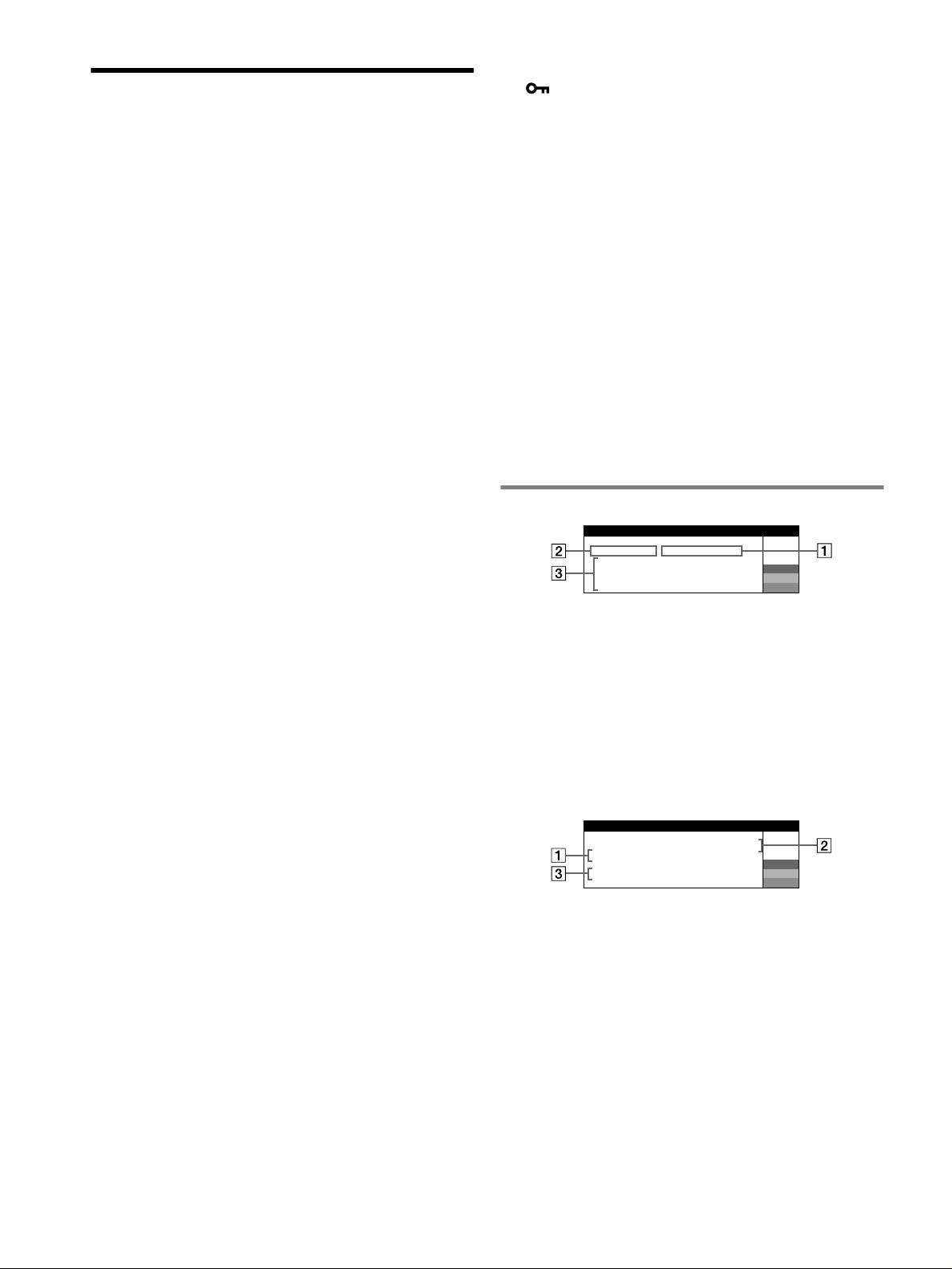
x Die Bedienelemente am Monitor funktionieren nicht
( erscheint auf dem Bildschirm)
Störungsbehebung
• Wenn die Tastatursperre auf EIN gesetzt ist, setzen Sie sie auf AUS.
x An den Rändern von Buchstaben und Linien sind rote
x Es wird kein Bild angezeigt
oder blaue Schatten zu sehen
Die Netzanzeige ! leuchtet nicht
• Stellen Sie die Konvergenz ein.
• Das Netzkabel muß korrekt angeschlossen sein.
x Die USB-Peripheriegeräte funktionieren nicht
• Der Monitor muß am Netzschalter ! eingeschaltet sein.
• Die richtigen USB-Anschlüsse müssen fest angeschlossen sein.
Die Netzanzeige ! leuchtet orange
• Schalten Sie den Monitor aus (OFF) und dann wieder ein (ON), und
•Überprüfen Sie, ob das Videosignalkabel korrekt angeschlossen ist und
schließen Sie das USB-Kabel erneut an.
alle Stecker fest in den Buchsen sitzen.
• Wenn Sie den Computer zum ersten Mal starten, nachdem Sie eine
• Der Schalter INPUT muß korrekt eingestellt sein.
Tastatur oder eine Maus an die USB-Anschlüsse angeschlossen haben,
• Achten Sie darauf, daß am HD15-Videoeingangsanschluß keine Stifte
funktionieren die Peripheriegeräte möglicherweise nicht. Schließen Sie
verbogen oder eingedrückt sind.
in diesem Fall die Tastatur und die Maus direkt an den Computer an, und
•Überprüfen Sie, ob der Computer eingeschaltet ist.
installieren Sie die USB-kompatiblen Geräte. Schließen Sie sie dann an
• Der Computer befindet sich im Energiesparmodus. Drücken Sie eine
diesen Monitor an.
beliebige Taste auf der Computer-Tastatur, oder bewegen Sie die Maus.
• Installieren Sie die neueste Version des Gerätetreibers auf Ihrem
• Die Grafikkarte muß korrekt im richtigen Bus-Steckplatz sitzen.
Computer. Informationen zum geeigneten Gerätetreiber erhalten Sie
Die Netzanzeige ! leuchtet grün oder blinkt orange
beim Hersteller des Geräts.
• Verwenden Sie die Selbstdiagnosefunktion.
x Unmittelbar nach dem Einschalten ist ein
x Das Bild flimmert, springt, oszilliert oder ist gestört
Summgeräusch zu hören
• Entfernen Sie alle möglichen Quellen elektrischer oder magnetischer
• Dieses Geräusch wird vom automatischen Entmagnetisierungszyklus
Felder wie andere Monitore, Laserdrucker, Ventilatoren,
verursacht. Wenn Sie das Gerät einschalten, wird der Monitor
Leuchtstoffröhren oder Fernsehgeräte aus der Nähe des Monitors.
automatisch einige Sekunden lang entmagnetisiert.
• Halten Sie den Monitor von Stromleitungen fern, oder schützen Sie den
* Ist ein zweiter Entmagnetisierungszyklus erforderlich, warten Sie nach
Monitor durch eine Magnetabschirmung.
dem ersten Zyklus mindestens 20 Minuten. Auf diese Weise erzielen Sie
• Schließen Sie das Netzkabel des Monitors an eine andere Steckdose,
die besten Ergebnisse. Dabei ist möglicherweise ein Summgeräusch zu
möglichst an einem anderen Stromkreis, an.
hören, aber dies ist keine Fehlfunktion.
• Versuchen Sie, den Monitor um 90 Grad nach links oder rechts zu
drehen.
• Schlagen Sie in der Anleitung zur Grafikkarte die korrekte
Bildschirmmeldungen
Monitoreinstellung nach.
IIONNFORMAT
•Überprüfen Sie, ob der Grafikmodus und die Frequenz des
MON I TOR FUNKTIONIERT
Eingangssignals von diesem Monitor unterstützt werden (siehe “Preset
E I NGANG
2 : KE I N S I GNAL
mode timing table” auf Seite i). Auch wenn die Frequenz innerhalb des
AM COMPUTER AKT I V I EREN
W
S I GNALKABEL PRÜFEN
R
unterstützten Bereichs liegt, arbeiten einige Grafikkarten
POS I T I ON VON WÄHL–
G
möglicherweise mit einem Synchronisationsimpuls, der für eine korrekte
SCHALTER I NPUT PRÜFEN
B
Synchronisation des Monitors zu kurz ist.
• Stellen Sie die Auffrischungsrate am Computer (Vertikalfrequenz) auf
1 Wenn „KEIN SIGNAL“ angezeigt wird:
den Wert ein, mit dem Sie die besten Bilder erzielen.
Diese Meldung gibt an, daß kein Signal vom ausgewählten Anschluß eingeht.
x Das Bild ist verschwommen
2 Zeigt den momentan ausgewählten Anschluß an.
• Stellen Sie Helligkeit, Kontrast und PICTURE EFFECT ein.
3 Zeigt mögliche Abhilfemaßnahmen an.
• Entmagnetisieren Sie den Monitor.*
• Wird AM COMPUTER AKTIVIEREN auf dem Bildschirm angezeigt,
• Regulieren Sie den Grad der Moiré-Korrektur, bis der Moiré-Effekt auf
drücken Sie eine beliebige Taste am Computer, oder bewegen Sie die
ein Minimum reduziert ist, oder setzen Sie MOIRE-KORREKTUR auf
AUS.
Maus. Überprüfen Sie gegebenenfalls, ob die Grafikkarte des Computers
korrekt in den richtigen Steckplatz eingebaut ist.
x Doppelbilder sind zu sehen
• Wenn SIGNALKABEL PRÜFEN auf dem Bildschirm erscheint,
• Verwenden Sie keine Bildschirmverlängerungskabel und/oder
überprüfen Sie, ob der Monitor korrekt an den Computer angeschlossen
Videoschaltboxen, wenn dieses Phänomen auftritt.
ist.
•Überprüfen Sie, ob alle Stecker fest in den jeweiligen Buchsen sitzen.
• Wenn POSITION VON WÄHLSCHALTER INPUT PRÜFEN auf dem
x Das Bild ist nicht zentriert, oder die Bildgröße ist nicht
Bildschirm erscheint, wechseln Sie das Eingangssignal.
korrekt
IIONNFORMAT
• Führen Sie die Funktion zur automatischen Einstellung von Bildgröße
MON I TOR FUNKTIONIERT
und -zentrierung aus.
E I NGANG
1: .200 0 /kHz 85Hz
• Stellen Sie die Bildgröße oder -zentrierung ein. Beachten Sie bitte, daß
N I CHT I M ABTASTBERE I CH
W
R
bei einigen Eingangssignalen und/oder Grafikkarten das Bild den
S GNAL–T I M I NG ÄNDERNI
G
Bildschirm nicht ganz bis zum Rand ausfüllt.
B
• Unmittelbar nach dem Einschalten des Geräts am Netzschalter dauert es
1 Wenn „NICHT IM ABTASTBEREICH“ angezeigt wird:
eine Weile, bis Bildgröße und -zentrierung richtig eingestellt sind.
Diese Meldung gibt an, daß das Eingangssignal nicht den technischen Daten
x Die Bildränder sind gekrümmt
des Monitors entspricht.
• Stellen Sie die Geometrie ein.
2 Gibt die Frequenz des Eingangssignals an.
x Wellenförmige oder elliptische Moiré-Effekte sind
3 Zeigt mögliche Abhilfemaßnahmen an.
sichtbar
SIGNAL-TIMING ÄNDERN erscheint auf dem Bildschirm. Wenn Sie
• Regulieren Sie den Grad der Moiré-Korrektur, bis der Moiré-Effekt auf
einen älteren Monitor durch diesen Monitor ersetzen, schließen Sie den
ein Minimum reduziert ist.
• Wählen Sie ein anderes Muster für Ihren Desktop.
alten Monitor wieder an. Stellen Sie dann die Grafikkarte des Computers
auf eine Horizontalfrequenz zwischen 30 und 137 kHz (GDM-F520), 30
x Die Farbe ist nicht gleichmäßig
und 115 kHz (GDM-F420) und eine Vertikalfrequenz zwischen 48 und
• Entmagnetisieren Sie den Monitor.* Wenn Sie ein Gerät, das ein
170 Hz ein.
Magnetfeld erzeugt (z. B. einen Lautsprecher), in der Nähe des Monitors
aufstellen oder wenn Sie die Richtung des Monitors ändern, sind die
Farben möglicherweise nicht mehr gleichmäßig.
• Stellen Sie die Farbreinheit ein.
x Weiß sieht nicht weiß aus
• Stellen Sie die Farbtemperatur ein.
•Überprüfen Sie, ob die fünf BNC-Stecker in der richtigen Reihenfolge
angeschlossen sind.
6
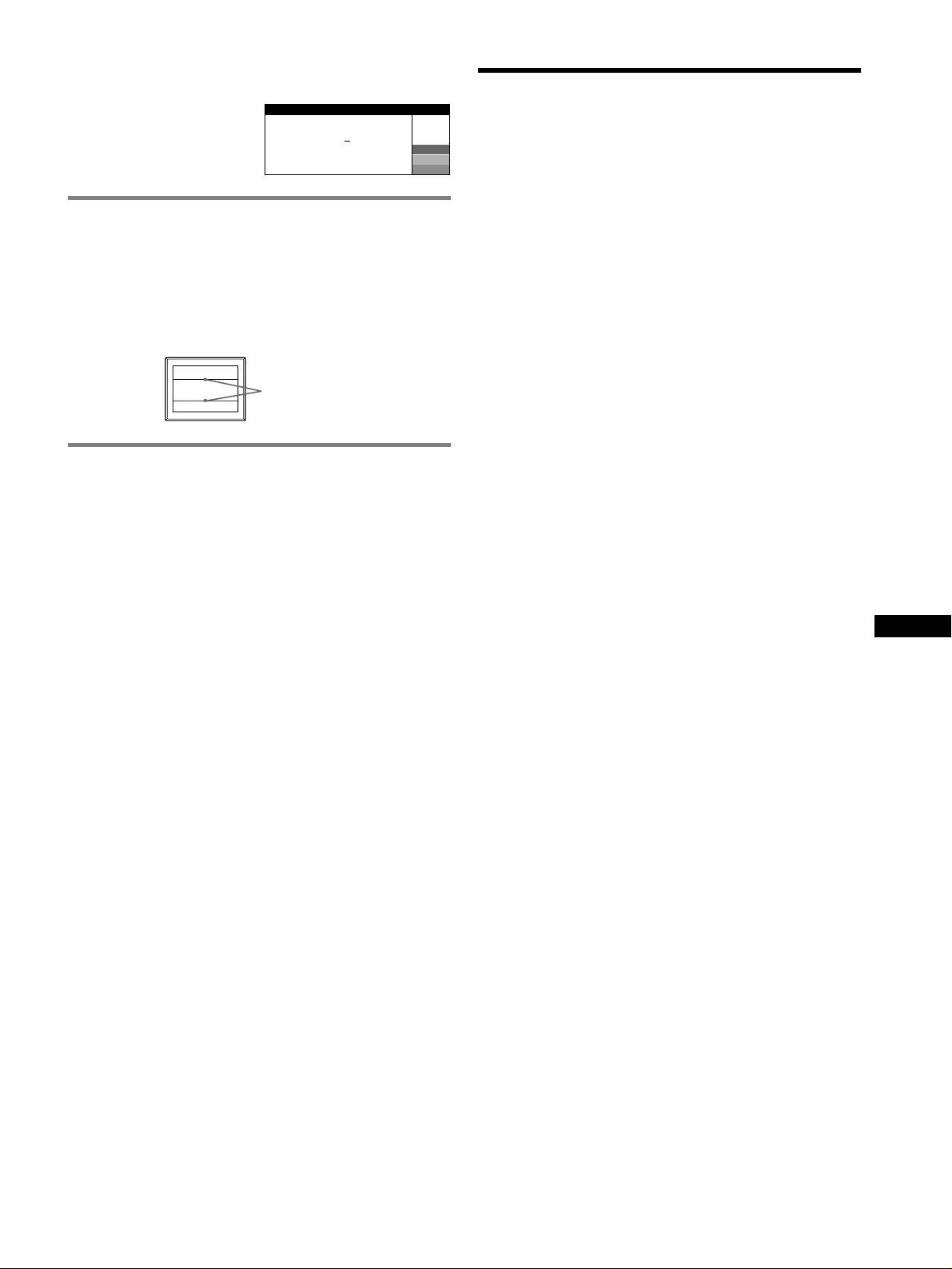
Anzeigen des Namens, der Seriennummer und des
Herstellungsdatums des Monitors.
Technische Daten
Während Videosignale am Monitor
I NFORMAT I ON
eingehen, halten Sie die Taste
Kathodenstrahlröhre
MENU mehr als fünf Sekunden
MODEL
:
GDM F520
W
lang gedrückt, um ein Feld mit
Streifenabstand 0,22 mm, Ablenkung 90 Grad, FD-Trinitron
SER NO
:
1234567
R
Informationen zum Monitor
MANUFACTURED
: 2000-52
G
GDM-F520 Bildschirmdiagonale 54 cm
B
anzuzeigen.
GDM-F420 Bildschirmdiagonale 49 cm
Effektive Bildgröße
GDM-F520 ca. 403,8
× 302,2 mm (B/H), Anzeigegröße 51 cm
Wenn auf dem Bildschirm dünne
GDM-F420 ca. 365
× 274 mm (B/H), Anzeigegröße 46 cm
Auflösung (H:Horizontal, V:Vertikal)
Linien erscheinen
(Dämpfungsdrähte)
GDM-F520 Maximum: H: 2048 Punkte, V: 1536 Zeilen
Empfohlen: H: 1600 Punkte, V: 1200 Zeilen
Diese Linien sind keine Fehlfunktion. Sie sind bei einem Monitor mit
GDM-F420 Maximum: H: 1920 Punkte, V: 1440 Zeilen
Trinitron-Bildröhre normal. Es sind die Schatten der Dämpfungsdrähte, die
Empfohlen: H: 1280 Punkte, V: 1024 Zeilen
die Streifenmaske stabilisieren. Die Streifenmaske ist ein wichtiges
Eingangssignalpegel
Merkmal der Trinitron-Bildröhre. Sie bewirkt, daß mehr Licht auf den
Videosignal: Analoges RGB-Signal: 0,700 Vp-p (positiv), 75
Ω
Bildschirm gelangt, und ermöglicht eine höhere Farbintensität und
Synchronisationssignal:
Detailgenauigkeit.
Getrenntes H/V- oder zusammengesetztes
Synchronisationssignal:
TTL, 2 k
Ω, ohne Polarität
Dämpfungsdrähte
Grünsignal mit Sync: 0,3 Vp-p (negativ)
Standardanzeigegröße
GDM-F520 ca. 388
× 291 mm (4:3) oder ca. 364 × 291 mm (5:4)
GDM-F420 ca. 352
× 264 mm (4:3) oder ca. 330 × 264 mm (5:4)
Ablenkfrequenz (H:Horizontal, V:Vertikal)
Selbstdiagnosefunktion
GDM-F520 H: 30 bis 137 kHz, V: 48 bis 170 Hz
GDM-F420 H: 30 bis 115 kHz, V: 48 bis 170 Hz
Dieser Monitor verfügt über eine Selbstdiagnosefunktion. Wenn an dem
Betriebsspannung 100 bis 240 V Wechselstrom, 50 – 60 Hz, 2,0 – 1,0 A
Monitor oder am Computer (bzw. an den Computern) ein Problem auftritt,
Leistungsaufnahme (ohne angeschlossene USB-Geräte)
erscheint ein leerer Bildschirm, und die Netzanzeige ! leuchtet grün auf
GDM-F520 ca. 145 W
oder blinkt orange. Wenn die Netzanzeige ! orange leuchtet, befindet sich
GDM-F420 ca. 135 W
der Computer im Energiesparmodus. Drücken Sie eine beliebige Taste auf
Betriebstemperatur 10 °C bis 40 °C
der Computer-Tastatur, oder bewegen Sie die Maus.
Abmessungen
GDM-F520 ca. 497
× 499 × 487 mm (B/H/T)
x Wenn die Netzanzeige ! grün leuchtet
GDM-F420 ca. 446
× 472 × 463 mm (B/H/T)
Gewicht
1 Lösen Sie alle Stecker aus den Videoeingangsbuchsen
GDM-F520 ca. 30 kg
DE
1 und 2, oder schalten Sie den/die angeschlossenen
GDM-F420 ca. 26 kg
Plug and Play DDC2B/DDC2Bi
Computer aus.
Mitgeliefertes Zubehör
2 Schalten Sie den Monitor aus (OFF) und dann wieder
Netzkabel
HD15-Videosignalkabel
ein (ON).
USB-Kabel
3 Halten Sie die Steuertaste einige Sekunden nach oben
Exklusiver Power Mac G3/G4-Adapter
gedrückt, bevor der Monitor in den Energiesparmodus
Diese Bedienungsanleitung
wechselt.
Wenn alle vier Farbbalken (weiß, rot, grün, blau) angezeigt werden,
funktioniert der Monitor ordnungsgemäß. Schließen Sie die
Videoeingangskabel wieder an, und überprüfen Sie den Zustand des/der
Computer(s).
Wenn die Farbbalken nicht erscheinen, liegt möglicherweise ein Fehler am
Monitor vor. Wenden Sie sich mit der Beschreibung des Problems an einen
autorisierten Sony-Händler.
x Wenn die Netzanzeige ! orange blinkt
Schalten Sie den Monitor aus (OFF) und dann wieder ein
(ON).
Wenn die Netzanzeige ! jetzt grün leuchtet, funktioniert der Monitor
ordnungsgemäß.
Wenn die Netzanzeige ! immer noch blinkt, liegt möglicherweise ein
Fehler am Monitor vor. Ermitteln Sie das Intervall, in dem die Netzanzeige
! orange blinkt (in Sekunden), und wenden Sie sich mit der Beschreibung
des Problems an einen autorisierten Sony-Händler. Notieren Sie sich
unbedingt die Modellbezeichnung und die Seriennummer des Monitors.
Notieren Sie sich außerdem das Fabrikat und Modell Ihres Computers und
der Grafikkarte.
(Fortsetzung)
7
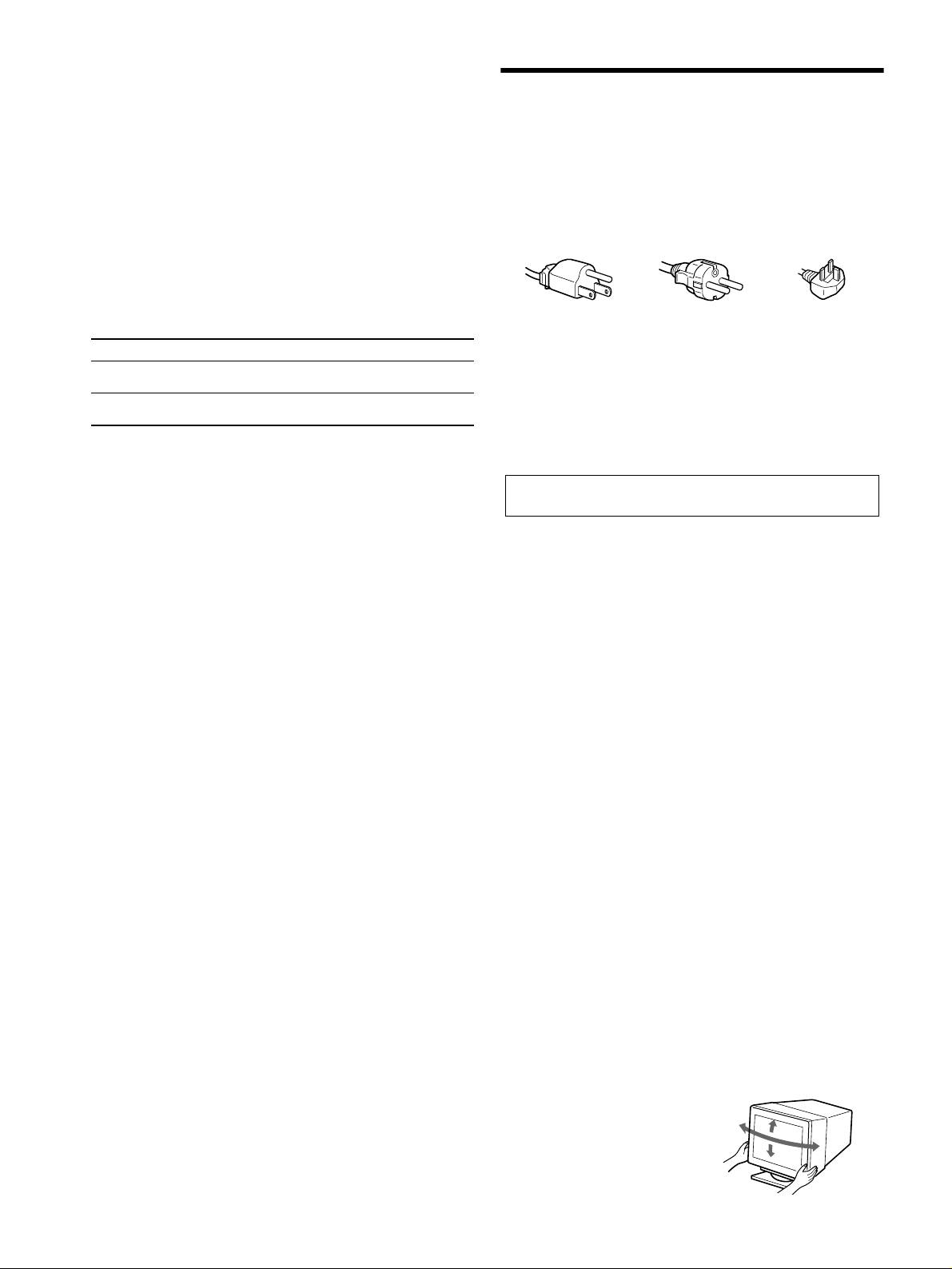
Vordefinierte Modi und Benutzermodi
Wenn ein Eingangssignal in den Monitor eingespeist wird, vergleicht der
Monitor dieses Signal mit den werkseitig vordefinierten Modi im Speicher des
Sicherheitsmaßnahmen
Monitors und wählt automatisch den Modus aus, bei dem sich eine möglichst
hohe Bildqualität erzielen läßt (siehe “Preset mode timing table” auf Seite i). Bei
Warnhinweis zum Netzanschluß
einem Eingangssignal, das keinem der werkseitig voreingestellten Modi
entspricht, erzeugt der Monitor auf der Basis des Eingangssignals automatisch
• Verwenden Sie ausschließlich das mitgelieferte Netzkabel. Wenn Sie ein
ein möglichst gutes Bild, sofern die Vertikal- und Horizontalfrequenzen des
anderes Netzkabel verwenden, achten Sie darauf, daß es für die
Eingangssignals im angegebenen Bereich liegen (Seite 7) und das
Stromversorgung in Ihrem Land geeignet ist.
Eingangssignal GTF-kompatibel ist (GTF = Generalized Timing Formula).
Für Kunden in Großbritannien
Beim Einstellen des Bildes werden die Einstellungen automatisch als
Wenn Sie den Monitor in Großbritannien verwenden, benutzen Sie bitte
Benutzermodus gespeichert und abgerufen, wann immer das betreffende
das mitgelieferte Kabel mit dem für Großbritannien geeigneten Stecker.
Eingangssignal eingeht.
Beispiele für Steckertypen
Die Energiesparfunktion
Dieser Monitor erfüllt die Energiesparrichtlinien der VESA, des TCO’99-
Standards und des
ENERGY STAR-Programms. Wenn vom Computer kein
Signal am Monitor eingeht, wird der Stromverbrauch des Monitors wie unten
erläutert automatisch verringert.
für 100 bis 120 V
für 200 bis 240 V
nur für 240 V
Wechselstrom
Wechselstrom
Wechselstrom
1
Betriebsmodus Leistungsaufnahme*
Netzanzeige !
• Warten Sie nach dem Ausschalten des Geräts mindestens 30 Sekunden,
bevor Sie das Netzkabel lösen. In dieser Zeit kann sich die statische
Normalbetrieb ≤ 145 W (GDM-F520)
grün
≤ 135 W (GDM-F420)
Elektrizität auf der Oberfläche des Bildschirms entladen.
2
• Wenn Sie das Gerät einschalten, wird der Bildschirm einige Sekunden
Deaktiviert*
≤ 3 W orange
3
lang entmagnetisiert. Dadurch entsteht um den Bildschirm ein starkes
(Tiefschlaf)*
magnetisches Feld, das Daten auf Magnetbändern, Disketten oder
1
*
Die Zahlen geben den Stromverbrauch an, wenn keine USB-kompatiblen
anderen Datenträgern in der Nähe beschädigen kann. Legen Sie
Peripheriegeräte an den Monitor angeschlossen sind.
magnetische Datenträger und Bänder/Disketten daher nicht zu nahe bei
2
*
Wenn der Computer in den Energiesparmodus schaltet, erscheint „KEIN
diesem Monitor ab.
SIGNAL“ auf dem Bildschirm. Nach einigen Sekunden schaltet der Monitor
Die Netzsteckdose sollte sich in der Nähe des Geräts befinden und
in den Energiesparmodus.
leicht zugänglich sein.
3
*
„Tiefschlaf“ ist ein Energiesparmodus, der von der EPA
(Umweltschutzbehörde der USA) definiert wurde.
Aufstellung
Stellen Sie den Monitor nicht an folgenden Standorten auf:
Änderungen, die dem technischen Fortschritt dienen, bleiben vorbehalten.
• Auf Oberflächen wie Teppichen oder Decken oder in der Nähe von
Materialien wie Gardinen und Wandbehängen, die die
Lüftungsöffnungen blockieren könnten.
• In der Nähe von Wärmequellen wie Heizkörpern oder
Warmluftauslässen oder an einem Ort, an dem der Monitor direktem
Sonnenlicht ausgesetzt ist.
• An einem Ort, an dem der Monitor starken Temperaturschwankungen
ausgesetzt ist.
• An einem Ort, an dem der Monitor mechanischen Vibrationen oder
Stößen ausgesetzt ist.
• Auf einer instabilen Oberfläche.
• In der Nähe anderer Geräte, die ein starkes Magnetfeld generieren, wie
zum Beispiel ein Transformator oder eine Hochspannungsleitung.
• In der Nähe von oder auf einer elektrisch geladenen Metallfläche.
• In einem geschlossenen Gestell.
Wartung
• Reinigen Sie den Bildschirm mit einem weichen Tuch. Wenn Sie ein
Glasreinigungsmittel verwenden, achten Sie darauf, daß es keine
Antistatik-Lösung oder ähnliche Zusätze enthält, da diese zu Kratzern
auf der Beschichtung des Bildschirms führen könnten.
• Berühren Sie die Bildschirmoberfläche nicht mit scharfen, rauhen oder
spitzen Gegenständen wie zum Beispiel Kugelschreibern oder
Schraubenziehern. Andernfalls könnte die Bildschirmoberfläche
zerkratzt werden.
• Reinigen Sie Gehäuse, Bedienfeld und Bedienelemente mit einem
weichen Tuch, das Sie leicht mit einer milden Reinigungslösung
angefeuchtet haben. Verwenden Sie keine Scheuermittel,
Scheuerschwämme oder Lösungsmittel wie Alkohol oder Benzin.
Transport
Wenn Sie den Monitor zur Reparatur oder bei einem Umzug transportieren
müssen, verpacken Sie ihn mit Hilfe der Originalverpackungsmaterialien
wieder im Originalkarton.
Bildschirmständer
Nehmen Sie den Ständer dieses Monitors nicht ab.
Der dreh- und neigbare Ständer
Mit dem Ständer können Sie den
Monitor innerhalb der rechts
90°
abgebildeten Winkel nach Bedarf
15°
90°
einstellen. Wenn Sie den Monitor
5°
drehen oder neigen, stützen Sie ihn
bitte mit beiden Händen unten ab.
8
