
Sony Grand Wega KF-50SX200K: instruction
Class: Household, kitchen appliances, electronics and equipment
Type:
Manual for Sony Grand Wega KF-50SX200K
Table of contents

00COKF50/42SX200K.fm Page 1 Tuesday, January 7, 2003 12:33 PM
4-087-135-
42
(1)
R
GB
Instruction Manual
BG
Инструкции за експлоатация
CZ
Návod k obsluze
HU
Kezelési útmutató
PL
Instrukcja obsługi
RU
Инструкция пo эксплyатации
KF-50SX200K
KF-42SX200K
©2003 by Sony Corporation

01GBKF50/42SX200K.fm Page 3 Tuesday, January 7, 2003 12:35 PM
Introduction
Thank you for choosing this Sony “Grand Wega” model.
Before operating the TV set, please read this manual thoroughly and retain it for future reference.
• Symbols used in the manual:
• Important information.
• Buttons shaded white on the remote control show the
• Information on a feature.
buttons you have to press to follow the sequence
of instructions.
•
1,2...
Sequence of instructions.
• Informs you of the result of the instructions.
Table of Contents
Introduction .......................................................................................................................................................................................................................3
Safety Information ............................................................................................................................................................................................................4
Overview
Checking the Accessories Supplied ..................................................................................................................................................................5
Overview of TV Buttons.....................................................................................................................................................................................5
Overview of Remote Control Buttons ..............................................................................................................................................................6
Installation
Inserting Batteries into the Remote Control ....................................................................................................................................................7
Connecting the Aerial and VCR........................................................................................................................................................................8
Stabilizing the TV set ..........................................................................................................................................................................................8
First Time Operation
GB
Switching on the TV set and Automatically Tuning......................................................................................................................................9
Menu System
Changing the Screen Format............................................................................................................................................................................11
Introducing and Using the Menu System......................................................................................................................................................11
On Screen display Menus Guide.....................................................................................................................................................................12
Using the Menu System:
Adjusting the Picture......................................................................................................................................................................................13
Adjusting the Sound.......................................................................................................................................................................................14
Using the Features menu ...............................................................................................................................................................................16
Manually Tuning the TV ...............................................................................................................................................................................17
Labelling a channel.........................................................................................................................................................................................18
Skipping programme positions ....................................................................................................................................................................19
Using the “Further Programme Preset” function ......................................................................................................................................20
Inputting your personal ID ...........................................................................................................................................................................21
Using the Demo Mode ...................................................................................................................................................................................22
Adjusting the H Centre picture for an RGB source ...................................................................................................................................23
Labelling and Selecting the screen format of Input Sources ....................................................................................................................24
Using Multi PIP (Picture In Picture) ............................................................................................................................................................25
Using PAP (Picture And Picture) .................................................................................................................................................................25
Teletext
.......................................................................................................................................................................................................................26
NexTView
.................................................................................................................................................................................................................28
Optional Connections
Connecting Optional Equipment ....................................................................................................................................................................30
Using Optional Equipment ..............................................................................................................................................................................31
Smartlink.............................................................................................................................................................................................................32
Remote Control of other Sony Equipment.....................................................................................................................................................32
Additional Information
Remote Control Configuration for VCR/DVD.............................................................................................................................................33
Replacing the Lamp ..........................................................................................................................................................................................34
Optimum Viewing Area...................................................................................................................................................................................35
Specifications......................................................................................................................................................................................................36
Troubleshooting.................................................................................................................................................................................................37
3
01GBKF50/42SX200K.fm Page 4 Tuesday, January 7, 2003 12:35 PM
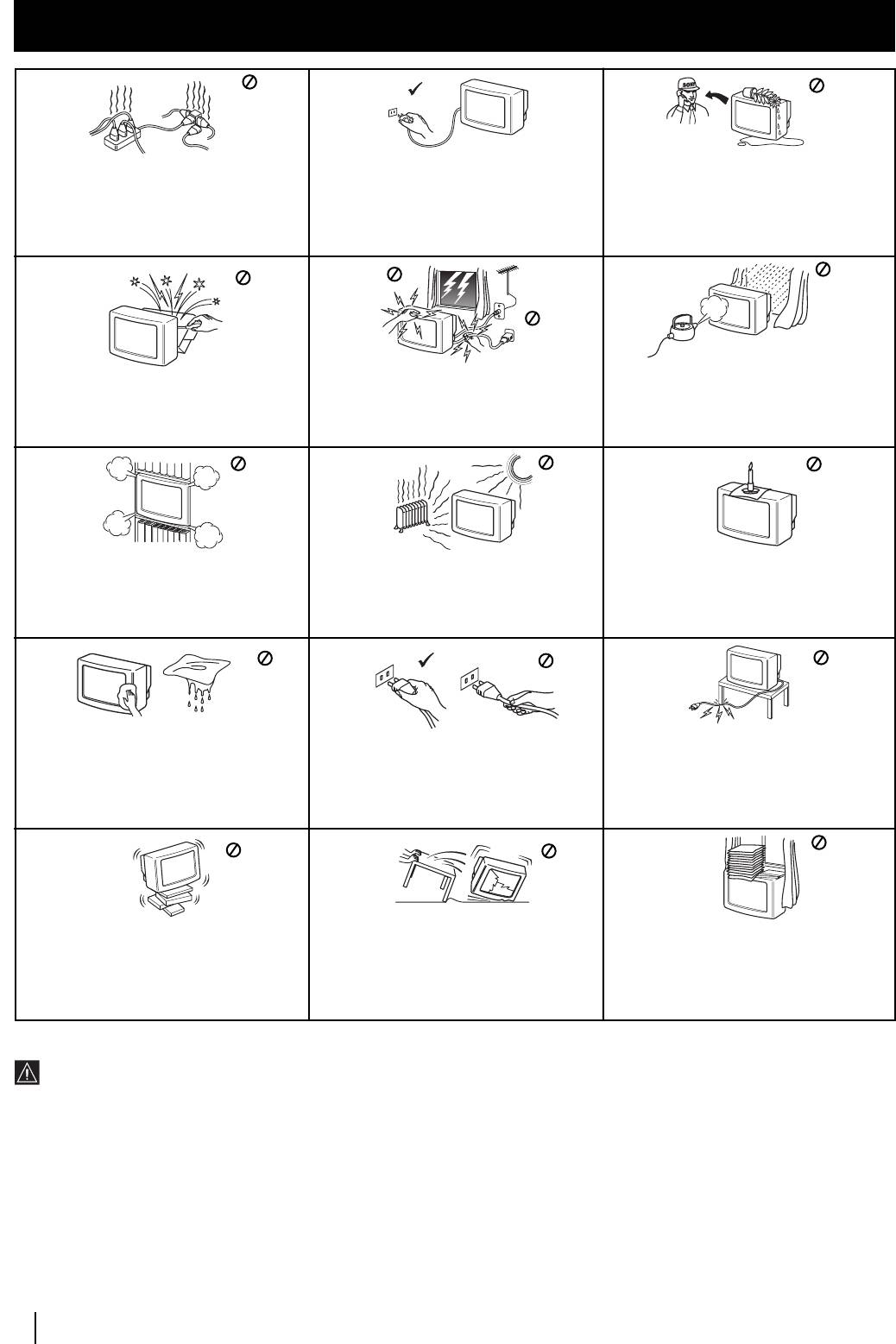
Safety Information
Safety Information
Never push objects of any kind into the set as
For environmental and safety reasons, it is
this could result in a fire or electric shock.
This set is to operate on a 220-240V AC supply
recommended that the TV set is not left in
Never spill liquid of any kind on the set. If
only. Take care not to connect too many
standby mode when not in use. Disconnect
any liquid or solid object does fall into the
appliances to the same power socket as this
from the mains.
cabinet, do not operate the TV. Have it
could result in fire or electric shock.
checked immediately by qualified personnel.
Do not open the cabinet and the rear cover of
For your own safety, do not touch any part
To prevent fire or shock hazard, do not expose
the TV. Refer to qualified service personnel
of the TV, power lead or aerial lead during
the TV to rain or moisture.
only.
lightning storms.
Do not cover the ventilation openings of the
Never place the TV in hot, humid or
To prevent fire, keep inflammable objects or
TV For ventilation, leave a space of at least
excessively dusty places. Do not install the
naked lights (eg candles) away from the TV.
10cm all around the set.
TV where it may be exposed to mechanical
vibrations.
Clean the screen and cabinet with a soft,
lightly dampened cloth. Do not use any type
Pull out the power lead by the plug. Do not
Take care not to place heavy objects on the
of abrasive pad, alkaline cleaner, scouring
pull on the power lead itself.
power lead as this could result in damage.
powder or solvent, such as alcohol or benzine,
We recommend you wind any excess lead
or antistatic spray. As a safety precaution,
around the holders provided on the rear of the
unplug the TV before cleaning it.
TV.
Place the TV on a secure stable stand. Do not
Unplug the power lead before moving the TV.
Do not cover the ventilation openings of the
allow children to climb on to it. Do not place
Avoid uneven surfaces, quick steps or
TV with items such as curtains or newspapers
the TV on its side or face up.
excessive force. If the set has been dropped or
etc.
damaged, have it checked immediately by
qualified service personnel.
Additional Safety Information
•When moving the TV set two persons are needed. To prevent
• This TV set incorporates the latest high-precision LCD technology.
damage DO NOT push on the speaker grills on each side of the
Even though the highest standards are applied in manufacture it is
screen. Do not grasp the front panels to prevent these parts from
still possible that a few black dots or bright points (red, green or
breaking off. Support the bottom of the screen with one hand
blue) may be visible on the screen under certain picture conditions.
while grasping the top part with the other hand.
It is not possible to remove them and this is not a fault condition.
•Do not block or cover the ventilation opening situated on the
• The screen of this TV set has an anti-reflection screen coating. To
bottom rear of the left hand side of the TV set. For ventilation,
avoid screen degradation, follow the advice given below:
leave a space of at least 10 cm from the wall.
• To remove dust from the surface of the screen, wipe with the
•If after transporting the TV set, directly from a cold to a warm
supplied cleaning cloth or a soft cloth.
location, or if the room temperature has changed suddenly,
• Clean the screen and cabinet with a soft, lightly dampened cloth.
pictures may be blurred or show poor colour over portions of the
Do not use any type of abrasive pad, alkaline cleaner, scouring
picture. This is because condensation has formed on the mirrors
powder or solvent, such as alcohol or benzine, or antistatic spray.
or lenses inside the TV set. Let the moisture evaporate before
As a safety precaution, unplug the TV before cleaning it.
using the TV set.
• Avoid touching the screen, and take care not to scratch the
•To obtain a clear picture, do not expose the screen to direct
surface with hard objects.
illumination or direct sunlight. If possible, use spot lighting
directed down from the ceiling.
4
Safety Information
Overview
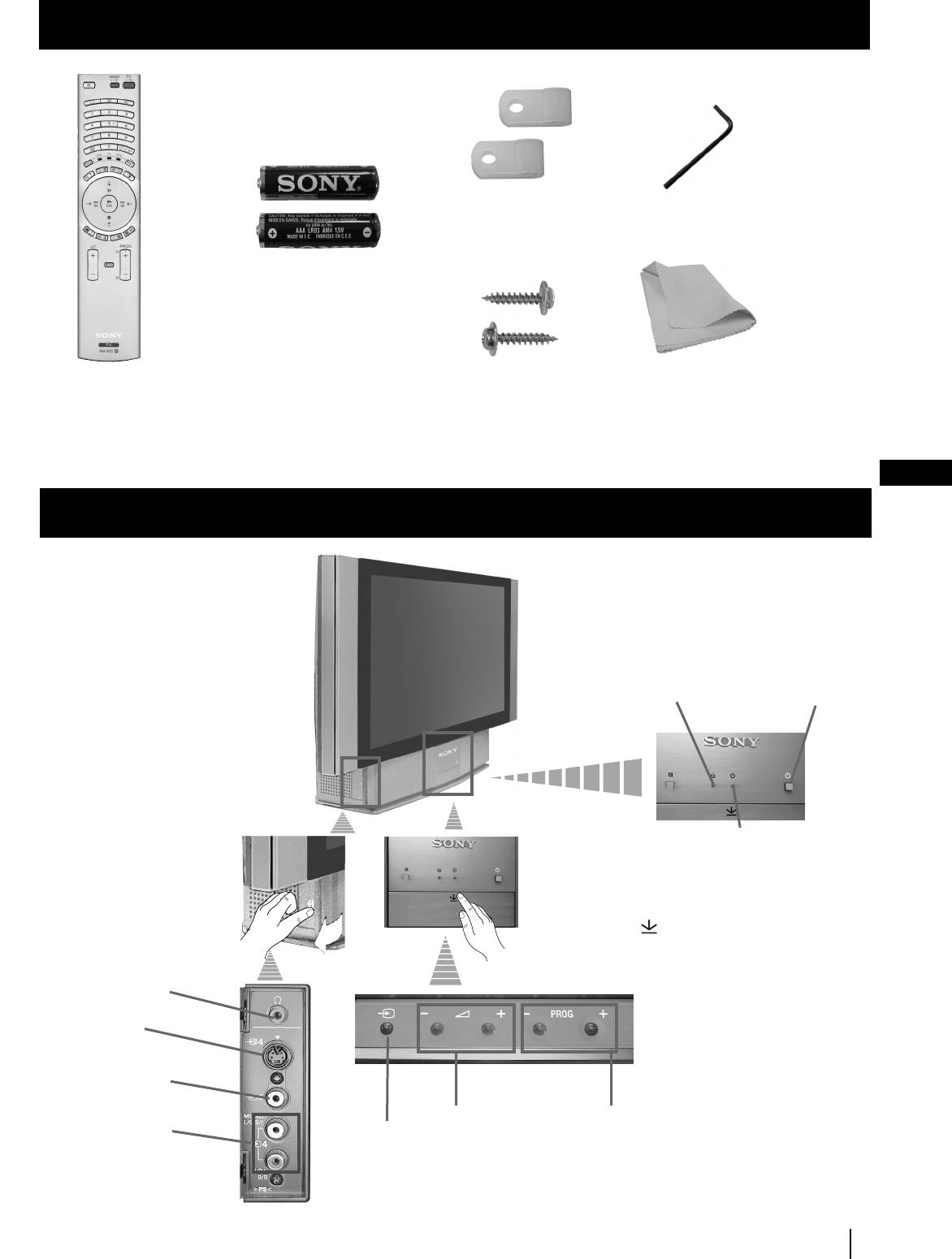
Checking the Accessories Supplied
s
1 Hexagon key2 Brackets
Two batteries
(AAA size)
2 Screws
1 Cleaning cloth
One Remote Control
(RM-905)
GB
Overview of TV Buttons
Lamp
indicator (see
page 34)
On/Off
Switch
Standby indicator:
• By pressing the On/
Off button on the
Remote Control to
turn the TV off, the
standby indicator
light up in red.
• By pressing the On/
Off on the TV set to
Headphone
turn the TV off, the
jack
standby indicator
lights up in amber.
S Video
Input jack
Video Input
jack
Volume control
Programme up
Audio Input
Input source
buttons
or down buttons
jacks
selection
(selects TV channels)
button
Overview
5
Press on the mark ,
on the front of the TV
set to reveal the front
connectors.
01GBKF50/42SX200K.fm Page 5 Tuesday, January 7, 2003 12:35 PM
01GBKF50/42SX200K.fm Page 6 Tuesday, January 7, 2003 12:35 PM
Overview
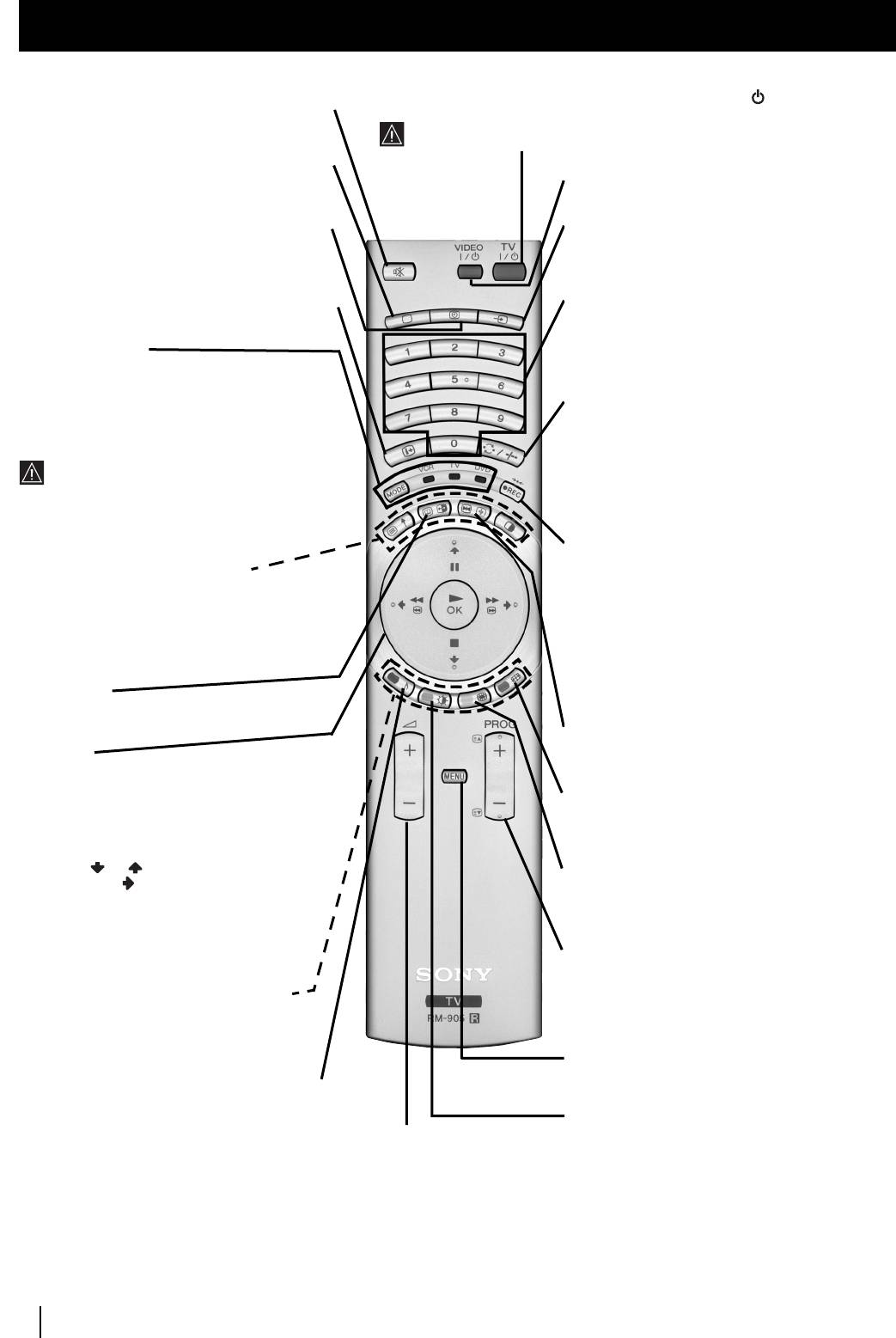
Overview of Remote Control Buttons
To Temporarily Switch Off:
Press to temporarily switch off TV (the standby indicator
on the TV set lights
Muting the Sound:
Press to mute TV sound.
up in red). Press again to switch on TV from standby mode.
Press again to restore the sound.
After 15-30 minutes without a signal and without any button being pressed,
the TV set switches automatically into standby mode.
Selecting TV mode:
Press to switch off PAP,
Multi PIP, Teletext or video input.
VCR DVD on/off:
Press this button to switch
your VCR or DVD on or off.
Displaying the time:
Press to switch the time
Selecting Input source:
Press this button
display on or off (available only when teletext is
repeatedly until the input of the desired source
broadcast).
appears on the TV screen.
Displaying On Screen Information:
Press
to display all on-screen indications. Press again to
Selecting channels:
cancel.
If Media Selector is switched to TV or VCR, press
this button to select channels.
Media Selector:
For double-digit programme numbers, enter the
With this remote control you can operate not
second digit within 2.5 seconds.
only this TV but also the main functions of
your VCR or DVD.
a) If Media Selector is switched to TV:
Switch on the device you want to operate and next
Press this button to watch the last channel
press this button repeatedly to select the VCR, TV
selected (the last channel watched for at least 5
or DVD. A green light will be momentarily lit to
seconds).
indicate the chosen function.
Before the first time you want to control
b) If Media Selector is switched to VCR:
a DVD or VCR by using this remote
To select a double-digit programme on a Sony
control, you have to set it up depending on the
VCR, e.g. 23, press -/- - first and then the
brand of the device to be used. For more details,
buttons 2 and 3.
refer to chapter “Remote Control Configuration
for VCR or DVD” on page 33.
a) Recording button:
If Media Selector is switched to VCR, press this
a) PAP (Picture And Picture):
button to record programmes.
For more details, please refer to the section
b) Resetting to factory set levels:
“Using PAP (Picture And Picture)”.
Press, for a minimum of 3 seconds, to return the
b) Teletext:
picture and sound settings to the factory default
Buttons with green symbols are also used for
levels. This will also return the set to the install
teletext operation. For more details, please
condition and the “Auto Tuning” menu will
refer to the section “Teletext” of this manual.
appear on the screen. If this is the case refer to the
section “Switching on the TV set and
NexTView:
For more details, please refer to the section
automatically Tuning” (step 4) of this manual.
“NexTView” of this manual.
Freezing the picture:
Press this button to
Joystick:
freeze the picture. Press again to return to the
a) If Media Selector is switched to TV:
normal picture.
•When MENU is switched on, use these
buttons to operate the menu system. For
Selecting Screen format:
Press this button
details refer to “Introducing and Using
repeteadly to change the format of the screen (for
the Menu System” on page 11.
more details, please refer to the section “Changing
• When MENU is switched off, press OK to
the Screen format”) of this manual.
show an overview of all TV channels. Then
press or to select the channel and
Displaying Multi PIP (Picture In Picture):
then press button to watch the selected
Press to display Multi PIP mode. Press again to
channel.
cancel. For more details, please refer to the section
“UsingMulti PIP (Picture In Picture)”.
b) If Media Selector is switched
to VCR or DVD:
Using these buttons you can control
a) Selecting channels:
Press this button to
the main functions of your VCR or DVD.
select the number of the next or previous
broadcast channel.
Fastext:
These buttons are also used for
b) Teletext:
These buttons are also used for
Fastext operation. For more details please refer
teletext operation. For more detail please refer to
to the “Fastext” chapter in the “Teletext”
the section “Teletext” of this manual.
section of this manual.
Displaying the menu system:
Press this
Selecting Sound effect:
Press this button
button to display the menu on the screen. Press
repeatedly to change the sound effect.
again to remove the menu display from the screen.
Selecting Picture mode:
Press this button
repeatedly to change the picture mode.
Adjusting TV Volume:
Press
this button to adjust the volume
of the TV.
6
Overview
01GBKF50/42SX200K.fm Page 7 Tuesday, January 7, 2003 12:35 PM
Installation
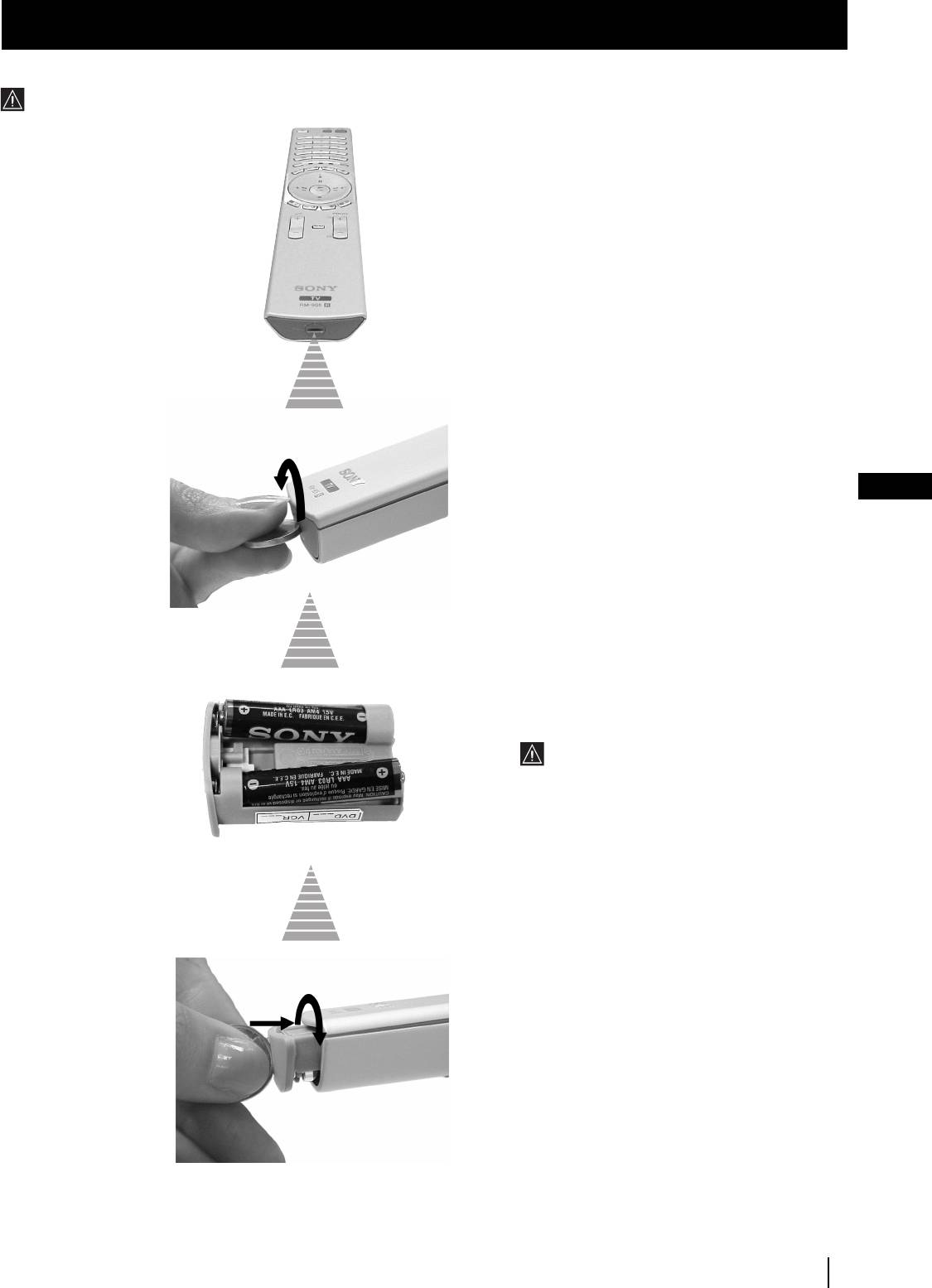
Inserting Batteries into the Remote Control
Always remember to dispose of used batteries in an environmental friendly way.
GB
Make sure you insert the batteries using
the correct polarities.
Installation
7
Installation
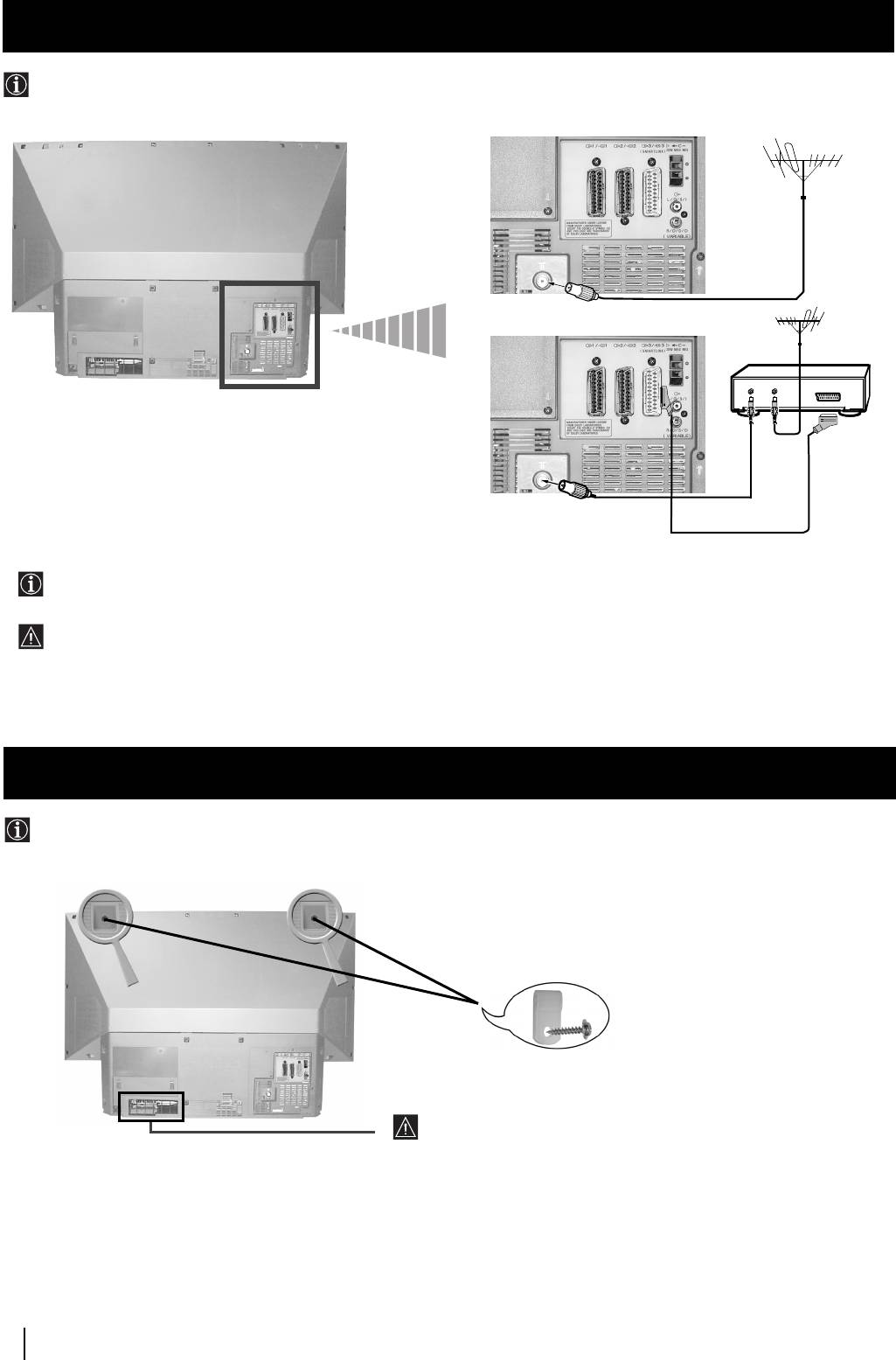
Connecting the Aerial and VCR
Connecting cables are not supplied.
or
VCR
Stabilizing the TV set the set
After setting up, secure the TV set to a wall, etc., using the supplied brackets and screws, for safety purposes.
1
Mount the two supplied brackets with the screws provided to the upper rear side of the TV set.
2
Pass a strong cord or a chain through each bracket, and then secure to a wall or a pillar, etc.
8
Installation
The Scart lead is optional, however if you use a Scart lead to connect your VCR it can improve picture and sound quality
when using it.
If you do not use a Scart lead, after automatically tuning the TV set, refer to the "Manually Tuning the TV" section of this
instruction manual, to tune in the set to the output of your VCR. Also, refer to your VCR instruction manual to find the
output channel of your VCR.
01GBKF50/42SX200K.fm Page 8 Tuesday, January 7, 2003 12:35 PM
OUT IN
Do not block or cover this ventilation opening. For
ventilation, leave a space of at least 10 cm from the wall.
First Time Operation
Switching on the TV set and Automatically Tuning
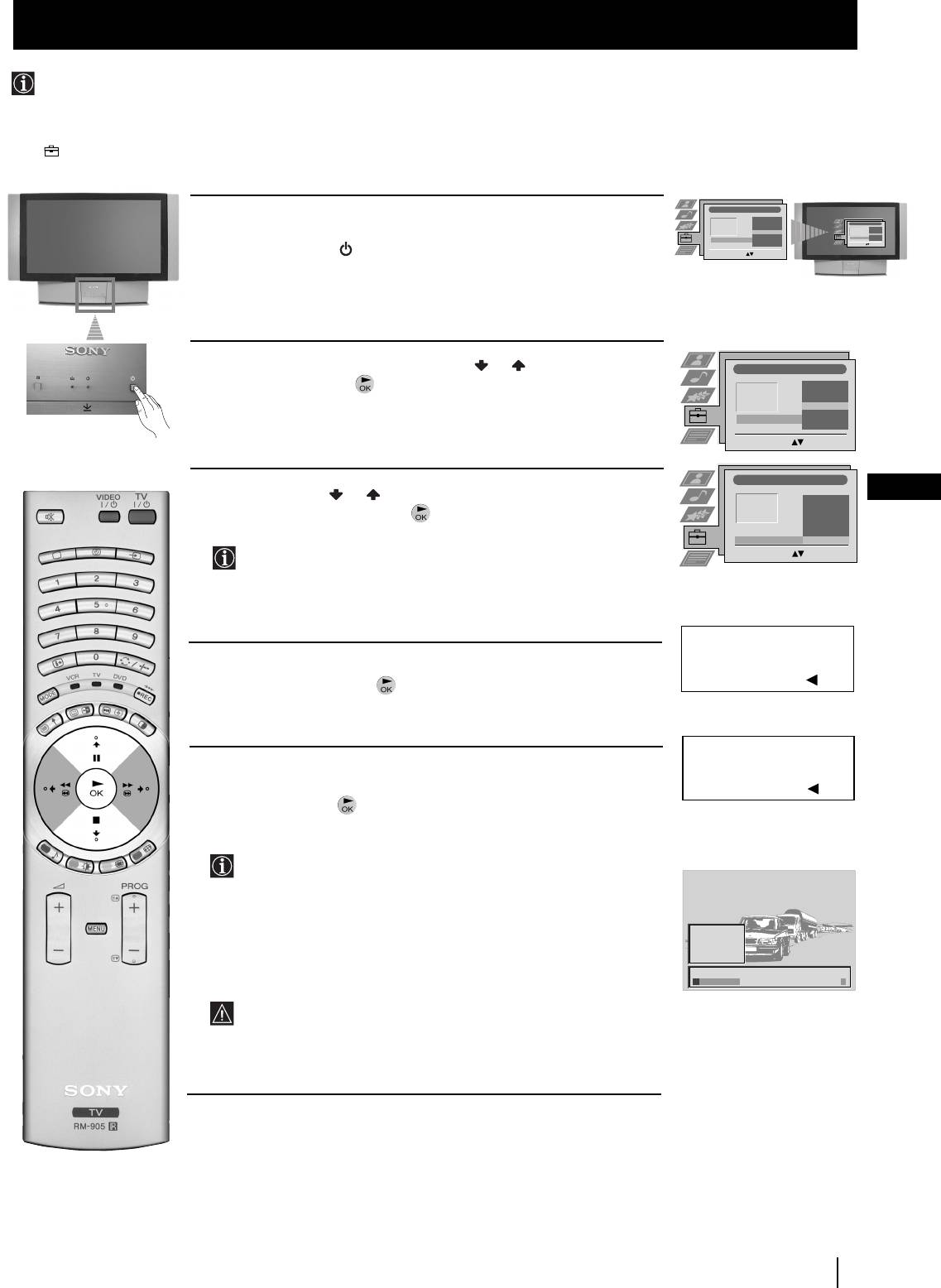
The first time you switch on your TV, a sequence of menu screens appear on the TV enabling you to 1) choose the language
of the menu screen, 2) choose the country in which you wish to operate the TV set, 3) search and store all available broadcast
channels and 4) change the order in which the broadcast channels appear on the screen.
However, if you need to change any of these settings at a later date, you can do that by selecting the appropriate option in the
(Set Up) menu
.
1
Connect the TV plug to the mains socket (220-240V AC, 50 Hz).
The first time that the TV set is connected, it is usually turned on. If the
TV is off, press the
On
/
Off
button on your TV set to switch it on.
The first time you switch on the TV, the
Language
/
Country
menu is
automatically displayed on the screen.
2
Push the joystick on the remote control
or to select the
language, then press to confirm your selection. From now on all
the menus will appear in the selected language.
GB
3
Push the joystick
or to select the country in which you will
operate the TV set, then press to confirm your selection.
Select "Off" instead of a country if you do not want the
broadcast channels stored in the normal channel sequence
starting from programme position 1 (i.e. BBC1= programme 1,
BBC2= programme 2...).
4
The Auto Tuning menu appears on the screen in the selected
language, then press the button on the remote control to select
Yes
.
5
A new menu appears automatically on the screen asking you to
check that the aerial is connected. Confirm that the aerial is connected
and then press the button to start the automatic tuning.
• The TV starts to automatically search and store all available
broadcast channels for you.
• If you have selected the “Off” option in the Country menu and
you activate autotuning, the broadcast channels will be stored
in the order in which they are received and no sorting will
take place.
This procedure could take some minutes. Please, be patient and
do not press any buttons while the automatic tuning is in
progress, otherwise the automatic tuning will
not be completed.
continued...
First
Time
Operation
9
Language/Country
4 Italiano
Français
Language/Country
Español
4 Italiano
Español
Français
Language
Deutsch
English
Dansk
Language
English
Deutsch
Country
Dansk
Čeština
Country
Čeština
Select Language: Confirm: OK
Select Language: Confirm: OK
Language/Country
4 Italiano
Français
Español
English
Deutsch
Language
Dansk
Country
Čeština
Select Language: Confirm: OK
Language/Country
4
Finland
Denmark
Czech Rep.
Bulgaria
Language
Belgium
Austria
Country
Off
Select Country:
Confirm: OK
Do you want to start
automatic tuning?
Yes: OK No:
Please confirm that
aerial is connected!
Yes: OK No:
1
CO2
2
CO3
3
CO4
4
CO7
5
CO8
Searching...
01GBKF50/42SX200K.fm Page 9 Tuesday, January 7, 2003 12:35 PM
01GBKF50/42SX200K.fm Page 10 Tuesday, January 7, 2003 12:35 PM
First Time Operation
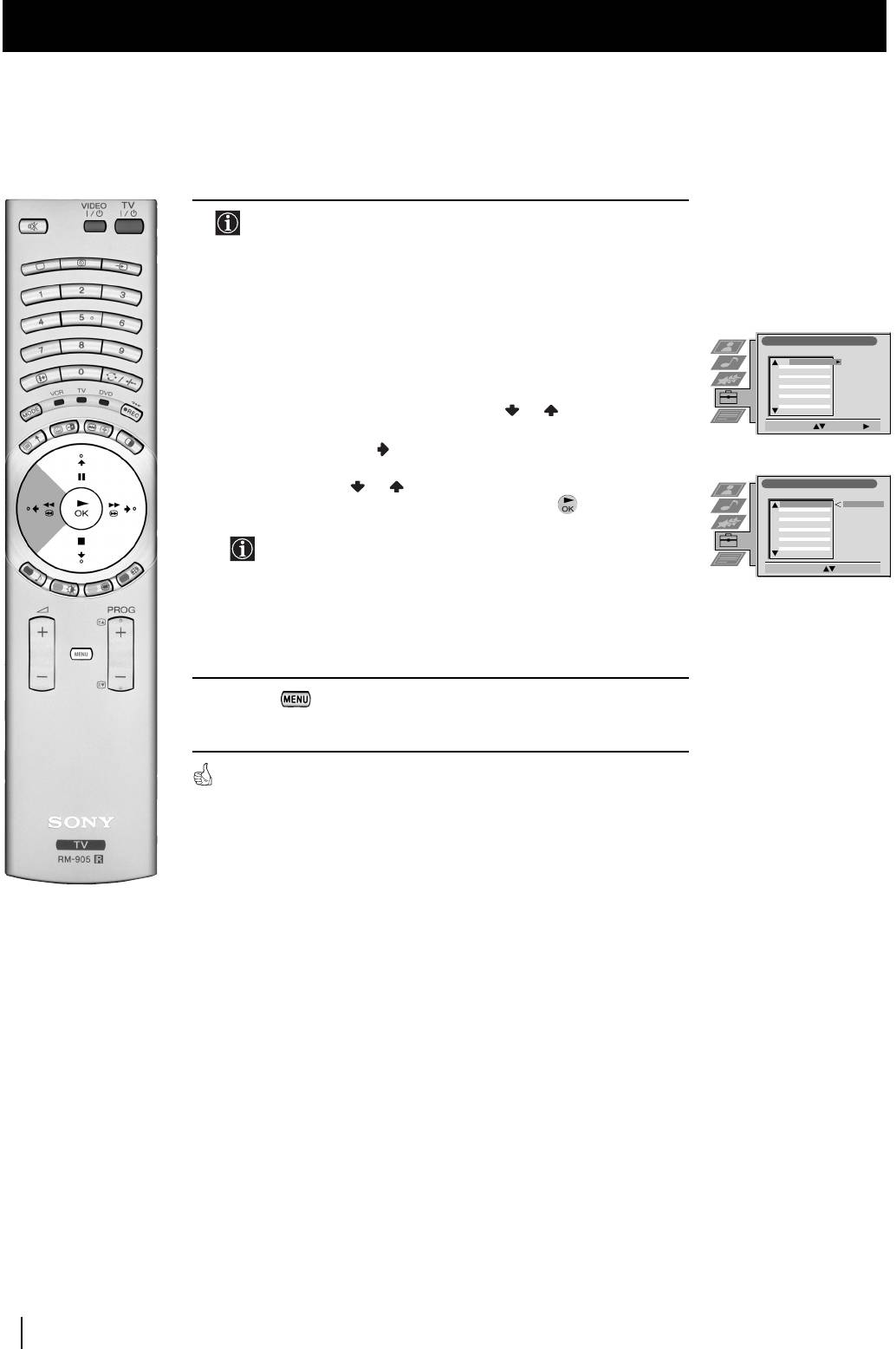
6
After all available broadcast channels are captured and stored,
the Programme Sorting menu appears automatically on the
screen enabling you to change the order in which the channels
appear on the screen.
a)
If you wish to keep the broadcast channels in the tuned order, go to
step 7.
Programme Sorting
PROG CH LABEL
1
C03
TV 5
2
C05
PRO 7
b)
If you wish to store the broadcast channels in a different order:
3
C07
EU-SP
4
C08
SWF
5
C09
RTL
6
C11
SAT
7
C12
MDR
8
C13
DDI
9
C14
DSF
10
C15
RTL 2
1
Push the joystick on the remote control
or to select the
11
C16
KAB 1
Select Prog: Confirm:
programme number with the broadcast channel you wish to
rearrange, then push to enter.
2 Push the joystick or to select the new programme number
Programme Sorting
PROG CH LABEL
for your selected broadcast channel, then press .
1
C03
TV 5
C03 TV 5
2
C05
PRO 7
3
C07
EU-SP
4
C08
SWF
5
C09
RTL
6
C11
SAT
7
C12
MDR
8
C13
DDI
The selected broadcast channel now moves to its new
9
C14
DSF
10
C15
RTL 2
11
C16
KAB 1
programme position and the other broadcast channels move
Select Position: Move: OK
accordingly.
3 Repeat steps b1) and b2) if you wish to change the order of the
other channels.
7 Press the button to exit and return to the normal TV screen.
The TV set is now ready for use.
10
First Time Operation
Menu System
Changing the Screen Format
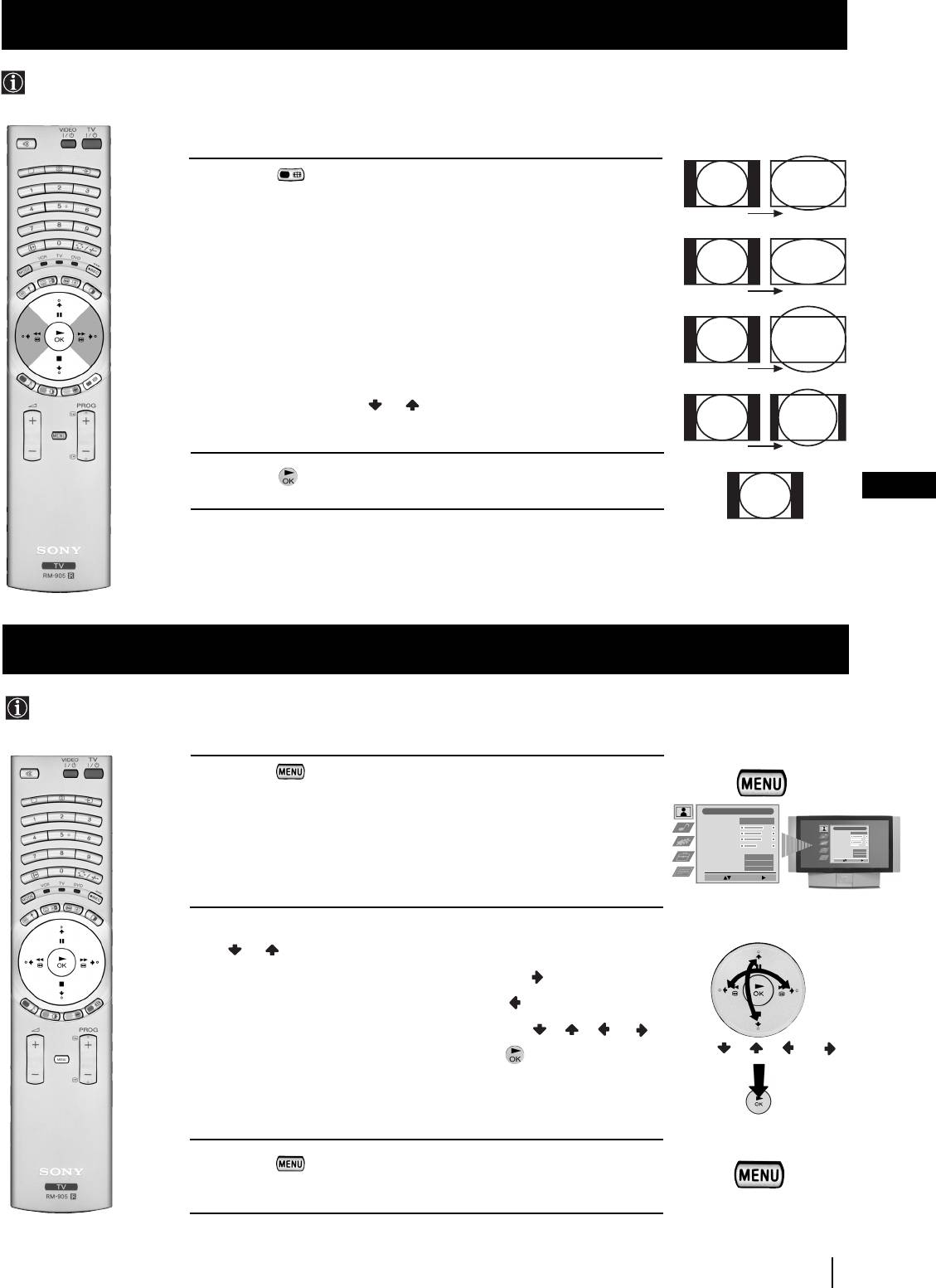
This feature allows you to change the size of the TV picture.
1 Press the button on the remote control repeatedly to select one
of the following formats.
Smart
Smart: imitation of wide screen effect for 4:3 broadcast.
4:3: conventional 4:3 picture size, full picture information.
14:9: compromise between 4:3 and 16:9 picture size.
Wide
Zoom: widescreen format for letterbox movies.
Wide: for 16:9 broadcast, full picture information.
Zoom
In Smart, Zoom and 14:9 modes parts of the top and bottom of the
screen are cut off. Press or to adjust the position of the image on
screen (eg to read subtitles).
14:9
2 Press the button to confirm your selection.
GB
4:3
Introducing and Using the Menu System
Your TV set uses an on-screen menu system to guide you through the operations. Use the following buttons on the
Remote Control to operate the menu system:
1 Press the button to switch the main menu on.
2 •To higlight the desired menu or option, push the joystick
or .
•To enter to the selected menu or option, push
•To return to the last menu or option, push .
•To alter settings of your selected option, push / / or .
•To confirm and store your selection, press .
3 Press the button to remove the menu from the screen.
Menu System
11
Picture Adjustment
Picture Mode
Personal
Contrast
Picture Adjustment
Brightness
Picture Mode
Personal
Colour
Brightness
Contrast
Sharpness
Colour
Reset
Reset
Sharpness
On
AI
On
Colour Tone
Noise Reduction
AI
Normal
Off
Noise Reduction
Off
Select: Enter Menu:
Colour Tone
Normal
Select: Enter Menu:
push / / or
press OK
Joystick:
01GBKF50/42SX200K.fm Page 11 Tuesday, January 7, 2003 12:35 PM
01GBKF50/42SX200K.fm Page 12 Tuesday, January 7, 2003 12:35 PM
Menu System
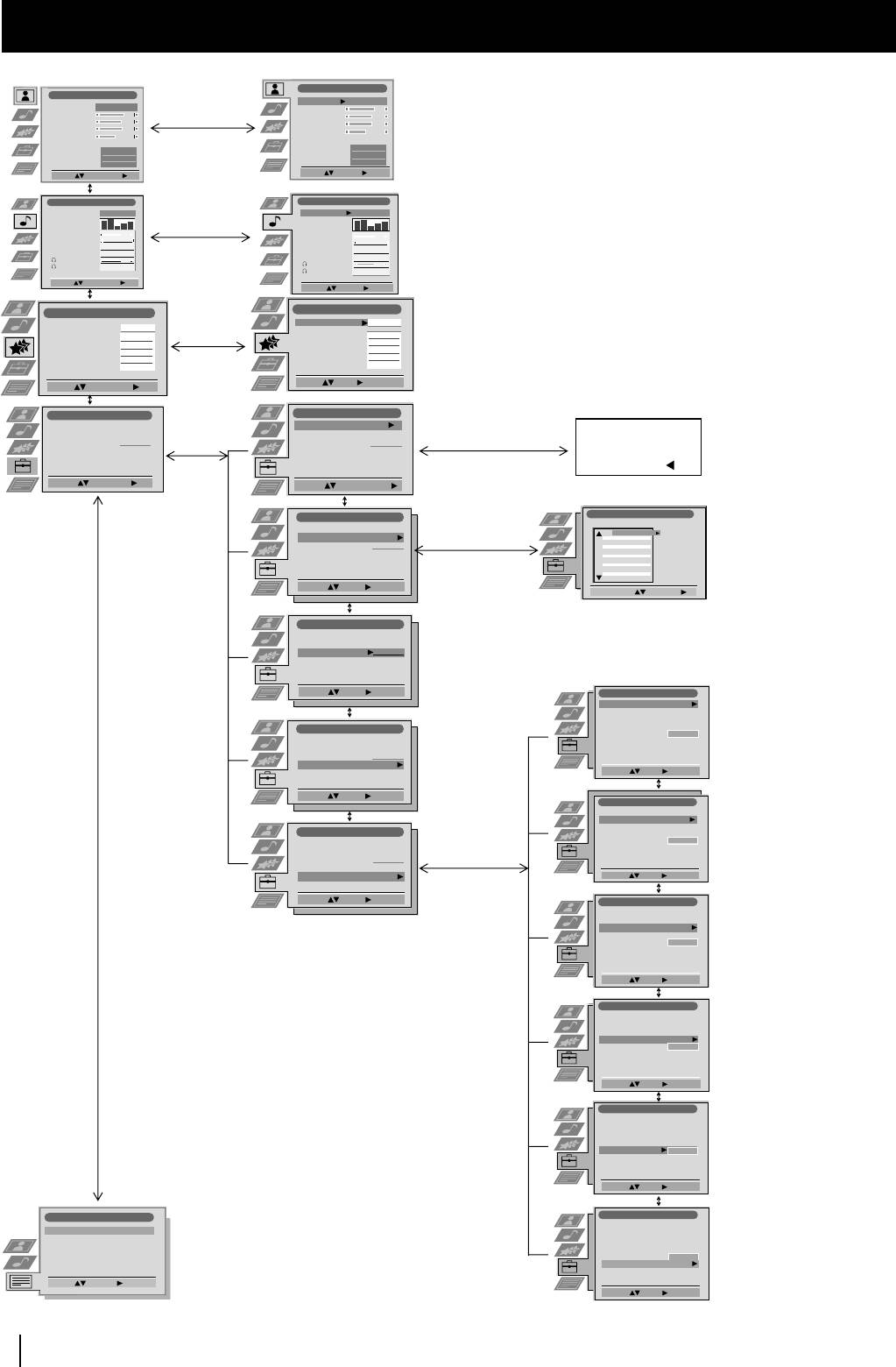
On Screen display Menus Guide
Picture Adjustment
Picture Adjustment
Picture Mode
Personal
Picture Mode
Personal
Contrast
Contrast
Brightness
Brightness
Colour
Colour
Refer to the section
Sharpness
Sharpness
Reset
Reset
AI
AI
On
On
"Adjusting the Picture”
Noise Reduction
Off
Noise Reduction
Off
Colour Tone
Normal
Colour Tone
Normal
Select: Enter Menu:
Select: Enter:
Audio Adjustment
Audio Adjustment
Sound Effect
Personal
Sound Effect
Personal
Equaliser
Equaliser
Adjustment
Adjustment
Virtual Effect
.
0
Virtual Effect
Balance
Auto Vol. Control
Off
Balance
0
.
Refer to the section
Dual Sound
0
Mono
Auto Vol. Control
Off
Volume
Dual Sound
0
Mono
"Adjusting the Sound”
Dual Sound
0
Mono
Volume
Dual Sound
0
Mono
Select: Enter Menu:
Select: Enter:
Features
Features
Speaker
Main
Speaker
Main
Auto Format
Normal
Normal
Refer to the section
Auto Format
Format Correction
On
Format Correction
On
Sleep Timer
Off
Sleep Timer
Off
"Using the features
Parental Lock
Off
Parental Lock
Off
AV3 Output
TV
menu”
AV3 Output
TV
Select: Enter Menu:
Select: Enter:
Set Up
Set Up
Set Up
Set Up
Auto Tuning
Auto Tuning
Auto Tuning
Auto Tuning
Start
Do you want to start
Refer to the section
Programme Sorting
Programme Sorting
Programme Sorting
Programme Sorting
Select NexTView
Select NexTView
Select NexTView
- - - - - - -
Select NexTView
- - - - - - -
automatic tuning?
"Switching on the TV
AV Preset
AV Preset
AV Preset
AV Preset
Manual Set Up
Manual Set Up
Manual Set Up
Manual Set Up
set and Automatically
Yes: OK No:
Tuning"
Select:
Select:
Select:
Enter Menu:
Enter Menu:
Enter Menu:
Select:
Start Auto Tuning
Set Up
Programme Sorting
PROG CH LABEL
Auto Tuning
1
Programme Sorting
3
2
C07
C05
C03
TV 5
PRO 7
Refer to the section
Select NexTView
- - - - - - -
4
EU-SP
C09
C08
SWF
AV Preset
5
RTL
"Switching on the TV
Manual Set Up
7
6
C11
SAT
10
9
8
C12
C13
MDR
C14
DSF
DDI
set and Automatically
11
C15
C16
RTL 2
KAB 1
Select:
Enter:
Tuning"
Select Prog: Confirm:
Set Up
Auto Tuning
Programme Sorting
Select NexTView
- - - - - - -
Refer to the
AV Preset
Manual Set Up
section
“NexTView”
Select:
Enter:
Manual Set Up
Language/Country
Manual Programme Preset
Refer to the section
Further Programme Preset
Set Up
Refer to the
RGB Set Up
Personal ID
- - - - - - -
"Switching on the TV
Auto Tuning
Demo
Programme Sorting
section
set and Automatically
Select NexTView
- - - - - - -
AV Preset
"Labelling and
Tuning"
Manual Set Up
Select: Enter:
selecting the
Select:
Enter:
screen format
Manual Set Up
of Input
Language/Country
Refer to the sections
Sources”
Manual Programme Preset
Further Programme Preset
"Manually Tuning the
Set Up
RGB Set Up
Auto Tuning
- - - - - - -
Personal ID
TV", "Labelling a
Programme Sorting
Demo
Select NexTView
- - - - - - -
channel" and "Skipping
AV Preset
programme positions"
Manual Set Up
Select: Enter:
Select:
Enter:
Manual Set Up
Language/Country
Manual Programme Preset
Refer to the section
Further Programme Preset
RGB Set Up
"Using the Further
Personal ID
- - - - - - -
Demo
Programme Preset
function"
Select: Enter:
Manual Set Up
Language/Country
Manual Programme Preset
Further Programme Preset
Refer to the section
RGB Set Up
Personal ID
- - - - - - -
"Adjusting the H centre
Demo
picture for an RGB
source"
Select: Enter:
Manual Set Up
Language/Country
Manual Programme Preset
Further Programme Preset
RGB Set Up
Refer to the section
Personal ID
- - - - - - -
Demo
"Inputting your
personal ID"
Select: Enter:
Teletext
Manual Set Up
Language/Country
Top / Bottom / Full
Manual Programme Preset
Refer to the section
Text Clear
Further Programme Preset
Reveal
Refer to the
RGB Set Up
"Using the Demo
Time Page
Personal ID
- - - - - - -
section "Teletext"
Demo Start
Page Overview
Mode"
Select: Enter:
Select: Enter:
12
Menu System
01GBKF50/42SX200K.fm Page 13 Tuesday, January 7, 2003 12:35 PM
Menu System
Adjusting the Picture
Although the picture is adjusted at the factory, you can modify it to suit your own taste.
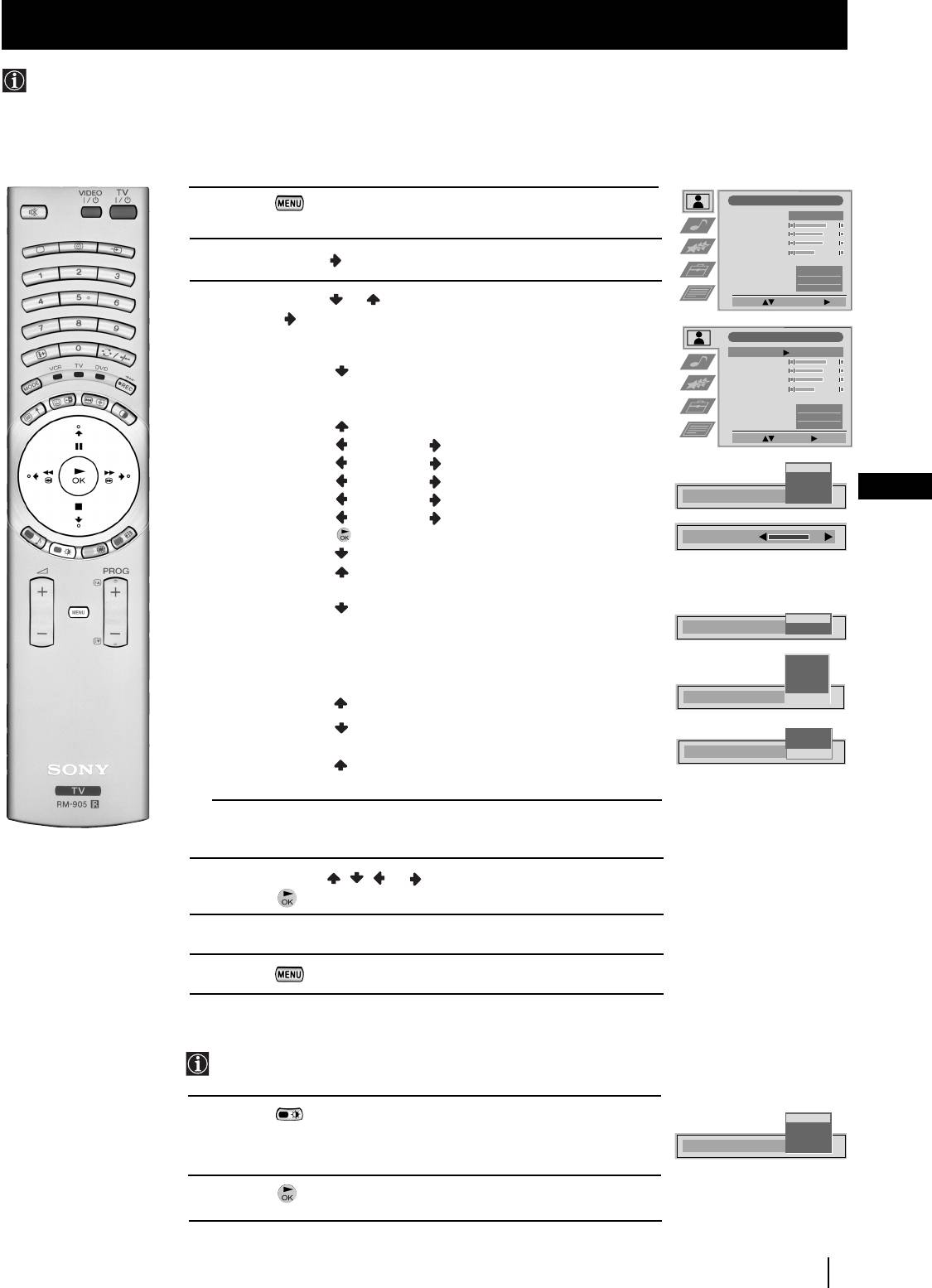
1 Press the button on the remote control to display the menu
Picture Adjustment
Picture Mode
Personal
on the screen.
Contrast
Brightness
Colour
Sharpness
2 Push the joystick to enter the Picture Adjustment menu.
Reset
AI
On
Noise Reduction
Off
Colour Tone
Normal
3 Push the joystick or to select the item you wish to change,
Select: Enter Menu:
then push to enter.
See the table below for the effect of each menu item:
Picture Adjustment
Picture Mode
Personal
Contrast
Picture Mode Live (for live broadcast programmes)
Brightness
Colour
Personal (for individual settings)
Sharpness
Reset
Movie (for films)
AI
On
Noise Reduction
Off
Game (for computer games)
Colour Tone
Normal
Select: Enter:
Contrast Less More
Brightness* Darker Brighter
Live
Colour* Less More
Personal
Movie
GB
Sharpness* Softer Sharper
Picture Mode
Game
Hue** Reddish Greenish
Reset Resets picture to the factory preset levels.
Contrast
AI (Artificial Off: Normal
Intelligence) On: Automatic optimization of contrast level
according to the TV signal
Noise High: High noise reduction.
On
Reduction Mid: Medium noise reduction.
AI
Off
Low: Low noise reduction.
Auto: Optimum noise reduction automatically
High
selected. (This option is not available
Mid
Low
when viewing an RGB source).
Auto
Noise Reduction
Off
Off: No noise reduction.
Colour Tone Warm: Gives a warm tint to the picture.
Warm
---Normal: Normal.
Normal
Colour Tone
Cool
Cool: Gives a cool tint to the picture.
* Can only be altered if Personal Picture Mode is selected.
** Only avalaible for NTSC colour signal (e.g: USA video tapes).
4 Push the joystick , , or to alter the selected item, then
press the button to store the new adjustment.
5 Repeat steps 3 and 4 to alter the other items.
6 Press the button to exit and return to the normal TV screen.
Changing the Picture Mode Quickly
You can quickly change the Picture Mode without entering the
Picture Control menu screen.
1 Press the button on the remote control repeatedly to directly
Live
access and select your desired picture mode (Live, Personal, Movie,
Personal
Movie
or Game).
Picture Mode
Game
2 Press the button to remove the display from the screen.
Menu System
13
Menu System
Adjusting the Sound
Although the sound is adjusted at the factory, you can modify it to suit your own taste.
Picture Adjustment
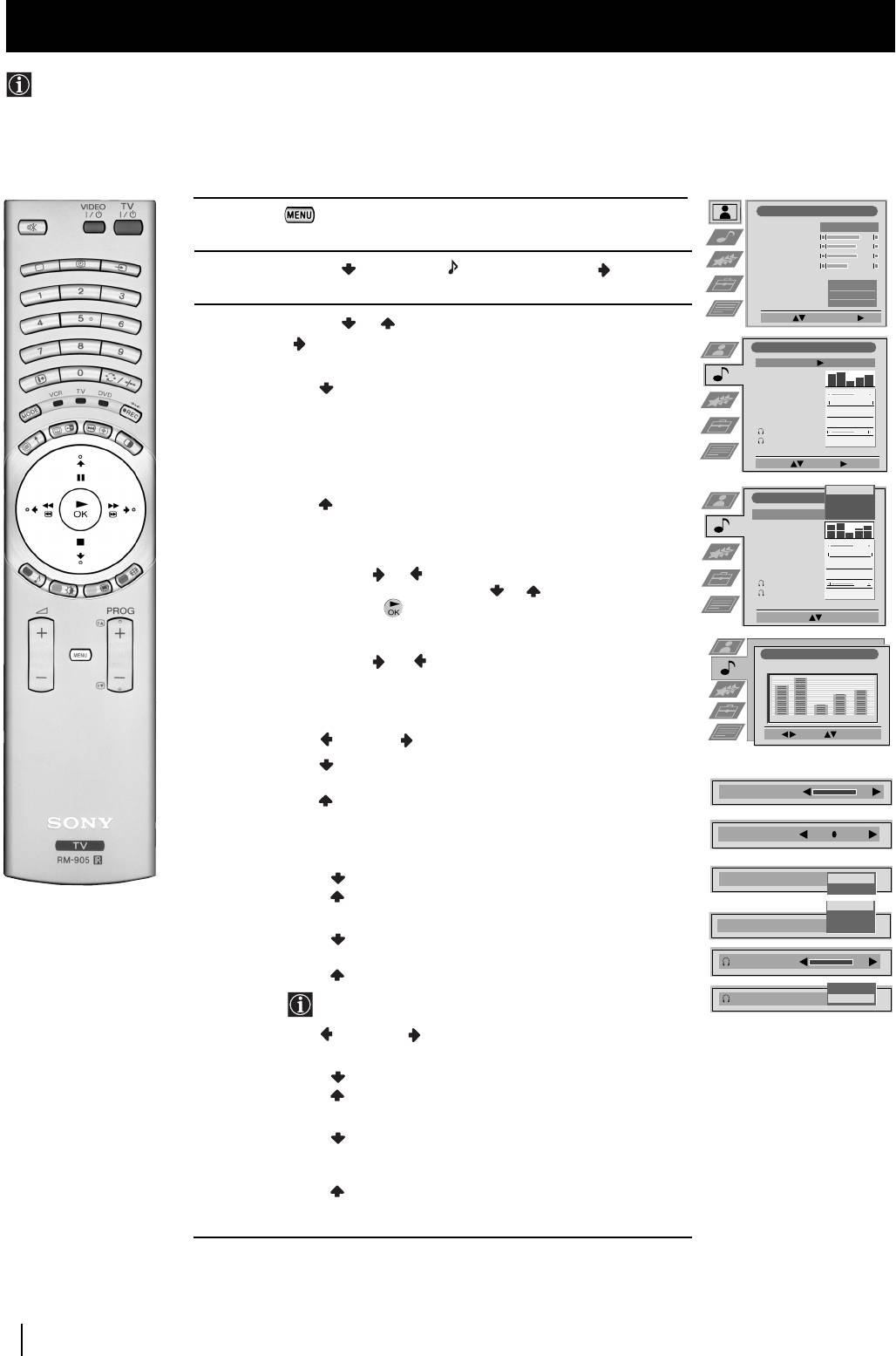
1 Press the button on the remote control to display the menu
Picture Mode
Personal
on the screen.
Contrast
Brightness
Colour
Sharpness
2 Push the joystick to select the symbol, then push to
Reset
AI
enter to the Audio Adjustment menu.
On
Noise Reduction
Off
Colour Tone
Normal
Select: Enter Menu:
3 Push the joystick or to select the item you wish to change,
then push to enter.
Audio Adjustment
See the table below for the effect of each menu item:
Sound Effect
Personal
Equaliser
Adjustment
Sound Effect Personal: No special acoustic effects.
Virtual Effect
Balance
0
.
Dolby
* V: Dolby Virtual, simulates the sound
Auto Vol. Control
Off
Dual Sound
0
Mono
effect of “Dolby Surround Pro Logic”.
Volume
Dual Sound
0
Mono
Dynamic: “BBE High Definition Sound system”**
intensifies clarity and presence of sound for better
Select: Enter:
intelligibility and musical realism.
Personal
Audio Adjustment
Dolby V
Natural: Enhances clarity, detail and presence of
Dynamic
Sound Effect
Personal
Natural
sound by using “BBE High Definition Sound
Equaliser
Adjustment
system”**.
Virtual Effect
Balance
.
0
Auto Vol. Control
Off
Equaliser Push to or to select the frequency band you
Dual Sound
0
Mono
Volume
Adjustment want to alter and push to or to adjust. Finally,
Dual Sound
0
Mono
press the button to store the new adjustment.
Select Mode: Confirm: OK
(Only available if “Sound Effect” is set to “Personal”)
Equaliser Adjustment
Virtual Effect Push to or to change the level of surround sound
(Personal)
effect when listening to a Dolby surround sound
+
broadcast. (Only available when “Sound Effect” is set to
0
“Dolby V”).
–
120 500 1,5K 5 K 10 K
Sel: Adjust: Confirm:OK
Balance Left Right
Auto Vol. Off: volume level changes according to the
Control broadcast signal
On: volume level of the channels will stay the
same independent of the broadcast signal
(e.g. in case of advertisement)
Dual Sound • For a stereo broadcast:
Mono
Stereo
• For a bilingual broadcast:
Mono (for mono channel if available)
A (for channel 1)
B (for channel 2)
Headphones:
When listening to the TV through the headphones, special sound
effects are disabled.
l
Volume Less More
l
Dual Sound • For a stereo broadcast:
Mono
Stereo
• For a bilingual broadcast:
Mono (for mono channel if available)
A (for channel 1)
B (for channel 2)
PAP (only when PAP is switched on)
continued...
14
Menu System
01GBKF50/42SX200K.fm Page 14 Tuesday, January 7, 2003 12:35 PM
Virtual Effect
Balance
.
Auto Vol. Control
Off
On
Mono
A
Dual Sound
B
Volume
B
Dual Sound
A
01GBKF50/42SX200K.fm Page 15 Tuesday, January 7, 2003 12:35 PM
Menu System
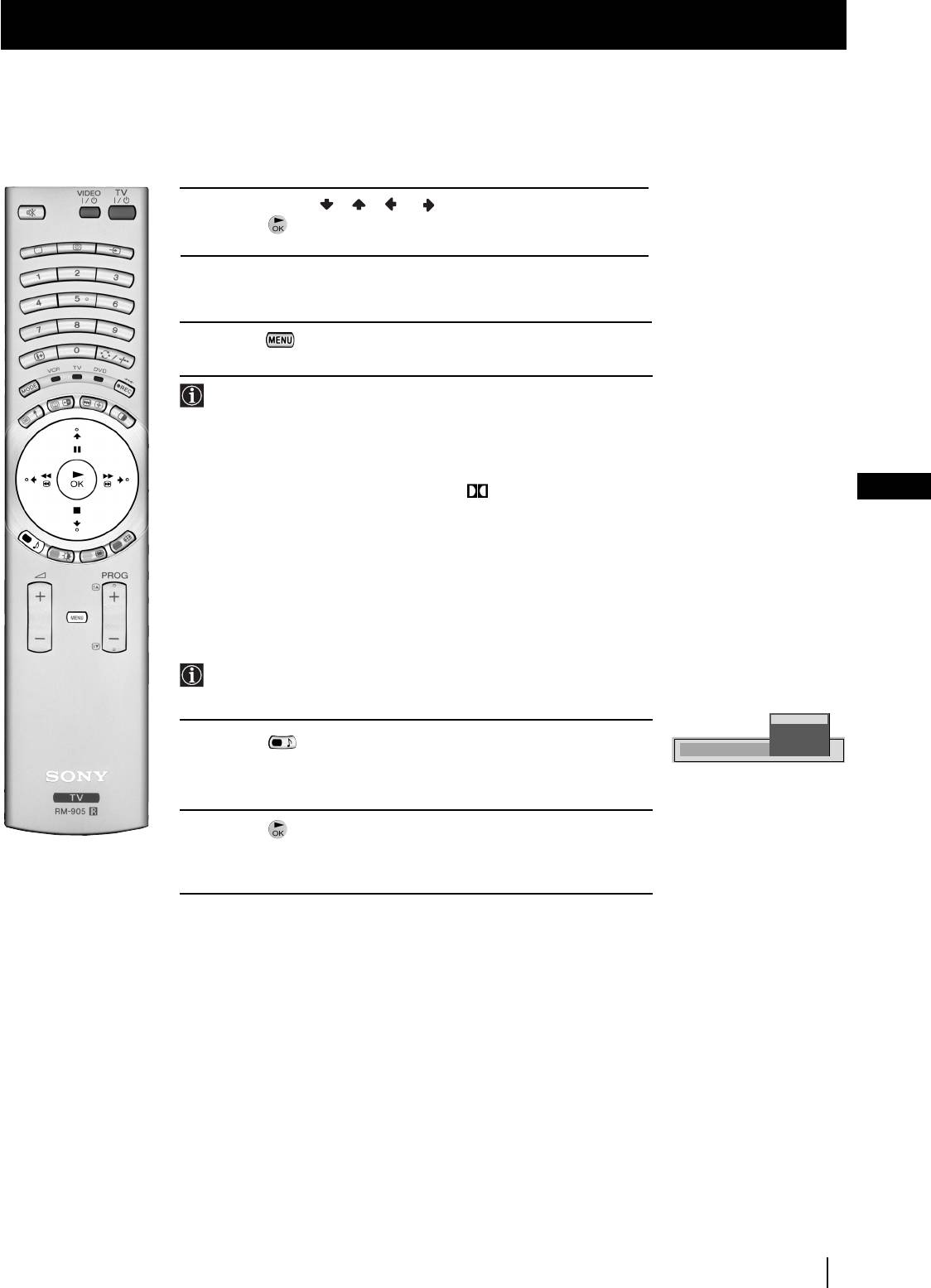
4 Push the joystick//orto alter the selected item, then
press the button to store the new adjustment.
5 Repeat steps 3 and 4 to alter the other items.
6 Press the button to exit and return to the normal TV screen.
*This TV has been designed to create the “Dolby Surround” sound
effect by simulating the sound of four speakers with two speakers.
This sound effect will only operate when the broadcast audio
signal is Dolby Surround encoded.
* Manufactured under license from Dolby Laboratories. “Dolby”,
“Pro Logic” and the double-D symbol are trademarks of Dolby
GB
Laboratories.
** The “BBE High Definition Sound system” is manufactured by
Sony Corporation under license from BBE Sound, Inc. It is
covered by U.S. Patent No. 4,638,258 and No. 4,482,866. The
word “BBE” and BBE Symbol are trademarks of BBE Sound, Inc.
Changing Sound Mode Quickly
You can quickly change Sound mode without entering the Sound
Control menu screen.
Personal
Dolby V
Dynamic
1 Press the button on the remote control repeatedly to directly
Sound Effect
Natural
access and select your desired sound mode (Personal, Dolby V,
Dynamic or Natural).
2 Press the button to remove the display from the screen.
Menu System
15
01GBKF50/42SX200K.fm Page 16 Tuesday, January 7, 2003 12:35 PM
Menu System
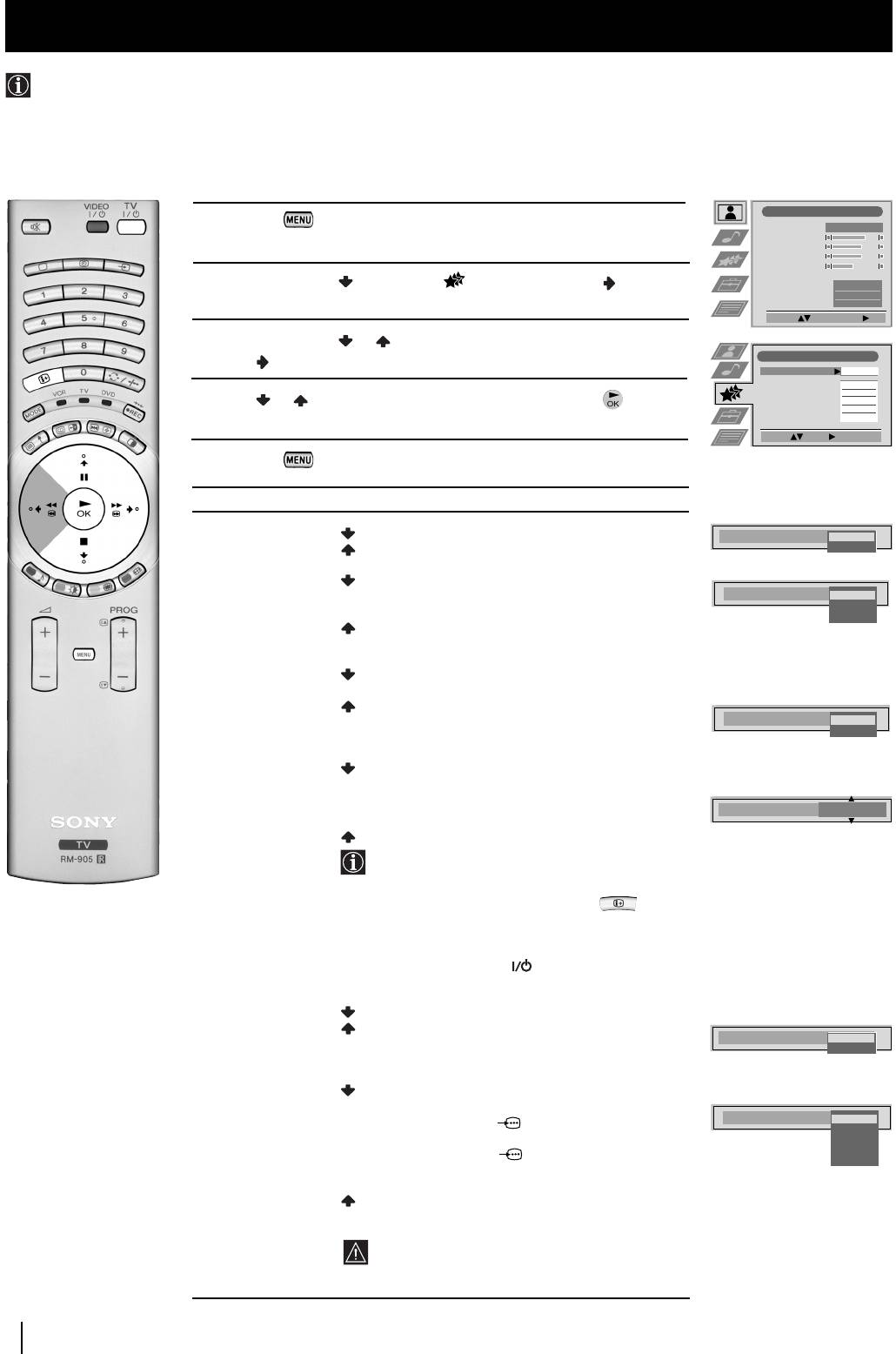
Using the Features Menu
Using the Features menu you can:
a) Select if you want to listen to the sound from the TV set directly or through an external amplifier.
b) Automatically adjust the size of picture.
c) Select a time period after which the TV set switches itself into standby mode.
d)
Lock the buttons on the TVset. In this way, the TV set only works by using the remote control buttons.
e) Select the source to be output from the Scart connector :3/q3 (SMARTLINK). In this way you can record from this scart
connector while watching another source. If your VCR supports Smartlink, this procedure is not necessary.
Picture Adjustment
1 Press the button on the remote control to display the menu
Picture Mode
Personal
on the screen.
Contrast
Brightness
Colour
Sharpness
Reset
2 Push the joystick to select the symbol, then push to
AI
On
Noise Reduction
Off
enter the Features menu.
Colour Tone
Normal
Select: Enter Menu:
3 Push the joystick or to select the desired menu item, then
Features
push to enter (see the table below for the effect of each menu item).
Speaker
Main
Auto Format
Normal
Format Correction
On
4 Push or to select the desired setting and press the button
Sleep Timer
Off
Parental Lock
Off
AV3 Output
TV
to store.
Select: Enter:
5 Press the button to exit and return to the normal TV screen.
Features Effect / Operation
Speaker Main (sound from the TV set)
Speaker
Main
Centre In (sound from external amplifier)
Centre In
Auto Format Off: Size of picture is not automatically adjusted.
(only for aerial Normal: Size of picture is automatically adjusted
Auto Format
Off
Normal
signal) according to the broadcaster information.
Full
Full: The TV set automatically adjusts the picture
size to eliminate any dark areas on the TV picture.
Format Correction
Off: 4:3/14:9 is selected.
(only if Auto Format
is set to “Normal”
On: Smart mode is selected automatically for
or “Full”)
4:3/14:9 broadcast.
Format Correction
Off
On
Sleep Timer
Off
10 min.
20 min.
.
Sleep Timer
10 min
.
.
90 min.
• One minute before the TV set switches into
standby mode, the time remaining is displayed
on the screen automatically.
•When watching the TV, press the button
on the remote control to display the time
remaining.
•To return to normal operation from standby
mode, press the TV button on the remote
control.
Parental Lock Off (Normal mode)
On (The TV set can only be switched on using the
Parental Lock
Off
remote control, the buttons on the TV do not
On
work)
AV3 Output TV (audio/video signal from the aerial)
AV1
(audio/video signal from the Scart
AV3 Output
connector :1/ 1).
TV
AV1
AV2 (audio/video signal from the Scart
AV2
AV3
connector
:
2/
2).
AV4
AV3 (audio/video signal from the Scart
connector
:
3/q3 (SMARTLINK)).
AV4 (audio/video signal from the connector … 4
placed in the front of the TV set).
If you have connected a decoder, please
remember to change the AV3 Output back to
"TV" for correct unscrambling.
16
Menu System
01GBKF50/42SX200K.fm Page 17 Tuesday, January 7, 2003 12:35 PM
Menu System
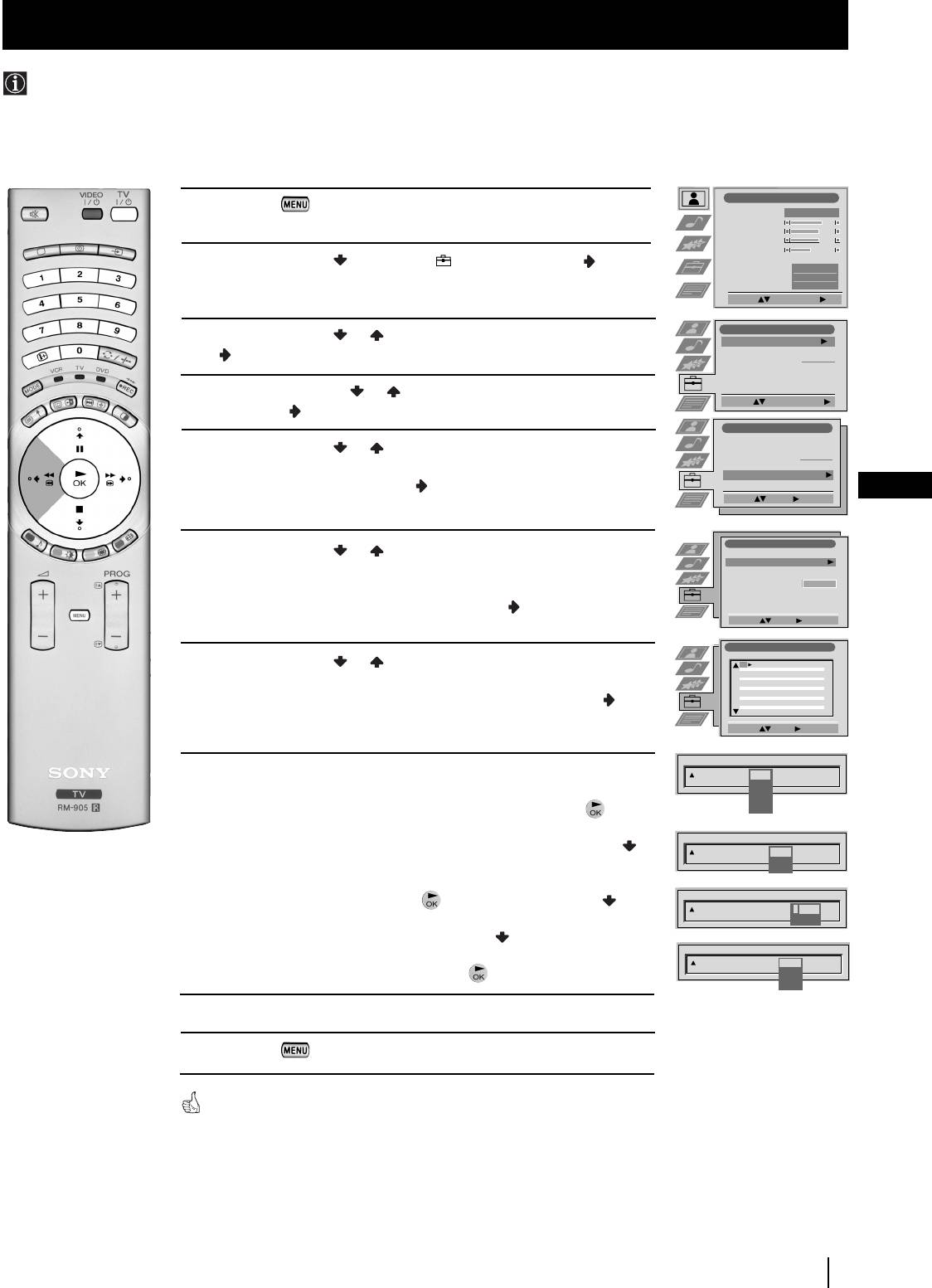
Manually Tuning the TV
Use this function to preset channels (TV Broadcast) or a video input source one by one to the programme order of your choice.
Picture Adjustment
1 Press the button on the remote control to display the
Picture Mode
Personal
menu on the screen.
Contrast
Brightness
Colour
Sharpness
2 Push the joystick to select the symbol, then push to
Reset
AI
On
enter the Set Up menu.
Noise Reduction
Off
Colour Tone
Normal
Select: Enter Menu:
Set Up
3 Push the joystick or to select Manual Set Up, then push
Auto Tuning
Start
Programme Sorting
to enter.
Select NexTView
- - - - - - -
AV Preset
Manual Set Up
4 Push the joystick to or to select Manual Programme Preset,
Select:
Start Auto Tuning
then push to enter.
Set Up
Auto Tuning
5 Push the joystick or to select which programme number
Programme Sorting
Select NexTView
- - - - - - -
you want to preset a channel on (for VCR select programme
AV Preset
Manual Set Up
number "0"), then push twice . The column SYS is highlighted.
GB
Select:
Enter:
Manual Set Up
6 Push the joystick or to select the system for TV Broadcast
Language/Country
Manual Programme Preset
and VCR channel (B/G for western european countries, L for
Further Programme Preset
RGB Set Up
Personal ID
- - - - - - -
France, I for Great Britain or D/K for eastern european countries)
Demo
or a external input source (EXT), then push . The column CH
Select: Enter:
is highlighted.
Manual Programme Preset
PROG CHSYSSKIP LABEL
7 Push the joystick or to select the channel tuning, "C" for
1
Off
B/G
C09
ARD
2
Off
B/G
C10
BBC
3
Off
terrestrial channels (for TV Broadcast or VCR channel), "S" for
4
Off
5
Off
6
Off
7
Off
cable channels or "F" for direct frequency input then push .
8
Off
9
Off
10
Off
11
Off
Select: Enter:
PROG CHSYS
SKIP LABEL
8 a) If you know the channel number of the TV Broadcast, the VCR
1
Off
B/G
L
test signal channel or the frequency, press the number buttons
I
D/K
to enter the channel number directly. Then press the button
EXT
to store.
PROG SYS
SKIP LABEL
CH
b) If you do not know the channel number, push the joystick
1 B/G
Off
C
- -
S
to select SEARCH and the TV set starts to search automatically
F
for the next available TV Broadcast channel or the channel of the
PROG SYS
SKIP LABEL
CH
VCR signal. Then press the button to store or push to
1 B/G
Off
C
03
continue searching for the desired channel.
SEARCH
c) For external input sources (EXT), push to select the input
PROG CHSYS
SKIP LABEL
source to which you have connected your equipment (AV1,
3 EXT
Off
AV1
AV2
AV2, AV3 or AV4). Then press the button to store.
AV3
AV4
9 Repeat steps 4 to 8 a), b) or c) if you wish to store more channels.
10 Press the button to exit and return to the normal TV screen.
The TV set is now ready for use.
Menu System
17
01GBKF50/42SX200K.fm Page 18 Tuesday, January 7, 2003 12:35 PM
Menu System
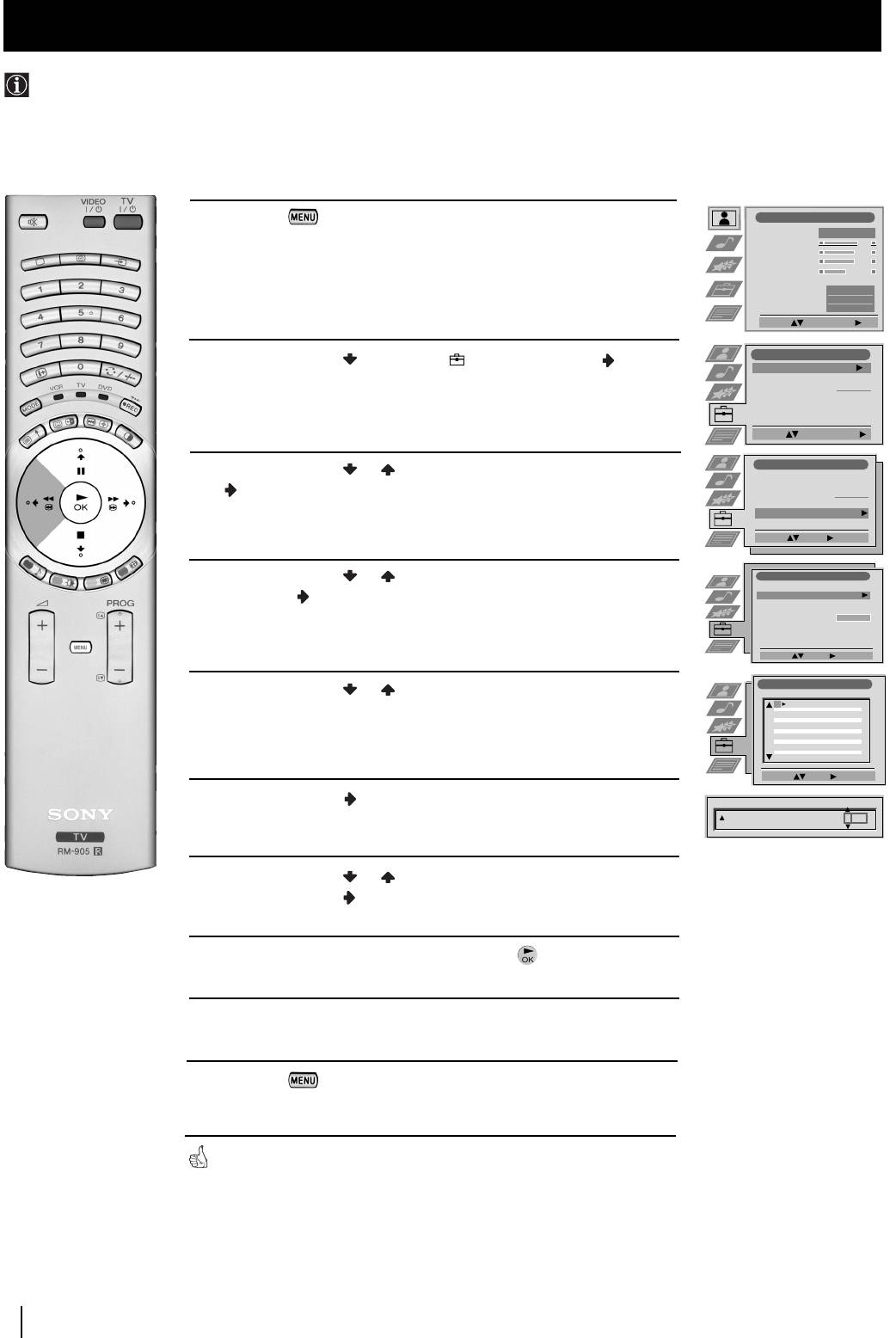
Labelling a channel
Names for channels (TV Broadcasts) are usually taken automatically from Teletext if available. You can however name a channel or
an input video source using up to five characters (letters or numbers). Using this function, you can easily identify which channel
(TV Broadcasts) or video source you are watching.
1 Press the button on the remote control to display the
Picture Adjustment
Picture Mode
Personal
menu on the screen.
Contrast
Brightness
Colour
Sharpness
Reset
AI
On
Noise Reduction
Off
Colour Tone
Normal
Select: Enter Menu:
Set Up
2 Push the joystick to select the symbol, then push to
Auto Tuning
Start
enter the Set Up menu.
Programme Sorting
Select NexTView
- - - - - - -
AV Preset
Manual Set Up
Select:
Start Auto Tuning
Set Up
3 Push the joystick or to select Manual Set Up, then push
Auto Tuning
Programme Sorting
to enter.
Select NexTView
- - - - - - -
AV Preset
Manual Set Up
Select:
Enter:
4 Push the joystick or to select Manual Programme Preset,
Manual Set Up
Language/Country
then push to enter.
Manual Programme Preset
Further Programme Preset
RGB Set Up
Personal ID
- - - - - - -
Demo
Select: Enter:
Manual Programme Preset
5 Push the joystick or to select the programme number with
PROG CHSYSSKIP LABEL
1
Off
B/G
C09
ARD
the channel you wish to name.
2
Off
B/G
C10
BBC
3
Off
4
Off
5
Off
6
Off
7
Off
8
Off
9
Off
10
Off
11
Off
Select: Enter:
6 Push the joystick repeatedly until the first element of the
PROG SYS
SKIP LABEL
CH
LABEL column is highlighted.
1 B/G
Off
C 03
A
7 Push the joystick or to select a letter, number, "+" or a
blank, then push to confirm this character. Select the other
four characters in the same way.
8 After selecting all the characters, press the button.
9 Repeat steps 5 to 8 if you wish to label other channels.
10 Press the button to exit and return to the normal TV
screen.
When you select a named channel, the name will appear for a few seconds.
18 Menu System
01GBKF50/42SX200K.fm Page 19 Tuesday, January 7, 2003 12:35 PM
Menu System
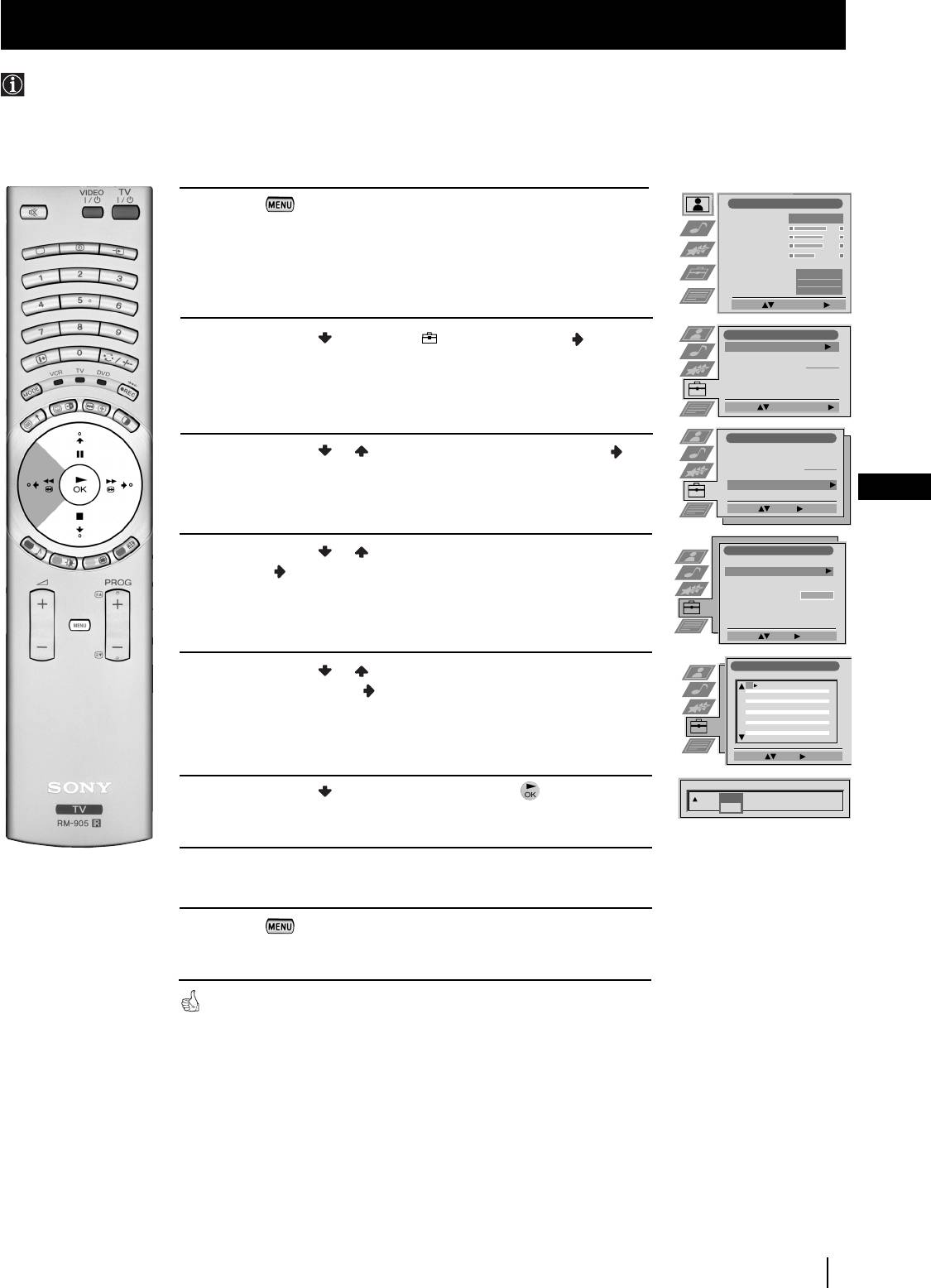
Skipping Programme positions
You can programme this TV set to skip any unused programme numbers when they are selected with the PROG +/- buttons.
To cancel this function afterwards, proceed in the same way as described below but by selecting Off instead of On in step 6.
1 Press the button on the remote control to display the menu
Picture Adjustment
Picture Mode
Personal
on the screen.
Contrast
Brightness
Colour
Sharpness
Reset
AI
On
Noise Reduction
Off
Colour Tone
Normal
Select: Enter Menu:
Set Up
2 Push the joystick to select the symbol, then push to
Auto Tuning
Start
enter the Set Up menu.
Programme Sorting
Select NexTView
- - - - - - -
AV Preset
Manual Set Up
Select:
Start Auto Tuning
Set Up
3 Push the joystick or to select Manual Set Up, then push to
Auto Tuning
Programme Sorting
Select NexTView
- - - - - - -
enter.
AV Preset
Manual Set Up
GB
Select:
Enter:
4 Push the joystick or to select Manual Programme Preset,
Manual Set Up
Language/Country
then push to enter.
Manual Programme Preset
Further Programme Preset
RGB Set Up
Personal ID
- - - - - - -
Demo
Select: Enter:
Manual Programme Preset
5 Push the joystick or to select the programme position you
PROG CHSYSSKIP LABEL
1
Off
B/G
C09
ARD
want to skip, then push to enter the SKIP column.
2
Off
B/G
C10
BBC
3
Off
4
Off
5
Off
6
Off
7
Off
8
Off
9
Off
10
Off
11
Off
Select: Enter:
PROG SYSSKIP LABEL
CH
6 Push the joystick to select On, then press the button to
1 B/G
Off
C 09
ARD
On
store.
7 Repeat steps 5 and 6 to skip other unused programme positions.
8 Press the button to exit and return to the normal TV screen.
When changing channels (TV Broadcasts) with the PROG +/- buttons,
the skipped programme positions do not appear. You can, however, still
select them using the number buttons.
Menu System
19
01GBKF50/42SX200K.fm Page 20 Tuesday, January 7, 2003 12:35 PM
Menu System
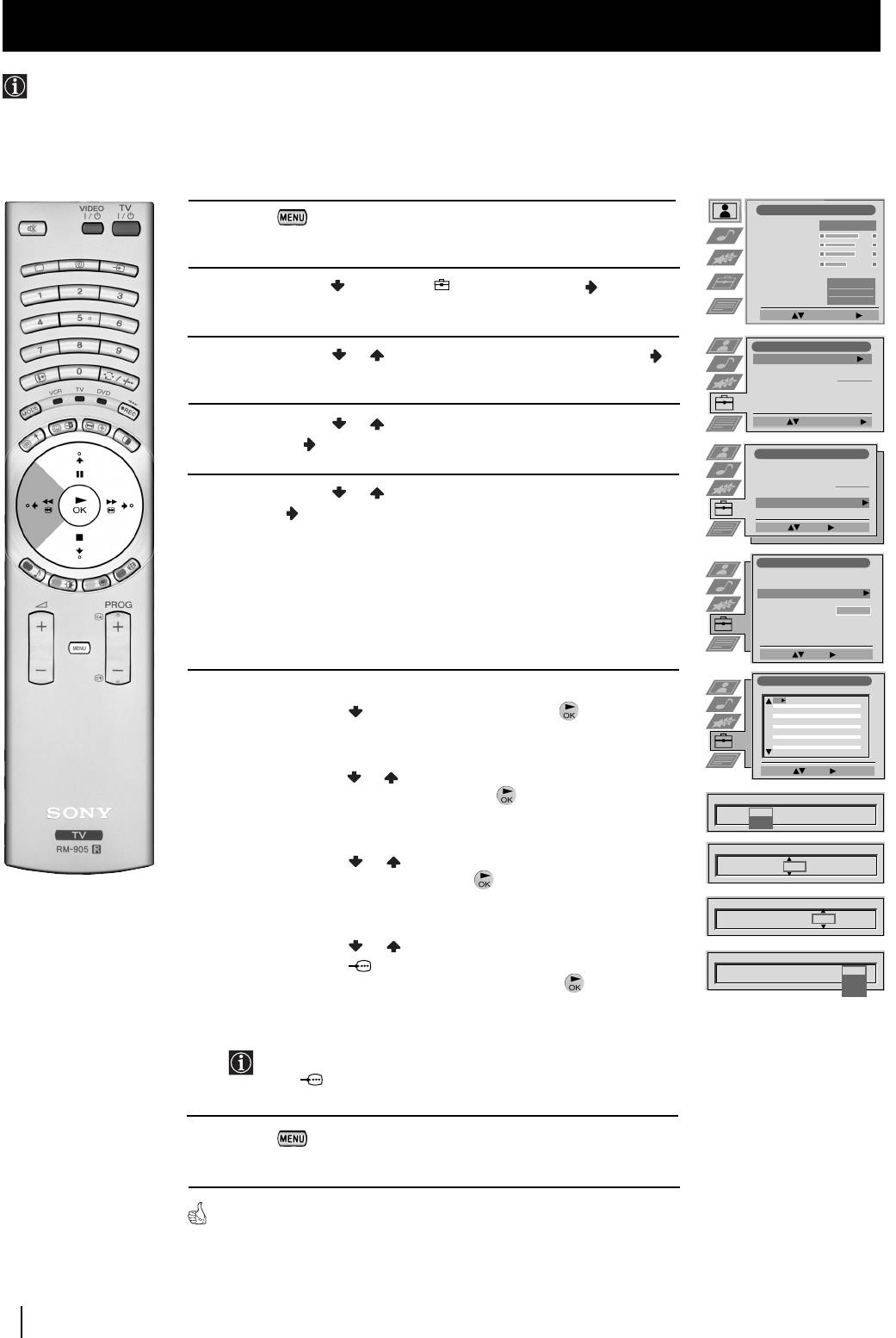
Using the "Further Programme Preset" function
With this feature you can:
a) Individually attenuate the strength of a channel signal in case there is a strong local aerial signal (characteristically a striped
picture).
b) Individually adjust the volume level of each channel.
c) Normally the automatic fine tuning (AFT) will operating, however you can manually fine-tune the TV to obtain better
reception if the picture is distorted.
d) Preset the AV output for the programme positions of channels with scrambled signals (eg from a pay TV decoder). In this way
a connected VCR records the unscrambled signal.
Picture Adjustment
1 Press the button on the remote control to display the menu
Picture Mode
Personal
on the screen.
Contrast
Brightness
Colour
Sharpness
Reset
AI
2 Push the joystick to select the symbol, then push to enter the
On
Noise Reduction
Off
Colour Tone
Normal
Set Up menu.
Select: Enter Menu:
Set Up
3 Push the joystick or to select Manual Set Up then push to
Auto Tuning
Start
Programme Sorting
to enter.
Select NexTView
- - - - - - -
AV Preset
Manual Set Up
4 Push the joystick or to select Further Programme Preset,
Select:
Start Auto Tuning
then push to to enter.
Set Up
Auto Tuning
Programme Sorting
Select NexTView
- - - - - - -
5 Push the joystick or to select the relevant programme number,
AV Preset
Manual Set Up
then push repeatedly to select:
Select:
Enter:
a) ATT (RF attenuator)
Manual Set Up
b) VOL (Volume Offset)
Language/Country
Manual Programme Preset
c) AFT (Automatic Fine Tuning) or
Further Programme Preset
RGB Set Up
Personal ID
- - - - - - -
d) DECODER
Demo
Select: Enter:
Further Programme Preset
PROG AFTVOLATT DECODER
6 a) ATT
1
Off
0
On
Off
2
Off
0
On
Off
Push the joystick to select On, then press the button.
3
Off
0
On
Off
4
5
6
Repeat steps 5 and 6 a) to attenuate other channels.
7
8
9
10
11
b)VOL
Select: Enter:
Push the joystick or to adjust the volume level of the channel
over a range of -7 to +7, then press the button. Repeat steps 5
PROG AFTVOLATT DECODER
and 6b) to adjust the volume level of the other channels.
1 Off
On
c) AFT
PROG AFTVOLATT DECODER
Push the joystick or to fine tune the channel frequency over
1On
- 5
a range of -15 to +15, then press the button. Repeat steps 5 and
6c) if you wish to fine tune other channels.
PROG AFTVOLATT DECODER
1 On -5
2
d)DECODER
Push the joystick or to select AV1 (for a decoder connected
PROG AFTVOLATT DECODER
to the Scart :1/ 1) or AV3 (for a decoder connected to the
1 On -5 2
Off
AV1
Scart :3/q 3 (SMARTLINK)), then press the button.
AV3
Repeat steps 5 and 6d) to select the AV1 or AV3 output for other
programme positions.
The picture from the decoder connected to the Scart connector
:1/ 1 or :3/q 3 (SMARTLINK) on the back of the
set will appear on the selected programme number.
7 Press the button to exit and return to the normal TV screen.
The TV set is now ready for use.
20
Menu System
01GBKF50/42SX200K.fm Page 21 Tuesday, January 7, 2003 12:37 PM
Menu System
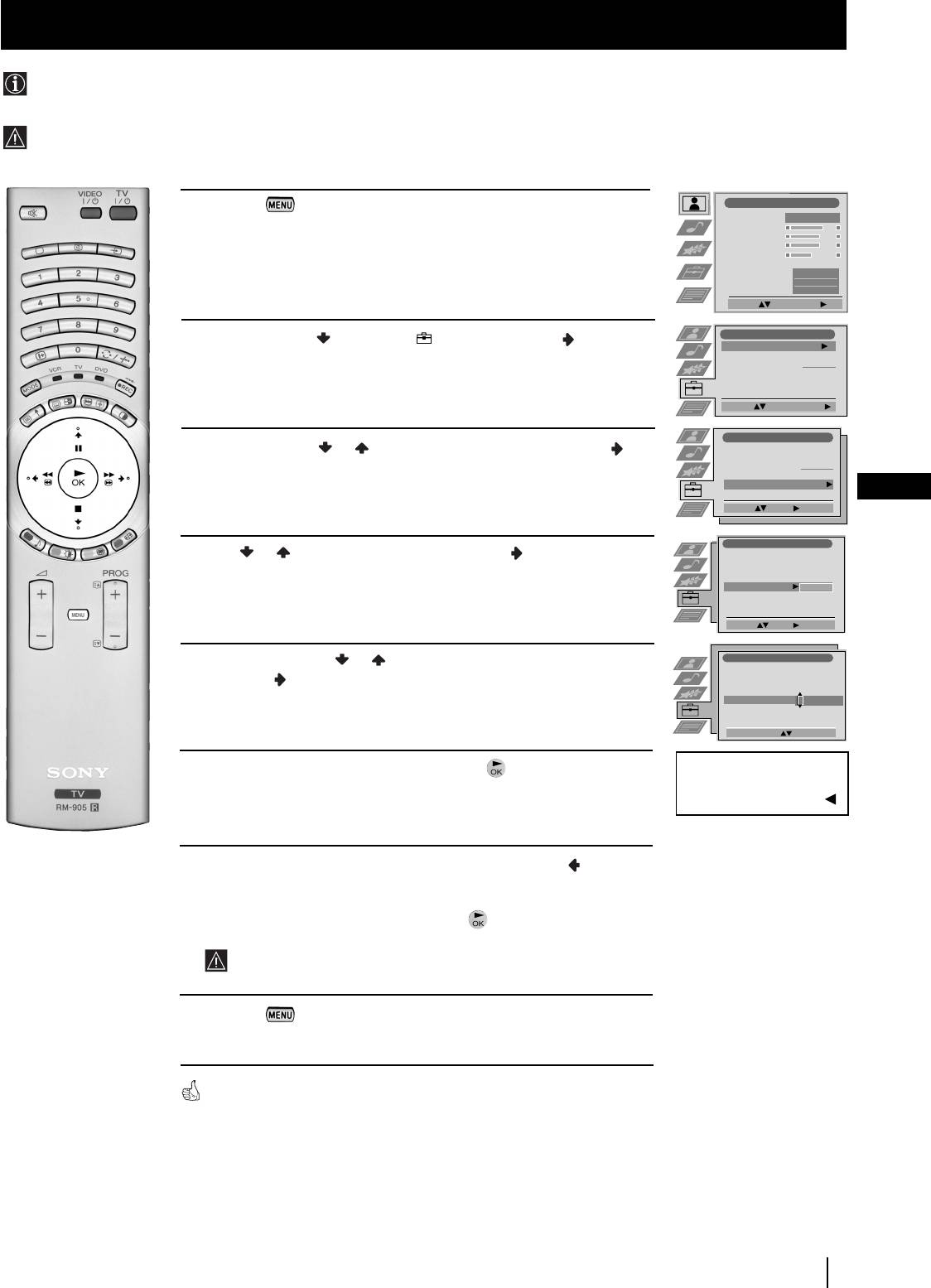
Inputting Your Personal ID
You can programme this TV set with a personal code, using up to eleven characters (letters and numbers). By using
this function it will be possible to identify your TV set if it is ever stolen.
This code can only be input once!
Make sure you make a note of it in this instruction manual.
1
Press the button on the remote control to display the menu
Picture Adjustment
Picture Mode
Personal
on the screen.
Contrast
Brightness
Colour
Sharpness
Reset
AI
On
Noise Reduction
Off
Colour Tone
Normal
Select: Enter Menu:
Set Up
2
Push the joystick to select the symbol, then push to enter the
Auto Tuning
Start
Set Up
menu.
Programme Sorting
Select NexTView
- - - - - - -
AV Preset
Manual Set Up
Select:
Start Auto Tuning
Set Up
3
Push the joystick or to select
Manual Set Up
, then push to
Auto Tuning
Programme Sorting
enter.
Select NexTView
- - - - - - -
AV Preset
Manual Set Up
GB
Select:
Enter:
Manual Set Up
4
Push or to select
Personal ID
, then push to enter.
Language/Country
Manual Programme Preset
Further Programme Preset
RGB Set Up
Personal ID
- - - - - - -
Demo
Select: Enter:
5
Push the joystick to or to select a letter, number, + or a blank;
Manual Set Up
Language/Country
then push to confirm this character. Select the other ten
Manual Programme Preset
Further Programme Preset
RGB Set Up
characters in the same way.
Personal ID
A----------
Demo
Select A-Z, 0-9: Store: OK
6
After selecting all the characters, press the button. A new menu
Are you sure?
automatically appears on the screen asking you to be sure that you
Save: OK Cancel:
want to save this ID.
7
a) If you do not wish to store this ID, push the joystick and
repeat steps 4 to 6 to enter a new ID.
b) If you wish to store this ID, press the button.
Remember that this code can only be input once.
8
Press the button to return to the normal TV screen.
When you enter the Manual Set Up menu, in the "Personal ID" option the
code you entered above will be displayed. You will not be able to select and
change this option.
Menu System
21
