
Sony Bravia KDL-32D3010: Set-up menu
Set-up menu: Sony Bravia KDL-32D3010
Table of contents
- Introduction Notice for Digital TV function Disposal of the TV set
- Start-up Guide 1: Checking the 2: Connecting an aerial/ accessories cable/VCR
- 3: Preventing the TV 5: Performing the initial from toppling over setup 4: Bundling the cables Selecting the language and country/ region
- To tune the TV for digital cable connection Auto-tuning the TV Detaching the Table- Top Stand from the TV
- Safety information
- Prohibited Usage Precautions Broken pieces: When not in use For children If the following problems occur...
- Overview of the remote
- Overview of the TV buttons and indicators
- Watching TV Additional operations
- To change the screen format manually to suit the broadcast Using the Tools menu
- Checking the Digital Electronic Programme Guide (EPG) * To Do this
- To Do this
- Using the Digital Favourite list *
- Connecting optional equipment
- Sockets Input symbol on Description screen
- Viewing pictures from the connected equipment
- Using HDMI control
- Navigating through menus
- Picture menu
- Colour Temperature
- Sound menu
- Dual Sound
- Screen menu
- Set-up menu
- AV Set-up
- HDMI Set-up
- All Reset
- PC Settings menu
- Analogue Set-up menu
- Manual Programme Preset
- Skip
- Digital Set-up menu
- Digital Set-up
- Specifications
- PC Input Signal Reference Chart
- Troubleshooting
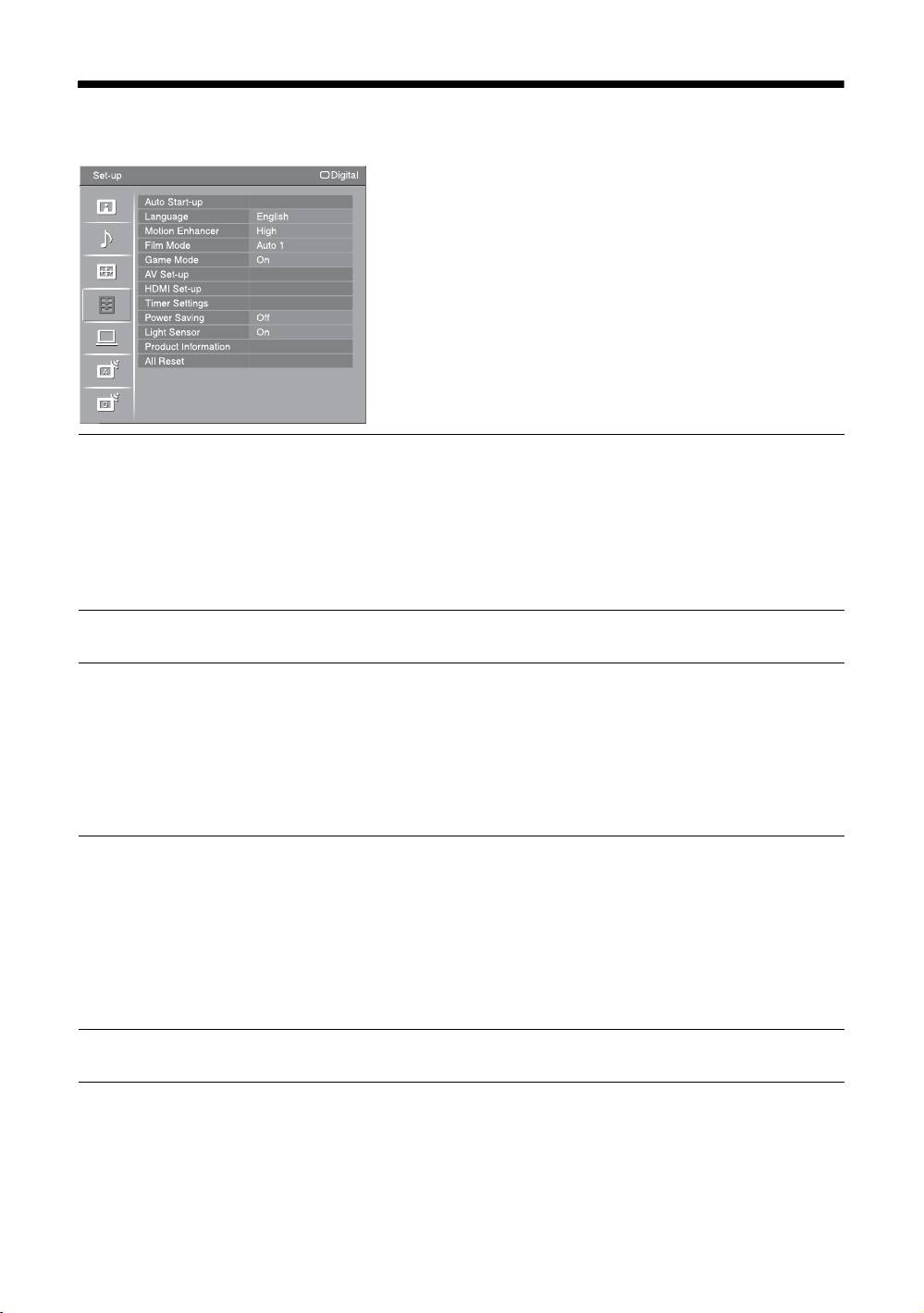
Set-up menu
You can select the options listed below on the “Set-
up” menu. To select options in “Settings”, refer to
“Navigating through menus” (page 20).
Auto Start-up
Starts the initial set-up to select the language and country/region, and tune in all
available digital and analogue channels.
Usually, you do not need to do this operation because the language and country/
region will have been selected and channels already tuned when the TV was first
installed (page 5).
However, this option allows you to repeat the process (e.g. to retune the TV after
moving house, or to search for new channels that have been launched by
broadcasters).
Language
Selects the language in which the menus are displayed.
Motion Enhancer
Provides smoother picture movement and reduces picture blur.
“High”: Provides smoother picture movement such as for film-based contents.
“Standard”: Provides smooth picture movement. Use this setting for standard use.
“Off”: Use this setting when the “High” and “Standard” settings result in noise.
~
• Depending on the video, you may not see the effect visually, even if you have changed the
setting.
• When you select Theatre Mode, “Motion Enhancer” is set to “Off” by default.
Film Mode
Provides smoother picture movement when playing DVD or VCR images taken on
film, reducing picture blur and graininess.
“Auto 1”: Provides smoother picture movement than the original film-based
content. Use this setting for standard use.
“Auto 2”: Provides the original film-based content as is.
“Off”: Turns off the “Film Mode” feature.
~
If the image contains irregular signals or too much noise, “Film Mode” will be automatically
turned off even if “Auto 1” or “Auto 2” is selected.
Game Mode
Depending on the game software, select “On” when reaction time is important.
GB
26
