
Dell Precision M70 – страница 4
Инструкция к Ноутбуку Dell Precision M70
Оглавление
Back to Contents Page
Using the Keyboard and Touch Pad
DellPrecision™MobileWorkstationM70User'sGuide
Numeric Keypad
Key Combinations
Touch Pad
Changing the Track Stick Cap
Numeric Keypad
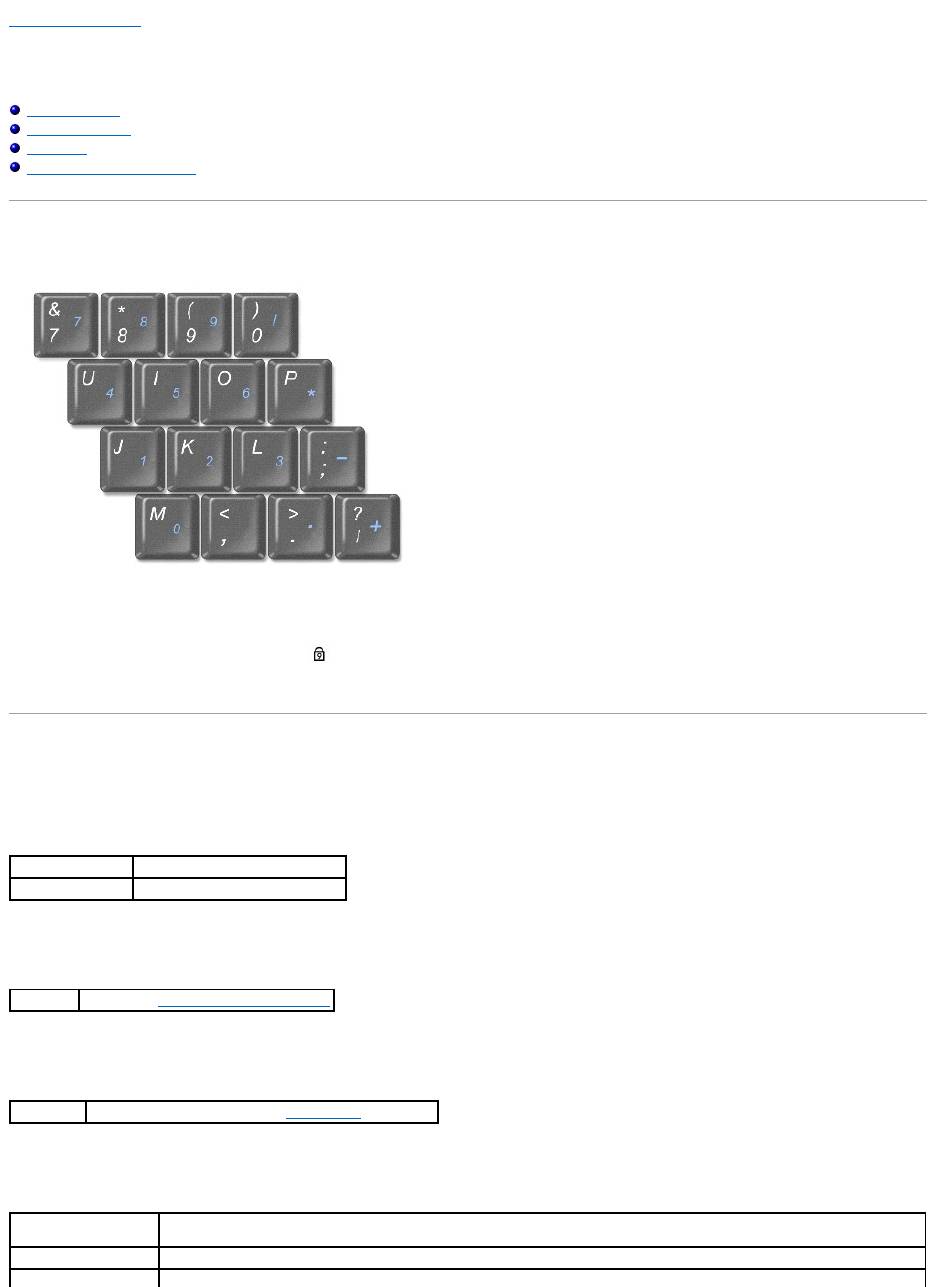
The numeric keypad functions like the numeric keypad on an external keyboard. Each key on the keypad has multiple functions. The keypad numbers and
symbols are marked in blue on the right of the keypad keys. To type a number or symbol, hold down <Fn> and press the desired key.
l To enable the keypad, press <Num Lk>. The light indicates that the keypad is active.
l To disable the keypad, press <Num Lk> again.
Key Combinations
System Functions
Battery
CD or DVD Tray
Display Functions
<Ctrl><Shift><Esc>
Opens the Task Manager window
<Fn><Num Lk>
Enables and disables the scroll lock
<Fn><F3>
Displays the Dell™QuickSetBatteryMeter.
<Fn><F10>
Ejects the tray out of the drive (if Dell QuickSet is installed).
<Fn><F8>
Switches the video image to the next display option. The options include the integrated display, an external monitor, and both
displays simultaneously.
<Fn> and up-arrow key
Increases brightness on the integrated display only (not on an external monitor).
<Fn> and down-arrow
Decreases brightness on the integrated display only (not on an external monitor).
Radios (Including Wireless Networking and Bluetooth®Wireless Technology)
Power Management
Speaker Functions
Microsoft® Windows® Logo Key Functions
To adjust keyboard operation, such as the character repeat rate, open the Control Panel, click Printers and Other Hardware, and click Keyboard.
Touch Pad
The touch pad detects the pressure and movement of your finger to allow you to move the cursor on the display. Use the touch pad and touch pad buttons as
you would use a mouse.
l To move the cursor, lightly slide your finger over the touch pad.
l To select an object, lightly tap once on the surface of the touch pad or use your thumb to press the left touch-pad button.
l To select and move (or drag) an object, position the cursor on the object and tap down-up-down on the touch pad. On the second down motion, leave
your finger on the touch pad and move the selected object by sliding your finger over the surface.
key
<Fn><F2>
Enables and disables radios, including wireless networking and Bluetooth wireless technology.
<Fn><Esc>
Activates a power management mode. You can reprogram this keyboard shortcut to activate a different power management mode using the
Advanced Tab in the Power Options Properties window.
<Fn><F1>
Puts the system into Hibernate mode. Dell QuickSet is required.
<Fn><Page Up>
Increases the volume of the integrated speakers and external speakers, if attached.
<Fn><Page Dn>
Decreases the volume of the integrated speakers and external speakers, if attached.
<Fn><End>
Enables and disables the integrated speakers and external speakers, if attached.
Windows logo key and <m>
Minimizes all open windows
Windows logo key and <Shift><m>
Maximizes all windows
Windows logo key and <e>
Runs Windows Explorer
Windows logo key and <r>
Opens the Run dialog box
Windows logo key and <f>
Opens the Search Results dialog box
Windows logo key and <Ctrl><f>
Opens the Search Results-Computer dialog box (if the computer is connected to a network)
Windows logo key and <Pause>
Opens the System Properties dialog box
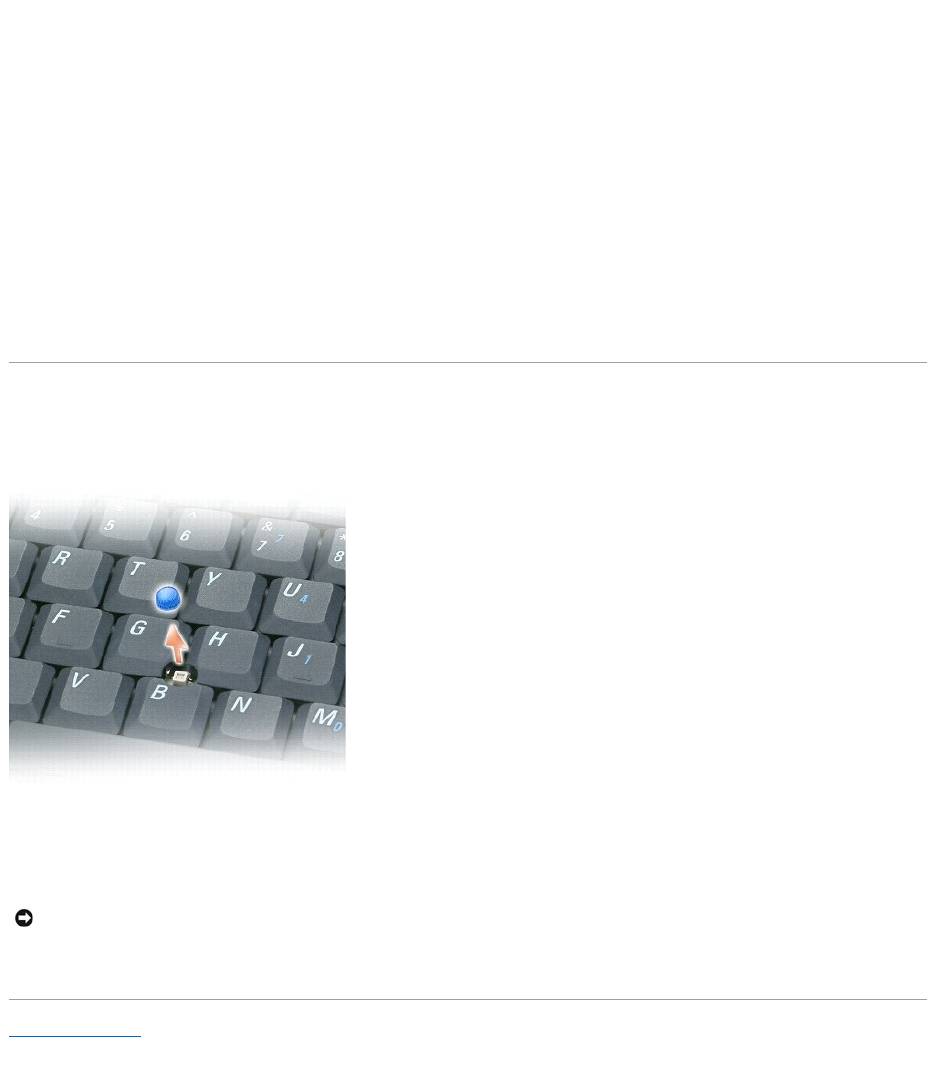
1
touch pad
2
track stick
3
track stick buttons
4
touch pad buttons
l To double-click an object, position the cursor on the object and tap twice on the touch pad or use your thumb to press the left touch-pad button twice.
You can also use the track stick to move the cursor. Press the track stick left, right, up, or down to change the direction of the cursor on the display. Use the
track stick and track stick buttons as you would use a mouse.
Customizing the Touch Pad and Track Stick
You can use the Mouse Properties window to disable the touch pad and track stick or adjust their settings.
1. Open the Control Panel, click Printers and Other Hardware, and then click Mouse.
2. In the Mouse Properties window:
l Click the Device Select tab to disable the touch pad and track stick.
l Click the Pointer tab to adjust touch pad and track stick settings.
3. Click OK to save the settings and close the window.
Changing the Track Stick Cap
You can replace your track stick cap if it wears down from prolonged use or if you prefer a different color. You can purchase additional caps by visiting the Dell
website at www.dell.com.
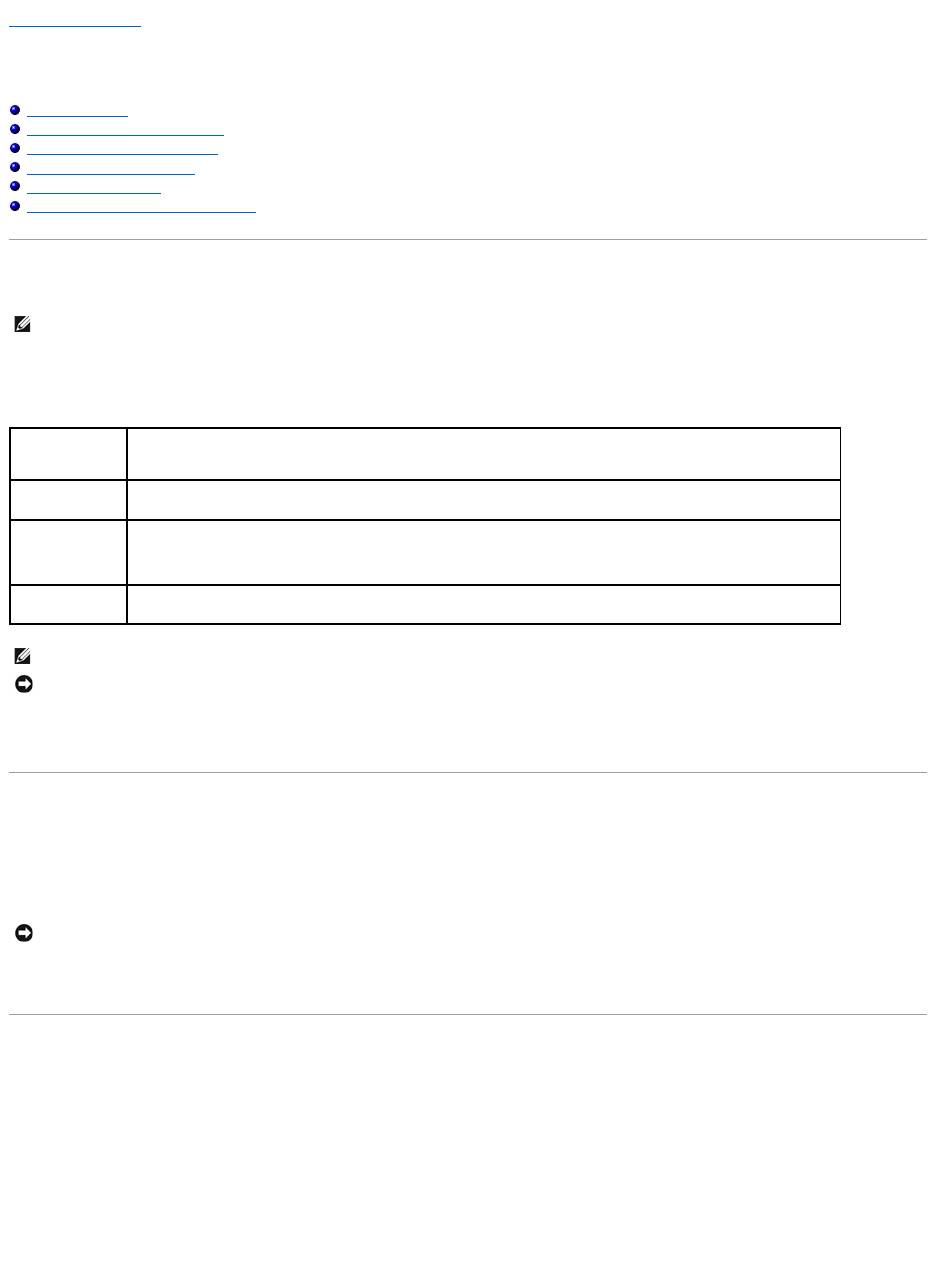
1. Pull the cap off the track stick.
2. Align the new cap over the square track-stick post and gently press the cap down onto the post.
3. Test the track stick to ensure that the cap is seated properly.
Back to Contents Page
NOTICE: The track stick cap can damage the display if it is not properly seated on the post.
Back to Contents Page
Passwords
DellPrecision™MobileWorkstationM70User'sGuide
About Passwords
Using a Primary/System Password
Using an Administrator Password
Using a Hard Drive Password
Assigning an Asset Tag
Enabling Trusted Platform Module (TPM)
About Passwords
A primary password, an administrator password, and a hard drive password all prevent unauthorized access to your computer in different ways. The following
table identifies types and features of passwords available on your computer.
If you forget any of your passwords, contact your system administrator or contact Dell. For your protection, Dell technical support staff will ask you for proof of
your identity to ensure that only an authorized person can use the computer.
Using a Primary/System Password
The primary/system password allows you to protect the computer from unauthorized access.
Access User Accounts from the Control Panel to create user accounts and add or change passwords. After assigning a primary/system password, you must
enter it each time you turn on your computer.
If you have assigned an administrator password, you can use it instead of the primary/system password. The computer does not specifically prompt you for
the administrator password.
Using an Administrator Password
The administrator password is designed to give system administrators or service technicians access to computers for repair or reconfiguration. The
administrators or technicians can assign identical administrator passwords to groups of computers, allowing you to assign the primary/system password.
To set or change administrator passwords, access User Accounts, which is located in the Control Panel.
1. To open User Accounts, click the Start button and point to Settings.
2. Click Control Panel.
3. Double-click User Accounts.
NOTE: Passwords are disabled when you receive your computer.
Type of Password
Features
Primary/System
l Protects the computer from unauthorized access
Administrator
l Gives system administrators or service technicians access to computers for repair or reconfiguration
l Allows you to restrict access to system setup in the same way a primary password restricts access to the computer
l Can be used instead of the primary password
Hard drive
l Helps protect the data on your hard drive or external hard drive (if one is being used) from unauthorized access
NOTE: OnlyharddrivespurchasedfromDellforusewiththeDellPrecision™D-Family computers support hard drive passwords.
NOTICE: Passwords provide a high level of security for data in your computer or hard drive. However, they are not foolproof. If you require more
security, obtain and use additional forms of protection, such as smart cards, data encryption programs, or PC Cards with encryption features.
NOTICE: If you disable the administrator password, the primary password is also disabled.

4. In the User Accounts window, click the administrator user and click the Reset Password button.
When you set an administrator password, the Configure Setup option becomes available in system setup. The Configure Setup option allows you to restrict
access to system setup in the same way that a primary or system password restricts access to the computer.
You can now use the administrator password instead of the system password. Whenever you are prompted to enter the primary/system password, you can
enter the administrator password.
If you forget the primary/system password and do not have an administrator password assigned, or if you have both a primary and an administrator
password assigned but forget them both, contact your system administrator or contact Dell.
Using a Hard Drive Password
The hard drive password helps protect the data on your hard drive from unauthorized access. You can also assign a password for an external hard drive (if
one is being used) that can be the same as or different from the password for the primary hard drive.
After assigning a hard drive password, you must enter it each time you turn on the computer and each time you restore the computer to normal operation
from standby mode.
If the hard drive password is enabled, the system asks you to type in the hard-disk drive password each time you turn on the computer.
If you enter the wrong password, a message similar to the following example appears:
Invalid password
[Press Enter to retry]
If you do not enter the correct password in three attempts, the computer tries to start from another bootable device if the Boot First Device option in system
setup is set to allow start-up from another device. If the Boot First Device option is not set to allow the computer to start from another device, the computer
returns to the operating state it was in when you turned it on.
If the hard drive password, the external hard-drive password, and the primary/system password are the same, the computer prompts you only for the
primary/system password. If the hard drive password is different from the primary/system password, the computer prompts you for both. Two different
passwords provide greater security.
Assigning an Asset Tag
The Asset Tag utility allows you to enter an asset tag that you or your company assigns to the computer. After you enter an asset tag, the tag appears in the
system setup screens.
You can also use the Asset Tag utility to enter an owner tag that appears in the system log-on screen and with the primary password prompt.
Download the Dell Portables Asset Tag utility from the support.dell.com website to create bootable media (such as a bootable CD or floppy disk), and then
use the bootable media to assign an asset tag.
1. Save and close any open files and exit any open programs.
2. Ensure that you have a drive for the bootable media (such as a floppy drive or a CD drive).
3. Access the support.dell.com website. Download the Dell Portables Asset Tag utility for your system. Unzip the files and run the Asset Tag utility to
create the bootable media.
4. Boot the computer, using the bootable media:
a. Restart the computer.
b. Press<F12>immediatelyaftertheDELL™logoappears.
If the operating system logo appears, wait until you see the Microsoft® Windows® desktop, and then shut down the computer and try again.
c. Press the arrow keys to select the drive containing the bootable media and press <Enter>.
5. Type asset and a space followed by the new asset tag, and press <Enter>.
For example, type the following command line and press <Enter>:
asset 1234$ABCD&
NOTICE: If you disable the administrator password, the primary/system password is also disabled.
NOTE: The administrator password provides access to the computer, but it does not provide access to the hard drive if a hard drive password is
assigned.
NOTE: The administrator password provides access to the computer, but it does not provide access to a hard drive that is protected by a hard drive
password.
NOTE: The Dell Portables Asset Tag utility may not be available as a download in certain countries.

6. When the computer prompts you to verify the asset tag, type y.
The computer displays the new or modified asset tag and the Service Tag.
7. Restart your computer to exit the Asset Tag utility.
Viewing Existing Asset and Service Tags
1. Boot the computer using the bootable media you created in "Assigning an Asset Tag."
2. Type asset and press <Enter>.
Deleting an Asset Tag
1. Boot the computer using the bootable media you created in "Assigning an Asset Tag."
2. Type asset /d and press <Enter>.
3. When the computer prompts you to delete the asset tag, type y.
Viewing Existing Asset and Service Tags
1. Boot the computer using the bootable media you created in "Assigning an Asset Tag."
2. Type asset and press <Enter>.
Deleting an Asset Tag
1. Boot the computer using the bootable media you created in "Assigning an Asset Tag."
2. Type asset /d and press <Enter>.
3. When the computer prompts you to delete the asset tag, type y.
Assigning an Owner Tag
An owner tag can have up to 48 characters; any combination of letters, numbers, and spaces is valid.
1. Boot the computer using the bootable media you created in "Assigning an Asset Tag."
2. Type asset /o and a space followed by the new owner tag, and press <Enter>.
For example, type the following command line and press <Enter>:
asset /o ABC Company
3. When the computer prompts you to verify the owner tag, type y.
The computer displays the new owner tag.
Deleting an Owner Tag
NOTE: An asset tag can have up to 10 characters; any combination of characters excluding spaces is valid.
NOTE: For security, you cannot set, change, or delete the owner tag if the primary or administrator passwords are set.
1. Boot the computer using the bootable media you created in "Assigning an Asset Tag."
2. Type asset /o /d and press <Enter>.
3. When the computer prompts you to delete the owner tag, type y.
Asset Tag Options
To use one of the asset tag options (see the following table):
1. Boot the computer using the bootable media you created in "Assigning an Asset Tag."
2. Type asset and a space followed by the option, and then press <Enter>.
Enabling Trusted Platform Module (TPM)
TPM is a hardware-based security feature that can be used to create and manage computer-generated encryption keys. When combined with security
software, TPM enhances existing network and computer security by enabling features such as file protection capabilities and protected e-mail. The TPM feature
isenabledthroughaTPMsystemsetupoption.
Enabling the TPM Feature
1. Turn on your computer.
2. Install the TPM Software.
The TPM software is factory-installed in the C:\Dell\TPM directory. It may also be downloaded from support.dell.com.
3. Run the setup.exe file. Follow the on-screen instructions to install the Broadcom Secure Foundation software.
If you are using TPM on your computer for the first time, proceed to step4, otherwise, continue with step5.
4. To enable the TPM software:
a. Restartthecomputerandpress<F2>duringthePowerOnSelfTesttoenterthesystemsetupprogram.
b. Open the Security menu in system setup.
c. Select the TPM Security menu option and press <Enter>.
d. Set the TPM security option to On.
e. Press <Esc> to exit the setup program.
f. If prompted, select Save/Exit.
5. Activate the TPM setup program:
a. Boot your computer to the Microsoft®Windows®operating system.
b. Click Start® Programs® Broadcom Security Platforms Tools. Then, click the icon for the Security Platform Initialization Wizard.
c. Follow the on-screen instructions to activate the TPM setup program. You only need to activate the program once.
You will be prompted to reboot your computer once the process is complete.
6. Physically activate the TPM:
Asset Tag Option
Description
/d
Deletes the asset tag
/o owner tag
Specifies a new owner tag
/o /d
Deletes the owner tag
/?
Displays the Asset Tag utility help screen
NOTE: The TPM feature supports encryption only if the operating system supports TPM. For more information, see the software documentation.
NOTICE: If you use TPM, you must follow the backup procedures in the documentation that came with the software to secure your TPM data and
encryption keys. In the event of these backups being incomplete, lost, or damaged, Dell will be unable to assist in the recovery of encrypted data.

a. Restart the computer and press <F2> during the Power On Self Test to enter the system setup program.
b. Open the Security menu in system setup and select the TPM Activation menu option.
c. Set the TPM activation state to Activate.
d. Save the changes and restart your computer.
7. Initialize the TPM owner and user passwords:
a. Boot your computer to the Microsoft®Windows®operating system.
b. Click Start® Programs® Broadcom Security Platforms Tools. Then, click the icon for the Security Platform Initialization Wizard.
c. Follow the on-screen instructions for creating the TPM owner, user passwords, and credentials.
Back to Contents Page
Back to Contents Page
Using PC Cards
DellPrecision™MobileWorkstationM70User'sGuide
PC Card Types
PC Card Blanks
Extended PC Cards
Removing a PC Card or Blank
Installing a PC Card
PC Card Types
See "Specifications" for information on supported PC Cards.
The PC Card slot has one connector that supports a single Type I or Type II card. The PC Card slot supports CardBus technology and extended PC Cards.
"Type" of card refers to its thickness, not its functionality.
PC Card Blanks
Your computer shipped with a plastic blank installed in the PC Card slot. Blanks protect unused slots from dust and other particles. Save the blank for use
when no PC Card is installed in the slot; blanks from other computers may not fit your computer.
To remove the blank, see "Removing a PC Card or Blank."
Extended PC Cards
An extended PC Card (for example, a wireless network adapter) is longer than a standard PC Card and extends outside the computer. Follow these
precautions when using extended PC Cards:
l Protect the exposed end of an installed card. Striking the end of the card can damage the system board.
l Always remove an extended PC Card before you pack the computer in its carrying case.
Removing a PC Card or Blank
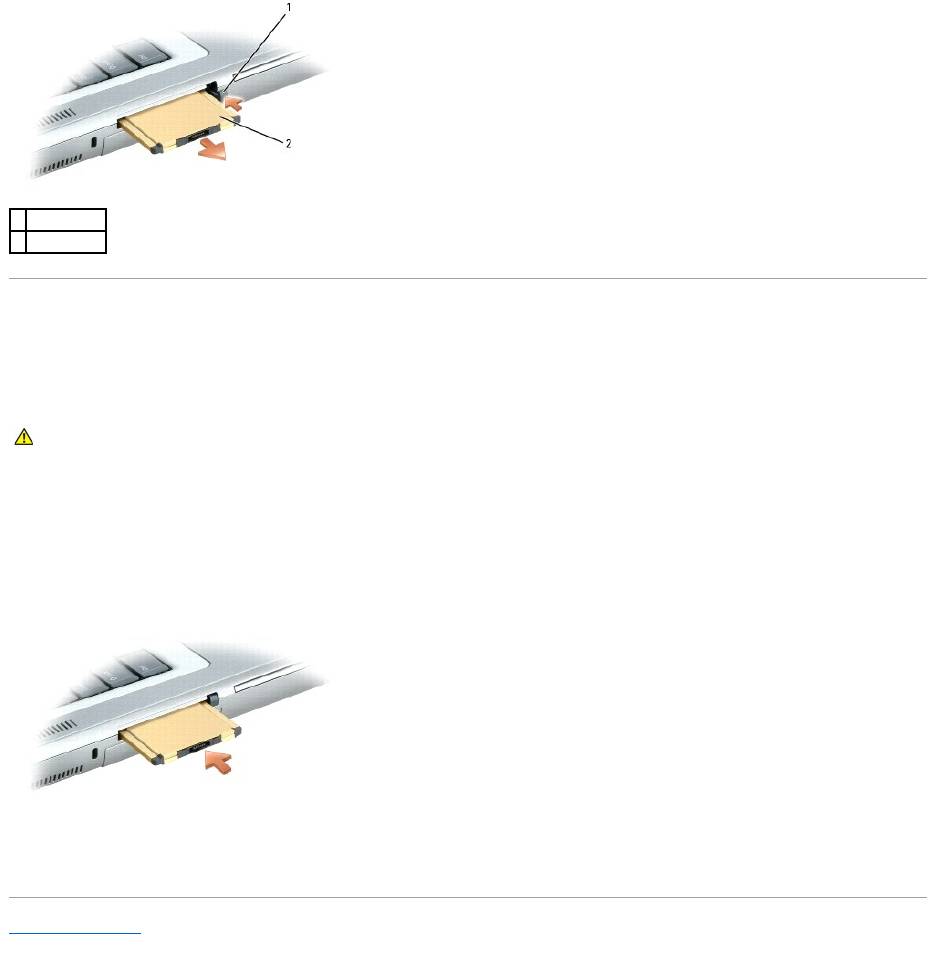
Press the latch and remove the card or blank. For some latches, you must press the latch twice: once to pop the latch out, and then a second time to pop the
card out.
Save a blank to use when no PC Card is installed in a slot. Blanks protect unused slots from dust and other particles.
NOTE: A PC Card is not a bootable device.
CAUTION: Before you begin any of the procedures in this section, follow the safety instructions located in the Product Information Guide.
NOTICE: Use the PC Card configuration utility (click the icon in the taskbar) to select a card and stop it from functioning before you remove it from
the computer. If you do not stop the card in the configuration utility, you could lose data. Do not attempt to eject a card by pulling its cable, if one is
attached.
1
eject button
Installing a PC Card
You can install a PC Card in the computer while the computer is running. The computer automatically detects the card.
PC Cards are generally marked with a symbol (such as a triangle or an arrow) to indicate which end to insert into the slot. The cards are keyed to prevent
incorrect insertion. If card orientation is not clear, see the documentation that came with the card.
To install a PC Card:
1. Hold the card with its orientation symbol pointing into the slot and the top side of the card facing up. The latch may need to be in the "in" position
before you insert the card.
2. Slide the card into the slot until the card is completely seated in its connector.
If you encounter too much resistance, do not force the card. Check the card orientation and try again.
The computer recognizes most PC Cards and automatically loads the appropriate device driver. If the configuration program tells you to load the
manufacturer's drivers, use the floppy disk or CD that came with the PC Card.
Back to Contents Page
1
eject button
2
PC Card
CAUTION: Before you begin any of the procedures in this section, follow the safety instructions located in the Product Information Guide.

Back to Contents Page
Power Management
DellPrecision™MobileWorkstationM70User'sGuide
Power Management Tips
Power Management Wizard
Power Management Modes
Power Options Properties
Power Management Tips
l Connect the computer to an electrical outlet when possible because battery life is largely determined by the number of times the battery is charged.
l Place the computer in standby mode or hibernate mode when you leave the computer unattended for long periods of time.
l You can use the Power Management Wizard to configure the computer to enter or exit power management modes by pressing the power button,
closing the display, or pressing <Fn><Esc>.
Power Management Wizard
Click or double-click the icon to open the Power Management Wizard.
The first two screens of the wizard—Welcome and What is Power Management?—describe and define various power management options.
Use the screens that follow Welcome and What is Power Management? to set various power management options, including sleep modes, power schemes,
and low battery-charge alarms.
Setting Sleep Modes
The screen defines standby and hibernate modes. From the screen you can:
l Set standby-mode password options.
l Enable or disable hibernate mode.
l Select how the computer will respond when you close the display:
¡ Choose no action.
¡ Enter standby mode.
¡ Enter hibernate mode.
l Select how the computer will respond when you press the power button:
¡ Choose no action.
¡ Enter standby mode.
¡ Enter hibernate mode.
¡ Shut down the operating system and turn off the computer.
¡ Prompt a user for an action (Ask me what to do).
l Select how the computer will respond when you press <Fn><Esc>:
¡ Choose no action.
¡ Enter standby mode.
¡ Enter hibernate mode.
¡ Shut down Microsoft Windows and turn off the computer.
NOTE: See "Using a Battery" for more information on conserving battery power.
CAUTION: YourcomputerfeaturesUndock&Go™technologythatallowsyoutoundockyourcomputerwithoutgoingintoStandbyMode.Because
the computer may not automatically go into Standby Mode when it is undocked, be sure the settings in the Power Options control panel do not
prohibit the computer from going into Standby Mode. If you change the Power Options control panel to prohibit the computer from going into
Standby Mode, you greatly increase the chances of causing your battery to wear down quickly or causing your computer to overheat.
NOTE: The Power Management Wizard is not available if you have restricted access rights.
NOTE: On the What is Power Management? screen, you can select Do not show this page again. When you select this option, the Welcome screen
also does not appear again.

¡ Prompt a user for an action (Ask me what to do).
Selecting a Power Scheme
The screen allows you to select, create, and edit power scheme settings. In addition, you can delete power schemes that you create, but you cannot delete
Dell™QuickSetpredefinedpowerschemes(MaximumBattery,MaximumPerformance,Presentation,andNetworkDisabled).
All QuickSet power schemes are displayed in a drop-down menu near the center of the screen. The power settings for each scheme in the menu are listed
below the menu. The power settings are listed separately for when the computer is running on battery or connected to an electrical outlet.
The Power Management Wizard also allows you to associate the display brightness level with a power scheme. You must enable brightness-level power
schemes through QuickSet in order to set the brightness level.
The display brightness, internal network-card activity, and wireless activity features are not available through the Control Panel power schemes. In order to
make use of these value-added features, you must set them through QuickSet power schemes.
Setting Battery Alarms and Actions
The screen allows you to enable the low-battery and critical-battery alarms and to change settings for the alarms. For example, you can set the low-battery
alarm to 20 percent to remind you to save work and switch to AC power, and you can set the critical-battery alarm to 10 percent to enter hibernate mode.
From the screen, you can:
l Select whether the alarm will notify you by sound or text.
l Adjust the power level at which you want the alarm to notify you.
l Select how the computer will respond when the alarm notifies you:
¡ Choose no action.
¡ Enter standby mode.
¡ Enter hibernate mode.
¡ Shut down Windows and turn off the computer.
Completing the Power Management Wizard
The screen summarizes the QuickSet power scheme, sleep mode, and battery alarm settings for your computer. Review the settings you have selected and
click Finish.
For more information about QuickSet, right-click the icon in the taskbar and click Help.
Power Management Modes
Standby Mode
Standby mode conserves power by turning off the display and the hard drive after a predetermined period of inactivity (a time-out). When the computer exits
standby mode, it returns to the same operating state it was in before entering standby mode.
To enter standby mode:
l Click the Start button, click Turn off computer, and then click Stand by.
or
l Depending on how you set the power management options on the Advanced tab in the Power Options Properties window, use one of the following
methods:
¡ Press the power button.
NOTE: When your computer is running on battery power, the Network Disabled power scheme disables your internal network and wireless activity.
When your computer is connected to an electrical outlet or docking device, the Network Disabled power scheme disables only your wireless activity. You
must set the power scheme through QuickSet (not Microsoft®Windows®) for the Network Disabled power scheme to work.
NOTE: QuickSet automatically adds the word (QuickSet) after the names of power schemes created using QuickSet.
NOTE: Brightness shortcut keys only affect the display on your portable computer, not monitors that you attach to your portable computer or docking
device. If your computer is in CRT only mode and you try to change the brightness level, the Brightness Meter appears, but the brightness level on the
monitor does not change.
NOTICE: If your computer loses AC and battery power while in standby mode, it may lose data.

¡ Close the display.
¡ Press <Fn><Esc>.
To exit standby mode, press the power button or open the display depending on how you set the options on the Advanced tab. You cannot make the
computer exit standby mode by pressing a key or touching the touch pad or track stick.
Hibernate Mode
Hibernate mode conserves power by copying system data to a reserved area on the hard drive and then completely turning off the computer. When the
computer exits hibernate mode, it returns to the same operating state it was in before entering hibernate mode.
Your computer enters hibernate mode if the battery charge level becomes critically low.
To manually enter hibernate mode:
l Click the Start button, click Turn off computer, press and hold <Shift>, and then click Hibernate.
or
l Depending on how you set the power management options on the Advanced tab in the Power Options Properties window, use one of the following
methods to enter hibernate mode:
¡ Press the power button.
¡ Close the display.
¡ Press <Fn><Esc>.
To exit hibernate mode, press the power button. The computer may take a short time to exit hibernate mode. You cannot make the computer exit hibernate
mode by pressing a key or touching the touch pad or track stick. For more information on hibernate mode, see the documentation that came with your
operating system.
Power Options Properties
The Power Options Properties window helps you to manage power consumption and monitor battery charge status. To access the Windows Power Options
Properties window, click the Start button® Control Panel® Performance and Maintenance® Power Options.
Power Schemes Tab
The Power schemes drop-down menu displays the selected preset power scheme. Keep the default Portable/Laptop power scheme to maximize battery
power.
Windows XP controls the performance level of the processor depending on the power scheme you select. You do not need to make any further adjustments to
set the performance level. For information on setting processor performance for other operating systems, see "Intel SpeedStep® Technology Tab."
Each preset power scheme has different time-out settings for entering standby mode, turning off the display, and turning off the hard drive. For more
information on power management options, see the Help and Support Center.
Alarms Tab
The Low battery alarm and Critical battery alarm settings alert you with a message when the battery charge falls below a certain percentage. When you
receive your computer, the Low battery alarm and Critical battery alarm check boxes are selected. It is recommended that you continue to use these
settings. See "Using a Battery" for more information on low-battery warnings.
Power Meter Tab
The Power Meter tab displays the current power source and amount of battery charge remaining.
Advanced Tab
The Advanced tab allows you to:
NOTICE: You cannot remove devices or undock your computer while your computer is in hibernate mode.
NOTE: Some PC Cards may not operate correctly after the computer exits hibernate mode. Remove and reinsert the card, or simply restart (reboot) your
computer.
NOTE: To enable audible alarms, click each Alarm Action button and select Sound alarm.

l Set power icon and standby mode password options.
l Program the following functions (depending on your operating system):
¡ Prompt a user for an action (Ask me what to do).
¡ Enter standby mode.
¡ Enter hibernate mode.
¡ Shut down Windows and turn off the computer.
¡ Choose no action (None or Do nothing).
To program these functions, click an option from the corresponding drop-down menu and then click OK.
Hibernate Tab
The Hibernate tab lets you enable hibernate mode by clicking the Enable hibernate support check box.
Intel SpeedStep®Technology Tab
Depending on your operating system and microprocessor, the Power Options Properties window includes the Intel SpeedStep® technology tab. The Intel
SpeedStep technology allows you to set the performance level of the processor according to whether the computer is running on battery or AC power.
Depending on your operating system, typical options are:
l Automatic — The processor runs at its highest possible speed (Maximum Performance mode) when the computer is running on AC power. When the
computer is running on battery power, the processor runs in Battery Optimized mode.
l Maximum Performance — The processor runs at its highest possible speed even if the computer is running on battery power.
l Battery Optimized Performance — Processor speed is optimized for battery power even if the computer is connected to an electrical outlet.
To change additional Intel SpeedStep options:
1. Click Advanced and then click one of the following options:
l Disable Intel SpeedStep technology control
l Remove flag icon (from the notification area)
l Disable audio notification when performance changes
2. Click OK to accept any changes, and then click OK to close the Intel SpeedStep® technology window.
You can also change the Intel SpeedStep settings by right-clicking the flag icon in the notification area.
Back to Contents Page
NOTE: Windows XP controls the performance level of the processor depending on the power scheme that you select. See "Power Schemes Tab."
NOTE: To use Intel SpeedStep technology, a Windows operating system must be running.
Back to Contents Page
Solving Problems
DellPrecision™MobileWorkstationM70User'sGuide
Drive Problems
Fill out the Diagnostics Checklist as you complete these checks.
CD and DVD drive problems
Problems writing to an Optical drive
Drive Problems
CD and DVD drive problems
Hard drive problems
Email, Modem, and Internet Problems
Error Messages
Keyboard Problems
Lockups and Software Problems
Memory Problems
Network Problems
PC Card Problems
Power Problems
Printer Problems
Scanner Problems
Sound and Speaker Problems
Touch Pad or Mouse Problems
Video and Display Problems
CAUTION: Before you begin any of the procedures in this section, follow the safety instructions in the Product Information Guide.
Ensure that Microsoft®Windows®recognizesthedrive— Click the Start button and click My Computer. If the floppy, CD, or DVD drive,
is not listed, perform a full scan with your antivirus software to check for and remove viruses. Viruses can sometimes prevent Windows from
recognizing the drive.
Test the drive —
l Insert another floppy disk, CD, or DVD to eliminate the possibility that the original one is defective.
l Insert a bootable floppy disk and restart the computer.
Cleanthedriveordisk— See "Cleaning Your Computer."
Ensure that the CD is snapped onto the spindle
Check the cable connections
Checkforhardwareincompatibilities— See "Resolving Software and Hardware Incompatibilities."
RuntheDellDiagnostics— See "Dell Diagnostics."
NOTE: High-speed CD or DVD drive vibration is normal and may cause noise, which does not indicate a defect in the drive or the CD or DVD.
NOTE: Because of different regions worldwide and different disc formats, not all DVD titles work in all DVD drives.
Closeotherprograms— The optical drive must receive a steady stream of data when writing. If the stream is interrupted, an error occurs.
Try closing all programs before you write to the optical drive.
TurnoffStandbymodeinWindowsbeforewritingtoaCDorDVDdisc— See "Power Management" or search for the keyword standby in
the Windows Help and Support Center for information on power management modes.
Change the write speed to a slower rate — See the help files for your CD or DVD creation software.
If you cannot eject the Optical drive tray
If you hear an unfamiliar scraping or grinding sound
Hard drive problems
Email, Modem, and Internet Problems
1. Ensure that the computer is shut down.
2. Straighten a paper clip and insert one end into the eject hole at the front of the drive; push firmly until the tray is partially ejected.
3. Gently pull out the tray until it stops.
l Ensure that the sound is not caused by the program that is running.
l Ensure that the disk or disc is inserted properly.
Allow the computer to cool before turning it on — A hot hard drive may prevent the operating system from starting. Try allowing the
computer to return to room temperature before turning it on.
RunCheckDisk—
Windows XP
1. Click the Start button and click My Computer.
2. Right-click Local Disk C:.
3. Click Properties.
4. Click the Tools tab.
5. Under Error-checking, click Check Now.
6. Click Scan for and attempt recovery of bad sectors.
7. Click Start.
Windows 2000
1. Double-click My Computer on the Windows desktop.
2. Click the Tools tab.
3. Under Error-checking, click Check Now.
4. Click Start.
MS-DOS®
Type scandisk x: at an MS-DOS prompt, where x is the hard drive letter, and then press <Enter>. Click the Start button and click My
Computer.
CAUTION: Before you begin any of the procedures in this section, follow the safety instructions in the Product Information Guide.
NOTE: Connect the modem to an analog telephone jack only. The modem does not operate while it is connected to a digital telephone network.
Check the Microsoft Outlook®ExpressSecuritySettings— If you cannot open your e-mail attachments:
1. In Outlook Express, click Tools, click Options, and then click Security.
2. Click Do not allow attachments to remove the checkmark.
Checkthetelephonelineconnection
Checkthetelephonejack
Connectthemodemdirectlytothetelephonewalljack
Useadifferenttelephoneline
l Verify that the telephone line is connected to the jack on the modem. (The jack has either a green label or a connector-shaped icon
next to it.)
l Ensure that you hear a click when you insert the telephone line connector into the modem.
l Disconnect the telephone line from the modem and connect it to a telephone. Listen for a dial tone.
l If you have other telephone devices sharing the line, such as an answering machine, fax machine, surge protector, or line splitter,
thenbypassthemandusethetelephonetoconnectthemodemdirectlytothetelephonewalljack.Ifyouareusingalinethatis3m
(10ft)ormoreinlength,tryashorterone.
Error Messages
Fill out the Diagnostics Checklist as you complete these checks.
If the message is not listed, see the documentation for the operating system or the program that was running when the message appeared.
RuntheModemHelperdiagnostics— Click the Start button, point to All Programs (Programs in Windows 2000), and then click Modem
Helper. Follow the instructions on the screen to identify and resolve modem problems. (Modem Helper is not available on all computers.)
Verify that the modem is communicating with Windows —
Windows XP
1. Click the Start button, point to Settings, and then, click Control Panel.
2. Click Printers and Other Hardware.
3. Click Phone and Modem Options.
4. Click the Modems tab.
5. Click the COM port for your modem.
6. Click Properties, click the Diagnostics tab, and then click Query Modem to verify that the modem is communicating with Windows.
Windows 2000
1. Click the Start button, point to Settings, and then click Control Panel.
2. Double-click Phone and Modem Options.
3. Click the Modems tab.
4. Click the COM port for your modem.
5. Click Properties, click the Diagnostics tab, and then click Query Modem to verify that the modem is communicating with Windows.
If all commands receive responses, the modem is operating properly.
EnsurethatyouareconnectedtotheInternet— Ensure that you have subscribed to an Internet provider. With the Outlook Express e-
mail program open, click File. If Work Offline has a checkmark next to it, click the checkmark to remove it and connect to the Internet. For
help, contact your Internet service provider.
Scan the computer for spyware — If you are experiencing slow computer performance, you frequently receive pop-up advertisements, or
you are having problems connecting to the Internet, your computer might be infected with spyware. Use an anti-virus program that includes
anti-spyware protection (your program may require an upgrade) to scan the computer and remove spyware. For more information, go to
support.dell.com and search for the keyword spyware.
CAUTION: Before you begin any of the procedures in this section, follow the safety instructions in the Product Information Guide.
Auxiliary device failure — The touch pad, track stick, or external mouse may be faulty. For an external mouse, check the cable connection.
Enable the Pointing Device option in the system setup program. If the problem persists, contact Dell.
Bad command or file name — Ensure that you have spelled the command correctly, put spaces in the proper place, and used the correct
pathname.
Cache disabled due to failure — The primary cache internal to the microprocessor has failed. Contact Dell.
CD drive controller failure — The CD drive does not respond to commands from the computer. See "Drive Problems."
Data error — The hard drive cannot read the data. See "Drive Problems."
Decreasing available memory — One or more memory modules may be faulty or improperly seated. Reinstall the memory modules and, if
necessary, replace them.
Disk C: failed initialization — The hard drive failed initialization. Run the hard drive tests as described in "Using the Dell Diagnostics."
Drive not ready — The operation requires a hard drive in the bay before it can continue. Install a hard drive in the hard drive bay.
Error reading PCMCIA card — The computer cannot identify the PC Card. Reinsert the card or try another PC Card.

Extended memory size has changed — The amount of memory recorded in NVRAM does not match the memory installed in the computer.
Restart the computer. If the error appears again, contact Dell.
Gate A20 failure — A memory module may be loose. Reinstall the memory modules and, if necessary, replace them.
General failure — The operating system is unable to carry out the command. The message is usually followed by specific information—for
example, Printer out of paper. Take the appropriate action.
Hard-disk drive configuration error — The computer cannot identify the drive type. Shut down the computer, remove the hard drive, and
boot the computer from a CD. Then shut down the computer, reinstall the hard drive, and restart the computer. Run the Hard-Disk Drive
tests as described in "Using the Dell Diagnostics."
Hard-disk drive controller failure 0 — The hard drive does not respond to commands from the computer. Shut down the computer, remove
the hard drive, and boot the computer from a CD. Then shut down the computer, reinstall the hard drive, and restart the computer. If the
problem persists, try another drive. Run the Hard-Disk Drive tests as described in "Using the Dell Diagnostics."
Hard-disk drive failure — The hard drive does not respond to commands from the computer. Shut down the computer, remove the hard
drive, and boot the computer from a CD. Then shut down the computer, reinstall the hard drive, and restart the computer. If the problem
persists, try another drive. Run the Hard-Disk Drive tests as described in "Using the Dell Diagnostics."
Hard-disk drive read failure — The hard drive may be defective. Shut down the computer, remove the hard drive, and boot the computer
from a CD. Then shut down the computer, reinstall the hard drive, and restart the computer. If the problem persists, try another drive. Run
the Hard-Disk Drive tests as described in "Using the Dell Diagnostics."
Insert bootable media — The operating system is trying to boot to a nonbootable CD. Insert bootable media.
Invalid configuration information-please run System Setup Program — The system configuration information does not match the
hardware configuration. The message is most likely to occur after a memory module is installed. Correct the appropriate options in the
system setup program.
Keyboard clock line failure — For external keyboards, check the cable connection. Run the Keyboard Controller test as described in "Using
the Dell Diagnostics."
Keyboard controller failure — For external keyboards, check the cable connection. Restart the computer, and avoid touching the keyboard
or the mouse during the boot routine. Run the Keyboard Controller test as described in "Using the Dell Diagnostics."
Keyboard data line failure — For external keyboards, check the cable connection. Run the Keyboard Controller test as described in "Using
the Dell Diagnostics."
Keyboard stuck key failure — For external keyboards or keypads, check the cable connection. Restart the computer, and avoid touching the
keyboard or keys during the boot routine. Run the Stuck Key test as described in "Using the Dell Diagnostics."
Memory address line failure at address, read value expecting value — A memory module may be faulty or improperly seated. Reinstall the
memory modules and, if necessary, replace them.
Memory allocation error — The software you are attempting to run is conflicting with the operating system, another program, or a utility.
Shut down the computer, wait 30 seconds, and then restart it. Try to run the program again. If the error message still appears, see the
software documentation.
Memory data line failure at address, read value expecting value — A memory module may be faulty or improperly seated. Reinstall the
memory modules and, if necessary, replace them.
Memory double word logic failure at address, read value expecting value — A memory module may be faulty or improperly seated.
Reinstall the memory modules and, if necessary, replace them.
Memory odd/even logic failure at address, read value expecting value — A memory module may be faulty or improperly seated. Reinstall
the memory modules and, if necessary, replace them.
Memory write/read failure at address, read value expecting value — A memory module may be faulty or improperly seated. Reinstall the
memory modules and, if necessary, replace them.
No boot device available — The computer cannot find the hard drive. If the hard drive is your boot device, ensure that the drive is installed,
properly seated, and partitioned as a boot device.
No boot sector on hard drive — The operating system may be corrupted. Contact Dell.
No timer tick interrupt — A chip on the system board may be malfunctioning. Run the System Set tests as described in "Using the Dell
Diagnostics."
Operating system not found — Reinstall the hard drive. If the problem persists, contact Dell.
Optional ROM bad checksum — The optional ROM apparently failed. Contact Dell.
A required .DLL file was not found — The program that you are trying to open is missing an essential file. Remove and then reinstall the
program.
Microsoft® Windows® XP
1. Click the Start button and click Control Panel.
2. Click Add or Remove Programs.
3. Select the program you want to remove.
4. Click Remove or Change/Remove and follow the prompts on the screen.
5. See the program documentation for installation instructions.
Windows 2000
1. Click the Start button, point to Settings, and then click Control Panel.
2. Double-click the Add/Remove Programs icon.
3. Select the program that you want to remove.
4. Click Change or Remove Programs.
5. See the program documentation for installation instructions.
Sector not found — The operating system cannot locate a sector on the hard drive. You may have a defective sector or corrupted FAT on the
hard drive. Run the Windows error-checking utility to check the file structure on the hard drive. See the Windows Help and Support Center
for instructions. If a large number of sectors are defective, back up the data (if possible), and then reformat the hard drive.
Seek error — The operating system cannot find a specific track on the hard drive.
Shutdown failure — A chip on the system board may be malfunctioning. Run the System Set tests as described in "Using the Dell
Diagnostics."
Time-of-day clock lost power — System configuration settings are corrupted. Connect your computer to an electrical outlet to charge the
battery. If the problem persists, try to restore the data by entering the system setup program. Then immediately exit the program. See
"Using the System Setup Program." If the message reappears, contact Dell.
Time-of-day clock stopped — The coin-cell battery that supports the system configuration settings should be replaced. If the problem
persists, contact Dell.
Time-of-day not set-please run the System Setup program — The time or date stored in the system setup program does not match the
system clock. Correct the settings for the Date and Time options. See "Using the System Setup Program."
Timer chip counter 2 failed — A chip on the system board may be malfunctioning. Run the System Set tests as described in "Using the Dell
Diagnostics."
Unexpected interrupt in protected mode — The keyboard controller may be malfunctioning, or a memory module may be loose. Run the
System Memory tests and the Keyboard Controller test as described in "Using the Dell Diagnostics."
x:\ is not accessible. The device is not ready — Insert a disk into the drive and try again.
Warning: Battery is critically low — The battery is running out of charge. Connect the computer to an electrical outlet. The battery will then
recharge. If you cannot access an electrical outlet, activate hibernate mode or shut down the computer. You can also turn the computer off
and replace the battery.
Keyboard Problems
Fill out the Diagnostics Checklist as you complete these checks.
External Keyboard Problems
Unexpected Characters
Lockups and Software Problems
The computer does not start up
The computer stops responding
CAUTION: Before you begin any of the procedures in this section, follow the safety instructions in the Product Information Guide.
NOTE: Use the integrated keyboard when working in MS-DOS®mode or when running the Dell Diagnostics or the system setup program. When you
attach an external keyboard, the integrated keyboard remains fully functional.
Check the keyboard cable — Shut down the computer. Disconnect the keyboard cable and check it for damage, and firmly reconnect the
cable.
If you are using a keyboard extension cable, disconnect it and connect the keyboard directly to the computer.
Check the external keyboard —
1. Shut down the computer, wait 1 minute, and turn it on again.
2. Verify that the numbers, capitals, and scroll lock lights on the keyboard blink during the boot routine.
3. From the Windows desktop, click the Start button, point to Programs, point to Accessories, and click Notepad.
4. Type some characters on the external keyboard and verify that they appear on the display.
If you cannot verify these steps, you may have a defective external keyboard.
To verify that the problem is with the external keyboard, check the integrated keyboard —
1. Shut down the computer.
2. Disconnect the external keyboard.
3. Turn on the computer.
4. From the Windows desktop, click the Start button, point to Programs, point to Accessories, and click Notepad.
5. Type some characters on the integrated keyboard and verify that they appear on the display.
If the characters appear now but did not with the external keyboard, you may have a defective external keyboard. Contact Dell.
Run the keyboard diagnostics tests — Run the PC-AT Compatible Keyboards tests in the Dell Diagnostics. If the tests indicate a defective
external keyboard, contact Dell.
Disable the numeric keypad — Press <Num Lk> to disable the numeric keypad if numbers are displayed instead of letters. Verify that the
numbers lock light is not lit.
CAUTION: Before you begin any of the procedures in this section, follow the safety instructions in the Product Information Guide.
Ensure that the AC adapter is firmly connected to the computer and to the electrical outlet
NOTICE: You might lose data if you are unable to perform an operating system shutdown.
Turnthecomputeroff— If you are unable to get a response by pressing a key on your keyboard or moving your mouse, press and hold
the power button for at least 8 to 10 seconds until the computer turns off. Then restart your computer.
