
Dell Precision M20 – страница 5
Инструкция к Ноутбуку Dell Precision M20
Оглавление
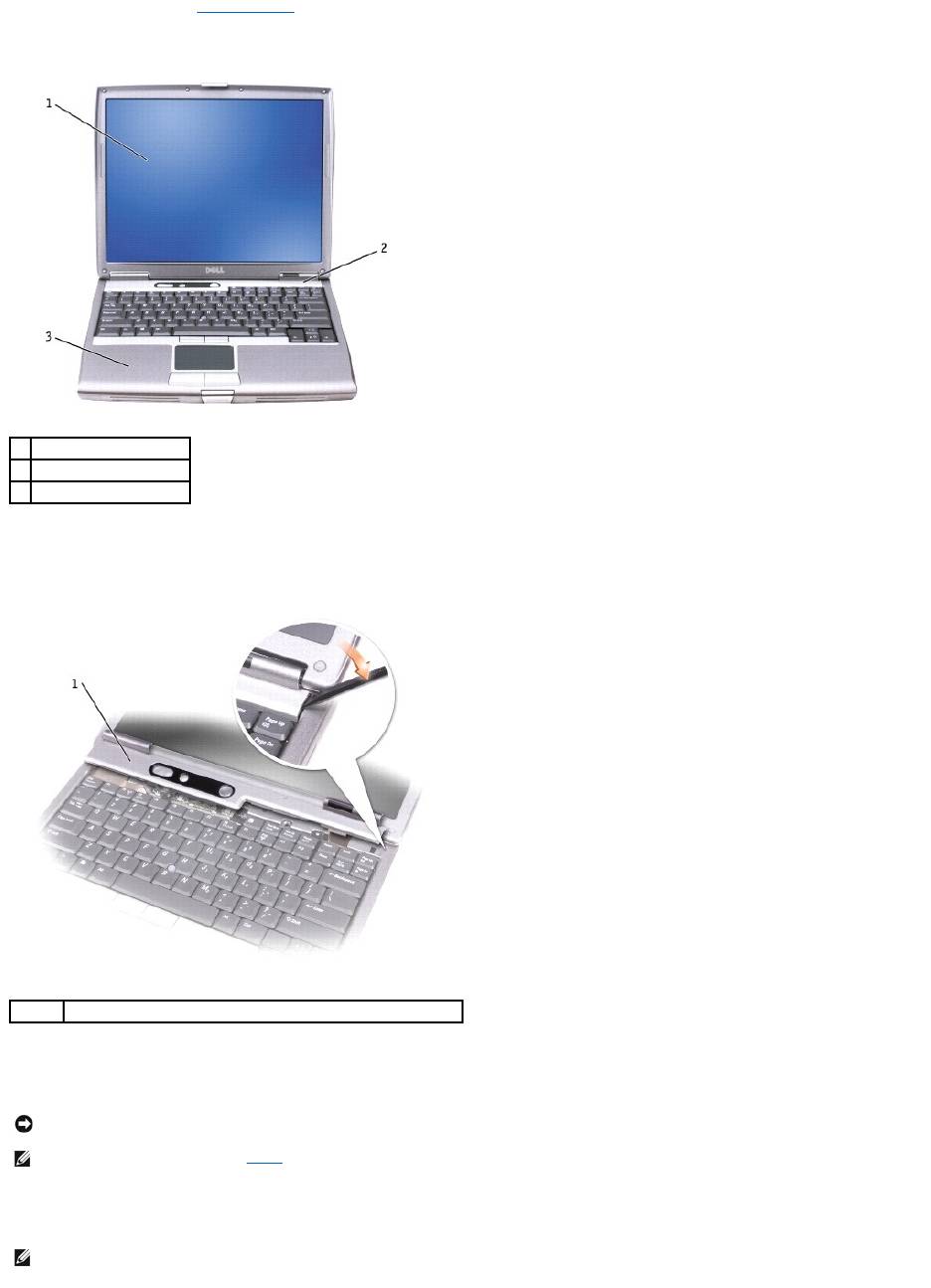
1. Follow the instructions in "Before You Begin."
2. Turn the computer right-side up and open it.
3. Remove the center control cover:
a. Open the display all the way (180 degrees) so that it lies flat against your work surface.
b. Starting on the right side of the computer, use a plastic scribe to pry up the center control cover. Lift it away from the computer, and lay it aside.
4. Remove the keyboard:
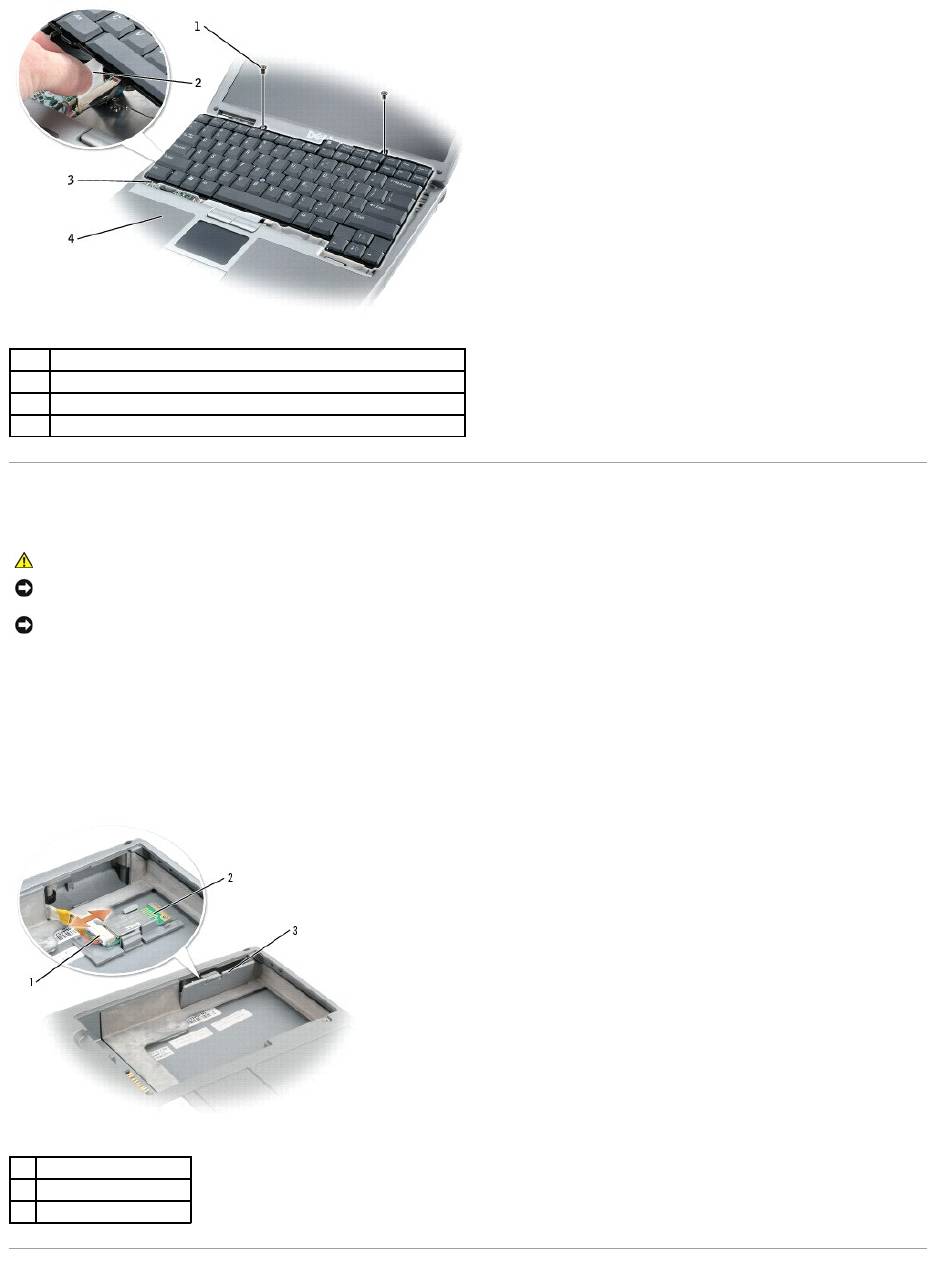
a. Remove the two M2.5 x 6-mm screws across the top of the keyboard.
b. Rotate the keyboard up 90-degrees and slide it forward to gain access to the keyboard connector.
c. Pull up on the keyboard connector tab to disconnect the keyboard connector from the system board.
1
display
2
center control cover
3
computer base
1
center control cover
NOTICE: The keycaps on the keyboard are fragile, easily dislodged, and time-consuming to replace. Be careful when removing and handling the
keyboard.
NOTE: Lift the keyboard carefully in stepb to ensure that you do not pull on the keyboard wire.
NOTE: When you replace the keyboard, ensure that the keyboard tabs are completely in place to avoid scratching the palm rest.
Internal Card With Bluetooth®Wireless Technology
If you ordered an internal card with Bluetooth wireless technology with your computer, it is already installed.
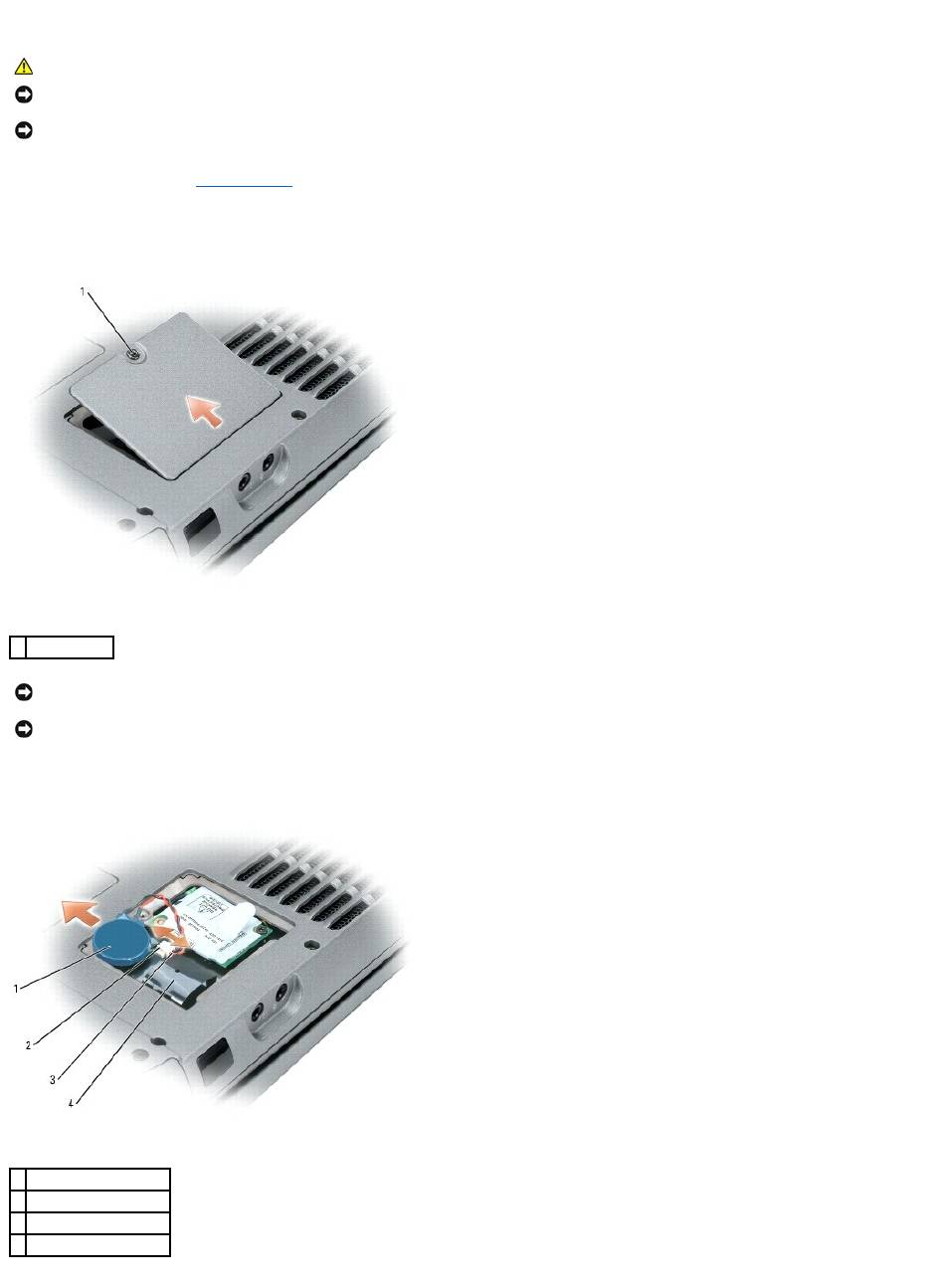
1. Remove the battery.
2. Open the card door.
3. Using a plastic scribe or screwdriver, gently pry the module from the plastic guide bracket and the compartment so that you can disconnect the card from
its cable and remove it from the computer.
1
M2.5 x 6-mm screws (2)
2
keyboard connector pull-tab
3
keyboard tabs
4
palm rest
CAUTION: Before performing the following procedures, read the safety instructions in your Product Information Guide.
NOTICE: To avoid electrostatic discharge, ground yourself by using a wrist grounding strap or by periodically touching a connector on the back panel of
the computer.
NOTICE: To avoid damaging the system board, you must remove the main battery before you begin working inside the computer.
1
card connector
2
card
3
door
Coin-Cell Battery
1. Follow the procedures in "Before You Begin."
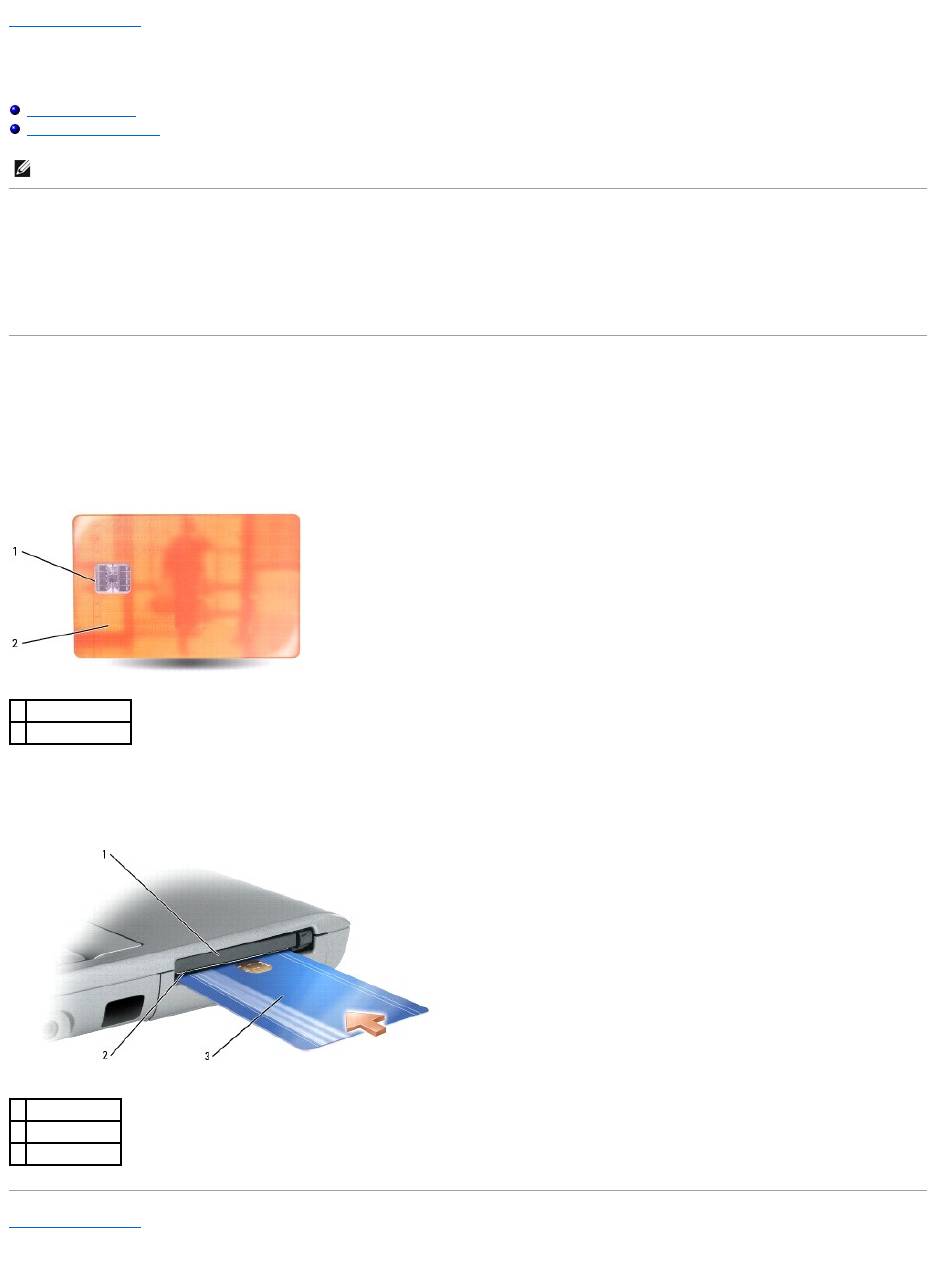
2. Turn the computer over and release the captive screw on the modem cover.
3. Place your finger under the cover at the indentation and lift the cover open.
4. Gently draw the coin-cell battery from the coin-cell-battery pocket, and disconnect the battery cable.
CAUTION: Before performing the following procedures, read the safety instructions in your Product Information Guide.
NOTICE: To avoid electrostatic discharge, ground yourself by using a wrist grounding strap or by periodically touching a connector on the back panel of
the computer.
NOTICE: To avoid damaging the system board, you must remove the main battery before you begin working inside the computer.
1
captive screw
NOTICE: To avoid damaging the system board, make sure you do not remove the plastic film between the battery and the system board as you remove
the double-sided tape from the coin-cell battery.
NOTICE: To avoid damaging the system board or modem card, retain the double-sided tape and secure the replacement coin-cell battery to the plastic
film between the battery and the system board.
1
coin-cell battery
2
cable connector
3
battery cable connector
4
coin-cell battery pocket

5. Replace the cover.
Back to Contents Page

Back to Contents Page
Using the System Setup Program
DellPrecision™MobileWorkstationM20User'sGuide
Overview
Viewing the System Setup Screens
System Setup Screen
Commonly Used Options
Overview
You can use system setup as follows:
l To set or change user-selectable features—for example, your computer password
l To verify information about the computer's current configuration, such as the amount of system memory
After you set up the computer, run system setup to familiarize yourself with your system configuration information and optional settings. You may want to
write down the information for future reference.
The system setup screens display the current setup information and settings for your computer, such as:
l System configuration
l Boot order
l Boot (start-up) configuration and docking-device configuration settings
l Basic device-configuration settings
l System security and hard-drive password settings
Viewing the System Setup Screens
1. Turn on (or restart) your computer.
2. WhentheDELL™logoappears,press<F2>immediately.IfyouwaittoolongandtheWindowslogoappears,continuetowaituntilyouseethe
Windows desktop. Then shut down your computer and try again.
System Setup Screen
The System Setup screen consists of three panes. The left pane contains a menu of control categories. To show or hide subcategories, select a category (such
as System, Onboard Devices, or Video) and press the <Enter> key. The right pane displays information about the category or subcategory.
The bottom pane describes how to control System Setup with key functions. Use the keys to select a category, modify settings, or exit System Setup.
Commonly Used Options
Certain options require that you reboot the computer for new settings to take effect.
Changing the Boot Sequence
The boot sequence, or boot order, tells the computer where to look to find the software needed to start the operating system. You can control the boot
sequence and enable/disable devices using the Boot Order page of system setup.
The Boot Order page displays a general list of the bootable devices that may be installed in your computer, including but not limited to the following:
NOTE: Your operating system may automatically configure most of the options available in system setup, thus overriding options that you set through
system setup. (An exception is the External Hot Key option, which you can disable or enable only through system setup.) For more information on
configuring features for your operating system, see your Windows Help (Microsoft®Windows®2000) or the Windows Help and Support Center
(Windows XP).
NOTICE: Unless you are an expert computer user or are directed to do so by Dell technical support, do not change the system setup settings. Certain
changes might make your computer work incorrectly.
NOTE: To change the boot sequence on a one-time-only basis, see "Performing a One-Time Boot."

l Diskette Drive
l Modular Bay HDD
l Internal HDD
l CD/DVD/CD-RW Drive
During the boot routine, the computer starts at the top of the list and scans each enabled device for the operating system start-up files. When the computer
finds the files, it stops searching and starts the operating system.
To control the boot devices, select (highlight) a device by pressing the down-arrow or up-arrow key, and then enable or disable the device or change its order
in the list.
l To enable or disable a device, highlight the item and press the space bar. Enabled items appear as white and display a small triangle to the left;
disabled items appear blue or dimmed without a triangle.
l To reorder a device in the list, highlight the device and then press <u> or <d> (not case-sensitive) to move the highlighted device up or down.
Boot sequence changes take effect as soon as you save the changes and exit system setup.
Performing a One-Time Boot
You can set a one-time-only boot sequence without entering system setup. (You can also use this procedure to boot the Dell Diagnostics on the diagnostics
utility partition on your hard drive.)
1. Shut down the computer through the Start menu.
2. If the computer is connected to a docking device (docked), undock it. See the documentation that came with your docking device for instructions.
3. Connect the computer to an electrical outlet.
4. Turn on the computer. When the DELL logo appears, press <F12> immediately. If you wait too long and the Windows logo appears, continue to wait
until you see the Windows desktop. Then shut down your computer and try again.
5. When the boot device list appears, highlight the device from which you want to boot and press <Enter>.
The computer boots to the selected device.
The next time you reboot the computer, the previous boot order is restored.
Changing Printer Modes
Set the Parallel Mode option according to the type of printer or device connected to the parallel connector. To determine the correct mode to use, see the
documentation that came with the device.
Setting Parallel Mode to Disabled disables the parallel port and the port's LPT address, which frees computer resources for another device to use.
Changing COM Ports
Serial Port allows you to map the serial port COM address or disable the serial port and its address, which frees computer resources for another device to
use.
Enabling the Infrared Sensor
1. Under Onboard Devices, select Fast IR.
2. Press <Enter> to select the Fast IR setting, and use the right-arrow or left-arrow keys to change the setting to a COM port.
3. Press <Enter> and then <Esc> to save the changes and exit the system setup program.
After you enable the infrared sensor, you can use it to establish a link to an infrared device. To set up and use an infrared device, see the infrared device
documentation and the Windows Help and Support Center (Help in Windows 2000).
Back to Contents Page
NOTE: The default setting is Off.

Back to Contents Page
Using Smart Cards
DellPrecision™MobileWorkstationM20User'sGuide
About Smart Cards
Installing a Smart Card
About Smart Cards
Smart cards are portable credit-card shaped devices with internal integrated circuits. The top surface of the smart card usually contains an embedded
processor located under the gold contact pad. The combination of the small size and integrated circuits make smart cards valuable tools for security, data
storage, and special programs. Using smart cards can improve system security by combining something a user has (the smart card) with something only the
user should know (a PIN) to provide more secure user-authentication than passwords alone.
Installing a Smart Card
You can install a smart card in the computer while the computer is running. The computer automatically detects the card.
To install a smart card:
1. Hold the card so that the gold contact pad is facing upward and pointing toward the smart card slot.
2. Slide the smart card into the smart card slot until the card is completely seated in its connector. The smart card will protrude approximately 1/2 inch from
the slot. The smart card slot is located below the PC Card slot.
If you encounter too much resistance, do not force the card. Check the card orientation and try again.
Back to Contents Page
NOTE: This feature may not be available on your computer.
1
gold contact pad
2
smart card (top)
1
PC Card slot
2
smart card slot
3
smart card
Back to Contents Page
Solving Problems
DellPrecision™MobileWorkstationM20User'sGuide
Drive Problems
Fill out the Diagnostics Checklist as you complete these checks.
CD and DVD drive problems
Problems writing to a CD/DVD-RW drive
Drive Problems
PC Card Problems
E-Mail, Modem, and Internet Problems
Power Problems
Error Messages
Printer Problems
IEEE 1394 Device Problems
Scanner Problems
Keyboard Problems
Sound and Speaker Problems
Lockups and Software Problems
Touch Pad or Mouse Problems
Memory Problems
Video and Display Problems
Network Problems
CAUTION: Before you begin any of the procedures in this section, follow the safety instructions in the Product Information Guide.
Ensure that Microsoft®Windows®recognizesthedrive— Click the Start button and click My Computer. If the optional floppy drive or
the CD or DVD drive is not listed, perform a full scan with your antivirus software to check for and remove viruses. Viruses can sometimes
prevent Windows from recognizing the drive.
Testthedrive—
l Insert another floppy into the optional floppy drive or a CD or DVD into the optical drive to eliminate the possibility that the original
one is defective.
l Insert a bootable floppy into the optional floppy drive and restart the computer.
Cleanthedriveordisk— See "Cleaning Your Computer."
Ensure that the CD is snapped onto the spindle
Check the cable connections
Check for hardware incompatibilities
Run the Dell Diagnostics
NOTE: High-speed CD or DVD drive vibration is normal and may cause noise, which does not indicate a defect in the drive or the CD or DVD.
NOTE: Because of different regions worldwide and different disc formats, not all DVD titles work in all DVD drives.
Closeotherprograms— The CD/DVD-RW drive must receive a steady stream of data when writing. If the stream is interrupted, an error
occurs. Try closing all programs before you write to the CD/DVD-RW.
Turn off Standby mode in Windows before writing to a CD/DVD-RWdisc— See "Power Management" or search for the keyword standby
in the Windows Help and Support Center for information on power management modes.
Change the write speed to a slower rate — See the help files for your CD or DVD creation software.
If you cannot eject the CD, CD-RW, DVD, or DVD+RW drive tray
If you hear an unfamiliar scraping or grinding sound
Hard drive problems
E-Mail, Modem, and Internet Problems
1. Ensure that the computer is shut down.
2. Straighten a paper clip and insert one end into the eject hole at the front of the drive; push firmly until the tray is partially ejected.
3. Gently pull out the tray until it stops.
l Ensure that the sound is not caused by the program that is running.
l Ensure that the disk or disc is inserted properly.
Allow the computer to cool before turning it on — A hot hard drive may prevent the operating system from starting. Try allowing the
computer to return to room temperature before turning it on.
RunCheckDisk—
Windows XP
1. Click the Start button and click My Computer.
2. Right-click Local Disk C:.
3. Click Properties.
4. Click the Tools tab.
5. Under Error-checking, click Check Now.
6. Click Scan for and attempt recovery of bad sectors.
7. Click Start.
Windows 2000
1. Double-click My Computer on the Windows desktop.
2. Click the Tools tab.
3. Under Error-checking, click Check Now.
4. Click Start.
MS-DOS®
Type scandisk x: at an MS-DOS prompt, where x is the hard drive letter, and then press <Enter>. Click the Start button and click My
Computer.
CAUTION: Before you begin any of the procedures in this section, follow the safety instructions in the Product Information Guide.
NOTE: Connect the modem to an analog telephone jack only. The modem does not operate while it is connected to a digital telephone network.
Check the Microsoft Outlook®ExpressSecuritySettings— If you cannot open your e-mail attachments:
1. In Outlook Express, click Tools, click Options, and then click Security.
2. Click Do not allow attachments to remove the checkmark.
Checkthetelephonelineconnection—
Checkthetelephonejack—
Connectthemodemdirectlytothetelephonewalljack—
Useadifferenttelephoneline—
l Verify that the telephone line is connected to the jack on the modem. (The jack has either a green label or a connector-shaped icon
next to it.)
l Ensure that you feel a click when you insert the telephone line connector into the modem.
l Disconnect the telephone line from the modem and connect it to a telephone. Listen for a dial tone.
l If you have other telephone devices sharing the line, such as an answering machine, fax machine, surge protector, or line splitter,
thenbypassthemandusethetelephonetoconnectthemodemdirectlytothetelephonewalljack.Ifyouareusingalinethatis3m
(10ft)ormoreinlength,tryashorterone.
Error Messages
Fill out the Diagnostics Checklist as you complete these checks.
If the message is not listed, see the documentation for the operating system or the program that was running when the message appeared.
RuntheModemHelperdiagnostics— Click the Start button, point to All Programs (Programs in Windows 2000), and then click Modem
Helper. Follow the instructions on the screen to identify and resolve modem problems. (Modem Helper is not available on all computers.)
VerifythatthemodemiscommunicatingwithWindows—
Windows XP
1. Click the Start button and click Control Panel.
2. Click Printers and Other Hardware.
3. Click Phone and Modem Options.
4. Click the Modems tab.
5. Click the COM port for your modem.
6. Click Properties, click the Diagnostics tab, and then click Query Modem to verify that the modem is communicating with Windows.
Windows 2000
1. Click the Start button, point to Settings, and then click Control Panel.
2. Double-click Phone and Modem Options.
3. Click the Modems tab.
4. Click the COM port for your modem.
5. Click Properties, click the Diagnostics tab, and then click Query Modem to verify that the modem is communicating with Windows.
If all commands receive responses, the modem is operating properly.
EnsurethatyouareconnectedtotheInternet— Ensure that you have subscribed to an Internet provider. With the Outlook Express e-
mail program open, click File. If Work Offline has a checkmark next to it, click the checkmark to remove it and connect to the Internet. For
help, contact your Internet service provider.
Scan the computer for spyware — If you are experiencing slow computer performance, you frequently receive pop-up advertisements, or
you are having problems connecting to the Internet, your computer might be infected with spyware. Use an anti-virus program that includes
anti-spyware protection (your program may require an upgrade) to scan the computer and remove spyware. For more information, go to
support.dell.com and search for the keyword spyware.
CAUTION: Before you begin any of the procedures in this section, follow the safety instructions in the Product Information Guide.
Auxiliary device failure — The touch pad, track stick, or external mouse may be faulty. For an external mouse, check the cable connection.
Enable the Pointing Device option in the system setup program. If the problem persists, contact Dell.
Bad command or file name — Ensure that you have spelled the command correctly, put spaces in the proper place, and used the correct
pathname.
Cache disabled due to failure — The primary cache internal to the microprocessor has failed. Contact Dell.
CD drive controller failure — The CD drive does not respond to commands from the computer. See "Drive Problems."
Data error — The hard drive cannot read the data. See "Drive Problems."
Decreasing available memory — One or more memory modules may be faulty or improperly seated. Reinstall the memory modules and, if
necessary, replace them.
Disk C: failed initialization — The hard drive failed initialization. Run the hard drive tests in the Dell Diagnostics.
Drive not ready — The operation requires a hard drive in the bay before it can continue. Install a hard drive in the hard drive bay.
Error reading PCMCIA card — The computer cannot identify the PC Card. Reinsert the card or try another PC Card.
Extended memory size has changed — The amount of memory recorded in NVRAM does not match the memory installed in the computer.
Restart the computer. If the error appears again, contact Dell.
Gate A20 failure — A memory module may be loose. Reinstall the memory modules and, if necessary, replace them.
General failure — The operating system is unable to carry out the command. The message is usually followed by specific information—for
example, Printer out of paper. Take the appropriate action.
Hard-disk drive configuration error — The computer cannot identify the drive type. Shut down the computer, remove the hard drive, and
boot the computer from a CD. Then shut down the computer, reinstall the hard drive, and restart the computer. Run the Hard-Disk Drive
tests in the Dell Diagnostics.
Hard-disk drive controller failure 0 — The hard drive does not respond to commands from the computer. Shut down the computer, remove
the hard drive, and boot the computer from a CD. Then shut down the computer, reinstall the hard drive, and restart the computer. If the
problem persists, try another drive. Run the Hard-Disk Drive tests in the Dell Diagnostics.
Hard-disk drive failure — The hard drive does not respond to commands from the computer. Shut down the computer, remove the hard
drive, and boot the computer from a CD. Then shut down the computer, reinstall the hard drive, and restart the computer. If the problem
persists, try another drive. Run the Hard-Disk Drive tests in the Dell Diagnostics.
Hard-disk drive read failure — The hard drive may be defective. Shut down the computer, remove the hard drive, and boot the computer
from a CD. Then shut down the computer, reinstall the hard drive, and restart the computer. If the problem persists, try another drive. Run
the Hard-Disk Drive tests in the Dell Diagnostics.
Insert bootable media — The operating system is trying to boot to a nonbootable CD. Insert a bootable CD.
Invalid configuration information-please run System Setup Program — The system configuration information does not match the
hardware configuration. The message is most likely to occur after a memory module is installed. Correct the appropriate options in the
system setup program.
Keyboard clock line failure — For external keyboards, check the cable connection. Run the Keyboard Controller test in the Dell Diagnostics.
Keyboard controller failure — For external keyboards, check the cable connection. Restart the computer, and avoid touching the keyboard
or the mouse during the boot routine. Run the Keyboard Controller test in the Dell Diagnostics.
Keyboard data line failure — For external keyboards, check the cable connection. Run the Keyboard Controller test in the Dell Diagnostics.
Keyboard stuck key failure — For external keyboards or keypads, check the cable connection. Restart the computer, and avoid touching the
keyboard or keys during the boot routine. Run the Stuck Key test in the Dell Diagnostics.
Memory address line failure at address, read value expecting value — A memory module may be faulty or improperly seated. Reinstall the
memory modules and, if necessary, replace them.
Memory allocation error — The software you are attempting to run is conflicting with the operating system, another program, or a utility.
Shut down the computer, wait 30 seconds, and then restart it. Try to run the program again. If the error message still appears, see the
software documentation.
Memory data line failure at address, read value expecting value — A memory module may be faulty or improperly seated. Reinstall the
memory modules and, if necessary, replace them.
Memory double word logic failure at address, read value expecting value — A memory module may be faulty or improperly seated.
Reinstall the memory modules and, if necessary, replace them.
Memory odd/even logic failure at address, read value expecting value — A memory module may be faulty or improperly seated. Reinstall
the memory modules and, if necessary, replace them.
Memory write/read failure at address, read value expecting value — A memory module may be faulty or improperly seated. Reinstall the
memory modules and, if necessary, replace them.
No boot device available — The computer cannot find the hard drive. If the hard drive is your boot device, ensure that the drive is installed,
IEEE 1394 Device Problems
properly seated, and partitioned as a boot device.
No boot sector on hard drive — The operating system may be corrupted. Contact Dell.
No timer tick interrupt — A chip on the system board may be malfunctioning. Run the System Set tests in the Dell Diagnostics.
Operating system not found — Reinstall the hard drive. If the problem persists, contact Dell.
Optional ROM bad checksum — The optional ROM apparently failed. Contact Dell.
A required .DLL file was not found — The program that you are trying to open is missing an essential file. Remove and then reinstall the
program.
®
®
Microsoft
Windows
XP
1. Click the Start button and click Control Panel.
2. Click Add or Remove Programs.
3. Select the program you want to remove.
4. Click Remove or Change/Remove and follow the prompts on the screen.
5. See the program documentation for installation instructions.
Windows 2000
1. Click the Start button, point to Settings, and then click Control Panel.
2. Double-click the Add/Remove Programs icon.
3. Select the program that you want to remove.
4. Click Change or Remove Programs.
5. See the program documentation for installation instructions.
Sector not found — The operating system cannot locate a sector on the hard drive. You may have a defective sector or corrupted FAT on the
hard drive. Run the Windows error-checking utility to check the file structure on the hard drive. See the Help and Support Center (Help in
Windows 2000) for instructions. If a large number of sectors are defective, back up the data (if possible), and then reformat the hard drive.
Seek error — The operating system cannot find a specific track on the hard drive.
Shutdown failure — A chip on the system board may be malfunctioning. Run the System Set tests in the Dell Diagnostics.
Time-of-day clock lost power — System configuration settings are corrupted. Connect your computer to an electrical outlet to charge the
battery. If the problem persists, try to restore the data by entering the system setup program. Then immediately exit the program. See
"Using the System Setup Program." If the message reappears, contact Dell.
Time-of-day clock stopped — The reserve battery that supports the system configuration settings may require recharging. Connect your
computer to an electrical outlet to charge the battery. If the problem persists, contact Dell.
Time-of-day not set-please run the System Setup program — The time or date stored in the system setup program does not match the
system clock. Correct the settings for the Date and Time options. See "Using the System Setup Program."
Timer chip counter 2 failed — A chip on the system board may be malfunctioning. Run the System Set tests in "Using the System Setup
Program."
Unexpected interrupt in protected mode — The keyboard controller may be malfunctioning, or a memory module may be loose. Run the
System Memory tests and the Keyboard Controller test in the Dell Diagnostics.
x:\ is not accessible. The device is not ready — Insert a disk into the drive and try again.
Warning: Battery is critically low — The battery is running out of charge. Replace the battery, or connect the computer to an electrical
outlet. Otherwise, activate hibernate mode or shut down the computer.
CAUTION: Before you begin any of the procedures in this section, follow the safety instructions in the Product Information Guide.
Keyboard Problems
Fill out the Diagnostics Checklist as you perform the various checks.
External keyboard problems
Unexpected characters
Ensure that the IEEE 1394 device is properly inserted into the connector
EnsurethattheIEEE1394deviceisrecognizedbyWindows—
Windows XP
1. Click the Start button and click Control Panel.
2. Click Printers and Other Hardware.
If your IEEE 1394 device is listed, Windows recognizes the device.
Windows 2000
1. Click the Start button, point to Settings® Control Panel, and then click System.
2. Click the Hardware tab.
3. Click Device Manager and ensure that there is not a ! next to the device name.
4. Click Printers and Other Hardware.
If your IEEE 1394 device is listed, Windows recognizes the device.
If you have problems with a Dell-providedIEEE1394device—
IfyouhaveproblemswithanIEEE1394devicenotprovidedbyDell—
Contact Dell or the IEEE 1394 device manufacturer.
CAUTION: Before you begin any of the procedures in this section, follow the safety instructions in the Product Information Guide.
NOTE: Use the integrated keyboard when working in MS-DOS®mode or when running the Dell Diagnostics or the system setup program. When you
attach an external keyboard, the integrated keyboard remains fully functional.
Check the keyboard cable — Shut down the computer. Disconnect the keyboard cable and check it for damage, and firmly reconnect the
cable.
If you are using a keyboard extension cable, disconnect it and connect the keyboard directly to the computer.
Check the external keyboard —
1. Shut down the computer, wait 1 minute, and turn it on again.
2. Verify that the numbers, capitals, and scroll lock lights on the keyboard blink during the boot routine.
3. From the Windows desktop, click the Start button, point to Programs, point to Accessories, and click Notepad.
4. Type some characters on the external keyboard and verify that they appear on the display.
If you cannot verify these steps, you may have a defective external keyboard.
To verify that the problem is with the external keyboard, check the integrated keyboard —
1. Shut down the computer.
2. Disconnect the external keyboard.
3. Turn on the computer.
4. From the Windows desktop, click the Start button, point to Programs, point to Accessories, and click Notepad.
5. Type some characters on the external keyboard and verify that they appear on the display.
If the characters appear now but did not with the external keyboard, you may have a defective external keyboard. Contact Dell.
Run the keyboard diagnostics tests — Run the PC-AT Compatible Keyboards tests in the Dell Diagnostics. If the tests indicate a defective
external keyboard, contact Dell.
Lockups and Software Problems
The computer does not start up
The computer stops responding
A program stops responding
A program crashes repeatedly
A program is designed for an earlier Microsoft®Windows®operating system
A solid blue screen appears
Other software problems
Disable the numeric keypad — Press <Num Lk> to disable the numeric keypad if numbers are displayed instead of letters. Verify that the
numbers lock light is not lit.
CAUTION: Before you begin any of the procedures in this section, follow the safety instructions in the Product Information Guide.
Ensure that the AC adapter is firmly connected to the computer and to the electrical outlet
NOTICE: You might lose data if you are unable to perform an operating system shutdown.
Turnthecomputeroff— If you are unable to get a response by pressing a key on your keyboard or moving your mouse, press and hold
the power button for at least 8 to 10 seconds until the computer turns off. Then restart your computer.
End the program —
1. Press <Ctrl><Shift><Esc> simultaneously.
2. Click Applications.
3. Click the program that is no longer responding.
4. Click End Task.
NOTE: Software usually includes installation instructions in its documentation or on a floppy or CD.
Checkthesoftwaredocumentation— If necessary, uninstall and then reinstall the program.
IfyouareusingWindowsXP,runtheProgramCompatibilityWizard— The Program Compatibility Wizard configures a program so it runs
in an environment similar to non-Windows XP operating system environments.
1. Click the Start button, point to All Programs® Accessories, and then click Program Compatibility Wizard.
2. In the welcome screen, click Next.
3. Follow the instructions on the screen.
Turnthecomputeroff— If you are unable to get a response by pressing a key on your keyboard or moving your mouse, press and hold
the power button for at least 8 to 10 seconds until the computer turns off. Then restart your computer.
Memory Problems
Fill out the Diagnostics Checklist as you complete these checks.
Network Problems
Fill out the Diagnostics Checklist as you complete these checks.
Checkthesoftwaredocumentationorcontactthesoftwaremanufacturerfortroubleshootinginformation—
l Ensure that the program is compatible with the operating system installed on your computer.
l Ensure that your computer meets the minimum hardware requirements needed to run the software. See the software documentation
for information.
l Ensure that the program is installed and configured properly.
l Verify that the device drivers do not conflict with the program.
l If necessary, uninstall and then reinstall the program.
Back up your files immediately
Use a virus-scanning program to check the hard drive, floppy disks, or CDs
Save and close any open files or programs and shut down your computer through the Start menu
Scan the computer for spyware — If you are experiencing slow computer performance, you frequently receive pop-up advertisements, or
you are having problems connecting to the Internet, your computer might be infected with spyware. Use an anti-virus program that includes
anti-spyware protection (your program may require an upgrade) to scan the computer and remove spyware. For more information, go to
support.dell.com and search for the keyword spyware.
Run the Dell Diagnostics— If all tests run successfully, the error condition is related to a software problem.
CAUTION: Before you begin any of the procedures in this section, follow the safety instructions in the Product Information Guide.
Ifyoureceiveaninsufficientmemorymessage—
l Save and close any open files and exit any open programs you are not using to see if that resolves the problem.
l See the software documentation for minimum memory requirements. If necessary, install additional memory.
l Reseat the memory modules to ensure that your computer is successfully communicating with the memory.
l Run the Dell Diagnostics.
Ifyouexperienceothermemoryproblems—
l Reseat the memory modules to ensure that your computer is successfully communicating with the memory.
l Ensure that you are following the memory installation guidelines.
l Run the Dell Diagnostics.
CAUTION: Before you begin any of the procedures in this section, follow the safety instructions in the Product Information Guide.
Checkthenetworkcableconnector— Ensure that the network cable is firmly inserted into both the network connector on the back of the
computer and the network jack.
Checkthenetworklightsonthenetworkconnector— No light indicates that no network communication exists. Replace the network
cable.
Restart the computer and log on to the network again
Checkyournetworksettings— Contact your network administrator or the person who set up your network to verify that your network
PC Card Problems
Power Problems
Fill out the Diagnostics Checklist as you complete these checks.
settings are correct and that the network is functioning.
CAUTION: Before you begin any of the procedures in this section, follow the safety instructions in the Product Information Guide.
CheckthePCCard— Ensure that the PC Card is properly inserted into the connector.
EnsurethatthecardisrecognizedbyWindows— Double-click the Safely Remove Hardware (Unplug or Eject Hardware in Windows
2000) icon in the Windows taskbar. Ensure that the card is listed.
If you have problems with a Dell-providedPCCard— Contact Dell.
IfyouhaveproblemswithaPCCardnotprovidedbyDell— Contact the PC Card manufacturer.
CAUTION: Before you begin any of the procedures in this section, follow the safety instructions in the Product Information Guide.
Check the power light — When the power light is lit or blinking, the computer has power. If the power light is blinking, the computer is in
standby mode—press the power button to exit standby mode. If the light is off, press the power button to turn on the computer.
Charge the battery — The battery charge may be depleted.
NOTE: Battery operating time (the time the battery can hold a charge) decreases over time. Depending on how often the battery is used
and the conditions under which it is used, you may need to purchase a new battery during the life of your computer.
1. Reinstall the battery.
2. Use the AC adapter to connect the computer to an electrical outlet.
3. Turn on the computer.
Check the battery status light — If the battery status light flashes orange or is a steady orange the battery charge is low or depleted.
Connect the computer to an electrical outlet.
If the battery status light flashes green and orange, the battery is too hot to charge. Shut down the computer, disconnect the computer from
the electrical outlet, and then let the battery and computer cool to room temperature.
If the battery status light rapidly flashes orange, the battery may be defective. Contact Dell.
Check the battery temperature — Ifthebatterytemperatureisbelow0°C(32°F),thecomputerwillnotstartup.
Test the electrical outlet — Ensure that the electrical outlet is working by testing it with another device, such as a lamp.
Check the AC adapter — Check the AC adapter cable connections. If the AC adapter has a light, ensure that the light is on.
Connect the computer directly to an electrical outlet — Bypass power protection devices, power strips, and the extension cable to verify
that the computer turns on.
Eliminate possible interference — Turn off nearby fans, fluorescent lights, halogen lamps, or other appliances.
Adjust the power properties — See "Power Management."
Ensuring Sufficient Power for Your Computer
Your computer is designed to use the 90-W AC adapter; for optimum system performance, you should always use this adapter.
The 65-WACadaptersusedinotherDell™portablecomputerscanbeusedwithyourcomputer,buttheywilldecreasesystemperformance.Usingless-
powerful AC adapters, including the 65-W AC adapter, will cause you to receive a WARNING message.
Docking Power Considerations
Due to the extra power consumption when a computer is docked to the Dell D/Dock, normal computer operation is not possible on battery power alone.
Ensure that the 90-W AC adapter is connected to your computer when the computer is docked to the Dell D/Dock.
Docking While the Computer Is Running
If a computer is connected to the Dell D/Dock or Dell D/Port while the computer is running, presence of the docking device is ignored until the AC adapter is
connected to the computer.
AC Power Loss While the Computer Is Docked
If a computer loses AC power while docked to the Dell D/Dock or Dell D/Port, the computer immediately goes into low-performance mode.
Printer Problems
Fill out the Diagnostics Checklist as you complete these checks.
Reseat the memory modules — If the computer power light turns on but the display remains blank, reinstall the memory modules.
NOTE: Ensure that your battery is charged before attempting to undock your computer.
NOTE: When you undock your computer from the docking device, a solid black screen may appear, depending on the type of video adapter that you are
using. This is expected behavior and does not indicate that a problem exists. See your docking device documentation for more information on undocking
your computer.
CAUTION: Before you begin any of the procedures in this section, follow the safety instructions in the Product Information Guide.
NOTE: If you need technical assistance for your printer, contact the printer's manufacturer.
Checktheprinterdocumentation— See the printer documentation for setup and troubleshooting information.
Ensure that the printer is turned on
Checktheprintercableconnections—
l See the printer documentation for cable connection information.
l Ensure that the printer cables are securely connected to the printer and the computer.
Testtheelectricaloutlet— Ensure that the electrical outlet is working by testing it with another device, such as a lamp.
VerifythattheprinterisrecognizedbyWindows—
Windows XP
1. Click the Start button, click Control Panel, and then click Printers and Other Hardware.
2. Click View installed printers or fax printers.
If the printer is listed, right-click the printer icon.
3. Click Properties and click the Ports tab. For a parallel printer, ensure that the Print to the following port(s): setting is LPT1 (Printer
Port). For a USB printer, ensure that the Print to the following port(s): setting is USB.
Windows 2000
Scanner Problems
Sound and Speaker Problems
Fill out the Diagnostics Checklist as you complete these checks.
No sound from integrated speakers
1. Click the Start button, point to Settings, and then click Printers.
If the printer is listed, right-click the printer icon.
2. Click Properties and click the Ports tab.
For a parallel printer, ensure that the Print to the following port(s): setting is LPT1 (Printer Port). For a USB printer, ensure that
the Print to the following port(s): setting is USB.
Reinstalltheprinterdriver— See the printer documentation for instructions
CAUTION: Before you begin any of the procedures in this section, follow the safety instructions in the Product Information Guide.
NOTE: If you need technical assistance for your scanner, contact the scanner's manufacturer.
Checkthescannerdocumentation— See the scanner documentation for setup and troubleshooting information.
Unlockthescanner— Ensure that your scanner is unlocked if it has a locking tab or button.
Restart the computer and try the scanner again
Checkthecableconnections—
l See the scanner documentation for cable connection information.
l Ensure that the scanner cables are securely connected to the scanner and the computer.
VerifythatthescannerisrecognizedbyMicrosoftWindows—
1. Click the Start button, click Control Panel, and then click Printers and Other Hardware.
2. Click Scanners and Cameras.
If your scanner is listed, Windows recognizes the scanner.
Reinstallthescannerdriver— See the scanner documentation for instructions.
NOTE: This computer uses digital sound, and contains no analog audio lines. PCMCIA cards such as modems that use analog lines to produce sound will
not function.
CAUTION: Before you begin any of the procedures in this section, follow the safety instructions in the Product Information Guide.
Adjust the Windows volume control — Double-click the speaker icon in the lower-right corner of your screen. Ensure that the volume is
turned up and that the sound is not muted. Adjust the volume, bass, or treble controls to eliminate distortion.
Adjust the volume using keyboard shortcuts — Press <Fn><End> to disable (mute) or reenable the integrated speakers.
Reinstall the sound (audio) driver — See "Reinstalling Drivers and Utilities."
For Windows 2000 only, ensure that digital audio for the CD drive is enabled —
No sound from external speakers
No sound from headphones
Touch Pad or Mouse Problems
1. Click the Start button, point to Settings, and then click Control Panel.
2. Double-click the System icon.
3. Click the Hardware tab.
4. Click Device Manager.
5. Double-click DVD/CD-ROM drives.
6. Double-click the name of the drive.
7. On the drive Properties screen, click the Properties tab.
8. Click the box near the bottom of the screen to enable digital audio for your CD or DVD drive.
NOTE: The volume control in some MP3 players overrides the Windows volume setting. If you have been playing MP3 songs, ensure that you did not
turn the player volume down or off.
Ensurethatthesubwooferandthespeakersareturnedon— See the setup diagram supplied with the speakers. If your speakers have
volume controls, adjust the volume, bass, or treble to eliminate distortion.
AdjusttheWindowsvolumecontrol— Click or double-click the speaker icon in the lower-right corner of your screen. Ensure that the
volume is turned up and that the sound is not muted.
Disconnectheadphonesfromtheaudioconnector— Sound from the speakers is automatically disabled when headphones are connected
to the computer's front-panel audio connector.
Testtheelectricaloutlet— Ensure that the electrical outlet is working by testing it with another device, such as a lamp.
Eliminatepossibleinterference— Turn off nearby fans, fluorescent lights, or halogen lamps to check for interference.
Reinstall the audio driver
Run the Dell Diagnostics
Checktheheadphonecableconnection— Ensure that the headphone cable is securely inserted into the audio connectors
AdjusttheWindowsvolumecontrol— Click or double-click the speaker icon in the lower-right corner of your screen. Ensure that the
volume is turned up and that the sound is not muted.
Check the touch pad settings —
Windows XP
1. Click the Start button, click Control Panel, and then click Printers and Other Hardware.
2. Click Mouse.
3. Try adjusting the settings.
Windows 2000
1. Click the Start button, point to Settings, and then click Control Panel.
2. Double-click the Mouse icon.
3. Try adjusting the settings.
Check the mouse cable — Shut down the computer. Disconnect the mouse cable, check it for damage, and firmly reconnect the cable.
If you are using a mouse extension cable, disconnect it and connect the mouse directly to the computer.
