
Dell Latitude X300 – страница 6
Инструкция к Ноутбуку Dell Latitude X300
Оглавление
- Dell™ Latitude™ X300 User's Guide
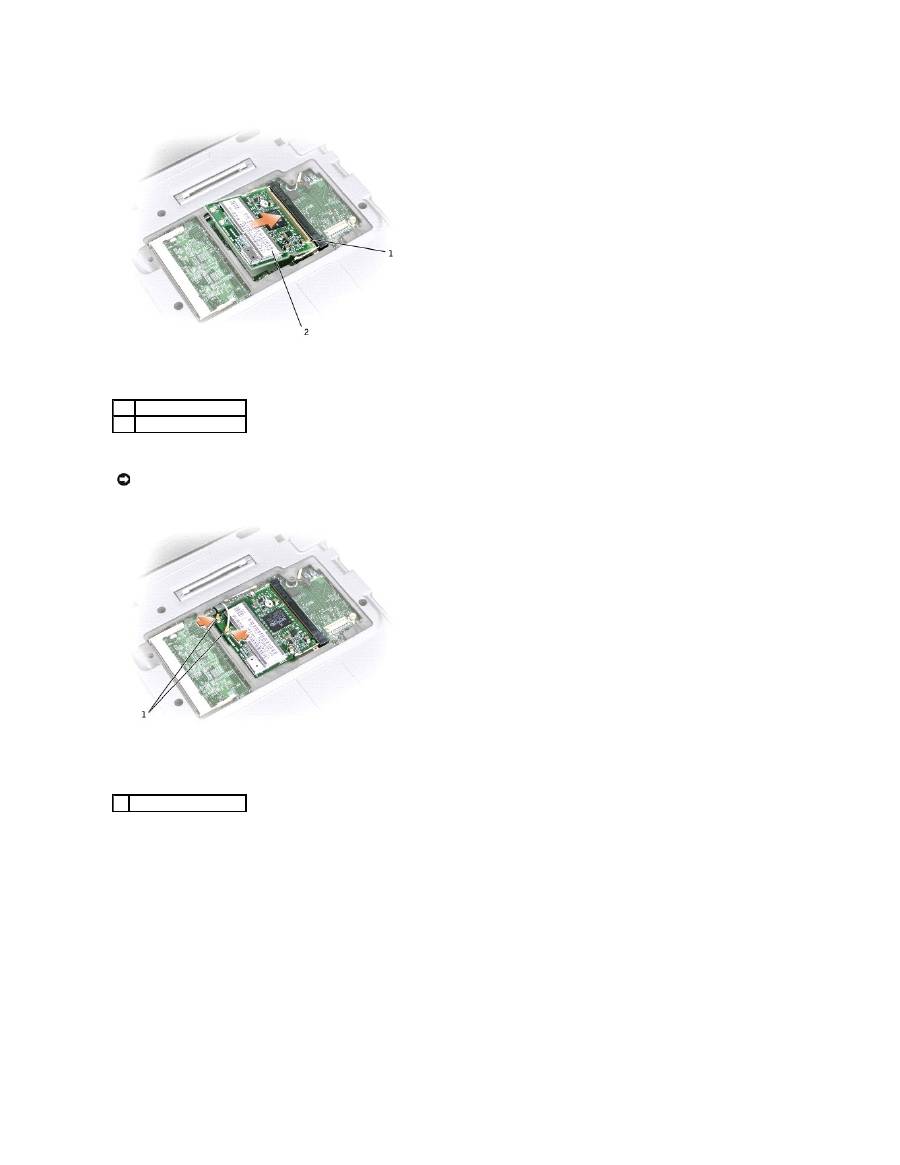
10.
Connect the antenna cable to the antenna connector on the Mini PCI card.
11.
Lower the Mini PCI card toward the inner tabs to approximately a 20-degree angle.
12.
Continue lowering the Mini PCI card until it snaps into the inner tabs of the connector.
13.
Replace the cover and tighten the screws.
1
connector
2
Mini PCI card
NOTICE:
The connectors are keyed for correct insertion. If you feel resistance, check the connectors and realign the card.
1
cable connector (2)

Using the System Setup Program
Overview
Viewing the System Setup Screens
System Setup Screens
Commonly Used Options
Overview
You can use the system setup program as follows:
l
To set or change user-selectable features
—
for example, your computer password
l
To verify information about the computer's current configuration, such as the amount of system memory
After you set up the computer, run the system setup program to familiarize yourself with your system configuration information and optional settings. You may
want to write down the information for future reference.
The system setup screens display the current setup information and settings for your computer, such as:
l
System configuration
l
Boot order
l
Boot (start-up) configuration and docking-device configuration settings
l
Basic device configuration settings
l
System security and hard-drive password settings
Viewing the System Setup Screens
1.
Turn on (or restart) your computer.
2.
When the DELL™ logo appears, press <F2> immediately. If you wait too long and the Windows logo appears, continue to wait until you see the
Windows desktop. Then shut down your computer and try again.
System Setup Screens
On each screen, the system setup options are listed at the left. To the right of each option is the setting or value for that option. You can change settings that
appear as white type on the screen. Options or values that you cannot change (because they are determined by the computer) appear as grey type.
The right side of the screen displays help information for the currently highlighted option; the left side displays information about the computer. System setup
key functions are listed across the bottom of the screen.
Commonly Used Options
NOTE:
Your operating system may automatically configure most of the options available in the system setup program, thus overriding options that you
set through the system setup program. (An exception is the External Hot Key option, which you can disable or enable only through the system setup
program.) For more information on configuring features for your operating system, see your
Help and Support Center
(Help in Windows 2000).
NOTICE:
Unless you are an expert computer user or are directed to do so by Dell technical support, do not change the settings for the system setup
program. Certain changes might make your computer work incorrectly.

Certain options require that you reboot the computer for new settings to take effect.
Changing the Boot Sequence
The
Boot Order
page displays a general list of the bootable devices that may be installed in your computer, including but not limited to the following:
l
Removable Devices
l
Hard Drive
l
CD-ROM Drive
l
Onboard NIC
Performing a One-Time Boot
You can set a one-time-only boot sequence without entering the system setup program. (You can also use this procedure to boot the Dell Diagnostics on the
diagnostics utility partition on your hard drive.)
1.
Turn off the computer.
2.
Turn on the computer. When the DELL logo appears, press <F12> immediately. If you wait too long and the Windows logo appears, continue to wait
until you see the Windows desktop. Then shut down your computer and try again.
3.
When the boot device list appears, highlight the device from which you want to boot and press <Enter>.
The computer boots to the selected device.
The next time you reboot the computer, the previous boot order is restored.
Changing Printer Modes
If your computer is connected to the media base (docked), set the
Parallel Mode
option according to the type of printer or device connected to the parallel
connector. To determine the correct mode to use, see the documentation that came with the device.
Setting
Parallel Mode
to
Disabled
disables the parallel port and the port's LPT address, freeing computer resources for another device to use.
Changing COM Ports
Serial Port
allows you to map the serial port COM address or disable the serial port and its address, freeing computer resources for another device to use.
Enabling the Infrared Sensor
1.
Enter the system setup program:
a.
Turn on your computer.
b.
Press <F2> when the Dell™ logo appears.
2.
Press <Alt><P> until you locate
Infrared Data Port
under
Basic Device Configuration
.
3.
Press the down-arrow key to select the
Infrared Data Port
setting, and press the right-arrow key to change the setting to a COM port.
4.
Press the down-arrow key to select the
Infrared Mode
setting,
and press the right-arrow key to change the setting to
Fast IR
or
Slow IR
.
It is recommended that you use
Fast IR
. If the infrared device cannot communicate with your computer, shut down the computer and repeat steps 1
through 5 to change the setting to
Slow IR
.
5.
Press <Esc><Enter> and
Yes
to save the changes and exit the system setup program. If you are prompted to restart your computer, press
Enter
.
After you enable the infrared sensor, you can use it to establish a link to an infrared device. To set up and use an infrared device, see the infrared device
documentation and the
Help and Support Center
(
Help
in Windows 2000).
NOTE:
To change the boot sequence on a one-time-only basis, see "
Performing a One-Time Boot
."
NOTE:
Ensure that the COM port that you select is different from the COM port assigned to the serial connector.
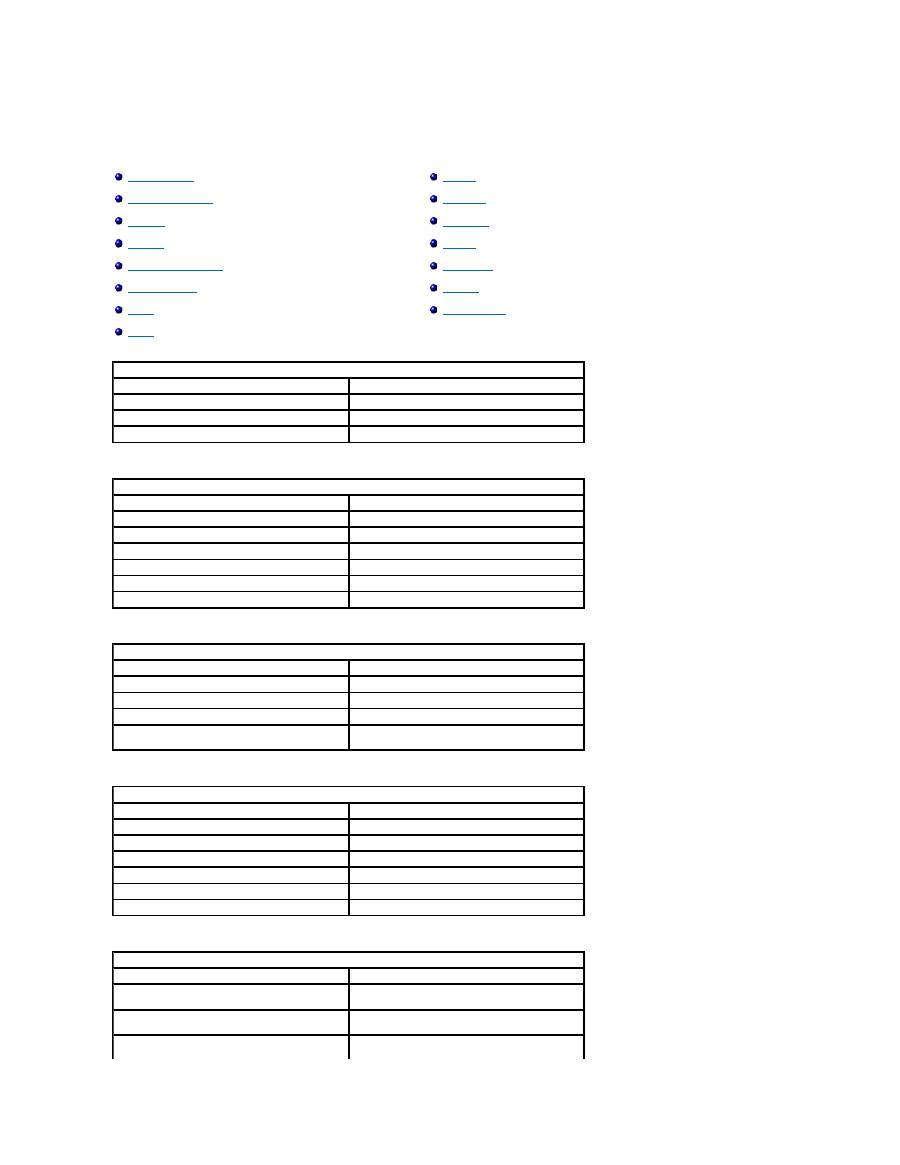
Specifications
Microprocessor
System Information
PC Card
Memory
Ports and Connectors
Communications
Video
Audio
Display
Keyboard
Touch Pad
Battery
AC Adapter
Physical
Environmental
Microprocessor
Microprocessor types
Intel
®
Mobile Pentium
®
L1 cache
32 KB (internal)
L2 cache
1 MB
External bus frequency
400 MHz
System Information
System chip set
Intel 855GM
Data bus width
64 bits
DRAM bus width
64 bits
Microprocessor address bus width
32 bits
Flash EPROM
8 MB
Graphics bus
Intel UMA integrated graphics architecture
PCI bus
33 MHz
PC Card
CardBus controller
Ricoh 5C591
PC Card connector
one (supports a Type I or Type II card)
Cards supported
3.3 V and 5 V
PC Card connector size
68 pins
Data width (maximum)
PCMCIA 16 bits
CardBus 32 bits
Memory
Architecture
PC2100 SDRAM
Memory module connector
one user-accessible SODIMM socket
Memory module capacities
128, 256, 512, 1024MB
Memory type
3.3-V SODIMM
Standard memory
128 MB
Maximum memory
1.152 GB
Clock speed
266 MHz
Ports and Connectors
Video
15-hole connector
Audio
microphone connector, stereo headphone/speakers
connector
USB
two 4-pin USB 2.0-compliant connectors (including the
Dell™ D/Bay connector)
D/Bay connector
4-pin power supply and 4-pin USB 2.0-compliant
connector
Docking
100-
pin connector for a Dell™ Media Base
Mini PCI
one Type IIIA Mini PCI card slot
Secure Digital memory slot
one secure digital memory slot
Modem
RJ-11 port
Network adapter
RJ-45 port 10/100 LAN
IEEE 1394
4-pin serial connector
Communications
Modem:
Type
integrated 56K v.92-capable modem daughter card
Controller
softmodem
Interface
internal AC97 bus
Network adapter
10/100 BaseTX Bus Master Ethernet
Wireless
internal Mini PCI Wi-Fi (802.11b) wireless support
Video
Video type
integrated with Intel 855GM chip set
Core frequency
133 MHz
Video controller
Intel UMA integrated graphics
Video memory:
System memory, 128 MB
UMA; shared with system memory (up to 32 MB)
System memory, 256+ MB
UMA; shared with system memory (up to 64 MB)
LCD interface
XGA
Audio
Audio type
Sigmatel STAC 9750
Intel AC97
Stereo conversion
18-bit (stereo analog-to-digital) and 20-bit (stereo
digital-to-analog)
Interfaces:
Internal
AC97
External
microphone-in connector, stereo
headphones/speakers connector
Speaker:
X300
Media Base
1.0 W into two 8-ohm speakers
2.5 W into one 4-ohm speaker
Internal speaker amplifier
1.0-W channel into 4 ohms stereo
Volume controls
volume up/down menu, mute
Display
Type (active-matrix TFT)
XGA
Dimensions:
Height
184 mm (7.26 inches)
Width
246 mm (9.7 inches)
Diagonal
307 mm (12.1 inches)
Maximum resolutions
1024 x 768 at 16.8 million colors
Response time (typical)
50-ms rise and fall (maximum)
Refresh rate
60 Hz
Operating angle
0° (closed) to 180°
Viewing angles:
Horizontal
±
40°
Vertical
+10°/–30°
Pixel pitch
0.28 mm horizontal x 0.28 mm vertical
Power Consumption:
Panel with backlight (typical)
4.5 W
Controls
brightness can be controlled through keyboard
shortcuts
Keyboard
Number of keys
84 (U.S. and Canada); 85 (Europe); 88(Japan); 86
(Brazil)
Key travel
2.4 mm (0.09 inch)
Key spacing
18.0 mm (.73 inch)
Layout
QWERTY/AZERTY/Kanji
Touch Pad
X/Y position resolution (graphics table mode)
240 cpi
Size:
Width
64.88-mm (2.55-inch) sensor-active area
Height
48.88-mm (1.92-inch) rectangle
Battery
Type
28-WHr "smart" lithium ion
65-WHr "smart" lithium ion
Dimensions:
Height
15.60 mm (0.61 inches) (28-WHr battery)
20.90 mm (0.82 inches) (65-WHr battery)
Width
211.20 mm (8.31 inch) (28-WHr battery)
273.30 mm (10.76 inch) (65-WHr battery)
Depth
38.30 mm (1.51 inches) (28-WHr battery)
82.70 mm (3.26 inches) (65-WHr battery)
Weight
200.90 g (0.44 lb) (28-WHr battery)
480 g (1.06 lb) (65-WHr battery)
Voltage
14.8 VDC
Charge time (approximate):
Computer off
about 60 minutes with 28-WHr battery Express
Charge time
about 71 minutes with 65-WHr battery Express
Charge time
Life span (approximate)
300 discharge/charge cycles
Temperature range:
Operating
0° to 35°C (32° to 95°F)
Storage
–40° to 65°C (–40° to 149°F)
AC Adapter
Input voltage
90
–
264 VAC
Input current (maximum)
1.7 A
Input frequency
47
–
63 Hz
Output current (maximum)
3.34 A (continuous)
Output power
65 W
Rated output voltage
19.5 VDC
Dimensions:
Height
27.94 mm (1.1 inches)
Width
58.42 mm (2.3 inches)
Depth
133.85 mm (5.25 inches)
Weight (including cables and strap)
0.4 kg (0.9 lb)
Temperature range:
Operating
0° to 35°C (32° to 95°F)
Storage
–40° to 65°C (–40° to 149°F)
Physical
Height
275 mm (approximately 10.83 inch), depending upon
point of measurement
Width
233.60 mm (9.20 inches)
Depth
22.20 mm (08.7 inches)
Weight
1.31 kg (2.9 lb) with 28-WHr battery
Environmental
Temperature range:
Operating
0° to 35°C (32° to 95°F)
Storage
–40° to 65°C (–40° to 149°F)
Relative humidity (maximum):
Operating
10% to 90% (noncondensing, maximum)
Storage
5% to 95% (noncondensing, maximum
Maximum vibration (using a random-vibration spectrum that simulates user environment):
Operating
0.66 GRMS
Storage
1.30 GRMS
Maximum shock (measured with HDD in head-parked position and 2 ms half-sine pulse):
Operating
122 G
Storage
163 G
Altitude (maximum):
Operating
–
15.2 to 3,048 m (
–
50 to 10,000 ft)
Storage
–
15.2 to 10,668 m (
–
50 to 35,000 ft)

Traveling With Your Computer
Identifying Your Computer
Packing the Computer
Travel Tips
Identifying Your Computer
l
Attach a name tag or business card to the computer, or use a permanent marker or stencil to write a unique identifying mark (such as your driver's
license number) on the computer.
l
Write down your
Service Tag
and store it in a safe place away from the computer or carrying case. Use the Service Tag if you need to report a loss or
theft to law enforcement officials and to Dell.
l
Create a file on the Microsoft
®
Windows
®
desktop called
if_found
. Place information such as your name, address, and telephone number in this file.
l
Contact your credit card company and ask if it offers coded identification tags.
Packing the Computer
l
Remove any external devices attached to the computer and store them in a safe place. Remove any cables attached to installed PC Cards, and
remove
any extended PC Cards
.
l
Fully charge the main battery and any spare batteries you plan to carry with you.
l
Shut down the computer.
l
Disconnect the AC adapter.
l
Remove any extraneous items, such as paper clips, pens, and paper, from the keyboard and palm rest and close the display.
l
Use the optional Dell™ carrying case to pack the computer and its accessories together safely.
l
Avoid packing the computer with items such as shaving cream, colognes, perfumes, or food.
l
Protect the computer, the batteries, and the hard drive from hazards such as extreme temperatures and overexposure to sunlight, dirt, dust, or liquids.
l
Pack the computer so that it does not slide around in the trunk of your car or in an overhead storage compartment.
Travel Tips
l
Consider disabling wireless activity on your computer to maximize battery operating time. To disable wireless activity, press <Fn><F2>.Consider
changing your
power management
options to maximize battery operating time.
l
If you are traveling internationally, carry proof of ownership
—
or of your right to use the computer if it is company-owned
—
to speed your passage
through customs. Investigate the customs regulations of the countries you plan to visit, and consider acquiring an international carnet (also known as a
merchandise passport
) from your government.
l
Ensure that you know which electrical outlets are used in the countries you will visit, and have appropriate power adapters.
NOTICE:
When the display is closed, extraneous items on the keyboard or palm rest could damage the display.
NOTICE:
If the computer has been exposed to extreme temperatures, allow it to acclimate to room temperature for 1 hour before turning it on.
NOTICE:
Do not check the computer as baggage.
NOTICE:
Do not move the computer while using the optical drive. Doing so can result in loss of data.

l
Check with your credit card company for information about the kinds of emergency travel assistance it offers to users of portable computers.
Traveling by Air
l
Ensure that you have a charged battery available in case you are asked to turn on the computer.
l
Before you use the computer on an airplane, verify that such usage is permitted. Some airlines forbid the use of electronic devices during the flight. All
airlines forbid the use of electronic devices during takeoff and landing.
If Your Computer Is Lost or Stolen
l
Call a law enforcement agency to report the lost or stolen computer. Include the Service Tag in your description of the computer. Ask that a case number
be assigned and write down the number, along with the name, address, and telephone number of the law enforcement agency. If possible, obtain the
name of the investigating officer.
l
If the computer belongs to a company, notify the security office of the company.
l
Contact Dell customer service to report the missing computer. Provide the computer Service Tag, the case number, and the name, address, and
telephone number of the law enforcement agency to which you reported the missing computer. If possible, give the name of the investigating officer.
The Dell customer service representative will log your report under the computer Service Tag and flag the computer as missing or stolen. If someone calls Dell
for technical assistance and gives your Service Tag, the computer is identified automatically as missing or stolen. The representative will attempt to get the
phone number and address of the caller. Dell will then contact the law enforcement agency to which you made the report of the missing computer.
NOTICE:
Do not walk the computer through a metal detector. Send the computer through an X-ray machine or have it hand inspected.
NOTE:
If you know where the computer was lost or stolen, call a law enforcement agency in that area. If you do not know, call a law enforcement
agency where you live.
Using Microsoft ® Windows ® XP
Help and Support Center
Switching to Classic View
Desktop Cleanup Wizard
Transferring Information to a New Computer
User Accounts and Fast User Switching
Setting Up a Home and Office Network
Internet Connection Firewall
Help and Support Center
The Help and Support Center provides help with Windows XP and also offers other support and educational tools. To access the Help and Support Center, click
the
Start
button and click
Help and Support
.
Switching to Classic View
You can change the Control Panel, the
Start
menu, and the Microsoft
®
Windows
®
desktop so they look like they did in previous versions of the Windows
operating system.
Control Panel
1.
Click the
Start
button and click
Control Panel
.
2.
Click
Switch to Classic View
or
Switch to Category View
in the upper-left area of the
Control Panel
window.
Start Menu
1.
Right-click the empty area on the taskbar.
2.
Click
Properties
and click the
Start Menu
tab.
3.
Select
Classic Start Menu
and click
OK
.
Desktop Themes
1.
Right-click anywhere on the main desktop screen and click
Properties
.
2.
On the
Themes
tab, click
Windows Classic
in the drop-down menu.
3.
To customize color, font, and other classic desktop options, click the
Appearance
tab and click
Advanced
.
4.
When you have made your selections, click
OK
.
Desktop Cleanup Wizard
By default, the Desktop Cleanup Wizard moves program icons that are not frequently used from your desktop to a designated folder 7 days after you first
start your computer and every 60 days after that. The appearance of the
Start
menu changes as program icons are moved.
To turn off the Desktop Cleanup Wizard at any time:
1.
Right-click an empty spot on the desktop and click
Properties
.
NOTE:
Windows XP Home Edition and Windows XP Professional offer different features and appearances. Also, options available in Windows XP
Professional vary depending on whether the computer is connected to a domain.
NOTE:
Options available in Microsoft
®
Windows
®
XP Professional operating system vary depending on whether your computer is connected to a
domain.
NOTE:
The procedures in this help file were written for the Windows default view, so the options might be different if you switch to the classic view.

2.
Click the
Desktop
tab and click
Customize Desktop
.
3.
Click
Clean Desktop Now
.
4.
When the
Desktop Cleanup Wizard
screen appears, click
Next
.
5.
To leave an icon on the desktop, click the icon name to remove the check mark, and then click
Next
.
6.
Click
Finish
to remove the shortcuts and close the wizard.
To run the Desktop Cleanup Wizard at any time:
1.
Right-click an empty spot on the desktop and click
Properties
.
Transferring Information to a New Computer
The Windows XP operating system provides a Files and Settings Transfer wizard to move data from the source computer to the new computer. You can move
data such as:
l
E-mails
l
Toolbar settings
l
Window sizes
l
Internet bookmarks
You can transfer the data to the new computer over a network or serial connection, or you can store it on a removable medium, such as a writable CD or
floppy disk.
To prepare the new computer for the file transfer:
1.
Click the
Start
button, point to
All Programs
®
Accessories
®
System Tools
, and then click
Files and Settings Transfer Wizard
.
2.
When the
Files and Settings Transfer Wizard
welcome screen appears, click
Next
.
3.
On the
Which computer is this?
screen, click
New Computer
and click
Next
.
4.
On the
Do you have a Windows XP CD?
screen, click
I will use the wizard from the Windows XP CD
and click
Next
.
5.
When the
Now go to your old computer
screen appears, go to your old or source computer.
Do not
click
Next
at this time.
To copy data from the old computer:
1.
On the old computer, insert the Windows XP
Operating System
CD.
2.
On the
Welcome to Microsoft Windows XP
screen, click
Perform additional tasks
.
3.
Under
What do you want to do?
, click
Transfer files and settings
.
4.
On the
Files and Settings Transfer Wizard
welcome screen, click
Next
.
5.
On the
Which computer is this?
screen, click
Old Computer
and click
Next
.
6.
On the
Select a transfer method
screen, click the transfer method you prefer.
7.
On the
What do you want to transfer?
screen, select the items you want to transfer and click
Next
.
After the information has been copied, the
Completing the Collection Phase
screen appears.
8.
Click
Finish
.
To transfer data to the new computer:
1.
On the
Now go to your old computer
screen on the new computer, click
Next
.
2.
On the
Where are the files and settings?
screen, select the method you chose for transferring your settings and files and click
Next
.
The wizard reads the collected files and settings and applies them to your new computer.
When all of the settings and files have been applied, the
Finished
screen appears.

3.
Click
Finished
and restart the new computer.
User Accounts and Fast User Switching
Adding User Accounts
After Windows XP is installed, the administrator or a user with administrator rights can create additional user accounts.
1.
Click the
Start
button and click
Control Panel
.
2.
In the
Control Panel
window, click
User Accounts
.
3.
Under
Pick a task
, click
Create a new account
.
4.
Under
Name the new account
, type the name of the new user and click
Next
.
5.
Under
Pick an account type
, click one of the following options:
l
Computer administrator
—
You can change all computer settings.
l
Limited
—
You can change only your own personal settings, such as your password. You cannot install programs or use the Internet.
6.
Click
Create Account
.
Fast User Switching
Fast User Switching allows multiple users to access one computer without requiring the previous user to log off.
1.
Click the
Start
button and click
Log Off
.
2.
In the
Log Off Windows
window, click
Switch User
.
When you use Fast User Switching, programs that previous users were using remain running in the background, so you might experience slower computer
activity. Also, multimedia programs, such as games and DVD software, might not work with Fast User Switching. For more information, see the
Windows Help
and Support Center
.
Setting Up a Home and Office Network
Connecting to a Network Adapter
Before you connect your computer to a network, the computer must have a network adapter installed and a network cable connected to it.
To connect a network cable:
1.
Connect the network cable to the network adapter connector on the back of your computer.
2.
Connect the other end of the network cable to a network connection device, such as a network wall jack.
Network Setup Wizard
The Microsoft
®
Windows
®
XP operating system provides a Network Setup Wizard to guide you through the process of sharing files, printers, or an Internet
connection between computers in a home or small office.
1.
Click the
Start
button, point to
All Programs
®
Accessories
®
Communications
, and then click
Network Setup Wizard
.
NOTE:
Additional options may be available, depending on whether you are using Windows XP Home Edition or Windows XP Professional. Also, options
available in Windows XP Professional vary depending on whether your computer is connected to a domain.
NOTE:
Fast User Switching is unavailable if the computer is running Windows XP Professional and is a member of a computer domain, or if the computer
has less than 128 MB of memory.
NOTE:
Insert the cable until it clicks into place, and then gently pull it to ensure that it is secure.
NOTE:
Do not use a network cable with a telephone wall jack.

2.
On the welcome screen, click
Next
.
3.
Click
Checklist for creating a network
.
4.
Complete the checklist and required preparations.
5.
Return to the Network Setup Wizard and follow the instructions on the screen.
Internet Connection Firewall
The Internet Connection Firewall provides basic protection from unauthorized access to the computer while the computer is connected to the Internet. The
firewall is automatically enabled when you run the Network Setup Wizard. When the firewall is enabled for a network connection, the firewall icon appears
with a red background in the
Network Connections
portion of the Control Panel.
Note that enabling the Internet Connection Firewall does not reduce the need for virus-checking software.
For more information, see the
Windows Help and Support Center
.
NOTE:
Selecting the connection method
This computer connects directly to the Internet
enables the integrated firewall provided with Windows XP.
