
Dell Latitude X300 – страница 2
Инструкция к Ноутбуку Dell Latitude X300
Оглавление
- Dell™ Latitude™ X300 User's Guide
Using a Battery
Battery Performance
Checking the Battery Charge
Charging the Battery
Removing a Battery
Installing a Battery
Storing a Battery
Battery Performance
For optimal computer performance and to help preserve BIOS settings, operate your Dell™ portable computer with the main battery installed at all times. Use
a battery to run the computer when it is not connected to an electrical outlet. One battery is supplied as standard equipment in the battery bay.
Battery operating time varies depending on operating conditions. You can either use an optional 65 WHr extended battery and an optional second 28 WHr
battery in the media base to significantly increase operating time. For more information about the second battery, see the documentation that came with your
media base.
Operating time is significantly reduced when you perform operations including, but not limited to, the following:
l
Using optical drives, especially DVD and CD-RW drives
l
Using wireless communications devices, PC Cards, or USB devices
l
Using high-brightness display settings, 3D screen savers, or other power-intensive programs such as 3D games
l
Running the computer in
maximum performance mode
You can
check the battery charge
before you
insert the battery
into the computer. You can also set power management options to alert you when the
battery
charge is low
.
Checking the Battery Charge
The Dell QuickSet Battery Meter, the Microsoft
®
Windows
®
Power Meter
window and
icon, the battery charge gauge and health gauge, and the low-
battery warning provide information on the battery charge.
Dell QuickSet Battery Meter
If
Dell QuickSet
is installed, press <Fn><F3> to display the QuickSet Battery Meter.
The
Battery Meter
window displays status, charge level, and charge completion time for the battery in your computer.
NOTE:
Batteries for portable computers are covered only during the initial one-year period of the limited warranty for your computer. For more
information about the Dell warranty for your computer, see the
System Information Guide
.
NOTE:
It is recommended that you connect your computer to an electrical outlet when writing to a CD.
CAUTION:
Using an incompatible battery may increase the risk of fire or explosion. Replace the battery only with a compatible battery purchased
from Dell. The lithium-ion battery is designed to work with your Dell computer. Do not use a battery from other computers with your computer.
CAUTION:
Do not dispose of batteries with household waste. When your battery no longer holds a charge, call your local waste disposal or
environmental agency for advice on disposing of a lithium-ion battery. See the battery disposal instructions in your
System Information Guide
."
CAUTION:
Misuse of the battery may increase the risk of fire or chemical burn. Do not puncture, incinerate, disassemble, or expose the battery to
temperatures
above 65°C (149°F). Keep the battery away from children. Handle damaged or
leaking batteries with extreme care. Damaged
batteries may leak and cause personal injury or equipment damage.

In addition, when your computer is connected to a media base (docked), the
Battery Meter
window includes a
Dock Battery
tab, which displays the charge
level and current status of the media base battery.
The following icons appear in the
Battery Meter
window:
For more information about QuickSet, right-click the
icon in the taskbar, and click
Help
.
Microsoft Windows Power Meter
The Windows Power Meter indicates the remaining battery charge. To check the Power Meter, double-click the
icon on the taskbar. For more information
about the
Power Meter
tab, see "
Power Management
."
If the computer is connected to an electrical outlet, a
icon appears.
Charge Gauge
Before you
insert a battery
, press the status button on the battery charge gauge to illuminate the charge-level lights. Each light represents approximately 20
percent of the total battery charge. For example, if the battery has 80 percent of its charge remaining, four of the five lights are on. If no lights appear, the
battery has no charge.
Health Gauge
The battery operating time is largely determined by the number of times it is charged. After hundreds of charge and discharge cycles, batteries lose some
charge capacity, or battery health. To check the battery health, press and hold the status button on the battery charge gauge for at least 3 seconds. If no
lights appear, the battery is in good condition, and more than 80 percent of its original charge capacity remains. Each light represents incremental
degradation. If five lights appear, less than 60 percent of the charge capacity remains, and you should consider replacing the battery. See "
Specifications
" for
more information about the battery operating time.
Low-Battery Warning
NOTE:
You can use your media base to charge a computer battery. However, a battery in a media base does not power the media base or the
computer.
l
The computer or media base is running on battery power.
l
The battery is discharging or idle.
l
The computer or media base is connected to an electrical outlet and running on AC power.
l
The battery is charging.
l
The computer or media base is connected to an electrical outlet and running on AC power.
l
The battery is idle.
A low-
battery warning occurs when the battery charge is approximately 90 percent depleted. The computer beeps once, indicating that minimal battery
operating time remains. During that time, the speaker beeps periodically. If two batteries are installed, the low-battery warning means that the combined
charge of both batteries is approximately 90 percent depleted. The computer enters hibernate mode when the battery charge is at a critically low level. For
more information about low-battery alarms, see "
Power Management
."
Charging the Battery
When you connect the computer to an electrical outlet or install a battery while the computer is connected to an electrical outlet, the computer checks the
battery charge and temperature. If necessary, the AC adapter then charges the battery and maintains the battery charge.
If the battery is hot from being used in your computer or being in a hot environment, the battery may not charge when you connect the computer to an
electrical outlet.
The battery is too hot to start charging if the
light flashes alternately green and orange. Disconnect the computer from the electrical outlet and allow the
computer and the battery to cool to room temperature. Then connect the computer to an electrical outlet to continue charging the battery.
For more information about resolving problems with a battery, see "
Power Problems
."
Removing a Battery
1.
Ensure that the computer is turned off, suspended in a power management mode, or connected to an electrical outlet.
2.
If the computer is connected to a media base (docked), undock it. See the documentation that came with your media base for instructions.
3.
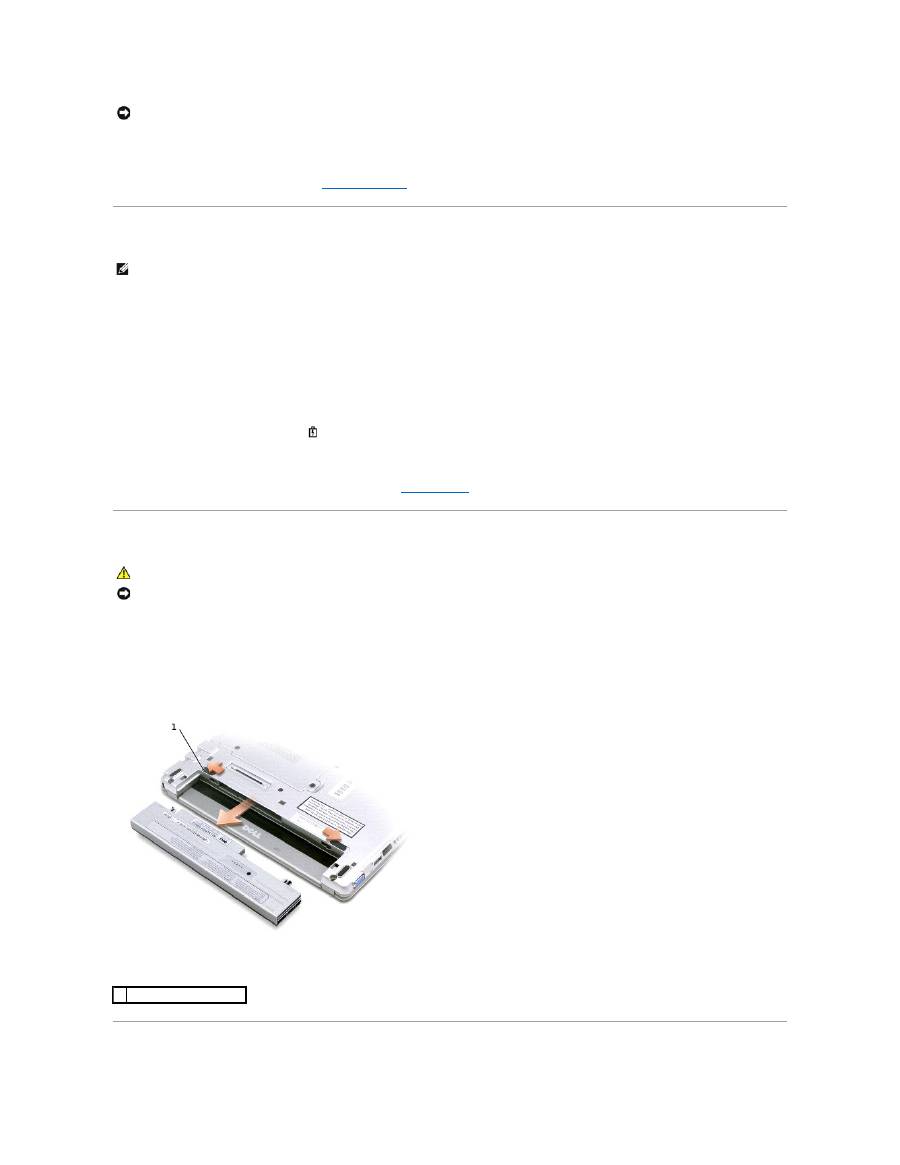
Slide the battery latch releases on the bottom of the computer and remove the battery from the bay.
NOTICE:
To avoid losing or corrupting data, save your work immediately after a low-battery warning. Then connect the computer to an electrical outlet.
If the battery runs completely out of power, hibernate mode begins automatically.
NOTE:
The AC adapter charges a completely discharged battery in approximately 1 hour with the computer turned off. Charge time is longer with the
computer turned on. You can leave the battery in the computer as long as you like. The battery's internal circuitry prevents the battery from
overcharging.
CAUTION:
Before performing these procedures, disconnect the modem from the telephone wall jack.
NOTICE:
If you choose to replace the battery with the computer in standby mode, you have up to 1 minute to complete the battery replacement. The
computer will shut down shortly after this.
1 battery latch release (2)
Installing a Battery
CAUTION:
Before performing any of the procedures listed below, read and follow the safety instructions.
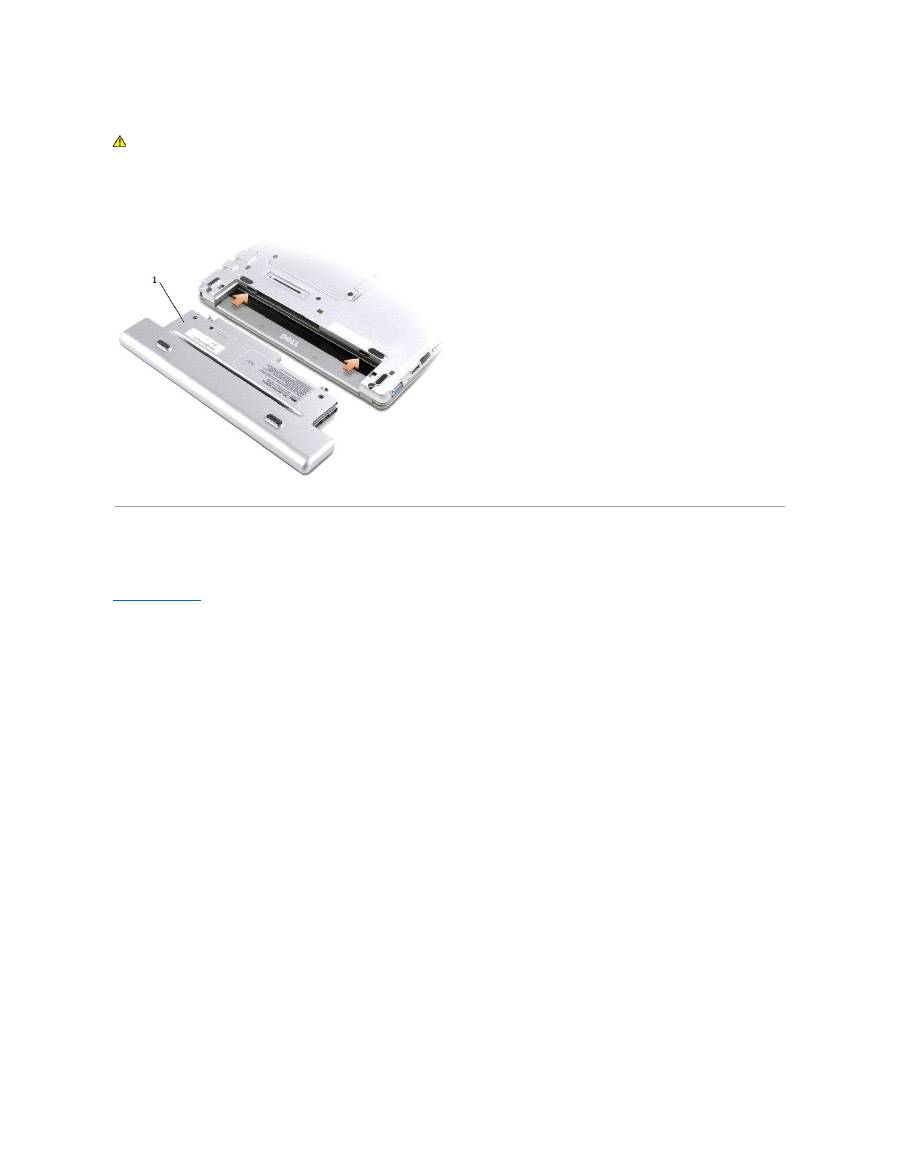
1. Slide the battery into the bay until the latch release clicks.
Installing the Optional Extended Battery
Storing a Battery
Remove the battery when you store your computer for an extended period of time. A battery discharges during prolonged storage. After a long storage period,
recharge the battery
fully before you use it.
Using the Dell™ D/Bay
About the Dell D/Bay
Removing and Installing Devices When the Computer is Turned Off
Removing and Installing Devices While the Computer Is Running
Using the CD or DVD Tray
About the Dell D/Bay
You can install Dell Latitude™ D
-Family devices such as a floppy drive or an optical drive.
Removing and Installing Devices When the Computer is Turned Off
CAUTION:
Before performing any of the procedures listed below, read and follow the safety instructions.
1.
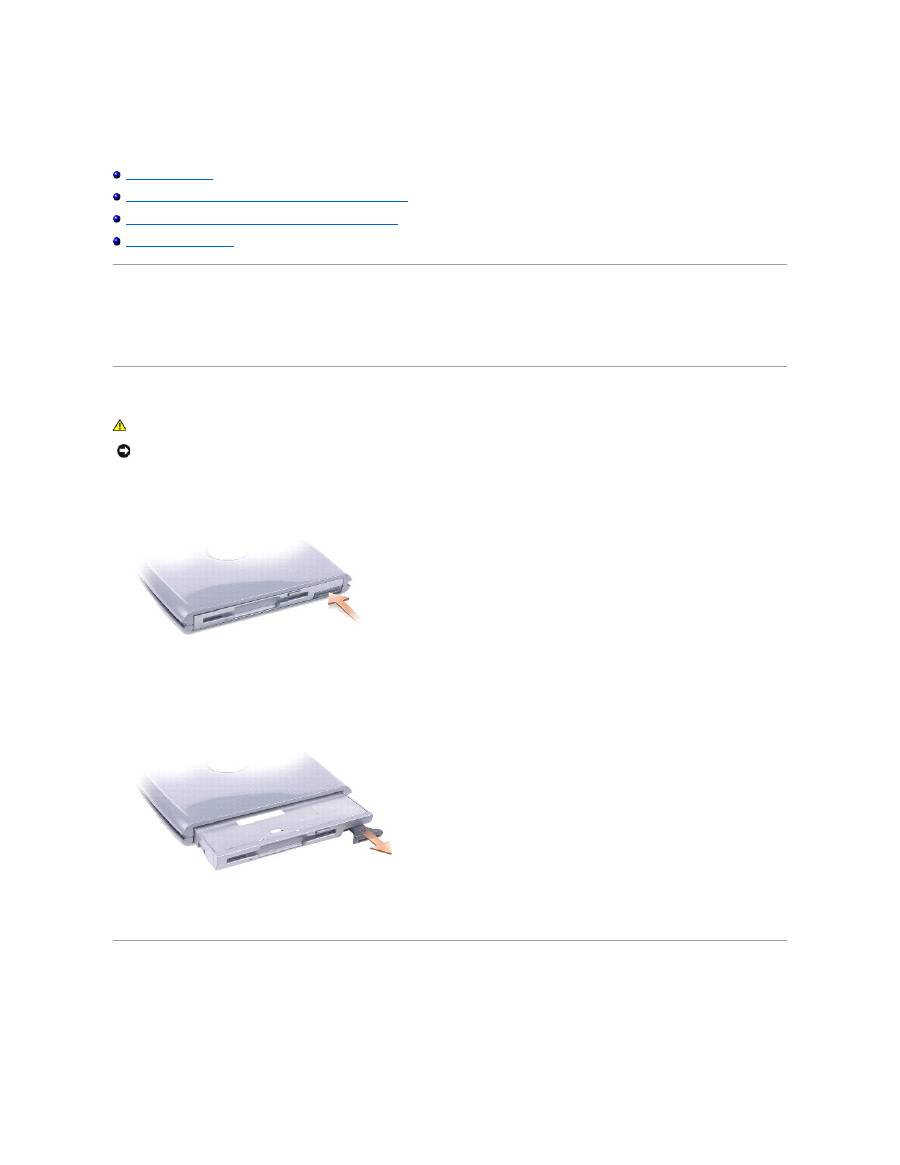
Press the device latch release so that the latch release pops out.
2.
Pull the device by the latch release to remove the device from the D/Bay.
3.
Insert the new device into the bay, push the device until you feel a click, and push the device latch release in so that it is flush with the bay.
4.
Connect the D/Bay cable to the Dell D/Bay connector on the computer.
Removing and Installing Devices While the Computer Is Running
Microsoft
®
Windows
®
XP
1.
Double-click the
Safely Remove Hardware
icon on the taskbar.
2.
Click the device you want to eject.
NOTICE:
To prevent damage to devices, place them in a safe, dry place when they are not installed in the computer. Avoid pressing down on them or
placing heavy objects on top of them.
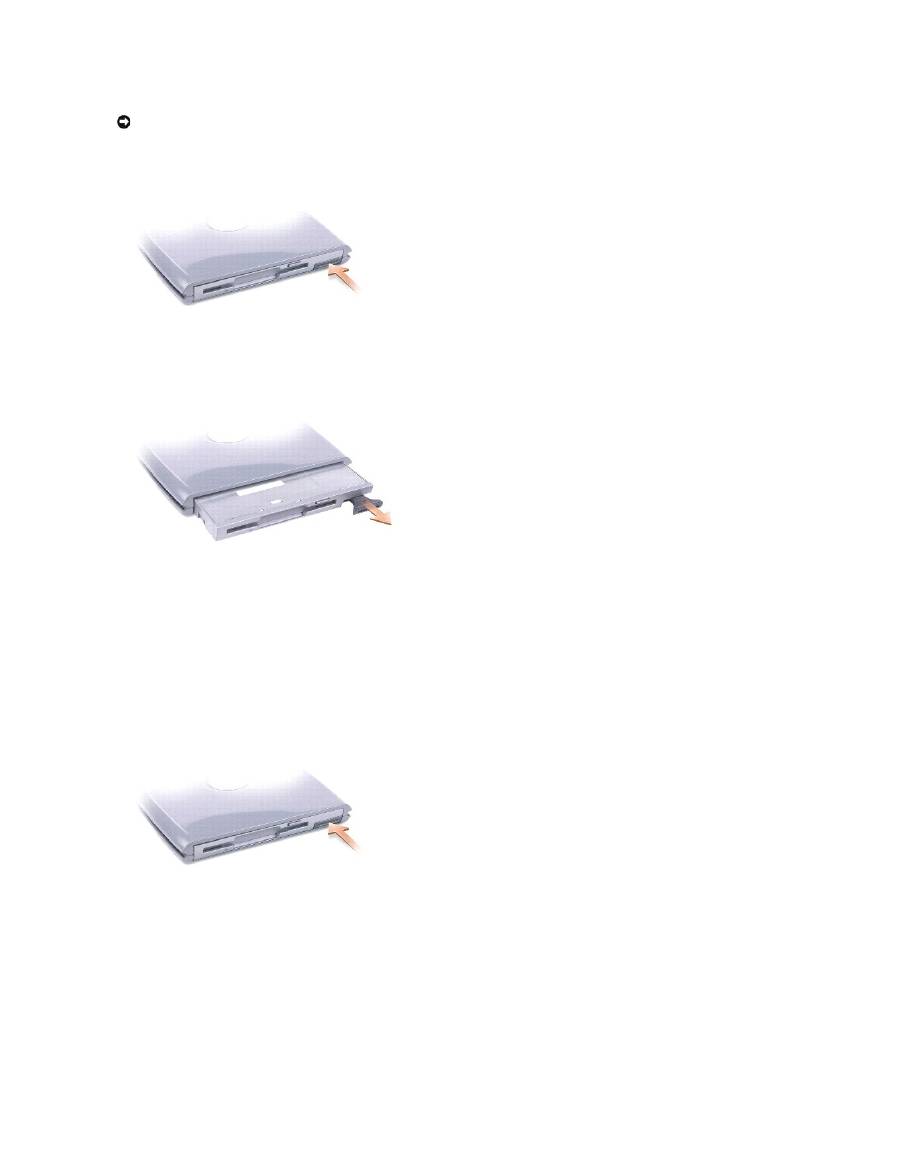
3.
Press the device latch release so that the latch release pops out.
4.
Pull the device by the latch release to remove the device from the D/Bay.
5.
Insert the new device into the bay, push the device until you feel a click, and push the device latch release in so that it is flush with the bay.
Windows XP automatically recognizes the new device.
6.
If necessary, enter your password to unlock your drive.
Windows 2000
1.
Click the
Unplug or Eject Hardware
icon on the taskbar.
2.
Click the device you want to eject and click
Stop
.
3.
Press the device latch release so that the latch release pops out.
4.
Pull the device by the latch release to remove the device from the D/Bay.
NOTICE:
To prevent damage to devices, place them in a safe, dry place when they are not installed in the computer. Avoid pressing down on them or
placing heavy objects on top of them.
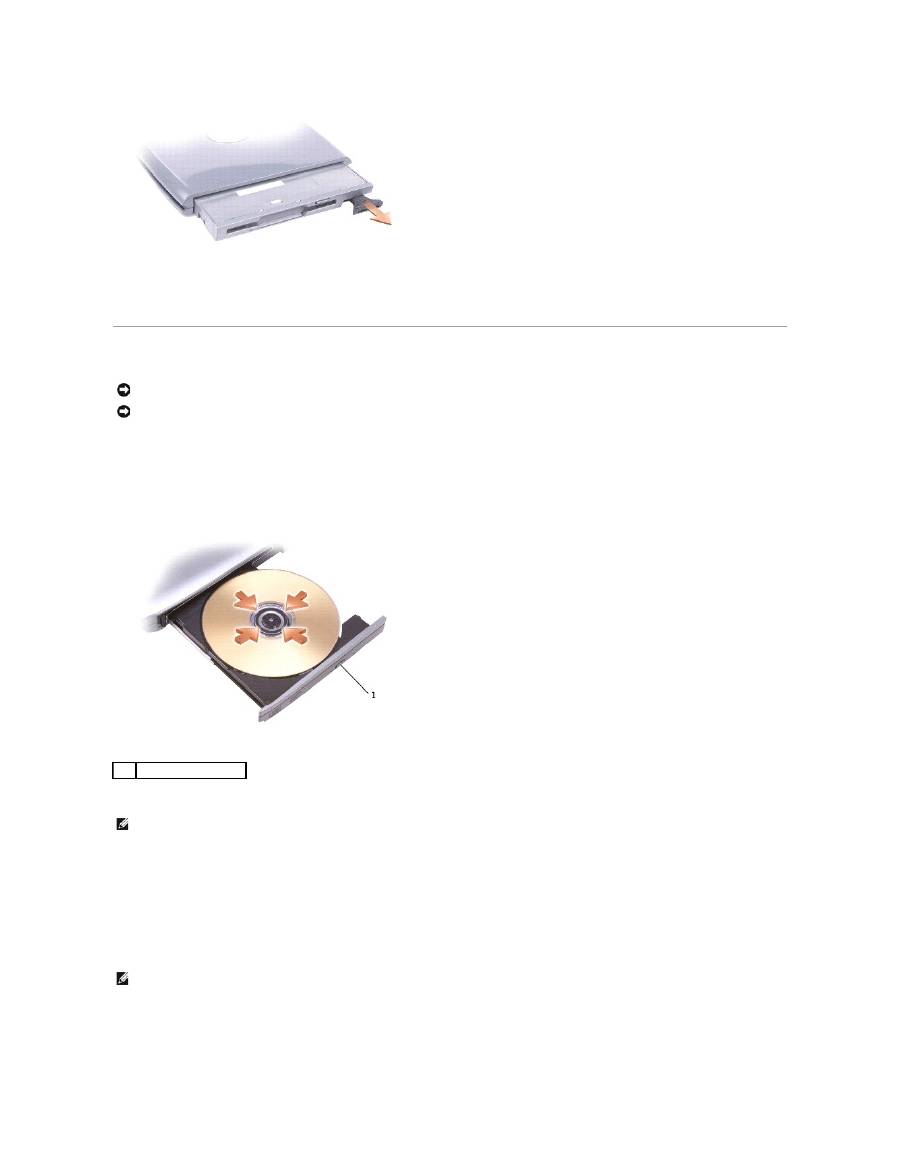
5.
Insert the new device into the bay, push the device until you feel a click, and push the device latch release in so that it is flush with the computer.
6.
When the operating system recognizes the new device, click
Close
.
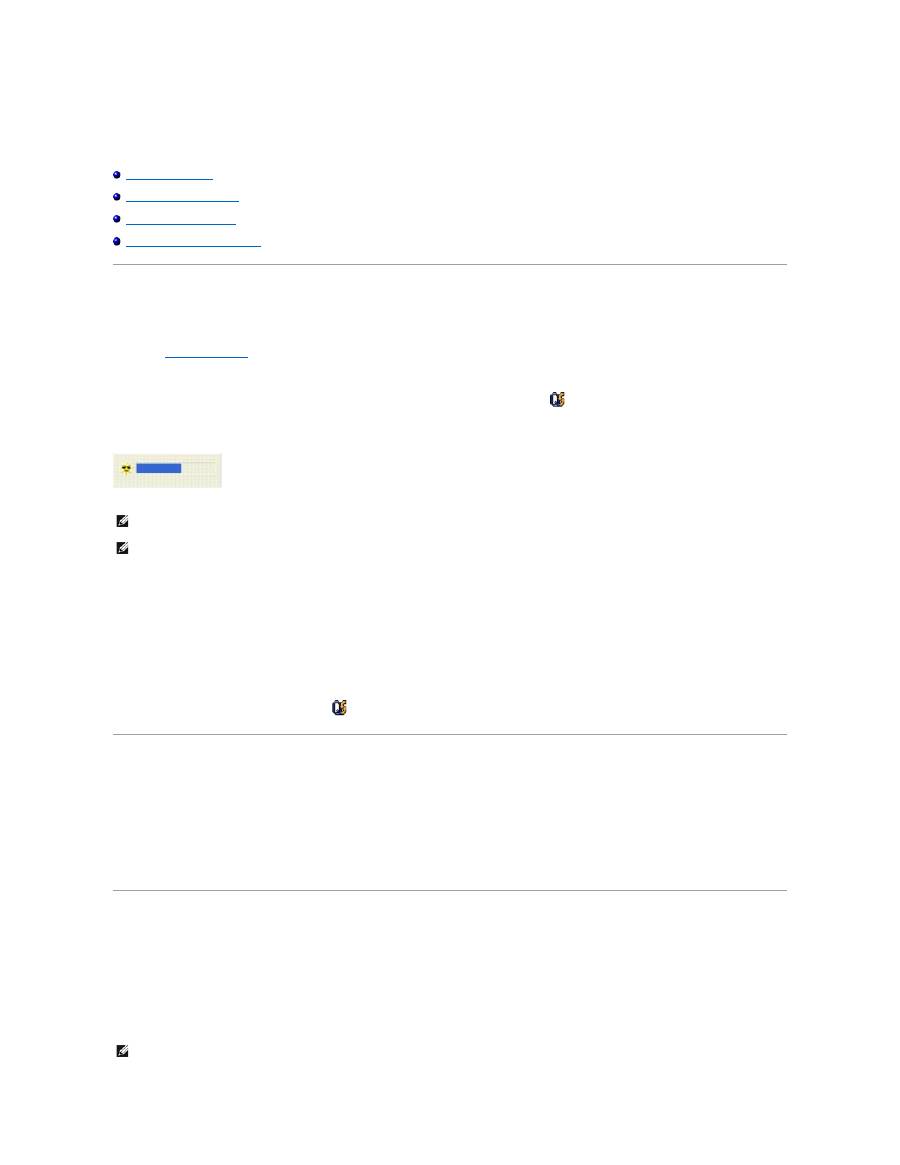
Using the CD or DVD Tray
1.
Press the eject button on the front of the drive.
2.
Pull the tray out.
3.
Place the disc, label side up, in the center of the tray.
4.
Snap the disc onto the spindle.
5.
Push the tray back into the drive.
You can play a DVD on your computer if the computer shipped with a DVD drive or a CD-RW/DVD combo drive. You can write data to a blank CD on your
computer if the computer shipped with a CD-RW or CD-RW/DVD combo drive.
For more information about playing CDs or watching movies, click
Help
on the CD player or DVD player (if available).
Adjusting the Volume
1.
Click the
Start
button, point to
All Programs
®
Accessories
®
Entertainment
(or
Multimedia
), and then click
Volume Control
.
2.
In the
Volume Control
window, click and drag the bar in the
Volume Control
column and slide the bar up or down to increase or decrease the volume.
NOTICE:
Do not press down on the drive tray when opening or closing it. Keep the tray closed when you are not using the drive.
NOTICE:
Do not move the computer while playing CDs or DVDs.
1
eject button
NOTE:
If you use a module bay that shipped with another Latitude D-Family computer, you need to install the drivers and software necessary to play
DVDs or write data. For more information, see the
Drivers and Utilities
CD.
NOTE:
If the speaker is muted, you do not hear the CD or DVD playing.

For more information about volume control options, click
Help
in the
Volume Control
window.
The Volume Meter displays the current volume level, including mute, on your computer. Either right-click the
icon in the taskbar or press the volume control
buttons to enable or disable the Volume Meter on the screen (if
Dell QuickSet
is installed).
When the meter is enabled, adjust the volume using the volume control buttons or by pressing the following keys:
l
Press <Fn><Page Up> to increase volume.
l
Press <Fn><Page Down> to decrease volume.
l
Press <Fn><Find> to mute volume.
For more information about QuickSet, right-click the
icon in the taskbar and click
Help
.
Adjusting the Picture
If an error message notifies you that the current resolution and color depth are using too much memory and preventing DVD playback, adjust the display
properties.
Windows XP
1.
Click the
Start
button and click
Control Panel
.
2.
Under
Pick a category
, click
Appearance and Themes
.
3.
Under
Pick a task...
, click
Change the screen resolution
.
4.
In the
Display Properties
window, click and drag the bar in
Screen resolution
to change the setting to
1024 by 768 pixels
.
5.
Under
Color quality
, click the drop-down menu and click
Medium (16 bit)
.
6.
Click
OK
.
Windows 2000
1.
Click the
Start
button, point to
Settings
, and then click
Control Panel
.
2.
Double-click the
Display
icon and click the
Settings
tab.
3.
Click and drag the bar in
Screen area
to change the setting to
1024 by 768 pixels
.
4.
Under
Color quality
, click the drop-down menu and click
High Color (16 bit)
.
5.
Click
Apply
.
6.
Click
OK
to save the settings and close the window.
1
volume icon
2
Volume Meter
3
mute icon
NOTE:
By default, the Volume Meter appears in the lower-right corner of the display. If you click and drag the meter to a new location, the meter always
appears at the new location.

Cleaning Your Computer
Computer, Keyboard, and Display
Touch Pad
Floppy Drive
CDs and DVDs
Computer, Keyboard, and Display
l
Use a vacuum cleaner with a brush attachment to gently remove dust from the slots and holes on your computer and from between the keys on the
keyboard.
l
Moisten a soft, lint-free cloth with either water or an LCD cleaner, and wipe the display until it is clean.
l
Moisten a soft, lint-free cloth with water and wipe the computer and keyboard. Do not allow water from the cloth to seep between the touch pad and
the surrounding palm rest.
Touch Pad
1.
Shut down and turn off your computer, disconnect any attached devices, and disconnect them from their electrical outlets.
2.
Remove the battery
.
3.
Moisten a soft, lint-free cloth with water, and wipe it gently across the surface of the touch pad. Do not allow water from the cloth to seep between the
touch pad and the surrounding palm rest.
Floppy Drive
Clean the floppy drive on your D/Bay or media base using a commercially available cleaning kit. These kits contain pretreated floppy disks to remove
contaminants that accumulate during normal operation.
CDs and DVDs
If you notice problems, such as skipping, with the playback quality of your CDs or DVDs, try cleaning the discs.
1.
Hold the disc by its outer edge. You can also touch the inside edge of the center hole.
2.
With a soft, lint-free cloth, gently wipe the bottom of the disc (the unlabeled side) in a straight line from the center to the outer edge of the disc.
For stubborn dirt, try using water or a diluted solution of water and mild soap. You can also purchase commercial products that clean discs and provide
some protection from dust, fingerprints, and scratches. Cleaning products for CDs are safe to use on DVDs.
CAUTION:
Before you begin any of the procedures in this section, read the safety instructions in the
System Information Guide
.
CAUTION:
Before you clean your computer, disconnect the computer from the electrical outlet and remove any installed batteries. Clean your
computer with a soft cloth dampened with water. Do not use liquid or aerosol cleaners, which may contain flammable substances.
NOTICE:
To avoid damaging the computer or display, do not spray cleaning solution directly onto the display. Only use products specifically designed for
cleaning LCDs, and follow the instructions that are included with the product.
NOTICE:
Do not attempt to clean drive heads with a swab. You might accidentally misalign the heads, which prevents the drive from operating.
NOTICE:
Always use compressed air to clean the lens in the CD/DVD drive, and follow the instructions that come with the compressed air. Never touch
the lens in the drive.
NOTICE:
To prevent damaging the surface, do not wipe in a circular motion around the disc.

Dell Diagnostics
When to Use the Dell Diagnostics
If you experience a problem with your computer, perform the checks in "
Solving Problems
" and run the Dell Diagnostics before you contact Dell for technical
assistance. Running the Dell Diagnostics may help you resolve the problem without contacting Dell. If you do contact Dell, the test results can provide
important information for Dell's service and support personnel.
The Dell Diagnostics allows you to:
l
Perform tests on one or all devices.
l
Select tests based on a symptom of the problem you are having.
l
Choose how many times a test is run.
l
Suspend testing if an error is detected.
l
Access help information that describes the tests and devices.
l
Receive status messages that tell you whether tests completed successfully.
l
Receive error messages if problems are detected.
Starting the Dell Diagnostics
It is recommended that you print these procedures before you begin.
The Dell Diagnostics is located on a hidden diagnostic utility partition on your hard drive.
1.
Shut down the computer.
2.
If the computer is connected to a media base (docked), undock it. See the documentation that came with your media base for instructions.
3.
Connect the computer to an electrical outlet.
4.
Turn on the computer. When the DELL™ logo appears, press <F12>immediately.
If you wait too long and the Microsoft
®
Windows
®
logo appears, continue to wait until you see the Windows desktop. Then shut down your computer
through the
Start
menu and try again.
5.
When the boot device list appears, highlight
Diagnostics
and press <Enter>.
The computer runs the Pre-boot System Assessment, a series of initial tests of your system board, keyboard, hard drive, and display.
l
During the assessment, answer any questions that appear.
l
If a failure is detected, the computer stops and beeps. To stop the assessment and restart the computer, press <N>; to continue to the next test,
press <Y>; to retest the component that failed, press <R>.
l
If failures are detected during the Pre-boot System Assessment, write down the error code(s) and contact Dell before continuing on to the Dell
Diagnostics.
If the Pre-boot System Assessment completes successfully, you receive the message
Booting Dell Diagnostic Utility Partition. Press any key to
continue
.
6.
Press any key to start the Dell Diagnostics from the diagnostics utility partition on your hard drive.
7.
When the Dell Diagnostics
Main Menu
appears, select the test you want to run.
NOTICE:
Use the Dell Diagnostics to test your Dell™ computer only. Using this program with other computers can result in error messages.
NOTE:
If your computer cannot display a screen image, contact Dell.
NOTE:
If you cannot see anything on your display, hold down the mute button and press the computer's power button to begin the Dell Diagnostics.
The computer automatically runs the Pre-boot System Assessment.
NOTE:
If you see a message stating that no diagnostics utility partition has been found, run the Dell Diagnostics from your
Drivers and Utilities
CD.

Dell Diagnostics Main Menu
1.
After the Dell Diagnostics loads and the
Main
Menu
screen appears, click the button for the option you want.
2.
If a problem is encountered during a test, a message appears with an error code and a description of the problem. Write down the error code and
problem description and follow the instructions on the screen.
If you cannot resolve the error condition,
contact Dell
.
3.
If you run a test from the
Custom Test
or
Symptom Tree
option, click the applicable tab described in the following table for more information.
4.
When the tests are complete, close the test screen to return to the
Main
Menu
screen. To exit the Dell Diagnostics and restart the computer, close the
Main
Menu
screen.
Option
Function
Express Test Performs a quick test of devices. This test typically takes 10 to 20 minutes and requires no interaction on your part. Run Express Test
first to increase the possibility of tracing the problem quickly.
Extended
Test
Performs a thorough check of devices. This test typically takes an hour or more and requires you to answer questions periodically.
Custom Test Tests a specific device. You can customize the tests you want to run.
Symptom
Tree
Lists the most common symptoms encountered and allows you to select a test based on the symptom of the problem you are having.
NOTE:
The Service Tag for your computer is located at the top of each test screen. If you contact Dell, technical support will ask for your Service Tag
number.
Tab
Function
Results
Displays the results of the test and any error conditions encountered.
Errors
Displays error conditions encountered, error codes, and the problem description.
Help
Describes the test and may indicate requirements for running the test.
Configuration Displays your hardware configuration for the selected device.
The Dell Diagnostics obtains configuration information for all devices from the system setup program, memory, and various internal tests, and
it displays the information in the device list in the left pane of the screen. The device list may not display the names of all the components
installed on your computer or all devices attached to your computer.
Parameters
Allows you to customize the test by changing the test settings.
Using the Display
Adjusting Brightness
Switching the Video Image
Setting Display Resolution
Dual Independent Display Mode
Adjusting Brightness
When the Dell™ computer is running on battery power, you can conserve power by setting the brightness to the lowest comfortable setting using the
appropriate
Keyboard Shortcuts
for the display.
The Dell QuickSet Brightness Meter shows the current brightness setting for the display. Right-click the
icon in the taskbar to enable or disable the
Brightness Meter on the screen.
You can enable or disable the Brightness Meter from the QuickSet taskbar menu. When the meter is enabled, press the following keys to adjust brightness:
l
Press <Fn> and the up-arrow key to increase brightness on the integrated display only (not on an external monitor).
l
Press <Fn> and the down-arrow key to decrease brightness on the integrated display only (not on an external monitor).
For more information about QuickSet, right-click the
icon in the taskbar and click
Help
.
Switching the Video Image
When you start the computer with an external device (such as an external monitor or projector) attached and turned on, the image may appear on either the
computer display or the external device.
Press <Fn><F8> to switch the video image to the display only, the external device only, or the display and the external device simultaneously.
Setting Display Resolution
To display a program at a specific resolution, both the video controller and the display must support the program, and the necessary video drivers must be
installed.
Before you change any of the default display settings, make a note of the default settings for future reference.
NOTE:
By default, the Brightness Mete
r
appears in the lower-right corner of the display. You can click and drag the meter to a new location, and the
meter subsequently always appears at the new location.
NOTE:
Brightness keyboard shortcuts only affect the display on your portable computer, not monitors that you attach to your portable computer or
docking device. If your computer is connected to an external monitor and you try to change the brightness level, the Brightness Meter appears, but the
brightness level on the monitor does not change.
NOTE:
Use only the Dell-installed video drivers, which are designed to offer the best performance with your Dell-installed operating system.

If you choose a resolution or color palette that is higher than the display supports, the settings adjust automatically to the closest possible setting.
Microsoft
®
Windows
®
XP
1.
Click the
Start
button and click
Control Panel
.
2.
Under
Pick a category
, click
Appearance and Themes
.
3.
Under
Pick a task...
, click the area you want to change, or under
or pick a Control Panel icon
, click
Display
.
4.
Try different settings for
Color quality
and
Screen resolution
.
Windows 2000
1.
Click the
Start
button, point to
Settings
, and then click
Control Panel
.
2.
Double-click the
Display
icon and click the
Settings
tab.
3.
Try different settings for
Colors
and
Screen area
.
If the video resolution setting is higher than that supported by the display, the computer enters
pan mode
. In pan mode, the screen cannot be completely
displayed. For example, the taskbar that usually appears at the bottom of the desktop may no longer be visible. To view the rest of the screen, use the touch
pad to pan up, down, left, and right.
Dual Independent Display Mode
You can attach an external monitor or projector to your computer and use it as an extension of your display (known as "dual independent display" or
"extended desktop" mode). This mode allows you to use both screens independently and drag objects from one screen to the other, effectively doubling the
amount of viewable work space.
Windows XP
1.
Connect the external monitor, TV, or projector to the computer.
2.
Open the Control Panel and double-click the
Display
icon.
3.
In the
Display Properties
window, click the
Settings
tab.
4.
Click the monitor 2 icon, click the
Extend my Windows desktop...
check box, and click
Apply
.
5.
Change
Screen Area
to the appropriate sizes for both displays and click
Apply
.
6.
If prompted to restart the computer, click
Apply the new color setting without restarting
and click
OK
.
7.
If prompted, click
OK
to resize your desktop.
8.
If prompted, click
Yes
to keep the settings.
9.
Click
OK
to close the
Display Properties
window.
To disable dual independent display mode:
1.
Click the
Settings
tab in the
Display Properties
window.
2.
Click the monitor 2 icon, uncheck the
Extend my Windows desktop...
option, and then click
Apply
.
If necessary, press <Fn><F8> to bring the screen image back to the computer display.
Windows 2000
The Windows 2000 operating system does not natively support dual independent display (extended desktop) mode on your computer. However, you can
download software from the Dell Support website at
support.dell.com
that lets your computer use two displays together to simulate dual independent display
behavior.
NOTE:
As the resolution increases, icons and text appear smaller on the screen.
NOTICE:
You can damage an external monitor by using an unsupported refresh rate. Before adjusting the refresh rate on an external monitor, see the
monitor user's guide.
NOTE:
If you choose a resolution or color palette that is higher than the display supports, the settings adjust automatically to the closest possible
values. For more information, see your operating system documentation.

Reinstalling Software
Reinstalling Drivers and Utilities
Resolving Software and Hardware Incompatibilities
Using Microsoft
®
Windows
®
XP System Restore
Reinstalling Microsoft
®
Windows
®
XP
Reinstalling Microsoft Windows 2000
Reinstalling Drivers and Utilities
What Is a Driver?
A driver is a program that controls a device such as a printer, mouse, or keyboard. All devices require a driver program.
A driver acts like a translator between the device and any other programs that use the device. Each device has its own set of specialized commands that only
its driver recognizes.
Dell ships your computer to you with required drivers already installed
—
no further installation or configuration is needed.
Many drivers, such as the keyboard driver, come with your Microsoft
®
Windows
®
operating system. You may need to install drivers if you:
l
Upgrade your operating system.
l
Reinstall your operating system.
l
Connect or install a new device.
Identifying Drivers
If you experience a problem with any device, identify whether the driver is the source of your problem and, if necessary, update the driver.
Windows XP
1.
Click the
Start
button and click
Control Panel
.
2.
Under
Pick a Category
, click
Performance and Maintenance
.
3.
Click
System
.
4.
In the
System Properties
window, click the
Hardware
tab.
5.
Click
Device Manager
.
6.
Scroll down the list to see if any device has an exclamation point (a yellow circle with a [!]) on the device icon.
If an exclamation point is next to the device name, you may need to reinstall the driver or install a new driver.
Windows 2000
1.
Click the
Start
button, point to
Settings
, and then click
Control Panel
.
2.
Double-click
System
.
3.
In the
System Properties
window, click the
Hardware
tab.
4.
Click
Device Manager
.
5.
Scroll down the list to see if any device has an exclamation point (a yellow circle with a [!]) on the device icon.
If an exclamation point is next to the device name, you may need to reinstall the driver or install a new driver.
NOTICE:
The
Drivers and Utilities
CD may contain drivers for operating systems that are not on your computer. Ensure that you are installing software
appropriate for your operating system.

Reinstalling Drivers and Utilities
Using Windows XP Device Driver Rollback
If a problem occurs on your computer after you install or update a driver, use Windows XP Device Driver Rollback to replace the driver with the previously
installed version.
1.
Click the
Start
button and click
Control Panel
.
2.
Under
Pick a Category
, click
Performance and Maintenance
.
3.
Click
System
.
4.
In the
System Properties
window, click the Hardware tab.
5.
Click
Device Manager
.
6.
Right-click the device for which the new driver was installed and click
Properties
.
7.
Click the
Drivers
tab.
8.
Click
Roll Back Driver
.
If Device Driver Rollback does not resolve the problem, then use
System Restore
to return your computer to the operating state that existed before you
installed the new driver.
Using the Drivers and Utilities CD
If using
Device Driver Rollback
or
System Restore
does not resolve the problem, then reinstall the driver from the
Drivers and Utilities
CD (also known as the
Resource CD).
1.
Save and close any open files, and exit any open programs.
2.
Insert the
Drivers and Utilities
CD.
In most cases, the CD starts running automatically. If it does not, start Windows Explorer, click your CD drive directory to display the CD contents, and
then double-click the
autocd.exe
file. The first time that you run the CD, it might prompt you to install setup files. Click
OK
, and follow the instructions on
the screen to continue.
3.
From the
Language
drop-down menu in the toolbar, select your preferred language for the driver or utility (if available). A welcome screen appears.
4.
Click
Next
.
The CD automatically scans your hardware to detect drivers and utilities used by your computer.
5.
After the CD completes the hardware scan, you can also detect other drivers and utilities. Under
Search Criteria
, select the appropriate categories from
the
System Model
,
Operating System
, and
Topic
drop-down menus.
A link or links appear(s) for the specific drivers and utilities used by your computer.
6.
Click the link of a specific driver or utility to display information about the driver or utility that you want to install.
7.
Click the
Install
button (if present) to begin installing the driver or utility. At the welcome screen, follow the screen prompts to complete the installation.
If no
Install
button is present, automatic installation is not an option. For installation instructions, either see the appropriate instructions in the following
subsections, or click
Extract
, follow the extracting instructions, and then read the readme file.
If instructed to navigate to the driver files, click the CD directory on the driver information window to display the files associated with that driver.
1.
After extracting the driver files to your hard drive as described in the previous section, click the
Start
button and right-click
My Computer
.
2.
Click
Properties
.
3.
Click the
Hardware
tab and click
Device Manager
.
4.
Double-click the type of device for which you are installing the driver (for example,
Modems
or
Infrared devices
).
5.
Double-click the name of the device for which you are installing the driver.
6.
Click the
Driver
tab and click
Update Driver
.
7.
Click
Install from a list or specific location (Advanced)
and click
Next
.
8.
Click
Browse
and browse to the location to which you previously extracted the driver files.
9.
When the name of the appropriate driver appears, click
Next
.
10.
Click
Finish
and restart your computer.
NOTICE:
The Dell Support website at
support.dell.com
and your
Drivers and Utilities
CD provide approved drivers for Dell™ computers. If you install
drivers obtained from other sources, your computer might not work correctly.
NOTE:
If you are reinstalling an infrared sensor driver, you must first enable the infrared sensor in the system setup program before continuing with the
driver installation.

Manually Reinstalling Drivers for Windows 2000
1.
After extracting the driver files to your hard drive as described previously, click the
Start
button, point to
Settings
, and then click
Control Panel
.
2.
Double-click the
System
icon.
3.
Click the
Hardware
tab.
4.
Click
Device Manager
.
5.
Double-click the type of device for which you are installing the driver (for example,
Modems
or
Infrared devices
).
6.
Double-click the name of the device.
7.
Click the
Driver
tab and click
Update Driver
.
8.
Click
Next
.
9.
Ensure that
Search for a suitable driver for my device (recommended)
is selected, and click
Next
.
10.
Ensure that the
Specify a location
check box is checked and that all other check boxes are unchecked, and click
Next
.
11.
Click
Browse,
and browse to the location to which you previously extracted the driver files.
12.
When the name of the appropriate driver appears, click
Next
.
13.
Click
Finish
and restart your computer.
Resolving Software and Hardware Incompatibilities
If a device is either not detected during the operating system setup or is detected but incorrectly configured, you can use Device Manager or the Hardware
Troubleshooter to resolve the incompatibility.
Microsoft
®
Windows
®
XP
To resolve incompatibilities using Device Manager:
1.
Click the
Start
button and click
Control Panel
.
2.
Click
Performance and Maintenance
and click
System
.
3.
Click the
Hardware
tab and click
Device Manager
.
4.
In the
Device Manager
list, check for devices that are incorrectly configured.
Incorrectly configured devices are indicated by a yellow exclamation point (
!
) or a red
X
if the device has been disabled.
5.
Double-click any device marked with an exclamation point to display the
Properties
window.
The
Device
status area in the
Properties
window reports the cards or devices that need to be reconfigured.
6.
Reconfigure the devices or remove the devices from the
Device Manager
. See the documentation that came with the device for information on
configuring the device.
To resolve incompatibilities using the Hardware Troubleshooter:
1.
Click the
Start
button and click
Help and Support
.
2.
Type
hardware troubleshooter
in the
Search
field and click the arrow to start the search.
3.
Click
Hardware Troubleshooter
in the
Search Results
list.
4.
In the
Hardware Troubleshooter
list, click
I need to resolve a hardware conflict on my computer
, and click
Next
.
Windows 2000
To resolve incompatibilities using Device Manager:
1.
Click the
Start
button, point to
Settings
, and then click
Control Panel
.
2.
In the
Control Panel
window, double-click
System
.
3.
Click the
Hardware
tab.
4.
Click
Device Manager
.
NOTE:
If you are reinstalling an infrared driver, you must first enable the infrared sensor in the system setup program before continuing with the driver
installation.

5.
Click
View
and click
Resources by connection
.
6.
Double-click
Interrupt request (IRQ)
.
Incorrectly configured devices are indicated by a yellow exclamation point (
!
) or a red
X
if the device has been disabled.
7.
Double-click any device marked with an exclamation point to display the
Properties
window.
The
Device
status area in the
Properties
window reports the cards or devices that need to be reconfigured.
8.
Reconfigure the devices or remove the devices from the Device Manager. See the documentation that came with the device for information on
configuring the device.
To resolve incompatibilities using the Hardware Troubleshooter:
1.
Click the
Start
button and click
Help
.
2.
Click
Troubleshooting and Maintenance
on the
Contents
tab, click
Windows 2000 troubleshooters
, and then click
Hardware
.
3.
In the
Hardware Troubleshooter
list, click
I need to resolve a hardware conflict on my computer
and click
Next
.
Using Microsoft ® Windows ® XP System Restore
The Microsoft Windows XP operating system provides System Restore to allow you to return your computer to an earlier operating state (without affecting
data files) if changes to the hardware, software, or other system settings have left the computer in an undesirable operating state. See the
Help and Support
Center
for information on using System Restore.
Creating a Restore Point
1.
Click the
Start
button and click
Help and Support
.
2.
Click
System Restore
.
3.
Follow the instructions on the screen.
Restoring the Computer to an Earlier Operating State
1.
Click the
Start
button, point to
All Programs
®
Accessories
®
System Tools
, and then click
System Restore
.
2.
Ensure that
Restore my computer to an earlier time
is selected and click
Next
.
3.
Click a calendar date to which you want to restore your computer.
The
Select a Restore Point
screen provides a calendar that allows you to see and select restore points. All calendar dates with available restore points
appear in boldface type.
4.
Select a restore point and click
Next
.
If a calendar date has only one restore point, then that restore point is automatically selected. If two or more restore points are available, click the
restore point that you prefer.
5.
Click
Next
.
The
Restoration Complete
screen appears after System Restore finishes collecting data and then the computer restarts.
6.
After the computer restarts, click
OK
.
To change the restore point, you can either repeat the steps using a different restore point, or you can undo the restoration.
Undoing the Last System Restore
1.
Click the
Start
button, point to
All Programs
®
Accessories
®
System Tools
, and then click
System Restore
.
2.
Click
Undo my last restoration
and click
Next
.
3.
Click
Next
.
NOTICE:
Make regular backups of your data files. System Restore does not monitor your data files or recover them.
NOTICE:
Before you restore the computer to an earlier operating state, save and close any open files and exit any open programs. Do not alter, open,
or delete any files or programs until the system restoration is complete.
NOTICE:
Before you undo the last system restore, save and close all open files and exit any open programs. Do not alter, open, or delete any files or
programs until the system restoration is complete.

The
System Restore
screen appears and the computer restarts.
4.
After the computer restarts, click
OK
.
Enabling System Restore
If you reinstall Windows XP with less than 200 MB of free hard-disk space available, System Restore is automatically disabled. To see if System Restore is
enabled:
1.
Click the
Start
button and click
Control
Panel
.
2.
Click
Performance and Maintenance
.
3.
Click
System
.
4.
Click the
System Restore
tab.
5.
Ensure that
Turn off System Restore
is unchecked.
Reinstalling Microsoft
®
Windows
®
XP
Before You Begin
If you are considering reinstalling the Windows XP operating system to correct a problem with a newly installed driver, first try using Windows XP
Device Driver
Rollback
. If Device Driver Rollback does not resolve the problem, then use
System Restore
to return your operating system to the operating state it was in
before you installed the new device driver.
To reinstall Windows XP, you need the following items:
l
Dell™ Operating System CD
l
Dell
Drivers and Utilities
CD
l
Product Key (Product ID Number)
Reinstalling Windows XP
To reinstall Windows XP, perform all the steps in the following sections in the order in which they are listed.
The reinstallation process can take 1 to 2 hours to complete. After you reinstall the operating system, you must also reinstall the device drivers, virus
protection program, and other software.
Booting From the Operating System CD
1.
Save and close any open files and exit any open programs.
2.
Insert the
Operating System
CD. If any program starts automatically, exit the program before proceeding.
3.
Shut down the computer through the
Start
menu and restart the computer.Press <F2> immediately after the DELL™ logo appears.
If the operating system logo appears, wait until you see the Windows desktop, and then shut down the computer and try again.
4.
Press the arrow keys to select
CD-ROM
, and press <Enter>.
5.
When the
Press any key to boot from CD
message appears, press any key.
NOTICE:
Before performing the installation, back up all data files on your primary hard drive. For conventional hard drive configurations, the primary
hard drive is the first drive detected by the computer.
NOTE:
The
Drivers and Utilities
CD contains drivers that were factory installed during assembly of the computer. Use the
Drivers and Utilities
CD to load
any required drivers, including those drivers required if your computer has a RAID controller.
NOTE:
The Product Key is the bar code number on the sticker that is located on the external side cover of your computer. You may be prompted for the
Product Key when using the
Operating System
CD under certain conditions.
NOTICE:
The
Operating System
CD provides options for reinstalling Windows XP. The options can overwrite files and possibly affect programs installed
on your hard drive. Therefore, do not reinstall Windows XP unless instructed to do so by a Dell technical support representative.
NOTICE:
To prevent conflicts with Windows XP, disable any virus protection software installed on your computer before you reinstall Windows XP. See
the documentation that came with the software for instructions.

Windows XP Setup
1.
When the
Windows XP Setup
screen appears, press <Enter> to select
To set up Windows now
.
2.
Read the information on the
Microsoft Windows Licensing Agreement
screen, and press <F8> to accept the license agreement.
3.
If your computer already has Windows XP installed and you want to recover your current Windows XP data, type
r
to select the repair option, and
remove the CD.
4.
If you want to install a new copy of Windows XP, press <Esc> to select that option.
5.
Press <Enter> to select the highlighted partition (recommended), and follow the instructions on the screen.
The
Windows XP Setup
screen appears, and the operating system begins to copy files and install the devices. The computer automatically restarts
multiple times.
6.
When the
Regional and Language Options
screen appears, select the settings for your location and click
Next
.
7.
Enter your name and organization (optional) in the
Personalize Your Software
screen, and click
Next
.
8.
At the
Computer Name and Administrator Password
window, enter a name for your computer (or accept the one provided) and a password, and click
Next
.
9.
If the
Modem Dialing Information
screen appears, enter the requested information and click
Next
.
10.
Enter the date, time, and time zone in the
Date and Time Settings
window, and click
Next
.
11.
If the
Networking Settings
screen appears, click
Typical
and click
Next
.
12.
If you are reinstalling Windows XP Professional and you are prompted to provide further information regarding your network configuration, enter your
selections. If you are unsure of your settings, accept the default selections.
Windows XP installs the operating system components and configures the computer. The computer automatically restarts.
13.
When the
Welcome to Microsoft
screen appears, click
Next
.
14.
When the
How will this computer connect to the Internet?
message appears, click
Skip
.
15.
When the
Ready to register with Microsoft?
screen appears, select
No, not at this time
and click
Next
.
16.
When the
Who will use this computer?
screen appears, you can enter up to five users. Click
Next
.
17.
Click
Finish
to complete the setup, and remove the CD.
18.
Reinstall the appropriate drivers using the
Drivers and Utilities
CD.
19.
Reinstall your virus protection software.
Reinstalling Microsoft Windows 2000
1.
Save and close any open files and exit any open programs.
To reinstall Windows 2000, you need the following items:
l
Dell™ Operating System CD
l
Dell
Drivers and Utilities
CD
l
Product Key (Product ID Number)
2.
Insert the
Operating System
CD. If any program starts automatically, exit the program before proceeding.
NOTE:
The time required to complete the setup depends on the size of the hard drive and the speed of your computer.
NOTICE:
Do not press any key when the following message appears:
Press any key to boot from the CD
.
NOTICE:
Do not press any key when the following message appears:
Press any key to boot from the CD.
NOTICE:
The
Operating System
CD provides options for reinstalling Windows 2000. The options can overwrite files and possibly affect programs
installed on your hard drive. Therefore, do not reinstall Windows 2000 unless instructed to do so by a Dell technical support representative.
NOTICE:
The reinstallation process can take 1 to 2 hours to complete. After you reinstall the operating system, you must also reinstall the device
drivers, virus protection program, and other software.
NOTE:
The
Drivers and Utilities
CD contains drivers that were factory installed during assembly of the computer. Use the
Drivers and Utilities
CD to load
any required drivers., including those drivers required if your computer has a RAID controller.
NOTE:
The Product Key is the bar code number on the sticker that is located on the external side cover of your computer. You may be prompted for the
Product Key when using the
Operating System
CD under certain conditions.

3.
Shut down the computer through the
Start
menu and restart the computer.
4.
Press <F2> immediately after the DELL™ logo appears.
5.
If the operating system logo appears, wait until you see the Windows desktop, and then shut down the computer and try again.
6.
Press the arrow keys to select
CD-ROM
, and press <Enter>.
7.
When the
Press any key to boot from CD
message appears, press any key.
8.
When the
Windows 2000 Setup
window appears, ensure that
To setup Win2000 now, press ENTER
is highlighted. Then press <Enter>.
9.
When the
Windows 2000 Professional Setup
window appears, press the arrow keys to select the Windows 2000 partition option that you want. Then
press the key for the partition option you chose.
10.
When the
Windows 2000 Professional Setup
window reappears, press the arrow keys to select the type of file system that you want Windows 2000
to use, and press <Enter>.
11.
Press <Enter> again to restart your computer.
12.
Click
Next
when the
Welcome to the
Windows 2000 Setup Wizard
window appears.
13.
When the
Regional Settings
window appears, select your region and click
Next
.
14.
Enter your name and organization in the
Personalize Your Software
window, and click
Next
.
15.
Enter the Windows product key, which is printed on the Microsoft label on your computer, and click
Next
.
16.
When the
Computer Name and Administrator Password
window appears, enter a name for your computer and a password, if desired. Then click
Next
.
17.
Enter the date and time in the
Date and Time Settings
window, and click
Next
.
Windows 2000 installs components and configures the computer.
18.
When the
Completing the Windows 2000 Setup Wizard
window appears, remove the CD from the drive and click
Finish
.
The computer automatically restarts.
19.
Reinstall the appropriate drivers using the
Drivers and Utilities
CD.
20.
Reinstall your virus protection software.
