
Dell Inspiron 14z N411z: Replacing the Coin-Cell Battery
Replacing the Coin-Cell Battery: Dell Inspiron 14z N411z
Оглавление
- Coin-Cell Battery Removing the Coin-Cell Battery
- Replacing the Coin-Cell Battery
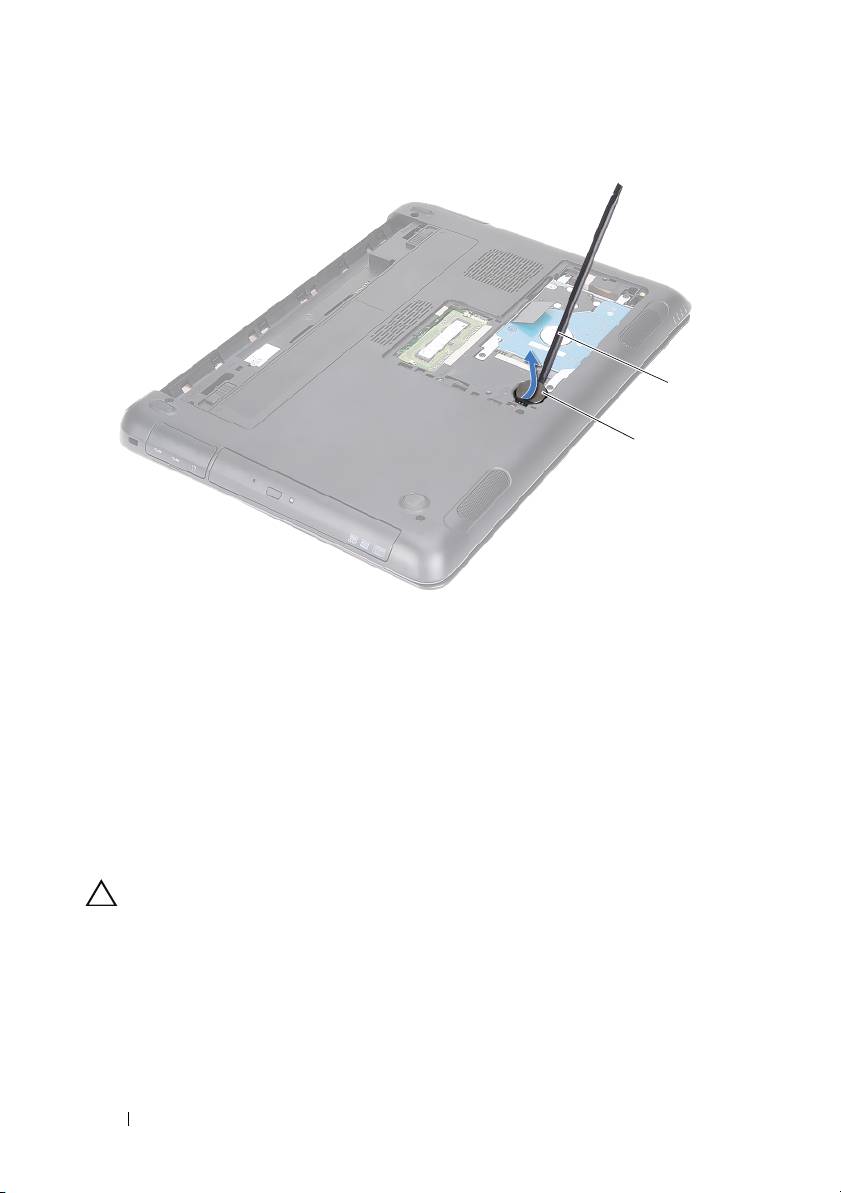
1 plastic scribe 2 coin-cell battery
Replacing the Coin-Cell Battery
1
Follow the instructions in "Before You Begin" on page 9.
2
With the positive side facing up, snap the coin-cell battery into the battery
socket on the system board.
3
Replace the module cover. See "Replacing the Module Cover" on page 16.
4
Replace the battery. See "Replacing the Battery" on page 14.
CAUTION: Before turning on the computer, replace all screws and ensure that no
stray screws remain inside the computer. Failure to do so may result in damage to
the computer.
18 Coin-Cell Battery
1
2

5
Hard-Drive Assembly
WARNING: Before working inside your computer, read the safety information
that shipped with your computer. For additional safety best practices information,
see the Regulatory Compliance Homepage at dell.com/regulatory_compliance.
WARNING: If you remove the hard drive from the computer when the drive is hot,
do not touch
the metal housing of the hard drive.
CAUTION: Only a certified service technician should perform repairs on your
computer. Damage due to servicing that is not authorized by Dell is not covered by
your warranty.
CAUTION: To avoid electrostatic discharge, ground yourself by using a wrist
grounding strap or by periodically touching an unpainted metal surface (such as a
connector on your computer).
CAUTION: To prevent data loss, turn off your computer (see "Turning Off Your
Computer" on page 9) before removing the hard drive. Do not remove the hard drive
while the computer is On or in Sleep state.
CAUTION: To help prevent damage to the system board, remove the main battery
(see "Removing the Battery" on page 13) before working inside the computer.
CAUTION: Hard drives are extremely fragile. Exercise care when handling the
hard drive.
NOTE: Dell does not guarantee compatibility or provide support for hard drives
from sources other than Dell.
NOTE: If you are installing a hard drive from a source other than Dell, you must
install an operating system, drivers, and utilities on the new hard drive. See Me and
My Dell.
Removing the Hard-Drive Assembly
1
Follow the instructions in "Before You Begin" on page 9.
2
Remove the battery. See "Removing the Battery" on page 13.
3
Remove the module cover. See "Removing the Module Cover" on page 15.
4
Remove the four screws that secure the hard-drive assembly to the
computer base.
Hard-Drive Assembly 19

5
Using the pull-tab, slide the hard-drive assembly to disconnect it from the
connector on the system board.
6
Lift the hard-drive assembly off the computer base.
1 screws (4) 2 pull tab
3 hard-drive assembly
7
Remove the four screws that secure the hard-drive bracket to the
hard drive.
8
Lift the hard drive away from the hard-drive bracket.
20 Hard-Drive Assembly
1
2
3
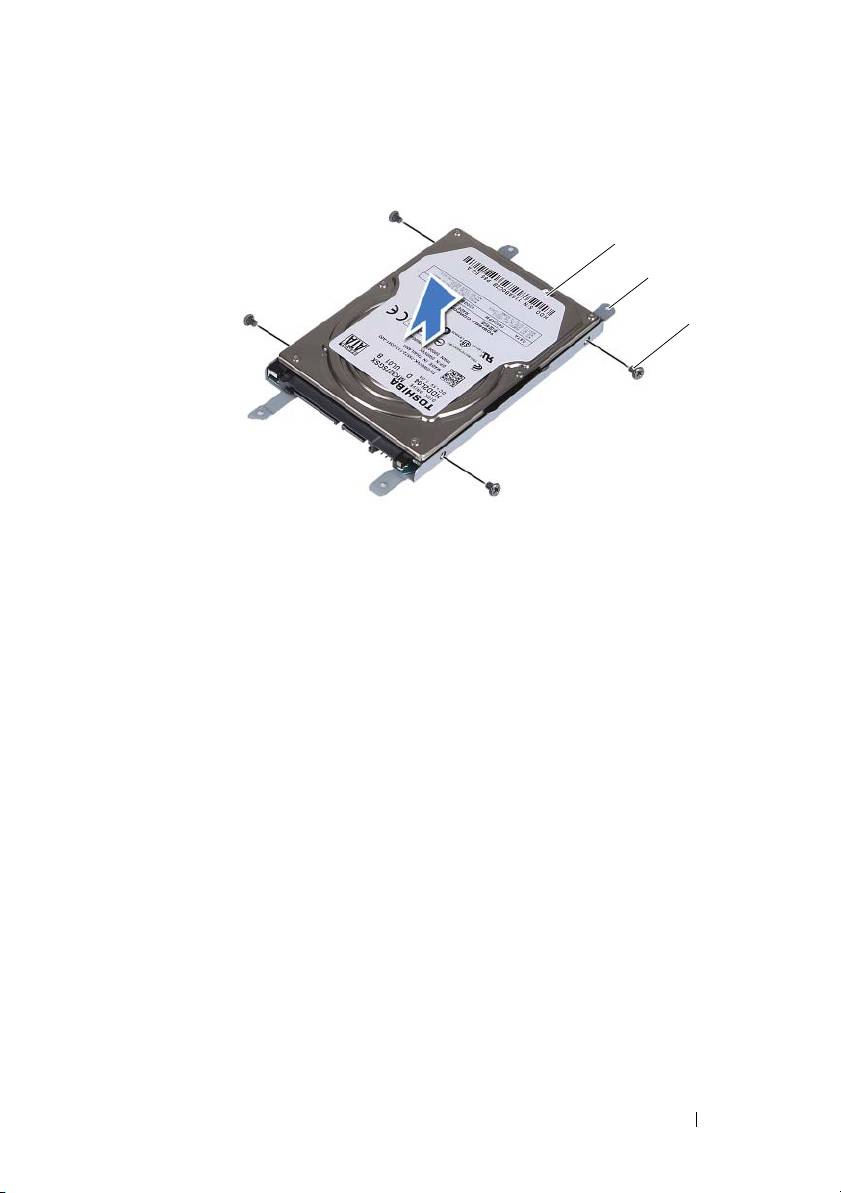
1 hard drive 2 hard-drive bracket
3 screws (4)
Replacing the Hard-Drive Assembly
1
Follow the instructions in "Before You Begin" on page 9.
2
Remove the replacement hard drive from its packaging. Save the packaging
for storing or shipping the old hard drive.
3
Align the screw holes on the hard-drive bracket with the screw holes on the
hard drive.
4
Replace the four screws that secure the hard-drive bracket to the hard
drive.
5
Place the hard-drive assembly in the computer base.
6
Using the pull-tab, slide the hard-drive assembly into the connector on the
system board.
7
Replace the four screws that secure the hard-drive assembly to the
computer base.
8
Replace the module cover. See "Replacing the Module Cover" on page 16.
Hard-Drive Assembly 21
1
2
3

9
Replace the battery. See "Replacing the Battery" on page 14.
CAUTION: Before turning on the computer, replace all screws and ensure that no
stray screws remain inside the computer. Failure to do so may result in damage to
the computer.
10
Connect your computer and all attached devices to electrical outlets, and
turn them on.
11
Install the operating system for your computer, as needed.
12
Install the drivers and utilities for your computer, as needed.
NOTE: For more information on installing the operating system, drivers, and utilities
for your computer, see Me and My Dell at support.dell.com\manuals.
22 Hard-Drive Assembly

6
Optical Drive
WARNING: Before working inside your computer, read the safety information
that shipped with your computer. For additional safety best practices information,
see the Regulatory Compliance Homepage at dell.com/regulatory_compliance.
CAUTION: Only a certified service technician should perform repairs on your
computer. Damage due to servicing that is not authorized by Dell is not covered by
your warranty.
CAUTION: To avoid electrostatic discharge, ground yourself by using a wrist
grounding strap or by periodically touching an unpainted metal surface (such as a
connector on your computer).
Removing the Optical Drive
1
Follow the instructions in "Before You Begin" on page 9.
2
Remove the battery. See "Removing the Battery" on page 13.
3
Remove the module cover. See "Removing the Module Cover" on page 15.
4
Remove the screw that secures the optical-drive assembly to the computer
base.
5
Slide the optical-drive assembly out of the optical-drive bay.
Optical Drive 23
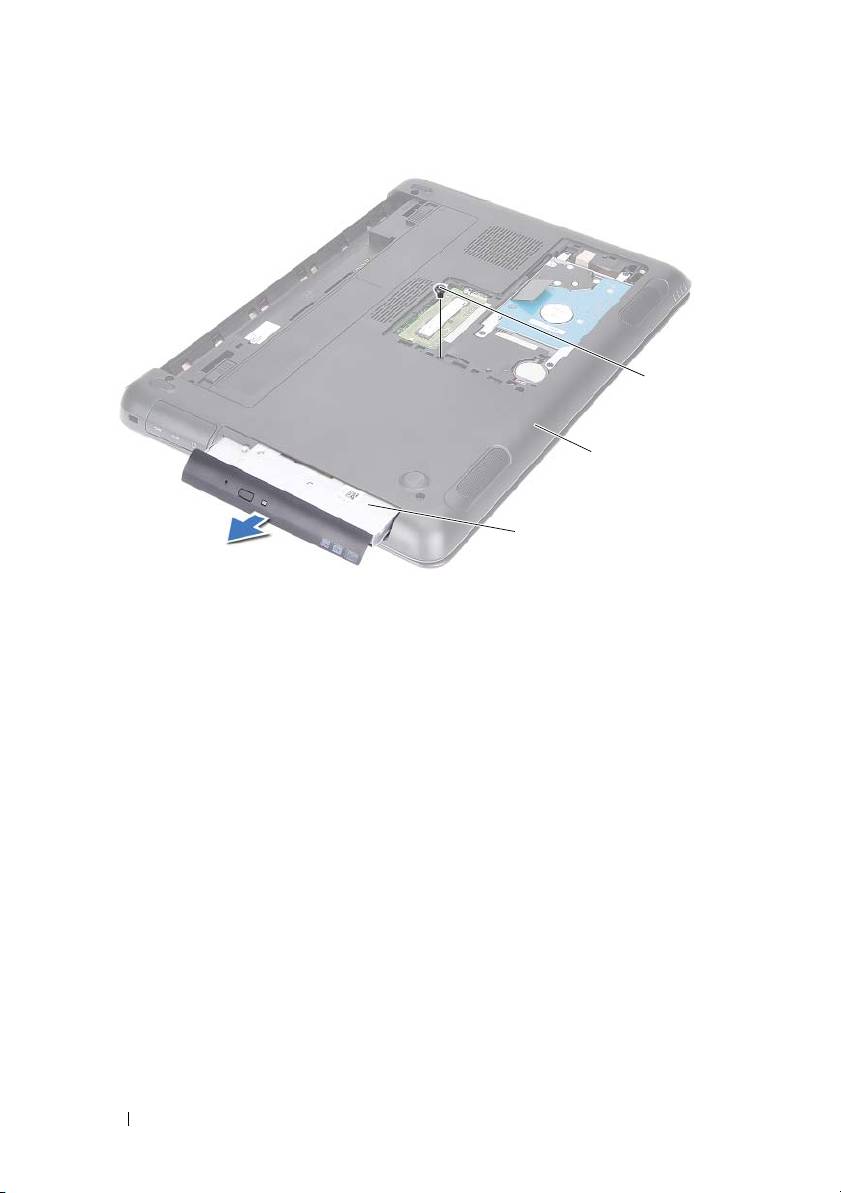
1 optical-drive assembly 2 computer base
3 screw
6
Remove the two screws that secure the optical-drive bracket to the optical
drive.
7
Remove the optical-drive bracket from the optical drive.
8
Gently pry out the tabs on the optical-drive bezel and remove the bezel
from the optical-drive assembly.
24 Optical Drive
3
2
1
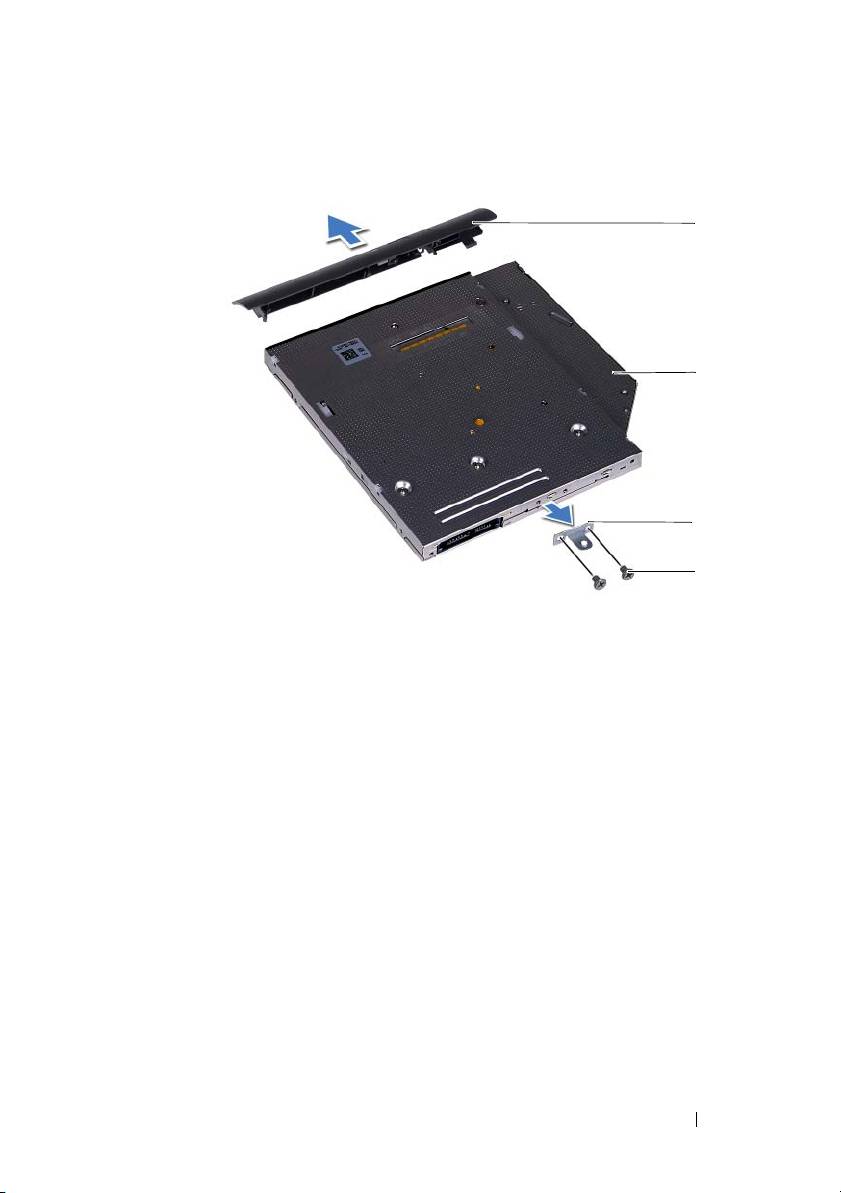
1 optical-drive bezel 2 optical drive
3 optical-drive bracket 4 screws (2)
Replacing the Optical Drive
1
Follow the instructions in "Before You Begin" on page 9.
2
Align the tabs on the optical-drive bezel with the slots on the optical drive
and snap the optical-drive bezel into place.
3
Align the screw holes on the optical-drive bracket with the screw holes on
the optical drive.
4
Replace the two screws that secure the optical-drive bracket to the optical
drive.
5
Slide the optical-drive assembly into the optical-drive bay.
6
Replace the screw that secures the optical-drive assembly to the computer
base.
7
Replace the module cover. See "Replacing the Module Cover" on page 16.
Optical Drive 25
1
2
3
4

8
Replace the battery. See "Replacing the Battery" on page 14.
CAUTION: Before turning on the computer, replace all screws and ensure that no
stray screws remain inside the computer. Failure to do so may result in damage to
the computer.
26 Optical Drive
7
Memory Module(s)
WARNING: Before working inside your computer, read the safety information
that shipped with your computer. For additional safety best practices information,
see the Regulatory Compliance Homepage at dell.com/regulatory_compliance.
CAUTION: Only a certified service technician should perform repairs on your
computer. Damage due to servicing that is not authorized by Dell is not covered by
your warranty.
CAUTION: To avoid electrostatic discharge, ground yourself by using a wrist
grounding strap or by periodically touching an unpainted metal surface (such as a
connector on your computer).
CAUTION: To help prevent damage to the system board, remove the main battery
(see "Removing the Battery" on page 13) before working inside the computer.
Upgrading System Memory
Your computer supports up to two memory-module connectors. You can
access DIMM B connector by removing the module cover at the bottom of
your computer. You can access DIMM A connector by removing the palm-rest
assembly.
You can increase your computer memory by installing memory modules on
the system board. For information on the memory supported by your
computer, see the Comprehensive Specifications for your computer model at
support.dell.com/manuals.
NOTE: Memory modules purchased from Dell are covered under your
computer warranty.
NOTE: If you ordered one memory module with your system, it is installed in the
DIMM A connector.
Removing the Memory Module(s)
1
Follow the instructions in "Before You Begin" on page 9.
2
Remove the battery. See "Removing the Battery" on page 13.
3
Remove the module cover. See "Removing the Module Cover" on page 15.
Memory 27
CAUTION: To prevent damage to the memory-module connector, do not use tools
to spread the memory module securing clips.
4
To remove the memory module from the DIMM B connector, go to step 5.
To remove the memory module from the DIMM A connector:
a
Turn the computer over.
b
Remove the keyboard. See "Removing the Keyboard" on page 31.
5
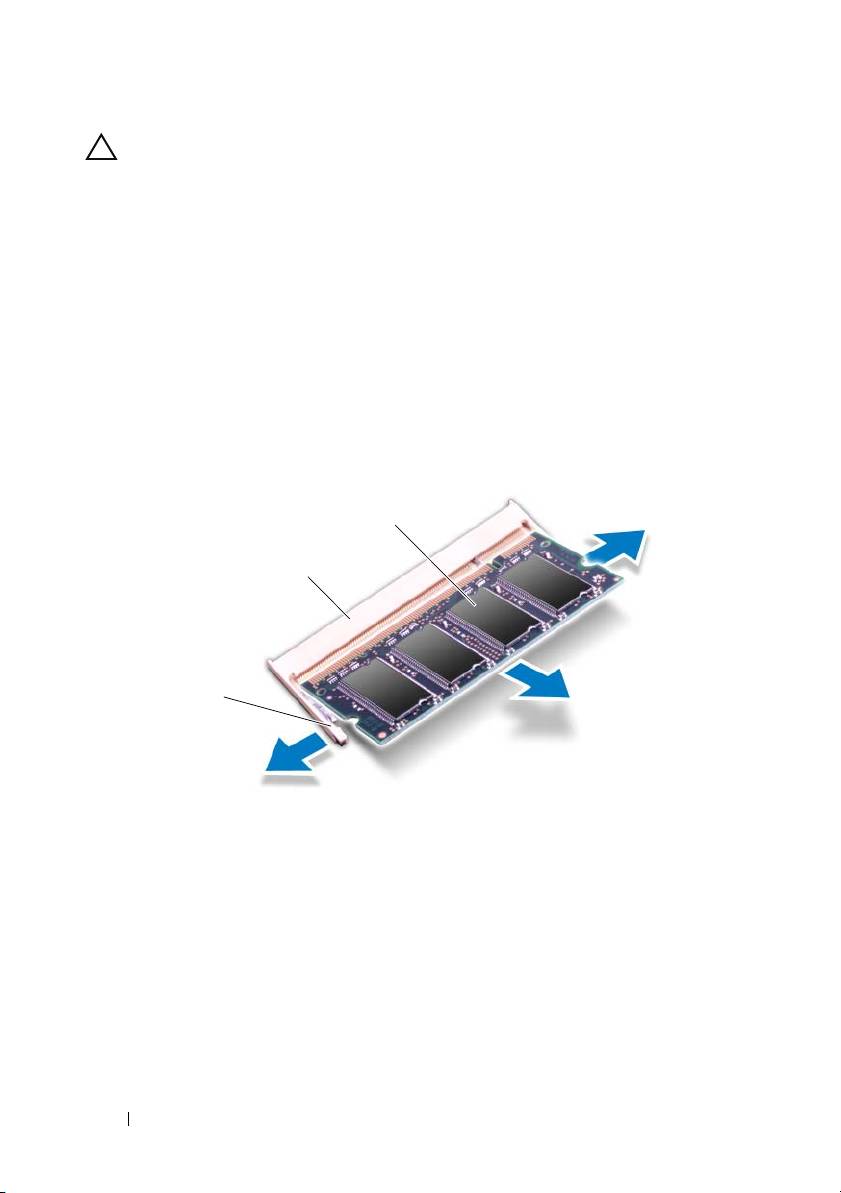
Use your fingertips to carefully spread apart the securing clips on each end
of the memory-module connector until the memory module pops up.
1 securing clips (2) 2 memory-module connector
3 memory module
6
Remove the memory module from the memory-module connector.
Replacing the Memory Module(s)
1
Follow the instructions in "Before You Begin" on page 9.
28 Memory
3
2
1
2
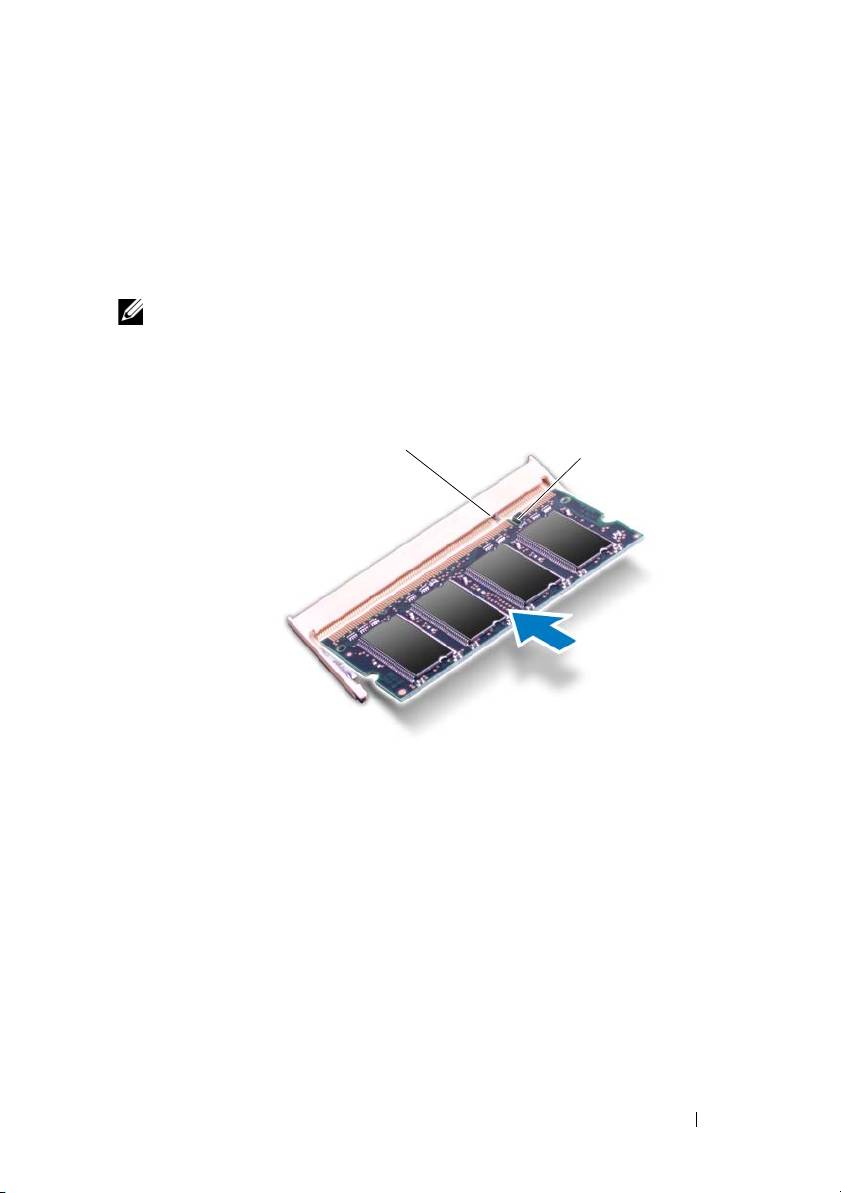
Align the notch on the memory module with the tab in the
memory-module connector.
3
Slide the memory module firmly into the memory-module connector at a
45-degree angle, and then press down the memory module on both sides
until it clicks into place. If you do not hear the click, remove the memory
module and reinstall it.
NOTE: If the memory module is not installed properly, the computer may not boot.
1 tab 2 notch
4
If you replaced the memory module in the DIMM B connector, go to
step 6.
5
If you replaced the memory module in the DIMM A connector:
a
Replace the keyboard. See "Replacing the Keyboard" on page 33.
b
Turn the computer over.
6
Replace the module cover. See "Replacing the Module Cover" on page 16.
7
Replace the battery. See "Replacing the Battery" on page 14.
Memory 29
1
2

Connect your computer and all attached devices to electrical outlets, and turn
them on.
As the computer boots, it detects the memory module(s) and
automatically updates the system configuration information.
To confirm the amount of memory installed in the computer:
Click Start → Control Panel→ System and Security→ System.
30 Memory
8
Keyboard
WARNING: Before working inside your computer, read the safety information
that shipped with your computer. For additional safety best practices information,
see the Regulatory Compliance Homepage at dell.com/regulatory_compliance.
CAUTION: Only a certified service technician should perform repairs on your
computer. Damage due to servicing that is not authorized by Dell is not covered by
your warranty.
CAUTION: To avoid electrostatic discharge, ground yourself by using a wrist
grounding strap or by periodically touching an unpainted metal surface (such as a
connector on your computer).
CAUTION: To help prevent damage to the system board, remove the main battery
(see "Removing the Battery" on page 13) before working inside the computer.
CAUTION: The keycaps on the keyboard are fragile, easily dislodged, and time-
consuming to replace. Be careful when removing and handling the keyboard.
CAUTION: Be extremely careful when removing and handling the keyboard.
Failure to do so could result in scratching the display panel.
Removing the Keyboard
1
Follow the instructions in "Before You Begin" on page 9.
2
Remove the battery. See "Removing the Battery" on page 13.
3
Turn the computer over and open the display as far as possible.
4
Gently slide a plastic scribe between the keyboard and palm-rest assembly.
5
Press the four tabs on the palm-rest assembly and disengage the keyboard.
Keyboard 31
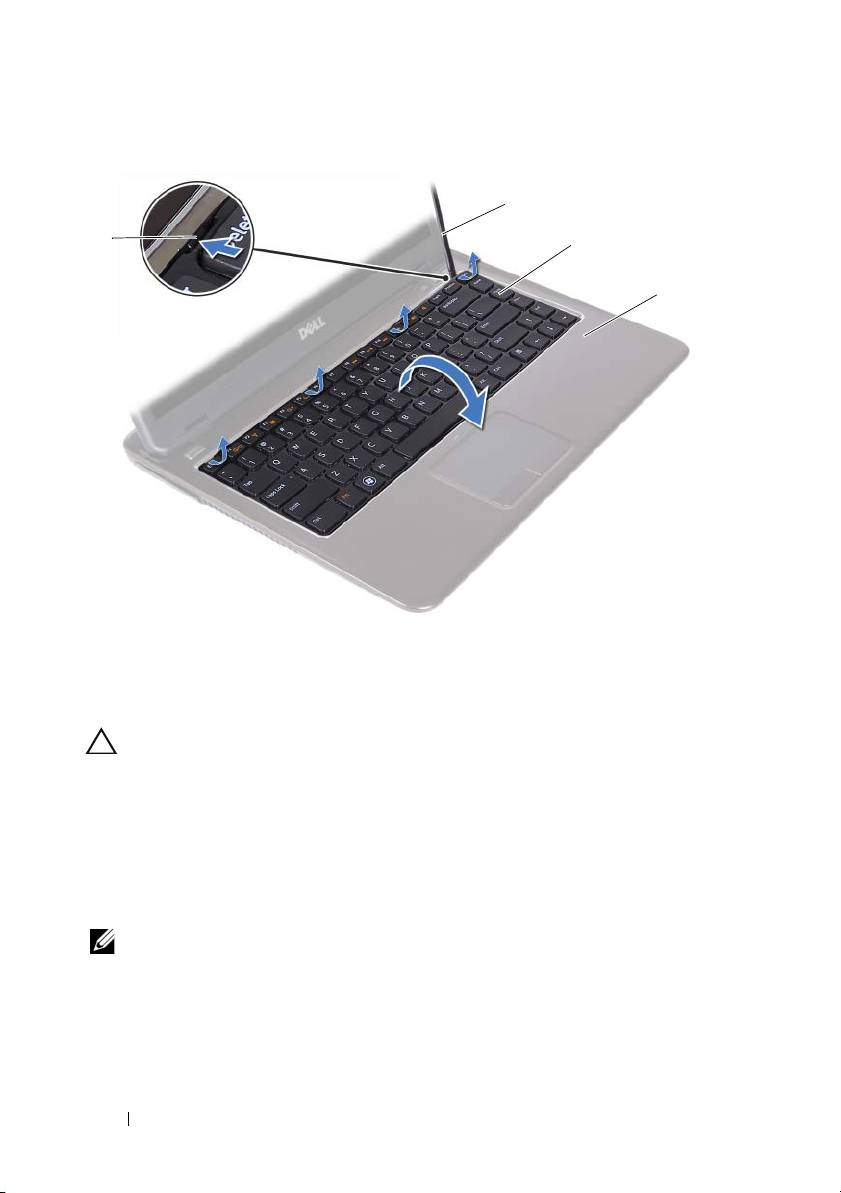
1 tabs (4) 2 plastic scribe
3 keyboard 4 palm-rest assembly
CAUTION: Exercise caution while lifting up the keyboard to avoid pulling the
keyboard connector from the system board forcefully.
6
Carefully lift the keyboard and slide the keyboard tabs out of the slots on
the palm-rest assembly.
7
Turn the keyboard over and place the keyboard on the palm-rest assembly.
8
Lift the connector latches and disconnect the keyboard cable and the
keyboard-backlight cable from the connectors on the system board.
NOTE: The keyboard-backlight cable is available only if you purchased a back-lit
keyboard.
32 Keyboard
2
1
3
4
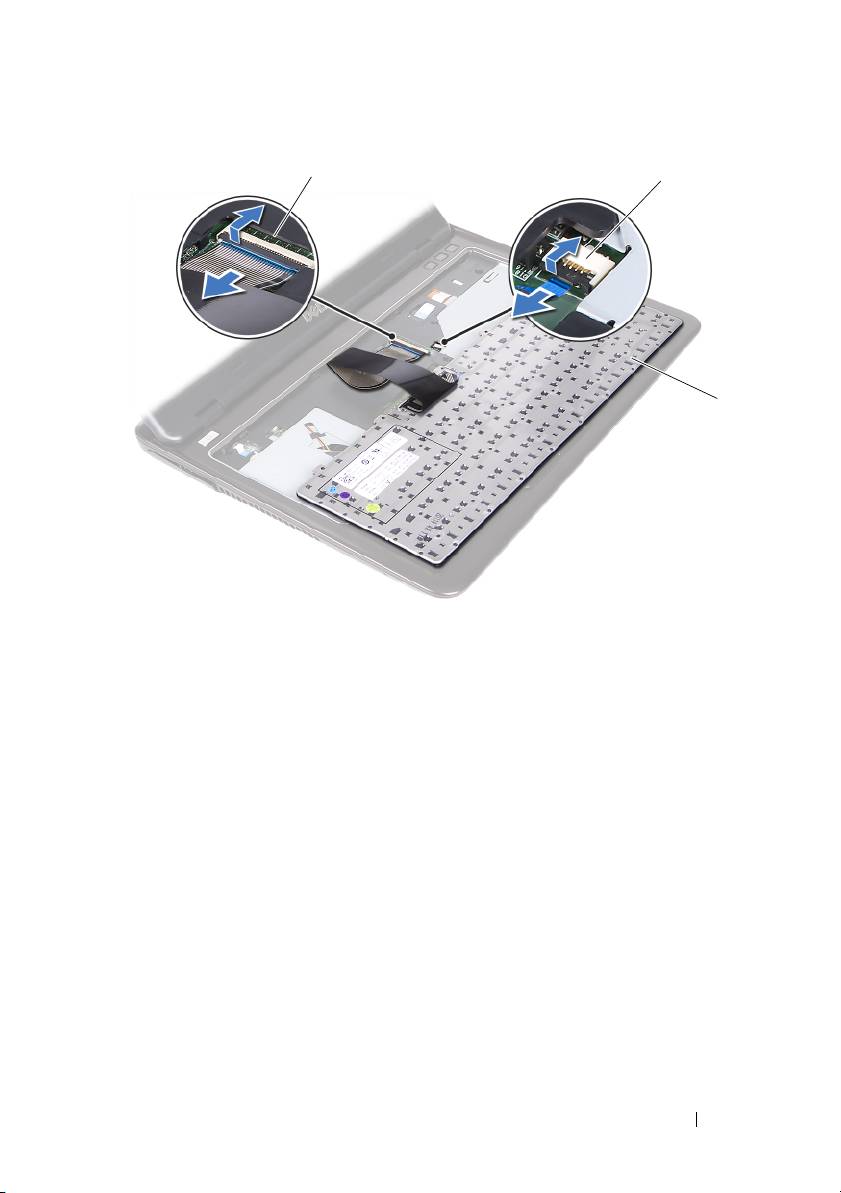
1 keyboard-cable connector 2 keyboard-backlight cable connector
3 keyboard
9
Lift the keyboard off the palm-rest assembly.
Replacing the Keyboard
1
Follow the instructions in "Before You Begin" on page 9.
2
Slide the keyboard cable into the connector on the system board and press
down on the connector latch to secure the keyboard cable.
3
Align the tabs on the keyboard with the slots on the palm-rest assembly
and lower the keyboard into place.
4
Gently press around the edges of the keyboard to secure the keyboard in
place.
5
Replace the battery. See "Replacing the Battery" on page 14.
Keyboard 33
1
2
3

34 Keyboard
9
Palm-Rest Assembly
WARNING: Before working inside your computer, read the safety information
that shipped with your computer. For additional safety best practices information,
see the Regulatory Compliance Homepage at dell.com/regulatory_compliance.
CAUTION: To avoid electrostatic discharge, ground yourself by using a wrist
grounding strap or by periodically touching an unpainted metal surface (such as a
connector on your computer).
CAUTION: Only a certified service technician should perform repairs on your
computer. Damage due to servicing that is not authorized by Dell is not covered by
your warranty.
CAUTION: To help prevent damage to the system board, remove the main battery
(see "Removing the Battery" on page 13) before working inside the computer.
Removing the Palm-Rest Assembly
1
Follow the instructions in "Before You Begin" on page 9.
2
Remove the battery. See "Removing the Battery" on page 13.
3
Remove the module cover. See "Removing the Module Cover" on page 15.
4
Follow the instructions from step 4 to step 5 in "Removing the Optical
Drive" on page 23.
5
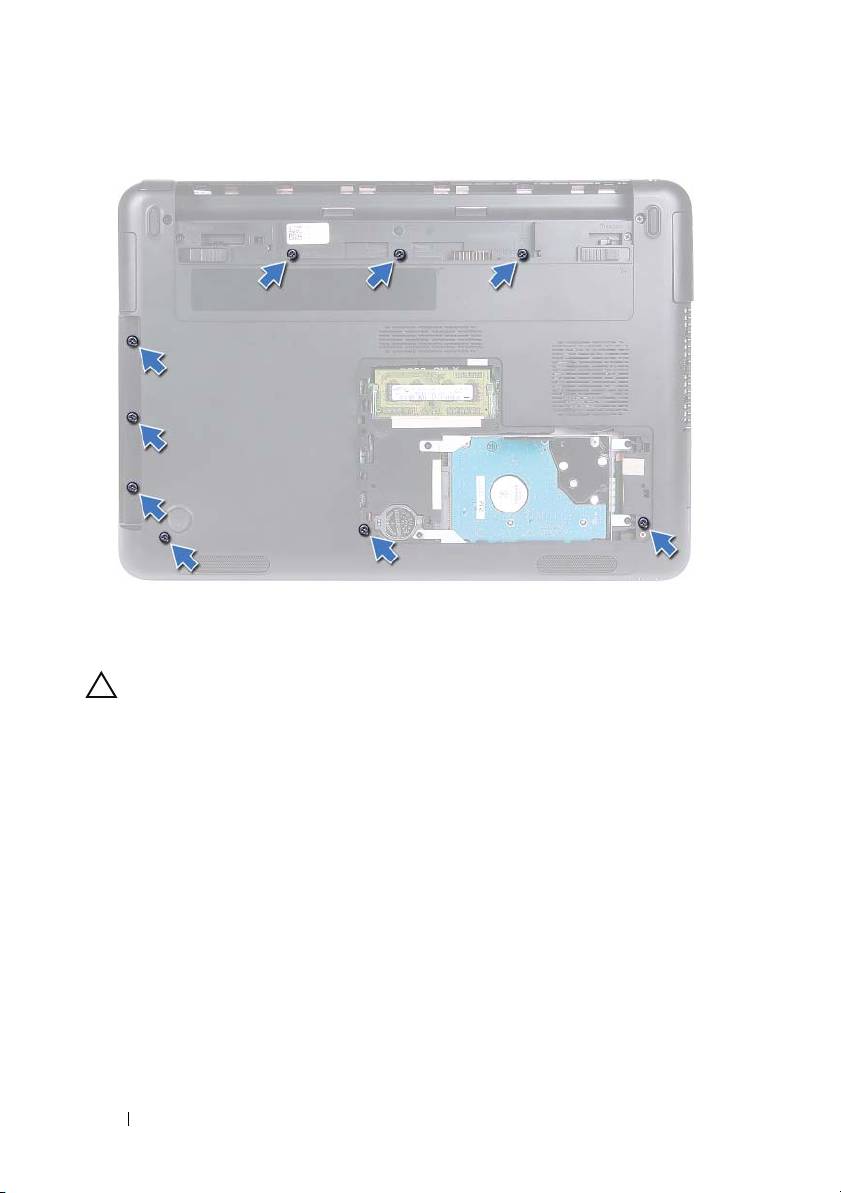
Remove the nine screws that secure the palm-rest assembly to the
computer base.
Palm-Rest Assembly 35
6
Turn the computer over.
7
Remove the keyboard. See "Removing the Keyboard" on page 31.
CAUTION: Pull on the plastic tab on top of the connectors to avoid damaging the
connectors.
8
Lift the securing latches and disconnect the power button, touchpad, and
hot-key board cables from their connectors on the system board.
9
Remove the seven screws that secure the palm-rest assembly to the
computer base.
36 Palm-Rest Assembly
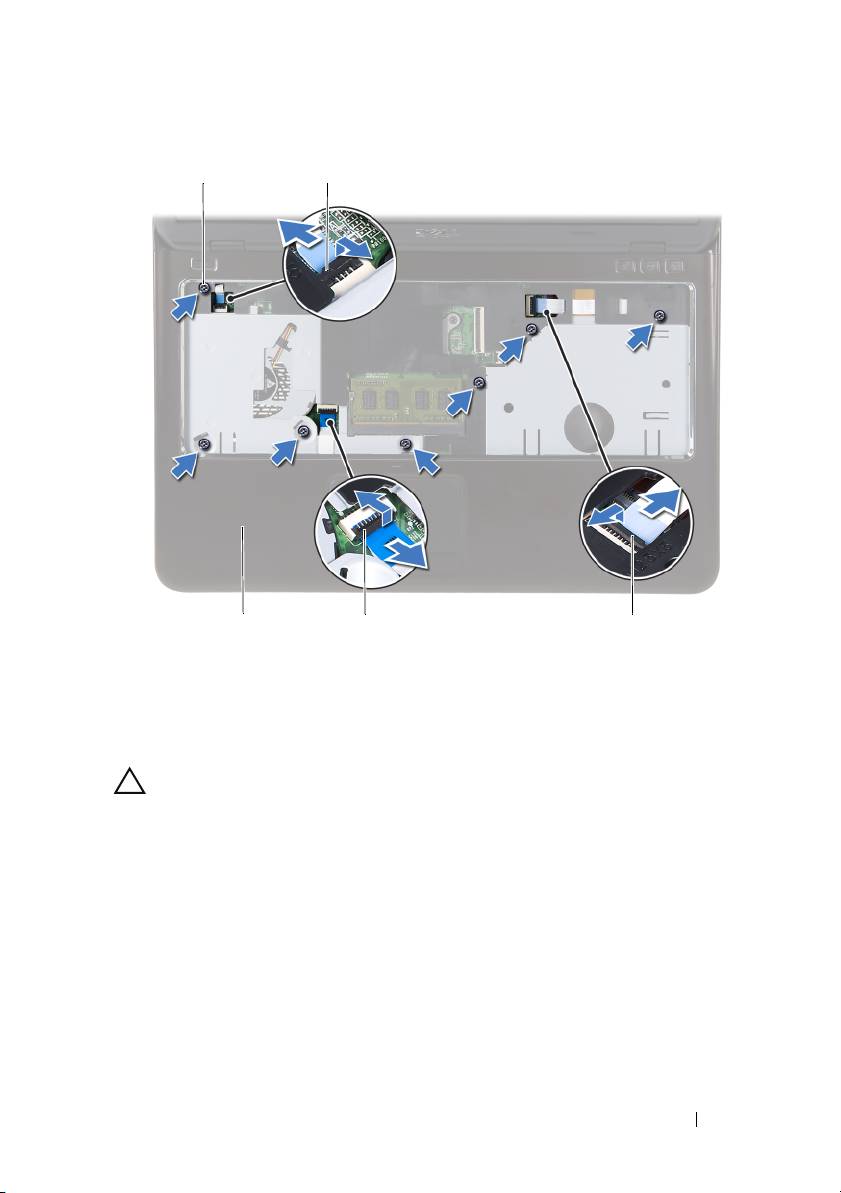
1 screws (7) 2 power-button cable connector
3 hot-key board cable connector 4 touchpad-cable connector
5 palm-rest assembly
CAUTION: Separate the palm-rest assembly from the computer base carefully to
avoid damage to the palm-rest assembly and the display.
10
Lift the palm-rest assembly off the computer base.
Palm-Rest Assembly 37
1
2
5
4
3
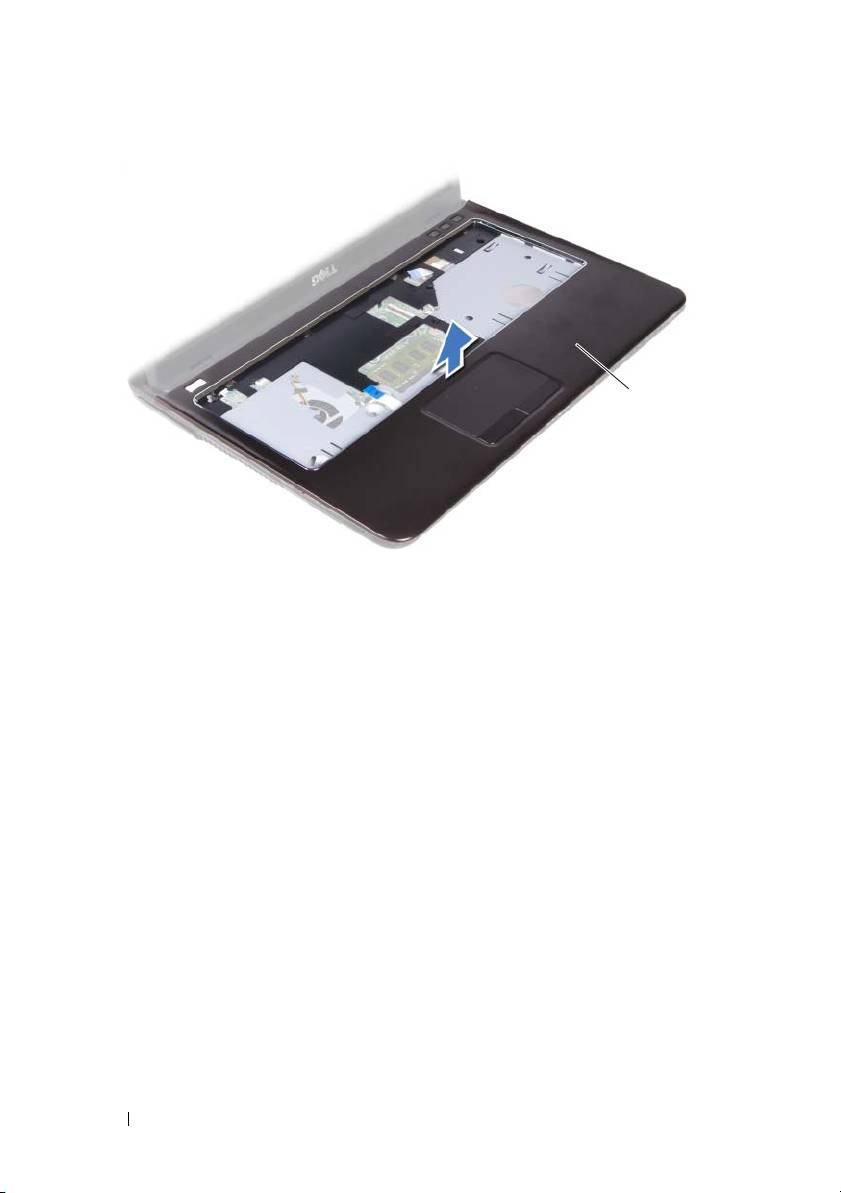
1 palm-rest assembly
Replacing the Palm-Rest Assembly
1
Follow the instructions in "Before You Begin" on page 9.
2
Align the tabs on the palm-rest assembly with the slots on the computer
base and gently snap the palm-rest assembly in place.
3
Slide the power button, touchpad, and hot-key board cables into the
respective connectors on the system board and press down the connector
latches to secure the cables.
4
Replace the seven screws that secure the palm-rest assembly to the
computer base.
5
Replace the keyboard. See "Replacing the Keyboard" on page 33.
6
Turn the computer over and replace the nine screws that secure the
palm-rest assembly to the computer base.
7
Follow the instructions from step 5 to step 6 in "Replacing the Optical
Drive" on page 25.
8
Replace the module cover. See "Replacing the Module Cover" on page 16.
38 Palm-Rest Assembly
1

9
Replace the battery. See "Replacing the Battery" on page 14.
CAUTION: Before turning on the computer, replace all screws and ensure that no
stray screws remain inside the computer. Failure to do so may result in damage to
the computer.
Palm-Rest Assembly 39

40 Palm-Rest Assembly
10
Wireless Mini-Card
WARNING: Before working inside your computer, read the safety information
that shipped with your computer. For additional safety best practices information,
see the Regulatory Compliance Homepage at dell.com/regulatory_compliance.
CAUTION: Only a certified service technician should perform repairs on your
computer. Damage due to servicing that is not authorized by Dell is not covered by
your warranty.
CAUTION: To avoid electrostatic discharge, ground yourself by using a wrist
grounding strap or by periodically touching an unpainted metal surface, such as a
connector on your computer.
CAUTION: To help prevent damage to the system board, remove the main battery
(see "Removing the Battery" on page 13) before working inside the computer.
CAUTION: When the mini-card is not in the computer, store it in protective
antistatic packaging. See "Protecting Against Electrostatic Discharge" in the
safety instructions that shipped with your computer.
NOTE: Dell does not guarantee compatibility or provide support for mini-cards from
sources other than Dell.
Your computer has one half mini-card slot that supports a Wi-Fi+WiMax or
Wi-Fi+Bluetooth combo card.
NOTE: If you ordered a wireless mini-card with your computer, the card is already
installed.
Removing the Mini-Card
1
Follow the instructions in "Before You Begin" on page 9.
2
Remove the battery. See "Removing the Battery" on page 13.
3
Remove the module cover. See "Removing the Module Cover" on page 15.
4
Follow the instructions from step 4 to step 5 in "Removing the Optical
Drive" on page 23.
5
Remove the keyboard. See "Removing the Keyboard" on page 31.
Wireless Mini-Card 41
6
Remove the palm-rest assembly. See "Removing the Palm-Rest Assembly"
on page 35.
7
Lift the securing latches and disconnect the USB-board cable from the
connectors on the USB board and the system board, and then remove the
USB-board cable. See "Removing the USB Board" on page 61.
8
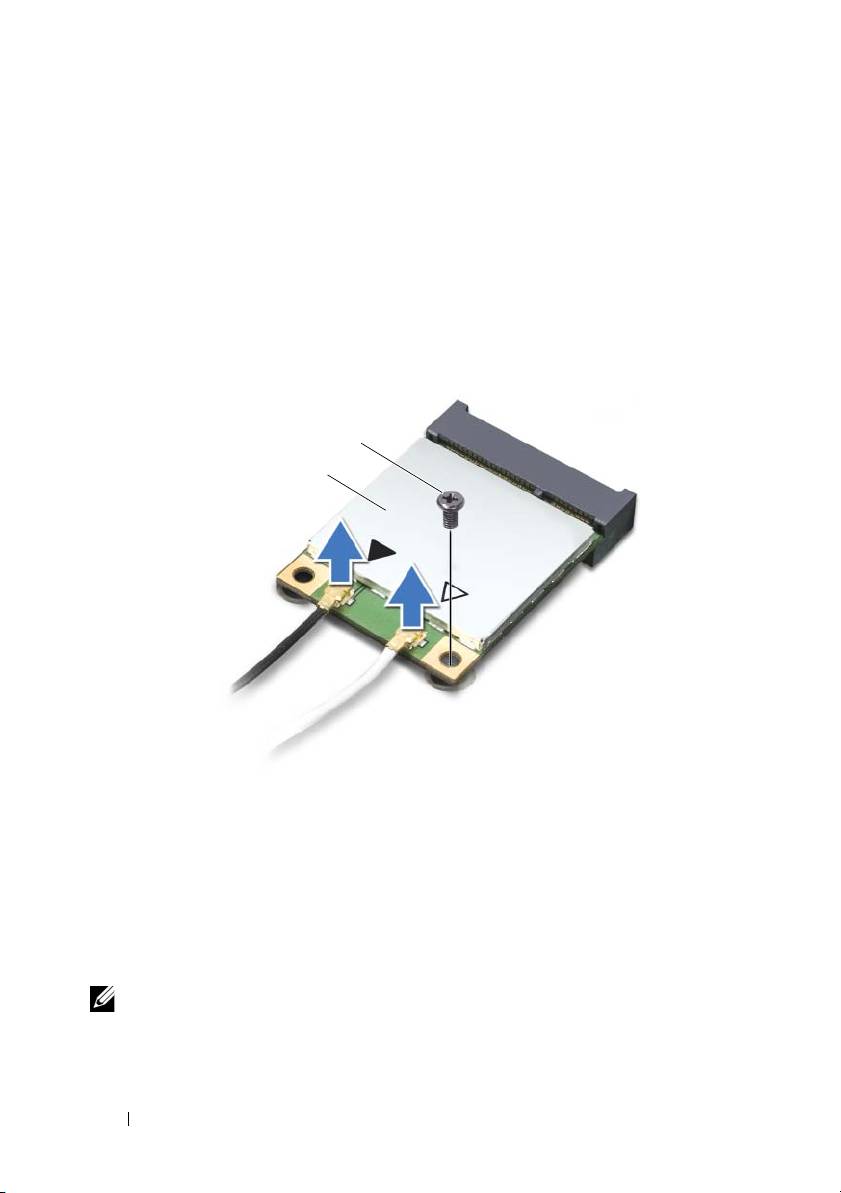
Disconnect the wireless antenna cables from the connectors on the mini-
card.
9
Remove the screw that secures the mini-card to the system board.
1 mini-card 2 screw
10
Lift the mini-card out of the connector on the system board.
Replacing the Mini-Card
1
Follow the instructions in "Before You Begin" on page 9.
NOTE: Your computer can support either one Wi-Fi+WiMax mini-card or one
Wi-Fi+Bluetooth combo card at a time.
2
Remove the replacement mini-card from its packaging.
42 Wireless Mini-Card
2
1

CAUTION: Use firm and even pressure to slide the mini-card into place. If you use
excessive force, you may damage the connector.
CAUTION: The connectors are keyed to ensure correct insertion. If you feel
resistance, check the connectors on the mini-card and on the system board, and
realign the mini-card.
CAUTION: To avoid damage to the mini-card, never place cables under the mini-
card.
3
Insert the mini-card connector at a 45-degree angle into the connector on
the system board.
4
Press the other end of the mini-card down and replace the screw that
secures the mini-card to the system board.
5
Connect the antenna cables to the mini-card as follows:
• Connect the white cable to the connector with the white triangle.
• Connect the black cable to the connector with the black triangle.
6
Secure any unused antenna cables in the protective mylar sleeve.
7
Slide the USB-board cable into the connectors on the USB board and the
system board, and press down the securing latches. See "Replacing the
USB Board" on page 63.
8
Replace the palm-rest assembly. See "Replacing the Palm-Rest Assembly"
on page 38.
9
Replace the keyboard. See "Replacing the Keyboard" on page 33.
10
Follow the instructions from step 5 to step 6 in "Replacing the Optical
Drive" on page 25.
11
Replace the module cover. See "Replacing the Module Cover" on page 16.
12
Replace the battery. See "Replacing the Battery" on page 14.
13
Install the drivers and utilities for your mini-card as required. For more
information, see
Me and My Dell
on
support.dell.com/manuals
.
Wireless Mini-Card 43

44 Wireless Mini-Card
11
Display
WARNING: Before working inside your computer, read the safety information
that shipped with your computer. For additional safety best practices information,
see the Regulatory Compliance Homepage at dell.com/regulatory_compliance.
CAUTION: Only a certified service technician should perform repairs on your
computer. Damage due to servicing that is not authorized by Dell is not covered by
your warranty.
CAUTION: To avoid electrostatic discharge, ground yourself by using a wrist
grounding strap or by periodically touching an unpainted metal surface (such as a
connector on your computer).
CAUTION: To help prevent damage to the system board, remove the main battery
(see "Removing the Battery" on page 13) before working inside the computer.
Display Assembly
Removing the Display Assembly
1
Follow the instructions in "Before You Begin" on page 9.
2
Remove the battery. See "Removing the Battery" on page 13.
3
Remove the module cover. See "Removing the Module Cover" on page 15.
4
Follow the instructions in step 4 to step 5 of "Removing the Optical Drive"
on page 23.
5
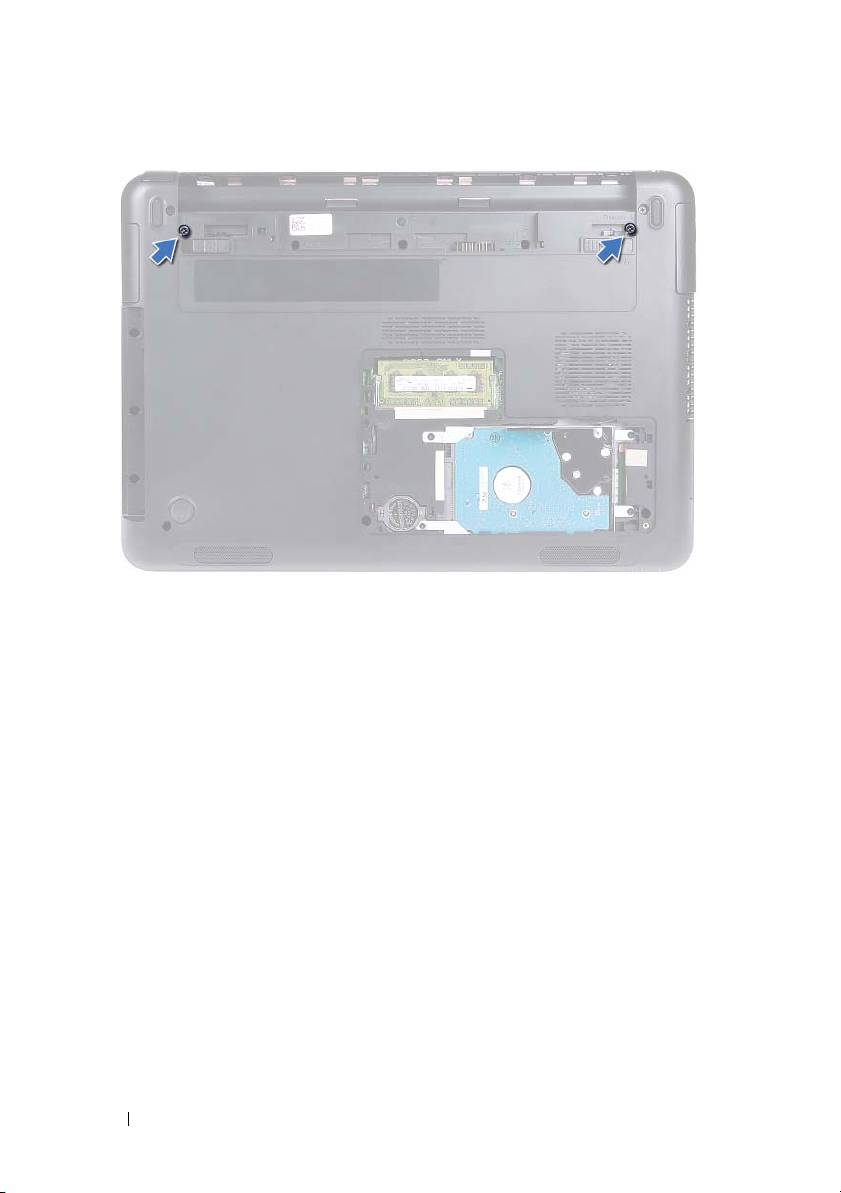
Remove the two screws that secure the display assembly to the computer
base.
Display 45
6
Turn the computer over.
7
Remove the keyboard. See "Removing the Keyboard" on page 31.
8
Remove the palm-rest assembly. See "Removing the Palm-Rest Assembly"
on page 35.
9
Turn the computer over and open the display as far as possible.
10
Disconnect the antenna cables from the mini-card. See "Removing the
Mini-Card" on page 41.
11
Lift the connector latch and disconnect the display cable from the
connector on the system board.
12
Disconnect the camera cable. See "Removing the Camera Module" on
page 65.
13
Note the routing of the display, camera, and mini-card antenna cables, and
remove the cables from their routing guides.
14
Remove the two screws that secure the display assembly to the computer
base.
46 Display
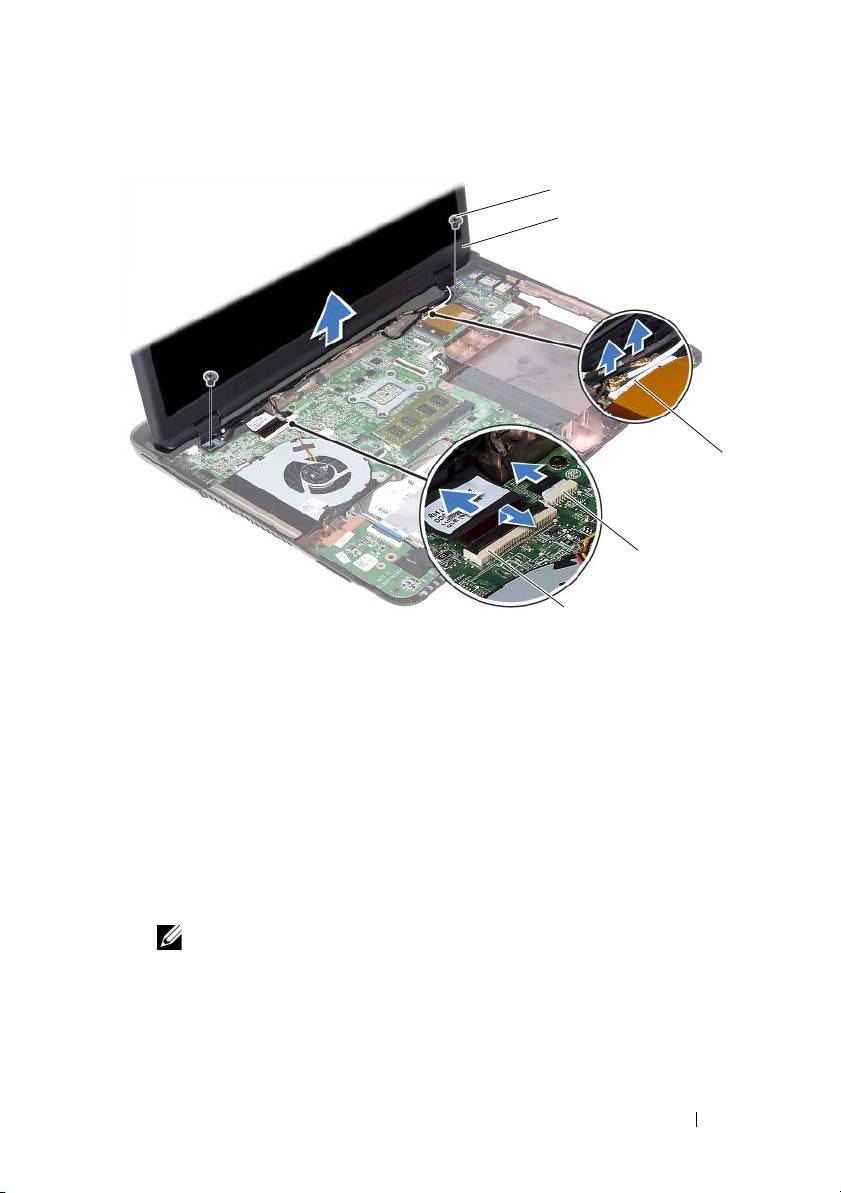
1 screws (2) 2 display assembly
3 mini-card antenna cables 4 camera-cable connector
5 display-cable connector
15
Lift the display assembly off the computer base.
Replacing the Display Assembly
1
Follow the instructions in "Before You Begin" on page 9.
2
Place the display assembly in position and replace the two screws that
secure the display assembly to the computer base.
NOTE: Ensure that no cables are caught between the display assembly and
the computer base.
3
Route the display, camera, and mini-card antenna cables through their
routing guides.
Display 47
1
2
3
4
5

4
Connect the camera cable. See "Replacing the Camera Module" on
page 67.
5
Slide the display cable in the connector on the system board and press
down the latch to secure the cable.
6
Connect the antenna cables to the mini-card. See "Replacing the
Mini-Card" on page 42.
7
Replace the palm-rest assembly. See "Replacing the Palm-Rest Assembly"
on page 38.
8
Replace the keyboard. See "Replacing the Keyboard" on page 33.
9
Turn the computer over.
10
Replace the two screws that secure the display assembly to the computer
base.
11
Follow the instructions from step 5 to step 6 in "Replacing the Optical
Drive" on page 25.
12
Replace the module cover. See "Replacing the Module Cover" on page 16.
13
Replace the battery. See "Replacing the Battery" on page 14.
CAUTION: Before turning on the computer, replace all screws and ensure that no
stray screws remain inside the computer. Failure to do so may result in damage to
the computer.
Hinge Cover
Removing the Hinge Cover
CAUTION: The hinge caps are extremely fragile. Be careful when removing the
hinge caps to prevent damaging them.
1
Follow the instructions in "Before You Begin" on page 9.
2
Remove the battery. See "Removing the Battery" on page 13.
3
Remove the module cover. See "Removing the Module Cover" on page 15.
4
Remove the optical-drive assembly. See "Removing the Optical Drive" on
page 23.
5
Remove the keyboard. See "Removing the Keyboard" on page 31.
48 Display

6
Remove the palm-rest assembly. See "Removing the Palm-Rest Assembly"
on page 35.
7
Remove the display assembly. See "Removing the Display Assembly" on
page 45.
8
Remove the two screws that secure the hinge cover to the computer base.
9
Pry out the six tabs that secure the hinge cover to the computer base and
remove the hinge cover from the computer base.
1 screws (2) 2 tabs (6)
Replacing the Hinge Cover
1
Follow the instructions in "Before You Begin" on page 9.
2
Align the tabs on the hinge cover to the slots on the computer base and
snap the hinge cover to the computer base.
3
Replace the two screws that secure the hinge cover in place.
Display 49
1
2

4
Replace the display assembly. See "Replacing the Display Assembly" on
page 47.
5
Replace the palm-rest assembly. See "Replacing the Palm-Rest Assembly"
on page 38.
6
Replace the keyboard. See "Replacing the Keyboard" on page 33.
7
Replace the optical-drive assembly. See "Replacing the Optical Drive" on
page 25.
8
Replace the module cover. See "Replacing the Module Cover" on page 16.
9
Replace the battery. See "Replacing the Battery" on page 14.
CAUTION: Before turning on the computer, replace all screws and ensure that no
stray screws remain inside the computer. Failure to do so may result in damage to
the computer.
Display Bezel
Removing the Display Bezel
1
Follow the instructions in "Before You Begin" on page 9.
2
Remove the display assembly. See "Removing the Display Assembly" on
page 45.
CAUTION: The display bezel is extremely fragile. Be careful when removing the
bezel to prevent damage.
3
Using your fingertips, carefully pry up the inside edges of the display bezel.
4
Lift the display bezel off the display assembly.
50 Display
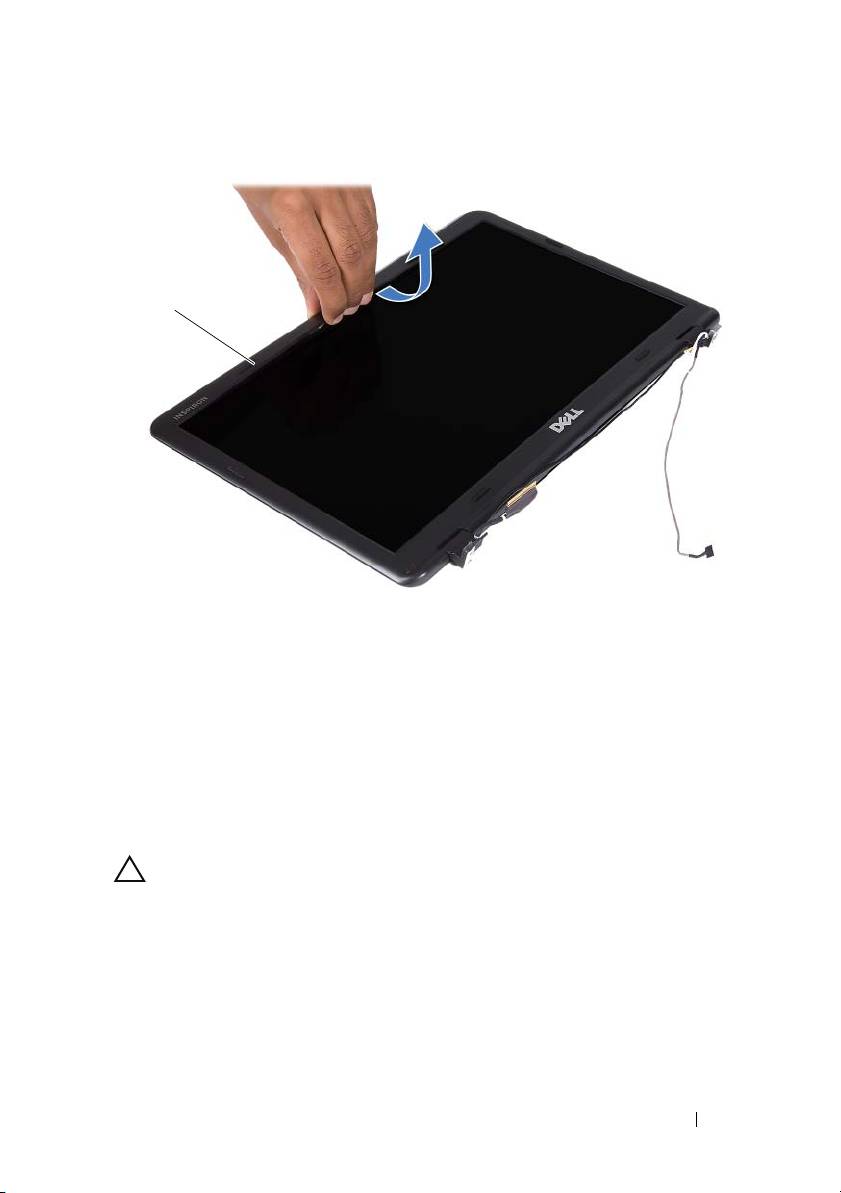
1 display bezel
Replacing the Display Bezel
1
Follow the instructions in "Before You Begin" on page 9.
2
Align the display bezel with the display cover and snap the display bezel
into place.
3
Replace the display assembly. See "Replacing the Display Assembly" on
page 47.
CAUTION: Before turning on the computer, replace all screws and ensure that no
stray screws remain inside the computer. Failure to do so may result in damage to
the computer.
Display Panel
Removing the Display Panel
1
Follow the instructions in "Before You Begin" on page 9.
Display 51
1
2
Remove the display assembly. See "Removing the Display Assembly" on
page 45.
3
Remove the display bezel. See "Removing the Display Bezel" on page 50.
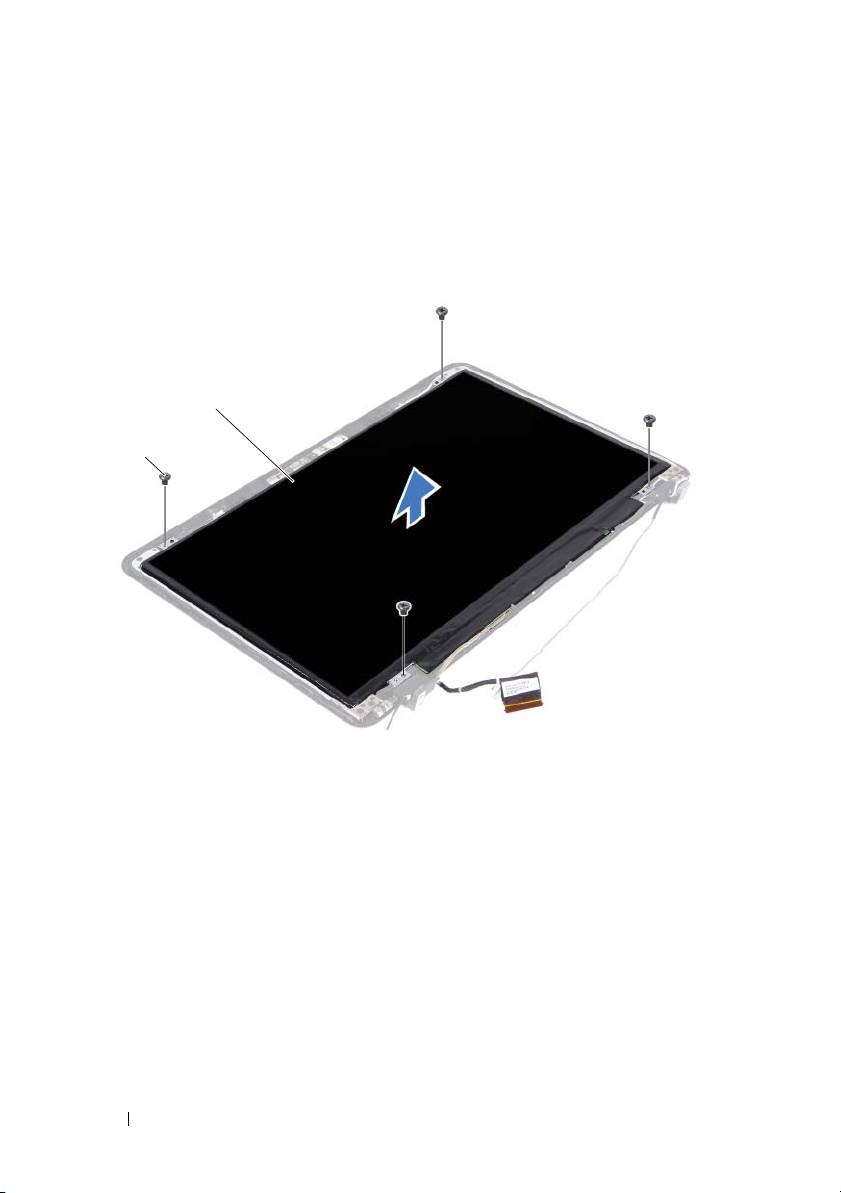
4
Remove the four screws that secure the display panel to the display cover.
1 screws (4) 2 display panel
5
Lift the display panel off the display cover.
6
Turn the display panel over and place the panel on a clean surface.
7
Lift the tape that secures the display cable to the display panel and
disconnect the display cable from the connector on the display panel.
52 Display
2
1
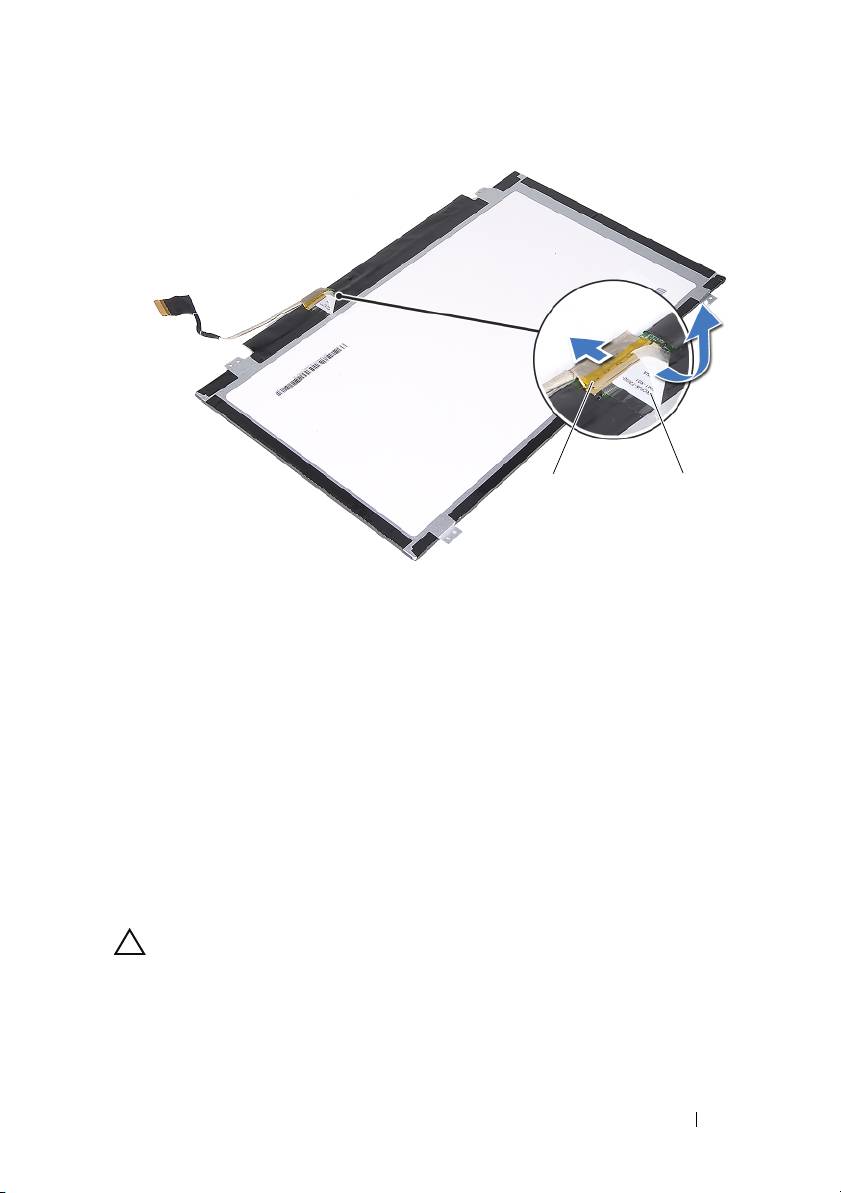
1 display-cable connector 2 tape
Replacing the Display Panel
1
Follow the instructions in "Before You Begin" on page 9.
2
Connect the display cable to the display-board connector and adhere the
display cable with the tape.
3
Align the display panel on the display cover.
4
Replace the four screws that secure the display panel to the display cover.
5
Replace the display bezel. See "Replacing the Display Bezel" on page 51.
6
Replace the display assembly. See "Replacing the Display Assembly" on
page 47.
CAUTION: Before turning on the computer, replace all screws and ensure that no
stray screws remain inside the computer. Failure to do so may result in damage to
the computer.
Display 53
12
Hinge Assembly
Removing the Hinge Assembly
1
Follow the instructions in "Before You Begin" on page 9.
2
Remove the display assembly. See "Removing the Display Assembly" on
page 45.
3
Remove the display bezel. See "Removing the Display Bezel" on page 50.
4
Follow the instructions from step 4 to step 5 in "Removing the Display
Panel" on page 51.
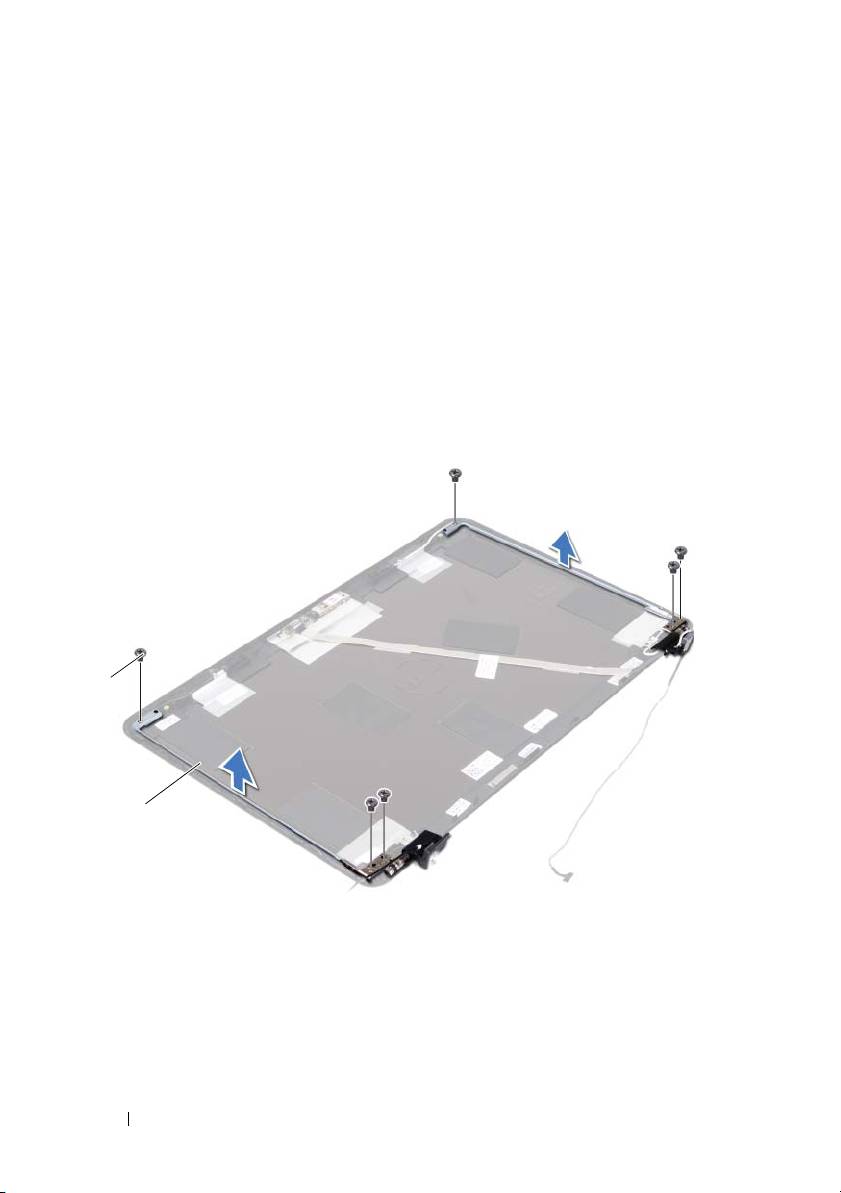
5
Remove the six screws that secure the hinge assembly to the display cover.
1 screws (6) 2 hinge assembly
6
Lift the hinge assembly away from the display cover.
Replacing the Hinge Assembly
1
Follow the instructions in "Before You Begin" on page 9.
54 Display
1
2

2
Place the hinge assembly on the display cover.
3
Replace the six screws that secure the hinge assembly to the display cover.
4
Follow the instructions from step 3 and step 4 in "Replacing the Display
Panel" on page 53.
5
Replace the display bezel. See "Replacing the Display Bezel" on page 51.
6
Replace the display assembly. See "Replacing the Display Assembly" on
page 47.
CAUTION: Before turning on the computer, replace all screws and ensure that no
stray screws remain inside the computer. Failure to do so may result in damage to
the computer.
Display 55

56 Display

12
DC-in Connector Assembly
WARNING: Before working inside your computer, read the safety information
that shipped with your computer. For additional safety best practices information,
see the Regulatory Compliance Homepage at dell.com/regulatory_compliance.
CAUTION: Only a certified service technician should perform repairs on your
computer. Damage due to servicing that is not authorized by Dell is not covered by
your warranty.
CAUTION: To avoid electrostatic discharge, ground yourself by using a wrist
grounding strap or by periodically touching an unpainted metal surface (such as a
connector on your computer).
CAUTION: To help prevent damage to the system board, remove the main battery
(see "Removing the Battery" on page 13) before working inside the computer.
Removing the DC-in Connector Assembly
1
Follow the instructions in "Before You Begin" on page 9.
2
Remove the battery. See "Removing the Battery" on page 13.
3
Remove the module cover. See "Removing the Module Cover" on page 15.
4
Follow the instructions from step 4 to step 5 in "Removing the Optical
Drive" on page 23.
5
Remove the keyboard. See "Removing the Keyboard" on page 31.
6
Remove the palm-rest assembly. See "Removing the Palm-Rest Assembly"
on page 35.
7
Remove the display assembly. See "Removing the Display Assembly" on
page 45.
8
Remove the hinge cover. See "Removing the Hinge Cover" on page 48.
9
Remove the screw that secures the DC-in assembly to the computer base.
DC-in Connector Assembly 57
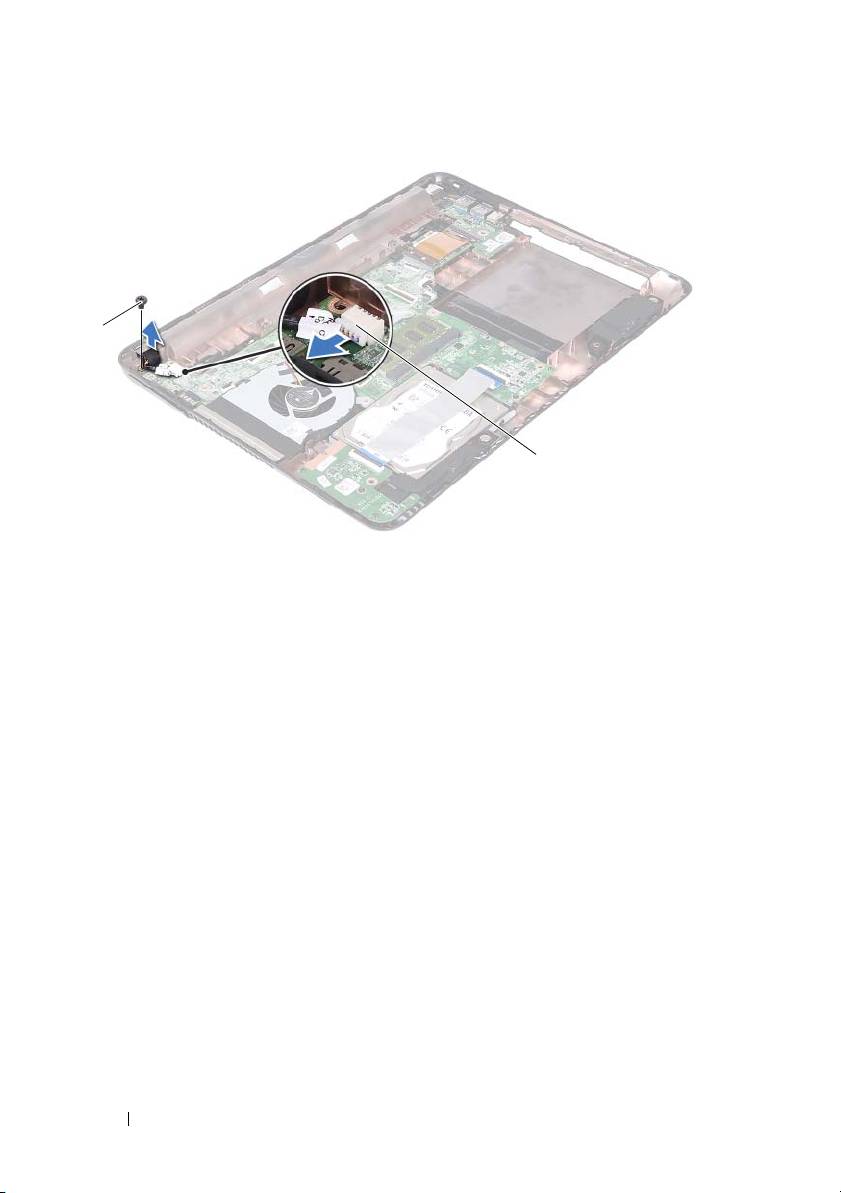
1 screw 2 DC-in cable connector
10
Disconnect the DC-in connector cable from the connector on the system
board.
11
Lift the DC-in connector off the computer base.
Replacing the DC-in Connector Assembly
1
Follow the instructions in "Before You Begin" on page 9.
2
Place the DC-in connector on the computer base.
3
Connect the DC-in connector cable to the connector on the system board.
4
Replace the screw that secures the DC-in connector assembly.
5
Replace the hinge cover. See "Replacing the Hinge Cover" on page 49.
6
Replace the display assembly. See "Replacing the Display Assembly" on
page 47.
7
Replace the palm-rest assembly. See "Replacing the Palm-Rest Assembly"
on page 38.
8
Replace the keyboard. See "Replacing the Keyboard" on page 33.
58 DC-in Connector Assembly
1
2

9
Follow the instructions from step 5 to step 6 in "Replacing the Optical
Drive" on page 25.
10
Replace the module cover. See "Replacing the Module Cover" on page 16.
11
Replace the battery. See "Replacing the Battery" on page 14.
CAUTION: Before turning on the computer, replace all screws and ensure that no
stray screws remain inside the computer. Failure to do so may result in damage to
the computer.
DC-in Connector Assembly 59

60 DC-in Connector Assembly
13
USB Board
WARNING: Before working inside your computer, read the safety information
that shipped with your computer. For additional safety best practices information,
see the Regulatory Compliance Homepage at dell.com/regulatory_compliance.
CAUTION: Only a certified service technician should perform repairs on your
computer. Damage due to servicing that is not authorized by Dell is not covered by
your warranty.
CAUTION: To avoid electrostatic discharge, ground yourself by using a wrist
grounding strap or by periodically touching an unpainted metal surface (such as a
connector on your computer).
CAUTION: To help prevent damage to the system board, remove the main battery
(see "Removing the Battery" on page 13) before working inside the computer.
Removing the USB Board
1
Follow the instructions in "Before You Begin" on page 9.
2
Remove the battery. See "Removing the Battery" on page 13.
3
Remove the module cover. See "Removing the Module Cover" on page 15.
4
Remove the optical-drive assembly. "Removing the Optical Drive" on
page 23.
5
Remove the keyboard. See "Removing the Keyboard" on page 31.
6
Remove the palm-rest assembly. See "Removing the Palm-Rest Assembly"
on page 35.
7
Remove the display assembly. See "Removing the Display Assembly" on
page 45.
8
Remove the hinge cover. See "Removing the Hinge Cover" on page 48.
9
Lift the securing latches and disconnect the USB-board cable from the
connector on the USB board and the system board.
USB Board 61
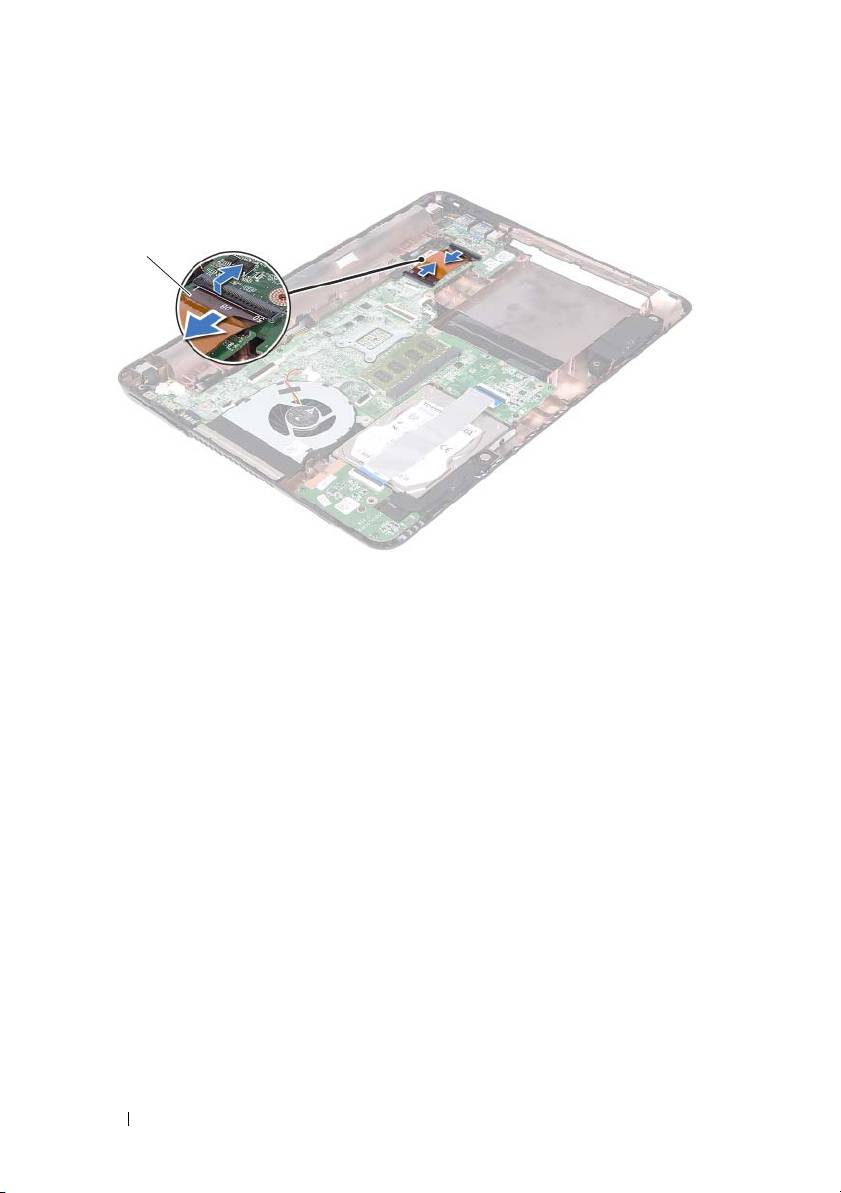
1 USB-board cable
10
Remove the screw that secures the USB board to the computer base.
62 USB Board
1
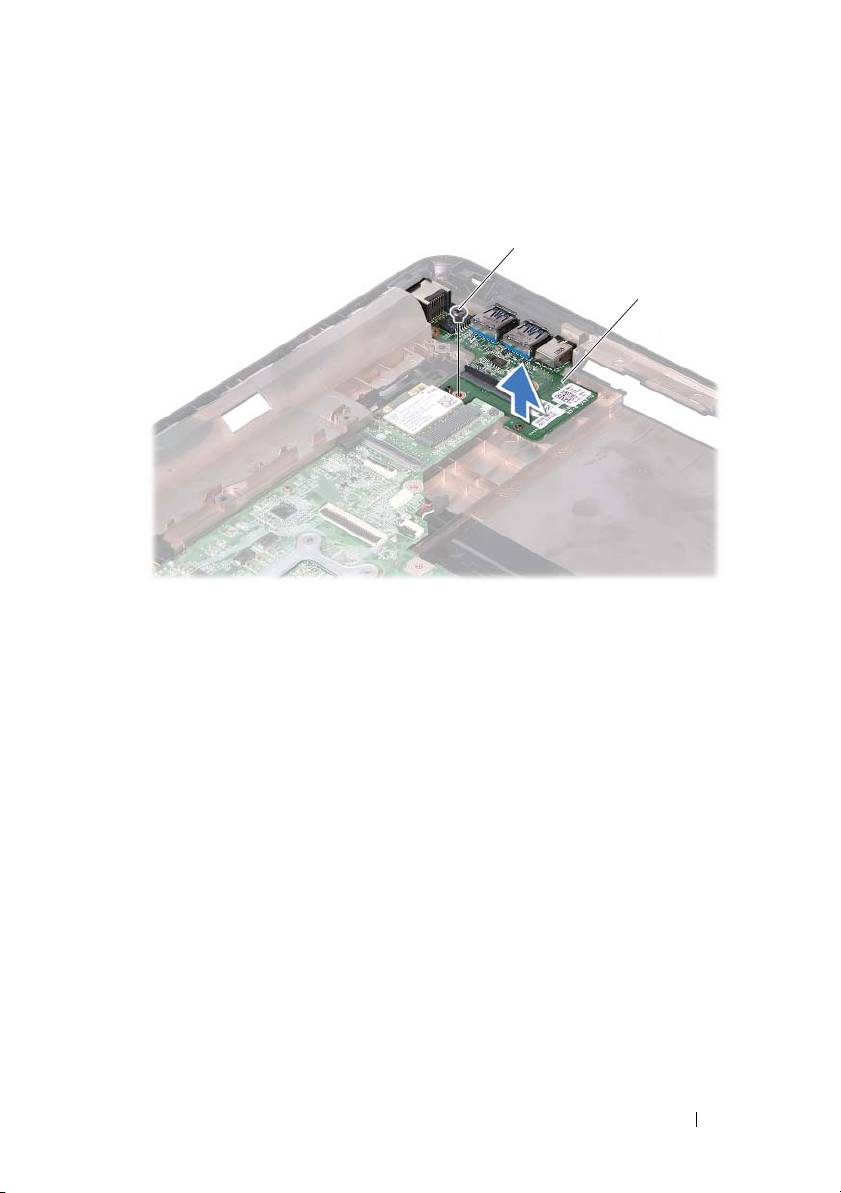
1 screw 2 USB board
11
Lift the USB board off the computer base.
Replacing the USB Board
1
Follow the instructions in "Before You Begin" on page 9.
2
Align the screw hole on the USB board with the screw hole on the system
board.
3
Replace the screw that secures the USB board to the system board.
4
Slide the USB-board cable into the connectors on the USB board and the
system board, and press down the securing latches.
5
Replace the hinge cover. See "Replacing the Hinge Cover" on page 49.
6
Replace the display assembly. See "Replacing the Display Assembly" on
page 47.
USB Board 63
1
2

7
Replace the palm-rest assembly. See "Replacing the Palm-Rest Assembly"
on page 38.
8
Replace the keyboard. See "Replacing the Keyboard" on page 33.
9
Follow the instructions from step 5 to step 6 in "Replacing the Optical
Drive" on page 25.
10
Replace the module cover. See "Replacing the Module Cover" on page 16.
11
Replace the battery. See "Replacing the Battery" on page 14.
CAUTION: Before turning on the computer, replace all screws and ensure that no
stray screws remain inside the computer. Failure to do so may result in damage to
the computer.
64 USB Board
14
Camera Module
WARNING: Before working inside your computer, read the safety information
that shipped with your computer. For additional safety best practices information,
see the Regulatory Compliance Homepage at dell.com/regulatory_compliance.
CAUTION: Only a certified service technician should perform repairs on your
computer. Damage due to servicing that is not authorized by Dell is not covered by
your warranty.
CAUTION: To avoid electrostatic discharge, ground yourself by using a wrist
grounding strap or by periodically touching an unpainted metal surface (such as a
connector on your computer).
CAUTION: To help prevent damage to the system board, remove the main battery
(see "Removing the Battery" on page 13) before working inside the computer.
Removing the Camera Module
1
Follow the instructions in "Before You Begin" on page 9.
2
Remove the battery. See "Removing the Battery" on page 13.
3
Remove the module cover. See "Removing the Module Cover" on page 15.
4
Follow the instructions in step 4 to step 5 of "Removing the Optical Drive"
on page 23.
5
Remove the keyboard. See "Removing the Keyboard" on page 31.
6
Remove the palm-rest assembly. See "Removing the Palm-Rest Assembly"
on page 35.
7
Remove the display assembly. See "Removing the Display Assembly" on
page 45.
8
Remove the display bezel. See "Removing the Display Bezel" on page 50.
9
Remove the display panel. See "Removing the Display Panel" on page 51.
10
Lift the camera cable off the adhesive tapes on the display cover.
Camera Module 65
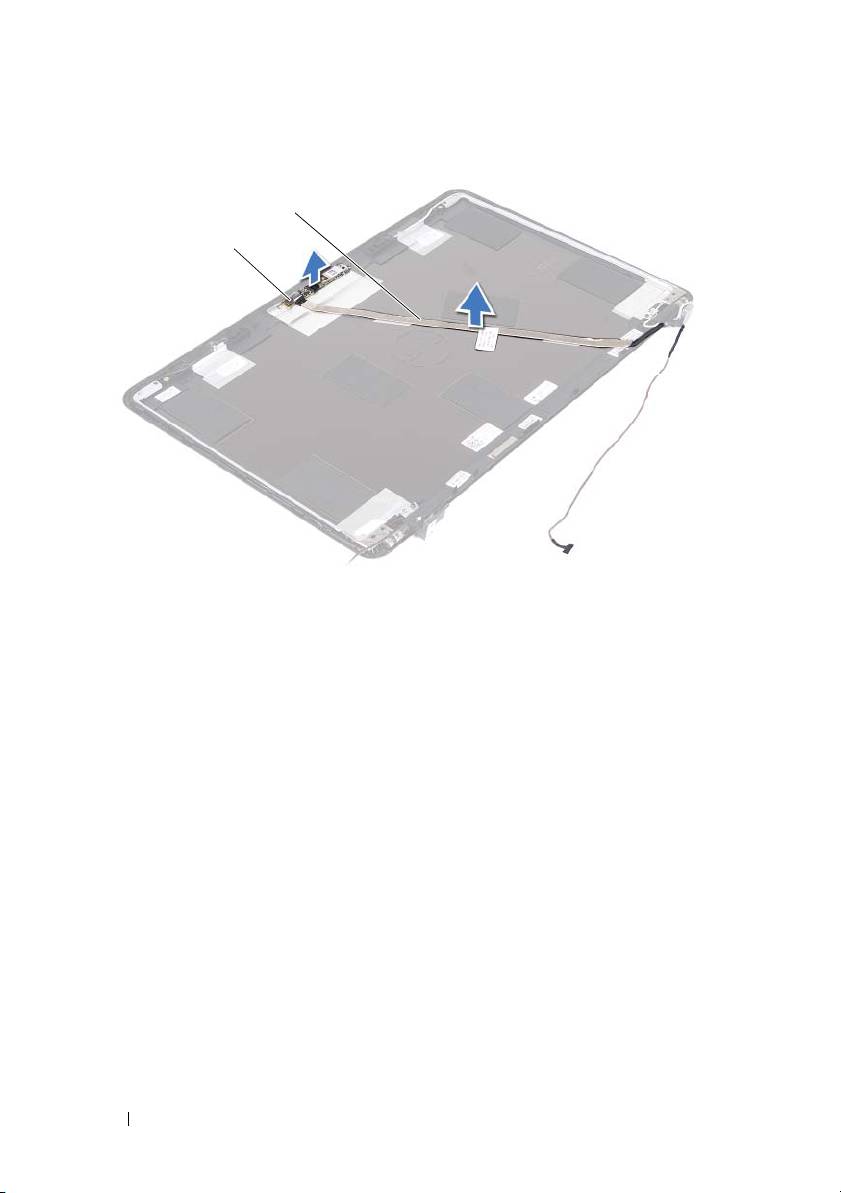
1 camera module 2 camera cable
11
Lift the camera module from the alignment posts and remove the camera
module from the display cover.
12
Remove the tape that secures the camera cable to the camera module.
66 Camera Module
2
1
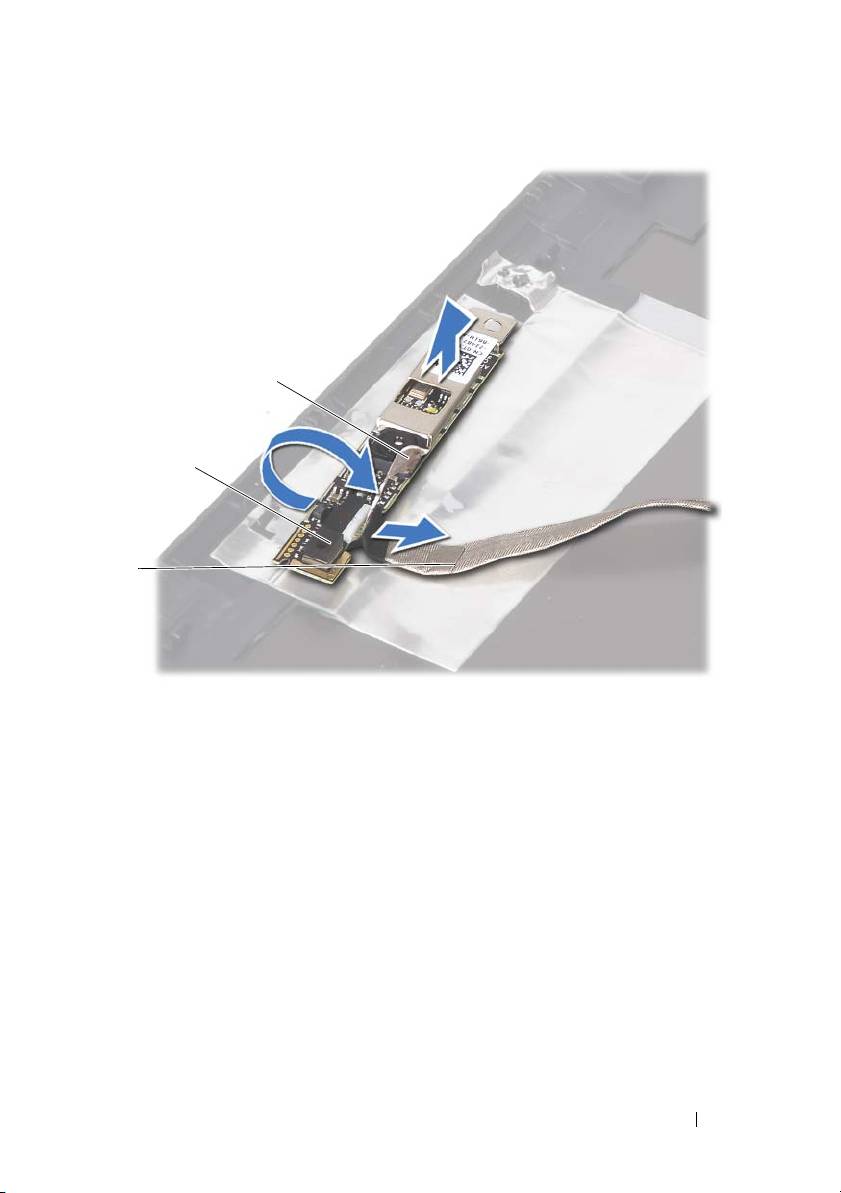
1 camera cable 2 camera module
3 adhesive tape
13
Disconnect the camera cable from the connector on the camera module.
Replacing the Camera Module
1
Follow the instructions in "Before You Begin" on page 9.
2
Connect the camera cable to the camera module, and adhere the tape that
secures the cable to the camera module.
3
Align the camera module to the alignment posts in the display cover and
place the camera module in the display cover.
4
Adhere the camera cable to the tapes on the display cover.
5
Replace the display panel. See "Replacing the Display Panel" on page 53.
Camera Module 67
3
2
1

6
Replace the display bezel. See "Replacing the Display Bezel" on page 51.
7
Replace the display assembly. See "Replacing the Display Assembly" on
page 47.
8
Replace the palm-rest assembly. See "Replacing the Palm-Rest Assembly"
on page 38.
9
Replace the keyboard. See "Replacing the Keyboard" on page 33.
10
Follow the instructions from step 5 to step 6 in "Replacing the Optical
Drive" on page 25.
11
Replace the module cover. See "Replacing the Module Cover" on page 16.
12
Replace the battery. See "Replacing the Battery" on page 14.
CAUTION: Before turning on the computer, replace all screws and ensure that no
stray screws remain inside the computer. Failure to do so may result in damage to
the computer.
68 Camera Module
15
Thermal Fan
WARNING: Before working inside your computer, read the safety information
that shipped with your computer. For additional safety best practices information,
see the Regulatory Compliance Homepage at dell.com/regulatory_compliance.
CAUTION: Only a certified service technician should perform repairs on your
computer. Damage due to servicing that is not authorized by Dell is not covered by
your warranty.
CAUTION: To avoid electrostatic discharge, ground yourself by using a wrist
grounding strap or by periodically touching an unpainted metal surface (such as a
connector on your computer).
CAUTION: To help prevent damage to the system board, remove the main battery
(see "Removing the Battery" on page 13) before working inside the computer.
Removing the Thermal Fan
1
Follow the instructions in "Before You Begin" on page 9.
2
Remove the battery. See "Removing the Battery" on page 13.
3
Remove the module cover. See "Removing the Module Cover" on page 15.
4
Remove the optical-drive assembly. "Removing the Optical Drive" on
page 23.
5
Remove the keyboard. See "Removing the Keyboard" on page 31.
6
Remove the palm-rest assembly. See "Removing the Palm-Rest Assembly"
on page 35.
7
Remove the screw that secures the thermal fan to the computer base.
8
Disconnect the thermal-fan cable from the connector on the system board.
9
Lift the thermal fan off the computer base.
Thermal Fan 69
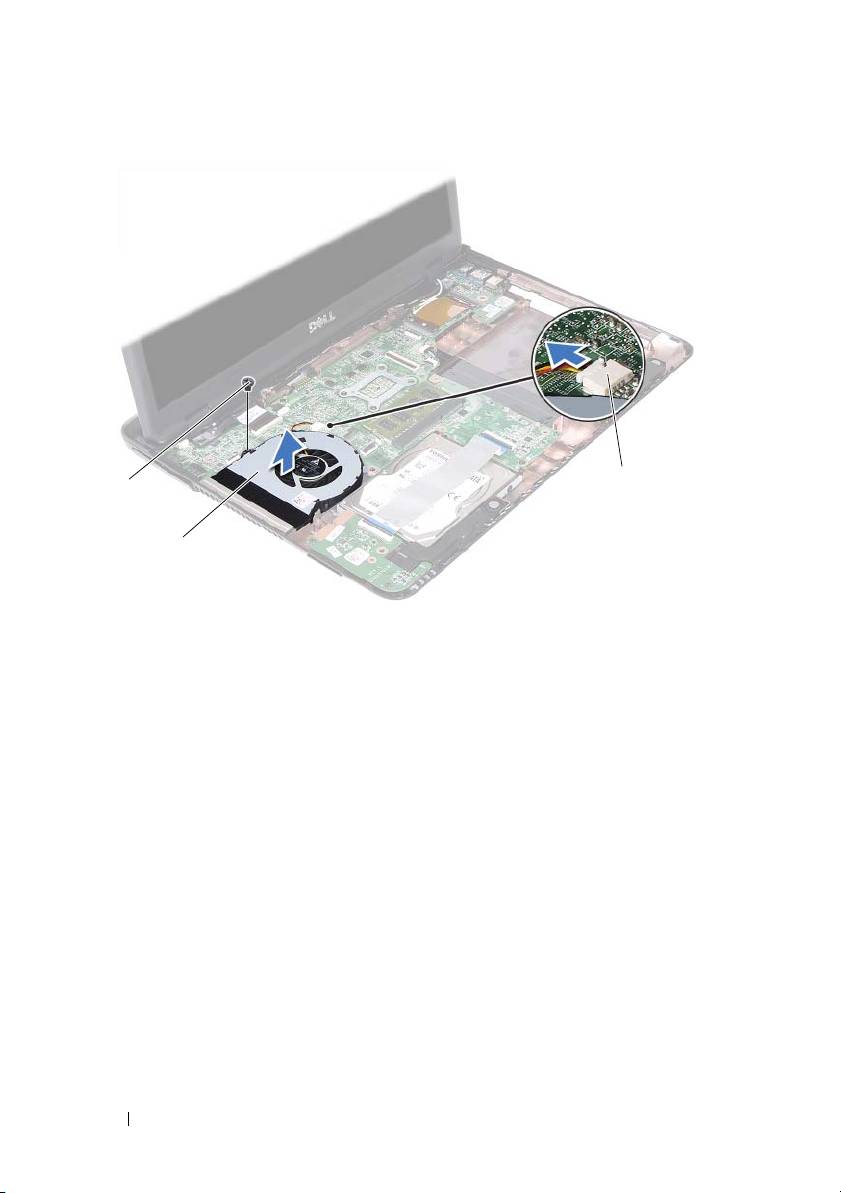
1 screw 2 thermal fan
3 system-board connector
Replacing the Thermal Fan
1
Follow the instructions in "Before You Begin" on page 9.
2
Align the thermal fan to the alignment posts in the computer base and
place the thermal fan in the computer base.
3
Replace the screw that secures the thermal fan to the computer base.
4
Connect the thermal-fan cable to the connector on the system board.
5
Replace the palm-rest assembly. See "Replacing the Palm-Rest Assembly"
on page 38.
6
Replace the keyboard. See "Replacing the Keyboard" on page 33.
7
Follow the instructions from step 5 to step 6 in "Replacing the Optical
Drive" on page 25.
8
Replace the module cover. See "Replacing the Module Cover" on page 16.
70 Thermal Fan
1
3
2

9
Replace the battery. See "Replacing the Battery" on page 14.
CAUTION: Before turning on the computer, replace all screws and ensure that no
stray screws remain inside the computer. Failure to do so may result in damage to
the computer.
Thermal Fan 71

72 Thermal Fan
16
System Board
WARNING: Before working inside your computer, read the safety information
that shipped with your computer. For additional safety best practices information,
see the Regulatory Compliance Homepage at dell.com/regulatory_compliance.
CAUTION: Only a certified service technician should perform repairs on your
computer. Damage due to servicing that is not authorized by Dell is not covered by
your warranty.
CAUTION: To avoid electrostatic discharge, ground yourself by using a wrist
grounding strap or by periodically touching an unpainted metal surface (such as a
connector on your computer).
CAUTION: To help prevent damage to the system board, remove the main battery
(see "Removing the Battery" on page 13) before working inside the computer.
Removing the System Board
1
Follow the instructions in "Before You Begin" on page 9.
2
Remove the battery. See "Removing the Battery" on page 13.
3
Remove the module cover. See "Removing the Module Cover" on page 15.
4
Follow the instructions from step 4 to step 5 in "Removing the Optical
Drive" on page 23.
5
Remove the hard-drive assembly. See "Removing the Hard-Drive
Assembly" on page 19.
6
Remove the keyboard. See "Removing the Keyboard" on page 31.
7
Remove the memory module(s). See "Removing the Memory Module(s)"
on page 27.
8
Remove the palm-rest assembly. See "Removing the Palm-Rest Assembly"
on page 35.
9
Remove the wireless mini-card. See "Removing the Mini-Card" on page 41.
10
Remove the display assembly. See "Removing the Display Assembly" on
page 45.
11
Remove the thermal fan. See "Removing the Thermal Fan" on page 69.
System Board 73
12
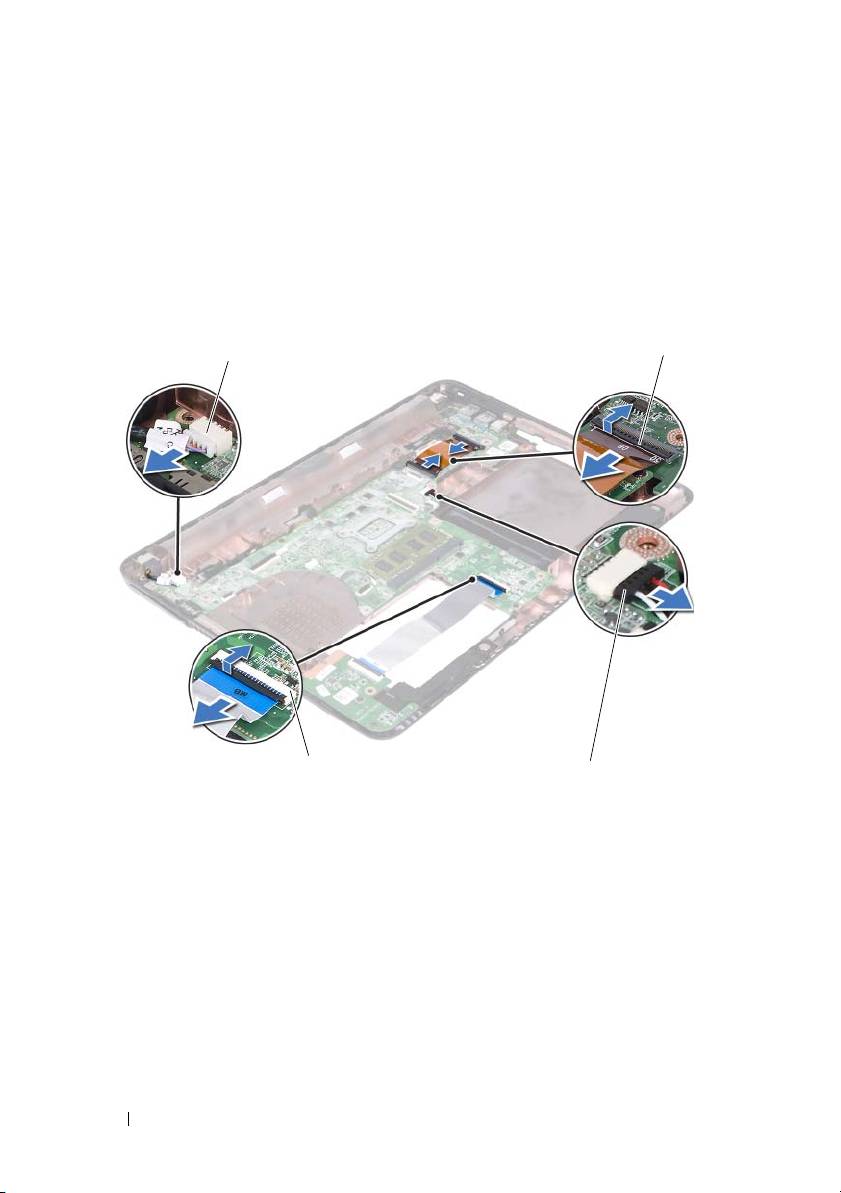
Disconnect the DC-in connector cable and the speaker cable from the
connectors on the system board.
13
Lift the securing latches and disconnect the USB-board cable from the
connectors on the system board and the USB board.
14
Lift the securing latch and disconnect the media-card reader board cable
from the connector on the system board.
1 DC-in cable connector 2 USB-board cable connectors (2)
3 speaker-cable connector 4 media-card reader cable connectors
(2)
15
Remove the four screws that secure the system-board assembly to the
computer base.
16
Carefully ease the ports on the system-board assembly out of the slots in
the computer base and lift the system-board assembly out of the computer
base.
74 System Board
2
1
4
3
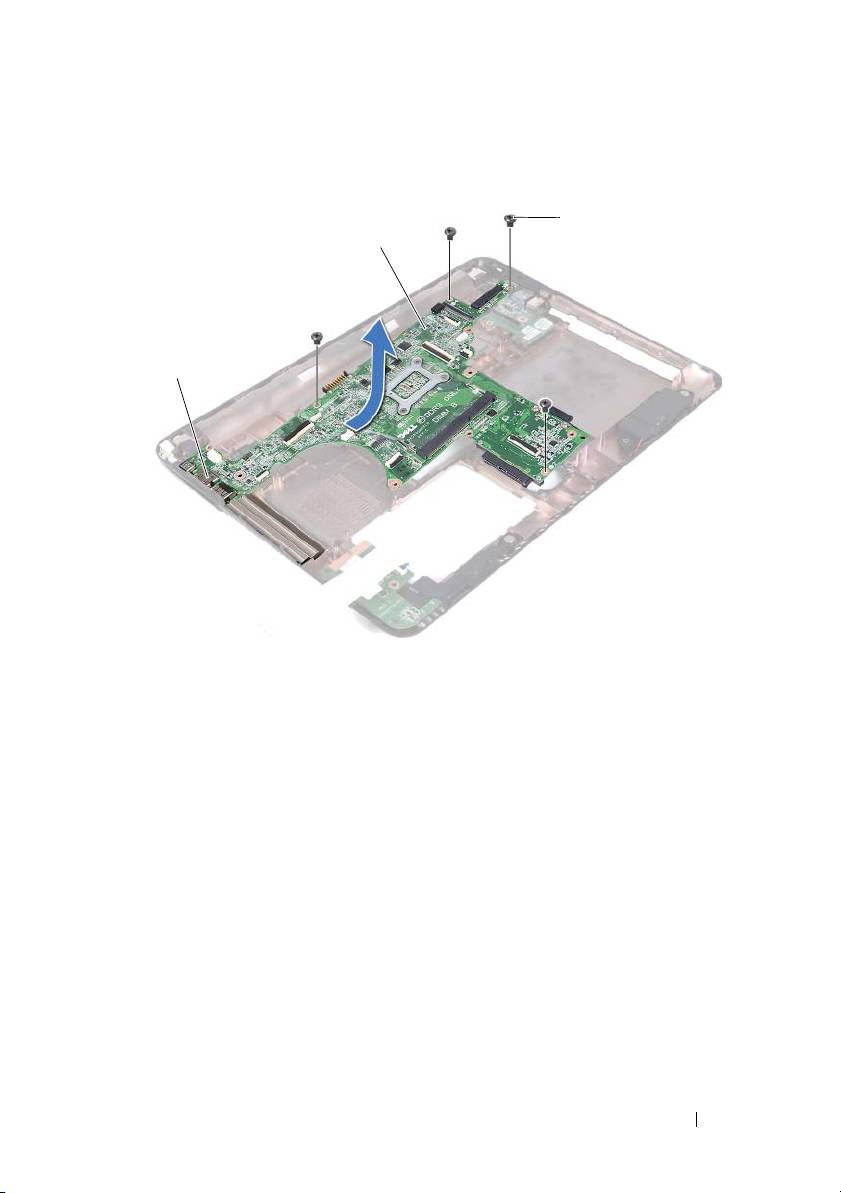
1 ports 2 system board
3 screws (4)
17
Turn the system-board assembly over.
18
Remove the heat-sink assembly. See "Removing the Heat-Sink Assembly"
on page 79.
Replacing the System Board
1
Follow the instructions in "Before You Begin" on page 9.
2
Replace the heat-sink assembly. See "Replacing the Heat-Sink Assembly"
on page 80.
3
Turn the system-board assembly over.
System Board 75
3
2
1

4
Ease the ports on the system-board assembly into the slots on the
computer base.
5
Align the system-board assembly to the alignment posts in the computer
base and place the system board in the computer base.
NOTE: Ensure that the speaker-cable connector is not caught between the
system-board assembly and the computer base.
6
Replace the four screws that secure the system-board assembly to the
computer base.
7
Connect the DC-in connector cable and the speaker cable to the
connectors on the system board.
8
Connect the USB-board cable to the connectors on the system board and
the USB board. Press down the securing latches.
9
Connect the media-card reader board cable to the connector on the system
board. Press down the securing latch.
10
Replace the wireless mini-card. See "Replacing the Mini-Card" on page 42.
11
Replace the thermal fan. See "Replacing the Thermal Fan" on page 70.
12
Replace the display assembly. See "Replacing the Display Assembly" on
page 47.
13
Replace the memory module(s). See "Replacing the Memory Module(s)"
on page 28.
14
Replace the palm-rest assembly. See "Replacing the Palm-Rest Assembly"
on page 38.
15
Replace the keyboard. See "Replacing the Keyboard" on page 33.
16
Replace the hard-drive assembly. See "Replacing the Hard-Drive Assembly"
on page 21.
17
Follow the instructions from step 5 to step 6 in "Replacing the Optical
Drive" on page 25.
18
Replace the module cover. See "Replacing the Module Cover" on page 16.
19
Replace the battery. See "Replacing the Battery" on page 14.
CAUTION: Before turning on the computer, replace all screws and ensure that no
stray screws remain inside the computer. Failure to do so may result in damage to
the computer.
20
Turn on the computer.
76 System Board

NOTE: After you have replaced the system board, type the computer’s Service Tag
into the BIOS of the replacement system board.
21
Enter the service tag. See "Entering the Service Tag in the BIOS" on
page 77.
Entering the Service Tag in the BIOS
1
Ensure that the AC adapter is plugged in and that the main battery is
installed properly.
2
Turn on the computer.
3
Press <F2> during POST to enter the system setup program.
4
Navigate to the
Security
tab and type the service tag in the
Set Service Tag
field.
System Board 77

78 System Board
17
Heat-Sink Assembly
WARNING: Before working inside your computer, read the safety information
that shipped with your computer. For additional safety best practices information,
see the Regulatory Compliance Homepage at dell.com/regulatory_compliance.
WARNING: If you remove the heat-sink assembly from the computer when the
heat sink is hot,
do not touch
the metal housing of the heat-sink assembly.
CAUTION: Only a certified service technician should perform repairs on your
computer. Damage due to servicing that is not authorized by Dell is not covered by
your warranty.
CAUTION: To avoid electrostatic discharge, ground yourself by using a wrist
grounding strap or by periodically touching an unpainted metal surface (such as a
connector on your computer).
CAUTION: To help prevent damage to the system board, remove the main battery
(see "Removing the Battery" on page 13) before working inside the computer.
Removing the Heat-Sink Assembly
1
Follow the instructions in "Before You Begin" on page 9.
2
Remove the battery. See "Removing the Battery" on page 13.
3
Remove the module cover. See "Removing the Module Cover" on page 15.
4
Follow the instructions from step 4 to step 5 in "Removing the Optical
Drive" on page 23.
5
Remove the hard-drive assembly. See "Removing the Hard-Drive
Assembly" on page 19.
6
Remove the keyboard. See "Removing the Keyboard" on page 31.
7
Remove the memory module(s). See "Removing the Memory Module(s)"
on page 27.
8
Remove the palm-rest assembly. See "Removing the Palm-Rest Assembly"
on page 35.
9
Remove the wireless mini-card. See "Removing the Mini-Card" on page 41.
Heat-Sink Assembly 79
10
Remove the display assembly. See "Removing the Display Assembly" on
page 45.
11
Remove the thermal fan. See "Removing the Thermal Fan" on page 69.
12
Follow the instructions from step 12 to step 17 in "Removing the System
Board" on page 73.
13
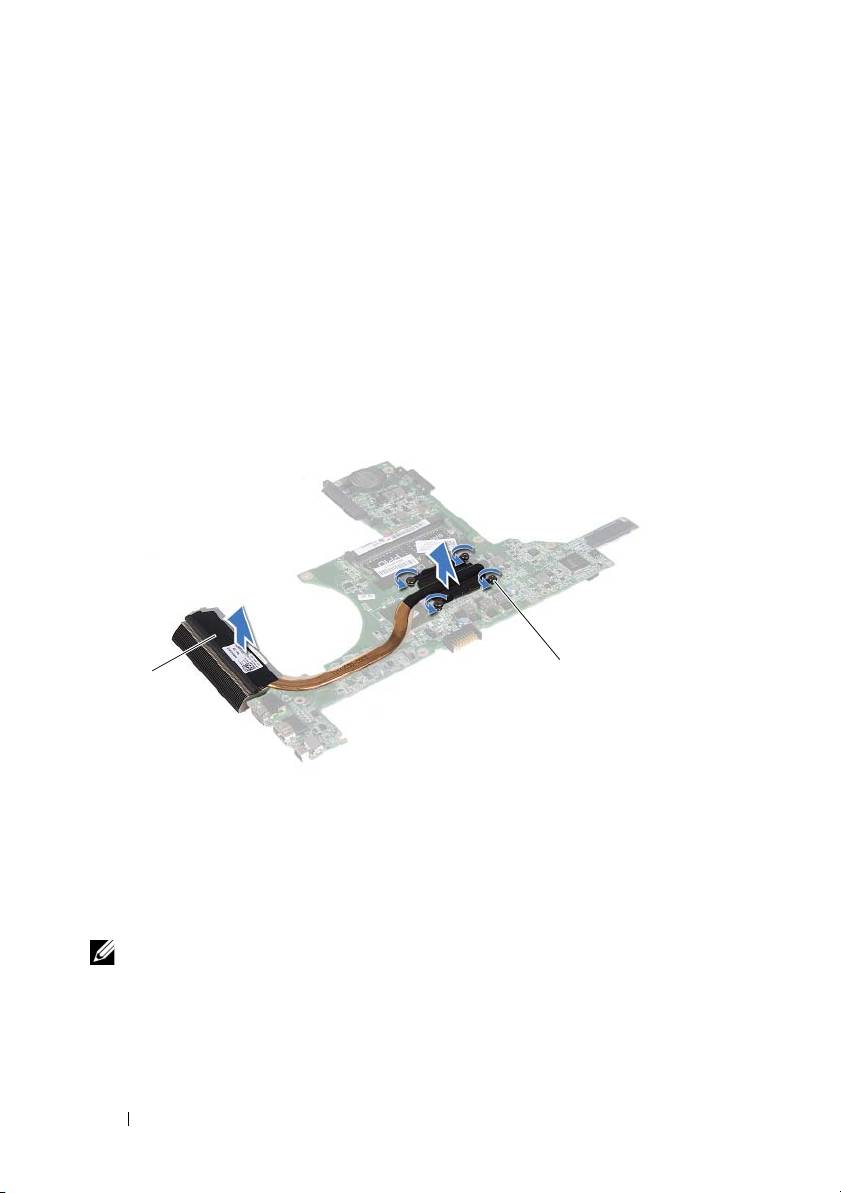
In the sequential order, as indicated on the heat sink, loosen the four
captive screws that secure the heat sink-assembly to the system board.
14
Lift the heat-sink assembly away from the system board.
1 heat-sink assembly 2 captive screws (4)
Replacing the Heat-Sink Assembly
NOTE: The original thermal pad can be reused if the original processor and heat
sink are reinstalled together. If either the processor or heat sink is replaced, use the
thermal pad provided in the kit to ensure that thermal conductivity is achieved.
1
Follow the instructions in "Before You Begin" on page 9.
2
Clean the thermal grease from the bottom of the heat sink and reapply it.
80 Heat-Sink Assembly
2
1

3
Align the four captive screws on the heat sink with the screw holes on the
system board and tighten the screws in sequential order as indicated on the
heat sink.
4
Follow the instructions from step 2 to step 9 in "Replacing the System
Board" on page 75.
5
Replace the wireless mini-card. See "Replacing the Mini-Card" on page 42.
6
Replace the thermal fan. See "Replacing the Thermal Fan" on page 70.
7
Replace the display assembly. See "Replacing the Display Assembly" on
page 47.
8
Replace the memory module(s). See "Replacing the Memory Module(s)"
on page 28.
9
Replace the palm-rest assembly. See "Replacing the Palm-Rest Assembly"
on page 38.
10
Replace the keyboard. See "Replacing the Keyboard" on page 33.
11
Replace the hard-drive assembly. See "Replacing the Hard-Drive Assembly"
on page 21.
12
Follow the instructions from step 5 to step 6 in "Replacing the Optical
Drive" on page 25.
13
Replace the module cover. See "Replacing the Module Cover" on page 16.
14
Replace the battery. See "Replacing the Battery" on page 14.
CAUTION: Before turning on the computer, replace all screws and ensure that no
stray screws remain inside the computer. Failure to do so may result in damage to
the computer.
Heat-Sink Assembly 81

82 Heat-Sink Assembly
18
Media-Card Reader Board
WARNING: Before working inside your computer, read the safety information
that shipped with your computer. For additional safety best practices information,
see the Regulatory Compliance Homepage at dell.com/regulatory_compliance.
CAUTION: Only a certified service technician should perform repairs on your
computer. Damage due to servicing that is not authorized by Dell is not covered by
your warranty.
CAUTION: To avoid electrostatic discharge, ground yourself by using a wrist
grounding strap or by periodically touching an unpainted metal surface (such as a
connector on your computer).
CAUTION: To help prevent damage to the system board, remove the main battery
(see "Removing the Battery" on page 13) before working inside the computer.
Removing the Media-Card Reader Board
1
Follow the instructions in "Before You Begin" on page 9.
2
Remove the battery. See "Removing the Battery" on page 13.
3
Remove the module cover. See "Removing the Module Cover" on page 15.
4
Follow the instructions from step 4 to step 5 in "Removing the Optical
Drive" on page 23.
5
Remove the keyboard. See "Removing the Keyboard" on page 31.
6
Remove the palm-rest assembly. See "Removing the Palm-Rest Assembly"
on page 35.
7
Lift the securing latches and disconnect the media-card reader board cable
from the connectors on the system board and the media-card reader board.
8
Remove the screw that secures the media-card reader board to the
computer base.
Media-Card Reader Board 83
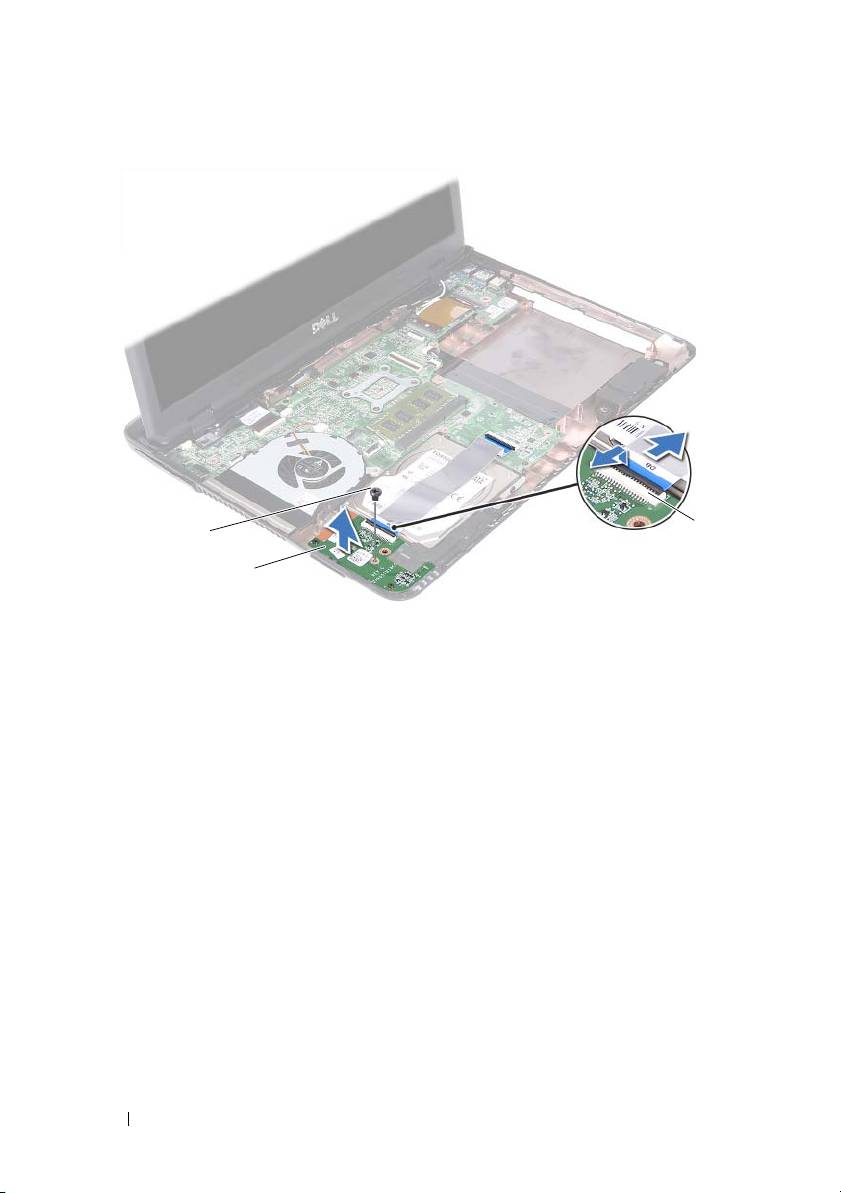
1 screw 2 media-card reader board
3 media-card reader board cable connectors (2)
9
Lift the media-card reader board away from the computer base.
Replacing the Media-Card Reader Board
1
Follow the instructions in "Before You Begin" on page 9.
2
Align the media-card reader board with the alignment poles on the
computer base.
3
Replace the screw that secures the media-card reader board to the
computer base.
4
Slide the cable into the connectors on the system board and the media-
card reader board, and then press down the securing latches.
5
Replace the palm-rest assembly. See "Replacing the Palm-Rest Assembly"
on page 38.
84 Media-Card Reader Board
3
1
2

6
Replace the keyboard. See "Replacing the Keyboard" on page 33.
7
Follow the instructions from step 5 to step 6 in "Replacing the Optical
Drive" on page 25.
8
Replace the module cover. See "Replacing the Module Cover" on page 16.
9
Replace the battery. See "Replacing the Battery" on page 14.
CAUTION: Before turning on the computer, replace all screws and ensure that no
stray screws remain inside the computer. Failure to do so may result in damage to
the computer.
Media-Card Reader Board 85

86 Media-Card Reader Board
19
Speakers
WARNING: Before working inside your computer, read the safety information
that shipped with your computer. For additional safety best practices information,
see the Regulatory Compliance Homepage at dell.com/regulatory_compliance.
CAUTION: Only a certified service technician should perform repairs on your
computer. Damage due to servicing that is not authorized by Dell is not covered by
your warranty.
CAUTION: To avoid electrostatic discharge, ground yourself by using a wrist
grounding strap or by periodically touching an unpainted metal surface (such as a
connector on your computer).
CAUTION: To help prevent damage to the system board, remove the main battery
(see "Removing the Battery" on page 13) before working inside the computer.
Removing the Speakers
1
Follow the instructions in "Before You Begin" on page 9.
2
Remove the battery. See "Removing the Battery" on page 13.
3
Remove the module cover. See "Removing the Module Cover" on page 15.
4
Follow the instructions from step 4 to step 5 in "Removing the Optical
Drive" on page 23.
5
Remove the hard-drive assembly. See "Removing the Hard-Drive
Assembly" on page 19.
6
Follow the instructions in step 5 to step 17 in "Removing the System
Board" on page 73.
7
Remove the media-card reader board. See "Removing the Media-Card
Reader Board" on page 83.
8
Note the speakers cable routing and remove the cable from the routing
guides.
9
Remove the two screws that secure the speakers to the computer base.
Speakers 87
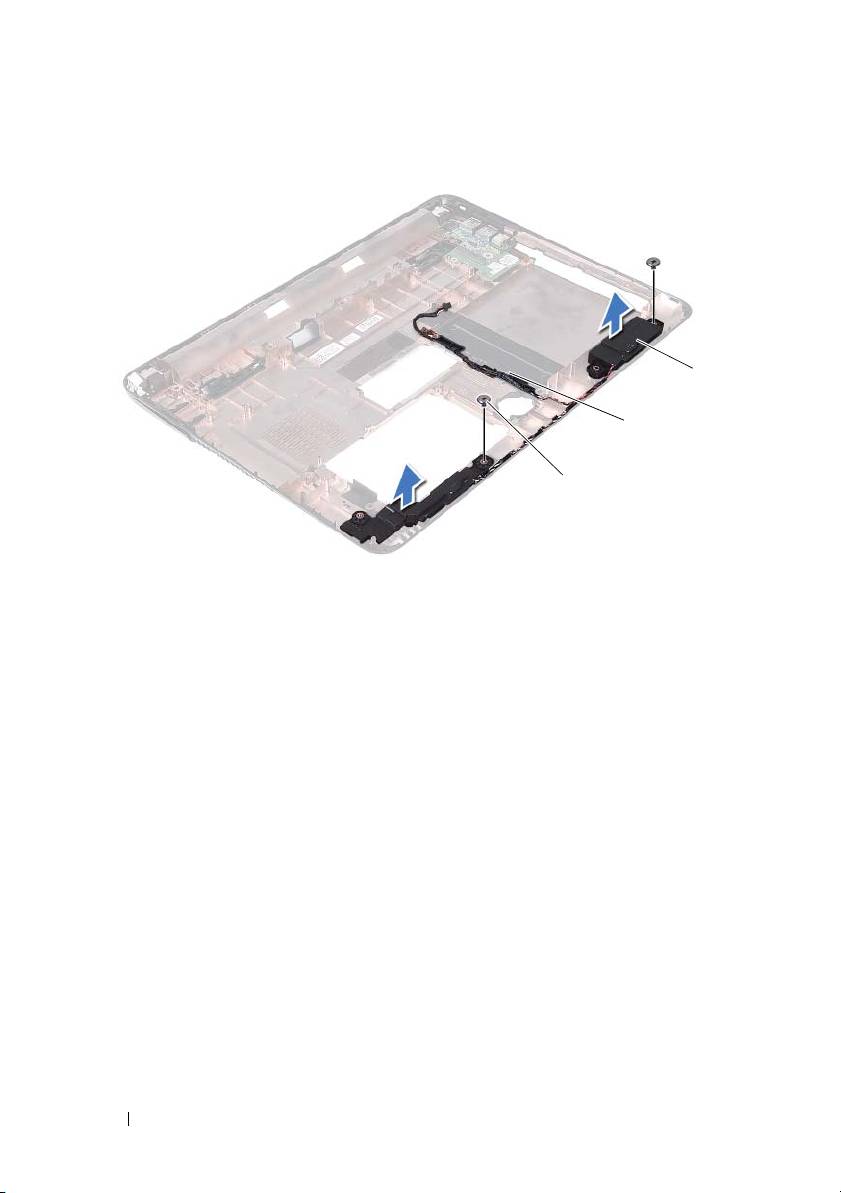
1 screws (2) 2 speaker cable
3 speakers (2)
10
Lift the speakers, along with the speaker cable, off the computer base.
Replacing the Speakers
1
Follow the instructions in "Before You Begin" on page 9.
2
Route the speaker cables through the routing guides.
3
Align the speakers with the alignment posts on the computer base and
place the speakers in the computer base.
4
Replace the two screws that secure the speakers to the computer base.
5
Replace the media-card reader board. See "Replacing the Media-Card
Reader Board" on page 84.
6
Replace the hard-drive assembly. See "Replacing the Hard-Drive Assembly"
on page 21.
88 Speakers
3
2
1

7
Follow the instructions in step 3 to step 16 in "Replacing the System
Board" on page 75.
8
Follow the instructions from step 5 to step 6 in "Replacing the Optical
Drive" on page 25.
9
Replace the module cover. See "Replacing the Module Cover" on page 16.
10
Replace the battery. See "Replacing the Battery" on page 14.
CAUTION: Before turning on the computer, replace all screws and ensure that no
stray screws remain inside the computer. Failure to do so may result in damage to
the computer.
Speakers 89

90 Speakers

20
System Setup
Use the system setup to:
• Change the system configuration information after you add, change, or
remove any hardware in your computer
• Set or change a user-selectable option such as the user password
• Read the current amount of memory or set the type of hard drive installed
NOTE: Before you change system setup, it is recommended that you note the
system-setup screen information for future reference.
Entering System Setup
1
Turn on (or restart) your computer.
2
When the DELL logo is displayed, watch for the F2 prompt to appear and
then press <F2> immediately.
NOTE: The F2 prompt indicates that the keyboard has initialized. This prompt
can appear very quickly, so you must watch for it, and then press <F2>. If you
press <F2> before the F2 prompt, this keystroke is lost. If you wait too long and
the operating system logo appears, continue to wait until you see the
Microsoft Windows desktop. Then, shut down your computer. See "Turning Off
Your Computer" on page 9 and try again.
System Setup Screens
The system-setup screen displays current or changeable configuration
information for your computer. Information on the screen is divided into
three areas: the setup item, active help screen, and key functions.
System Setup Utility 91
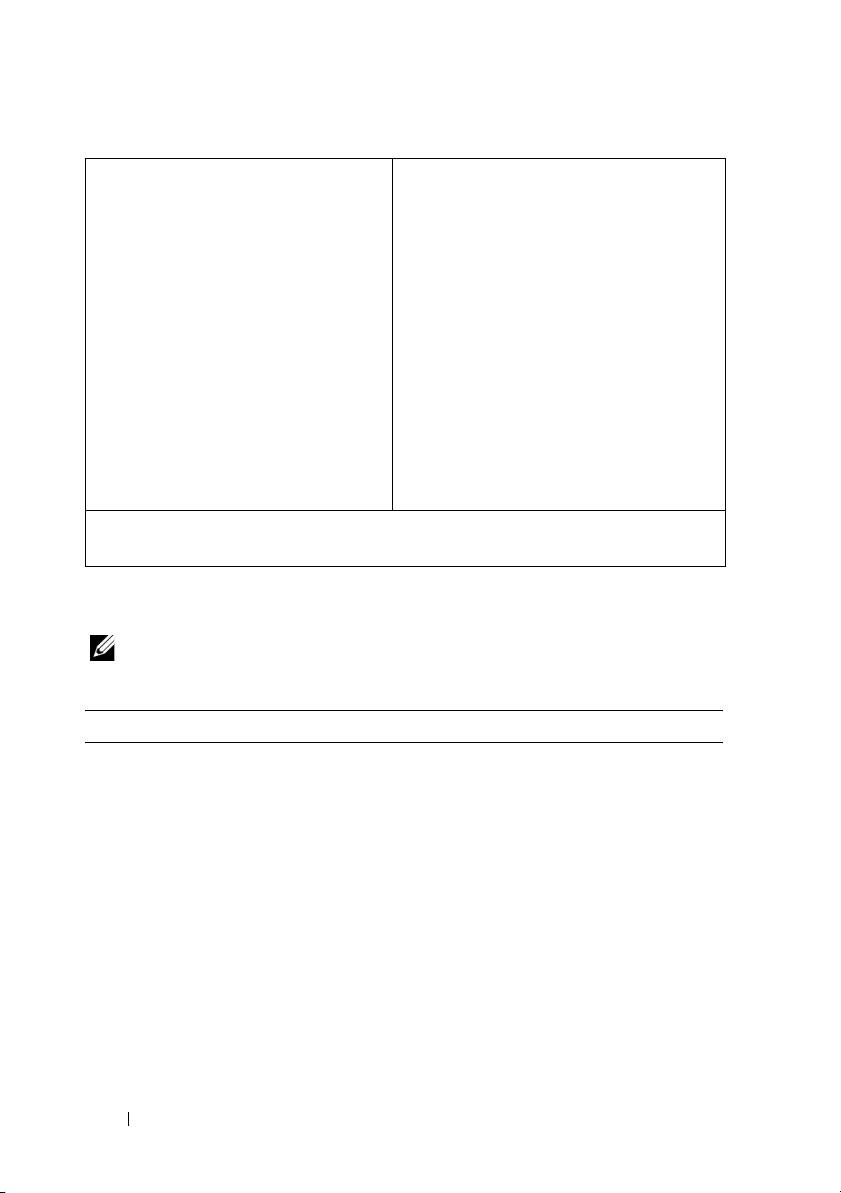
Setup Item — This field appears
Help Screen — This field appears on
on the left side of the system setup
the right side of the system setup
window. The field is a scrollable list
window and contains information
containing features that define the
about each option listed in the Setup
configuration of your computer,
Item. In this field you can view
including installed hardware,
information about your computer and
power conservation, and security
make changes to your current settings.
features.
Press the up-arrow and down-arrow
Scroll up and down the list with
keys to highlight an option. Press
the up- and down-arrow keys. As
<Enter> to make that selection
an option is highlighted, the Help
active and return to the Setup Item.
Screen displays more information
NOTE:
Not all settings listed in the Setup
about that option and available
Item are changeable.
settings.
Key Functions — This field appears below the Help Screen and lists keys
and their functions within the active system setup field.
System Setup Options
NOTE: Depending on your computer and installed devices, the items listed in this
section may appear, or may not appear exactly as listed.
Setup
System Time Displays the current time in hh:mm:ss format
System Date Displays the current date in mm/dd/yyyy format
BIOS Version Displays the BIOS version number
Product Name Displays the product name
Service Tag Displays the service tag of the computer
Asset Tag Displays the asset tag of the computer when
the asset tag is present
CPU Type Displays the CPU type
CPU Speed Displays the CPU speed
CPU ID Displays the CPU ID
92 System Setup Utility

CPU Cache
L1 Cache size Displays the L1 cache size
L2 Cache size Displays the L2 cache size
L3 Cache size Displays the L3 cache size
Fixed HDD Displays the hard drive information
SATA ODD Displays the optical drive information
AC Adapter Type Displays AC adapter type
Memory Information
System Memory Indicates the amount of memory installed in
MB
Extended Memory Indicates the amount of extended memory
Memory Speed Indicates the memory speed in MHz
System Setup Utility 93

Advanced
• Intel SpeedStep - This field enables or
disables the Intel SpeedStep mode of the
processor.
• Virtualization - When enabled, a VMM can
utilize the additional hardware capabilities
provided by Vanderpool Technology.
• Integrated NIC - Enables/disables the on-
board LAN controller.
• USB Emulation - Enables/disables the
system's basic input/output system (BIOS)
controls USB keyboards and mice.
• USB PowerShare - Enables/disables charging
USB devices when system is off.
• USB Wake Support - Allows you to enable
USB devices to wake the system from standby.
This feature is only functional when the AC
power adapter is connected. If the AC power
adapter is removed before standby, the BIOS
will remove power from all of the USB ports to
conserve battery power.
• SATA Operation - Two modes are available:
AHCI Mode ATA Mode
• Adapter Warnings - Choose if the system
must display warning messages when you use
certain power adapters. The system displays
these messages if you attempt to use a power
adapter that has too little capacity for your
configuration.
• Function Key Behavior - Allows you to
configure function key behavior.
• Charger Behavior - Enable/disable charger
behavior.
Advanced (Miscellaneous
• External USB Ports - Enable/disable external
Devices)
USB ports
94 System Setup Utility

Set Admin Password Allows to set, change, or delete the
administrator password
NOTE: Deleting administrator password deletes
the system password. Hence, set the
administrator password before setting the system
password.
Set System Password Allows to set, change, or delete the system
password
Set HDD Password Allows to set, change, or delete the hard drive
password
Password on Boot Enables/disables Password on Boot
Password ByPass Allows you to bypass the system (boot)
password and the internal HDD password
prompts during a system restart from the
standby state
Computrace The Absolute Anti-Theft solution is disabled by
default.
Boot
1st Boot Priority Specifies the boot sequence from the available
devices
Removable Drive; Hard Drive; USB Storage
Device; CD/DVD/CD-RW Drive; Network;
Disabled (Hard Drive by default)
2nd Boot Priority Specifies the boot sequence from the available
devices
Removable Drive; Hard Drive; USB Storage
Device; CD/DVD/CD-RW Drive; Network;
Disabled (CD/DVD/CD-RW Drive by default)
3rd Boot Priority Specifies the boot sequence from the available
devices
Removable Drive; Hard Drive; USB Storage
Device; CD/DVD/CD-RW Drive; Network;
Disabled (Removable Drive by default)
System Setup Utility 95

4th Boot Priority Specifies the boot sequence from the available
devices
Removable Drive; Hard Drive; USB Storage
Device; CD/DVD/CD-RW Drive; Network;
Disabled (Network by default)
5th Boot Priority Specifies the boot sequence from the available
devices
Removable Drive; Hard Drive; USB Storage
Device; CD/DVD/CD-RW Drive; Network;
Disabled (USB Storage Device by default)
Exit
Exit Options Provides options to Save Changes and Reset,
Discard Changes and Reset, Restore Defaults,
Discard Changes and Save Changes
Boot Sequence
This feature allows you to change the boot sequence for devices.
Boot Options
•
Removable Drive
—
The computer attempts to boot from the removable
drive. If no operating system is on the drive, the computer generates an
error message.
•
Hard Drive
— The computer attempts to boot from the primary hard
drive. If no operating system is on the drive, the computer generates an
error message.
•
CD/DVD/CD-RW Drive
— The computer attempts to boot from the
CD/DVD/CD-RW drive. If no CD/DVD/CD-RW is in the drive, or if the
CD/DVD/CD-RW has no operating system, the computer generates an
error message.
•
USB Storage Device
— Insert the memory device into a USB connector
and restart the computer. When
F12 Boot Options
appears in the
lower-right corner of the screen, press <F12>. The BIOS detects the
device and adds the USB flash option to the boot menu.
NOTE: To boot to a USB device, the device must be bootable. To ensure that
your device is bootable, check the device documentation.
96 System Setup Utility

•
Network
— The computer attempts to boot from the network. If no
operating system is found on the network, the computer generates an error
message.
Changing Boot Sequence for the Current Boot
You can use this feature to change the current boot sequence, for example, to
boot from the CD/DVD/CD-RW drive to run Dell Diagnostics from the
Drivers and Utilities disc. On completion of diagnostic tests, the previous
boot sequence is restored.
1
If you are booting from a USB device, connect the USB device to a USB
connector.
2
Turn on (or restart) your computer.
3
When
F2 Setup, F12 Boot Options
appears in the lower-right
corner of the screen, press <F12>.
NOTE: If you wait too long and the operating system logo appears, continue to
wait until you see the Microsoft Windows desktop. Then shut down your
computer and try again.
The
Boot Device Menu
appears, listing all available boot devices.
4
On the
Boot Device Menu
choose the device you want to boot from.
For example, if you are booting to a USB memory key, highlight
USB
Storage Device
and press <Enter>.
NOTE: To boot to a USB device, the device must be bootable. To ensure your
device is bootable, check the device documentation.
Changing Boot Sequence for Future Boots
1
Enter system setup. See "Entering System Setup" on page 91.
2
Use the arrow keys to highlight the
Boot
menu option and press <Enter>
to access the menu.
NOTE: Write down your current boot sequence in case you want to restore it.
3
Press the up- and down-arrow keys to move through the list of devices.
4
Press plus (+) or minus (–) to change the boot priority of the device.
System Setup Utility 97

98 System Setup Utility

System Setup Utility 99

100 System Setup Utility

21
Flashing the BIOS
The BIOS may require flashing when an update is available or when replacing
the system board. To flash the BIOS:
1
Turn on the computer.
2
Go to
support.dell.com/support/downloads.
3
Locate the BIOS update file for your computer.
NOTE: The Service Tag for your computer is located on a label at the bottom
of your computer.
If you have your computer’s Service Tag:
a
Click
Enter a Tag
.
b
Enter your computer’s Service Tag in the
Enter a service tag
field
,
click
Go
, and proceed to step 4.
If you do not have your computer’s Service Tag:
a
Click
Select Model.
b
Select the type of product in the
Select Your Product Family
list.
c
Select the product brand in the
Select Your Product Line
list.
d
Select the product model number in the
Select Your Product Model
list.
NOTE: If you have selected a different model and want to start over again,
click Start Over on the top right of the menu.
e
Click
Confirm
.
4
A list of results appears on the screen. Click
BIOS
.
5
Click
Download Now
to download the latest BIOS file. The
File
Download
window appears.
6
Click
Save
to save the file on your desktop. The file downloads to your
desktop.
7
Click
Close
if the
Download Complete
window appears. The file icon
appears on your desktop and is titled the same as the downloaded BIOS
update file.
Flashing the BIOS 101

8
Double-click the file icon on the desktop and follow the instructions that
appear on the screen.
102 Flashing the BIOS
