
Dell Inspiron 14z N411z – страница 3
Инструкция к Ноутбуку Dell Inspiron 14z N411z
10
Wireless Mini-Card
WARNING: Before working inside your computer, read the safety information
that shipped with your computer. For additional safety best practices information,
see the Regulatory Compliance Homepage at dell.com/regulatory_compliance.
CAUTION: Only a certified service technician should perform repairs on your
computer. Damage due to servicing that is not authorized by Dell is not covered by
your warranty.
CAUTION: To avoid electrostatic discharge, ground yourself by using a wrist
grounding strap or by periodically touching an unpainted metal surface, such as a
connector on your computer.
CAUTION: To help prevent damage to the system board, remove the main battery
(see "Removing the Battery" on page 13) before working inside the computer.
CAUTION: When the mini-card is not in the computer, store it in protective
antistatic packaging. See "Protecting Against Electrostatic Discharge" in the
safety instructions that shipped with your computer.
NOTE: Dell does not guarantee compatibility or provide support for mini-cards from
sources other than Dell.
Your computer has one half mini-card slot that supports a Wi-Fi+WiMax or
Wi-Fi+Bluetooth combo card.
NOTE: If you ordered a wireless mini-card with your computer, the card is already
installed.
Removing the Mini-Card
1
Follow the instructions in "Before You Begin" on page 9.
2
Remove the battery. See "Removing the Battery" on page 13.
3
Remove the module cover. See "Removing the Module Cover" on page 15.
4
Follow the instructions from step 4 to step 5 in "Removing the Optical
Drive" on page 23.
5
Remove the keyboard. See "Removing the Keyboard" on page 31.
Wireless Mini-Card 41
6
Remove the palm-rest assembly. See "Removing the Palm-Rest Assembly"
on page 35.
7
Lift the securing latches and disconnect the USB-board cable from the
connectors on the USB board and the system board, and then remove the
USB-board cable. See "Removing the USB Board" on page 61.
8
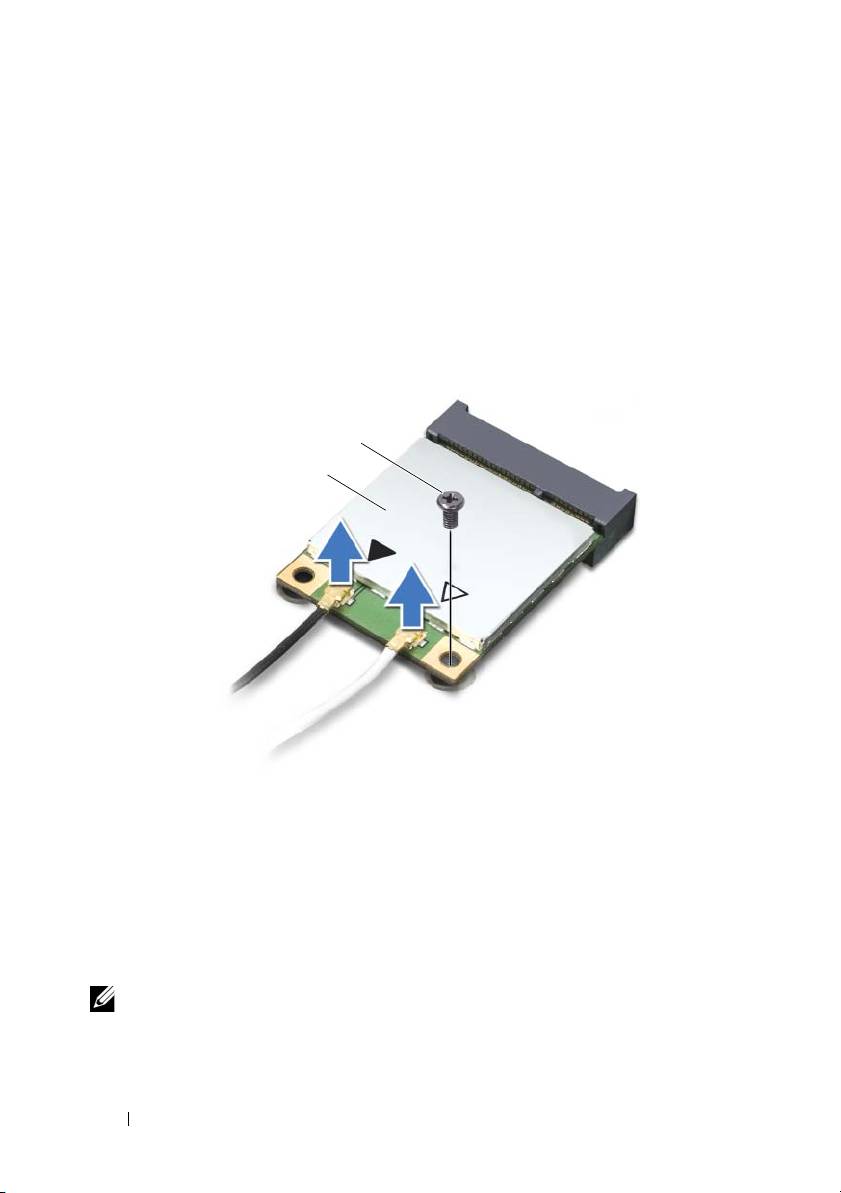
Disconnect the wireless antenna cables from the connectors on the mini-
card.
9
Remove the screw that secures the mini-card to the system board.
1 mini-card 2 screw
10
Lift the mini-card out of the connector on the system board.
Replacing the Mini-Card
1
Follow the instructions in "Before You Begin" on page 9.
NOTE: Your computer can support either one Wi-Fi+WiMax mini-card or one
Wi-Fi+Bluetooth combo card at a time.
2
Remove the replacement mini-card from its packaging.
42 Wireless Mini-Card
2
1

CAUTION: Use firm and even pressure to slide the mini-card into place. If you use
excessive force, you may damage the connector.
CAUTION: The connectors are keyed to ensure correct insertion. If you feel
resistance, check the connectors on the mini-card and on the system board, and
realign the mini-card.
CAUTION: To avoid damage to the mini-card, never place cables under the mini-
card.
3
Insert the mini-card connector at a 45-degree angle into the connector on
the system board.
4
Press the other end of the mini-card down and replace the screw that
secures the mini-card to the system board.
5
Connect the antenna cables to the mini-card as follows:
• Connect the white cable to the connector with the white triangle.
• Connect the black cable to the connector with the black triangle.
6
Secure any unused antenna cables in the protective mylar sleeve.
7
Slide the USB-board cable into the connectors on the USB board and the
system board, and press down the securing latches. See "Replacing the
USB Board" on page 63.
8
Replace the palm-rest assembly. See "Replacing the Palm-Rest Assembly"
on page 38.
9
Replace the keyboard. See "Replacing the Keyboard" on page 33.
10
Follow the instructions from step 5 to step 6 in "Replacing the Optical
Drive" on page 25.
11
Replace the module cover. See "Replacing the Module Cover" on page 16.
12
Replace the battery. See "Replacing the Battery" on page 14.
13
Install the drivers and utilities for your mini-card as required. For more
information, see
Me and My Dell
on
support.dell.com/manuals
.
Wireless Mini-Card 43

44 Wireless Mini-Card

11
Display
WARNING: Before working inside your computer, read the safety information
that shipped with your computer. For additional safety best practices information,
see the Regulatory Compliance Homepage at dell.com/regulatory_compliance.
CAUTION: Only a certified service technician should perform repairs on your
computer. Damage due to servicing that is not authorized by Dell is not covered by
your warranty.
CAUTION: To avoid electrostatic discharge, ground yourself by using a wrist
grounding strap or by periodically touching an unpainted metal surface (such as a
connector on your computer).
CAUTION: To help prevent damage to the system board, remove the main battery
(see "Removing the Battery" on page 13) before working inside the computer.
Display Assembly
Removing the Display Assembly
1
Follow the instructions in "Before You Begin" on page 9.
2
Remove the battery. See "Removing the Battery" on page 13.
3
Remove the module cover. See "Removing the Module Cover" on page 15.
4
Follow the instructions in step 4 to step 5 of "Removing the Optical Drive"
on page 23.
5
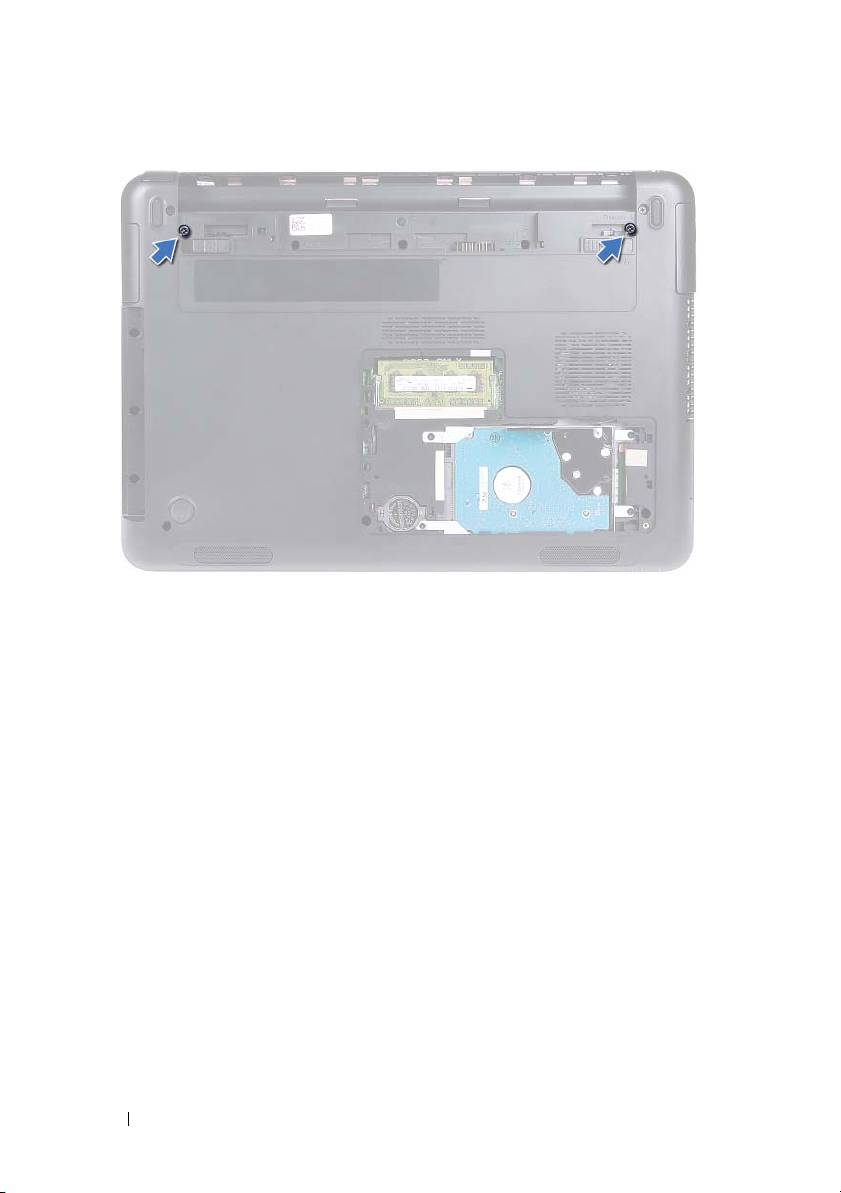
Remove the two screws that secure the display assembly to the computer
base.
Display 45
6
Turn the computer over.
7
Remove the keyboard. See "Removing the Keyboard" on page 31.
8
Remove the palm-rest assembly. See "Removing the Palm-Rest Assembly"
on page 35.
9
Turn the computer over and open the display as far as possible.
10
Disconnect the antenna cables from the mini-card. See "Removing the
Mini-Card" on page 41.
11
Lift the connector latch and disconnect the display cable from the
connector on the system board.
12
Disconnect the camera cable. See "Removing the Camera Module" on
page 65.
13
Note the routing of the display, camera, and mini-card antenna cables, and
remove the cables from their routing guides.
14
Remove the two screws that secure the display assembly to the computer
base.
46 Display
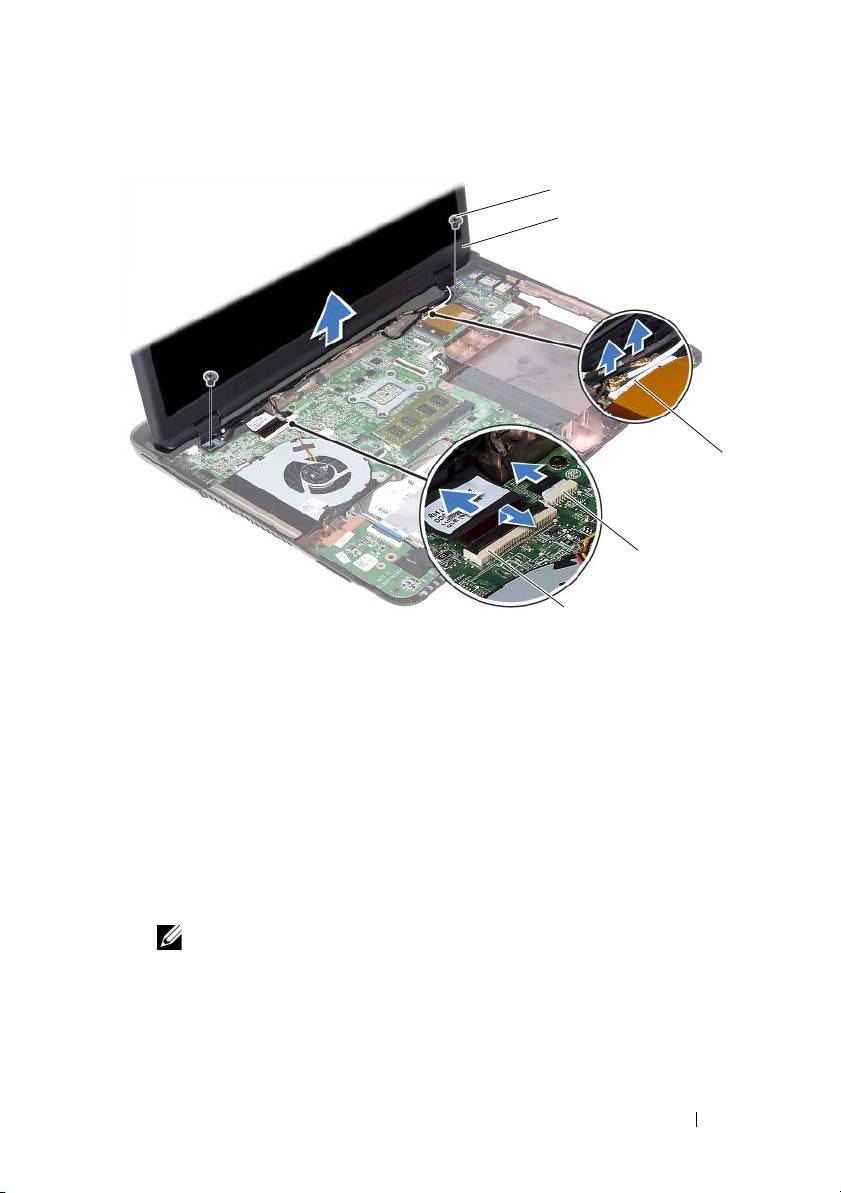
1 screws (2) 2 display assembly
3 mini-card antenna cables 4 camera-cable connector
5 display-cable connector
15
Lift the display assembly off the computer base.
Replacing the Display Assembly
1
Follow the instructions in "Before You Begin" on page 9.
2
Place the display assembly in position and replace the two screws that
secure the display assembly to the computer base.
NOTE: Ensure that no cables are caught between the display assembly and
the computer base.
3
Route the display, camera, and mini-card antenna cables through their
routing guides.
Display 47
1
2
3
4
5

4
Connect the camera cable. See "Replacing the Camera Module" on
page 67.
5
Slide the display cable in the connector on the system board and press
down the latch to secure the cable.
6
Connect the antenna cables to the mini-card. See "Replacing the
Mini-Card" on page 42.
7
Replace the palm-rest assembly. See "Replacing the Palm-Rest Assembly"
on page 38.
8
Replace the keyboard. See "Replacing the Keyboard" on page 33.
9
Turn the computer over.
10
Replace the two screws that secure the display assembly to the computer
base.
11
Follow the instructions from step 5 to step 6 in "Replacing the Optical
Drive" on page 25.
12
Replace the module cover. See "Replacing the Module Cover" on page 16.
13
Replace the battery. See "Replacing the Battery" on page 14.
CAUTION: Before turning on the computer, replace all screws and ensure that no
stray screws remain inside the computer. Failure to do so may result in damage to
the computer.
Hinge Cover
Removing the Hinge Cover
CAUTION: The hinge caps are extremely fragile. Be careful when removing the
hinge caps to prevent damaging them.
1
Follow the instructions in "Before You Begin" on page 9.
2
Remove the battery. See "Removing the Battery" on page 13.
3
Remove the module cover. See "Removing the Module Cover" on page 15.
4
Remove the optical-drive assembly. See "Removing the Optical Drive" on
page 23.
5
Remove the keyboard. See "Removing the Keyboard" on page 31.
48 Display

6
Remove the palm-rest assembly. See "Removing the Palm-Rest Assembly"
on page 35.
7
Remove the display assembly. See "Removing the Display Assembly" on
page 45.
8
Remove the two screws that secure the hinge cover to the computer base.
9
Pry out the six tabs that secure the hinge cover to the computer base and
remove the hinge cover from the computer base.
1 screws (2) 2 tabs (6)
Replacing the Hinge Cover
1
Follow the instructions in "Before You Begin" on page 9.
2
Align the tabs on the hinge cover to the slots on the computer base and
snap the hinge cover to the computer base.
3
Replace the two screws that secure the hinge cover in place.
Display 49
1
2

4
Replace the display assembly. See "Replacing the Display Assembly" on
page 47.
5
Replace the palm-rest assembly. See "Replacing the Palm-Rest Assembly"
on page 38.
6
Replace the keyboard. See "Replacing the Keyboard" on page 33.
7
Replace the optical-drive assembly. See "Replacing the Optical Drive" on
page 25.
8
Replace the module cover. See "Replacing the Module Cover" on page 16.
9
Replace the battery. See "Replacing the Battery" on page 14.
CAUTION: Before turning on the computer, replace all screws and ensure that no
stray screws remain inside the computer. Failure to do so may result in damage to
the computer.
Display Bezel
Removing the Display Bezel
1
Follow the instructions in "Before You Begin" on page 9.
2
Remove the display assembly. See "Removing the Display Assembly" on
page 45.
CAUTION: The display bezel is extremely fragile. Be careful when removing the
bezel to prevent damage.
3
Using your fingertips, carefully pry up the inside edges of the display bezel.
4
Lift the display bezel off the display assembly.
50 Display
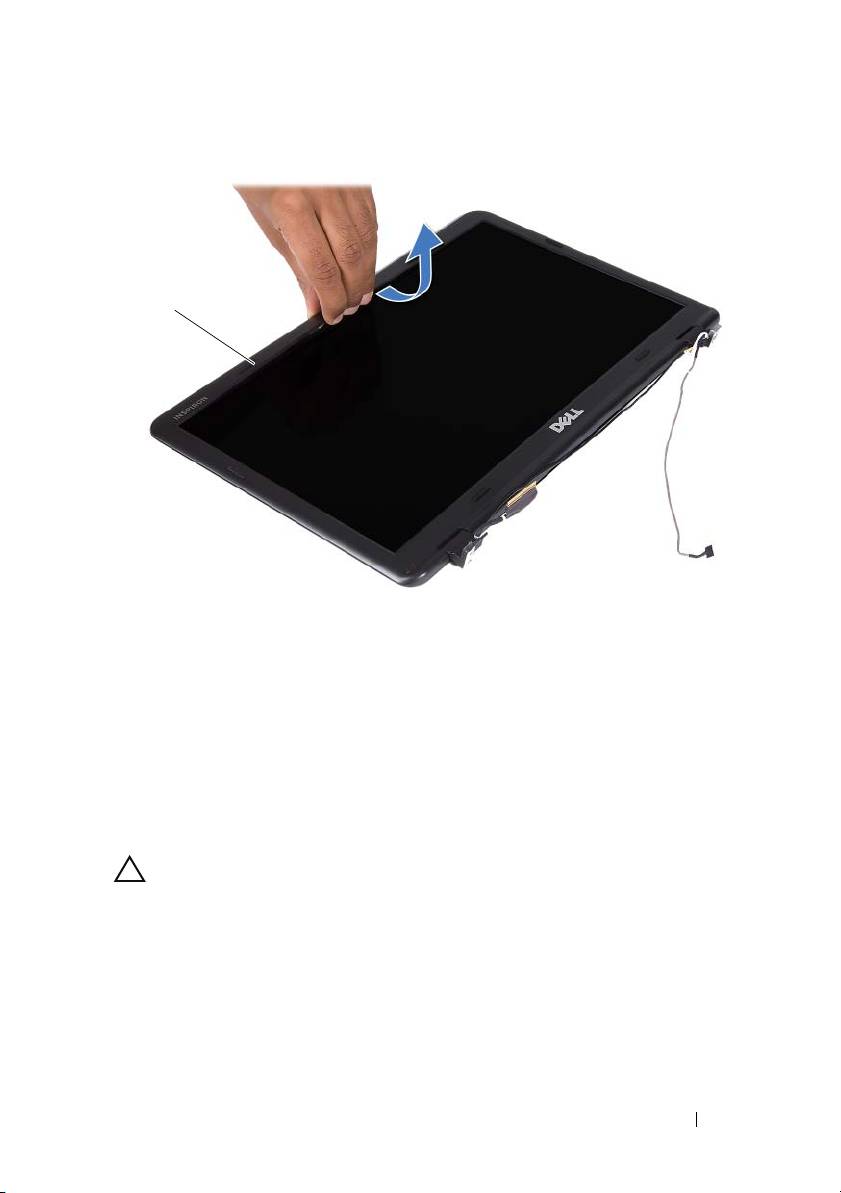
1 display bezel
Replacing the Display Bezel
1
Follow the instructions in "Before You Begin" on page 9.
2
Align the display bezel with the display cover and snap the display bezel
into place.
3
Replace the display assembly. See "Replacing the Display Assembly" on
page 47.
CAUTION: Before turning on the computer, replace all screws and ensure that no
stray screws remain inside the computer. Failure to do so may result in damage to
the computer.
Display Panel
Removing the Display Panel
1
Follow the instructions in "Before You Begin" on page 9.
Display 51
1
2
Remove the display assembly. See "Removing the Display Assembly" on
page 45.
3
Remove the display bezel. See "Removing the Display Bezel" on page 50.
4
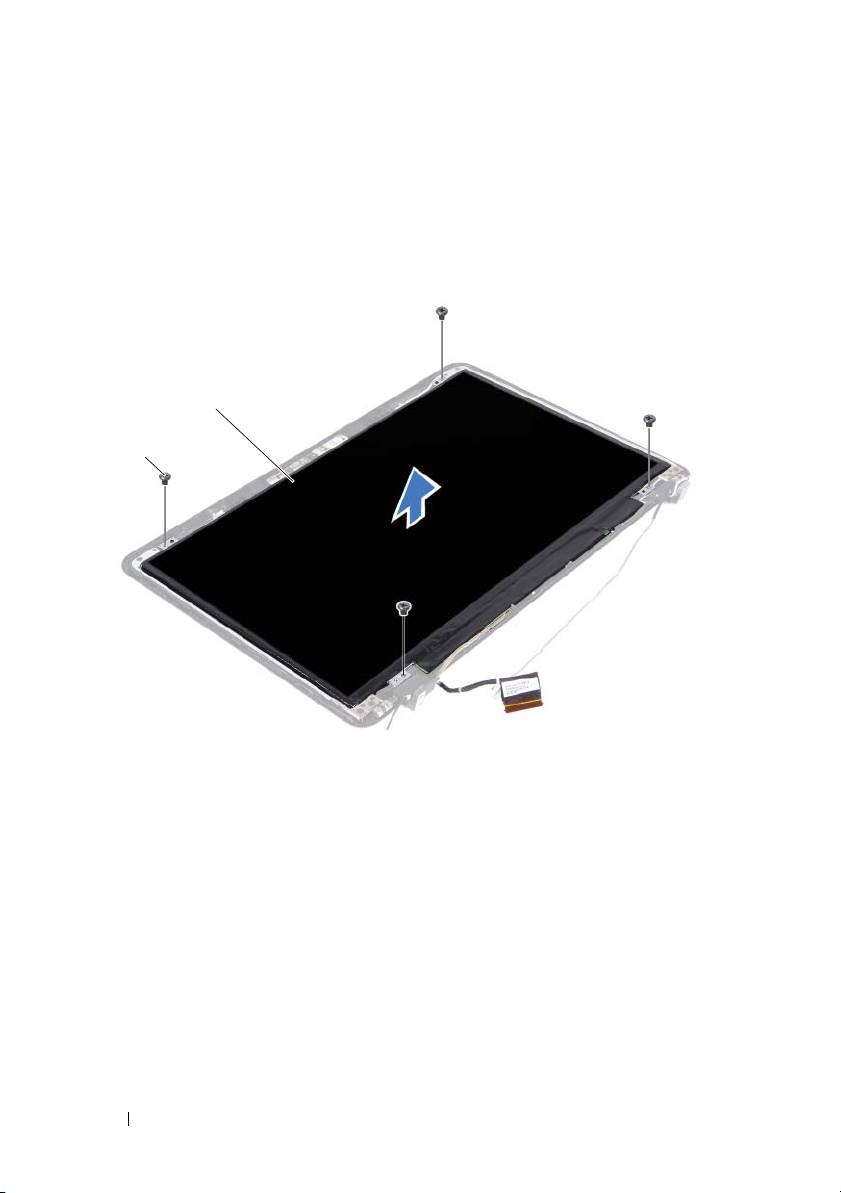
Remove the four screws that secure the display panel to the display cover.
1 screws (4) 2 display panel
5
Lift the display panel off the display cover.
6
Turn the display panel over and place the panel on a clean surface.
7
Lift the tape that secures the display cable to the display panel and
disconnect the display cable from the connector on the display panel.
52 Display
2
1
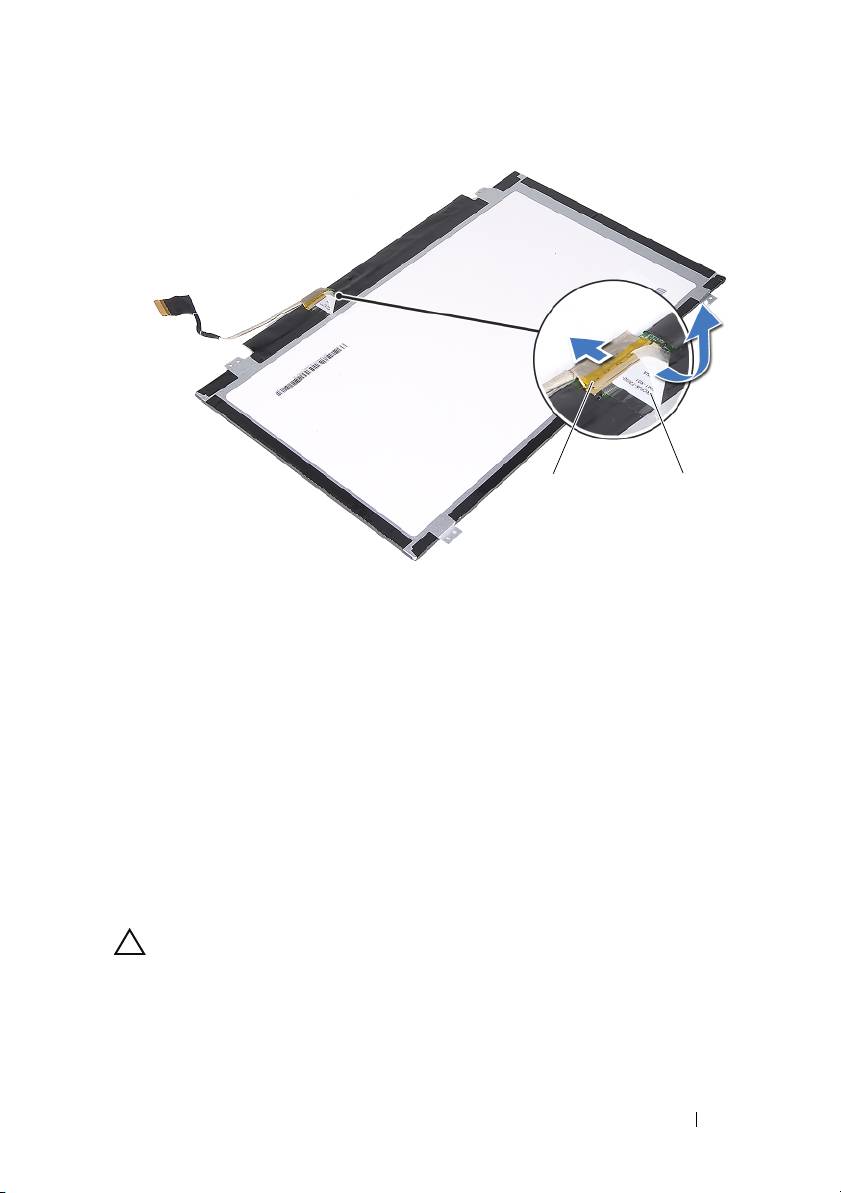
1 display-cable connector 2 tape
Replacing the Display Panel
1
Follow the instructions in "Before You Begin" on page 9.
2
Connect the display cable to the display-board connector and adhere the
display cable with the tape.
3
Align the display panel on the display cover.
4
Replace the four screws that secure the display panel to the display cover.
5
Replace the display bezel. See "Replacing the Display Bezel" on page 51.
6
Replace the display assembly. See "Replacing the Display Assembly" on
page 47.
CAUTION: Before turning on the computer, replace all screws and ensure that no
stray screws remain inside the computer. Failure to do so may result in damage to
the computer.
Display 53
12
Hinge Assembly
Removing the Hinge Assembly
1
Follow the instructions in "Before You Begin" on page 9.
2
Remove the display assembly. See "Removing the Display Assembly" on
page 45.
3
Remove the display bezel. See "Removing the Display Bezel" on page 50.
4
Follow the instructions from step 4 to step 5 in "Removing the Display
Panel" on page 51.
5
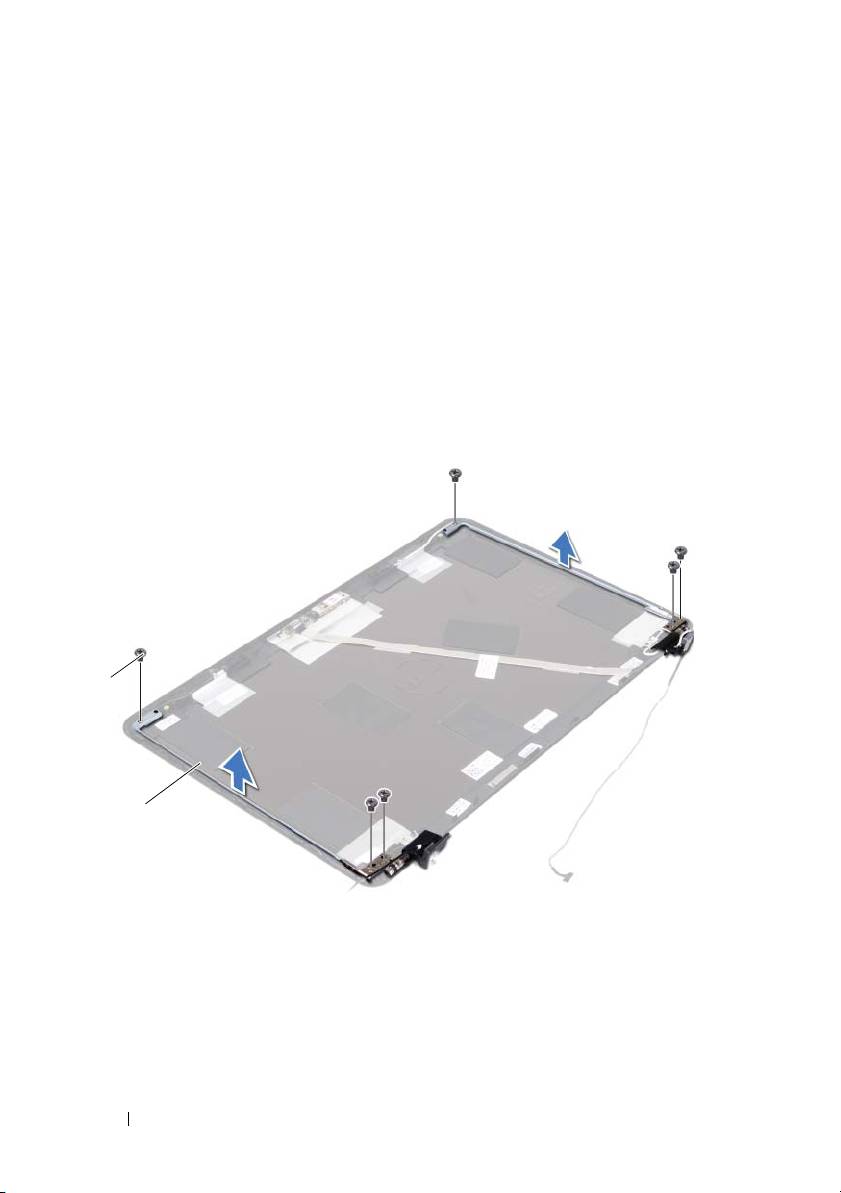
Remove the six screws that secure the hinge assembly to the display cover.
1 screws (6) 2 hinge assembly
6
Lift the hinge assembly away from the display cover.
Replacing the Hinge Assembly
1
Follow the instructions in "Before You Begin" on page 9.
54 Display
1
2

2
Place the hinge assembly on the display cover.
3
Replace the six screws that secure the hinge assembly to the display cover.
4
Follow the instructions from step 3 and step 4 in "Replacing the Display
Panel" on page 53.
5
Replace the display bezel. See "Replacing the Display Bezel" on page 51.
6
Replace the display assembly. See "Replacing the Display Assembly" on
page 47.
CAUTION: Before turning on the computer, replace all screws and ensure that no
stray screws remain inside the computer. Failure to do so may result in damage to
the computer.
Display 55

56 Display

12
DC-in Connector Assembly
WARNING: Before working inside your computer, read the safety information
that shipped with your computer. For additional safety best practices information,
see the Regulatory Compliance Homepage at dell.com/regulatory_compliance.
CAUTION: Only a certified service technician should perform repairs on your
computer. Damage due to servicing that is not authorized by Dell is not covered by
your warranty.
CAUTION: To avoid electrostatic discharge, ground yourself by using a wrist
grounding strap or by periodically touching an unpainted metal surface (such as a
connector on your computer).
CAUTION: To help prevent damage to the system board, remove the main battery
(see "Removing the Battery" on page 13) before working inside the computer.
Removing the DC-in Connector Assembly
1
Follow the instructions in "Before You Begin" on page 9.
2
Remove the battery. See "Removing the Battery" on page 13.
3
Remove the module cover. See "Removing the Module Cover" on page 15.
4
Follow the instructions from step 4 to step 5 in "Removing the Optical
Drive" on page 23.
5
Remove the keyboard. See "Removing the Keyboard" on page 31.
6
Remove the palm-rest assembly. See "Removing the Palm-Rest Assembly"
on page 35.
7
Remove the display assembly. See "Removing the Display Assembly" on
page 45.
8
Remove the hinge cover. See "Removing the Hinge Cover" on page 48.
9
Remove the screw that secures the DC-in assembly to the computer base.
DC-in Connector Assembly 57
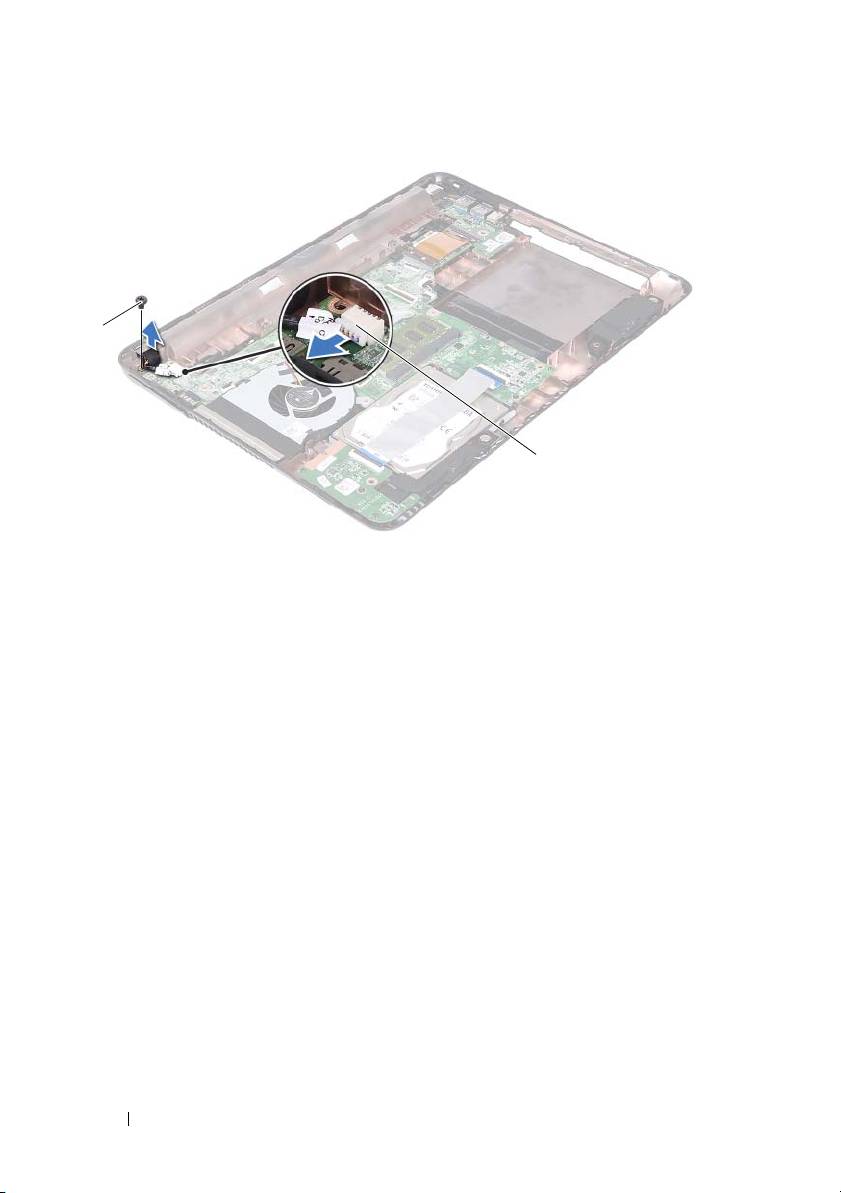
1 screw 2 DC-in cable connector
10
Disconnect the DC-in connector cable from the connector on the system
board.
11
Lift the DC-in connector off the computer base.
Replacing the DC-in Connector Assembly
1
Follow the instructions in "Before You Begin" on page 9.
2
Place the DC-in connector on the computer base.
3
Connect the DC-in connector cable to the connector on the system board.
4
Replace the screw that secures the DC-in connector assembly.
5
Replace the hinge cover. See "Replacing the Hinge Cover" on page 49.
6
Replace the display assembly. See "Replacing the Display Assembly" on
page 47.
7
Replace the palm-rest assembly. See "Replacing the Palm-Rest Assembly"
on page 38.
8
Replace the keyboard. See "Replacing the Keyboard" on page 33.
58 DC-in Connector Assembly
1
2

9
Follow the instructions from step 5 to step 6 in "Replacing the Optical
Drive" on page 25.
10
Replace the module cover. See "Replacing the Module Cover" on page 16.
11
Replace the battery. See "Replacing the Battery" on page 14.
CAUTION: Before turning on the computer, replace all screws and ensure that no
stray screws remain inside the computer. Failure to do so may result in damage to
the computer.
DC-in Connector Assembly 59

60 DC-in Connector Assembly
