
Asus A7N8X – страница 4
Инструкция к Компьютерным аксессуарам Asus A7N8X
Оглавление
- User Guide

Translation Method [LBA]
Select the hard disk drive type in this field. When Logical Block Addressing
(LBA) is enabled, the 28-bit addressing of the hard drive is used without
regard for cylinders, heads, or sectors. Note that LBA Mode is necessary for
drives with more than 504MB storage capacity. Configuration options: [LBA]
[LARGE] [Normal] [Match Partition Table] [Manual]
Cylinders
This field configures the number of cylinders. Refer to the drive documentation
to determine the correct value. To make changes to this field, set the Type
field to [User Type HDD] and the Translation Method field to [Manual].
Head
This field configures the number of read/write heads. Refer to the drive
documentation to determine the correct value. To make changes to this field,
set the Type field to [User Type HDD] and the Translation Method field to
[Manual].
Sector
This field configures the number of sectors per track. Refer to the drive
documentation to determine the correct value. To make changes to this field,
set the Type field to [User Type HDD] and the Translation Method field to
[Manual].
CHS Capacity
This field shows the drive’s maximum CHS capacity as calculated by the
BIOS based on the drive information you entered.
Maximum LBA Capacity
This field shows the drive’s maximum LBA capacity as calculated by the
BIOS based on the drive information you entered.
Multi-Sector Transfers [Maximum]
This option automatically sets the number of sectors per block to the highest
number that the drive supports. Note that when this field is automatically
configured, the set value may not always be the fastest value for the drive.
You may also manually configure this field. Refer to the documentation that
came with the hard drive to determine the optimum value and set it manually.
To make changes to this field, set the Type field to [User Type HDD].
Configuration options: [Disabled] [2 Sectors] [4 Sectors] [8 Sectors] [16
Sectors] [32 Sectors] [Maximum]
ASUS A7N266-VM motherboard user guide
45

SMART Monitoring [Disabled]
This field allows you to enable or disable the S.M.A.R.T. (Self-Monitoring,
Analysis and Reporting Technology) system that utilizes internal hard disk
drive monitoring technology. This parameter is normally disabled because
the resources used in the SMART monitoring feature may decrease system
performance. Configuration options: [Disabled] [Enabled]
PIO Mode [4]
This option lets you set a PIO (Programmed Input/Output) mode for the IDE
device. Modes 0 through 4 provide successive increase in performance.
Configuration options: [0] [1] [2] [3] [4]
Ultra DMA Mode [Disabled]
Ultra DMA capability allows improved transfer speeds and data integrity for
compatible IDE devices. Set to [Disabled] to suppress Ultra DMA capability.
To make changes to this field, set the Type field to [User Type HDD].
Configuration options: [0] [1] [2] [3] [4] [5] [Disabled]
46
Chapter 4: BIOS Setup
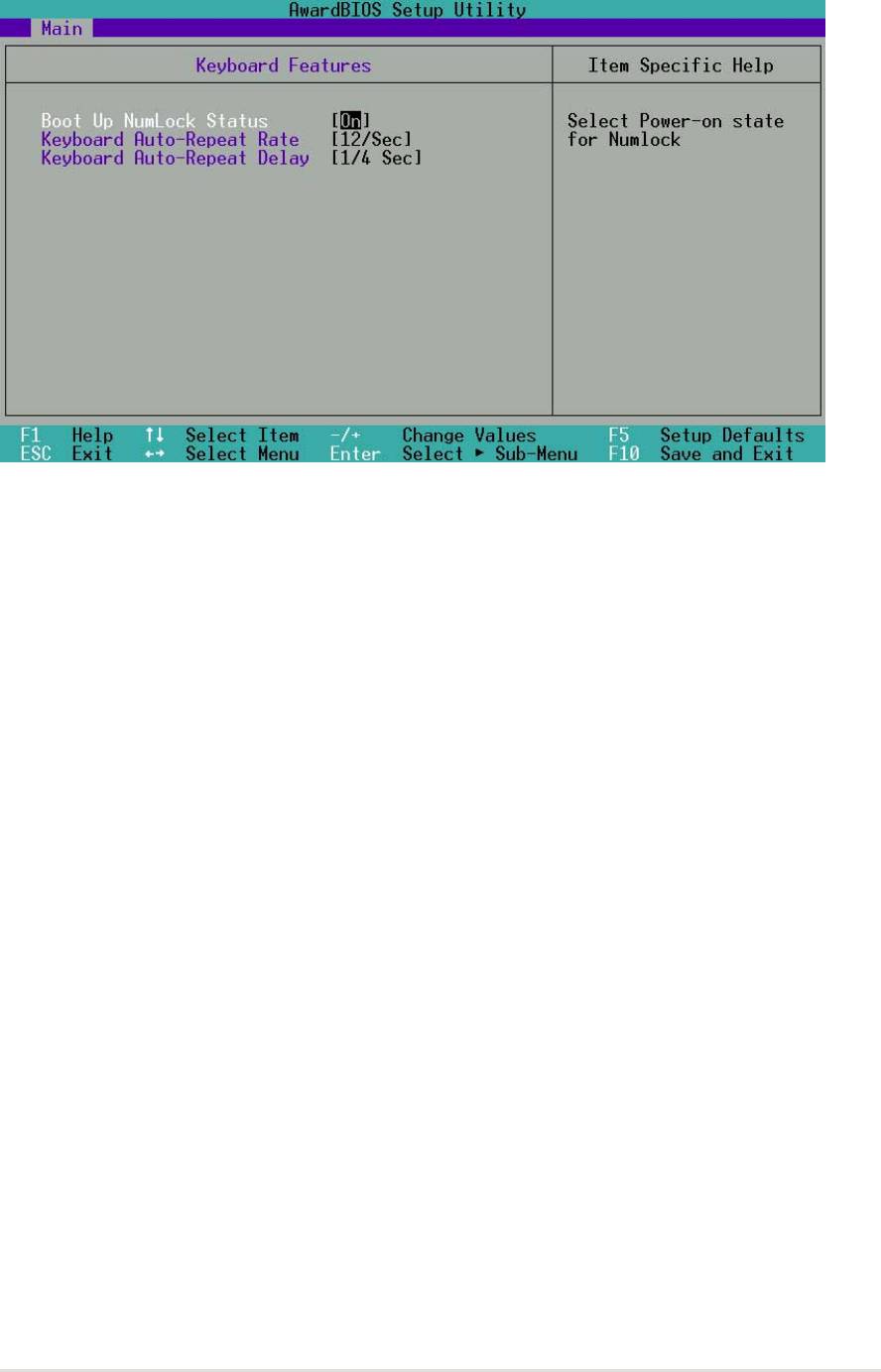
4.3.2 Keyboard Features
Boot Up NumLock Status [On]
This field enables users to activate the Number Lock function upon system
boot. Configuration options: [Off] [On]
Keyboard Auto-Repeat Rate [12/Sec]
This controls the speed at which the system registers repeated keystrokes.
Options range from 6 to 30 characters per second. Configuration options: [6/
Sec] [8/Sec] [10/Sec] [12/Sec] [15/Sec] [20/Sec] [24/Sec] [30/Sec]
Keyboard Auto-Repeat Delay [1/4 Sec]
This field sets the time interval for displaying the first and second characters.
Configuration options: [1/4 Sec] [1/2 Sec] [3/4 Sec] [1 Sec]
ASUS A7N266-VM motherboard user guide
47

Language [English]
This field displays the BIOS language version.
Supervisor Password [Disabled] / User Password [Disabled]
These fields allow you to set passwords. To set a password, highlight the
appropriate field and press <Enter>. Type in a password then press <Enter>.
You can type up to eight alphanumeric characters. Symbols and other
characters are ignored. To confirm the password, type the password again
and press <Enter>. The password is now set to [Enabled]. This password
allows full access to the BIOS Setup menus. To clear the password, highlight
this field and press <Enter>. The same dialog box as above appears. Press
<Enter>. The password is set to [Disabled].
A note about passwords
The BIOS Setup program allows you to specify passwords in the Main
menu. The passwords control access to the BIOS during system startup.
Passwords are not case sensitive, meaning, passwords typed in either
uppercase or lowercase letters are accepted. The BIOS Setup program
allows you to specify two different passwords: a Supervisor password
and a User password. If you did not set a Supervisor password, anyone
can access the BIOS Setup program. If you did, the Supervisor password
is required to enter the BIOS Setup program and to gain full access to
the configuration fields.
Forgot the password?
If you forget your password, you can clear it by erasing the CMOS Real
Time Clock (RTC) RAM. The RAM data containing the password
information is powered by the onboard button cell battery. See section
“2.7Switches and jumpers” for information on how to erase the R TC
RAM.
Halt On [All Errors]
This field specifies the types of errors that will cause the system to halt.
Configuration options: [All Errors] [No Error] [All but Keyboard] [All but Disk]
[All but Disk/Keyboard]
Installed Memory [XXX MB]
This field automatically displays the amount of conventional memory detected
by the system during the boot process.
48
Chapter 4: BIOS Setup
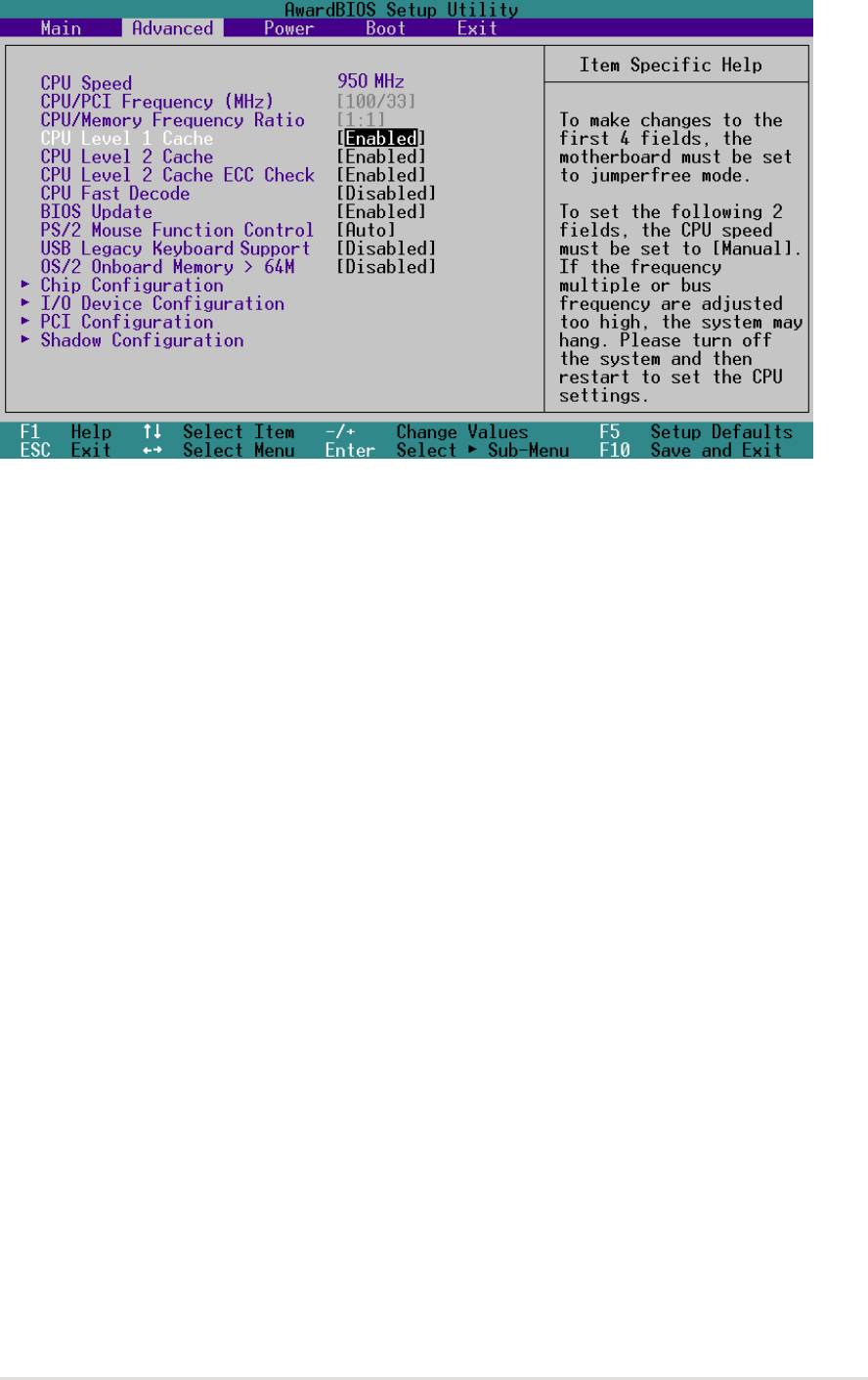
4.4 Advanced Menu
CPU Speed
This field displays the internal frequency of your CPU.
CPU/PCI Frequency (MHz) [100/33]
This feature tells the clock generator which frequency to send to the system
bus and PCI bus. The bus frequency (external frequency) multiplied by the
bus multiple equals the CPU speed. Increasing the ratio will increase the
CPU Speed. The range may not be modified in BIOS, but only changes
according to BSEL jumper settings.
CPU/Memory Frequency Ratio [Auto]
This field determines whether the memory clock frequency is set to be in
synchronous or asynchronous mode with respect to the memory frequency.
The options that appear in the popup menu vary according to the status of
the CPU/PCI Frequency (MHz) field. The range may not be modified in
BIOS, but only changes according to BSEL jumper settings.
CPU Level 1 Cache, CPU Level 2 Cache [Enabled]
These fields allow you to choose from the default of [Enabled] or choose
[Disabled] to turn on or off the CPU Level 1 and Level 2 built-in cache.
Configuration options: [Disabled] [Enabled]
CPU Level 2 Cache ECC Check [Enabled]
This function controls the ECC capability in the CPU level 2 cache.
Configuration options: [Disabled] [Enabled]
ASUS A7N266-VM motherboard user guide
49

CPU Fast Decode [Disabled]
This field functions as a supplemntary speed enhancement device for
streamlining CPU calculations. Configuration options: [Enabled] [Disabled]
BIOS Update [Enabled]
This field functions as an update loader integrated into the BIOS to supply
the processor with the required data. When set to [Enabled], the BIOS loads
the update on all processors during system bootup. Configuration options:
[Disabled] [Enabled]
PS/2 Mouse Function Control [Auto]
The default setting [Auto] allows the system to detect a PS/2 mouse at
startup. If a mouse is detected, the BIOS assigns IRQ12 to the PS/2
mouse. Otherwise, IRQ12 can be used for expansion cards. When you set
this field to [Enabled], BIOS always reserves IRQ12, whether or not a PS/2
mouse is detected at startup. Configuration options: [Enabled] [Auto]
USB Legacy Devices Support [Disabled]
This motherboard supports Universal Serial Bus (USB) devices. The default
of [Disabled] allows the system to detect a USB device at startup. The other
two fields [Primary] and [Secondary] are used to activate which ports are
activated: USB01 and USB23 or USB45. Users should select [Disabled] or
[Primary] to activate a USB-type keyboard connection to a new system.
Configuration options: [Disabled] [Primary] [Secondary] [USB Floppy Zip]
OS/2 Onboard Memory > 64M [Disabled]
When using OS/2 operating systems with installed DRAM of greater than
64MB, you need to set this option to [Enabled]. Otherwise, leave to the default
setting [Disabled]. Configuration options: [Disabled] [Enabled]
50
Chapter 4: BIOS Setup

4.4.1 Summary of Warning Messages
(Jumperless Operation only)
The system may crash or hang up due to conflicts between settings and
CPU compatibility: checksum errors, improper frequency settings, change
of CPU and improper CPU speed settings. The system starts up in safe
mode running at a bus speed of 100MHz and enters the BIOS Setup. Each
time a system hangup occurs, BIOS interrupts the bootup process with a
specific warning message. These messages always appear on the right
side of the BIOS screen in red print:
1. Cause for Hangup: Checksum Error Warning
“The CMOS checksum is incorrect. Please reload the cmos default
value.” To solve this problem, clear the CMOS RTC memory (see pages
22 and 59) and then reenter the default values in the BIOS Exit menu
and restart the system.
2. Cause for Hangup: Improper System Frequency
“Last time you failed to change the frequency of the system. It may place
the system into an unstable state. Now the system is in safe mode at the
slowest CPU speed. Please set the system frequency again.” To solve
this problem, a slower frequency is more likely to obtain stable start-ups.
CPU Upgrade/Reinstallation
To ensure that the system can enter BIOS Setup after replacing the processor,
the system starts up running at a bus speed of 100MHz and a fail-safe CPU
internal frequency. Then it automatically enters the Advanced menu with a
popup display of all the possible CPU internal frequencies for the particular
CPU presently installed:
3. Cause for Hangup: Improper CPU Speed 1
“During the last bootup, your system hung for an improper CPU Speed
setting. Your system is now working in safe mode. To optimize the system
performance and stability, make sure the CPU speed conforms to the
specifications of your CPU.”
4. Cause for Hangup: Improper CPU Speed 2
“Since you are using a new CPU or have reinstalled your CPU, the system
boots up at the slowest CPU bus frequency to make sure the system can
enter setup menu. Now, you can adjust the CPU speed as you wish. If
the speed is adjusted too high, the system may hang. Please turn off the
system and then restart to set the CPU speed.”
ASUS A7N266-VM motherboard user guide
51
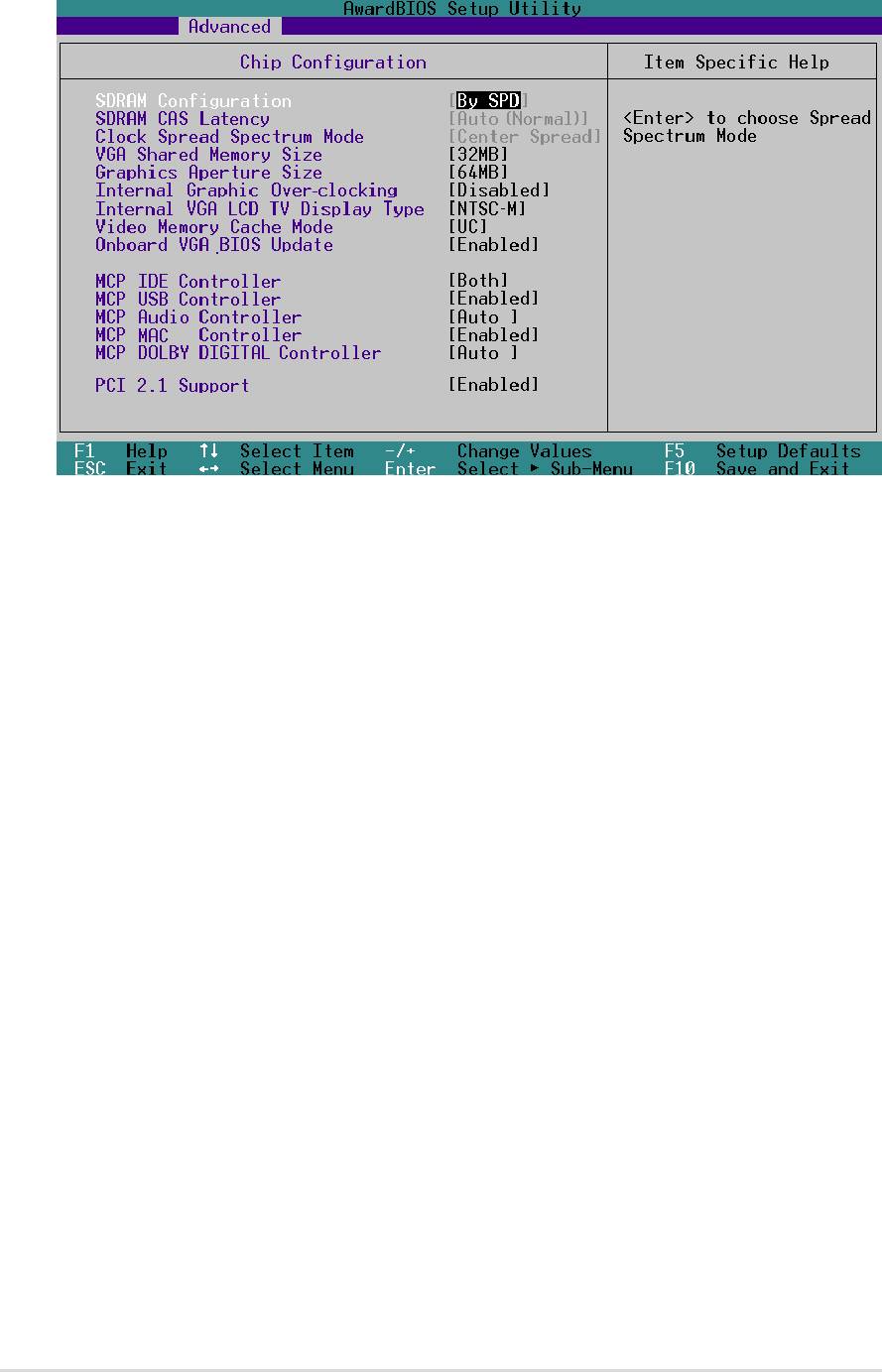
4.4.2 Chip Configuration
(Scroll down to view all items on the menu.)
SDRAM Configuration [By SPD]
This sets the optimal timing. The default setting is [By SPD], which
automatically configures the timing by reading the contents in the SPD (Serial
Presence Detect) device. The EEPROM on the memory module stores critical
parameter information about the module, such as memory type, size, speed,
voltage interface, and module banks. Configuration options: [User Defined]
[By SPD]
NOTE: The subfield below only be used if the SDRAM Configuration can
be changed to [User Defined].
SDRAM CAS Delay [Auto (Normal)]
Sets the latency between the SDRAM active command and the read/
write command. Configuration options: [Auto (Normal)] [2.0T (Normal)]
[2.5T (Normal)] [Auto (TURBO)] [2.0T (TURBO)] [2.5T (TURBO)]
Clock Spread Spectrum Mode [Center Spread]
Not available in this model. Configuration options: [Center Spread] [Spread
Down] [Disabled]
VGA Shared Memory Size [32MB]
This feature sets the size of mapped memory for VGA monitor data.
Configuration options: [8MB] [16MB] [32MB]
Graphics Aperture Size [64MB]
This feature sets the size of mapped memory for AGP graphic data.
Configuration options: [32MB] [64MB] [128MB] [256MB] [512MB]
52
Chapter 4: BIOS Setup

Internal Graphic Over-clocking [Disable]
This feature permits the grapical processor to participate in over-clocking.
Configuration options: [Disable] [Enable]
Internal VGA LCD TV Display Type [NTSC-M]
The system automatically detects and sets up screen-type compatibility.
Configuration options: [NTSC-M] [NTSC-J] [PAL-M] [PAL-BDGHI]
[PAL-N] [PAL-NC]
Video Memory Cache Mode [UC]
USWC (uncaheable, speculative write combining) is a new cach technology
for the processor’s video memory. It can greatly improve the display speed
by caching the display data. Set this to UC (uncacheable) if the display card
cannot support this feature; otherwise, the system may not boot up.
Configuration options: [UC] [USWC]
Onboard VGA BIOS Update [Enabled]
Configuration options: [Enabled] [Disabled]
MCP IDE Controller [Both]
Configuration options: [Both] [Primary] [Secondary] [Disabled]
MCP USB Controller [Enabled]
Both USB controllers are enabled by default. Refer to USB Legacy
Keyboard support for specifying which ports are used to enable USB keyboard
support. Configuration options: [Enabled] [Disabled]
MCP Audio Controller [Auto]
Configuration options: [Enabled] [Disabled]
MCP MAC Controller [Enabled]
Configuration options: [Disabled] [Auto]
MCP DOLBY DIGITAL Controller [Auto]
Only available on motherboards featuring the MCP-D chipset. Configuration
options: [Disabled] [Auto]
PCI 2.1 Support [Enabled]
Configuration options: [Disabled] [Enabled]
ASUS A7N266-VM motherboard user guide
53
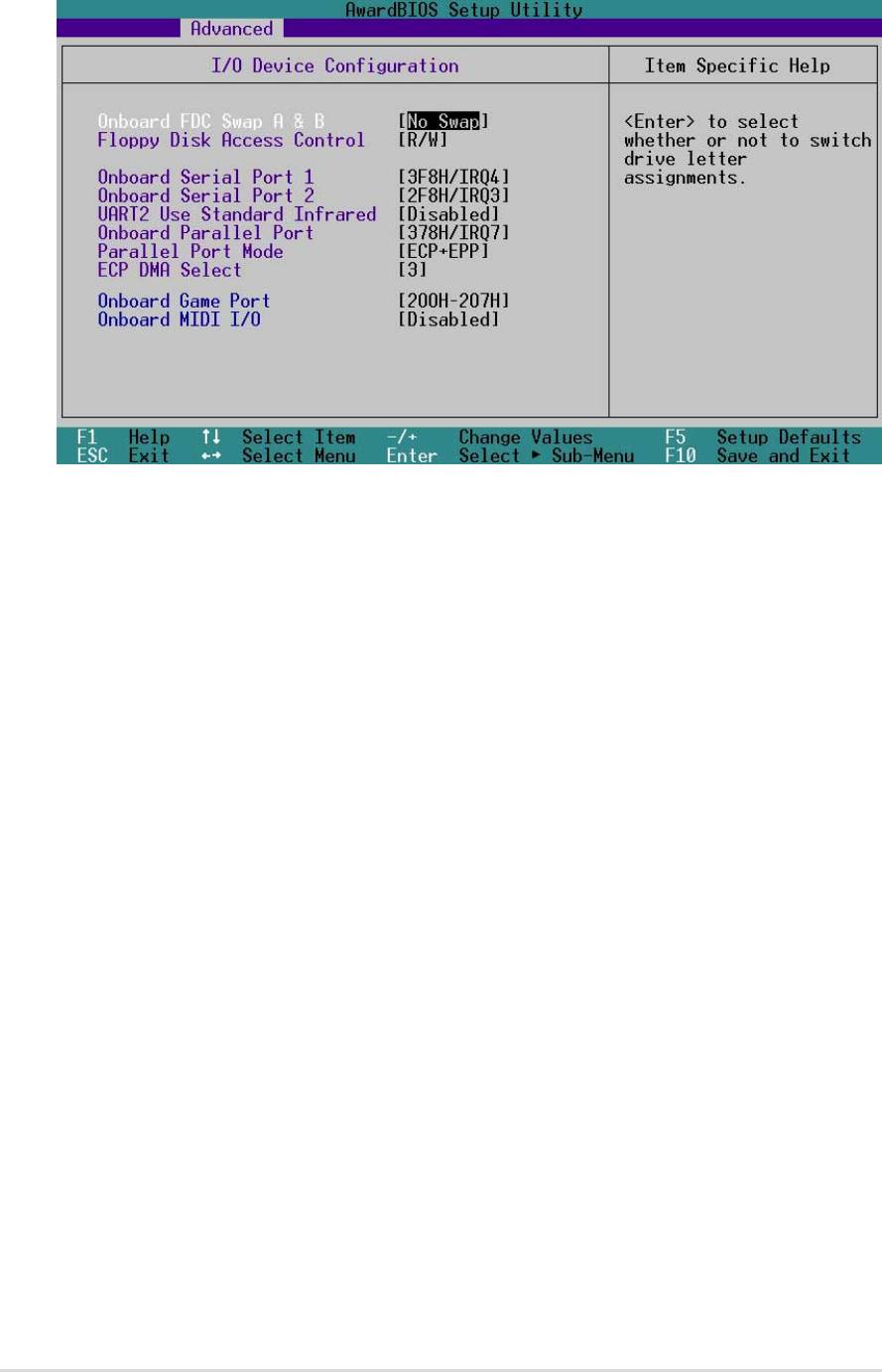
4.4.3 I/O Device Configuration
Onboard FDC Swap A & B [No Swap]
This field allows you to reverse the hardware drive letter assignments of
your floppy disk drives. Configuration options: [No Swap] [Swap AB]
Floppy Disk Access Control [R/W]
Set this field to read and write the floppy disk (R/W). Change to [Read Only]
for reading disks.
Onboard Serial Port 1 [3F8H/IRQ4]
Onboard Serial Port 2 [2F8H/IRQ3]
These fields allow you to set the addresses for the onboard serial connectors.
Serial Port 1 and Serial Port 2 must have different addresses. Configuration
options: [3F8H/IRQ4] [2F8H/IRQ3] [3E8H/IRQ4] [2E8H/IRQ10] [Disabled]
UART2 Use Standard Infrared [Disabled]
This field can activate the onboard standard infrared feature and sets the
second serial UART to support the infrared module connector on the
motherboard. See IrDA-Compliant Infrared Module Connector in 3.8
Connectors. Configuration options: [Disabled] [Enabled]
Onboard Parallel Port [378H/IRQ7]
This field sets the address of the onboard parallel port connector. If you
disable this field, the Parallel Port Mode and ECP DMA Select configurations
are not available. Configuration options: [Disabled] [378H/IRQ7] [278H/IRQ5]
54
Chapter 4: BIOS Setup

Parallel Port Mode [ECP+EPP]
This field allows you to set the operation mode of the parallel port. [Normal]
allows normal-speed operation but in one direction only; [EPP] allows
bidirectional parallel port operation; [ECP] allows the parallel port to operate
in bidirectional DMA mode; [ECP+EPP] allows normal speed operation in a
two-way mode. Configuration options: [Normal] [EPP] [ECP] [ECP+EPP]
ECP DMA Select [3]
This field allows you to configure the parallel port DMA channel for the selected
ECP mode. This selection is available only if you select [ECP] or [ECP+EPP]
in Parallel Port Mode above. Configuration options: [1] [3] [Disabled]
Onboard Game Port [200H-207H]
This field sets the I/O address to the game port. Configuration options: [200H-
207H] [208H-20FH] [Disabled]
Onboard MIDI [Disabled]
This field sets the I/O address for MIDI. Configuration options: [330H-331H]
[300H-301H] [Disabled]
ASUS A7N266-VM motherboard user guide
55
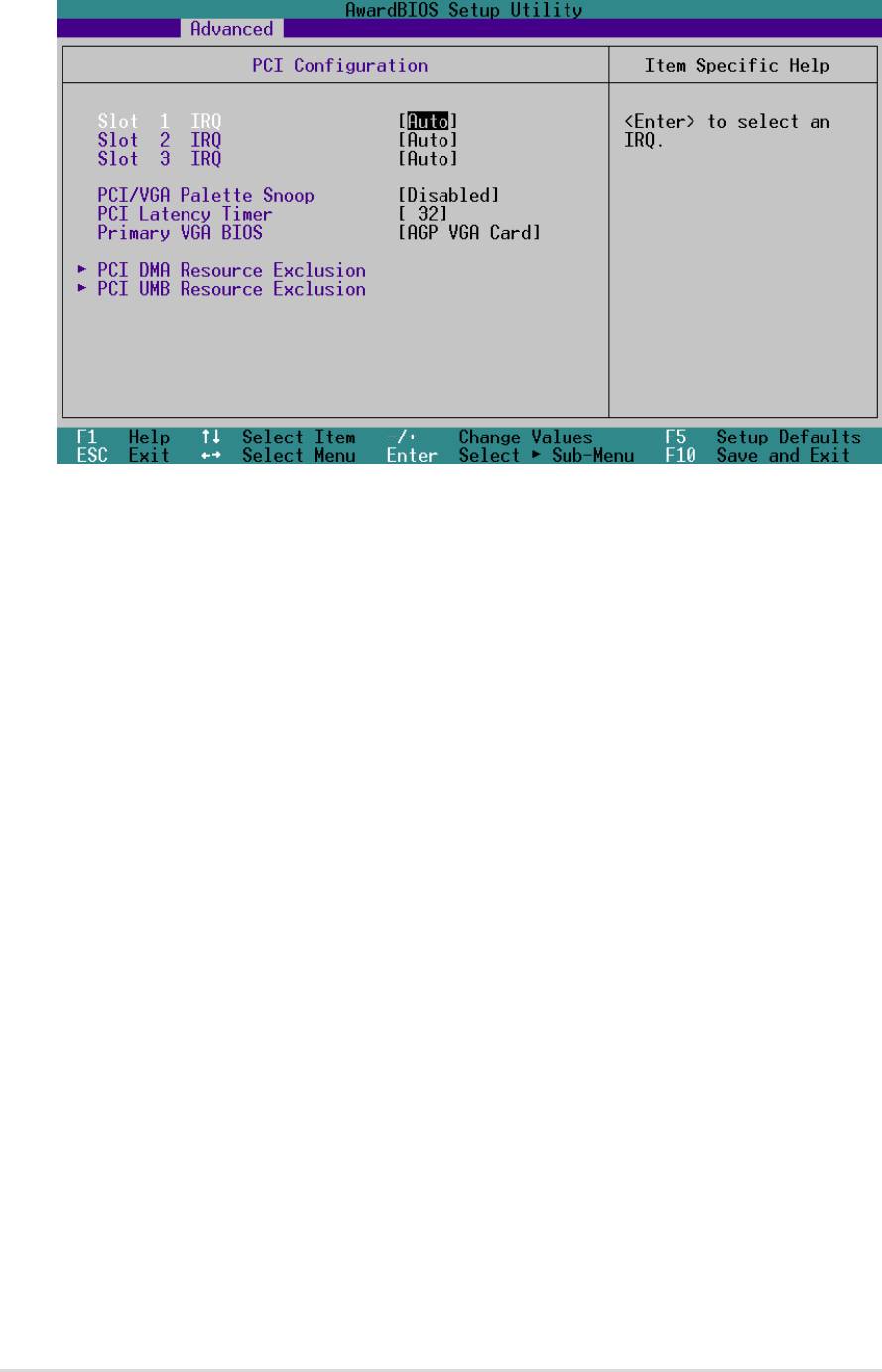
4.4.4 PCI Configuration
Slot 1, Slot 2, Slot 3 [Auto]
These fields automatically assign the IRQ for each PCI slot. The default
setting for each field is [Auto], which utilizes auto-routing to determine IRQ
assignments. Configuration options: [Auto] [NA] [3] [4] [5] [7] [9] [10] [11] [12]
[14] [15]
PCI/VGA Palette Snoop [Disabled]
Some non-standard VGA cards, such as graphics accelerators or MPEG
video cards, may not show colors properly. Setting this field to [Enabled]
corrects this problem. If you are using standard VGA cards, leave this field
to the default setting [Disabled]. Configuration options: [Disabled] [Enabled]
PCI Latency Timer [32]
Leave this field to the default setting [32] for best performance and stability.
Primary VGA BIOS [AGP VGA Card]
This field allows you to select the primary graphics card. Select the [Onboard
VGA Card] option for optimal graphical support. Configuration options: [AGP
VGA Card] [Onboard VGA]
56
Chapter 4: BIOS Setup
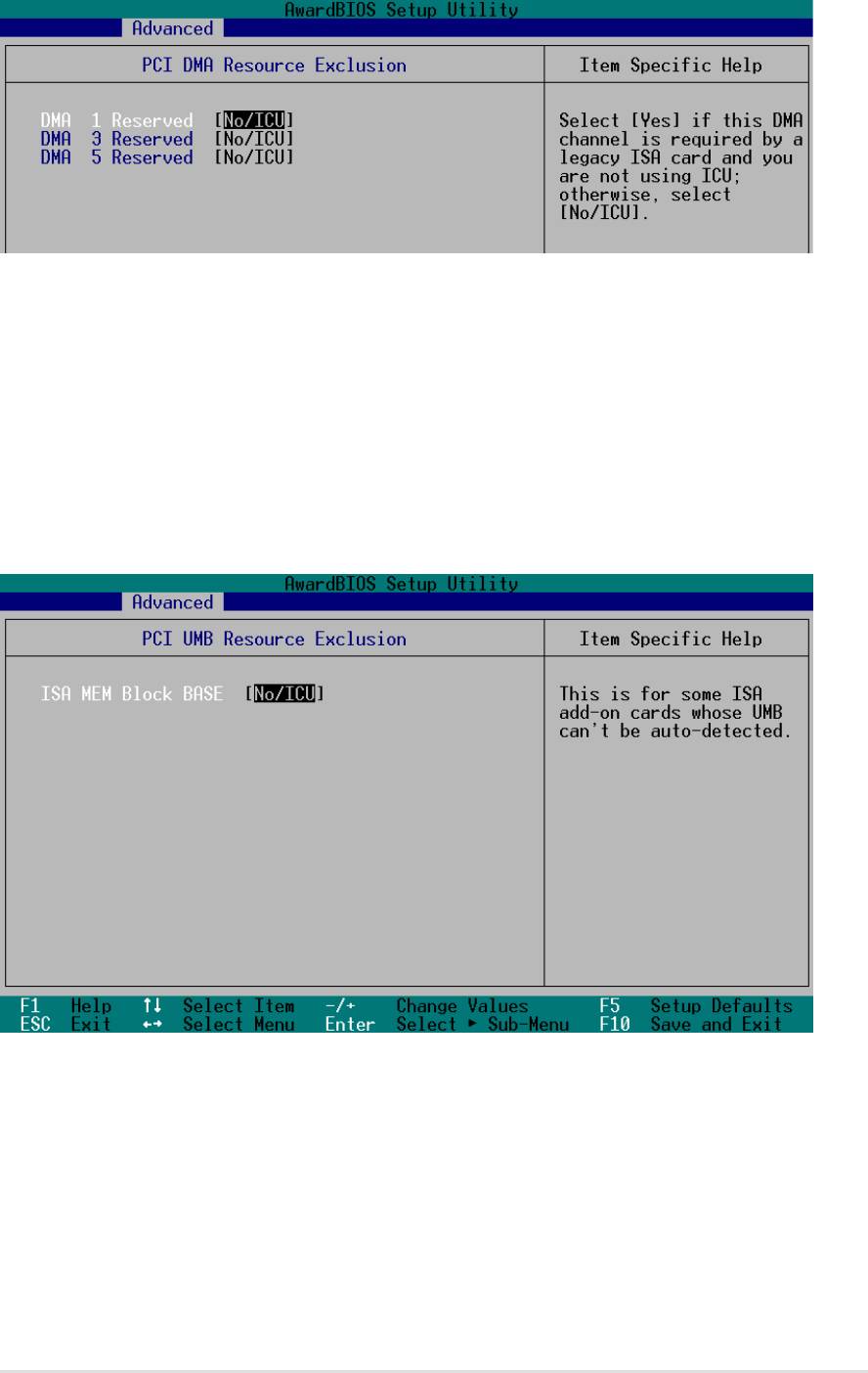
PCI DMA Resource Exclusion
DMA x Reserved for Legacy Drive [No/ICU]
These fields indicate whether or not the DMA channel displayed for each
field is being used by a legacy (non-PnP) ISA card. The default setting
indicates either that the DMA channel displayed is not used or an ICU is
being used to determine if an ISA device is using the channel instead.
Configuration options: [No/ICU] [Yes]
PCI UMB Resource Exclusion
TSM MEM Block BASE [No/ICU]
This field allows yout to set the base address and block size of an onboard
legacy ISA device that uses any memory segment within the C800 and DFFF
address range. With such a device, select a base address from the options.
If an ICU is already in use, then leave the TSM MEM Block BASE to its
default setting of [No/ICU]. Configuration options: [No/ICU] [C800] [CC00]
[D000] [D400] [D800] [DC00]
ASUS A7N266-VM motherboard user guide
57
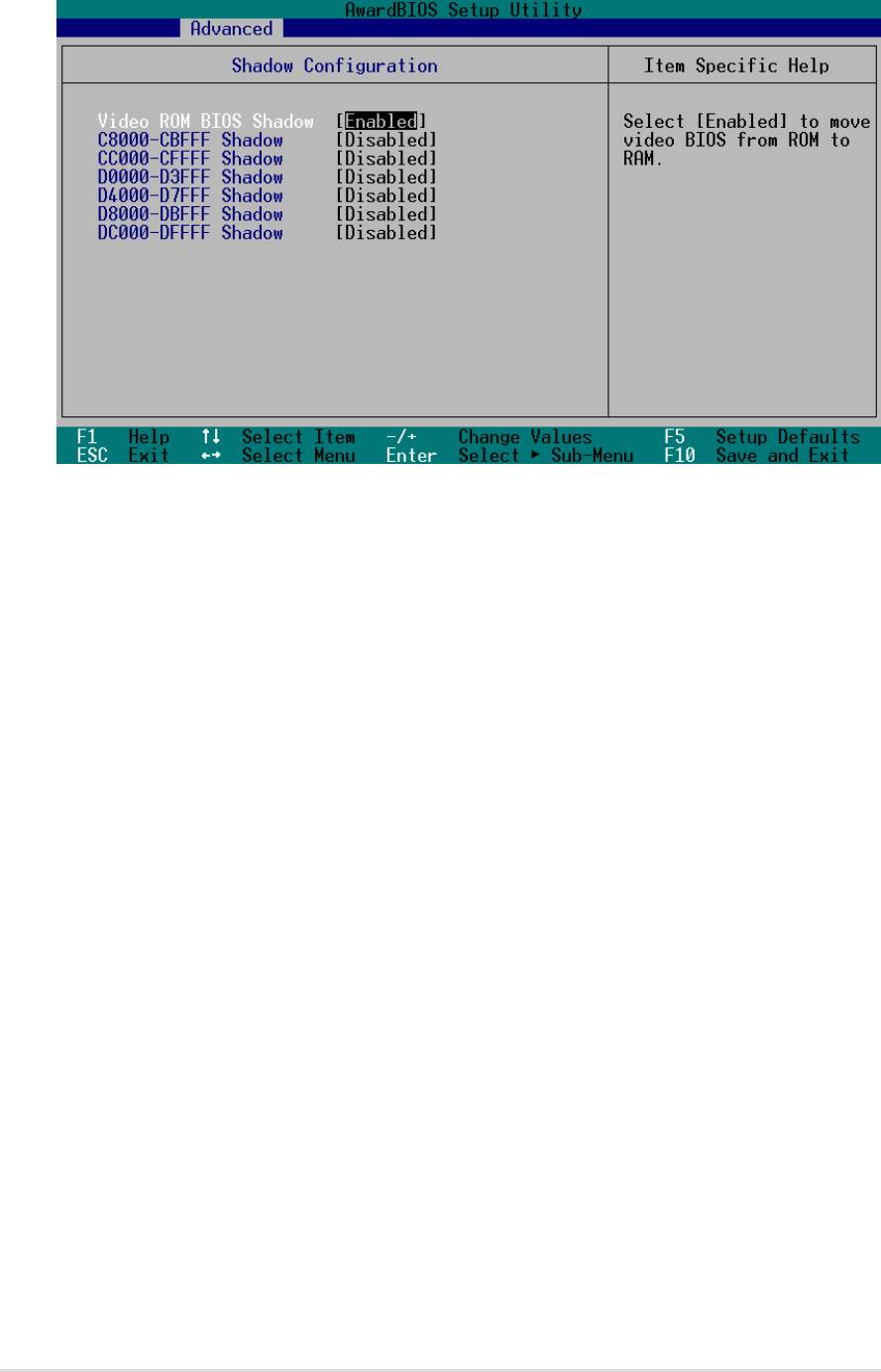
4.4.5 Shadow Configuration
Video ROM BIOS Shadow [Enabled]
This field allows you to change the video BIOS location from ROM to RAM.
Relocating to RAM enhances system performance, as information access is
faster than the ROM. Configuration options: [Disabled] [Enabled]
C8000-DFFFF Shadow [Disabled]
These fields are used for shadowing other expansion card ROMs. If you
install other expansion cards with ROMs on them, you will need to know
which addresses the ROMs use to shadow them specifically. Shadowing a
ROM reduces the memory available between 640K and 1024K by the amount
used for this purpose. Configuration options: [Disabled] [Enabled]
58
Chapter 4: BIOS Setup
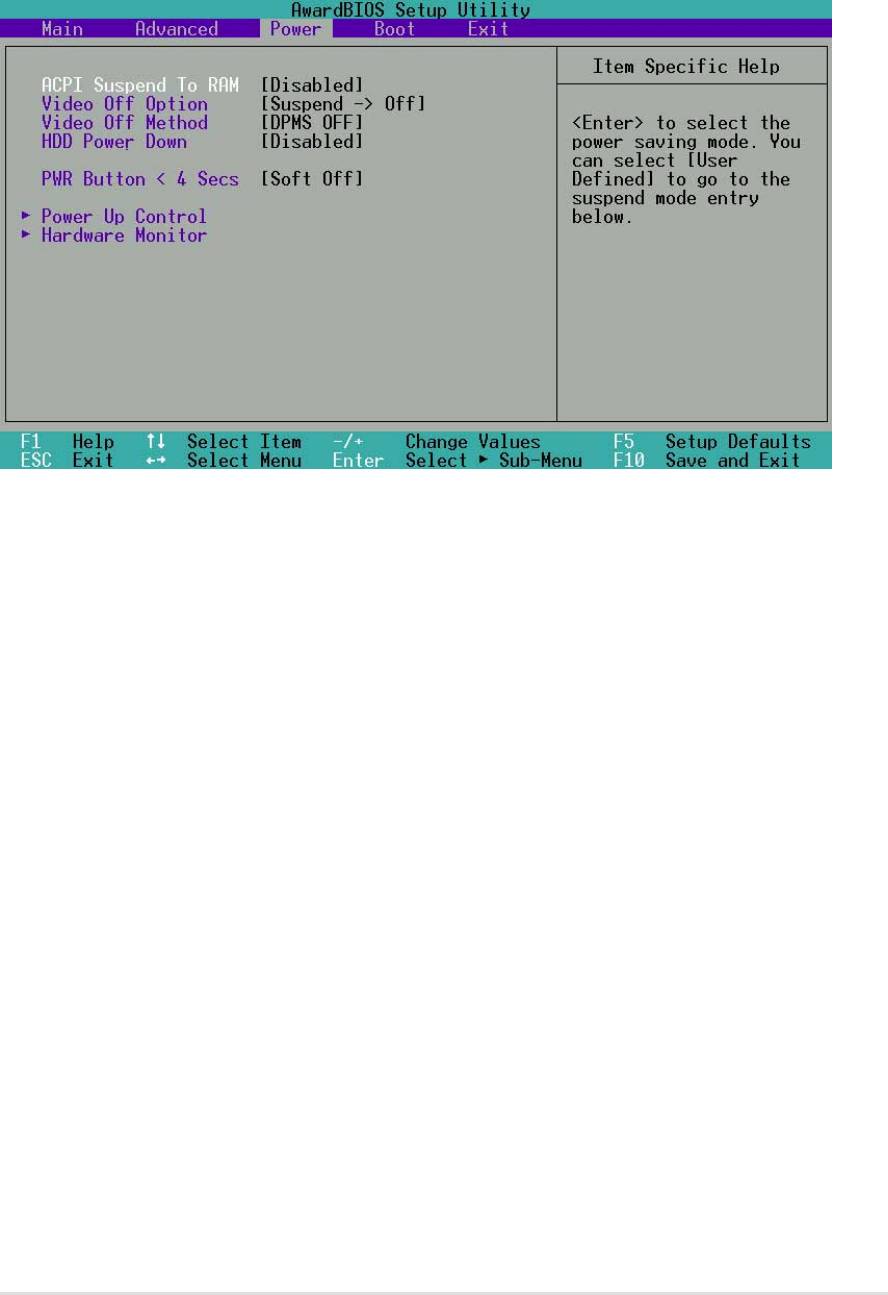
4.5 Power Menu
The Power menu allows you to reduce power consumption. This feature
turns off the video display and shuts down the hard disk after a period of
inactivity.
ACPI Suspend To RAM [Disabled]
This field allows you to enable or disable the ACPI Suspend-to-RAM
feature. To support this feature, the +5VSB of the power supply should
have the capacity to provide more than 720mA current. Configuration
options: [Disabled] [Enabled]
Video Off Option [Suspend -> Off ]
This field determines when to activate the video off feature for monitor power
management. Configuration options: [Always On] [Suspend -> Off]
Video Off Method [DPMS OFF]
This field defines the video off features. The DPMS (Display Power
Management System) feature allows the BIOS to control the video display
card if it supports the DPMS feature. [Blank Screen] only blanks the screen
(use this for monitors without power management or “green” features. If set
up in your system, your screen saver will not display with [Blank Screen]
selected). [V/H SYNC+Blank] blanks the screen and turns off vertical and
horizontal scanning. Configuration options: [Blank Screen] [V/H SYNC+Blank]
[DPMS Standby] [DPMS Suspend] [DPMS OFF] [DPMS Reduce ON]
HDD Power Down [Disabled]
Shuts down any IDE hard disk drives in the system after a period of inactivity
as set in this user-configurable field. This feature does not affect SCSI hard
drives. Configuration options: [Disabled] [1 Min] [2 Min] [3 Min]...[15 Min]
ASUS A7N266-VM motherboard user guide
59

PWR Button < 4 Secs [Soft Off]
When set to [Soft off], the ATX switch can be used as a normal system power-
off button when pressed for less than 4 seconds. [Suspend] allows the button
to have a dual function where pressing less than 4 seconds will place the
system in sleep mode. Regardless of the setting, holding the ATX switch for
more than 4 seconds will power off the system. Configuration options: [Soft
off] [Suspend]
60
Chapter 4: BIOS Setup
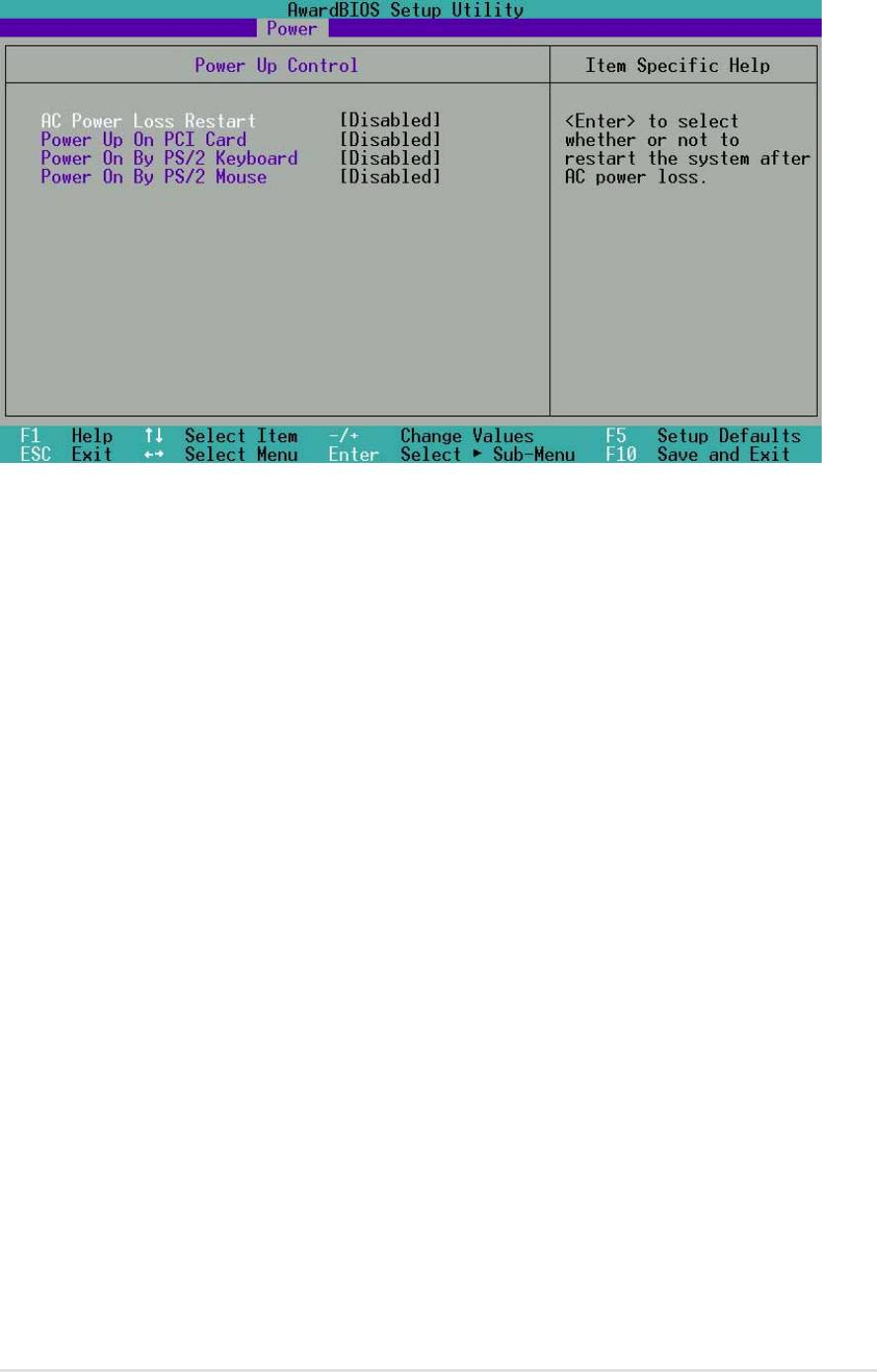
4.5.1 Power Up Control
AC PWR Loss Restart [Disabled]
This allows you to set whether you want your system to reboot after the
power has been interrupted. [Disabled] leaves your system off and [Enabled]
reboots your system. [Previous State] sets your system back to the state it is
before the power interruption. Configuration options: [Disabled] [Enabled]
[Previous State]
Power Up On PCI Card [Disabled]
When set to [Enabled], this parameter allows you to turn on the system
through a PCI modem. This feature requires an ATX power supply that
provides at least 1A on the +5VSB lead. Configuration options: [Disabled]
[Enabled]
Power On By PS/2 Keyboard [Disabled]
This parameter enables the use of specific keys on the keyboard to turn on
the system. This feature requires an ATX power supply that provides at
least 1A on the +5VSB lead. Configuration options: [Disabled] [Space Bar]
[Ctrl-Esc] [Power Key]Power On By PS/2 Keyboard [Space Bar]
Power On By PS/2 Mouse [Disabled]
This parameter supports using the mouse to turn on the system. This
feature requires an ATX power supply that provides at least 1A on the
+5VSB lead. Configuration options: [Disabled] [Space Bar] [Ctrl-Esc]
[Power Key]
ASUS A7N266-VM motherboard user guide
61
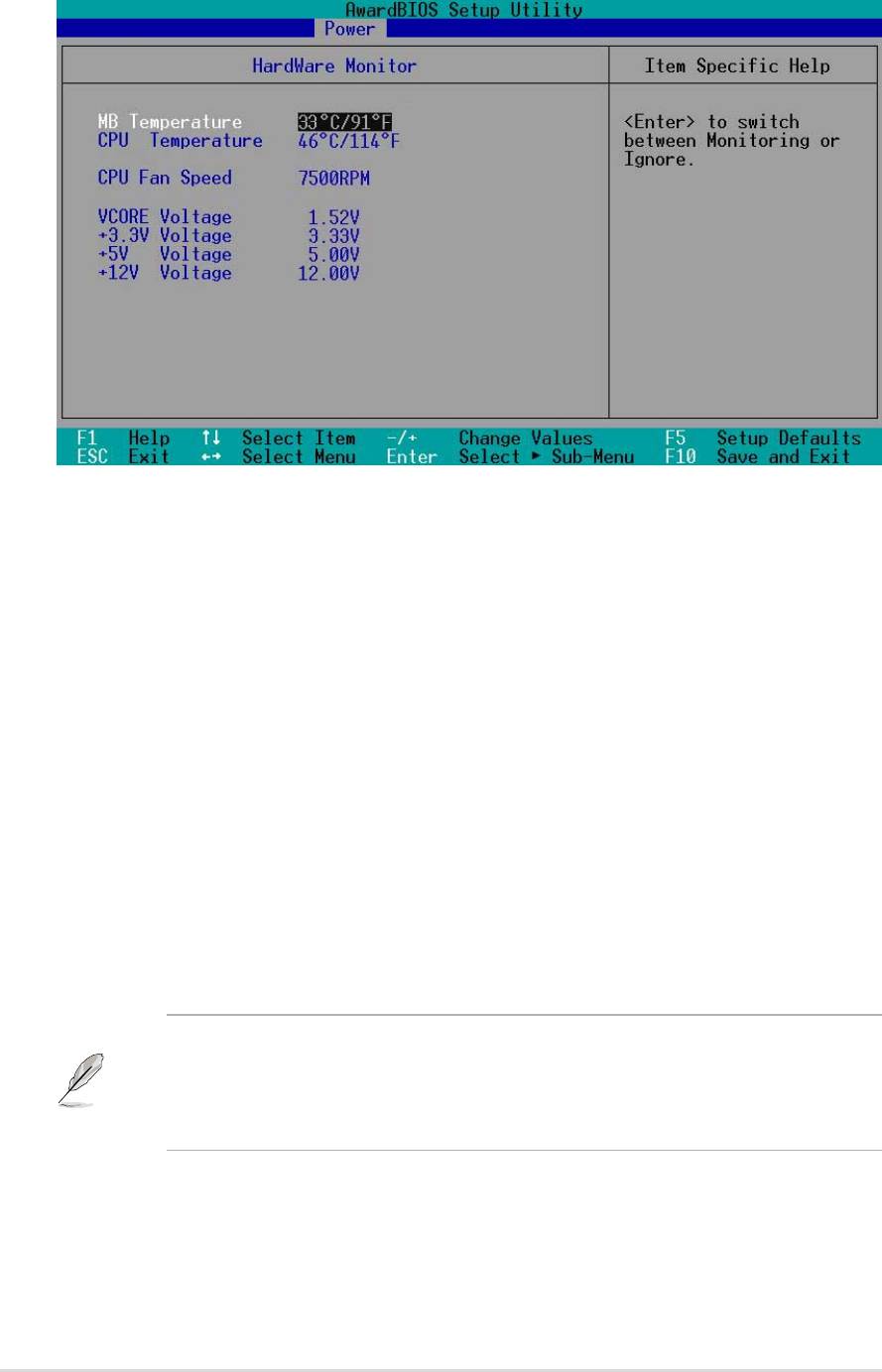
4.5.2 Hardware Monitor
MB Temperature [xxxC/xxxF]
CPU Temperature [xxxC/xxxF]
The onboard hardware monitor automatically detects the MB (motherboard),
CPU, and JTPWR (power supply) temperatures.
CPU Fan Speed [xxxxRPM]
The onboard hardware monitor automatically detects the speeds of the CPU
fan, chassis fan, and chassis fan measured in rotations per minute (RPM).
VCORE Voltage
+3.3V Voltage, +5V Voltage, +12V Voltage
The onboard hardware monitor automatically detects the voltage output
through the onboard voltage regulators.
NOTE: If any of the monitored items is out of range, the following error
message appears: “Hardware Monitor found an error. Enter Power setup
menu for details”. You will then be prompted to “Press F1 to continue or DEL
to enter SETUP”.
NOTE! If any of the monitored items is out of range, the following error
message appears: “Hardware Monitor found an error. Enter Power setup
menu for details”. You will then be prompted to “Press F1 to continue or
DEL to enter SETUP”.
62
Chapter 4: BIOS Setup
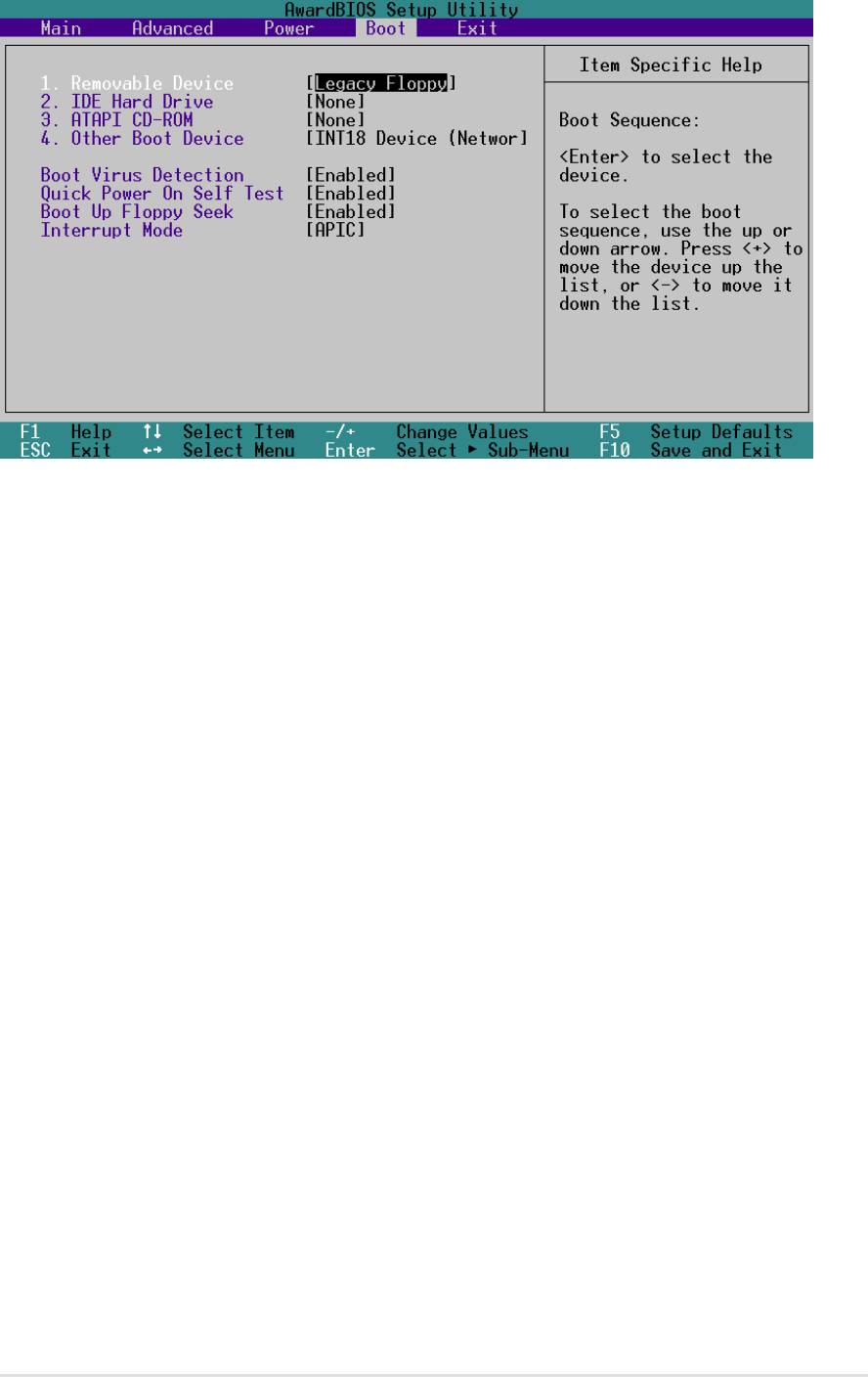
4.6 Boot Menu
Boot Sequence
The Boot menu allows you to select among the four possible types of boot
devices listed using the up and down arrow keys. By using the <+> or <Space>
key, you can promote devices and by using the <-> key, you can demote
devices. Promotion or demotion of devices alters the priority which the system
uses to search for a boot device on system power up. Configuration fields
include Removable Devices, IDE Hard Drive, ATAPI CD-ROM, and Other
Boot Device.
Removable Device [Legacy Floppy]
Configuration options: [Disabled] [Legacy Floppy] [LS120] [ZIP]
[ATAPI MO] [USB FDD] [USB ZIP]
IDE Hard Drive
This field allows you to select which IDE hard disk drive to use in the boot
sequence. Pressing [Enter] will show the product IDs of all connected IDE
hard disk drives.
ATAPI CD-ROM
This field allows you to select which ATAPI CD-ROM drive to use in the boot
sequence. Pressing [Enter] will show the product IDs of all your connected
ATAPI CD-ROM drives.
Other Boot Device Select [INT18 Device (Network)]
Configuration options: [Disabled] [SCSI Boot Device] [INT18 Device
(Network)]
ASUS A7N266-VM motherboard user guide
63

Boot Virus Detection [Enabled]
This field allows you to set boot virus detection, ensuring a virus-free boot
sector. The system halts and displays a warning message when it detects a
virus. If this occurs, you can either allow the operation to continue or use a
virus-free bootable floppy disk to restart and investigate your system.
Configuration options: [Disabled] [Enabled]
Quick Power On Self Test [Enabled]
This field speeds up the Power-On-Self Test (POST) routine by skipping
retesting a second, third, and fourth time. Configuration options: [Disabled]
[Enabled]
Boot Up Floppy Seek [Enabled]
When enabled, the BIOS will seek the floppy disk drive to determine whether
the drive has 40 or 80 tracks. Configuration options: [Disabled] [Enabled]
Interrupt Mode [APIC]
Configuration options: [APIC] [PIC]
64
Chapter 4: BIOS Setup
