
Dell PowerEdge 860: Notes, Notices, and Cautions
Notes, Notices, and Cautions: Dell PowerEdge 860
Оглавление
- Notes, Notices, and Cautions

Notes, Notices, and Cautions
NOTE: A NOTE indicates important information that helps you make better use of your computer.
NOTICE: A NOTICE indicates either potential damage to hardware or loss of data and tells you how to avoid the
problem.
CAUTION: A CAUTION indicates a potential for property damage, personal injury, or death.
____________________
Information in this document is subject to change without notice.
© 2006 Dell Inc. All rights reserved.
Reproduction in any manner whatsoever without the written permission of Dell Inc. is strictly forbidden.
Trademarks used in this text: Dell, the DELL logo, Inspiron, Dell Precision, Dimension, OptiPlex, Latitude, PowerEdge, PowerVault, PowerApp,
PowerConnect, and XPS are trademarks of Dell Inc.; Intel, Pentium, and Celeron are registered trademarks of Intel Corporation; Microsoft,
MS-DOS, Windows, and Windows Server are registered trademarks of Microsoft Corporation; Red Hat is a registered trademark of Red Hat,
Inc.; SUSE is a registered trademark of Novell, Inc.; UNIX is a registered trademark of The Open Group in the United States and other countries;
EMC is a registered trademark of EMC Corporation.
Other trademarks and trade names may be used in this document to refer to either the entities claiming the marks and names or their products.
Dell Inc. disclaims any proprietary interest in trademarks and trade names other than its own.
June 2006 P/NGJ055 Rev. A00

Contents
1 About Your System. . . . . . . . . . . . . . . . . . . . . . . . . . . . . 9
Other Information You May Need . . . . . . . . . . . . . . . . . . . . . . . . . 9
Accessing System Features During Startup
. . . . . . . . . . . . . . . . . . . 10
Front-Panel Features and Indicators
. . . . . . . . . . . . . . . . . . . . . . 11
Back-Panel Features and Indicators
. . . . . . . . . . . . . . . . . . . . . . 14
Connecting External Devices
. . . . . . . . . . . . . . . . . . . . . . . . 14
NIC Indicator Codes
. . . . . . . . . . . . . . . . . . . . . . . . . . . . . . . 15
System Messages
. . . . . . . . . . . . . . . . . . . . . . . . . . . . . . . . 15
Diagnostics Indicator Codes
. . . . . . . . . . . . . . . . . . . . . . . . . . . 22
System Beep Codes
. . . . . . . . . . . . . . . . . . . . . . . . . . . . . . . 24
Warning Messages
. . . . . . . . . . . . . . . . . . . . . . . . . . . . . . . 26
Diagnostics Messages
. . . . . . . . . . . . . . . . . . . . . . . . . . . . . . 26
Alert Messages
. . . . . . . . . . . . . . . . . . . . . . . . . . . . . . . . . 27
2 Using the System Setup Program . . . . . . . . . . . . . . . . . . 29
Entering the System Setup Program . . . . . . . . . . . . . . . . . . . . . . . 29
Responding to Error Messages
. . . . . . . . . . . . . . . . . . . . . . . 29
Using the System Setup Program
. . . . . . . . . . . . . . . . . . . . . . 29
System Setup Options
. . . . . . . . . . . . . . . . . . . . . . . . . . . . . . 30
Main Screen
. . . . . . . . . . . . . . . . . . . . . . . . . . . . . . . . 30
CPU Information Screen
. . . . . . . . . . . . . . . . . . . . . . . . . . 33
Integrated Devices Screen
. . . . . . . . . . . . . . . . . . . . . . . . . 34
Console Redirection Screen
. . . . . . . . . . . . . . . . . . . . . . . . 35
System Security Screen
. . . . . . . . . . . . . . . . . . . . . . . . . . 36
Exit Screen
. . . . . . . . . . . . . . . . . . . . . . . . . . . . . . . . . 37
System and Setup Password Features
. . . . . . . . . . . . . . . . . . . . . . 37
Using the System Password
. . . . . . . . . . . . . . . . . . . . . . . . 37
Using the Setup Password
. . . . . . . . . . . . . . . . . . . . . . . . . 39
Contents 3

Disabling a Forgotten Password. . . . . . . . . . . . . . . . . . . . . . . . . 40
Baseboard Management Controller Configuration
. . . . . . . . . . . . . . . 40
Entering the BMC Setup Module
. . . . . . . . . . . . . . . . . . . . . . 41
BMC Setup Module Options
. . . . . . . . . . . . . . . . . . . . . . . . 41
3 Installing System Components . . . . . . . . . . . . . . . . . . . . 43
Recommended Tools . . . . . . . . . . . . . . . . . . . . . . . . . . . . . . . 43
Inside the System
. . . . . . . . . . . . . . . . . . . . . . . . . . . . . . . . 43
Opening and Closing the System
. . . . . . . . . . . . . . . . . . . . . . . . 44
Removing the Bezel
. . . . . . . . . . . . . . . . . . . . . . . . . . . . . 45
Installing the Bezel
. . . . . . . . . . . . . . . . . . . . . . . . . . . . . 45
Opening the System
. . . . . . . . . . . . . . . . . . . . . . . . . . . . . 46
Closing the System
. . . . . . . . . . . . . . . . . . . . . . . . . . . . . 47
Cooling Shroud
. . . . . . . . . . . . . . . . . . . . . . . . . . . . . . . . . . 47
Removing the Cooling Shroud
. . . . . . . . . . . . . . . . . . . . . . . 47
Installing the Cooling Shroud
. . . . . . . . . . . . . . . . . . . . . . . . 48
System Battery
. . . . . . . . . . . . . . . . . . . . . . . . . . . . . . . . . . 49
Replacing the System Battery
. . . . . . . . . . . . . . . . . . . . . . . 49
Optical Drive
. . . . . . . . . . . . . . . . . . . . . . . . . . . . . . . . . . . 50
Removing the Optical Drive
. . . . . . . . . . . . . . . . . . . . . . . . . 50
Installing the Optical Drive
. . . . . . . . . . . . . . . . . . . . . . . . . 51
Configuring the Boot Drive
. . . . . . . . . . . . . . . . . . . . . . . . . . . . 52
Hard Drives
. . . . . . . . . . . . . . . . . . . . . . . . . . . . . . . . . . . . 52
Removing a Hard Drive
. . . . . . . . . . . . . . . . . . . . . . . . . . . 52
Installing a Hard Drive
. . . . . . . . . . . . . . . . . . . . . . . . . . . 56
Installing a SAS Controller Card
. . . . . . . . . . . . . . . . . . . . . . . . . 57
Fan Assembly
. . . . . . . . . . . . . . . . . . . . . . . . . . . . . . . . . . . 57
Removing the Fan Assembly
. . . . . . . . . . . . . . . . . . . . . . . . 57
Installing the Fan Assembly
. . . . . . . . . . . . . . . . . . . . . . . . . 58
Optional PCI Fan Assembly
. . . . . . . . . . . . . . . . . . . . . . . . . . . 59
Removing the PCI Fan Assembly
. . . . . . . . . . . . . . . . . . . . . . 59
Installing the PCI Fan Assembly
. . . . . . . . . . . . . . . . . . . . . . 60
4 Contents

Power Supply . . . . . . . . . . . . . . . . . . . . . . . . . . . . . . . . . . 61
Removing the Power Supply
. . . . . . . . . . . . . . . . . . . . . . . . 61
Installing the Power Supply
. . . . . . . . . . . . . . . . . . . . . . . . . 62
Expansion Cards
. . . . . . . . . . . . . . . . . . . . . . . . . . . . . . . . . 63
Installing an Expansion Card
. . . . . . . . . . . . . . . . . . . . . . . . 63
Removing an Expansion Card
. . . . . . . . . . . . . . . . . . . . . . . . 65
Riser Card
. . . . . . . . . . . . . . . . . . . . . . . . . . . . . . . . . . . . 66
Removing the Riser Card
. . . . . . . . . . . . . . . . . . . . . . . . . . 66
Installing the Riser Card
. . . . . . . . . . . . . . . . . . . . . . . . . . 67
System Memory
. . . . . . . . . . . . . . . . . . . . . . . . . . . . . . . . . 67
Memory Module Installation Guidelines
. . . . . . . . . . . . . . . . . . 68
Installing Memory Modules
. . . . . . . . . . . . . . . . . . . . . . . . . 69
Removing Memory Modules
. . . . . . . . . . . . . . . . . . . . . . . . 70
Processor
. . . . . . . . . . . . . . . . . . . . . . . . . . . . . . . . . . . . . 70
Replacing the Processor
. . . . . . . . . . . . . . . . . . . . . . . . . . 71
Control Panel Assembly (Service-Only Procedure)
. . . . . . . . . . . . . . . 73
Removing the Control Panel Assembly
. . . . . . . . . . . . . . . . . . . 73
Installing the Control Panel Assembly
. . . . . . . . . . . . . . . . . . . 74
System Board (Service-Only Procedure)
. . . . . . . . . . . . . . . . . . . . 75
Removing the System Board Assembly
. . . . . . . . . . . . . . . . . . . 75
Installing the System Board Assembly
. . . . . . . . . . . . . . . . . . . 76
4 Troubleshooting Your System . . . . . . . . . . . . . . . . . . . . . 79
Safety First—For You and Your System . . . . . . . . . . . . . . . . . . . . . 79
Start-Up Routine
. . . . . . . . . . . . . . . . . . . . . . . . . . . . . . . . . 79
Checking the Equipment
. . . . . . . . . . . . . . . . . . . . . . . . . . . . . 80
Troubleshooting IRQ Assignment Conflicts
. . . . . . . . . . . . . . . . . 80
Troubleshooting External Connections
. . . . . . . . . . . . . . . . . . . 81
Troubleshooting the Video Subsystem
. . . . . . . . . . . . . . . . . . . 81
Troubleshooting the Keyboard
. . . . . . . . . . . . . . . . . . . . . . . 81
Troubleshooting the Mouse
. . . . . . . . . . . . . . . . . . . . . . . . . 82
Troubleshooting Basic I/O Functions
. . . . . . . . . . . . . . . . . . . . 82
Contents 5

Troubleshooting a Serial I/O Device . . . . . . . . . . . . . . . . . . . . 82
Troubleshooting a USB Device
. . . . . . . . . . . . . . . . . . . . . . . 83
Troubleshooting a NIC
. . . . . . . . . . . . . . . . . . . . . . . . . . . 83
Responding to a Systems Management Software Alert Message
. . . . . . . 84
Troubleshooting a Wet System
. . . . . . . . . . . . . . . . . . . . . . . . . . 84
Troubleshooting a Damaged System
. . . . . . . . . . . . . . . . . . . . . . . 85
Troubleshooting the System Battery
. . . . . . . . . . . . . . . . . . . . . . . 86
Troubleshooting the Power Supply
. . . . . . . . . . . . . . . . . . . . . . . 86
Troubleshooting System Cooling Problems
. . . . . . . . . . . . . . . . . . . 87
Troubleshooting a Fan
. . . . . . . . . . . . . . . . . . . . . . . . . . . 87
Troubleshooting System Memory
. . . . . . . . . . . . . . . . . . . . . . . . 88
Troubleshooting an Optical Drive
. . . . . . . . . . . . . . . . . . . . . . . . 89
Troubleshooting a Hard Drive
. . . . . . . . . . . . . . . . . . . . . . . . . . 90
Troubleshooting Expansion Cards
. . . . . . . . . . . . . . . . . . . . . . . . 91
Troubleshooting the Microprocessor
. . . . . . . . . . . . . . . . . . . . . . 92
5 Running the System Diagnostics . . . . . . . . . . . . . . . . . . . 93
Using Dell PowerEdge Diagnostics . . . . . . . . . . . . . . . . . . . . . . . 93
System Diagnostics Features
. . . . . . . . . . . . . . . . . . . . . . . . . . 93
When to Use the System Diagnostics
. . . . . . . . . . . . . . . . . . . . . . 94
Running the System Diagnostics
. . . . . . . . . . . . . . . . . . . . . . . . 94
From the Utility Partition
. . . . . . . . . . . . . . . . . . . . . . . . . . 94
From Removable Bootable Media
. . . . . . . . . . . . . . . . . . . . . 94
System Diagnostics Testing Options
. . . . . . . . . . . . . . . . . . . . . . . 95
Using the Custom Test Options
. . . . . . . . . . . . . . . . . . . . . . . . . 95
Selecting Devices for Testing
. . . . . . . . . . . . . . . . . . . . . . . . 95
Selecting Diagnostics Options
. . . . . . . . . . . . . . . . . . . . . . . 95
Viewing Information and Results
. . . . . . . . . . . . . . . . . . . . . . 96
6 Contents

6 Jumpers and Connectors . . . . . . . . . . . . . . . . . . . . . . . . 97
System Board Jumpers. . . . . . . . . . . . . . . . . . . . . . . . . . . . . . 97
System Board Connectors
. . . . . . . . . . . . . . . . . . . . . . . . . . . . 98
Riser Card Connectors
. . . . . . . . . . . . . . . . . . . . . . . . . . . . . . 99
Disabling a Forgotten Password
. . . . . . . . . . . . . . . . . . . . . . . . 101
7 Getting Help . . . . . . . . . . . . . . . . . . . . . . . . . . . . . . . . 103
Obtaining Assistance . . . . . . . . . . . . . . . . . . . . . . . . . . . . . 103
Online Services
. . . . . . . . . . . . . . . . . . . . . . . . . . . . . . 103
AutoTech Service
. . . . . . . . . . . . . . . . . . . . . . . . . . . . . 104
Automated Order-Status Service
. . . . . . . . . . . . . . . . . . . . . 104
Support Service
. . . . . . . . . . . . . . . . . . . . . . . . . . . . . . 104
Dell Enterprise Training and Certification
. . . . . . . . . . . . . . . . . . . 105
Problems With Your Order
. . . . . . . . . . . . . . . . . . . . . . . . . . . 105
Product Information
. . . . . . . . . . . . . . . . . . . . . . . . . . . . . . 105
Returning Items for Warranty Repair or Credit
. . . . . . . . . . . . . . . . 105
Before You Call
. . . . . . . . . . . . . . . . . . . . . . . . . . . . . . . . . 105
Contacting Dell
. . . . . . . . . . . . . . . . . . . . . . . . . . . . . . . . . 108
. . . . . . . . . . . . . . . . . . . . . . . . . . . . . . . . . . . . . . . . . 128
Glossary . . . . . . . . . . . . . . . . . . . . . . . . . . . . . . . . . . . . . 129
Index
. . . . . . . . . . . . . . . . . . . . . . . . . . . . . . . . . . . . . . . . 137
Contents 7

8 Contents
About Your System
This section describes the physical, firmware, and software interface features that provide and ensure
the essential functioning of your system. The physical connectors on your system’s front and back
panels provide convenient connectivity and system expansion capability. The system firmware,
applications, and operating systems monitor the system and component status and alert you when a
problem arises. System conditions can be reported by any of the following:
• Front or back panel indicators
• System messages
• Diagnostic indicator codes
• Beep codes
• Warning messages
• Diagnostics messages
• Alert messages
This section describes each type of message, lists the possible causes, and provides steps to resolve
any problems indicated by a message. The system indicators and features are illustrated in this
section.
Other Information You May Need
CAUTION: The Product Information Guide provides important safety and regulatory information. Warranty
information may be included within this document or as a separate document.
• The
Rack Installation Guide
and
Rack Installation Instructions
included with your rack solution
describe how to install your system into a rack.
• The
Getting Started Guide
provides an overview of system features, setting up your system, and
technical specifications.
• CDs included with your system provide documentation and tools for configuring and managing
your system.
• Systems management software documentation describes the features, requirements, installation,
and basic operation of the software.
• Operating system documentation describes how to install (if necessary), configure, and use the
operating system software.
• Documentation for any components you purchased separately provides information to configure
and install these options.
About Your System 9

• Updates are sometimes included with the system to describe changes to the system, software, and/or
documentation.
NOTE: Always check for updates on support.dell.com and read the updates first because they often
supersede information in other documents.
• Release notes or readme files may be included to provide last-minute updates to the system or
documentation or advanced technical reference material intended for experienced users or
technicians.
Accessing System Features During Startup
Table 1-1 describes keystrokes that may be entered during startup to access system features. If your
operating system begins to load before you enter the keystroke, allow the system to finish booting, and
then restart your system and try again.
Table 1-1. Keystrokes for Accessing System Features
Keystroke Description
<F2> Enters the System Setup program. See "Using the System Setup Program" on page 29.
<F10> Opens the utility partition, allowing you to run the system diagnostics. See "Running the
System Diagnostics" on page 94.
<Ctrl+E> Enters the Baseboard Management Controller (BMC) Management Utility, which allows
access to the system event log (SEL). See the BMC User’s Guide for more information on setup
and use of BMC.
<Ctrl+C> Enters the SAS Configuration Utility. See your SAS adapter User’s Guide for more information.
<Ctrl+R> Enters the RAID configuration utility, which allows you to configure an optional RAID card.
For more information, see the documentation for your RAID card.
<Ctrl+S> Option is displayed only if you have PXE support enabled through the System Setup Program
(see "Integrated Devices Screen" on page 34). This keystroke allows you to configure NIC
settings for PXE boot. For more information, see the documentation for your integrated NIC.
<Ctrl+D> If you have the optional Dell Remote Access Controller (DRAC), this keystroke allows access to
selected DRAC configuration settings. See the DRAC User’s Guide for more information on
setup and use of DRAC.
10 About Your System
Front-Panel Features and Indicators
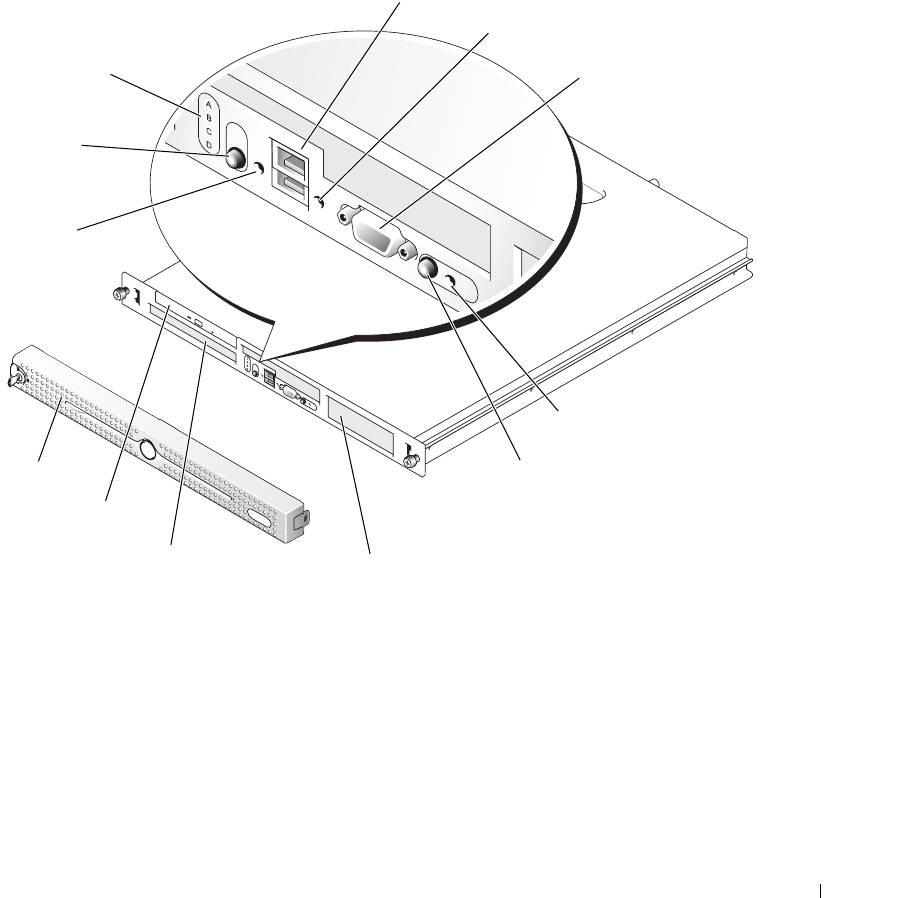
Figure 1-1
shows the controls, indicators, connectors, and features on the system front panel behind the
optional bezel. (To remove the bezel, press the latch at the left end of the bezel. See "Opening the
System
" on page 46
.)
Table 1-2 provides component descriptions.
Figure 1-1. Front-Panel Features and Indicators
3
4
2
5
1
12
6
11
7
10
9
8
About Your System 11
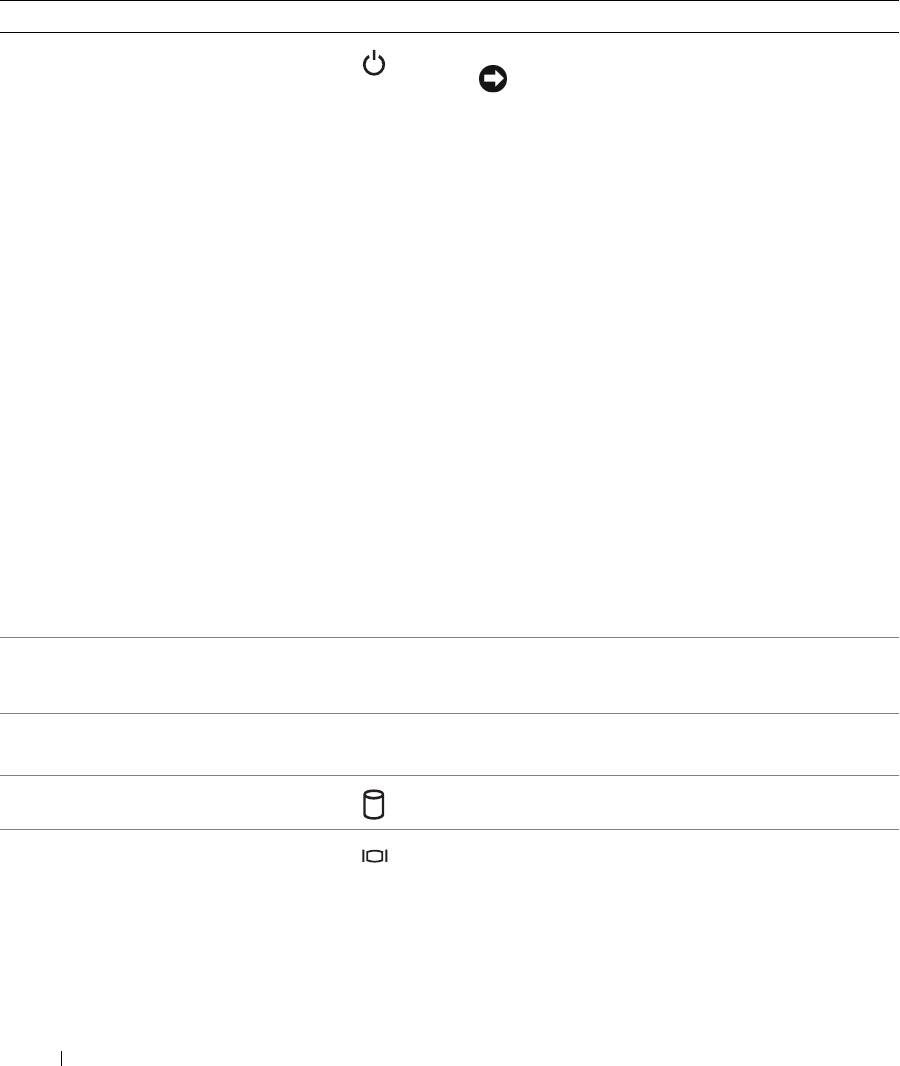
Table 1-2. Front-Panel Components
Item Component Icon Description
1 Power-on indicator, power
The power button turns system power off and on.
button
NOTICE: If you turn off the system using the power
button and the system is running an ACPI-compliant
operating system, the system can perform an orderly
shutdown before power is turned off. If the power
button is pressed for more than 4 seconds, the
system power will turn off regardless of the current
operating system state. If the system is not running
an ACPI-compliant operating system, power is
turned off immediately after the power button is
pressed.
The power button is enabled in the System Setup
program. When disabled, the button can only turn the
system power on. For more information, see "Using the
System Setup Program" on page 29 and the operating
system's documentation.
The power-on indicator lights or blinks to indicate the
status of power to the system.
The power-on indicator lights when the system is on.
The indicator is off when the system is off and power is
disconnected from the system. The indicator blinks
when the system is on but in standby state, or when the
system is off but is still connected to the power source.
To exit from the standby state, briefly press the power
button.
2 Diagnostic indicators (4) The diagnostic indicators aid in diagnosing and
troubleshooting the system. For more information, see
your Hardware Owner’s Manual.
3 USB connectors (2) Connect USB 2.0-compliant devices to the system.
4 Hard-drive activity indicator The green hard-drive activity indicator flashes when the
hard drives are in use.
5 Video connector Connects a monitor to the system.
12 About Your System
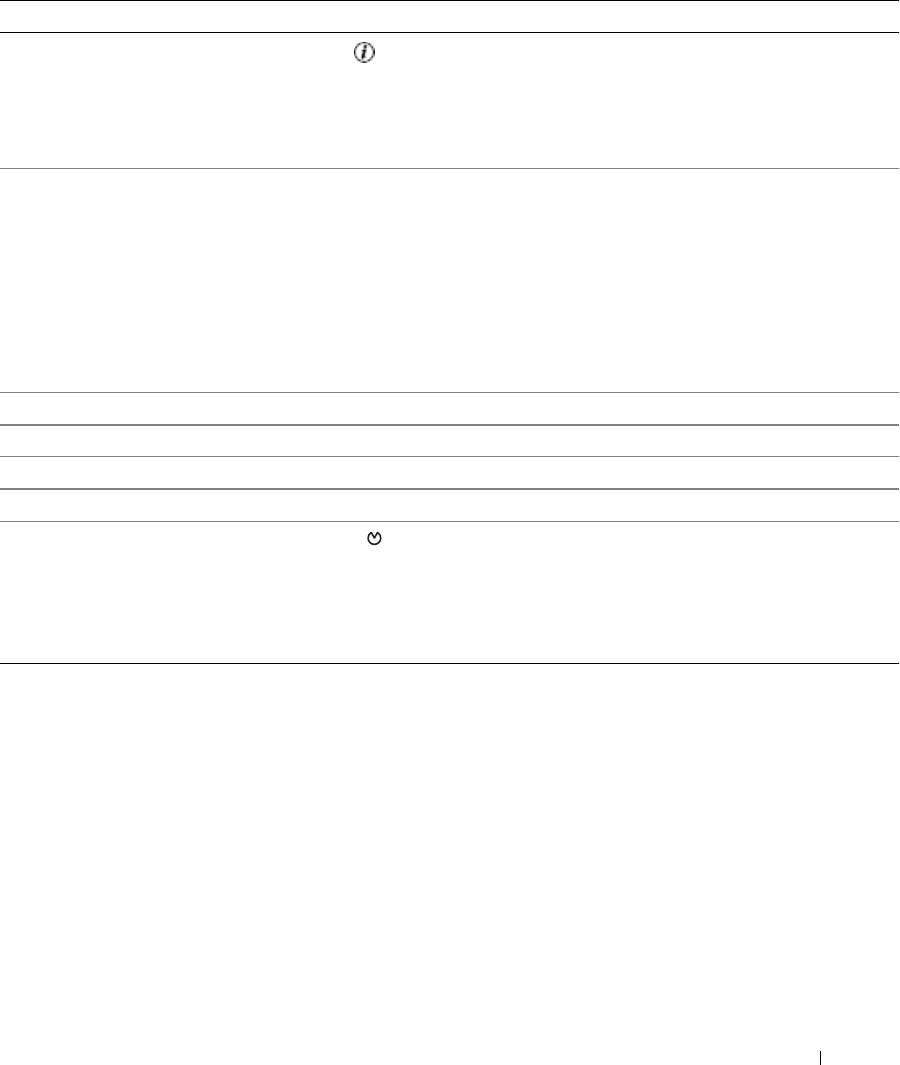
Table 1-2. Front-Panel Components (continued)
Item Component Icon Description
6 System status indicator The blue system status indicator lights up during
normal system operation.
The amber system status indicator flashes when the
system needs attention due to a system problem.
7 System identification button You can use the system identification buttons on the
front and back panels to locate a particular system
within a rack. When one of these buttons is pushed, the
blue system status indicators on the front and back
panels blink until one of the buttons is pushed again.
You can also use the systems management software to
cause the indicators to flash to identify a particular
system.
8 Hard drive 1 Optional 3.5-inch SAS or SATA hard drive.
9 Hard drive 0 A 3.5-inch SAS or SATA hard drive.
10 Optical drive Optional.
11 Bezel Optional
12 NMI button The NMI button is used to troubleshoot software and
device driver errors when using certain operating
systems. This button can be pressed using the end of a
paper clip. Use this button only if directed to do so by
qualified support personnel or by the operating system's
documentation.
About Your System 13
Back-Panel Features and Indicators
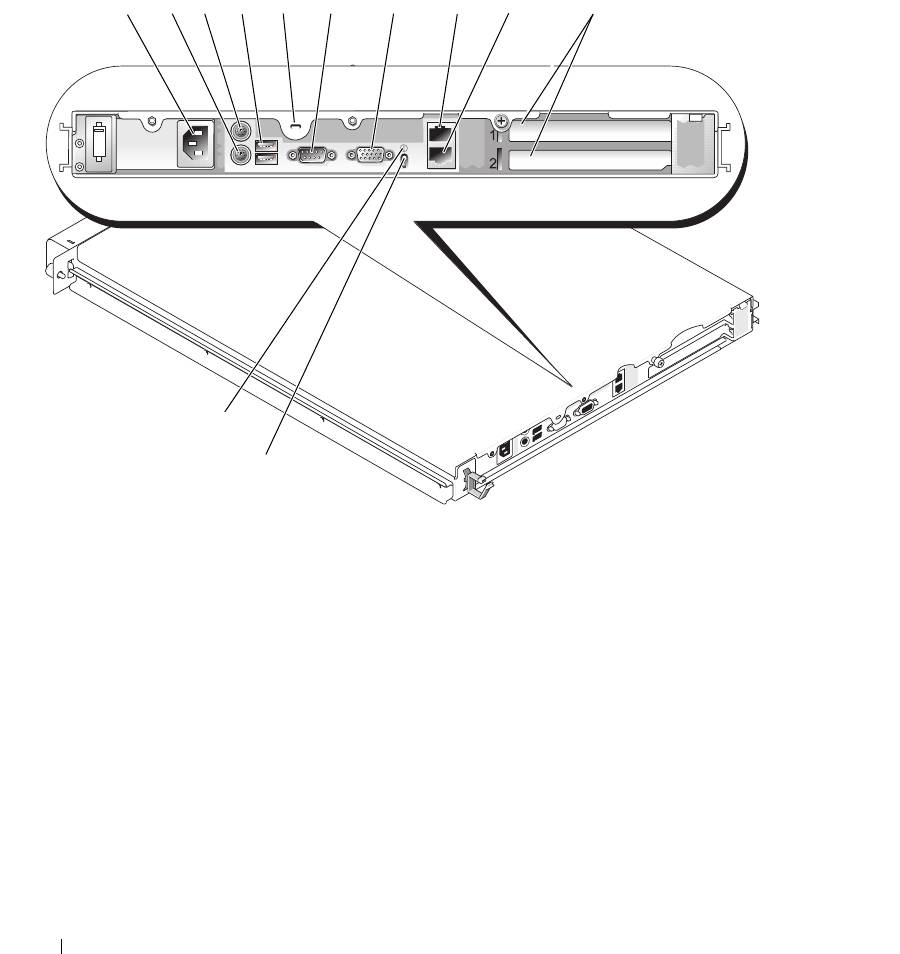
Figure 1-2 shows the controls, indicators, and connectors located on the system's back panel.
Figure 1-2. Back-Panel Features and Indicators
324 67 101
895
12
11
1 power supply connector 2 keyboard connector 3 mouse connector
4 USB connectors (2) 5 Kensington lock 6 serial connector
7 video connector 8 NIC1 connector 9 NIC2 connector
10 expansion slots (2) 11 system status indicator 12 system identification button
Connecting External Devices
When connecting external devices to your system, follow these guidelines:
• Most devices must be connected to a specific connector and device drivers must be installed before the
device operates properly. (Device drivers are normally included with your operating system software or
with the device itself.) See the documentation that accompanied the device for specific installation
and configuration instructions.
14 About Your System
• Always attach an external device while your system and the device are turned off. Next, turn on any
external devices before turning on the system (unless the documentation for the device specifies
otherwise).
See "Using the System Setup Program" on page 29 for information about enabling, disabling, and
configuring I/O ports and connectors.
NIC Indicator Codes
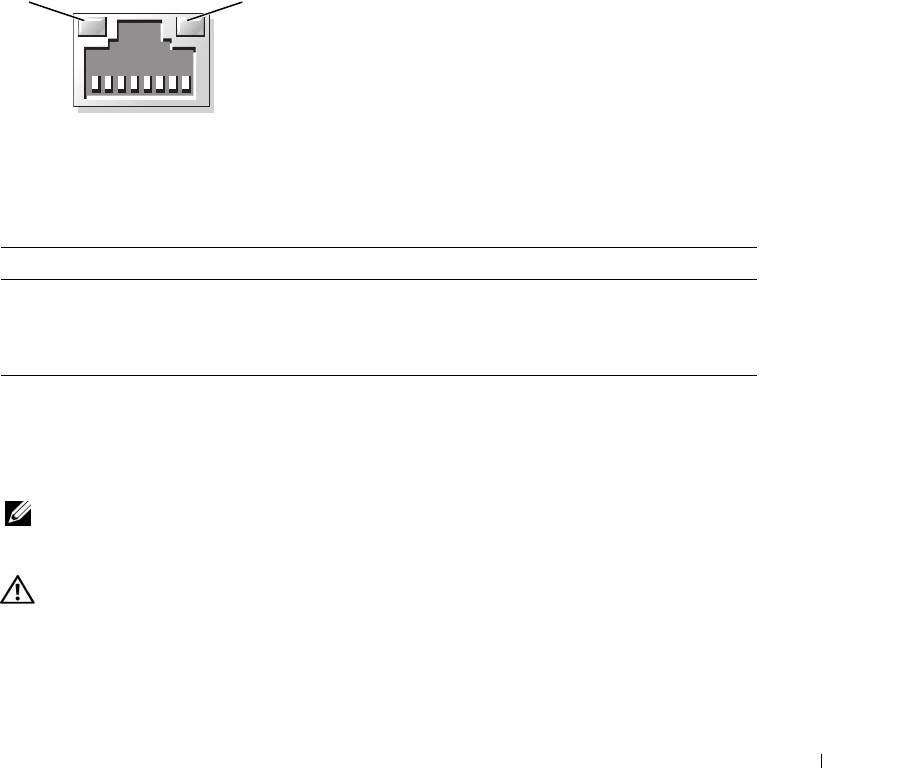
Each NIC on the back panel has an indicator that provides information on network activity and link
status. See Figure 1-3. Table 1-3 lists the NIC indicator codes.
Figure 1-3. NIC Indicators
1
2
1 link indicator 2 activity indicator
Table 1-3. NIC Indicator Codes
Indicator Indicator Code
Link and activity indicators are off. The NIC is not connected to the network.
Link indicator is green. The NIC is connected to a valid link partner on the network.
Activity indicator is blinking yellow. Network data is being sent or received.
System Messages
System messages appear on the screen to notify you of a possible problem with the system. Table 1-4 lists
the system messages that can occur and the probable cause and corrective action for each message.
NOTE: If you receive a system message that is not listed in Table 1-4, check the documentation for the application
that is running when the message appears or the operating system's documentation for an explanation of the
message and recommended action.
CAUTION: Only trained service technicians are authorized to remove the system cover and access any of the
components inside the system. Before performing any procedure, see your Product Information Guide for complete
information about safety precautions, working inside the computer and protecting against electrostatic discharge.
About Your System 15
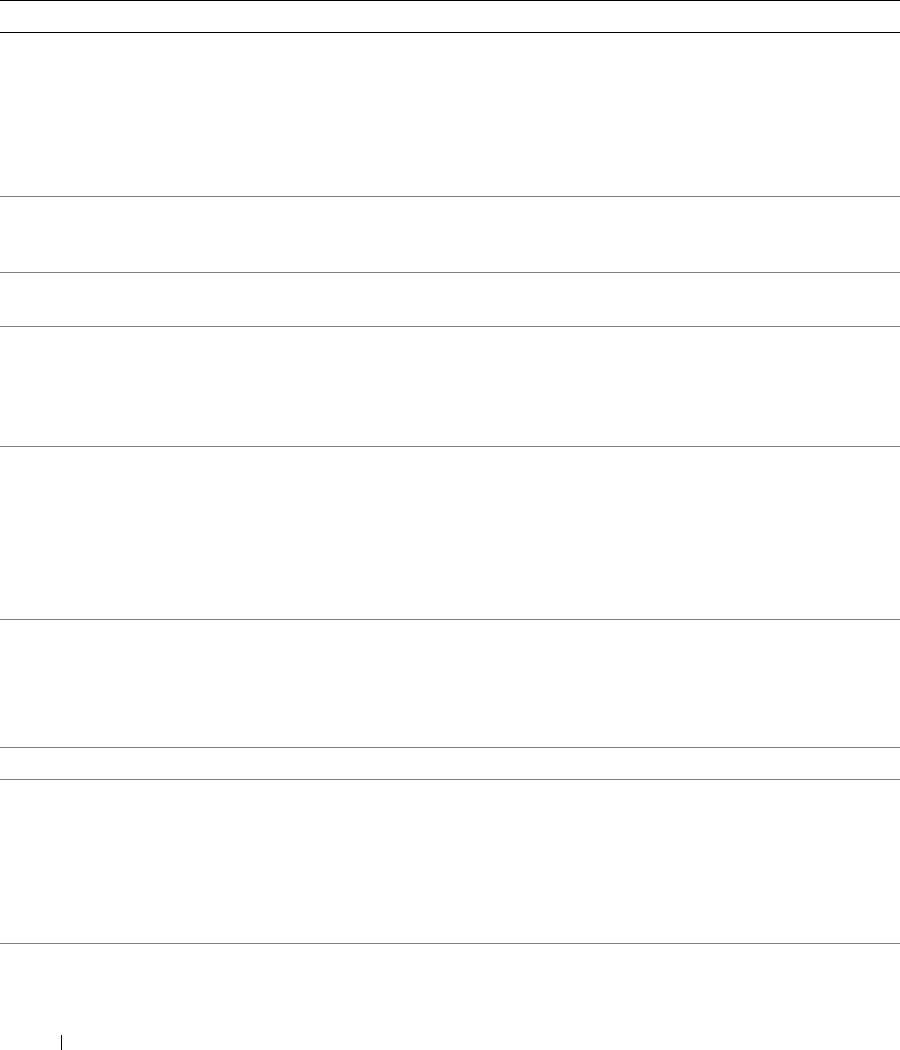
Table 1-4. System Messages
Message Causes Corrective Actions
Amount of available memory
The OS Install Mode option in the
After the operating system is installed,
limited to 256MB
System Setup program is set to On.
enter the System Setup program and set
This limits the amount of available
the OS Install Mode option to Off. See
memory to 256 MB because some
your Hardware Owner’s Manual for
operating systems will not complete
details.
installation with more than 2 GB of
system memory.
Attempting to update
Remote Configuration is in progress. Wait until the process is complete.
Remote Configuration.
Please wait....
BIOS Update Attempt
Remote BIOS update attempt failed. Retry the BIOS update. If the problem
Failed!
persists, see "Getting Help" on page 103.
Caution! NVRAM_CLR jumper
NVRAM_CLR jumper is installed. Check the System Setup configuration
is installed on system
settings. See
"Using the System Setup
board.
Program
" on page 29. Remove the
NVRAM_CLR jumper. See Figure 6-1
for jumper locations.
Data error The diskette drive or hard drive
For the operating system, run the
cannot read the data.
appropriate utility to check the file
structure of the diskette drive or hard
drive.
See your operating system
documentation for information on
running these utilities.
Decreasing available
One or more memory modules might
Reinstall the memory modules and, if
memory
be improperly seated or faulty.
necessary, replace them. See "System
Memory" on page 67.
See "Troubleshooting System Memory"
on page 88.
Diskette read failure Faulty or improperly inserted diskette. Replace the diskette.
Diskette subsystem reset
Faulty diskette drive or optical drive
Ensure that the diskette drive and
failed
controller.
optical drive cables are properly
connected. See "Troubleshooting a USB
Device" on page 83 and
"Troubleshooting an Optical Drive" on
page 89. If the problem persists, see
"Getting Help" on page 103.
Drive not ready Diskette missing or improperly
Reinsert or replace the diskette.
inserted in diskette drive.
16 About Your System
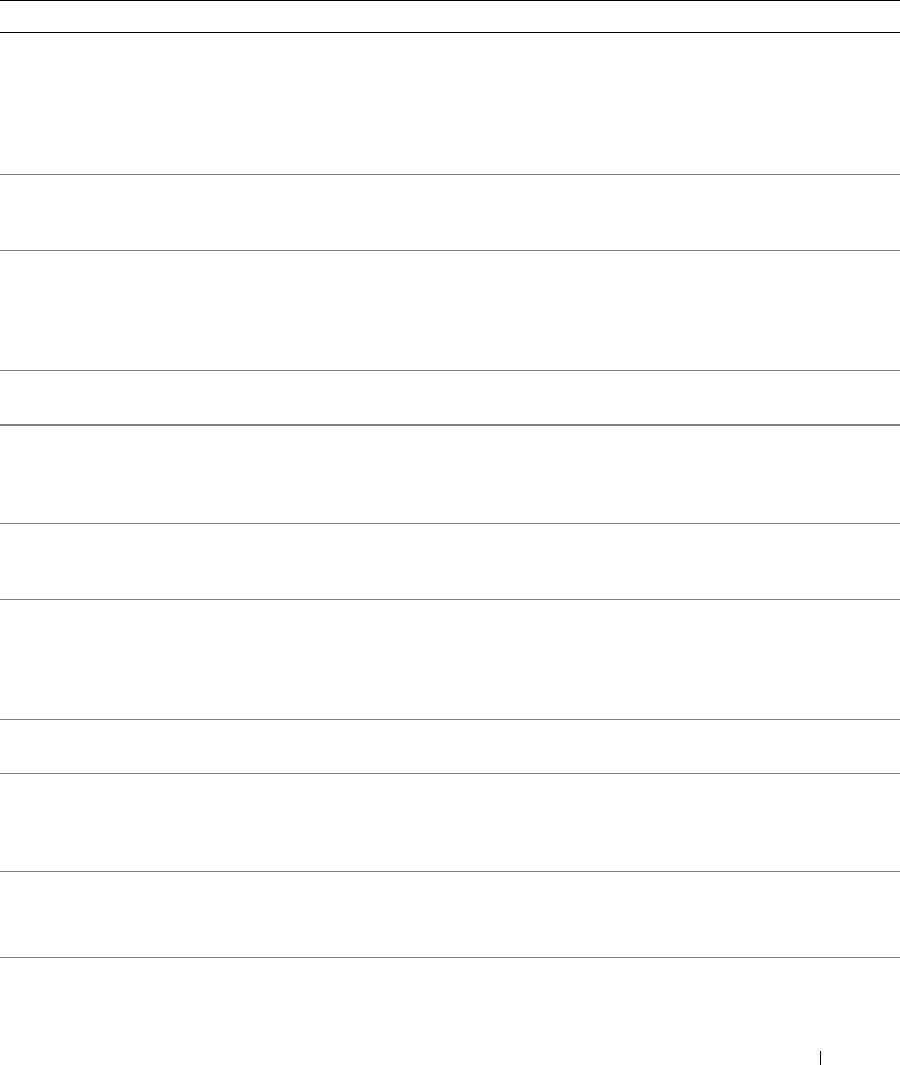
Table 1-4. System Messages (continued)
Message Causes Corrective Actions
Error: Incorrect memory
The installed memory modules are
See "Memory Module Installation
configuration. Ensure
not matched pairs.
Guidelines" on page 68.
memory in slots DIMM1_A
and DIMM1_B, DIMM2_A and
DIMM2_B match identically
in size, speed and rank.
Error: Remote Access
Faulty or improperly installed RAC. Ensure that the RAC is properly
Controller initialization
installed. See "Troubleshooting
failure.
Expansion Cards" on page 91.
Error 8602: Auxiliary
Loose or improperly connected mouse
Replace the mouse. If the problem
device failure. Verify
or keyboard cable; faulty mouse or
persists, replace the keyboard.
that mouse and keyboard
keyboard.
are securely attached to
correct connectors.
Gate A20 failure Faulty keyboard controller (faulty
See "Getting Help" on page 103.
system board).
General failure The operating system is unable to
This message is usually followed by
carry out the command.
specific information. Take the
appropriate action to resolve the
problem.
IDE Primary drive 0 not
Primary drive 0 set as Auto, no disk. Run the System Setup program to
found
correct the settings. See
"Using the
System Setup Program
" on page 29.
Invalid memory
Unsupported DIMMs are installed in
Replace or reconfigure the DIMMs. See
configuration detected.
the system, or the memory
"System Memory" on page 67 for
Potential for data
configuration is incorrect.
memory configuration guidelines, a list
corruption exists!
of supported DIMMs, and supported
memory configurations.
Keyboard controller
Faulty keyboard controller (faulty
See "Getting Help" on page 103.
failure
system board).
Keyboard data line failure
Loose or improperly connected
Ensure that the keyboard is properly
keyboard cable; faulty keyboard; faulty
connected. If the problem persists,
Keyboard failure
keyboard controller.
replace the keyboard. If the problem
Keyboard stuck key failure
persists, see "Getting Help" on page 103.
Keyboard fuse has failed. Keyboard fuse has failed. Replace the keyboard.
Faulty system board. If the problem persists, the system board
is faulty. See "Getting Help" on page 103.
Manufacturing mode
System is incorrectly configured.
detected
About Your System 17
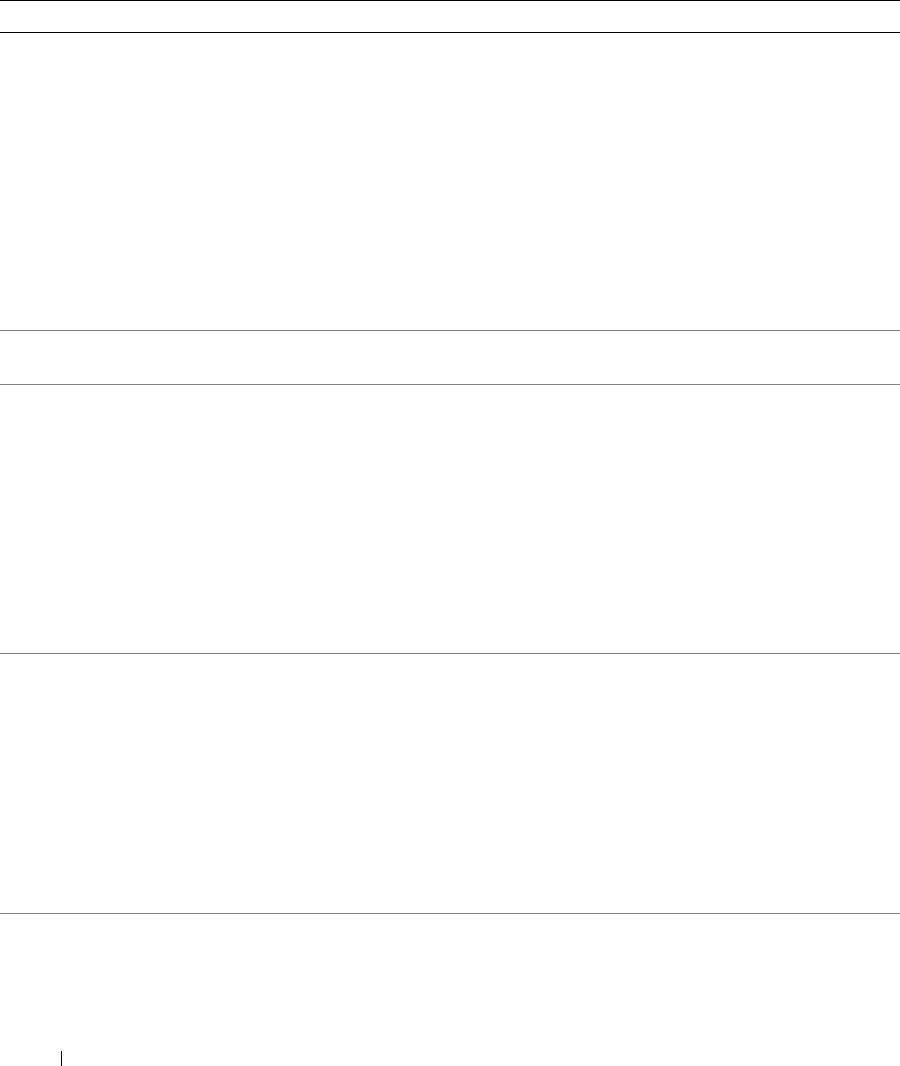
Table 1-4. System Messages (continued)
Message Causes Corrective Actions
Memory address line
Faulty or improperly installed memory
Ensure that all memory modules are
failure at
address
, read
modules, or faulty system board.
properly installed. See "Troubleshooting
value
expecting
value
System Memory" on page 88. If the
problem persists, see "Getting Help" on
Memory double word logic
page 103.
failure at
address
, read
value
expecting
value
Memory odd/even logic
failure at
start address
to
end address
Memory write/read failure
at
address
, read
value
expecting
value
Memory tests terminated by
The spacebar was pressed during
Information only.
keystroke
POST to terminate the memory test.
No boot device available The system cannot find the diskette or
If the diskette drive is your boot device,
hard drive.
ensure that a bootable disk is in the
drive.
If the hard drive is your boot device,
ensure that the hard drive is installed,
properly seated, and partitioned as a
boot device.
Enter the System Setup program and
verify the boot sequence information.
See your Hardware Owner’s Manual for
details.
No boot sector on
The system configuration information
Enter the System Setup program and
hard-disk drive
in the System Setup program might
verify the system configuration
be incorrect.
information for the hard drive. See your
Hardware Owner’s Manual for details.
If the message continues to appear after
verifying the information in the System
Setup program, the operating system
might have been corrupted.
Reinstall the
operating system. See your operating
system documentation for reinstallation
information.
No timer tick interrupt A chip on the system board might be
Run the system diagnostics. See
malfunctioning.
"Running the System Diagnostics" on
page 93.
18 About Your System
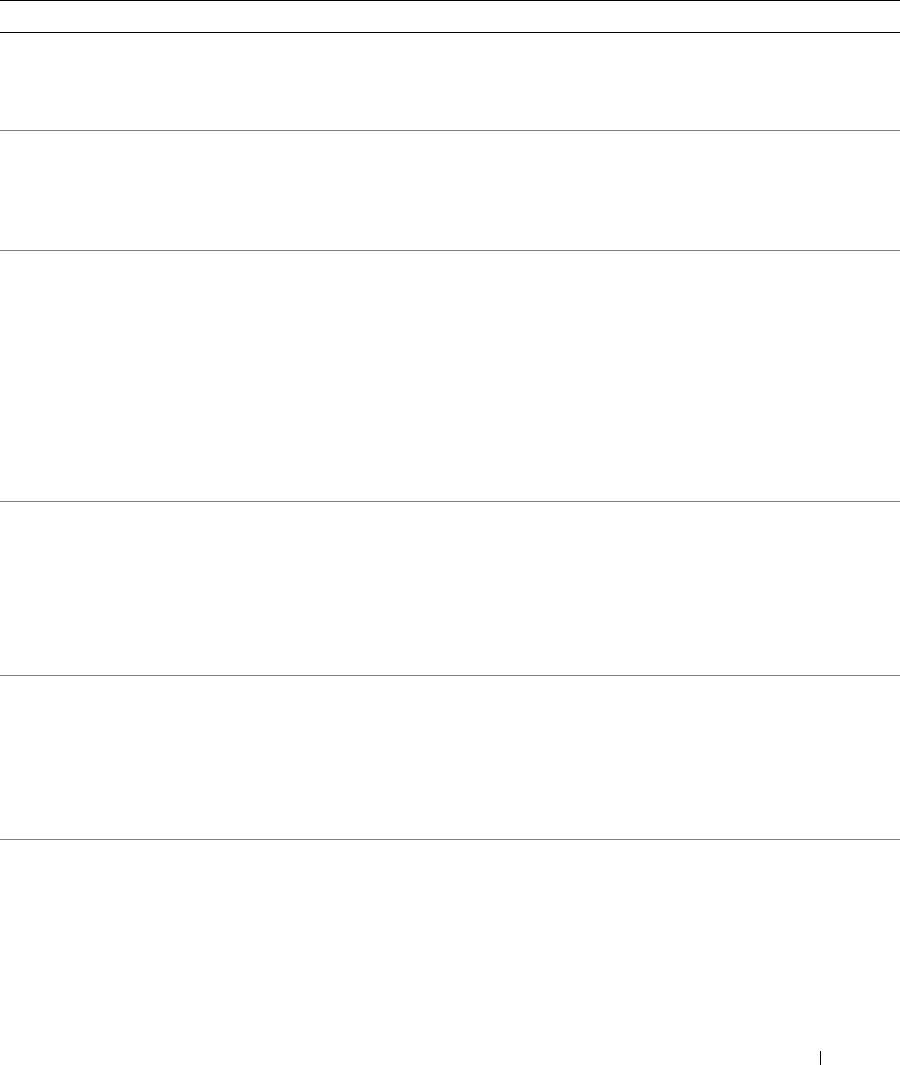
Table 1-4. System Messages (continued)
Message Causes Corrective Actions
Not a boot diskette The operating system is trying to boot
Insert a diskette that has a bootable
from a diskette that does not have a
operating system.
bootable operating system installed
on it.
PCI BIOS failed to install PCI device BIOS (Option ROM)
Ensure that all appropriate cables are
checksum failure is detected during
securely connected to the expansion
shadowing.
cards. If the problem persists, see
"Troubleshooting Expansion Cards" on
page 91.
PCIe Degraded Link Width
Faulty or improperly installed PCIe
Reseat the PCIe cards. See "Expansion
Error: Embedded
card.
Cards" on page 63. If the problem
Bus#
nn
/Dev#
nn
/Func
n
persists, see "Getting Help" on page 103.
Expected Link Width is
n
Actual Link Width is
n
PCIe Degraded Link Width
Faulty or improperly installed PCIe
Reseat the PCIe card in the specified
Error: Slot
n
card in the specified slot number.
slot number. See "Expansion Cards" on
page 63. If the problem persists, see
Expected Link Width is
n
"Getting Help" on page 103.
Actual Link Width is
n
PCIe Training Error:
Faulty or improperly installed PCIe
Reseat the PCIe cards. See "Expansion
Embedded
card.
Cards" on page 63. If the problem
Bus#
nn
/Dev#
nn
/Func
n
persists, see "Getting Help" on page 103.
PCIe Training Error:
Faulty or improperly installed PCIe
Reseat the PCIe card in the specified
Slot
n
card in the specified slot number.
slot number. See "Expansion Cards" on
page 63. If the problem persists, see
"Getting Help" on page 103.
Plug & Play Configuration
Error encountered in initializing PCI
Install the NVRAM_CLR jumper and
Error
device; faulty system board.
reboot the system. See Figure 6-1 for
jumper location. Check for a BIOS
update. If the problem persists, see
"Troubleshooting Expansion Cards" on
page 91. If the problem persists, see
"Getting Help" on page 103.
Primary drive 0/1
Faulty drive. Parameters failure. Ensure that the hard drive cables are
configuration error
properly connected. See
"Troubleshooting a Hard Drive" on
page 90.
About Your System 19
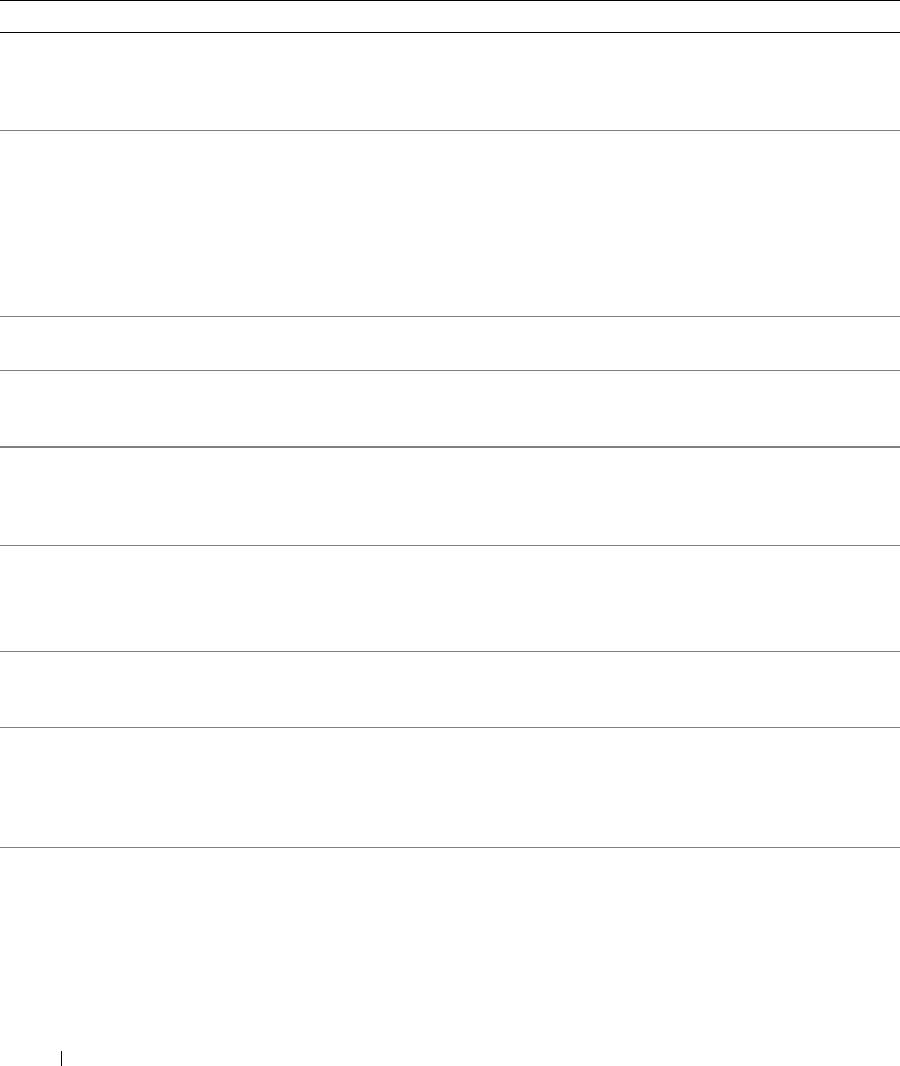
Table 1-4. System Messages (continued)
Message Causes Corrective Actions
Primary drive 0/1 failure Faulty drive. INT13 call failure from
Ensure that the hard drive cables are
the drive.
properly connected. See
"Troubleshooting a Hard Drive" on
page 90.
Read fault
The operating system cannot read
Replace the diskette. Ensure that the
from the diskette or hard drive, the
diskette and hard-drive cables are
Requested sector not found
system could not find a particular
properly connected. See
sector on the disk, or the requested
"Troubleshooting a USB Device" on
sector is defective.
page 83, "Troubleshooting a Hard Drive"
on page 90, or "Troubleshooting a Hard
Drive" on page 90 for the appropriate
drive(s) installed in your system.
Remote Configuration
System could not implement Remote
Retry Remote Configuration.
update attempt failed
Configuration request.
ROM bad checksum =
address
Faulty or improperly installed
Remove and reseat the expansion cards.
expansion card.
See "Troubleshooting Expansion Cards"
on page 91.
SATA port 0/1 hard disk
Faulty drive. Parameters failure. Ensure that the hard drive cables are
drive configuration error
properly connected. See
"Troubleshooting a Hard Drive" on
page 90.
SATA port 0/1 hard disk
Faulty drive. INT13 call failure from
Ensure that the hard drive cables are
drive failure
the drive.
properly connected. See
"Troubleshooting a Hard Drive" on
SATA port 0/1 hard disk
page 90.
drive auto-sensing error
SATA Port 0/1 hard disk not
SATA Port0/1 set as Auto, no disk
Run the System Setup program to
found
installed.
correct the settings. See "Using the
System Setup Program" on page 29.
Sector not found
Faulty diskette or hard drive. See "Troubleshooting a USB Device" on
page 83, "Troubleshooting a Hard Drive"
Seek error
on page 90, or "Troubleshooting a Hard
Seek operation failed
Drive" on page 90 for the appropriate
drive installed in your system.
Shutdown failure Shutdown test failure. Ensure that all memory modules are
properly installed. See "Troubleshooting
System Memory" on page 88. If the
problem persists, see "Getting Help" on
page 103.
20 About Your System
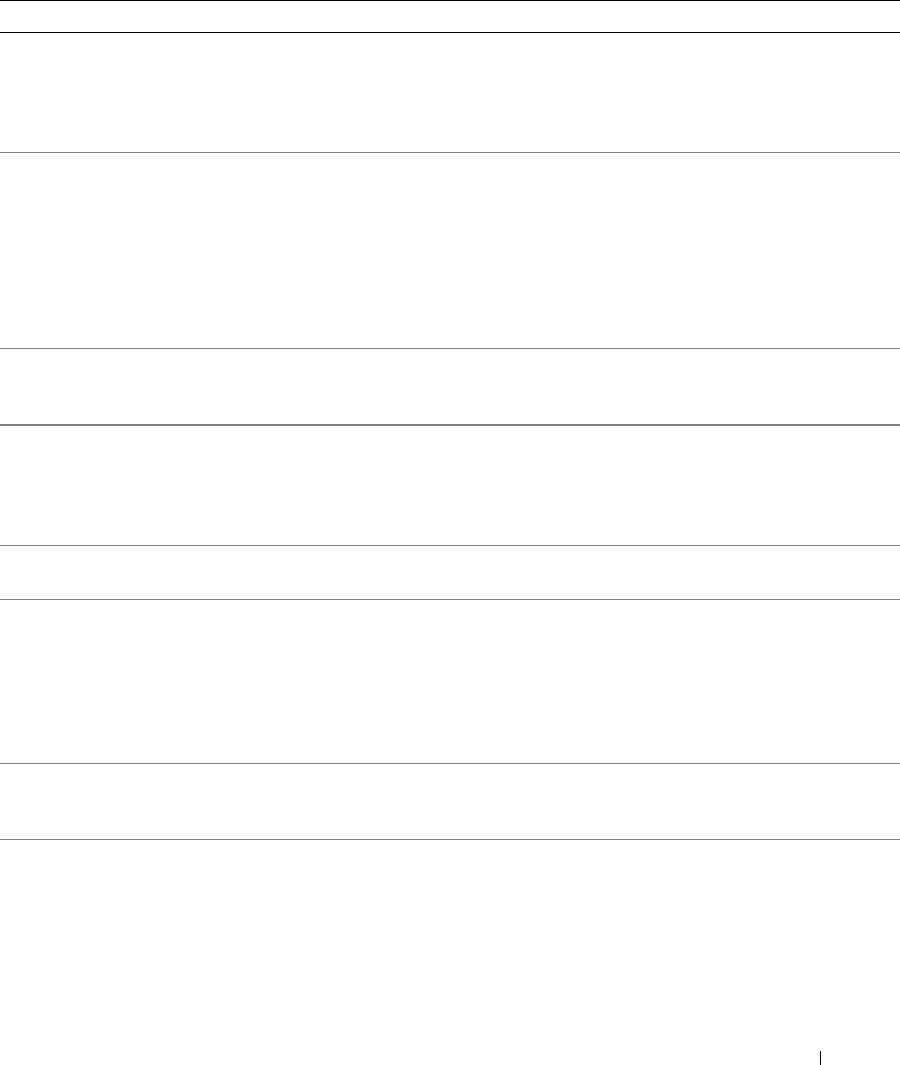
Table 1-4. System Messages (continued)
Message Causes Corrective Actions
The amount of system
Faulty memory module.
See "Troubleshooting System Memory"
memory has changed.
on page 88. If the problem persists, see
"Getting Help" on page 103.
Information only, if you have changed
the memory configuration.
The amount of tested
Invalid memory configuration. See "Memory Module Installation
memory is below the
Guidelines" on page 68.
minimum system
configuration. System
halted!
Faulty memory module. See "Troubleshooting System Memory"
on page 88. If the problem persists, see
"Getting Help" on page 103.
Time-of-day clock stopped Faulty battery; faulty system board. See "Troubleshooting the System
Battery" on page 86. If the problem
persists, see "Getting Help" on page 103.
Time-of-day not set -
Incorrect Time or Date settings; faulty
Check the Time and Date settings. See
please run SETUP program
system battery.
"Using the System Setup Program" on
page 29. If the problem persists, see
"Troubleshooting the System Battery" on
page 86.
Timer chip counter 2
Faulty system board. See "Getting Help" on page 103.
failed
Unexpected interrupt in
Faulty or improperly installed memory
Ensure that all memory modules are
protected mode
modules or faulty system board.
properly installed. See "Memory Module
Installation Guidelines" on page 68. If
the problem persists, see
"Troubleshooting System Memory" on
page 88. If the problem persists, see
"Getting Help" on page 103.
Utility partition not
Utility partition is not available on the
Create a utility partition on the boot
available
hard disk
hard drive. See the CDs that came with
your system.
Warning! No micro code
Micro code update failed. Update the BIOS firmware. See "Getting
update loaded for
Help" on page 103.
processor 0
About Your System 21
Table 1-4. System Messages (continued)
Message Causes Corrective Actions
Write fault
Faulty diskette, diskette drive, hard
Replace the diskette. Ensure that the
drive.
diskette drive and hard-drive cables are
Write fault on selected
properly connected. See
drive
"Troubleshooting a USB Device" on
page 83, "Troubleshooting a Hard Drive"
on page 90, or "Troubleshooting a Hard
Drive" on page 90 for the appropriate
drive(s) installed in your system.
Diagnostics Indicator Codes
The four diagnostics indicators on the system front panel display error codes during system startup.
Table 1-5 lists the causes and possible corrective actions associated with these codes.
Table 1-5. Diagnostic Indicator Codes
Code Causes Corrective Action
Possible processor failure. See "Troubleshooting the Microprocessor" on
page 92.
A B C D
Memory failure. See "Troubleshooting System Memory" on
page 88.
A B C D
Possible expansion card
See "Troubleshooting Expansion Cards" on
failure.
page 91.
A B C D
Possible video card
See "Troubleshooting Expansion Cards" on
failure.
page 91.
A B C D
= yellow
= green
= off
22 About Your System
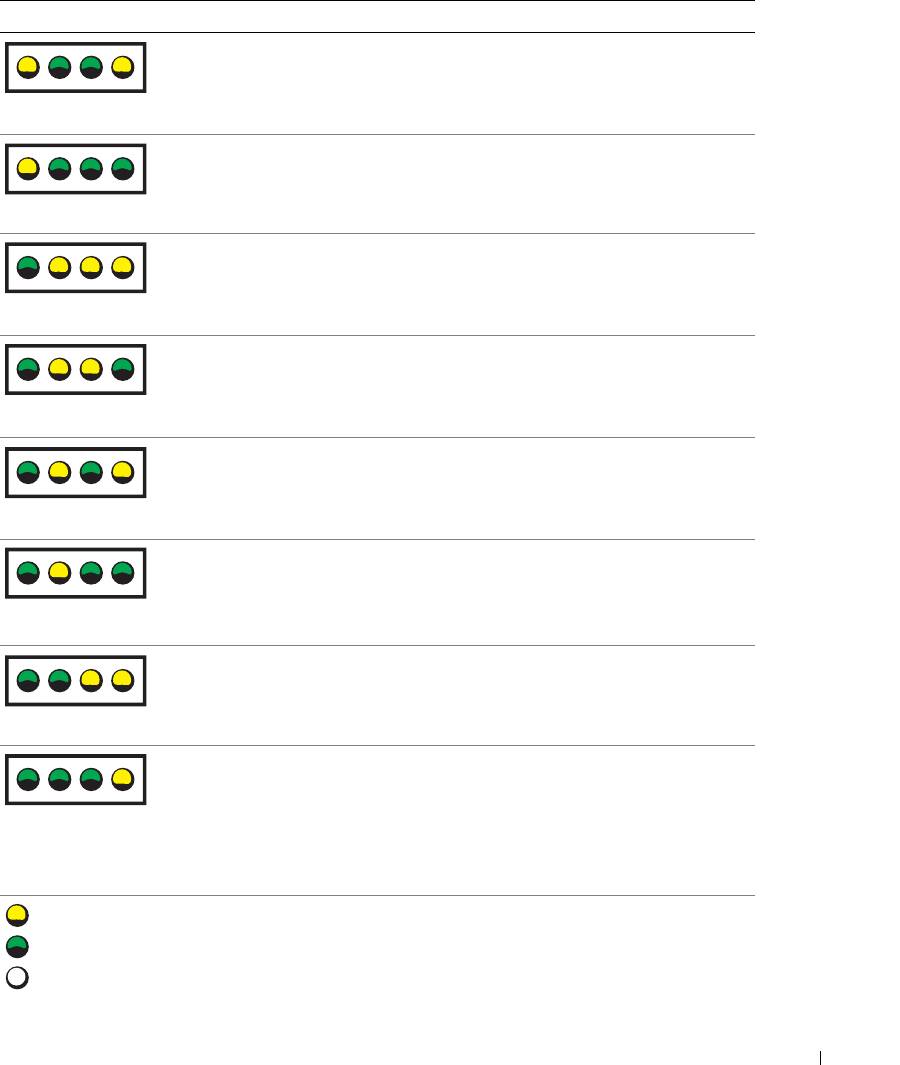
Table 1-5. Diagnostic Indicator Codes (continued)
Code Causes Corrective Action
Diskette drive or hard
Ensure that the diskette drive and hard-drive
drive failure.
are properly connected. See "Installing a Hard
Drive" on page 56 for information on the drives
A B C D
installed in your system.
Possible USB failure. See "Troubleshooting a USB Device" on
page 83.
A B C D
No memory modules
See "Troubleshooting System Memory" on
detected.
page 88.
A B C D
System board failure. See "Getting Help" on page 103.
A B C D
Memory configuration
See "Troubleshooting System Memory" on
error.
page 88.
A B C D
Possible system board
See "Troubleshooting IRQ Assignment
resource and/or system
Conflicts" on page 80. If the problem persists,
board hardware failure.
see "Getting Help" on page 103.
A B C D
Possible expansion card
See "Troubleshooting Expansion Cards" on
failure.
page 91.
A B C D
Other failure. Ensure that the optical drive and hard drives
are properly connected. See "Troubleshooting
Your System" on page 79 for the appropriate
A B C D
drive installed in your system.
If the problem persists, see "Getting Help" on
page 103.
= yellow
= green
= off
About Your System 23
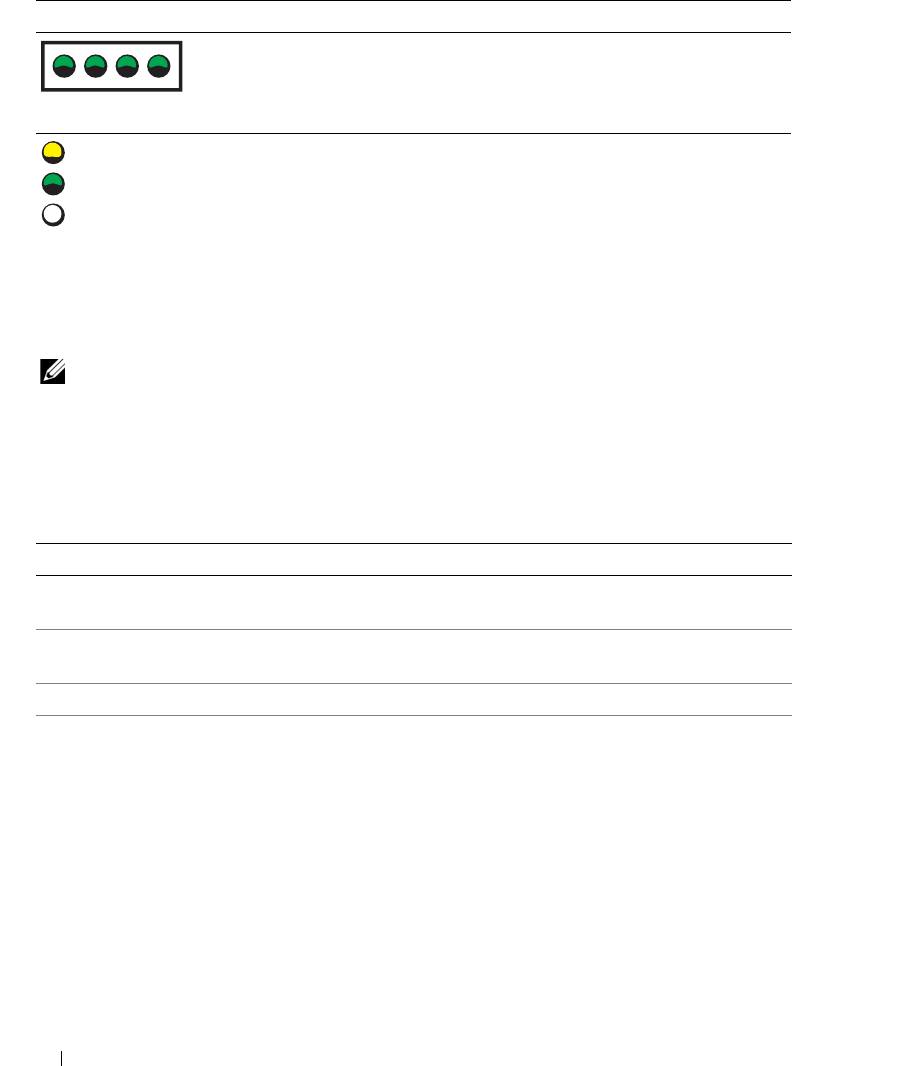
Table 1-5. Diagnostic Indicator Codes (continued)
Code Causes Corrective Action
The system is in a normal
Information only.
operating condition after
POST.
A B C D
= yellow
= green
= off
System Beep Codes
If an error that cannot be reported on the screen occurs during POST, the system may emit a series of beeps
that identifies the problem.
NOTE: If the system boots without a keyboard, mouse, or monitor attached, the system does not issue beep codes
related to those peripherals.
If a beep code is emitted, write down the series of beeps and then look it up in Figure 1-6. If you are unable
to resolve the problem by looking up the meaning of the beep code, use system diagnostics to identify the
possible cause. If you are still unable to resolve the problem, see "Getting Help" on page 103.
Table 1-6. System Beep Codes
Code Cause Corrective Action
1-1-2 CPU register test failure See "Troubleshooting the Microprocessor" on
page 92.
1-1-3 CMOS write/read failure; faulty
Faulty system board. See "Getting Help" on
system board
page 103.
1-1-4 BIOS error Reflash the BIOS.
1-2-1 Programmable interval-timer failure;
Faulty system board. See "Getting Help" on
faulty system board
page 103.
24 About Your System
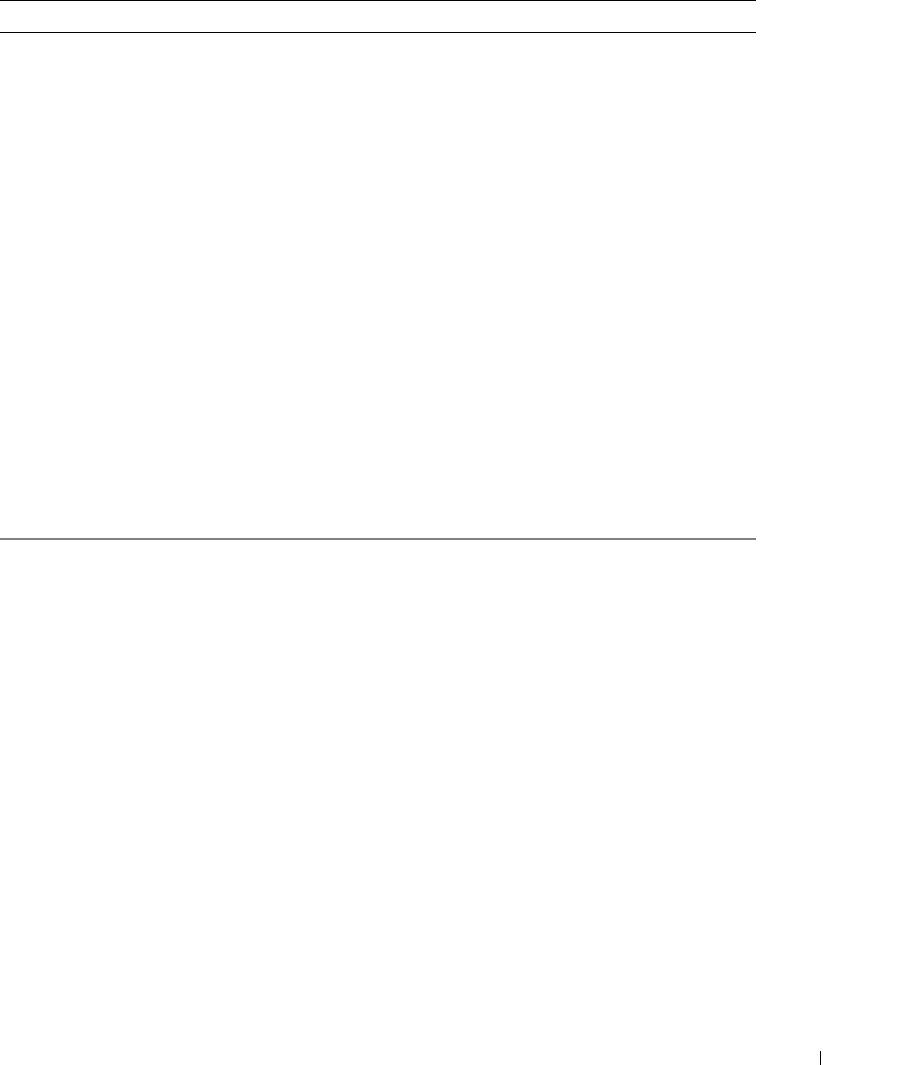
Table 1-6. System Beep Codes (continued)
Code Cause Corrective Action
1-2-2 DMA initialization failure See "Troubleshooting System Memory" on page 88.
1-2-3 DMA page register write/read failure
1-3-1 Main-memory refresh verification
failure
1-3-2 No memory installed
1-3-3 Chip or data line failure in the first
64 KB of main memory
1-3-4 Odd/even logic failure in the first
64 KB of main memory
1-4-1 Address line failure in the first 64 KB
of main memory
1-4-2 Parity failure in the first 64 KB of
main memory
1-4-3 Fail-safe timer test failure
1-4-4 Software NMI port test failure
2-1-1
Bit failure in the first 64 KB of main
through
memory
2-4-4
3-1-1 Slave DMA-register failure Faulty system board. See "Getting Help" on
page 103.
3-1-2 Master DMA-register failure
3-1-3 Master interrupt-mask register
failure
3-1-4 Slave interrupt-mask register failure
3-2-2 Interrupt vector loading failure
3-2-4 Keyboard-controller test failure
3-3-1 CMOS failure
3-3-2 System configuration check failure
3-3-3 Keyboard controller not detected
3-3-4 Video memory test failure
3-4-1 Screen initialization failure
3-4-2 Screen-retrace test failure
3-4-3 Video ROM search failure
About Your System 25
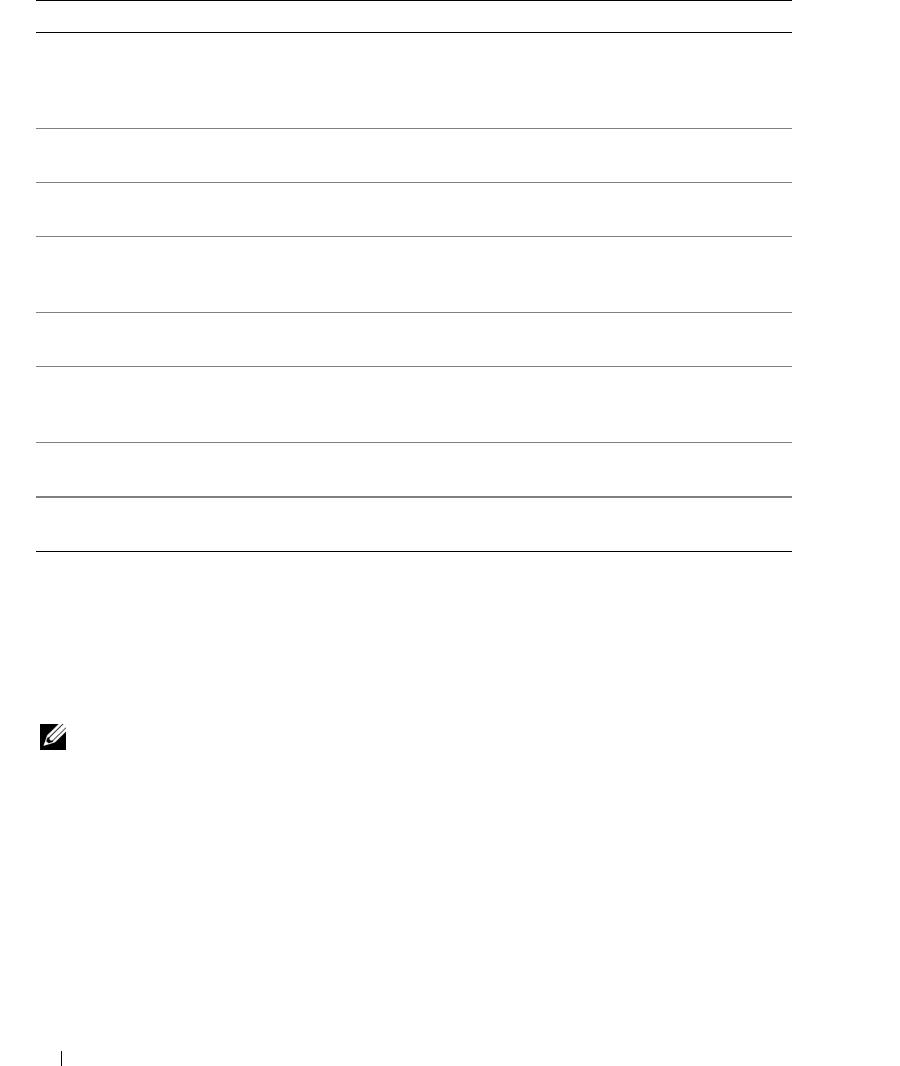
Table 1-6. System Beep Codes (continued)
Code Cause Corrective Action
4-2-1 No timer tick Faulty system board. See "Getting Help" on
page 103.
4-2-2 Shutdown test failure
4-2-3 Gate A20 failure
4-2-4 Unexpected interrupt in protected
See "Troubleshooting Expansion Cards" on
mode
page 91.
4-3-1 Improperly installed or faulty
See "Troubleshooting System Memory" on page 88.
memory modules
4-3-2 No memory modules installed in the
Install a memory module in the first memory
first memory module connector
module connector. See "System Memory" on
page 67.
4-3-3 Faulty system board Faulty system board. See "Getting Help" on
page 103.
4-3-4 Time-of-day clock stopped See "Troubleshooting System Memory" on page 88.
If the problem persists, see "Getting Help" on
page 103.
4-4-1 Super I/O chip failure; faulty system
Faulty system board. See "Getting Help" on
board
page 103.
4-4-4 Cache test failure; faulty processor See "Troubleshooting the Microprocessor" on
page 92.
Warning Messages
A warning message alerts you to a possible problem and prompts you to respond before the system
continues a task. For example, before you format a diskette, a message will warn you that you may lose all
data on the diskette. Warning messages usually interrupt the task and require you to respond by typing
y
(yes) or
n (no).
NOTE: Warning messages are generated by either the application or the operating system. For more information,
see the documentation that accompanied the operating system or application.
Diagnostics Messages
When you run system diagnostics, an error message may result. Diagnostic error messages are not
covered in this section. Record the message on a copy of the Diagnostics Checklist in "Getting Help" on
page 103, and then follow the instructions in that section for obtaining technical assistance.
26 About Your System

Alert Messages
Systems management software generates alert messages for your system. Alert messages include
information, status, warning, and failure messages for drive, temperature, fan, and power conditions. For
more information, see the systems management software documentation.
About Your System 27

28 About Your System
Using the System Setup Program
After you set up your system, run the System Setup program to familiarize yourself with your system
configuration and optional settings. Record the information for future reference.
You can use the System Setup program to:
• Change the system configuration stored in NVRAM after you add, change, or remove hardware
• Set or change user-selectable options—for example, the time or date
• Enable or disable integrated devices
• Correct discrepancies between the installed hardware and configuration settings
Entering the System Setup Program
1
Turn on or restart your system.
2
Press <F2> immediately after you see the following message:
<F2> = System Setup
If your operating system begins to load before you press <F2>, allow the system to finish booting,
and then restart your system and try again.
NOTE: To ensure an orderly system shutdown, see the documentation that accompanied your operating
system.
Responding to Error Messages
You can enter the System Setup program by responding to certain error messages. If an error message
appears while the system is booting, make a note of the message. Before entering the System Setup
program, see "System Messages" on page 15 for an explanation of the message and suggestions for
correcting errors.
NOTE: After installing a memory upgrade, it is normal for your system to send a message the first time you
start your system.
Using the System Setup Program
Table 2-1 lists the keys that you use to view or change information on the System Setup program
screens and to exit the program.
Using the System Setup Program 29
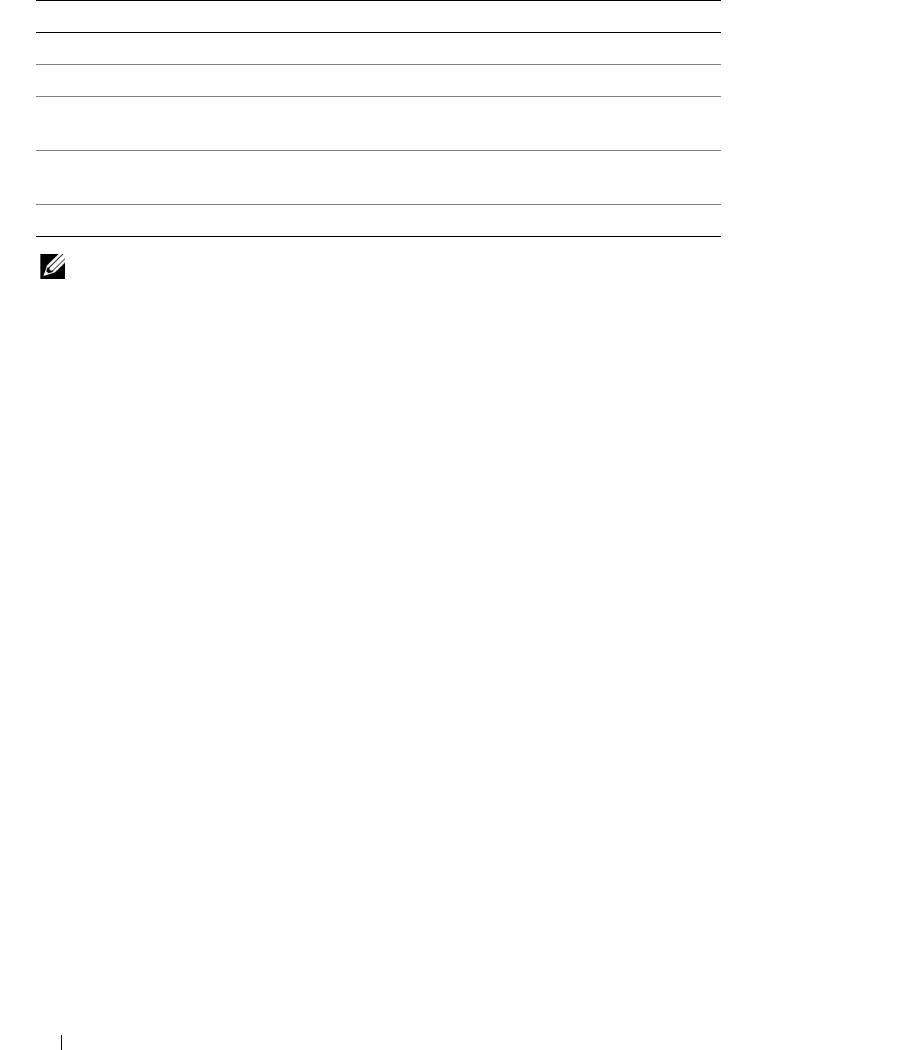
Table 2-1. System Setup Program Navigation Keys
Keys Action
Up arrow or <Shift><Tab> Moves to the previous field.
Down arrow or <Tab> Moves to the next field.
Spacebar, <+>, <
–>, left and
Cycles through the settings in a field. In many fields,
right arrows
you can also type the appropriate value.
<Esc> Exits the System Setup program and restarts the
system if any changes were made.
<F1> Displays the System Setup program
's help file.
NOTE: For most of the options, any changes that you make are recorded but do not take effect until you restart the
system.
System Setup Options
Main Screen
When you enter the System Setup program, the main System Setup program screen appears (see
Figure 2-1).
30 Using the System Setup Program
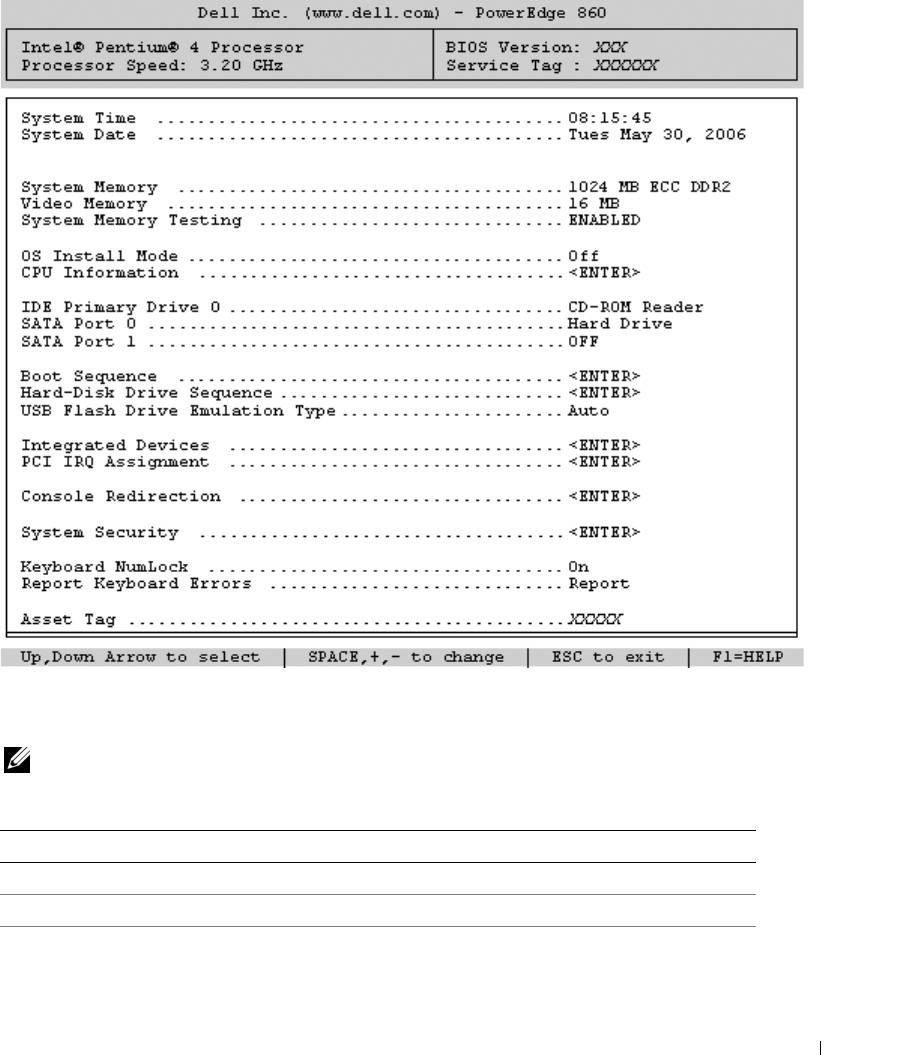
Figure 2-1. Main System Setup Program Screen
Table 2-2 lists the options and descriptions for the information fields that appear on the main System Setup
program screen.
NOTE: The System Setup program defaults are listed under their respective options, where applicable.
Table 2-2. System Setup Program Options
Option Description
System Time Resets the time on the system's internal clock.
System Date Resets the date on the system's internal calendar.
System Memory Displays the amount of system memory. This option does not have user-
selectable settings.
Using the System Setup Program 31
Table 2-2. System Setup Program Options (continued)
Option Description
Video Memory Displays the amount of video memory. This option does not have user-
selectable settings.
System Memory Testing
Determines if memory is being tested during POST.
(
Enabled default
)
OS Install Mode
Determines the maximum amount of memory available to the operating
(Off default)
system. On sets the maximum memory to 256 MB. Off makes all of the
system memory available to the operating system. Some operating
systems cannot install with more than 2 GB of system memory. Enable
this option (On) during operating system installation and disable (Off)
after installation.
CPU Information See "CPU Information Screen" on page 33.
IDE Primary Drive 0
Enables (
Auto
) or disables (
Off
) the IDE device in
Drive 0
(optical drive).
(Auto)
SATA Port (
0
–
1
)
Enables (
Auto
) or disables (
Off
) the SATA hard drive in
Port 0.
(Auto)
Boot Sequence Determines the order in which the system searches for boot devices
during system startup. Available options can include the diskette drive,
CD drive, hard drives, and network.
Hard-Disk Drive
Determines the order in which the system searches the hard drives during
Sequence
system startup. The selections depend on the hard drives installed in your
system.
USB Flash Drive
Determines the emulation type for a USB flash drive. Hard disk allows
Emulation Type
the USB flash drive to act as a hard drive. Auto automatically chooses an
(
Auto
default)
emulation type.
Integrated Devices See "Integrated Devices Screen" on page 34.
PCI IRQ Assignment Displays a screen to change the IRQ assigned to each of the integrated
devices on the PCI bus, and any installed expansion cards that require an
IRQ.
Console Redirection See "Console Redirection Screen" on page 35.
System Security Displays a screen to configure the system password and setup password
features. See "Using the System Password" on page 37 and "Using the
Setup Password" on page 39 for more information.
Keyboard NumLock
Determines whether your system starts up with the NumLock mode
(On default)
activated on 101– or 102–key keyboards (does not apply to 84-key
keyboards).
32 Using the System Setup Program
Table 2-2. System Setup Program Options (continued)
Option Description
Report Keyboard Errors
Enables or disables reporting of keyboard errors during the POST. Enable
(Report default)
this option for host systems that have keyboards attached. Select Do Not
Report to suppress all error messages relating to the keyboard or keyboard
controller during POST. This setting does not affect the operation of the
keyboard itself if a keyboard is attached to the system.
Asset Tag Displays the customer-programmable asset tag number for the system if
an asset tag number has been assigned.
CPU Information Screen
Table 2-3 lists the options and descriptions for the information fields that appear on the
CPU Information
screen.
Table 2-3. CPU Information Screen
Option Description
Bus Speed Displays the bus speed of the processor.
Logical Processor
Displays when the processor supports Hyper-Threading technology.
(Enabled default)
Enabled permits all logical processors to be used by the operating
system. Only the first logical processor is used by the operating
system if Disabled is selected.
Virtualization Technology
Displays when the processor(s) support Virtualization Technology.
(Disabled default)
Enabled permits virtualization software to use Virtualization
Technology incorporated in the processor design. This feature can
only be used by software that supports Virtualization Technology.
Adjacent Cache Line
Enables or disables optimal use of sequential memory access.
Prefetch
Disable this option for applications that require high use of random
(Enabled default)
memory access.
Hardware Prefetcher
Enables or disables the hardware prefetcher.
(Enabled default)
Demand-Based Power
When set to Enabled, the CPU Performance State Tables are
Management
reported to the operating system. When set to Disabled, the
(Disabled default)
Performance State Tables are not reported to the operating system.
If the processor does not support Demand-Based Power
Management, this field is read-only.
Processor 1 ID Displays the family and model number of each processor.
Core Speed Displays the clock speed of the processor.
Level 2 Cache Displays the amount of cache memory for the processor.
Number of Cores Displays the number of cores in the processor.
Using the System Setup Program 33
Table 2-3. CPU Information Screen (continued)
Option Description
®
64-Bit Technology Specifies if the installed processor supports Intel
64-bit
extensions.
Integrated Devices Screen
Table 2-4 lists the options and descriptions for the information fields that appear on the
Integrated Devices
screen.
Table 2-4. Integrated Devices Screen Options
Option Description
IDE Controller
Enables the integrated IDE controller. When set to Auto, each
(Auto default)
channel of the integrated IDE controller is enabled if IDE devices
are attached to the channel and the external IDE controller is not
detected.
SATA Controller
Allows the integrated SATA controller to be set to Off or ATA
(ATA default)
Mode. Off disables the SATA subsystem. ATA Mode sets the
SATA subsystem to Native IDE mode.
USB Controller
Enables or disables the system's USB ports. Options are On with
(On with BIOS support
BIOS support, On without BIOS support, or Off. Disabling the
default)
USB ports makes system resources available for other devices.
Embedded Gb NIC
Enables or disables the system's integrated NIC. Options are
(Enabled with PXE
Enabled with PXE and Disabled. PXE support allows the system
default)
to boot from the network. Changes take effect after the system
reboots.
MAC Address Displays the MAC address for the integrated 10/100/1000 NIC.
This field does not have user-selectable settings.
Secondary Embedded Gb
Enables or disables the system's secondary integrated NIC.
NIC
Options are Enabled without PXE and Disabled. PXE support
allows the system to boot from the network. Changes take effect
after the system reboots.
Secondary NIC MAC
Displays the MAC address for the secondary integrated
Address
10/100/1000 NIC. This field does not have user-selectable settings.
34 Using the System Setup Program
Table 2-4. Integrated Devices Screen Options (continued)
Option Description
Serial Port
Serial Port options are COM1, COM3, BMC Serial, BMC NIC,
(COM1 default)
COM1/BMC, and Off. If an optional remote access controller
(RAC) is installed in the system, RAC is an additional option.
Serial Port shares three usage models. For standard usage, Serial
Port attempts to use COM1 first, and then COM3. For BMC
usage, serial port 1 uses the COM1 address and communication
can be either via the serial port or the integrated shared NIC. RAC
control uses only the COM1 address.
The COM1/BMC setting allows you to toggle the system between
a COM1 setting and BMC Serial setting. In this mode, press
<ESC> to enter the BMC Serial setting and press <ESC><q>
to return to the COM1 setting.
Off and COM3 are not available options when Console
Redirection is set to use Serial Port 1.
Speaker
Enables or disables the system internal speaker.
(
On
default)
Console Redirection Screen
Table 2-5 lists the options and descriptions for the information fields that appear on the
Console
Redirection
screen.
Table 2-5. Console Redirection Screen Options
Option Description
Console Redirection
Sets the console redirection feature to Off or Serial Port.
(Off default)
Failsafe Baud Rate
Displays if the failsafe baud rate is used for console redirection.
(
115200
default)
Remote Terminal Type
Select either VT 100/VT 220 or ANSI.
(VT 100/VT 220 default)
Redirection After Boot
Enables or disables console redirection after your system restarts.
(Enabled default)
Using the System Setup Program 35
System Security Screen
Table 2-6 lists the options and descriptions for the information fields that appear on the
System Security
screen.
Table 2-6. System Security Screen Options
Option Description
System Password Displays the current status of your system's password security
feature and allows you to assign and verify a new system password.
NOTE: See "Using the System Password" on page 37 for instructions
on assigning a system password and using or changing an existing
system password.
Setup Password Restricts access to the System Setup program in the same way that
you restrict access to your system using the system password
feature.
NOTE: See "Using the Setup Password" on page 39 for instructions
on assigning a setup password and using or changing an existing
setup password.
Password Status Setting the Setup Password option to Enabled prevents the system
password from being changed or disabled at system start-up.
To lock the system password, assign a setup password in the Setup
Password option and then change the Password Status option to
Locked. In this state, you cannot change the system password
using the System Password option and the system password cannot
be disabled at system start-up by pressing <Ctrl><Enter>.
To unlock the system password, enter the setup password in the
Setup Password field and then change the Password Status option
to Unlocked. In this state, you can disable the system password at
system start-up by pressing <Ctrl><Enter> and then change the
password using the System Password option.
Power Button Turns system's power off and on.
• If you turn off the system using the power button and the system
is running an ACPI-compliant operating system, the system can
perform an orderly shutdown before power is turned off.
• If the system is not running an ACPI-compliant operating system,
power is turned off immediately after the power button is pressed.
The button is enabled in the System Setup program. When
disabled, the button can only turn on system power.
NOTE: You can still turn on the system by using the power button,
even if the Power Button option is set to Disabled.
36 Using the System Setup Program
Table 2-6. System Security Screen Options (continued)
Option Description
NMI Button This field enables/disables the NMI button on the front panel.
NOTICE: Use the NMI button only if directed to do so by
qualified support personnel or by the operating system's
documentation. Pressing this button halts the operating system
and displays a diagnostic screen.
Sets the NMI feature On or Off.
AC Power Recovery
Determines how the system reacts when power is restored to the
(
Last
default)
system. If system is set to Last, the system returns to the last power
state. On turns on the system after power is restored. When set to
Off, the system remains off after power is restored.
Exit Screen
After you press <Esc> to exit the System Setup program, the
Exit
screen displays the following options:
•
Save Changes and Exit
•
Discard Changes and Exit
•
Return to Setup
System and Setup Password Features
NOTICE: The password features provide a basic level of security for the data on your system. If your data requires
more security, use additional forms of protection, such as data encryption programs.
NOTICE: Anyone can access the data stored on your system if you leave the system running and unattended
without having a system password assigned or if you leave your system unlocked so that someone can disable the
password by changing a jumper setting.
Your system is shipped to you without the system password feature enabled. If system security is a concern,
operate your system only with system password protection.
To change or delete an existing password, you must know the password (see "Deleting or Changing an
Existing System Password" on page 39). If you forget your password, you cannot operate your system or
change settings in the System Setup program until a trained service technician changes the password
jumper setting to disable the passwords, and erases the existing passwords. This procedure is described in
"Disabling a Forgotten Password" on page 101.
Using the System Password
After a system password is assigned, only those who know the password have full use of the system. When
the
System Password
option is set to
Enabled
, the system prompts you for the system password after the
system starts.
Using the System Setup Program 37

Assigning a System Password
Before you assign a system password, enter the System Setup program and check the
System Password
option.
When a system password is assigned, the setting shown for the
System Password
option is
Enabled
. If the
setting shown for the
Password Status
is
Unlocked
, you can change the system password. If the
Password
Status
option is
Locked
, you cannot change the system password. When the system password feature is
disabled by a jumper setting, the system password is
Disabled
, and you cannot change or enter a new system
password.
When a system password is not assigned and the password jumper on the system board is in the enabled
(default) position, the setting shown for the
System Password
option is
Not Enabled
and the
Password
Status
field is
Unlocked
. To assign a system password:
1
Verify that the
Password Status
option is set to
Unlocked
.
2
Highlight the
System Password
option and press <Enter>.
3
Type your new system password.
You can use up to 32 characters in your password.
As you press each character key (or the spacebar for a blank space), a placeholder appears in the field.
The password assignment is not case-sensitive. However, certain key combinations are not valid. If you
enter one of these combinations, the system beeps. To erase a character when entering your password,
press <Backspace> or the left-arrow key.
NOTE: To escape from the field without assigning a system password, press <Enter> to move to another field,
or press <Esc> at any time prior to completing step 5.
4
Press <Enter>.
5
To confirm your password, type it a second time and press <Enter>.
The setting shown for the
System Password
changes to
Enabled
. Exit the System Setup program and
begin using your system.
6
Either reboot your system now for your password protection to take effect or continue working.
NOTE: Password protection does not take effect until you reboot the system.
Using Your System Password to Secure Your System
NOTE: If you have assigned a setup password (see "Using the Setup Password" on page 39), the system accepts
your setup password as an alternate system password.
When the
Password Status
option is set to
Unlocked
, you have the option to leave the password security
enabled or to disable the password security.
To leave the password security enabled:
1
Turn on or reboot your system by pressing <Ctrl><Alt><Del>.
2
Type your password and press <Enter>.
38 Using the System Setup Program
To disable the password security:
1
Turn on or reboot your system by pressing <Ctrl><Alt><Del>.
2
Type your password and press <Ctrl><Enter>.
When the
Password Status
option is set to
Locked
whenever
you turn on your system or reboot your system
by pressing <Ctrl><Alt><Del>, type your password and press <Enter> at the prompt.
After you type the correct system password and press <Enter>, your system operates as usual.
If an incorrect system password is entered, the system displays a message and prompts you to re-enter your
password. You have three attempts to enter the correct password. After the third unsuccessful attempt, the
system displays an error message showing the number of unsuccessful attempts and that the system has
halted and will shut down. This message can alert you to an unauthorized person attempting to use your
system.
Even after you shut down and restart the system, the error message continues to be displayed until the
correct password is entered.
NOTE: You can use the Password Status option in conjunction with the System Password and Setup Password
options to further protect your system from unauthorized changes.
Deleting or Changing an Existing System Password
1
When prompted, press <Ctrl><Enter> to disable the existing system password.
If you are asked to enter your setup password, contact your network administrator.
2
Enter the System Setup program by pressing <F2> during POST.
3
Select the
System Security
screen field to verify that the
Password Status
option is set to
Unlocked
.
4
When prompted, type the system password.
5
Confirm that
Not Enabled
is displayed for the
System Password
option.
If
Not Enabled
is displayed for the
System Password
option, the system password has been deleted. If
Enabled
is displayed for the
System Password
option, press the <Alt><b> key combination to restart
the system, and then repeat steps 2 through 5.
Using the Setup Password
Assigning a Setup Password
You can assign (or change) a setup password only when the
Setup Password
option is set to
Not Enabled
. To
assign a setup password, highlight the
Setup Password
option and press the <
+>
or
<–>
key. The system
prompts you to enter and verify the password. If a character is illegal for password use, the system beeps.
NOTE: The setup password can be the same as the system password. If the two passwords are different, the setup
password can be used as an alternate system password. However, the system password cannot be used in place of
the setup password.
You can use up to 32 characters in your password.
Using the System Setup Program 39

As you press each character key (or the spacebar for a blank space), a placeholder appears in the field.
The password assignment is not case-sensitive. However, certain key combinations are not valid. If you enter
one of these combinations, the system beeps. To erase a character when entering your password, press
<Backspace> or the left-arrow key.
After you verify the password, the
Setup Password
setting changes to
Enabled
. The next time you enter the
System Setup program, the system prompts you for the setup password.
A change to the
Setup Password
option becomes effective immediately (restarting the system is not
required).
Operating With a Setup Password Enabled
If
Setup Password
is set to
Enabled
, you must enter the correct setup password before you can modify most
of the System Setup options. When you start the System Setup program, the program prompts you to enter
a password.
If you do not enter the correct password in three attempts, the system lets you view, but not modify, the
System Setup screens—with the following exception: If
System Password
is not set to
Enabled
and is not
locked through the
Password Status
option, you can assign a system password (however, you cannot disable
or change an existing system password).
NOTE: You can use the Password Status option in conjunction with the Setup Password option to protect the
system password from unauthorized changes.
Deleting or Changing an Existing Setup Password
1
Enter the System Setup program and select the
System Security
option.
2
Highlight the
Setup Password
option, press <Enter> to access the setup password window, and press
<Enter> twice to clear the existing setup password.
The setting changes to
Not Enabled
.
3
If you want to assign a new setup password, perform the steps in "Assigning a Setup Password" on
page 39.
Disabling a Forgotten Password
See
"Disabling a Forgotten Password
" on page 101
.
Baseboard Management Controller Configuration
The Baseboard Management Controller (BMC) enables configuring, monitoring, and recovery of systems
remotely. BMC provides the following features:
• Uses the system’s serial port and integrated NIC
• Fault logging and SNMP alerting
• Access to system event log and sensor status
40 Using the System Setup Program

• Control of system functions including power on and off
• Support is independent of the system’s power or operating state
• Provides text console redirection for system setup, text-based utilities, and operating system consoles
NOTE: To remotely access the BMC through the integrated NIC, you must connect the network connection to
integrated NIC1.
For additional information on using BMC, see the documentation for the BMC and systems management
applications.
Entering the BMC Setup Module
1
Turn on or restart your system.
2
Press <
Ctrl-E
> when prompted after POST.
If your operating system begins to load before you press <
Crtl-E
>, allow the system to finish
booting, and then restart your system and try again.
BMC Setup Module Options
For information about the BMC Setup Module options and how to configure the emergency management
port (EMP), see the
BMC User’s Guide
.
Using the System Setup Program 41

42 Using the System Setup Program

Installing System Components
This section describes how to install the following system components:
• Cooling shroud
• System battery
• Optical drive
• Hard drives
• Fan assembly
• Optional PCI fan
• Power supply
• Expansion cards
• Riser card
• System memory
• Processor
• Control panel
• System board
Recommended Tools
You may need the following items to perform the procedures in this section:
• Key to the system keylock
• Wrist grounding strap
• #2 Phillips screwdriver
Inside the System
In Figure 3-1, the bezel and system cover are removed to provide an interior view of the system.
Installing System Components 43
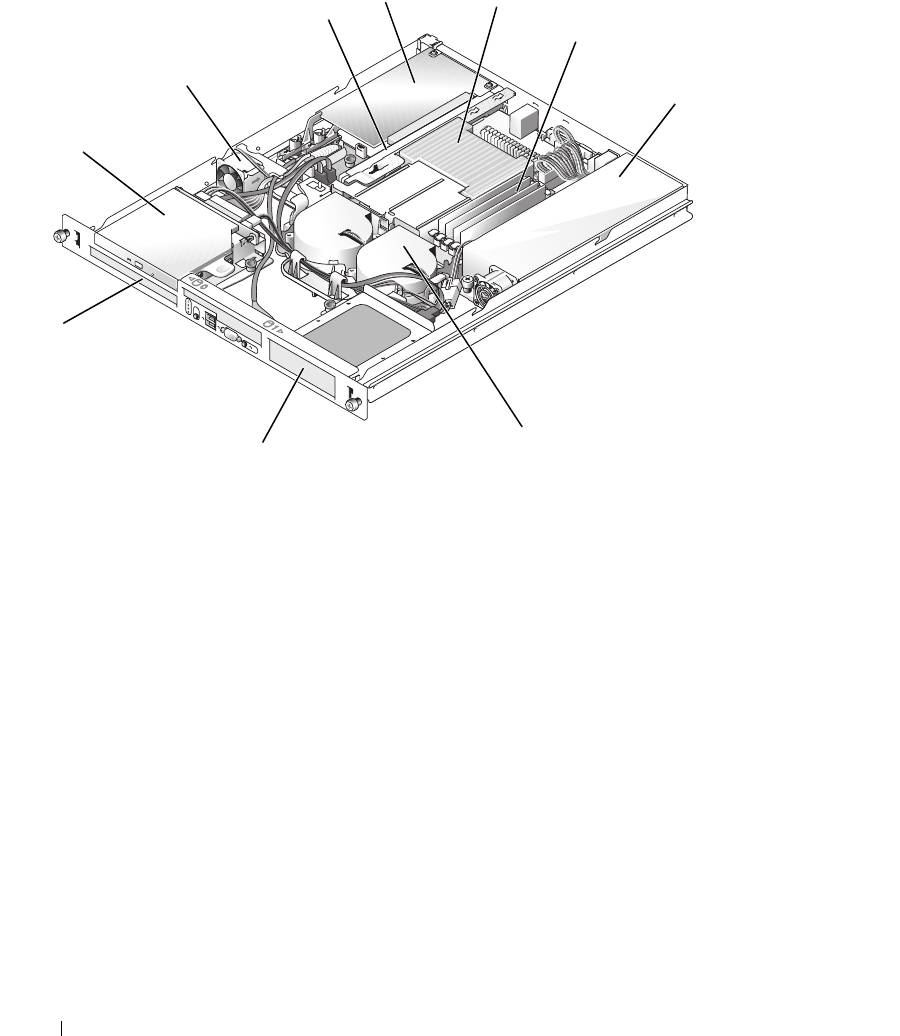
Figure 3-1. Inside the System
4
5
3
6
2
7
1
10
8
9
1 optical drive (optional) 2 PCI fan 3 riser card
4 PCI expansion card (optional) 5 processor and heat sink 6 memory modules (4)
7 power supply 8 processor fan module 9 hard drive 1
10 hard drive 0
The system board holds the system's control circuitry and other electronic components. The processor
and memory are installed directly on the system board. Using a riser card, the system can accommodate
two expansion cards. The peripheral bays provide space for up to two hard drives and an optional optical
drive. Power is supplied to the system board and drives through one nonredundant power supply.
Opening and Closing the System
The system is enclosed by an optional bezel and cover. To upgrade or troubleshoot the system, remove
the bezel and cover.
44 Installing System Components
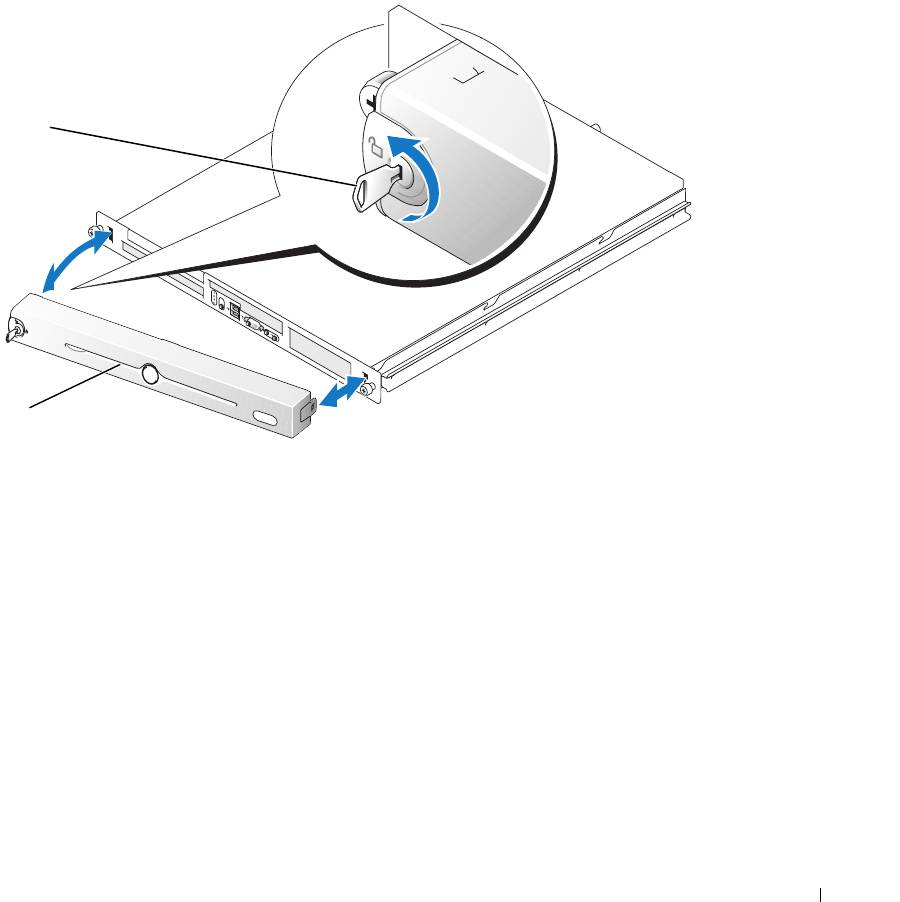
Removing the Bezel
1
Unlock the bezel. See Figure 3-2.
2
Unlatch the left end of the bezel and rotate it away from the front panel.
3
Unhook the right end of the bezel and pull the bezel away from the system.
Figure 3-2. Installing and Removing the Optional Bezel
1
2
1 key lock 2 bezel
Installing the Bezel
1
Hook the right end of the bezel into the bezel slot on the right side of the system front plate
2
Rotate the other end of the bezel toward the front panel and press the bezel onto the panel to engage
the latch.
3
Lock the bezel.
Installing System Components 45
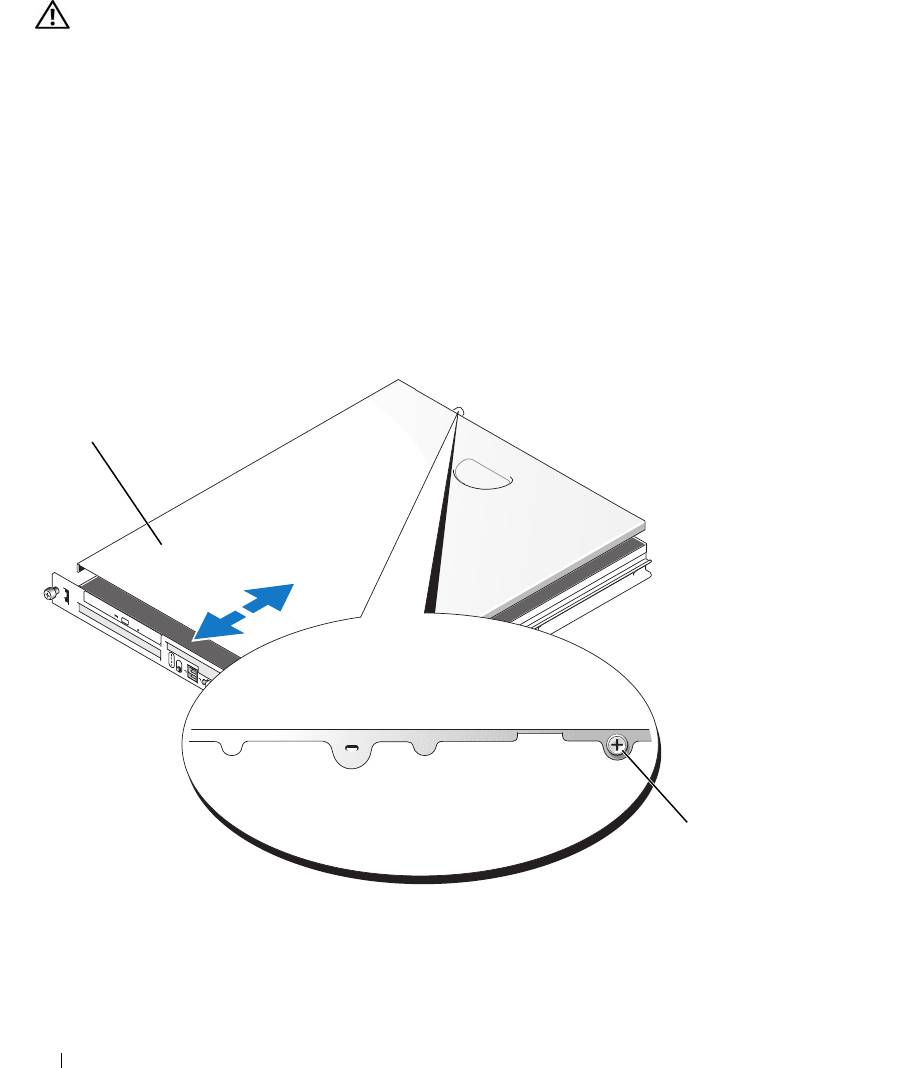
Opening the System
CAUTION: Only trained service technicians are authorized to remove the system cover and access any of the
components inside the system. Before performing any procedure, see your Product Information Guide for
complete information about safety precautions, working inside the computer and protecting against electrostatic
discharge.
1
Turn off the system and attached peripherals, and disconnect the system from the electrical outlet and
peripherals.
2
Extend the system out of the rack to the locked position. If the system is installed on static rails,
remove the system from the rack and place it on a work surface.
3
To remove the system cover, loosen the thumbscrew at the back of the system. See Figure 3-3.
4
Slide the cover backward about 1.3 cm (0.5 inch), and grasp the cover on both sides.
5
Carefully lift the cover away from the system.
Figure 3-3. Installing and Removing the System Cover
1
2
1 system cover 2 thumbscrew
46 Installing System Components

Closing the System
1
Ensure that you did not leave tools or parts inside the system.
2
Place the cover over the sides of the chassis, and slide the cover forward.
3
Tighten the thumbscrew at the back of the system to secure the cover. See Figure 3-3.
4
Replace the system in the rack, and reconnect the peripheral cables.
5
Reconnect the system to the electrical outlet, and turn on the system.
Cooling Shroud
The cooling shroud covers the processor and system battery and provides air flow to these components
and the system memory.
Removing the Cooling Shroud
CAUTION: Only trained service technicians are authorized to remove the system cover and access any of the
components inside the system. Before performing any procedure, see your Product Information Guide for
complete information about safety precautions, working inside the computer and protecting against electrostatic
discharge.
1
Open the system. See "Opening the System" on page 46.
2
While grasping the cooling shroud, press the release latch and lift the shroud away from the fan
assembly. See Figure 3-4.
3
Remove the cooling shroud.
Installing System Components 47
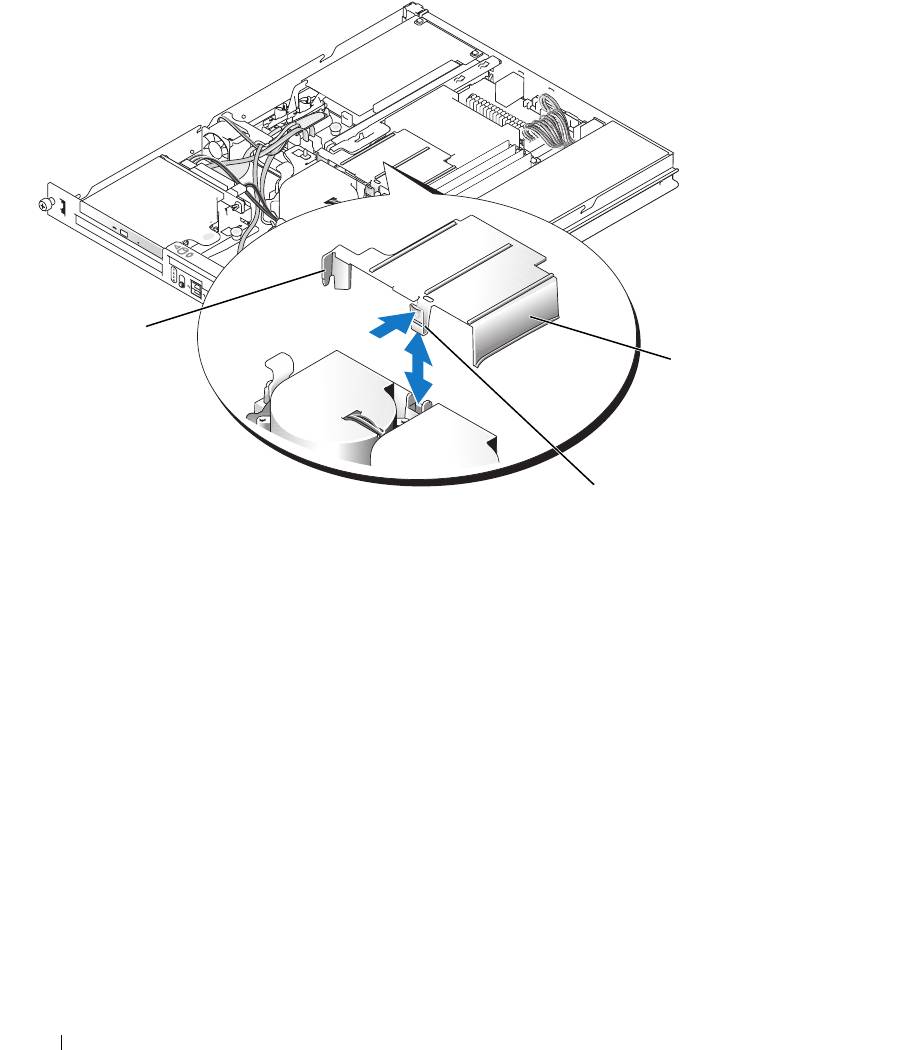
Figure 3-4. Installing and Removing the Cooling Shroud
1
3
2
1 tab 2 release latch 3 cooling shroud
Installing the Cooling Shroud
1
Insert the tab on the side of the cooling shroud and the release latch into the fan assembly. See
Figure 3-4.
2
Push the cooling shroud down until the release latch snaps into place, securing the shroud to the fan
assembly.
3
Close the system. See "Closing the System" on page 47.
48 Installing System Components
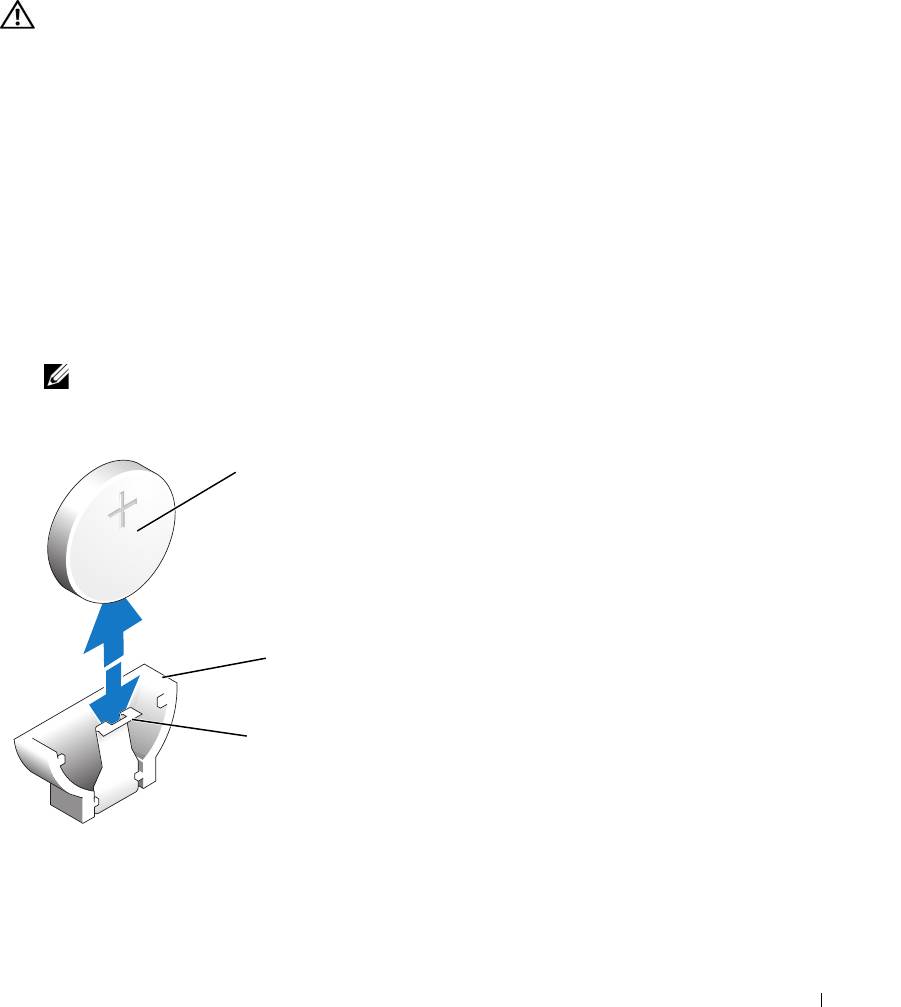
System Battery
Replacing the System Battery
CAUTION: Only trained service technicians are authorized to remove the system cover and access any of the
components inside the system. Before performing any procedure, see your Product Information Guide for
complete information about safety precautions, working inside the computer and protecting against electrostatic
discharge.
1
Enter the System Setup program and, if possible, make a printed copy of the System Setup screens.
See "Using the System Setup Program" on page 29.
2
Open the system. See "Opening the System" on page 46.
3
Remove the cooling shroud. See "Removing the Cooling Shroud" on page 47.
4
Remove the riser card. See "Removing the Riser Card" on page 66.
5
Locate the battery on the system board. See Figure 6-2 for the battery location.
6
Grasp the battery with your fingers and pull it out of the battery socket. See Figure 3-5.
7
Push the new battery into the battery socket as shown in Figure 3-5.
NOTE: The side of the battery labeled "+" must face toward the open side of the battery socket.
Figure 3-5. Replacing the Battery
1
2
3
1 battery 2 battery socket 3 retention tab
Installing System Components 49

8
Reinstall the riser card. See "Installing the Riser Card" on page 67.
9
Install the cooling shroud. See "Installing the Cooling Shroud" on page 48.
10
Close the system. See "Closing the System" on page 47.
11
Enter the System Setup program to confirm that the battery operates properly.
12
From the main screen, select
System Time
to enter the correct time and date.
Also, re-enter any system configuration information that is no longer displayed on the System Setup
screens, and then exit the System Setup program.
13
To test the newly installed battery, see "Troubleshooting the System Battery" on page 86.
Optical Drive
The optional optical drive is mounted in a bracket using two alignment pins and a spring clip on top of
hard drive 0. An interposer card is connected to the back of the drive which allows the drive to be
connected to the IDE connector on the system board.
Removing the Optical Drive
CAUTION: Only trained service technicians are authorized to remove the system cover and access any of the
components inside the system. Before performing any procedure, see your Product Information Guide for
complete information about safety precautions, working inside the computer and protecting against electrostatic
discharge.
1
Open the system. See "Opening the System" on page 46.
2
Disconnect the power and interface cables from the optical drive's interposer card.
3
Pull the two captive fasteners that secure the interposer card to the hard drive 0 carrier. See Figure 3-6.
4
Disconnect the interposer card from the optical drive.
5
Press the bracket release lever that secures the optical drive to the hard drive 0 carrier. See Figure 3-6.
6
Lift and tilt the optical drive up and out of the bracket as shown in Figure 3-6.
50 Installing System Components
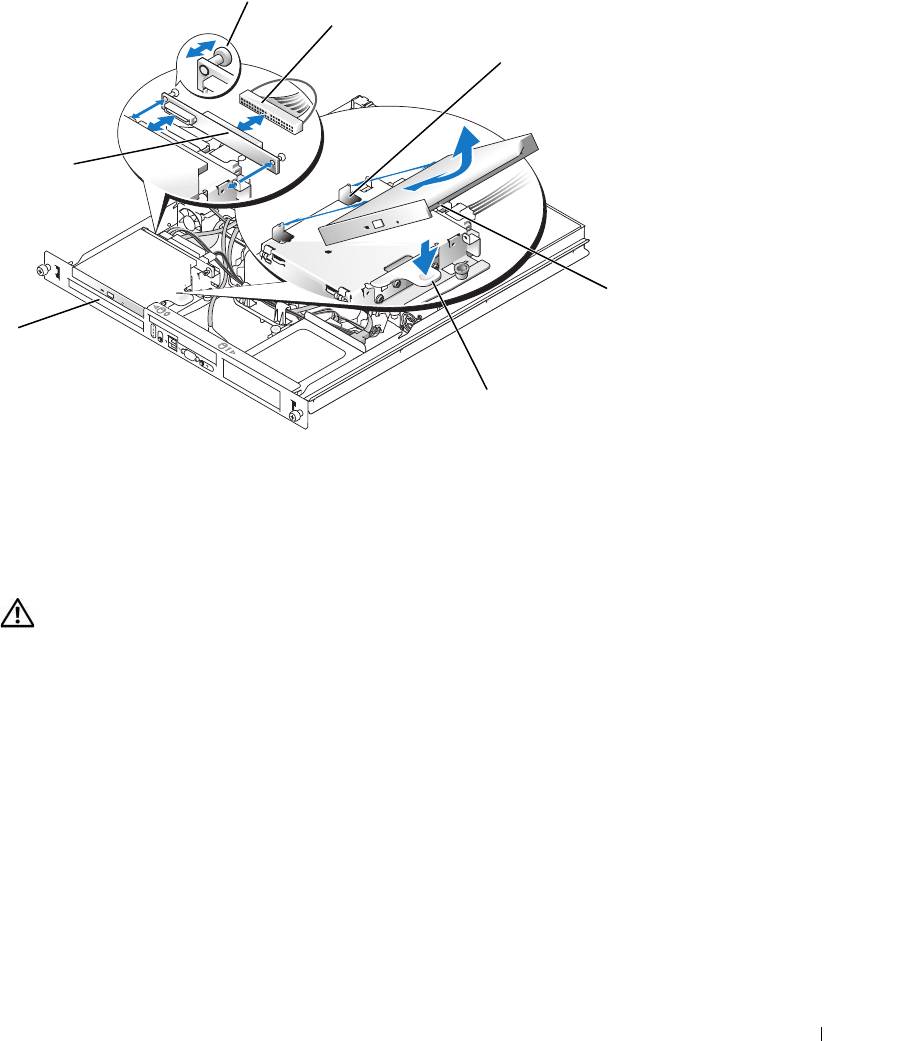
Figure 3-6. Removing and Installing the Optional Optical Drive
2
3
4
1
5
7
6
1 interposer board 2 captive fasteners (2) 3 interface cable
4 retaining pins (4) 5 mounting holes (4) 6 bracket release lever
7 hard drive 0
Installing the Optical Drive
CAUTION: Only trained service technicians are authorized to remove the system cover and access any of the
components inside the system. Before performing any procedure, see your Product Information Guide for
complete information about safety precautions, working inside the computer and protecting against electrostatic
discharge.
1
Align the optical drive's mounting holes with the retaining pins on the hard drive 0 bracket. See
Figure 3-6.
2
Rotate the drive downward until it snaps into place.
3
Connect the interposer card to the optical drive.
Push the plungers into the captive fastener barrels until they snap into place.
4
Connect the interface and power cables to the optical drive's interposer card.
5
Close the system. See "Closing the System" on page 47.
Installing System Components 51

Configuring the Boot Drive
The drive or device from which the system boots is determined by the boot order specified in the System
Setup program. See "Using the System Setup Program" on page 29. To boot the system from a hard drive
or drive array, the drive(s) must be connected to the appropriate controller:
• For systems using the integrated hard-drive controller, the master drive (drive 0) must be connected to
the SATA_PORT_0 connector on the system board. To identify system board connectors, see
Figure 6-2.
• For systems with a SAS controller installed, the hard drive must be connected to the SAS controller
card. See the documentation that accompanied the controller card.
• To boot from a SAS RAID array, the drive must be connected to the RAID controller card. See the
documentation that accompanied the controller card.
Hard Drives
Your system contains up to two non-hot-pluggable SATA or SAS hard drives. If your system contains SAS
hard drives, they must be connected to a SAS controller card. The cables for hard drive 1 are routed
through a cable clamp mounted to the chassis.
Removing a Hard Drive
The procedures for removing and installing SATA or SAS hard drives are the same.
CAUTION: Only trained service technicians are authorized to remove the system cover and access any of the
components inside the system. Before performing any procedure, see your Product Information Guide for
complete information about safety precautions, working inside the computer and protecting against electrostatic
discharge.
1
Open the system. See "Opening the System" on page 46.
2
If applicable, remove the optical drive.
Remove the optical drive if you are removing hard drive 0. See "Removing the Optical Drive" on
page 50.
3
Disconnect the power and interface cables from the hard drive.
The interface cables for SATA hard drives are connected to the system board. See Figure 6-2 for the
location of the system board connectors.
The interface cables for SAS hard drives are connected to a controller card.
4
Pull up on the plunger that secures the hard-drive carrier to the chassis. See Figure 3-7.
5
Slide the hard-drive carrier backward and lift the carrier out of the chassis.
52 Installing System Components
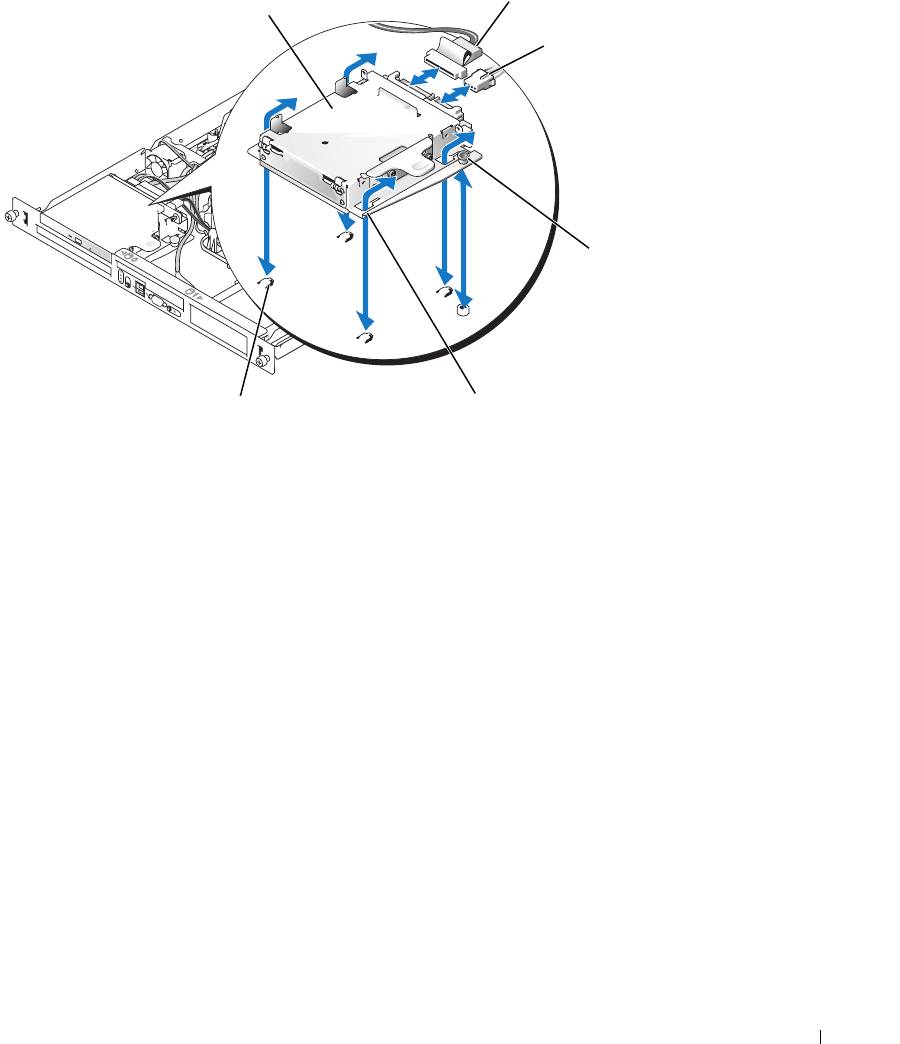
Figure 3-7. Removing the HDD0 Hard-Drive Carrier
1
4
1 HDD0 hard-drive carrier 2 interface cable 3 power cable
4 plunger 5 notches (4) 6 tabs (4)
Installing System Components 53
2
3
5
6
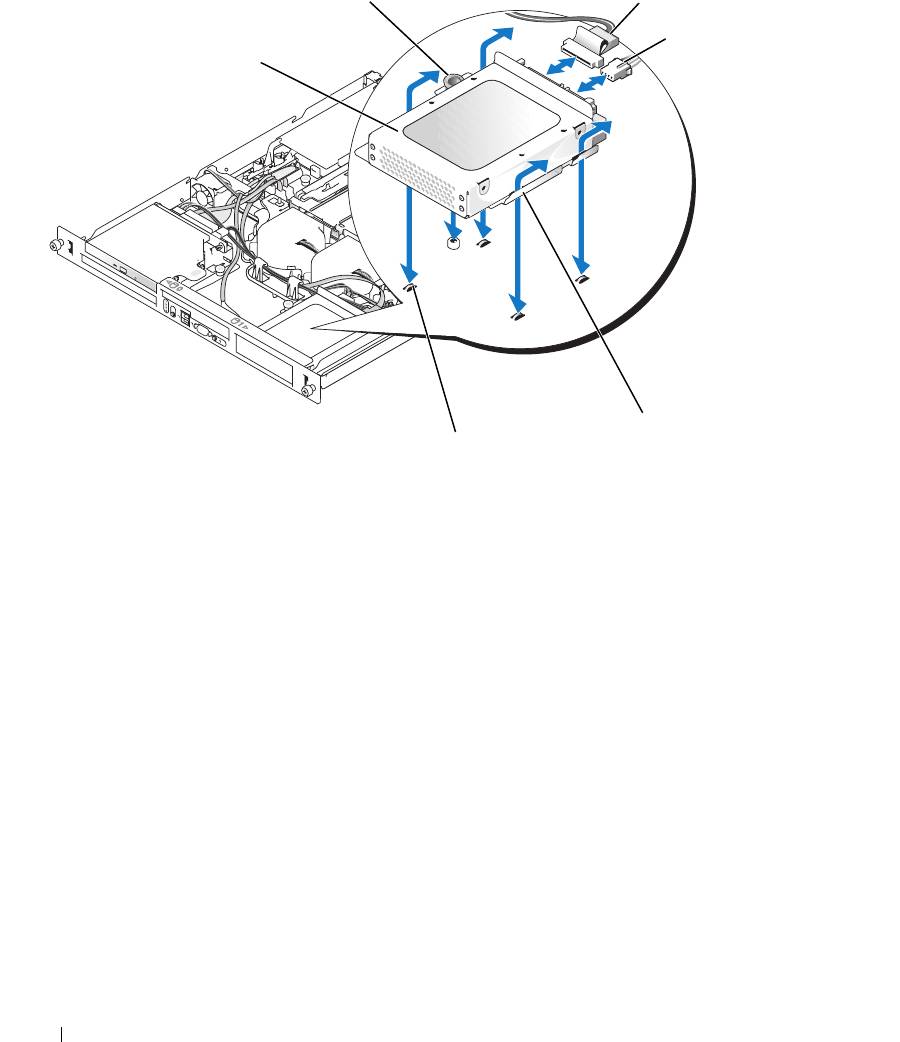
Figure 3-8. Removing the HDD1 Hard-Drive Carrier
2
3
4
1
5
6
1 HDD1 hard-drive carrier 2 plunger 3 interface cable
4 power cable 5 notches (4) 6 tabs (4)
6
Using a #2 Phillips screwdriver, remove the four screws that secure the hard drive to the carrier and
remove the drive from the carrier. See Figure 3-10.
54 Installing System Components
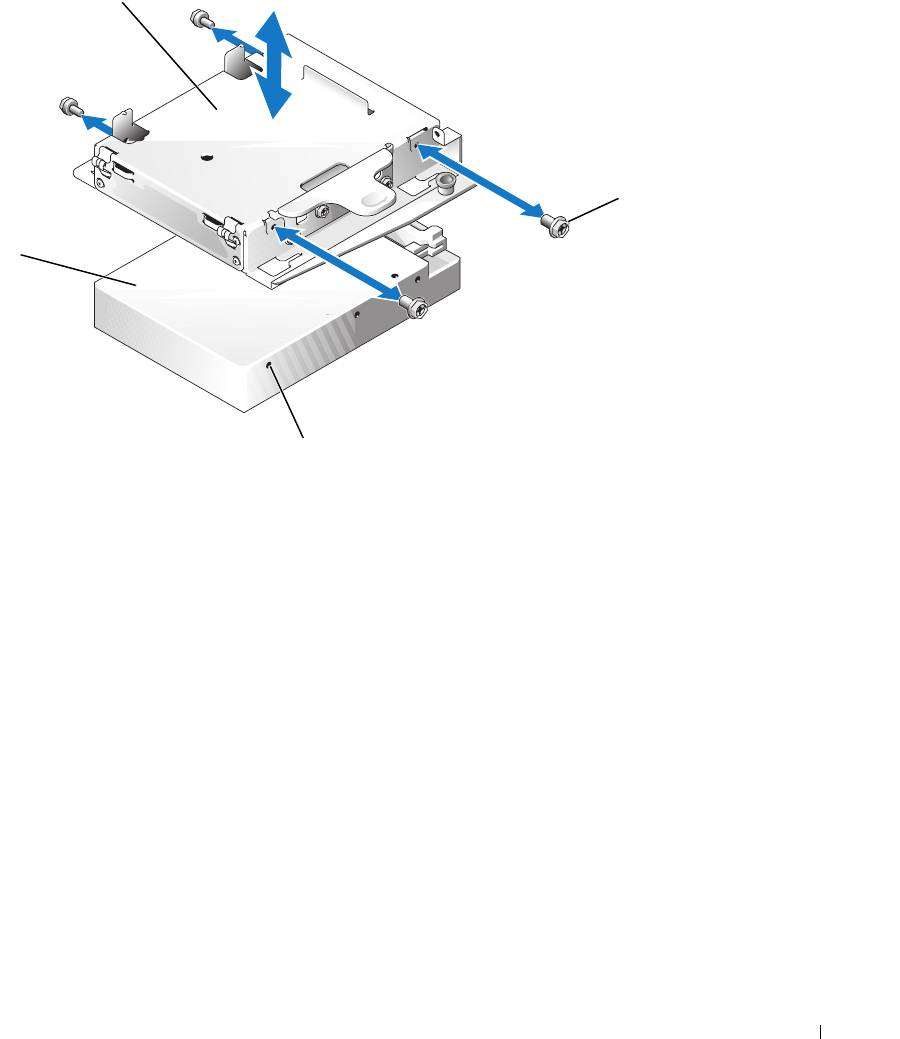
Figure 3-9. Removing the Hard Drive From the HDD0 Drive Carrier
1
2
4
3
1 HDD0 hard-drive carrier 2 screws (4) 3 mounting holes (4)
4 hard drive
Installing System Components 55
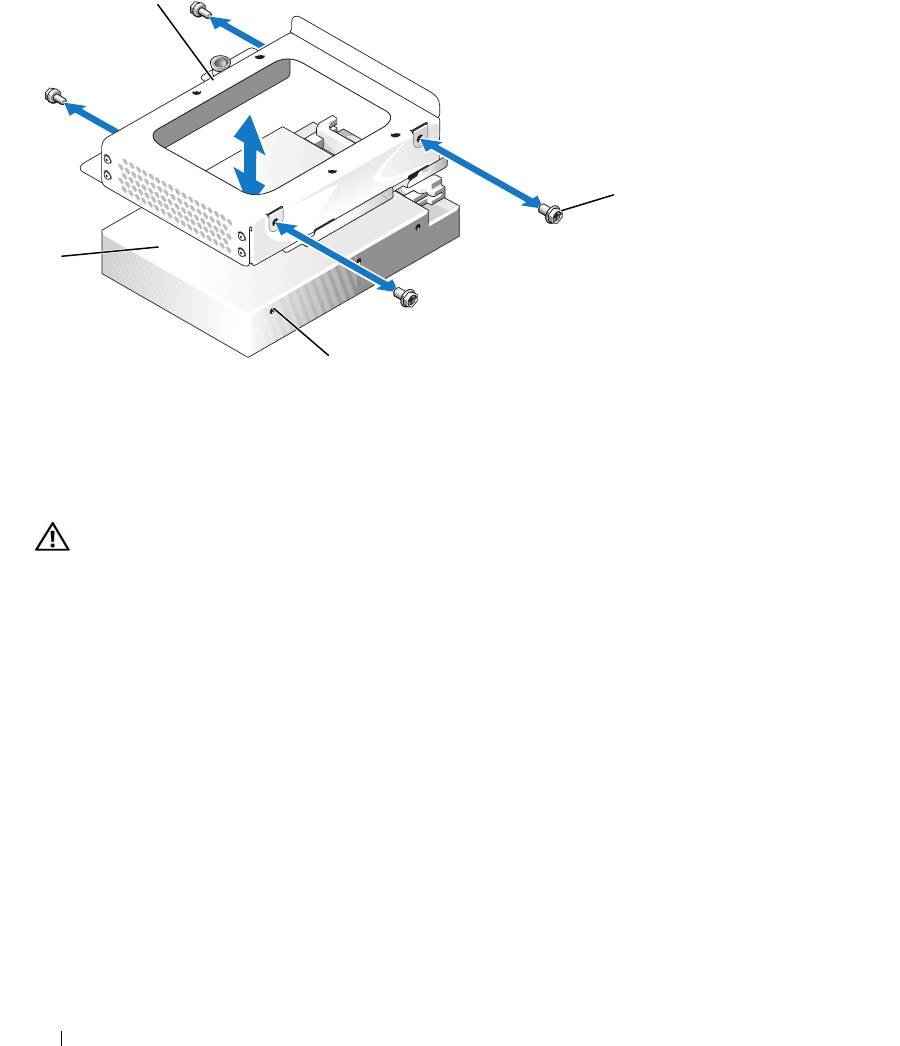
Figure 3-10. Removing the Hard Drive From the HDD1 Drive Carrier
1
2
4
3
1 HDD1 hard-drive carrier 2 screws (4) 3 mounting holes (4)
4 hard drive
Installing a Hard Drive
CAUTION: Only trained service technicians are authorized to remove the system cover and access any of the
components inside the system. Before performing any procedure, see your Product Information Guide for
complete information about safety precautions, working inside the computer and protecting against electrostatic
discharge.
1
Align the hard-drive mounting holes with the holes in the drive carrier.
2
Using a #2 Phillips screwdriver, install the four screws that secure the hard drive to the carrier. See
Figure 3-10.
3
Align the hard-drive carrier so that the tabs on the chassis slide into the notches in the carrier. See
Figure 3-7.
4
Slide the carrier forward until it stops.
5
Press down on the plunger to secure the hard-drive carrier to the chassis. See Figure 3-7 and Figure 3-8.
6
Connect the power and interface cables to the new drive:
• If no SAS controller card is present, attach SATA interface cables to the hard drives and the SATA
connectors on the system board. Connect hard drive 0 to the SATA_0 connector and hard drive 1
to the SATA_1 connector. See Figure 6-2 for the location of the SATA connectors.
56 Installing System Components

• If a SAS controller card is present, attach the HDD0 cable from the SAS controller to hard drive 0
and attach the HDD1 cable to hard drive 1. See the controller card documentation for further
information.
7
Install the CD drive.
Install the CD drive if you are removing hard drive 0. See "Installing the Optical Drive" on page 51.
8
Close the system. See "Closing the System" on page 47.
Installing a SAS Controller Card
See "Installing an Expansion Card" on page 63 for general instructions about installing the controller
card. See the controller card documentation for specific information on installing and configuring the
card.
NOTICE: If your SAS controller has an external storage connector, you must install the optional PCI fan assembly
in your system to maintain the proper cooling environment. Failure to install the fan assembly could result in the
system overheating and shutting down unexpectedly. See "Installing the PCI Fan Assembly" on page 60 for
instructions on installing the PCI fan assembly.
Fan Assembly
The fan assembly contains two fans and provides cooling for the processor and memory modules.
Removing the Fan Assembly
CAUTION: Only trained service technicians are authorized to remove the system cover and access any of the
components inside the system. Before performing any procedure, see your Product Information Guide for
complete information about safety precautions, working inside the computer and protecting against electrostatic
discharge.
1
Open the system. See "Opening the System" on page 46.
2
Remove the cooling shroud. See "Removing the Cooling Shroud" on page 47.
3
Disconnect the fan assembly’s power cable from the system board. See Figure 3-11.
4
Remove the data cable from hard drive 1 if installed. See Figure 3-11.
5
Remove the hard drive 0 power cable if installed.
6
Pull the cables out of the fan assembly’s cable tray. See Figure 3-11.
7
While pressing the two release levers on the fan assembly, lift the fan assembly off of the two securing
posts and out of the chassis. See Figure 3-11.
Installing System Components 57
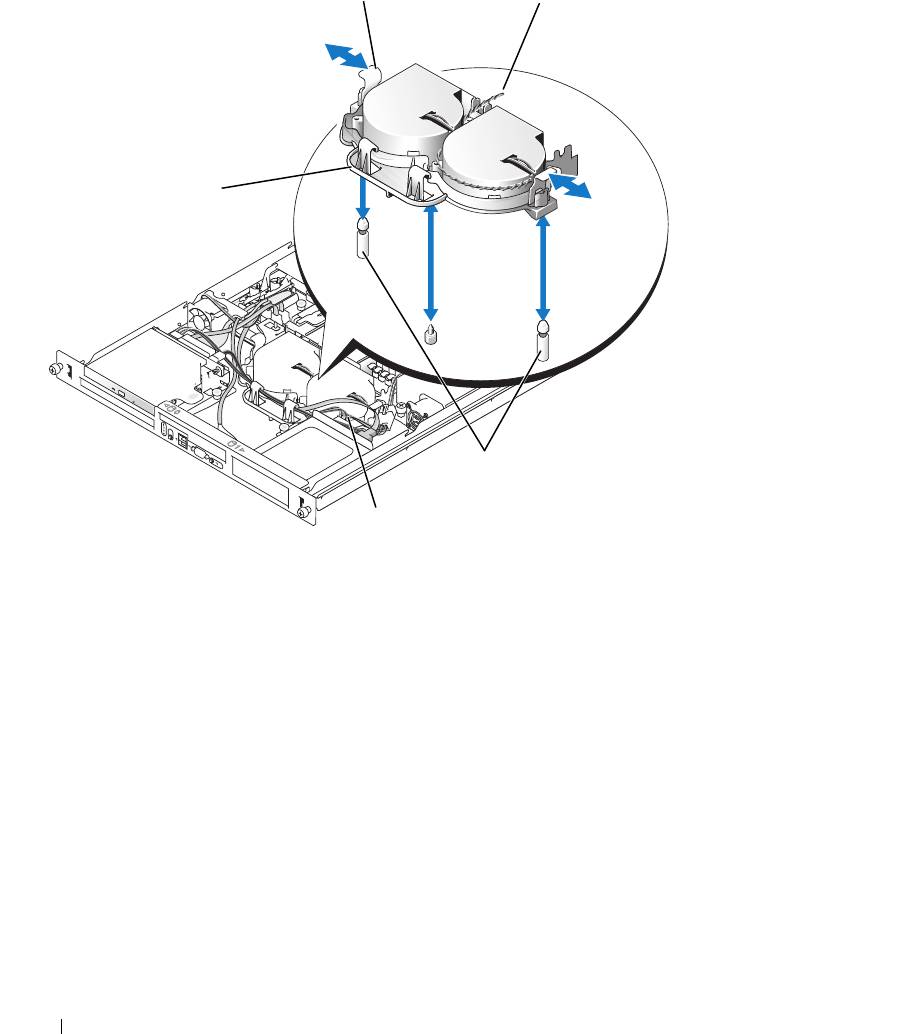
Figure 3-11. Installing and Removing the Fan Assembly
1
2
5
3
4
1 release levers (2) 2 power cable 3 securing posts (2)
4 hard drive 1 data cable 5 cable tray
Installing the Fan Assembly
1
Align the holes in the fan assembly with the two fan assembly securing posts. See Figure 3-11.
2
Lower the fan assembly until the release levers snap onto the securing posts.
3
Route the cables in the fan assembly cable tray. See Figure 3-11.
4
Reconnect the hard drive 1 data cable to the hard drive. See Figure 3-11.
5
Reconnect the fan assembly power cable to the system board.
6
Install the cooling shroud. See "Installing the Cooling Shroud" on page 48.
7
Close the system. See "Closing the System" on page 47.
58 Installing System Components

Optional PCI Fan Assembly
The optional PCI fan module provides cooling for the expansion cards.
NOTICE: Your system requires the PCI fan assembly if your system has a SAS controller that can be connected to
an external storage system. Removing the fan assembly or disabling the fan could result in your system overheating
and shutting down unexpectedly.
Removing the PCI Fan Assembly
CAUTION: Only trained service technicians are authorized to remove the system cover and access any of the
components inside the system. Before performing any procedure, see your Product Information Guide for
complete information about safety precautions, working inside the computer and protecting against electrostatic
discharge.
1
Open the system. See "Opening the System" on page 46.
2
Disconnect the following cables from the system board and SAS controller (if present):
• fan power cable
• intrusion switch cable
• hard drive interface cables
• control panel interface cable
• optical drive interface cable (if present)
3
Pull the interface cables through the panel cutout and fold them out of the way. See Figure 3-12.
4
Using a #2 Phillips screwdriver, remove the two screws securing the PCI fan assembly to the chassis.
See Figure 3-12.
5
Remove the fan assembly from the system.
Installing System Components 59
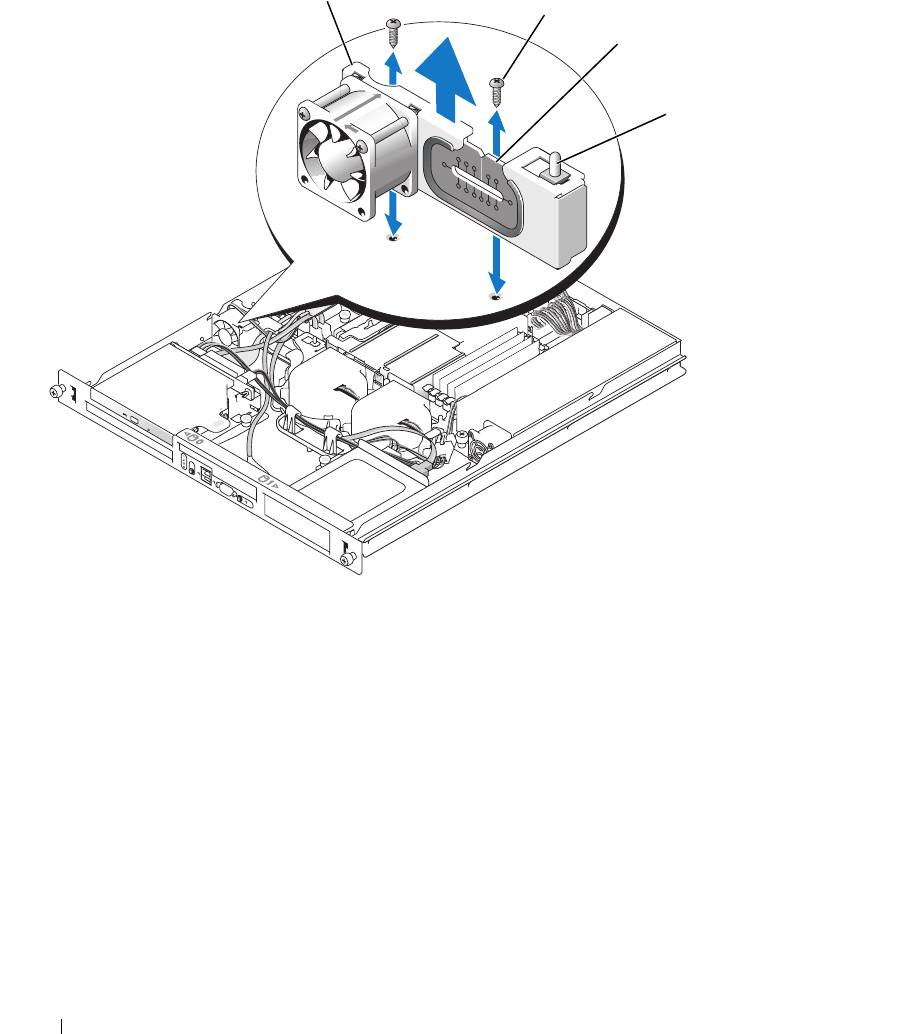
Figure 3-12. Installing and Removing the PCI Fan Assembly
1
2
3
4
1 PCI fan assembly 2 screws (2) 3 panel cutout
4 chassis intrusion switch
Installing the PCI Fan Assembly
1
Align the fan assembly with the screw holes on the chassis and use a #2 Phillips screwdriver to install
the two mounting screws. See Figure 3-12.
2
Connect the fan’s power cable to the PCI FAN connector on the system board. See Figure 6-2 for the
location of the connector.
3
Connect the intrusion switch cable to the INTRUSION_SWITCH connector on the system board.
See Figure 6-2 for the location of the connector.
4
Route all interface connectors through the panel cutout.
5
Connect the hard-drive connectors to the SATA connectors on the system board or to the SAS
controller, if present. See "Installing a Hard Drive" on page 56.
60 Installing System Components

6
Connect the control panel interface cable to the FP_CONN1 connector on the system board. See
Figure 6-2 for the location of the connector.
7
Connect the optical drive interface cable to the IDE connector on the system board. See Figure 6-2 for
the location of the connector.
8
Close the system. See "Closing the System" on page 47.
Power Supply
The system supports a single nonredundant power supply.
Removing the Power Supply
CAUTION: Only trained service technicians are authorized to remove the system cover and access any of the
components inside the system. Before performing any procedure, see your Product Information Guide for
complete information about safety precautions, working inside the computer and protecting against electrostatic
discharge.
1
Open the system. See "Opening the System" on page 46.
2
Disconnect the following power supply cables:
a
P3 from the hard drive cable harness
b
P2 from system board connector 12V
c
P1 from system board connector PWR_CONN
3
Using a #2 Phillips screwdriver, remove the screw at the front of the power supply that secures the
power supply to the chassis. See Figure 3-13.
4
Slide the power supply forward and lift straight up to remove the power supply from the chassis.
Installing System Components 61
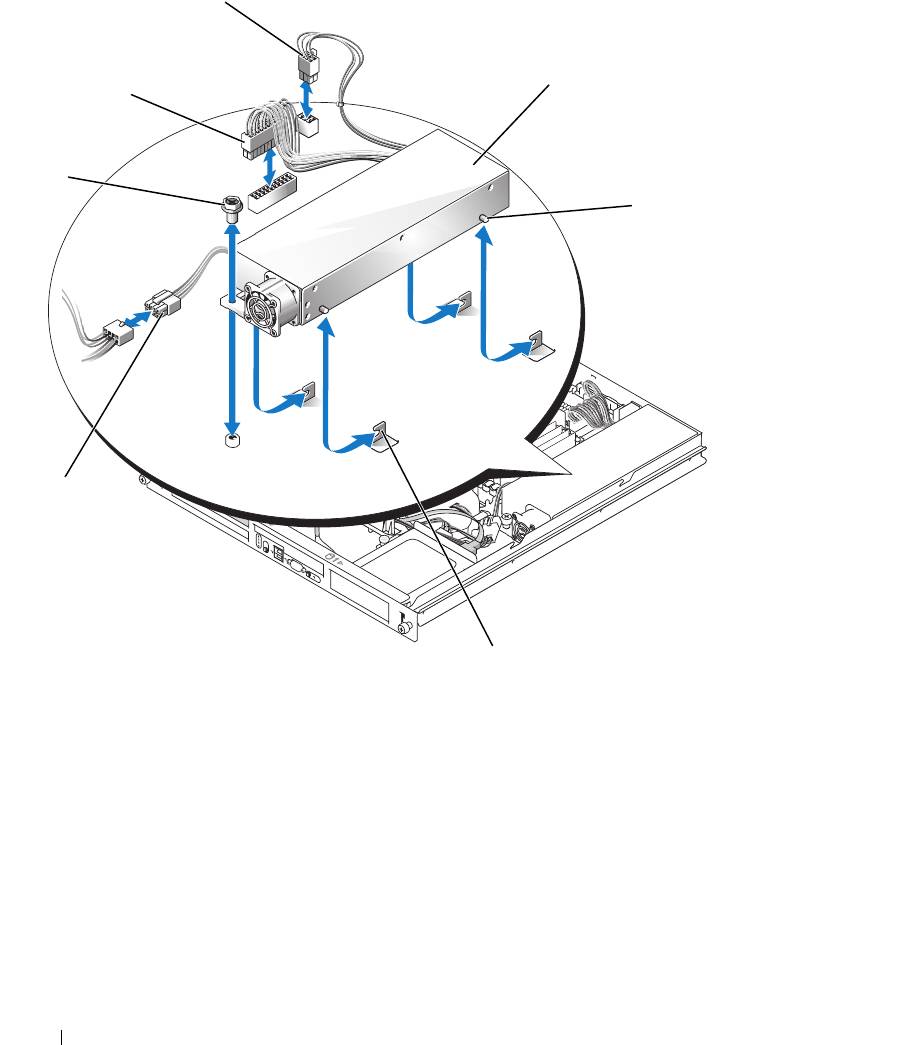
Figure 3-13. Installing and Removing the Power Supply
3
4
2
1
5
7
6
1 screw 2 P1 connector 3 P2 connector
4 power supply 5 pins (4) 6 securing brackets (4)
7 P3 connector
Installing the Power Supply
1
Lower the power supply into the chassis and slide it backward until the four pins on the power supply
are engaged into the securing brackets.
2
Using a #2 Phillips screwdriver, install the screw at the front of the power supply that secures the
power supply to the chassis.
62 Installing System Components
3
Connect the following power supply cables:
a
P3 to the hard drive cable harness
b
P2 to the system board connector 12V
c
P1 to the system board connector PWR_CONN
4
Close the system. See "Closing the System" on page 47.
Expansion Cards
The system is available with an optional PCIe riser card or PCI-X/PCIe riser card. The PCIe riser card
contains two PCIe expansion slots with x8-lane connectors—slot 1 has x4-lane capability and slot 2 has
x8-lane capability. The PCI-X/PCIe riser card provides one PCI-X expansion slot and one PCIe x8-lane
expansion slot. If you are installing a remote access controller card, it must be installed in the upper slot
of a PCI-X/PCIe riser card. See "PCIe Riser Card Connectors" on page 100 for the locations of the
expansion-card slots on the two types of riser cards.
Installing an Expansion Card
CAUTION: Only trained service technicians are authorized to remove the system cover and access any of the
components inside the system. Before performing any procedure, see your Product Information Guide for
complete information about safety precautions, working inside the computer and protecting against electrostatic
discharge.
1
Open the system. See "Opening the System" on page 46.
2
Remove the expansion-card retainer adjacent to the expansion card slots. See Figure 3-14.
3
Slide the expansion-card sliding retainer to the retracted or open position. See Figure 3-15.
4
Remove the filler bracket on the slot you will be using.
NOTE: Keep this bracket if you need to remove the expansion card. Filler brackets must be installed over empty
expansion card slots to maintain Federal Communications Commission (FCC) certification of the system. The
brackets also keep dust and dirt out of the system and aid in proper cooling and airflow inside the system.
5
Insert the expansion card firmly into the expansion-card connector on the riser card until the card is
fully seated.
NOTE: Ensure that the expansion-card bracket is also inserted into the securing slot on the chassis's back
panel.
6
Replace the expansion-card retainer. See Figure 3-14.
7
Slide the expansion-card sliding retainer to the closed position so that it engages the edge of the
expansion card. See Figure 3-15.
8
Connect any internal or external cable(s) to the expansion card.
NOTE: You may need to remove the riser card in order to install certain expansion cards with internal
connectors. See "Riser Card" on page 66.
9
Close the system. See "Closing the System" on page 47.
Installing System Components 63
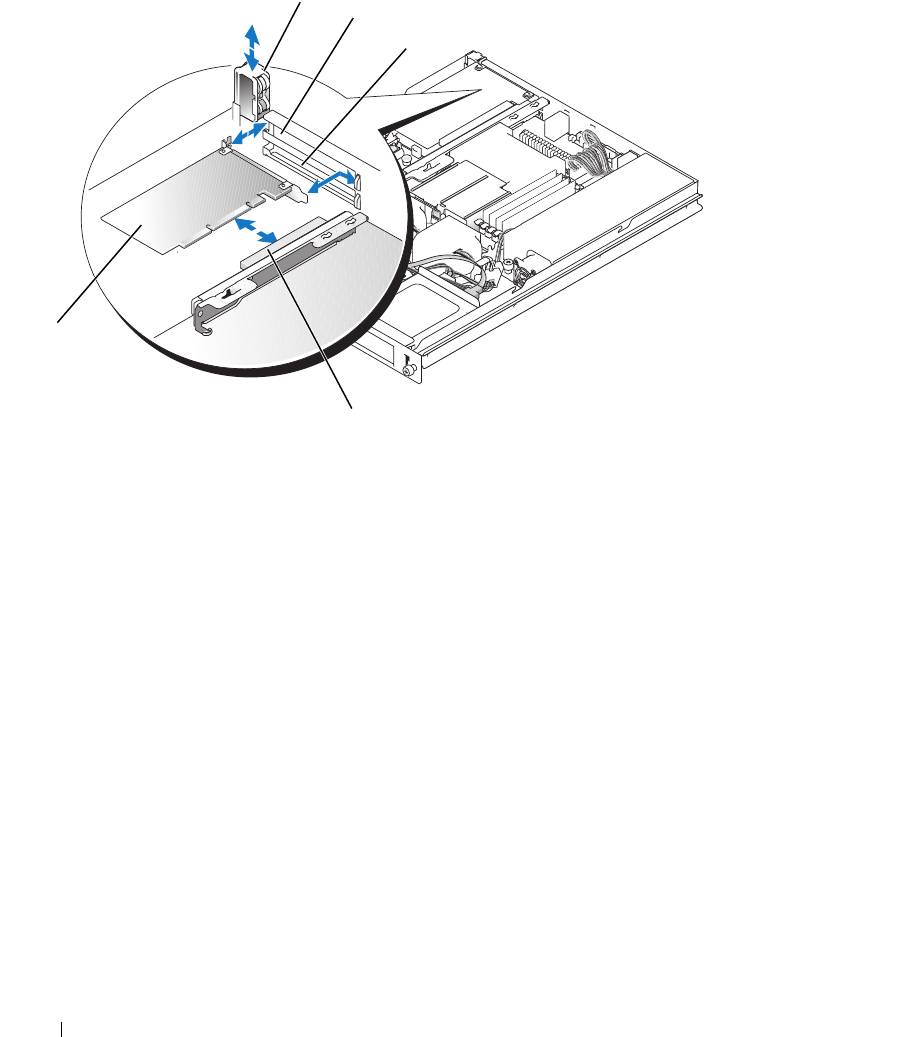
Figure 3-14. Installing and Removing Expansion Cards
1
2
3
5
4
1 expansion-card retainer 2 slot 1 3 slot 2
4 expansion-card connector (on
5 expansion card
riser card)
64 Installing System Components
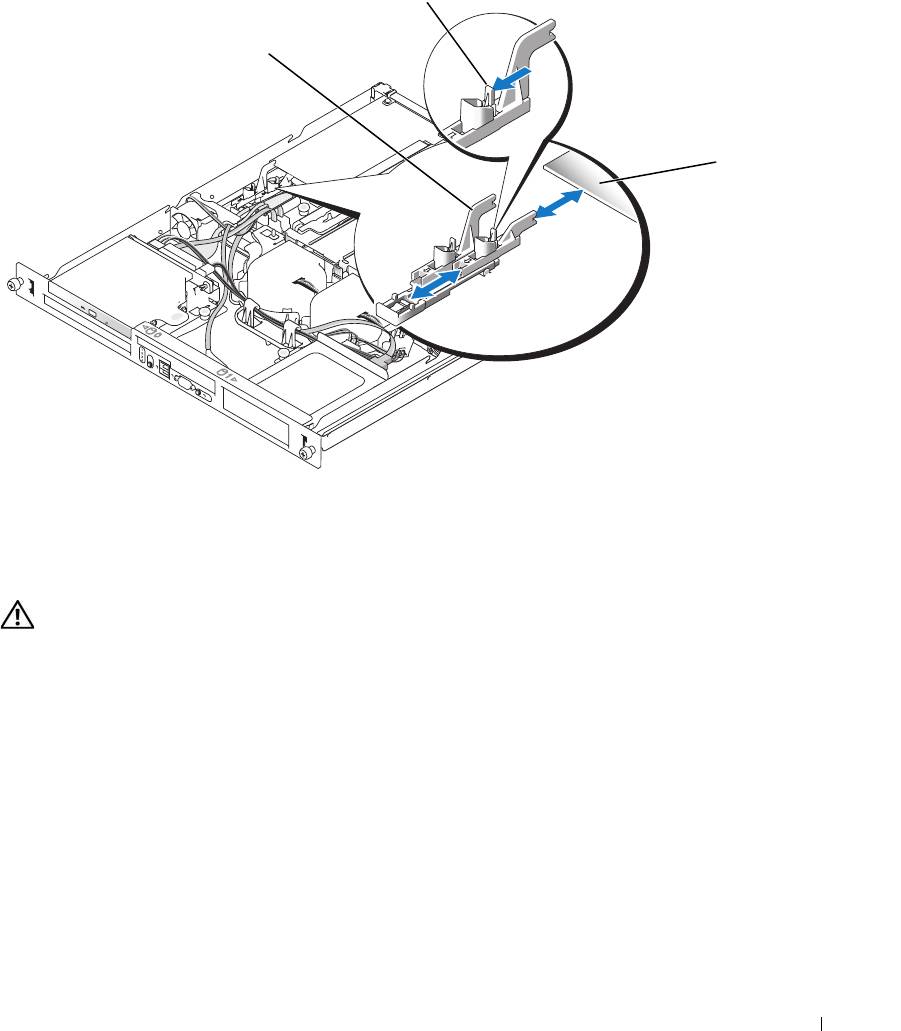
Figure 3-15. Opening and Closing the Expansion-Card Sliding Retainer
2
1
3
1 expansion-card sliding
2 release tab 3 expansion card
retainer
Removing an Expansion Card
CAUTION: Only trained service technicians are authorized to remove the system cover and access any of the
components inside the system. Before performing any procedure, see your Product Information Guide for
complete information about safety precautions, working inside the computer and protecting against electrostatic
discharge.
1
Open the system. See "Opening the System" on page 46.
2
Disconnect any internal or external cable(s) that are connected to the expansion card.
3
Lift the expansion-card retainer adjacent to the PCI slots. See Figure 3-14.
4
Slide the expansion-card sliding retainer to the retracted or open position. See Figure 3-15.
5
Grip the edges of the expansion card with the fingers of both hands and carefully work the card out of
the expansion-card connector.
Installing System Components 65
6
If you are permanently removing the card, replace the metal filler bracket over the empty card-slot
opening.
NOTE: Filler brackets must be installed over empty expansion-card slots to maintain FCC certification of the
system. The brackets also keep dust and dirt out of the system and aid in proper cooling and airflow inside the
system.
7
Replace the expansion-card retainer.
8
Close the system. See "Closing the System" on page 47.
Riser Card
The riser card provides two expansion-card slots. See "Expansion Cards" on page 63 for detailed
information on the expansion-card slots.
Removing the Riser Card
CAUTION: Only trained service technicians are authorized to remove the system cover and access any of the
components inside the system. Before performing any procedure, see your Product Information Guide for
complete information about safety precautions, working inside the computer and protecting against electrostatic
discharge.
1
Open the system. See "Opening the System" on page 46.
2
Remove any expansion card(s). See "Removing an Expansion Card" on page 65.
3
Using a #2 Phillips screwdriver, remove the two screws that secure the riser card to the chassis. See
Figure 3-16.
4
Lift the riser card straight up and remove the riser card from the system.
66 Installing System Components
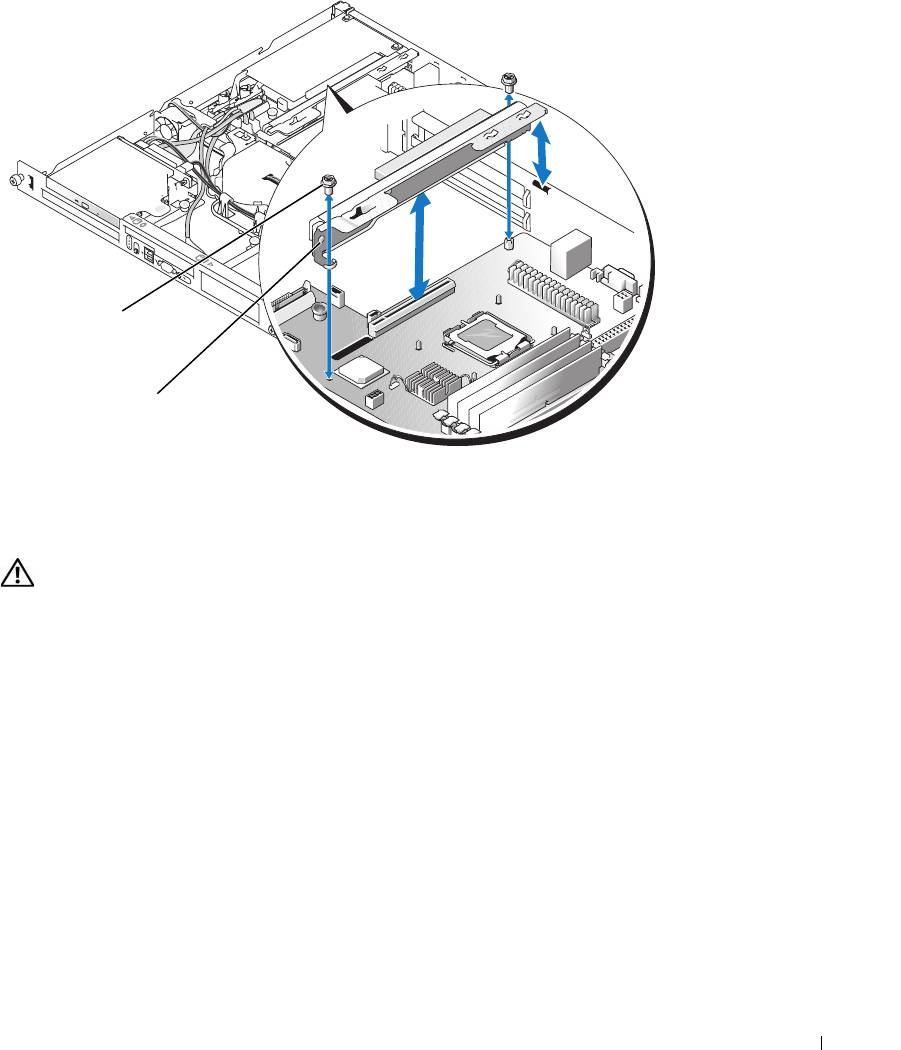
Figure 3-16. Installing and Removing the Riser Card
1
2
1 screws (2) 2 riser card
Installing the Riser Card
CAUTION: Only trained service technicians are authorized to remove the system cover and access any of the
components inside the system. Before performing any procedure, see your Product Information Guide for
complete information about safety precautions, working inside the computer and protecting against electrostatic
discharge.
1
Insert the riser card firmly into the riser card connector on the system board until the riser card is fully
seated.
2
Using a #2 Phillips screwdriver, install the two screws that secure the riser card to the system board.
3
Install any expansion card(s). See "Installing an Expansion Card" on page 63.
4
Close the system. See "Closing the System" on page 47.
System Memory
The four memory module sockets are located on the system board adjacent to the power supply and can
accommodate 512 MB to 8 GB of unbuffered ECC PC-3200 (DDR2 533 or DDR 667) memory. See
Figure 6-2
for the location of the memory module sockets.
Installing System Components 67

You can upgrade the system memory by installing combinations of 512-MB, 1-GB, and 2-GB unbuffered
memory modules. If you receive an error message stating that maximum memory has been exceeded, see
"System Messages" on page 15 for more information. You can purchase memory upgrade kits from Dell.
NOTE: The memory modules must be PC-3200 compliant.
Memory Module Installation Guidelines
The memory module sockets are arranged in banks (1 and 2) on two channels (A and B).
The memory module banks are identified as follows:
Bank 1: DIMM1_A and DIMM1_B
Bank 2: DIMM2_A and DIMM2_B
The memory module banks must be installed in identical pairs in configurations that have more than
one memory module. For example, if socket DIMM1_A contains a 512-MB memory module, then the
second memory module to be installed must be a 512-MB memory module in socket DIMM1_B.
Table 3-1 shows examples of different memory configurations, based on the following guidelines:
• The minimum memory configuration is 512 MB.
• If only one memory module is installed, it must be installed in the DIMM1_A socket.
• A bank must contain identical memory modules.
• Install the memory modules in bank 1 (DIMM1_
x
) before installing memory modules in bank 2
(DIMM2_
x
).
• Installing three memory modules is not supported.
Table 3-1. Sample Memory Module Configurations
Total Memory DIMM1_A DIMM2_A DIMM1_B DIMM2_B
512 MB 512 MB None None None
1 GB 512 MB None 512 MB None
1 GB 1 GB None None None
2 GB 512 MB 512 MB 512 MB 512 MB
2 GB 1 GB None 1 GB None
3 GB 1 GB 512 MB 1 GB 512 MB
4 GB 1 GB 1 GB 1 GB 1 GB
4 GB 2 GB None 2 GB None
5 GB 2 GB 512 MB 2 GB 512 MB
6 GB 2 GB 1 GB 2 GB 1 GB
8 GB 2 GB 2 GB 2 GB 2 GB
68 Installing System Components
Installing Memory Modules
CAUTION: Only trained service technicians are authorized to remove the system cover and access any of the
components inside the system. Before performing any procedure, see your Product Information Guide for
complete information about safety precautions, working inside the computer and protecting against electrostatic
discharge.
1
Open the system. See "Opening the System" on page 46.
2
Locate the memory module sockets. See Figure 6-2.
3
Press the ejectors on the memory module socket down and out, as shown in Figure 3-17, to allow the
memory module to be inserted into the socket.
4
Align the memory module's edge connector with the alignment keys of the memory module socket,
and insert the memory module in the socket.
NOTE: The memory module socket has two alignment keys that allow you to install the memory module in the
socket in only one way.
5
Press down on the memory module with your thumbs while pulling up on the ejectors with your index
fingers to lock the memory module into the socket.
When the memory module is properly seated in the socket, the ejectors on the memory module socket
align with the ejectors on the other sockets that have memory modules installed.
6
Repeat step 2 through step 5 of this procedure to install the remaining memory modules. See Table 3-1
for valid memory configurations.
7
Close the system. See "Closing the System" on page 47.
8
(Optional) Press <F2> to enter the System Setup program, and check the
System Memory
setting on
the main
System Setup
screen.
The system should have already changed the value to reflect the newly installed memory.
9
If the value is incorrect, one or more of the memory modules may not be installed properly. Repeat
step 1 through step 8 of this procedure, checking to ensure that the memory modules are firmly seated
in their sockets.
10
Run the system memory test in the system diagnostics. See "Running the System Diagnostics" on
page 93.
Installing System Components 69
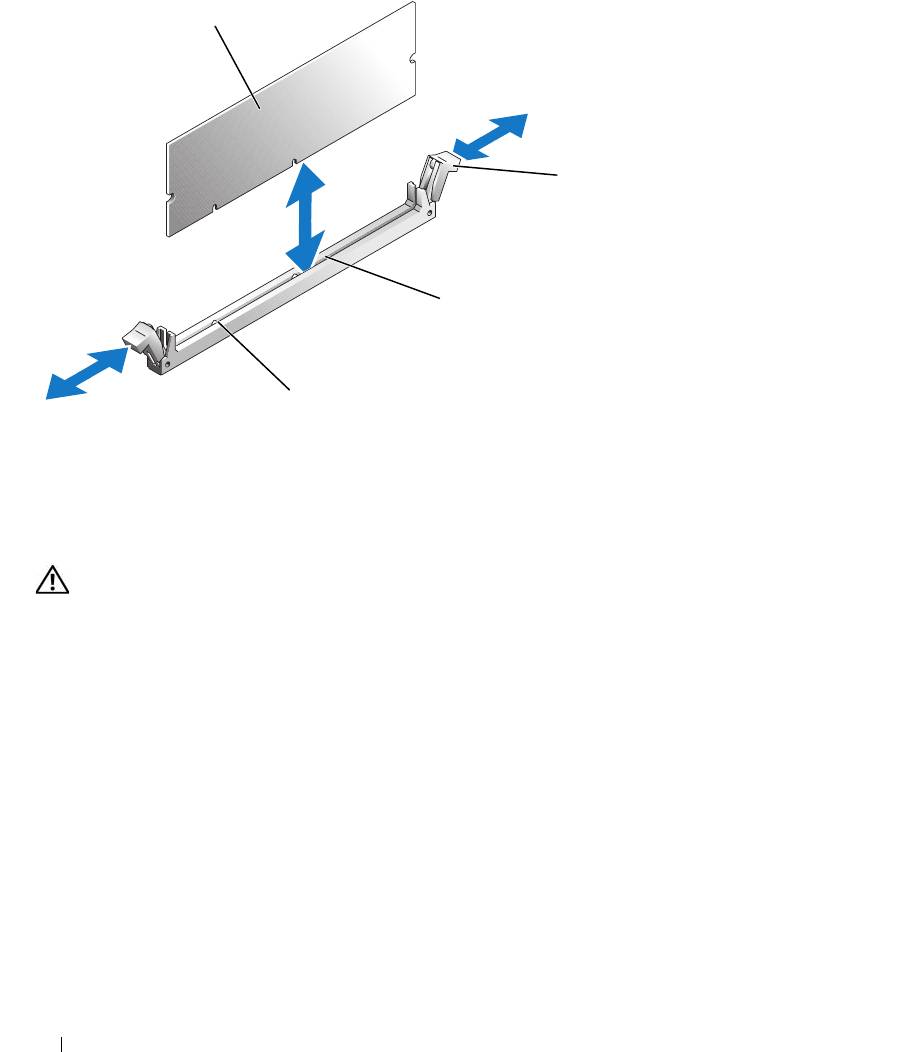
Figure 3-17. Installing and Removing a Memory Module
1
2
3
4
1 memory module 2 memory module socket
3 socket
ejectors (2)
4 alignment keys (2)
Removing Memory Modules
CAUTION: Only trained service technicians are authorized to remove the system cover and access any of the
components inside the system. Before performing any procedure, see your Product Information Guide for
complete information about safety precautions, working inside the computer and protecting against electrostatic
discharge.
1
Open the system. See "Opening the System" on page 46.
2
Locate the memory module sockets. See Figure 6-2.
3
Press down and out on the ejectors on each end of the socket until the memory module pops out of the
socket. See Figure 3-17.
4
Close the system. See "Closing the System" on page 47.
Processor
You can upgrade the processor to take advantage of future options in speed and functionality. The
processor and its associated internal cache memory are contained in a land grid array (LGA) package that
is installed in a ZIF socket on the system board.
70 Installing System Components
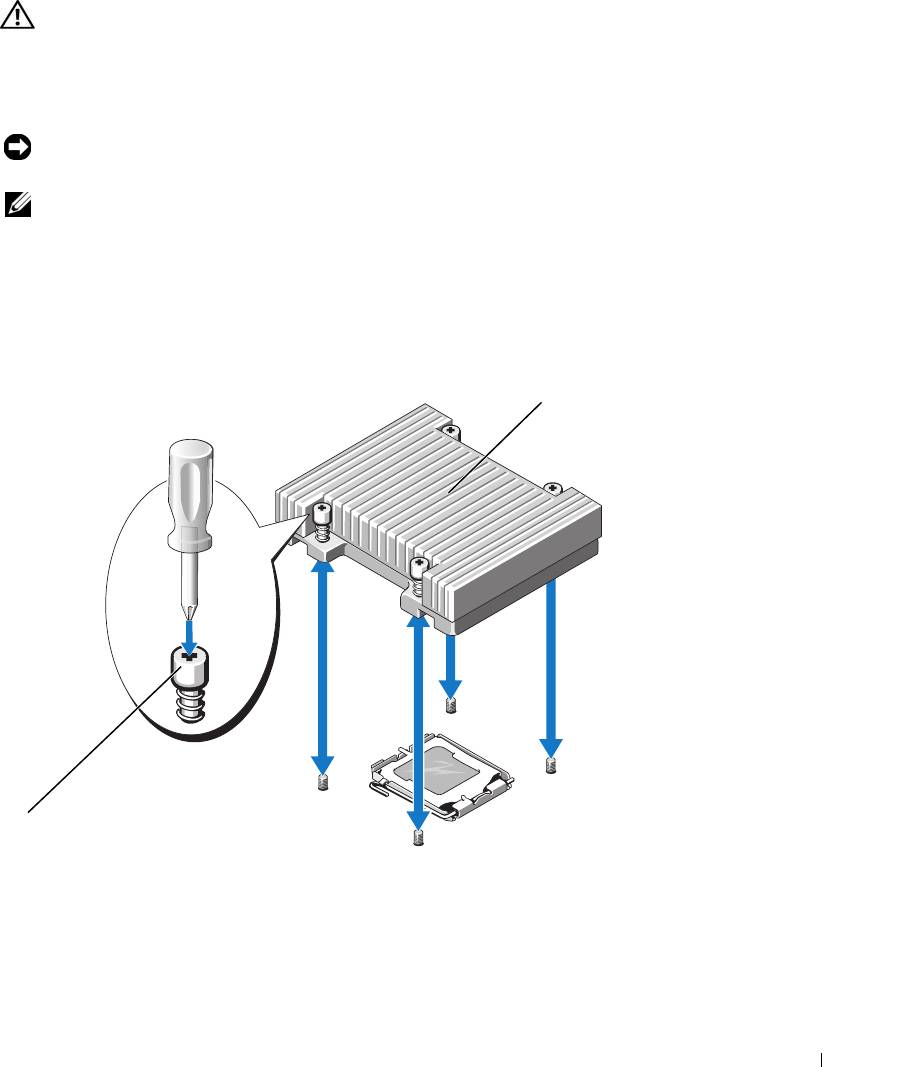
Replacing the Processor
CAUTION: Only trained service technicians are authorized to remove the system cover and access any of the
components inside the system. Before performing any procedure, see your Product Information Guide for
complete information about safety precautions, working inside the computer and protecting against electrostatic
discharge.
1
Open the system. See "Opening the System" on page 46.
NOTICE: Never remove the heat sink from a processor unless you intend to remove the processor. The heat sink is
necessary to maintain proper thermal conditions.
NOTE: When you remove the heat sink, the possibility exists that the processor might adhere to the heat sink and
be removed from the socket. It is recommended that you remove the heat sink while the processor is still warm.
2
Remove the cooling shroud. See "Removing the Cooling Shroud" on page 47.
3
Using a #2 Phillips screwdriver, loosen the four captive screws that secure the heat sink to the system
board. See Figure 3-18.
Figure 3-18. Installing and Removing the Heat Sink
2
1
1 captive screws (4) 2 heat sink
4
Wait 30 seconds for the heat sink to loosen from the processor.
Installing System Components 71
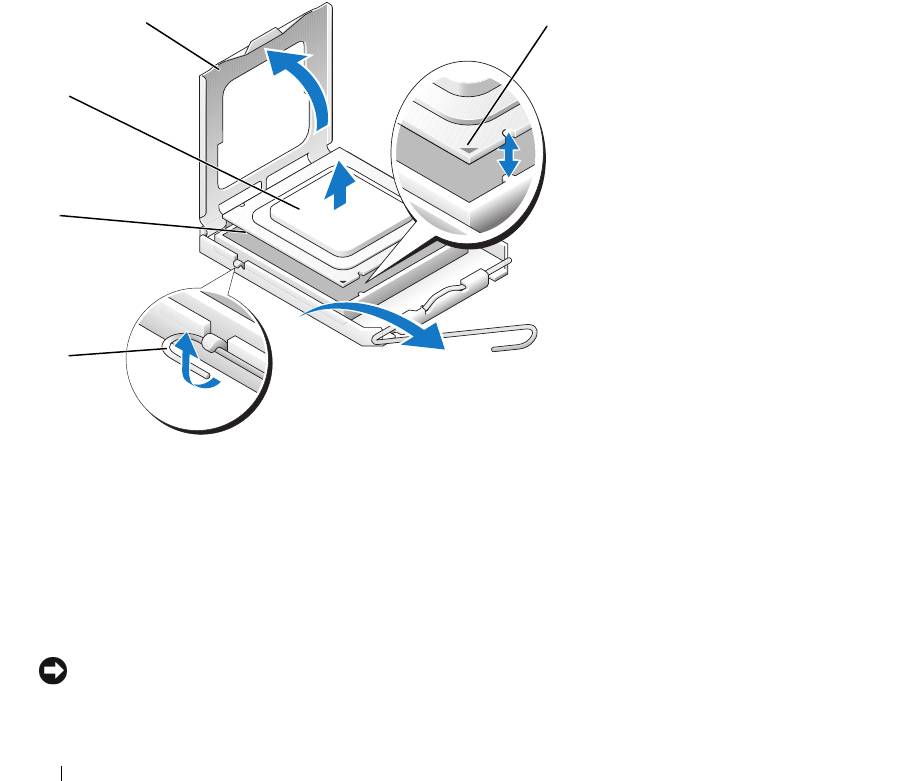
5
If the heat sink has not separated from the processor, carefully rotate the heat sink in a clockwise, then
counterclockwise, direction until it releases from the processor. Do not pry the heat sink off of the
processor.
6
Lift the heat sink off of the processor and set the heat sink aside.
7
Press down on the processor socket release lever, then pull the release lever upward to the fully open
position. See Figure 3-19.
8
Open the processor cover. See Figure 3-19.
9
Lift the processor vertically out of the socket. Leave the processor cover and release lever in the open
position so that the socket is ready for the new processor. See Figure 3-19.
Figure 3-19. Installing and Removing the Processor
4
5
3
2
1
1 processor socket release
2 processor socket 3 processor
lever
4 processor cover 5 pin-1 locators
10
Unpack the new processor.
11
Ensure that the processor socket release lever is in the fully open position.
12
Align the pin 1 corners of the processor and socket. See Figure 3-19.
NOTICE: You must position the processor correctly in the socket to avoid damaging the processor and the system
board when you turn on the system. Be careful not to touch or bend the pins on the socket.
72 Installing System Components
13
Set the processor lightly in the socket and ensure that the processor is level in the socket. When the
processor is positioned correctly, press it gently to seat it in the socket.
14
Close the processor cover.
15
Rotate the release lever back down until it snaps into place, securing the processor cover.
16
Install the heat sink.
a
Using a clean lint-free cloth, remove the existing thermal grease from the heat sink.
NOTE: Use the heat sink that you removed earlier in this procedure.
b
Apply thermal grease evenly to the top of the processor.
c
Place the heat sink onto the processor. See Figure 3-18.
d
Using a #2 Phillips screwdriver, tighten in a diagonal pattern the four captive screws that secure
the heat sink to the system board. See Figure 3-18.
17
Install the cooling shroud. See "Installing the Cooling Shroud" on page 48.
18
Close the system. See "Closing the System" on page 47.
As the system boots, it detects the presence of the new processor and automatically changes the system
configuration information in the System Setup program.
19
Press <F2> to enter the System Setup program, and check that the processor information
matches the
new system configuration.
See "Using the System Setup Program" on page 29.
20
Run the system diagnostics to verify that the new processor operates correctly.
See "Running the System Diagnostics" on page 93 for information about running the diagnostics and
troubleshooting processor problems.
Control Panel Assembly (Service-Only Procedure)
Removing the Control Panel Assembly
CAUTION: Only trained service technicians are authorized to remove the system cover and access any of the
components inside the system. Before performing any procedure, see your Product Information Guide for
complete information about safety precautions, working inside the computer and protecting against electrostatic
discharge.
1
Open the system. See "Opening the System" on page 46.
2
Disconnect the control panel cables. See Figure 3-20.
3
Using a #2 Phillips screwdriver, remove the two screws that secure the control panel assembly to the
chassis. See Figure 3-20.
4
Carefully lift the back of the control panel assembly to clear the chassis mounting studs, and remove
the assembly from the system.
Installing System Components 73
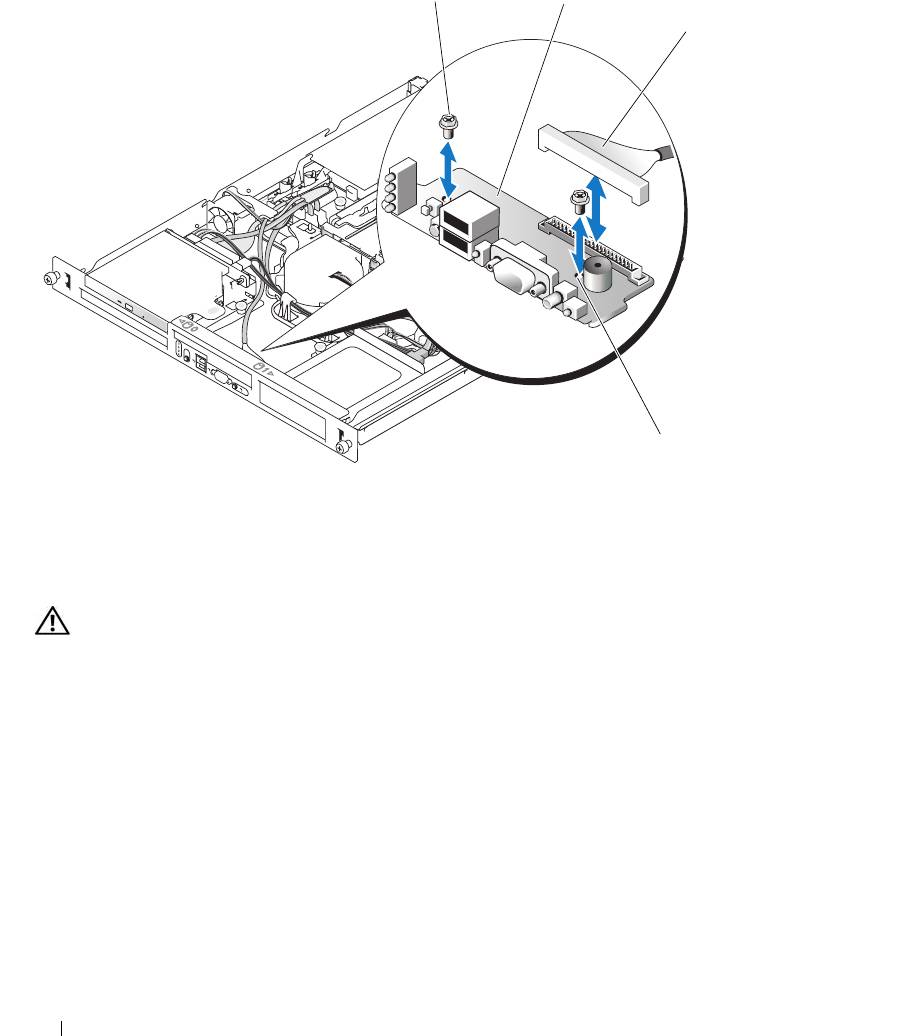
Figure 3-20. Installing and Removing the Control Panel Assembly
1
2
3
4
1 control panel assembly 2 screws (2) 3 cables
4 mounting holes (2)
Installing the Control Panel Assembly
CAUTION: Only trained service technicians are authorized to remove the system cover and access any of the
components inside the system. Before performing any procedure, see your Product Information Guide for
complete information about safety precautions, working inside the computer and protecting against electrostatic
discharge.
1
Align the control panel assembly’s mounting holes with the chassis mounting holes. See Figure 3-20.
2
Using a #2 Phillips screwdriver, install the two screws that secure the control panel assembly to the
chassis. See Figure 3-20.
3
Connect the control panel cables. See Figure 3-20.
4
Close the system. See "Closing the System" on page 47.
74 Installing System Components

System Board (Service-Only Procedure)
The system board and system board tray are removed and replaced as a single assembly.
Removing the System Board Assembly
CAUTION: Only trained service technicians are authorized to remove the system cover and access any of the
components inside the system. Before performing any procedure, see your Product Information Guide for
complete information about safety precautions, working inside the computer and protecting against electrostatic
discharge.
1
Open the system. See "Opening the System" on page 46.
2
Remove the cooling shroud. See "Removing the Cooling Shroud" on page 47.
3
Remove the heat sink and processor. See "Replacing the Processor" on page 71.
4
Remove the memory modules. See "Removing Memory Modules" on page 70.
NOTE: As you remove the memory modules, record the memory module socket locations to ensure proper
installation.
5
If applicable, disconnect the optical drive interface cable from the IDE connector on the system board.
See Figure 6-2.
6
Disconnect the control-panel interface cable from the FP_CONN1 connector on the system board.
See Figure 6-2.
7
Disconnect the hard-drive interface cables:
a
If a SAS controller is installed, disconnect the interface cable from the controller card.
b
If the system hard drives are connected to the integrated controller, disconnect the interface cables
from the SATA_0 and SATA_1 connectors on the board. See Figure 6-2.
8
Remove all PCI expansion cards installed on the riser card. See "Removing an Expansion Card" on
page 65.
9
Remove the riser card. See "Removing the Riser Card" on page 66.
10
Disconnect the chassis intrusion cable from the INTRUSION_SWITCH connector on the system
board.
11
Disconnect the two power cables from the 12V and PWR_CONN connectors on the system board. See
Figure 6-2.
12
Pull up on the plunger that secures the system board tray to the chassis floor. See Figure 3-21.
13
Using the tab on the system board tray, slide the system board forward (toward the front of the system)
and lift the assembly up and out of the chassis. See Figure 3-21.
14
Lay the system board tray down on a smooth, nonconductive work surface.
Installing System Components 75
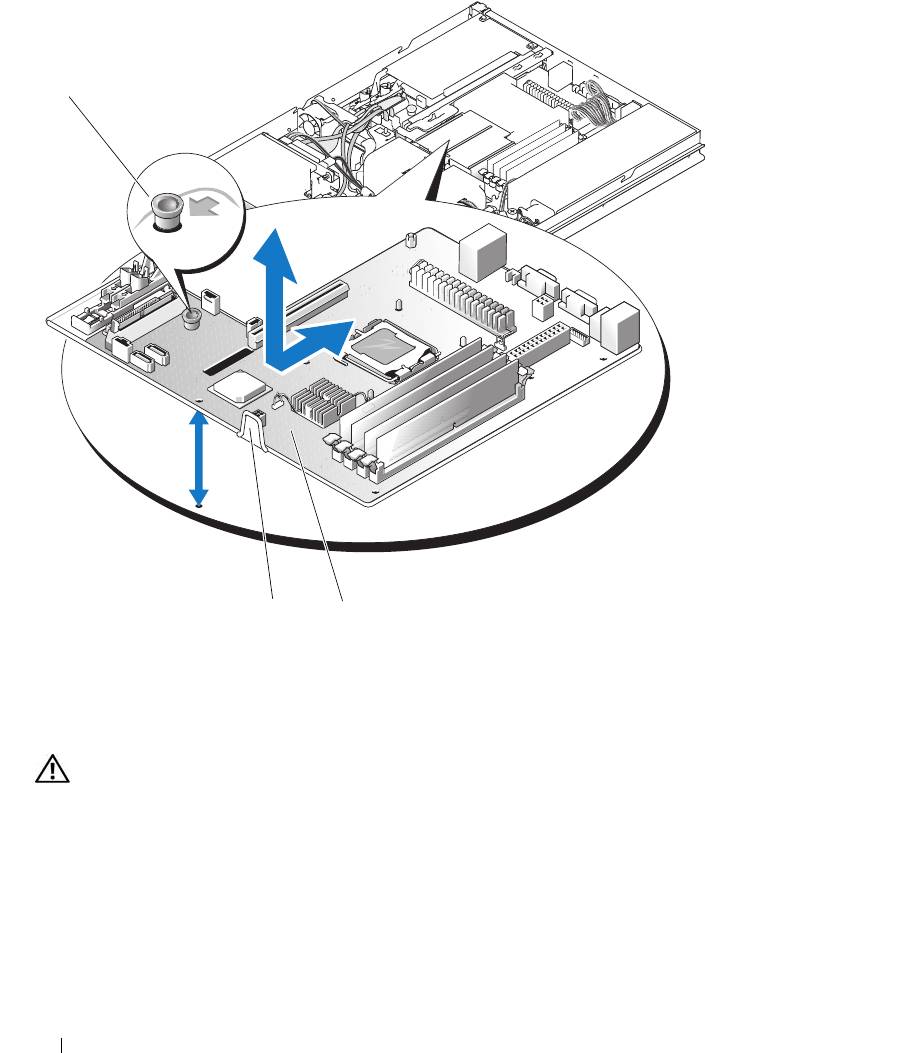
Figure 3-21. Installing and Removing the System Board
1
3
2
1 plunger 2 system board 3 system board tray
Installing the System Board Assembly
CAUTION: Only trained service technicians are authorized to remove the system cover and access any of the
components inside the system. Before performing any procedure, see your Product Information Guide for
complete information about safety precautions, working inside the computer and protecting against electrostatic
discharge.
1
Unpack the new system board assembly.
2
Align the system board tray so that the tabs on the chassis floor slide into the notches in the system
board tray.
3
Slide the system board tray backward until it stops.
4
Press down on the plunger that secures the system board tray to the chassis. See Figure 3-21.
76 Installing System Components

5
Connect the two power cables to the 12V and PWR_CONN connectors on the system board. See
Figure 6-2.
6
Connect the chassis intrusion cable to the INTRUSION_SWITCH connector on the system board.
7
Install the riser card. See "Installing the Riser Card" on page 67.
8
Using a #2 Phillips screwdriver, tighten the two screws that secure the riser card to the system board.
9
Install any PCI expansion cards that you removed. See "Installing an Expansion Card" on page 63.
10
Connect the hard-drive interface cables:
a
If you installed a SAS controller, reconnect the interface cable to the controller card.
b
If your configuration uses the integrated controller, reconnect the hard drive 0 interface cable to
the SATA_0 connector and the hard drive 1 interface cable to the SATA_1 connector on the
system board. See Figure 6-2 for the location of the SATA connectors.
11
Install the processor and heat sink. See "Replacing the Processor" on page 71.
12
Install the memory modules. See "Installing Memory Modules" on page 69.
NOTE: Install the memory modules as noted in step 3 of the procedure in "Removing the System Board
Assembly" on page 75.
13
Connect the control-panel interface cable to the FP_CONN1 connector on the system board. See
Figure 6-2 for the location of the FP_CONN1 connector.
14
If applicable, connect the optical drive interface cable to the IDE connector on the system card. See
Figure 6-2 for the location of the IDE connector.
15
Install the cooling shroud. See "Installing the Cooling Shroud" on page 48.
16
Close the system. See "Closing the System" on page 47.
Installing System Components 77

78 Installing System Components
Troubleshooting Your System
Safety First—For You and Your System
To perform certain procedures in this document, you must remove the system cover and work inside the
system. While working inside the system, do not attempt to service the system except as explained in
this guide and elsewhere in your system documentation.
CAUTION: Only trained service technicians are authorized to remove the system cover and access any of
the components inside the system. Before performing any procedure, see your Product Information Guide for
complete information about safety precautions, working inside the computer and protecting against
electrostatic discharge.
Start-Up Routine
Look and listen during the system's start-up routine for the indications described in Table 4-1.
Table 4-1. Start-Up Routine Indications
Look/listen for: Action
An error message displayed on the
See "System Messages" on page 15.
monitor.
System status and diagnostic indicators See "Front-Panel Features and Indicators" on page 11 and
"Diagnostics Indicator Codes" on page 22.
Alert messages from the systems
See the systems management software documentation.
management software.
The monitor's power indicator. See "Troubleshooting the Video Subsystem" on page 81.
The keyboard indicators. See "Troubleshooting the Keyboard" on page 81.
The USB diskette drive activity indicator. See "Troubleshooting a USB Device" on page 83.
The USB CD drive activity indicator. See "Troubleshooting a USB Device" on page 83.
The optical drive activity indicator. See "Troubleshooting an Optical Drive" on page 89.
The hard-drive activity indicator. See "Troubleshooting a Hard Drive" on page 90.
An unfamiliar constant scraping or
See
"Getting Help
" on page 103
.
grinding sound when you access a drive.
Troubleshooting Your System 79
Checking the Equipment
This section provides troubleshooting procedures for external devices attached to the system, such as the
monitor, keyboard, or mouse. Before you perform any of the procedures, see "Troubleshooting External
Connections" on page 81.
Troubleshooting IRQ Assignment Conflicts
Most PCI devices can share an IRQ with another device, but they cannot use an IRQ simultaneously. To
avoid this type of conflict, see the documentation for each PCI device for specific IRQ requirements.
Table 4-2 lists the IRQ assignments.
Table 4-2. IRQ Assignment Defaults
IRQ Line Assignment
IRQ0 System timer
IRQ1 Keyboard controller
IRQ2 Interrupt controller 1 to enable IRQ8 through IRQ15
IRQ3 Available
IRQ4 Serial port 1 (COM1 and COM3)
IRQ5 Available
IRQ6 Available
IRQ7 Available
IRQ8 Real-time clock
IRQ9 ACPI functions (used for power management)
IRQ10 Available
IRQ11 Available
IRQ12 PS/2 mouse port (available if the mouse is disabled through the System Setup
program)
IRQ13 Math coprocessor
IRQ14 IDE optical drive controller (available if IDE CDROM controller is disabled through
the System Setup program)
IRQ15 Reserved (available if IDE CDROM controller is disabled through the System Setup
program)
80 Troubleshooting Your System

Troubleshooting External Connections
Loose or improperly connected cables are the most likely source of problems for the system, monitor, and
other peripherals (such as a printer, keyboard, mouse, or other external device). Ensure that all external
cables are securely attached to the external connectors on your system. See Figure 1-1 for the front-panel
connectors and Figure 1-2 for the back-panel connectors on your system.
Troubleshooting the Video Subsystem
Problem
• Monitor is not working properly.
• Video memory is faulty.
Action
1
Check the system and power connections to the monitor.
2
Determine whether the system has monitors attached to both the front and rear video connectors.
The system supports only one monitor attached to either the front or rear video connector. When a
monitor is connected to the front panel, and the back-panel video connector is disabled.
If two monitors are attached to the system, disconnect one monitor. If the problem is not resolved,
continue to the next step.
3
Check the system and power connections to the monitor.
4
Run the appropriate online diagnostic test. See "Using Dell PowerEdge Diagnostics" on page 93.
If the tests run successfully, the problem is not related to video hardware.
If the tests fail, see "Getting Help" on page 103.
Troubleshooting the Keyboard
Problem
• System message indicates a problem with the keyboard.
• Keyboard is not functioning properly.
Action
1
Run the appropriate online diagnostic test. See "Using Dell PowerEdge Diagnostics" on page 93.
2
Press each key on the keyboard, and examine the keyboard and its cable for signs of damage.
3
Swap the faulty keyboard with a working keyboard.
If the problem is resolved, replace the faulty keyboard. See "Getting Help" on page 103.
If the problem is not resolved, see "Getting Help" on page 103.
Troubleshooting Your System 81

Troubleshooting the Mouse
Problem
• System message indicates a problem with the mouse.
• Mouse is not functioning properly.
Action
1
Run the appropriate online diagnostic test. See "Using Dell PowerEdge Diagnostics" on page 93.
If the test fails, continue to the next step.
2
Examine the mouse and its cable for signs of damage.
3
Swap the faulty mouse with a working mouse.
If the problem is resolved, replace the faulty mouse. See "Getting Help" on page 103.
If the problem is not resolved, see "Getting Help" on page 103.
Troubleshooting Basic I/O Functions
Problem
• Error message indicates a problem with a serial port.
• Device connected to a serial port is not operating properly.
Action
1
Enter the System Setup program and ensure that the serial port is enabled. See "Using the System
Setup Program" on page 29.
2
If the problem is confined to a particular application, see the application documentation for specific
port configuration requirements that the program may require.
3
Run the appropriate online diagnostic test. See "Using Dell PowerEdge Diagnostics" on page 93.
If the tests run successfully but the problem persists, see "Troubleshooting a Serial I/O Device" on
page 82.
Troubleshooting a Serial I/O Device
Problem
• Device connected to the serial port is not operating properly.
82 Troubleshooting Your System

Action
1
Turn off the system and any peripheral devices connected to the serial port.
2
Swap the serial interface cable with a working cable, and turn on the system and the serial device.
If the problem is resolved, replace the interface cable. See "Getting Help" on page 103.
3
Turn off the system and the serial device, and swap the device with a comparable device.
4
Turn on the system and the serial device.
If the problem is resolved, replace the serial device. See "Getting Help" on page 103.
If the problem persists, see "Getting Help" on page 103.
Troubleshooting a USB Device
Problem
• System message indicates a problem with a USB device.
• Device connected to a USB port is not operating properly.
Action
1
Enter the System Setup program, and ensure that the USB ports are enabled. See "Using the System
Setup Program" on page 29.
2
Turn off the system and any USB devices.
3
Disconnect the USB devices, and connect the malfunctioning device to the other USB connector.
4
Turn on the system and then turn on the reconnected device.
If the problem is resolved, the USB connector might be defective. See "Getting Help" on page 103.
5
If possible, swap the interface cable with a working cable.
If the problem is resolved, replace the interface cable. See "Getting Help" on page 103.
6
Turn off the system and the USB device, and swap the device with a comparable device.
7
Turn on the system and the USB device.
If the problem is resolved, replace the USB device. See "Getting Help" on page 103.
If the problem persists, see "Getting Help" on page 103.
Troubleshooting a NIC
Problem
• NIC cannot communicate with network.
Troubleshooting Your System 83
Action
1
Run the appropriate online diagnostic test. See "Using Dell PowerEdge Diagnostics" on page 93.
2
Check the appropriate indicator on the NIC connector. See "NIC Indicator Codes" on page 15.
• If the link indicator does not light, check all cable connections.
• If the activity indicator does not light, the network driver files might be damaged or missing.
Remove and reinstall the drivers if applicable. See the NIC's documentation.
• Change the autonegotiation setting, if possible.
• Use another connector on the switch or hub.
If you are using a NIC card instead of an integrated NIC, see the documentation for the NIC card.
3
Ensure that the appropriate drivers are installed and the protocols are bound. See the NIC's
documentation.
4
Enter the System Setup program and confirm that the NICs are enabled. See "Using the System Setup
Program" on page 29.
5
Ensure that the NICs, hubs, and switches on the network are all set to the same data transmission
speed. See the network equipment documentation.
6
Ensure that all network cables are of the proper type and do not exceed the maximum length.
Responding to a Systems Management Software Alert Message
Systems management software monitors critical system voltages and temperatures, fans, and hard drives in
the system. Alert messages appear in the
Alert Log
window. For information about the
Alert Log
window,
see the systems management software documentation.
Troubleshooting a Wet System
Problem
• Liquid spilled on the system.
• Excessive humidity.
Action
CAUTION: Only trained service technicians are authorized to remove the system cover and access any of the
components inside the system. Before performing any procedure, see your Product Information Guide for
complete information about safety precautions, working inside the computer and protecting against electrostatic
discharge.
1
Turn off the system and attached peripherals, and disconnect the system from the electrical outlet.
2
Open the system. See "Opening the System" on page 46.
3
Remove all expansion cards installed in the system. See "Removing an Expansion Card" on page 65.
84 Troubleshooting Your System

4
Let the system dry thoroughly for at least 24 hours.
5
Close the system. See "Closing the System" on page 47.
6
Reconnect the system to the electrical outlet, and turn on the system and attached peripherals.
If the system does not start properly, see "Getting Help" on page 103.
7
If the system starts properly, shut down the system and reinstall all of the expansion cards that you
removed. See "Installing an Expansion Card" on page 63.
8
Run the appropriate online diagnostic test. See "Using Dell PowerEdge Diagnostics" on page 93.
If the tests fail, see "Getting Help" on page 103.
Troubleshooting a Damaged System
Problem
• System was dropped or damaged.
Action
CAUTION: Only trained service technicians are authorized to remove the system cover and access any of the
components inside the system. Before performing any procedure, see your Product Information Guide for
complete information about safety precautions, working inside the computer and protecting against electrostatic
discharge.
1
Open the system. See "Opening the System" on page 46.
2
Ensure that the following components are properly installed:
• Expansion cards
• Power supplies
•Fans
3
Ensure that all cables are properly connected.
4
Close the system. See "Closing the System" on page 47.
5
Run the system board tests in the system diagnostics. See "Running the System Diagnostics" on
page 93.
If the tests fail, see "Getting Help" on page 103.
Troubleshooting Your System 85
Troubleshooting the System Battery
Problem
• System message indicates a problem with the battery.
• System Setup program loses system configuration information.
• System date and time do not remain current.
NOTE: If the system is turned off for long periods of time (for weeks or months), the NVRAM may lose its system
configuration information. This situation is caused by a defective battery.
Action
1
Re-enter the time and date through the System Setup program. See "Using the System Setup Program"
on page 29.
2
Turn off the system and disconnect it from the electrical outlet for at least one hour.
3
Reconnect the system to the electrical outlet and turn on the system.
4
Enter the System Setup program.
If the date and time are not correct in the System Setup program, replace the battery. See "System
Battery" on page 49.
If the problem is not resolved by replacing the battery, see "Getting Help" on page 103.
NOTE: Some software may cause the system time to speed up or slow down. If the system seems to operate
normally except for the time kept in the System Setup program, the problem may be caused by software rather than
by a defective battery.
Troubleshooting the Power Supply
Problem
• System-status indicators are amber.
Action
CAUTION: Only trained service technicians are authorized to remove the system cover and access any of the
components inside the system. Before performing any procedure, see your Product Information Guide for
complete information about safety precautions, working inside the computer and protecting against electrostatic
discharge.
1
Run the appropriate online diagnostics test. See "Using Dell PowerEdge Diagnostics" on page 93.
2
Turn off the system and attached peripherals, and disconnect the system from the electrical outlet.
3
Open the system. See "Opening the System" on page 46.
86 Troubleshooting Your System
4
Ensure that the power supply is properly installed by removing and reinstalling it. See "Power Supply"
on page 61.
If the problem persists, remove the faulty power supply. See "Removing the Power Supply" on page 61.
5
Install a new power supply. See "Installing the Power Supply" on page 62.
If the problem persists, see "Getting Help" on page 103.
Troubleshooting System Cooling Problems
Problem
• Systems management software issues a fan-related error message.
Action
Ensure that none of the following conditions exist:
• Ambient temperature is too high.
• External airflow is obstructed.
• Cables inside the system obstruct airflow.
• An individual cooling fan has failed. See "Troubleshooting a Fan" on page 87.
Troubleshooting a Fan
Problem
• System-status indicator is amber.
• Systems management software issues a fan-related error message.
Action
CAUTION: Only trained service technicians are authorized to remove the system cover and access any of the
components inside the system. Before performing any procedure, see your Product Information Guide for
complete information about safety precautions, working inside the computer and protecting against electrostatic
discharge.
1
Run the appropriate diagnostic test. See "Using Dell PowerEdge Diagnostics" on page 93.
2
Open the system. See "Opening the System" on page 46.
3
Ensure that the faulty fan's power cable is firmly attached to the fan power connector. See "Fan
Assembly" on page 57.
NOTE: Wait 30 seconds for the system to recognize the fan and determine whether it is working properly.
Troubleshooting Your System 87

4
If the problem is not resolved, install a new fan. See "Fan Assembly" on page 57.
If the replacement fan is working properly, close the system. See "Closing the System" on page 47.
If the replacement fan does not operate, see "Getting Help" on page 103.
Troubleshooting System Memory
Problem
• Faulty memory module.
• Faulty system board.
• Diagnostic indicator code indicates a problem with system memory.
Action
CAUTION: Only trained service technicians are authorized to remove the system cover and access any of the
components inside the system. Before performing any procedure, see your Product Information Guide for
complete information about safety precautions, working inside the computer and protecting against electrostatic
discharge.
1
If the system is operational, run the appropriate online diagnostic test. See "Using Dell PowerEdge
Diagnostics" on page 93.
If diagnostics indicates a fault, follow the corrective action(s) provided by the diagnostic program. If
the problem is not resolved or if the system is not operational, proceed to step 2.
2
Turn off the system and attached peripherals, unplug the system from the power source and press the
power button, and reconnect the system to power.
3
Turn on the system and attached peripherals and, as the system boots, note the messages on the
screen.
If the amount of system memory detected during POST does not match the amount of memory
installed, proceed to the next step.
If an error message appears, go to step 12.
4
Enter the System Setup program and check the system memory setting. See "Using the System Setup
Program" on page 29.
If the amount of memory installed matches the system memory setting, go to step 12.
5
Turn off the system and attached peripherals, and disconnect the system from the electrical outlet.
6
Open the system. See "Opening the System" on page 46.
7
Ensure that the memory banks are populated correctly. See "Memory Module Installation Guidelines"
on page 68.
If the memory modules are populated correctly, continue to the next step.
8
Reseat the memory modules in their sockets. See "Installing Memory Modules" on page 69.
88 Troubleshooting Your System
9
Close the system. See "Closing the System" on page 47.
10
Reconnect the system to its electrical outlet, and turn on the system and attached peripherals.
11
Enter the System Setup program and check the system memory setting. See "Using the System Setup
Program" on page 29. If the amount of memory installed still does not match the system memory
setting, proceed to the next step.
12
Turn off the system and attached peripherals, and disconnect the system from its electrical outlet.
13
Open the system. See "Opening the System" on page 46.
NOTE: Several configurations for the memory modules exist; see "Memory Module Installation Guidelines" on
page 68.
14
If a diagnostic test or error message indicates a specific memory module as faulty, swap or replace the
module. Otherwise, swap the memory module in socket 1 with a module of the same type and capacity
that is known to be good. See "Installing Memory Modules" on page 69.
15
Close the system. See "Closing the System" on page 47.
16
Reconnect the system to its electrical outlet, and turn on the system and attached peripherals.
17
As the system boots, observe any error message that appears and the diagnostic indicators on the front
of the system.
18
If the memory problem is still indicated, repeat step 12 through step 17 for each memory module
installed until the faulty memory module is replaced.
If the problem persists after all memory modules have been checked, see "Getting Help" on page 103.
Troubleshooting an Optical Drive
Problem
• System cannot read data from a CD or DVD.
• Optical drive indicator does not blink during boot.
Action
CAUTION: Only trained service technicians are authorized to remove the system cover and access any of the
components inside the system. Before performing any procedure, see your Product Information Guide for
complete information about safety precautions, working inside the computer and protecting against electrostatic
discharge.
1
Try using a different CD or DVD in the optical drive.
2
Enter the System Setup program and ensure that the drive’s IDE controller is enabled. See "Using the
System Setup Program" on page 29.
3
Run the appropriate online diagnostic test. See "Using Dell PowerEdge Diagnostics" on page 93.
4
Turn off the system and attached peripherals, and disconnect the system from the electrical outlet.
5
Open the system. See "Opening the System" on page 46.
Troubleshooting Your System 89

6
Ensure that the interface cable is securely connected to the optical drive and to the controller.
7
Ensure that a power cable is properly connected to the drive.
8
Close the system. See "Closing the System" on page 47.
9
Reconnect the system to the electrical outlet, and turn on the system and attached peripherals.
If the problem is not resolved, see "Getting Help" on page 103.
Troubleshooting a Hard Drive
Problem
• Device driver error.
• One or more hard drives not recognized by the system.
Action
CAUTION: Only trained service technicians are authorized to remove the system cover and access any of the
components inside the system. Before performing any procedure, see your Product Information Guide for
complete information about safety precautions, working inside the computer and protecting against electrostatic
discharge.
NOTICE: This troubleshooting procedure can destroy data stored on the hard drive. Before you proceed, back up
all files on the hard drive.
1
Run the appropriate online diagnostics test. See "Using Dell PowerEdge Diagnostics" on page 93.
Depending on the results of the diagnostics test, proceed as needed through the following steps.
2
If you are experiencing problems with multiple hard drives, skip to step 5. For a problem with a single
hard drive, continue to the next step.
3
If your system has a SAS RAID controller, perform the following steps.
a
Restart the system and press <Ctrl><R> to enter the host adapter configuration utility program.
See the documentation supplied with the host adapter for information about the configuration
utility.
b
Ensure that the hard drive has been configured correctly for the RAID.
c
Exit the configuration utility and allow the system to boot to the operating system.
4
Ensure that the required device drivers for your SAS controller card or SAS RAID controller are
installed and are configured correctly. See the operating system documentation for more information.
5
Check the System Setup program to verify that the SAS controller is enabled and the hard drives
connected to the controller are detected.
6
Check the cable connections inside the system:
a
Turn off the system, including any attached peripherals, and disconnect the system from the
electrical outlet.
90 Troubleshooting Your System
b
Open the system. See "Opening the System" on page 46.
c
Verify that the cable connections between the hard drive(s) and the drive controller are correct,
whether the connections are to the SATA connectors on the system board, a SAS expansion card,
or a SAS RAID controller.
d
Verify that the SAS or SATA cables are securely seated in their connectors.
e
Close the system. See "Closing the System" on page 47.
f
Reconnect the system to the electrical outlet, and turn on the system and attached peripherals.
If the problem persists,
see "Getting Help
" on page 103
.
Troubleshooting Expansion Cards
NOTE: When troubleshooting an expansion card, see the documentation for your operating system and the
expansion card.
Problem
• Error message indicates a problem with an expansion card.
• Expansion card performs incorrectly or not at all.
Action
CAUTION: Only trained service technicians are authorized to remove the system cover and access any of the
components inside the system. Before performing any procedure, see your Product Information Guide for
complete information about safety precautions, working inside the computer and protecting against electrostatic
discharge.
1
Run the appropriate online diagnostic test. See "Using Dell PowerEdge Diagnostics" on page 93.
2
Turn off the system and attached peripherals, and disconnect the system from the electrical outlet.
3
Open the system. See "Opening the System" on page 46.
4
Ensure that each expansion card is firmly seated in its connector. See "Installing an Expansion Card"
on page 63.
5
Close the system. See "Closing the System" on page 47.
6
Reconnect the system to the electrical outlet, and turn on the system and attached peripherals.
If the problem persists, go to the next step.
7
Turn off the system and attached peripherals, and disconnect the system from the electrical outlet.
8
Open the system. See "Opening the System" on page 46.
9
Remove all expansion cards installed in the system. See "Removing an Expansion Card" on page 65.
10
Close the system. See "Closing the System" on page 47.
11
Reconnect the system to the electrical outlet, and turn on the system and attached peripherals.
Troubleshooting Your System 91

12
Run the appropriate online diagnostic test.
If the tests fail, see "Getting Help" on page 103.
13
For each expansion card you removed in step 9, perform the following steps:
a
Turn off the system and attached peripherals, and disconnect the system from the electrical outlet.
b
Open the system. See "Opening the System" on page 46.
c
Reinstall one of the expansion cards.
d
Close the system. See "Closing the System" on page 47.
e
Run the appropriate diagnostic test.
If the tests fail, see "Getting Help" on page 103.
Troubleshooting the Microprocessor
Problem
• Error message indicates a microprocessor problem.
• A heat sink is not installed for the processor.
Action
CAUTION: Only trained service technicians are authorized to remove the system cover and access any of the
components inside the system. Before performing any procedure, see your Product Information Guide for
complete information about safety precautions, working inside the computer and protecting against electrostatic
discharge.
1
Run the appropriate online diagnostics test. See "Using Dell PowerEdge Diagnostics" on page 93.
2
Turn off the system and attached peripherals, and disconnect the system from the electrical outlet.
3
Open the system. See "Opening the System" on page 46.
4
Ensure that the processor and heat sink are properly installed. See "Replacing the Processor" on
page 71.
5
Close the system. See "Closing the System" on page 47.
6
Reconnect the system to the electrical outlet, and turn on the system and attached peripherals.
If the problem persists, see "Getting Help" on page 103.
92 Troubleshooting Your System

Running the System Diagnostics
If you experience a problem with your system, run the diagnostics before calling for technical assistance.
The purpose of the diagnostics is to test your system's hardware without requiring additional equipment
or risking data loss. If you are unable to fix the problem yourself, service and support personnel can use
diagnostics test results to help you solve the problem.
Using Dell PowerEdge Diagnostics
®
®
To assess a system problem, first use the online Dell
PowerEdge
Diagnostics. Dell PowerEdge
Diagnostics is a suite of diagnostic programs, or test modules, that include diagnostic tests on chassis
and storage components such as hard drives, physical memory, communications and printer ports,
NICs, CMOS, and more. If you are unable to identify the problem using the PowerEdge Diagnostics,
then use the system diagnostics.
®
®
The files required to run PowerEdge Diagnostics for systems running supported Microsoft
Windows
and Linux operating systems are available at
support.dell.com
and on the CDs that came with your
system. For information about using diagnostics, see the
Dell PowerEdge Diagnostics User's Guide
.
System Diagnostics Features
The system diagnostics provides a series of menus and options for particular device groups or devices.
The system diagnostics menus and options allow you to:
• Run tests individually or collectively.
• Control the sequence of tests.
• Repeat tests.
• Display, print, or save test results.
• Temporarily suspend testing if an error is detected or terminate testing when a user-defined error
limit is reached.
• View help messages that briefly describe each test and its parameters.
• View status messages that inform you if tests are completed successfully.
• View error messages that inform you of problems encountered during testing.
Running the System Diagnostics 93

When to Use the System Diagnostics
If a major component or device in the system does not operate properly, component failure may be
indicated. As long as the microprocessor and the system's input/output devices (monitor, keyboard, and
diskette drive) are functioning, you can use the system diagnostics to help identify the problem.
Running the System Diagnostics
The system diagnostics can be run either from the utility partition on your hard drive or from removable
bootable media. You can create this media using the CDs that came with your system
or from the
diagnostic utility that you can download from support.dell.com.
NOTICE: Use the system diagnostics to test only your system. Using this program with other systems may cause
invalid results or error messages. In addition, use only the program that came with your system (or an updated
version of that program).
From the Utility Partition
1
As the system boots, press <F10> during POST.
2
From the utility partition main menu under
Run System Utilities
, select
Run System Diagnostics
.
From Removable Bootable Media
You can create a bootable diagnostic partition on a recordable CD, a USB flash drive, or on diskettes
using the CDs that came with your system, or the diagnostic utility that you can download from
support.dell.com.
1
Insert a recordable CD, USB flash drive, or writable diskette into your system.
2
Run the self-extracting diagnostic utility package from the diagnostic CD that came with your system
or the file you downloaded from
support.dell.com
.
3
Run the diagnostic utility and follow the on-screen instructions to create the diagnostic partition on
the removable media.
4
Restart the system, enter the System Setup program, and set the removable media type as the default
boot device.
See "Using the System Setup Program" on page 29
for instructions.
5
Ensure that the removable bootable media is inserted or attached to the system and reboot the system.
If the system fails to boot, see "Getting Help" on page 103.
When you start the system diagnostics, a message is displayed indicating that the diagnostics are
initializing. Then the
Diagnostics
menu appears. This menu allows you to run all or specific diagnostics
tests, or to exit the system diagnostics.
NOTE: Before you read the rest of this section, start the system diagnostics so that you can see the utility on your
screen.
94 Running the System Diagnostics
System Diagnostics Testing Options
Click the testing option in the
Main
Menu
window. Table 5-1 provides a brief explanation of testing
options.
Table 5-1. System Diagnostics Testing Options
Testing Option Function
Express Test Performs a quick check of the system. This option runs device tests
that do not require user interaction. Use this option to quickly identify
the source of your problem.
Extended Test Performs a more thorough check of the system. This test can take an
hour or longer.
Custom Test Tests a particular device.
Information Displays test results.
Using the Custom Test Options
When you select
Custom Test
in the
Main
Menu
window, the
Customize
window appears and allows you
to select the device(s) to be tested, select specific options for testing, and view the test results.
Selecting Devices for Testing
The left side of the
Customize
window lists
devices that can be tested. Devices are grouped by device type
or by module, depending on the option you select. Click the
(+)
next to a device or module to view its
components. Click
(+)
on any component to view the tests that are available. Clicking a device, rather than
its components, selects all of the components of the device for testing.
Selecting Diagnostics Options
Use the
Diagnostics Options
area to select how you want to test a device. You can set the following options:
•
Non-Interactive Tests Only
— When checked, runs only tests that require no user intervention.
•
Quick Tests Only
— When checked, runs only the quick tests on the device. Extended tests will not
run when you select this option.
•
Show Ending Timestamp
— When checked, time stamps the test log.
•
Test Iterations
— Selects the number of times the test is run.
•
Log output file pathname
— When checked, enables you to specify where the test log file is saved.
Running the System Diagnostics 95

Viewing Information and Results
The tabs in the
Customize
window provide information about the test and the test results. The following
tabs are available:
•
Results
— Displays the test that ran and the result.
•
Errors
— Displays any errors that occurred during the test.
•
Help
— Displays information about the currently selected device, component, or test.
•
Configuration
— Displays basic configuration information about the currently selected device.
•
Parameters
— If applicable, displays parameters that you can set for the test.
96 Running the System Diagnostics
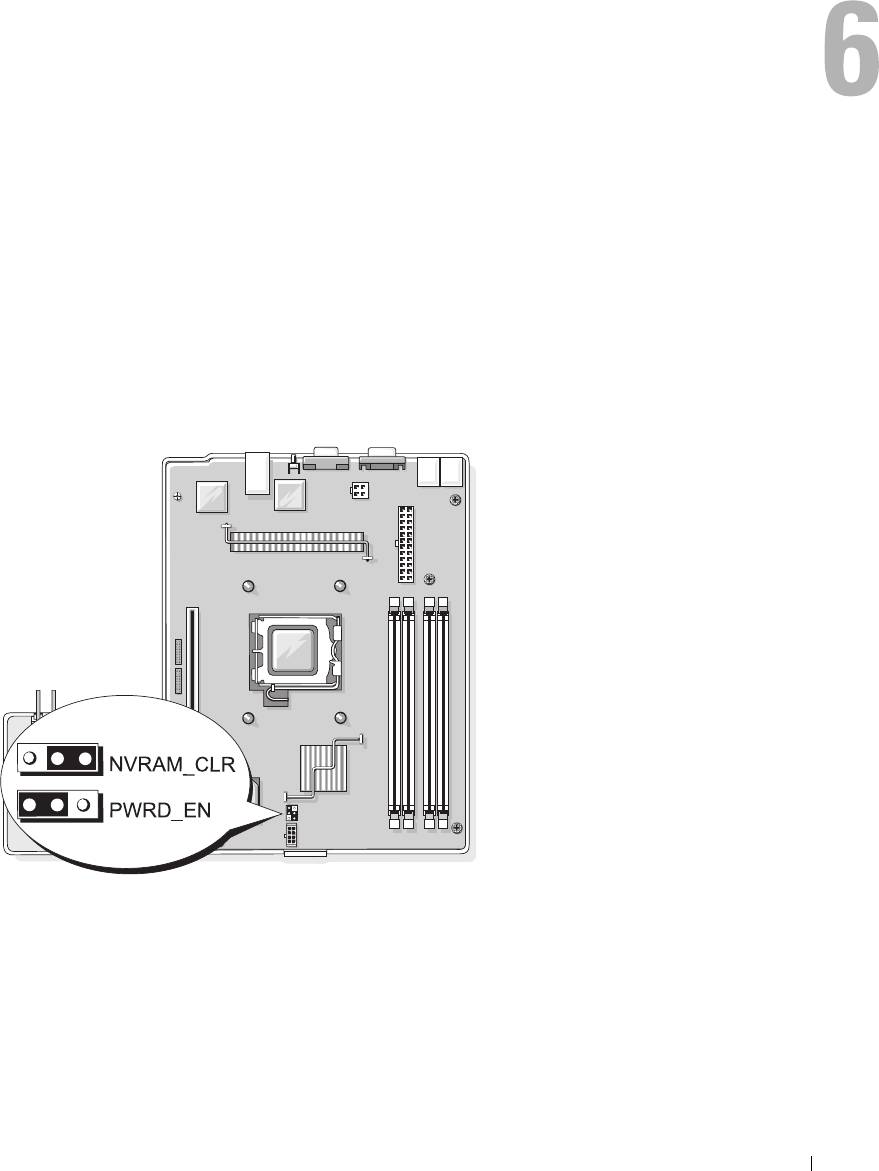
Jumpers and Connectors
This section provides specific information about the system jumpers and describes the connectors
on the various boards in the system.
System Board Jumpers
Figure 6-1 shows the location of the configuration jumpers on the system board. Table 6-1 lists the
jumper settings.
Figure 6-1. System Board Jumpers
Jumpers and Connectors 97
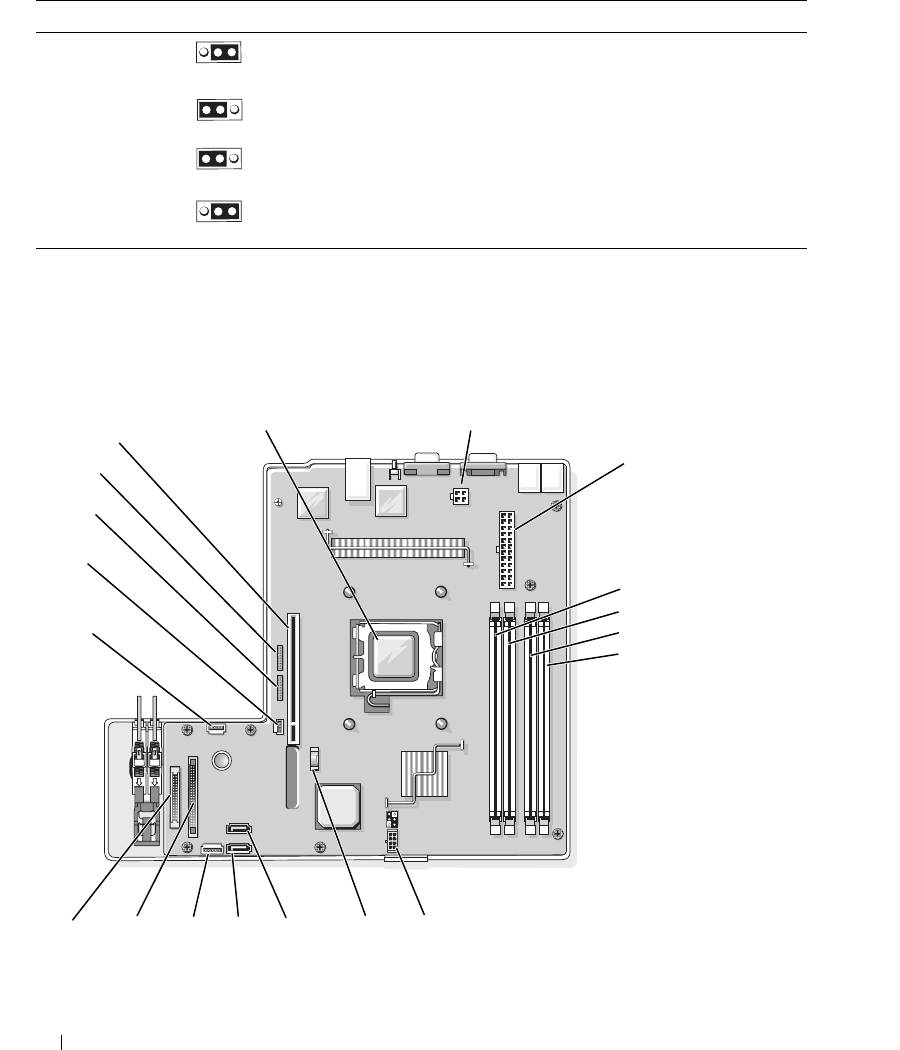
Table 6-1. System Board Jumper Settings
Jumper Setting Description
NVRAM_CLR (default) The configuration settings in NVRAM are retained at system
boot.
The configuration settings in NVRAM are cleared at next
system boot.
PWRD_EN (default) The password feature is enabled.
The password feature is disabled.
System Board Connectors
See Figure 6-2 and Table 6-2 for the location and description of the system board connectors.
Figure 6-2. System Board Connectors
1
2
19
3
18
17
16
4
5
15
6
7
14
13
12 11
10
9 8
98 Jumpers and Connectors

Table 6-2. System Board Connectors
Item Connector Description
1 PROC Processor socket
2 12V power supply connector
3 PWR_CONN power supply connector
4 DIMM 1 Memory module
5 DIMM 3 Memory module
6 DIMM 2 Memory module
7 DIMM 4 Memory module
8 FAN Power connector for the fans
9 BATTERY Connector for the 3.0 V coin battery
10 SATA_0 Connector for the SATA 0 hard drive
11 SATA_1 Connector for the SATA 1 hard drive
12 PCI FAN Connector for the PCI fan
13 FP_CONN1 Control panel interface connector
14 IDE Optical drive interface connector
15 HD_ACT Hard drive activity connector (expansion controller)
16 INTRUSION_SWITCH Connector for the chassis intrusion switch
17 I2C HEADER Remote access controller connector
18 BMC PROG Remote access controller connector
19 RISER_CONN1 Riser card interface connector
Riser Card Connectors
The system is available with either a PCIe riser card or a PCI-X/PCIe riser card. See Figure 6-3 and
Figure 6-4 for the location and description of the expansion-card slots on the two riser cards.
Jumpers and Connectors 99
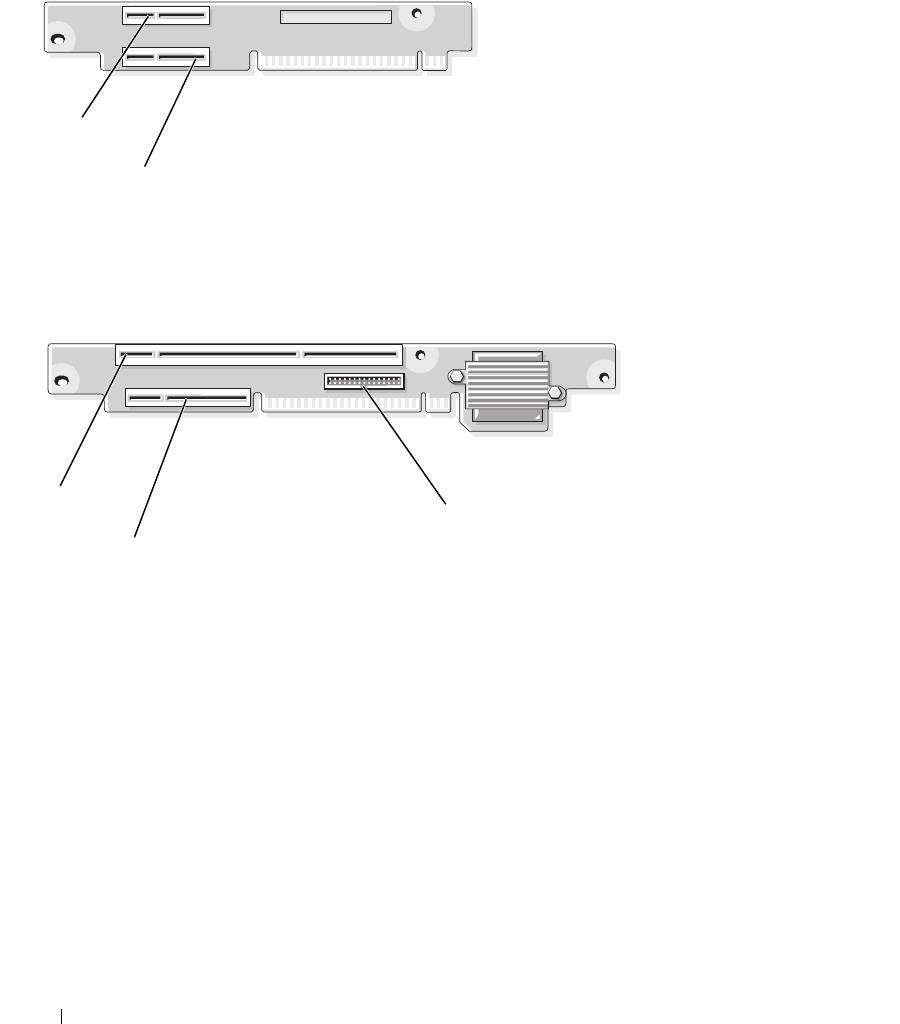
Figure 6-3. PCIe Riser Card Connectors
1
2
1 slot 1, PCIe x4-lane (x8-lane
2 slot 2, PCIe x8-lane
connector)
Figure 6-4. PCI-X/PCIe Riser Card Connectors
1
3
2
1 slot 1, PCI-X 64-bit 133 MHz
2 slot 2, PCIe x8-lane 3 system management
(3.3 V)
100 Jumpers and Connectors

Disabling a Forgotten Password
The system's software security features include a system password and a setup password, which are
discussed in detail in
"Using the System Setup Program
" on page 29. The password jumper enables these
password features or disables them and clears any password(s) currently in use.
CAUTION: Only trained service technicians are authorized to remove the system cover and access any of the
components inside the system. Before performing any procedure, see your Product Information Guide for
complete information about safety precautions, working inside the computer and protecting against electrostatic
discharge.
1
Turn off the system and attached peripherals, and disconnect the system from the electrical outlet.
2
Open the system. See "Opening and Closing the System" on page 44.
3
Remove the password jumper plug.
See Figure 6-1 to locate the password jumper on the system board.
4
Close the system. See "Closing the System" on page 47.
5
Reconnect the system to the electrical outlet, and turn on the system.
The existing passwords are not disabled (erased) until the system boots with the password jumper plug
removed. However, before you assign a new system and/or setup password, you must install the jumper
plug.
NOTE: If you assign a new system and/or setup password with the jumper plug still removed, the system
disables the new password(s) the next time it boots.
6
Turn off the system, including any attached peripherals, and disconnect the system from the electrical
outlet.
7
Open the system.
8
Install the password jumper plug.
See Figure 6-1 to locate the password jumper on the system board.
9
Close the system, reconnect the system to the electrical outlet, and turn on the system.
10
Assign a new system and/or setup password.
To assign a new password using the System Setup program, see "Using the System Setup Program" on
page 29.
Jumpers and Connectors 101

102 Jumpers and Connectors

Getting Help
Obtaining Assistance
If you need assistance with a technical problem, perform the following steps:
1
Complete the procedures in "Troubleshooting Your System" on page 79.
2
Run the system diagnostics and record any information provided.
3
Make a copy of the Diagnostics Checklist (see "Diagnostics Checklist" on page 107), and fill it out.
4
Use Dell's extensive suite of online services available at Dell Support at
support.dell.com
for help
with installation and troubleshooting procedures.
For more information, see "Online Services" on page 103.
5
If the preceding steps have not resolved the problem, call Dell for technical assistance.
NOTE: Call technical support from a phone near or at the system so that technical support can assist you with any
necessary procedures.
NOTE: Dell’s Express Service Code system may not be available in all countries.
When prompted by Dell's automated telephone system, enter your Express Service Code to route the
call directly to the proper support personnel. If you do not have an Express Service Code, open the
Dell
Accessories
folder, double-click the
Express Service Code
icon, and follow the directions.
For instructions on using the technical support service, see "Support Service" on page 104 and "Before
You Call" on page 105.
NOTE: Some of the following services are not always available in all locations outside the continental U.S. Call your
local Dell representative for information on availability.
Online Services
You can access Dell Support at
support.dell.com
. Select your region on the
WELCOME TO DELL
SUPPORT
page, and fill in the requested details to access help tools and information.
You can contact Dell electronically using the following addresses:
• World Wide Web
www.dell.com/
www.dell.com/ap/
(Asian/Pacific countries only)
www.dell.com/jp
(Japan only)
Getting Help 103

www.euro.dell.com
(Europe only)
www.dell.com/la
(Latin American countries)
www.dell.ca
(Canada only)
• Anonymous file transfer protocol (FTP)
ftp.dell.com/
Log in as
user:anonymous
, and use your e-mail address as your password.
• Electronic Support Service
support@us.dell.com
apsupport@dell.com (Asian/Pacific countries only)
support.jp.dell.com
(Japan only)
support.euro.dell.com
(Europe only)
• Electronic Quote Service
apmarketing@dell.com (Asian/Pacific countries only)
sales_canada@dell.com (Canada only)
AutoTech Service
Dell's automated support service—AutoTech—provides recorded answers to the questions most frequently
asked by Dell customers about their portable and desktop computer systems.
When you call AutoTech, use your touch-tone telephone to select the subjects that correspond to your
questions.
The AutoTech service is available 24 hours a day, 7 days a week. You can also access this service through the
support service. See the contact information for your region.
Automated Order-Status Service
To check on the status of any Dell™ products that you have ordered, you can go to
support.dell.com
, or you
can call the automated order-status service. A recording prompts you for the information needed to locate
and report on your order. See the contact information for your region.
Support Service
Dell's support service is available 24 hours a day, 7 days a week, to answer your questions about Dell
hardware. Our support staff use computer-based diagnostics to provide fast, accurate answers.
To contact Dell's support service, see "Before You Call" on page 105 and then see the contact information for
your region.
104 Getting Help

Dell Enterprise Training and Certification
Dell Enterprise Training and Certification is available; see
www.dell.com/training
for more information.
This service may not be offered in all locations.
Problems With Your Order
If you have a problem with your order, such as missing parts, wrong parts, or incorrect billing, contact Dell
for customer assistance. Have your invoice or packing slip available when you call. See the contact
information for your region.
Product Information
If you need information about additional products available from Dell, or if you would like to place an order,
visit the Dell website at
www.dell.com
. For the telephone number to call to speak to a sales specialist, see the
contact information for your region.
Returning Items for Warranty Repair or Credit
Prepare all items being returned, whether for repair or credit, as follows:
1
Call Dell to obtain a Return Material Authorization Number, and write it clearly and prominently on
the outside of the box.
For the telephone number to call, see the contact information for your region.
2
Include a copy of the invoice and a letter describing the reason for the return.
3
Include a copy of any diagnostic information, including the Diagnostics Checklist (see "Diagnostics
Checklist" on page 107), indicating the tests you have run and any error messages reported by the
system diagnostics.
4
Include any accessories that belong with the item(s) being returned (such as power cables, media such
as CDs and diskettes, and guides) if the return is for credit.
5
Pack the equipment to be returned in the original (or equivalent) packing materials.
You are responsible for paying shipping expenses. You are also responsible for insuring any product
returned, and you assume the risk of loss during shipment to Dell. Collect-on-delivery (C.O.D.)
packages are not accepted.
Returns that are missing any of the preceding requirements will be refused at our receiving dock and
returned to you.
Before You Call
NOTE: Have your Express Service Code ready when you call. The code helps Dell's automated-support telephone system
direct your call more efficiently.
Getting Help 105

Remember to fill out the Diagnostics Checklist (see "Diagnostics Checklist" on page 107). If possible, turn
on your system before you call Dell for technical assistance and call from a telephone at or near the
computer. You may be asked to type some commands at the keyboard, relay detailed information during
operations, or try other troubleshooting steps possible only at the computer system itself. Ensure that the
system documentation is available.
CAUTION: Before servicing any components inside your computer, see your Product Information Guide for
important safety information.
106 Getting Help

Diagnostics Checklist
Name:
Date:
Address:
Phone number:
Service Tag (bar code on the back of the computer):
Express Service Code:
Return Material Authorization Number (if provided by Dell support technician):
Operating system and version:
Peripherals:
Expansion cards:
Are you connected to a network? Yes No
Network, version, and network card:
Programs and versions:
See your operating system documentation to determine the contents of the system’s start-up
files. If possible, print each file. Otherwise, record the contents of each file before calling Dell.
Error message, beep code, or diagnostic code:
Description of problem and troubleshooting procedures you performed:
Getting Help 107
Contacting Dell
To contact Dell electronically, you can access the following websites:
• www.dell.com
•
support.dell.com
(support)
For specific web addresses for your country, find the appropriate country section in the table below.
NOTE: Toll-free numbers are for use within the country for which they are listed.
NOTE: In certain countries, support specific to Dell™ XPS™ computers is available at a separate telephone
number listed for participating countries. If you do not see a telephone number listed that is specific for XPS
computers, you may contact Dell through the support number listed and your call will be routed appropriately.
When you need to contact Dell, use the electronic addresses, telephone numbers, and codes provided in
the following table. If you need assistance in determining which codes to use, contact a local or an
international operator.
NOTE: The contact information provided was deemed correct at the time that this document went to print and is
subject to change.
Country (City)
Department Name or Service Area,
Area Codes,
International Access Code
Website and E-Mail Address
Local Numbers, and
Country Code
Toll-Free Numbers
City Code
Anguilla Website: www.dell.com.ai
E-mail: la-techsupport@dell.com
Technical Support
toll-free: 800-335-0031
Antigua and Barbuda Website: www.dell.com.ag
E-mail: la-techsupport@dell.com
Technical Support
1-800-805-5924
Aomen Technical Support (Dell™ Dimension™, Dell
0800-105
Inspiron™, Dell OptiPlex™, Dell Latitude™, and
Dell Precision™)
Technical Support (servers and storage)
0800-105
108 Getting Help
Country (City)
Department Name or Service Area,
Area Codes,
International Access Code
Website and E-Mail Address
Local Numbers, and
Country Code
Toll-Free Numbers
City Code
Argentina (Buenos Aires)
Website: www.dell.com.ar
International Access Code: 00
E-mail: la-techsupport@dell.com
Country Code: 54
E-mail for desktop and portable computers:
la-techsupport@dell.com
City Code: 11
®
E-mail for servers and EMC
storage products:
la_enterprise@dell.com
Customer Care
toll-free: 0-800-444-0730
Technical Support
toll-free: 800-222-0154
Technical Support Services
toll-free: 0-800-444-0724
Sales
0-810-444-3355
Aruba Website: www.dell.com.aw
E-mail: la-techsupport@dell.com
Technical Support
toll-free: 800-1578
Australia (Sydney)
Website: support.ap.dell.com
International Access Code: 0011
E-mail: support.ap.dell.com/contactus
Country Code: 61
General Support
13DELL-133355
City Code: 2
Austria
Website: support.euro.dell.com
International Access Code: 900
E-mail: tech_support_central_europe@dell.com
Home/Small Business Sales
0820 240 530 00
Home/Small Business Fax
0820 240 530 49
Home/Small Business Customer Care
0820 240 530 14
Preferred Accounts/Corporate Customer Care
0820 240 530 16
Support for XPS
0820 240 530 81
Home/Small Business Support for all other Dell
0820 240 530 17
computers
Preferred Accounts/Corporate Support
0820 240 530 17
Switchboard
0820 240 530 00
Bahamas Website: www.dell.com.bs
E-mail: la-techsupport@dell.com
Technical Support
toll-free: 1-866-874-3038
Getting Help 109
Country (City)
Department Name or Service Area,
Area Codes,
International Access Code
Website and E-Mail Address
Local Numbers, and
Country Code
Toll-Free Numbers
City Code
Barbados Website: www.dell.com/bb
E-mail: la-techsupport@dell.com
Technical Support
1-800-534-3142
Belgium (Brussels)
Website: support.euro.dell.com
International Access Code: 00
Tech Support for XPS
02 481 92 96
Country Code: 32
Tech Support for all other Dell computers
02 481 92 88
City Code: 2
Tech Support Fax
02 481 92 95
Customer Care
02 713 15 65
Corporate Sales
02 481 91 00
Fax
02 481 92 99
Switchboard
02 481 91 00
Bermuda Website: www.dell.com/bm
E-mail: la-techsupport@dell.com
Technical Support
toll-free: 1-877-890-0754
Bolivia Website: www.dell.com/bo
E-mail: la-techsupport@dell.com
General Support
toll-free: 800-10-0238
Brazil
Website: www.dell.com/br
International Access Code: 00
E-mail: BR-TechSupport@dell.com
Country Code: 55
Customer Care and Tech Support
0800 90 3355
City Code: 51
Technical Support Fax
51 2104 5470
Customer Care Fax
51 2104 5480
Sales
0800 722 3498
British Virgin Islands General Support
toll-free: 1-866-278-6820
Brunei
Technical Support (Penang, Malaysia)
604 633 4966
Country Code: 673
Customer Care (Penang, Malaysia)
604 633 4888
Transaction Sales (Penang, Malaysia)
604 633 4955
110 Getting Help

Country (City)
Department Name or Service Area,
Area Codes,
International Access Code
Website and E-Mail Address
Local Numbers, and
Country Code
Toll-Free Numbers
City Code
Canada (North York, Ontario)
Online Order Status: www.dell.ca/ostatus
International Access Code: 011
AutoTech (automated Hardware and Warranty
toll-free: 1-800-247-9362
Support)
Customer Service (Home Sales/Small Business)
toll-free: 1-800-847-4096
Customer Service (med./large business,
toll-free: 1-800-326-9463
government)
Customer Service (printers, projectors, televisions,
toll-free: 1-800-847-4096
handhelds, digital jukebox, and wireless)
Hardware Warranty Support (Home Sales/Small
toll-free: 1-800-906-3355
Business)
Hardware Warranty Support (med./large bus.,
toll-free: 1-800-387-5757
government)
Hardware Warranty Support (printers, projectors,
1-877-335-5767
televisions, handhelds, digital jukebox, and wireless)
Sales (Home Sales/Small Business)
toll-free: 1-800-387-5752
Sales (med./large bus., government)
toll-free: 1-800-387-5755
Spare Parts Sales & Extended Service Sales
18664403355
Cayman Islands E-mail: la-techsupport@dell.com
Technical Support
toll-free: 1-877-261-0242
Chile (Santiago)
Website: www.dell.com/cl
Country Code: 56
E-mail: la-techsupport@dell.com
City Code: 2
Sales and Customer Support
toll-free: 1230-020-4823
Technical Support (CTC)
toll-free: 800730222
Technical Support (ENTEL)
toll-free: 1230-020-3762
Getting Help 111

Country (City)
Department Name or Service Area,
Area Codes,
International Access Code
Website and E-Mail Address
Local Numbers, and
Country Code
Toll-Free Numbers
City Code
China (Xiamen)
Technical Support website: support.dell.com.cn
Country Code: 86
Technical Support E-mail: cn_support@dell.com
City Code: 592
Customer Care E-mail: customer_cn@dell.com
Technical Support Fax
592 818 1350
Technical Support (Dimension and Inspiron)
toll-free: 800 858 2969
Technical Support (OptiPlex, Latitude, and Dell
toll-free: 800 858 0950
Precision)
Technical Support (servers and storage)
toll-free: 800 858 0960
Technical Support (projectors, PDAs, switches,
toll-free: 800 858 2920
routers, and so on)
Technical Support (printers)
toll-free: 800 858 2311
Customer Care
toll-free: 800 858 2060
Customer Care Fax
592 818 1308
Home and Small Business
toll-free: 800 858 2222
Preferred Accounts Division
toll-free: 800 858 2557
Large Corporate Accounts GCP
toll-free: 800 858 2055
Large Corporate Accounts Key Accounts
toll-free: 800 858 2628
Large Corporate Accounts North
toll-free: 800 858 2999
Large Corporate Accounts North Government and
toll-free: 800 858 2955
Education
Large Corporate Accounts East
toll-free: 800 858 2020
Large Corporate Accounts East Government and
toll-free: 800 858 2669
Education
Large Corporate Accounts Queue Team
toll-free: 800 858 2572
Large Corporate Accounts South
toll-free: 800 858 2355
Large Corporate Accounts West
toll-free: 800 858 2811
Large Corporate Accounts Spare Parts
toll-free: 800 858 2621
Colombia Website: www.dell.com/cl
E-mail: la-techsupport@dell.com
Technical Support
toll-free: 1-800-915-5704
112 Getting Help
Country (City)
Department Name or Service Area,
Area Codes,
International Access Code
Website and E-Mail Address
Local Numbers, and
Country Code
Toll-Free Numbers
City Code
Costa Rica Website: www.dell.com/cr
E-mail: la-techsupport@dell.com
Technical Support
toll-free: 800-012-0232
Czech Republic (Prague)
Website: support.euro.dell.com
International Access Code: 00
E-mail: czech_dell@dell.com
Country Code: 420
Technical Support
22537 2727
Customer Care
22537 2707
Fax
22537 2714
Technical Fax
22537 2728
Switchboard
22537 2711
Denmark (Copenhagen)
Website: support.euro.dell.com
International Access Code: 00
Technical Support for XPS
7010 0074
Country Code: 45
Technical Support for all other Dell computers
7023 0182
Customer Care (Relational)
7023 0184
Home/Small Business Customer Care
3287 5505
Switchboard (Relational)
3287 1200
Switchboard Fax (Relational)
3287 1201
Switchboard (Home/Small Business)
3287 5000
Switchboard Fax (Home/Small Business)
3287 5001
Dominica Website: www.dell.com/dm
E-mail: la-techsupport@dell.com
General Support
toll-free: 1-866-278-6821
Dominican Republic Website: www.dell.com/do
E-mail: la-techsupport@dell.com
Technical Support
toll-free: 1-888-156-1834 or
toll-free: 1-888-156-1584
Ecuador Website: www.dell.com/ec
E-mail: la-techsupport@dell.com
General Support (calling from Quito)
toll-free: 999-119-877-655-3355
General Support (calling from Guayaquil)
toll-free: 1800-999-119-877-655-
3355
Getting Help 113

Country (City)
Department Name or Service Area,
Area Codes,
International Access Code
Website and E-Mail Address
Local Numbers, and
Country Code
Toll-Free Numbers
City Code
El Salvador Website: www.dell.com/ec
E-mail: la-techsupport@dell.com
Technical Support (Telephonica)
toll-free: 8006170
Finland (Helsinki)
Website: support.euro.dell.com
International Access Code: 990
E-mail: fi_support@dell.com
Country Code: 358
Technical Support
0207 533 555
City Code: 9
Customer Care
0207 533 538
Switchboard
0207 533 533
Sales under 500 employees
0207 533 540
Fax
0207 533 530
Sales over 500 employees
0207 533 533
Fax
0207 533 530
France (Paris) (Montpellier)
Website: support.euro.dell.com
International Access Code: 00
Home and Small Business
Country Code: 33
Technical Support for XPS
0825 387 129
City Codes: (1) (4)
Technical Support for all other Dell computers
0825 387 270
Customer Care
0825 823 833
Switchboard
0825 004 700
Switchboard (calls from outside of France)
04 99 75 40 00
Sales
0825 004 700
Fax
0825 004 701
Fax (calls from outside of France)
04 99 75 40 01
Corporate
Technical Support
0825 004 719
Customer Care
0825 338 339
Switchboard
01 55 94 71 00
Sales
01 55 94 71 00
Fax
01 55 94 71 01
114 Getting Help
Country (City)
Department Name or Service Area,
Area Codes,
International Access Code
Website and E-Mail Address
Local Numbers, and
Country Code
Toll-Free Numbers
City Code
Germany (Frankfurt)
Website: support.euro.dell.com
International Access Code: 00
E-mail: tech_support_central_europe@dell.com
Country Code: 49
Technical Support for XPS
069 9792 7222
City Code: 69
Technical Support for all other Dell computers
069 9792-7200
Home/Small Business Customer Care
0180-5-224400
Global Segment Customer Care
069 9792-7320
Preferred Accounts Customer Care
069 9792-7320
Large Accounts Customer Care
069 9792-7320
Public Accounts Customer Care
069 9792-7320
Switchboard
069 9792-7000
Greece
Website: support.euro.dell.com
International Access Code: 00
Technical Support
00800-44 14 95 18
Country Code: 30
Gold Service Technical Support
00800-44 14 00 83
Switchboard
2108129810
Gold Service Switchboard
2108129811
Sales
2108129800
Fax
2108129812
Grenada E-mail: la-techsupport@dell.com
General Support
toll-free: 1-866-540-3355
Guatemala E-mail: la-techsupport@dell.com
General Support
1-800-999-0136
Guyana E-mail: la-techsupport@dell.com
General Support
toll-free: 1-877-270-4609
Getting Help 115

Country (City)
Department Name or Service Area,
Area Codes,
International Access Code
Website and E-Mail Address
Local Numbers, and
Country Code
Toll-Free Numbers
City Code
Hong Kong
Website: support.ap.dell.com
International Access Code: 001
Technical Support E-mail: HK_support@Dell.com
Country Code: 852
Technical Support (Dimension and Inspiron)
00852-2969 3188
Technical Support (OptiPlex, Latitude, and Dell
00852-2969 3191
Precision)
Technical Support (servers and storage)
00852-2969 3196
Technical Support (projectors, PDAs, switches,
00852-3416 0906
routers, and so on)
Customer Care
00852-3416 0910
Large Corporate Accounts
00852-3416 0907
Global Customer Programs
00852-3416 0908
Medium Business Division
00852-3416 0912
Home and Small Business Division
00852-2969 3105
India E-mail: india_support_desktop@dell.com
india_support_notebook@dell.com
india_support_Server@dell.com
Technical Support
1600338045
and 1600448046
Sales (Large Corporate Accounts)
1600 33 8044
Sales (Home and Small Business)
1600 33 8046
116 Getting Help

Country (City)
Department Name or Service Area,
Area Codes,
International Access Code
Website and E-Mail Address
Local Numbers, and
Country Code
Toll-Free Numbers
City Code
Ireland (Cherrywood)
Website: support.euro.dell.com
International Access Code: 00
E-mail: dell_direct_support@dell.com
Country Code: 353
Sales
City Code: 1
Ireland Sales
01 204 4444
Dell Outlet
1850 200 778
Online Ordering HelpDesk
1850 200 778
Customer Care
Home User Customer Care
01 204 4014
Small Business Customer Care
01 204 4014
Corporate Customer Care
1850 200 982
Technical Support
Technical Support for XPS computers only
1850 200 722
Technical Support for all other Dell computers
1850 543 543
General
Fax/Sales Fax
01 204 0103
Switchboard
01 204 4444
U.K. Customer Care (dial within U.K. only)
0870 906 0010
Corporate Customer Care (dial within U.K. only)
0870 907 4499
U.K. Sales (dial within U.K. only)
0870 907 4000
Italy (Milan)
Website: support.euro.dell.com
International Access Code: 00
Home and Small Business
Country Code: 39
Technical Support
02 577 826 90
City Code: 02
Customer Care
02 696 821 14
Fax
02 696 821 13
Switchboard
02 696 821 12
Corporate
Technical Support
02 577 826 90
Customer Care
02 577 825 55
Fax
02 575 035 30
Switchboard
02 577 821
Getting Help 117

Country (City)
Department Name or Service Area,
Area Codes,
International Access Code
Website and E-Mail Address
Local Numbers, and
Country Code
Toll-Free Numbers
City Code
Jamaica E-mail: la-techsupport@dell.com
Technical Support (dial from within Jamaica only)
toll-free: 1-800-326-6061 or
toll-free: 1-800-975-1646
Japan (Kawasaki)
Website: support.jp.dell.com
International Access Code: 001
Technical Support (servers)
toll-free: 0120-198-498
Country Code: 81
Technical Support outside of Japan (servers)
81-44-556-4162
City Code: 44
Technical Support (Dimension and Inspiron)
toll-free: 0120-198-226
Technical Support outside of Japan (Dimension and
81-44-520-1435
Inspiron)
Technical Support (Dell Precision, OptiPlex, and
toll-free:0120-198-433
Latitude)
Technical Support outside of Japan (Dell Precision,
81-44-556-3894
OptiPlex, and Latitude)
Technical Support (PDAs, projectors, printers,
toll-free: 0120-981-690
routers)
Technical Support outside of Japan (PDAs,
81-44-556-3468
projectors, printers, routers)
Faxbox Service
044-556-3490
24-Hour Automated Order Status Service
044-556-3801
Customer Care
044-556-4240
Business Sales Division (up to 400 employees)
044-556-1465
Preferred Accounts Division Sales (over 400
044-556-3433
employees)
Public Sales (government agencies, educational
044-556-5963
institutions, and medical institutions)
Global Segment Japan
044-556-3469
Individual User
044-556-1760
Switchboard
044-556-4300
118 Getting Help

Country (City)
Department Name or Service Area,
Area Codes,
International Access Code
Website and E-Mail Address
Local Numbers, and
Country Code
Toll-Free Numbers
City Code
Korea (Seoul)
E-mail: krsupport@dell.com
International Access Code: 001
Support
toll-free: 080-200-3800
Country Code: 82
Support (Dimension, PDA, Electronics and
toll-free: 080-200-3801
Accessories)
City Code: 2
Sales
toll-free: 080-200-3600
Fax
2194-6202
Switchboard
2194-6000
Latin America Customer Technical Support (Austin, Texas,
512 728-4093
U.S.A.)
Customer Service (Austin, Texas, U.S.A.)
512 728-3619
Fax (Technical Support and Customer Service)
512 728-3883
(Austin, Texas, U.S.A.)
Sales (Austin, Texas, U.S.A.)
512 728-4397
SalesFax (Austin, Texas, U.S.A.)
512 728-4600
or 512 728-3772
Luxembourg
Website: support.euro.dell.com
International Access Code: 00
Support
3420808075
Country Code: 352
Home/Small Business Sales
+32 (0)2 713 15 96
Corporate Sales
26 25 77 81
Customer Care
+32 (0)2 481 91 19
Fax
26 25 77 82
Macao
Technical Support
toll-free: 0800 105
Country Code: 853
Customer Service (Xiamen, China)
34 160 910
Transaction Sales (Xiamen, China)
29 693 115
Getting Help 119
Country (City)
Department Name or Service Area,
Area Codes,
International Access Code
Website and E-Mail Address
Local Numbers, and
Country Code
Toll-Free Numbers
City Code
Malaysia (Penang)
Website: support.ap.dell.com
International Access Code: 00
Technical Support (Dell Precision, OptiPlex, and
toll-free: 1 800 880 193
Latitude)
Country Code: 60
Technical Support (Dimension, Inspiron, and
toll-free: 1 800 881 306
City Code: 4
Electronics and Accessories)
Technical Support (PowerApp, PowerEdge,
toll-free: 1800 881 386
PowerConnect, and PowerVault)
Customer Care
toll-free:
1800 881 306
(option 6)
Transaction Sales
toll-free: 1 800 888 202
Corporate Sales
toll-free: 1 800 888 213
Mexico
E-mail: la-techsupport@dell.com
International Access Code: 00
Technical Support (TelMex)
toll-free: 1-866-563-4425
Country Code: 52
Sales
50-81-8800
or 01-800-888-3355
Customer Service
001-877-384-8979
or 001-877-269-3383
Main
50-81-8800
or 01-800-888-3355
Montserrat E-mail: la-techsupport@dell.com
General Support
toll-free: 1-866-278-6822
Netherlands Antilles E-mail: la-techsupport@dell.com
General Support
001-800-882-1519
120 Getting Help
Country (City)
Department Name or Service Area,
Area Codes,
International Access Code
Website and E-Mail Address
Local Numbers, and
Country Code
Toll-Free Numbers
City Code
Netherlands (Amsterdam)
Website: support.euro.dell.com
International Access Code: 00
Technical Support for XPS
020 674 45 94
Country Code: 31
Technical Support for all other Dell computers
020 674 45 00
City Code: 20
Technical Support Fax
020 674 47 66
Home/Small Business Customer Care
020 674 42 00
Relational Customer Care
020 674 4325
Home/Small Business Sales
020 674 55 00
Relational Sales
020 674 50 00
Home/Small Business Sales Fax
020 674 47 75
Relational Sales Fax
020 674 47 50
Switchboard
020 674 50 00
Switchboard Fax
020 674 47 50
New Zealand
Website: support.ap.dell.com
International Access Code: 00
E-mail: support.ap.dell.com/contactus
Country Code: 64
General Support
0800 441 567
Nicaragua E-mail: la-techsupport@dell.com
Technical Support
toll-free: 1-800-220-1378
Norway (Lysaker)
Website: support.euro.dell.com
International Access Code: 00
Technical Support for XPS
815 35 043
Country Code: 47
Technical Support for all other Dell products
671 16882
Relational Customer Care
671 17575
Home/Small Business Customer Care
23162298
Switchboard
671 16800
Fax Switchboard
671 16865
Panama E-mail: la-techsupport@dell.com
Technical Support
toll-free: 1-800-507-1385
Technical Support (CLARACOM)
toll-free: 1-866-633-4097
Peru E-mail: la-techsupport@dell.com
Technical Support
toll-free: 0800-50-869
Getting Help 121
Country (City)
Department Name or Service Area,
Area Codes,
International Access Code
Website and E-Mail Address
Local Numbers, and
Country Code
Toll-Free Numbers
City Code
Poland (Warsaw)
Website: support.euro.dell.com
International Access Code: 011
E-mail: pl_support_tech@dell.com
Country Code: 48
Customer Service Phone
57 95 700
City Code: 22
Customer Care
57 95 999
Sales
57 95 999
Customer Service Fax
57 95 806
Reception Desk Fax
57 95 998
Switchboard
57 95 999
Portugal
Website: support.euro.dell.com
International Access Code: 00
Technical Support
707200149
Country Code: 351
Customer Care
800 300 413
Sales
800 300 410 or 800 300 411 or
800 300 412 or 21 422 07 10
Fax
21 424 01 12
Puerto Rico E-mail: la-techsupport@dell.com
Technical Support
toll-free: 1-866-390-4695
St. Kitts and Nevis Website: www.dell.com/kn
E-mail: la-techsupport@dell.com
Technical Support
toll-free: 1-866-540-3355
St. Lucia Website: www.dell.com/lc
E-mail: la-techsupport@dell.com
Technical Support
toll-free: 1-866-464-4352
St. Vincent and the Grenadines Website: www.dell.com/vc
E-mail: la-techsupport@dell.com
Technical Support
toll-free: 1-866-464-4353
122 Getting Help

Country (City)
Department Name or Service Area,
Area Codes,
International Access Code
Website and E-Mail Address
Local Numbers, and
Country Code
Toll-Free Numbers
City Code
Singapore (Singapore)
NOTE: The phone numbers in this section should be
called from within Singapore or Malaysia only.
International Access Code: 005
Website: support.ap.dell.com
Country Code: 65
Technical Support (Dimension, Inspiron, and
toll-free:18003947430
Electronics and Accessories)
Technical Support (OptiPlex, Latitude, and Dell
toll-free:18003947488
Precision)
Technical Support (PowerApp, PowerEdge,
toll-free:18003947478
PowerConnect, and PowerVault)
Customer Care
toll-free:
1 800 394 7430
(option 6)
Transaction Sales
toll-free:18003947412
Corporate Sales
toll-free:18003947419
Slovakia (Prague)
Website: support.euro.dell.com
International Access Code: 00
E-mail: czech_dell@dell.com
Country Code: 421
Technical Support
02 5441 5727
Customer Care
420 22537 2707
Fax
02 5441 8328
Tech Fax
02 5441 8328
Switchboard (Sales)
02 5441 7585
South Africa (Johannesburg)
Website: support.euro.dell.com
International Access Code:
E-mail: dell_za_support@dell.com
09/091
Gold Queue
011 709 7713
Country Code: 27
Technical Support
011 709 7710
City Code: 11
Customer Care
011 709 7707
Sales
011 709 7700
Fax
011 706 0495
Switchboard
011 709 7700
Southeast Asian and Pacific
Technical Support, Customer Service, and Sales
604 633 4810
Countries
(Penang, Malaysia)
Getting Help 123

Country (City)
Department Name or Service Area,
Area Codes,
International Access Code
Website and E-Mail Address
Local Numbers, and
Country Code
Toll-Free Numbers
City Code
Spain (Madrid)
Website: support.euro.dell.com
International Access Code: 00
Home and Small Business
Country Code: 34
Technical Support
902 100 130
City Code: 91
Customer Care
902 118 540
Sales
902 118 541
Switchboard
902 118 541
Fax
902 118 539
Corporate
Technical Support
902 100 130
Customer Care
902 115 236
Switchboard
91 722 92 00
Fax
91 722 95 83
Sweden (Upplands Vasby)
Website: support.euro.dell.com
International Access Code: 00
Technical Support for XPS
0771 340 340
Country Code: 46
Technical Support for all other Dell products
08 590 05 199
City Code: 8
Relational Customer Care
08 590 05 642
Home/Small Business Customer Care
08 587 70 527
Employee Purchase Program (EPP) Support
020 140 14 44
Technical Support Fax
08 590 05 594
Sales
08 590 05 185
Switzerland (Geneva)
Website: support.euro.dell.com
International Access Code: 00
E-mail: Tech_support_central_Europe@dell.com
Country Code: 41
Technical Support for XPS
0848 33 88 57
City Code: 22
Technical Support (Home and Small Business) for
0844 811 411
all other Dell products
Technical Support (Corporate)
0844 822 844
Customer Care (Home and Small Business)
0848 802 202
Customer Care (Corporate)
0848 821 721
Fax
022 799 01 90
Switchboard
022 799 01 01
124 Getting Help
Country (City)
Department Name or Service Area,
Area Codes,
International Access Code
Website and E-Mail Address
Local Numbers, and
Country Code
Toll-Free Numbers
City Code
Tai wa n
Website: support.ap.dell.com
International Access Code: 002
E-mail: ap_support@dell.com
Country Code: 886
Technical Support (OptiPlex, Latitude, Inspiron,
toll-free: 0080 186 1011
Dimension, and Electronics and Accessories)
Technical Support (servers and storage)
toll-free: 0080 160 1256
Customer Care
toll-free:
0080 160 1250
(option 5)
Transaction Sales
toll-free: 0080 165 1228
Corporate Sales
toll-free: 0080 165 1227
Thailand
Website: support.ap.dell.com
International Access Code: 001
Technical Support (OptiPlex, Latitude, and Dell
toll-free: 1800 0060 07
Precision)
Country Code: 66
Technical Support (PowerApp, PowerEdge,
toll-free: 1800 0600 09
PowerConnect, and PowerVault)
Customer Care
toll-free:
1800 006 007
(option 7)
Corporate Sales
toll-free: 1800 006 009
Transaction Sales
toll-free: 1800 006 006
Trinidad/Tobago Website: www.dell.com/tt
E-mail: la-techsupport@dell.com
Technical Support
toll-free: 1-888-799-5908
Turks and Caicos Islands Website: www.dell.com/tc
E-mail: la-techsupport@dell.com
General Support
toll-free: 1-877-441-4735
Getting Help 125

Country (City)
Department Name or Service Area,
Area Codes,
International Access Code
Website and E-Mail Address
Local Numbers, and
Country Code
Toll-Free Numbers
City Code
U.K. (Bracknell)
Website: support.euro.dell.com
International Access Code: 00
E-mail: dell_direct_support@dell.com
Country Code: 44
Customer Care website:
support.euro.dell.com/uk/en/ECare/form/home.asp
City Code: 1344
Sales
Home and Small Business Sales
0870 907 4000
Corporate/Public Sector Sales
01344 860 456
Customer Care
Home and Small Business Customer Care
0870 906 0010
Corporate Customer Care
01344 373 185
Preferred Accounts (500–5000 employees)
0870 906 0010
Global Accounts Customer Care
01344 373 186
Central Government Customer Care
01344 373 193
Local Government & Education Customer Care
01344 373 199
Health Customer Care
01344 373 194
Technical Support
Technical Support for XPS computers only
0870 366 4180
Technical Support (Corporate/Preferred
0870 908 0500
Accounts/PAD [1000+ employees])
Technical Support for all other products
0870 353 0800
General
Home and Small Business Fax
0870 907 4006
Uruguay Website: www.dell.com/uy
E-mail: la-techsupport@dell.com
Technical Support
toll-free: 413-598-2522
126 Getting Help

Country (City)
Department Name or Service Area,
Area Codes,
International Access Code
Website and E-Mail Address
Local Numbers, and
Country Code
Toll-Free Numbers
City Code
U.S.A. (Austin, Texas)
Automated Order-Status Service
toll-free: 1-800-433-9014
International Access Code: 011
AutoTech (portable and desktop computers)
toll-free: 1-800-247-9362
Country Code: 1
Hardware and Warranty Support (Dell TV,
toll-free: 1-877-459-7298
Printers, and Projectors
) for Relationship
customers
Americas Consumer XPS Support
toll-free: 1-800-232-8544
Consumer (Home and Home Office) Support for
toll-free: 1-800-624-9896
all other Dell products
Customer Service
toll-free: 1-800-624-9897
Employee Purchase Program (EPP) Customers
toll-free: 1-800-695-8133
Financial Services website:
www.dellfinancialservices.com
Financial Services (lease/loans)
toll-free: 1-877-577-3355
Financial Services (Dell Preferred Accounts [DPA])
toll-free: 1-800-283-2210
Business
Customer Service and Support
toll-free: 1-800-456-3355
Employee Purchase Program (EPP) Customers
toll-free: 1-800-695-8133
Support for printers, projectors, PDAs, and MP3
toll-free: 1-877-459-7298
players
Public (government, education, and healthcare)
Customer Service and Support
toll-free: 1-800-456-3355
Employee Purchase Program (EPP) Customers
toll-free: 1-800-695-8133
Dell Sales
toll-free: 1-800-289-3355
or toll-free: 1-800-879-3355
Dell Outlet Store (Dell refurbished computers)
toll-free: 1-888-798-7561
Software and Peripherals Sales
toll-free: 1-800-671-3355
Spare Parts Sales
toll-free: 1-800-357-3355
Extended Service and Warranty Sales
toll-free: 1-800-247-4618
Fax
toll-free: 1-800-727-8320
Dell Services for the Deaf, Hard-of-Hearing, or
toll-free: 1-877-DELLTTY
Speech-Impaired
(1-877-335-5889)
Getting Help 127
Country (City)
Department Name or Service Area,
Area Codes,
International Access Code
Website and E-Mail Address
Local Numbers, and
Country Code
Toll-Free Numbers
City Code
U.S. Virgin Islands E-mail: la-techsupport@dell.com
Technical Support
toll-free: 1-877-702-4360
Venezuela Website: www.dell.com/ve
E-mail: la-techsupport@dell.com
Technical Support
toll-free: 0800-100-2513
128 Getting Help

Glossary
This section defines or identifies technical terms,
BIOS — Basic input/output system. Your system’s BIOS
abbreviations, and acronyms used in your system
contains programs stored on a flash memory chip. The
documents.
BIOS controls the following:
• Communications between the processor and
peripheral devices
A — Ampere(s).
• Miscellaneous functions, such as system messages
AC — Alternating current.
bit — The smallest unit of information interpreted by
your system.
ACPI — Advanced Configuration and Power Interface. A
standard interface for enabling the operating system to
blade — A module that contains a processor, memory, and
direct configuration and power management.
a hard drive. The modules are mounted into a chassis that
includes power supplies and fans.
ambient temperature — The temperature of the area or
room where the system is located.
BMC — Baseboard management controller.
ANSI — American National Standards Institute. The
boot routine — A program that clears all memory,
primary organization for developing technology standards
initializes devices, and loads the operating system when
in the U.S.
you start your system. Unless the operating system fails to
respond, you can reboot (also called warm boot) your
application — Software designed to help you perform a
system by pressing <Ctrl><Alt><Del>. Otherwise, you
specific task or series of tasks. Applications run from the
must restart the system by pressing the reset button or by
operating system.
turning the system off and then back on.
ASCII — American Standard Code for Information
bootable diskette — A diskette that is used to start your
Interchange.
system if the system will not boot from the hard drive.
asset tag — An individual code assigned to a system,
BTU — British thermal unit.
usually by an administrator, for security or tracking
purposes.
bus — An information pathway between the components
of a system. Your system contains an expansion bus that
backup — A copy of a program or data file. As a
allows the processor to communicate with controllers for
precaution, back up your system’s hard drive on a regular
the peripheral devices connected to the system. Your
basis. Before making a change to the configuration of your
system also contains an address bus and a data bus for
system, back up important start-up files from your
communications between the processor and RAM.
operating system.
C — Celsius.
backup battery — A battery that maintains system
configuration, date, and time information in a special
cache — A fast storage area that keeps a copy of data or
section of memory when the system is turned off.
instructions for quick data retrieval. When a program
makes a request to a disk drive for data that is in the
cache, the disk-cache utility can retrieve the data from
RAM faster than from the disk drive.
CD — Compact disc. CD drives use optical technology to
read data from CDs.
Glossary 129

cm — Centimeter(s).
DIN — Deutsche Industrie Norm.
cmos — Complementary metal-oxide semiconductor.
directory — Directories help keep related files organized
on a disk in a hierarchical, “inverted tree” structure. Each
component — As they relate to DMI, components
disk has a “root” directory. Additional directories that
include operating systems, computer systems, expansion
branch off the root directory are called subdirectories.
cards, and peripherals that are compatible with DMI.
Subdirectories may contain additional directories
Each component is made up of groups and attributes that
branching off them.
are defined as relevant to that component.
DMA — Direct memory access. A DMA channel allows
COMn — The device names for the serial ports on your
certain types of data transfer between RAM and a device
system.
to bypass the processor.
control panel — The part of the system that contains
DMI — Desktop Management Interface. DMI enables
indicators and controls, such as the power button and
the management of your system’s software and hardware
power indicator.
by collecting information about the system’s components,
controller — A chip that controls the transfer of data
such as the operating system, memory, peripherals,
between the processor and memory or between the
expansion cards, and asset tag.
processor and a peripheral.
DNS — Domain Name System. A method of translating
conventional memory — The first 640 KB of RAM.
Internet domain names, such as www.dell.com, into IP
Conventional memory is found in all systems. Unless they
addresses, such as 143.166.83.200.
®
are specially designed, MS-DOS
programs are limited to
DRAM — Dynamic random-access memory. A system’s
running in conventional memory.
RAM is usually made up entirely of DRAM chips.
coprocessor — A chip that relieves the system’s processor
DVD — Digital versatile disc.
of specific processing tasks. A math coprocessor, for
example, handles numeric processing.
ECC — Error checking and correction.
CPU — Central processing unit. See processor.
EEPROM — Electronically erasable programmable read-
only memory.
DC — Direct current.
EMC — Electromagnetic compatibility.
DDR — Double-data rate. A technology in memory
modules that potentially doubles the output.
EMI — Electromagnetic interference.
device driver — A program that allows the operating
ERA — Embedded remote access. ERA allows you to
system or some other program to interface correctly with a
perform remote, or "out-of-band," server management on
peripheral. Some device drivers—such as network
your network server using a remote access controller.
drivers—must be loaded from the config.sys file or as
ESD — Electrostatic discharge.
memory-resident programs (usually, from the
ESM — Embedded server management.
autoexec.bat file). Others must load when you start the
program for which they were designed.
expansion bus — Your system contains an expansion bus
that allows the processor to communicate with controllers
DHCP — Dynamic Host Configuration Protocol. A
for peripherals, such as NICs.
method of automatically assigning an IP address to a
client system.
expansion card — An add-in card, such as a NIC or SCSI
adapter, that plugs into an expansion-card connector on
diagnostics — A comprehensive set of tests for your
the system board. An expansion card adds some
system.
specialized function to the system by providing an
DIMM — Dual in-line memory module. See also memory
interface between the expansion bus and a peripheral.
module.
130 Glossary

expansion-card connector — A connector on the system
headless system — A system or device that functions
board or riser board for plugging in an expansion card.
without having a keyboard, mouse, or monitor attached.
Normally, headless systems are managed over a network
F — Fahrenheit.
using an Internet browser.
FAT — File allocation table. The file system structure
host adapter — A host adapter implements
used by MS-DOS to organize and keep track of file
®
®
communication between the system’s bus and the
storage. The Microsoft
Windows
operating systems can
controller for a peripheral device. (Hard-drive controller
optionally use a FAT file system structure.
subsystems include integrated host adapter circuitry.) To
FBD — Fully buffered DIMM.
add a SCSI expansion bus to your system, you must install
flash memory — A type of EEPROM chip that can be
or connect the appropriate host adapter.
reprogrammed from a utility on diskette while still
hot plug — Describes the feature of the system that
installed in a system; most EEPROM chips can only be
enables you to swap a component of the system while the
rewritten with special programming equipment.
system is running.
format — To prepare a hard drive or diskette for storing
Hz — Hertz.
files. An unconditional format deletes all data stored on
I/O — Input/output. A keyboard is an input device, and a
the disk.
monitor is an output device. In general, I/O activity can be
FSB — Front-side bus. The FSB is the data path and
differentiated from computational activity.
physical interface between the processor and the main
ID — Identification.
memory (RAM).
IDE — Integrated drive electronics. A standard interface
ft — Feet.
between the system board and storage devices.
FTP — File transfer protocol.
integrated mirroring — Provides simultaneous physical
g — Gram(s).
mirroring of two drives. Integrated mirroring functionality
G — Gravities.
is provided by the system’s hardware. See also mirroring.
Gb — Gigabit(s); 1024 megabits or 1,073,741,824 bits.
internal processor cache — An instruction and data cache
built into the processor.
GB — Gigabyte(s); 1024 megabytes or
1,073,741,824 bytes. However, when referring to hard-
IP — Internet Protocol.
drive capacity, the term is usually rounded to
IPX — Internet package exchange.
1,000,000,000 bytes.
IRQ — Interrupt request. A signal that data is about to be
graphics mode — A video mode that can be defined as x
sent to or received by a peripheral device travels by an IRQ
horizontal by y vertical pixels by z colors.
line to the processor. Each peripheral connection must be
group — As it relates to DMI, a group is a data structure
assigned an IRQ number. Two devices can share the same
that defines common information, or attributes, about a
IRQ assignment, but you cannot operate both devices
manageable component.
simultaneously.
guarding — A type of data redundancy in which a set of
jumper — Small blocks on a circuit board with two or
physical drives stores data and an additional drive stores
more pins emerging from them. Plastic plugs containing a
parity data. See also mirroring, striping, and RAID.
wire fit down over the pins. The wire connects the pins
and creates a circuit, providing a simple and reversible
h — Hexadecimal. A base-16 numbering system, often
method of changing the circuitry in a board.
used in programming to identify addresses in the system’s
RAM and I/O memory addresses for devices. In text,
K — Kilo-; 1000.
hexadecimal numbers are often followed by h.
Kb — Kilobit(s); 1024 bits.
Glossary 131

KB — Kilobyte(s); 1024 bytes.
MAC address — Media Access Control address. Your
system’s unique hardware number on a network.
Kbps — Kilobit(s) per second.
mAh — Milliampere-hour(s).
KBps — Kilobyte(s) per second.
Mb — Megabit(s); 1,048,576 bits.
key combination — A command requiring you to press
multiple keys at the same time (for example,
MB — Megabyte(s); 1,048,576 bytes. However, when
<Ctrl><Alt><Del>).
referring to hard-drive capacity, the term is often rounded
to mean 1,000,000 bytes.
kg — Kilogram(s); 1000 grams.
Mbps — Megabits per second.
kHz — Kilohertz.
MBps — Megabytes per second.
KMM — Keyboard/monitor/mouse.
MBR — Master boot record.
KVM — Keyboard/video/mouse. KVM refers to a switch
that allows selection of the system from which the video
memory address — A specific location, usually expressed
is displayed and for which the keyboard and mouse are
as a hexadecimal number, in the system’s RAM.
used.
memory module — A small circuit board containing
LAN — Local area network. A LAN is usually confined to
DRAM chips that connects to the system board.
the same building or a few nearby buildings, with all
memory — An area in your system that stores basic system
equipment linked by wiring dedicated specifically to the
data. A system can contain several different forms of
LAN.
memory, such as integrated memory (ROM and RAM)
lb — Pound(s).
and add-in memory modules (DIMMs).
LCD — Liquid crystal display.
MHz — Megahertz.
LED — Light-emitting diode. An electronic device that
mirroring — A type of data redundancy in which a set of
lights up when a current is passed through it.
physical drives stores data and one or more sets of
additional drives stores duplicate copies of the data.
LGA — Land grid array. A type of microprocessor socket.
Mirroring functionality is provided by software. See also
Unlike the PGA, the LGA interface has no pins on the
guarding, integrated mirroring, striping, and RAID
.
chip; instead, the chip has pads that contact pins on the
system board.
mm — Millimeter(s).
Linux — A UNIX-like operating system that runs on a
ms — Millisecond(s).
variety of hardware systems. Linux is open source
®
MS-DOS
— Microsoft Disk Operating System.
software, which is freely available; however, the full
NAS — Network Attached Storage. NAS is one of the
distribution of Linux along with technical support and
concepts used for implementing shared storage on a
training are available for a fee from vendors such as
network. NAS systems have their own operating systems,
Red Hat Software.
integrated hardware, and software that are optimized to
local bus — On a system with local-bus expansion
serve specific storage needs.
capability, certain peripheral devices (such as the video
NIC — Network interface controller. A device that is
adapter circuitry) can be designed to run much faster than
installed or integrated in a system to allow connection to a
they would with a traditional expansion bus. See also bus.
network.
LVD — Low voltage differential.
NMI — Nonmaskable interrupt. A device sends an NMI
m — Meter(s).
to signal the processor about hardware errors.
mA — Milliampere(s).
ns — Nanosecond(s).
132 Glossary

NTFS — The NT File System option in the
protected mode — An operating mode that allows
Windows 2000 operating system.
operating systems to implement:
NVRAM — Nonvolatile random-access memory. Memory
• A memory address space of 16 MB to 4 GB
that does not lose its contents when you turn off your
• Multitasking
system. NVRAM is used for maintaining the date, time,
• Virtual memory, a method for increasing addressable
and system configuration information.
memory by using the hard drive
parity — Redundant information that is associated with a
The Windows 2000 and UNIX 32-bit operating systems
block of data.
run in protected mode. MS-DOS cannot run in protected
partition — You can divide a hard drive into multiple
mode.
physical sections called partitions with the fdisk
PS/2 — Personal System/2.
command. Each partition can contain multiple logical
PXE — Preboot eXecution Environment. A way of
drives. You must format each logical drive with the format
booting a system via a LAN (without a hard drive or
command.
bootable diskette).
PCI — Peripheral Component Interconnect. A standard
RAC — Remote access controller.
for local-bus implementation.
RAID — Redundant array of independent disks. A
PDU — Power distribution unit. A power source with
method of providing data redundancy. Some common
multiple power outlets that provides electrical power to
implementations of RAID include RAID 0, RAID 1,
servers and storage systems in a rack.
RAID 5, RAID 10, and RAID 50. See also guarding,
peripheral — An internal or external device, such as a
mirroring, and striping.
diskette drive or keyboard, connected to a system.
RAM — Random-access memory. The system’s primary
PGA — Pin grid array. A type of processor socket that
temporary storage area for program instructions and data.
allows you to remove the processor chip.
Any information stored in RAM is lost when you turn off
pixel — A single point on a video display. Pixels are
your system.
arranged in rows and columns to create an image. A video
RAS — Remote Access Service. This service allows users
resolution, such as 640 x 480, is expressed as the number
running the Windows operating system to remotely access
of pixels across by the number of pixels up and down.
a network from their system using a modem.
POST — Power-on self-test. Before the operating system
readme file — A text file, usually shipped with software or
loads when you turn on your system, the POST tests
hardware, that contains information supplementing or
various system components such as RAM and hard drives.
updating the product’s documentation.
processor — The primary computational chip inside the
read-only file — A read-only file is one that you are
system that controls the interpretation and execution of
prohibited from editing or deleting.
arithmetic and logic functions. Software written for one
ROM — Read-only memory. Your system contains some
processor must usually be revised to run on another
programs essential to its operation in ROM code. A ROM
processor. CPU is a synonym for processor.
chip retains its contents even after you turn off your
system. Examples of code in ROM include the program
that initiates your system’s boot routine and the POST.
ROMB — RAID on motherboard.
rpm — Revolutions per minute.
RTC — Real-time clock.
Glossary 133

SAS — Serial-attached SCSI.
striping — Disk striping writes data across three or more
disks in an array, but only uses a portion of the space on
SATA — Serial Advanced Technology Attachment. A
each disk. The amount of space used by a "stripe" is the
standard interface between the system board and storage
same on each disk used. A virtual disk may use several
devices.
stripes on the same set of disks in an array. See also
SCSI — Small computer system interface. An I/O bus
guarding, mirroring, and RAID.
interface with faster data transmission rates than standard
SVGA — Super video graphics array. VGA and SVGA are
ports.
video standards for video adapters with greater resolution
SDRAM — Synchronous dynamic random-access
and color display capabilities than previous standards.
memory.
system board — As the main circuit board, the system
sec — Second(s).
board usually contains most of your system’s integral
SEL — System event log. Used in the system
components, such as the processor, RAM, controllers for
management software to record system events and errors.
peripherals, and various ROM chips.
serial port — An I/O port used most often to connect a
system configuration information — Data stored in
modem to your system. You can usually identify a serial
memory that tells a system what hardware is installed and
port on your system by its 9-pin connector.
how the system should be configured for operation.
service tag — A bar code label on the system used to
system diskette — See bootable diskette.
identify it when you call Dell for technical support.
system memory — See RAM.
simple disk volume — The volume of free space on a
System Setup program — A BIOS-based program that
single dynamic, physical disk.
allows you to configure your system’s hardware and
SMART — Self-Monitoring Analysis and Reporting
customize the system’s operation by setting features such
Technology. Allows hard drives to report errors and failures
as password protection. Because the System Setup
to the system BIOS and then display an error message on
program is stored in NVRAM, any settings remain in
the screen.
effect until you change them again.
SMP — Symmetric multiprocessing. Used to describe a
system.ini file — A start-up file for the Windows
system that has two or more processors connected via a
operating system. When you start Windows, it consults
high-bandwidth link and managed by an operating
the system.ini file to determine a variety of options for the
system, where each processor has equal access to I/O
Windows operating environment. Among other things,
devices.
the system.ini file records which video, mouse, and
keyboard drivers are installed for Windows.
SNMP — Simple Network Management Protocol. A
standard interface that allows a network manager to
TCP/IP — Transmission Control Protocol/Internet
remotely monitor and manage workstations.
Protocol.
spanning — Spanning, or concatenating, disk volumes
termination — Some devices (such as the last device at
combines unallocated space from multiple disks into one
each end of a SCSI cable) must be terminated to prevent
logical volume, allowing more efficient use of all the space
reflections and spurious signals in the cable. When such
and all drive letters on a multiple-disk system.
devices are connected in a series, you may need to enable
or disable the termination on these devices by changing
jumper or switch settings on the devices or by changing
settings in the configuration software for the devices.
134 Glossary

UNIX — Universal Internet Exchange. UNIX, the
video resolution — Video resolution (800 x 600, for
precursor to Linux, is an operating system written in the
example) is expressed as the number of pixels across by
C programming language.
the number of pixels up and down. To display a program
at a specific graphics resolution, you must install the
uplink port — A port on a network hub or switch used to
appropriate video drivers and your monitor must support
connect to other hubs or switches without requiring a
the resolution.
crossover cable.
W — Watt(s).
UPS — Uninterruptible power supply. A battery-powered
unit that automatically supplies power to your system in
WH — Watt-hour(s).
the event of an electrical failure.
win.ini file — A start-up file for the Windows operating
USB — Universal Serial Bus. A USB connector provides a
system. When you start Windows, it consults the win.ini
single connection point for multiple USB-compliant
file to determine a variety of options for the Windows
devices, such as mice and keyboards. USB devices can be
operating environment. The win.ini file also usually
connected and disconnected while the system is running.
includes sections that contain optional settings for
Windows application programs that are installed on the
utility — A program used to manage system resources—
hard drive.
memory, disk drives, or printers, for example.
Windows 2000 — An integrated and complete Microsoft
UTP — Unshielded twisted pair. A type of wiring used to
Windows operating system that does not require
connect systems in a business or home to a telephone line.
MS-DOS and that provides advanced operating system
V — Volt(s).
performance, improved ease of use, enhanced workgroup
VAC — Volt(s) alternating current.
functionality, and simplified file management and
browsing.
VDC — Volt(s) direct current.
Windows Powered — A Windows operating system
VGA — Video graphics array. VGA and SVGA are video
designed for use on NAS systems. For NAS systems, the
standards for video adapters with greater resolution and
Windows Powered operating system is dedicated to file
color display capabilities than previous standards.
service for network clients.
video adapter — The logical circuitry that provides (in
®
Windows Server
2003 — A set of Microsoft software
combination with the monitor) your system’s video
technologies that enable software integration through the
capabilities. A video adapter may be integrated into the
use of XML Web services. XML Web services are small
system board or may be an expansion card that plugs into
reusable applications written in XML that allow data to be
an expansion slot.
communicated between otherwise unconnected sources.
video driver — A program that allows graphics-mode
XML — Extensible Markup Language. XML is a way to
application programs and operating systems to display at a
create common information formats and to share both the
chosen resolution with the desired number of colors.
format and the data on the World Wide Web, intranets,
Video drivers may need to match the video adapter
and elsewhere.
installed in the system.
ZIF — Zero insertion force.
video memory — Most VGA and SVGA video adapters
include memory chips in addition to your system’s RAM.
The amount of video memory installed primarily
influences the number of colors that a program can
display (with the appropriate video drivers and monitor
capabilities).
Glossary 135

136 Glossary

Index
A
Console Redirection
diagnostics indicator
screen, 35
codes, 22
alert messages, 27
control panel
drives
assigning passwords, 38
installing, 74
CD, 50
removing, 73
optical, 50
cooling fan
B
troubleshooting, 87
Baseboard Management
E
cooling shroud
Controller (BMC), 40
installing, 48
error messages, 29
battery
removing, 47
expansion cards
removing or replacing, 49
cover
installing, 63
replacing, 49
closing, 47
removing, 65
troubleshooting, 86
opening, 46
troubleshooting, 91
beep codes, 24
CPU Information screen, 33
external devices
bezel
connecting, 14
installing, 45
removing, 45
D
F
damaged systems
troubleshooting, 85
fan assembly (PCI)
C
installing, 60
Dell
CD drive
removing, 59
contacting, 108
installing, 51
troubleshooting, 87
removing, 50
Dell PowerEdge Diagnostics
fan assembly (processor)
troubleshooting, 89
using, 93
installing, 58
checking equipment, 80
diagnostics
removing, 57
advanced testing options, 95
configuring the boot drive, 52
troubleshooting, 87
running from the utility
connecting external
features
partition, 94
devices, 14
back-panel, 14
using Dell PowerEdge
front-panel, 11
connectors
Diagnostics, 93
riser card, 99
when to use, 94
system board, 98
Index 137

138 Index
H
J
NICs
indicators, 15
hard drives
jumpers
troubleshooting, 83
configuring the boot drive, 52
system board, 97
installing, 56
NMI button, 13
removing, 52
troubleshooting, 90
K
O
keyboard
troubleshooting, 81
optical drive
I
installing, 51
indicators
removing, 50
back-panel, 14
M
front-panel, 11
memory
NIC, 15
P
installation guidelines, 68
installing
installing, 69
password
bezel, 45
removing, 70
disabling, 101
CD drive, 51
troubleshooting, 88
PCI fan assembly
control panel, 74
messages
installing, 60
cooling shroud, 48
alert, 27
removing, 59
expansion cards, 63
beep codes, 24
troubleshooting, 87
hard drives, 56
diagnostics indicator codes, 22
POST
memory modules, 69
error messages, 29
accessing system features, 10
optical drive, 51
system, 15
PCI fan assembly, 60
power supply
systems management, 84
power supply, 62
installing, 62
warning, 26
processor fan assembly, 58
removing, 61
riser card, 67
mouse
troubleshooting, 86
system board, 76
troubleshooting, 82
processor
Integrated Devices screen, 34
replacing, 71
troubleshooting, 92
IRQs
N
avoiding conflicts, 80
processor fan assembly
navigation keys
line assignments, 80
troubleshooting, 87
system setup program, 30
138 Index

R
securing your system, 38
Console Redirection
screen, 35
RAID controller card. See
serial I/O device
CPU Information screen, 33
expansion cards.
troubleshooting, 82
entering, 29
recommended tools, 43
setup password
Integrated Devices screen, 34
assigning, 39
removing
main screen, 30
changing, 40
bezel, 45
navigation keys, 30
features, 37
CD drive, 50
System Security screen, 36
working with, 40
control panel, 73
system status indicator, 13
cooling shroud, 47
startup
expansion cards, 65
accessing system features, 10
hard drives, 52
support
T
memory modules, 70
contacting Dell, 108
troubleshooting
optical drive, 50
system battery
basic I/O, 82
PCI fan assembly, 59
replacing, 49
battery, 86
power supply, 61
troubleshooting, 86
CD drive, 89
processor fan assembly, 57
riser card, 66
system board
cooling fan, 87
system board, 75
connectors, 98
damaged system, 85
installing, 76
expansion cards, 91
replacing
jumpers, 97
external connections, 81
processor, 71
removing, 75
hard drives, 90
system battery, 49
keyboard, 81
system cooling
riser card
memory, 88
troubleshooting, 87
connectors, 99
mouse, 82
installing, 67
system features
NIC, 83
removing, 66
accessing, 10
power supply, 86
system identification
processor, 92
button, 13
serial I/O device, 82
S
start-up routine, 79
system messages, 15
system cooling, 87
safety, 79
system password
USB device, 83
SAS controller card. See
assigning, 38
video, 81
expansion cards.
changing, 39
wet system, 84
deleting, 39
SAS hard drives. See hard
features, 37
drives.
System Security screen, 36
SATA hard drives. See hard
drives.
system setup program
Index 139

140 Index
U
USB device
troubleshooting, 83
V
video
troubleshooting, 81
W
warning messages, 26
warranty, 9
wet system
troubleshooting, 84
140 Index
