
Dell E2011H Monitor – страница 2
Инструкция к Монитору Dell E2011H Monitor
Оглавление
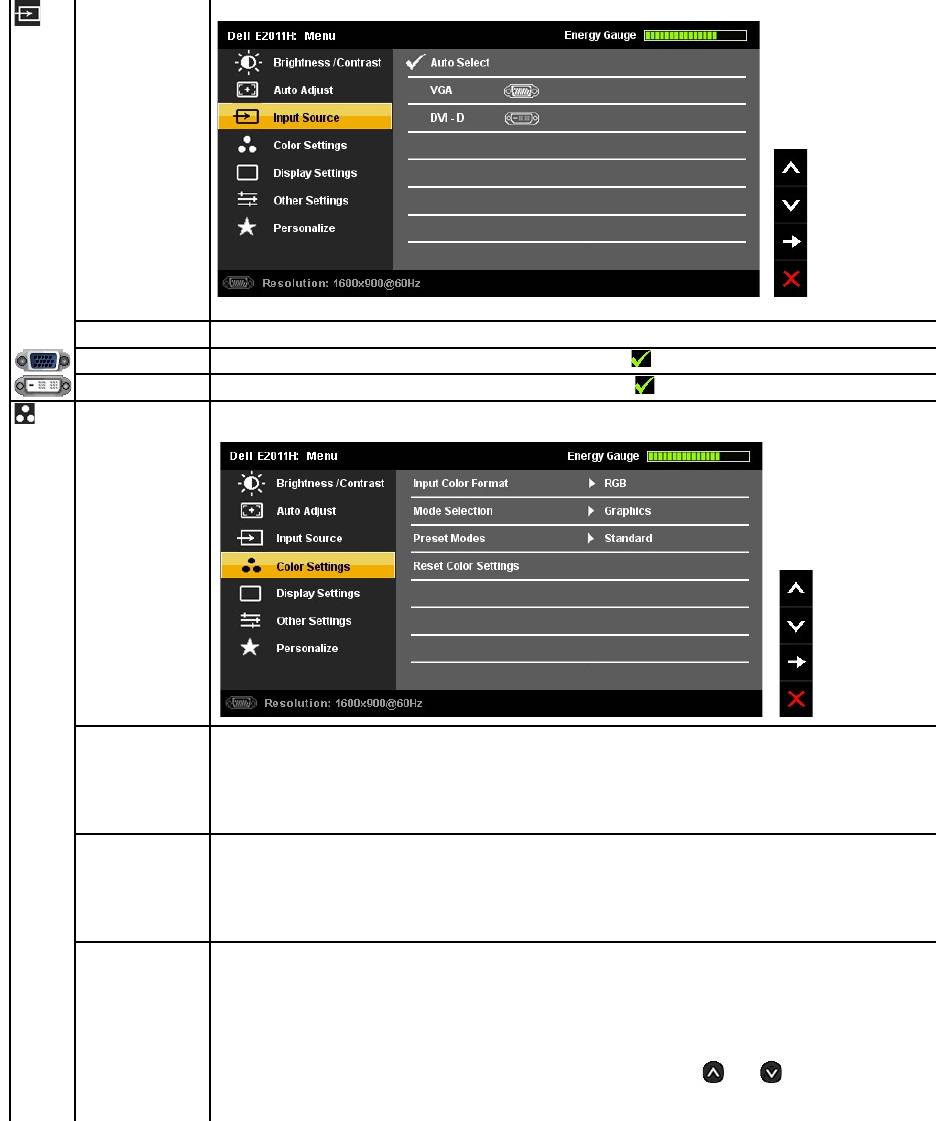
INPUT SOURCE
Use the INPUT SOURCE menu to select between different video signals that may be connected to your monitor.
Auto Select
Select Auto Select to scan for available input signals.
VGA
Select VGA input when you are using the analog (VGA) connector. Press to select the VGA input source.
DVI-D
Select DVI-D input when you are using the Digital (DVI) connector. Press to select the DVI input source.
Color Settings
Use the Color Settings to adjust the color setting mode and color temperature.
There are different color setting sub-menus for VGA/DVI-D and Video input.
Input Color Format
Allows you to set the video input mode to.
l RGB
: Select this option if your monitor is connected to a computer or DVD player using the VGA and DVI cable or the HDMI to
DVI adapter.
l YPbPr: Select this option if your DVD player supports only YPbPr output.
Mode Selection
Allows you to set the display mode to:
l Graphics: Select this mode if your monitor is connected to your computer.
l Video: Select this mode if your monitor is connected to a DVD player.
NOTE: Depending upon the Display Mode you select the Preset Modes available for your monitor changes.
Preset Mode
When you select Graphics, you can choose Standard, Multimedia, Game, Warm, Cool, or Custom (RGB):
l Standard: Loads the monitor's default color settings. This is the default preset mode.
l Multimedia: Loads color settings ideal for multimedia applications.
l Game: Loads color settings ideal for most gaming applications.
l Warm: Increases the color temperature. The screen appears warmer with a red/yellow tint.
l Cool: Decreases the color temperature. The screen appears cooler with a blue tint.
l Custom (R, G, B): Allows you to manually adjust the color settings. Press the and
buttons to adjust the Red, Green,
and Blue values and create your own preset color mode.
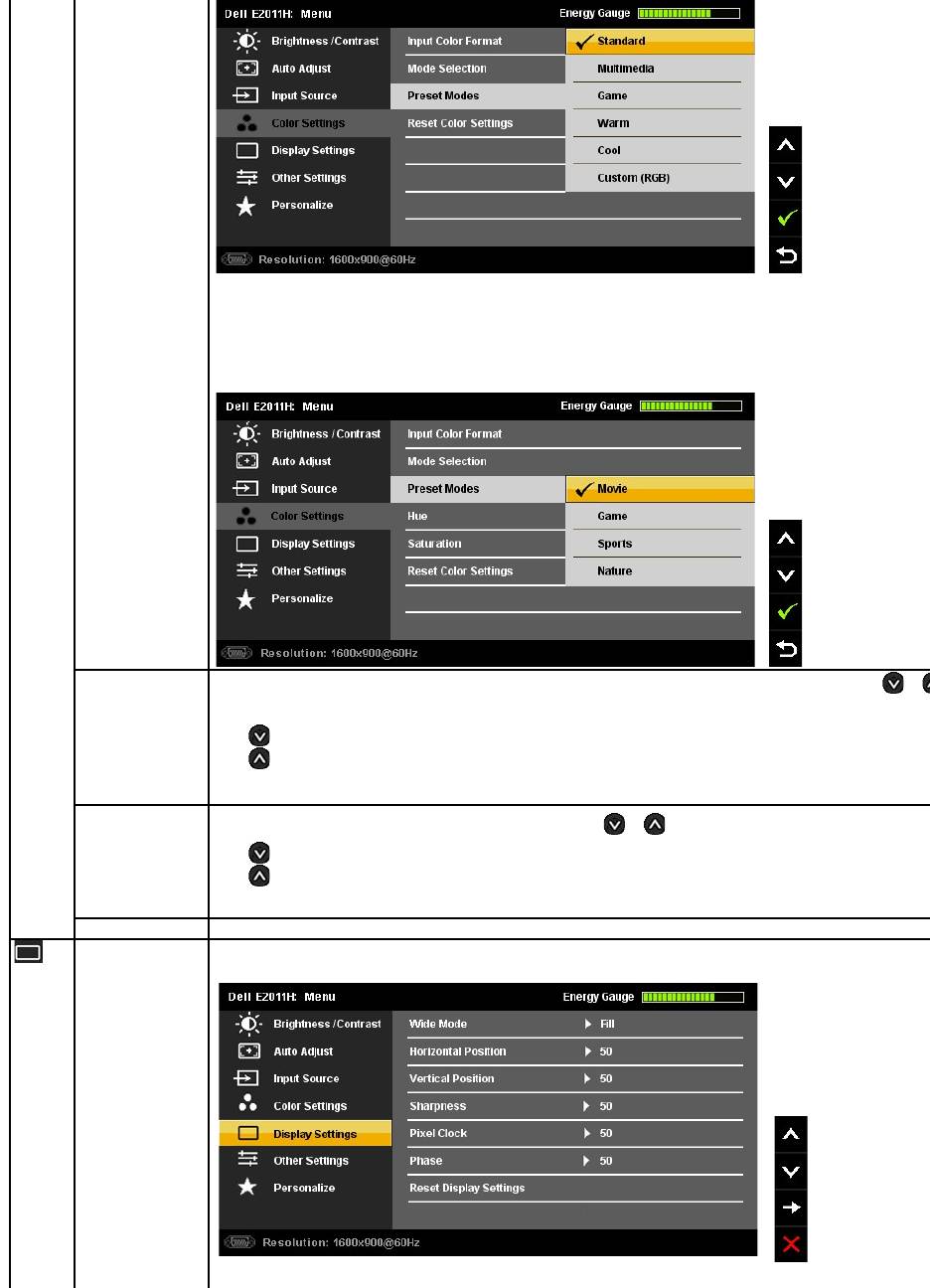
When you select Video, you can choose Movie, Game, Sports, or Nature:
l Movie: Loads color settings ideal for movies. This is the default preset mode.
l Game: Loads color settings ideal for games.
l Sports: Loads color settings ideal for sports.
l Nature: Loads color settings ideal for nature.
Hue
This feature can shift color of video image to green or purple. This is used to adjust the desired flesh tone color. Use or
adjust the hue from '0' to '100' .
Press to increase the green shade of the video image.
Press to increase the purple shade of the video image.
NOTE: Hue adjustment is available only for video input.
Saturation
This feature can adjust the color saturation of the video image. Use or to adjust the saturation from '0' to '100'.
Press to increase the monochrome appearance of the video image.
Press to increase the colorful appearance of the video image.
NOTE: Saturation adjustment is available only for video input.
Reset Color Settings
Resets your monitor's color settings to the factory defaults.
DISPLAY SETTINGS
Use the Display Settings to adjust image.
Display Setting submenu for VGA input
Display Setting submenu for DVI-D input
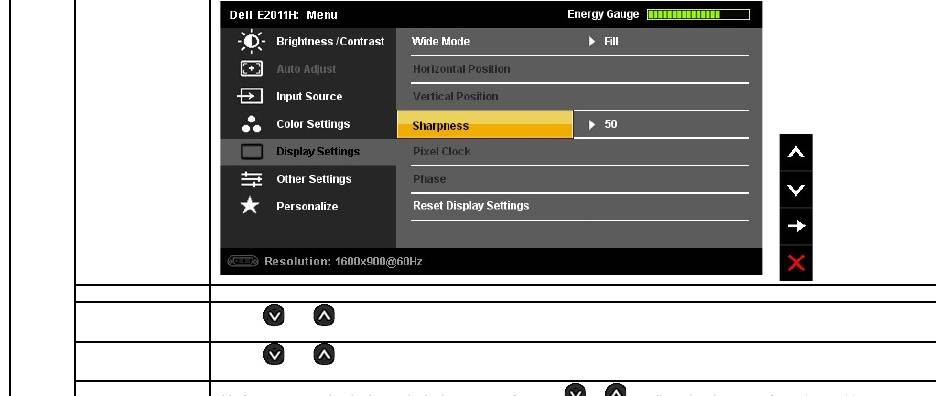
Wide Mode
Adjust the image ratio as 4:3 or full screen.
Horizontal Position
Use the and buttons to adjust image left and right. Minimum is '0' (-). Maximum is '100' (+).
NOTE: WhenusingaDVIsource,theHorizontalPositionsettingisnotavailable.
Vertical Position
Use the and buttons to adjust image up and down. Minimum is '0' (-). Maximum is '100' (+).
NOTE: WhenusingaDVIsource,theVerticalPositionsettingisnotavailable.
Sharpness
This feature can make the image look sharper or softer. Use
or
to adjust the sharpness from '0' to '100'.

Back to Contents Page
Setting Up Your Monitor
Dell™E2011HMonitor
Setting the display resolution to 1600 X 900 (maximum)
For maximum display performance while using the Microsoft Windows operating systems, set the display resolution to 1600 X 900 pixels by performing the
following steps:
In Windows XP:
1. Right-click on the desktop and click Properties.
2. Select the Settings tab.
3. Move the slider-bar to the right by pressing and holding the left-mouse button and adjust the screen resolution to 1600 X 900.
4. Click OK.
In Windows Vista
®
or Windows
®
7:
1. Right-click on the desktop and click Personalization.
2. Click Change Display Settings.
3. Move the slider-bar to the right by pressing and holding the left-mouse button and adjust the screen resolution to 1600 X 900.
4. Click OK.
If you do not see 1600 X 900 as an option, you may need to update your graphics driver. Please choose the scenario below that best describes the computer
system you are using, and follow the provided directions:
1: IfyouhaveaDell™desktoporaDell™portablecomputerwithinternetaccess.
2: IfyouhavenonDell™desktop,portablecomputer,orgraphiccard.
Back to Contents Page
Dell™E2011HMonitor
Information in this document is subject to change without notice.
©2010DellInc.Allrightsreserved
Reproduction of these materials in any manner whatsoever without the written permission of Dell Inc. is strictly forbidden.
Trademarks used in this text: Dell and the DELLlogoaretrademarksofDellInc;Microsoft and Windows are either trademarks or registered trademarks of Microsoft Corporation in
the United States and/or other countries, Intel is a registered trademark of Intel Corporation in the U.S. and other countries; and ATI is a trademark of Advanced Micro Devices,
Inc. ENERGY STAR is a registered trademark of the U.S. Environmental Protection Agency. As an ENERGY STAR partner, Dell Inc. has determined that this product meets the
ENERGY STAR guidelines for energy efficiency.
Other trademarks and trade names may be used in this document to refer to either the entities claiming the marks and names or their products. Dell Inc. disclaims any
proprietary interest in trademarks and trade names other than its own.
Model E2011Ht, E2011Hc.
June 2010 Rev. A00
User Guide
Setting the display resolution to 1600 X 900 (maximum)
Back to Contents Page
Setting Up the Monitor
Dell™E2011HMonitorUser'sGuide
Attaching the Stand
Connecting the Monitor
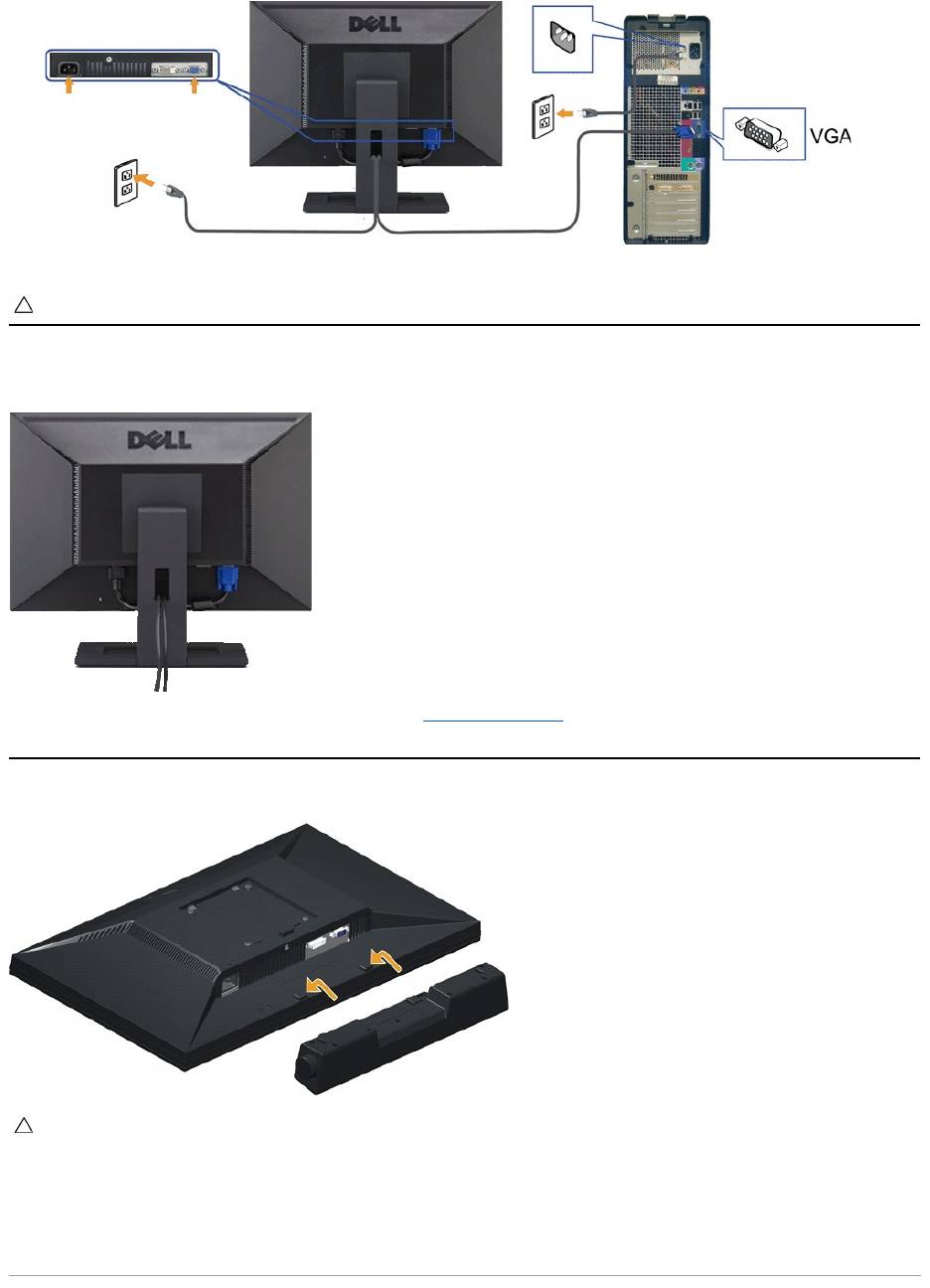
Organizing the Cables
Attaching the Soundbar (Optional)
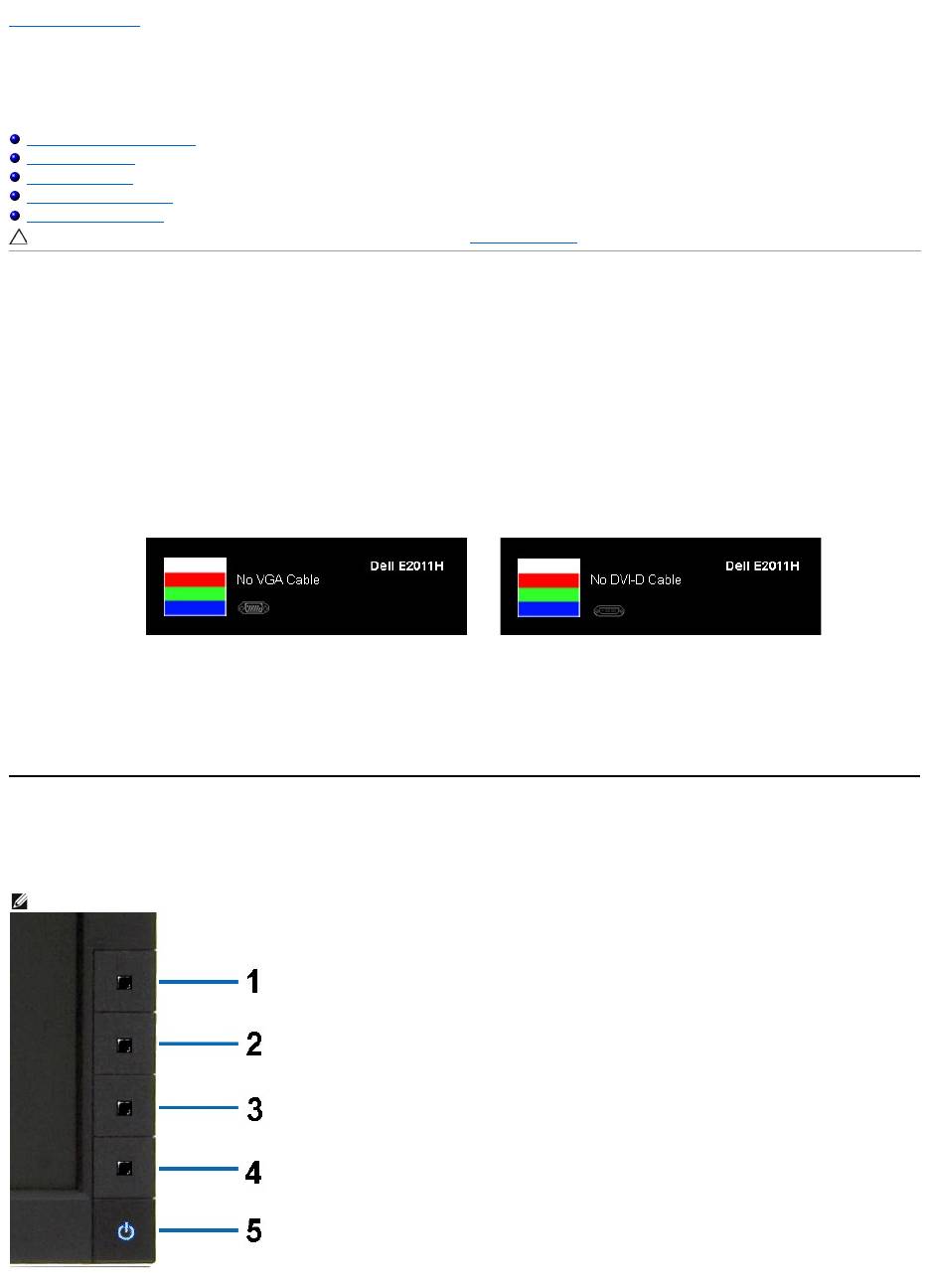
Removing the Stand
Wall Mounting (Optional)
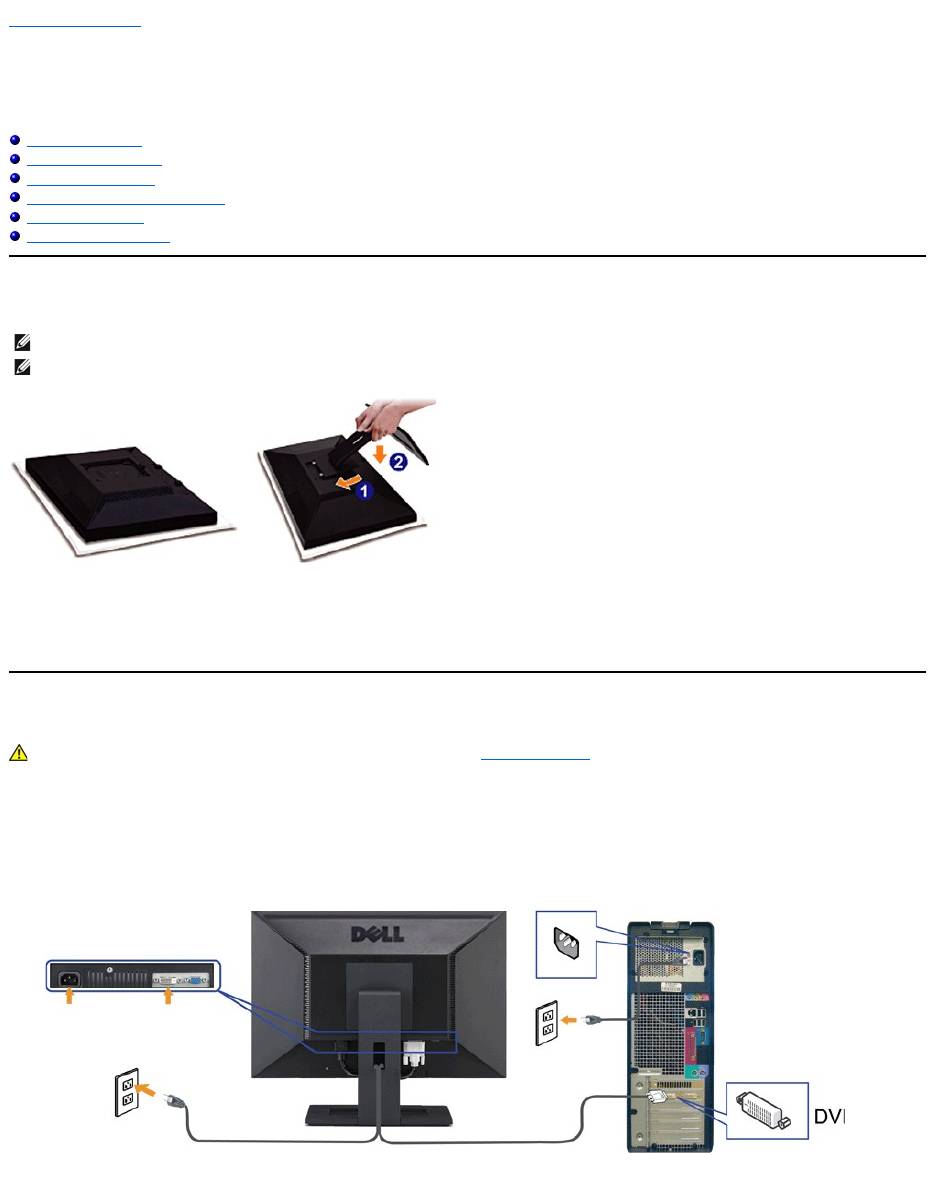
Attaching the Stand
To attach the monitor stand:
1. Remove the cover and place the monitor on it.
2. Fit the two tabs on the upper part of the stand to the groove on the back of the monitor.
3. Press the stand till it snaps into its place.
Connecting Your Monitor
To connect your monitor to the computer:
1. Turnoffyourcomputeranddisconnectthepowercable.
2. Connect either the white (digital DVI-D) or the blue (analog VGA) display connector cable to the corresponding video port on the back of your
computer.Donotconnectbothcablesonthesamecomputer. Use both the cables only when they are connected to two different computers with
appropriate video systems.
Connecting the White DVI Cable
Connecting the Blue VGA Cable
NOTE: The stand is detached from monitor when it is shipped from the factory.
NOTE: This is applicable for a monitor with a stand. When any other stand is bought, please refer to the respective stand setup guide for set up
instructions.
WARNING:Before you begin any of the procedures in this section, follow the Safety Instructions.
Organizing the Cables
After attaching all necessary cables to your monitor and computer, (See Connecting Your Monitor for cable attachment,) use the cable management slot
toorganizeallcablesasshownabove.
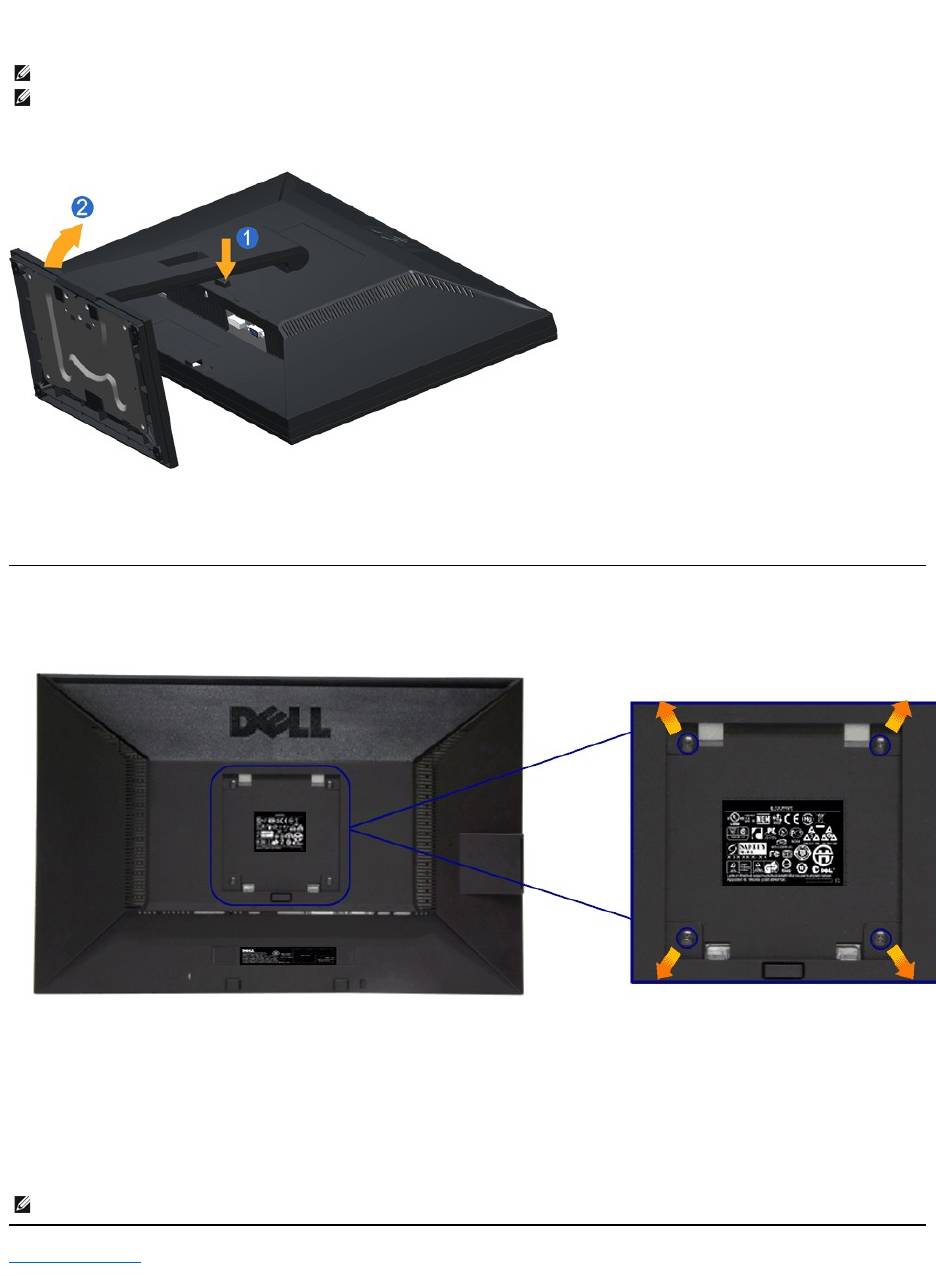
Attaching the Soundbar (Optional)
CAUTION: The graphics are used for the purpose of illustration only. Appearance of the computer may vary.
CAUTION: DonotusewithanydeviceotherthantheDellSoundbar.
To attach the Soundbar:
1.
Working from the back of the monitor, attach Soundbar by aligning the two slots with the two tabs along the bottom of the monitor.
2.
Slide the Soundbar to the left until it snaps into place.
3.
Connect the Soundbar with the power brick.
4.
Plug the power cable of the brick to a nearby power outlet.
5.
Insert the lime-green mini stereo plug from the rear of the Soundbar into the computer's audio output jack.
Removing the Stand
To remove the stand:
To remove the stand:
1. Press and hold the Stand release button.
2. Lift the stand up and away from the monitor.
Wall Mounting (Optional)
(Screw dimension: M4 x 10 mm).
Refer to the instructions that come with the VESA-compatible base mounting kit.
1. Place the monitor panel on a soft cloth or cushion on stable flat table.
2. Remove the stand.
3. Use a screwdriver to remove the four screws securing the plastic cover.
4. Attach the mounting bracket from the wall mounting kit to the LCD.
5. Mount the LCD on the wall by following the instructions that came with the base mounting kit.
Back to Contents Page
NOTE: To prevent scratches on the LCD screen while removing the stand,ensure that the monitor is placed on a clean surface.
NOTE: This is applicable for a monitor with a stand. When any other stand is bought, please refer to the respective stand setup guide for set up
instructions.
NOTE: For use only with UL Listed Wall Mount Bracket with minimum weight/load bearing capacity of 2.90 kg.
Back to Contents Page
Troubleshooting
Dell™E2011HMonitorUser'sGuide
Troubleshooting Your Monitor
Built-in Diagnostics
Common Problems
Product Specific Problems
Dell Soundbar Problems
Troubleshooting Your Monitor
Self-Test Feature Check
Your monitor provides a self-test feature that allows you to check whether your monitor is functioning properly. If your monitor and computer are properly
connected but the monitor screen remains dark, run the monitor self-test by performing the following steps:
1. Turn off both your computer and the monitor.
2. Unplug the video cable from the back of the computer. To ensure proper Self-Test operation, remove both Digital (white connector) and the Analog (blue
connector) cables from the back of computer.
3. Turn on the monitor.
4. This box also appears during normal system operation, if the video cable becomes disconnected or damaged.
5. Turn off your monitor and reconnect the video cable; then turn on both your computer and the monitor.
If your monitor screen remains blank after you use the previous procedure, check your video controller and computer, because your monitor is functioning
properly.
Built-in Diagnostics
Your monitor has a built-in diagnostic tool that helps you determine if the screen abnormality you are experiencing is an inherent problem with your monitor, or
with your computer and video card.
CAUTION: Before you begin any of the procedures in this section, follow the Safety Instructions
The floating dialog box should appear on-screen (against a black background) if the monitor cannot sense a video signal and is working correctly.
While in self-test mode, the power LED remains blue. Also, depending upon the selected input, one of the dialogs shown below will continuously scroll
throughthescreen.
or
NOTE: You can run the built-in diagnostics only when the video cable is unplugged and the monitor is in self-test mode.
To run the built-in diagnostics:
1. Ensure that the screen is clean (no dust particles on the surface of the screen).
2. Unplug the video cable(s) from the back of the computer or monitor. The monitor then goes into the self-test mode.
3. Press and hold the Button 1 and Button 4 on the front panel simultaneously for 2 seconds. A gray screen appears.
4. Carefully inspect the screen for abnormalities.
5. Press the Button 4 on the front panel again. The color of the screen changes to red.
6. Inspect the display for any abnormalities.
7. Repeat steps 5 and 6 to inspect the display in green, blue, black, white screens.
The test is complete when the white screen appears. To exit, press the Button 4 again.
If you do not detect any screen abnormalities upon using the built-in diagnostic tool, the monitor is functioning properly. Check the video card and computer.
Common Problems
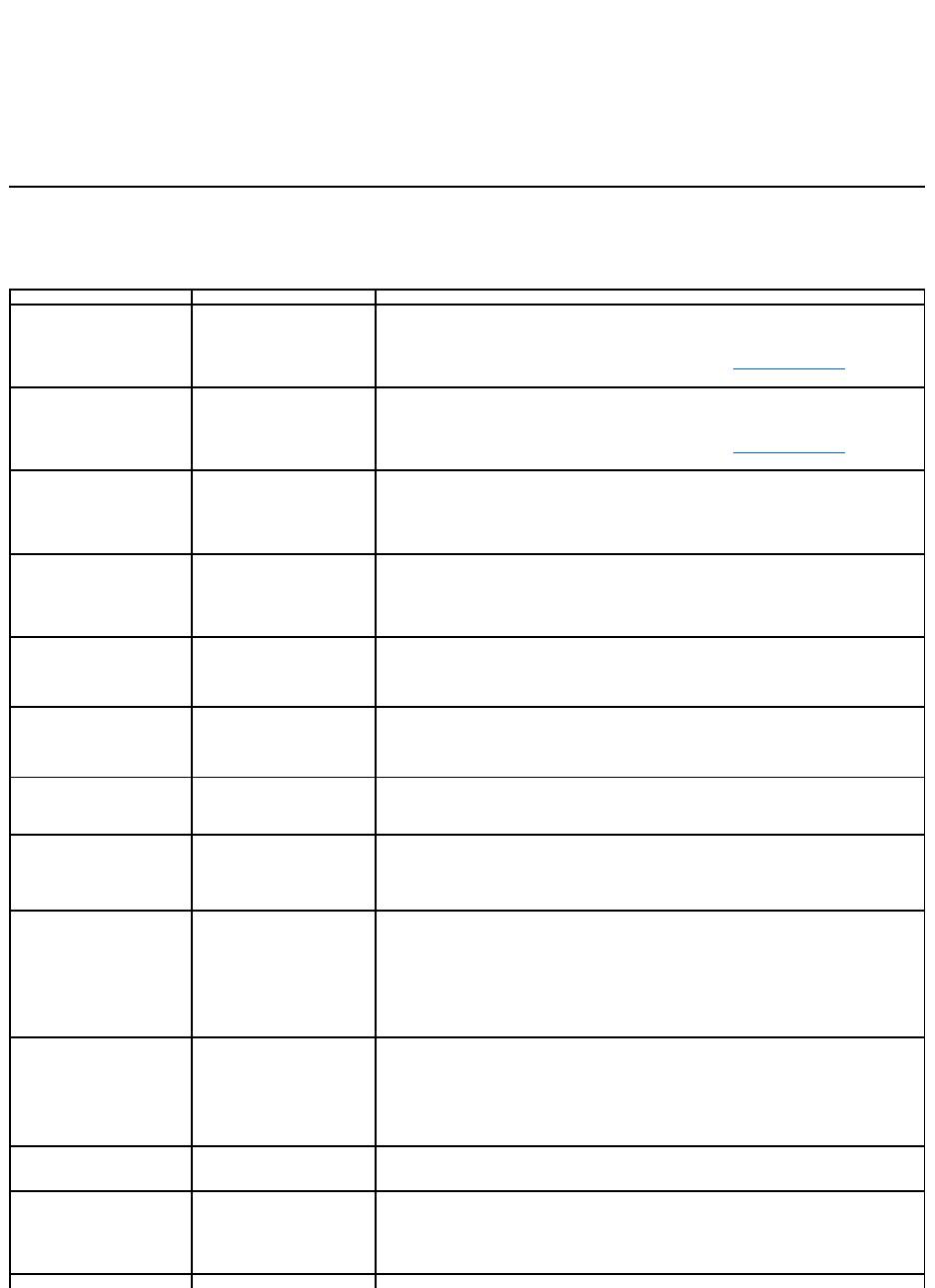
The following table contains general information about common monitor problems you might encounter and the possible solutions.
Common Symptoms
What You Experience
Possible Solutions
No Video/Power LED off
No picture
l Ensure that the video cable connecting the monitor and the computer is properly
connected and secure.
l Verify that the power outlet is functioning properly using any other electrical equipment.
l Ensure that the power button is depressed fully.
l Ensure that the correct input source is selected via the Input Source Select button.
No Video/Power LED on
No picture or no brightness
l Increase brightness & contrast controls via OSD.
l Perform monitor self-test feature check.
l Check for bent or broken pins in the video cable connector.
l Run the built-in diagnostics.
l Ensure that the correct input source is selected via the Input Source Select button.
Poor Focus
Picture is fuzzy, blurry, or
ghosting
l Perform Auto Adjust via OSD.
l Adjust the Phase and Pixel Clock controls via OSD.
l Eliminate video extension cables.
l Reset the monitor to Factory Settings.
l Change the video resolution to the correct aspect ratio (16:9).
Shaky/Jittery Video
Wavy picture or fine movement
l Perform Auto Adjust via OSD.
l Adjust the Phase and Pixel Clock controls via OSD.
l Reset the monitor to Factory Settings.
l Check environmental factors.
l Relocate the monitor and test in another room.
Missing Pixels
LCD screen has spots
l Cycle power on-off.
l Pixel that is permanently off is a natural defect that can occur in LCD technology.
l For more information on Dell Monitor Quality and Pixel Policy, see Dell Support site at:
support.dell.com.
Stuck-on Pixels
LCD screen has bright spots
l Cycle power on-off.
l Pixel that is permanently off is a natural defect that can occur in LCD technology.
l For more information on Dell Monitor Quality and Pixel Policy, see Dell Support site at:
support.dell.com.
Brightness Problems
Picture too dim or too bright
l Reset the monitor to Factory Settings.
l Auto Adjust via OSD.
l Adjust brightness & contrast controls via OSD.
Geometric Distortion
Screen not centered correctly
l Reset the monitor to Factory Settings.
l Auto Adjust via OSD.
l Adjust Horizontal Position & Vertical Position controls via OSD.
NOTE: When using DVI-D input, the positioning adjustments are not available.
Horizontal/Vertical Lines
Screen has one or more lines
l Reset the monitor to Factory Settings.
l Perform Auto Adjust via OSD.
l Adjust Phase and Pixel Clock controls via OSD.
l Perform monitor self-test feature check and determine if these lines are also in self-test
mode.
l Check for bent or broken pins in the video cable connector.
l Run the built-in diagnostics.
NOTE: When using DVI-D input, the Pixel Clock and Phase adjustments are not available.
Synchronization Problems
Screen is scrambled or appears
torn
l Reset the monitor to Factory Settings.
l Perform Auto Adjust via OSD.
l Adjust Phase and Pixel Clock controls via OSD.
l Perform monitor self-test feature check to determine if the scrambled screen appears in
self-test mode.
l Check for bent or broken pins in the video cable connector.
l Restart the computer in the safe mode.
Safety Related Issues
Visible signs of smoke or
sparks
l Do not perform any troubleshooting steps.
l Contact Dell immediately.
Intermittent Problems
Monitor malfunctions on & off
l Ensure that the video cable connecting the monitor to the computer is connected
properly and is secure.
l Reset the monitor to Factory Settings.
l Perform monitor self-
test feature check to determine if the intermittent problem occurs in
self-test mode.
Missing Color
Picture missing color
l Perform monitor self-test feature check.
Product Specific Problems
Dell™Soundbar Problems
l Ensure that the video cable connecting the monitor to the computer is connected
properly and is secure.
l Check for bent or broken pins in the video cable connector.
Wrong Color
Picture color not good
l Change the Color Setting Mode in the Color Settings OSD to Graphics or Video
depending on the application.
l Try different Color Preset Settings in Color Settings OSD. Adjust R/G/B value in Color
Settings OSD if the Color Management is turned off.
l Change the Input Color Format to PC RGB or YPbPr in the Advance Setting OSD.
l Run the built-in diagnostics.
Image retention from a static
imageleftonthemonitorfora
long period of time
Faint shadow from the static
image displayed appears on
the screen
l Use the Power Management feature to turn off the monitor at all times when not in use
(for more information, see Power Management Modes).
l Alternatively, use a dynamically changing screensaver.
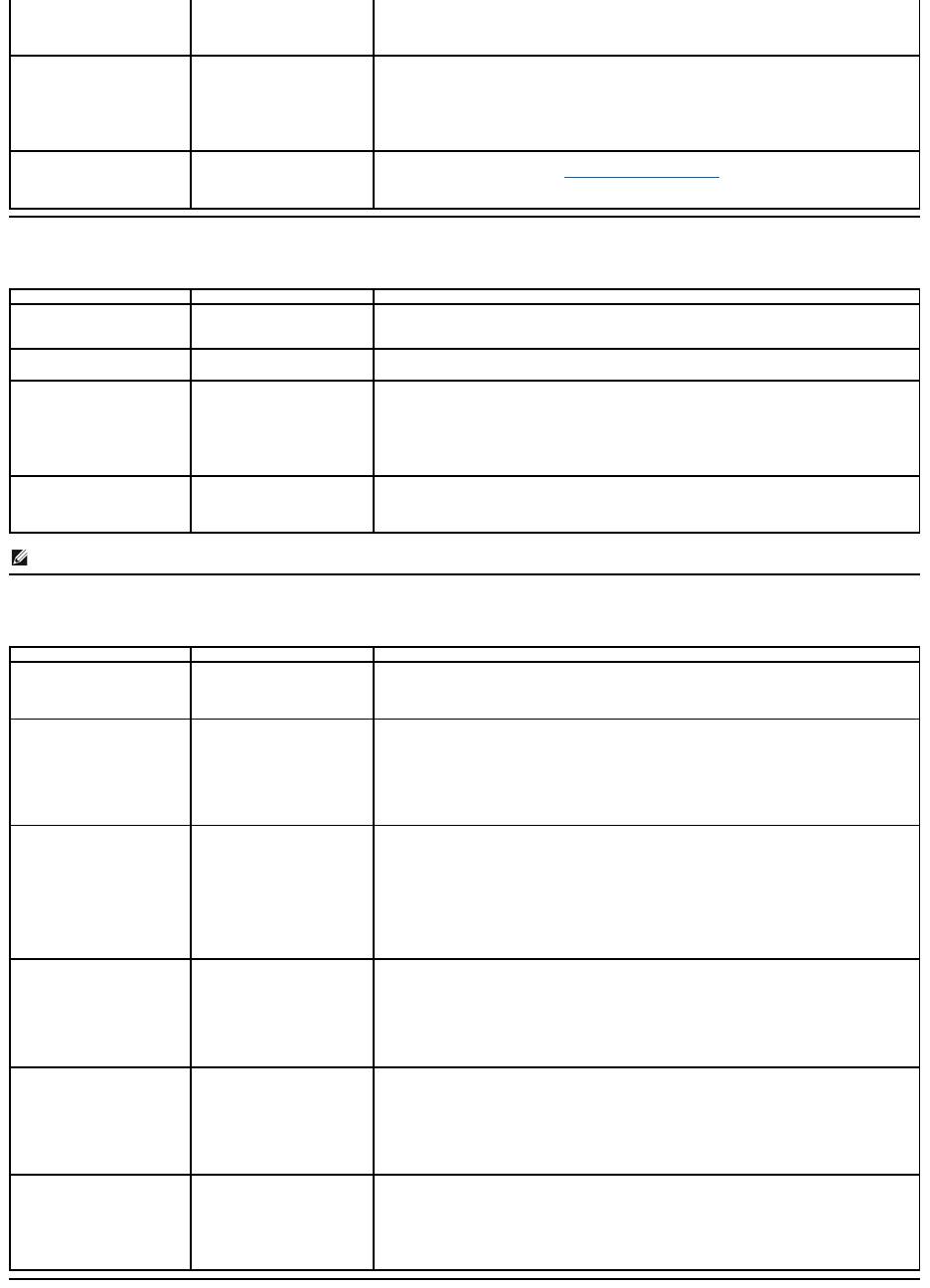
Specific Symptoms
What You Experience
Possible Solutions
Screen image is too small
Image is centered on screen,
but does not fill entire viewing
area
l Check the Scaling Ratio setting in Image Setting OSD
l Reset the monitor to Factory Settings.
Cannot adjust the monitor with
the buttons on the front panel
OSD does not appear on the
screen
l Turn off the monitor, unplug the power cord, plug back, and then turn on the monitor.
No Input Signal when user
controls are pressed
No picture, the LED light is
blue. When you press "+", "-"
or "Menu" key, the message
"No VGA input signal", or "No
DVI-Dinputsignal"appears
l Check the signal source. Ensure the Computer is not in the power saving mode by
moving the mouse or pressing any key on the keyboard.
l Check to make sure Video Source to VGA or DVI-D is powered and playing video media.
l Checkwhetherthesignalcableispluggedinproperly.Re-plug the signal cable if
necessary.
l Reset the computer or video player.
The picture does not fill the
entire screen.
The picture cannot fill the
height or width of the screen
l Due to different video formats (aspect ratio) of DVDs, the monitor may display in full
screen.
l Run the built-in diagnostics.
NOTE: When choosing DVI-D mode, the Auto Adjust function will not be available.
Common Symptoms
What You Experience
Possible Solutions
No Sound
No power to Soundbar - the
power indicator is off
l Turn the Power/Volume knob on the Soundbar clockwise to the middle position; check if
the power indicator (Blue LED) on the front of the Soundbar is illuminated.
l Confirm that the power cable from the Soundbar is plugged into the adapter.
No Sound
Soundbar has power - power
indicator is on
l Plug the audio line-in cable into the computer's audio out jack.
l Set all Windows volume controls to their maximum.
l Play some audio content on the computer (i.e. audio CD, or MP3).
l Turn the Power/Volume knob on the Soundbar clockwise to a higher volume setting.
l Clean and reseat the audio line-in plug.
l Test the Soundbar using another audio source (i.e. portable CD player).
Distorted Sound
Computer's sound card is used
as the audio source
l Clear any obstructions between the Soundbar and the user.
l Confirm that the audio line-
in plug is completely inserted into the jack of the sound card.
l Set all Windows volume controls to their midpoints.
l Decrease the volume of the audio application.
l Turn the Power/Volume knob on the Soundbar counter-clockwise to a lower volume
setting.
l Clean and reseat the audio line-in plug.
l Troubleshoot the computer's sound card.
l Test the Soundbar using another audio source (i.e. portable CD player).
Distorted Sound
Other audio source is used
l Clear any obstructions between the Soundbar and the user.
l Confirm that the audio line-in plug is completely inserted into the jack of the audio
source.
l Decrease the volume of the audio source.
l Turn the Power/Volume knob on the Soundbar counter-clockwise to a lower volume
setting.
l Clean and reseat the audio line-in plug.
Unbalanced Sound Output
Sound from only one side of
Soundbar
l Clear any obstructions between the Soundbar and the user.
l Confirm that the audio line-in plug is completely inserted into the jack of the sound card
or audio source.
l Set all Windows audio balance controls (L-R) to their midpoints.
l Clean and reseat the audio line-in plug.
l Troubleshoot the computer's sound card.
l Test the Soundbar using another audio source (i.e. portable CD player).
Low Volume
Volume is too low
l Clear any obstructions between the Soundbar and the user.
l Turn the Power/Volume knob on the Soundbar clockwise to the maximum volume
setting.
l Set all Windows volume controls to their maximum.
l Increase the volume of the audio application.
l Test the Soundbar using another audio source (i.e. portable CD player).

Back to Contents Page
- 1
- 2
