
JVC KW-AV70BT: BLUETOOTH OPERATIONS
BLUETOOTH OPERATIONS: JVC KW-AV70BT
BLUETOOTH OPERATIONS
Information for using Bluetooth® devices
• Some Bluetooth devices may not be connected to
Bluetooth Information: If you wish to
this unit depending on the Bluetooth version of the
ENGLISH
receive more information about Bluetooth, visit
device.
the following JVC web site: <http://www3.
• This unit may not work for some Bluetooth devices.
jvckenwood.com/english/car/> (English website
• Connecting condition may vary depending on
only)
circumstances around you.
• For some Bluetooth devices, the device is
disconnected when the unit is turned off.
Bluetooth operations for KW-AV70BT
Bluetooth is a short-range wireless radio communication technology for the mobile device such as mobile phones,
portable PCs, and other devices. The Bluetooth devices can be connected without cables and communicate with each
other.
• Refer to pages i and ii at the end of manual to check the countries where you may use the Bluetooth® function.
Bluetooth profile
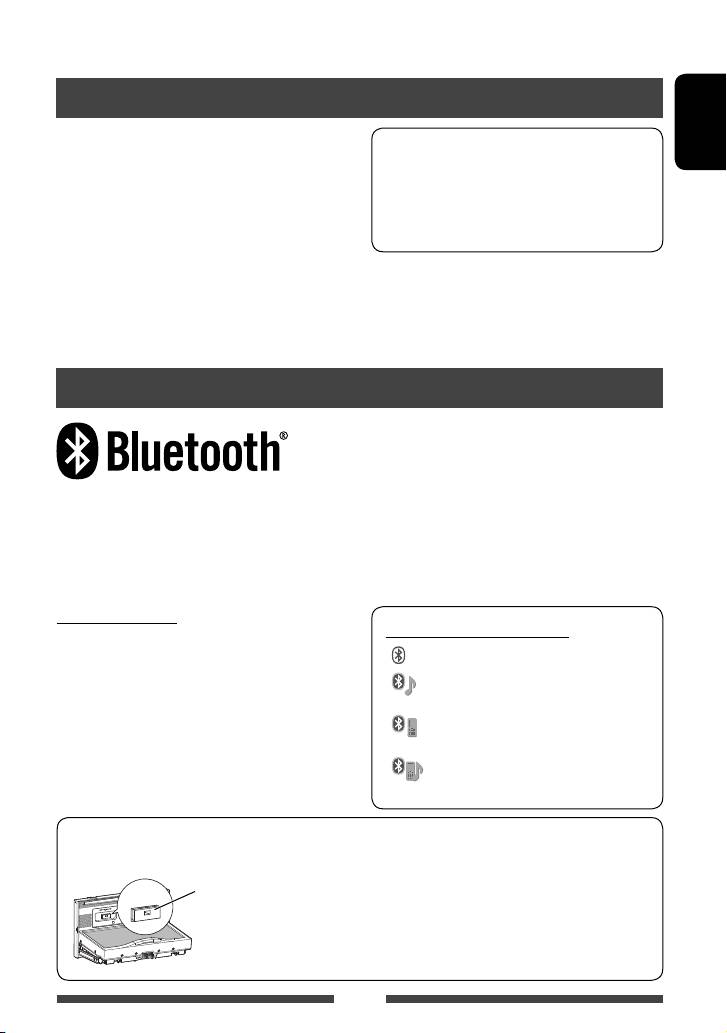
Icons for Bluetooth button
This unit supports the following Bluetooth profiles;
: No device is connected.
• HFP (Hands-Free Profile) 1.5
• OPP (Object Push Profile) 1.1
: A Bluetooth audio player is
• A2DP (Advanced Audio Distribution Profile) 1.2
connected.
• AVRCP (Audio/Video Remote Control Profile) 1.3
: A Bluetooth mobile phone is
• PBAP (Phone Book Access Profile) 1.0
connected.
: Both a Bluetooth mobile phone and
audio player are connected.
When shipped from the factory, the Bluetooth
• Keep the Bluetooth adapter attached when using
adapter (KS-UBT1) is attached.
the Bluetooth function.
• This port is designed for the use with KS-UBT1
Bluetooth adapter
only. Other Bluetooth adapters or USB devices
(KS-UBT1)
cannot be used.
51
EN_KW-AV70EU.indb 51EN_KW-AV70EU.indb 51 11/12/13 16:3911/12/13 16:39
Connecting Bluetooth devices
Connecting a new Bluetooth device
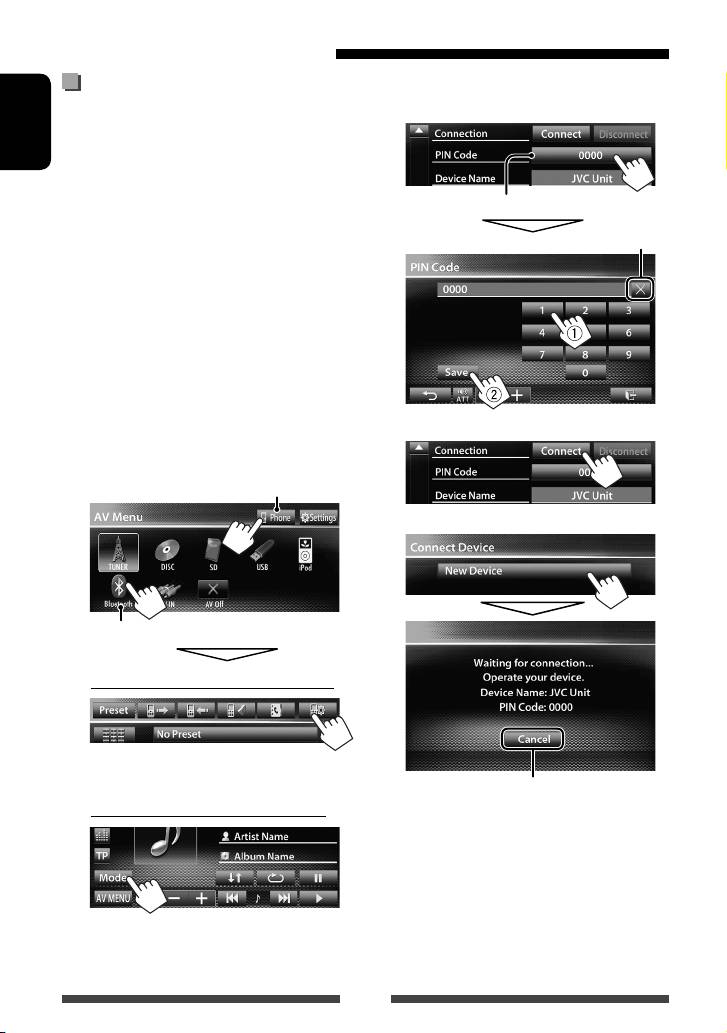
2 Change the PIN code.
• If you skip changing the PIN code, go to step 3.
for the first time
When you connect a Bluetooth device to the unit
ENGLISH
for the first time, make pairing between the unit
and the device. Pairing allows Bluetooth devices to
communicate each other.
PIN code (initial: 0000)
To make pairing, you may need to enter the PIN
(Personal Identification Number) code of your Bluetooth
Deletes last character
device you want to connect.
• Once the connection is established, it is registered in
the unit even if you reset the unit. Up to 5 devices can
be registered in total.
• Only one device for Bluetooth phone and one for
Bluetooth audio can be connected at a time.
• To use the Bluetooth function, you need to turn on
Bluetooth function of the device.
1 Display the Bluetooth setting screen.
3
On <AV Menu> screen:
Mobile phone
4
Audio player
For connecting a Bluetooth mobile phone
The phone setting screen is displayed.
Cancel
For connecting a Bluetooth audio player
5 Operate the Bluetooth device to
connect.
“Connected” appears. Press [OK] to confirm the
operation.
Now connection is established and you can use the
Bluetooth device through the unit.
<Mode> screen is displayed.
52
EN_KW-AV70EU.indb 52EN_KW-AV70EU.indb 52 11/12/13 16:3911/12/13 16:39
Connecting/disconnecting a
To disconnect
registered Bluetooth device
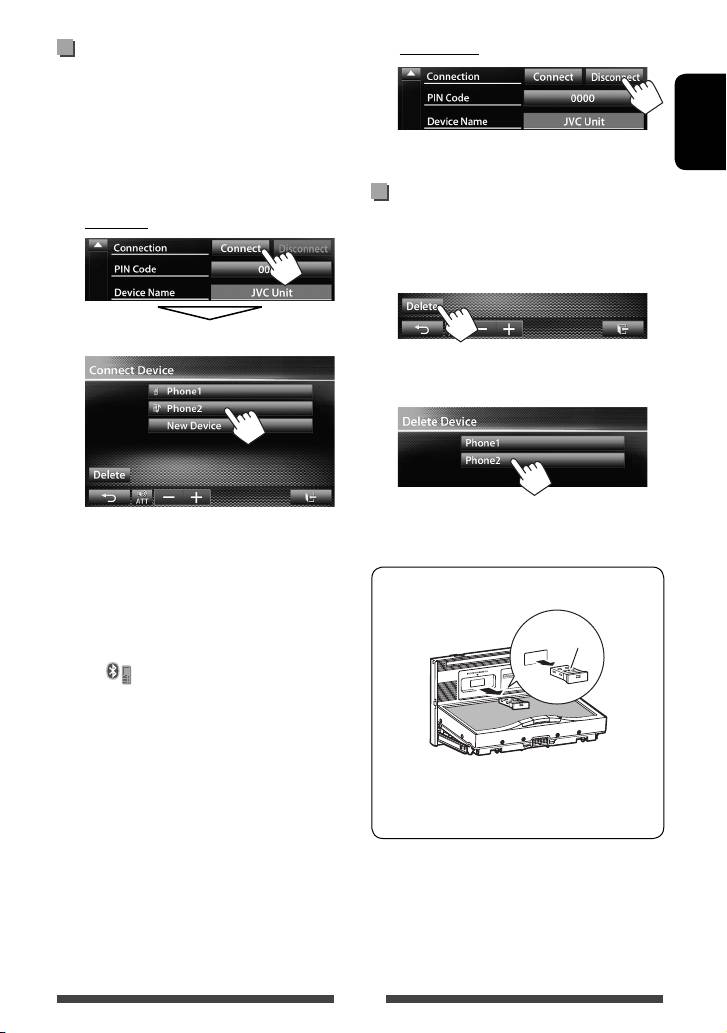
1 Display the Bluetooth setting screen.
(☞ page 52)
A confirmation message appears. Press [Yes].
• For Bluetooth mobile phone: Phone setting
ENGLISH
screen
• For Bluetooth audio player: <Mode> screen
Deleting a registered Bluetooth
2 To connect
device
1 On <Connect Device> screen (☞ Step 2 on the
left column)
:
Select the device you want to connect.
2 Select a device to delete the
registration.
A confirmation message appears. Press [Yes].
“Connected” appears. Press [OK] to confirm the
operation.
• All registered devices (mobile phone and audio
player) are listed on <Connect Device>.
To detach the Bluetooth adapter
– Selectable items depend on the device you
are operating.
“JV C”
• When a mobile phone is connected, holding
[
] on the source control screen switches
between the last connected mobile phone and
current one.
• Store the Bluetooth adapter in the supplied bag.
• When inserting the Bluetooth adapter again,
attach it firmly with the JVC logo facing up.
53
EN_KW-AV70EU.indb 53EN_KW-AV70EU.indb 53 11/12/13 16:3911/12/13 16:39

Using the Bluetooth mobile phone
Receiving a call
Adjusting the volume of calls/
When a call comes in...
earpiece/microphone
While talking...
Status of the device/Battery
ENGLISH
reminder (only when the
Call information
information comes from the device)
(if acquired)
Adjusts the volume of
Adjusts the
calls/earpiece
microphone volume
• This adjustment does not affect the volume level of
the other sources.
Rejects the call
Switching between handsfree mode
• Phone operation is not available while the picture
and phone mode
from the rear view camera is displayed. (☞ page 45)
While talking...
When <Auto Answer> is set to <On>
The unit answers the incoming call automatically.
(☞ page 60)
Ending a call
Each time you press the button, the talking method is
switched (
: handsfree mode / : phone
While talking...
mode).
Checking SMS reception
If the mobile phone is compatible with SMS (Short
Message Service), the unit tells you a message has been
received.
To read a received message, operate the mobile
phone after stopping the car in a safe place.
• You cannot read, edit, or send a message through
the unit.
• For some mobile phones, the notification message
may not be shown even if the SMS function is
supported.
54
EN_KW-AV70EU.indb 54EN_KW-AV70EU.indb 54 11/12/13 16:3911/12/13 16:39
Making a call
Direct number entry
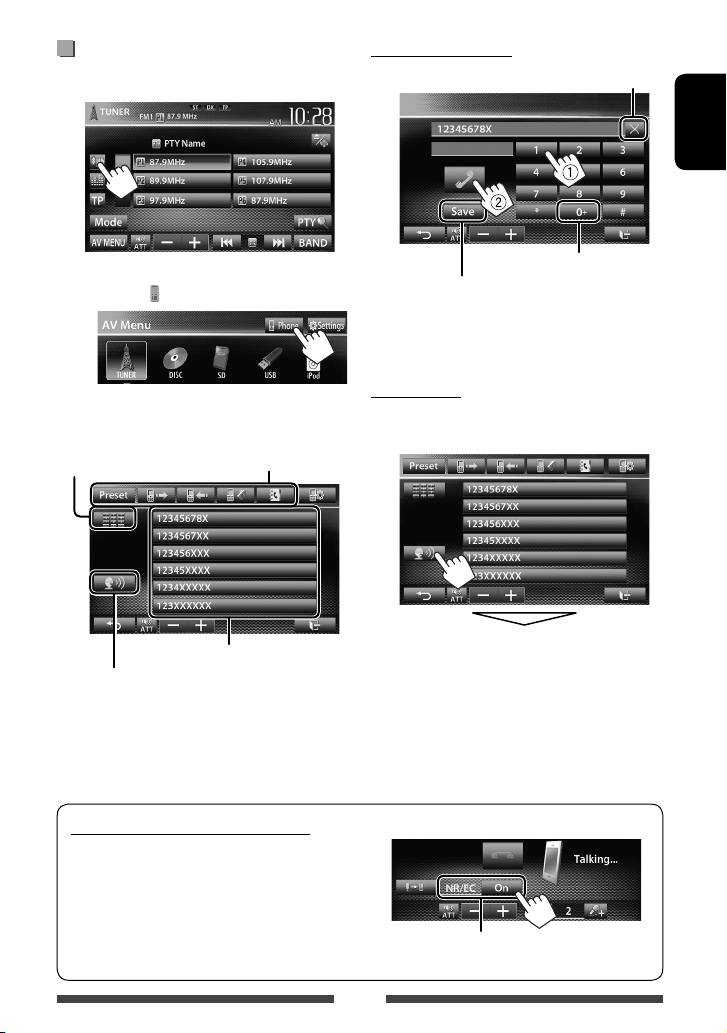
1 On the source control screen:
Deletes last character
ENGLISH
Hold: Adds “+”
• You can also display the phone control screen by
Presets the entered phone number on
pressing [
Phone] on <AV Menu> screen.
the preset list (☞ page 57)
• You can enter up to 32 numbers.
Voice Dialing
2 Select a method to make a call.
• Available only when the connected mobile phone has
the voice recognition system.
Preset list/phone book/call
Direct number entry
lists (
☞ page 56)
(
☞the right column)
Speak the name you want to call.
Preset list (For presetting, ☞ page 57)
Voice dialing (
☞ the right column)
To cancel, press [Cancel].
To reduce echo/noise while talking
Make sure that NR/EC (Noise reduction/Echo cancel)
function is activated on the screen while talking.
Select <On> to reduce the noise and cancel the echo
while talking.
55
EN_KW-AV70EU.indb 55EN_KW-AV70EU.indb 55 11/12/13 16:3911/12/13 16:39

Using the preset list/phone book/call lists
2 Select the initial.
1
ENGLISH
[Preset] From preset list
[
]
From dialled call list.
[
]
From received call list.
Displays the other letters
[
]
From missed call list.
3 Select a phone number from the list.
[
]
From phone book.
• For copying the phone book,
☞ page 57.
To display the details of an entry
When phone book list screen is displayed, you can
display the details of an entry and select a phone
2
number if several phone numbers are registered.
1 Display the details of the desired entry.
2 Select a phone number to call.
To use the A to Z search on phone book
When phone book list screen is displayed, you can
search by initial.
1
56
EN_KW-AV70EU.indb 56EN_KW-AV70EU.indb 56 11/12/13 16:3911/12/13 16:39

Presetting the phone numbers
Copying the phone book
You can preset up to 6 phone numbers.
You can copy the phone book memory of a mobile
phone into the unit (up to 400 entries).
1 On the source control screen:
1 On the source control screen:
ENGLISH
2 Select an item from phone book/call
lists.
2
3 Select a phone number.
(Hold)
4 Select a preset number to store.
PIN code (initial: 0000)
Numbers of the phone book entries copied
3 Operate the target mobile phone.
• You can also preset a phone number entered on the
• Refer to the instruction manual supplied with
direct number entry screen by pressing [Save]. (☞
your mobile phone.
page 55)
• To cancel the transfer, press [Finish].
4 Finish the procedure.
The phone book memory is copied from the
mobile phone.
57
EN_KW-AV70EU.indb 57EN_KW-AV70EU.indb 57 11/12/13 16:3911/12/13 16:39
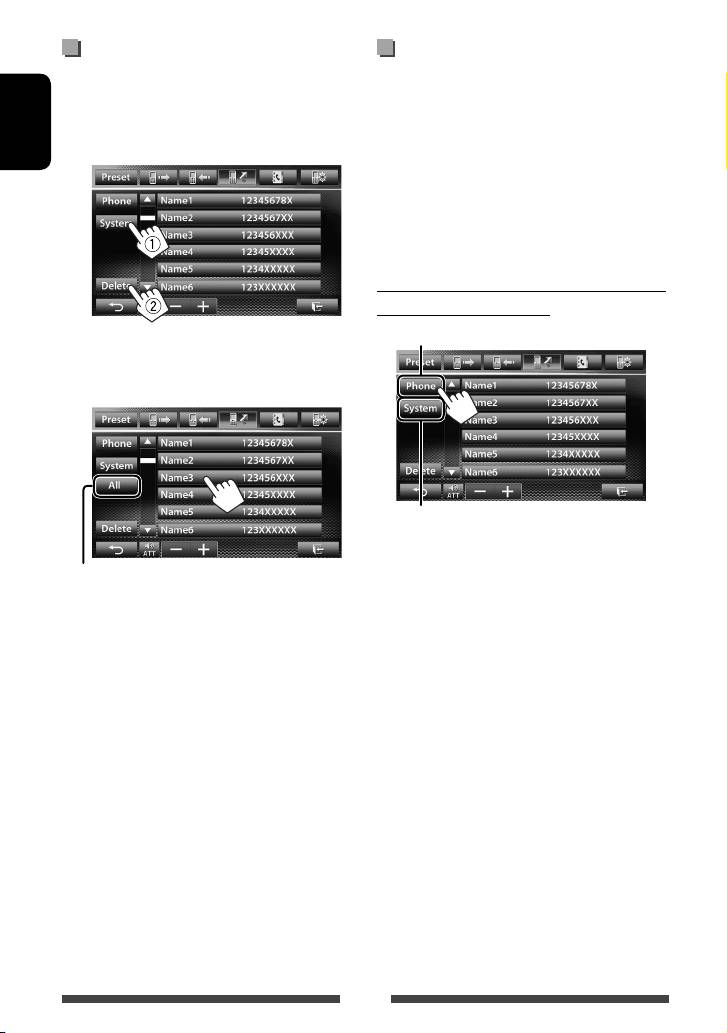
Deleting the phone number entries
About mobile phones compatible
in the unit
with Phone Book Access Profile
(PBAP)
1 Display the preset list/phone book/call
list you want to delete.
(☞ page 56)
If your mobile phone supports PBAP, the phone book
and call lists are automatically copied to the unit when
ENGLISH
2
the mobile phone is connected.
• Phone book: up to 5 000 entries
• Dialled calls, received calls, and missed calls: up to 50
entries each
To display the phone book/call lists of the
mobile phone or the unit
Connected mobile phone
• You cannot delete data when <Phone> is
selected.
3 Select the item you want to delete.
This unit
Delete all the numbers/names in the selected list
A confirmation message appears. Press [Yes].
58
EN_KW-AV70EU.indb 58EN_KW-AV70EU.indb 58 11/12/13 16:3911/12/13 16:39
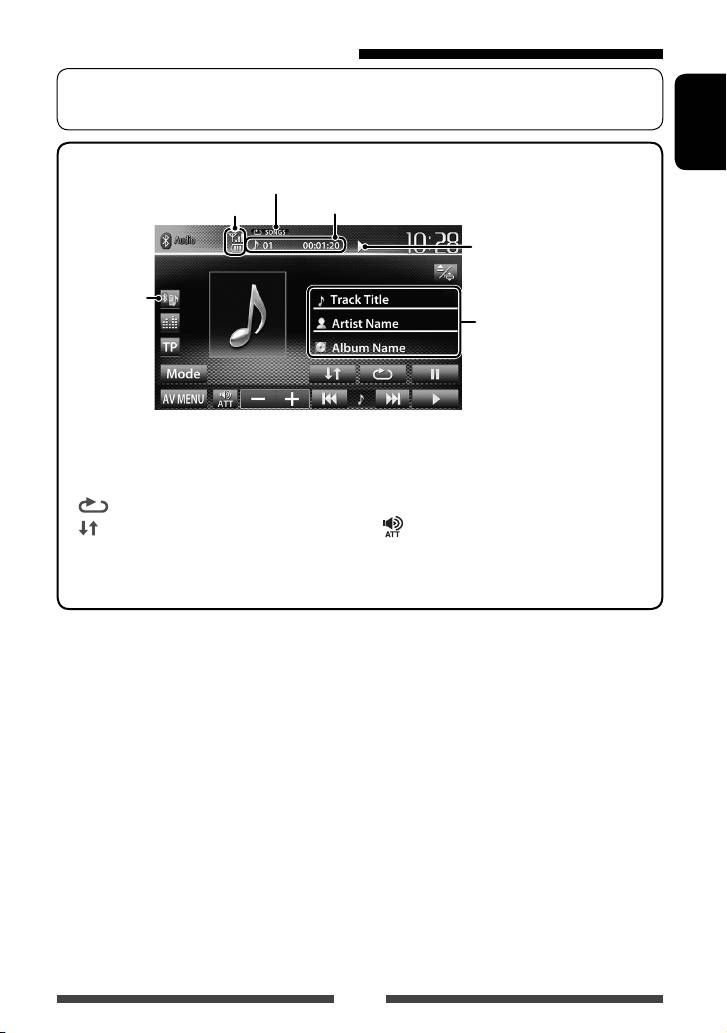
Using the Bluetooth audio player
• To register a new device, ☞ page 52.
• To connect/disconnect a device, ☞ page 53.
ENGLISH
Status of the device/Battery reminder
1
(only when the information comes
Playback mode *
(☞ below)
1
from the device)
Track no./Playing time *
Playback status
1
(3: play / 8: pause) *
☞ page 51
Tag data (current track title/artist
1
name/album title) *
• Touching an information bar
scrolls the text if not all of the
text is shown.
• The operation buttons, indications and information displayed on the screen differ depending on the
connected device.
[8] Pauses playback.
[4] [¢] • Selects track. (Press)
1
2
[
]
Selects Repeat playback mode. *
*
• Reverse/forward search. (Hold)
[ ] Selects Random playback
[
] [–] [+]
Adjusts the volume.
1
2
mode. *
*
[Mode] Displays the Bluetooth setting
[3] Starts playback.
screen. (☞ page 60)
[AV MENU] Displays <AV Menu> screen.
1
*
Available only for the devices compatible with AVRCP 1.3.
2
*
To cancel random and repeat mode, press the button repeatedly until the indicator disappears.
59
EN_KW-AV70EU.indb 59EN_KW-AV70EU.indb 59 11/12/13 16:3911/12/13 16:39
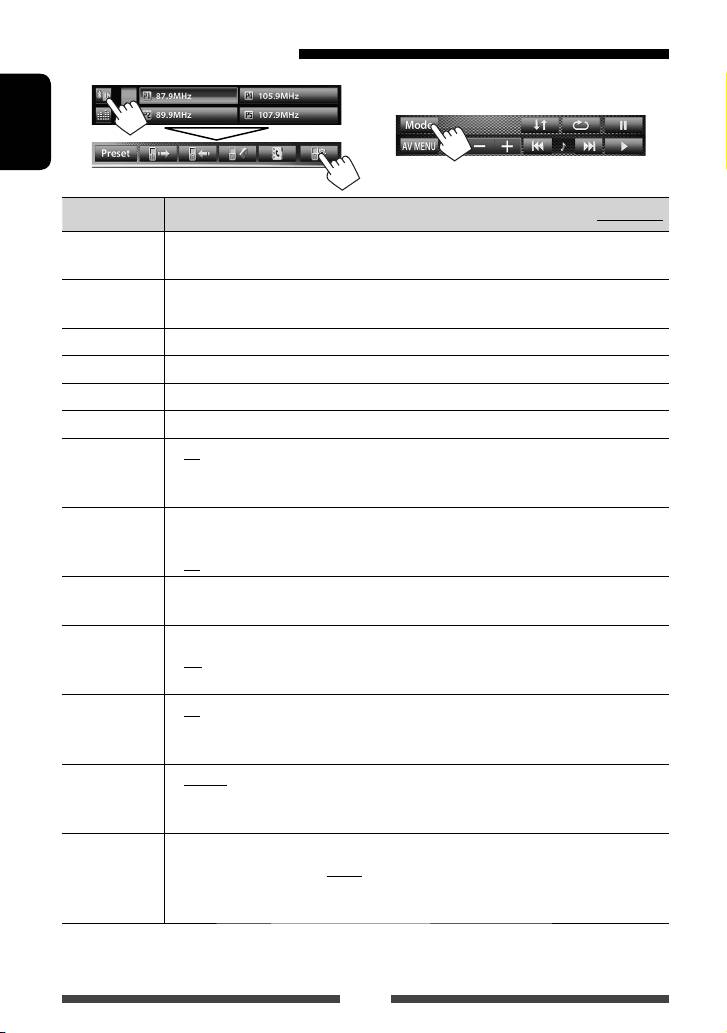
Bluetooth device settings
Mobile phone
Bluetooth audio player
On “
BT Audio
” source control screen:
ENGLISH
Menu items Selectable setting/item Initial: Underlined
Connection
♦ Connect
: ☞ page 53
♦ Disconnect
: ☞ page 53
PIN Code Changes the PIN code of the unit.
• Touch the current PIN code, enter a new PIN code, then press [Save].
Device Name Shows the device name to be shown on the Bluetooth device—JVC Unit.
Device Address Shows the MAC address of the unit.
1
Phone Device*
Shows the phone device name.
2
Audio Device*
Shows the audio device name.
Auto connect
♦ On
: The connection is automatically established with the last connected
Bluetooth device when the unit is turned on.
♦ Off
: Cancels.
HF/Audio
Select the speakers used for Bluetooth (both phone use and audio player).
Output
♦ Front
: From front speakers only.
♦ All
: From all speakers.
Initialize Hold [Enter] to clear the registration of Bluetooth devices and memory of the preset list and
call lists.
1
Auto Answer *
♦ On
: The unit answers the incoming calls automatically.
♦ Off
: The unit does not answer the calls automatically. Answer the calls
manually.
1
SMS Notify*
♦ On
: The unit informs you of the arrival of a message by ringing and
displaying “Receiving Message.”
♦ Off
: The unit does not inform you of the arrival of a message.
1
Ring Mode*
♦ System
: Selects the ring tone set on the unit.
♦ Phone
: Selects the ring tone set on the mobile phone. (This function may not
work depending on the mobile phone.)
Ring Tone
When <Ring Mode> is set to <System>, press [Enter], then select the ring tone for
1
Change*
received calls and SMS from <Tone1>, <Tone2>, <Tone3>.
♦ Call Tone
: Selects the ring tone for phone calls.
♦ Message Tone
: Selects the ring tone for SMS.
1
*
Appears only for the phone setting screen.
2
*
Appears only for <Mode> screen while “
BT Audio
” is selected as the source.
60
EN_KW-AV70EU.indb 60EN_KW-AV70EU.indb 60 11/12/13 16:3911/12/13 16:39
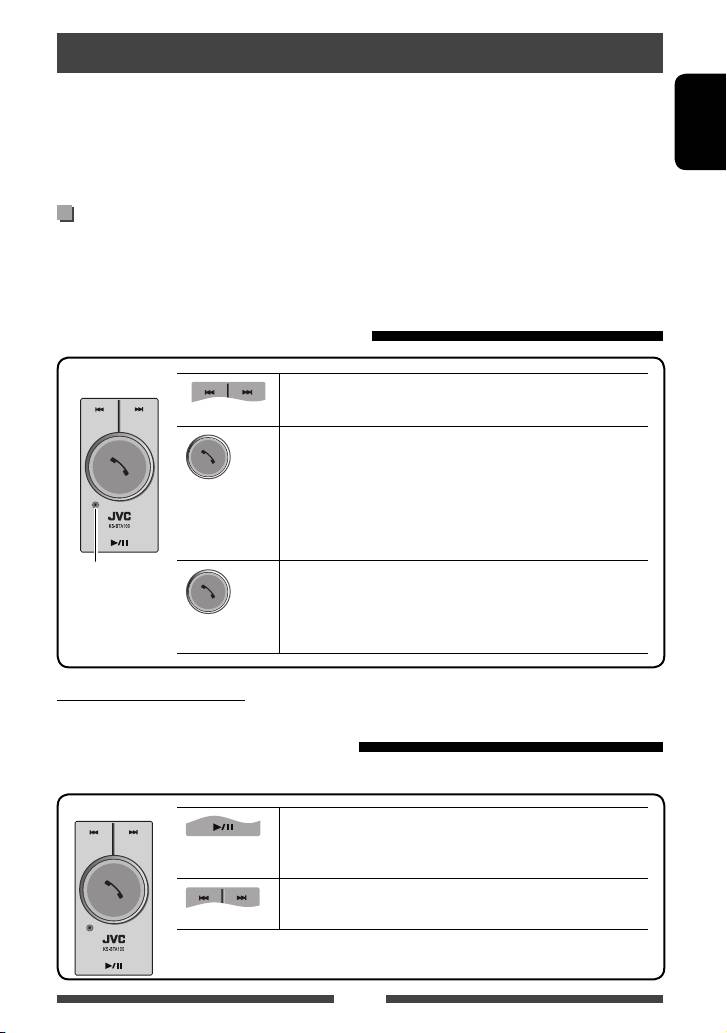
Bluetooth operations for KW-AV70
For Bluetooth operations, it is required to connect the Bluetooth adapter, KS-BTA100 (separately purchased) to the
LINE IN terminals on the rear of the unit. (☞ the Installation/Connection Manual)
• KS-BTA100 is not available in some countries. Please contact your dealer where you purchased this unit.
ENGLISH
• For details, refer also to the instructions supplied with the Bluetooth adapter and the Bluetooth device.
• Operations may be different according to the connected device.
Preparation
1 Register (pair) a Bluetooth device with KS-BTA100.
• Refer to the instructions manual supplied with KS-BTA100.
2 Select <BT> for <AV Input> setting. (☞ page 47 )
Using the Bluetooth mobile phone
KS-BTA100
Adjusting the microphone volume
(Low) (High)
Volume level: High/Normal (initial)/Low
• Receiving a call
When a call comes in...
• Making a call
(Press)
Making a call to the last connected number from your phone.
• Switching between handsfree and phone
While talking...
Microphone
• Ends/rejects call
• Voice dialing
Voice dialing is available only when the connected mobile phone
(Hold)
has the voice recognition system.
About microphone volume:
• When you turn off the power of the unit, the volume level changes to Normal.
Using the Bluetooth audio player
1 Select “
Bluetooth
” as the source. (☞ page 12)
KS-BTA100
Starts playback/pauses.
• If playback does not start, operate the Bluetooth audio player to
start playback.
• Selects track. (Press)
• Fast-forwards or reverses the track. (Hold)
61
EN_KW-AV70EU.indb 61EN_KW-AV70EU.indb 61 11/12/13 16:3911/12/13 16:39
