
Asus P5E3 Premium WiFi-AP@n – страница 10
Инструкция к Материнской Плате Asus P5E3 Premium WiFi-AP@n

6.1 Overview
®
The motherboard supports the ATI
CrossFire™ technology that allows you to
install multi-graphics processing units (GPU) graphics cards. Follow the installation
procedures in this section.
6.1.1 Requirements
• CrossFire™ Edition graphics card (Master)
• CrossFire™-ready graphics card (Slave)
• CrossFire™-ready motherboard
• Make sure that your power supply unit (PSU) can provide at least the
minimum power required by your system. See 8. ATX power connectors on
page 2-34 for details.
®
• Visit the ATI website or download the Radeon
X850 Crossre™ Edition
User’s Guide from the support CD for detailed hardware requirements and
installation procedures.
• The ATI CrossFire™ technology supports only the following operating
systems:
®
- Windows
XP 32-bit (Home or Professional) with Service
Pack 2 (SP2)
®
- Windows
XP Professional 64-bit Edition.
®
• Make sure that your graphics card driver supports the ATI
CrossFire™
Technology. Download the latest driver from the ATI website (www.ati.com)
• The maximum resolution of Radeon™ X850 CrossFire™ Edition is 1600 x
1200 at 65 MHz when you use DVI output.
6.1.2 Before you begin
Uninstall other graphics card drivers in your system
To uninstall other graphics card drivers:
1. Close all current applications.
2. Go to
Control Panel > Add/Remove Programs.
3. Select your current graphics card driver/s.
4. Select
Add/Remove.
5. Restart your system.
ASUS P5E3 Premium/WiFi-AP @n 6-1
6.2 Installing CrossFire™ graphics cards
Before installing a CrossFire™ system, refer to the user guide that came with
®
the ATI
CrossFire™ Edition graphics card.
To install the graphics cards:
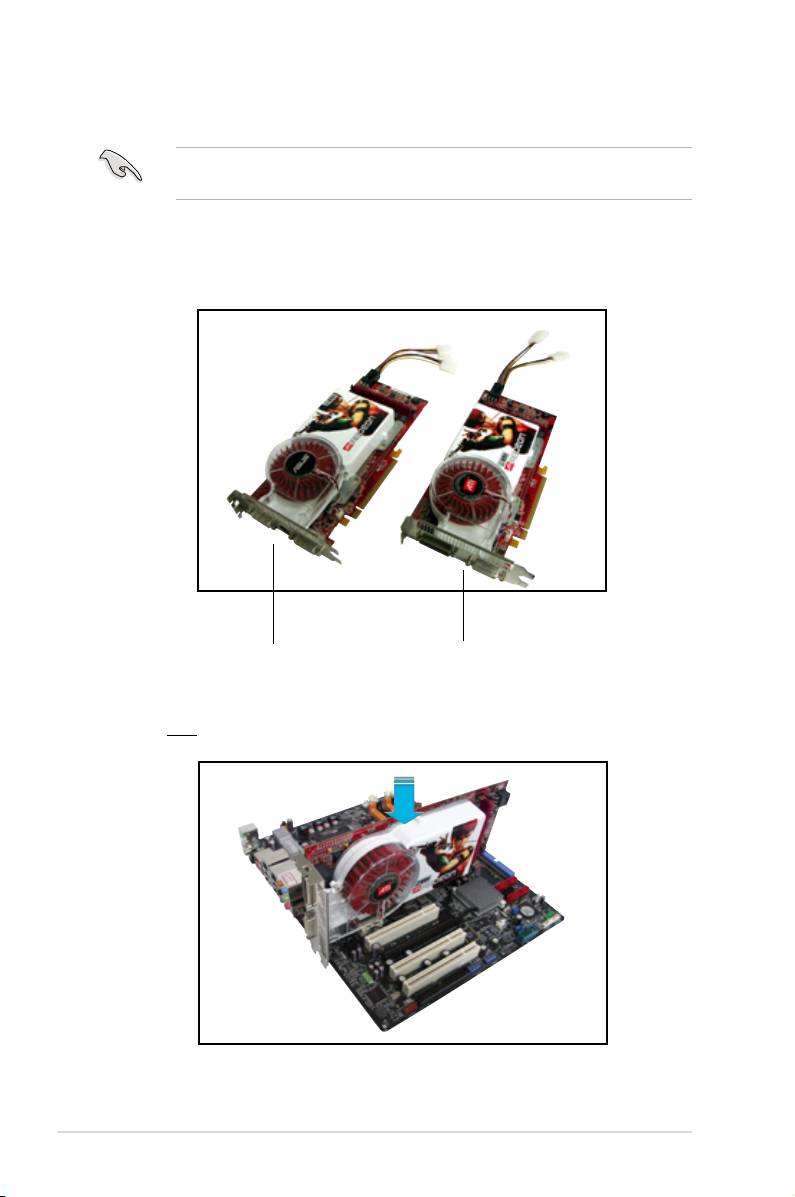
1. Prepare one CrossFire™ Edition (Master) graphics card and one
CrossFire™-ready (Slave) graphics card.
Slave graphics card Master graphics card
2. Insert the CrossFire™ Edition (Master) graphics card into the PCI Express
x16 blue slot. Make sure that the card is properly seated on the slot.
®
6-2 Chapter 6: ATI
MVP technology support
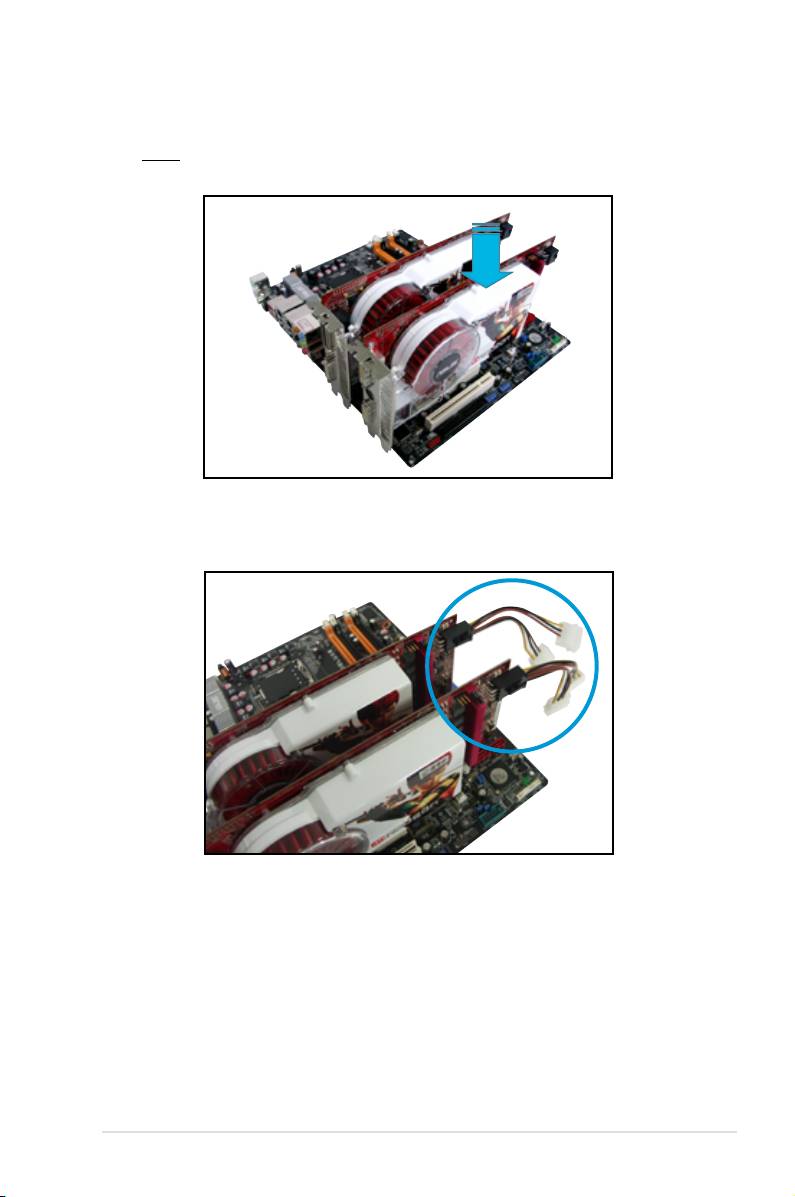
3. Insert the CrossFire™-ready (Slave) graphics card into the PCI Express x16
black slot. Make sure that the card is properly seated on the slot.
4. Connect an auxiliary power source from the power supply to the graphics
cards.
ASUS P5E3 Premium/WiFi-AP @n 6-3

5. Connect one end of the external cable to the Master graphics card.
6. Connect the other end of the external cable to the Slave graphics card.
7. Connect the loose end to the corresponding port on your monitor.
6
7
®
6-4 Chapter 6: ATI
MVP technology support
6.3 Software information
6.3.1 Installing the device drivers
Refer to the documentation that came with your graphics card package to install
the device drivers.
The ATI CrossFire™ technology supports only the following operating systems:
®
• Windows
XP 32-bit (Home or Professional) with Service
Pack 2 (SP2)
®
• Windows
XP Professional 64-bit Edition.
®
• Windows
Vista 32/64 bit Edition. (Will be ready later. Visit the ATI
website (www.ati.com)
1. Turn on your system and log in
with administrator rights.
®
2. Windows
auto-detects the
CrossFire™ graphics cards
and displays the Found New
Hardware Wizard window. Click
Cancel.
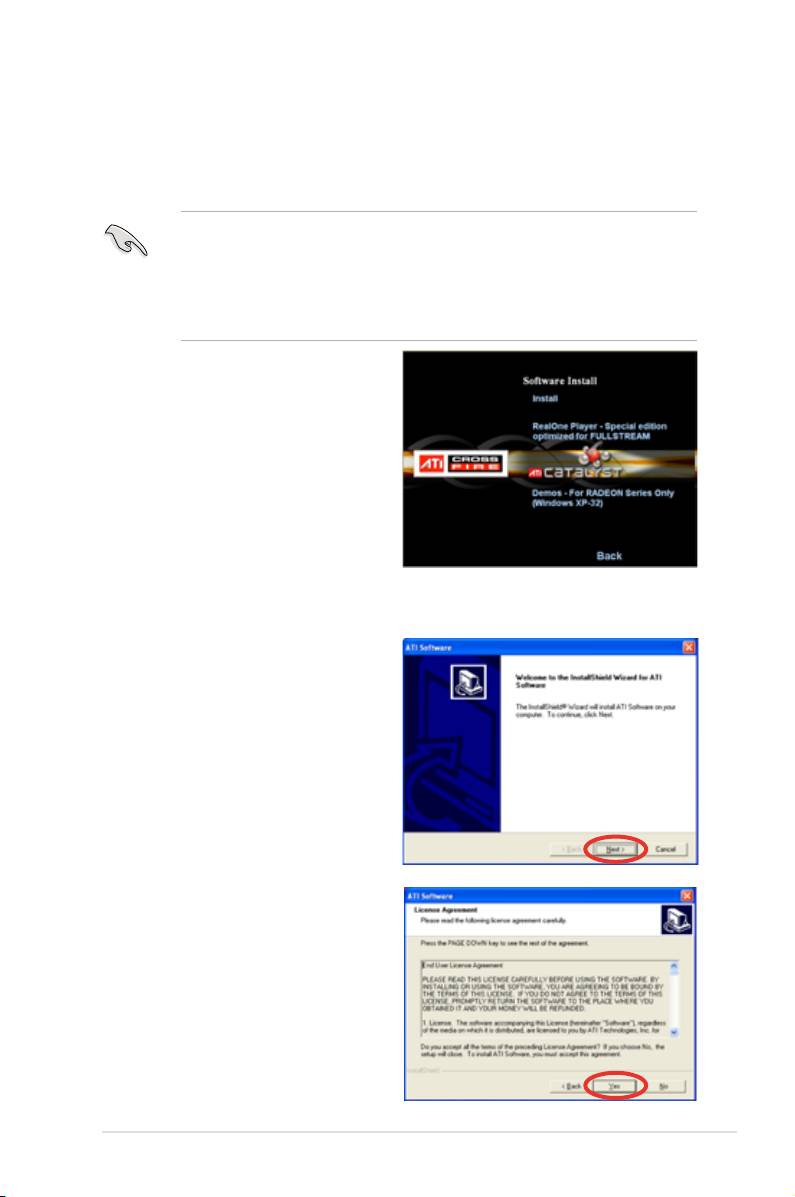
3. Place the CrossFire™ installation
CD in your optical drive and install
drivers from the opening menu.
4. Click Next to continue from the
installation window that appears.
5. Read the License Agreement,
then click Yes.
ASUS P5E3 Premium/WiFi-AP @n 6-5
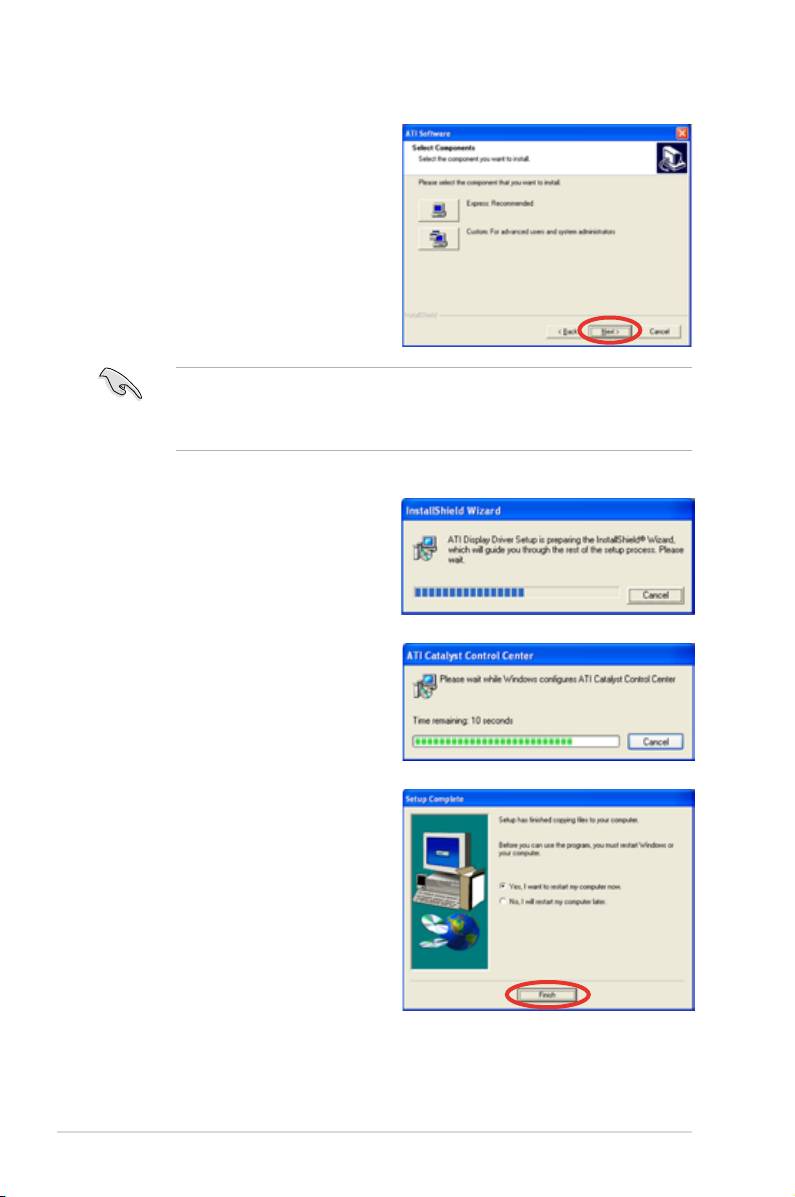
6. Select the components that you
want to install, then click Next.
•
Select Express to install the HydraVision™ multi-monitor and desktop
management software, as well as the ATI driver.
•
Select Custom to individually choose desired software components.
Setup prepares the installation
wizard that will guide you to setup
process.
Windows automatically congures
the ATI Catalyst Control Center.
The status windows indicates the
progress of the installation.
7. The Setup Complete window
appears, indicating that the driver
les have been copied to your
computer.
Click
Yes to restart your computer
now or No to restart later
8. Click
Finish.
®
6-6 Chapter 6: ATI
MVP technology support
6.3.2 Using the Catalyst™ Control Center
The Catalyst™ Control Center allows you to access display features of the ATI
hardware and software you installed. Use this application to adjust your graphic
settings, enable/disable connected devices, and change your desktop orientation.
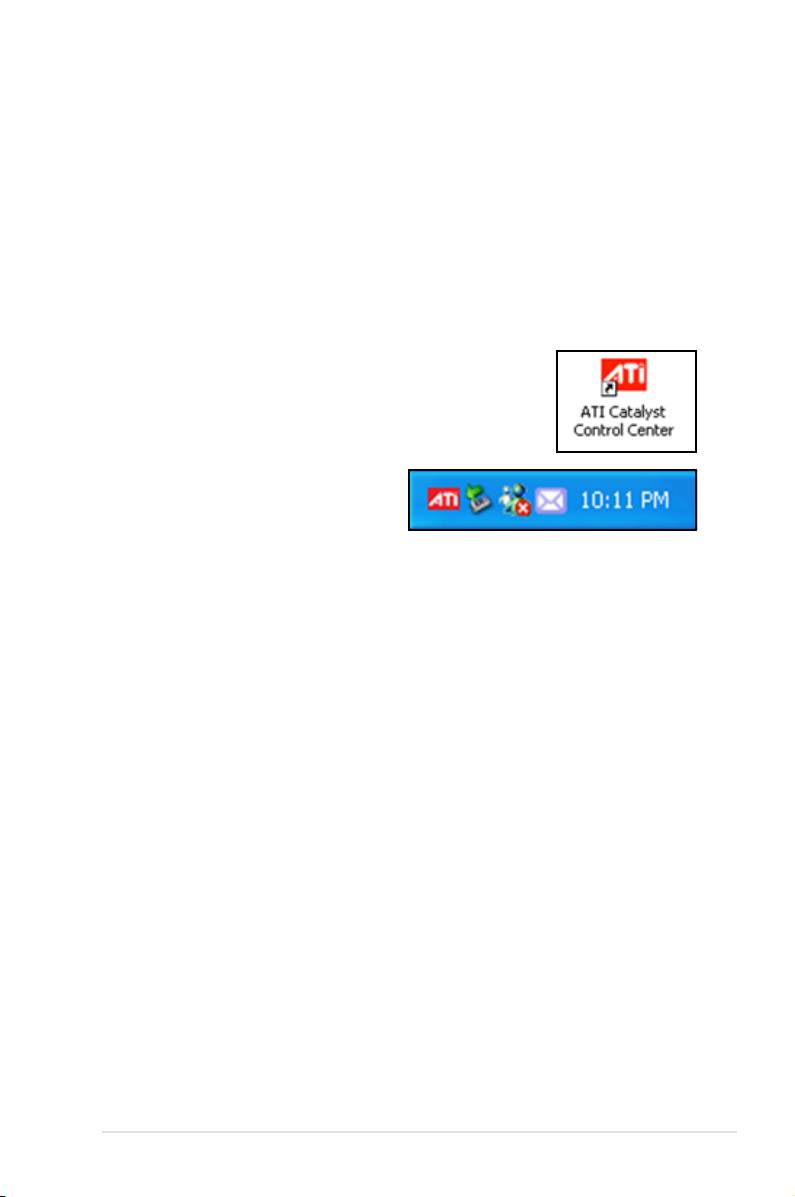
Launching the Catalyst™ Control Center
There are several ways to launch the Catalyst™ Control Center:
®
•
On the Windows
task bar, click Start > ATI Catalyst™ Control Center >
Catalyst™ Control Center
•
Double-click the Catalyst™ Control Center desktop shortcut.
®
•
On the Windows
task bar, double-
click the Catalyst™ Control Center
icon.
ASUS P5E3 Premium/WiFi-AP @n 6-7
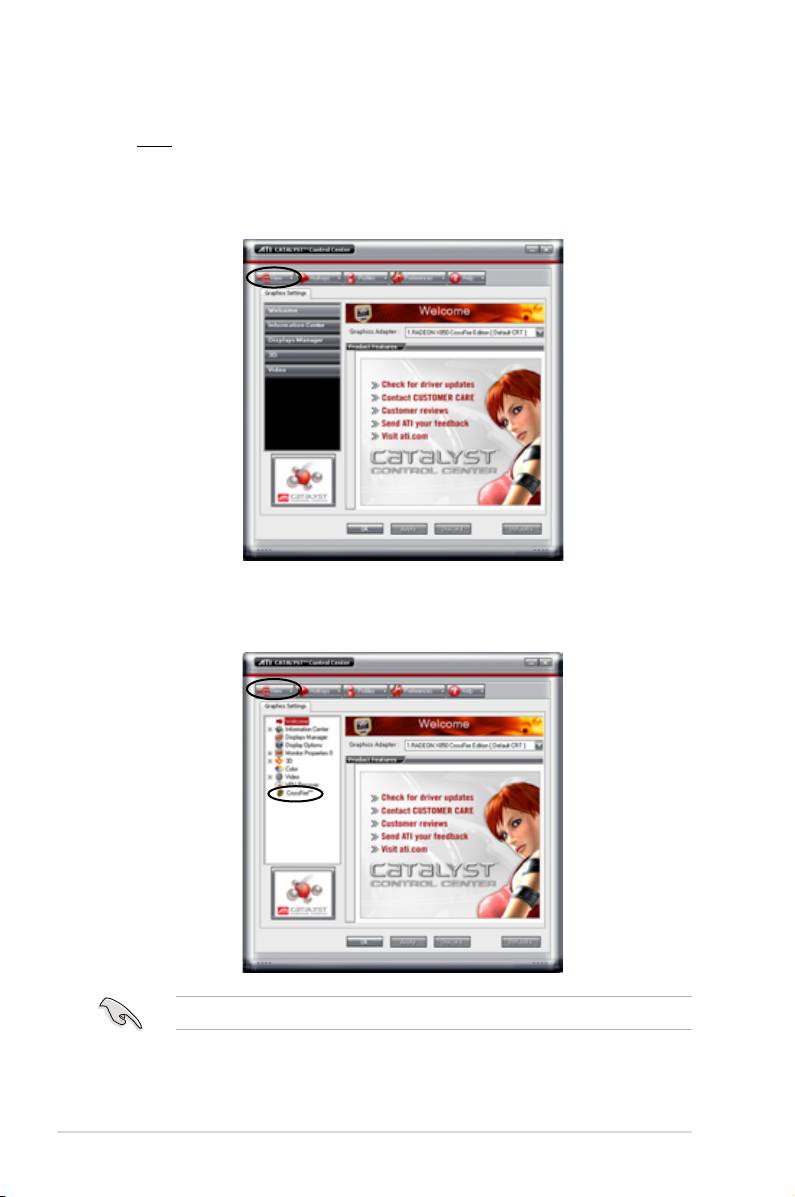
The Catalyst™ Control Center Dialog Box
View
The Catalyst™ Control Center provides two views:
Standard - simple view with wizards for beginners
Advance - allows advanced users to access and congure the complete
features of the software
Set to Advance view to enable the CrossFire™ function.
®
6-8 Chapter 6: ATI
MVP technology support
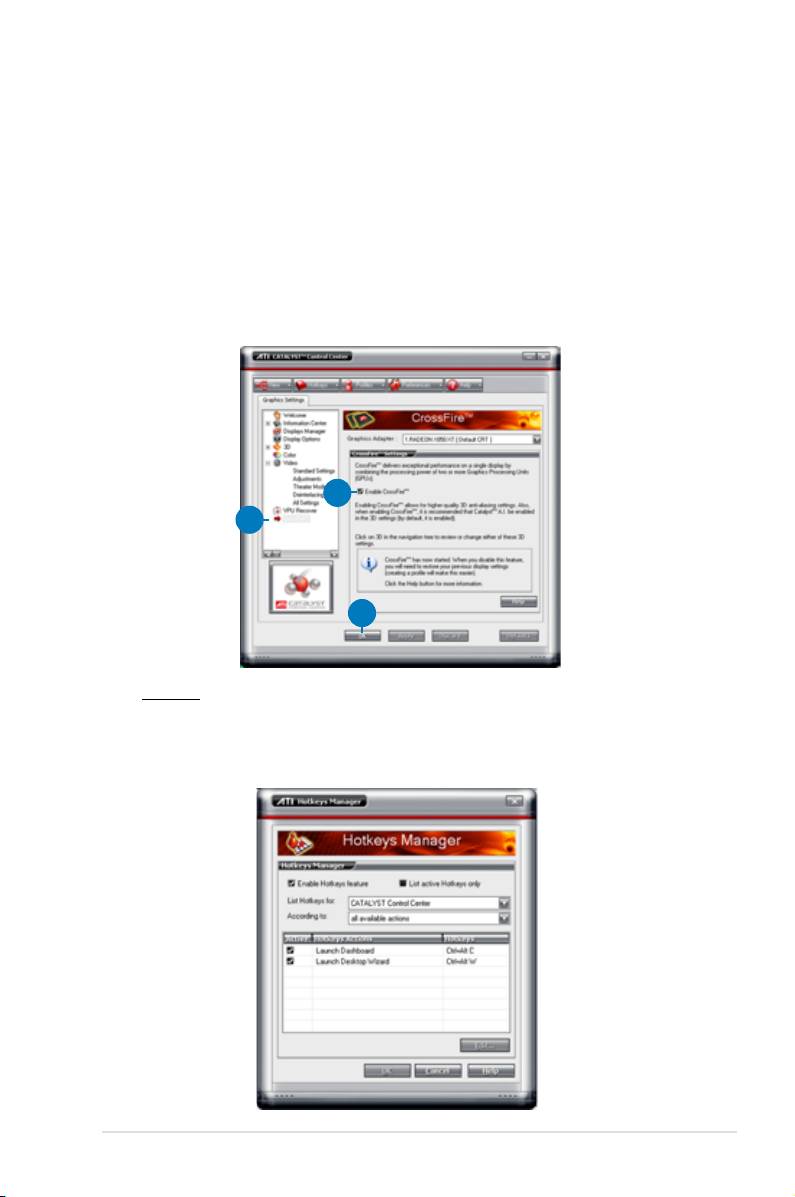
To enable CrossFire™:
1. Set the view to
Advance.
2. Click the Crossre™ item in Graphics Settings.
3. In the CrossFire™ Settings dialog, tick the box opposite
Enable
CrossFire™.
4. Click
OK to effect the setting.
3
2
4
Hotkeys
Click the Hotkeys tab on the Catalyst™ Control Center to access the
Hotkeys Manager, which allows you to create key combinations as shortcuts
for performing certain functions quickly.
ASUS P5E3 Premium/WiFi-AP @n 6-9
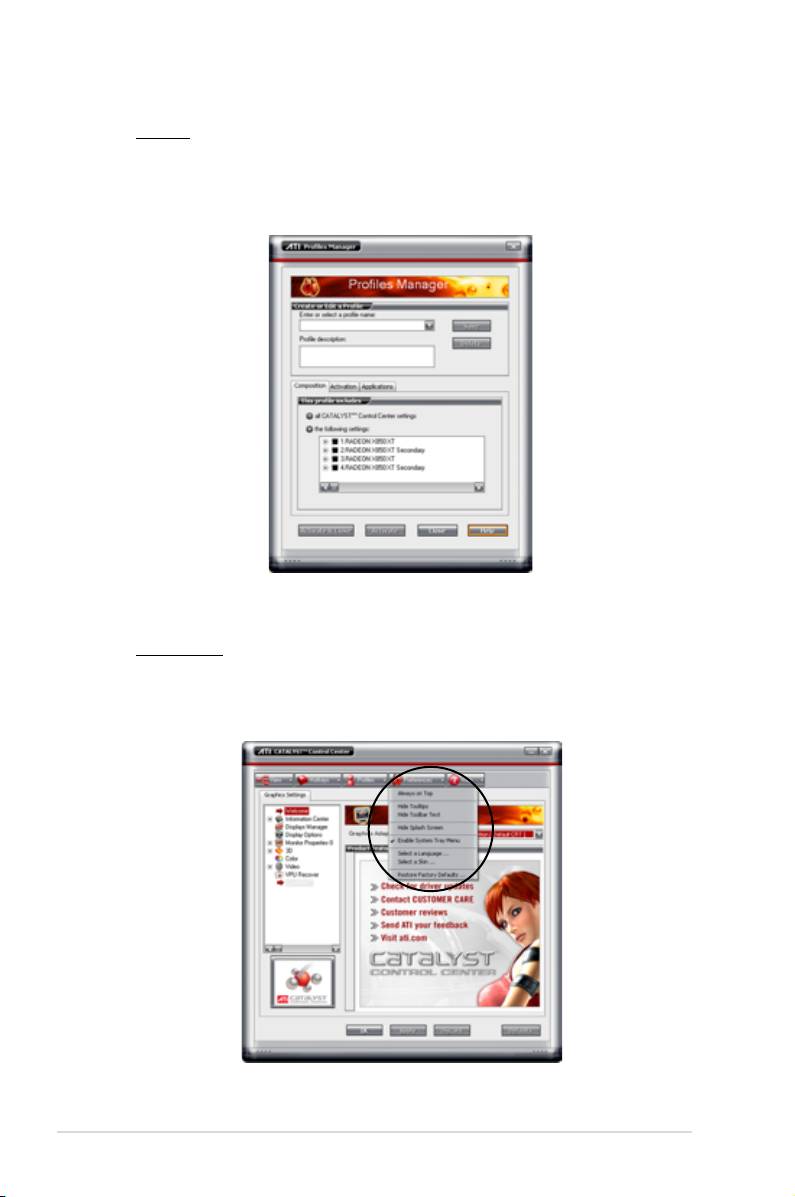
Profiles
Click the Proles tab on the Catalyst™ Control Center to access the Proles
Manager, which allows you to create customized environments for your
desktop, video, and 3D applications.
Preferences
Click the Preferences tab on the Catalyst™ Control Center to select a
language, restore defaults, change skins, or enable/disable the System Tray
icon.
®
6-10 Chapter 6: ATI
MVP technology support
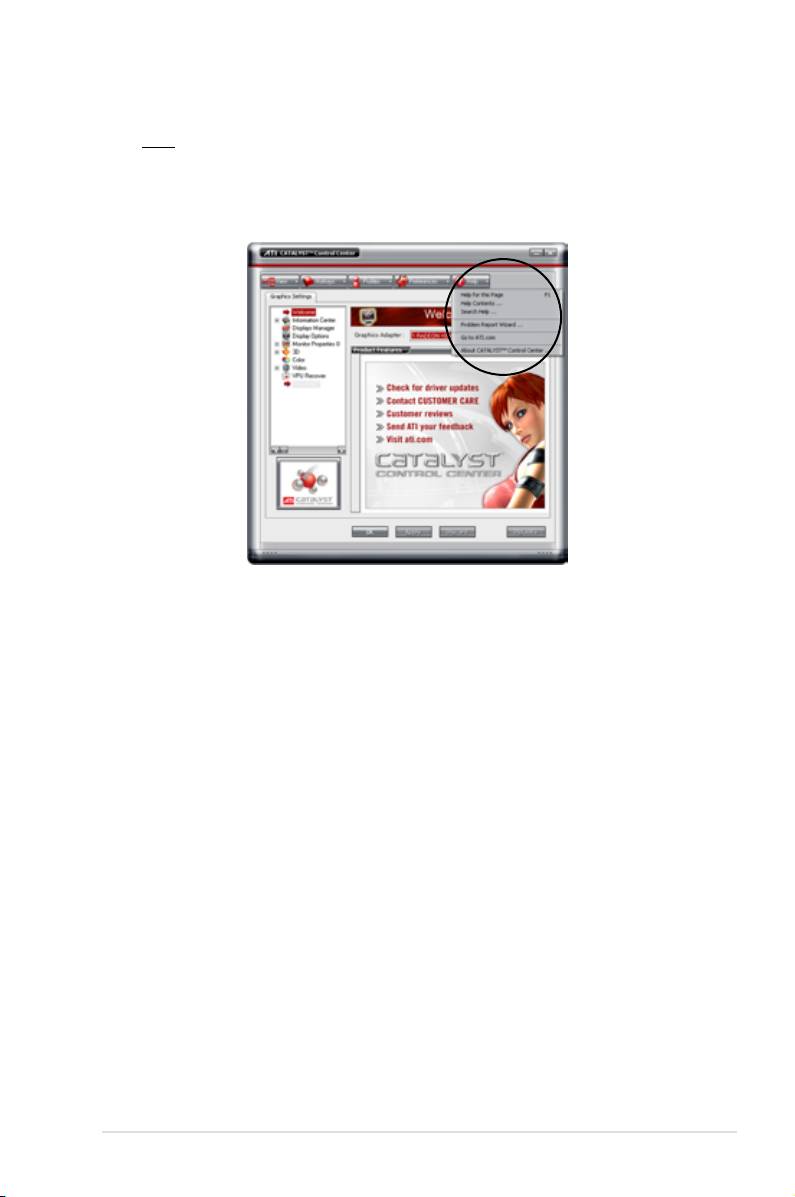
Help
Click the Help tab on the Catalyst™ Control Center to access the online help
system, generate a Problem Report, and get the Catalyst™ Control Center
version information.
ASUS P5E3 Premium/WiFi-AP @n 6-11

®
6-12 Chapter 6: ATI
MVP technology support

The Appendix describes the CPU features
and technologies that the motherboard
supports.
CPU features
A

Chapter summary
A
®
A.1 Intel
EM64T ..................................................................................A-1
®
A.2 Enhanced Intel SpeedStep
Technology (EIST) ........................A-1
®
A.3 Intel
Hyper-Threading Technology ...........................................A-3
ASUS P5E3 Premium/WiFi-AP @n

®
A.1 Intel
EM64T
®
• The motherboard is fully compatible with Intel
LGA775 processors running
on 32-bit operating systems.
• The motherboard comes with a BIOS le that supports EM64T. You can
download the latest BIOS le from the ASUS website (www.asus.com/
support/download/) if you need to update the BIOS le. See Chapter 4 for
details.
• Visit www.intel.com for more information on the EM64T feature.
®
• Visit www.microsoft.com for more information on Windows
64-bit OS.
®
Using the Intel
EM64T feature
®
To use the Intel
EM64T feature:
®
®
1. Install an Intel
CPU that supports the Intel
EM64T.
®
®
2. Install a 64-bit operating system (Windows
Vista 64-bit Edition or Windows
XP Professional x64 Edition).
3. Install the 64-bit drivers for the motherboard components and devices from
the support DVD.
4. Install the 64-bit drivers for expansion cards or add-on devices, if any.
Refer to the expansion card or add-on device(s) documentation, or visit the
related website, to verify if the card/device supports a 64-bit system.
®
A.2 Enhanced Intel SpeedStep
Technology (EIST)
• The motherboard comes with a BIOS le that supports EIST. You can
download the latest BIOS le from the ASUS website (www.asus.com/
support/download/) if you need to update the BIOS. See Chapter 4 for
details.
• Visit www.intel.com for more information on the EIST feature.
A.2.1 System requirements
Before using EIST, check your system if it meets the following requirements:
®
• Intel
processor with EIST support
• BIOS le with EIST support
®
®
• Operating system with EIST support (Windows
Vista, Windows
XP SP2/
Linux 2.6 kernel or later versions)
ASUS P5E3 Premium/WiFi-AP @n A-1
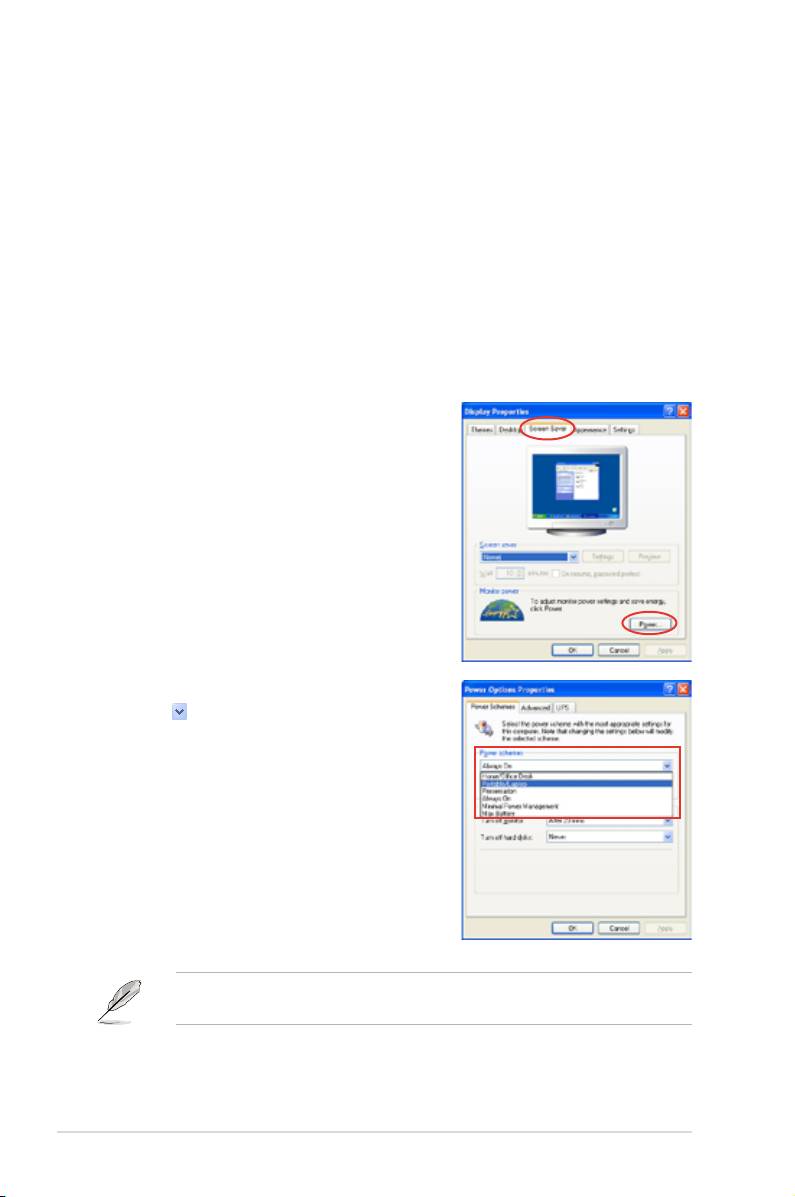
A.2.2 Using the EIST
To use the EIST feature:
1. Turn on the computer, then enter the BIOS Setup.
2. Go to the Advanced Menu, highlight CPU Conguration,
then press <Enter>.
3. Set the Intel(R) SpeedStep Technology item to [Automatic],
then press <Enter>.
4. Press <F10> to save your changes and exit the BIOS setup.
5. After the computer restarts, right click on a blank space on the desktop, then
select Properties from the pop-up menu.
6. When the Display Properties
window appears, click the Screen
Saver tab.
7. Click the Power button on the
Monitor power section to open the
Power Options Properties window.
8. On the Power schemes section,
click , then select any option
except Home/Ofce Desktop or
Always On.
9. Click Apply, then click OK.
10. Close the Display Properties
window.
After you adjust the power scheme,
the CPU internal frequency slightly
decreases when the CPU loading is
low.
The screen displays and procedures may vary depending on the operating
system.
A-2 Appendix: CPU features

®
A.3 Intel
Hyper-Threading Technology
®
®
• The motherboard supports Intel
Pentium
4 LGA775 processors with
Hyper-Threading Technology.
®
• Hyper-Threading Technology is supported under Windows
Vista/XP and
Linux 2.4.x (kernel) and later versions only. Under Linux, use the Hyper-
Threading compiler to compile the code. If you are using any other
operating systems, disable the Hyper-Threading Technology item in the
BIOS to ensure system stability and performance.
®
• Installing Windows
XP Service Pack 1 or later version is recommended.
• Make sure to enable the Hyper-Threading Technology item in BIOS before
installing a supported operating system.
• For more information on Hyper-Threading Technology, visit www.intel.
com/info/hyperthreading.
Using the Hyper-Threading Technology
To use the Hyper-Threading Technology:
®
®
1. Install an Intel
Pentium
4 CPU that supports Hyper-Threading Technology.
2. Power up the system and enter the BIOS Setup. Under the Advanced Menu,
make sure that the item
Hyper-Threading Technology
is set to [Enabled].
The BIOS item appears only if you installed a CPU that supports Hyper-
-Threading Technology.
3. Restart the computer.
ASUS P5E3 Premium/WiFi-AP @n A-3

A-4 Appendix: CPU features
