
Sony CPD-E500E: Setup Step 1:Connect your monitor to your computer Step 2:Connect the power cord
Setup Step 1:Connect your monitor to your computer Step 2:Connect the power cord: Sony CPD-E500E
Table of contents
- Owner’s Record
- Table of Contents
- Precautions
- Identifying parts and controls
- Setup Step 1:Connect your monitor to your computer Step 2:Connect the power cord
- Step 3:Turn on the monitor and Selecting the on-screen menu computer language (LANG)
- Customizing Your Monitor Navigating the menu
- Adjusting the brightness and contrast
- Adjusting the size of the picture Adjusting the shape of the picture (SIZE) (GEOM) Adjusting the centering of the picture (CENTER) Enlarging or reducing the picture (ZOOM)
- Adjusting the convergence (CONV) Adjusting the quality of the picture (SCREEN)
- Adjusting the color of the picture (COLOR)
- Additional settings (OPTION)
- Resetting the adjustments Technical Features Preset and user modes Power saving function
- Troubleshooting
- Trouble symptoms and remedies Symptom Check these items
- Symptom Check these items
- Self-diagnosis function Specifications
x
xx
x
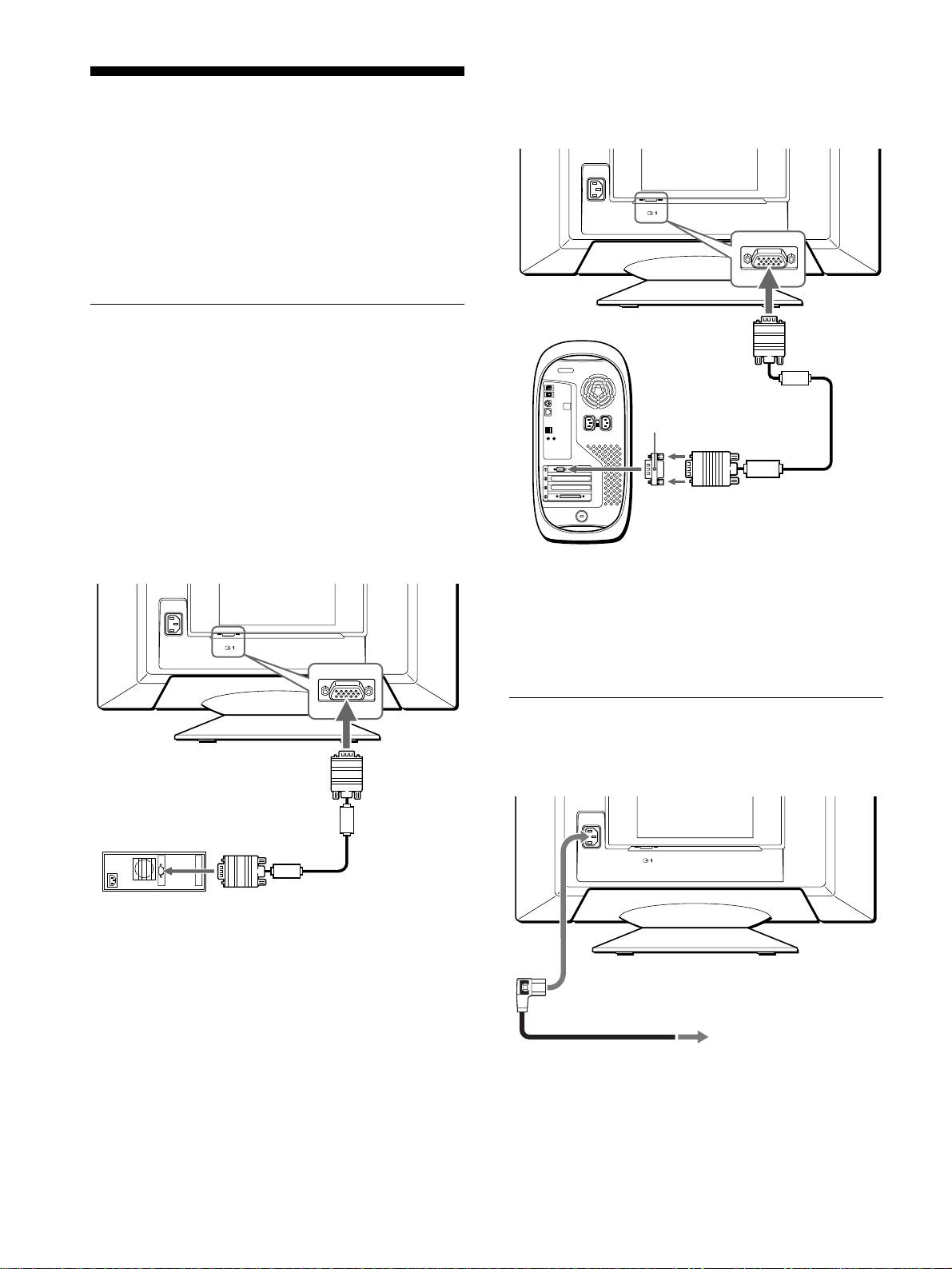
Connecting to a Macintosh computer
Setup
Before using your monitor, check that the following accessories
are included in your carton:
• Power cord (1)
• HD15 video signal cable (1)
• Macintosh G3 adapter (for blue and white system) (1)
• Setup Disk (1)
• Warranty card (1)
• Notes on cleaning the screen’s surface (1)
• This instruction manual (1)
Step 1:Connect your monitor to
your computer
Turn off the monitor and computer before connecting.
Notes
• Do not touch the pins of the video signal cable connector as this might
bend the pins.
• When connecting the video signal cable, check the alignment of the
HD15 connector. Do not force the connector in the wrong way or the
pins might bend.
x
xx
x
Connecting to an IBM PC/AT or compatible
computer
* Connect the supplied Macintosh G3 adapter to the computer before
AC IN
connecting the cable. This adapter is compatible with the Power
Macintosh G3 computer that has three rows of pins. If you are
connecting to the other version of Power Macintosh G3 series computer
(HD15)
with two rows of pins or other models, you will need a different adapter
(sold separately).
Step 2:Connect the power cord
With the monitor and computer switched off, first connect the
power cord to the monitor, then connect it to a power outlet.
to HD15
to video output
HD15 video signal
cable (supplied)
IBM PC/AT or compatible
computer
6
AC IN
(HD15)
Use the supplied Macintosh G3 adapter (for blue and white
system).
to HD15
Macintosh G3 adapter
(for blue and white
system) (supplied)
*
HD15 video signal
to video
cable (supplied)
output
Power Macintosh G3
AC IN
(HD15)
to AC IN
to a power outlet
power cord (supplied)
