
Sony SPK-HC: Recording a Still Picture A. When in MEMORY mode B. When in CAMERA mode
Recording a Still Picture A. When in MEMORY mode B. When in CAMERA mode: Sony SPK-HC
Table of contents
- Table of contents Features and Precautions
- Precautions on Use Water Leakage
- Precautions on Use (continued)
- Maintenance
- Preparing
- Selecting the Camera Mounting Shoe
- Preparing (continued) Installing the Video Camera Recorder 1 Attach the camera mounting shoe. 2 Release the buckles. 3 Coat the front glass with anti-fogging lens solution. 4 Remove foreign materials.
- 5 Connect the plugs to the each jacks of the video camera recorder. When using DCR-HC40/HC30/HC20/HC18/HC16
- Preparing (continued)
- 6 Installing the video camera recorder. 7 Close the rear body.
- Preparing (continued) Preparing the Sports Pack 1 Adjust the grip strap. 2 Attach the shoulder strap.
- Using the Sports Pack Shooting Moving Pictures 1 When recording on a cassette tape or a disc, turn the POWER switch to “CAMERA” (1). When recording on “Memory Stick,” turn the POWER switch to “MEMORY” (2). 2 Press START/STOP button to start recording.
- Using the Sports Pack (continued)
- Recording a Still Picture A. When in MEMORY mode B. When in CAMERA mode
- Using the Sports Pack (continued) Playing Back with the Remote Commander 1 Turn the POWER switch to “VCR.” 2 Press N PLAY on the remote.
- Removing the Video Camera Recorder 1 Turn the POWER switch to “OFF.” 2 Release the buckles, and open the rear body. 3 Pull out the camera mounting shoe.
- Using the Sports Pack (continued) 4 Stop taking out the video camera recorder at the point where the remote plug and the microphone plug come out from the sports pack. Then, disconnect the plugs from the video camera recorder.
- 5 Detach the camera mounting shoe.
- Identifying parts
- Troubleshooting
- Specifications
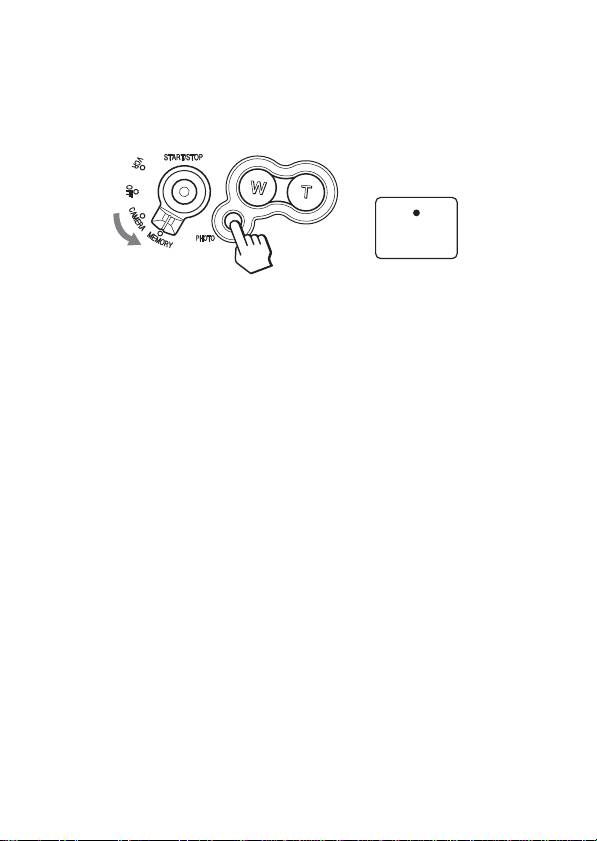
Recording a Still Picture
A. When in MEMORY mode
1 Turn the POWER switch to “MEMORY.”
2 Lightly press the PHOTO button.
DISPLAY
The green mark stops flashing , then lights up. This makes it possible
to record a still picture.
No image is recorded yet.
3 Firmly press the PHOTO button.
When using DCR-HC40/HC30/TRV33/TRV22, the image captured
when the PHOTO button is deeply pressed is recorded on “Memory
Stick,” when using DCR-DVD201/DVD101/DVD91, it is recorded on
a disc.
B. When in CAMERA mode
1 Turn the POWER switch to “CAMERA.”
2 Lightly press the PHOTO button.
The word “Capture” appears in the top right of the screen.
No image is recorded yet.
3 Firmly press the PHOTO button.
The image shown on the screen is recorded onto the “Memory Stick”
when using DCR-HC40/HC30/TRV33/TRV22.
Notes
•You cannot use the sports pack for taking night shots.
•You cannnot record still pictures in the CAMERA mode when using
DCR-DVD201/DVD101/DVD91.
•If your video camera recorder is not “Memory Stick” compatible, images
are recorded on tape.
15-GB
