
Sony CPD-G400P: Technical Features Troubleshooting
Technical Features Troubleshooting: Sony CPD-G400P
Table of contents
- Owner’s Record
- Table of Contents
- Precautions
- Identifying parts and controls RearFront
- Setup Step 1:Connect your monitor to your computer
- Step 2:Connect the power cord Step 3:Turn on the monitor and computer
- Selecting the on-screen menu Selecting the input signal language (LANG)
- Customizing Your Monitor Navigating the menu
- Adjusting the brightness and contrast
- Automatically sizing and centering Adjusting the size of the picture the picture (AUTO) (SIZE) Enlarging or reducing the picture (ZOOM) Adjusting the centering of the picture (CENTER)
- Adjusting the shape of the picture Adjusting the color of the picture (GEOM) (COLOR)
- Adjusting the convergence (CONV) Additional settings (OPTION)
- Helpful hints and information (HELP)
- Resetting the adjustments
- Technical Features Troubleshooting
- Trouble symptoms and remedies Symptom Check these items
- Symptom Check these items
- Specifications
Technical Features
Troubleshooting
Before contacting technical support, refer to this section.
Preset and user modes
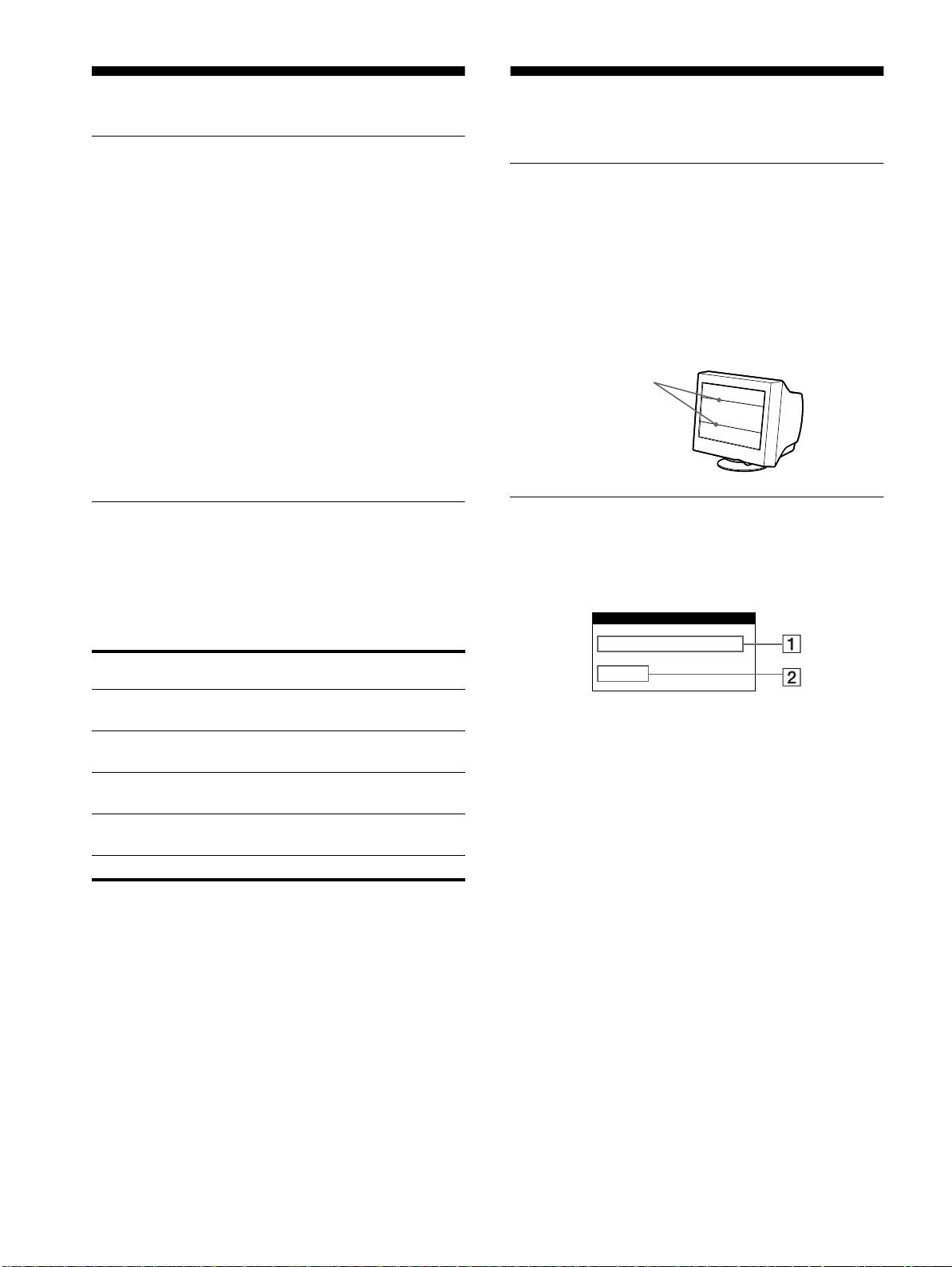
If thin lines appear on your screen
When the monitor receives an input signal, it automatically
matches the signal to one of the factory preset modes stored in the
(damper wires)
monitor’s memory to provide a high quality picture at the center of
the screen.
(See Appendix for a list of the factory preset modes.)
The visible lines on your screen especially when the background
For input signals that do not match one of the factory preset modes,
screen color is light (usually white), are normal for the Trinitron
the digital Multiscan technology of this monitor ensures that a
monitor. This is not a malfunction. These are shadows from the
clear picture appears on the screen for any timing in the monitor’s
damper wires used to stabilize the aperture grille. The aperture
frequency range (horizontal: 30 – 107 kHz, vertical: 48 – 120 Hz).
grille is the essential element that makes a Trinitron picture tube
If the picture is adjusted, the adjustment data is stored as a user
unique by allowing more light to reach the screen, resulting in a
mode and automatically recalled whenever the same input signal
brighter, more detailed picture.
is received.
Note for Windows users
For Windows users, check your graphic board manual or the
utility program which comes with your graphic board and select
the highest available refresh rate to maximize monitor
performance.
On-screen messages
Power saving function
If no picture appears on the screen, one of the following messages
This monitor meets the power-saving guidelines set by VESA,
appears on the screen. To solve the problem, see “Trouble
E
NERGY
S
TAR, and NUTEK. If the monitor is connected to a
symptoms and remedies” on page 17.
computer or video graphics board that is DPMS (Display Power
Management Signaling) compliant, the monitor will automatically
reduce power consumption in three stages as shown below
.
Power mode Power consumption 1 (power)
indicator
normal
≤ 140 W green
operation
1 The input signal condition
1 standby ≤ 15 W green and orange
OUT OF SCAN RANGE
alternate
indicates that the input signal is not supported by the
2 suspend
≤ 15 W green and orange
monitor’s specifications.
(sleep)*
alternate
NO INPUT SIGNAL
3 active off**
≤ 3 W orange
indicates that no signal is input.
(deep sleep)*
MONITOR IS IN POWER SAVE MODE
indicates that the computer is in power saving mode. This
power off 0 W off
message is displayed only when your computer is in a power
saving mode and you press any one of the buttons on the
* “Sleep” and “deep sleep” are power saving modes defined by the
monitor.
Environmental Protection Agency.
** When your computer is in a power saving mode, MONITOR IS IN
2 The selected connector
POWER SAVE MODE appears on the screen if you press any button
This message shows the currently selected connector
on the monitor. After a few seconds, the monitor enters the power
saving mode again.
(INPUT 1 or INPUT 2).
16
Damper wires
INFORMATION
OUT OF SCAN RANGE
INPUT 1
