
Sony CPD-G400P: Adjusting the shape of the picture Adjusting the color of the picture (GEOM) (COLOR)
Adjusting the shape of the picture Adjusting the color of the picture (GEOM) (COLOR): Sony CPD-G400P
Table of contents
- Owner’s Record
- Table of Contents
- Precautions
- Identifying parts and controls RearFront
- Setup Step 1:Connect your monitor to your computer
- Step 2:Connect the power cord Step 3:Turn on the monitor and computer
- Selecting the on-screen menu Selecting the input signal language (LANG)
- Customizing Your Monitor Navigating the menu
- Adjusting the brightness and contrast
- Automatically sizing and centering Adjusting the size of the picture the picture (AUTO) (SIZE) Enlarging or reducing the picture (ZOOM) Adjusting the centering of the picture (CENTER)
- Adjusting the shape of the picture Adjusting the color of the picture (GEOM) (COLOR)
- Adjusting the convergence (CONV) Additional settings (OPTION)
- Helpful hints and information (HELP)
- Resetting the adjustments
- Technical Features Troubleshooting
- Trouble symptoms and remedies Symptom Check these items
- Symptom Check these items
- Specifications
Adjusting the shape of the picture
Adjusting the color of the picture
(GEOM)
(COLOR)
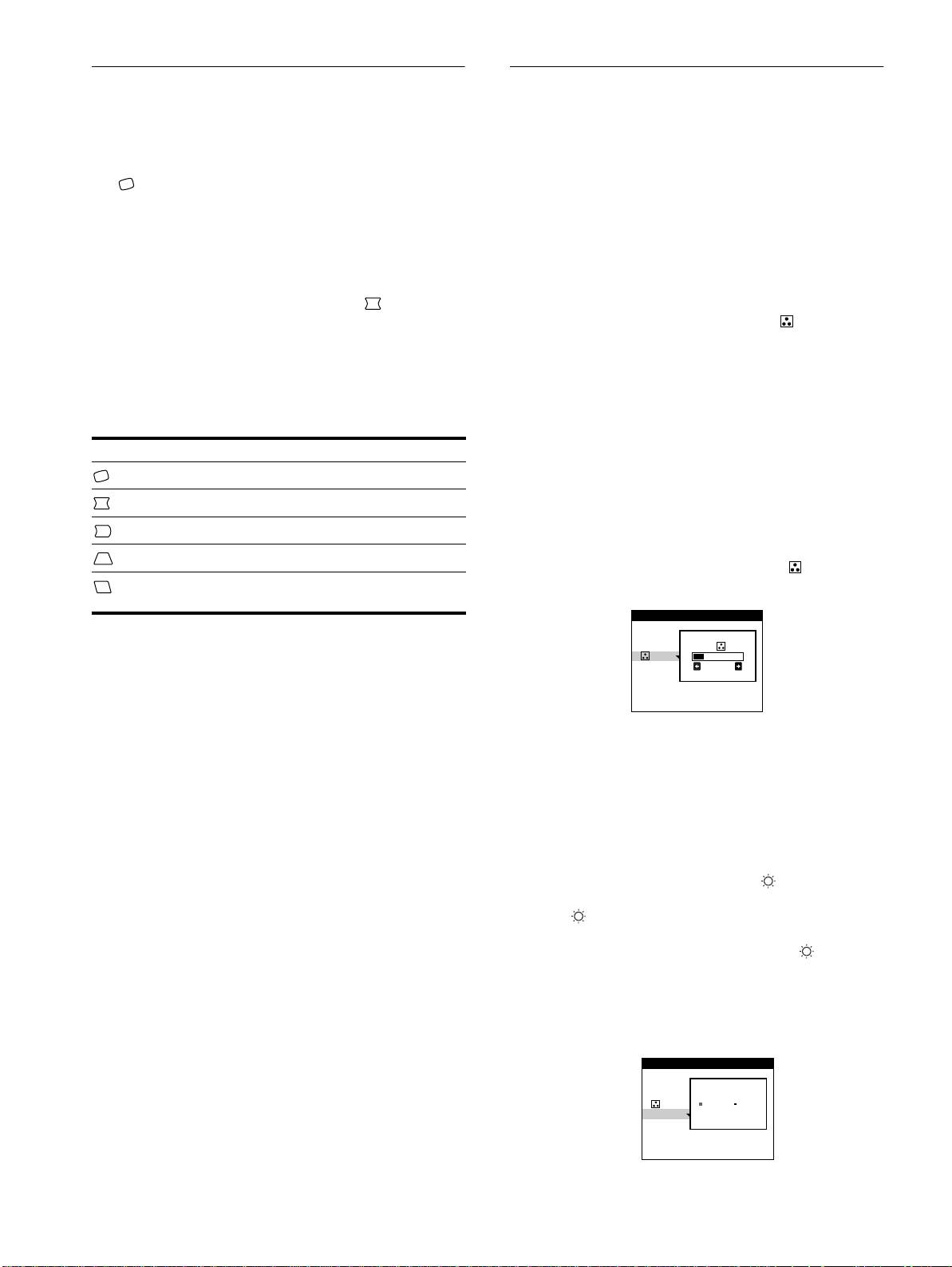
The GEOM settings allow you to adjust the rotation and shape of
The COLOR settings allow you to adjust the picture’s color
the picture.
temperature by changing the color level of the white color field.
The (rotation) setting is stored in memory for all input signals.
Colors appear reddish if the temperature is low, and bluish if the
All other settings are stored in memory for the current input
temperature is high. This adjustment is useful for matching the
signal.
monitor’s colors to a printed picture’s colors.
This setting is stored in memory for all input signals.
1
Press the center of the control button.
The main MENU appears on the screen.
1
Press the center of the control button.
The main MENU appears on the screen.
2
Move the control button to highlight GEOM and
press the center of the control button again.
2
Move the control button to highlight COLOR and
The GEOMETRY menu appears on the screen.
press the center of the control button again.
The COLOR menu appears on the screen.
3
First move the control button
m
/
M
to select the
desired adjustment item. Then move the control
3
Move the control button
m
/
M
to select a color
button
<
/
,
to make the adjustment.
temperature.
The preset color temperatures are 5000K and 9300K. Since
the default setting is 9300K, the whites will change from a
Select To
bluish hue to a reddish hue as the temperature is lowered to
rotate the picture
5000K.
expand or contract the picture sides
4
If necessary, fine tune the color temperature.
shift the picture sides to the left or right
You can select your own color temperature between 9300K
and 5000K.
adjust the picture width at the top of the screen
First move the control button m/M to select . Then move
shift the picture to the left or right at the top of the
the control button </, to adjust the color temperature.
screen
sRGB Mode
The sRGB color setting is an industry standard color space
protocol designed to correlate the displayed and printed colors of
sRGB compliant computer products. To adjust the colors to the
sRGB profile, simply set the sRGB
“
ON
”
in the COLOR menu.
However, in order to display the sRGB colors correctly (γ=2.2,
6500K), you must set your computer to the sRGB profile.
When you set sRGB to
“
ON
” the brightness
( ) and contrast (6)
are automatically set to
“
31
” and “
85
” respectively. If you change the
brightness
( ) and contrast (6), sRGB setting is changed to
“
OFF
”.
For information on how to change the brightness ( ) and
contrast (6), see page 10.
Note
Your computer and other connected products (such as a printer), must be
sRGB compliant.
12
COLOR
9300K
5000K
sRGB
26
COLOR
9300K
5000K
+OFF ON
sRGB
