
Sony CPD-120AS: p CPD-120AS p CPD-220AS
p CPD-120AS p CPD-220AS: Sony CPD-120AS
Table of contents
- Owner’s Record
- Table of Contents
- Introduction Plug and play
- Precautions Maintenance Transportation
- Warning on Power Connection
- Functions of Controls
- Functions of Controls
- Functions of Controls
- Getting Started Installation p Step 1: Connect the computer
- p CPD-120AS p CPD-220AS
- p Step 2: Connect the power cord p Step 3: Turn on the display and computer. p Step 4: If necessary...
- Using Your Display Preset and user modes
- Using the tilt-swivel
- Damper wire
- Adjustments Adjusting volume
- Adjusting the picture contrast
- Adjusting the picture brightness
- Adjusting the picture centering
- Adjusting the picture size
- Adjusting the picture rotation
- Adjusting the pincushion
- Setting the color temperature
- Resetting
- Available Features Selecting Graphic Picture Enhancement (GPE)
- Selecting Bass Boost
- Power Saving Function
- Specifications
- Troubleshooting
- Troubleshooting
- Troubleshooting
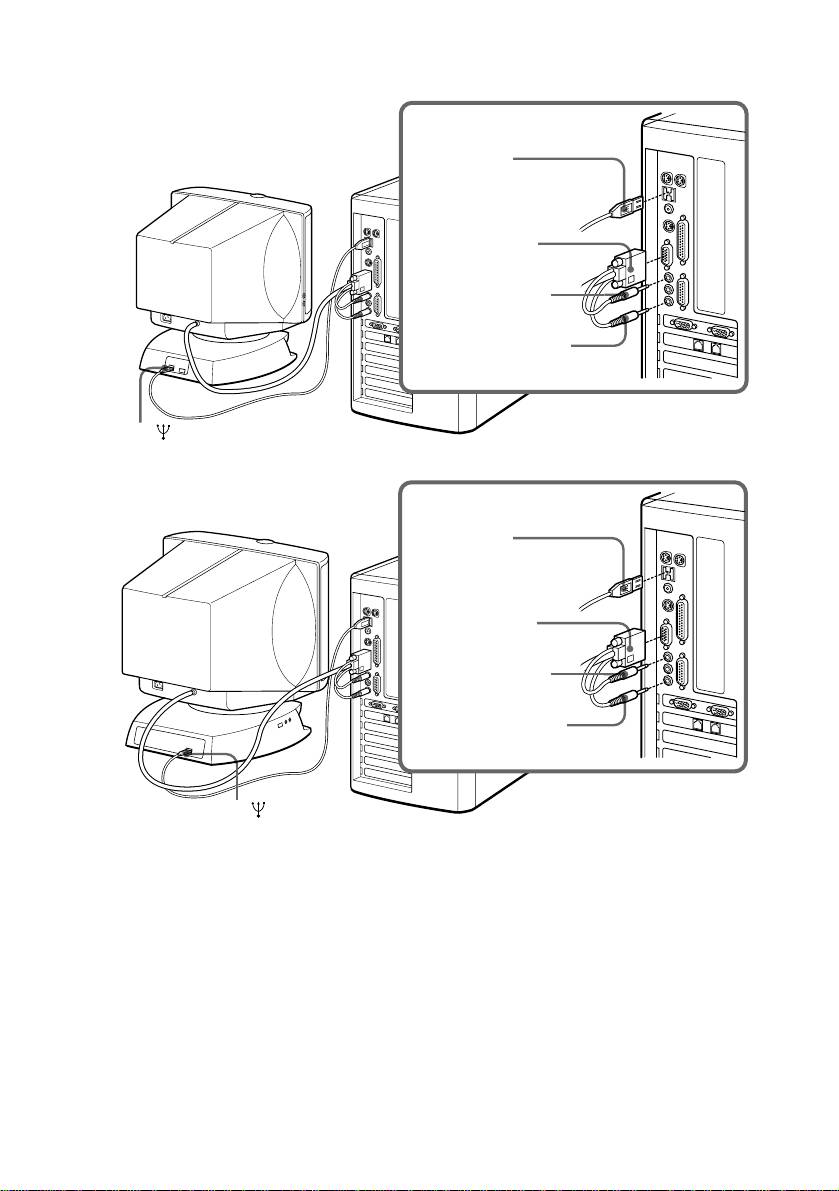
p CPD-120AS
Computer
to USB port
Blue (to display
connector)
Green (to speaker
connector)
Red (to microphone
connector)
to
p CPD-220AS
Computer
to USB port
Blue (to display
connector)
Green (to speaker
connector)
Red (to microphone
connector)
to
✔Note on handling the video signal cable
Do not touch the pins of the video signal cable.
✔Note on USB ports
USB ports are included to provide state-of-the-art technology. Until USB support is
available at the operating system level, you must supply drivers to use USB devices. You
can upgrade your operating system to a version that supports USB at the operating system
level once a version becomes available.
See the manual that came with your USB device for more information on setting it up and
using it.
Continued to the next page ➔
Getting Started
GB
11
