
Yamaha DV-C6860 – страница 2
Инструкция к DVD-проигрывателю Yamaha DV-C6860
Оглавление
- ПРЕДУПРЕЖДЕНИЕ: ВНИМАТЕЛЬНО ИЗУЧИТЕ ЭТО ПЕРЕД ИСПОЛЬЗОВАНИЕМ АППАРАТА.
- Cодержание
- Введение Региональные коды Очистка дисков Поставляемые аксессуары Патентная информация Примечания по дискам
- Функциональный обзор Фронтальная панель
- Задняя панель
- Пульт ДУ
- Подключения Общие примечания по подключениям Аудиоподключения
- Видеосоединения
- Подготовка к эксплуатации Step1: Установка батареек в пульт ДУ
- Step2: Включение питания Step3: Настройка типа телевизора и дисплея
- Подготовка к эксплуатации
- Подготовка к эксплуатации Step4: Настойка языковых предпочтений
- Управление диском Основное воспроизведение Общие операции
- Управление диском Выбор различных функций повторного/смешанного воспроизведения
- Управление диском Управление воспроизведением видео
- Управление диском
- Управление диском Особые функции DVD
- Управление диском Audio CD диски Особые функции для VCD & SVCD Воспроизведение CD дисков с MP3/JPEG/Kodak фотографиями
- Управление диском Особые функции графического диска
- Управление диском
- Меню настройки Меню общей настройки
- Меню настройки
- Меню настройки Меню аудионастройки
- Меню настройки
- Меню настройки Меню видеонастройки
- Меню настройки
- Меню настройки
- Меню настройки Меню настройки предпочтений
- Меню настройки
- Меню настройки
- Языковые Коды
- Языковые Коды
- Устранение неисправностей Неисправность Решение
- Устранение неисправностей Неисправность Решение
- Справочник
- Технические параметры
Disc Operations
English
Audio
Audio CDs
Changing the audio language and/or
format
Playing by discs
• Press AUDIO repeatedly to select an
1 Load a disc.
audio language.
➜ Playback starts automatically.
➜ The TV screen displays the current
Subtitles
playback status and the number of
• Press SUBTITLE repeatedly to select
tracks to select the desired track.
a subtitle language.
2 Playback stops at the end of the disc.
3 To stop playback, press STOP (9).
Special VCD & SVCD features
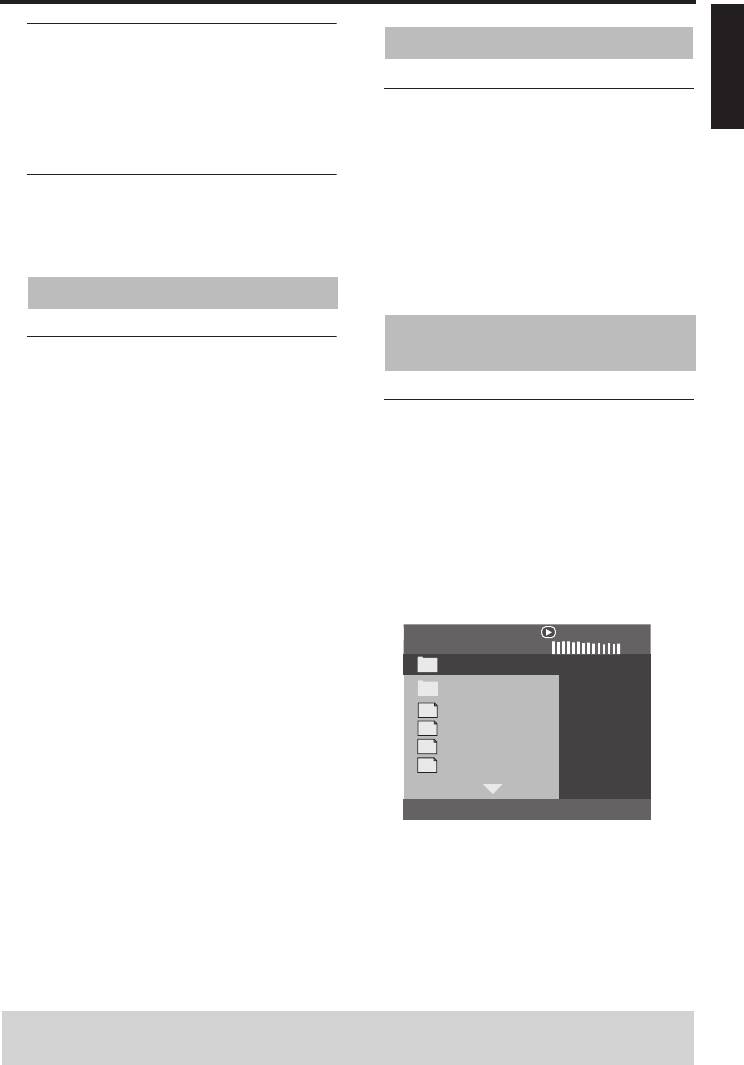
Playing MP3/JPEG/Kodak
Playback control (PBC)
picture CDs
For VCD with playback control
(PBC) feature (version 2.0 only)
General operation
1 Press MENU to toggle between “PBC
1 Load a disc.
ON” and “PBC OFF”.
• The disc reading time may exceed 30
➜ If you select “PBC ON”, the disc menu
seconds due to the complexity of the
(if available) appears on the TV.
directory/file configuration.
2 Use S / T or the numeric buttons
➜ The data disc menu appears on the TV
(0-9) to select a playback option.
screen.
3 During playback, press TOP MENU/
2 Playback starts automatically. If not, press
RETURN to return to the menu screen
PLAY (B).
(if PBC is selected).
00:00 00:00
If you want to skip the index menu
001/020
and play back a disc directly from the
Favorite
beginning,
• Press MENU on the remote control to
MP3
Piano
turn off PBC.
MP3
Cello
MP3
Jazz
MP3
Live
TIPS: The operating features described here might not be possible for certain discs.
Always refer to the instructions supplied with the disc.
17 En
Disc Operations
During playback, you can:
• Press S / T to select another
track/file in the current folder.
• Press PAUSE (;) to pause playback.
Note:
– It may not be possible to play certain MP3/
JPEG discs due to the configuration and
characteristics of the discs or the recording
conditions.
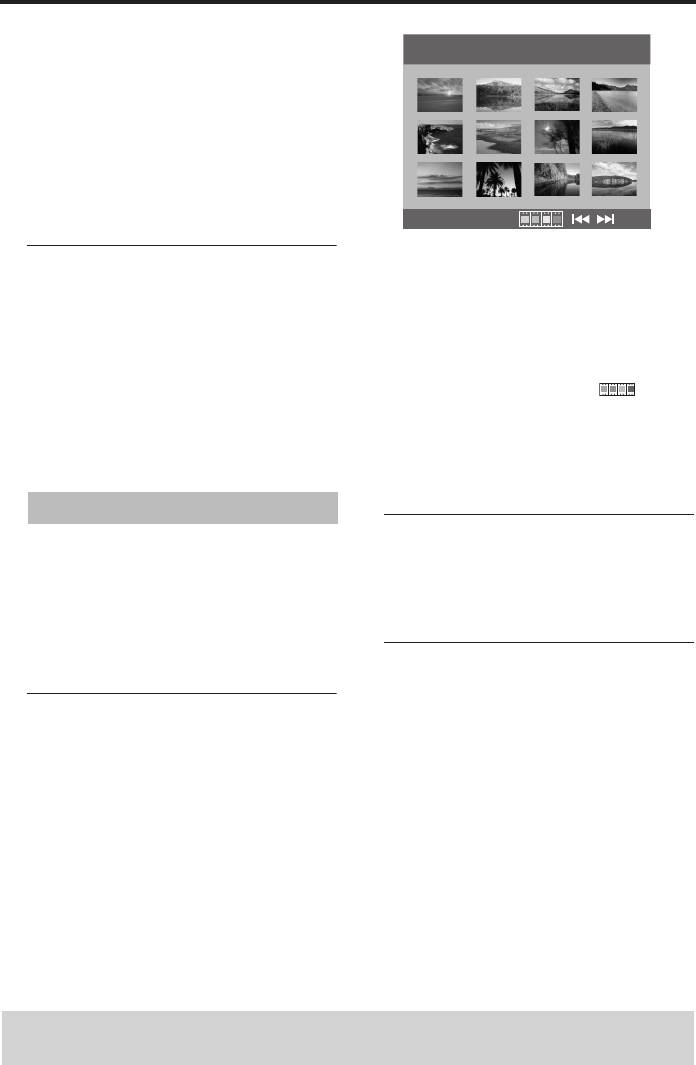
2 Press S / T to display the other
Selecting a folder and track/file
pictures on the previous/next page.
1 Press 3 / 4 to select a folder, and then
3 Use
1 / 2/3 / 4 to highlight one of the
press ENTER/OK to open the folder.
pictures, and then press ENTER/OK to
2 Press 3 / 4 to select a track/file.
start playback.
3 Press ENTER/OK to confirm your
OR
selection.
Move the cursor to highlight on the
➜ Playback starts from the selected track/
bottom of the page to start playback from
file, and continues to all the tracks/files
the first picture on the current page.
on all available folders.
4 Press MENU to return to the picture CD
menu.
Special picture disc features
Zooming pictures
1 Load a picture disc (Kodak Picture CD or
1 During playback, press ZOOM repeatedly
JPEG).
to display the picture at different scales.
➜ For Kodak discs, the slideshow begins.
➜ For JPEG discs, the picture menu
2 Use 1 / 2/3 / 4 to view the zoomed picture.
appears on the TV screen.
2 Press PLAY (B) to start the slideshow.
Playback with multi-angles
• During playback, press 1 / 2/3 / 4 to
rotate the picture on the TV screen.
Preview function (JPEG)
1:
rotates the picture counter-clockwise
This function displays the content of the
2: rotates the picture clockwise
current folder or the entire disc.
3: flips the picture vertically
1 Press STOP (9) during playback.
4: flips the picture horizontally
➜ 12 thumbnail pictures appear on the TV
screen.
TIPS: The operating features described here might not be possible for certain discs.
Always refer to the instructions supplied with the disc.
18 En

Disc Operations
English
Scan effect
• Press ANGLE repeatedly to choose a
scan effect.
➜ Various scan effects appear in the top
left corner of the TV screen.
Playing MP3 music and JPEG
pictures simultaneously
1 Load a disc that contains both music and
picture data.
➜ The disc menu appears on the TV
screen.
2 Select an MP3 track.
3 During MP3 music playback, select a
picture from the TV screen, and then press
PLAY (B).
➜ The picture files are played back one
after another, and playback continues to
all the files on all available folders.
4 To quit simultaneous playback, press
MENU, and then press STOP (9).
Note:
– Some files on Kodak or JPEG discs may be
distorted during playback due to the
configuration and characteristics of the
discs.
TIPS: The operating features described here might not be possible for certain discs.
Always refer to the instructions supplied with the disc.
19 En
Setup Menu
Setup is carried out on the TV screen,
UNLOCK
enabling you to customize this unit to suit
Select this to unlock the disc and allow
your own particular requirements.
future playback.
2 Press 3 / 4 to select a setting, and then
press ENTER/OK to confirm your
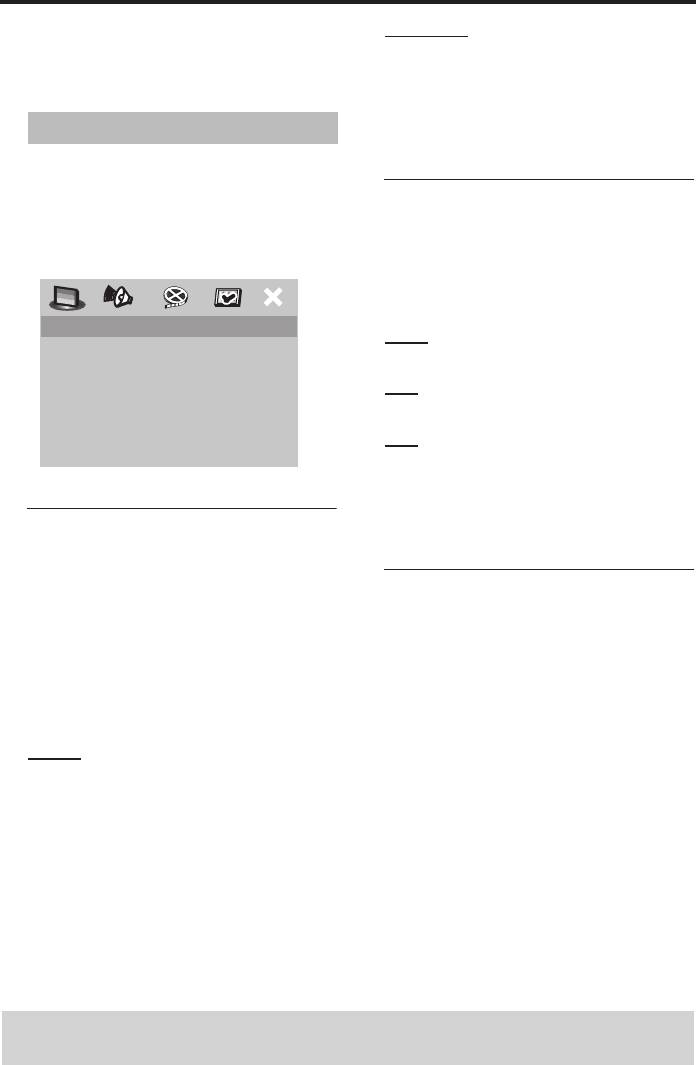
General setup menu
selection.
1 Press SETUP.
2 Press 1
/ 2 to select the “General Setup”
Dimming the front panel display
icon.
You can select different levels of
3 Press ENTER/OK to confirm your
brightness for the front panel display.
selection.
1 In “GENERAL SETUP PAGE”, press 3 / 4
to highlight [DISPLAY DIM], and then
press 2.
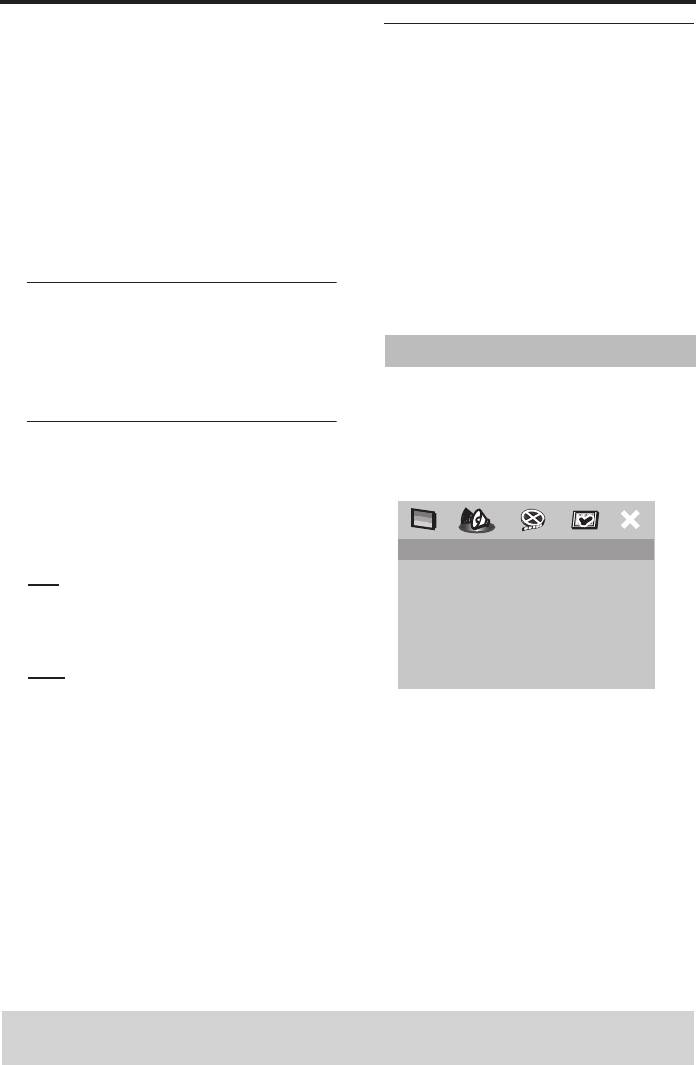
GENERAL SETUP PAGE
100%
DISC LOCK
Select this for full brightness.
DISPLAY DIM
PROGRAM
70%
OSD LANGUAGE
SCREEN SAVER
Select this for medium brightness.
SLEEP
40%
Select this for dimming display.
2 Press 3 / 4 to select a setting, and then
press ENTER/OK to confirm your
Locking/Unlocking the disc for
selection.
viewing
Not all discs are rated or coded by the
Programming disc tracks and
manufacturer of the disc. You can prevent
discs
playback of a specific disc by locking the
disc. You can lock up to 40 discs on this
Program: Track (except picture
unit.
CD/MP3/WMA)
1 In “GENERAL SETUP PAGE”, press 3
/ 4
You can play back the contents of a disc in
to highlight [DISC LOCK], and then
the desired order by programming the
press 2.
tracks to be played. You can store up to 20
LOCK
tracks per disc with a maximum of 10
Select this to lock playback of the current
discs.
disc. Subsequent access to a locked disc
1 In “GENERAL SETUP PAGE”, press 3
/ 4
requires a six-digit password.
to highlight [PROGRAM], and then press 2
The default password is “000 000” (see
to select [FTS].
“Changing the password” on page 29).
TIPS: To return to the previous menu, press 1.
To exit from the menu, press SETUP.
20 En
Setup Menu
2 Press ENTER/OK to confirm your
Program: Disc
English
selection.
You can play back discs in the desired
order by programming the discs to be
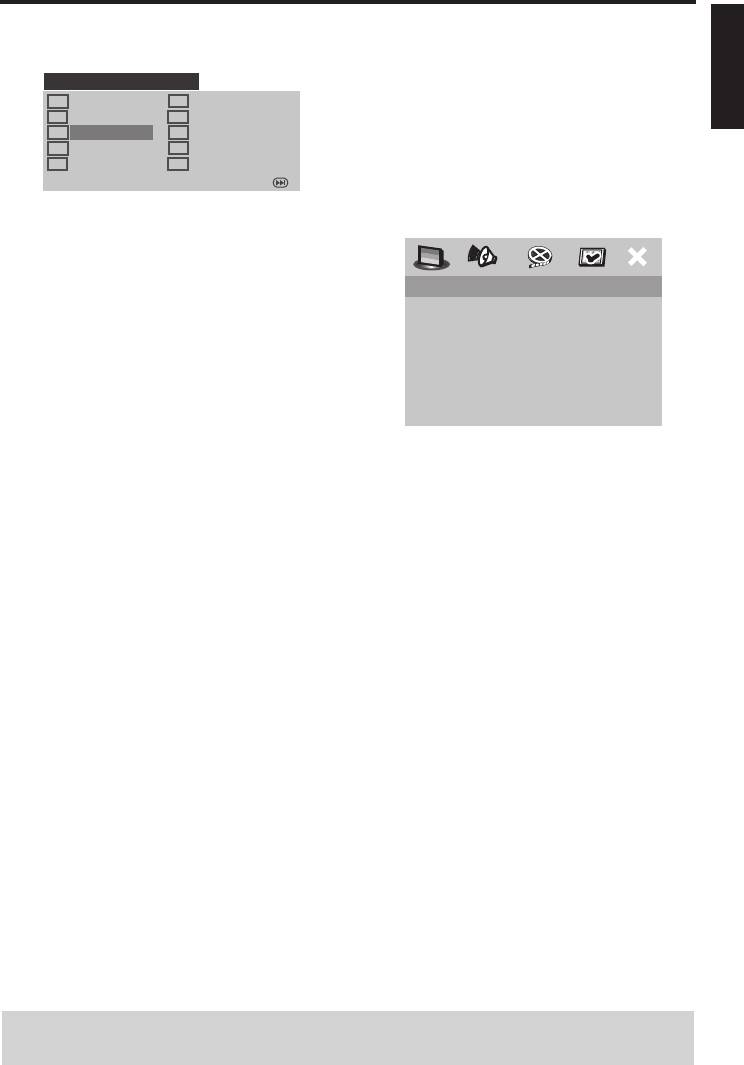
PROGRAM: TRACK: (01-17)
6 _ _
played. You can store up to 5 discs.
1 04
2 10
7 _ _
1 In “GENERAL SETUP PAGE”, press 3
/ 4
3 _ _
8 _ _
4 _ _
9 _ _
to highlight [PROGRAM], and then press 2
5 _ _
10 _ _
to select [FDS].
EXIT START NEXT
2 Press ENTER/OK to confirm your
selection.
To input your favorite tracks/
chapters
3 Use the numeric buttons (0-9) to enter
FAVOURITE DISC SELECTION
a valid track/chapter number.
(1) DISC: _
4 Use 1 / 2/3 / 4 to move the cursor to the
(2) DISC: _
next position.
(3) DISC: _
(4) DISC: _
• If you want to program more than ten
(5) DISC: _
tracks/chapters, press T to move to
the next page, and then proceed with
START EXIT
programming.
OR
To input your favorite discs
• Use
1 / 2/3 / 4 to highlight [NEXT] on
3 Use the numeric buttons (0-9) to enter
the program menu, and then press
a valid disc number.
ENTER/OK.
4 Use
1 / 2/3 / 4 to move the cursor to the
5 Repeat step 3 to input another track/
next position.
chapter number.
5 Repeat steps 3–4 to input another disc
To remove a track
number.
6 Use 1 / 2/3 / 4 to move the cursor to the
track you want to remove.
To remove a disc
6 Use 1 / 2/3 / 4 to move the cursor to the
7 Press ENTER/OK or 0 on the numeric
disc you want to remove.
buttons (0-9) to remove the track from
the program menu.
7 Press 0 on the numeric buttons (0-9) to
remove the disc from the program menu.
TIPS: To return to the previous menu, press 1.
To exit from the menu, press SETUP.
21 En
Setup Menu
To start program playback
Sleep timer
• Use 1 / 2/3 / 4 to highlight [START] on
This feature automatically sets this unit to
the program menu, and then press
standby mode after a certain elapsed
ENTER/OK.
period.
➜ Playback starts for the selected tracks
or discs in the programmed sequence.
1 In “GENERAL SETUP PAGE”, press 3 / 4
to highlight [SLEEP], and then press 2.
To exit from program playback
2 Press 3 / 4 to select a setting.
• Use 1 / 2/3 / 4 to highlight [EXIT] on the
• You can select from 15, 30, 45 and 60
program menu, and then press
minutes. Select [OFF] to cancel the
ENTER/OK.
sleep timer function.
3 Press ENTER/OK to confirm your
OSD language
selection.
This menu contains various options for the
on-screen display (OSD) language. For
Audio setup menu
details, see “Setting the OSD language” on
page 11.
1 Press SETUP.
2 Press 1
/ 2 to select the “Audio Setup”
Screen saver
icon.
Use this feature to turn on or off the
3 Press ENTER/OK to confirm your
screen saver.
selection.
1 In “GENERAL SETUP PAGE”, press 3 / 4
to highlight [SCREEN SAVER], and then
press 2.
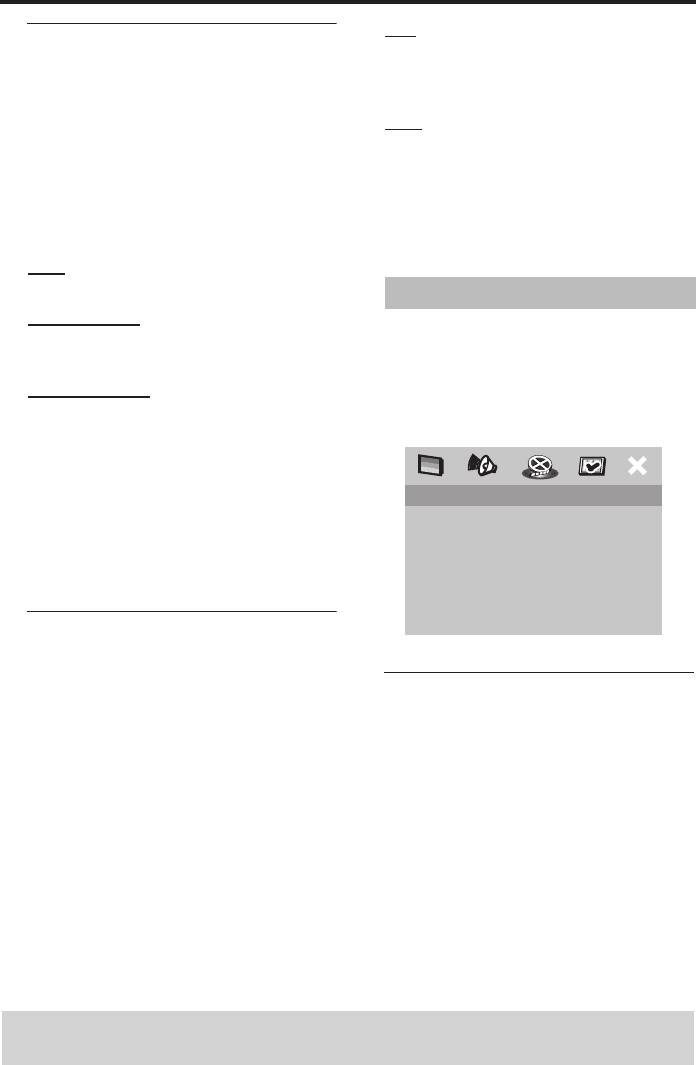
AUDIO SETUP PAGE
ANALOG OUTPUT
ON
DIGITAL AUDIO
Select this if you wish to turn on the screen
CD UPSAMPLING
saver when disc playback is stopped or
NIGHT MODE
paused for more than 15 minutes.
OFF
Select this to disable the screen saver
function.
2 Press 3 / 4 to select a setting, and then
press ENTER/OK to confirm your
selection.
TIPS: To return to the previous menu, press 1.
To exit from the menu, press SETUP.
22 En

Setup Menu
PCM ONLY
English
Setting the analog output
Select this only if your receiver is not
Set the analog output to match the
capable of decoding multi-channel audio
playback capability of this unit.
signals.
1 In “AUDIO SETUP PAGE”, press 3 / 4 to
Note:
highlight [ANALOG OUTPUT], and then
– If your receiver cannot decode DTS, no
press 2.
sound output from DTS signals in any
STEREO
mode.
Select this to change the channel output to
stereo, which only delivers sound from the
LPCM OUTPUT
two front speakers.
Select this if you have connected this unit
LT/RT
to a PCM-compatible receiver via a digital
terminal, such as the coaxial terminal. In
Select this if this unit is connected to a
this case, you may need to adjust “LPCM
Dolby Pro Logic decoder.
OUTPUT”.
2 Press 3 / 4 to select a setting, and then
Discs are recorded at a certain sampling
press ENTER/OK to confirm your
rate. The higher the sampling rate, the
selection.
better the sound quality.
48KHz
Setting the digital output
Select this to play back discs recorded at
The [DIGITAL AUDIO] options are:
the sampling rate of 48 kHz. All 96 kHz
“DIGITAL OUTPUT” and “LPCM
PCM data streams (if available) are
OUTPUT”.
converted to the sampling rate of 48 kHz.
1 In “AUDIO SETUP PAGE”, press 3 / 4 to
96KHz
highlight [DIGITAL AUDIO], and then
Select this to play back discs recorded at
press 2.
the sampling rate of 96 kHz. If the 96 kHz
2 Press 3 / 4 to highlight an option.
disc is copy protected, the digital output is
3 Press 2 to enter a submenu.
automatically converted to the sampling
rate of 48 kHz.
DIGITAL OUTPUT
4 Press 3
/ 4 to select a setting, and then
Set the digital output according to your
press ENTER/OK to confirm your
optional audio component connections.
selection.
OFF
Select this to turn off the digital output.
ALL
Select this if you have connected the digital
audio output jack to a multi-channel
decoder/receiver.
TIPS: To return to the previous menu, press 1.
To exit from the menu, press SETUP.
23 En
Setup Menu
ON
CD upsampling
Select this to level out the volume. This
Use this feature to convert your music CD
feature is only available for movies with the
to a higher sampling rate using
Dolby Digital mode.
sophisticated digital signal processing for
OFF
better sound quality. If you activate the
upsampling function, this unit automatically
Select this when you want to enjoy the full
switches to the stereo mode.
dynamic range of surround sound.
1 In “AUDIO SETUP PAGE”, press 3
/ 4 to
2 Press 3 / 4 to select a setting, and then
highlight [CD UPSAMPLING], and then
press ENTER/OK to confirm your
press 2.
selection.
OFF
Select this to disable CD-upsampling.
Video setup menu
88.2kHz (X2)
1 Press SETUP.
Select this to convert the sampling rate of
2 Press 1
/ 2 to select the “Video Setup”
CDs to twice that of the original.
icon.
176.4kHz (X4)
3 Press ENTER/OK to confirm your
Select this to convert the sampling rate of
selection.
CDs to four times that of the original.
2 Press 3 / 4 to select a setting, and then
press ENTER/OK to confirm your
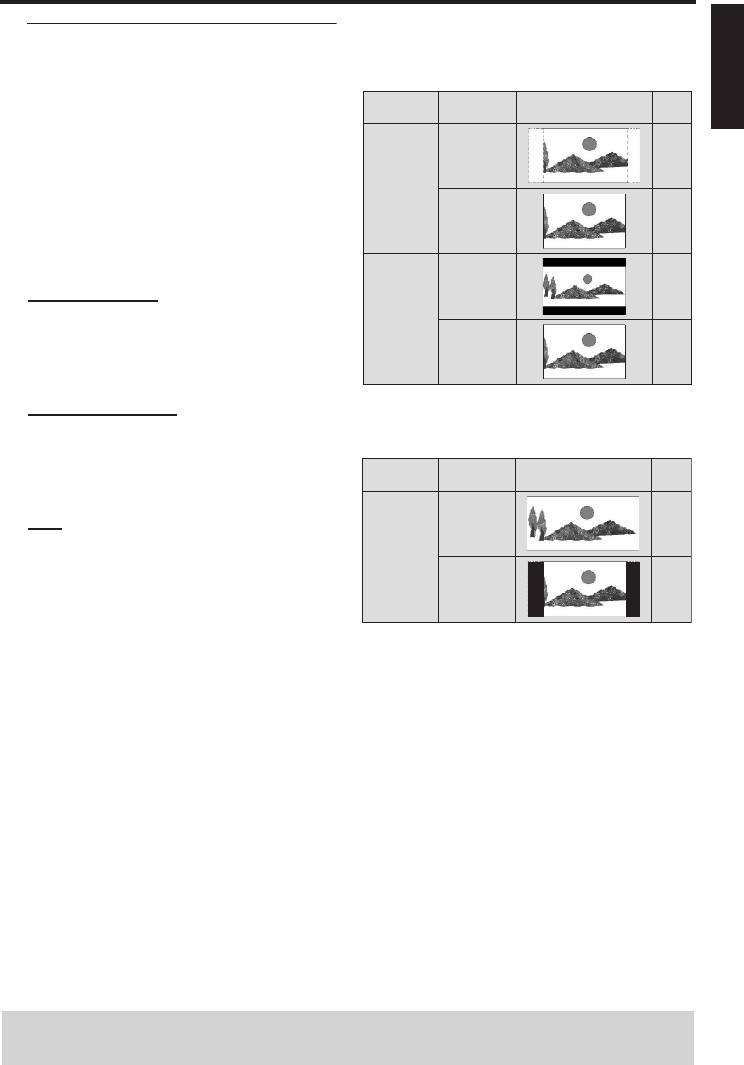
VIDEO SETUP PAGE
selection.
TV TYPE
Note:
TV DISPLAY
PROGRESSIVE
– This setting is only valid for signals output at
PICTURE SETTING
the analog jacks.
COMPONENT
Night mode
In the night mode, high volume output is
softened and low volume output is brought
TV type
upward to an audible level. It is useful when
you watch your favorite action movie
Use this feature to select a color system
without disturbing others at night.
that matches your TV. For details, see
“Setting a TV type and display” on page 9.
1 In “AUDIO SETUP PAGE”, press 3
/ 4
to highlight [NIGHT MODE], and then
press 2.
TIPS: To return to the previous menu, press 1.
To exit from the menu, press SETUP.
24 En
Setup Menu
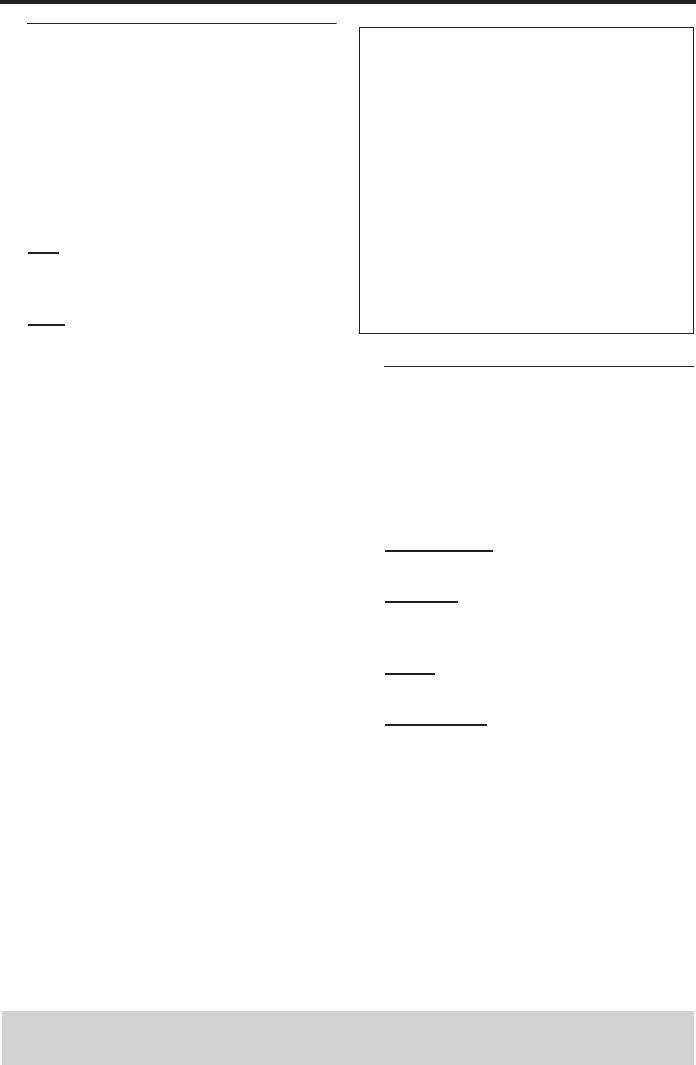
The relationship between the setting of
English
Setting the TV display
this unit and the TV display
Set the aspect ratio of this unit to match
When the aspect ratio of your TV is 4:3:
your TV. The format you select must be
Playback
available on the disc. Otherwise, the TV
Setting
TV display
disc
display setting will not affect the picture
during playback.
16:9
1
*
1 In “VIDEO SETUP PAGE”, press 3
/ 4
4:3 PAN
SCAN
to highlight [TV DISPLAY], and then
press 2.
4:3
2 Press 3 / 4 to highlight one of the following
options.
16:9
4:3 PAN SCAN
4:3 LETTER
Select this if the aspect ratio of your TV is
BOX
4:3 and you want both sides of the picture
4:3
to be trimmed or formatted to fit your TV
screen.
4:3 LETTER BOX
When the aspect ratio of your TV is 16:9
Select this if the aspect ratio of your TV is
(widescreen):
4:3. In this case, a wide picture with black
Playback
bands on the upper and lower portions of
Setting
TV display
disc
the TV screen are displayed.
16:9
16:9
Select this if you have a widescreen TV.
16:9
4:3
2
3 Select an item, and then press
*
ENTER/OK to confirm your selection.
*1: If the disc is not assigned to playback
with panscan, it is played with
letterbox.
*2: The side of the picture may be
stretched depending on the TV. In this
case, check the screen size and aspect
ratio of your TV.
TIPS: To return to the previous menu, press 1.
To exit from the menu, press SETUP.
25 En
Setup Menu
Progressive
CONSUMERS SHOULD NOTE THAT NOT ALL
HIGH DEFINITION TELEVISION SETS ARE FULLY
This feature is only valid if you have
COMPATIBLE WITH THIS PRODUCT AND MAY
connected this unit to a progressive scan
CAUSE ARTIFACTS TO BE DISPLAYED IN THE
TV through the component video jacks
PICTURE. IN CASE OF 525 OR 625 PROGRESSIVE
(see “Component video jacks <B>” on
SCAN PICTURE PROBLEMS, IT IS RECOMMENDED
page 7).
THAT THE USER SWITCH THE CONNECTION
TO THE “STANDARD DEFINITION” OUTPUT. IF
1 In “VIDEO SETUP PAGE”, press 3
/ 4
THERE ARE QUESTIONS REGARDING OUR
to highlight [PROGRESSIVE], and then
VIDEO MONITOR COMPATIBILITY WITH THIS
press 2.
MODEL 525P AND 625P DVD PLAYER, PLEASE
CONTACT OUR CUSTOMER SERVICE CENTER.
ON
This unit is compatible with the complete line of
Select this to enable the progressive scan
YAMAHA products, including the projectors
function.
DPX-1300, DPX-830 and the plasma monitor
OFF
PDM-4220.
Select this to disable the progressive scan
function.
Picture settings
2 Press 3 / 4 to select a setting, and then
This unit comes with three predefined sets
press ENTER/OK to confirm your
of picture color settings and one personal
selection.
setting that you can define yourself.
Notes on activating progressive scan:
1 In “VIDEO SETUP PAGE”, press 3 / 4 to
– Ensure that your TV is equipped with
highlight [PICTURE SETTING], and then
progressive scan.
press 2.
– Connect using a component video
STANDARD
cable.
Select this for the standard picture setting.
– Ensure that “COMPONENT is set to
BRIGHT
“YUV” (see “Switching the YUV/RGB”
Select this to make the TV picture
on page 27).
brighter.
–When the progressive scan is active, the
VIDEO (CVBS) jack and the AV (SCART)
SOFT
terminal do not output video signals.
Select this to make the TV picture softer.
– If no picture is displayed, wait for 15
PERSONAL
seconds for this unit to activate
Select this to personalize your picture
automatic recovery, or deactivate
color by adjusting the brightness, contrast,
progressive scan manually as follows:
tint and color (saturation).
1 Press /
(OPEN/CLOSE) on the
2 Press 3 / 4 to select a setting, and then
front panel to open the disc tray.
press ENTER/OK to confirm your
2 Press 1.
selection.
3 Press ANGLE.
TIPS: To return to the previous menu, press 1.
To exit from the menu, press SETUP.
26 En
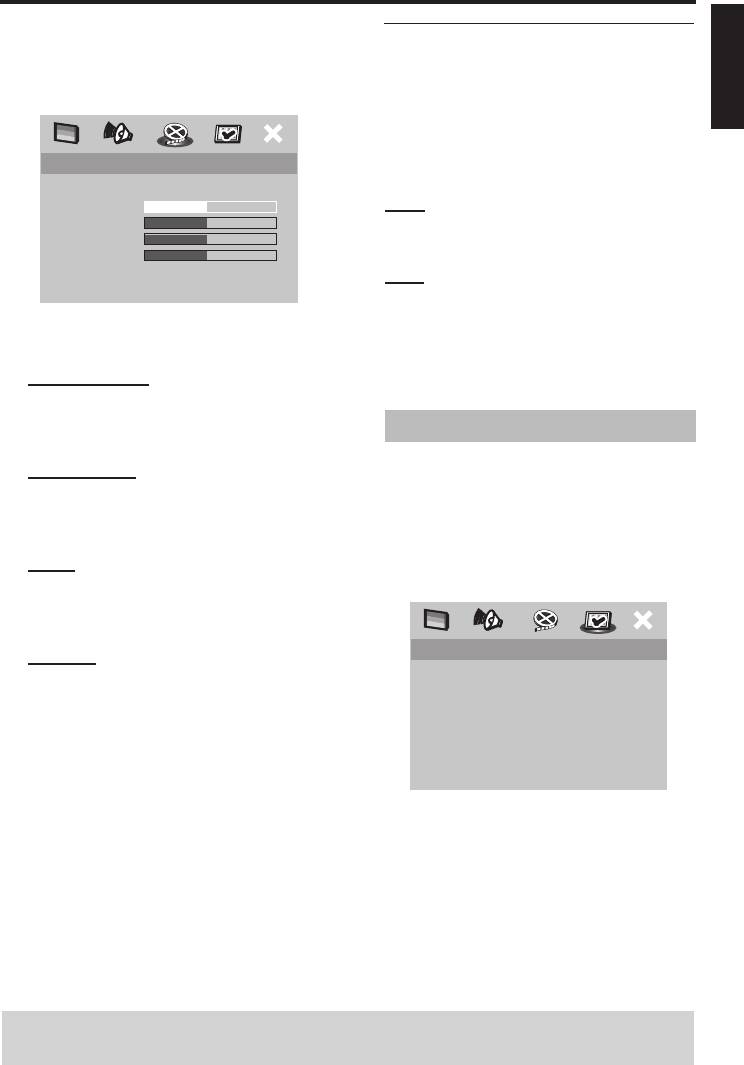
Setup Menu
3 If you selected [PERSONAL] in step 1,
English
Switching the YUV/RGB
proceed to steps 4–7:
Use this feature to toggle the video signal
➜ The “PERSONAL PICTURE SETUP”
output between YUV (Y PB PR) and RGB
menu appears.
(on SCART).
1 In “VIDEO SETUP PAGE”, press 3 / 4 to
highlight [COMPONENT], and then
PERSONAL PICTURE SETUP
press 2.
BRIGHTNESS
0
YUV
CONTRAST
0
Select this for the component video
TINT
0
COLOR
connection.
0
RGB
Select this for SCART connection.
4 Press 3 / 4 to select one of the following
2 Press 3 / 4 to select a setting, and then
options.
press ENTER/OK to confirm your
selection.
BRIGHTNESS
Increase the value to brighten the picture
or vice versa. Zero (0) is the average
Preference setup menu
brightness setting value.
1 Press STOP (9) twice to stop playback (if
CONTRAST
necessary), and then press SETUP.
Increase the value to sharpen the picture
2 Press 1
/ 2 to select the “Preference
or vice versa. Zero (0) is the average
Setup” icon.
contrast setting value.
3 Press ENTER/OK to confirm your
TINT
selection.
Increase the value to darken the picture or
vice versa. Zero (0) is the average tint
setting value.
PREFERENCE PAGE
COLOR
AUDIO
Increase the value to enhance the color in
SUBTITLE
DISC MENU
your picture or vice versa. Zero (0) is the
PARENTAL
average color setting value.
PBC
MP3/JPEG NAV
5 Press 1
/ 2 to adjust the setting that best
PASSWORD
suits your personal preference.
DEFAULT
6 Repeat steps 4–5 to adjust other color
features.
7 Press ENTER/OK to confirm your
selection.
TIPS: To return to the previous menu, press 1.
To exit from the menu, press SETUP.
27 En
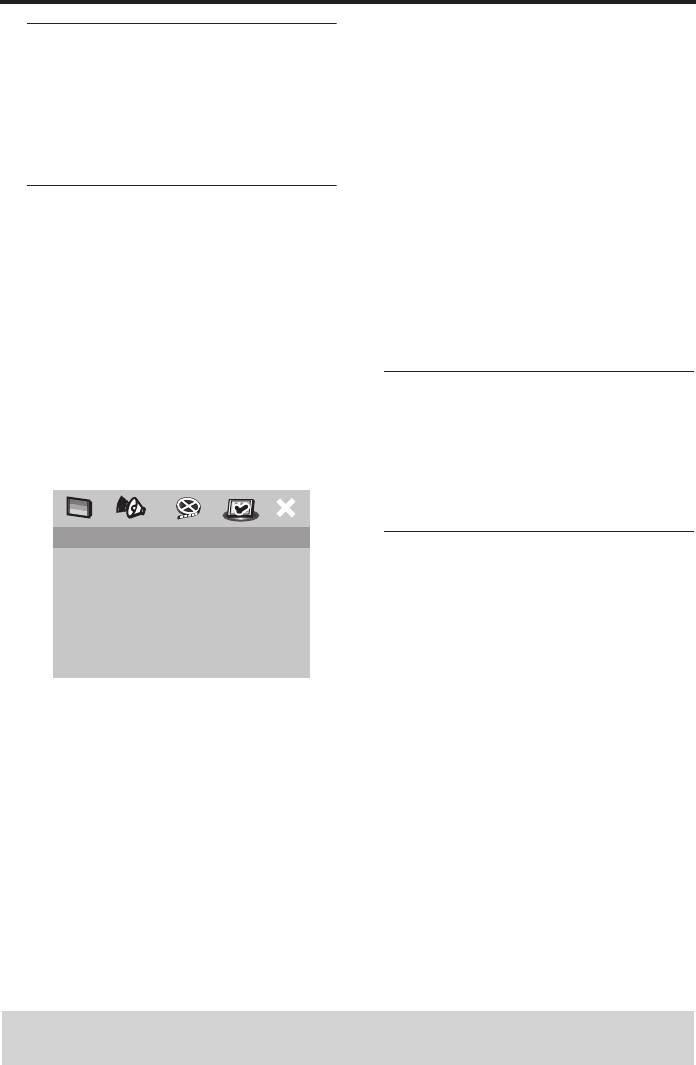
Setup Menu
3 Use the numeric buttons (0-9) to enter
Audio, subtitle and disc menu
the six-digit password (see “Changing the
These menus contain various language
password” on page 29).
options for the audio, subtitles and disc
➜ DVDs that are rated above the level you
menus recorded on the DVD. For details,
selected do not play unless you enter
see “Setting the audio, subtitle and disc
the six-digit password.
menu languages” on page 11.
Notes:
– VCD, SVCD, and CD have no level
Restricting playback with
indication, so the parental control function
parental control
has no effect with these types of discs. This
Some DVDs may have a parental level
also applies to most illegal DVD discs.
assigned to the complete disc or to certain
– Some DVDs are not encoded with a rating
scenes on the disc. This feature lets you set
though the movie rating may be printed on
a playback limitation level.
the disc cover. The rating level feature does
The rating levels are from 1 to 8 and are
not work for such discs.
country dependent. You can prohibit
playback of certain discs that are not
PBC (Playback control)
suitable for your children or play certain
You can turn on or off PBC. This feature is
discs in alternative scenes.
available only on Video CD 2.0 with the
1 In “PREFERENCE PAGE”, press 3
/ 4 to
playback control (PBC) feature. For
highlight [PARENTAL], and then press 2.
details, see “Playback control (PBC)” on
page 17.
PREFERENCE PAGE
MP3/JPEG menu
AUDIO 1 KID SAFE
SUBTITLE 2 G
MP3/JPEG Navigator can be set only if the
DISC MENU 3 PG
disc was recorded with a menu. It allows
PARENTAL 4 PG 13
you to select different display menus for
PBC 5 PGR
MP3/JPEG NAV 6 R
easy navigation.
PASSWORD 7 NC 17
1 In “PREFERENCE PAGE”, press 3
/ 4
DEFAULT 8 ADULT
to highlight [MP3/JPEG NAV], and then
2 Press 3
/ 4 to highlight a rating level for the
press 2.
inserted disc, and then press ENTER/OK
to confirm your selection.
• To disable parental controls and have all
discs play, select [8 ADULT].
TIPS: To return to the previous menu, press 1.
To exit from the menu, press SETUP.
28 En
Setup Menu
WITH MENU
English
Select this to display only the folder menu
of the MP3/Picture CD.
WITHOUT MENU
OLD PASSWORD
Select this to display all the files contained
NEW PASSWORD
in the MP3/Picture CD.
CONFIRM PWD
2 Press 3 / 4 to select a setting, and then
OK
press ENTER/OK to confirm your
selection.
3 Use the numeric buttons (0-9) to enter
your old six-digit password.
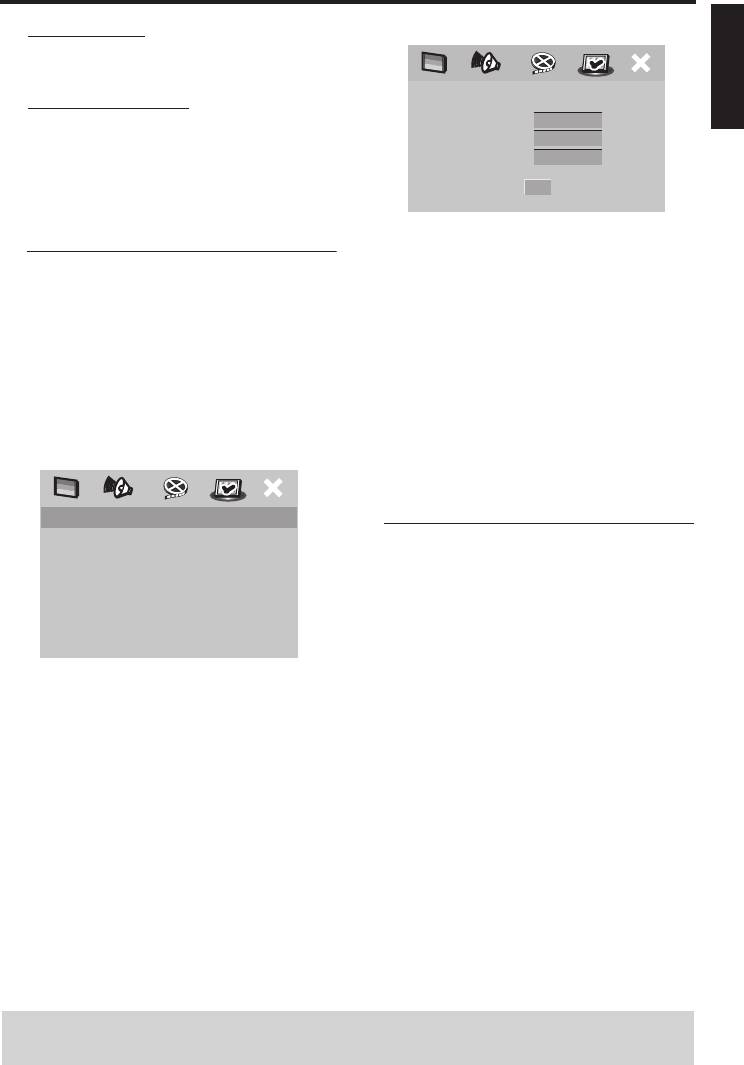
Changing the password
• When doing this for the first time, enter
The same password is used for both
“000 000”.
Parental Control and Disc Lock. Enter
• If you forgot your old six-digit
your six-digit password when prompted
password, enter “000 000”.
on the screen. The default password is 000
4 Enter the new six-digit password.
000.
5 Enter the new six-digit password again to
1 In “PREFERENCE PAGE”, press 3
/ 4 to
confirm the password.
highlight [PASSWORD], and then press 2
➜ The new six-digit password is now valid.
to select [CHANGE].
6 Press ENTER/OK to confirm your new
password.
PREFERENCE PAGE
AUDIO
Resetting the system
SUBTITLE
Setting the DEFAULT function resets all
DISC MENU
PARENTAL
options and your personal settings to the
PBC
initial factory settings, except your
MP3/JPEG NAV
password for PARENTAL and DISC
PASSWORD CHANGE
DEFAULT
LOCK.
1 In “PREFERENCE PAGE”, press 3
/ 4 to
2 Press ENTER/OK to enter the
highlight [DEFAULT], and then press 2 to
“Password Change Page”.
select [RESET].
2 Press ENTER/OK to confirm your
selection.
➜ All settings are reset to the initial
factory settings.
TIPS: To return to the previous menu, press 1.
To exit from the menu, press SETUP.
29 En
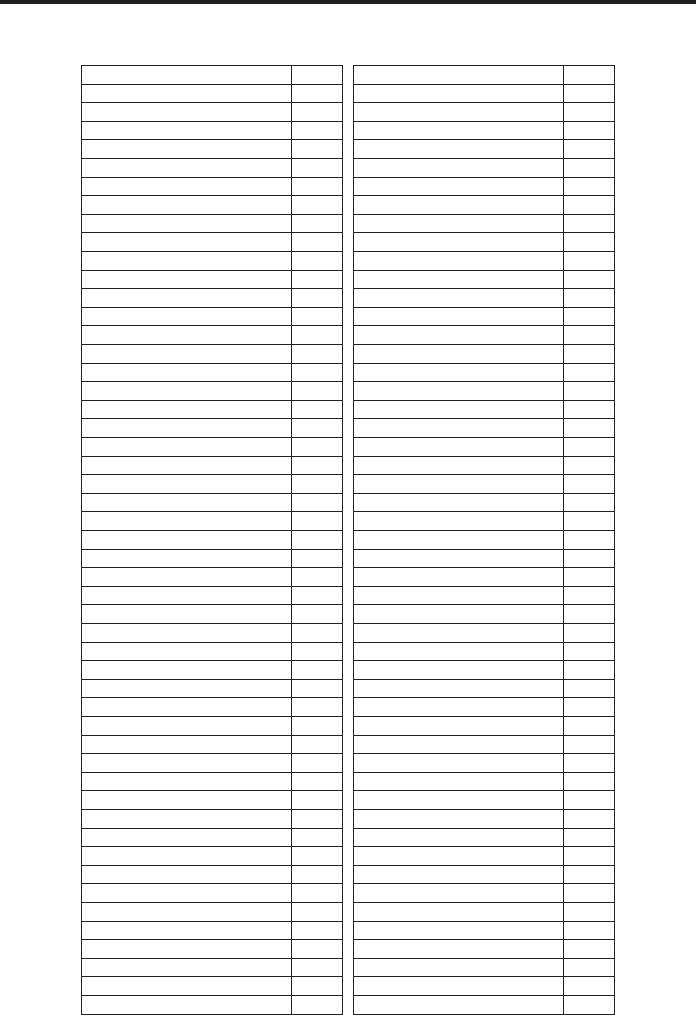
Language Code
These codes can be used to select other languages. This does not affect the
options in “AUDIO”, “SUBTITLE” or “DISC MENU”.
Abkhazian 6566 German 6869
Afar 6565 Gikuyu; Kikuyu 7573
Afrikaans 6570 Greek, 6976
Albanian 8381 Guarani 7178
Amharic 6577 Gujarati 7185
Arabic 6582 Hausa 7265
Armenian 7289 Hebrew 7269
Assamese 6583 Herero 7290
Avestan 6569 Hindi 7273
Aymara 6589 Hiri Motu 7279
Azerbaijani 6590 Hungarian 7285
Bashkir 6665 Icelandic 7383
Basque 6985 Ido 7379
Belarusian 6669 Indonesian 7368
Bengali 6678 Interlingua (International) 7365
Bihari 6672 Interlingue 7369
Bislama 6673 Inuktitut 7385
Bokmål, Norwegian 7866 Inupiaq 7375
Bosnian 6683 Irish 7165
Breton 6682 Italian 7384
Bulgarian 6671 Japanese 7465
Burmese 7789 Javanese 7486
Castilian, Spanish 6983 Kalaallisut 7576
Catalan 6765 Kannada 7578
Chamorro 6772 Kashmiri 7583
Chechen 6769 Kazakh 7575
Chewa; Chichewa; Nyanja 7889 Khmer 7577
Chichewa; Chewa; Nyanja 7889 Kikuyu; Gikuyu 7573
Chinese 9072 Kinyarwanda 8287
Chuang; Zhuang 9065 Kirghiz 7589
Church Slavic; Slavonic; 6785 Komi 7586
Church Slavonic; Church 6785 Korean 7579
Chuvash 6786 Kuanyama; Kwanyama 7574
Cornish 7587 Kurdish 7585
Corsican 6779 Kwanyama; Kuanyama 7574
Croatian 7282 Lao 7679
Czech 6783 Latin 7665
Danish 6865 Latvian 7686
Dutch 7876 Letzeburgesch; 7666
Dzongkha 6890 Limburgan; Limburger; 7673
English 6978 Limburger; Limburgan; 7673
Esperanto 6979 Limburgish; Limburger; 7673
Estonian 6984 Lingala 7678
Faroese 7079 Lithuanian 7684
Fijian 7074 Luxembourgish; 7666
Finnish 7073 Macedonian 7775
French 7082 Malagasy 7771
Frisian 7089 Malay 7783
Gaelic; Scottish Gaelic 7168 Malayalam 7776
Gallegan 7176 Maltese 7784
Georgian 7565 Manx 7186
30 En
Language Code
These codes can be used to select other languages. This does not affect the
English
options in “AUDIO”, “SUBTITLE” or “DISC MENU”.
Maori 7773 Sotho, Southem 8384
Marathi 7782 South Ndebele 7882
Marshallese 7772 Spanish; Castilian 6983
Moldavian 7779 Sundanese 8385
Mongolian 7778 Swahili 8387
Nauru 7865 Swati 8383
Navaho, Navajo 7886 Swedish 8386
Navajo; Navaho 7886 Tagalog 8476
Ndebele, North 7868 Tahitian 8489
Ndebele, South 7882 Tajik 8471
Ndonga 7871 Tamil 8465
Nepali 7869 Tatar 8484
Northern Sami 8369 Telugu 8469
North Ndebele 7868 Thai 8472
Norwegian 7879 Tibetan 6679
Norwegian Bokmål; Bokmål, 7866 Tigrinya 8473
Norwegian Nynorsk; 7878 Tonga (Tonga Islands) 8479
Nyanja; Chichewa; Chewa 7889 Tsonga 8483
Nynorsk, Norwegian; 7878 Tswana 8478
Occitan (post 1500); Proven 7967 Turkish 8482
Old Bulgarian; Old Slavonic; 6785 Turkmen 8475
Old Church Slavonic; Old 6785 Twi 8487
Old Slavonic; Church 6785 Uighur 8571
Oriya 7982 Ukrainian 8575
Oromo 7977 Urdu 8582
Ossetian; Ossetic 7983 Uzbek 8590
Ossetic; Ossetian 7983 Vietnamese 8673
Pali 8073 Volapük 8679
Panjabi 8065 Walloon 8765
Persian 7065 Welsh 6789
Polish 8076 Wolof 8779
Portuguese 8084 Xhosa 8872
Provençal; Occitan (post) 7967 Yiddish 8973
Pushto 8083 Yoruba 8979
Quechua 8185 Zhuang; Chuang 9065
Raeto-Romance 8277 Zulu 9085
Romanian 8279
Rundi 8278
Russian 8285
Samoan 8377
Sango 8371
Sanskrit 8365
Sardinian 8367
Scottish Gaelic; Gaelic 7168
Serbian 8382
Shona 8378
Sindhi 8368
Sinhalese 8373
Slovak 8375
Slovenian 8376
Somali 8379
31 En
Troubleshooting
Refer to the chart below when this unit does not function properly. If the
problem you are experiencing is not listed below or if the instruction below does
not help, set this unit to the standby mode, disconnect the power cord, and
contact the nearest authorized YAMAHA dealer or service center.
Problem Solution
No power – Check if the AC power cord is properly connected.
– Press STANDBY/ON on the front panel of this unit to turn
on the power.
No picture – Refer to the manual supplied with your TV for correct Video
In channel selection. Change the TV channel until you see
the DVD screen.
– Check if the TV is turned on.
– Make sure the video signal output setting of this unit matches
the video connection (see “Switching the YUV/RGB” on
page 27).
– If you do not use progressive scan connections (using the
component video (Y PB PR) jacks of this unit) and no picture
is displayed on the TV, follow the steps below to turn off the
progressive scan;
1. Press / (OPEN/CLOSE) on the front panel to open the
disc tray.
2. Press 1 on the remote control.
3. Press ANGLE on the remote control to deactivate
progressive scan. This unit is set to Component/Interlaced
video.
Distorted picture
– Occasionally, a small amount of picture distortion may
appear depending on the disc being played back. This is not
a malfunction.
Completely distorted picture
– Make sure the disc is compatible with this unit (see “Notes
or black/white picture with
on discs” on page 2).
DVD
– Ensure that the TV type of this unit is set to match that of
the disc and your TV (see “Setting a color system for your
TV” on page 9).
The screen size looks
– Make sure the TV setting of this unit matches the screen size
unnatural, or the caption is
of your TV (see “Setting the TV display” on page 25).
displayed only partially on the
– Change the screen size and the aspect ratio of your TV.
TV monitor or is not displayed
at all
No sound or distorted sound – Adjust the volume.
– Check that the speakers are connected correctly.
32 En
Troubleshooting
English
Problem Solution
No audio at digital output
– Check the digital connections.
– If you are playing a DTS source, check that your receiver can
decode DTS and “DIGITAL OUTPUT” is set to “ALL” (see
page 23).
– If you are playing an MPEG-2 source, check that your
receiver can decode MPEG-2. Otherwise, make sure
“DIGITAL OUTPUT” is set to “PCM ONLY” (see page 23).
– Check if the audio format of the selected audio language
matches your receiver capabilities.
Disc does not play – The DVD+R/RW, DVD-R/RW, CD-R/RW must be
finalized.
– Ensure the disc label is facing up.
– Check if the disc is defective by trying another disc.
– If you have recorded a picture CD or MP3 CD yourself,
ensure that your disc contains at least 10 pictures or 5 MP3
tracks.
– Region code is incorrect (see “Region codes” on page 2).
Picture freezes momentarily
– Check the disc for fingerprints/scratches and clean it with a
during playback
soft cloth wiping from center to edge.
This unit does not respond to
– Aim the remote control directly at the remote control
the remote control
sensor on the front panel of this unit.
– Reduce the distance of the remote control from this unit.
– Replace the batteries in the remote control.
– Reinsert the batteries with their polarities (+/– signs) as
indicated.
Buttons do not work – To completely reset this unit, unplug the AC cord from the
AC outlet for 5-10 seconds.
This unit does not respond to
– Operations may not be permitted by the disc. Refer to the
some operating commands
instructions of the disc jacket.
during playback
This unit cannot read CDs/
– Use a commonly available CD/DVD lens cleaner to clean
DVDs
the lens before sending this unit for repair.
Menu items cannot be selected – Press STOP (9) twice on the remote control before
selecting Setup Menu.
– Depending on the disc availability, some menu items cannot
be selected.
Unable to turn on or off a
– Check that the video signal output is switch to “YUV” (see
progressive scan
“Switching the YUV/RGB” on page 27).
33 En
Glossary
Analo
g: Sound that has not been turned into
MP3:
A file format with a sound data compression
numbers. Analog sound varies, while digital sound
system. “MP3” is the abbreviation of Motion Picture
has specific numerical values. These jacks send audio
Experts Group 1 (or MPEG-1) Audio Layer 3. By using
through two channels, the left and right.
MP3 format, one CD-R or CD-RW can contain about
10 times as much data volume as a regular CD can.
Aspect ratio:
The ratio of vertical and horizontal
sizes of a displayed image. The horizontal vs. vertical
Parental Control: A function of the DVD to limit
ratio of conventional TVs. is 4:3, and that of
playback of the disc by the age of the users
widescreens is 16:9.
according to the limitation level in each country. The
limitation varies from disc to disc; when it is
A
UDIO OUT Jacks: Jacks on the back of this
activated, playback will be prohibited if the level of
unit that send audio to another system (TV, Stereo,
the software is higher than the user-set level.
etc.).
PCM (Pulse Code Modulation):
A system for
Bit Rate:
The amount of data used to hold a given
converting analog sound signal to digital signal for
length of music; measured in kilobits per seconds, or
later processing, with no data compression used in
kbps. Or, the speed at which you record. Generally,
conversion.
the higher the bit rate, or the higher the recording
speed, the better the sound quality. However, higher
Pla
yback control (PBC): Refers to the signal
bit rates use more space on a Disc.
recorded on video CDs or SVCDs for controlling
reproduction. By using menu screens recorded on a
Cha
pter: Sections of a picture or a music piece on
Video CD or SVCD that supports PBC, you can
a DVD that are smaller than titles. A title is
enjoy interactive-type software as well as software
composed of several chapters. Each chapter is
having a search function.
assigned a chapter number enabling you to locate
the chapter you want.
Pr
ogressive scan: It displays all the horizontal
lines of a picture at one time, as a signal frame. This
Component
Video Out Jacks: Jacks on the
system can convert the interlaced video from DVD
back of this unit that send high-quality video to a TV
into progressive format for connection to a
that has Component Video In jacks (R/G/B, Y/PB/PR,
progressive display. It dramatically increases the
etc.).
vertical resolution.
Disc menu: A screen display prepared for allowing
Region code:
A system for allowing discs to be
selection of images, sounds, subtitles, multi-angles,
played back only in the region designated
etc. recorded on a DVD.
beforehand. This unit only plays discs that have
Digital:
Sound that has been converted into
compatible region codes. You can find the region
numerical values. Digital sound is available when you
code of your unit by looking on the product label.
use the digital audio output jacks. These jacks send
Some discs are compatible with more than one
audio through multiple channels, instead of just two
region (or ALL regions).
channels as analog does.
S-Video:
Produces a clear picture by sending
Dolb
y Digital: A surround sound system
separate signals for the luminance and the color. You
developed by Dolby Laboratories containing up to
can use S-Video only if your TV has S- video In jack.
six channels of digital audio (front left and right,
Sur
round: A system for creating realistic three
surround left and right, center and subwoofer).
dimensional sound fields full of realism by arranging
DTS: Digital Theatre Systems. This is a surround
multiple speakers around the listener.
sound system, but it is different from Dolby Digital.
Title:
The longest section of a picture or music
The formats were developed by different companies.
feature on DVD, music, etc., in video software, or
JPEG:
A very common digital still picture format. A
the entire album in audio software. Each title is
still-picture data compression system proposed by
assigned a title number enabling you to locate the
the Joint Photographic Expert Group, which
title you want.
features small decrease in image quality in spite of its
VIDEO OUT jack:
Jack on the back of this unit
high compression ratio.
that sends video to a TV.
34 En
Specifications
PLAYBACK SYSTEM
TV STANDARD (PAL/50 Hz) (NTSC/60 Hz)
English
DVD-Video
Number of lines 625 525
Video CD & SVCD
Playback Multistandard (PAL/NTSC)
CD
PICTURE CD
CONNECTIONS
CD-R, CD-RW
SCART Euroconnector
DVD+R, DVD+RW
Y Output Cinch (green)
DVD-R, DVD-RW
PB/CB Output Cinch (blue)
PR/CR Output Cinch (red)
VIDEO PERFORMANCE
Video Output Cinch
Video (CVBS) output 1 Vpp into 75 ohm
Audio Output (L+R) Cinch
RGB (SCART) output 0.7 Vpp into 75 ohm
Digital Output 1 coaxial
Component video output Y: 1 Vpp into 75 ohm
IEC60958 for CDDA/LPCM
P
B/CB PR/CR: 0.7 Vpp into
IEC61937 for MPEG 1/2, Dolby
75 ohm
Digital and DTS
AUDIO FORMAT
CABINET
Digital Mpeg/Dolby Digital/ Compressed Digital
Dimensions (w x d x h) 435 x 425 x 75 mm
DTS
Weight Approx. 5.5 Kg
PCM 16, 20, 24 bits
fs, 44.1, 48, 96 kHz
POWER SUPPLY
MP3(ISO 9660) 24, 32, 56, 64, 96, 128,
Power inlet 230 V, 50 Hz
256 kbps
Power usage Approx. 15 W
fs, 16, 22.05, 24, 32,
Power usage standby < 1 W
44.1, 48 kHz
WMA 32–192 kbps, mono, stereo
Analog Sound Stereo
AUDIO PERFORMANCE
DA Converter 24 bit
Specifications are subject to change without
Signal-Noise (1 kHz) 115 dB
prior notice.
Dynamic range (1 kHz) 100 dB
DVD fs 96 kHz 2 Hz - 44 kHz
fs 48 kHz 2 Hz - 22 kHz
SVCD fs 48 kHz 2 Hz - 22 kHz
fs 44.1 kHz 2 Hz - 20 kHz
CD/VCD fs 44.1 kHz 2 Hz - 20 kHz
Distortion and Noise (1 kHz) 0.003%
35 En
ATTENTION: TENIR COMPTE DES PRECAUTIONS CI-
DESSOUS AVANT DE FAIRE FONCTIONNER L’APPAREIL.
1 Afin de garantir un fonctionnement correct, il est
13 N’essayez jamais de modifier ou de réparer cet
impératif de lire ce manuel. Conservez-le pour
appareil. Adressez-vous à un SAV reconnu par
toute référence ultérieure.
YAMAHA en cas de besoin. Le boîtier ne peut en
2 Veillez à installer cette unité à un endroit bien ventilé,
aucun cas être ouvert par l’utilisateur.
frais, sec et propre. Evitez de le placer en plein soleil,
14 Si vous pensez ne pas utiliser cette unité pendant
à proximité d’une source de chaleur, de l’exposer à
un certain temps (lorsque vous partez en
des vibrations, à de la poussière, à l’humidité ou au
vacances, par exemple), débranchez le cordon
froid. Si vous le logez dans une armoire, veillez à
d’alimentation de la prise secteur.
laisser un espace d'environ 2,5 cm tout autour de
15 Veillez à lire “Guide de dépannage” et à prendre
l'appareil pour assurer une bonne ventilation.
les mesures qui s’imposent avant de conclure que
3 Evitez de placer cette unité à proximité d’autres
cette unité ne fonctionne plus correctement.
appareils électriques, de moteurs ou de transformateurs
16 Avant de transporter cette unité, il convient
pour ne pas l’exposer à des interférences.
d’appuyer sur STANDBY/ON pour placer l’unité
4 Evitez des sauts de température drastiques (froid–chaud)
en état de veille et d’ensuite débrancher le
et n’utilisez jamais cette unité à un endroit humide (dans
cordon d’alimentation de la prise secteur.
une pièce avec humidificateur, par exemple) pour éviter
17 Installez l’appareil près de la prise secteur et à un
tout risque de condensation à l’intérieur de l’unité. Cela
endroit tel que la fiche secteur soit facilement
pourrait produire des électrocutions, un incendie,
accessible.
d’endommager l’unité et/ou de provoquer des blessures.
5 N’installez jamais cette unité à un endroit où des objets
L’appareil n’est pas isolé de la source d’alimentation
ou des éclaboussures pourraient tomber sur son
aussi longtemps qu’il reste branché sur une prise
boîtier. Ne placez jamais les objets suivants sur l’unité:
murale, même lorsqu’il est éteint. Il est alors dit en
– D’autres appareils de votre installation; ils
mode “Veille”. Dans ce mode, l’appareil consomme
pourraient en effet endommager et/ou
très peu de courant.
provoquer une décoloration du boîtier.
–
Des objets brûlants (bougies, etc.); ils pourraient
provoquer un incendie, endommager l’unité et/
ATTENTION
ou causer des dommages corporels.
AFIN DE REDUIRE LES RISQUES D’INCENDIE ET
–
Tout objet contenant un liquide; il pourrait en
DE DECHARGE ELECTRIQUE, NE PAS EXPOSER
effet être renversé et être à l’origine d’une
CET APPAREIL A LA PLUIE OU A L’HUMIDITE.
électrocution ou de l’endommagement de l’unité.
6 Evitez de couvrir l’unité au moyen d’un journal, d’une
Veillez a placer cet appareil sur une surface
nappe, d’un rideau, etc., afin de garantir une bonne
ventilation. Une température trop élevée à l’intérieur du
plane.
boîtier peut provoquer un incendie, l’endommagement
Si l’appareil n’est pas bien horizontal, il ne fonctionnera
de l’unité et/ou des blessures corporelles.
pas normalement pour l’operation PLAYXCHANGE,
7 Veillez à ne relier l’unité à une prise secteur
ce qui risque d’endommager les disques et l’appareil
qu’après avoir établi toutes les connexions requises.
lui-meme
.
8 Il convient de ne jamais utiliser l’unité dans une
position renversée, car cela pourrait provoquer
LASER
une surchauffe et d’éventuels dommages.
Type
Laser à semi-conducteur GaAlAs
9 Maniez les touches, commandes et/ou câbles avec soin.
Longueur d’onde 650 nm (DVD)
10 Pour déconnecter l’unité de la prise murale, il convient
780 nm (VCD/CD)
de tirer sur la fiche – jamais sur le câble d’alimentation.
Puissance de sortie 7 mW (DVD)
11 Ne nettoyez jamais le boîtier avec des solvants
10 mW (VCD/CD)
chimiques. Ils pourraient en effet attaquer la
Divergence de faisceau
60 degrés
finition. Utilisez plutôt un chiffon propre et sec.
12 Veillez à ne brancher l’unité qu’à une prise murale
répondant aux exigences de voltage mentionnées
en face arrière. L’utilisation de cette unité avec un
Reportez-vous aux pages i et ii au début du
voltage plus élevé est dangereux et peut provoquer
manuel pour de plus amples informations.
un incendie ou, pour le moins, endommager l’unité.
YAMAHA décline toute responsabilité pour des
dommages causés par l’utilisation d’un voltage autre
que celui figurant en face arrière.


