
Sony BRAVIA KDL-26S2000: Connecting optional equipment Connecting to the TV (side)
Connecting optional equipment Connecting to the TV (side): Sony BRAVIA KDL-26S2000
Table of contents
- WARNING Introduction Notice for Digital TV function
- Table of Contents
- Start-up Guide 1: Checking the 2: Connecting an aerial/ accessories VCR
- 3: Bundling the cables 5: Selecting the language and country/ region 4: Preventing the TV from toppling over
- 6: Auto-tuning the TV
- Safety information
- GB
- GB
- Precautions
- Overview of the remote
- Overview of the TV buttons and indicators
- Watching TV
- To access Text Picture Freeze To change the screen mode manually to suit the broadcast Using the Tools menu
- Checking the Digital Electronic Programme Guide To Do this
- To Do this
- Using the Favourite list * To Do this
- Viewing pictures from connected equipment
- Navigating through menus Menu Description
- Picture menu
- Noise Reduction Advanced Settings
- Sound menu
- Dual Sound
- Screen menu
- Set-up menu
- All Reset
- PC Settings menu
- Analogue Set-up menu (Analogue mode only)
- Manual Programme Preset
- Digital Set-up menu Digital Tuning
- Digital Set-up
- Connecting optional equipment Connecting to the TV (side)
- Connecting to the TV (rear)
- Using the Tools menu in PC input mode
- Specifications
- PC Input Signal Reference Chart
- Troubleshooting Picture Problem Cause/Remedy
- Sound Channels General
- Index
Using Optional Equipment
Connecting optional equipment
You can connect a wide range of optional equipment to your TV. Connecting cables are not supplied.
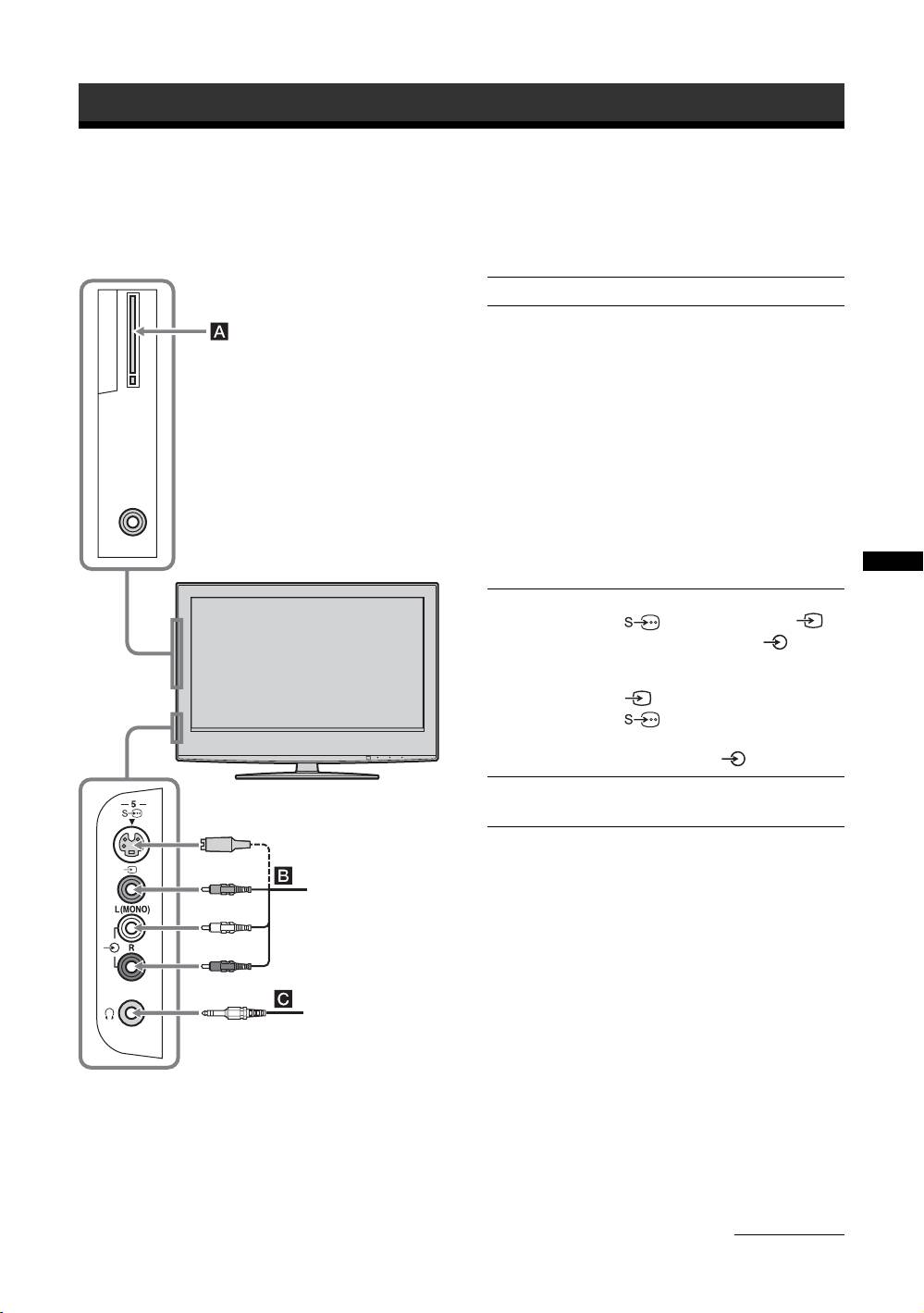
Connecting to the TV (side)
To connect Do this
Conditional Access
To use Pay Per View services.
Module (CAM) A
For details, refer to the instruction
manual supplied with your CAM.
To use the CAM, remove the
rubber cover from the CAM slot.
Switch off the TV when inserting
your CAM into the CAM slot.
When you do not use the CAM, we
recommend that you replace the
cover on the CAM slot.
Note
CAM is not supported in all
countries. Please check with your
authorized dealer.
Using Optional Equipment
S VHS/Hi8/DVC
Connect to the S video socket
camcorder B
5 or the video socket 5,
and the audio sockets 5. To
avoid picture noise, do not connect
the camcorder to the video socket
5 and the S video socket
5 at the same time. If you
connect mono equipment, connect
to the L socket 5.
Headphones C Connect to the i socket to listen to
sound from the TV on headphones.
S VHS/Hi8/DVC
camcorder
Headphones
Continued
GB
33
