
Sony BRAVIA KDL-26S2000: Analogue Set-up menu (Analogue mode only)
Analogue Set-up menu (Analogue mode only): Sony BRAVIA KDL-26S2000
Table of contents
- WARNING Introduction Notice for Digital TV function
- Table of Contents
- Start-up Guide 1: Checking the 2: Connecting an aerial/ accessories VCR
- 3: Bundling the cables 5: Selecting the language and country/ region 4: Preventing the TV from toppling over
- 6: Auto-tuning the TV
- Safety information
- GB
- GB
- Precautions
- Overview of the remote
- Overview of the TV buttons and indicators
- Watching TV
- To access Text Picture Freeze To change the screen mode manually to suit the broadcast Using the Tools menu
- Checking the Digital Electronic Programme Guide To Do this
- To Do this
- Using the Favourite list * To Do this
- Viewing pictures from connected equipment
- Navigating through menus Menu Description
- Picture menu
- Noise Reduction Advanced Settings
- Sound menu
- Dual Sound
- Screen menu
- Set-up menu
- All Reset
- PC Settings menu
- Analogue Set-up menu (Analogue mode only)
- Manual Programme Preset
- Digital Set-up menu Digital Tuning
- Digital Set-up
- Connecting optional equipment Connecting to the TV (side)
- Connecting to the TV (rear)
- Using the Tools menu in PC input mode
- Specifications
- PC Input Signal Reference Chart
- Troubleshooting Picture Problem Cause/Remedy
- Sound Channels General
- Index
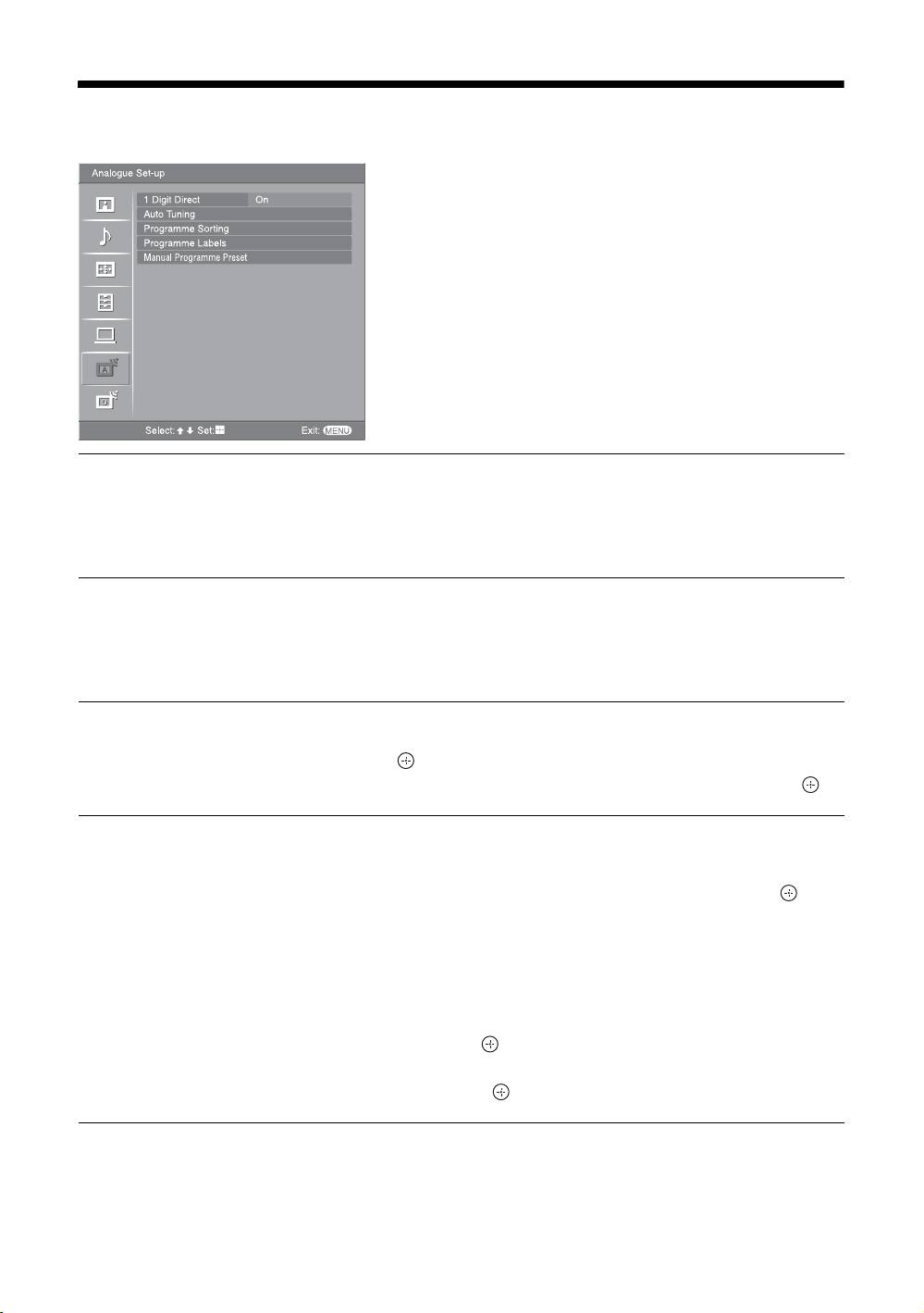
Analogue Set-up menu (Analogue mode only)
You can change/set the analogue settings using the
Analogue Set-up menu. To select options in
“Settings”, see “Navigating through menus”
(page 19).
1 Digit Direct
When “1 Digit Direct” is set to “On”, you can select an analogue channel using one
preset number button (0 - 9) on the remote.
Note
When “1 Digit Direct” is set to “On”, you cannot select channel numbers 10 and above entering
two digits using the remote.
Auto Tuning
Tunes in all the available analogue channels.
Usually you do not need to do this operation because the channels are already tuned
when the TV was first installed (page 5, 6). However, this option allows you to
repeat the process (e.g., to retune the TV after moving house, or to search for new
channels that have been launched by broadcasters).
Programme Sorting
Changes the order in which the analogue channels are stored on the TV.
1 Press
F/f to select the channel you want to move to a new position,
then press .
2 Press
F/f to select the new position for your channel, then press .
Programme Labels
Assigns a channel name of your choice up to five letters or numbers. The name will
be displayed briefly on the screen when the channel is selected. (Names for channels
are usually taken automatically from Text (if available).)
1 Press
F/f to select the channel you want to name, then press .
2 Press
F/f to select the desired letter or number (“_” for a blank space),
then press
g.
If you input a wrong character
Press G/g to select the wrong character. Then, press F/f to select the correct
character.
To delete all the characters
Select “Reset”, then press .
3 Repeat the procedure in step 2 until the name is complete.
4 Select “OK”, then press .
GB
28
