
Sony CPD-E400P: Using the control button Displaying the current input signal Resetting the adjustments
Using the control button Displaying the current input signal Resetting the adjustments: Sony CPD-E400P
Table of contents
- Owner’s Record
- Table of Contents
- Precautions
- Identifying parts and controls
- Setup Step 1:Connect your monitor to your computer
- Step 2:Connect the power cord Step 3:Turn on the monitor and computer
- Selecting the on-screen menu Customizing Your Monitor language (LANG) Navigating the menu
- Using the control button Displaying the current input signal Resetting the adjustments
- Adjusting the brightness and Adjusting the centering of the contrast picture (CENTER) Adjusting the size of the picture (SIZE) Enlarging or reducing the picture (ZOOM)
- Adjusting the shape of the picture Adjusting the color of the picture (GEOM) (COLOR)
- Adjusting the convergence (CONV) Additional settings (OPTION)
- Helpful hints and information (HELP)
- Resetting the adjustments
- Technical Features Troubleshooting
- Trouble symptoms and remedies Symptom Check these items
- Symptom Check these items
- Self-diagnosis function Specifications
x
Using the control button
6
66
6 CONV (page 12)
CONVERGENCE
Selects the CONV menu to adjust
the picture’s horizontal and vertical
1
Display the main MENU.
convergence.
26
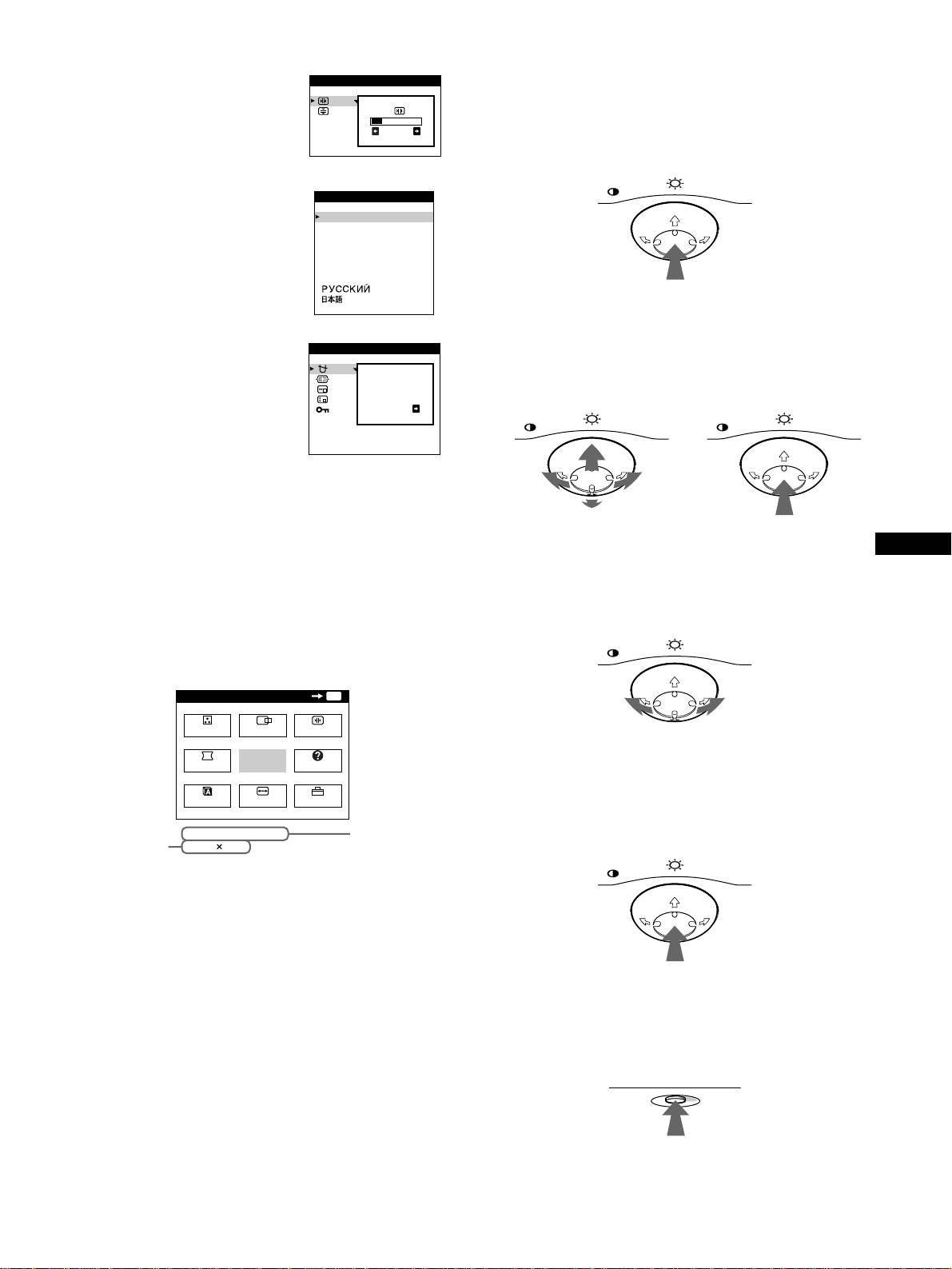
Press the center of the control button to display the main
MENU on your screen.
7
77
7 LANG (page 8)
LANGUAGE
Selects the LANG menu to choose
ENGL ISH
FRANÇA IS
the on-screen menu’s language.
DEUTSCH
ESPAÑOL
ITALIANO
NEDERLANDS
SVENSKA
2
Select the menu you want to adjust.
Highlight the desired menu by moving the control button
8
88
8 OPTION (page 12)
OPT I ON
towards the rear to go up (M), towards the front to go down
Selects the OPTION menu to adjust
(m), and left (<) or right (,) to move sideways.
the monitor’s options. The options
DEGAUSS
include:
ON
• degaussing the screen
• adjusting the moire cancellation
level
• changing the on-screen menu
position
• locking the controls
9
99
9 EXIT
GB
Select EXIT to close the menu.
3
Adjust the menu.
Move the control button left (<) or right (,) to make the
adjustment.
x
Displaying the current input signal
The horizontal and vertical frequencies of the current input signal
are displayed in the main MENU. If the signal matches one of this
monitor’s factory preset modes, the resolution is also displayed.
MENU
OK
MENU
COLOR
CENTER
CONV
4
Close the menu.
GEOM
EXIT
HELP
Press the center of the control button once to return to the
main MENU, and twice to return to normal viewing. If no
LANG
SIZE
OPTION
buttons are pressed, the menu closes automatically after about
30 seconds.
68.7kHz/ 85Hz
the horizontal
the r
esolution
1024
768
and vertical
of the curre
nt
frequencies of
input signal
the current
input signal
x
Resetting the adjustments
Press the RESET button. See page 14 for more information on
resetting the adjustments.
9
MENU
FRONT
MENU MENU
REAR
MENU
MENU
RESET
