
Sony CPD-E400P: Helpful hints and information (HELP)
Helpful hints and information (HELP): Sony CPD-E400P
Table of contents
- Owner’s Record
- Table of Contents
- Precautions
- Identifying parts and controls
- Setup Step 1:Connect your monitor to your computer
- Step 2:Connect the power cord Step 3:Turn on the monitor and computer
- Selecting the on-screen menu Customizing Your Monitor language (LANG) Navigating the menu
- Using the control button Displaying the current input signal Resetting the adjustments
- Adjusting the brightness and Adjusting the centering of the contrast picture (CENTER) Adjusting the size of the picture (SIZE) Enlarging or reducing the picture (ZOOM)
- Adjusting the shape of the picture Adjusting the color of the picture (GEOM) (COLOR)
- Adjusting the convergence (CONV) Additional settings (OPTION)
- Helpful hints and information (HELP)
- Resetting the adjustments
- Technical Features Troubleshooting
- Trouble symptoms and remedies Symptom Check these items
- Symptom Check these items
- Self-diagnosis function Specifications
Locking the controls
Helpful hints and information
To protect adjustment data by locking the controls, first
move the control button m/M to select (CONTROL
(HELP)
LOCK). Then move the control button ,, to select ON.
Only the 1 (power) switch, EXIT, and (CONTROL LOCK)
The HELP menu contains helpful hints and information about this
of the OPTION menu will operate. If any other items are selected,
monitor. If your monitor is displaying symptoms that match those
the mark appears on the screen.
listed in the HELP menu, follow the on-screen instructions to
resolve the problem. If the symptoms do not match those listed in
To cancel the control lock
the HELP menu or if the problem persists, see “Trouble
Repeat the procedure above and set (CONTROL LOCK) to OFF.
symptoms and remedies” on page 16.
1
Press the center of the control button.
The main MENU appears on the screen.
2
Move the control button to highlight HELP and
press the center of the control button again.
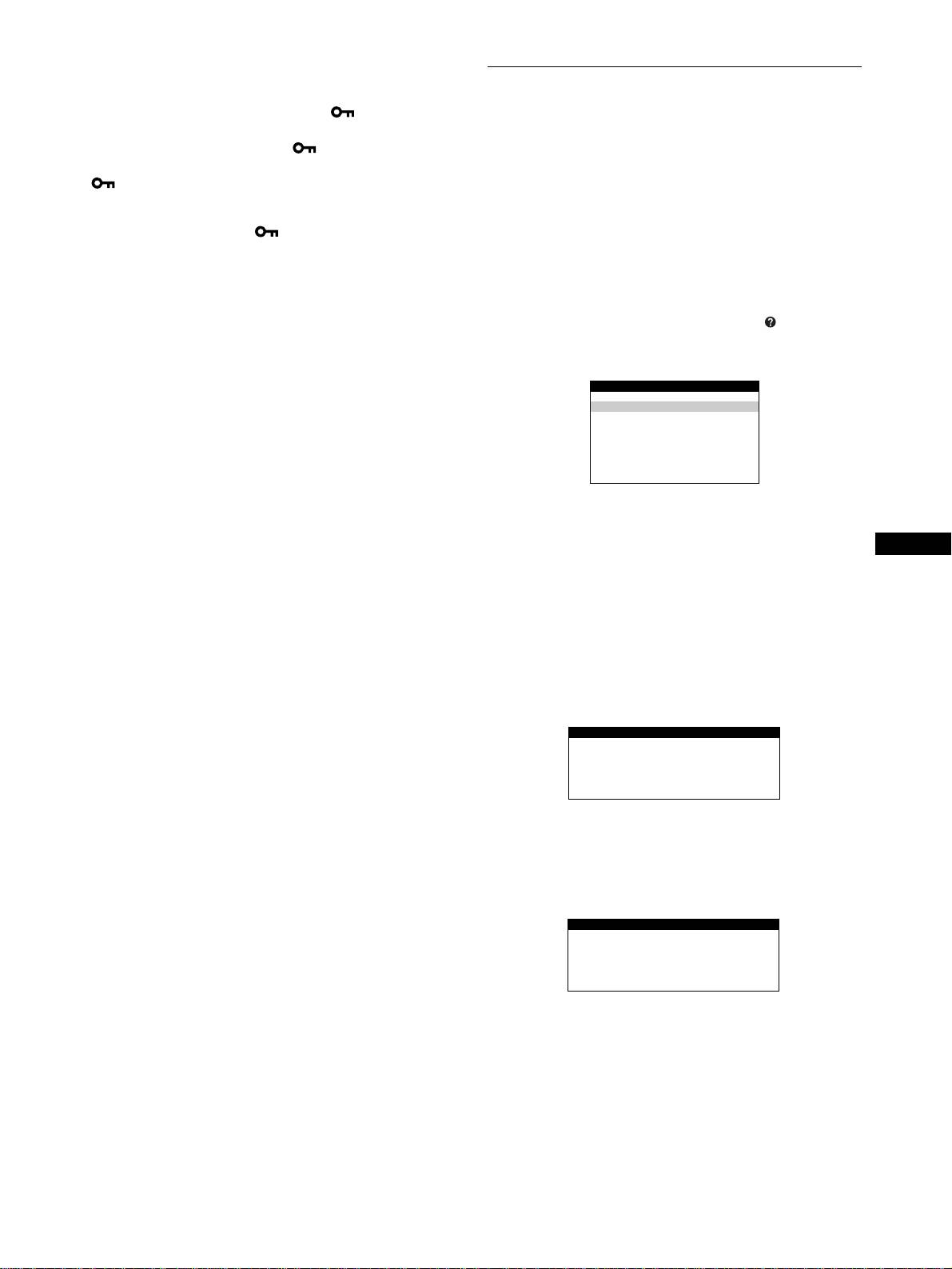
The following HELP menu appears on the screen.
3
Move the control button m/M to select a HELP menu
item and press the center of the control button
again.
GB
Instructions or information to resolve the problem appears on
the screen. An explanation of each menu item is given below.
RECOMMENDED RESOLUTION
If the picture does not fill the screen to the edges or if the picture
appears too large for the screen, adjust the resolution to the figures
shown in the menu using your computer. If the input signal
matches one of this monitor’s factory preset modes, the resolution
and refresh rate of the current input signal are displayed.
FLICKER
If the picture is flickering, adjust the refresh rate to figures shown
in the menu. If the input signal matches one of this monitor’s
factory preset modes, the refresh rate of the current input signal is
displayed.
13
HELP
RETURN TO MA IN MENU
RECOMMENDED RESOLUT ION
FLICKER
TH I N HOR I ZONTAL L I NE
DISTORTED SHAPE
OUT OF FOCUS
DI SCOLORAT ION
RECOMMENDED RESOLUT ION
SET RESOLUT ION TO
1280X1024 AT 85Hz USING PC.
CURRENT SETT I NG I S
1280X1024 AT 75Hz.
FLICKER
SET REFRESH RATE TO
75Hz OR 85Hz USING PC.
CURRENT SETT I NG I S 60Hz .
(continued)
